Annual Interagency Accessibility Forum Unlocking the Power of Accessibility October 11-13, 2022 Creating Accessible PDF Forms Regina A. Wendling, Government Information Specialist Approaching Forms 2 Choose the approach that works best for
"Annual Interagency Accessibility Forum Unlocking" is the property of its rightful owner. Permission is granted to
download and print the materials on this website for personal, non-commercial use only, and to display it
on your personal computer provided you do not modify the materials and that you retain all copyright
notices contained in the materials. By downloading content from our website, you accept the terms of this
agreement.
Presentation Transcript
01
Annual Interagency Accessibility Forum Unlocking the Power of Accessibility October 11-13, 2022 Creating Accessible PDF Forms Regina A. Wendling, Government Information Specialist<br>
02
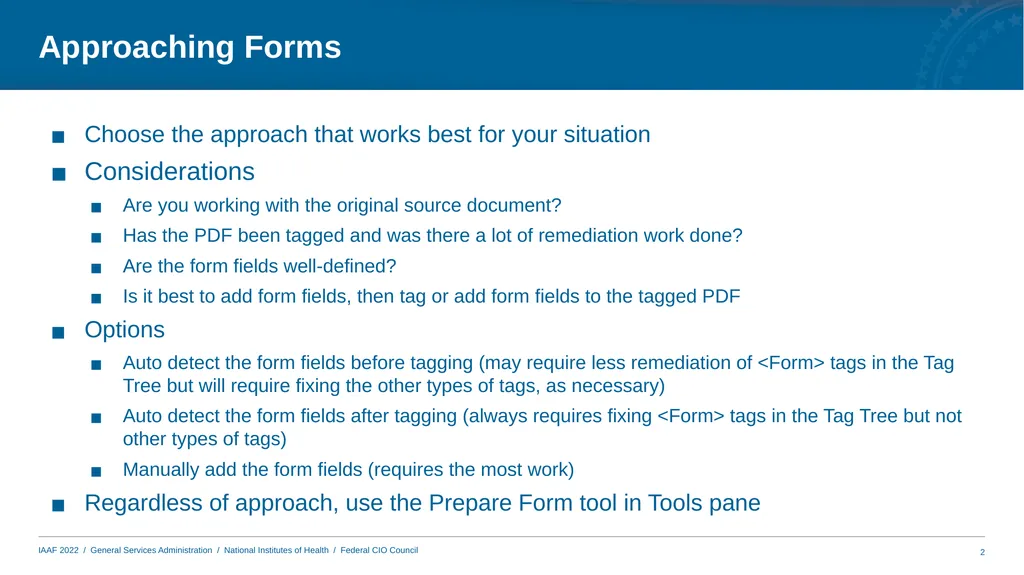
Approaching Forms 2 Choose the approach that works best for your situation
Considerations
Are you working with the original source document?
Has the PDF been tagged and was there a lot of remediation work done?
Are the form fields well-defined?
Is it best to add form fields, then tag or add form fields to the tagged PDF
Options
Auto detect the form fields before tagging (may require less remediation of <Form> tags in the Tag Tree but will require fixing the other types of tags, as necessary)
Auto detect the form fields after tagging (always requires fixing <Form> tags in the Tag Tree but not other types of tags)
Manually add the form fields (requires the most work)
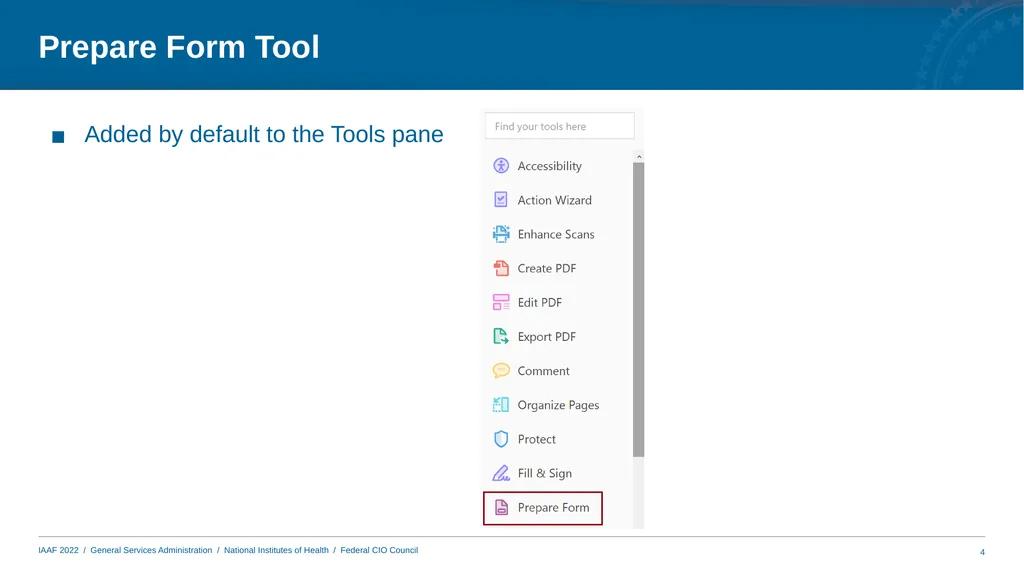
Regardless of approach, use the Prepare Form tool in Tools pane<br>
03
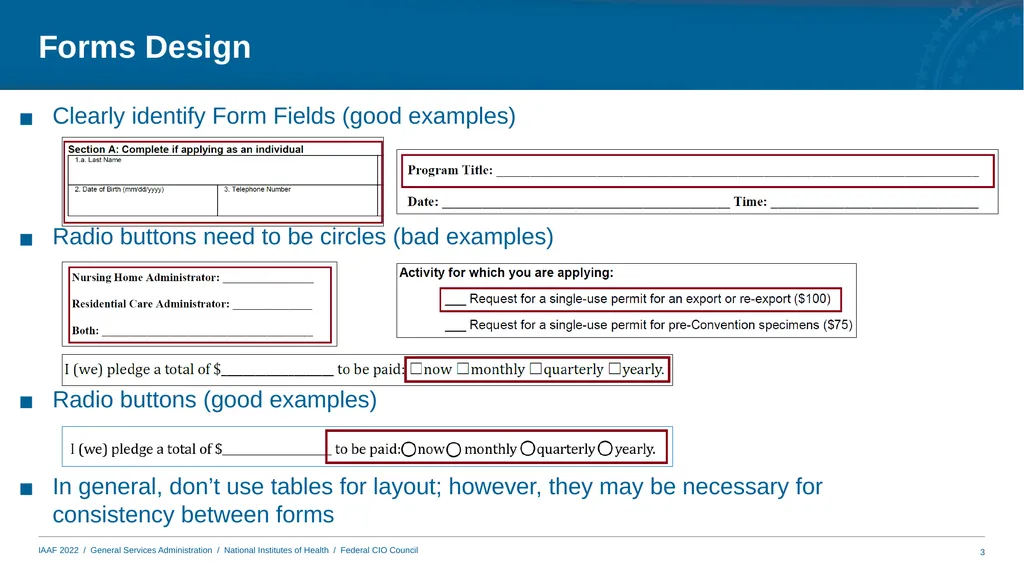
Forms Design Clearly identify Form Fields (good examples) Radio buttons need to be circles (bad examples) Radio buttons (good examples) In general, don’t use tables for layout; however, they may be necessary for consistency between forms 3<br>
04
Prepare Form Tool 4 Added by default to the Tools pane<br>
05
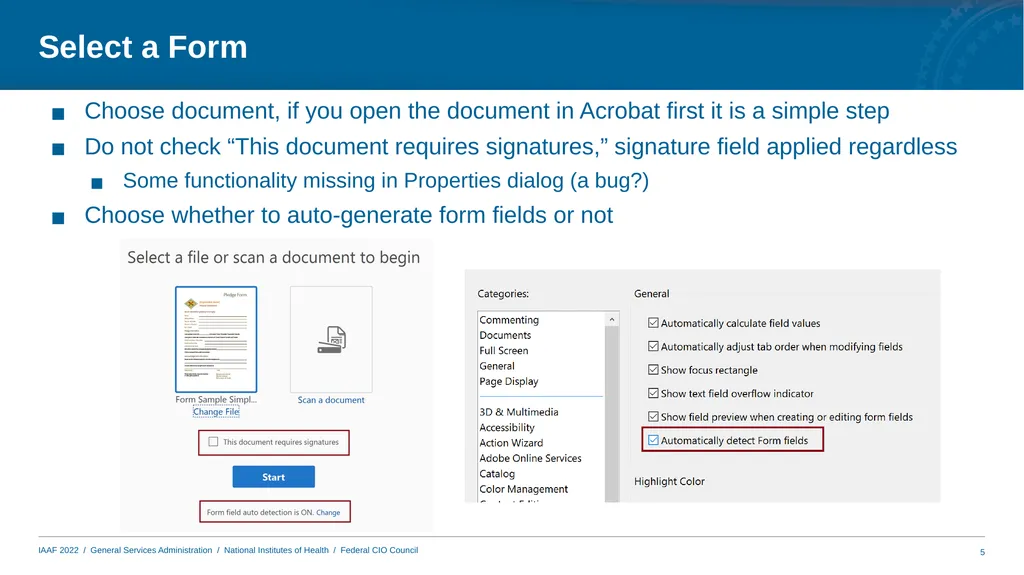
Select a Form 5 Choose document, if you open the document in Acrobat first it is a simple step
Do not check “This document requires signatures,” signature field applied regardless
Some functionality missing in Properties dialog (a bug?)
Choose whether to auto-generate form fields or not<br>
06
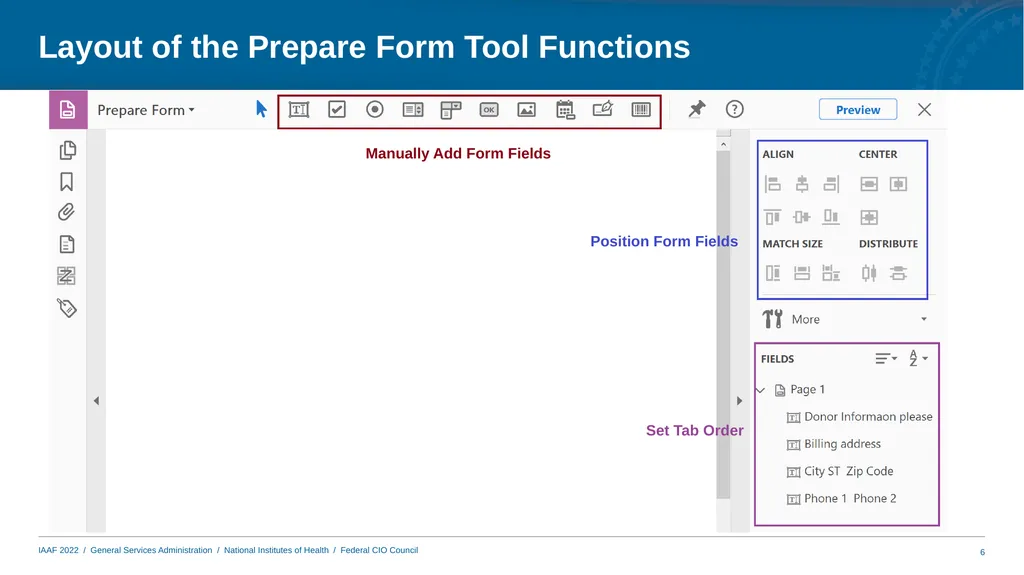
Layout of the Prepare Form Tool Functions Manually Add Form Fields Position Form Fields Set Tab Order 6<br>
07
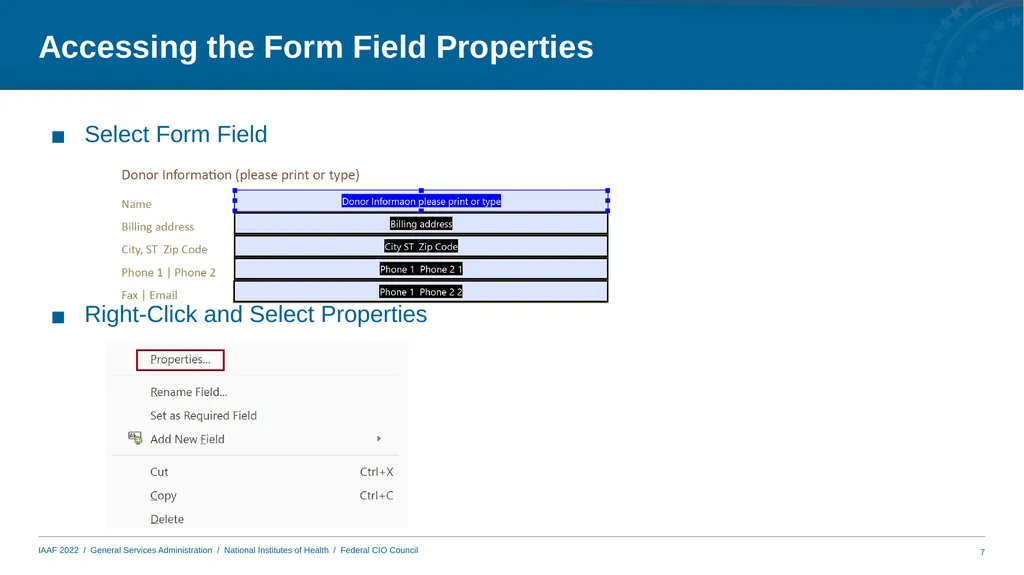
Accessing the Form Field Properties Select Form Field Right-Click and Select Properties 7<br>
08
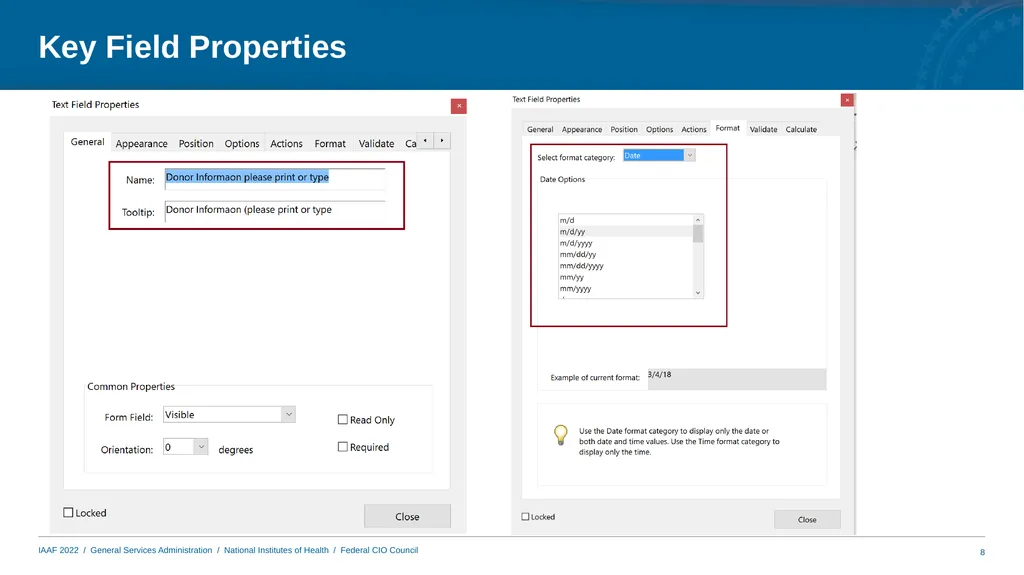
Key Field Properties 8<br>
09
Creating Form Fields in the Source Document 9 Use the appropriate tools to add forms control
e.g., Word – Developer Tool (addition to the Ribbon)
OR
Use the appropriate shapes
e.g., Word – Insert the circle shapes for radio buttons<br>
10
Auto Detection of PDF Form Fields 10<br>
11
Steps for Adding Form Fields with Auto Detection 11 Run “Prepare Form”
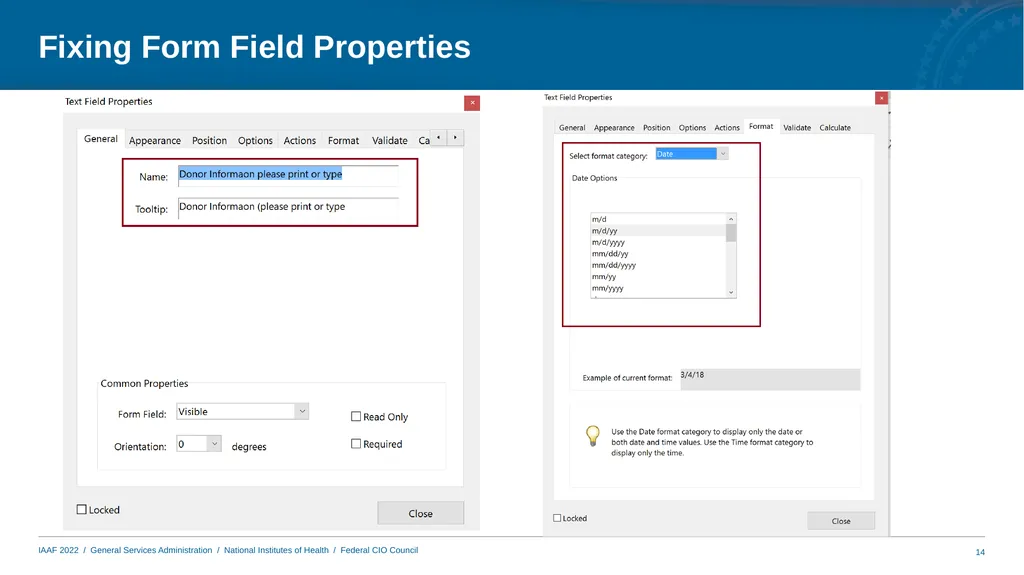
Fix form fields properties (name and tooltip)
Check other properties
Add format to date field
Fix radio buttons<br>
12
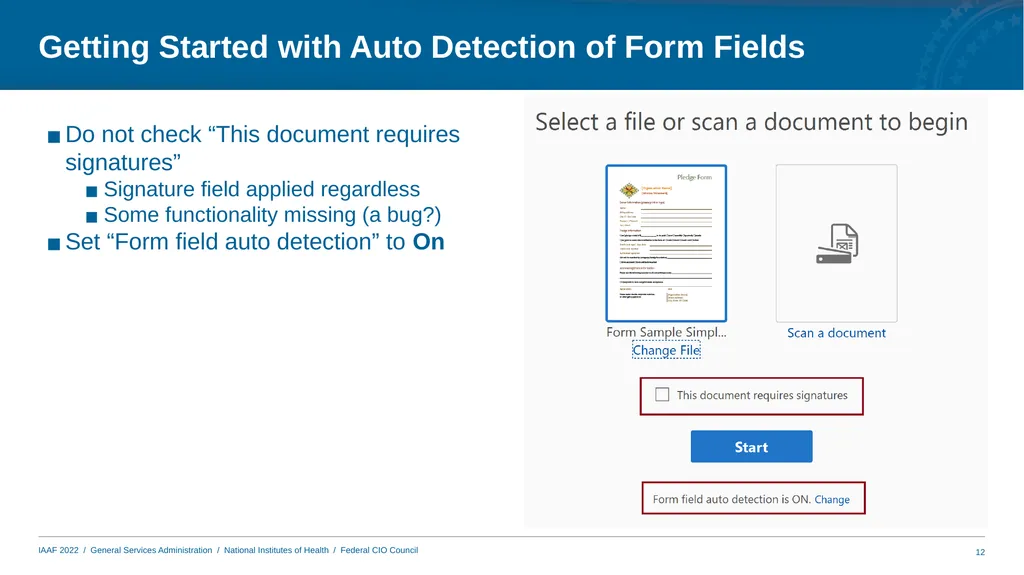
Getting Started with Auto Detection of Form Fields Do not check “This document requires signatures”
Signature field applied regardless
Some functionality missing (a bug?)
Set “Form field auto detection” to On 12<br>
13
Finalizing the Form 13<br>
14
Fixing Form Field Properties 14<br>
15
Steps to Finalize the Form 15 Verify and fix tab order
Test the form
Preview the form
Verify entering in data in the fields
Create Form tags or Auto-tag the Form and fix the Tag Tree<br>
16
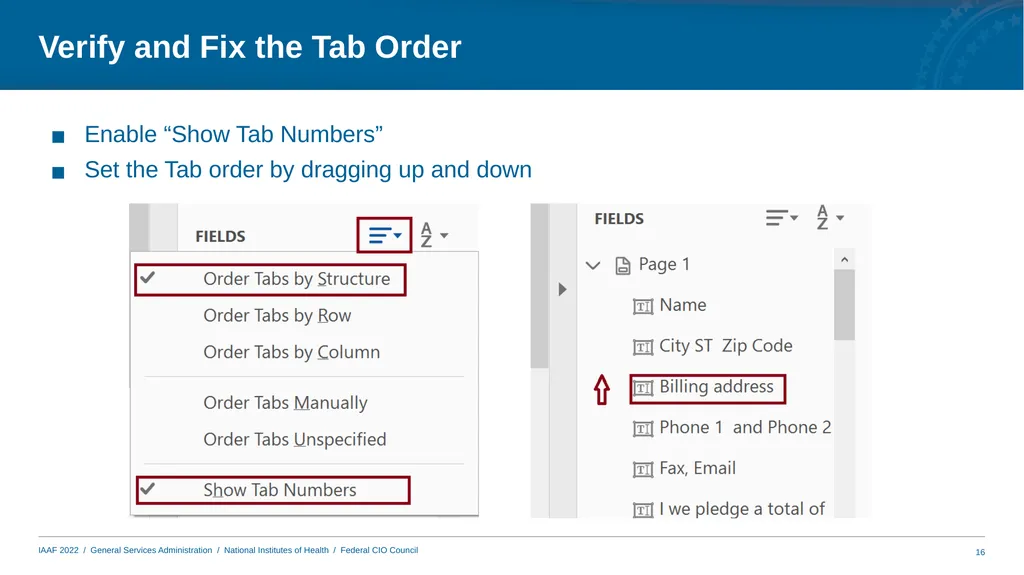
Verify and Fix the Tab Order 16 Enable “Show Tab Numbers”
Set the Tab order by dragging up and down<br>
17
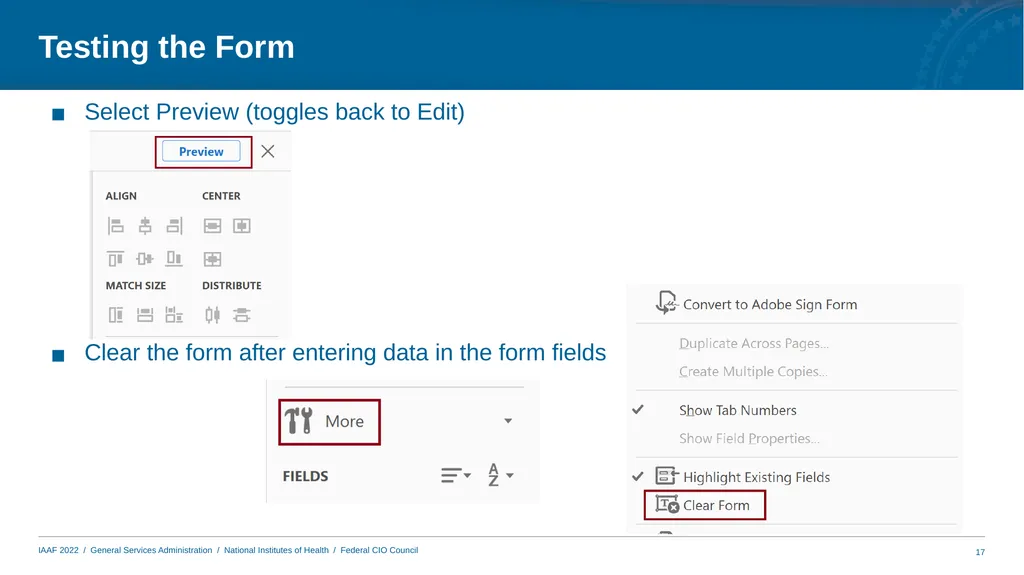
Testing the Form Select Preview (toggles back to Edit) Clear the form after entering data in the form fields 17<br>
18
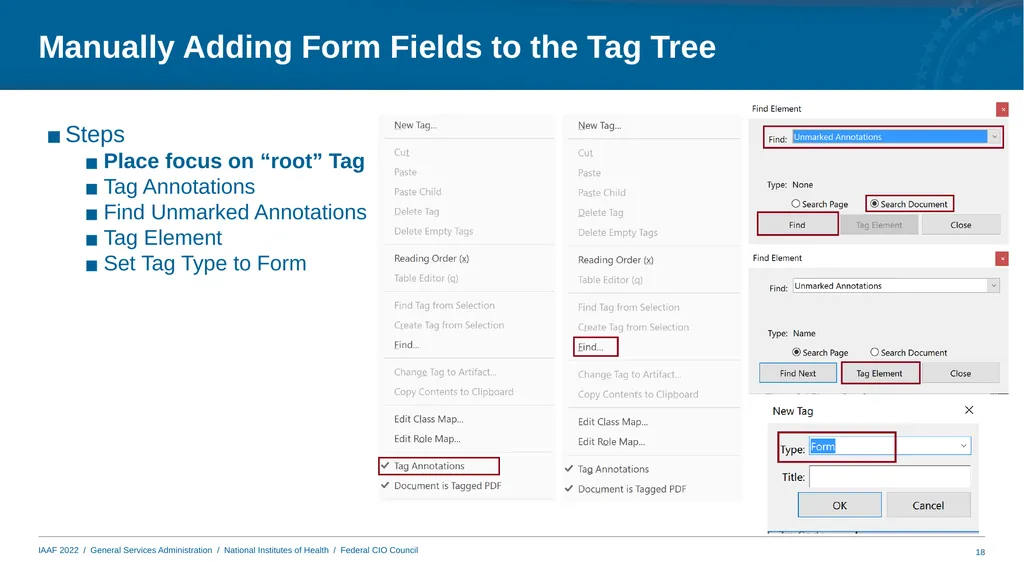
Manually Adding Form Fields to the Tag Tree Steps
Place focus on “root” Tag
Tag Annotations
Find Unmarked Annotations
Tag Element
Set Tag Type to Form 18<br>
19
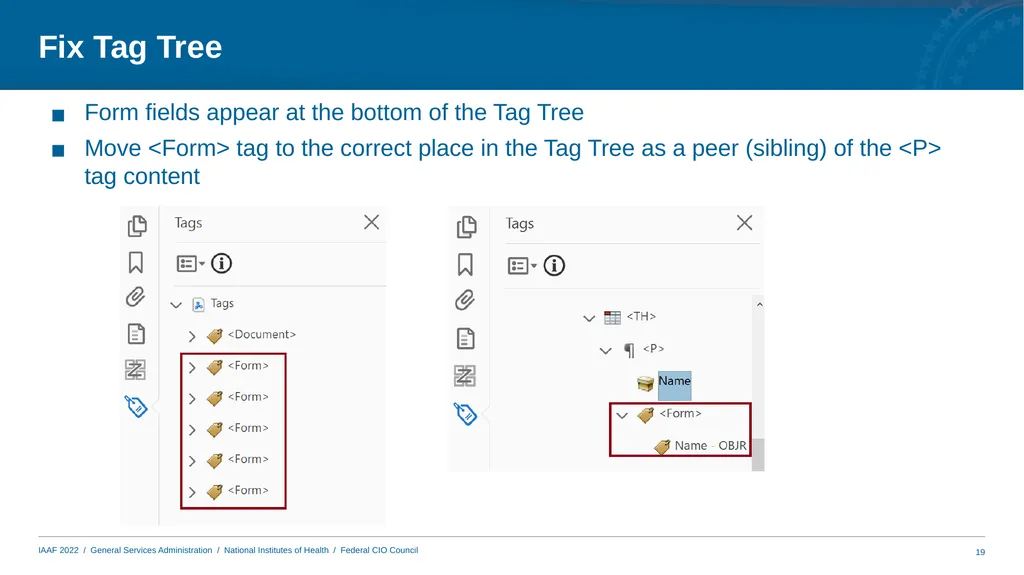
Fix Tag Tree 19 Form fields appear at the bottom of the Tag Tree
Move <Form> tag to the correct place in the Tag Tree as a peer (sibling) of the <P> tag content<br>
20
Manual Creation of Form Fields 20<br>
21
Adding Form Field Manually 21 When to manually add form fields
Creating a form from scratch
Adding/fixing form fields where form fields were auto detected
Steps
Prepare Form
Manually place form fields
Complete process for creating and finalizing forms in auto detect process except for tagging
Tag form fields manually
NOTE: Form fields will appear at the end of the Tag Tree and need to be moved<br>
22
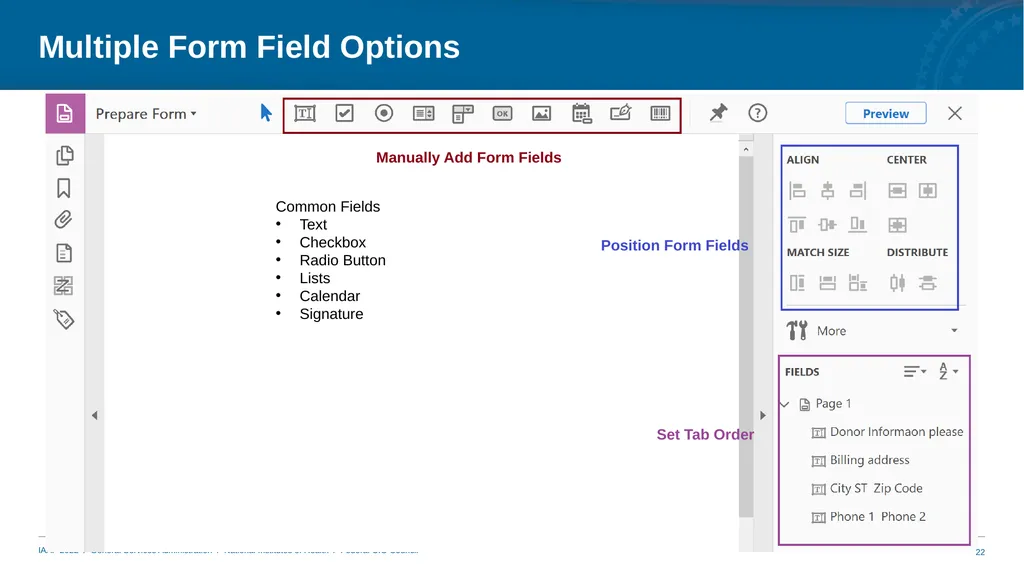
Multiple Form Field Options Manually Add Form Fields Common Fields
Text
Checkbox
Radio Button
Lists
Calendar
Signature Position Form Fields Set Tab Order 22<br>
23
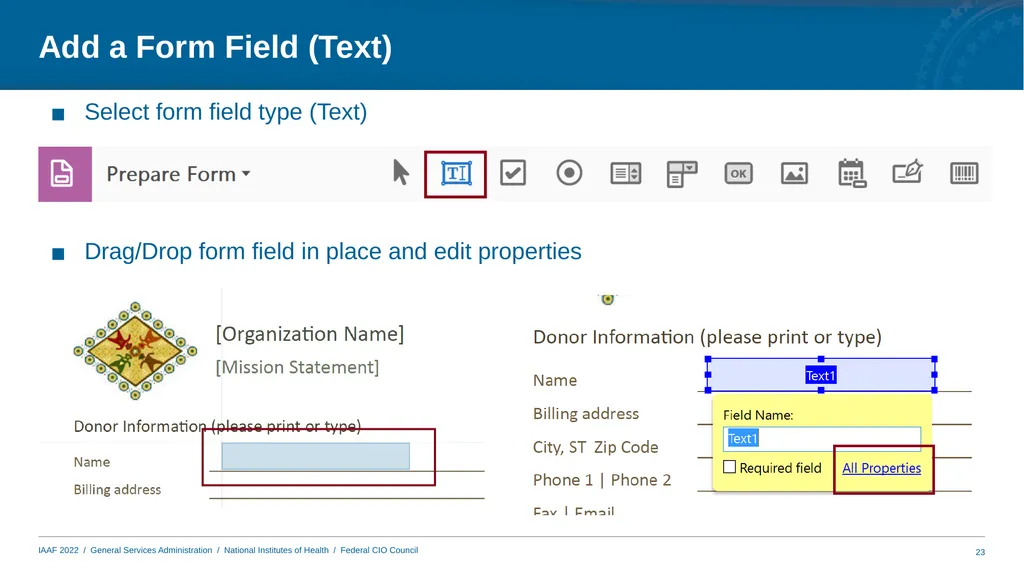
Add a Form Field (Text) Select form field type (Text) Drag/Drop form field in place and edit properties 23<br>
24
“Special” Form Fields 24<br>
25
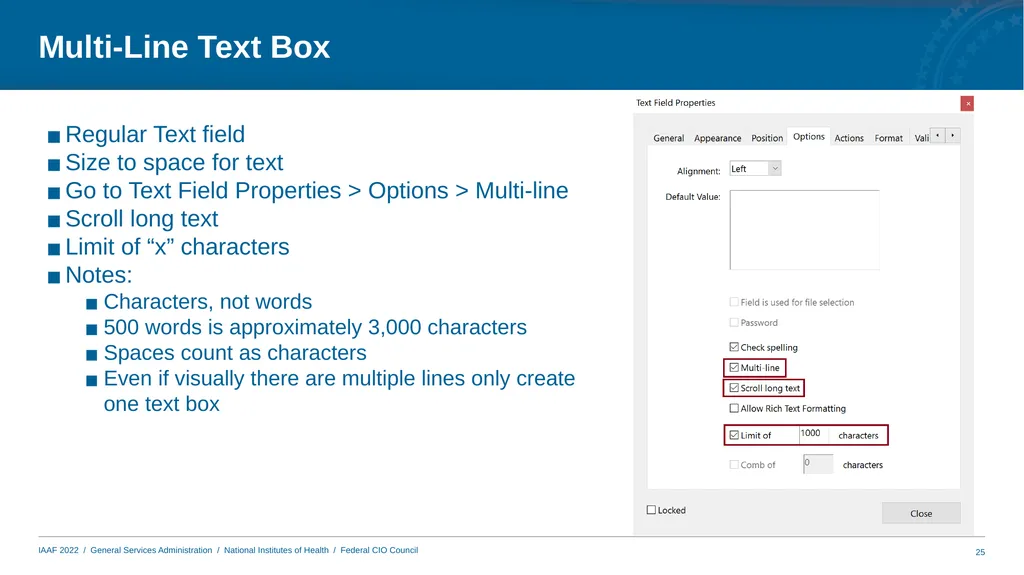
Multi-Line Text Box Regular Text field
Size to space for text
Go to Text Field Properties > Options > Multi-line
Scroll long text
Limit of “x” characters
Notes:
Characters, not words
500 words is approximately 3,000 characters
Spaces count as characters
Even if visually there are multiple lines only create one text box 25<br>
26
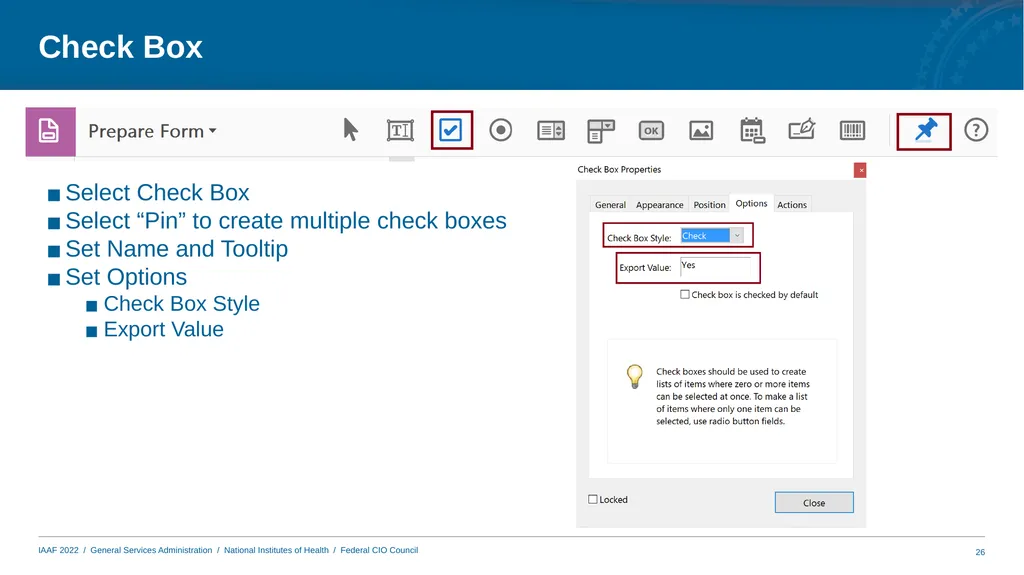
Check Box Select Check Box
Select “Pin” to create multiple check boxes
Set Name and Tooltip
Set Options
Check Box Style
Export Value 26<br>
27
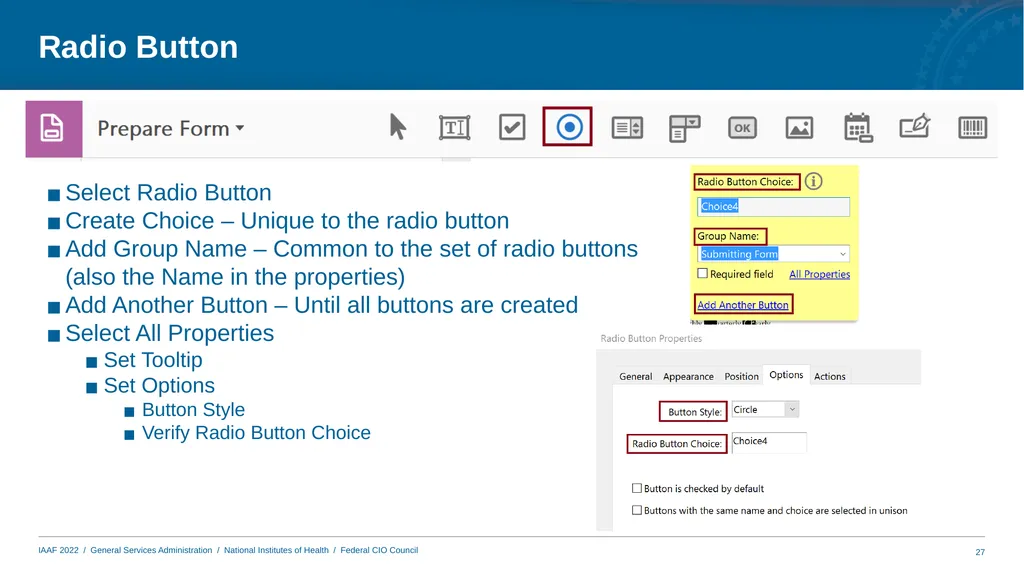
Radio Button Select Radio Button
Create Choice – Unique to the radio button
Add Group Name – Common to the set of radio buttons (also the Name in the properties)
Add Another Button – Until all buttons are created
Select All Properties
Set Tooltip
Set Options
Button Style
Verify Radio Button Choice 27<br>
28
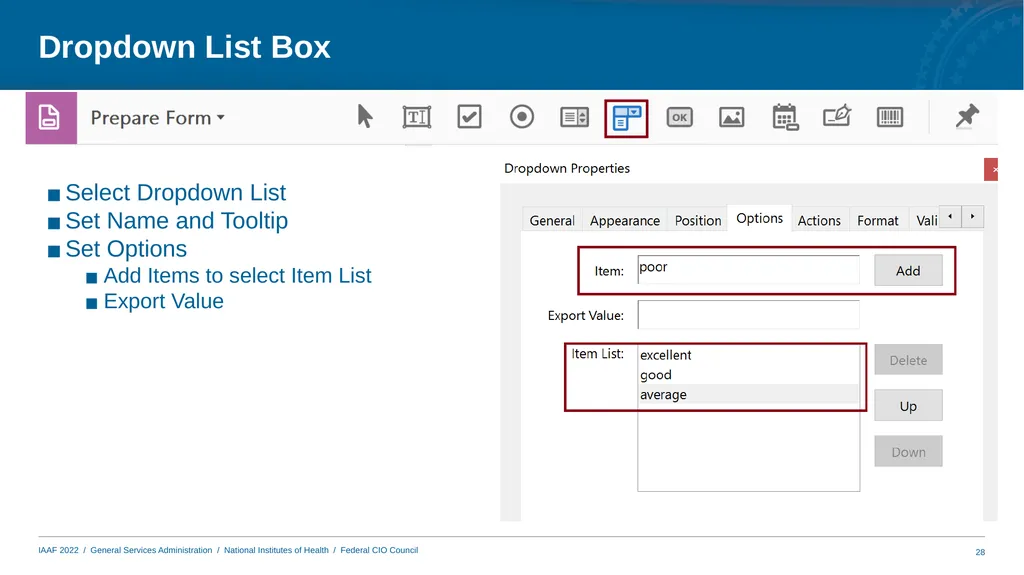
Dropdown List Box Select Dropdown List
Set Name and Tooltip
Set Options
Add Items to select Item List
Export Value 28<br>
29
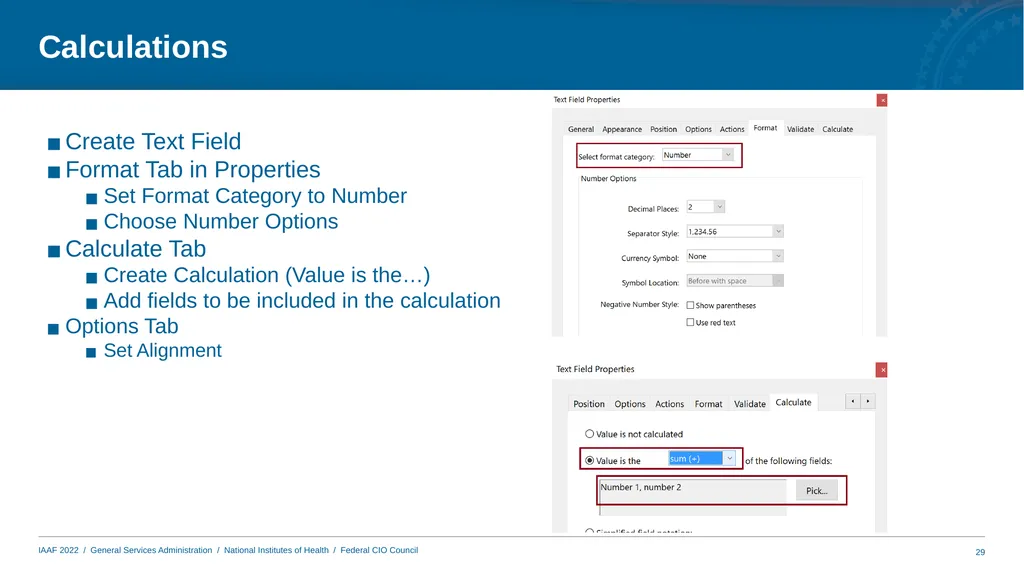
Calculations Create Text Field
Format Tab in Properties
Set Format Category to Number
Choose Number Options
Calculate Tab
Create Calculation (Value is the…)
Add fields to be included in the calculation
Options Tab
Set Alignment 29<br>
30
Questions? 30<br>
31
Contacts and Resources 31 U.S. Department of the Interior
Siddhartha Sharma, Section 508 Program Manager: Siddhartha_Sharma@ios.doi.gov
Regina Wendling, Government Information Specialist: Regina_Wendling@ios.doi.gov
Adobe
Robert Haverty: Haverty@Adobe.com
Resources
Adobe PDF Training Records
https://experienceleague.adobe.com/docs/document-cloud-learn/acrobat-learning/advanced-tasks/accessibility-series/accessibility-series.html?
Adobe Accessibility Web site
www.adobe.com/accessibility
Adobe Blogs
https://blog.adobe.com/
Standards
ISO 32000 (free)
ISO 14289 (PDF/UA) (purchase)<br>