
Asset Management System (AMS) Training Session
LO
Published · 52 slides · 0 views
1 / 1







Description
Asset Management System (AMS) Training Session June 19th, 2017 June 21st, 2017 3:30PM 4:30PM 8:30AM 9:30AM UCR Alumni and Visitors Center Topics Covered in this Training Session Equipment Management Basics Quick Intro to Equipment
Related Topics
Share
Embed code
Download this presentation From Below
"Asset Management System (AMS) Training Session" is the property of its rightful owner. Permission is granted to download and print the materials on this website for personal, non-commercial use only, and to display it on your personal computer provided you do not modify the materials and that you retain all copyright notices contained in the materials. By downloading content from our website, you accept the terms of this agreement.
Presentation Transcript
01
Asset Management System (AMS)
Training Session June 19th, 2017 June 21st, 2017
3:30PM – 4:30PM 8:30AM – 9:30AM
UCR Alumni and Visitors Center<br>
3:30PM – 4:30PM 8:30AM – 9:30AM
UCR Alumni and Visitors Center<br>
02
Topics Covered in this Training Session Equipment Management Basics
Quick Intro to Equipment Management
Correcting Common Misconceptions
The Asset Management System (AMS) Basics
Searching Assets
Updating Assets
Dispositions & Transfers (EIMR’s)
Inventory Verification
Questions & Feedback 6/19/2017 2<br>
Quick Intro to Equipment Management
Correcting Common Misconceptions
The Asset Management System (AMS) Basics
Searching Assets
Updating Assets
Dispositions & Transfers (EIMR’s)
Inventory Verification
Questions & Feedback 6/19/2017 2<br>
03
Equipment Management Basics Quick Intro to Equipment Management
Correcting Common Misconceptions 7/13/2015 3<br>
Correcting Common Misconceptions 7/13/2015 3<br>
04
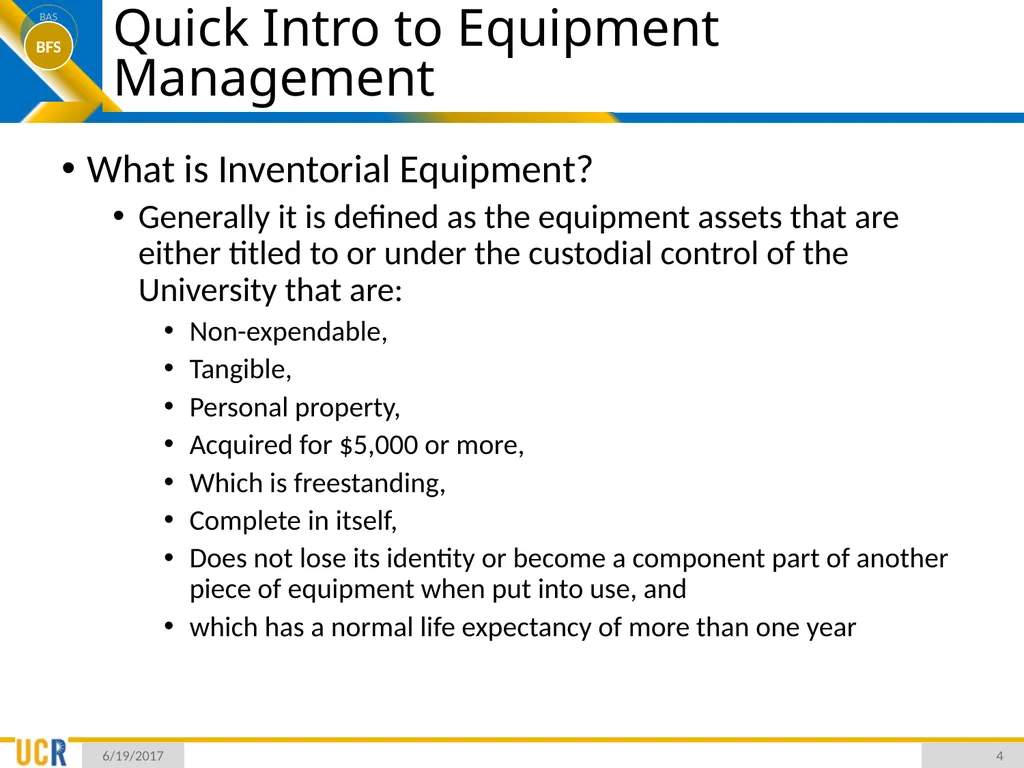
Quick Intro to Equipment Management What is Inventorial Equipment?
Generally it is defined as the equipment assets that are either titled to or under the custodial control of the University that are:
Non-expendable,
Tangible,
Personal property,
Acquired for $5,000 or more,
Which is freestanding,
Complete in itself,
Does not lose its identity or become a component part of another piece of equipment when put into use, and
which has a normal life expectancy of more than one year 6/19/2017 4<br>
Generally it is defined as the equipment assets that are either titled to or under the custodial control of the University that are:
Non-expendable,
Tangible,
Personal property,
Acquired for $5,000 or more,
Which is freestanding,
Complete in itself,
Does not lose its identity or become a component part of another piece of equipment when put into use, and
which has a normal life expectancy of more than one year 6/19/2017 4<br>
05
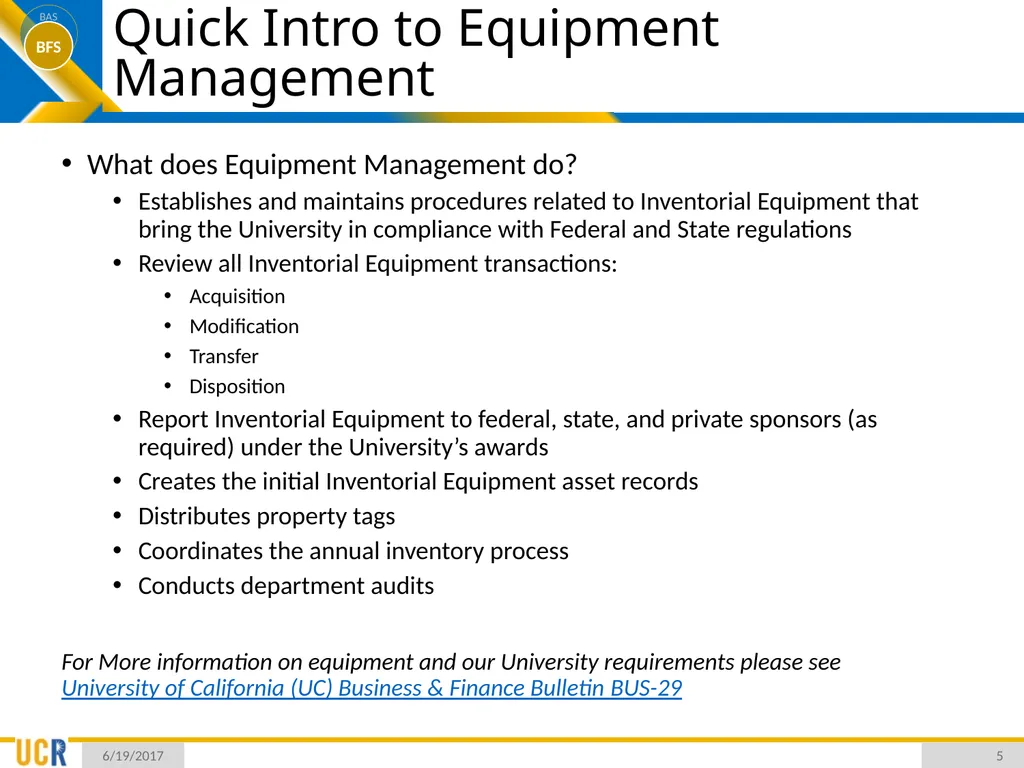
Quick Intro to Equipment Management What does Equipment Management do?
Establishes and maintains procedures related to Inventorial Equipment that bring the University in compliance with Federal and State regulations
Review all Inventorial Equipment transactions:
Acquisition
Modification
Transfer
Disposition
Report Inventorial Equipment to federal, state, and private sponsors (as required) under the University’s awards
Creates the initial Inventorial Equipment asset records
Distributes property tags
Coordinates the annual inventory process
Conducts department audits
For More information on equipment and our University requirements please see University of California (UC) Business & Finance Bulletin BUS-29 6/19/2017 5<br>
Establishes and maintains procedures related to Inventorial Equipment that bring the University in compliance with Federal and State regulations
Review all Inventorial Equipment transactions:
Acquisition
Modification
Transfer
Disposition
Report Inventorial Equipment to federal, state, and private sponsors (as required) under the University’s awards
Creates the initial Inventorial Equipment asset records
Distributes property tags
Coordinates the annual inventory process
Conducts department audits
For More information on equipment and our University requirements please see University of California (UC) Business & Finance Bulletin BUS-29 6/19/2017 5<br>
06
Quick Intro to Equipment Management What are the department’s primary responsibilities?
Manage and maintain Inventorial Equipment records
Location data needs to be up-to-date so each asset can be located within a reasonable timeframe
Ensure that manufacture, model, and serial number information is complete and accurate
Update the usage and condition codes at least annually
Report any other required changes to Equipment Management
Apply received Property Tags to Inventorial Equipment
Coordinate transfers/dispositions, per policy requirements, with Equipment Management and/or Logistic Services
Ensure adequate physical security of University property
Complete Annual Inventory and biennial Physical Inventory Verification entries 6/19/2017 6<br>
Manage and maintain Inventorial Equipment records
Location data needs to be up-to-date so each asset can be located within a reasonable timeframe
Ensure that manufacture, model, and serial number information is complete and accurate
Update the usage and condition codes at least annually
Report any other required changes to Equipment Management
Apply received Property Tags to Inventorial Equipment
Coordinate transfers/dispositions, per policy requirements, with Equipment Management and/or Logistic Services
Ensure adequate physical security of University property
Complete Annual Inventory and biennial Physical Inventory Verification entries 6/19/2017 6<br>
07
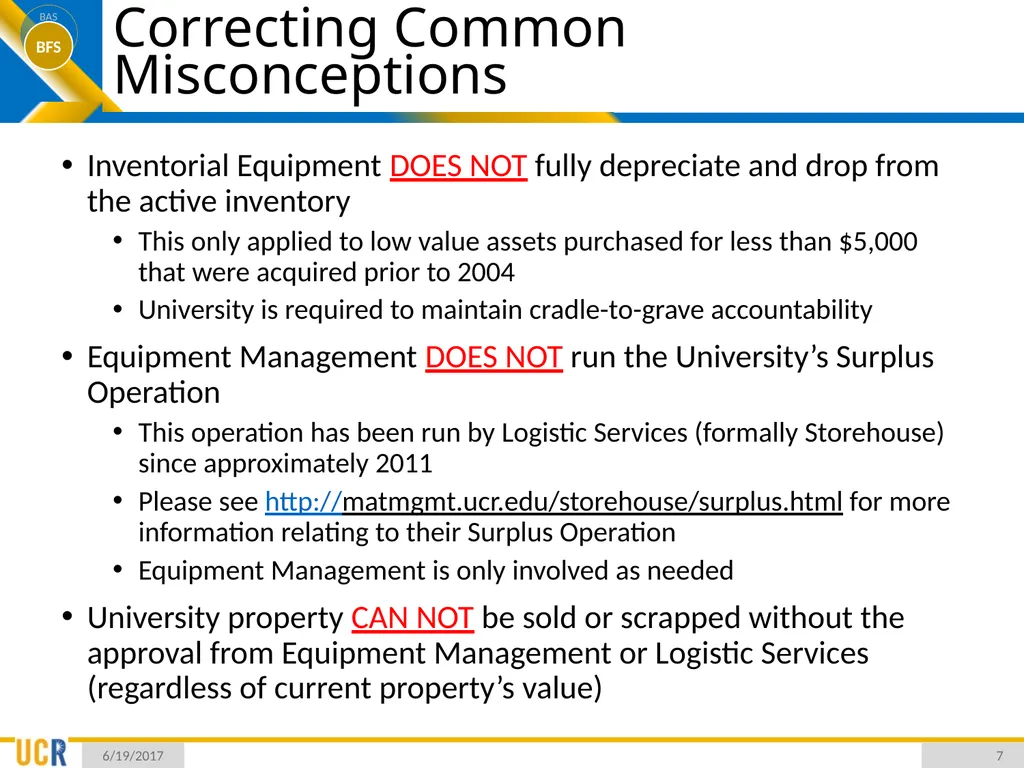
Correcting Common Misconceptions Inventorial Equipment DOES NOT fully depreciate and drop from the active inventory
This only applied to low value assets purchased for less than $5,000 that were acquired prior to 2004
University is required to maintain cradle-to-grave accountability
Equipment Management DOES NOT run the University’s Surplus Operation
This operation has been run by Logistic Services (formally Storehouse) since approximately 2011
Please see http://matmgmt.ucr.edu/storehouse/surplus.html for more information relating to their Surplus Operation
Equipment Management is only involved as needed
University property CAN NOT be sold or scrapped without the approval from Equipment Management or Logistic Services (regardless of current property’s value) 6/19/2017 7<br>
This only applied to low value assets purchased for less than $5,000 that were acquired prior to 2004
University is required to maintain cradle-to-grave accountability
Equipment Management DOES NOT run the University’s Surplus Operation
This operation has been run by Logistic Services (formally Storehouse) since approximately 2011
Please see http://matmgmt.ucr.edu/storehouse/surplus.html for more information relating to their Surplus Operation
Equipment Management is only involved as needed
University property CAN NOT be sold or scrapped without the approval from Equipment Management or Logistic Services (regardless of current property’s value) 6/19/2017 7<br>
08
The Asset Management System (AMS) Basics What is the Asset Management System?
Asset Management System Roles
FY2017 Equipment Inventory
Online AMS User Guide
Notes on the Data Field Migration 7/13/2015<br>
Asset Management System Roles
FY2017 Equipment Inventory
Online AMS User Guide
Notes on the Data Field Migration 7/13/2015<br>
09
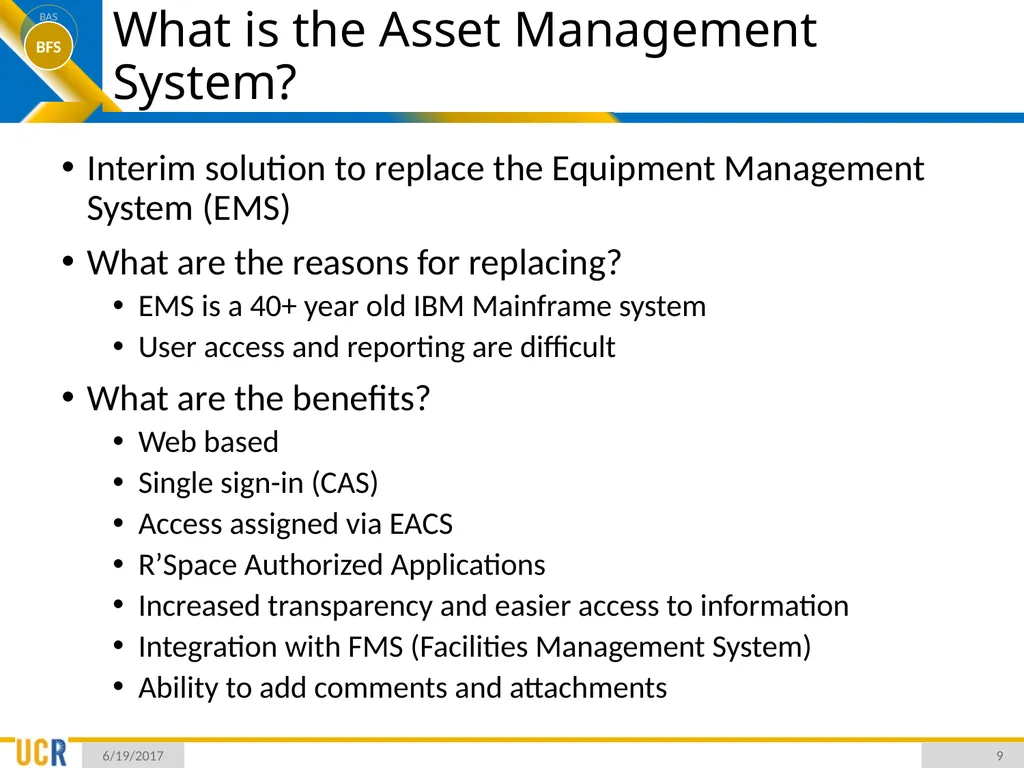
What is the Asset Management System? Interim solution to replace the Equipment Management System (EMS)
What are the reasons for replacing?
EMS is a 40+ year old IBM Mainframe system
User access and reporting are difficult
What are the benefits?
Web based
Single sign-in (CAS)
Access assigned via EACS
R’Space Authorized Applications
Increased transparency and easier access to information
Integration with FMS (Facilities Management System)
Ability to add comments and attachments 6/19/2017 9<br>
What are the reasons for replacing?
EMS is a 40+ year old IBM Mainframe system
User access and reporting are difficult
What are the benefits?
Web based
Single sign-in (CAS)
Access assigned via EACS
R’Space Authorized Applications
Increased transparency and easier access to information
Integration with FMS (Facilities Management System)
Ability to add comments and attachments 6/19/2017 9<br>
10
Equipment Management System (EMS) 6/19/2017 10<br>
11
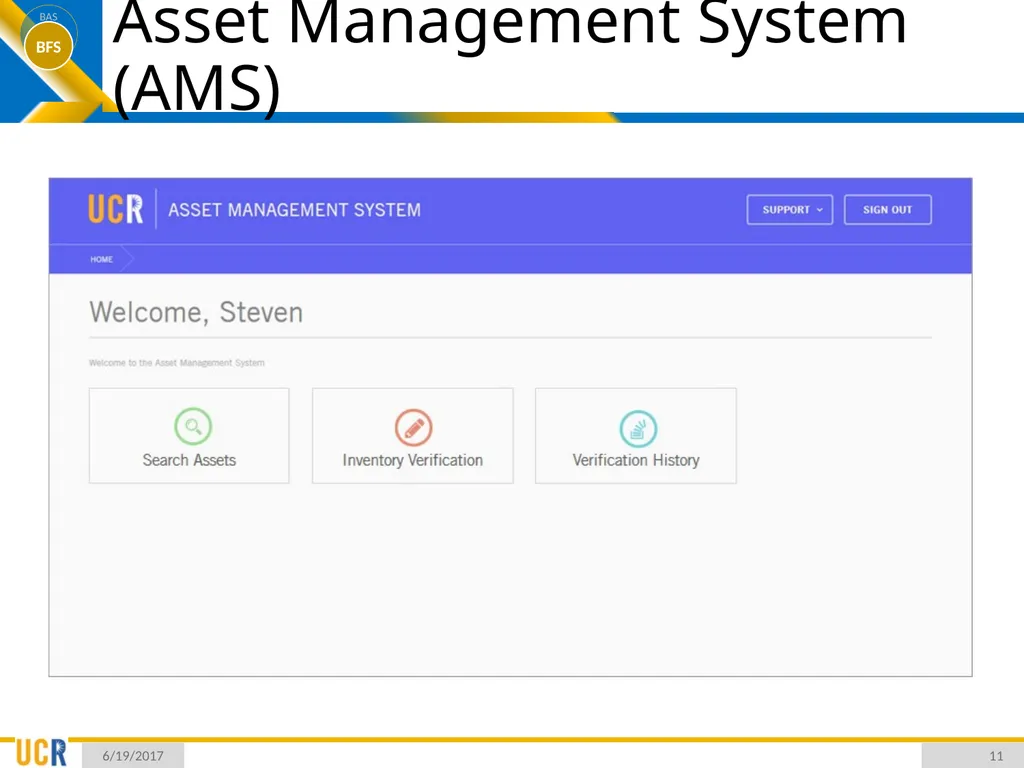
Asset Management System (AMS) 6/19/2017 11<br>
12
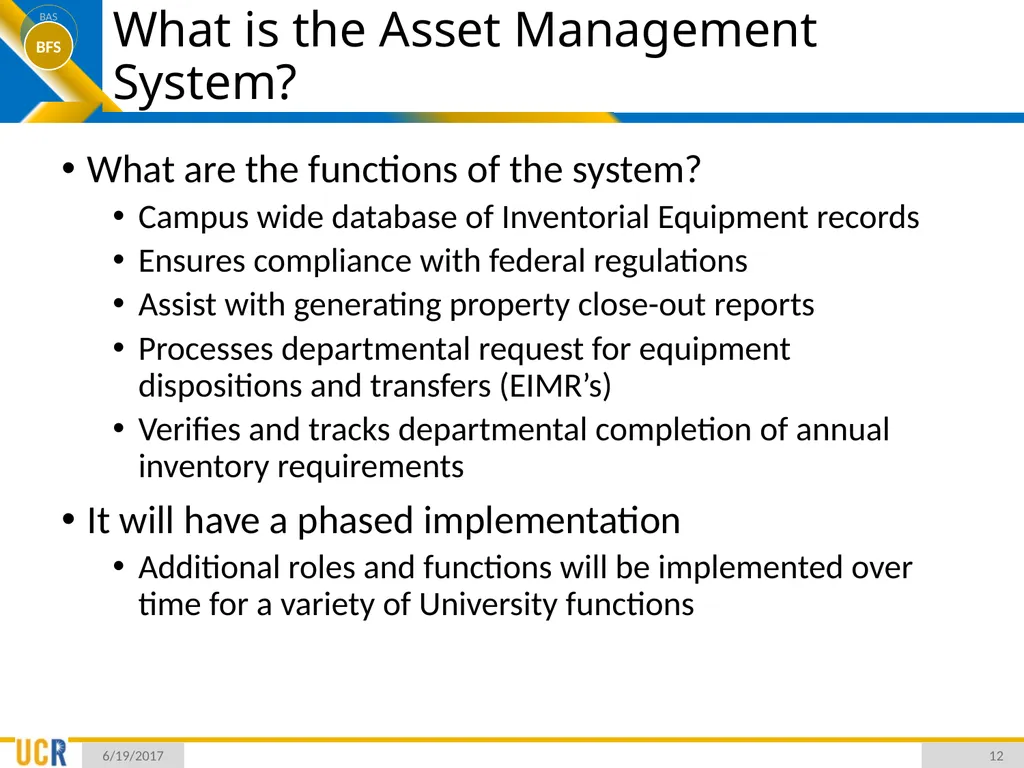
What is the Asset Management System? What are the functions of the system?
Campus wide database of Inventorial Equipment records
Ensures compliance with federal regulations
Assist with generating property close-out reports
Processes departmental request for equipment dispositions and transfers (EIMR’s)
Verifies and tracks departmental completion of annual inventory requirements
It will have a phased implementation
Additional roles and functions will be implemented over time for a variety of University functions 6/19/2017 12<br>
Campus wide database of Inventorial Equipment records
Ensures compliance with federal regulations
Assist with generating property close-out reports
Processes departmental request for equipment dispositions and transfers (EIMR’s)
Verifies and tracks departmental completion of annual inventory requirements
It will have a phased implementation
Additional roles and functions will be implemented over time for a variety of University functions 6/19/2017 12<br>
13
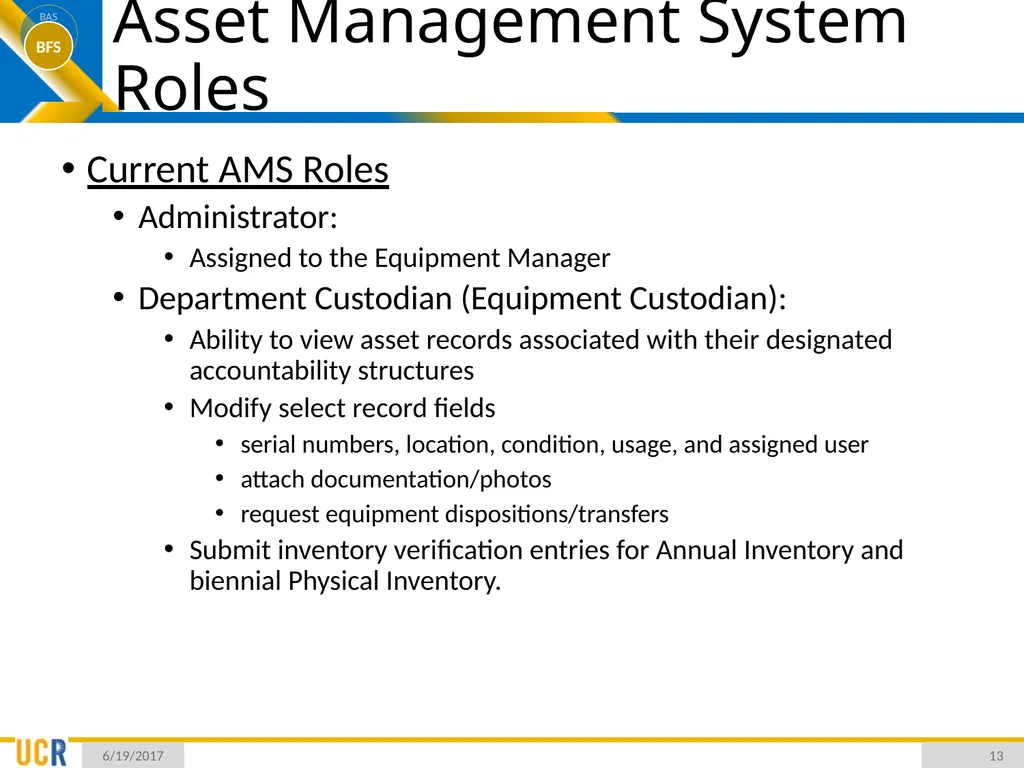
Asset Management System Roles Current AMS Roles
Administrator:
Assigned to the Equipment Manager
Department Custodian (Equipment Custodian):
Ability to view asset records associated with their designated accountability structures
Modify select record fields
serial numbers, location, condition, usage, and assigned user
attach documentation/photos
request equipment dispositions/transfers
Submit inventory verification entries for Annual Inventory and biennial Physical Inventory. 6/19/2017 13<br>
Administrator:
Assigned to the Equipment Manager
Department Custodian (Equipment Custodian):
Ability to view asset records associated with their designated accountability structures
Modify select record fields
serial numbers, location, condition, usage, and assigned user
attach documentation/photos
request equipment dispositions/transfers
Submit inventory verification entries for Annual Inventory and biennial Physical Inventory. 6/19/2017 13<br>
14
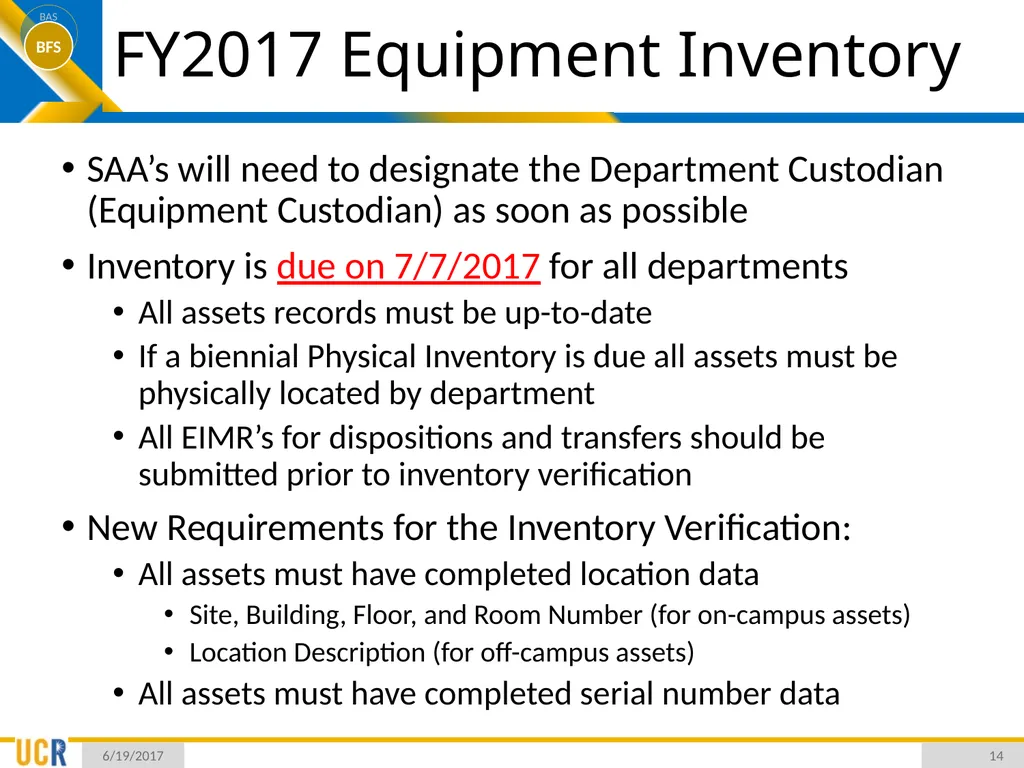
FY2017 Equipment Inventory SAA’s will need to designate the Department Custodian (Equipment Custodian) as soon as possible
Inventory is due on 7/7/2017 for all departments
All assets records must be up-to-date
If a biennial Physical Inventory is due all assets must be physically located by department
All EIMR’s for dispositions and transfers should be submitted prior to inventory verification
New Requirements for the Inventory Verification:
All assets must have completed location data
Site, Building, Floor, and Room Number (for on-campus assets)
Location Description (for off-campus assets)
All assets must have completed serial number data 6/19/2017 14<br>
Inventory is due on 7/7/2017 for all departments
All assets records must be up-to-date
If a biennial Physical Inventory is due all assets must be physically located by department
All EIMR’s for dispositions and transfers should be submitted prior to inventory verification
New Requirements for the Inventory Verification:
All assets must have completed location data
Site, Building, Floor, and Room Number (for on-campus assets)
Location Description (for off-campus assets)
All assets must have completed serial number data 6/19/2017 14<br>
15
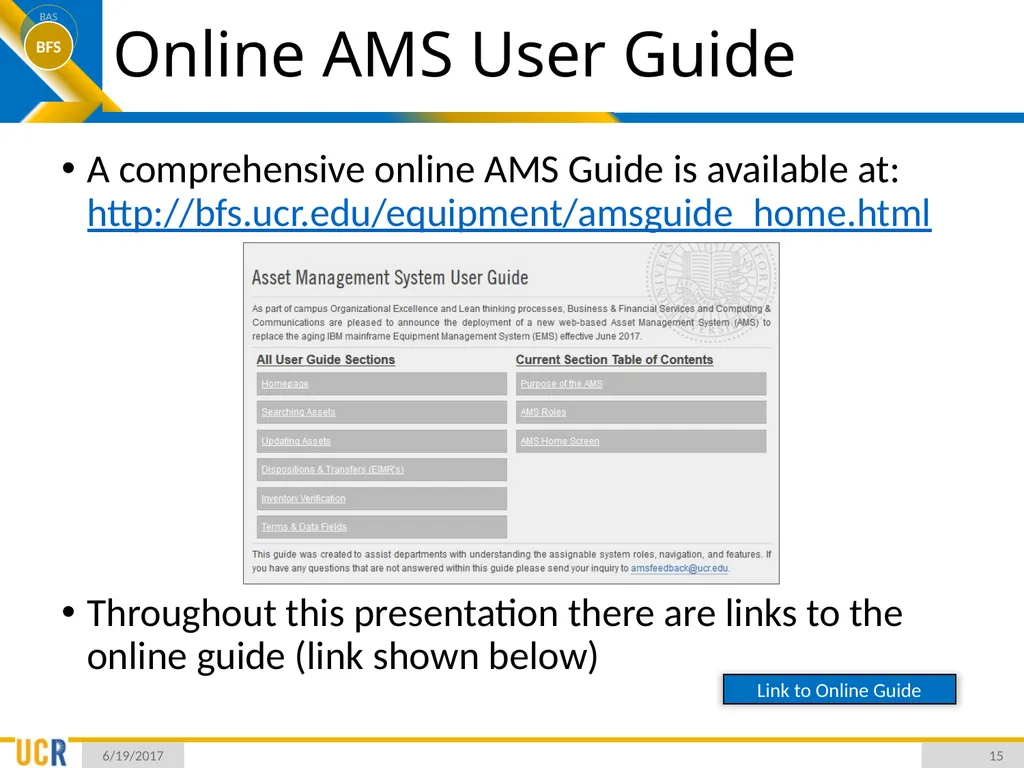
Online AMS User Guide A comprehensive online AMS Guide is available at: http://bfs.ucr.edu/equipment/amsguide_home.html
Throughout this presentation there are links to the online guide (link shown below) 6/19/2017 15 Link to Online Guide<br>
Throughout this presentation there are links to the online guide (link shown below) 6/19/2017 15 Link to Online Guide<br>
16
Notes on the Data Field Migration Custodial Code Department Code
Departments no longer need to know Custodial Codes
Custodial Codes remain in the AMS for UCOP reporting
Department Codes are now reflect asset assignment
Any active Department Code from the University’s accountability structure is assignable
May have implications on how departments wish to split Equipment Management duties and asset assignment
For example: The School of Medicine (SOM) Organization
In EMS the SOM consisted of only three (3) custodial codes
In AMS the SOM has approximately thirty-five (35) departments
Assets were assigned to Department Codes based on the “loose relationships” of Custodial Codes to Activity Codes 6/19/2017 16<br>
Departments no longer need to know Custodial Codes
Custodial Codes remain in the AMS for UCOP reporting
Department Codes are now reflect asset assignment
Any active Department Code from the University’s accountability structure is assignable
May have implications on how departments wish to split Equipment Management duties and asset assignment
For example: The School of Medicine (SOM) Organization
In EMS the SOM consisted of only three (3) custodial codes
In AMS the SOM has approximately thirty-five (35) departments
Assets were assigned to Department Codes based on the “loose relationships” of Custodial Codes to Activity Codes 6/19/2017 16<br>
17
Notes on the Data Field Migration Title Flag Property Title
EMS records title to:
Yes Converted to “Conditional University Title”
No Converted to “Government Property”
AMS records title to:
Conditional University Property
Unconditional University Property
Government Property
Undetermined Title
CAAN/Room Site, Building, Floor, Room Number
Data could only partially be translated to AMS 6/19/2017 17<br>
EMS records title to:
Yes Converted to “Conditional University Title”
No Converted to “Government Property”
AMS records title to:
Conditional University Property
Unconditional University Property
Government Property
Undetermined Title
CAAN/Room Site, Building, Floor, Room Number
Data could only partially be translated to AMS 6/19/2017 17<br>
18
Searching Assets Basic & Advanced Searches
Generating an Active Inventory Listing
Search Result Views
Other Search Tools and Excel Export 7/13/2015 18<br>
Generating an Active Inventory Listing
Search Result Views
Other Search Tools and Excel Export 7/13/2015 18<br>
19
Basic & Advance Searches Functionality Details
A majority of fields can be used in the search criteria
Basic Search Fields (Common)
Located on the main Search Asset Screen
Other Search Fields
Click on “Advance Search” link on Search Asset Screen
Search results are limited to:
First 1000 asset records in AMS environment
Can be exported to Excel without the 1000 result limitation 6/19/2017 19 Link to Online Guide<br>
A majority of fields can be used in the search criteria
Basic Search Fields (Common)
Located on the main Search Asset Screen
Other Search Fields
Click on “Advance Search” link on Search Asset Screen
Search results are limited to:
First 1000 asset records in AMS environment
Can be exported to Excel without the 1000 result limitation 6/19/2017 19 Link to Online Guide<br>
20
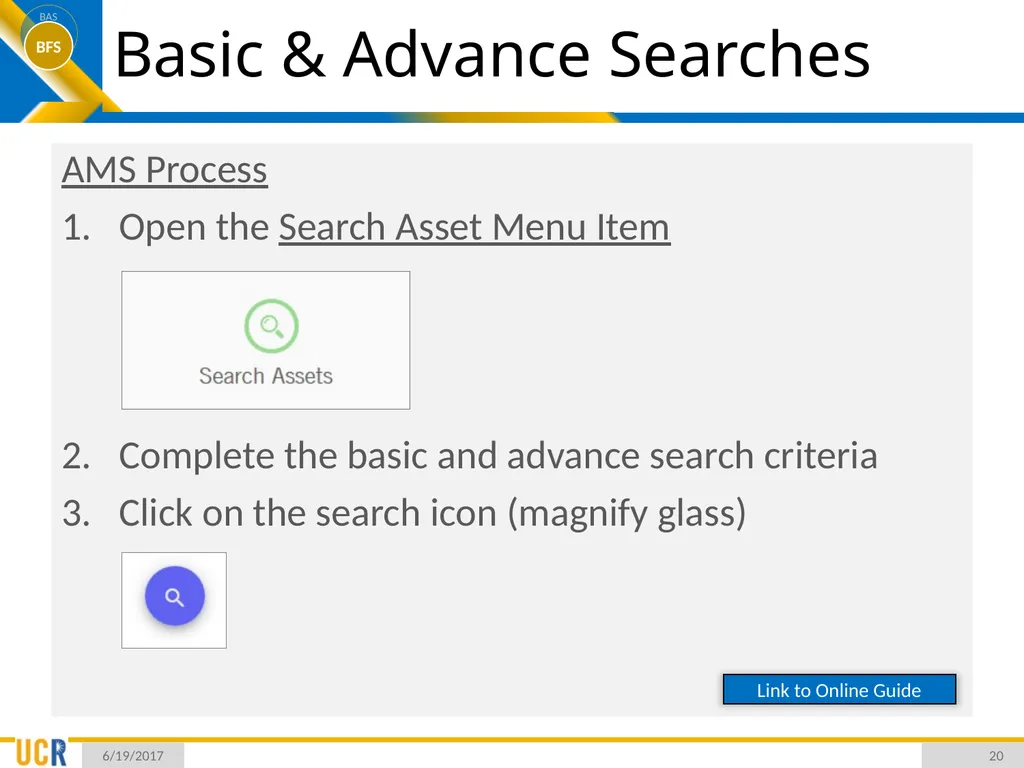
Basic & Advance Searches AMS Process
Open the Search Asset Menu Item
Complete the basic and advance search criteria
Click on the search icon (magnify glass) 6/19/2017 20 Link to Online Guide<br>
Open the Search Asset Menu Item
Complete the basic and advance search criteria
Click on the search icon (magnify glass) 6/19/2017 20 Link to Online Guide<br>
21
Generating an Active Inventory Listing Functionality Details
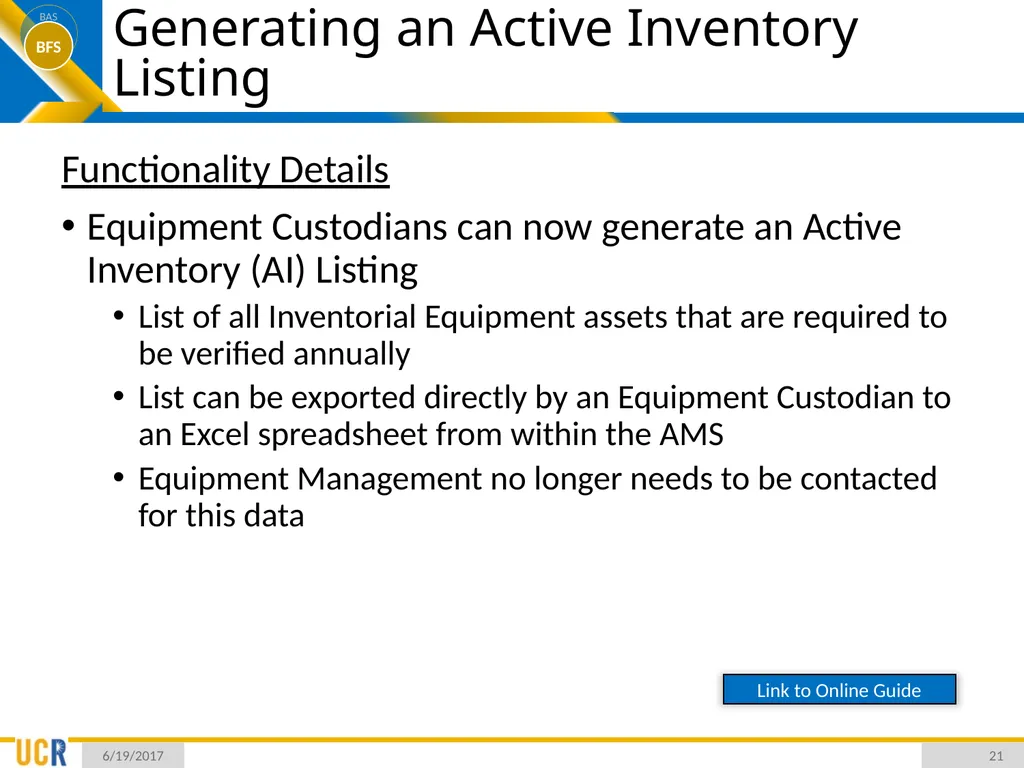
Equipment Custodians can now generate an Active Inventory (AI) Listing
List of all Inventorial Equipment assets that are required to be verified annually
List can be exported directly by an Equipment Custodian to an Excel spreadsheet from within the AMS
Equipment Management no longer needs to be contacted for this data 6/19/2017 21 Link to Online Guide<br>
Equipment Custodians can now generate an Active Inventory (AI) Listing
List of all Inventorial Equipment assets that are required to be verified annually
List can be exported directly by an Equipment Custodian to an Excel spreadsheet from within the AMS
Equipment Management no longer needs to be contacted for this data 6/19/2017 21 Link to Online Guide<br>
22
Generating an Active Inventory Listing AMS Process
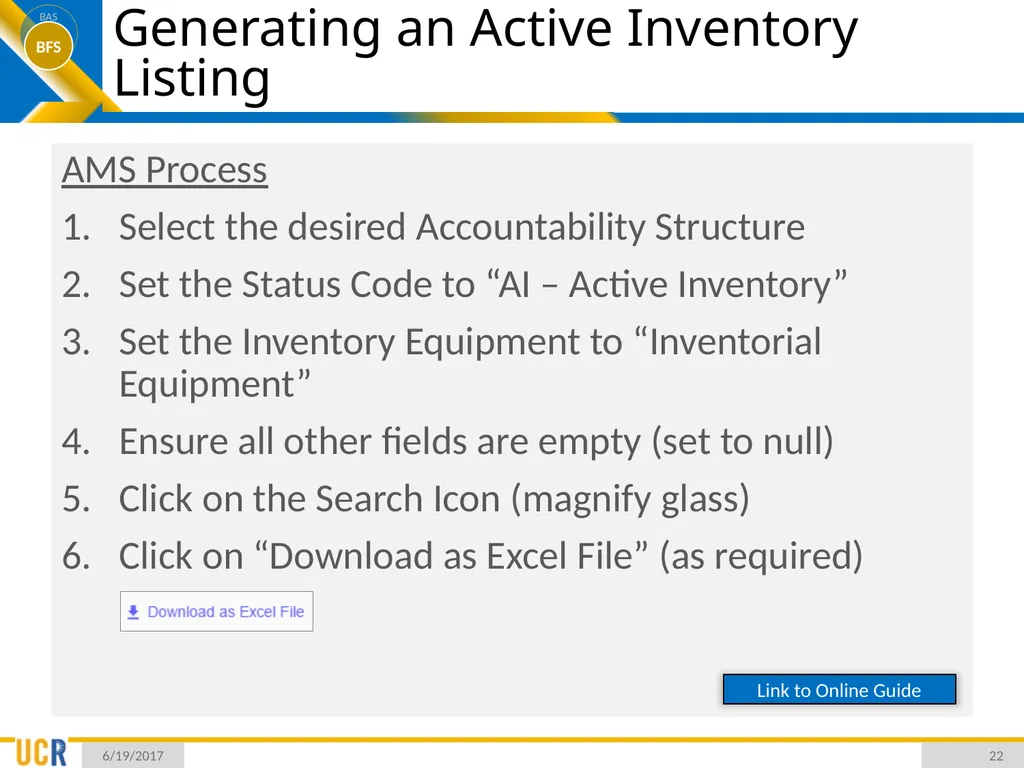
Select the desired Accountability Structure
Set the Status Code to “AI – Active Inventory”
Set the Inventory Equipment to “Inventorial Equipment”
Ensure all other fields are empty (set to null)
Click on the Search Icon (magnify glass)
Click on “Download as Excel File” (as required) 6/19/2017 22 Link to Online Guide<br>
Select the desired Accountability Structure
Set the Status Code to “AI – Active Inventory”
Set the Inventory Equipment to “Inventorial Equipment”
Ensure all other fields are empty (set to null)
Click on the Search Icon (magnify glass)
Click on “Download as Excel File” (as required) 6/19/2017 22 Link to Online Guide<br>
23
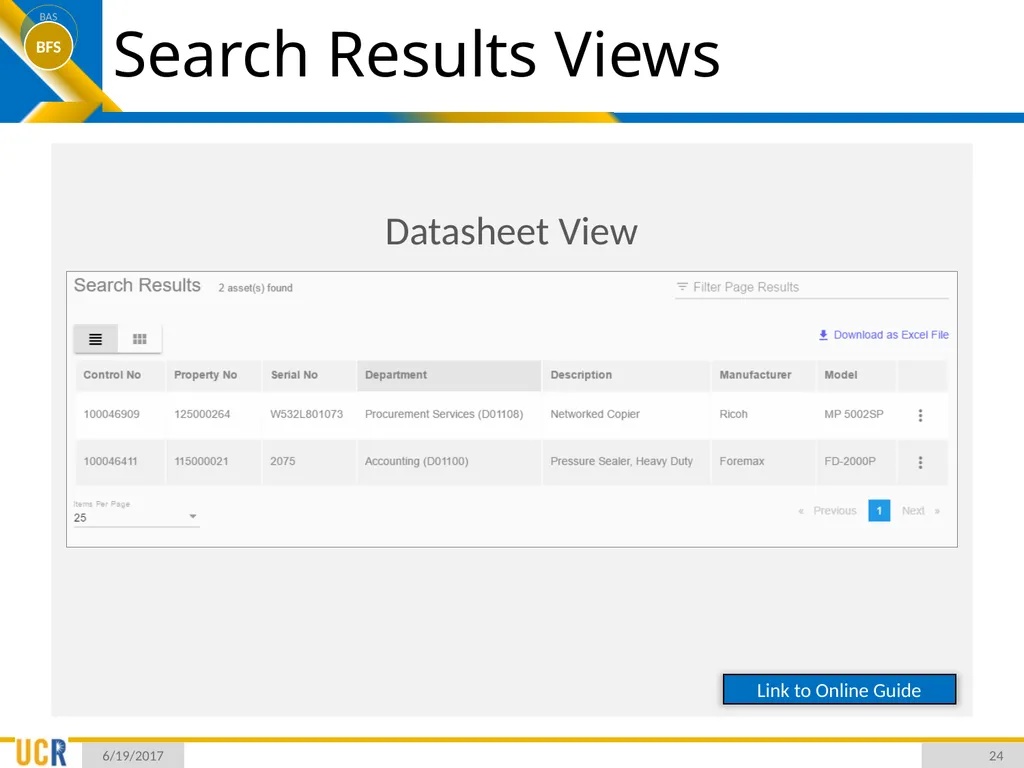
Search Result Views Datasheet View
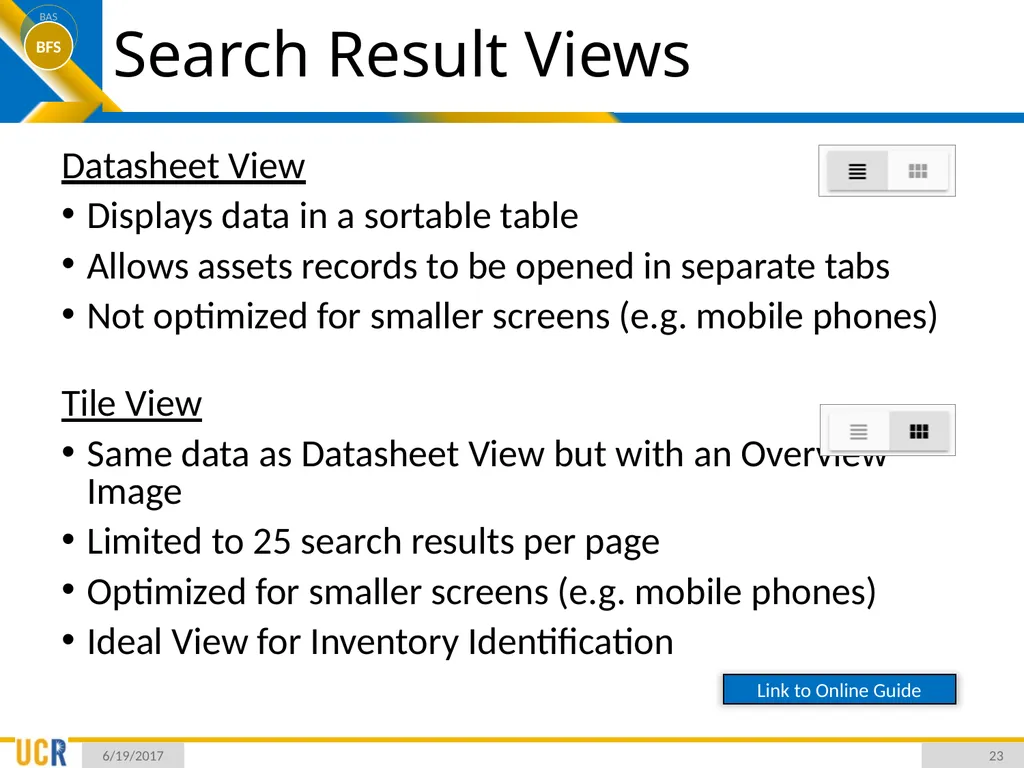
Displays data in a sortable table
Allows assets records to be opened in separate tabs
Not optimized for smaller screens (e.g. mobile phones)
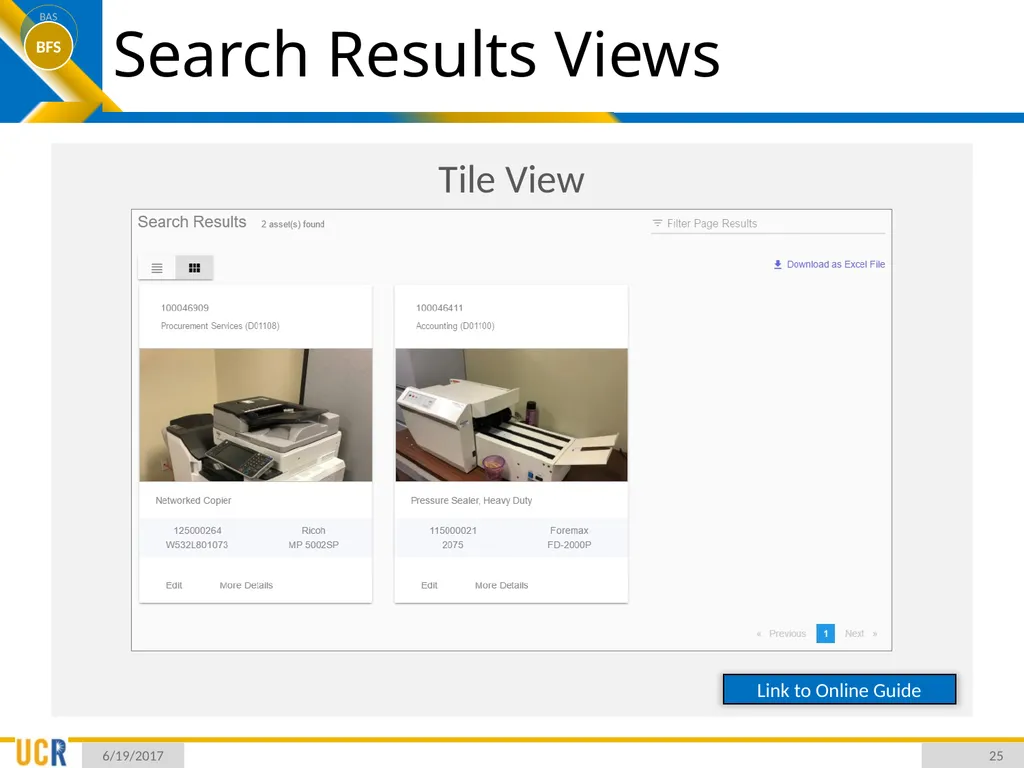
Tile View
Same data as Datasheet View but with an Overview Image
Limited to 25 search results per page
Optimized for smaller screens (e.g. mobile phones)
Ideal View for Inventory Identification 6/19/2017 23 Link to Online Guide<br>
Displays data in a sortable table
Allows assets records to be opened in separate tabs
Not optimized for smaller screens (e.g. mobile phones)
Tile View
Same data as Datasheet View but with an Overview Image
Limited to 25 search results per page
Optimized for smaller screens (e.g. mobile phones)
Ideal View for Inventory Identification 6/19/2017 23 Link to Online Guide<br>
24
Search Results Views Datasheet View 6/19/2017 24 Link to Online Guide<br>
25
Search Results Views Tile View 6/19/2017 25 Link to Online Guide<br>
26
Other Search Tools and Excel Export Query Sorting
Results can be sorted within the Datasheet View
Sort order will be extend to the Tile View
Query Filter
Filters applies to the search results on the current page for the displayed fields
Items Per Page Field
Number of items displayed on the Datasheet View can be set to 25, 50, 100, or All
“All” allows user to filter all search results on one page
“25” allows the views to be toggled while maintaining applied sort order, filter, and page values 6/19/2017 26 Link to Online Guide<br>
Results can be sorted within the Datasheet View
Sort order will be extend to the Tile View
Query Filter
Filters applies to the search results on the current page for the displayed fields
Items Per Page Field
Number of items displayed on the Datasheet View can be set to 25, 50, 100, or All
“All” allows user to filter all search results on one page
“25” allows the views to be toggled while maintaining applied sort order, filter, and page values 6/19/2017 26 Link to Online Guide<br>
27
Other Search Tools and Excel Export Excel Export
Search results can be exported to Excel
Exported data contains many additional fields that are not displayed in the Datasheet View:
Asset ID Fields: Alternate ID
Department Fields: Custodial Code, Assigned To
Equipment Fields: Status Code, Condition Code, Usage
Accounting Fields: Acquisition Code, Reference Number, Accounting Date, Cost, Title, Original Fund, Current Fund(s), Depreciation Code, Useful Life
Location Fields: Assets Located on Campus, Current Location (Site, Building, Floor, Room)
Last Inventory Verification Entries
Last Disposal/Transfer Entry 6/19/2017 27 Link to Online Guide<br>
Search results can be exported to Excel
Exported data contains many additional fields that are not displayed in the Datasheet View:
Asset ID Fields: Alternate ID
Department Fields: Custodial Code, Assigned To
Equipment Fields: Status Code, Condition Code, Usage
Accounting Fields: Acquisition Code, Reference Number, Accounting Date, Cost, Title, Original Fund, Current Fund(s), Depreciation Code, Useful Life
Location Fields: Assets Located on Campus, Current Location (Site, Building, Floor, Room)
Last Inventory Verification Entries
Last Disposal/Transfer Entry 6/19/2017 27 Link to Online Guide<br>
28
Updating Assets Navigating to the Edit Asset Screen
Updating General Fields
AMS Location Data
Adding Comments & Attachments 7/13/2015 28<br>
Updating General Fields
AMS Location Data
Adding Comments & Attachments 7/13/2015 28<br>
29
Navigating to the Edit Asset Screen Functionality Details
To edit an asset the individual record must be located either through a search or from an Excel export
Please note that AMS searches are persistent
Search Results will not be lost if:
Entering or modifying an asset record
Search Results will be lost if:
Conducting a new search
User logs out of the AMS 6/19/2017 29 Link to Online Guide<br>
To edit an asset the individual record must be located either through a search or from an Excel export
Please note that AMS searches are persistent
Search Results will not be lost if:
Entering or modifying an asset record
Search Results will be lost if:
Conducting a new search
User logs out of the AMS 6/19/2017 29 Link to Online Guide<br>
30
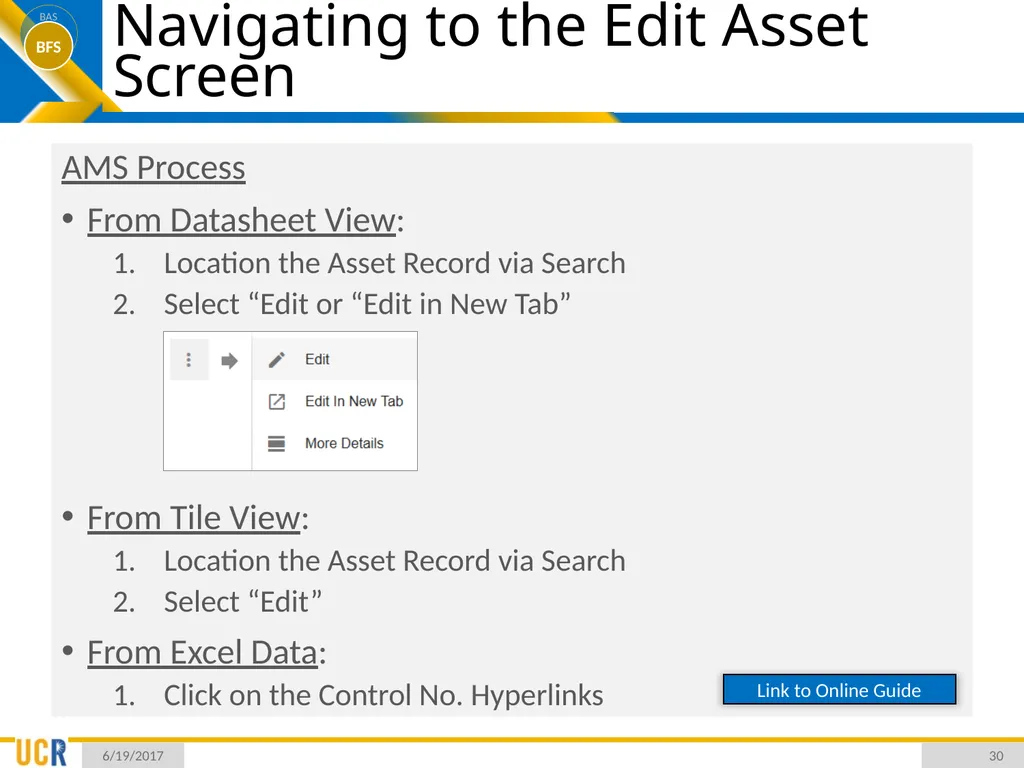
Navigating to the Edit Asset Screen AMS Process
From Datasheet View:
Location the Asset Record via Search
Select “Edit or “Edit in New Tab”
From Tile View:
Location the Asset Record via Search
Select “Edit”
From Excel Data:
Click on the Control No. Hyperlinks 6/19/2017 30 Link to Online Guide<br>
From Datasheet View:
Location the Asset Record via Search
Select “Edit or “Edit in New Tab”
From Tile View:
Location the Asset Record via Search
Select “Edit”
From Excel Data:
Click on the Control No. Hyperlinks 6/19/2017 30 Link to Online Guide<br>
31
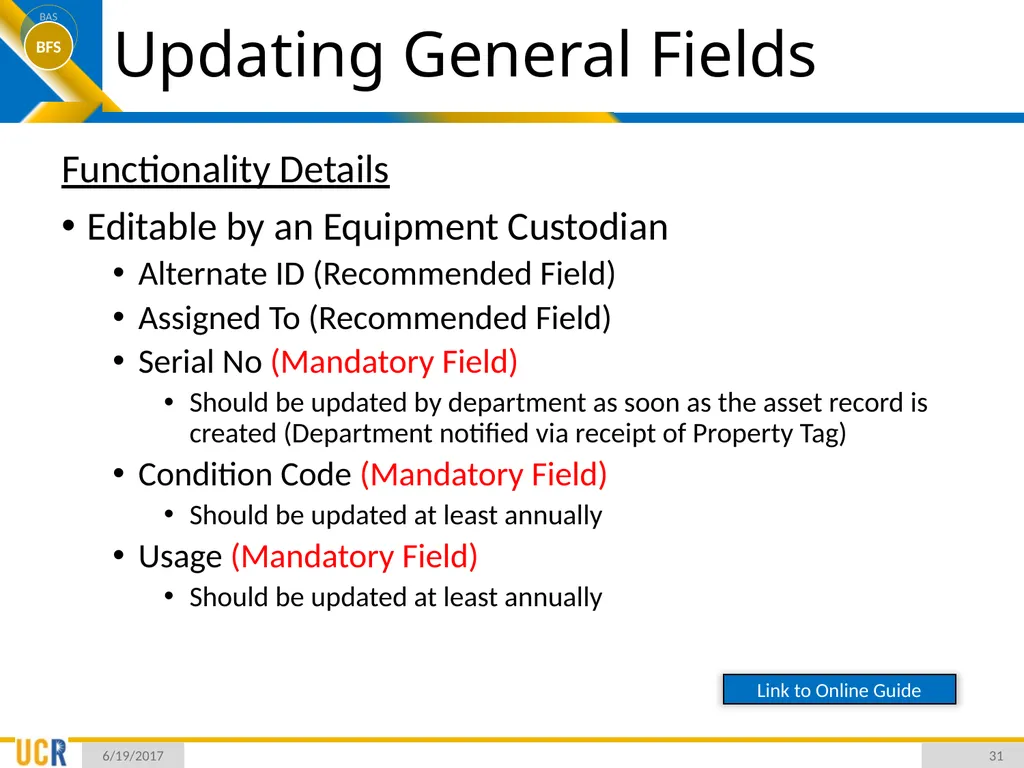
Updating General Fields Functionality Details
Editable by an Equipment Custodian
Alternate ID (Recommended Field)
Assigned To (Recommended Field)
Serial No (Mandatory Field)
Should be updated by department as soon as the asset record is created (Department notified via receipt of Property Tag)
Condition Code (Mandatory Field)
Should be updated at least annually
Usage (Mandatory Field)
Should be updated at least annually 6/19/2017 31 Link to Online Guide<br>
Editable by an Equipment Custodian
Alternate ID (Recommended Field)
Assigned To (Recommended Field)
Serial No (Mandatory Field)
Should be updated by department as soon as the asset record is created (Department notified via receipt of Property Tag)
Condition Code (Mandatory Field)
Should be updated at least annually
Usage (Mandatory Field)
Should be updated at least annually 6/19/2017 31 Link to Online Guide<br>
32
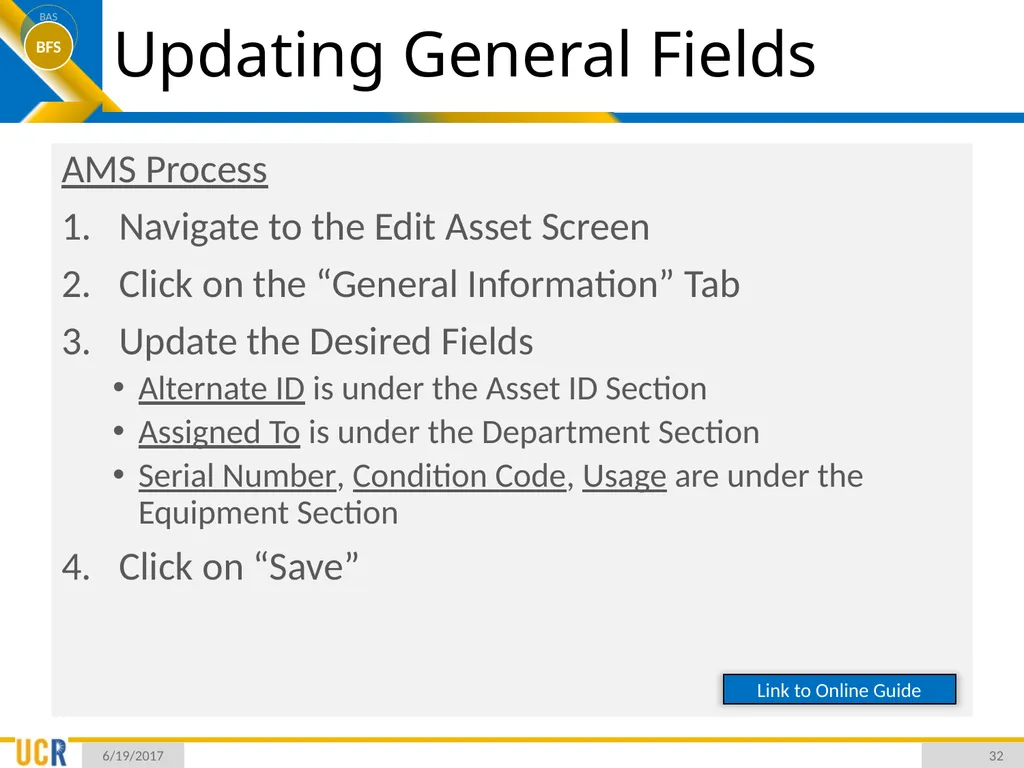
Updating General Fields AMS Process
Navigate to the Edit Asset Screen
Click on the “General Information” Tab
Update the Desired Fields
Alternate ID is under the Asset ID Section
Assigned To is under the Department Section
Serial Number, Condition Code, Usage are under the Equipment Section
Click on “Save” 6/19/2017 32 Link to Online Guide<br>
Navigate to the Edit Asset Screen
Click on the “General Information” Tab
Update the Desired Fields
Alternate ID is under the Asset ID Section
Assigned To is under the Department Section
Serial Number, Condition Code, Usage are under the Equipment Section
Click on “Save” 6/19/2017 32 Link to Online Guide<br>
33
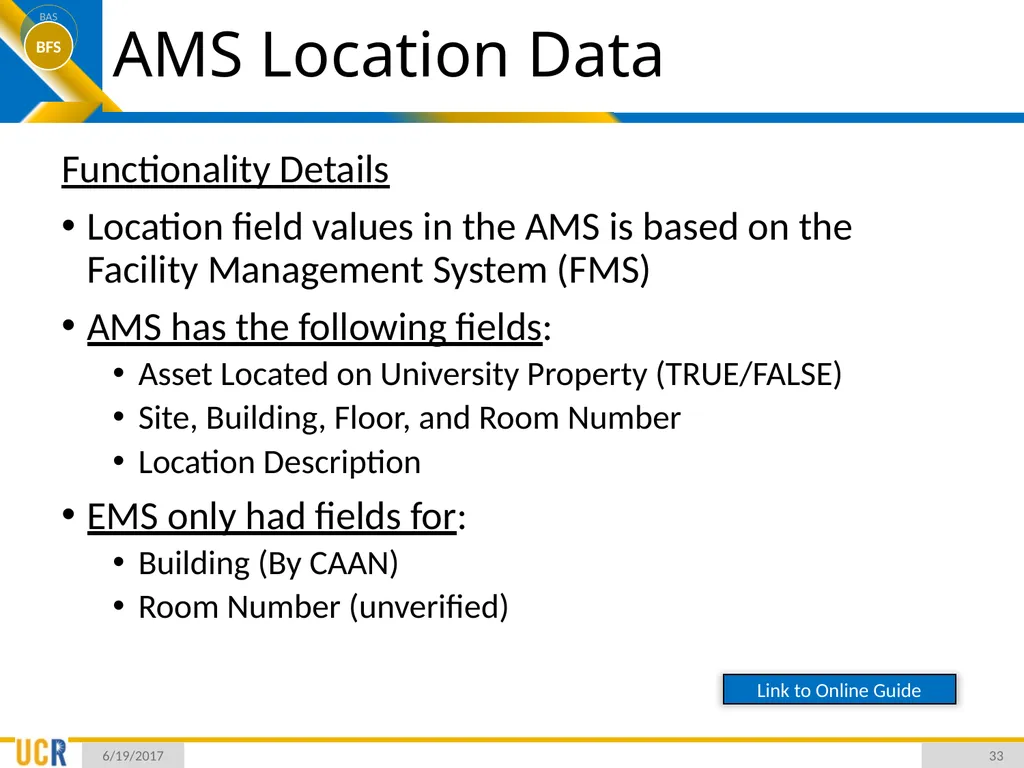
AMS Location Data Functionality Details
Location field values in the AMS is based on the Facility Management System (FMS)
AMS has the following fields:
Asset Located on University Property (TRUE/FALSE)
Site, Building, Floor, and Room Number
Location Description
EMS only had fields for:
Building (By CAAN)
Room Number (unverified) 6/19/2017 33 Link to Online Guide<br>
Location field values in the AMS is based on the Facility Management System (FMS)
AMS has the following fields:
Asset Located on University Property (TRUE/FALSE)
Site, Building, Floor, and Room Number
Location Description
EMS only had fields for:
Building (By CAAN)
Room Number (unverified) 6/19/2017 33 Link to Online Guide<br>
34
AMS Location Data Functionality Details
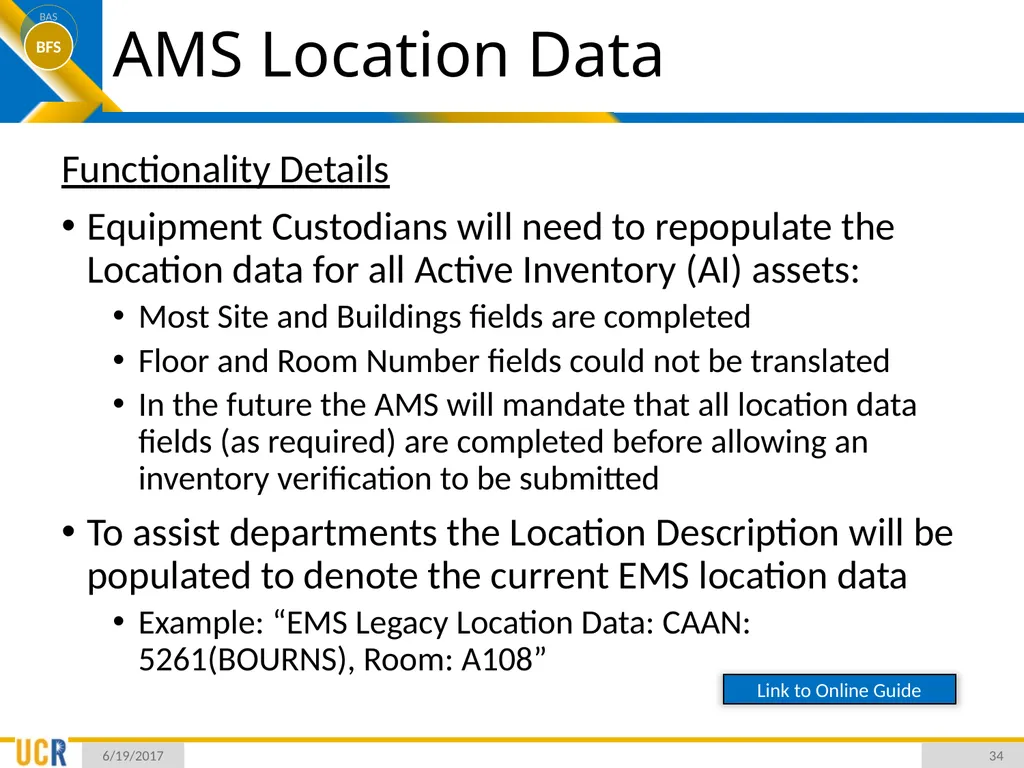
Equipment Custodians will need to repopulate the Location data for all Active Inventory (AI) assets:
Most Site and Buildings fields are completed
Floor and Room Number fields could not be translated
In the future the AMS will mandate that all location data fields (as required) are completed before allowing an inventory verification to be submitted
To assist departments the Location Description will be populated to denote the current EMS location data
Example: “EMS Legacy Location Data: CAAN: 5261(BOURNS), Room: A108” 6/19/2017 34 Link to Online Guide<br>
Equipment Custodians will need to repopulate the Location data for all Active Inventory (AI) assets:
Most Site and Buildings fields are completed
Floor and Room Number fields could not be translated
In the future the AMS will mandate that all location data fields (as required) are completed before allowing an inventory verification to be submitted
To assist departments the Location Description will be populated to denote the current EMS location data
Example: “EMS Legacy Location Data: CAAN: 5261(BOURNS), Room: A108” 6/19/2017 34 Link to Online Guide<br>
35
AMS Location Data Functionality Details
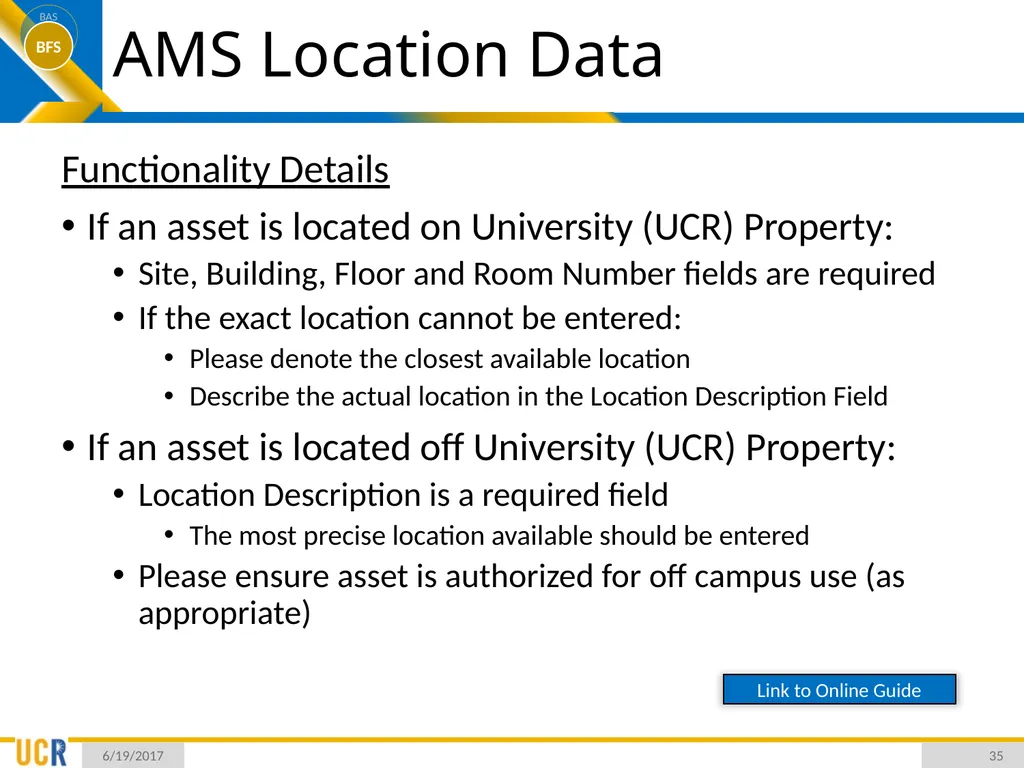
If an asset is located on University (UCR) Property:
Site, Building, Floor and Room Number fields are required
If the exact location cannot be entered:
Please denote the closest available location
Describe the actual location in the Location Description Field
If an asset is located off University (UCR) Property:
Location Description is a required field
The most precise location available should be entered
Please ensure asset is authorized for off campus use (as appropriate) 6/19/2017 35 Link to Online Guide<br>
If an asset is located on University (UCR) Property:
Site, Building, Floor and Room Number fields are required
If the exact location cannot be entered:
Please denote the closest available location
Describe the actual location in the Location Description Field
If an asset is located off University (UCR) Property:
Location Description is a required field
The most precise location available should be entered
Please ensure asset is authorized for off campus use (as appropriate) 6/19/2017 35 Link to Online Guide<br>
36
Adding Comments & Attachments Functionality Details
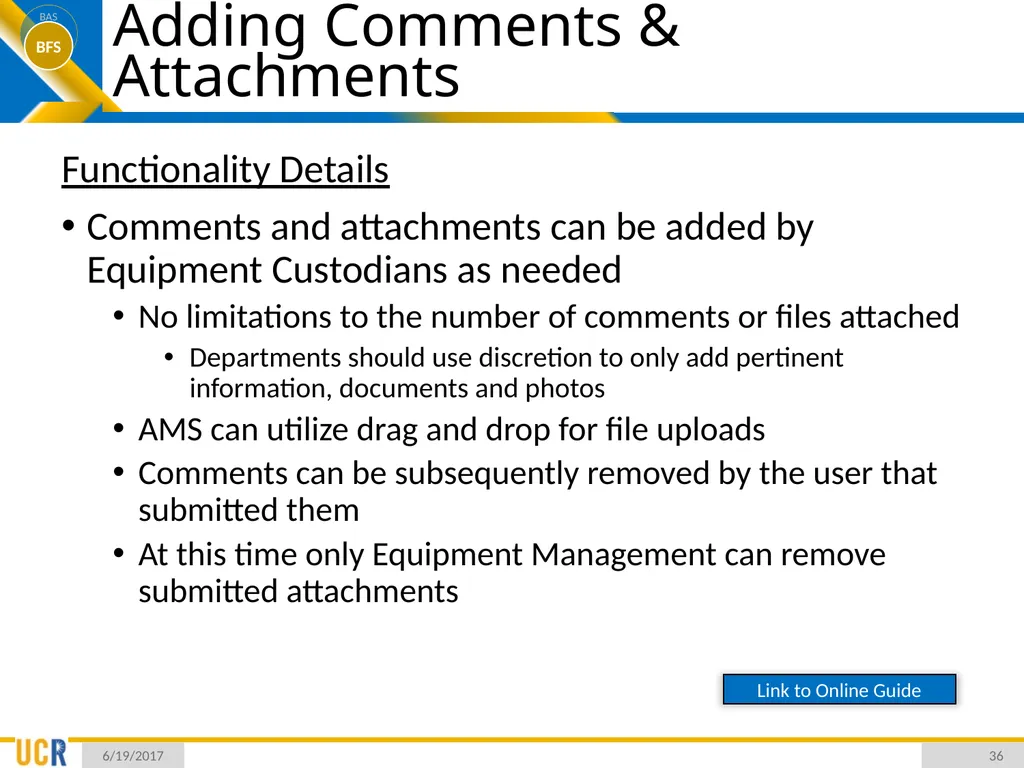
Comments and attachments can be added by Equipment Custodians as needed
No limitations to the number of comments or files attached
Departments should use discretion to only add pertinent information, documents and photos
AMS can utilize drag and drop for file uploads
Comments can be subsequently removed by the user that submitted them
At this time only Equipment Management can remove submitted attachments 6/19/2017 36 Link to Online Guide<br>
Comments and attachments can be added by Equipment Custodians as needed
No limitations to the number of comments or files attached
Departments should use discretion to only add pertinent information, documents and photos
AMS can utilize drag and drop for file uploads
Comments can be subsequently removed by the user that submitted them
At this time only Equipment Management can remove submitted attachments 6/19/2017 36 Link to Online Guide<br>
37
Adding Comments AMS Process
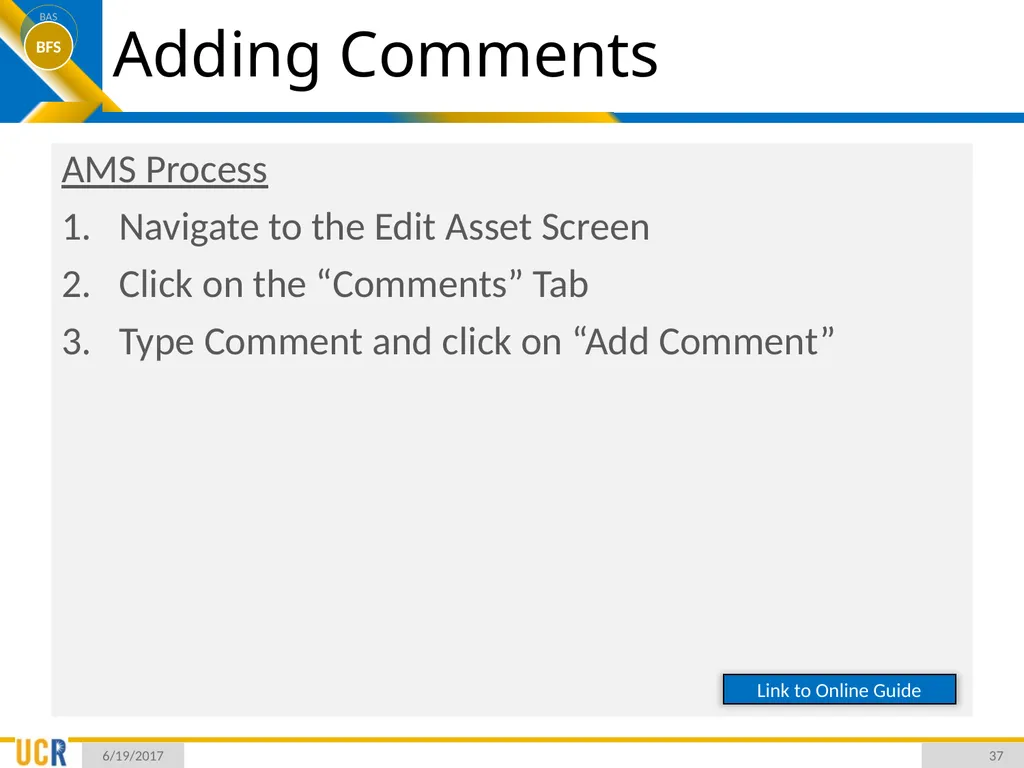
Navigate to the Edit Asset Screen
Click on the “Comments” Tab
Type Comment and click on “Add Comment” 6/19/2017 37 Link to Online Guide<br>
Navigate to the Edit Asset Screen
Click on the “Comments” Tab
Type Comment and click on “Add Comment” 6/19/2017 37 Link to Online Guide<br>
38
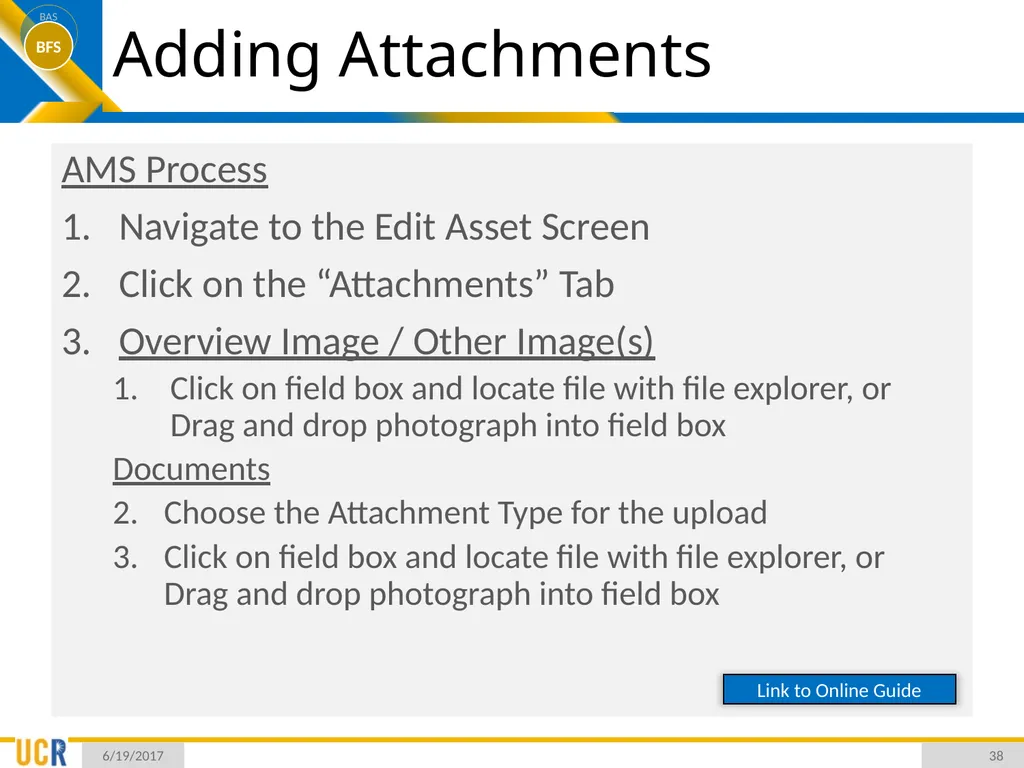
Adding Attachments AMS Process
Navigate to the Edit Asset Screen
Click on the “Attachments” Tab
Overview Image / Other Image(s)
Click on field box and locate file with file explorer, or Drag and drop photograph into field box
Documents
Choose the Attachment Type for the upload
Click on field box and locate file with file explorer, or Drag and drop photograph into field box 6/19/2017 38 Link to Online Guide<br>
Navigate to the Edit Asset Screen
Click on the “Attachments” Tab
Overview Image / Other Image(s)
Click on field box and locate file with file explorer, or Drag and drop photograph into field box
Documents
Choose the Attachment Type for the upload
Click on field box and locate file with file explorer, or Drag and drop photograph into field box 6/19/2017 38 Link to Online Guide<br>
39
Dispositions & Transfers (EIMR’s) Submitting EIMR’s
Post EIMR Submission 7/13/2015 39<br>
Post EIMR Submission 7/13/2015 39<br>
40
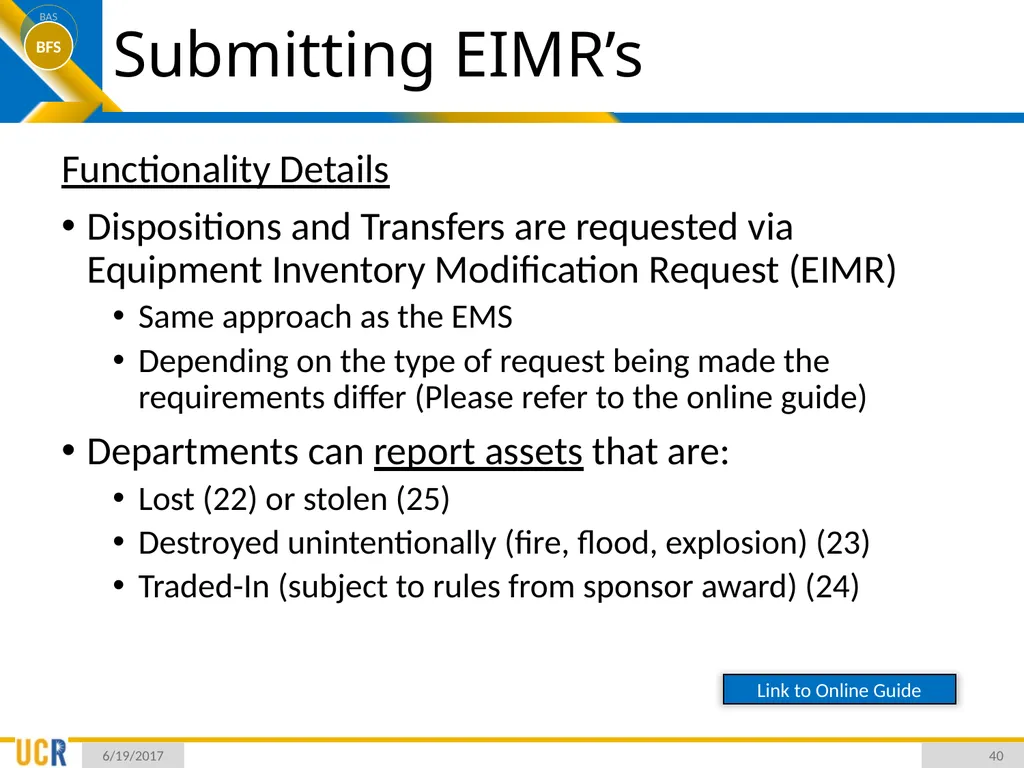
Submitting EIMR’s Functionality Details
Dispositions and Transfers are requested via Equipment Inventory Modification Request (EIMR)
Same approach as the EMS
Depending on the type of request being made the requirements differ (Please refer to the online guide)
Departments can report assets that are:
Lost (22) or stolen (25)
Destroyed unintentionally (fire, flood, explosion) (23)
Traded-In (subject to rules from sponsor award) (24) 6/19/2017 40 Link to Online Guide<br>
Dispositions and Transfers are requested via Equipment Inventory Modification Request (EIMR)
Same approach as the EMS
Depending on the type of request being made the requirements differ (Please refer to the online guide)
Departments can report assets that are:
Lost (22) or stolen (25)
Destroyed unintentionally (fire, flood, explosion) (23)
Traded-In (subject to rules from sponsor award) (24) 6/19/2017 40 Link to Online Guide<br>
41
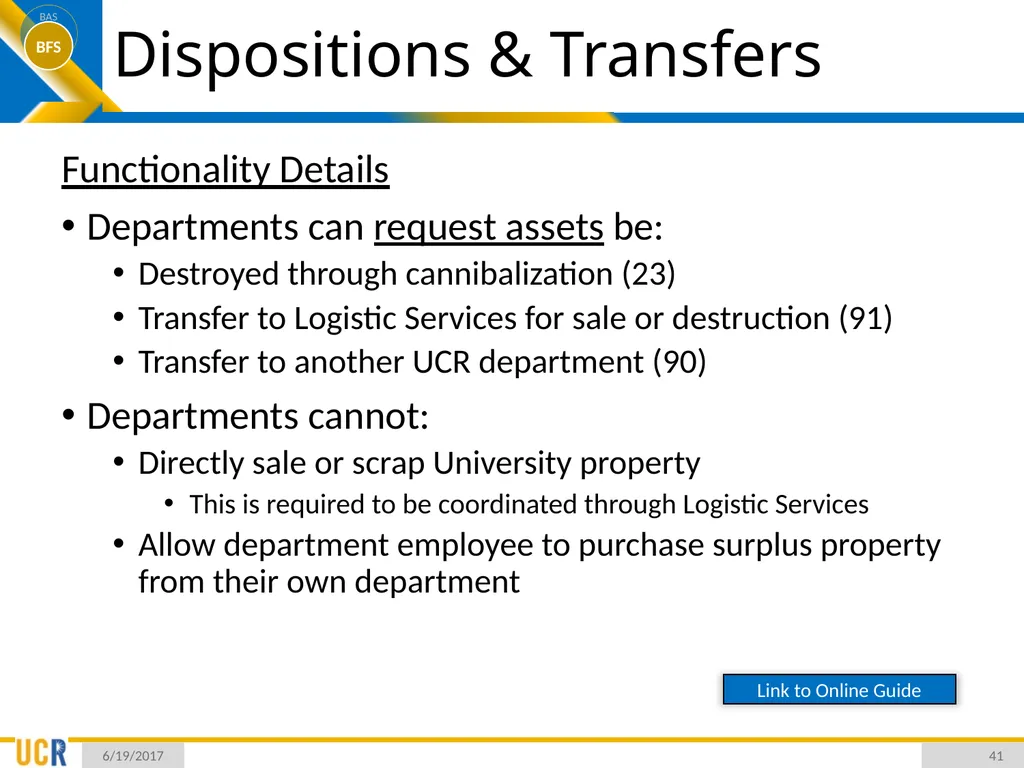
Dispositions & Transfers Functionality Details
Departments can request assets be:
Destroyed through cannibalization (23)
Transfer to Logistic Services for sale or destruction (91)
Transfer to another UCR department (90)
Departments cannot:
Directly sale or scrap University property
This is required to be coordinated through Logistic Services
Allow department employee to purchase surplus property from their own department 6/19/2017 41 Link to Online Guide<br>
Departments can request assets be:
Destroyed through cannibalization (23)
Transfer to Logistic Services for sale or destruction (91)
Transfer to another UCR department (90)
Departments cannot:
Directly sale or scrap University property
This is required to be coordinated through Logistic Services
Allow department employee to purchase surplus property from their own department 6/19/2017 41 Link to Online Guide<br>
42
Dispositions & Transfers AMS Process
Navigate to the Edit Asset Screen
Click on the “Dispositions & Cost Adjustments” Tab
Click on the New Entry Icon (Yellow Plus)
Set the EIMR Code (as appropriate)
Set the New Department field (as appropriate)
Add a Remark (as appropriate)
Click on Process Disposition/Transfer
Please note that depending on the type of EIMR being submitted there are a variety of requirements (even prior to submission) Refer to the online guide for more details 6/19/2017 42 Link to Online Guide<br>
Navigate to the Edit Asset Screen
Click on the “Dispositions & Cost Adjustments” Tab
Click on the New Entry Icon (Yellow Plus)
Set the EIMR Code (as appropriate)
Set the New Department field (as appropriate)
Add a Remark (as appropriate)
Click on Process Disposition/Transfer
Please note that depending on the type of EIMR being submitted there are a variety of requirements (even prior to submission) Refer to the online guide for more details 6/19/2017 42 Link to Online Guide<br>
43
Post EIMR Submission Functionality Details
Once an EIMR is submitted it is:
Routed to the Equipment Manager for review
Set to the “Awaiting Approval” status
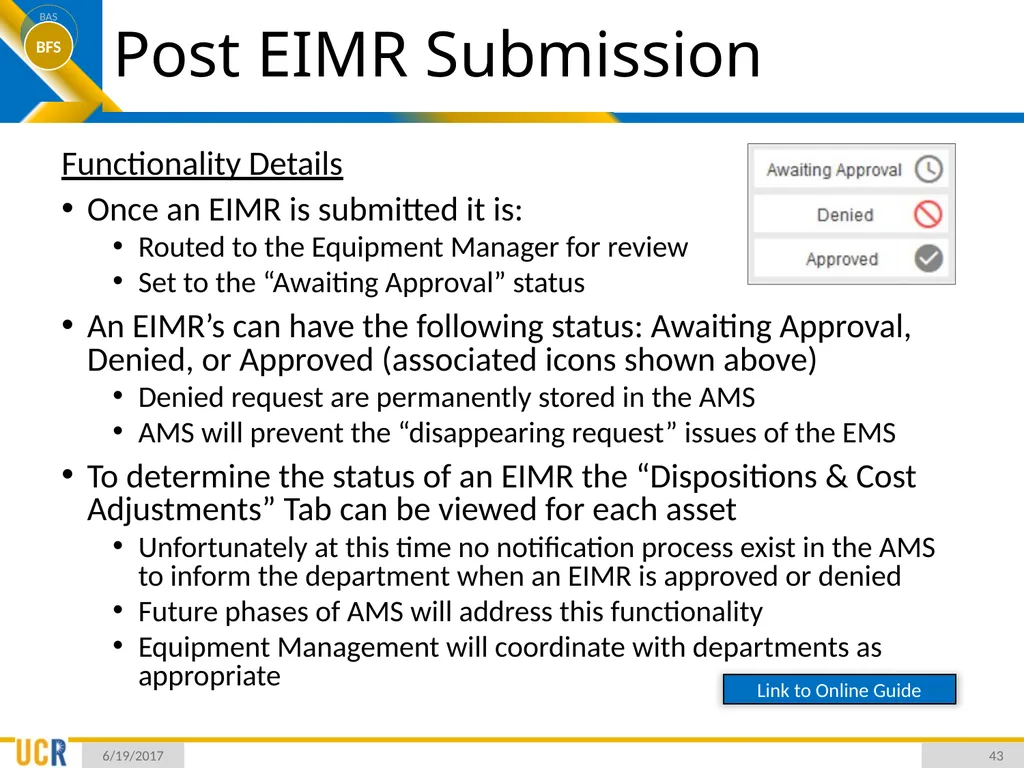
An EIMR’s can have the following status: Awaiting Approval, Denied, or Approved (associated icons shown above)
Denied request are permanently stored in the AMS
AMS will prevent the “disappearing request” issues of the EMS
To determine the status of an EIMR the “Dispositions & Cost Adjustments” Tab can be viewed for each asset
Unfortunately at this time no notification process exist in the AMS to inform the department when an EIMR is approved or denied
Future phases of AMS will address this functionality
Equipment Management will coordinate with departments as appropriate 6/19/2017 43 Link to Online Guide<br>
Once an EIMR is submitted it is:
Routed to the Equipment Manager for review
Set to the “Awaiting Approval” status
An EIMR’s can have the following status: Awaiting Approval, Denied, or Approved (associated icons shown above)
Denied request are permanently stored in the AMS
AMS will prevent the “disappearing request” issues of the EMS
To determine the status of an EIMR the “Dispositions & Cost Adjustments” Tab can be viewed for each asset
Unfortunately at this time no notification process exist in the AMS to inform the department when an EIMR is approved or denied
Future phases of AMS will address this functionality
Equipment Management will coordinate with departments as appropriate 6/19/2017 43 Link to Online Guide<br>
44
Inventory Verification Viewing Inventory Requirements
Submitting an Inventory Verification
Viewing Prior Submissions 7/13/2015 44<br>
Submitting an Inventory Verification
Viewing Prior Submissions 7/13/2015 44<br>
45
Viewing Inventory Requirements Functionality Details
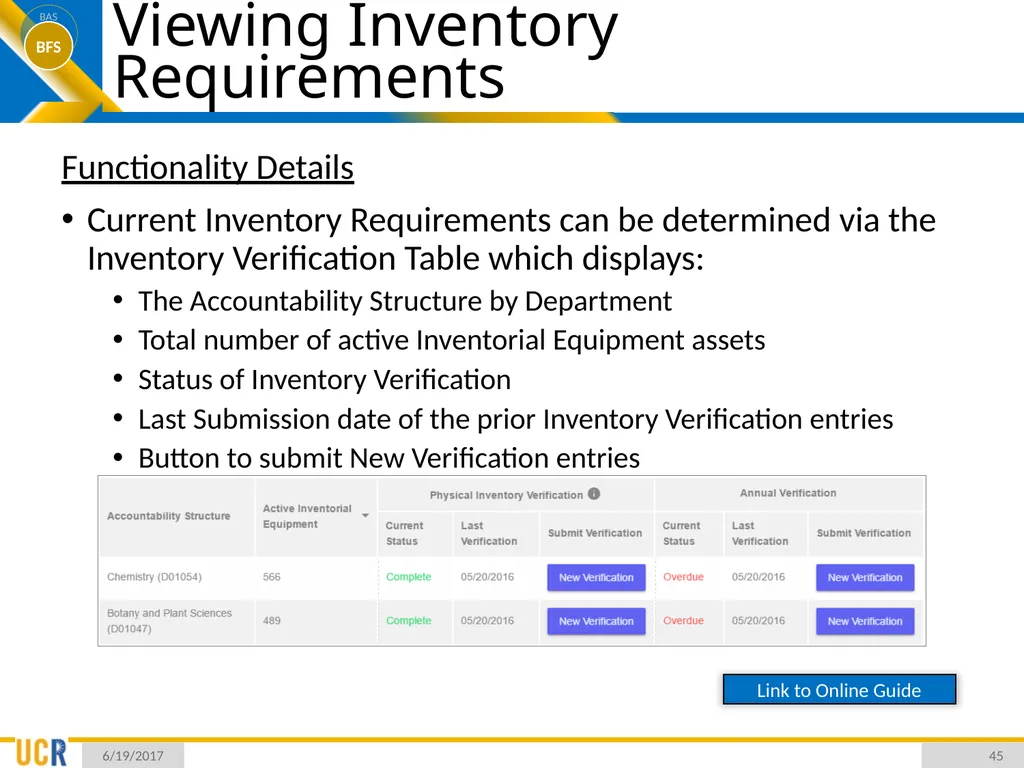
Current Inventory Requirements can be determined via the Inventory Verification Table which displays:
The Accountability Structure by Department
Total number of active Inventorial Equipment assets
Status of Inventory Verification
Last Submission date of the prior Inventory Verification entries
Button to submit New Verification entries 6/19/2017 45 Link to Online Guide<br>
Current Inventory Requirements can be determined via the Inventory Verification Table which displays:
The Accountability Structure by Department
Total number of active Inventorial Equipment assets
Status of Inventory Verification
Last Submission date of the prior Inventory Verification entries
Button to submit New Verification entries 6/19/2017 45 Link to Online Guide<br>
46
Viewing Inventory Requirements Functionality Details
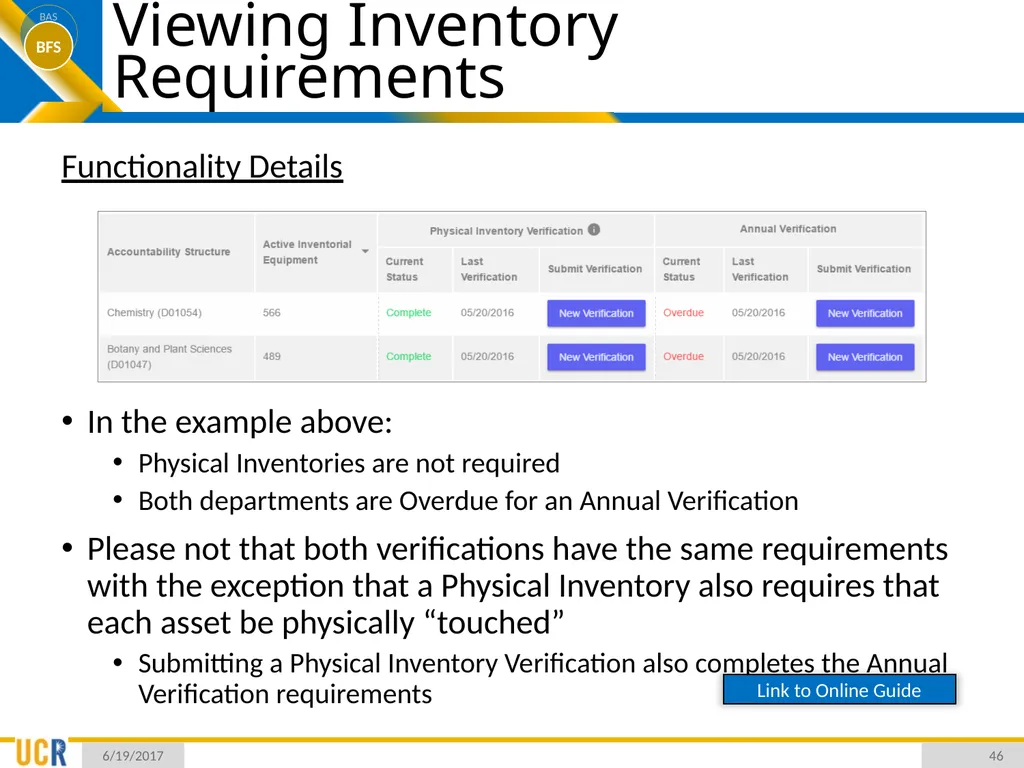
In the example above:
Physical Inventories are not required
Both departments are Overdue for an Annual Verification
Please not that both verifications have the same requirements with the exception that a Physical Inventory also requires that each asset be physically “touched”
Submitting a Physical Inventory Verification also completes the Annual Verification requirements 6/19/2017 46 Link to Online Guide<br>
In the example above:
Physical Inventories are not required
Both departments are Overdue for an Annual Verification
Please not that both verifications have the same requirements with the exception that a Physical Inventory also requires that each asset be physically “touched”
Submitting a Physical Inventory Verification also completes the Annual Verification requirements 6/19/2017 46 Link to Online Guide<br>
47
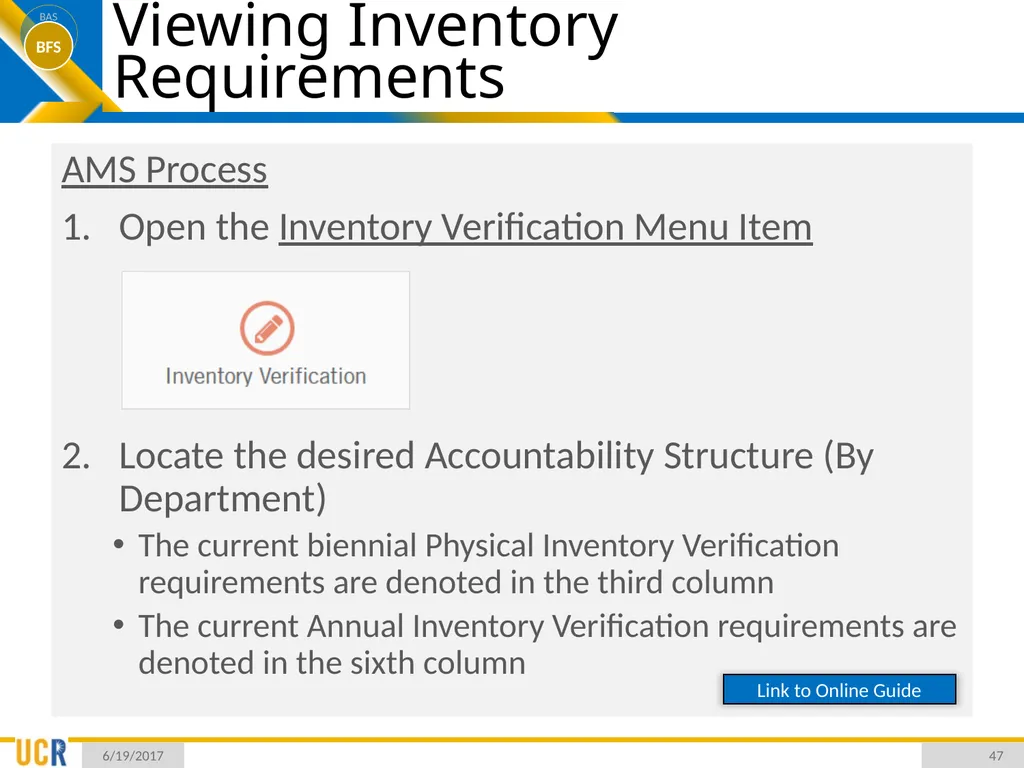
Viewing Inventory Requirements AMS Process
Open the Inventory Verification Menu Item
Locate the desired Accountability Structure (By Department)
The current biennial Physical Inventory Verification requirements are denoted in the third column
The current Annual Inventory Verification requirements are denoted in the sixth column 6/19/2017 47 Link to Online Guide<br>
Open the Inventory Verification Menu Item
Locate the desired Accountability Structure (By Department)
The current biennial Physical Inventory Verification requirements are denoted in the third column
The current Annual Inventory Verification requirements are denoted in the sixth column 6/19/2017 47 Link to Online Guide<br>
48
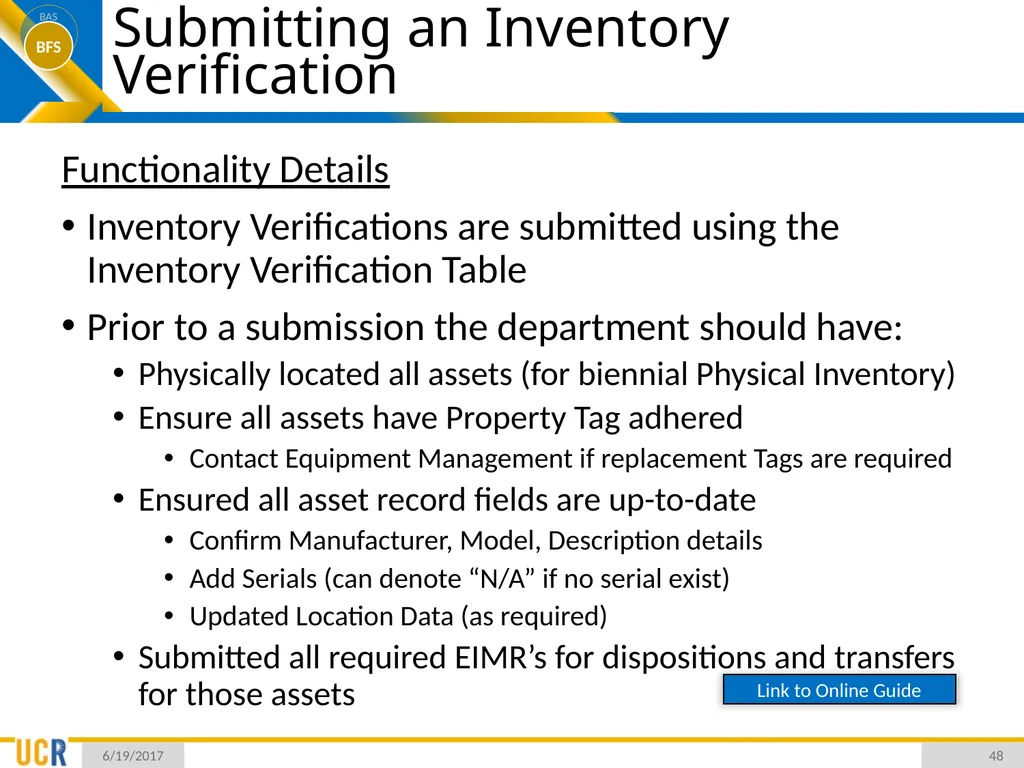
Submitting an Inventory Verification Functionality Details
Inventory Verifications are submitted using the Inventory Verification Table
Prior to a submission the department should have:
Physically located all assets (for biennial Physical Inventory)
Ensure all assets have Property Tag adhered
Contact Equipment Management if replacement Tags are required
Ensured all asset record fields are up-to-date
Confirm Manufacturer, Model, Description details
Add Serials (can denote “N/A” if no serial exist)
Updated Location Data (as required)
Submitted all required EIMR’s for dispositions and transfers for those assets 6/19/2017 48 Link to Online Guide<br>
Inventory Verifications are submitted using the Inventory Verification Table
Prior to a submission the department should have:
Physically located all assets (for biennial Physical Inventory)
Ensure all assets have Property Tag adhered
Contact Equipment Management if replacement Tags are required
Ensured all asset record fields are up-to-date
Confirm Manufacturer, Model, Description details
Add Serials (can denote “N/A” if no serial exist)
Updated Location Data (as required)
Submitted all required EIMR’s for dispositions and transfers for those assets 6/19/2017 48 Link to Online Guide<br>
49
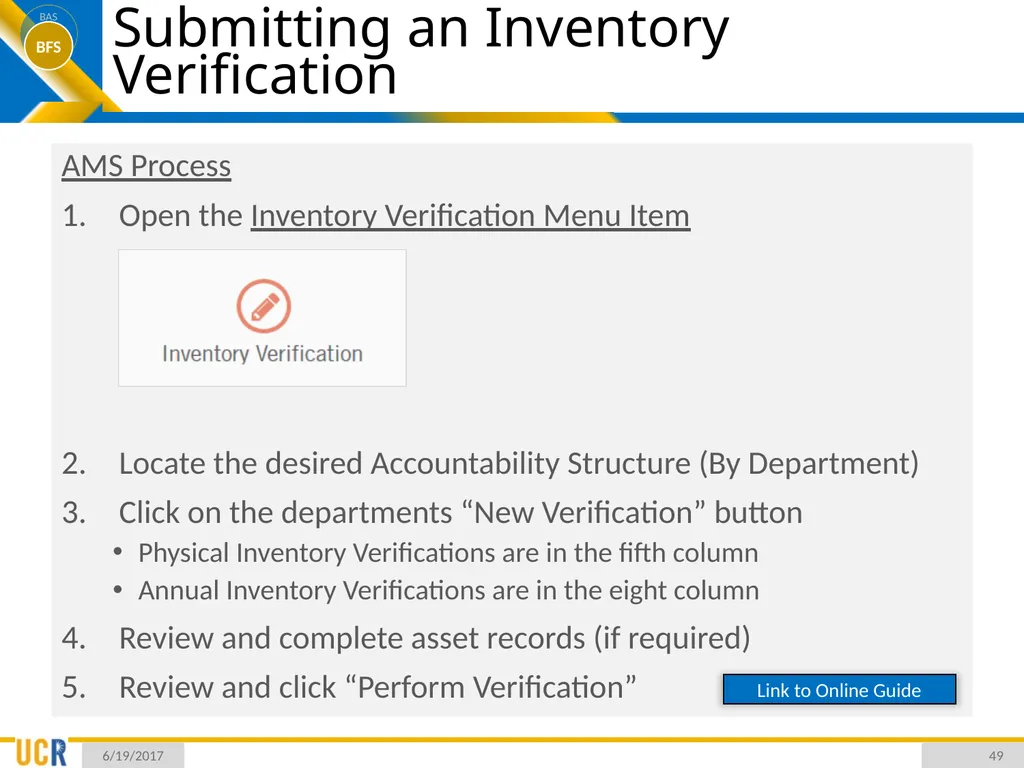
Submitting an Inventory Verification AMS Process
Open the Inventory Verification Menu Item
Locate the desired Accountability Structure (By Department)
Click on the departments “New Verification” button
Physical Inventory Verifications are in the fifth column
Annual Inventory Verifications are in the eight column
Review and complete asset records (if required)
Review and click “Perform Verification” 6/19/2017 49 Link to Online Guide<br>
Open the Inventory Verification Menu Item
Locate the desired Accountability Structure (By Department)
Click on the departments “New Verification” button
Physical Inventory Verifications are in the fifth column
Annual Inventory Verifications are in the eight column
Review and complete asset records (if required)
Review and click “Perform Verification” 6/19/2017 49 Link to Online Guide<br>
50
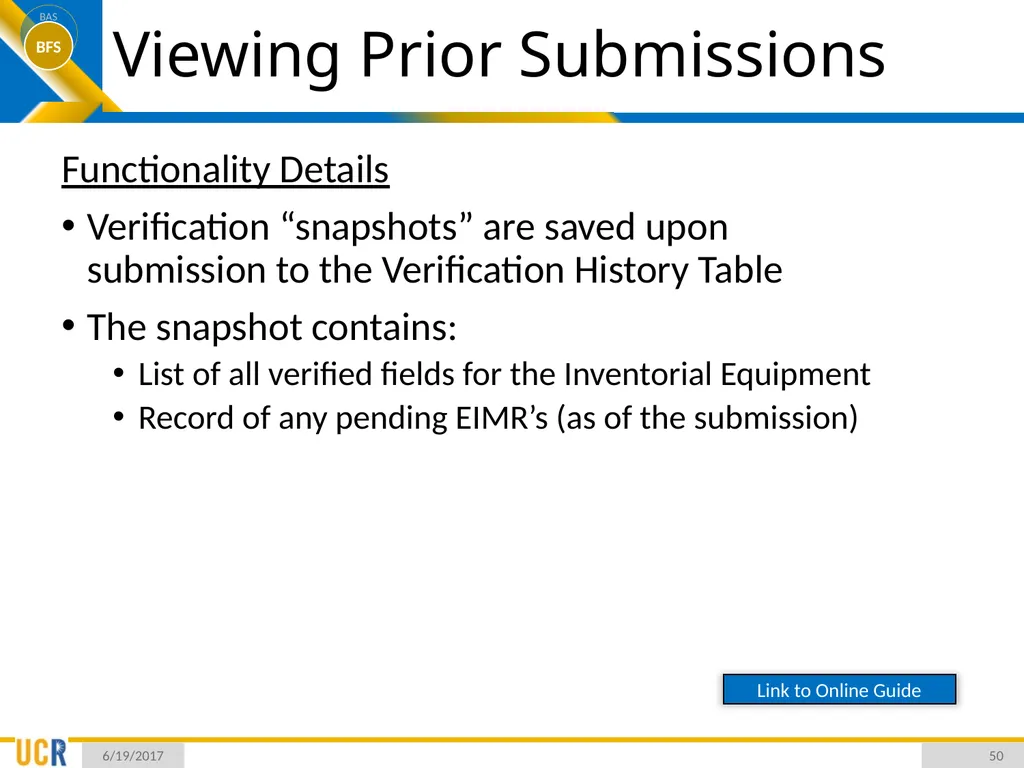
Viewing Prior Submissions Functionality Details
Verification “snapshots” are saved upon submission to the Verification History Table
The snapshot contains:
List of all verified fields for the Inventorial Equipment
Record of any pending EIMR’s (as of the submission) 6/19/2017 50 Link to Online Guide<br>
Verification “snapshots” are saved upon submission to the Verification History Table
The snapshot contains:
List of all verified fields for the Inventorial Equipment
Record of any pending EIMR’s (as of the submission) 6/19/2017 50 Link to Online Guide<br>
51
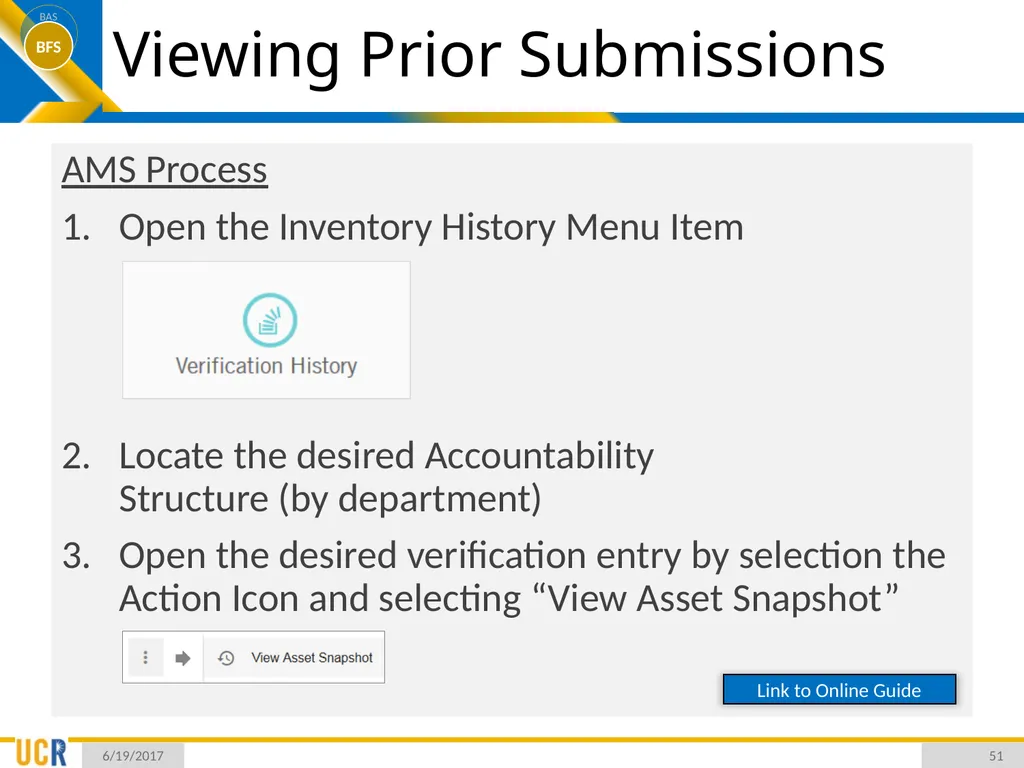
Viewing Prior Submissions AMS Process
Open the Inventory History Menu Item
Locate the desired Accountability Structure (by department)
Open the desired verification entry by selection the Action Icon and selecting “View Asset Snapshot” 6/19/2017 51 Link to Online Guide<br>
Open the Inventory History Menu Item
Locate the desired Accountability Structure (by department)
Open the desired verification entry by selection the Action Icon and selecting “View Asset Snapshot” 6/19/2017 51 Link to Online Guide<br>
52
Questions & Feedback Any questions related to the AMS or the FY2017 inventory verification process can be directed to:
amsfeedback@ucr.edu 6/19/2017 52<br>
amsfeedback@ucr.edu 6/19/2017 52<br>