
Austin Editors Guild: The Technology of Editing
LV
Published · 36 slides · 0 views

1 / 1

Description
Austin Editors Guild: The Technology of Editing Anil Desai, March 23rd, 2017 Speaker Info: Anil Desai Anil Desai Independent IT consultant and writer (Austin, TX) Author of over 20 books and dozens of articlespresentations Microsoft MVP
Related Topics
Share
Embed code
Download this presentation From Below
"Austin Editors Guild: The Technology of Editing" is the property of its rightful owner. Permission is granted to download and print the materials on this website for personal, non-commercial use only, and to display it on your personal computer provided you do not modify the materials and that you retain all copyright notices contained in the materials. By downloading content from our website, you accept the terms of this agreement.
Presentation Transcript
01
Austin Editors Guild: The Technology of Editing Anil Desai, March 23rd, 2017<br>
02
Speaker Info: Anil Desai Anil Desai
Independent IT consultant and writer (Austin, TX)
Author of over 20 books and dozens of articles/presentations
Microsoft MVP (13 years) – Currently Cloud and Datacenter Management
Contact Info: http://AnilDesai.net or Anil@AnilDesai.net<br>
Independent IT consultant and writer (Austin, TX)
Author of over 20 books and dozens of articles/presentations
Microsoft MVP (13 years) – Currently Cloud and Datacenter Management
Contact Info: http://AnilDesai.net or Anil@AnilDesai.net<br>
03
Overview Technology Problems:
There are too many potential solutions
Technical information is readily available, but it’s hard to prioritize what’s most important
Suggested Approaches
Determine what is available and focus on what’s most interesting, most impactful, and most relevant
Whenever possible, use real-world, proven practices
Identify problems and look for ways to improve current processes
General Technology Tips
Focus on the application of technology and any barriers to implementation
Increase the breadth and depth of your knowledge; Don’t focus on just the bare minimum
Technical knowledge and capabilities will make you more marketable and less dispensable Anil Desai: Tech for Editors 3<br>
There are too many potential solutions
Technical information is readily available, but it’s hard to prioritize what’s most important
Suggested Approaches
Determine what is available and focus on what’s most interesting, most impactful, and most relevant
Whenever possible, use real-world, proven practices
Identify problems and look for ways to improve current processes
General Technology Tips
Focus on the application of technology and any barriers to implementation
Increase the breadth and depth of your knowledge; Don’t focus on just the bare minimum
Technical knowledge and capabilities will make you more marketable and less dispensable Anil Desai: Tech for Editors 3<br>
04
General Approach / Advice The focus of this presentation is on what can be done using the latest available technical features
Your job is to determine whether, when, and how they might apply to you
If so, there are many resources for more information (links in this presentation)
Feel free to e-mail me: Anil@AnilDesai.net
Don’t try to memorize anything now – instead, focus on the concepts
All of the details are available in various places
Example: Microsoft Word Keyboard Shortcuts
Change can be difficult and challenging, but that means it’s worthwhile
If you’re feeling overwhelmed, that’s fine! That’s how you can benefit most.
“That’s not my job!” (but it could be!)
Takeaway: Ideas you like (and want to research further)
TED Talk: How to Get Better at the Things You Care About (Improvement vs. Performance) Anil Desai: Tech for Editors 4<br>
Your job is to determine whether, when, and how they might apply to you
If so, there are many resources for more information (links in this presentation)
Feel free to e-mail me: Anil@AnilDesai.net
Don’t try to memorize anything now – instead, focus on the concepts
All of the details are available in various places
Example: Microsoft Word Keyboard Shortcuts
Change can be difficult and challenging, but that means it’s worthwhile
If you’re feeling overwhelmed, that’s fine! That’s how you can benefit most.
“That’s not my job!” (but it could be!)
Takeaway: Ideas you like (and want to research further)
TED Talk: How to Get Better at the Things You Care About (Improvement vs. Performance) Anil Desai: Tech for Editors 4<br>
05
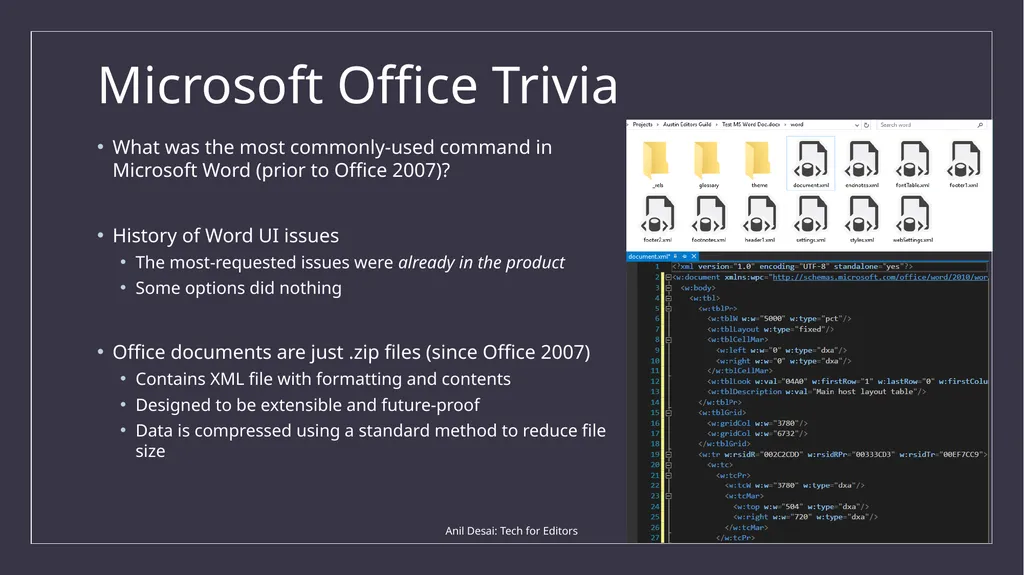
Microsoft Office Trivia What was the most commonly-used command in Microsoft Word (prior to Office 2007)?
History of Word UI issues
The most-requested issues were already in the product
Some options did nothing
Office documents are just .zip files (since Office 2007)
Contains XML file with formatting and contents
Designed to be extensible and future-proof
Data is compressed using a standard method to reduce file size Anil Desai: Tech for Editors 5<br>
History of Word UI issues
The most-requested issues were already in the product
Some options did nothing
Office documents are just .zip files (since Office 2007)
Contains XML file with formatting and contents
Designed to be extensible and future-proof
Data is compressed using a standard method to reduce file size Anil Desai: Tech for Editors 5<br>
06
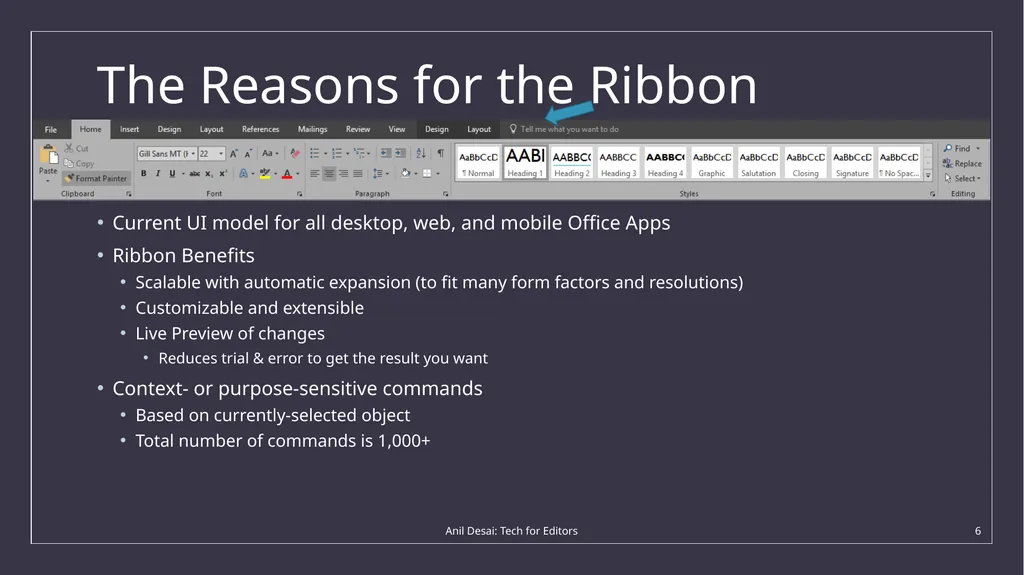
The Reasons for the Ribbon Current UI model for all desktop, web, and mobile Office Apps
Ribbon Benefits
Scalable with automatic expansion (to fit many form factors and resolutions)
Customizable and extensible
Live Preview of changes
Reduces trial & error to get the result you want
Context- or purpose-sensitive commands
Based on currently-selected object
Total number of commands is 1,000+ Anil Desai: Tech for Editors 6<br>
Ribbon Benefits
Scalable with automatic expansion (to fit many form factors and resolutions)
Customizable and extensible
Live Preview of changes
Reduces trial & error to get the result you want
Context- or purpose-sensitive commands
Based on currently-selected object
Total number of commands is 1,000+ Anil Desai: Tech for Editors 6<br>
07
General Office Features Integration between Office Applications
Real-time, shared document collaboration
Revision management, historical snapshots, etc.
Customization
Custom commonly-used commands
Color scheme options
Office 365 Features
Desktop, Mobile, and Web versions are consistent
Multiple installations and synchronized settings across multiple devices and platforms
Document Templates:
Generated by Microsoft and the community
Great way to get started for common document types (resumes, spreadsheets)
Easy to modify colors, fonts, etc. so it doesn’t look like you used a template Anil Desai: Tech for Editors 7<br>
Real-time, shared document collaboration
Revision management, historical snapshots, etc.
Customization
Custom commonly-used commands
Color scheme options
Office 365 Features
Desktop, Mobile, and Web versions are consistent
Multiple installations and synchronized settings across multiple devices and platforms
Document Templates:
Generated by Microsoft and the community
Great way to get started for common document types (resumes, spreadsheets)
Easy to modify colors, fonts, etc. so it doesn’t look like you used a template Anil Desai: Tech for Editors 7<br>
08
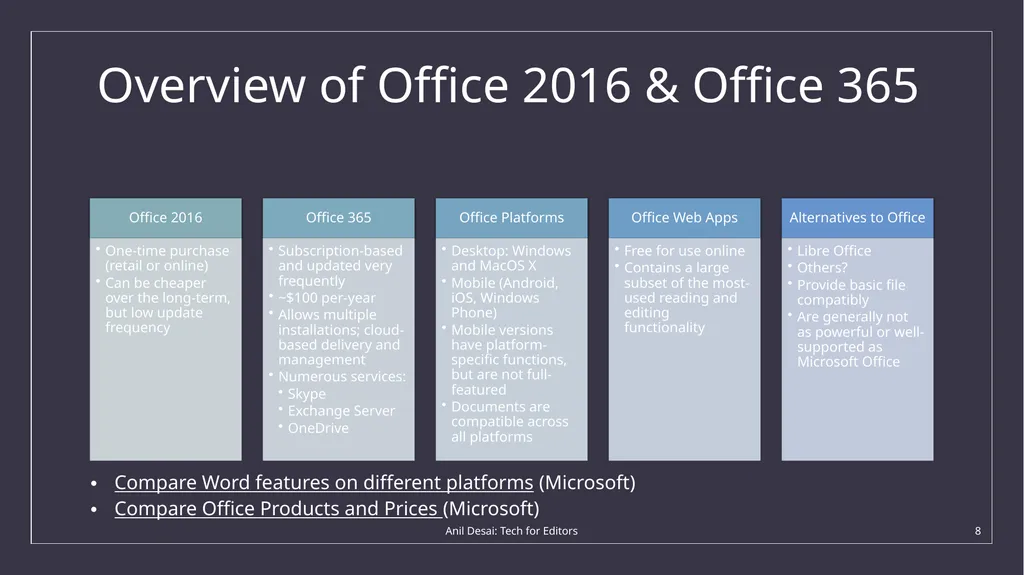
Overview of Office 2016 & Office 365 Compare Word features on different platforms (Microsoft)
Compare Office Products and Prices (Microsoft) Anil Desai: Tech for Editors 8<br>
Compare Office Products and Prices (Microsoft) Anil Desai: Tech for Editors 8<br>
09
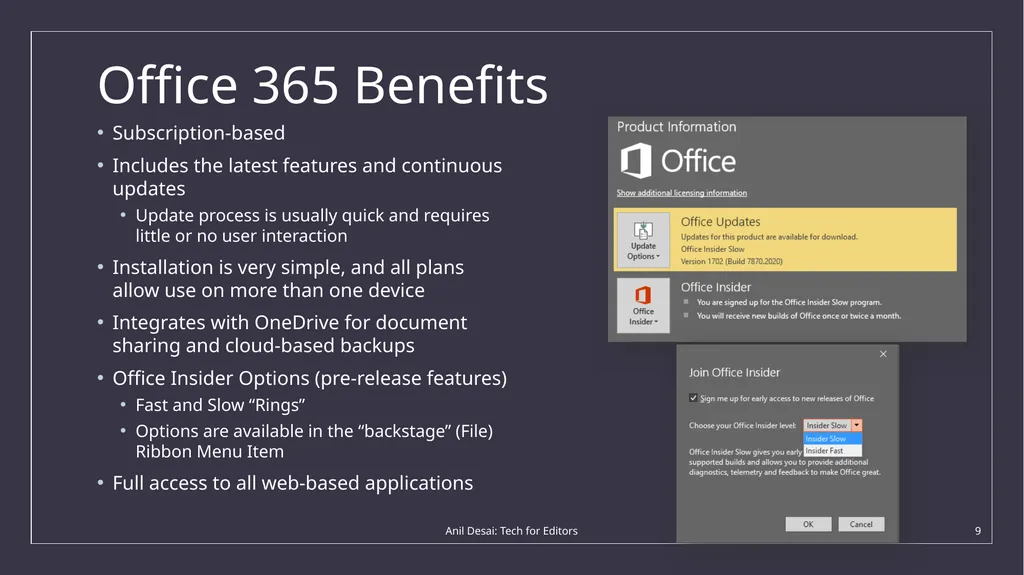
Office 365 Benefits Subscription-based
Includes the latest features and continuous updates
Update process is usually quick and requires little or no user interaction
Installation is very simple, and all plans allow use on more than one device
Integrates with OneDrive for document sharing and cloud-based backups
Office Insider Options (pre-release features)
Fast and Slow “Rings”
Options are available in the “backstage” (File) Ribbon Menu Item
Full access to all web-based applications Anil Desai: Tech for Editors 9<br>
Includes the latest features and continuous updates
Update process is usually quick and requires little or no user interaction
Installation is very simple, and all plans allow use on more than one device
Integrates with OneDrive for document sharing and cloud-based backups
Office Insider Options (pre-release features)
Fast and Slow “Rings”
Options are available in the “backstage” (File) Ribbon Menu Item
Full access to all web-based applications Anil Desai: Tech for Editors 9<br>
10
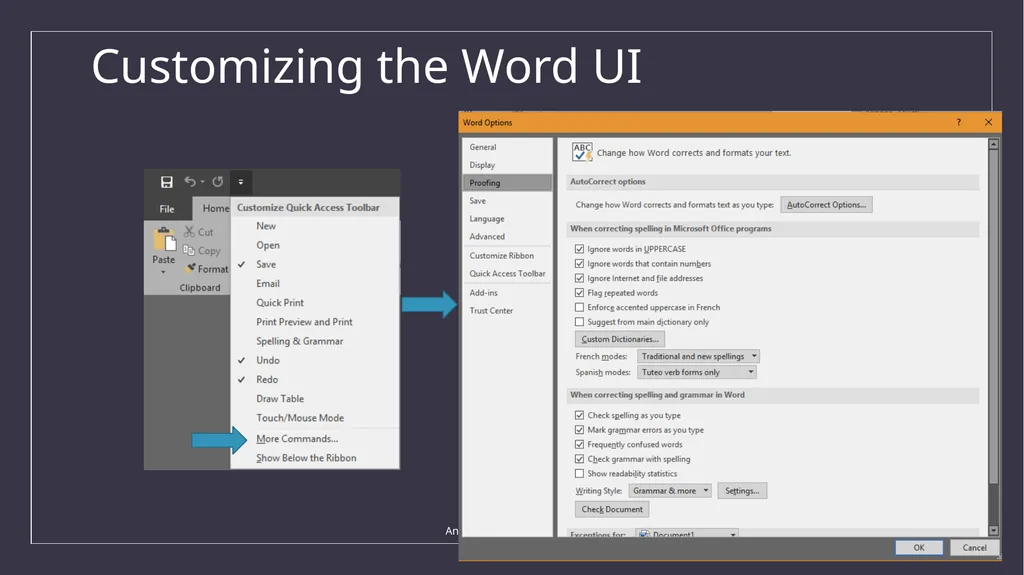
Customizing the Word UI Anil Desai: Tech for Editors 10<br>
11
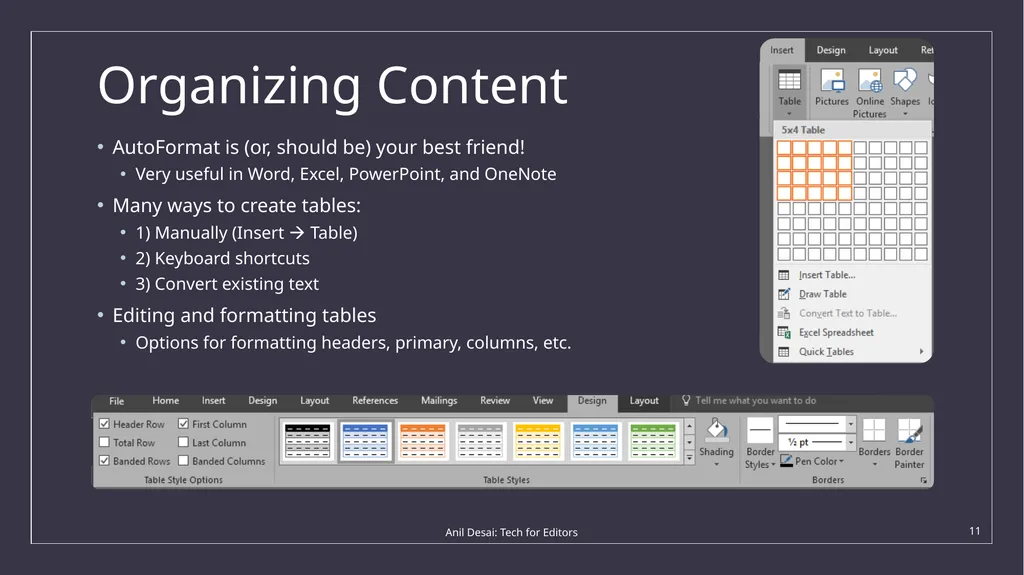
Organizing Content AutoFormat is (or, should be) your best friend!
Very useful in Word, Excel, PowerPoint, and OneNote
Many ways to create tables:
1) Manually (Insert Table)
2) Keyboard shortcuts
3) Convert existing text
Editing and formatting tables
Options for formatting headers, primary, columns, etc. Anil Desai: Tech for Editors 11<br>
Very useful in Word, Excel, PowerPoint, and OneNote
Many ways to create tables:
1) Manually (Insert Table)
2) Keyboard shortcuts
3) Convert existing text
Editing and formatting tables
Options for formatting headers, primary, columns, etc. Anil Desai: Tech for Editors 11<br>
12
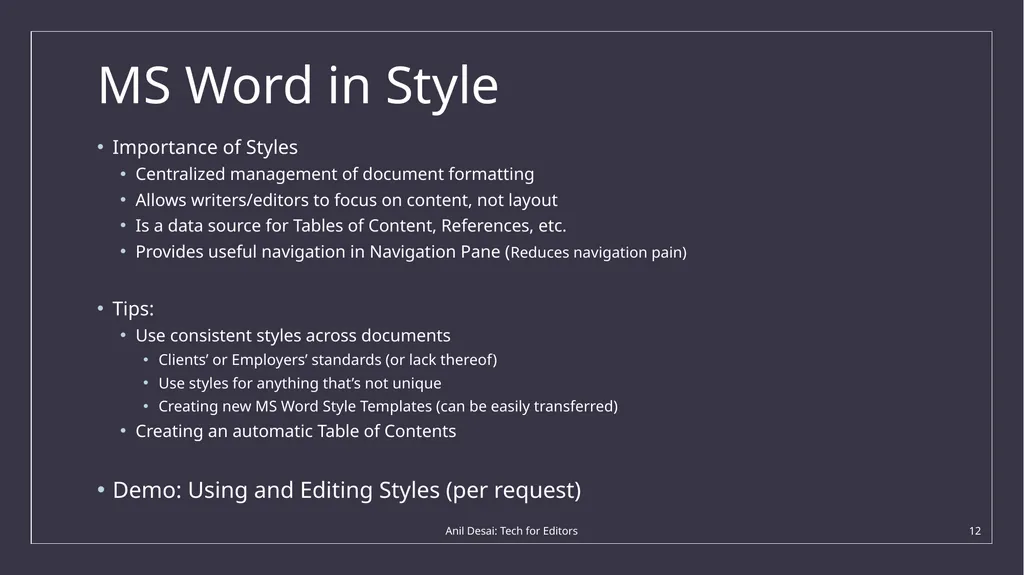
MS Word in Style Importance of Styles
Centralized management of document formatting
Allows writers/editors to focus on content, not layout
Is a data source for Tables of Content, References, etc.
Provides useful navigation in Navigation Pane (Reduces navigation pain)
Tips:
Use consistent styles across documents
Clients’ or Employers’ standards (or lack thereof)
Use styles for anything that’s not unique
Creating new MS Word Style Templates (can be easily transferred)
Creating an automatic Table of Contents
Demo: Using and Editing Styles (per request) Anil Desai: Tech for Editors 12<br>
Centralized management of document formatting
Allows writers/editors to focus on content, not layout
Is a data source for Tables of Content, References, etc.
Provides useful navigation in Navigation Pane (Reduces navigation pain)
Tips:
Use consistent styles across documents
Clients’ or Employers’ standards (or lack thereof)
Use styles for anything that’s not unique
Creating new MS Word Style Templates (can be easily transferred)
Creating an automatic Table of Contents
Demo: Using and Editing Styles (per request) Anil Desai: Tech for Editors 12<br>
13
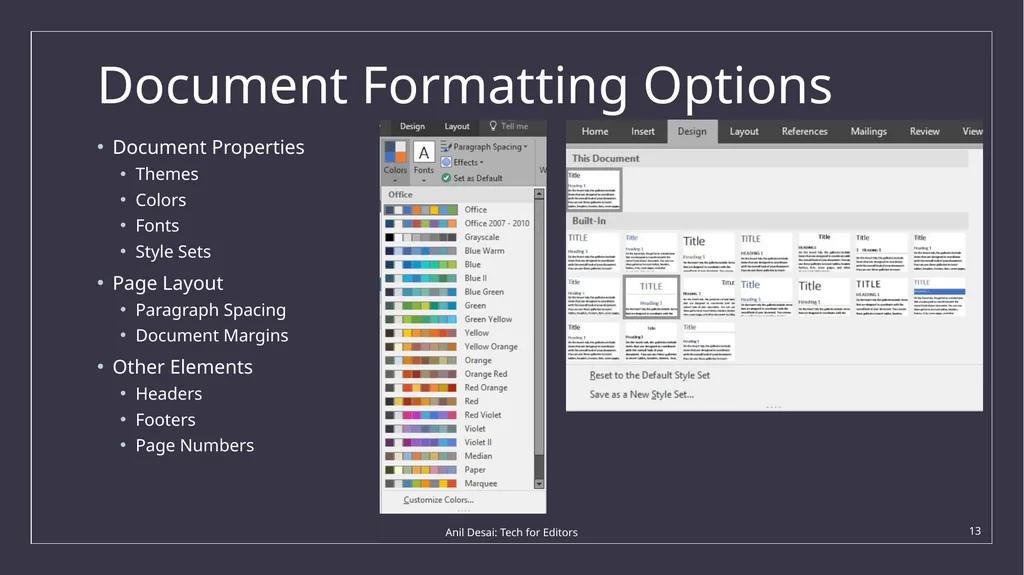
Document Formatting Options Anil Desai: Tech for Editors 13 Document Properties
Themes
Colors
Fonts
Style Sets
Page Layout
Paragraph Spacing
Document Margins
Other Elements
Headers
Footers
Page Numbers<br>
Themes
Colors
Fonts
Style Sets
Page Layout
Paragraph Spacing
Document Margins
Other Elements
Headers
Footers
Page Numbers<br>
14
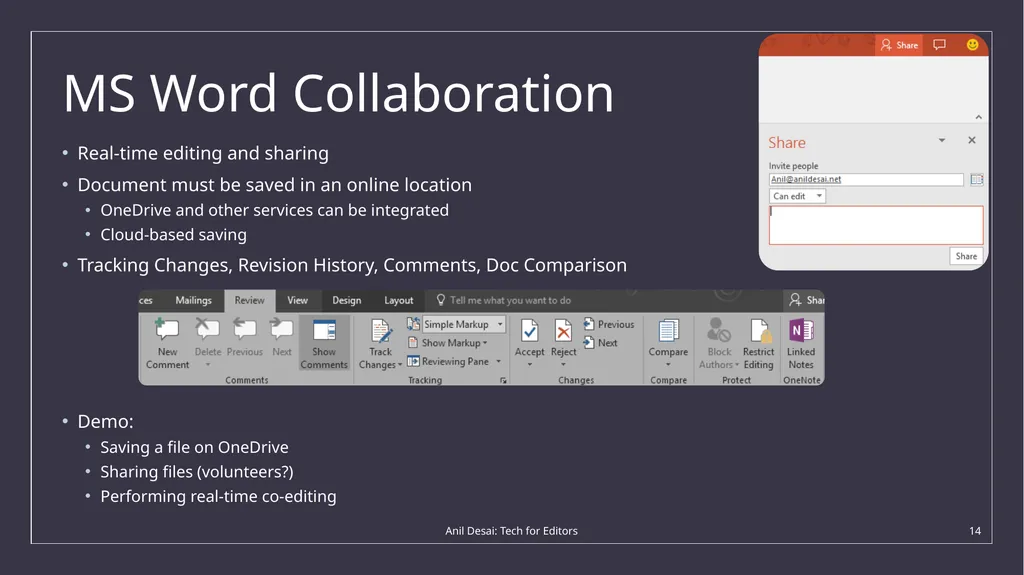
MS Word Collaboration Real-time editing and sharing
Document must be saved in an online location
OneDrive and other services can be integrated
Cloud-based saving
Tracking Changes, Revision History, Comments, Doc Comparison
Demo:
Saving a file on OneDrive
Sharing files (volunteers?)
Performing real-time co-editing Anil Desai: Tech for Editors 14<br>
Document must be saved in an online location
OneDrive and other services can be integrated
Cloud-based saving
Tracking Changes, Revision History, Comments, Doc Comparison
Demo:
Saving a file on OneDrive
Sharing files (volunteers?)
Performing real-time co-editing Anil Desai: Tech for Editors 14<br>
15
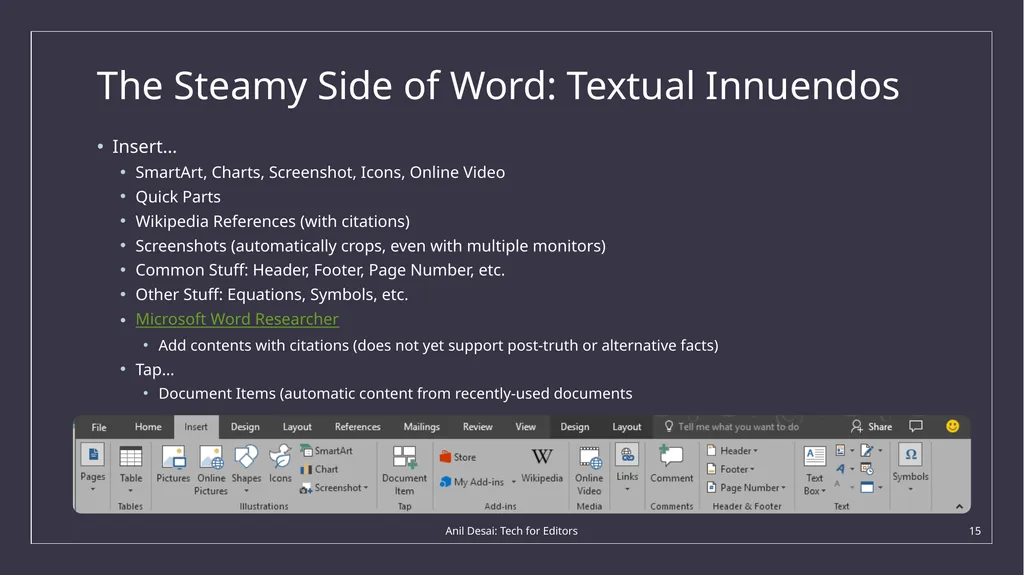
The Steamy Side of Word: Textual Innuendos Insert…
SmartArt, Charts, Screenshot, Icons, Online Video
Quick Parts
Wikipedia References (with citations)
Screenshots (automatically crops, even with multiple monitors)
Common Stuff: Header, Footer, Page Number, etc.
Other Stuff: Equations, Symbols, etc.
Microsoft Word Researcher
Add contents with citations (does not yet support post-truth or alternative facts)
Tap…
Document Items (automatic content from recently-used documents Anil Desai: Tech for Editors 15<br>
SmartArt, Charts, Screenshot, Icons, Online Video
Quick Parts
Wikipedia References (with citations)
Screenshots (automatically crops, even with multiple monitors)
Common Stuff: Header, Footer, Page Number, etc.
Other Stuff: Equations, Symbols, etc.
Microsoft Word Researcher
Add contents with citations (does not yet support post-truth or alternative facts)
Tap…
Document Items (automatic content from recently-used documents Anil Desai: Tech for Editors 15<br>
16
SmartArt: It’s Art, but is it Smart? SmartArt Categories and Purposes:
Useful for breaking up boring lists and to add visual interest
Many Types: List, Process, Cycle, Hierarchy
Can easily convert between bulleted lists and SmartArt
SmartArt objects are vector-based (scalable) and can be moved between applications
SmartArt objects inherit a document’s styles and themes
Highly Customizable
Can add/modify shapes and other objects
Many object types support using images (best for marketing, or when using clip art)
Animate your SmartArt Graphic
Reference:
Create a SmartArt Graphic Anil Desai: Tech for Editors 16<br>
Useful for breaking up boring lists and to add visual interest
Many Types: List, Process, Cycle, Hierarchy
Can easily convert between bulleted lists and SmartArt
SmartArt objects are vector-based (scalable) and can be moved between applications
SmartArt objects inherit a document’s styles and themes
Highly Customizable
Can add/modify shapes and other objects
Many object types support using images (best for marketing, or when using clip art)
Animate your SmartArt Graphic
Reference:
Create a SmartArt Graphic Anil Desai: Tech for Editors 16<br>
17
SmartArt Example: Animals
Aardvark
Tapir
Zebra
Vegetables
Carrots
Onions
Green Peppers
Minerals
Platinum
Gold
Silver
Bronze
Tin Anil Desai: Tech for Editors 17<br>
Aardvark
Tapir
Zebra
Vegetables
Carrots
Onions
Green Peppers
Minerals
Platinum
Gold
Silver
Bronze
Tin Anil Desai: Tech for Editors 17<br>
18
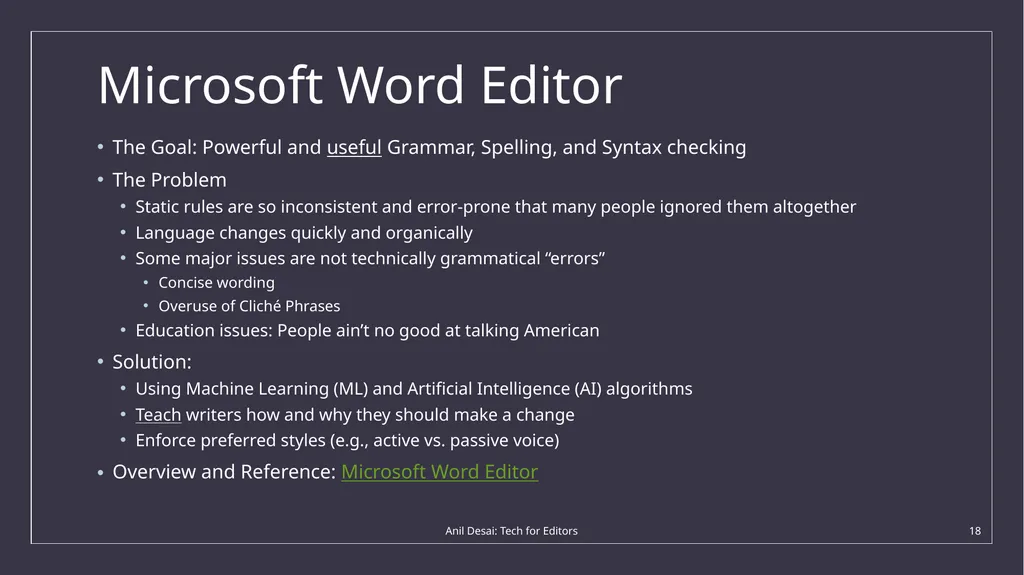
Microsoft Word Editor The Goal: Powerful and useful Grammar, Spelling, and Syntax checking
The Problem
Static rules are so inconsistent and error-prone that many people ignored them altogether
Language changes quickly and organically
Some major issues are not technically grammatical “errors”
Concise wording
Overuse of Cliché Phrases
Education issues: People ain’t no good at talking American
Solution:
Using Machine Learning (ML) and Artificial Intelligence (AI) algorithms
Teach writers how and why they should make a change
Enforce preferred styles (e.g., active vs. passive voice)
Overview and Reference: Microsoft Word Editor Anil Desai: Tech for Editors 18<br>
The Problem
Static rules are so inconsistent and error-prone that many people ignored them altogether
Language changes quickly and organically
Some major issues are not technically grammatical “errors”
Concise wording
Overuse of Cliché Phrases
Education issues: People ain’t no good at talking American
Solution:
Using Machine Learning (ML) and Artificial Intelligence (AI) algorithms
Teach writers how and why they should make a change
Enforce preferred styles (e.g., active vs. passive voice)
Overview and Reference: Microsoft Word Editor Anil Desai: Tech for Editors 18<br>
19
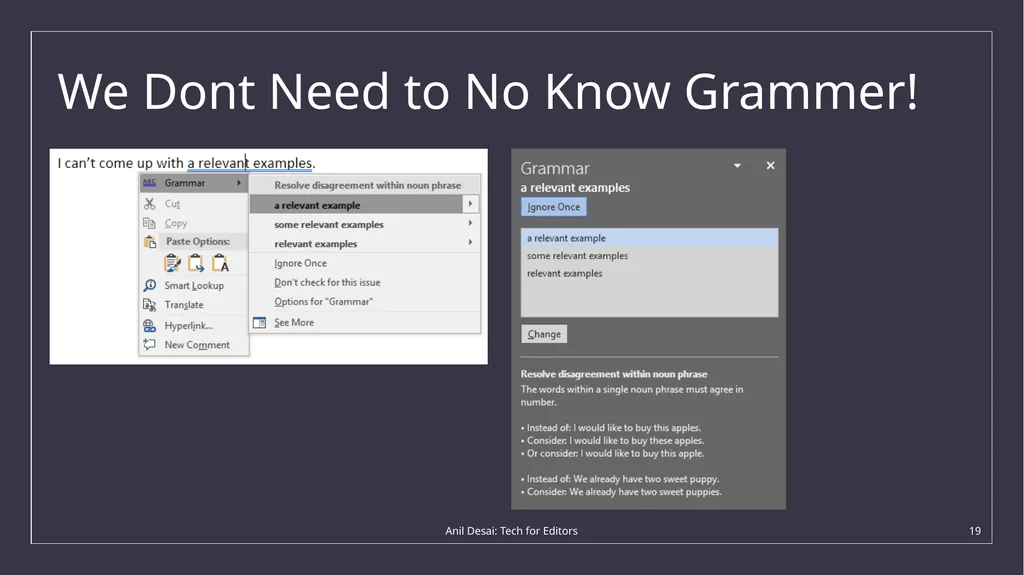
We Dont Need to No Know Grammer! Anil Desai: Tech for Editors 19<br>
20
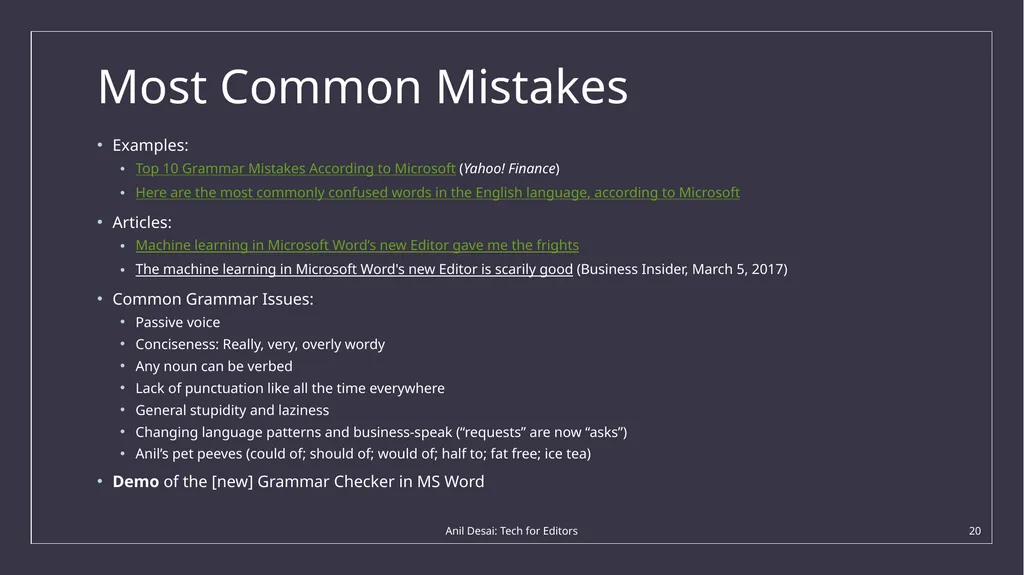
Most Common Mistakes Examples:
Top 10 Grammar Mistakes According to Microsoft (Yahoo! Finance)
Here are the most commonly confused words in the English language, according to Microsoft
Articles:
Machine learning in Microsoft Word’s new Editor gave me the frights
The machine learning in Microsoft Word's new Editor is scarily good (Business Insider, March 5, 2017)
Common Grammar Issues:
Passive voice
Conciseness: Really, very, overly wordy
Any noun can be verbed
Lack of punctuation like all the time everywhere
General stupidity and laziness
Changing language patterns and business-speak (“requests” are now “asks”)
Anil’s pet peeves (could of; should of; would of; half to; fat free; ice tea)
Demo of the [new] Grammar Checker in MS Word Anil Desai: Tech for Editors 20<br>
Top 10 Grammar Mistakes According to Microsoft (Yahoo! Finance)
Here are the most commonly confused words in the English language, according to Microsoft
Articles:
Machine learning in Microsoft Word’s new Editor gave me the frights
The machine learning in Microsoft Word's new Editor is scarily good (Business Insider, March 5, 2017)
Common Grammar Issues:
Passive voice
Conciseness: Really, very, overly wordy
Any noun can be verbed
Lack of punctuation like all the time everywhere
General stupidity and laziness
Changing language patterns and business-speak (“requests” are now “asks”)
Anil’s pet peeves (could of; should of; would of; half to; fat free; ice tea)
Demo of the [new] Grammar Checker in MS Word Anil Desai: Tech for Editors 20<br>
21
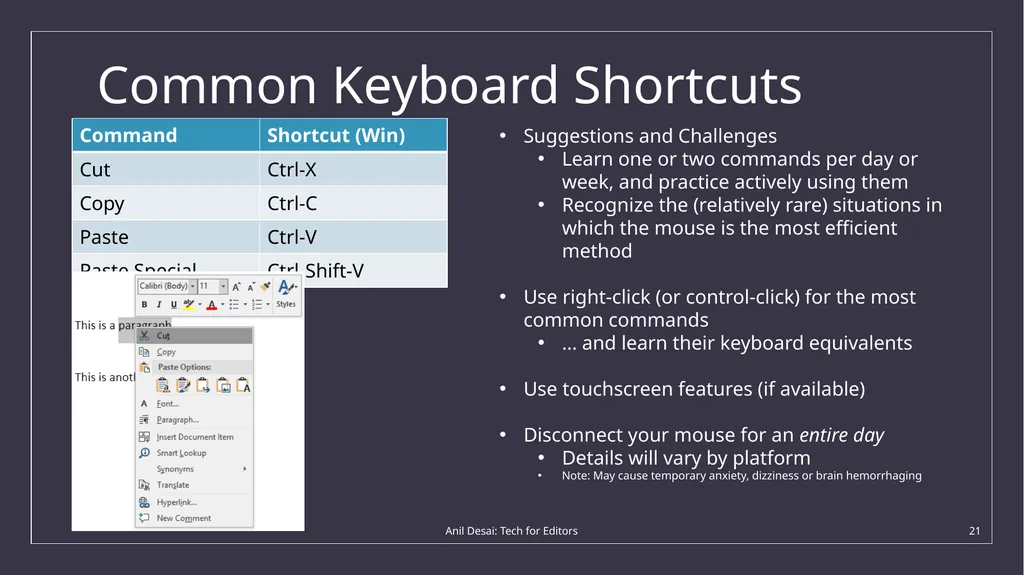
Common Keyboard Shortcuts Anil Desai: Tech for Editors 21 Suggestions and Challenges
Learn one or two commands per day or week, and practice actively using them
Recognize the (relatively rare) situations in which the mouse is the most efficient method
Use right-click (or control-click) for the most common commands
… and learn their keyboard equivalents
Use touchscreen features (if available)
Disconnect your mouse for an entire day
Details will vary by platform
Note: May cause temporary anxiety, dizziness or brain hemorrhaging<br>
Learn one or two commands per day or week, and practice actively using them
Recognize the (relatively rare) situations in which the mouse is the most efficient method
Use right-click (or control-click) for the most common commands
… and learn their keyboard equivalents
Use touchscreen features (if available)
Disconnect your mouse for an entire day
Details will vary by platform
Note: May cause temporary anxiety, dizziness or brain hemorrhaging<br>
22
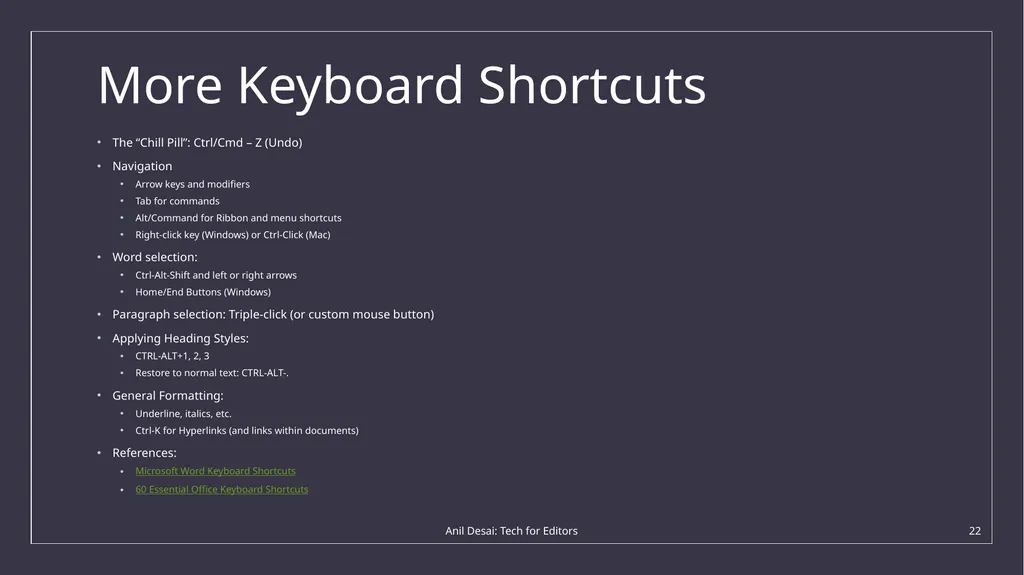
More Keyboard Shortcuts The “Chill Pill”: Ctrl/Cmd – Z (Undo)
Navigation
Arrow keys and modifiers
Tab for commands
Alt/Command for Ribbon and menu shortcuts
Right-click key (Windows) or Ctrl-Click (Mac)
Word selection:
Ctrl-Alt-Shift and left or right arrows
Home/End Buttons (Windows)
Paragraph selection: Triple-click (or custom mouse button)
Applying Heading Styles:
CTRL-ALT+1, 2, 3
Restore to normal text: CTRL-ALT-.
General Formatting:
Underline, italics, etc.
Ctrl-K for Hyperlinks (and links within documents)
References:
Microsoft Word Keyboard Shortcuts
60 Essential Office Keyboard Shortcuts Anil Desai: Tech for Editors 22<br>
Navigation
Arrow keys and modifiers
Tab for commands
Alt/Command for Ribbon and menu shortcuts
Right-click key (Windows) or Ctrl-Click (Mac)
Word selection:
Ctrl-Alt-Shift and left or right arrows
Home/End Buttons (Windows)
Paragraph selection: Triple-click (or custom mouse button)
Applying Heading Styles:
CTRL-ALT+1, 2, 3
Restore to normal text: CTRL-ALT-.
General Formatting:
Underline, italics, etc.
Ctrl-K for Hyperlinks (and links within documents)
References:
Microsoft Word Keyboard Shortcuts
60 Essential Office Keyboard Shortcuts Anil Desai: Tech for Editors 22<br>
23
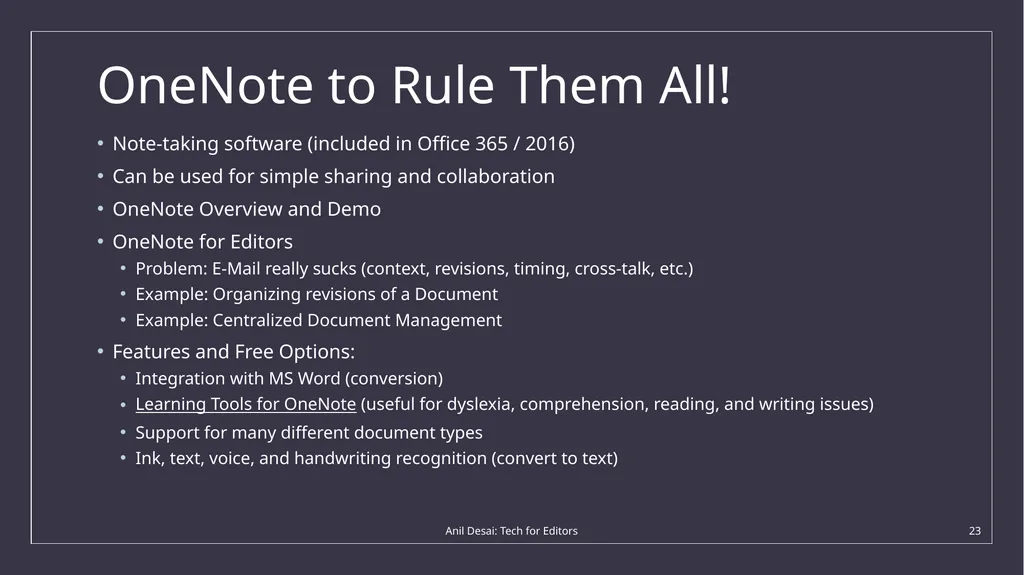
OneNote to Rule Them All! Note-taking software (included in Office 365 / 2016)
Can be used for simple sharing and collaboration
OneNote Overview and Demo
OneNote for Editors
Problem: E-Mail really sucks (context, revisions, timing, cross-talk, etc.)
Example: Organizing revisions of a Document
Example: Centralized Document Management
Features and Free Options:
Integration with MS Word (conversion)
Learning Tools for OneNote (useful for dyslexia, comprehension, reading, and writing issues)
Support for many different document types
Ink, text, voice, and handwriting recognition (convert to text) Anil Desai: Tech for Editors 23<br>
Can be used for simple sharing and collaboration
OneNote Overview and Demo
OneNote for Editors
Problem: E-Mail really sucks (context, revisions, timing, cross-talk, etc.)
Example: Organizing revisions of a Document
Example: Centralized Document Management
Features and Free Options:
Integration with MS Word (conversion)
Learning Tools for OneNote (useful for dyslexia, comprehension, reading, and writing issues)
Support for many different document types
Ink, text, voice, and handwriting recognition (convert to text) Anil Desai: Tech for Editors 23<br>
24
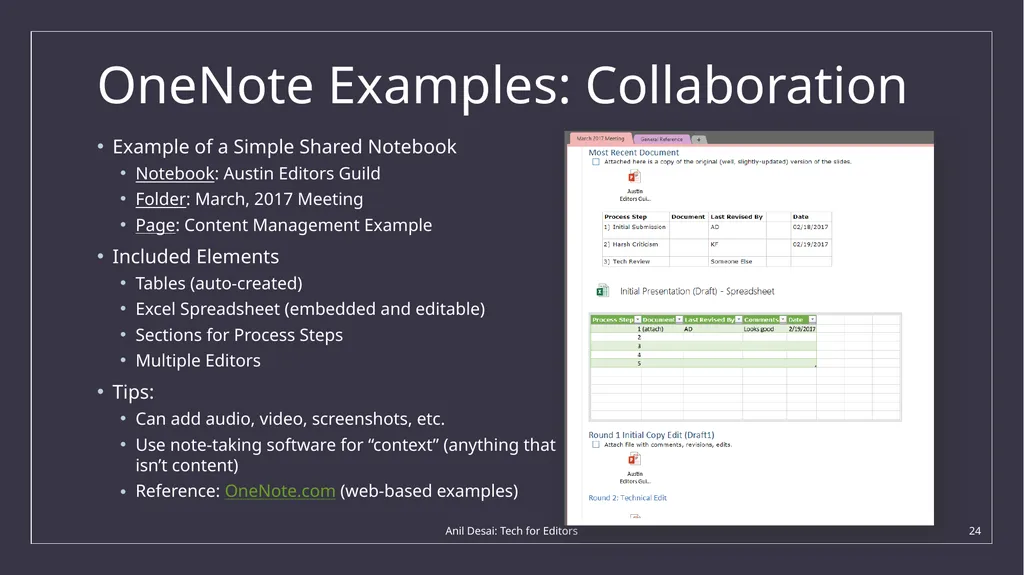
OneNote Examples: Collaboration Example of a Simple Shared Notebook
Notebook: Austin Editors Guild
Folder: March, 2017 Meeting
Page: Content Management Example
Included Elements
Tables (auto-created)
Excel Spreadsheet (embedded and editable)
Sections for Process Steps
Multiple Editors
Tips:
Can add audio, video, screenshots, etc.
Use note-taking software for “context” (anything that isn’t content)
Reference: OneNote.com (web-based examples) Anil Desai: Tech for Editors 24<br>
Notebook: Austin Editors Guild
Folder: March, 2017 Meeting
Page: Content Management Example
Included Elements
Tables (auto-created)
Excel Spreadsheet (embedded and editable)
Sections for Process Steps
Multiple Editors
Tips:
Can add audio, video, screenshots, etc.
Use note-taking software for “context” (anything that isn’t content)
Reference: OneNote.com (web-based examples) Anil Desai: Tech for Editors 24<br>
25
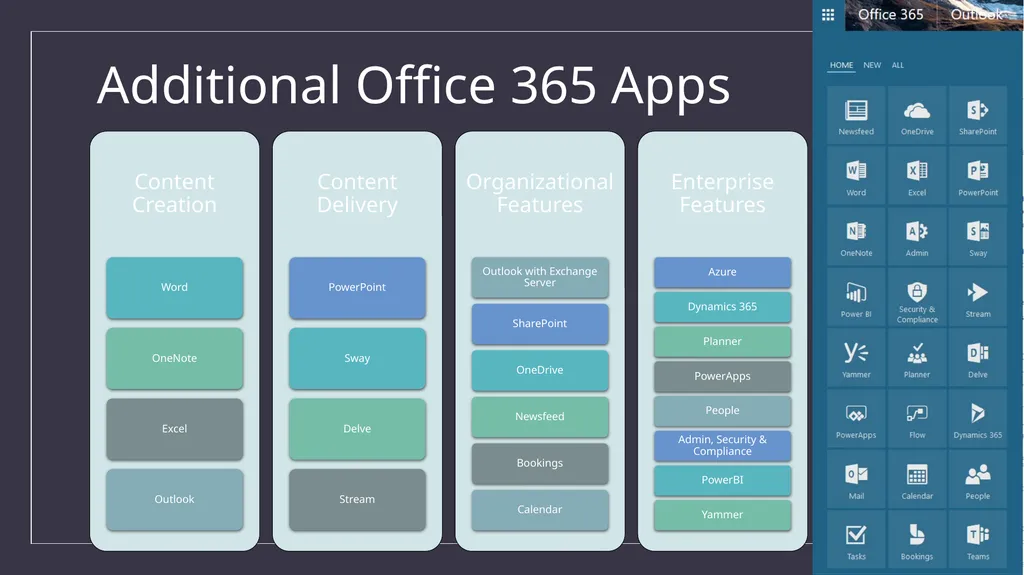
Additional Office 365 Apps 25<br>
26
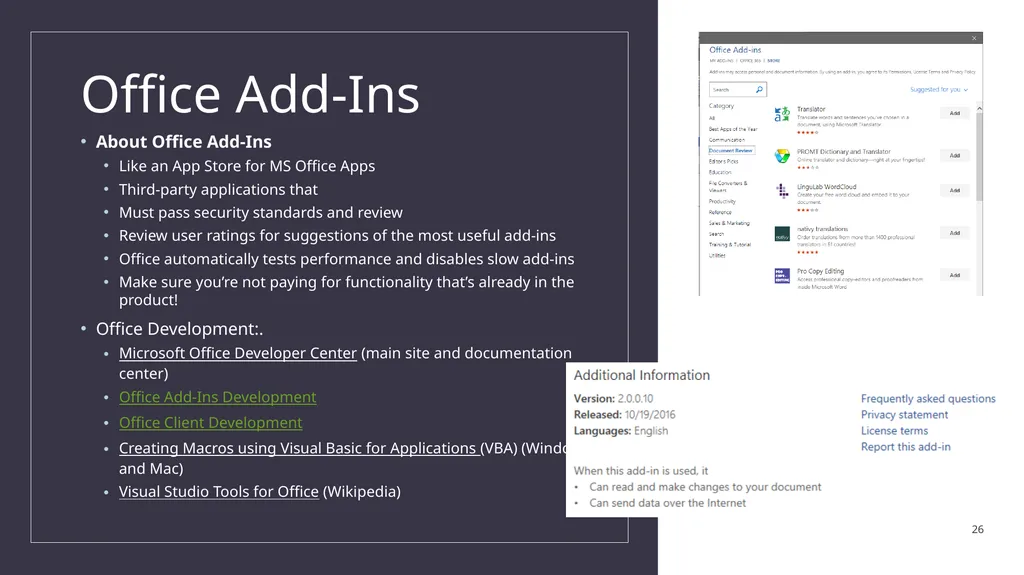
Office Add-Ins About Office Add-Ins
Like an App Store for MS Office Apps
Third-party applications that
Must pass security standards and review
Review user ratings for suggestions of the most useful add-ins
Office automatically tests performance and disables slow add-ins
Make sure you’re not paying for functionality that’s already in the product!
Office Development:.
Microsoft Office Developer Center (main site and documentation center)
Office Add-Ins Development
Office Client Development
Creating Macros using Visual Basic for Applications (VBA) (Windows and Mac)
Visual Studio Tools for Office (Wikipedia) 26<br>
Like an App Store for MS Office Apps
Third-party applications that
Must pass security standards and review
Review user ratings for suggestions of the most useful add-ins
Office automatically tests performance and disables slow add-ins
Make sure you’re not paying for functionality that’s already in the product!
Office Development:.
Microsoft Office Developer Center (main site and documentation center)
Office Add-Ins Development
Office Client Development
Creating Macros using Visual Basic for Applications (VBA) (Windows and Mac)
Visual Studio Tools for Office (Wikipedia) 26<br>
27
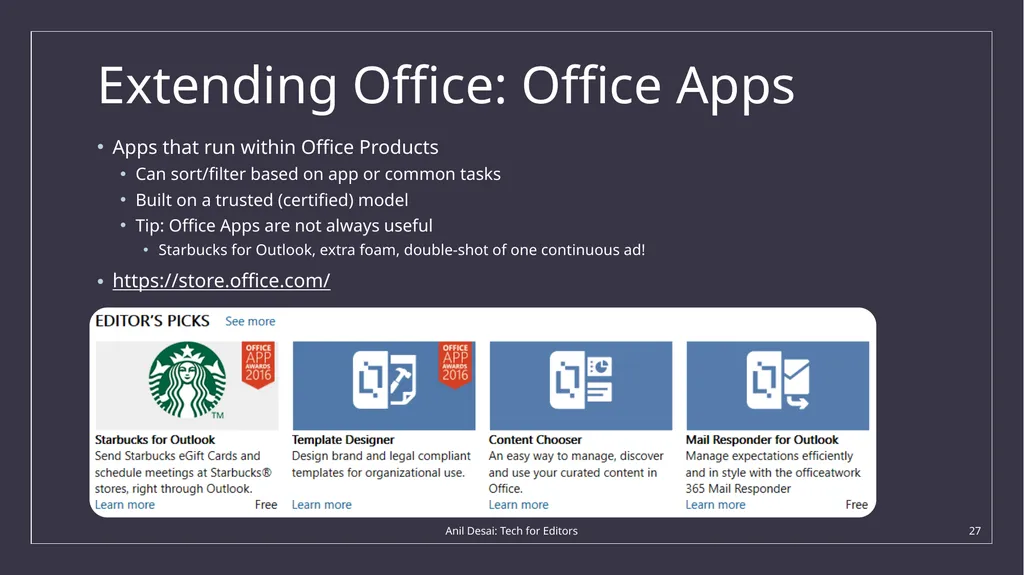
Extending Office: Office Apps Apps that run within Office Products
Can sort/filter based on app or common tasks
Built on a trusted (certified) model
Tip: Office Apps are not always useful
Starbucks for Outlook, extra foam, double-shot of one continuous ad!
https://store.office.com/ Anil Desai: Tech for Editors 27<br>
Can sort/filter based on app or common tasks
Built on a trusted (certified) model
Tip: Office Apps are not always useful
Starbucks for Outlook, extra foam, double-shot of one continuous ad!
https://store.office.com/ Anil Desai: Tech for Editors 27<br>
28
Collaboration Apps Microsoft OneNote, Evernote
Microsoft SharePoint (Office 365)
Microsoft Teams (Office 365)
Supports group chats, audio and video calls, notifications, wikis, etc.
Integration with OneDrive, SharePoint, and other Office documents
Attach and share files (to keep track of versions)
Supports mobile and desktop platforms
Skype / Skype for Business
Audio / Video Calls / Screen-Sharing
Alternatives: http://join.me, TeamViewer, Browser add-ons, Microsoft Remote Desktop (RDP), etc.
OneDrive / OneDrive for Business Anil Desai: Tech for Editors 28<br>
Microsoft SharePoint (Office 365)
Microsoft Teams (Office 365)
Supports group chats, audio and video calls, notifications, wikis, etc.
Integration with OneDrive, SharePoint, and other Office documents
Attach and share files (to keep track of versions)
Supports mobile and desktop platforms
Skype / Skype for Business
Audio / Video Calls / Screen-Sharing
Alternatives: http://join.me, TeamViewer, Browser add-ons, Microsoft Remote Desktop (RDP), etc.
OneDrive / OneDrive for Business Anil Desai: Tech for Editors 28<br>
29
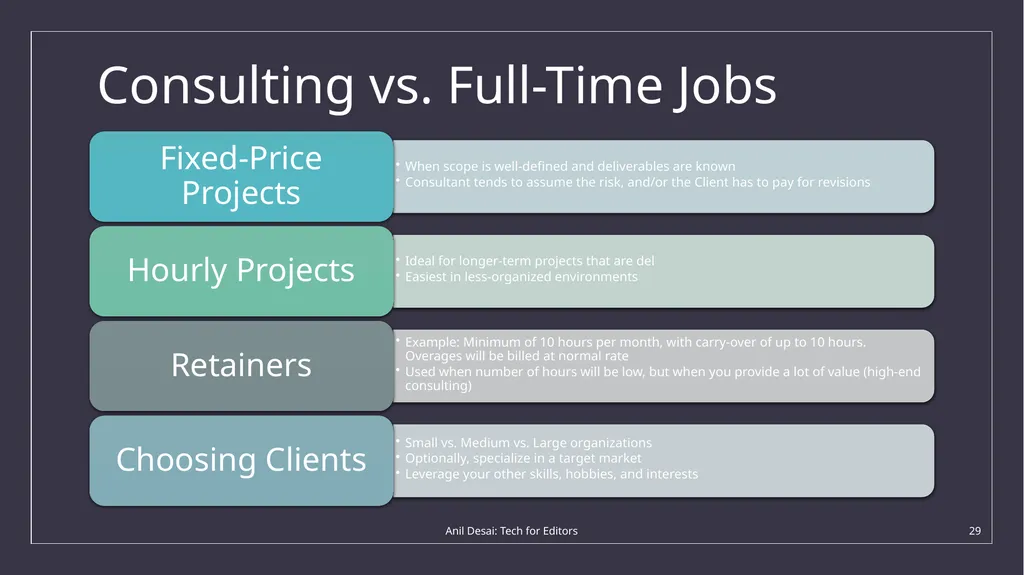
Consulting vs. Full-Time Jobs Anil Desai: Tech for Editors 29<br>
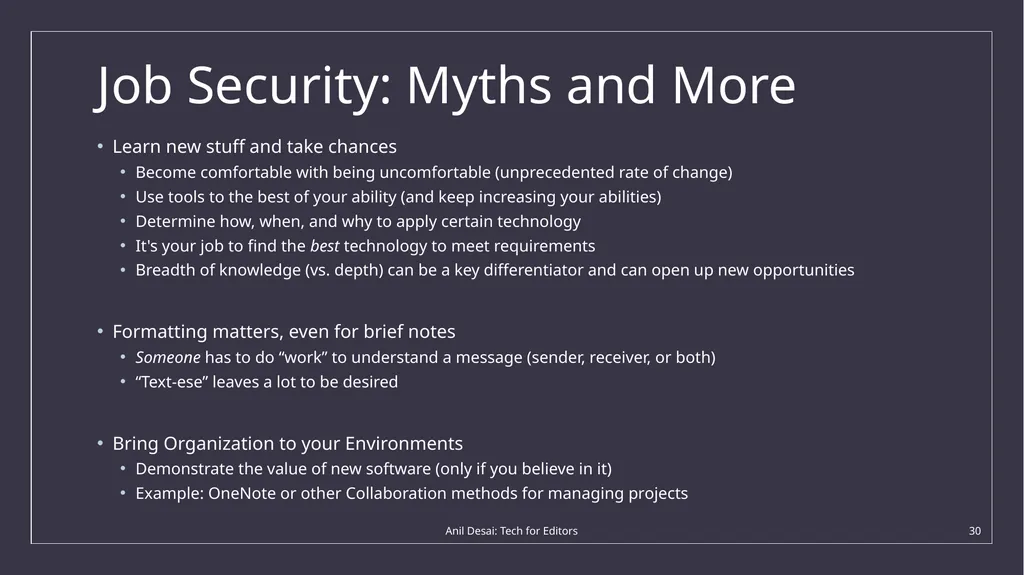
30
Job Security: Myths and More Learn new stuff and take chances
Become comfortable with being uncomfortable (unprecedented rate of change)
Use tools to the best of your ability (and keep increasing your abilities)
Determine how, when, and why to apply certain technology
It's your job to find the best technology to meet requirements
Breadth of knowledge (vs. depth) can be a key differentiator and can open up new opportunities
Formatting matters, even for brief notes
Someone has to do “work” to understand a message (sender, receiver, or both)
“Text-ese” leaves a lot to be desired
Bring Organization to your Environments
Demonstrate the value of new software (only if you believe in it)
Example: OneNote or other Collaboration methods for managing projects Anil Desai: Tech for Editors 30<br>
Become comfortable with being uncomfortable (unprecedented rate of change)
Use tools to the best of your ability (and keep increasing your abilities)
Determine how, when, and why to apply certain technology
It's your job to find the best technology to meet requirements
Breadth of knowledge (vs. depth) can be a key differentiator and can open up new opportunities
Formatting matters, even for brief notes
Someone has to do “work” to understand a message (sender, receiver, or both)
“Text-ese” leaves a lot to be desired
Bring Organization to your Environments
Demonstrate the value of new software (only if you believe in it)
Example: OneNote or other Collaboration methods for managing projects Anil Desai: Tech for Editors 30<br>
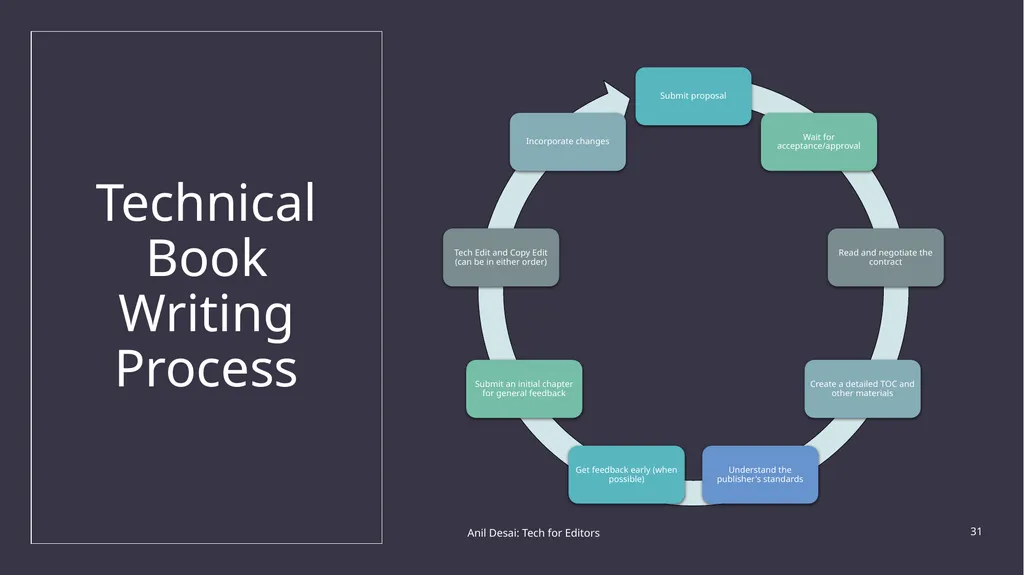
31
Technical Book Writing Process Anil Desai: Tech for Editors 31<br>
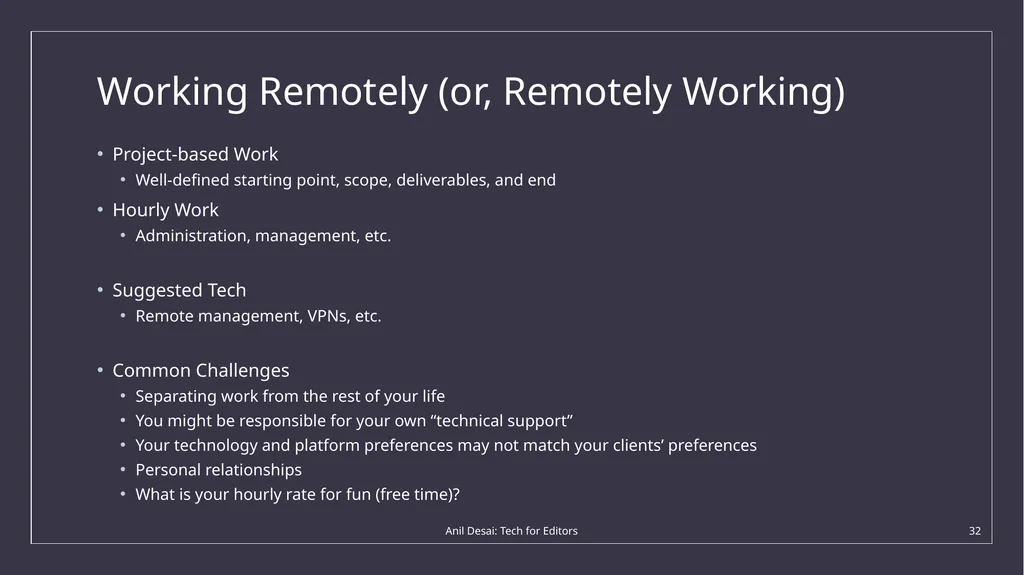
32
Working Remotely (or, Remotely Working) Project-based Work
Well-defined starting point, scope, deliverables, and end
Hourly Work
Administration, management, etc.
Suggested Tech
Remote management, VPNs, etc.
Common Challenges
Separating work from the rest of your life
You might be responsible for your own “technical support”
Your technology and platform preferences may not match your clients’ preferences
Personal relationships
What is your hourly rate for fun (free time)? Anil Desai: Tech for Editors 32<br>
Well-defined starting point, scope, deliverables, and end
Hourly Work
Administration, management, etc.
Suggested Tech
Remote management, VPNs, etc.
Common Challenges
Separating work from the rest of your life
You might be responsible for your own “technical support”
Your technology and platform preferences may not match your clients’ preferences
Personal relationships
What is your hourly rate for fun (free time)? Anil Desai: Tech for Editors 32<br>
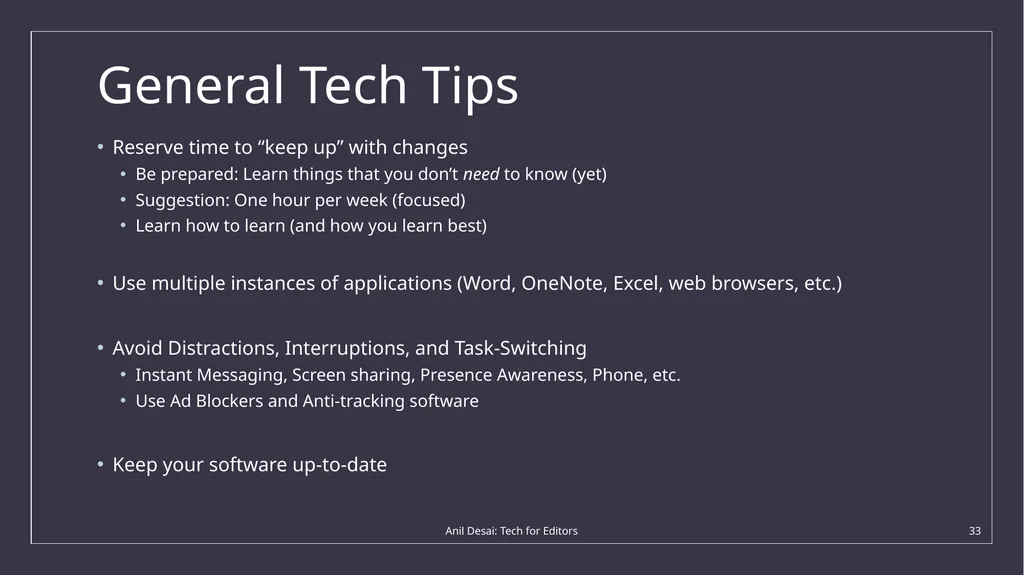
33
General Tech Tips Reserve time to “keep up” with changes
Be prepared: Learn things that you don’t need to know (yet)
Suggestion: One hour per week (focused)
Learn how to learn (and how you learn best)
Use multiple instances of applications (Word, OneNote, Excel, web browsers, etc.)
Avoid Distractions, Interruptions, and Task-Switching
Instant Messaging, Screen sharing, Presence Awareness, Phone, etc.
Use Ad Blockers and Anti-tracking software
Keep your software up-to-date Anil Desai: Tech for Editors 33<br>
Be prepared: Learn things that you don’t need to know (yet)
Suggestion: One hour per week (focused)
Learn how to learn (and how you learn best)
Use multiple instances of applications (Word, OneNote, Excel, web browsers, etc.)
Avoid Distractions, Interruptions, and Task-Switching
Instant Messaging, Screen sharing, Presence Awareness, Phone, etc.
Use Ad Blockers and Anti-tracking software
Keep your software up-to-date Anil Desai: Tech for Editors 33<br>
34
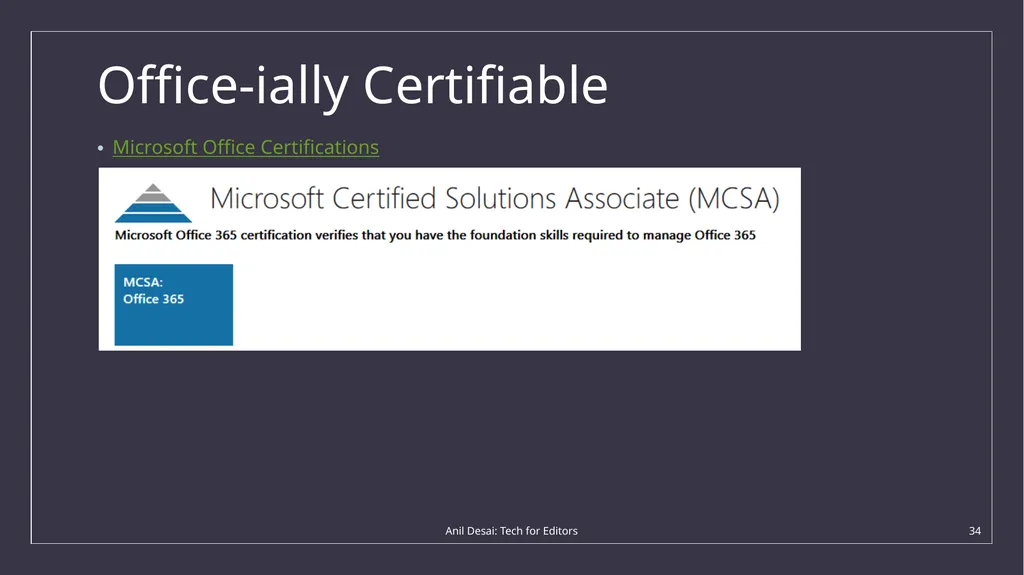
Office-ially Certifiable Microsoft Office Certifications Anil Desai: Tech for Editors 34<br>
35
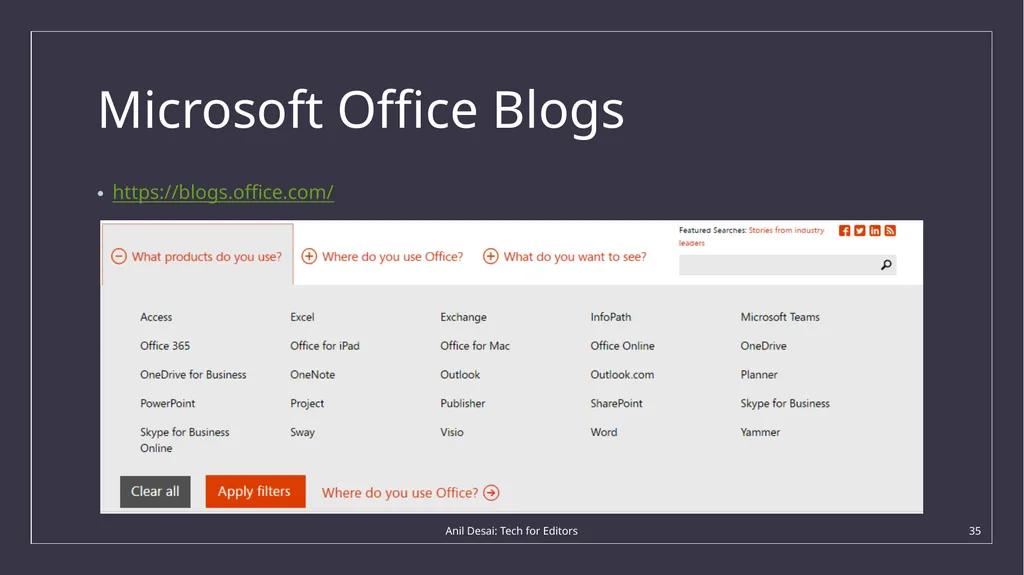
Microsoft Office Blogs https://blogs.office.com/ Anil Desai: Tech for Editors 35<br>
36
Comments, Q & A The Technology of Writing (Anil Desai)
Anil@AnilDesai.net | http://AnilDesai.net<br>
Anil@AnilDesai.net | http://AnilDesai.net<br>