
chapter 2 the computer The Computer a computer
A
Published · 90 slides · 0 views
1 / 1

Description
chapter 2 the computer The Computer a computer system is made up of various elements each of these elements affects the interaction input devices text entry and pointing output devices screen (smalllarge), digital paper virtual reality
Related Topics
Share
Embed code
Download this presentation From Below
"chapter 2 the computer The Computer a computer" is the property of its rightful owner. Permission is granted to download and print the materials on this website for personal, non-commercial use only, and to display it on your personal computer provided you do not modify the materials and that you retain all copyright notices contained in the materials. By downloading content from our website, you accept the terms of this agreement.
Presentation Transcript
01
chapter 2 the computer<br>
02
The Computer a computer system is made up of various elements
each of these elements affects the interaction
input devices – text entry and pointing
output devices – screen (small&large), digital paper
virtual reality – special interaction and display devices
physical interaction – e.g. sound, haptic, bio-sensing
paper – as output (print) and input (scan)
memory – RAM & permanent media, capacity & access
processing – speed of processing, networks<br>
each of these elements affects the interaction
input devices – text entry and pointing
output devices – screen (small&large), digital paper
virtual reality – special interaction and display devices
physical interaction – e.g. sound, haptic, bio-sensing
paper – as output (print) and input (scan)
memory – RAM & permanent media, capacity & access
processing – speed of processing, networks<br>
03
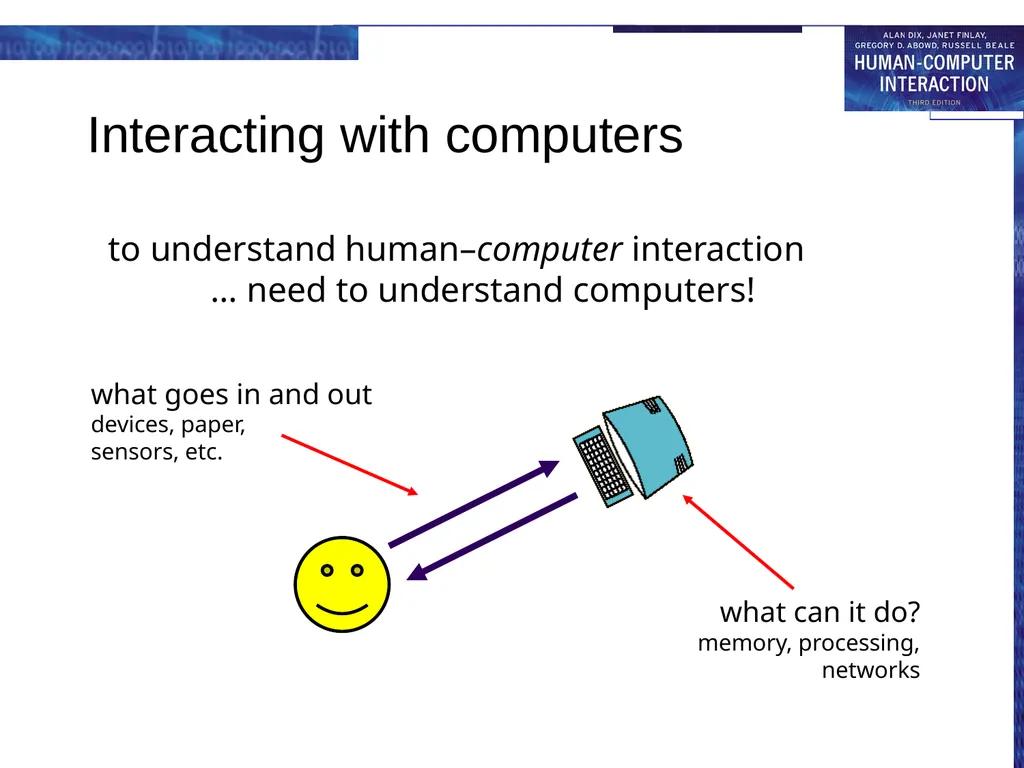
Interacting with computers to understand human–computer interaction
… need to understand computers!<br>
04
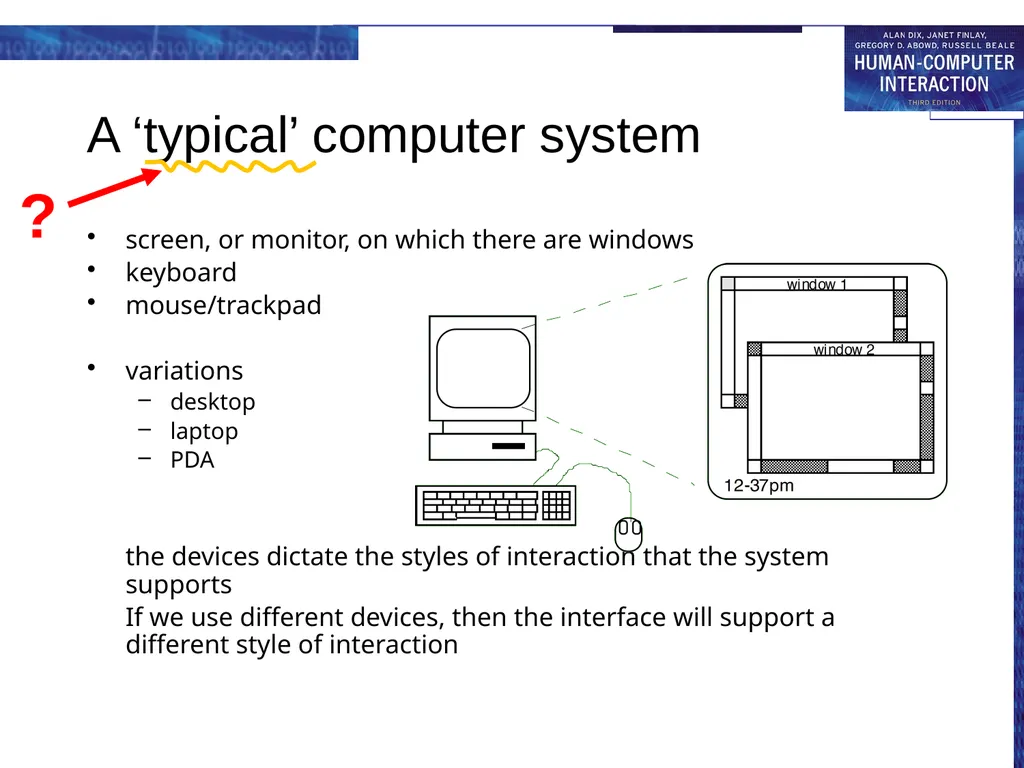
A ‘typical’ computer system screen, or monitor, on which there are windows
keyboard
mouse/trackpad
variations
desktop
laptop
PDA
the devices dictate the styles of interaction that the system supports
If we use different devices, then the interface will support a different style of interaction<br>
keyboard
mouse/trackpad
variations
desktop
laptop
PDA
the devices dictate the styles of interaction that the system supports
If we use different devices, then the interface will support a different style of interaction<br>
05
How many … computers in your house?
hands up, … … none, 1, 2 , 3, more!!
computers in your pockets? are you thinking …
… PC, laptop, PDA ??<br>
hands up, … … none, 1, 2 , 3, more!!
computers in your pockets? are you thinking …
… PC, laptop, PDA ??<br>
06
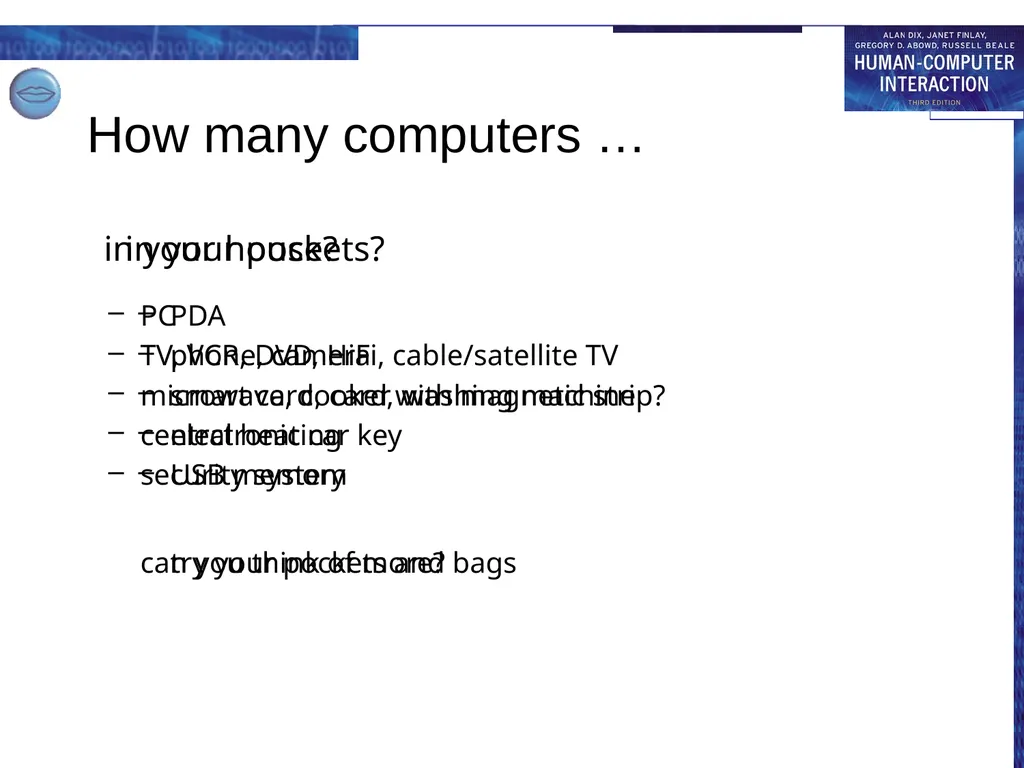
How many computers … in your house?
PC
TV, VCR, DVD, HiFi, cable/satellite TV
microwave, cooker, washing machine
central heating
security system
can you think of more? in your pockets?
PDA
phone, camera
smart card, card with magnetic strip?
electronic car key
USB memory
try your pockets and bags<br>
PC
TV, VCR, DVD, HiFi, cable/satellite TV
microwave, cooker, washing machine
central heating
security system
can you think of more? in your pockets?
PDA
phone, camera
smart card, card with magnetic strip?
electronic car key
USB memory
try your pockets and bags<br>
07
Interactivity? Long ago in a galaxy far away … batch processing
punched card stacks or large data files prepared
long wait ….
line printer output
… and if it is not right …
Now most computing is interactive
rapid feedback
the user in control (most of the time)
doing rather than thinking …
Is faster always better?<br>
punched card stacks or large data files prepared
long wait ….
line printer output
… and if it is not right …
Now most computing is interactive
rapid feedback
the user in control (most of the time)
doing rather than thinking …
Is faster always better?<br>
08
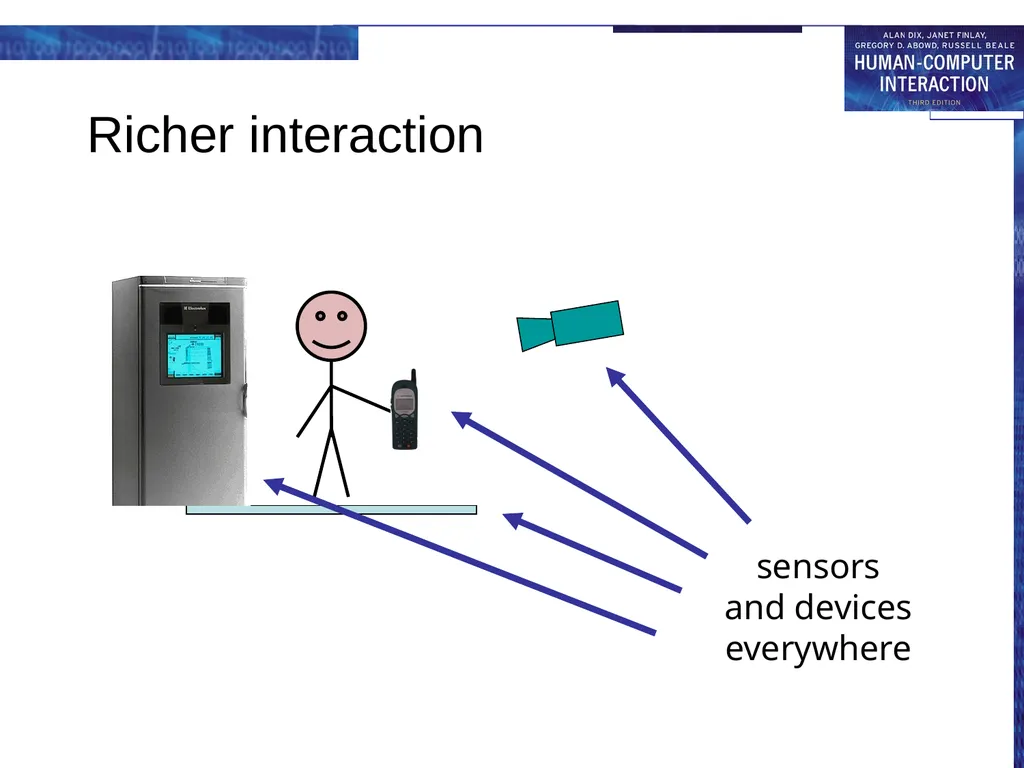
Richer interaction sensors
and devices
everywhere<br>
and devices
everywhere<br>
09
text entry devices keyboards (QWERTY et al.)
chord keyboards, phone pads
handwriting, speech<br>
chord keyboards, phone pads
handwriting, speech<br>
10
Keyboards Most common text input device
Allows rapid entry of text by experienced users
Keypress closes connection, causing a character code to be sent
Usually connected by cable, but can be wireless<br>
Allows rapid entry of text by experienced users
Keypress closes connection, causing a character code to be sent
Usually connected by cable, but can be wireless<br>
11
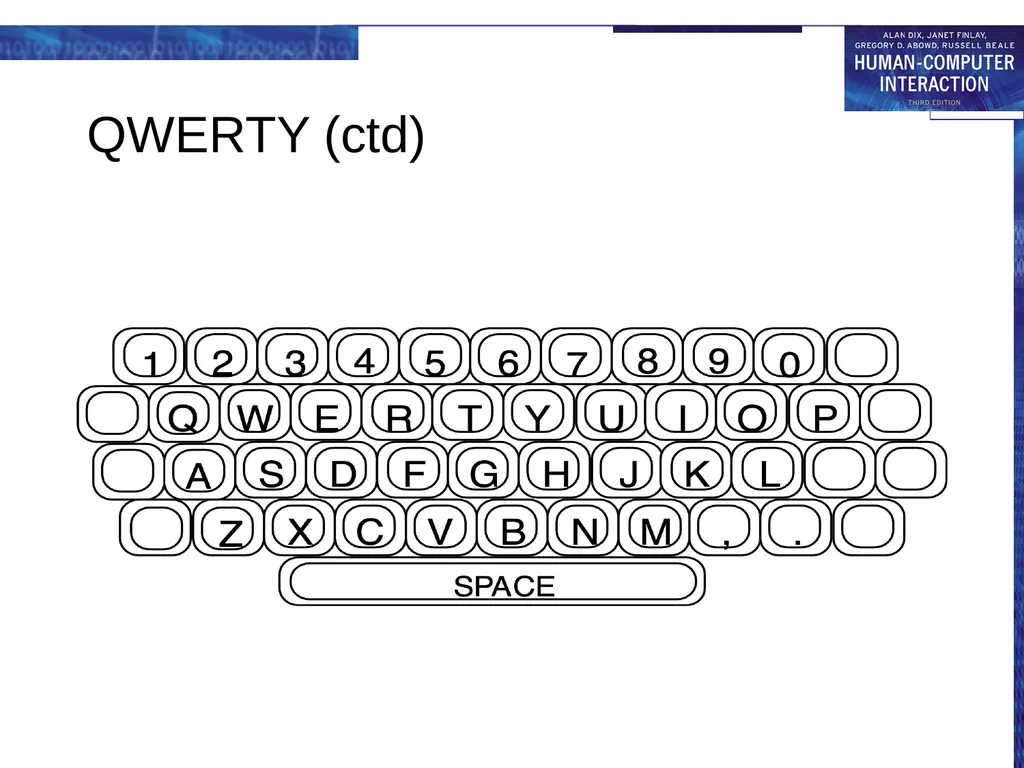
layout – QWERTY Standardised layout
but …
non-alphanumeric keys are placed differently
accented symbols needed for different scripts
minor differences between UK and USA keyboards
QWERTY arrangement not optimal for typing – layout to prevent typewriters jamming!
Alternative designs allow faster typing but large social base of QWERTY typists produces reluctance to change.<br>
but …
non-alphanumeric keys are placed differently
accented symbols needed for different scripts
minor differences between UK and USA keyboards
QWERTY arrangement not optimal for typing – layout to prevent typewriters jamming!
Alternative designs allow faster typing but large social base of QWERTY typists produces reluctance to change.<br>
12
QWERTY (ctd)<br>
13
alternative keyboard layouts Alphabetic
keys arranged in alphabetic order
not faster for trained typists
not faster for beginners either!
Dvorak
common letters under dominant fingers
biased towards right hand
common combinations of letters alternate between hands
10-15% improvement in speed and reduction in fatigue
But - large social base of QWERTY typists produce market pressures not to change<br>
keys arranged in alphabetic order
not faster for trained typists
not faster for beginners either!
Dvorak
common letters under dominant fingers
biased towards right hand
common combinations of letters alternate between hands
10-15% improvement in speed and reduction in fatigue
But - large social base of QWERTY typists produce market pressures not to change<br>
14
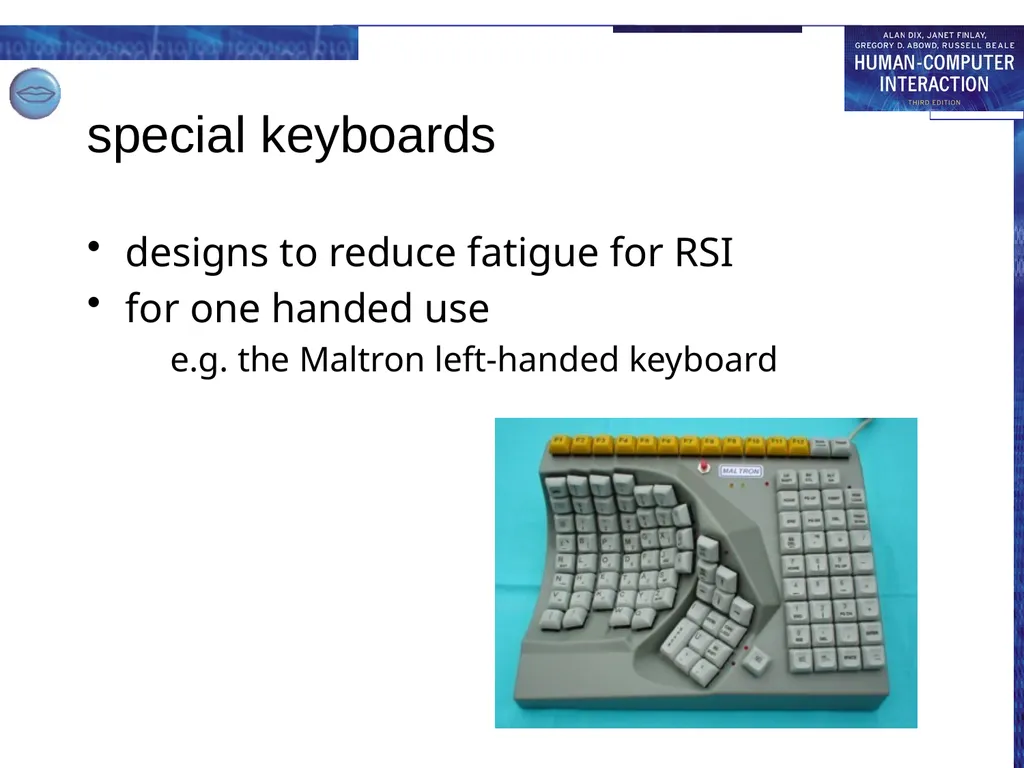
special keyboards designs to reduce fatigue for RSI
for one handed use
e.g. the Maltron left-handed keyboard<br>
for one handed use
e.g. the Maltron left-handed keyboard<br>
15
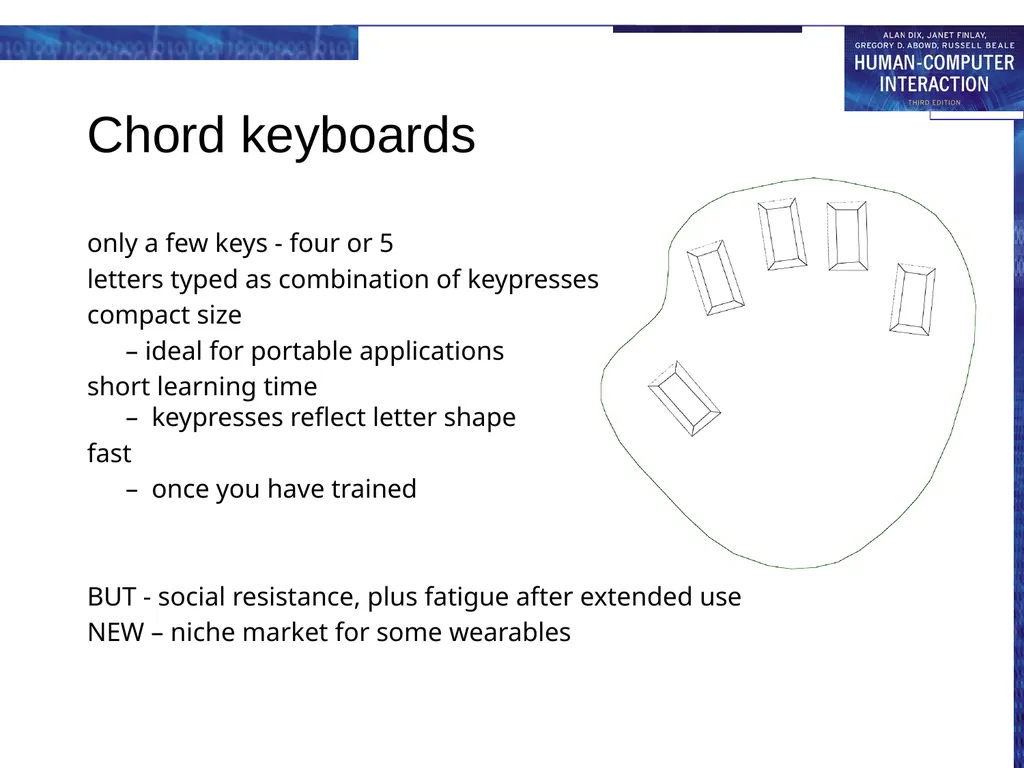
Chord keyboards only a few keys - four or 5
letters typed as combination of keypresses
compact size
– ideal for portable applications
short learning time – keypresses reflect letter shape
fast
– once you have trained
BUT - social resistance, plus fatigue after extended use
NEW – niche market for some wearables<br>
letters typed as combination of keypresses
compact size
– ideal for portable applications
short learning time – keypresses reflect letter shape
fast
– once you have trained
BUT - social resistance, plus fatigue after extended use
NEW – niche market for some wearables<br>
16
phone pad and T9 entry use numeric keys with
multiple presses
2 – a b c 6 - m n o
3 - d e f 7 - p q r s
4 - g h i 8 - t u v
5 - j k l 9 - w x y z
hello = 4433555[pause]555666
surprisingly fast!
T9 predictive entry
type as if single key for each letter
use dictionary to ‘guess’ the right word
hello = 43556 …
but 26 -> menu ‘am’ or ‘an’<br>
2 – a b c 6 - m n o
3 - d e f 7 - p q r s
4 - g h i 8 - t u v
5 - j k l 9 - w x y z
hello = 4433555[pause]555666
surprisingly fast!
T9 predictive entry
type as if single key for each letter
use dictionary to ‘guess’ the right word
hello = 43556 …
but 26 -> menu ‘am’ or ‘an’<br>
17
Handwriting recognition Text can be input into the computer, using a pen and a digesting tablet
natural interaction
Technical problems:
capturing all useful information - stroke path, pressure, etc. in a natural manner
segmenting joined up writing into individual letters
interpreting individual letters
coping with different styles of handwriting
Used in PDAs, and tablet computers … … leave the keyboard on the desk!<br>
natural interaction
Technical problems:
capturing all useful information - stroke path, pressure, etc. in a natural manner
segmenting joined up writing into individual letters
interpreting individual letters
coping with different styles of handwriting
Used in PDAs, and tablet computers … … leave the keyboard on the desk!<br>
18
Speech recognition Improving rapidly
Most successful when:
single user – initial training and learns peculiarities
limited vocabulary systems
Problems with
external noise interfering
imprecision of pronunciation
large vocabularies
different speakers<br>
Most successful when:
single user – initial training and learns peculiarities
limited vocabulary systems
Problems with
external noise interfering
imprecision of pronunciation
large vocabularies
different speakers<br>
19
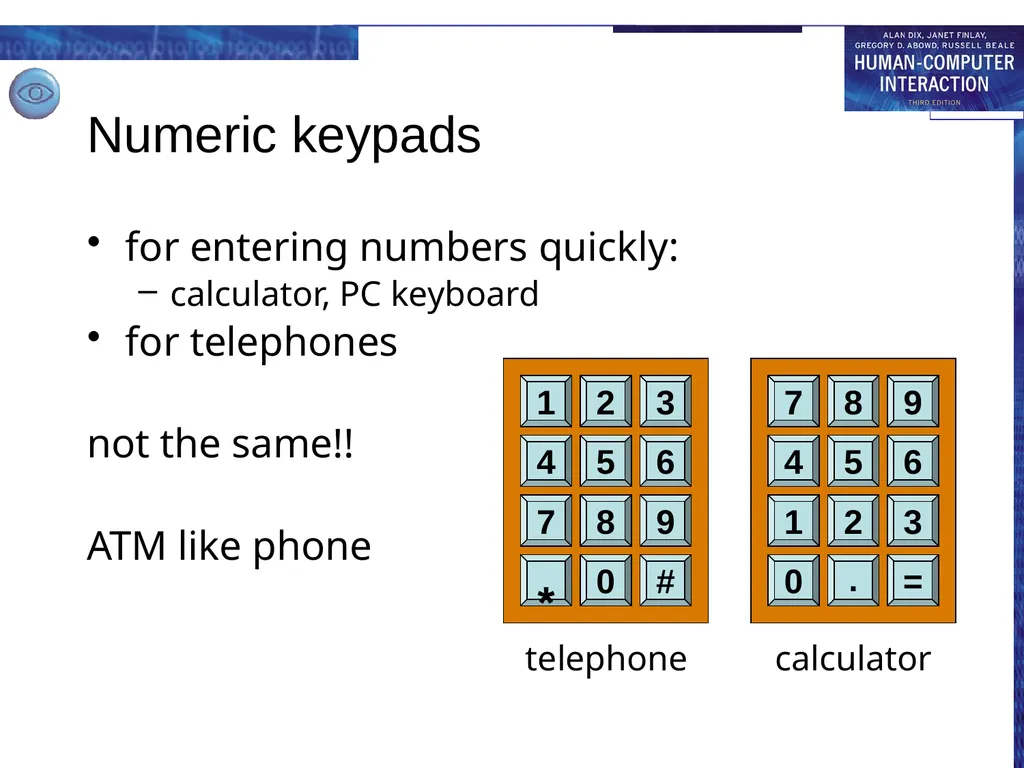
Numeric keypads for entering numbers quickly:
calculator, PC keyboard
for telephones
not the same!!
ATM like phone telephone calculator<br>
calculator, PC keyboard
for telephones
not the same!!
ATM like phone telephone calculator<br>
20
positioning, pointing and drawing mouse, touchpad
trackballs, joysticks etc.
touch screens, tablets
eyegaze, cursors<br>
21
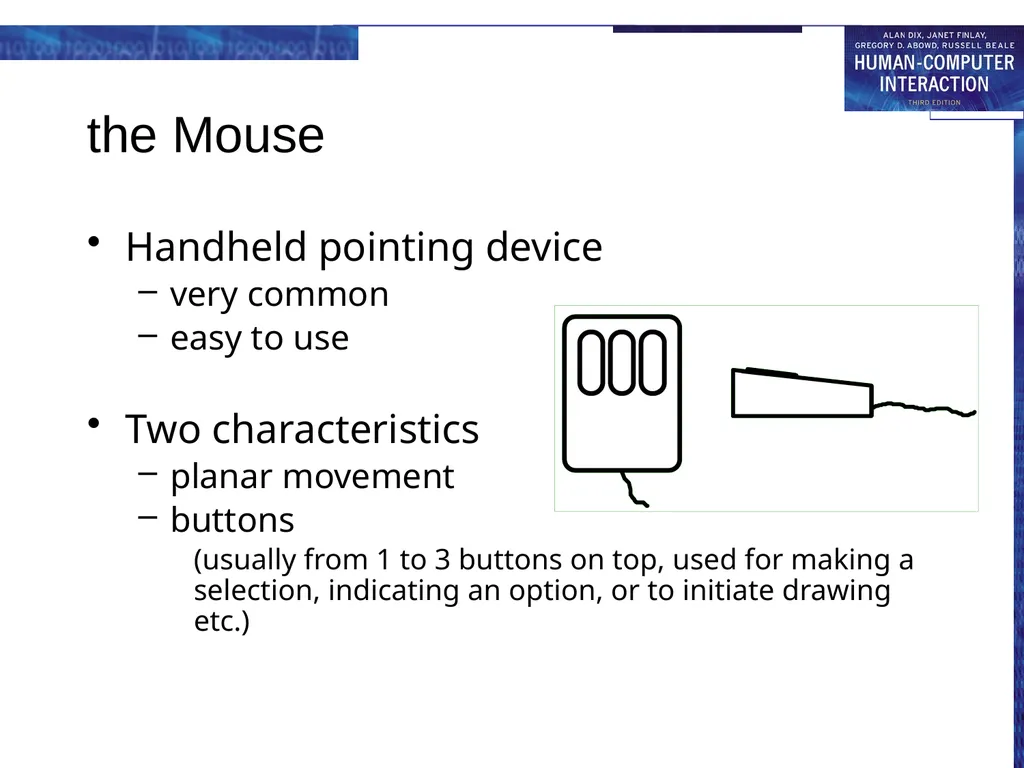
the Mouse Handheld pointing device
very common
easy to use
Two characteristics
planar movement
buttons
(usually from 1 to 3 buttons on top, used for making a selection, indicating an option, or to initiate drawing etc.)<br>
very common
easy to use
Two characteristics
planar movement
buttons
(usually from 1 to 3 buttons on top, used for making a selection, indicating an option, or to initiate drawing etc.)<br>
22
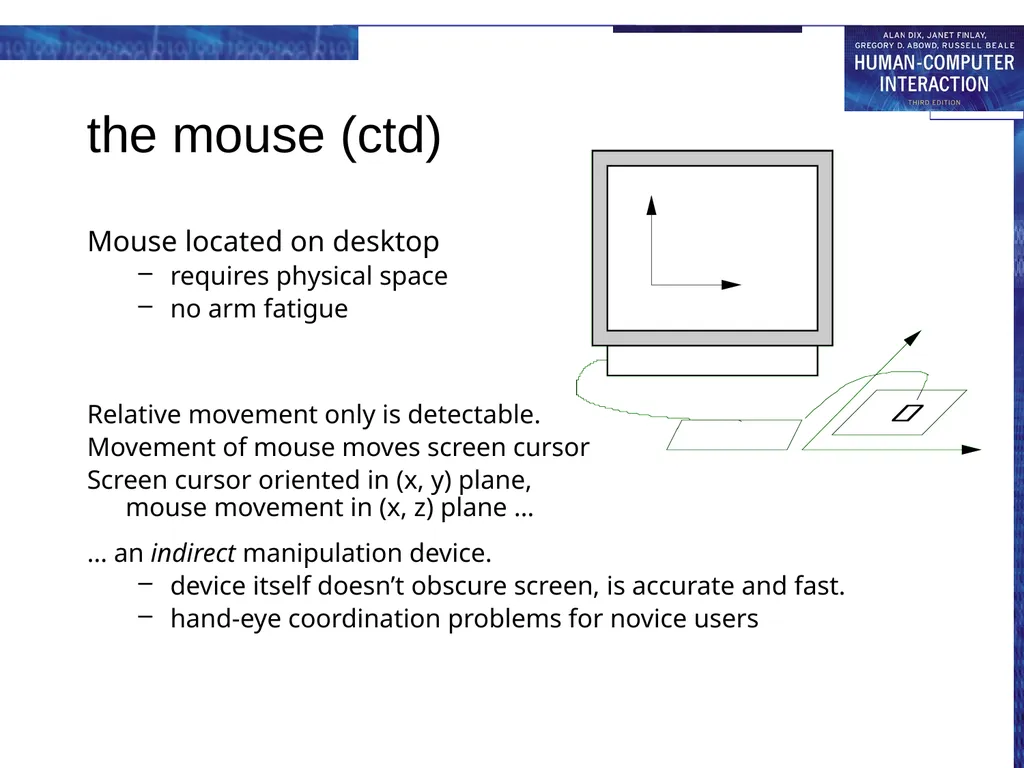
the mouse (ctd) Mouse located on desktop
requires physical space
no arm fatigue
Relative movement only is detectable.
Movement of mouse moves screen cursor
Screen cursor oriented in (x, y) plane, mouse movement in (x, z) plane …
… an indirect manipulation device.
device itself doesn’t obscure screen, is accurate and fast.
hand-eye coordination problems for novice users<br>
requires physical space
no arm fatigue
Relative movement only is detectable.
Movement of mouse moves screen cursor
Screen cursor oriented in (x, y) plane, mouse movement in (x, z) plane …
… an indirect manipulation device.
device itself doesn’t obscure screen, is accurate and fast.
hand-eye coordination problems for novice users<br>
23
How does it work? Two methods for detecting motion
Mechanical
Ball on underside of mouse turns as mouse is moved
Rotates orthogonal potentiometers
Can be used on almost any flat surface
Optical
light emitting diode on underside of mouse
may use special grid-like pad or just on desk
less susceptible to dust and dirt
detects fluctuating alterations in reflected light intensity to calculate relative motion in (x, z) plane<br>
Mechanical
Ball on underside of mouse turns as mouse is moved
Rotates orthogonal potentiometers
Can be used on almost any flat surface
Optical
light emitting diode on underside of mouse
may use special grid-like pad or just on desk
less susceptible to dust and dirt
detects fluctuating alterations in reflected light intensity to calculate relative motion in (x, z) plane<br>
24
Even by foot … some experiments with the footmouse
controlling mouse movement with feet …
not very common :-)
but foot controls are common elsewhere:
car pedals
sewing machine speed control
organ and piano pedals<br>
controlling mouse movement with feet …
not very common :-)
but foot controls are common elsewhere:
car pedals
sewing machine speed control
organ and piano pedals<br>
25
Touchpad small touch sensitive tablets
‘stroke’ to move mouse pointer
used mainly in laptop computers
good ‘acceleration’ settings important
fast stroke
lots of pixels per inch moved
initial movement to the target
slow stroke
less pixels per inch
for accurate positioning<br>
‘stroke’ to move mouse pointer
used mainly in laptop computers
good ‘acceleration’ settings important
fast stroke
lots of pixels per inch moved
initial movement to the target
slow stroke
less pixels per inch
for accurate positioning<br>
26
Trackball and thumbwheels Trackball
ball is rotated inside static housing
like an upsdie down mouse!
relative motion moves cursor
indirect device, fairly accurate
separate buttons for picking
very fast for gaming
used in some portable and notebook computers.
Thumbwheels …
for accurate CAD – two dials for X-Y cursor position
for fast scrolling – single dial on mouse<br>
ball is rotated inside static housing
like an upsdie down mouse!
relative motion moves cursor
indirect device, fairly accurate
separate buttons for picking
very fast for gaming
used in some portable and notebook computers.
Thumbwheels …
for accurate CAD – two dials for X-Y cursor position
for fast scrolling – single dial on mouse<br>
27
Joystick and keyboard nipple Joystick
indirect pressure of stick = velocity of movement
buttons for selection on top or on front like a trigger
often used for computer games aircraft controls and 3D navigation
Keyboard nipple
for laptop computers
miniature joystick in the middle of the keyboard<br>
indirect pressure of stick = velocity of movement
buttons for selection on top or on front like a trigger
often used for computer games aircraft controls and 3D navigation
Keyboard nipple
for laptop computers
miniature joystick in the middle of the keyboard<br>
28
Touch-sensitive screen Detect the presence of finger or stylus on the screen.
works by interrupting matrix of light beams, capacitance changes or ultrasonic reflections
direct pointing device
Advantages:
fast, and requires no specialised pointer
good for menu selection
suitable for use in hostile environment: clean and safe from damage.
Disadvantages:
finger can mark screen
imprecise (finger is a fairly blunt instrument!)
difficult to select small regions or perform accurate drawing
lifting arm can be tiring<br>
works by interrupting matrix of light beams, capacitance changes or ultrasonic reflections
direct pointing device
Advantages:
fast, and requires no specialised pointer
good for menu selection
suitable for use in hostile environment: clean and safe from damage.
Disadvantages:
finger can mark screen
imprecise (finger is a fairly blunt instrument!)
difficult to select small regions or perform accurate drawing
lifting arm can be tiring<br>
29
Stylus and light pen Stylus
small pen-like pointer to draw directly on screen
may use touch sensitive surface or magnetic detection
used in PDA, tablets PCs and drawing tables
Light Pen
now rarely used
uses light from screen to detect location
BOTH …
very direct and obvious to use
but can obscure screen<br>
small pen-like pointer to draw directly on screen
may use touch sensitive surface or magnetic detection
used in PDA, tablets PCs and drawing tables
Light Pen
now rarely used
uses light from screen to detect location
BOTH …
very direct and obvious to use
but can obscure screen<br>
30
Digitizing tablet Mouse like-device with cross hairs
used on special surface - rather like stylus
very accurate - used for digitizing maps<br>
used on special surface - rather like stylus
very accurate - used for digitizing maps<br>
31
Eyegaze control interface by eye gaze direction
e.g. look at a menu item to select it
uses laser beam reflected off retina
… a very low power laser!
mainly used for evaluation (ch x)
potential for hands-free control
high accuracy requires headset
cheaper and lower accuracy devices available sit under the screen like a small webcam<br>
e.g. look at a menu item to select it
uses laser beam reflected off retina
… a very low power laser!
mainly used for evaluation (ch x)
potential for hands-free control
high accuracy requires headset
cheaper and lower accuracy devices available sit under the screen like a small webcam<br>
32
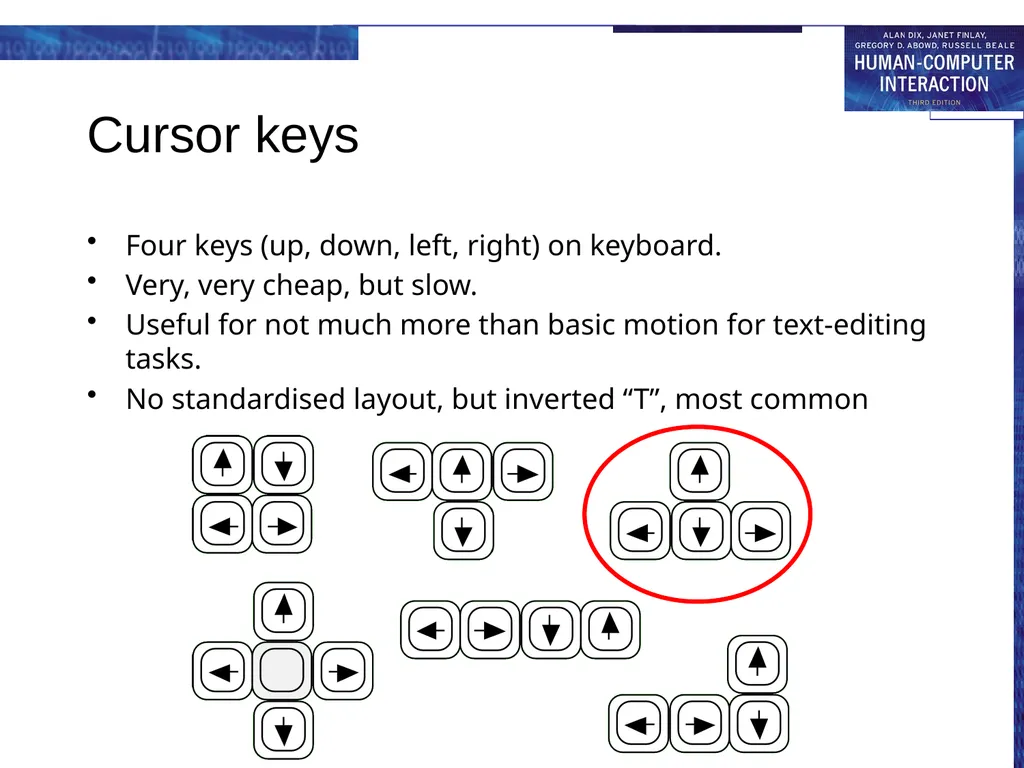
Cursor keys Four keys (up, down, left, right) on keyboard.
Very, very cheap, but slow.
Useful for not much more than basic motion for text-editing tasks.
No standardised layout, but inverted “T”, most common<br>
Very, very cheap, but slow.
Useful for not much more than basic motion for text-editing tasks.
No standardised layout, but inverted “T”, most common<br>
33
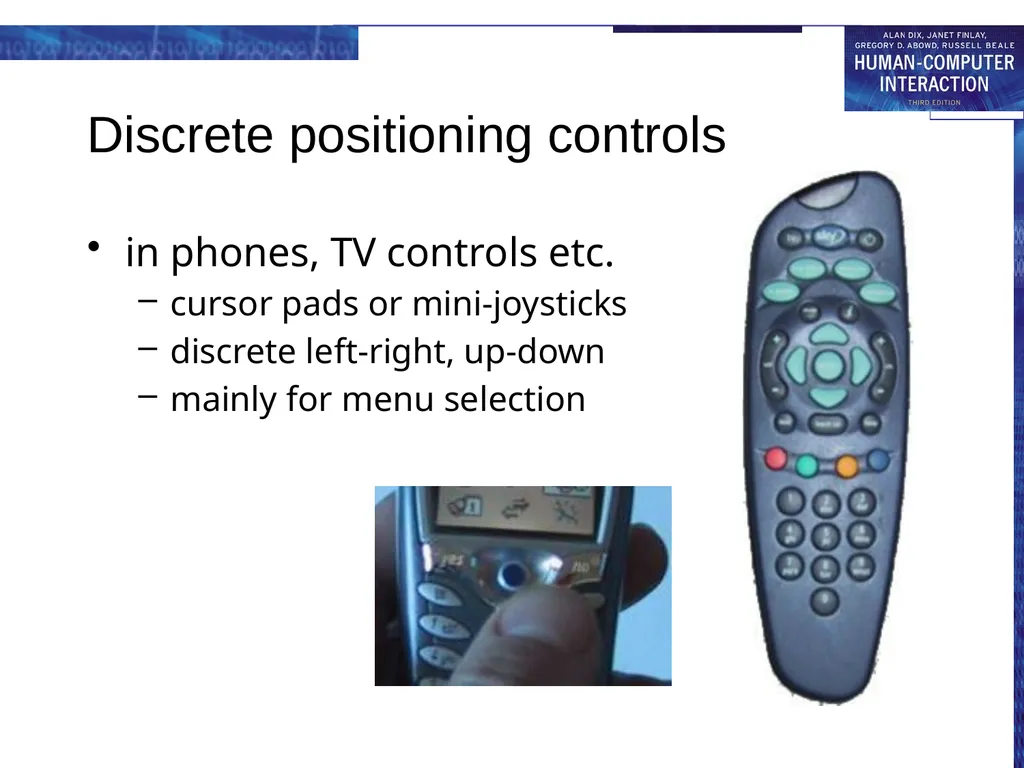
Discrete positioning controls in phones, TV controls etc.
cursor pads or mini-joysticks
discrete left-right, up-down
mainly for menu selection<br>
cursor pads or mini-joysticks
discrete left-right, up-down
mainly for menu selection<br>
34
display devices bitmap screens (CRT & LCD)
large & situated displays digital paper<br>
large & situated displays digital paper<br>
35
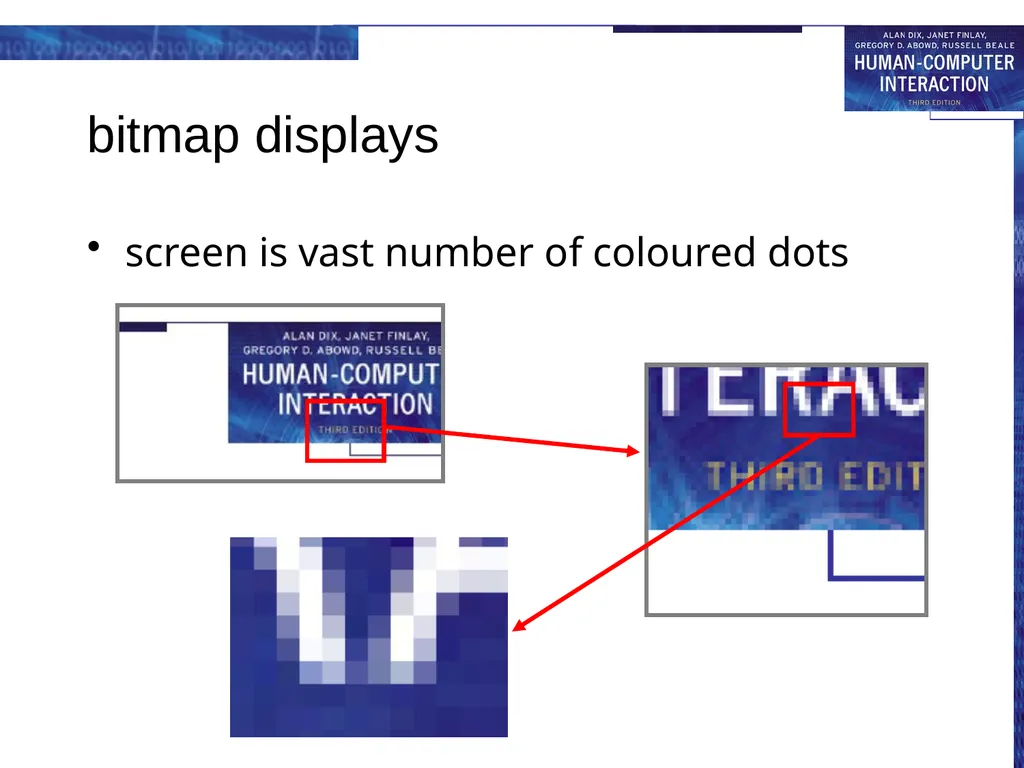
bitmap displays screen is vast number of coloured dots<br>
36
resolution and colour depth Resolution … used (inconsistently) for
number of pixels on screen (width x height)
e.g. SVGA 1024 x 768, PDA perhaps 240x400
density of pixels (in pixels or dots per inch - dpi)
typically between 72 and 96 dpi
Aspect ratio
ration between width and height
4:3 for most screens, 16:9 for wide-screen TV
Colour depth:
how many different colours for each pixel?
black/white or greys only
256 from a pallete
8 bits each for red/green/blue = millions of colours<br>
number of pixels on screen (width x height)
e.g. SVGA 1024 x 768, PDA perhaps 240x400
density of pixels (in pixels or dots per inch - dpi)
typically between 72 and 96 dpi
Aspect ratio
ration between width and height
4:3 for most screens, 16:9 for wide-screen TV
Colour depth:
how many different colours for each pixel?
black/white or greys only
256 from a pallete
8 bits each for red/green/blue = millions of colours<br>
37
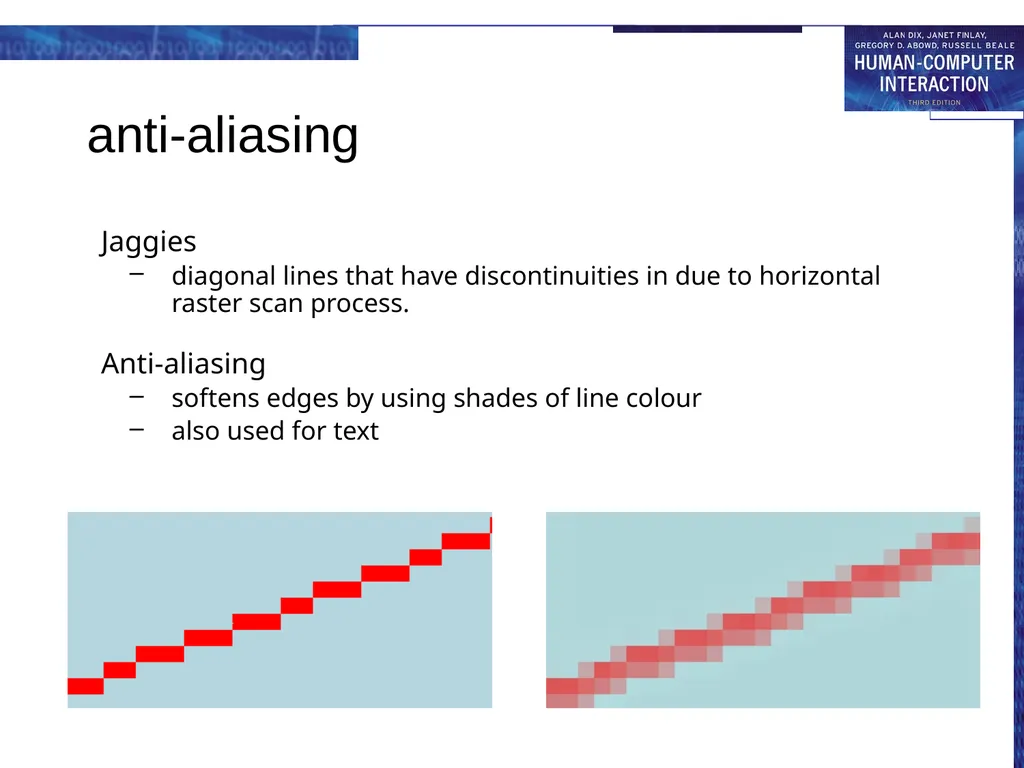
anti-aliasing Jaggies
diagonal lines that have discontinuities in due to horizontal raster scan process.
Anti-aliasing
softens edges by using shades of line colour
also used for text<br>
diagonal lines that have discontinuities in due to horizontal raster scan process.
Anti-aliasing
softens edges by using shades of line colour
also used for text<br>
38
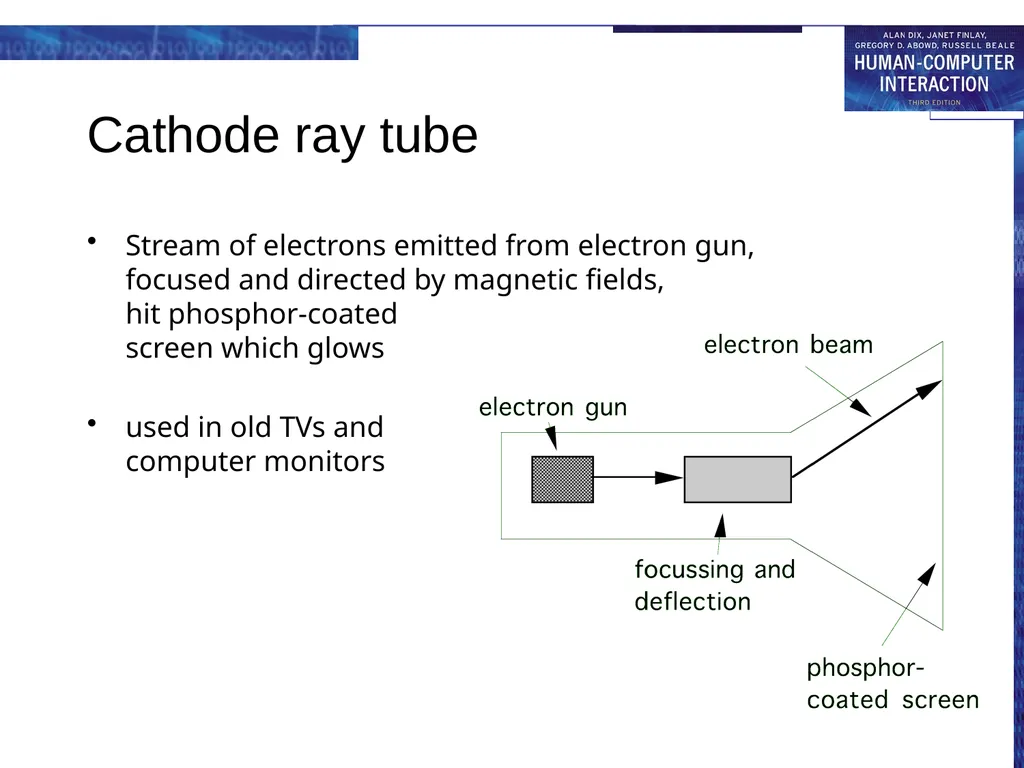
Cathode ray tube Stream of electrons emitted from electron gun,
focused and directed by magnetic fields,
hit phosphor-coated
screen which glows
used in old TVs and computer monitors<br>
used in old TVs and computer monitors<br>
39
Health hazards of CRT ! X-rays: largely absorbed by screen (but not at rear!)
UV- and IR-radiation from phosphors: insignificant levels
Radio frequency emissions, plus ultrasound (~16kHz)
Electrostatic field - leaks out through tube to user. Intensity dependant on distance and humidity. Can cause rashes.
Electromagnetic fields (50Hz-0.5MHz). Create induction currents in conductive materials, including the human body. Two types of effects attributed to this: visual system - high incidence of cataracts in VDU operators, and concern over reproductive disorders (miscarriages and birth defects).<br>
UV- and IR-radiation from phosphors: insignificant levels
Radio frequency emissions, plus ultrasound (~16kHz)
Electrostatic field - leaks out through tube to user. Intensity dependant on distance and humidity. Can cause rashes.
Electromagnetic fields (50Hz-0.5MHz). Create induction currents in conductive materials, including the human body. Two types of effects attributed to this: visual system - high incidence of cataracts in VDU operators, and concern over reproductive disorders (miscarriages and birth defects).<br>
40
Health hints … do not sit too close to the screen
do not use very small fonts
do not look at the screen for long periods without a break
do not place the screen directly in front of a bright window
work in well-lit surroundings
Take extra care if pregnant. but also posture, ergonomics, stress<br>
do not use very small fonts
do not look at the screen for long periods without a break
do not place the screen directly in front of a bright window
work in well-lit surroundings
Take extra care if pregnant. but also posture, ergonomics, stress<br>
41
Liquid crystal displays Smaller, lighter, and … no radiation problems.
Found on PDAs, portables and notebooks, … and increasingly on desktop and even for home TV
also used in dedicted displays: digital watches, mobile phones, HiFi controls
How it works …
Top plate transparent and polarised, bottom plate reflecting.
Light passes through top plate and crystal, and reflects back to eye.
Voltage applied to crystal changes polarisation and hence colour
N.B. light reflected not emitted => less eye strain<br>
Found on PDAs, portables and notebooks, … and increasingly on desktop and even for home TV
also used in dedicted displays: digital watches, mobile phones, HiFi controls
How it works …
Top plate transparent and polarised, bottom plate reflecting.
Light passes through top plate and crystal, and reflects back to eye.
Voltage applied to crystal changes polarisation and hence colour
N.B. light reflected not emitted => less eye strain<br>
42
special displays Random Scan (Directed-beam refresh, vector display)
draw the lines to be displayed directly
no jaggies
lines need to be constantly redrawn
rarely used except in special instruments
Direct view storage tube (DVST)
Similar to random scan but persistent => no flicker
Can be incrementally updated but not selectively erased
Used in analogue storage oscilloscopes<br>
draw the lines to be displayed directly
no jaggies
lines need to be constantly redrawn
rarely used except in special instruments
Direct view storage tube (DVST)
Similar to random scan but persistent => no flicker
Can be incrementally updated but not selectively erased
Used in analogue storage oscilloscopes<br>
43
large displays used for meetings, lectures, etc.
technology
plasma – usually wide screen
video walls – lots of small screens together
projected – RGB lights or LCD projector
hand/body obscures screen
may be solved by 2 projectors + clever software
back-projected
frosted glass + projector behind<br>
technology
plasma – usually wide screen
video walls – lots of small screens together
projected – RGB lights or LCD projector
hand/body obscures screen
may be solved by 2 projectors + clever software
back-projected
frosted glass + projector behind<br>
44
situated displays displays in ‘public’ places
large or small
very public or for small group
display only
for information relevant to location
or interactive
use stylus, touch sensitive screem
in all cases … the location matters
meaning of information or interaction is related to the location<br>
large or small
very public or for small group
display only
for information relevant to location
or interactive
use stylus, touch sensitive screem
in all cases … the location matters
meaning of information or interaction is related to the location<br>
45
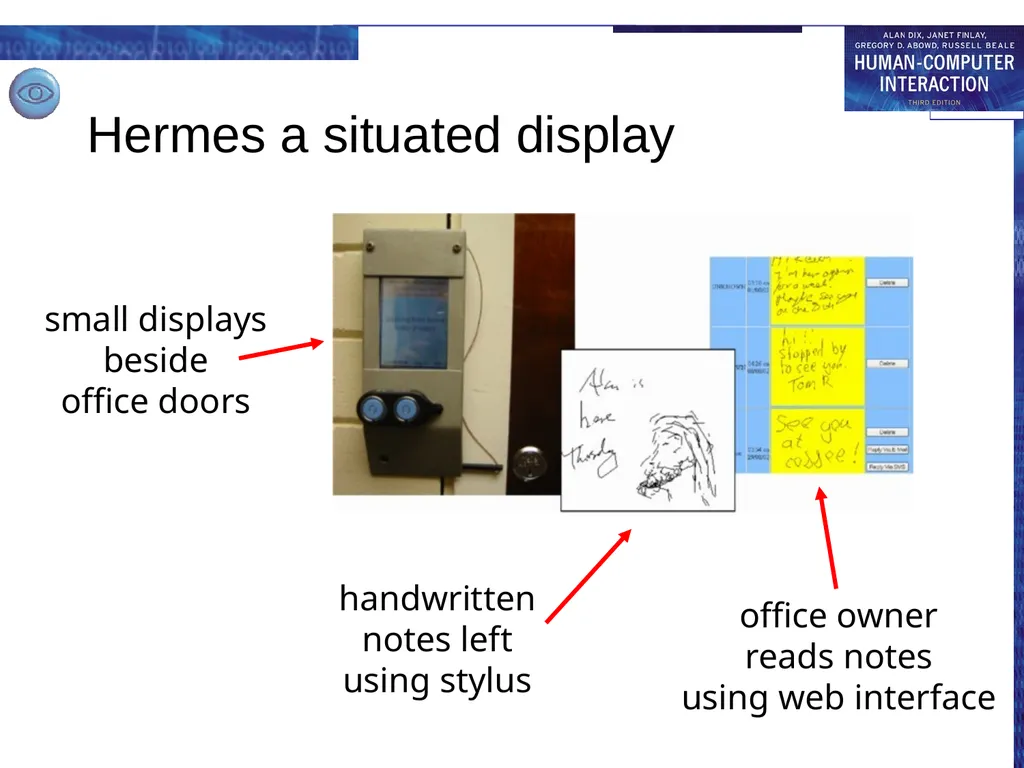
small displays beside office doors
handwritten notes left using stylus
office owner reads notes using web interface Hermes a situated display small displays beside office doors handwritten
notes left using stylus office owner reads notes using web interface<br>
handwritten notes left using stylus
office owner reads notes using web interface Hermes a situated display small displays beside office doors handwritten
notes left using stylus office owner reads notes using web interface<br>
46
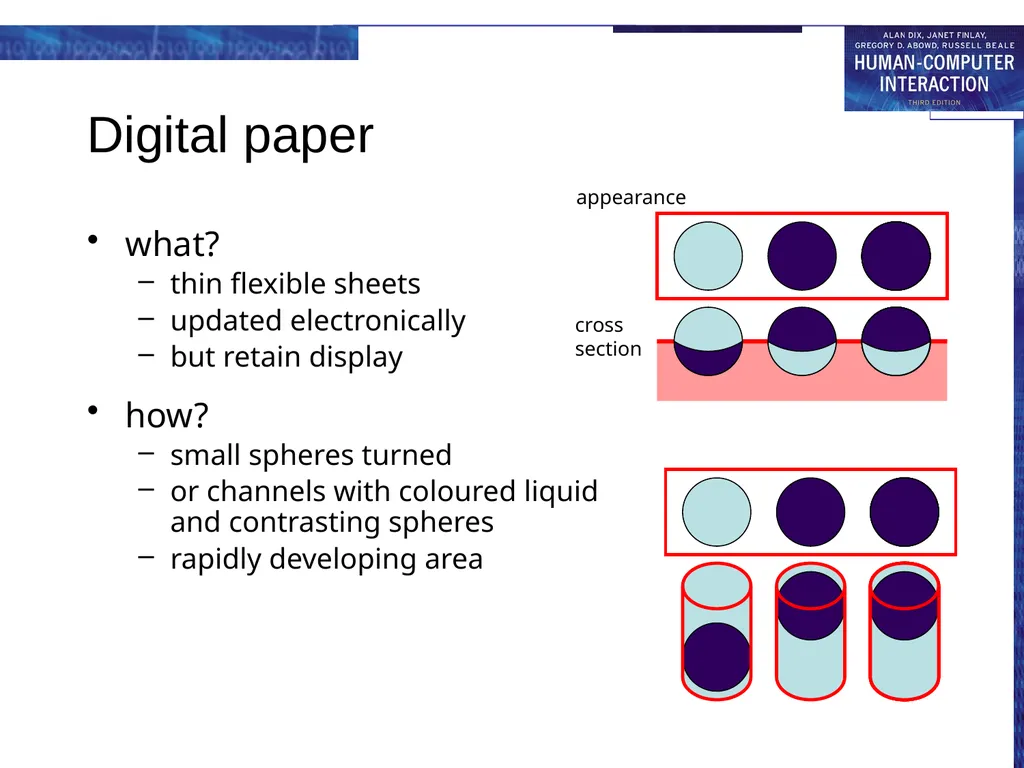
Digital paper what?
thin flexible sheets
updated electronically
but retain display
how?
small spheres turned
or channels with coloured liquid and contrasting spheres
rapidly developing area appearance cross
section<br>
thin flexible sheets
updated electronically
but retain display
how?
small spheres turned
or channels with coloured liquid and contrasting spheres
rapidly developing area appearance cross
section<br>
47
virtual reality and 3D interaction positioning in 3D space
moving and grasping
seeing 3D (helmets and caves)<br>
seeing 3D (helmets and caves)<br>
48
positioning in 3D space cockpit and virtual controls
steering wheels, knobs and dials … just like real!
the 3D mouse
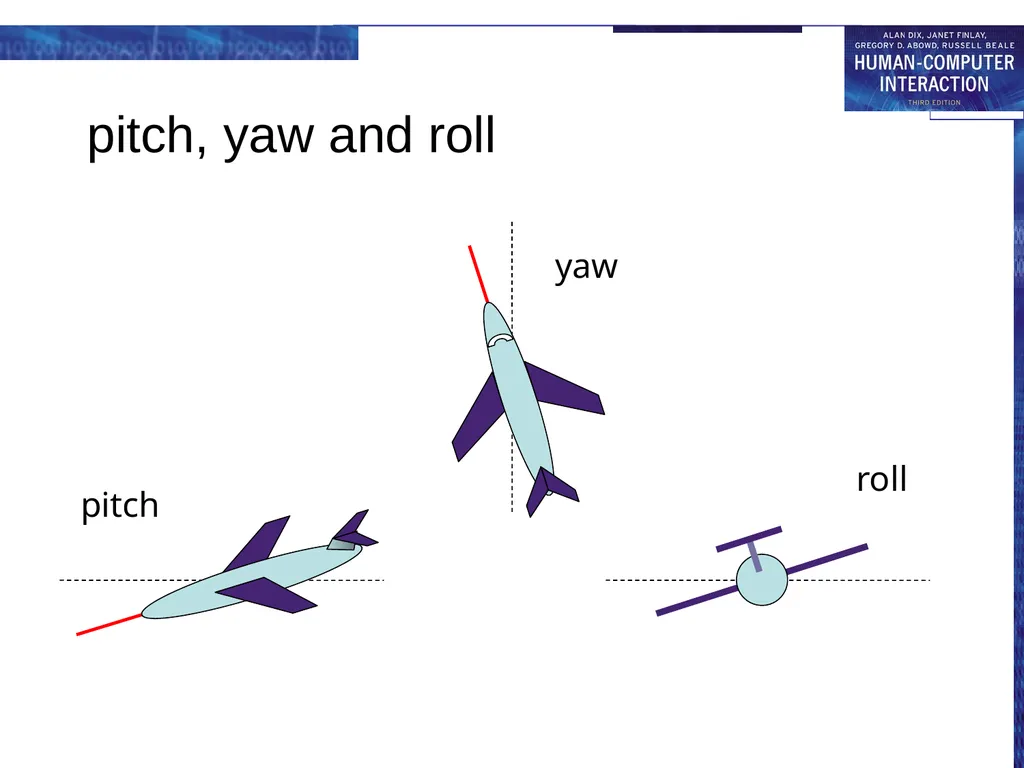
six-degrees of movement: x, y, z + roll, pitch, yaw
data glove
fibre optics used to detect finger position
VR helmets
detect head motion and possibly eye gaze
whole body tracking
accelerometers strapped to limbs or reflective dots and video processing<br>
steering wheels, knobs and dials … just like real!
the 3D mouse
six-degrees of movement: x, y, z + roll, pitch, yaw
data glove
fibre optics used to detect finger position
VR helmets
detect head motion and possibly eye gaze
whole body tracking
accelerometers strapped to limbs or reflective dots and video processing<br>
49
pitch, yaw and roll pitch yaw roll<br>
50
3D displays desktop VR
ordinary screen, mouse or keyboard control
perspective and motion give 3D effect
seeing in 3D
use stereoscopic vision
VR helmets
screen plus shuttered specs, etc. also see extra slides on 3D vision<br>
ordinary screen, mouse or keyboard control
perspective and motion give 3D effect
seeing in 3D
use stereoscopic vision
VR helmets
screen plus shuttered specs, etc. also see extra slides on 3D vision<br>
51
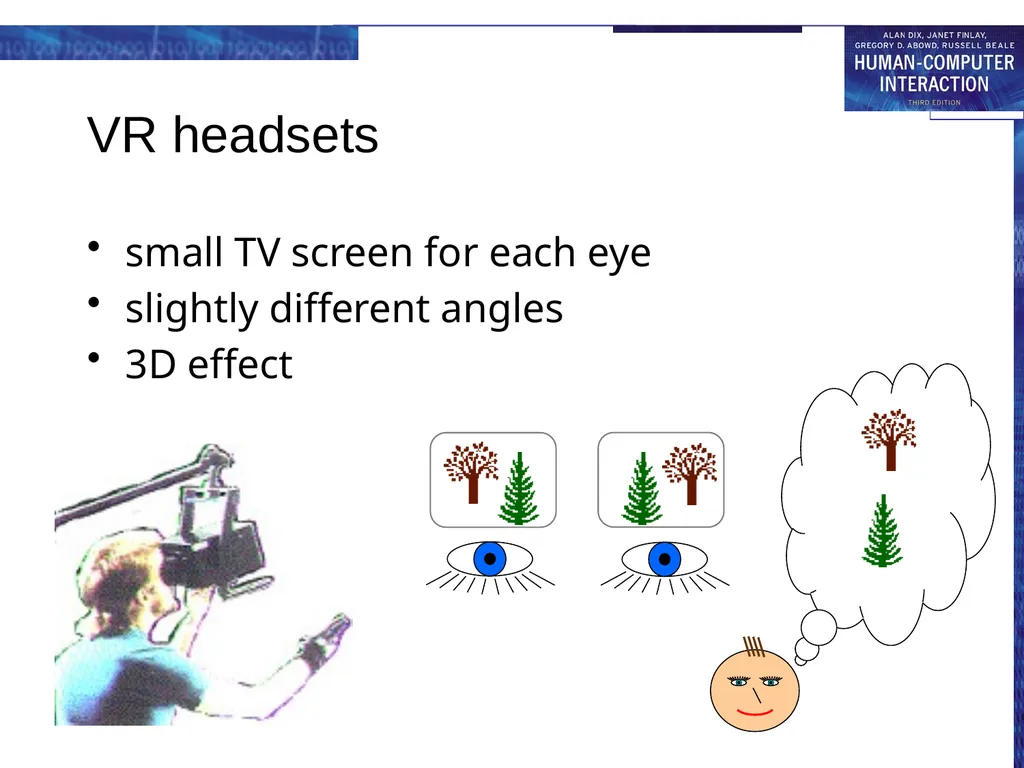
VR headsets small TV screen for each eye
slightly different angles
3D effect<br>
slightly different angles
3D effect<br>
52
VR motion sickness time delay
move head … lag … display moves
conflict: head movement vs. eyes
depth perception
headset gives different stereo distance
but all focused in same plane
conflict: eye angle vs. focus
conflicting cues => sickness
helps motivate improvements in technology<br>
move head … lag … display moves
conflict: head movement vs. eyes
depth perception
headset gives different stereo distance
but all focused in same plane
conflict: eye angle vs. focus
conflicting cues => sickness
helps motivate improvements in technology<br>
53
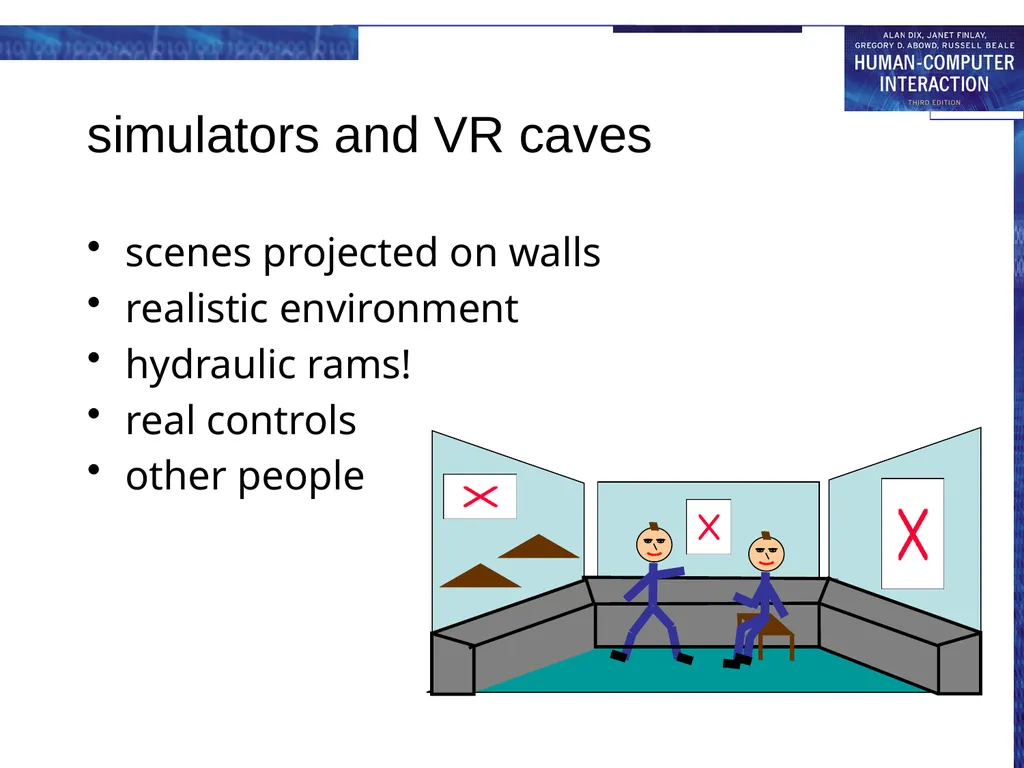
simulators and VR caves scenes projected on walls
realistic environment
hydraulic rams!
real controls
other people<br>
realistic environment
hydraulic rams!
real controls
other people<br>
54
physical controls, sensors etc. special displays and gauges
sound, touch, feel, smell
physical controls
environmental and bio-sensing<br>
sound, touch, feel, smell
physical controls
environmental and bio-sensing<br>
55
dedicated displays analogue representations:
dials, gauges, lights, etc.
digital displays:
small LCD screens, LED lights, etc.
head-up displays
found in aircraft cockpits
show most important controls … depending on context<br>
dials, gauges, lights, etc.
digital displays:
small LCD screens, LED lights, etc.
head-up displays
found in aircraft cockpits
show most important controls … depending on context<br>
56
Sounds beeps, bongs, clonks, whistles and whirrs
used for error indications
confirmation of actions e.g. keyclick
also see chapter 10<br>
used for error indications
confirmation of actions e.g. keyclick
also see chapter 10<br>
57
Touch, feel, smell touch and feeling important
in games … vibration, force feedback
in simulation … feel of surgical instruments
called haptic devices
texture, smell, taste
current technology very limited<br>
in games … vibration, force feedback
in simulation … feel of surgical instruments
called haptic devices
texture, smell, taste
current technology very limited<br>
58
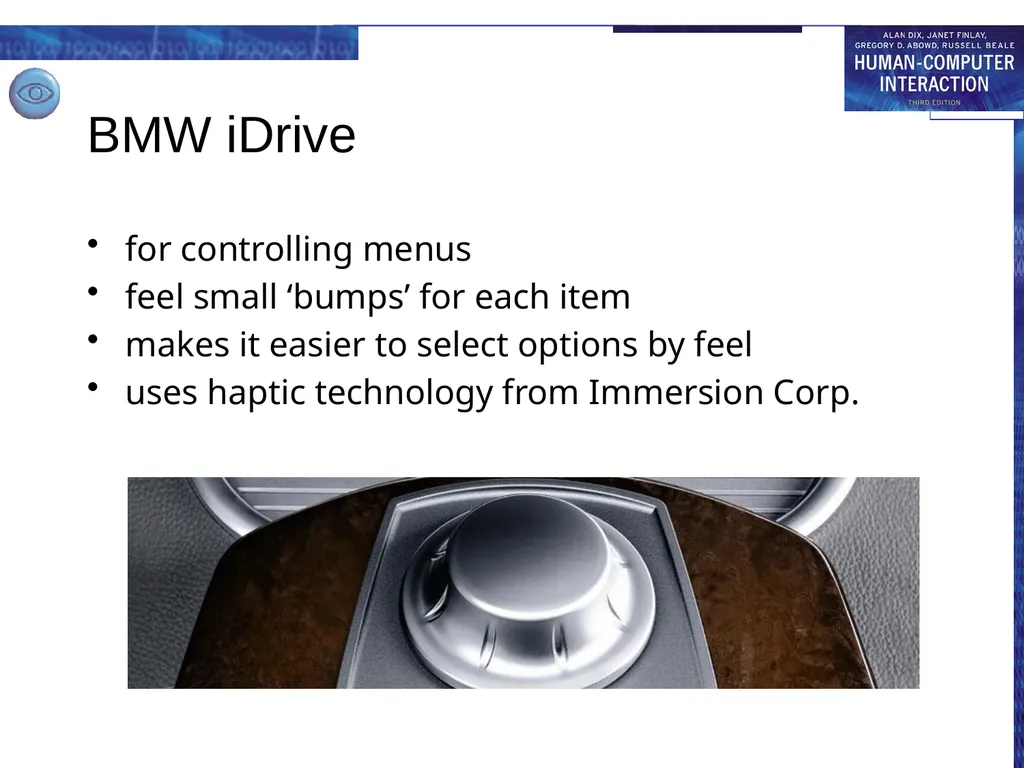
BMW iDrive for controlling menus
feel small ‘bumps’ for each item
makes it easier to select options by feel
uses haptic technology from Immersion Corp.<br>
feel small ‘bumps’ for each item
makes it easier to select options by feel
uses haptic technology from Immersion Corp.<br>
59
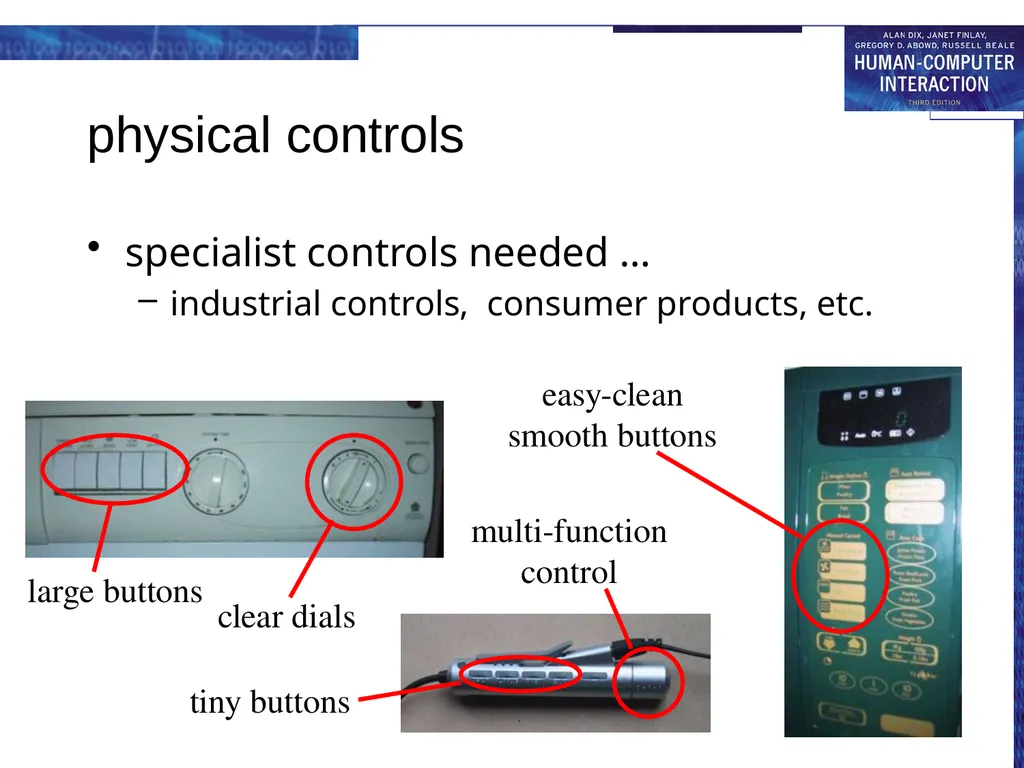
physical controls specialist controls needed …
industrial controls, consumer products, etc. large buttons clear dials tiny buttons multi-function control easy-clean
smooth buttons<br>
industrial controls, consumer products, etc. large buttons clear dials tiny buttons multi-function control easy-clean
smooth buttons<br>
60
Environment and bio-sensing sensors all around us
car courtesy light – small switch on door
ultrasound detectors – security, washbasins
RFID security tags in shops
temperature, weight, location
… and even our own bodies …
iris scanners, body temperature, heart rate, galvanic skin response, blink rate<br>
car courtesy light – small switch on door
ultrasound detectors – security, washbasins
RFID security tags in shops
temperature, weight, location
… and even our own bodies …
iris scanners, body temperature, heart rate, galvanic skin response, blink rate<br>
61
paper: printing and scanning print technology
fonts, page description, WYSIWYG
scanning, OCR<br>
fonts, page description, WYSIWYG
scanning, OCR<br>
62
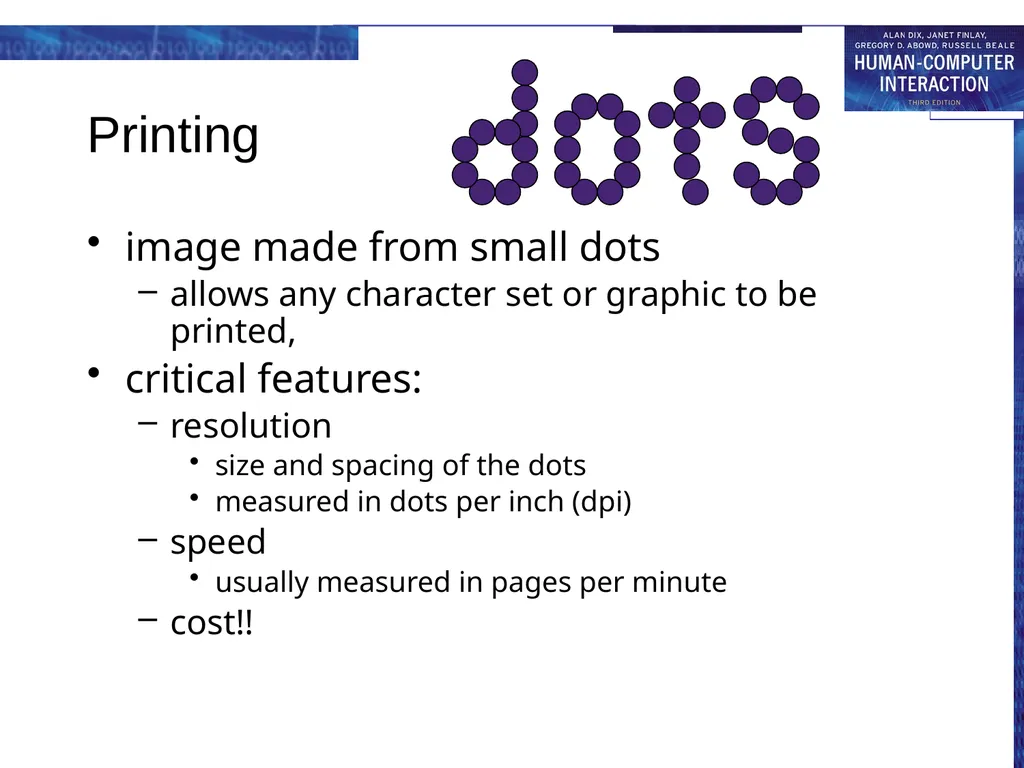
Printing image made from small dots
allows any character set or graphic to be printed,
critical features:
resolution
size and spacing of the dots
measured in dots per inch (dpi)
speed
usually measured in pages per minute
cost!!<br>
allows any character set or graphic to be printed,
critical features:
resolution
size and spacing of the dots
measured in dots per inch (dpi)
speed
usually measured in pages per minute
cost!!<br>
63
Types of dot-based printers dot-matrix printers
use inked ribbon (like a typewriter
line of pins that can strike the ribbon, dotting the paper.
typical resolution 80-120 dpi
ink-jet and bubble-jet printers
tiny blobs of ink sent from print head to paper
typically 300 dpi or better .
laser printer
like photocopier: dots of electrostatic charge deposited on drum, which picks up toner (black powder form of ink) rolled onto paper which is then fixed with heat
typically 600 dpi or better.<br>
use inked ribbon (like a typewriter
line of pins that can strike the ribbon, dotting the paper.
typical resolution 80-120 dpi
ink-jet and bubble-jet printers
tiny blobs of ink sent from print head to paper
typically 300 dpi or better .
laser printer
like photocopier: dots of electrostatic charge deposited on drum, which picks up toner (black powder form of ink) rolled onto paper which is then fixed with heat
typically 600 dpi or better.<br>
64
Printing in the workplace shop tills
dot matrix
same print head used for several paper rolls
may also print cheques
thermal printers
special heat-sensitive paper
paper heated by pins makes a dot
poor quality, but simple & low maintenance
used in some fax machines<br>
dot matrix
same print head used for several paper rolls
may also print cheques
thermal printers
special heat-sensitive paper
paper heated by pins makes a dot
poor quality, but simple & low maintenance
used in some fax machines<br>
65
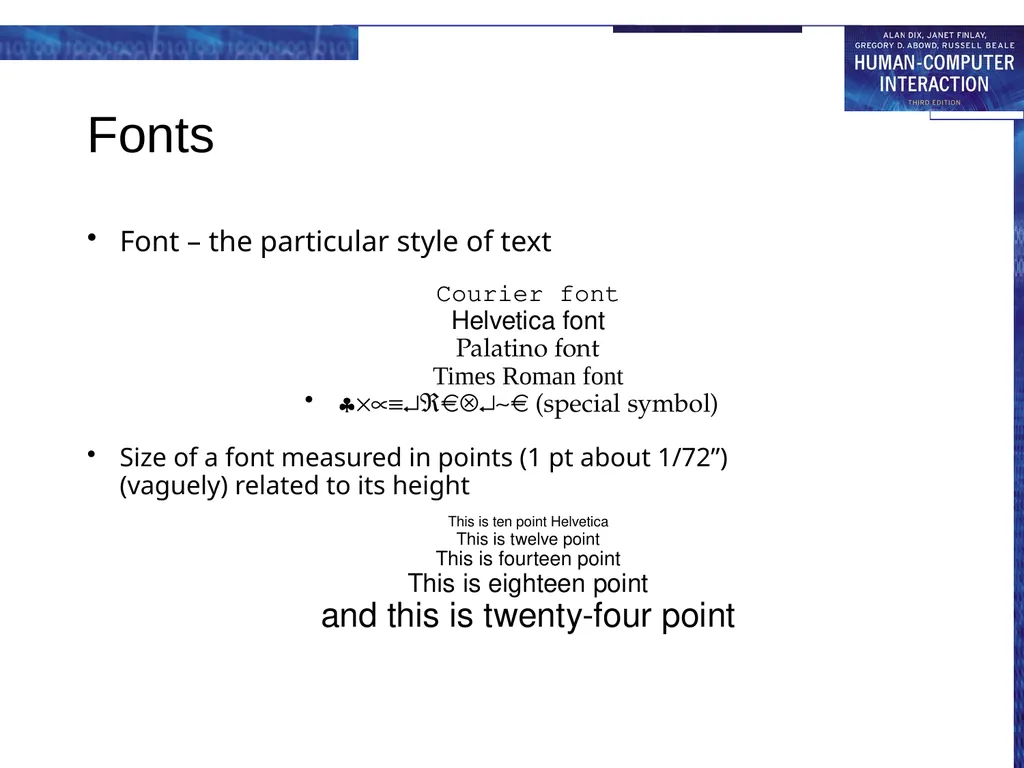
Fonts Font – the particular style of text
Courier font
Helvetica font
Palatino font
Times Roman font
§´µº¿Â Ä¿~ (special symbol)
Size of a font measured in points (1 pt about 1/72”) (vaguely) related to its height
This is ten point Helvetica
This is twelve point
This is fourteen point
This is eighteen point
and this is twenty-four point<br>
Courier font
Helvetica font
Palatino font
Times Roman font
§´µº¿Â Ä¿~ (special symbol)
Size of a font measured in points (1 pt about 1/72”) (vaguely) related to its height
This is ten point Helvetica
This is twelve point
This is fourteen point
This is eighteen point
and this is twenty-four point<br>
66
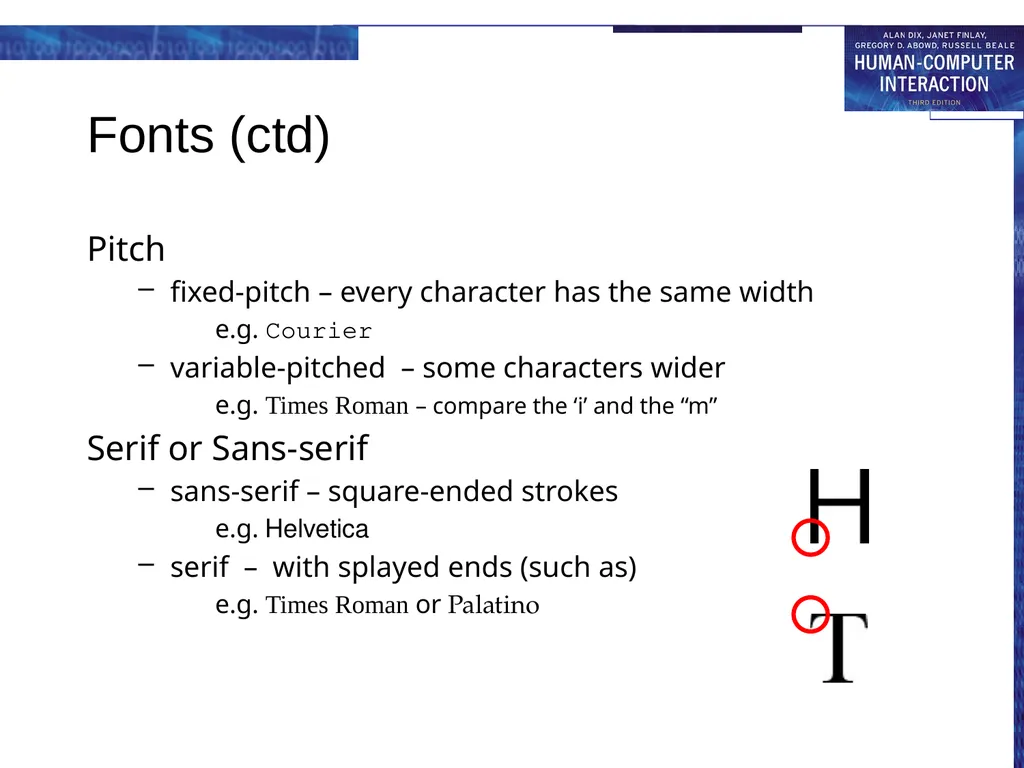
Fonts (ctd) Pitch
fixed-pitch – every character has the same width
e.g. Courier
variable-pitched – some characters wider
e.g. Times Roman – compare the ‘i’ and the “m”
Serif or Sans-serif
sans-serif – square-ended strokes
e.g. Helvetica
serif – with splayed ends (such as)
e.g. Times Roman or Palatino<br>
fixed-pitch – every character has the same width
e.g. Courier
variable-pitched – some characters wider
e.g. Times Roman – compare the ‘i’ and the “m”
Serif or Sans-serif
sans-serif – square-ended strokes
e.g. Helvetica
serif – with splayed ends (such as)
e.g. Times Roman or Palatino<br>
67
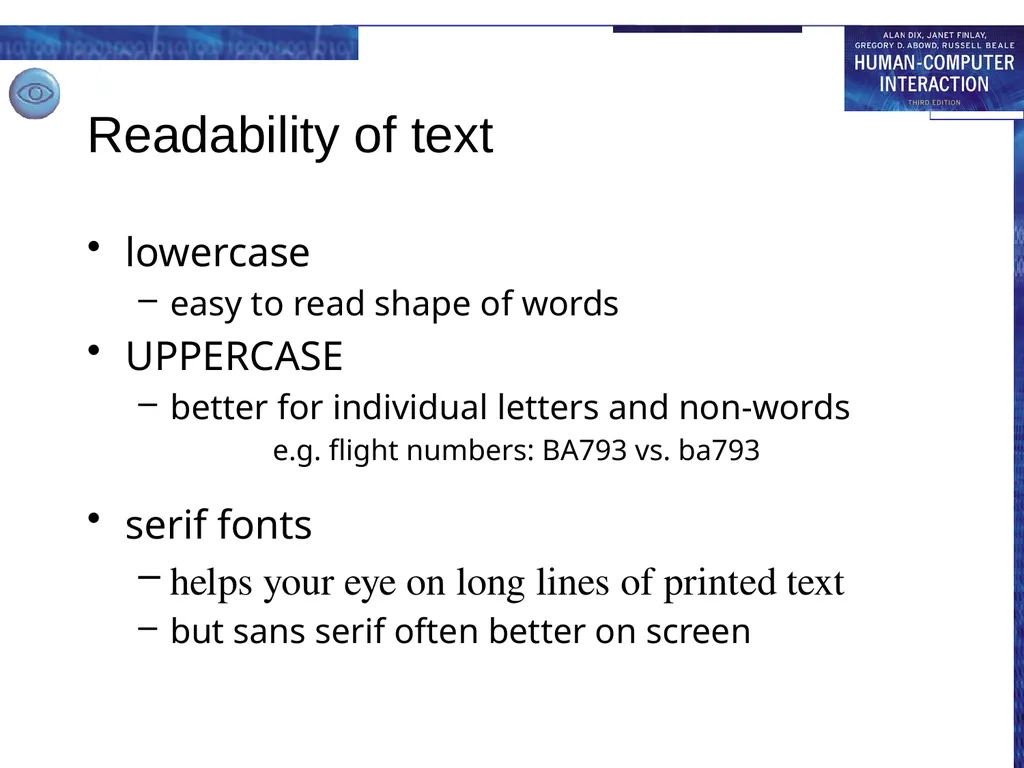
Readability of text lowercase
easy to read shape of words
UPPERCASE
better for individual letters and non-words e.g. flight numbers: BA793 vs. ba793
serif fonts
helps your eye on long lines of printed text
but sans serif often better on screen<br>
easy to read shape of words
UPPERCASE
better for individual letters and non-words e.g. flight numbers: BA793 vs. ba793
serif fonts
helps your eye on long lines of printed text
but sans serif often better on screen<br>
68
Page Description Languages Pages very complex
different fonts, bitmaps, lines, digitised photos, etc.
Can convert it all into a bitmap and send to the printer … but often huge !
Alternatively Use a page description language
sends a description of the page can be sent,
instructions for curves, lines, text in different styles, etc.
like a programming language for printing!
PostScript is the most common<br>
different fonts, bitmaps, lines, digitised photos, etc.
Can convert it all into a bitmap and send to the printer … but often huge !
Alternatively Use a page description language
sends a description of the page can be sent,
instructions for curves, lines, text in different styles, etc.
like a programming language for printing!
PostScript is the most common<br>
69
Screen and page WYSIWYG
what you see is what you get
aim of word processing, etc.
but …
screen: 72 dpi, landscape image
print: 600+ dpi, portrait
can try to make them similar but never quite the same
so … need different designs, graphics etc, for screen and print<br>
what you see is what you get
aim of word processing, etc.
but …
screen: 72 dpi, landscape image
print: 600+ dpi, portrait
can try to make them similar but never quite the same
so … need different designs, graphics etc, for screen and print<br>
70
Scanners Take paper and convert it into a bitmap
Two sorts of scanner
flat-bed: paper placed on a glass plate, whole page converted into bitmap
hand-held: scanner passed over paper, digitising strip typically 3-4” wide
Shines light at paper and note intensity of reflection
colour or greyscale
Typical resolutions from 600–2400 dpi<br>
Two sorts of scanner
flat-bed: paper placed on a glass plate, whole page converted into bitmap
hand-held: scanner passed over paper, digitising strip typically 3-4” wide
Shines light at paper and note intensity of reflection
colour or greyscale
Typical resolutions from 600–2400 dpi<br>
71
Scanners (ctd) Used in
desktop publishing for incorporating photographs and other images
document storage and retrieval systems, doing away with paper storage
special scanners for slides and photographic negatives<br>
desktop publishing for incorporating photographs and other images
document storage and retrieval systems, doing away with paper storage
special scanners for slides and photographic negatives<br>
72
Optical character recognition OCR converts bitmap back into text
different fonts
create problems for simple “template matching” algorithms
more complex systems segment text, decompose it into lines and arcs, and decipher characters that way
page format
columns, pictures, headers and footers<br>
different fonts
create problems for simple “template matching” algorithms
more complex systems segment text, decompose it into lines and arcs, and decipher characters that way
page format
columns, pictures, headers and footers<br>
73
Paper-based interaction paper usually regarded as output only
can be input too – OCR, scanning, etc.
Xerox PaperWorks
glyphs – small patterns of /\\//\\\
used to identify forms etc.
used with scanner and fax to control applications
more recently
papers micro printed - like wattermarks
identify which sheet and where you are
special ‘pen’ can read locations
know where they are writing<br>
can be input too – OCR, scanning, etc.
Xerox PaperWorks
glyphs – small patterns of /\\//\\\
used to identify forms etc.
used with scanner and fax to control applications
more recently
papers micro printed - like wattermarks
identify which sheet and where you are
special ‘pen’ can read locations
know where they are writing<br>
74
memory short term and long term
speed, capacity, compression
formats, access<br>
speed, capacity, compression
formats, access<br>
75
Short-term Memory - RAM Random access memory (RAM)
on silicon chips
100 nano-second access time
usually volatile (lose information if power turned off)
data transferred at around 100 Mbytes/sec
Some non-volatile RAM used to store basic set-up information
Typical desktop computers: 64 to 256 Mbytes RAM<br>
on silicon chips
100 nano-second access time
usually volatile (lose information if power turned off)
data transferred at around 100 Mbytes/sec
Some non-volatile RAM used to store basic set-up information
Typical desktop computers: 64 to 256 Mbytes RAM<br>
76
Long-term Memory - disks magnetic disks
floppy disks store around 1.4 Mbytes
hard disks typically 40 Gbytes to 100s of Gbytes access time ~10ms, transfer rate 100kbytes/s
optical disks
use lasers to read and sometimes write
more robust that magnetic media
CD-ROM - same technology as home audio, ~ 600 Gbytes
DVD - for AV applications, or very large files<br>
floppy disks store around 1.4 Mbytes
hard disks typically 40 Gbytes to 100s of Gbytes access time ~10ms, transfer rate 100kbytes/s
optical disks
use lasers to read and sometimes write
more robust that magnetic media
CD-ROM - same technology as home audio, ~ 600 Gbytes
DVD - for AV applications, or very large files<br>
77
Blurring boundaries PDAs
often use RAM for their main memory
Flash-Memory
used in PDAs, cameras etc.
silicon based but persistent
plug-in USB devices for data transfer<br>
often use RAM for their main memory
Flash-Memory
used in PDAs, cameras etc.
silicon based but persistent
plug-in USB devices for data transfer<br>
78
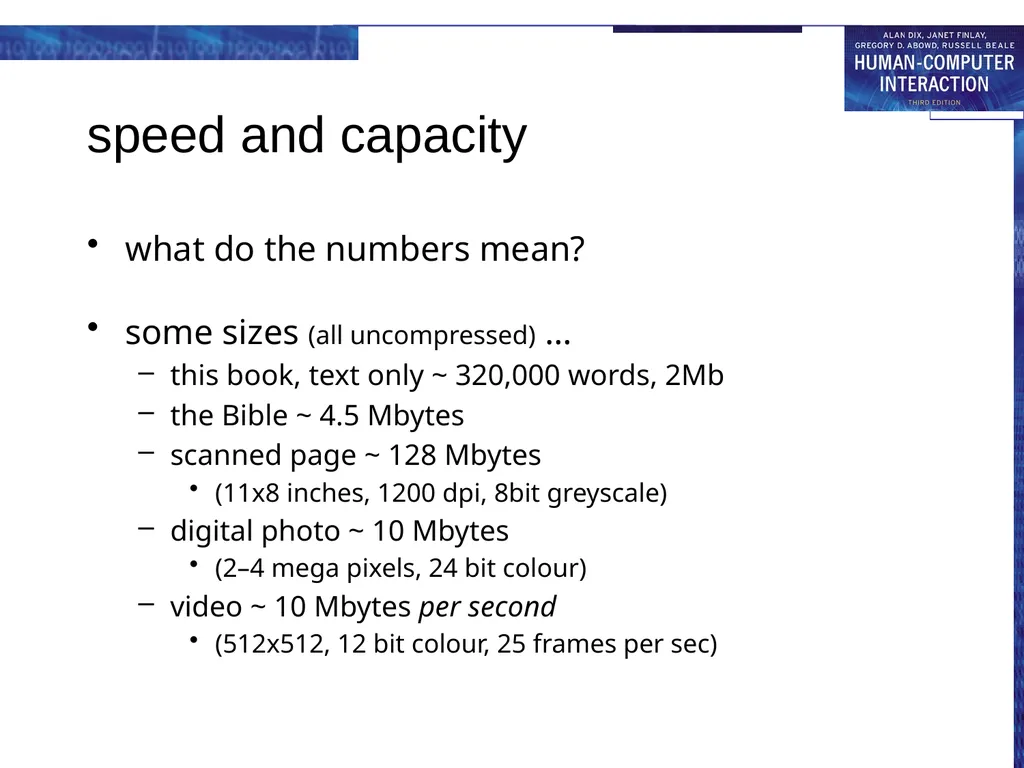
speed and capacity what do the numbers mean?
some sizes (all uncompressed) …
this book, text only ~ 320,000 words, 2Mb
the Bible ~ 4.5 Mbytes
scanned page ~ 128 Mbytes
(11x8 inches, 1200 dpi, 8bit greyscale)
digital photo ~ 10 Mbytes
(2–4 mega pixels, 24 bit colour)
video ~ 10 Mbytes per second
(512x512, 12 bit colour, 25 frames per sec)<br>
some sizes (all uncompressed) …
this book, text only ~ 320,000 words, 2Mb
the Bible ~ 4.5 Mbytes
scanned page ~ 128 Mbytes
(11x8 inches, 1200 dpi, 8bit greyscale)
digital photo ~ 10 Mbytes
(2–4 mega pixels, 24 bit colour)
video ~ 10 Mbytes per second
(512x512, 12 bit colour, 25 frames per sec)<br>
79
virtual memory Problem:
running lots of programs + each program large
not enough RAM
Solution - Virtual memory :
store some programs temporarily on disk
makes RAM appear bigger
But … swopping
program on disk needs to run again
copied from disk to RAM
s l o w s t h i n g s d o w n<br>
running lots of programs + each program large
not enough RAM
Solution - Virtual memory :
store some programs temporarily on disk
makes RAM appear bigger
But … swopping
program on disk needs to run again
copied from disk to RAM
s l o w s t h i n g s d o w n<br>
80
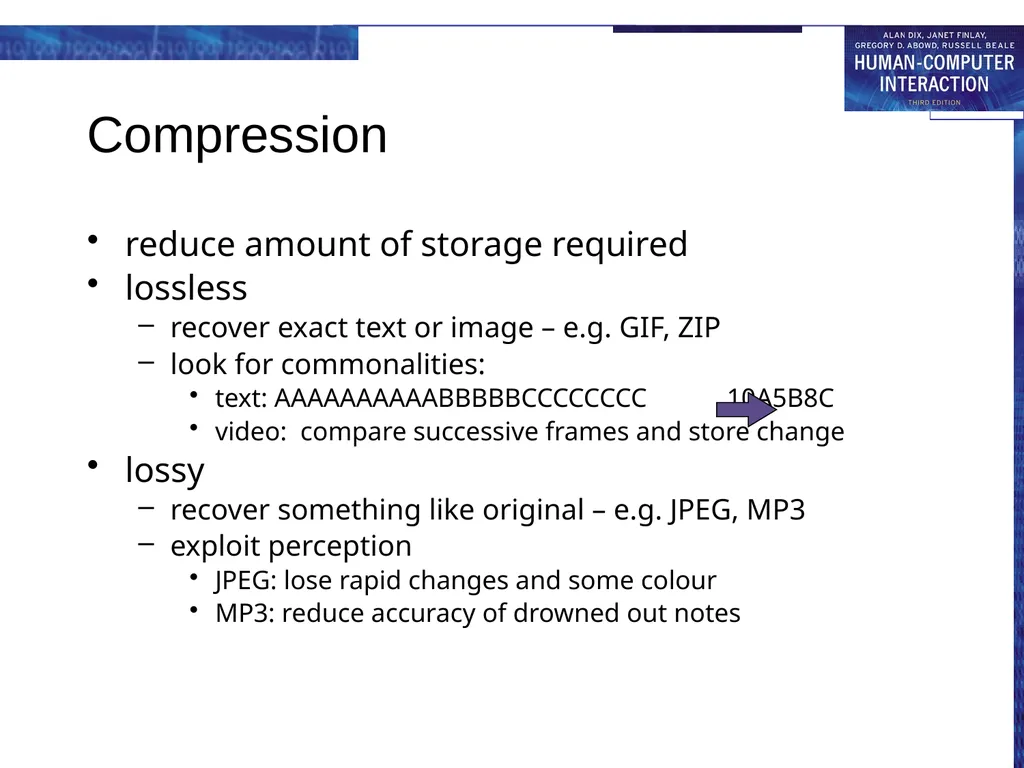
Compression reduce amount of storage required
lossless
recover exact text or image – e.g. GIF, ZIP
look for commonalities:
text: AAAAAAAAAABBBBBCCCCCCCC 10A5B8C
video: compare successive frames and store change
lossy
recover something like original – e.g. JPEG, MP3
exploit perception
JPEG: lose rapid changes and some colour
MP3: reduce accuracy of drowned out notes<br>
lossless
recover exact text or image – e.g. GIF, ZIP
look for commonalities:
text: AAAAAAAAAABBBBBCCCCCCCC 10A5B8C
video: compare successive frames and store change
lossy
recover something like original – e.g. JPEG, MP3
exploit perception
JPEG: lose rapid changes and some colour
MP3: reduce accuracy of drowned out notes<br>
81
Storage formats - text ASCII - 7-bit binary code for to each letter and character
UTF-8 - 8-bit encoding of 16 bit character set
RTF (rich text format) - text plus formatting and layout information
SGML (standardized generalised markup language) - documents regarded as structured objects
XML (extended markup language) - simpler version of SGML for web applications<br>
UTF-8 - 8-bit encoding of 16 bit character set
RTF (rich text format) - text plus formatting and layout information
SGML (standardized generalised markup language) - documents regarded as structured objects
XML (extended markup language) - simpler version of SGML for web applications<br>
82
Storage formats - media Images:
many storage formats : (PostScript, GIFF, JPEG, TIFF, PICT, etc.)
plus different compression techniques (to reduce their storage requirements)
Audio/Video
again lots of formats : (QuickTime, MPEG, WAV, etc.)
compression even more important
also ‘streaming’ formats for network delivery<br>
many storage formats : (PostScript, GIFF, JPEG, TIFF, PICT, etc.)
plus different compression techniques (to reduce their storage requirements)
Audio/Video
again lots of formats : (QuickTime, MPEG, WAV, etc.)
compression even more important
also ‘streaming’ formats for network delivery<br>
83
methods of access large information store
long time to search => use index
what you index -> what you can access
simple index needs exact match
forgiving systems:
Xerox “do what I mean” (DWIM)
SOUNDEX – McCloud ~ MacCleod
access without structure …
free text indexing (all the words in a document)
needs lots of space!!<br>
long time to search => use index
what you index -> what you can access
simple index needs exact match
forgiving systems:
Xerox “do what I mean” (DWIM)
SOUNDEX – McCloud ~ MacCleod
access without structure …
free text indexing (all the words in a document)
needs lots of space!!<br>
84
processing and networks finite speed (but also Moore’s law)
limits of interaction
networked computing<br>
limits of interaction
networked computing<br>
85
Finite processing speed Designers tend to assume fast processors, and make interfaces more and more complicated
But problems occur, because processing cannot keep up with all the tasks it needs to do
cursor overshooting because system has buffered keypresses
icon wars - user clicks on icon, nothing happens, clicks on another, then system responds and windows fly everywhere
Also problems if system is too fast - e.g. help screens may scroll through text much too rapidly to be read<br>
But problems occur, because processing cannot keep up with all the tasks it needs to do
cursor overshooting because system has buffered keypresses
icon wars - user clicks on icon, nothing happens, clicks on another, then system responds and windows fly everywhere
Also problems if system is too fast - e.g. help screens may scroll through text much too rapidly to be read<br>
86
Moore’s law computers get faster and faster!
1965 …
Gordon Moore, co-founder of Intel, noticed a pattern
processor speed doubles every 18 months
PC … 1987: 1.5 Mhz, 2002: 1.5 GHz
similar pattern for memory
but doubles every 12 months!!
hard disk … 1991: 20Mbyte : 2002: 30 Gbyte
baby born today
record all sound and vision
by 70 all life’s memories stored in a grain of dust! /e3/online/moores-law/<br>
1965 …
Gordon Moore, co-founder of Intel, noticed a pattern
processor speed doubles every 18 months
PC … 1987: 1.5 Mhz, 2002: 1.5 GHz
similar pattern for memory
but doubles every 12 months!!
hard disk … 1991: 20Mbyte : 2002: 30 Gbyte
baby born today
record all sound and vision
by 70 all life’s memories stored in a grain of dust! /e3/online/moores-law/<br>
87
the myth of the infinitely
fast machine implicit assumption … no delays
an infinitely fast machine
what is good design for real machines?
good example … the telephone :
type keys too fast
hear tones as numbers sent down the line
actually an accident of implementation
emulate in deisgn<br>
what is good design for real machines?
good example … the telephone :
type keys too fast
hear tones as numbers sent down the line
actually an accident of implementation
emulate in deisgn<br>
88
Limitations on interactive performance Computation bound
Computation takes ages, causing frustration for the user
Storage channel bound
Bottleneck in transference of data from disk to memory
Graphics bound
Common bottleneck: updating displays requires a lot of effort - sometimes helped by adding a graphics co-processor optimised to take on the burden
Network capacity
Many computers networked - shared resources and files, access to printers etc. - but interactive performance can be reduced by slow network speed<br>
Computation takes ages, causing frustration for the user
Storage channel bound
Bottleneck in transference of data from disk to memory
Graphics bound
Common bottleneck: updating displays requires a lot of effort - sometimes helped by adding a graphics co-processor optimised to take on the burden
Network capacity
Many computers networked - shared resources and files, access to printers etc. - but interactive performance can be reduced by slow network speed<br>
89
Networked computing Networks allow access to …
large memory and processing
other people (groupware, email)
shared resources – esp. the web
Issues
network delays – slow feedback
conflicts - many people update data
unpredictability<br>
large memory and processing
other people (groupware, email)
shared resources – esp. the web
Issues
network delays – slow feedback
conflicts - many people update data
unpredictability<br>
90
The internet history …
1969: DARPANET US DoD, 4 sites
1971: 23; 1984: 1000; 1989: 10000
common language (protocols):
TCP – Transmission Control protocol
lower level, packets (like letters) between machines
IP – Internet Protocol
reliable channel (like phone call) between programs on machines
email, HTTP, all build on top of these<br>
1969: DARPANET US DoD, 4 sites
1971: 23; 1984: 1000; 1989: 10000
common language (protocols):
TCP – Transmission Control protocol
lower level, packets (like letters) between machines
IP – Internet Protocol
reliable channel (like phone call) between programs on machines
email, HTTP, all build on top of these<br>