
Chapter 4 JavaScript Internet Programming I:
YM
Published · 59 slides · 0 views
1 / 1
Description
Chapter 4 JavaScript Internet Programming I: Introduction What is JavaScript? A web based programming language: Add interactive behavior to web pages Build web and mobile applications Develop games JavaScript is easy to learn Why Study
Related Topics
Share
Embed code
Download this presentation From Below
"Chapter 4 JavaScript Internet Programming I:" is the property of its rightful owner. Permission is granted to download and print the materials on this website for personal, non-commercial use only, and to display it on your personal computer provided you do not modify the materials and that you retain all copyright notices contained in the materials. By downloading content from our website, you accept the terms of this agreement.
Presentation Transcript
01
Chapter 4
JavaScript Internet Programming I:<br>
02
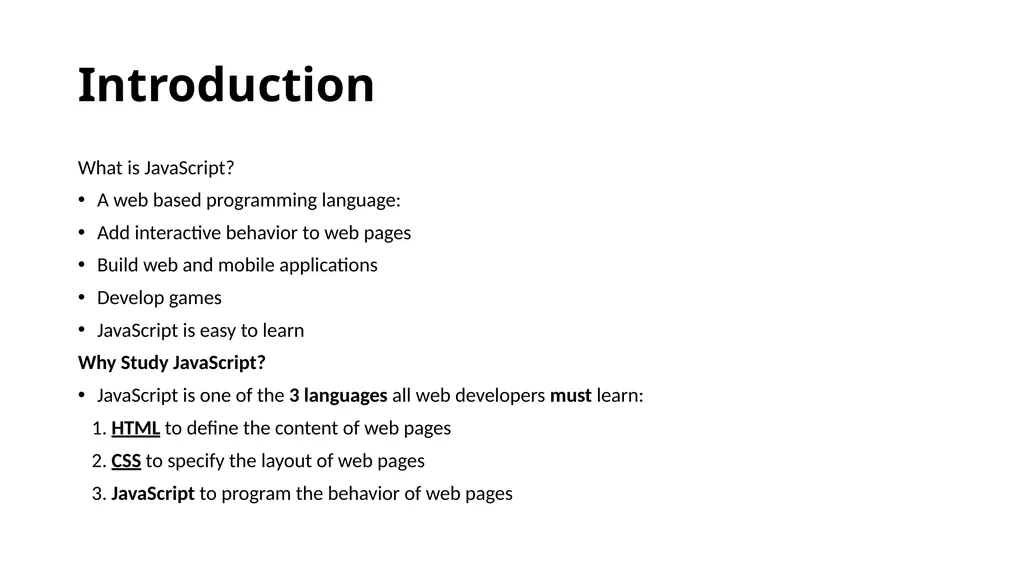
Introduction What is JavaScript?
A web based programming language:
Add interactive behavior to web pages
Build web and mobile applications
Develop games
JavaScript is easy to learn
Why Study JavaScript?
JavaScript is one of the 3 languages all web developers must learn:
1. HTML to define the content of web pages
2. CSS to specify the layout of web pages
3. JavaScript to program the behavior of web pages<br>
A web based programming language:
Add interactive behavior to web pages
Build web and mobile applications
Develop games
JavaScript is easy to learn
Why Study JavaScript?
JavaScript is one of the 3 languages all web developers must learn:
1. HTML to define the content of web pages
2. CSS to specify the layout of web pages
3. JavaScript to program the behavior of web pages<br>
03
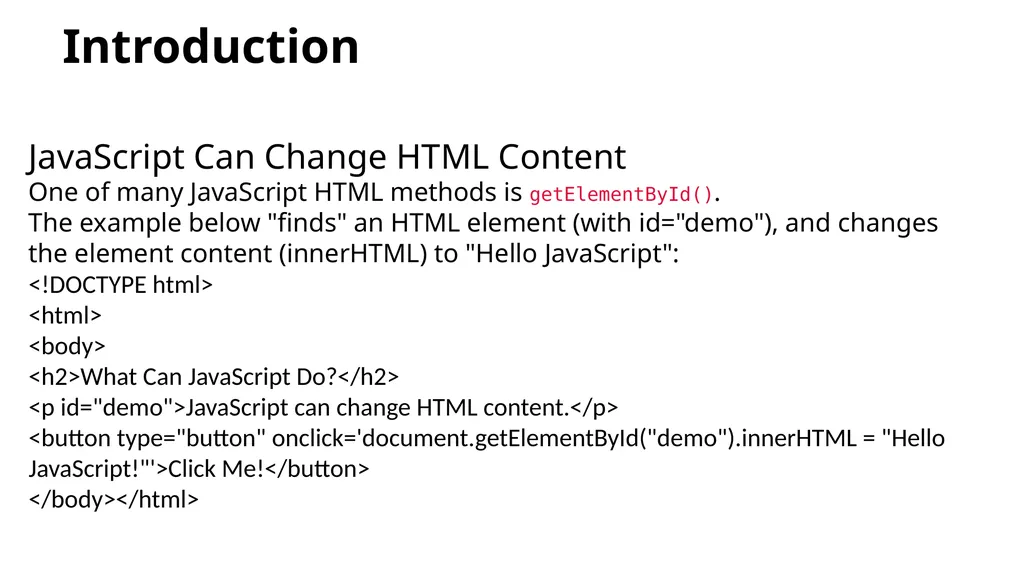
Introduction JavaScript Can Change HTML Content
One of many JavaScript HTML methods is getElementById().
The example below "finds" an HTML element (with id="demo"), and changes the element content (innerHTML) to "Hello JavaScript":
<!DOCTYPE html>
<html>
<body>
<h2>What Can JavaScript Do?</h2>
<p id="demo">JavaScript can change HTML content.</p>
<button type="button" onclick='document.getElementById("demo").innerHTML = "Hello JavaScript!"'>Click Me!</button>
</body></html><br>
One of many JavaScript HTML methods is getElementById().
The example below "finds" an HTML element (with id="demo"), and changes the element content (innerHTML) to "Hello JavaScript":
<!DOCTYPE html>
<html>
<body>
<h2>What Can JavaScript Do?</h2>
<p id="demo">JavaScript can change HTML content.</p>
<button type="button" onclick='document.getElementById("demo").innerHTML = "Hello JavaScript!"'>Click Me!</button>
</body></html><br>
04
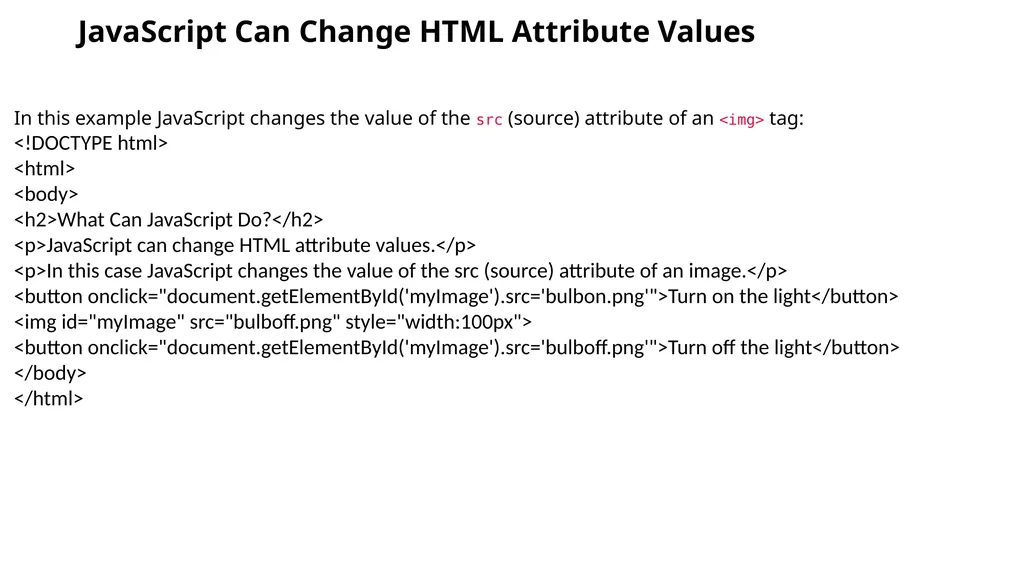
JavaScript Can Change HTML Attribute Values In this example JavaScript changes the value of the src (source) attribute of an <img> tag:
<!DOCTYPE html>
<html>
<body>
<h2>What Can JavaScript Do?</h2>
<p>JavaScript can change HTML attribute values.</p>
<p>In this case JavaScript changes the value of the src (source) attribute of an image.</p>
<button onclick="document.getElementById('myImage').src='bulbon.png'">Turn on the light</button>
<img id="myImage" src="bulboff.png" style="width:100px">
<button onclick="document.getElementById('myImage').src='bulboff.png'">Turn off the light</button>
</body>
</html><br>
<!DOCTYPE html>
<html>
<body>
<h2>What Can JavaScript Do?</h2>
<p>JavaScript can change HTML attribute values.</p>
<p>In this case JavaScript changes the value of the src (source) attribute of an image.</p>
<button onclick="document.getElementById('myImage').src='bulbon.png'">Turn on the light</button>
<img id="myImage" src="bulboff.png" style="width:100px">
<button onclick="document.getElementById('myImage').src='bulboff.png'">Turn off the light</button>
</body>
</html><br>
05
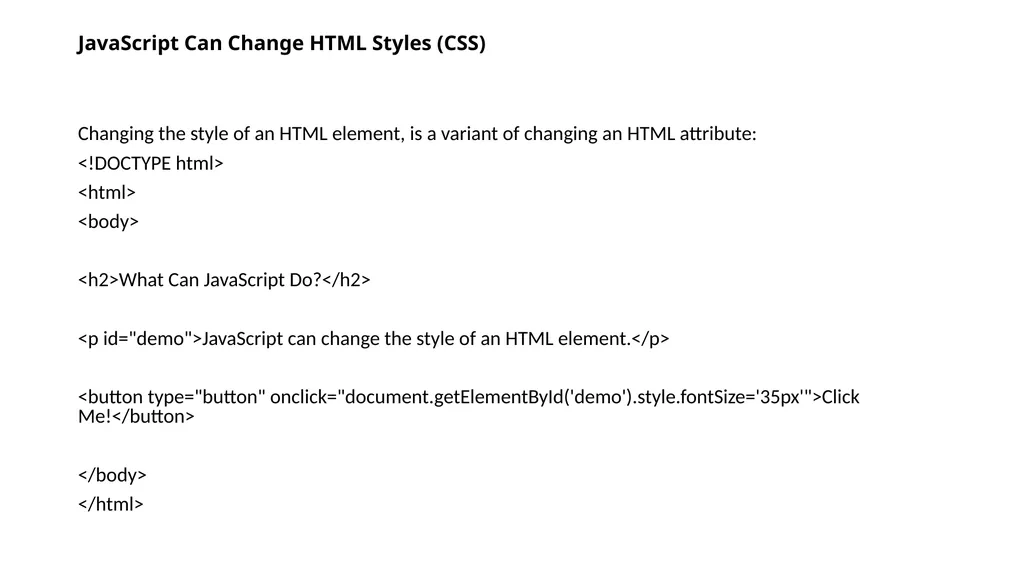
JavaScript Can Change HTML Styles (CSS) Changing the style of an HTML element, is a variant of changing an HTML attribute:
<!DOCTYPE html>
<html>
<body>
<h2>What Can JavaScript Do?</h2>
<p id="demo">JavaScript can change the style of an HTML element.</p>
<button type="button" onclick="document.getElementById('demo').style.fontSize='35px'">Click Me!</button>
</body>
</html><br>
<!DOCTYPE html>
<html>
<body>
<h2>What Can JavaScript Do?</h2>
<p id="demo">JavaScript can change the style of an HTML element.</p>
<button type="button" onclick="document.getElementById('demo').style.fontSize='35px'">Click Me!</button>
</body>
</html><br>
06
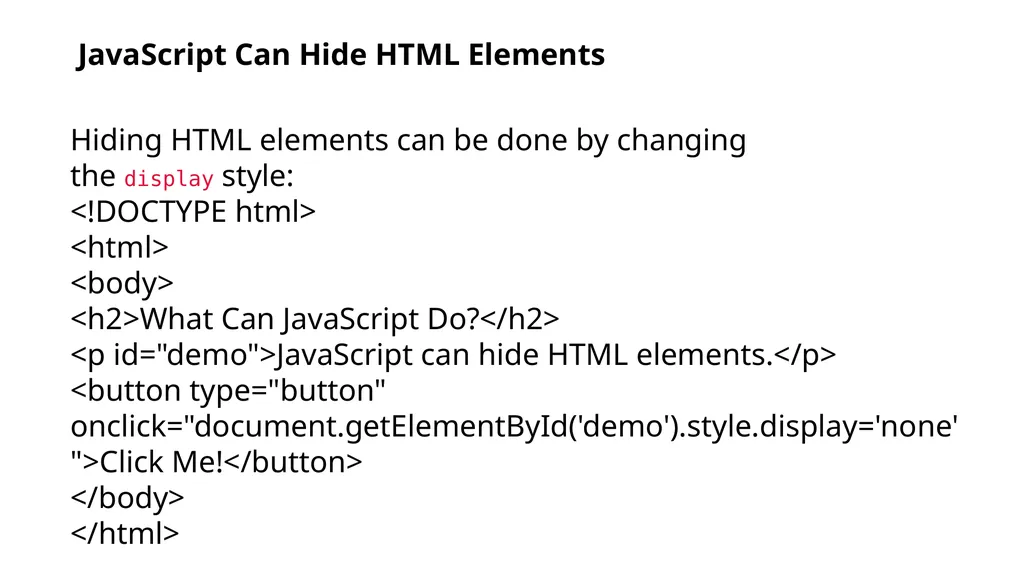
JavaScript Can Hide HTML Elements Hiding HTML elements can be done by changing the display style:
<!DOCTYPE html>
<html>
<body>
<h2>What Can JavaScript Do?</h2>
<p id="demo">JavaScript can hide HTML elements.</p>
<button type="button" onclick="document.getElementById('demo').style.display='none'">Click Me!</button>
</body>
</html><br>
<!DOCTYPE html>
<html>
<body>
<h2>What Can JavaScript Do?</h2>
<p id="demo">JavaScript can hide HTML elements.</p>
<button type="button" onclick="document.getElementById('demo').style.display='none'">Click Me!</button>
</body>
</html><br>
07
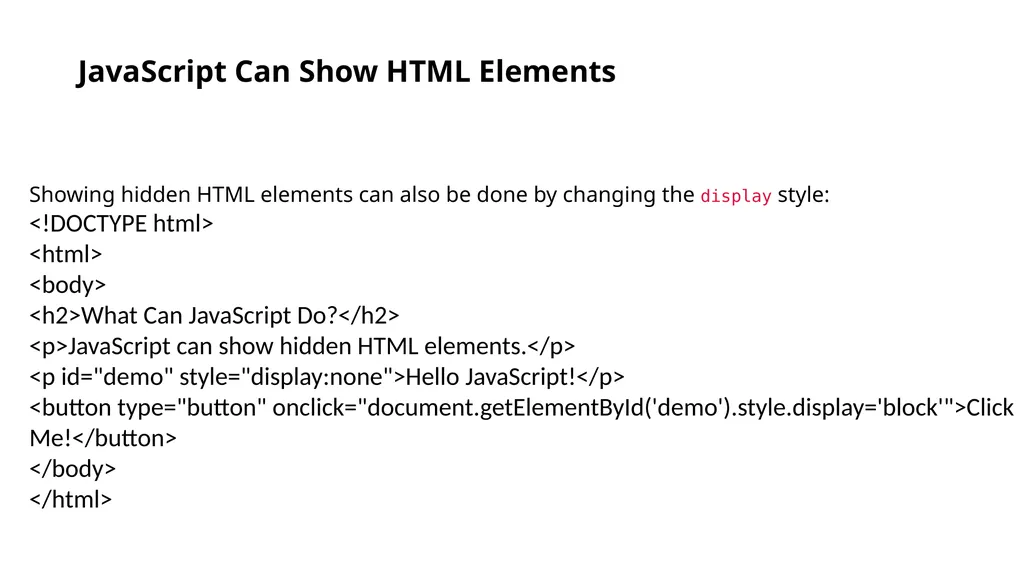
JavaScript Can Show HTML Elements Showing hidden HTML elements can also be done by changing the display style:
<!DOCTYPE html>
<html>
<body>
<h2>What Can JavaScript Do?</h2>
<p>JavaScript can show hidden HTML elements.</p>
<p id="demo" style="display:none">Hello JavaScript!</p>
<button type="button" onclick="document.getElementById('demo').style.display='block'">Click Me!</button>
</body>
</html><br>
<!DOCTYPE html>
<html>
<body>
<h2>What Can JavaScript Do?</h2>
<p>JavaScript can show hidden HTML elements.</p>
<p id="demo" style="display:none">Hello JavaScript!</p>
<button type="button" onclick="document.getElementById('demo').style.display='block'">Click Me!</button>
</body>
</html><br>
08
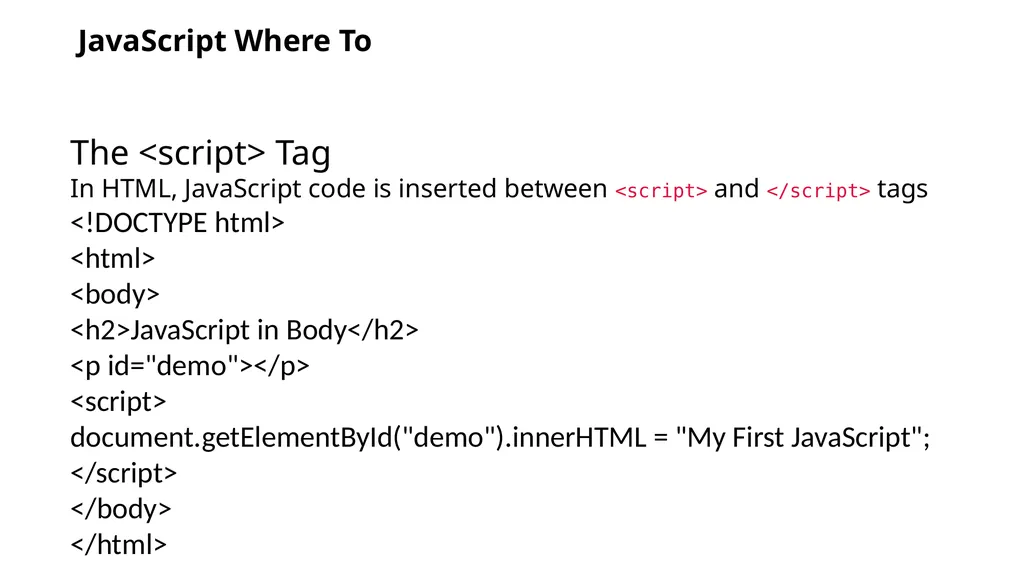
JavaScript Where To The <script> Tag
In HTML, JavaScript code is inserted between <script> and </script> tags
<!DOCTYPE html>
<html>
<body>
<h2>JavaScript in Body</h2>
<p id="demo"></p>
<script>
document.getElementById("demo").innerHTML = "My First JavaScript";
</script>
</body>
</html><br>
In HTML, JavaScript code is inserted between <script> and </script> tags
<!DOCTYPE html>
<html>
<body>
<h2>JavaScript in Body</h2>
<p id="demo"></p>
<script>
document.getElementById("demo").innerHTML = "My First JavaScript";
</script>
</body>
</html><br>
09
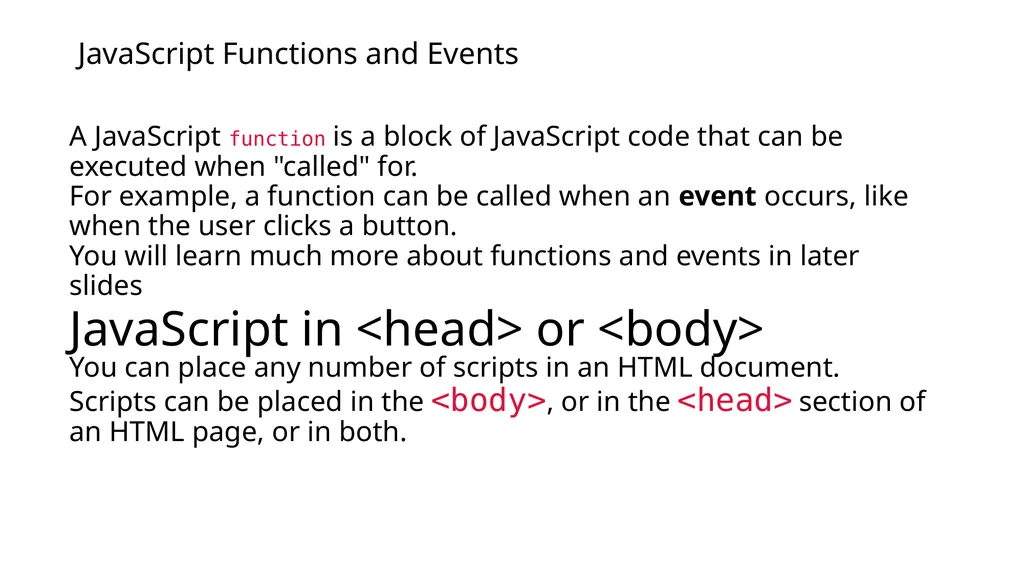
JavaScript Functions and Events A JavaScript function is a block of JavaScript code that can be executed when "called" for.
For example, a function can be called when an event occurs, like when the user clicks a button.
You will learn much more about functions and events in later slides
JavaScript in <head> or <body>
You can place any number of scripts in an HTML document.
Scripts can be placed in the <body>, or in the <head> section of an HTML page, or in both.<br>
For example, a function can be called when an event occurs, like when the user clicks a button.
You will learn much more about functions and events in later slides
JavaScript in <head> or <body>
You can place any number of scripts in an HTML document.
Scripts can be placed in the <body>, or in the <head> section of an HTML page, or in both.<br>
10
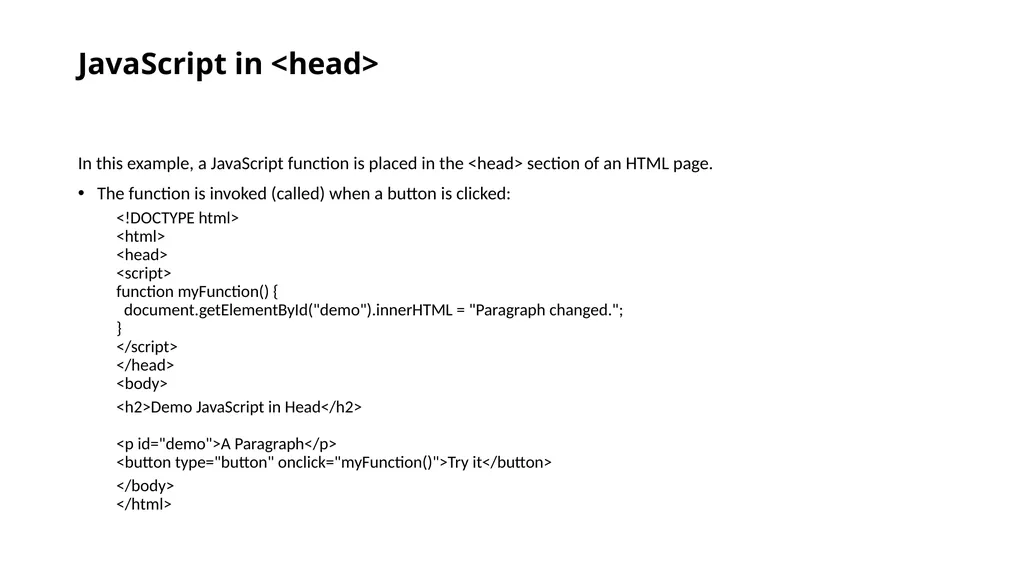
JavaScript in <head> In this example, a JavaScript function is placed in the <head> section of an HTML page.
The function is invoked (called) when a button is clicked:
<!DOCTYPE html> <html> <head> <script> function myFunction() { document.getElementById("demo").innerHTML = "Paragraph changed."; } </script> </head> <body>
<h2>Demo JavaScript in Head</h2> <p id="demo">A Paragraph</p> <button type="button" onclick="myFunction()">Try it</button>
</body> </html><br>
The function is invoked (called) when a button is clicked:
<!DOCTYPE html> <html> <head> <script> function myFunction() { document.getElementById("demo").innerHTML = "Paragraph changed."; } </script> </head> <body>
<h2>Demo JavaScript in Head</h2> <p id="demo">A Paragraph</p> <button type="button" onclick="myFunction()">Try it</button>
</body> </html><br>
11
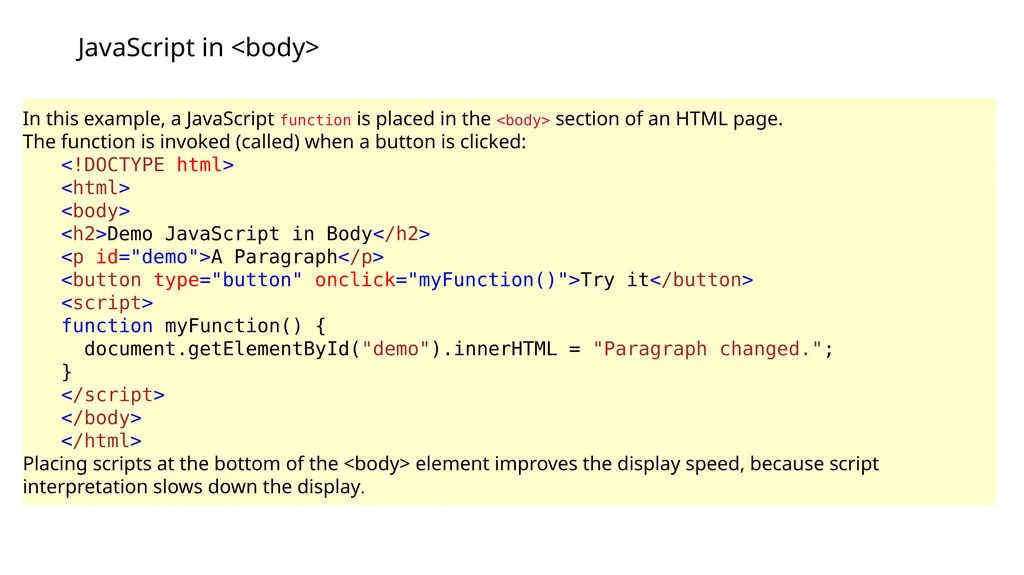
JavaScript in <body> In this example, a JavaScript function is placed in the <body> section of an HTML page.
The function is invoked (called) when a button is clicked:
<!DOCTYPE html> <html> <body> <h2>Demo JavaScript in Body</h2> <p id="demo">A Paragraph</p> <button type="button" onclick="myFunction()">Try it</button> <script> function myFunction() { document.getElementById("demo").innerHTML = "Paragraph changed."; } </script> </body> </html>
Placing scripts at the bottom of the <body> element improves the display speed, because script interpretation slows down the display.<br>
The function is invoked (called) when a button is clicked:
<!DOCTYPE html> <html> <body> <h2>Demo JavaScript in Body</h2> <p id="demo">A Paragraph</p> <button type="button" onclick="myFunction()">Try it</button> <script> function myFunction() { document.getElementById("demo").innerHTML = "Paragraph changed."; } </script> </body> </html>
Placing scripts at the bottom of the <body> element improves the display speed, because script interpretation slows down the display.<br>
12
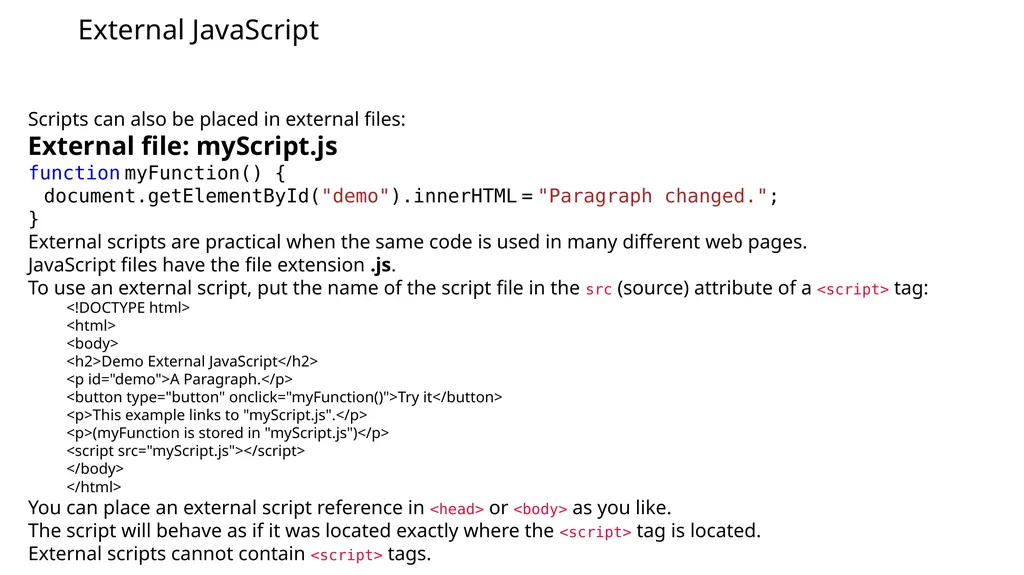
External JavaScript Scripts can also be placed in external files:
External file: myScript.js
function myFunction() { document.getElementById("demo").innerHTML = "Paragraph changed."; }
External scripts are practical when the same code is used in many different web pages.
JavaScript files have the file extension .js.
To use an external script, put the name of the script file in the src (source) attribute of a <script> tag:
<!DOCTYPE html>
<html>
<body>
<h2>Demo External JavaScript</h2>
<p id="demo">A Paragraph.</p>
<button type="button" onclick="myFunction()">Try it</button>
<p>This example links to "myScript.js".</p>
<p>(myFunction is stored in "myScript.js")</p>
<script src="myScript.js"></script>
</body>
</html>
You can place an external script reference in <head> or <body> as you like.
The script will behave as if it was located exactly where the <script> tag is located.
External scripts cannot contain <script> tags.<br>
External file: myScript.js
function myFunction() { document.getElementById("demo").innerHTML = "Paragraph changed."; }
External scripts are practical when the same code is used in many different web pages.
JavaScript files have the file extension .js.
To use an external script, put the name of the script file in the src (source) attribute of a <script> tag:
<!DOCTYPE html>
<html>
<body>
<h2>Demo External JavaScript</h2>
<p id="demo">A Paragraph.</p>
<button type="button" onclick="myFunction()">Try it</button>
<p>This example links to "myScript.js".</p>
<p>(myFunction is stored in "myScript.js")</p>
<script src="myScript.js"></script>
</body>
</html>
You can place an external script reference in <head> or <body> as you like.
The script will behave as if it was located exactly where the <script> tag is located.
External scripts cannot contain <script> tags.<br>
13
External JavaScript Advantages Placing scripts in external files has some advantages:
It separates HTML and code
It makes HTML and JavaScript easier to read and maintain
Cached JavaScript files can speed up page loads
To add several script files to one page - use several script tags:<br>
It separates HTML and code
It makes HTML and JavaScript easier to read and maintain
Cached JavaScript files can speed up page loads
To add several script files to one page - use several script tags:<br>
14
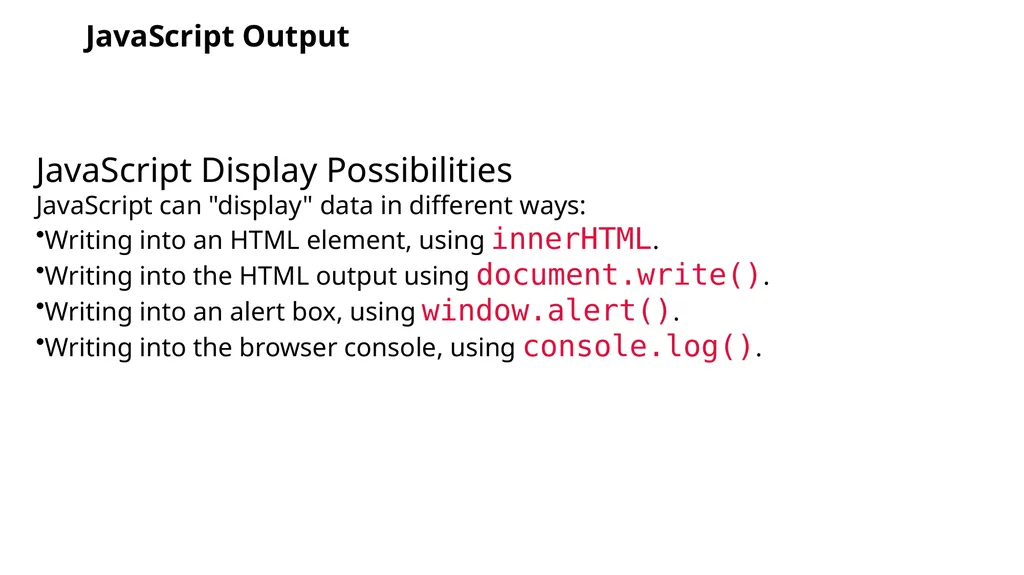
JavaScript Output JavaScript Display Possibilities
JavaScript can "display" data in different ways:
Writing into an HTML element, using innerHTML.
Writing into the HTML output using document.write().
Writing into an alert box, using window.alert().
Writing into the browser console, using console.log().<br>
JavaScript can "display" data in different ways:
Writing into an HTML element, using innerHTML.
Writing into the HTML output using document.write().
Writing into an alert box, using window.alert().
Writing into the browser console, using console.log().<br>
15
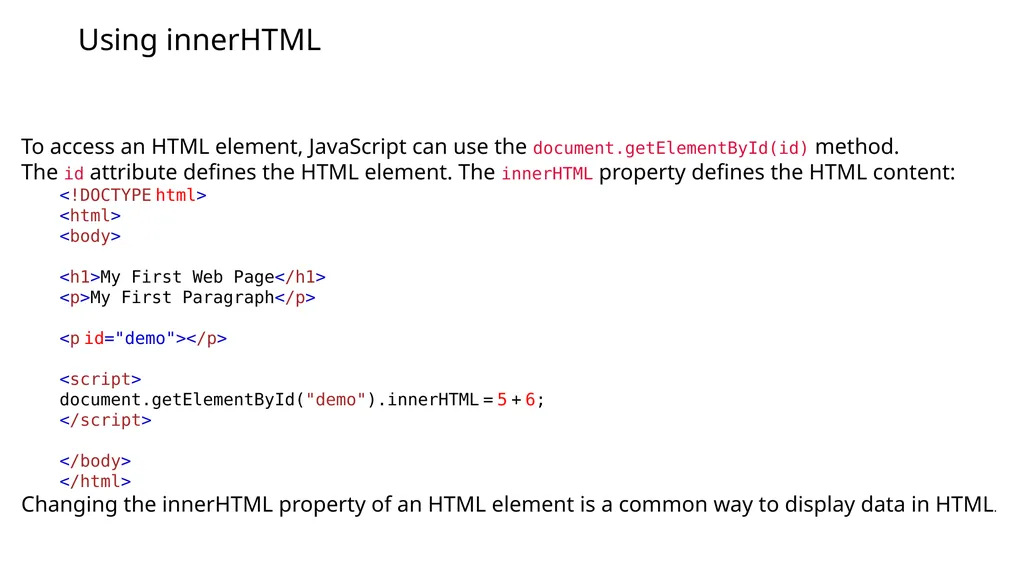
Using innerHTML To access an HTML element, JavaScript can use the document.getElementById(id) method.
The id attribute defines the HTML element. The innerHTML property defines the HTML content:
<!DOCTYPE html> <html> <body> <h1>My First Web Page</h1> <p>My First Paragraph</p> <p id="demo"></p> <script> document.getElementById("demo").innerHTML = 5 + 6; </script> </body> </html>
Changing the innerHTML property of an HTML element is a common way to display data in HTML.<br>
The id attribute defines the HTML element. The innerHTML property defines the HTML content:
<!DOCTYPE html> <html> <body> <h1>My First Web Page</h1> <p>My First Paragraph</p> <p id="demo"></p> <script> document.getElementById("demo").innerHTML = 5 + 6; </script> </body> </html>
Changing the innerHTML property of an HTML element is a common way to display data in HTML.<br>
16
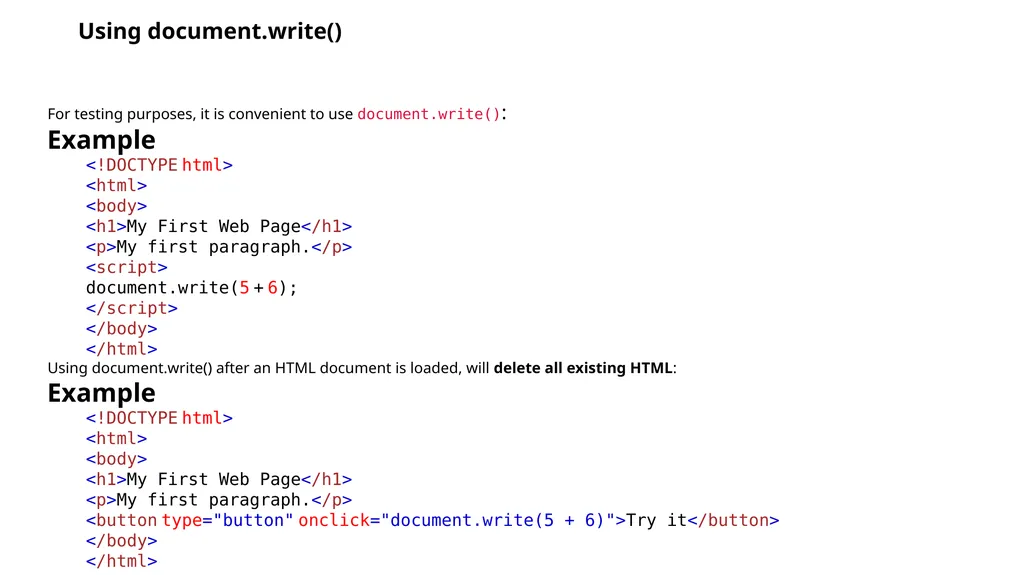
Using document.write() For testing purposes, it is convenient to use document.write():
Example
<!DOCTYPE html> <html> <body> <h1>My First Web Page</h1> <p>My first paragraph.</p> <script> document.write(5 + 6); </script> </body> </html>
Using document.write() after an HTML document is loaded, will delete all existing HTML:
Example
<!DOCTYPE html> <html> <body> <h1>My First Web Page</h1> <p>My first paragraph.</p> <button type="button" onclick="document.write(5 + 6)">Try it</button> </body> </html><br>
Example
<!DOCTYPE html> <html> <body> <h1>My First Web Page</h1> <p>My first paragraph.</p> <script> document.write(5 + 6); </script> </body> </html>
Using document.write() after an HTML document is loaded, will delete all existing HTML:
Example
<!DOCTYPE html> <html> <body> <h1>My First Web Page</h1> <p>My first paragraph.</p> <button type="button" onclick="document.write(5 + 6)">Try it</button> </body> </html><br>
17
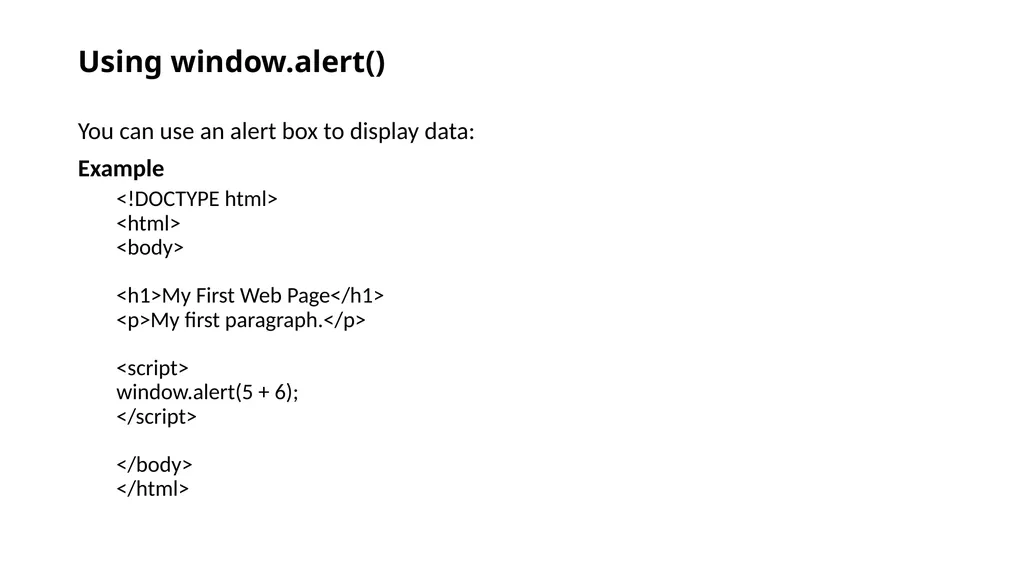
Using window.alert() You can use an alert box to display data:
Example
<!DOCTYPE html> <html> <body> <h1>My First Web Page</h1> <p>My first paragraph.</p> <script> window.alert(5 + 6); </script> </body> </html><br>
Example
<!DOCTYPE html> <html> <body> <h1>My First Web Page</h1> <p>My first paragraph.</p> <script> window.alert(5 + 6); </script> </body> </html><br>
18
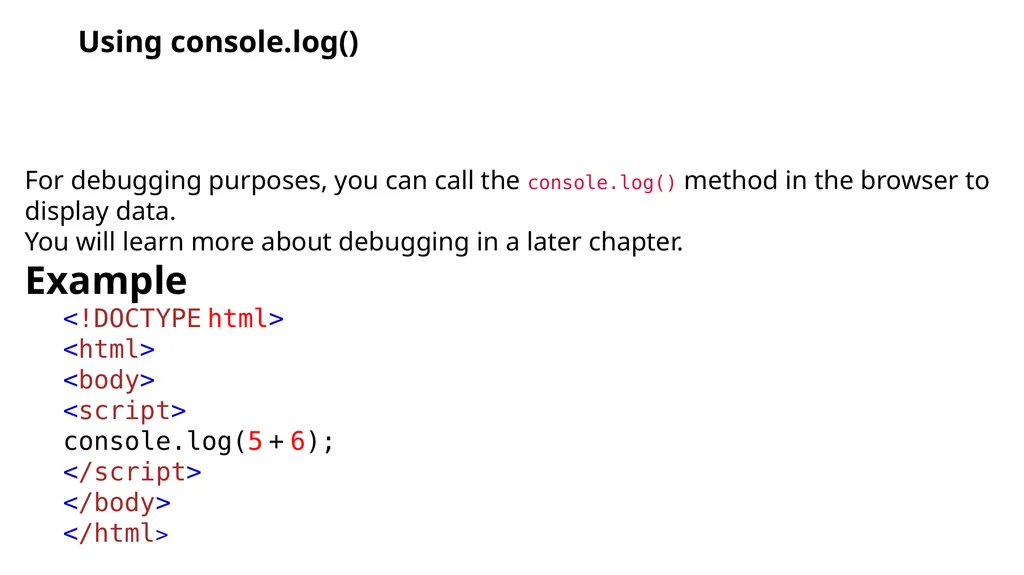
Using console.log() For debugging purposes, you can call the console.log() method in the browser to display data.
You will learn more about debugging in a later chapter.
Example
<!DOCTYPE html> <html> <body> <script> console.log(5 + 6); </script> </body> </html><br>
You will learn more about debugging in a later chapter.
Example
<!DOCTYPE html> <html> <body> <script> console.log(5 + 6); </script> </body> </html><br>
19
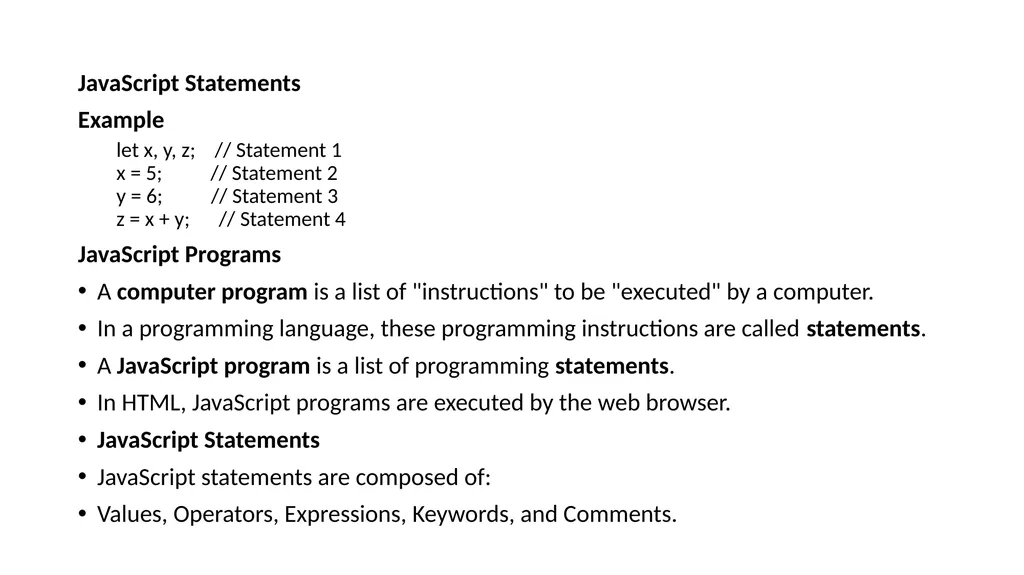
JavaScript Statements
Example
let x, y, z; // Statement 1 x = 5; // Statement 2 y = 6; // Statement 3 z = x + y; // Statement 4
JavaScript Programs
A computer program is a list of "instructions" to be "executed" by a computer.
In a programming language, these programming instructions are called statements.
A JavaScript program is a list of programming statements.
In HTML, JavaScript programs are executed by the web browser.
JavaScript Statements
JavaScript statements are composed of:
Values, Operators, Expressions, Keywords, and Comments.<br>
Example
let x, y, z; // Statement 1 x = 5; // Statement 2 y = 6; // Statement 3 z = x + y; // Statement 4
JavaScript Programs
A computer program is a list of "instructions" to be "executed" by a computer.
In a programming language, these programming instructions are called statements.
A JavaScript program is a list of programming statements.
In HTML, JavaScript programs are executed by the web browser.
JavaScript Statements
JavaScript statements are composed of:
Values, Operators, Expressions, Keywords, and Comments.<br>
20
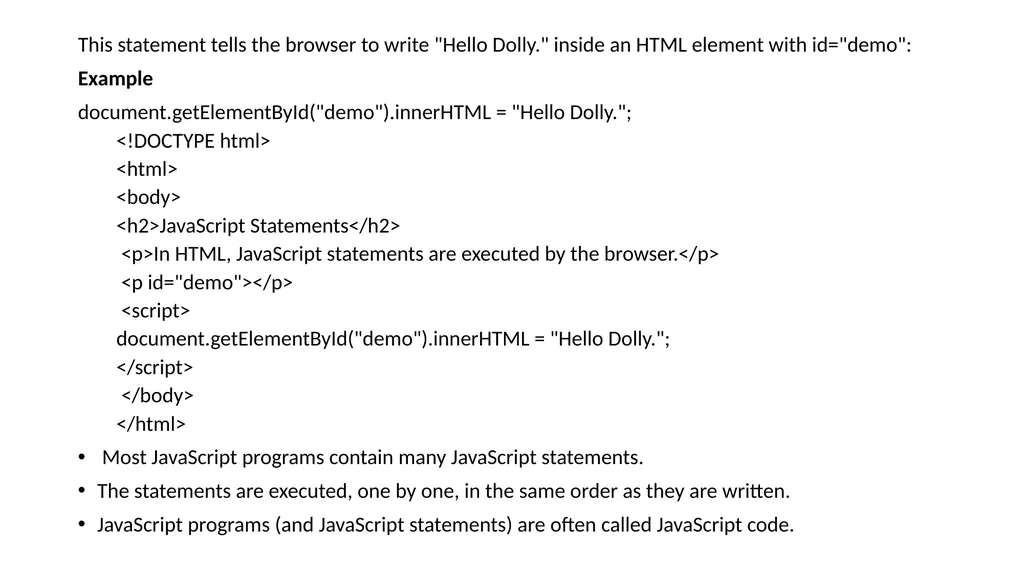
This statement tells the browser to write "Hello Dolly." inside an HTML element with id="demo":
Example
document.getElementById("demo").innerHTML = "Hello Dolly.";
<!DOCTYPE html>
<html>
<body>
<h2>JavaScript Statements</h2>
<p>In HTML, JavaScript statements are executed by the browser.</p>
<p id="demo"></p>
<script>
document.getElementById("demo").innerHTML = "Hello Dolly.";
</script>
</body>
</html>
Most JavaScript programs contain many JavaScript statements.
The statements are executed, one by one, in the same order as they are written.
JavaScript programs (and JavaScript statements) are often called JavaScript code.<br>
Example
document.getElementById("demo").innerHTML = "Hello Dolly.";
<!DOCTYPE html>
<html>
<body>
<h2>JavaScript Statements</h2>
<p>In HTML, JavaScript statements are executed by the browser.</p>
<p id="demo"></p>
<script>
document.getElementById("demo").innerHTML = "Hello Dolly.";
</script>
</body>
</html>
Most JavaScript programs contain many JavaScript statements.
The statements are executed, one by one, in the same order as they are written.
JavaScript programs (and JavaScript statements) are often called JavaScript code.<br>
21
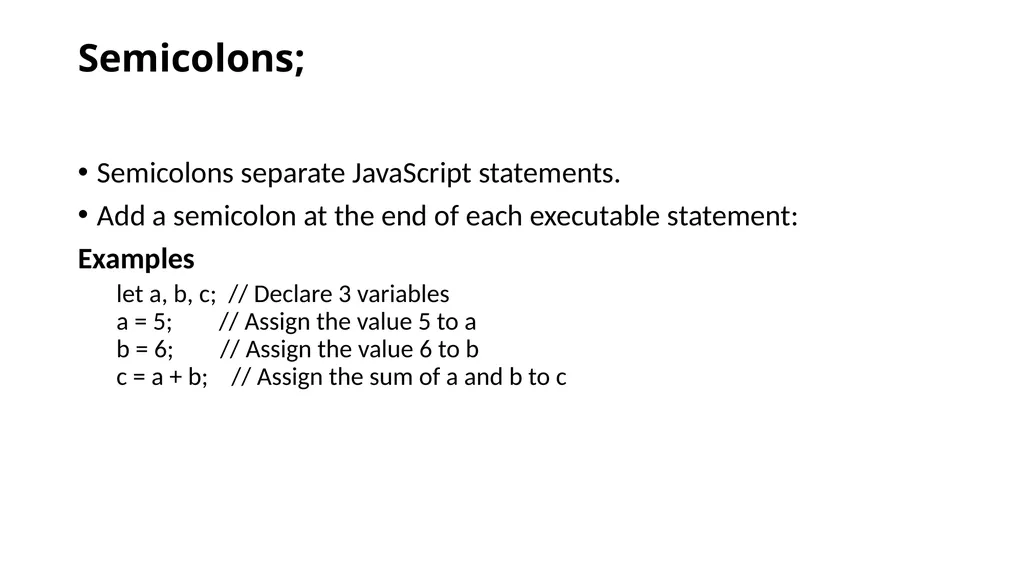
Semicolons; Semicolons separate JavaScript statements.
Add a semicolon at the end of each executable statement:
Examples
let a, b, c; // Declare 3 variables a = 5; // Assign the value 5 to a b = 6; // Assign the value 6 to b c = a + b; // Assign the sum of a and b to c<br>
Add a semicolon at the end of each executable statement:
Examples
let a, b, c; // Declare 3 variables a = 5; // Assign the value 5 to a b = 6; // Assign the value 6 to b c = a + b; // Assign the sum of a and b to c<br>
22
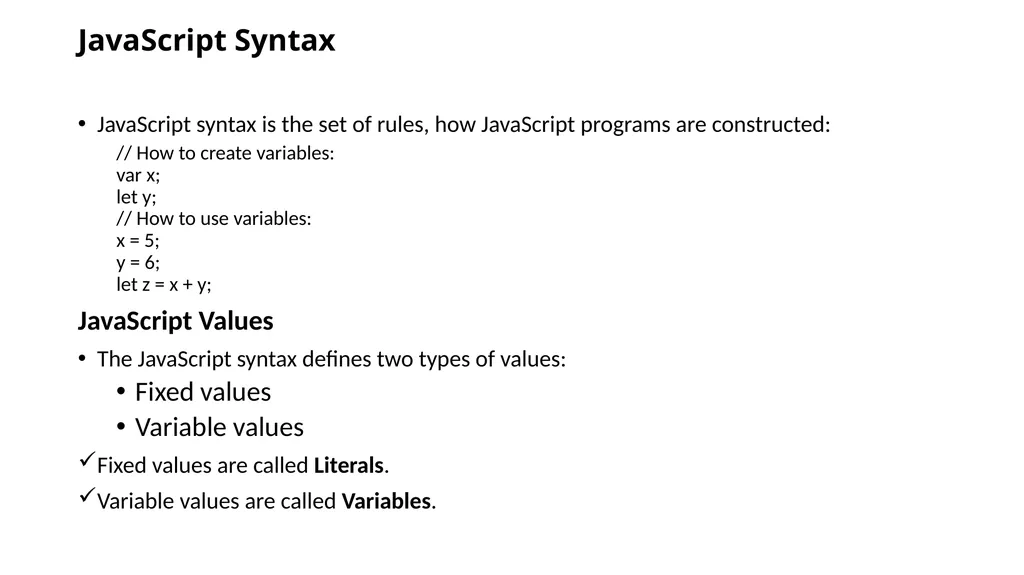
JavaScript Syntax JavaScript syntax is the set of rules, how JavaScript programs are constructed:
// How to create variables: var x; let y; // How to use variables: x = 5; y = 6; let z = x + y;
JavaScript Values
The JavaScript syntax defines two types of values:
Fixed values
Variable values
Fixed values are called Literals.
Variable values are called Variables.<br>
// How to create variables: var x; let y; // How to use variables: x = 5; y = 6; let z = x + y;
JavaScript Values
The JavaScript syntax defines two types of values:
Fixed values
Variable values
Fixed values are called Literals.
Variable values are called Variables.<br>
23
JavaScript Literals
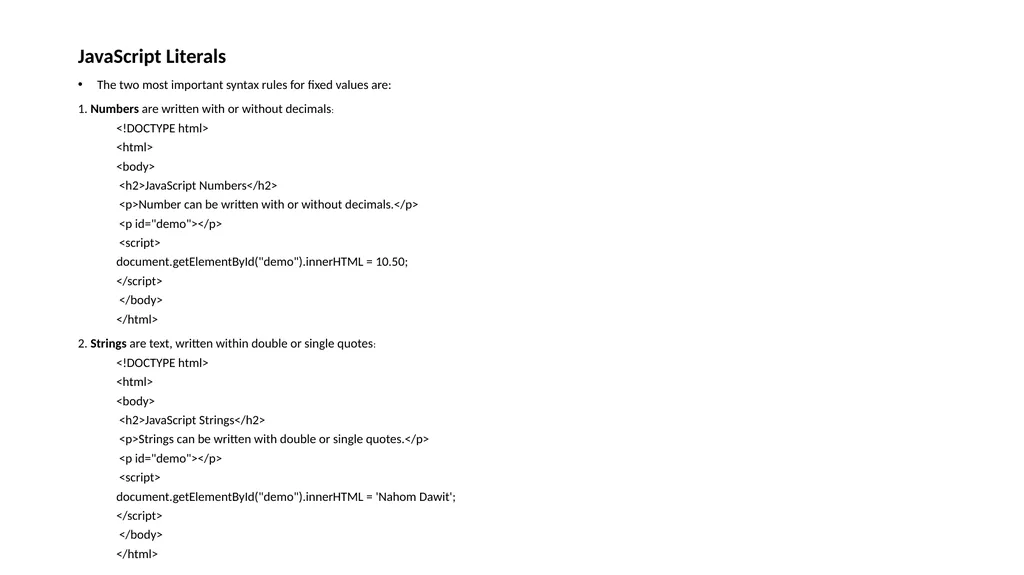
The two most important syntax rules for fixed values are:
1. Numbers are written with or without decimals:
<!DOCTYPE html>
<html>
<body>
<h2>JavaScript Numbers</h2>
<p>Number can be written with or without decimals.</p>
<p id="demo"></p>
<script>
document.getElementById("demo").innerHTML = 10.50;
</script>
</body>
</html>
2. Strings are text, written within double or single quotes:
<!DOCTYPE html>
<html>
<body>
<h2>JavaScript Strings</h2>
<p>Strings can be written with double or single quotes.</p>
<p id="demo"></p>
<script>
document.getElementById("demo").innerHTML = 'Nahom Dawit';
</script>
</body>
</html><br>
The two most important syntax rules for fixed values are:
1. Numbers are written with or without decimals:
<!DOCTYPE html>
<html>
<body>
<h2>JavaScript Numbers</h2>
<p>Number can be written with or without decimals.</p>
<p id="demo"></p>
<script>
document.getElementById("demo").innerHTML = 10.50;
</script>
</body>
</html>
2. Strings are text, written within double or single quotes:
<!DOCTYPE html>
<html>
<body>
<h2>JavaScript Strings</h2>
<p>Strings can be written with double or single quotes.</p>
<p id="demo"></p>
<script>
document.getElementById("demo").innerHTML = 'Nahom Dawit';
</script>
</body>
</html><br>
24
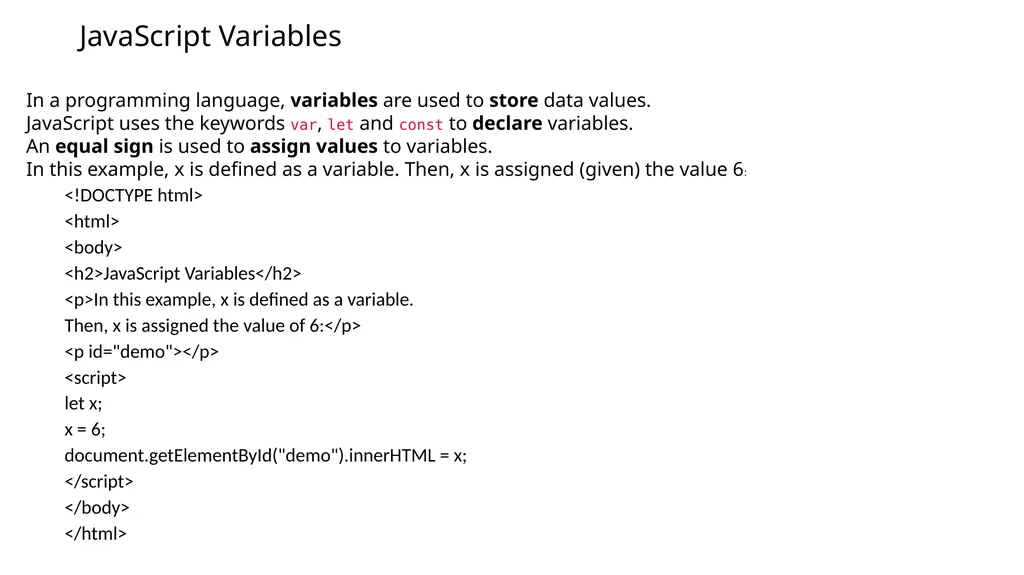
JavaScript Variables In a programming language, variables are used to store data values.
JavaScript uses the keywords var, let and const to declare variables.
An equal sign is used to assign values to variables.
In this example, x is defined as a variable. Then, x is assigned (given) the value 6:
<!DOCTYPE html>
<html>
<body>
<h2>JavaScript Variables</h2>
<p>In this example, x is defined as a variable.
Then, x is assigned the value of 6:</p>
<p id="demo"></p>
<script>
let x;
x = 6;
document.getElementById("demo").innerHTML = x;
</script>
</body>
</html><br>
JavaScript uses the keywords var, let and const to declare variables.
An equal sign is used to assign values to variables.
In this example, x is defined as a variable. Then, x is assigned (given) the value 6:
<!DOCTYPE html>
<html>
<body>
<h2>JavaScript Variables</h2>
<p>In this example, x is defined as a variable.
Then, x is assigned the value of 6:</p>
<p id="demo"></p>
<script>
let x;
x = 6;
document.getElementById("demo").innerHTML = x;
</script>
</body>
</html><br>
25
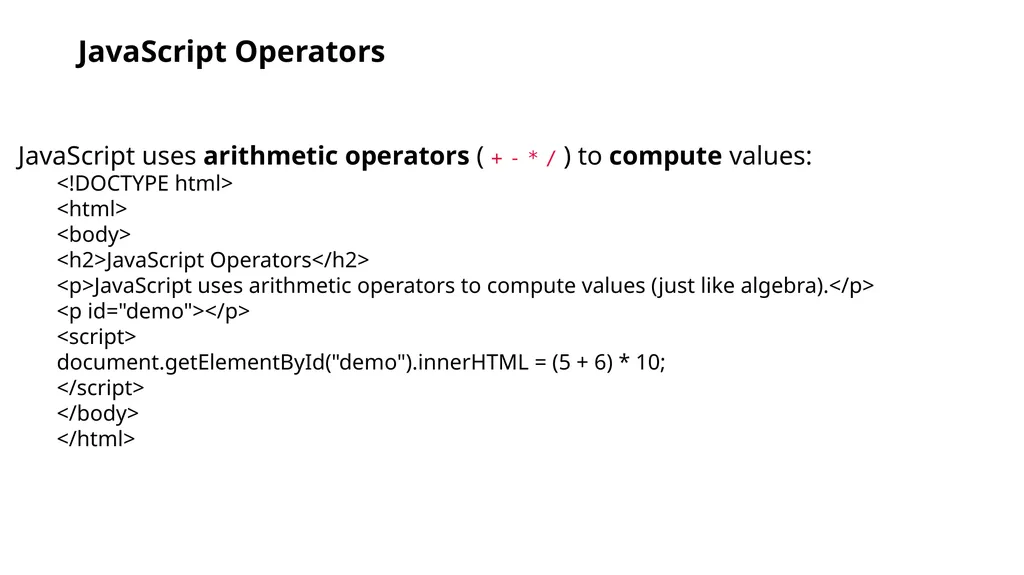
JavaScript Operators JavaScript uses arithmetic operators ( + - * / ) to compute values:
<!DOCTYPE html>
<html>
<body>
<h2>JavaScript Operators</h2>
<p>JavaScript uses arithmetic operators to compute values (just like algebra).</p>
<p id="demo"></p>
<script>
document.getElementById("demo").innerHTML = (5 + 6) * 10;
</script>
</body>
</html><br>
<!DOCTYPE html>
<html>
<body>
<h2>JavaScript Operators</h2>
<p>JavaScript uses arithmetic operators to compute values (just like algebra).</p>
<p id="demo"></p>
<script>
document.getElementById("demo").innerHTML = (5 + 6) * 10;
</script>
</body>
</html><br>
26
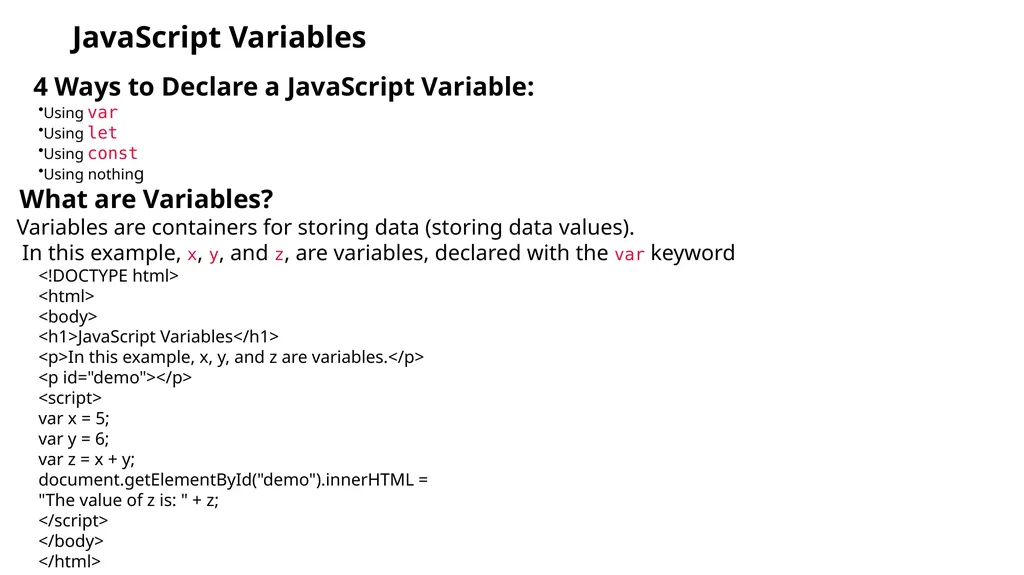
JavaScript Variables 4 Ways to Declare a JavaScript Variable:
Using var
Using let
Using const
Using nothing
What are Variables?
Variables are containers for storing data (storing data values).
In this example, x, y, and z, are variables, declared with the var keyword
<!DOCTYPE html>
<html>
<body>
<h1>JavaScript Variables</h1>
<p>In this example, x, y, and z are variables.</p>
<p id="demo"></p>
<script>
var x = 5;
var y = 6;
var z = x + y;
document.getElementById("demo").innerHTML =
"The value of z is: " + z;
</script>
</body>
</html><br>
Using var
Using let
Using const
Using nothing
What are Variables?
Variables are containers for storing data (storing data values).
In this example, x, y, and z, are variables, declared with the var keyword
<!DOCTYPE html>
<html>
<body>
<h1>JavaScript Variables</h1>
<p>In this example, x, y, and z are variables.</p>
<p id="demo"></p>
<script>
var x = 5;
var y = 6;
var z = x + y;
document.getElementById("demo").innerHTML =
"The value of z is: " + z;
</script>
</body>
</html><br>
27
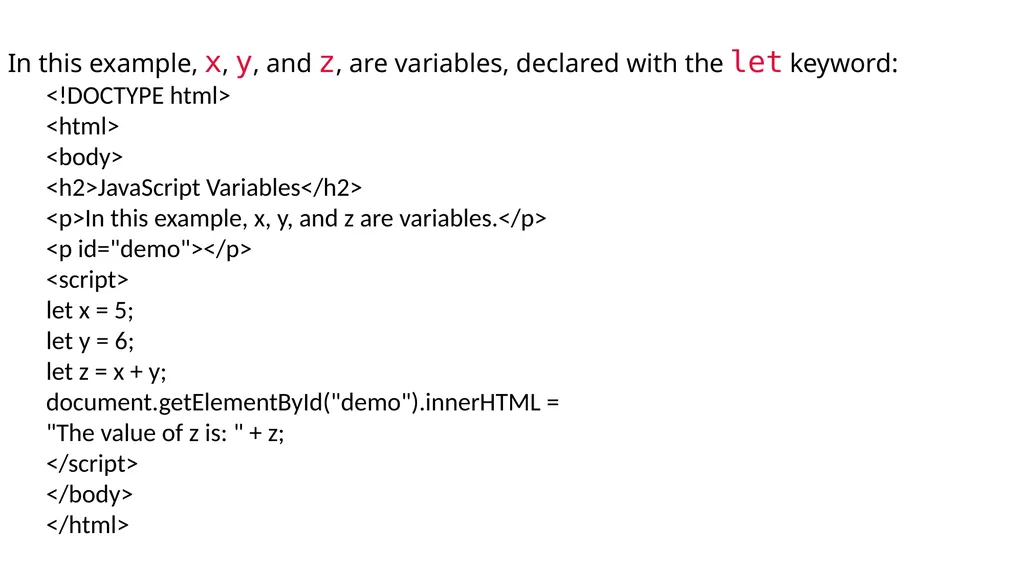
In this example, x, y, and z, are variables, declared with the let keyword:
<!DOCTYPE html>
<html>
<body>
<h2>JavaScript Variables</h2>
<p>In this example, x, y, and z are variables.</p>
<p id="demo"></p>
<script>
let x = 5;
let y = 6;
let z = x + y;
document.getElementById("demo").innerHTML =
"The value of z is: " + z;
</script>
</body>
</html><br>
<!DOCTYPE html>
<html>
<body>
<h2>JavaScript Variables</h2>
<p>In this example, x, y, and z are variables.</p>
<p id="demo"></p>
<script>
let x = 5;
let y = 6;
let z = x + y;
document.getElementById("demo").innerHTML =
"The value of z is: " + z;
</script>
</body>
</html><br>
28
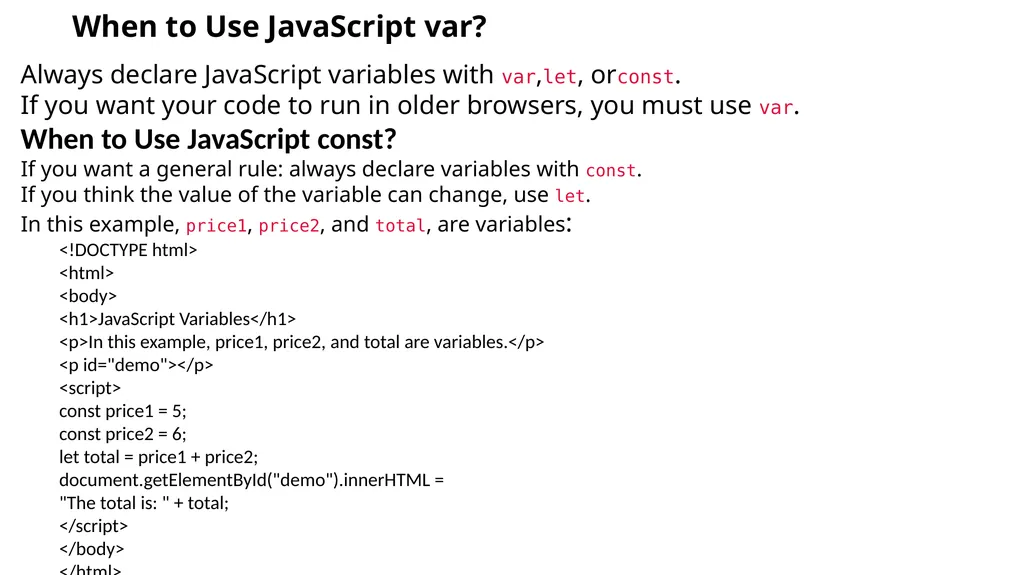
When to Use JavaScript var? Always declare JavaScript variables with var,let, orconst.
If you want your code to run in older browsers, you must use var.
When to Use JavaScript const?
If you want a general rule: always declare variables with const.
If you think the value of the variable can change, use let.
In this example, price1, price2, and total, are variables:
<!DOCTYPE html>
<html>
<body>
<h1>JavaScript Variables</h1>
<p>In this example, price1, price2, and total are variables.</p>
<p id="demo"></p>
<script>
const price1 = 5;
const price2 = 6;
let total = price1 + price2;
document.getElementById("demo").innerHTML =
"The total is: " + total;
</script>
</body>
</html><br>
If you want your code to run in older browsers, you must use var.
When to Use JavaScript const?
If you want a general rule: always declare variables with const.
If you think the value of the variable can change, use let.
In this example, price1, price2, and total, are variables:
<!DOCTYPE html>
<html>
<body>
<h1>JavaScript Variables</h1>
<p>In this example, price1, price2, and total are variables.</p>
<p id="demo"></p>
<script>
const price1 = 5;
const price2 = 6;
let total = price1 + price2;
document.getElementById("demo").innerHTML =
"The total is: " + total;
</script>
</body>
</html><br>
29
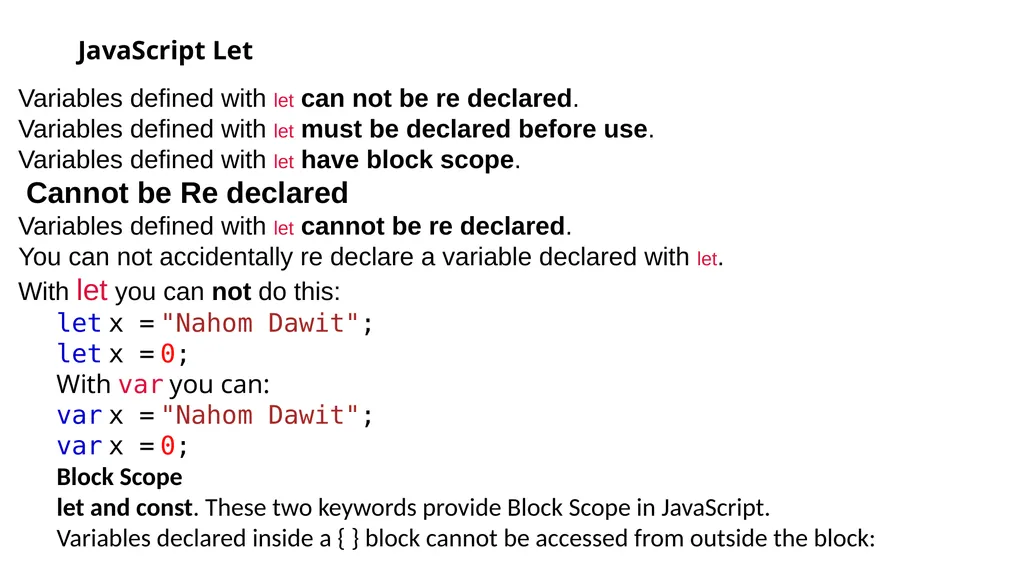
JavaScript Let Variables defined with let can not be re declared.
Variables defined with let must be declared before use.
Variables defined with let have block scope.
Cannot be Re declared
Variables defined with let cannot be re declared.
You can not accidentally re declare a variable declared with let.
With let you can not do this:
let x = "Nahom Dawit"; let x = 0;
With var you can:
var x = "Nahom Dawit"; var x = 0;
Block Scope
let and const. These two keywords provide Block Scope in JavaScript.
Variables declared inside a { } block cannot be accessed from outside the block:<br>
Variables defined with let must be declared before use.
Variables defined with let have block scope.
Cannot be Re declared
Variables defined with let cannot be re declared.
You can not accidentally re declare a variable declared with let.
With let you can not do this:
let x = "Nahom Dawit"; let x = 0;
With var you can:
var x = "Nahom Dawit"; var x = 0;
Block Scope
let and const. These two keywords provide Block Scope in JavaScript.
Variables declared inside a { } block cannot be accessed from outside the block:<br>
30
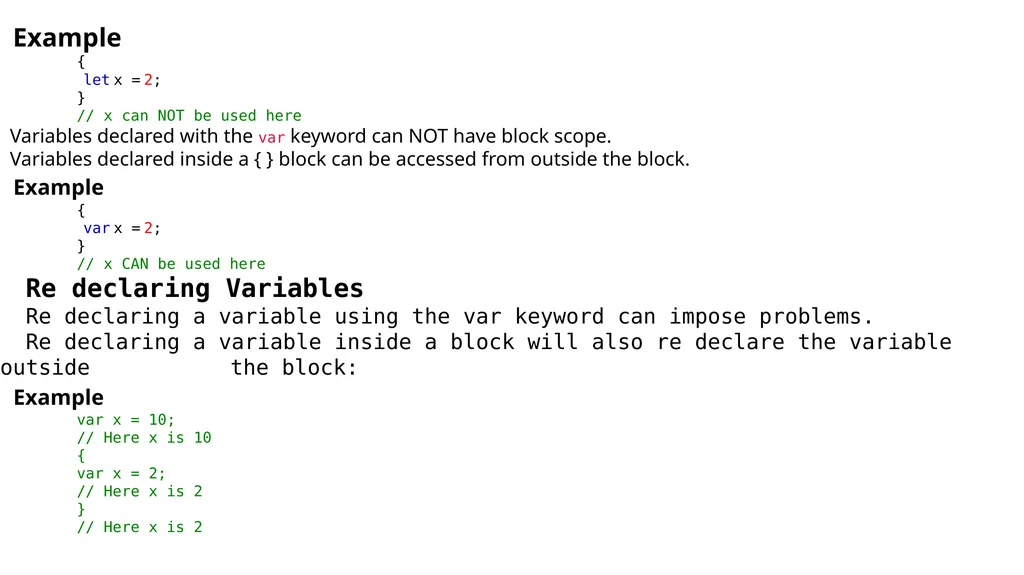
Example
{ let x = 2; } // x can NOT be used here
Variables declared with the var keyword can NOT have block scope.
Variables declared inside a { } block can be accessed from outside the block.
Example
{ var x = 2; } // x CAN be used here
Re declaring Variables
Re declaring a variable using the var keyword can impose problems.
Re declaring a variable inside a block will also re declare the variable outside the block:
Example
var x = 10;
// Here x is 10
{
var x = 2;
// Here x is 2
}
// Here x is 2<br>
{ let x = 2; } // x can NOT be used here
Variables declared with the var keyword can NOT have block scope.
Variables declared inside a { } block can be accessed from outside the block.
Example
{ var x = 2; } // x CAN be used here
Re declaring Variables
Re declaring a variable using the var keyword can impose problems.
Re declaring a variable inside a block will also re declare the variable outside the block:
Example
var x = 10;
// Here x is 10
{
var x = 2;
// Here x is 2
}
// Here x is 2<br>
31
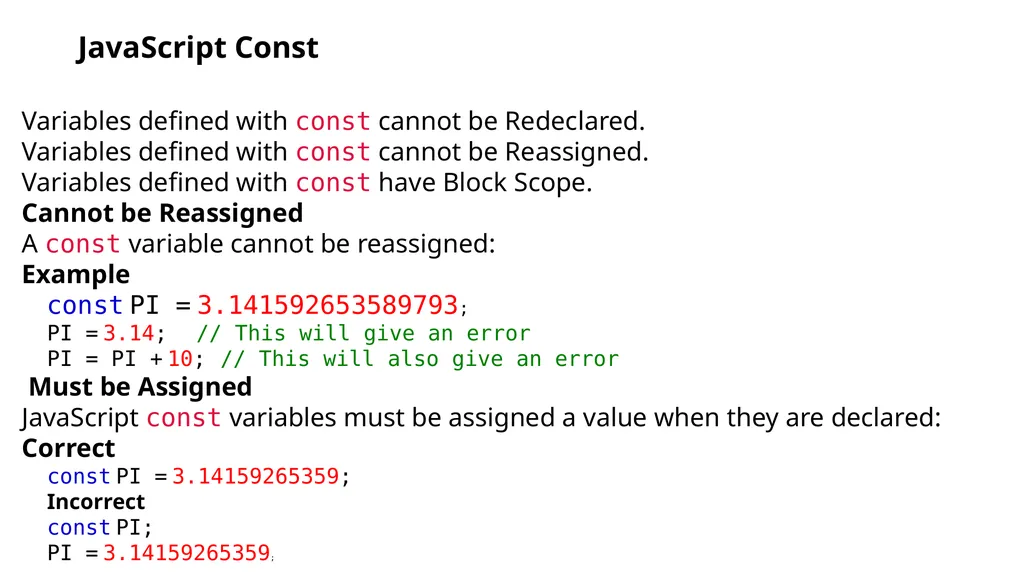
JavaScript Const Variables defined with const cannot be Redeclared.
Variables defined with const cannot be Reassigned.
Variables defined with const have Block Scope.
Cannot be Reassigned
A const variable cannot be reassigned:
Example
const PI = 3.141592653589793; PI = 3.14; // This will give an error PI = PI + 10; // This will also give an error
Must be Assigned
JavaScript const variables must be assigned a value when they are declared:
Correct
const PI = 3.14159265359; Incorrect
const PI; PI = 3.14159265359;<br>
Variables defined with const cannot be Reassigned.
Variables defined with const have Block Scope.
Cannot be Reassigned
A const variable cannot be reassigned:
Example
const PI = 3.141592653589793; PI = 3.14; // This will give an error PI = PI + 10; // This will also give an error
Must be Assigned
JavaScript const variables must be assigned a value when they are declared:
Correct
const PI = 3.14159265359; Incorrect
const PI; PI = 3.14159265359;<br>
32
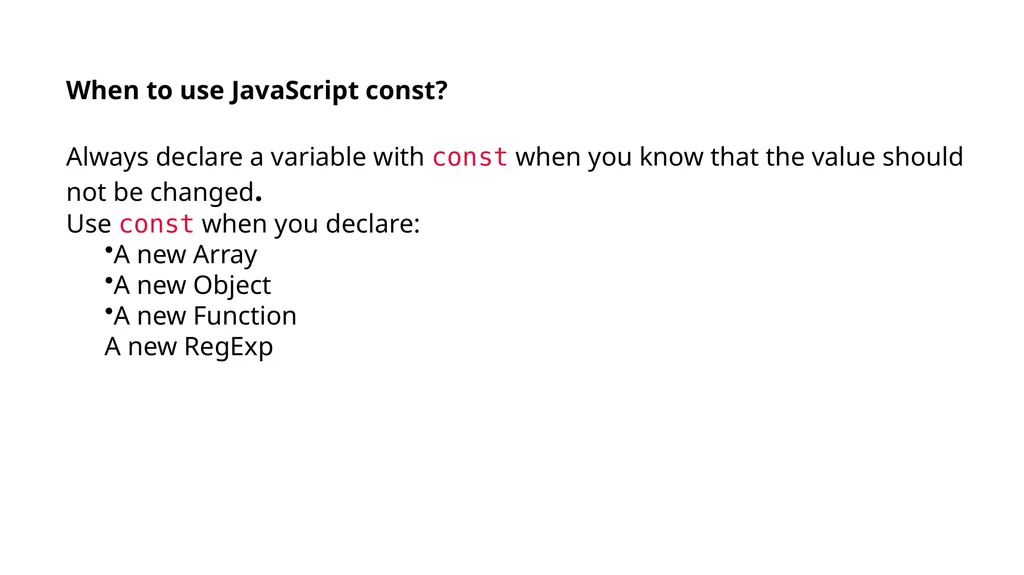
When to use JavaScript const?
Always declare a variable with const when you know that the value should not be changed.
Use const when you declare:
A new Array
A new Object
A new Function
A new RegExp<br>
Always declare a variable with const when you know that the value should not be changed.
Use const when you declare:
A new Array
A new Object
A new Function
A new RegExp<br>
33
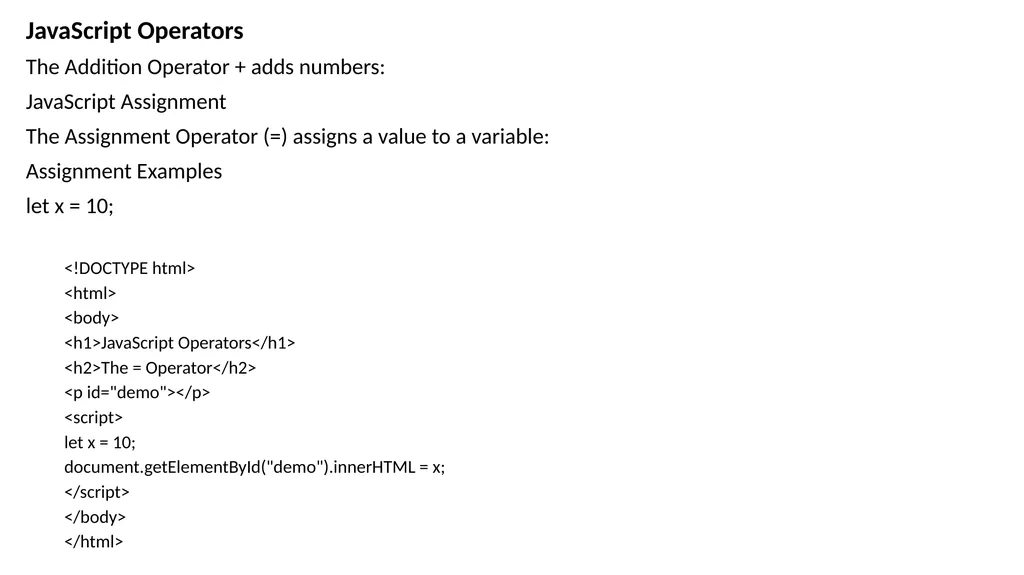
JavaScript Operators
The Addition Operator + adds numbers:
JavaScript Assignment
The Assignment Operator (=) assigns a value to a variable:
Assignment Examples
let x = 10;
<!DOCTYPE html>
<html>
<body>
<h1>JavaScript Operators</h1>
<h2>The = Operator</h2>
<p id="demo"></p>
<script>
let x = 10;
document.getElementById("demo").innerHTML = x;
</script>
</body>
</html><br>
The Addition Operator + adds numbers:
JavaScript Assignment
The Assignment Operator (=) assigns a value to a variable:
Assignment Examples
let x = 10;
<!DOCTYPE html>
<html>
<body>
<h1>JavaScript Operators</h1>
<h2>The = Operator</h2>
<p id="demo"></p>
<script>
let x = 10;
document.getElementById("demo").innerHTML = x;
</script>
</body>
</html><br>
34
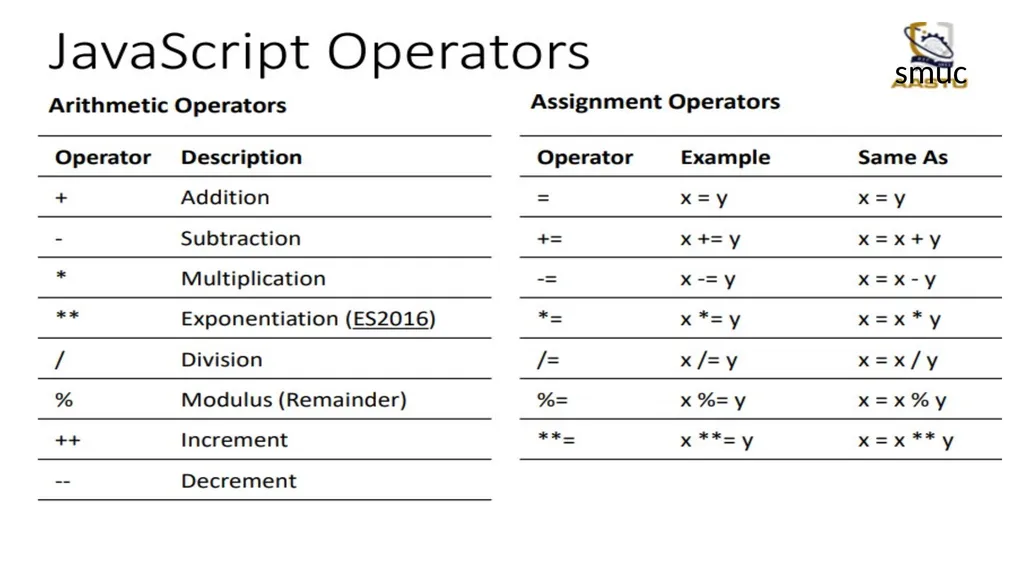
smuc<br>
35
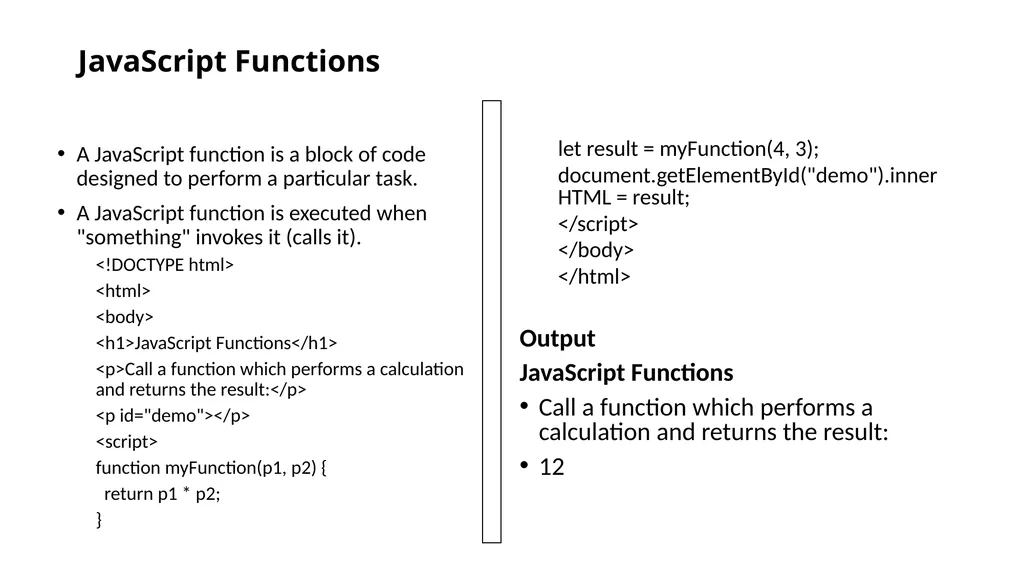
JavaScript Functions A JavaScript function is a block of code designed to perform a particular task.
A JavaScript function is executed when "something" invokes it (calls it).
<!DOCTYPE html>
<html>
<body>
<h1>JavaScript Functions</h1>
<p>Call a function which performs a calculation and returns the result:</p>
<p id="demo"></p>
<script>
function myFunction(p1, p2) {
return p1 * p2;
} let result = myFunction(4, 3);
document.getElementById("demo").innerHTML = result;
</script>
</body>
</html>
Output
JavaScript Functions
Call a function which performs a calculation and returns the result:
12<br>
A JavaScript function is executed when "something" invokes it (calls it).
<!DOCTYPE html>
<html>
<body>
<h1>JavaScript Functions</h1>
<p>Call a function which performs a calculation and returns the result:</p>
<p id="demo"></p>
<script>
function myFunction(p1, p2) {
return p1 * p2;
} let result = myFunction(4, 3);
document.getElementById("demo").innerHTML = result;
</script>
</body>
</html>
Output
JavaScript Functions
Call a function which performs a calculation and returns the result:
12<br>
36
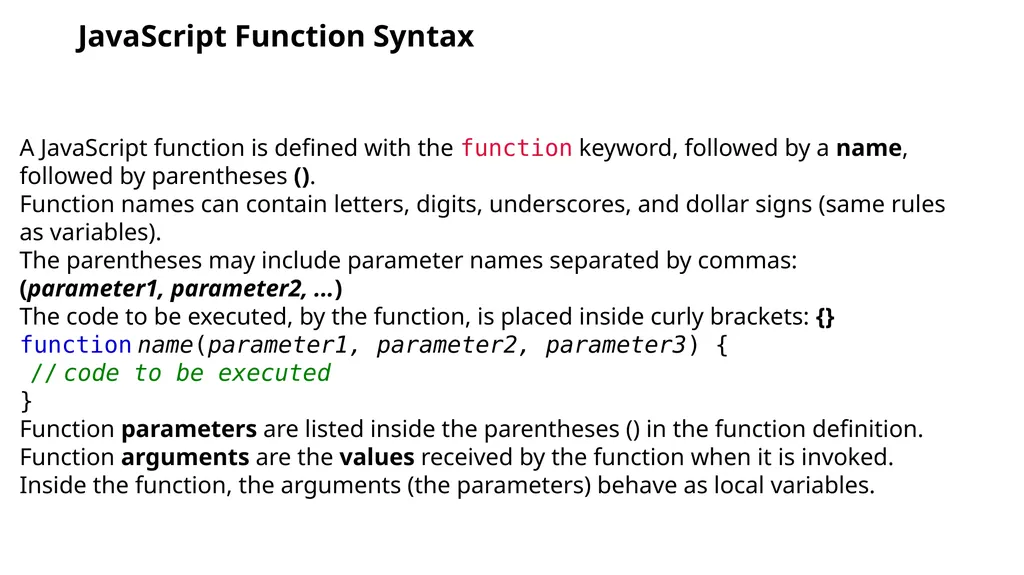
JavaScript Function Syntax A JavaScript function is defined with the function keyword, followed by a name, followed by parentheses ().
Function names can contain letters, digits, underscores, and dollar signs (same rules as variables).
The parentheses may include parameter names separated by commas: (parameter1, parameter2, ...)
The code to be executed, by the function, is placed inside curly brackets: {}
function name(parameter1, parameter2, parameter3) { // code to be executed }
Function parameters are listed inside the parentheses () in the function definition.
Function arguments are the values received by the function when it is invoked.
Inside the function, the arguments (the parameters) behave as local variables.<br>
Function names can contain letters, digits, underscores, and dollar signs (same rules as variables).
The parentheses may include parameter names separated by commas: (parameter1, parameter2, ...)
The code to be executed, by the function, is placed inside curly brackets: {}
function name(parameter1, parameter2, parameter3) { // code to be executed }
Function parameters are listed inside the parentheses () in the function definition.
Function arguments are the values received by the function when it is invoked.
Inside the function, the arguments (the parameters) behave as local variables.<br>
37
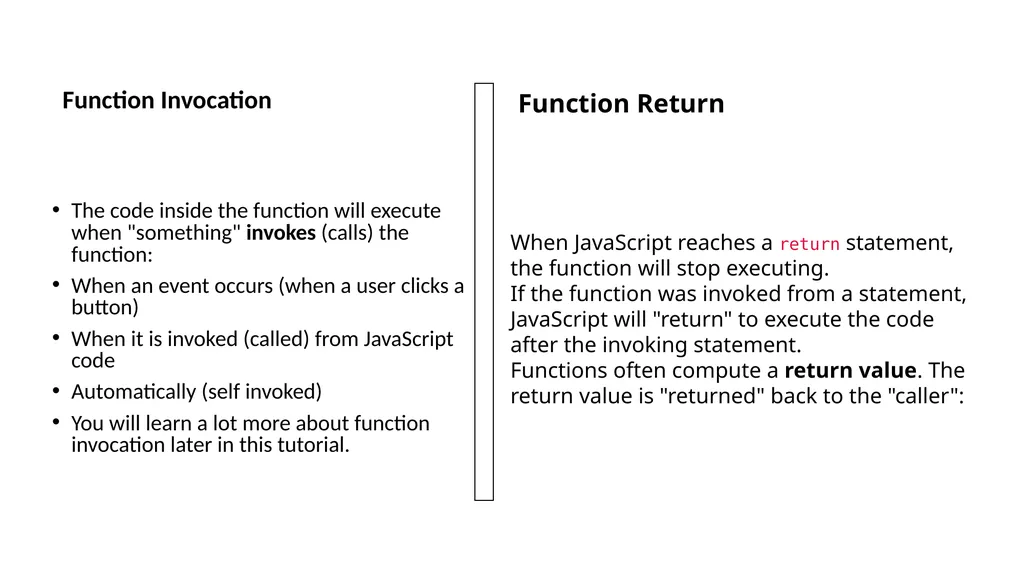
Function Invocation The code inside the function will execute when "something" invokes (calls) the function:
When an event occurs (when a user clicks a button)
When it is invoked (called) from JavaScript code
Automatically (self invoked)
You will learn a lot more about function invocation later in this tutorial. Function Return When JavaScript reaches a return statement, the function will stop executing.
If the function was invoked from a statement, JavaScript will "return" to execute the code after the invoking statement.
Functions often compute a return value. The return value is "returned" back to the "caller":<br>
When an event occurs (when a user clicks a button)
When it is invoked (called) from JavaScript code
Automatically (self invoked)
You will learn a lot more about function invocation later in this tutorial. Function Return When JavaScript reaches a return statement, the function will stop executing.
If the function was invoked from a statement, JavaScript will "return" to execute the code after the invoking statement.
Functions often compute a return value. The return value is "returned" back to the "caller":<br>
38
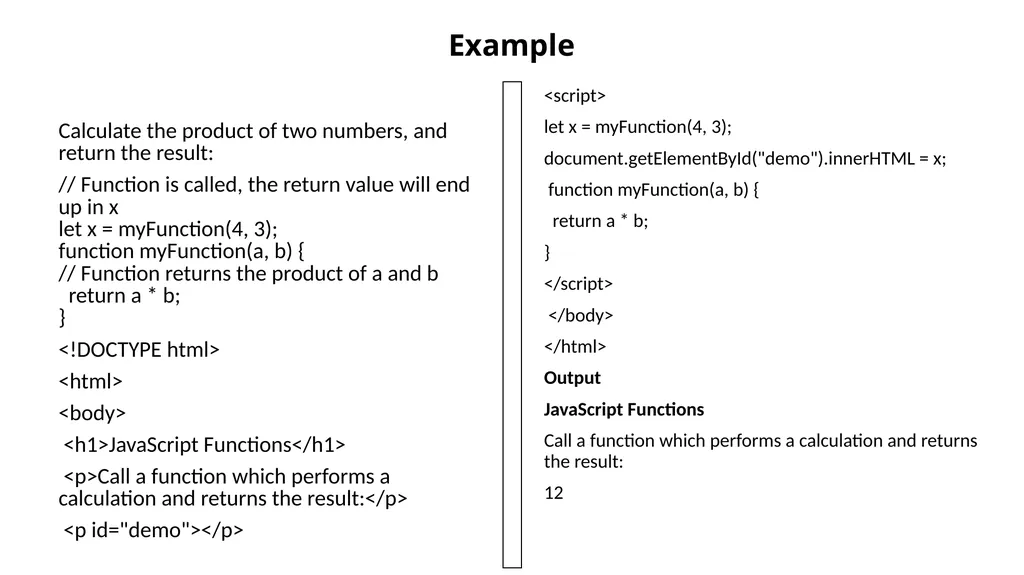
Example Calculate the product of two numbers, and return the result:
// Function is called, the return value will end up in x let x = myFunction(4, 3); function myFunction(a, b) { // Function returns the product of a and b return a * b; }
<!DOCTYPE html>
<html>
<body>
<h1>JavaScript Functions</h1>
<p>Call a function which performs a calculation and returns the result:</p>
<p id="demo"></p> <script>
let x = myFunction(4, 3);
document.getElementById("demo").innerHTML = x;
function myFunction(a, b) {
return a * b;
}
</script>
</body>
</html>
Output
JavaScript Functions
Call a function which performs a calculation and returns the result:
12<br>
// Function is called, the return value will end up in x let x = myFunction(4, 3); function myFunction(a, b) { // Function returns the product of a and b return a * b; }
<!DOCTYPE html>
<html>
<body>
<h1>JavaScript Functions</h1>
<p>Call a function which performs a calculation and returns the result:</p>
<p id="demo"></p> <script>
let x = myFunction(4, 3);
document.getElementById("demo").innerHTML = x;
function myFunction(a, b) {
return a * b;
}
</script>
</body>
</html>
Output
JavaScript Functions
Call a function which performs a calculation and returns the result:
12<br>
39
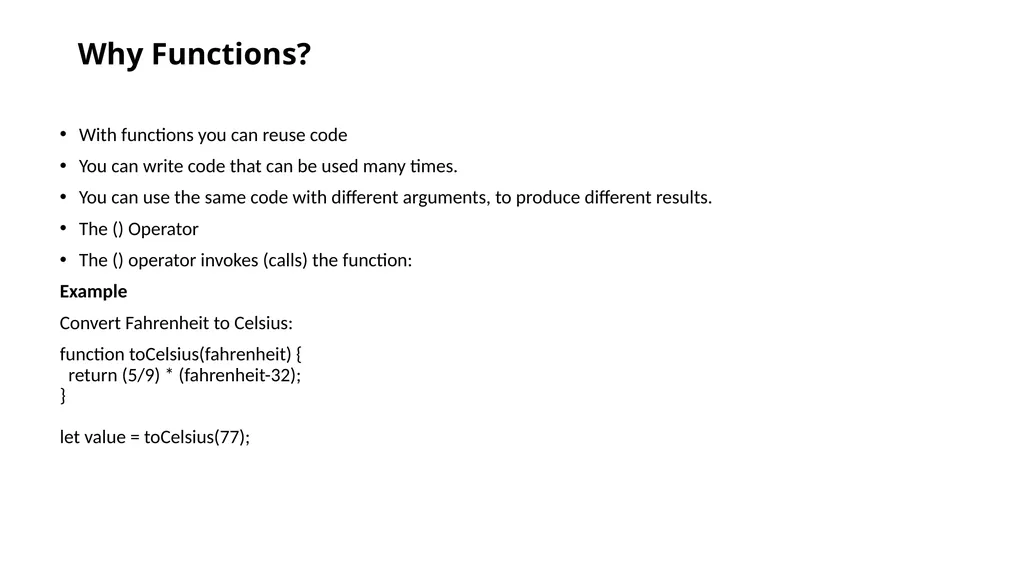
Why Functions? With functions you can reuse code
You can write code that can be used many times.
You can use the same code with different arguments, to produce different results.
The () Operator
The () operator invokes (calls) the function:
Example
Convert Fahrenheit to Celsius:
function toCelsius(fahrenheit) { return (5/9) * (fahrenheit-32); } let value = toCelsius(77);<br>
You can write code that can be used many times.
You can use the same code with different arguments, to produce different results.
The () Operator
The () operator invokes (calls) the function:
Example
Convert Fahrenheit to Celsius:
function toCelsius(fahrenheit) { return (5/9) * (fahrenheit-32); } let value = toCelsius(77);<br>
40
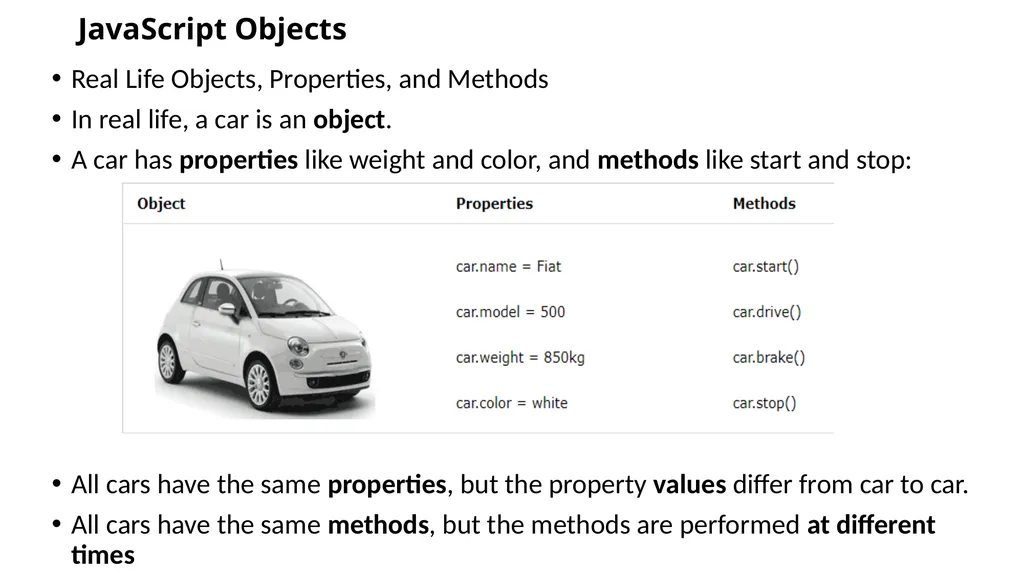
JavaScript Objects Real Life Objects, Properties, and Methods
In real life, a car is an object.
A car has properties like weight and color, and methods like start and stop:
All cars have the same properties, but the property values differ from car to car.
All cars have the same methods, but the methods are performed at different times<br>
In real life, a car is an object.
A car has properties like weight and color, and methods like start and stop:
All cars have the same properties, but the property values differ from car to car.
All cars have the same methods, but the methods are performed at different times<br>
41
JavaScript Objects You have already learned that JavaScript variables are containers for data values.
This code assigns a simple value (Fiat) to a variable named car:
let car = "Fiat";
Objects are variables too. But objects can contain many values.
This code assigns many values (Fiat, 500, white) to a variable named car:
const car = {type:"Fiat", model:"500", color:"white"};
The values are written as name:value pairs (name and value separated by a colon).
It is a common practice to declare objects with the const keyword<br>
This code assigns a simple value (Fiat) to a variable named car:
let car = "Fiat";
Objects are variables too. But objects can contain many values.
This code assigns many values (Fiat, 500, white) to a variable named car:
const car = {type:"Fiat", model:"500", color:"white"};
The values are written as name:value pairs (name and value separated by a colon).
It is a common practice to declare objects with the const keyword<br>
42
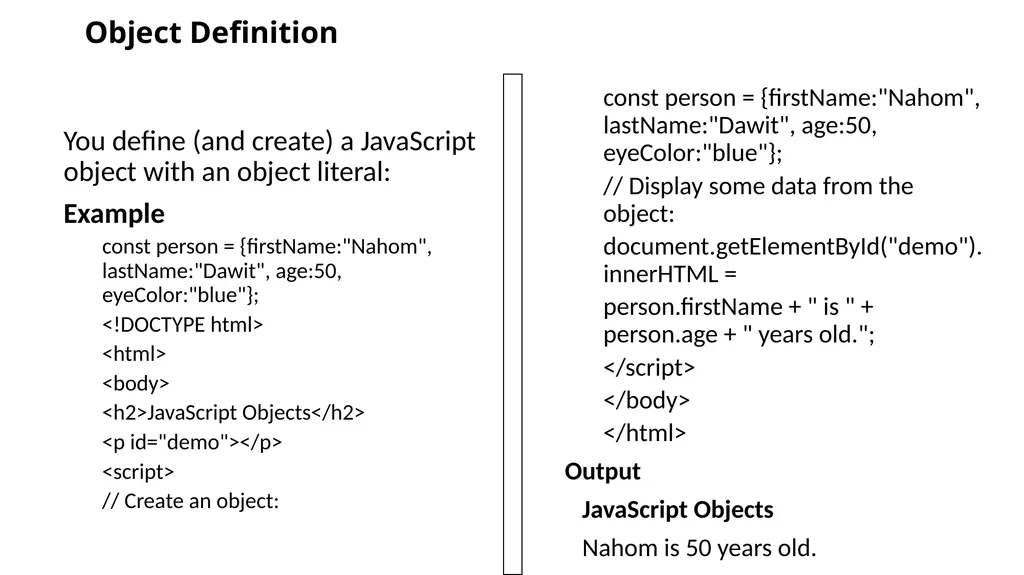
Object Definition You define (and create) a JavaScript object with an object literal:
Example
const person = {firstName:"Nahom", lastName:"Dawit", age:50, eyeColor:"blue"};
<!DOCTYPE html>
<html>
<body>
<h2>JavaScript Objects</h2>
<p id="demo"></p>
<script>
// Create an object: const person = {firstName:"Nahom", lastName:"Dawit", age:50, eyeColor:"blue"};
// Display some data from the object:
document.getElementById("demo").innerHTML =
person.firstName + " is " + person.age + " years old.";
</script>
</body>
</html>
Output
JavaScript Objects
Nahom is 50 years old.<br>
Example
const person = {firstName:"Nahom", lastName:"Dawit", age:50, eyeColor:"blue"};
<!DOCTYPE html>
<html>
<body>
<h2>JavaScript Objects</h2>
<p id="demo"></p>
<script>
// Create an object: const person = {firstName:"Nahom", lastName:"Dawit", age:50, eyeColor:"blue"};
// Display some data from the object:
document.getElementById("demo").innerHTML =
person.firstName + " is " + person.age + " years old.";
</script>
</body>
</html>
Output
JavaScript Objects
Nahom is 50 years old.<br>
43
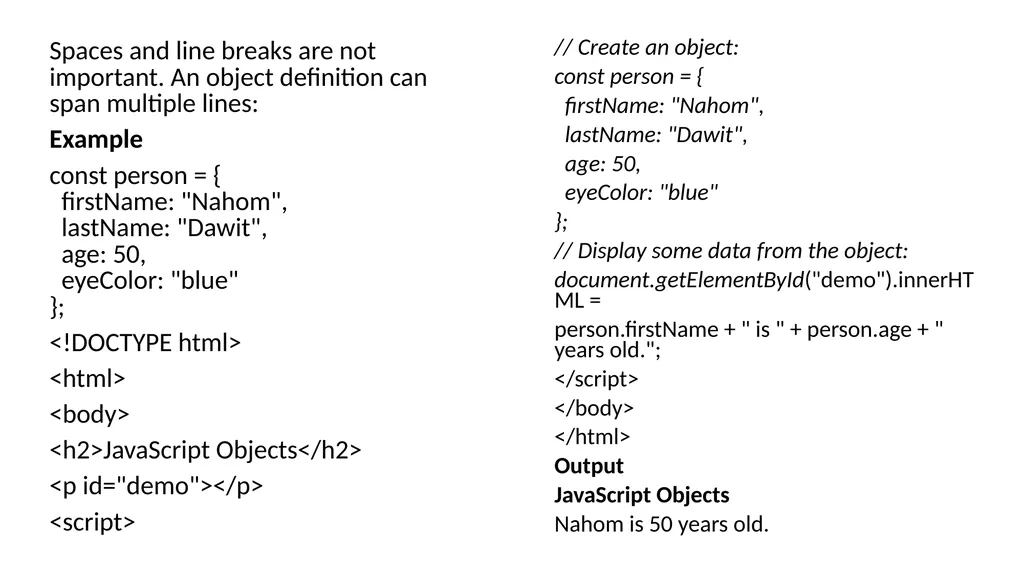
Spaces and line breaks are not important. An object definition can span multiple lines:
Example
const person = { firstName: "Nahom", lastName: "Dawit", age: 50, eyeColor: "blue" };
<!DOCTYPE html>
<html>
<body>
<h2>JavaScript Objects</h2>
<p id="demo"></p>
<script> // Create an object:
const person = {
firstName: "Nahom",
lastName: "Dawit",
age: 50,
eyeColor: "blue"
};
// Display some data from the object:
document.getElementById("demo").innerHTML =
person.firstName + " is " + person.age + " years old.";
</script>
</body>
</html>
Output
JavaScript Objects
Nahom is 50 years old.<br>
Example
const person = { firstName: "Nahom", lastName: "Dawit", age: 50, eyeColor: "blue" };
<!DOCTYPE html>
<html>
<body>
<h2>JavaScript Objects</h2>
<p id="demo"></p>
<script> // Create an object:
const person = {
firstName: "Nahom",
lastName: "Dawit",
age: 50,
eyeColor: "blue"
};
// Display some data from the object:
document.getElementById("demo").innerHTML =
person.firstName + " is " + person.age + " years old.";
</script>
</body>
</html>
Output
JavaScript Objects
Nahom is 50 years old.<br>
44
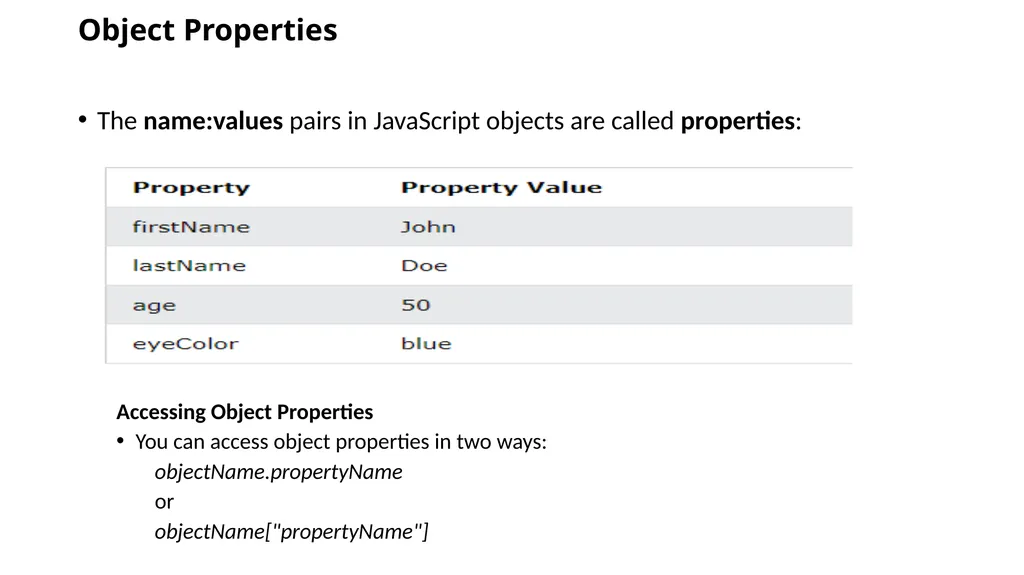
Object Properties The name:values pairs in JavaScript objects are called properties:
Accessing Object Properties
You can access object properties in two ways:
objectName.propertyName
or
objectName["propertyName"]<br>
Accessing Object Properties
You can access object properties in two ways:
objectName.propertyName
or
objectName["propertyName"]<br>
45
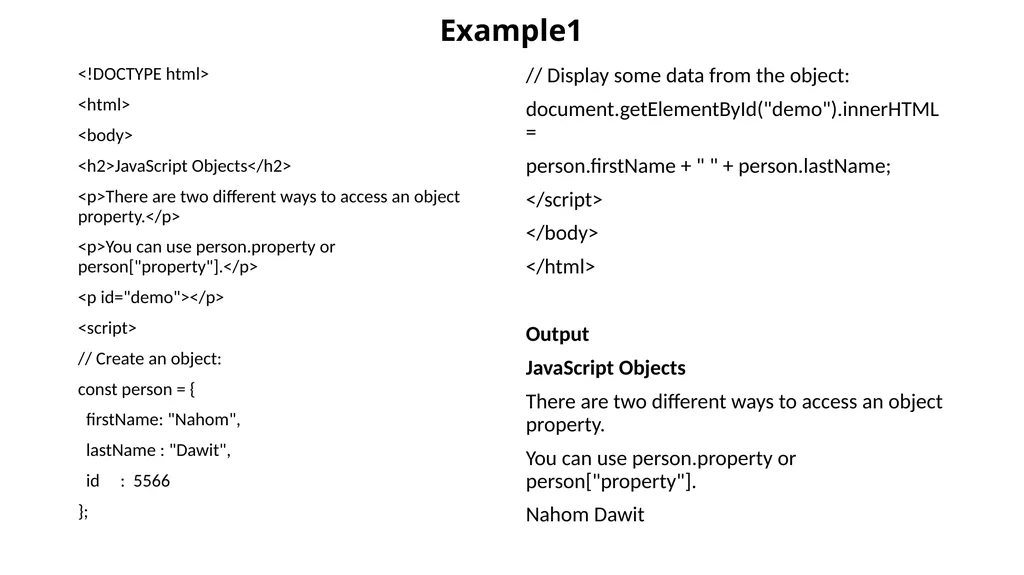
Example1 <!DOCTYPE html>
<html>
<body>
<h2>JavaScript Objects</h2>
<p>There are two different ways to access an object property.</p>
<p>You can use person.property or person["property"].</p>
<p id="demo"></p>
<script>
// Create an object:
const person = {
firstName: "Nahom",
lastName : "Dawit",
id : 5566
}; // Display some data from the object:
document.getElementById("demo").innerHTML =
person.firstName + " " + person.lastName;
</script>
</body>
</html>
Output
JavaScript Objects
There are two different ways to access an object property.
You can use person.property or person["property"].
Nahom Dawit<br>
<html>
<body>
<h2>JavaScript Objects</h2>
<p>There are two different ways to access an object property.</p>
<p>You can use person.property or person["property"].</p>
<p id="demo"></p>
<script>
// Create an object:
const person = {
firstName: "Nahom",
lastName : "Dawit",
id : 5566
}; // Display some data from the object:
document.getElementById("demo").innerHTML =
person.firstName + " " + person.lastName;
</script>
</body>
</html>
Output
JavaScript Objects
There are two different ways to access an object property.
You can use person.property or person["property"].
Nahom Dawit<br>
46
Object Methods Objects can also have methods.
Methods are actions that can be performed on objects.
Methods are stored in properties as function definitions.<br>
Methods are actions that can be performed on objects.
Methods are stored in properties as function definitions.<br>
47
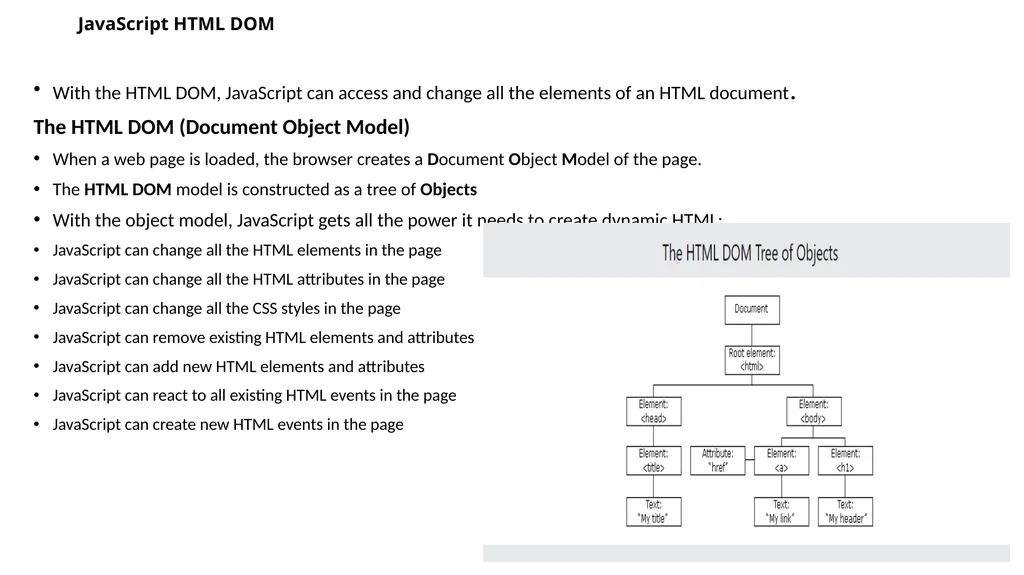
JavaScript HTML DOM With the HTML DOM, JavaScript can access and change all the elements of an HTML document.
The HTML DOM (Document Object Model)
When a web page is loaded, the browser creates a Document Object Model of the page.
The HTML DOM model is constructed as a tree of Objects
With the object model, JavaScript gets all the power it needs to create dynamic HTML:
JavaScript can change all the HTML elements in the page
JavaScript can change all the HTML attributes in the page
JavaScript can change all the CSS styles in the page
JavaScript can remove existing HTML elements and attributes
JavaScript can add new HTML elements and attributes
JavaScript can react to all existing HTML events in the page
JavaScript can create new HTML events in the page<br>
The HTML DOM (Document Object Model)
When a web page is loaded, the browser creates a Document Object Model of the page.
The HTML DOM model is constructed as a tree of Objects
With the object model, JavaScript gets all the power it needs to create dynamic HTML:
JavaScript can change all the HTML elements in the page
JavaScript can change all the HTML attributes in the page
JavaScript can change all the CSS styles in the page
JavaScript can remove existing HTML elements and attributes
JavaScript can add new HTML elements and attributes
JavaScript can react to all existing HTML events in the page
JavaScript can create new HTML events in the page<br>
48
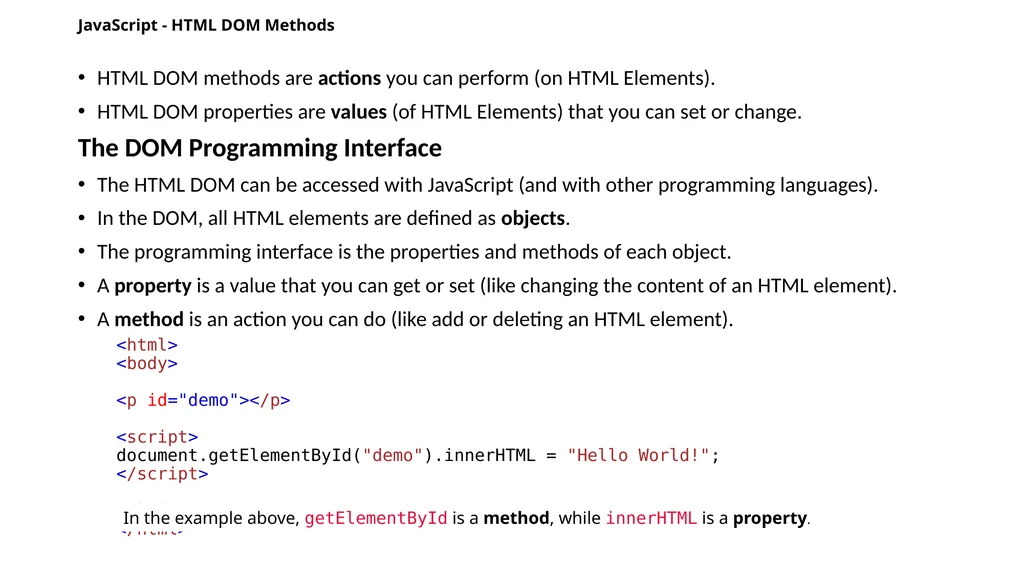
JavaScript - HTML DOM Methods HTML DOM methods are actions you can perform (on HTML Elements).
HTML DOM properties are values (of HTML Elements) that you can set or change.
The DOM Programming Interface
The HTML DOM can be accessed with JavaScript (and with other programming languages).
In the DOM, all HTML elements are defined as objects.
The programming interface is the properties and methods of each object.
A property is a value that you can get or set (like changing the content of an HTML element).
A method is an action you can do (like add or deleting an HTML element).
<html> <body> <p id="demo"></p> <script> document.getElementById("demo").innerHTML = "Hello World!"; </script> </body> </html> In the example above, getElementById is a method, while innerHTML is a property.<br>
HTML DOM properties are values (of HTML Elements) that you can set or change.
The DOM Programming Interface
The HTML DOM can be accessed with JavaScript (and with other programming languages).
In the DOM, all HTML elements are defined as objects.
The programming interface is the properties and methods of each object.
A property is a value that you can get or set (like changing the content of an HTML element).
A method is an action you can do (like add or deleting an HTML element).
<html> <body> <p id="demo"></p> <script> document.getElementById("demo").innerHTML = "Hello World!"; </script> </body> </html> In the example above, getElementById is a method, while innerHTML is a property.<br>
49
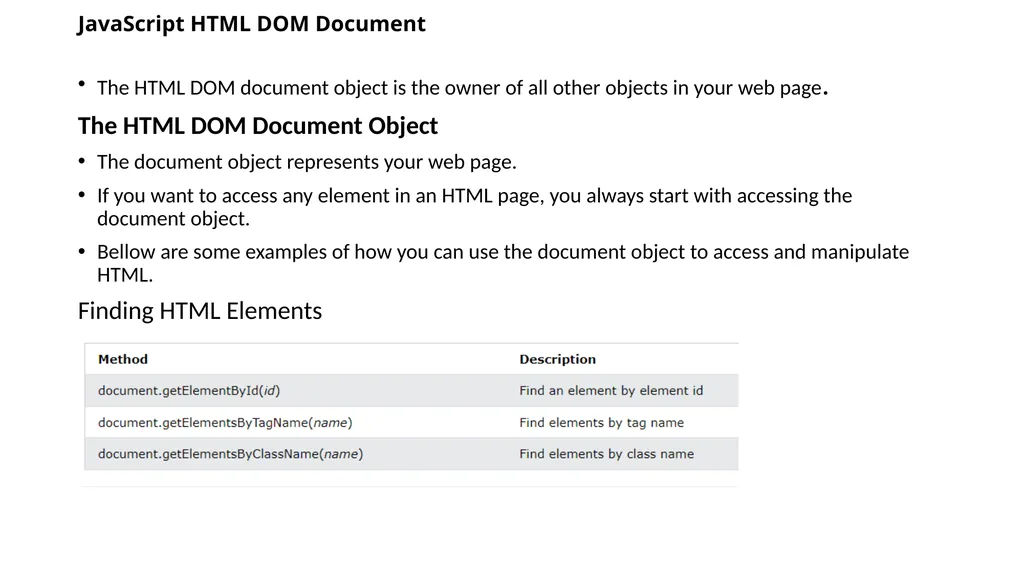
JavaScript HTML DOM Document The HTML DOM document object is the owner of all other objects in your web page.
The HTML DOM Document Object
The document object represents your web page.
If you want to access any element in an HTML page, you always start with accessing the document object.
Bellow are some examples of how you can use the document object to access and manipulate HTML.
Finding HTML Elements<br>
The HTML DOM Document Object
The document object represents your web page.
If you want to access any element in an HTML page, you always start with accessing the document object.
Bellow are some examples of how you can use the document object to access and manipulate HTML.
Finding HTML Elements<br>
50
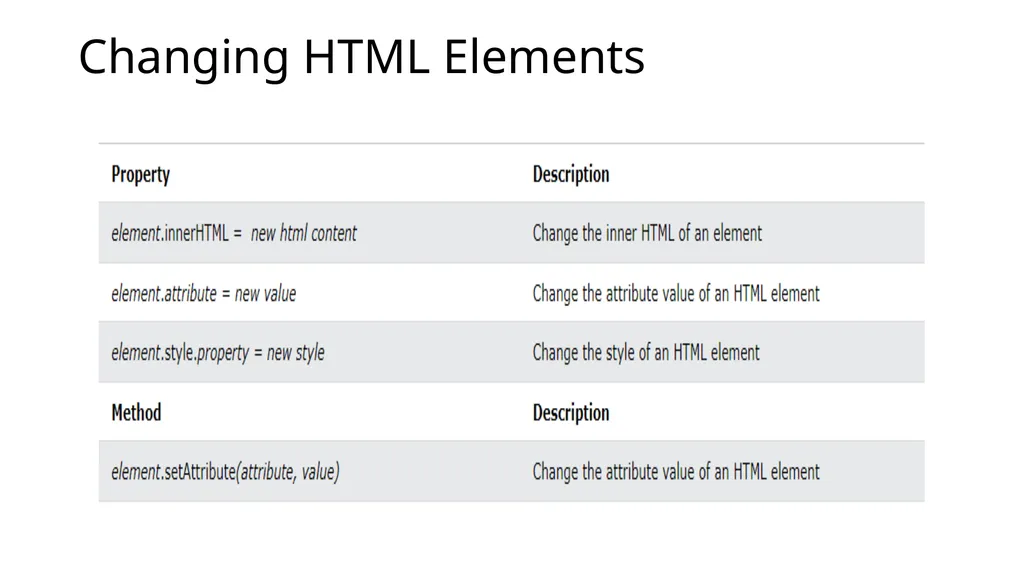
Changing HTML Elements<br>
51
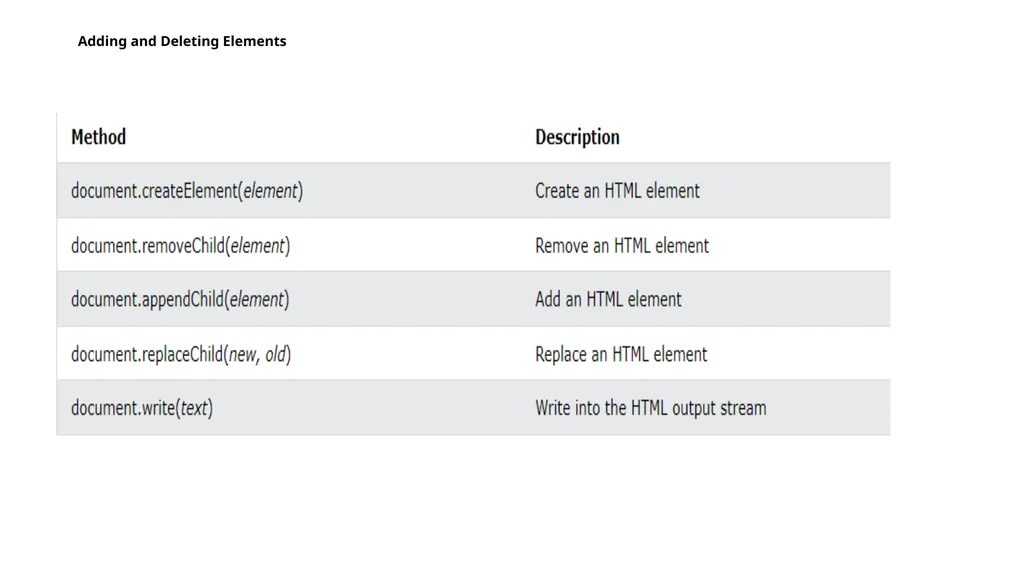
Adding and Deleting Elements<br>
52
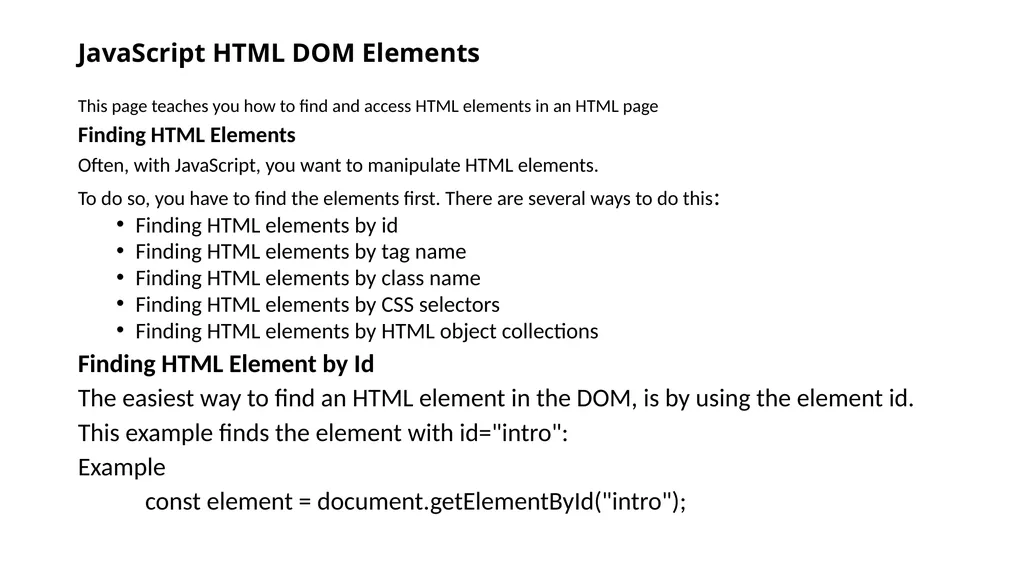
JavaScript HTML DOM Elements This page teaches you how to find and access HTML elements in an HTML page
Finding HTML Elements
Often, with JavaScript, you want to manipulate HTML elements.
To do so, you have to find the elements first. There are several ways to do this:
Finding HTML elements by id
Finding HTML elements by tag name
Finding HTML elements by class name
Finding HTML elements by CSS selectors
Finding HTML elements by HTML object collections
Finding HTML Element by Id
The easiest way to find an HTML element in the DOM, is by using the element id.
This example finds the element with id="intro":
Example
const element = document.getElementById("intro");<br>
Finding HTML Elements
Often, with JavaScript, you want to manipulate HTML elements.
To do so, you have to find the elements first. There are several ways to do this:
Finding HTML elements by id
Finding HTML elements by tag name
Finding HTML elements by class name
Finding HTML elements by CSS selectors
Finding HTML elements by HTML object collections
Finding HTML Element by Id
The easiest way to find an HTML element in the DOM, is by using the element id.
This example finds the element with id="intro":
Example
const element = document.getElementById("intro");<br>
53
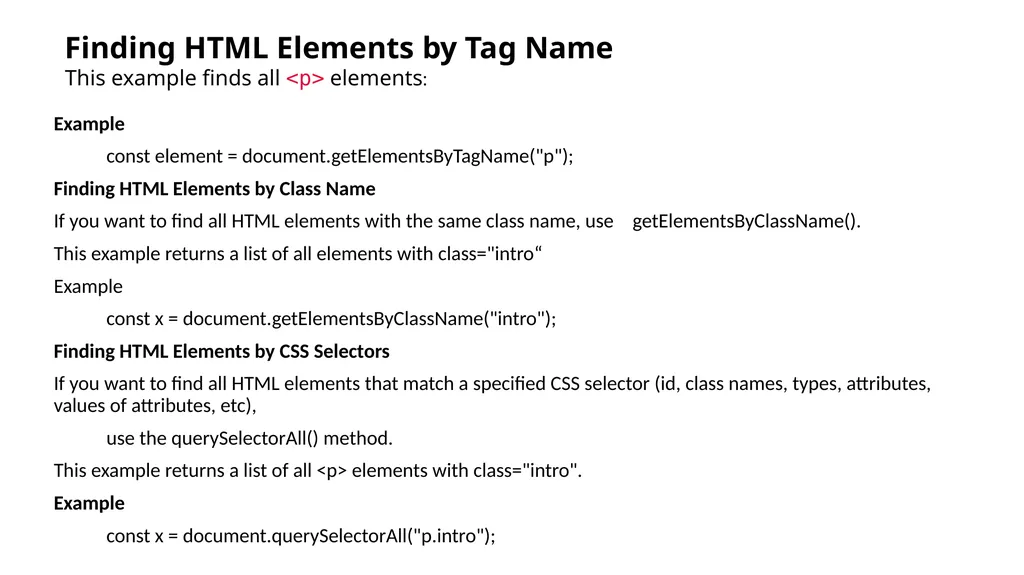
Example
const element = document.getElementsByTagName("p");
Finding HTML Elements by Class Name
If you want to find all HTML elements with the same class name, use getElementsByClassName().
This example returns a list of all elements with class="intro“
Example
const x = document.getElementsByClassName("intro");
Finding HTML Elements by CSS Selectors
If you want to find all HTML elements that match a specified CSS selector (id, class names, types, attributes, values of attributes, etc),
use the querySelectorAll() method.
This example returns a list of all <p> elements with class="intro".
Example
const x = document.querySelectorAll("p.intro"); Finding HTML Elements by Tag Name
This example finds all <p> elements:<br>
const element = document.getElementsByTagName("p");
Finding HTML Elements by Class Name
If you want to find all HTML elements with the same class name, use getElementsByClassName().
This example returns a list of all elements with class="intro“
Example
const x = document.getElementsByClassName("intro");
Finding HTML Elements by CSS Selectors
If you want to find all HTML elements that match a specified CSS selector (id, class names, types, attributes, values of attributes, etc),
use the querySelectorAll() method.
This example returns a list of all <p> elements with class="intro".
Example
const x = document.querySelectorAll("p.intro"); Finding HTML Elements by Tag Name
This example finds all <p> elements:<br>
54
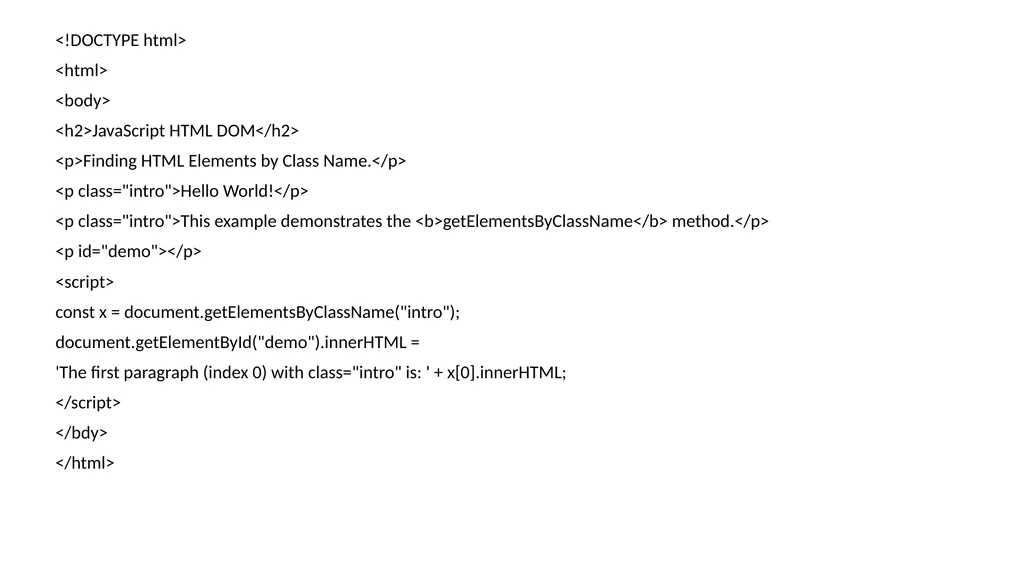
<!DOCTYPE html>
<html>
<body>
<h2>JavaScript HTML DOM</h2>
<p>Finding HTML Elements by Class Name.</p>
<p class="intro">Hello World!</p>
<p class="intro">This example demonstrates the <b>getElementsByClassName</b> method.</p>
<p id="demo"></p>
<script>
const x = document.getElementsByClassName("intro");
document.getElementById("demo").innerHTML =
'The first paragraph (index 0) with class="intro" is: ' + x[0].innerHTML;
</script>
</bdy>
</html><br>
<html>
<body>
<h2>JavaScript HTML DOM</h2>
<p>Finding HTML Elements by Class Name.</p>
<p class="intro">Hello World!</p>
<p class="intro">This example demonstrates the <b>getElementsByClassName</b> method.</p>
<p id="demo"></p>
<script>
const x = document.getElementsByClassName("intro");
document.getElementById("demo").innerHTML =
'The first paragraph (index 0) with class="intro" is: ' + x[0].innerHTML;
</script>
</bdy>
</html><br>
55
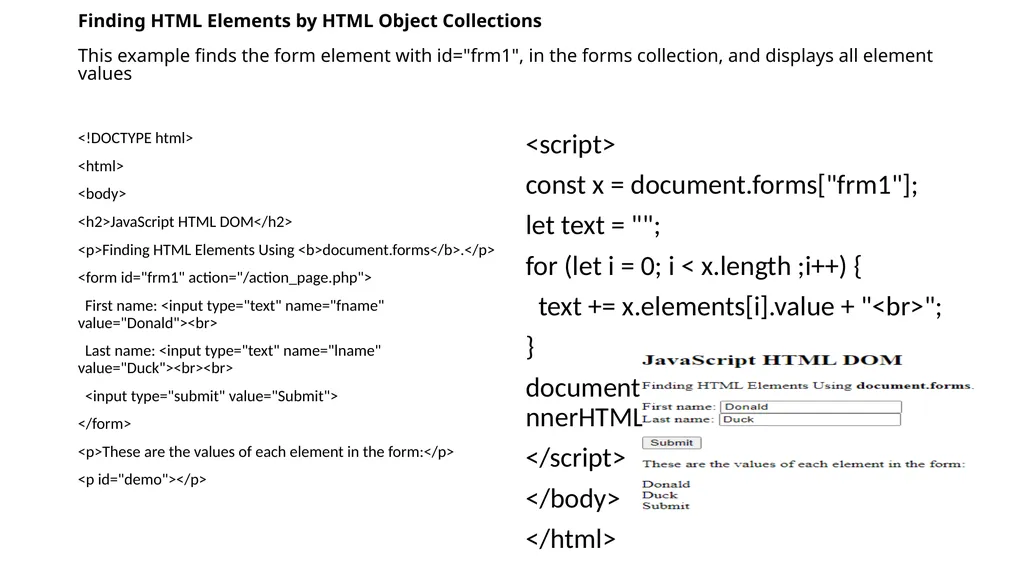
Finding HTML Elements by HTML Object Collections
This example finds the form element with id="frm1", in the forms collection, and displays all element values <!DOCTYPE html>
<html>
<body>
<h2>JavaScript HTML DOM</h2>
<p>Finding HTML Elements Using <b>document.forms</b>.</p>
<form id="frm1" action="/action_page.php">
First name: <input type="text" name="fname" value="Donald"><br>
Last name: <input type="text" name="lname" value="Duck"><br><br>
<input type="submit" value="Submit">
</form>
<p>These are the values of each element in the form:</p>
<p id="demo"></p> <script>
const x = document.forms["frm1"];
let text = "";
for (let i = 0; i < x.length ;i++) {
text += x.elements[i].value + "<br>";
}
document.getElementById("demo").innerHTML = text;
</script>
</body>
</html><br>
<html>
<body>
<h2>JavaScript HTML DOM</h2>
<p>Finding HTML Elements Using <b>document.forms</b>.</p>
<form id="frm1" action="/action_page.php">
First name: <input type="text" name="fname" value="Donald"><br>
Last name: <input type="text" name="lname" value="Duck"><br><br>
<input type="submit" value="Submit">
</form>
<p>These are the values of each element in the form:</p>
<p id="demo"></p> <script>
const x = document.forms["frm1"];
let text = "";
for (let i = 0; i < x.length ;i++) {
text += x.elements[i].value + "<br>";
}
document.getElementById("demo").innerHTML = text;
</script>
</body>
</html><br>
56
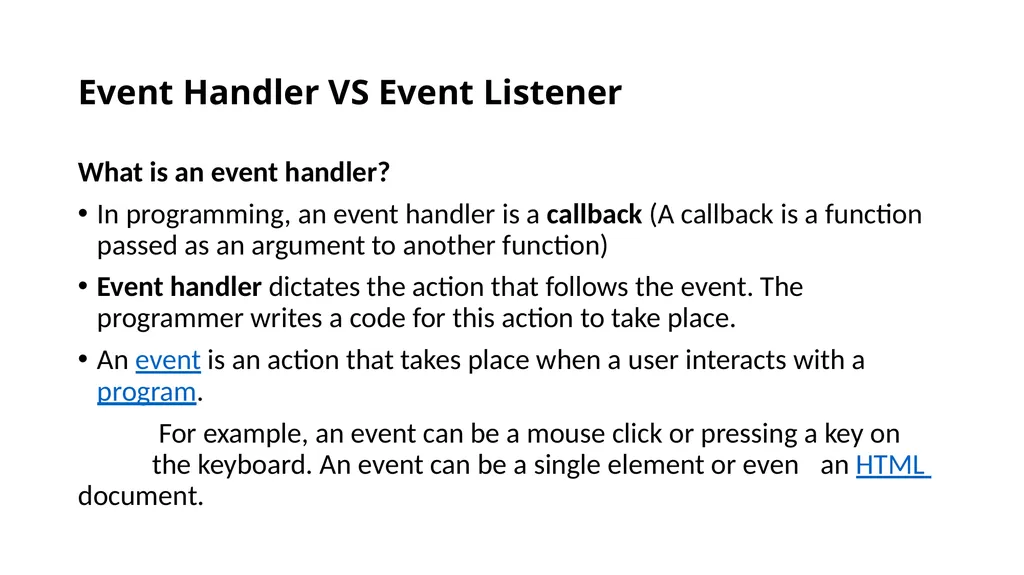
Event Handler VS Event Listener What is an event handler?
In programming, an event handler is a callback (A callback is a function passed as an argument to another function)
Event handler dictates the action that follows the event. The programmer writes a code for this action to take place.
An event is an action that takes place when a user interacts with a program.
For example, an event can be a mouse click or pressing a key on the keyboard. An event can be a single element or even an HTML document.<br>
In programming, an event handler is a callback (A callback is a function passed as an argument to another function)
Event handler dictates the action that follows the event. The programmer writes a code for this action to take place.
An event is an action that takes place when a user interacts with a program.
For example, an event can be a mouse click or pressing a key on the keyboard. An event can be a single element or even an HTML document.<br>
57
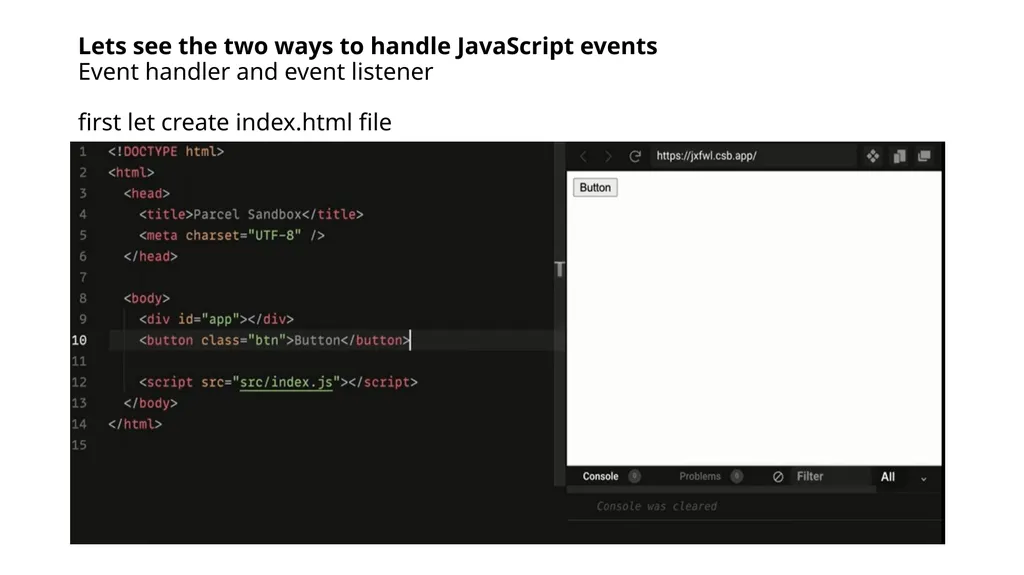
Lets see the two ways to handle JavaScript events
Event handler and event listener
first let create index.html file<br>
58
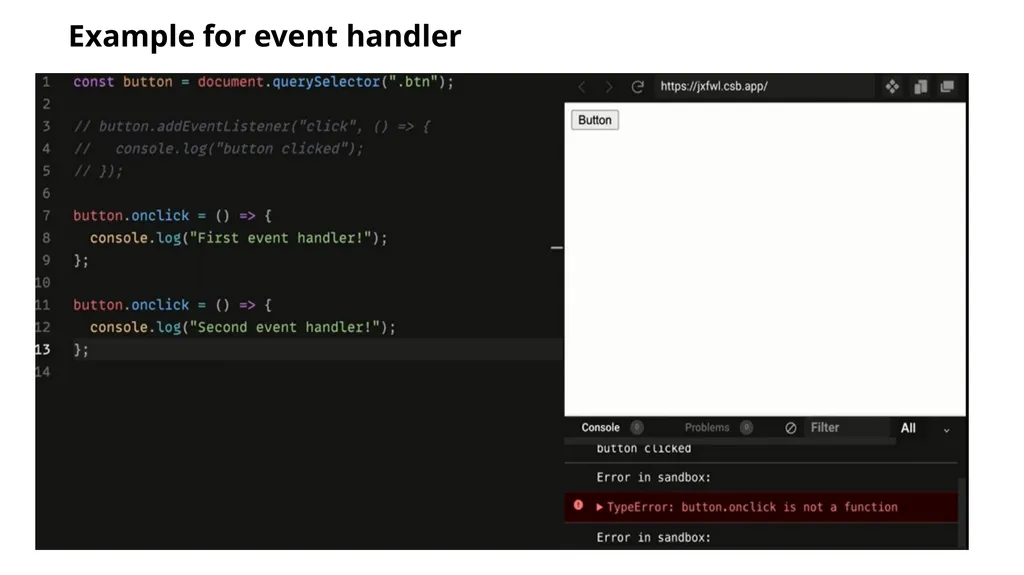
Example for event handler<br>
59
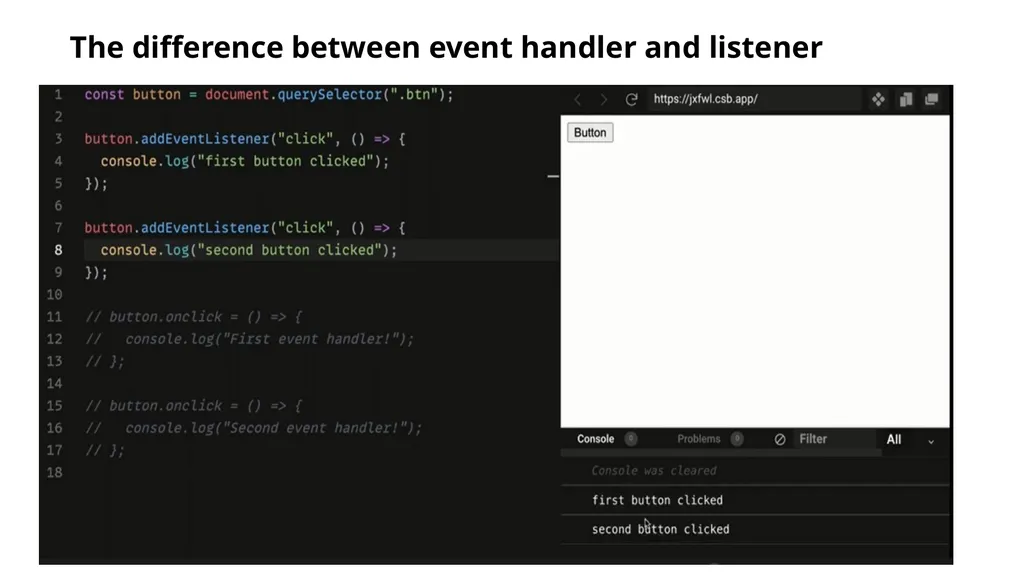
The difference between event handler and listener<br>