Entering Players Data Source For the purpose of this Seminar, a fake data source has been created in order to ensure there are no issues regarding GDPR. This means that fake names, date of birth, Federations, ratings and so on have been
"Entering Players Data Source For the purpose of" is the property of its rightful owner. Permission is granted to
download and print the materials on this website for personal, non-commercial use only, and to display it
on your personal computer provided you do not modify the materials and that you retain all copyright
notices contained in the materials. By downloading content from our website, you accept the terms of this
agreement.
Presentation Transcript
01
Entering Players<br>
02
Data Source For the purpose of this Seminar, a fake data source has been created in order to ensure there are no issues regarding GDPR.
This means that fake names, date of birth, Federations, ratings and so on have been made up. As a result of this, a few things that are designed to work in Swiss-Manager will not work, and we will need to make some manual adjustments that otherwise would not be required.
Late Entries in this section will use real players, and their permission to be entered into this presentation was sought in advance.<br>
03
National Rating List The most efficient way of entering players in bulk is to create a National Rating List
Not really a national rating list; just an Excel template to import in bulk
Pros
You can enter in bulk, which is much faster
You are less likely to enter the wrong player
Cons
You may have to look data up manually – but this can be checked!<br>
04
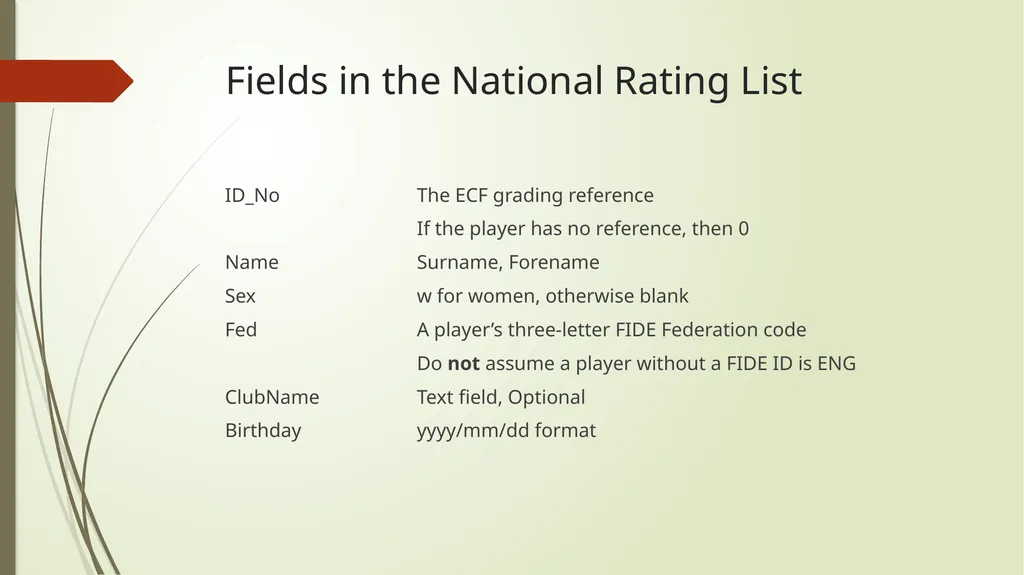
Fields in the National Rating List ID_No The ECF grading reference
If the player has no reference, then 0
Name Surname, Forename
Sex w for women, otherwise blank
Fed A player’s three-letter FIDE Federation code
Do not assume a player without a FIDE ID is ENG
ClubName Text field, Optional
Birthday yyyy/mm/dd format<br>
05
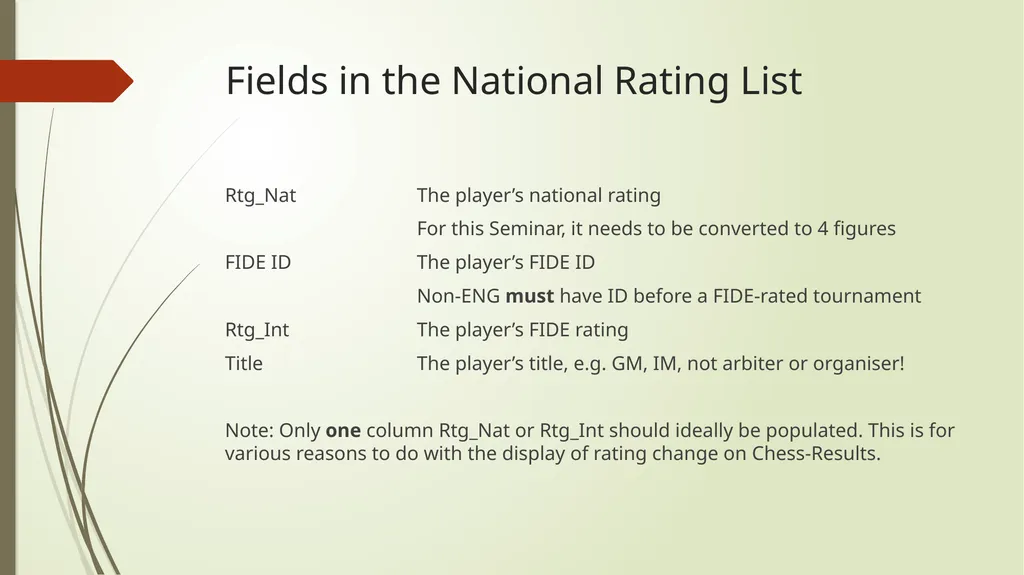
Fields in the National Rating List Rtg_Nat The player’s national rating
For this Seminar, it needs to be converted to 4 figures
FIDE ID The player’s FIDE ID
Non-ENG must have ID before a FIDE-rated tournament
Rtg_Int The player’s FIDE rating
Title The player’s title, e.g. GM, IM, not arbiter or organiser!
Note: Only one column Rtg_Nat or Rtg_Int should ideally be populated. This is for various reasons to do with the display of rating change on Chess-Results.<br>
06
Tournaments with Multiple Sections E.g. Open, Major, Minor
One tab for each section will work
File needs to be saved with the tab of the relevant tournament open in order for Swiss-Manager to know it needs to import the players on that tab<br>
07
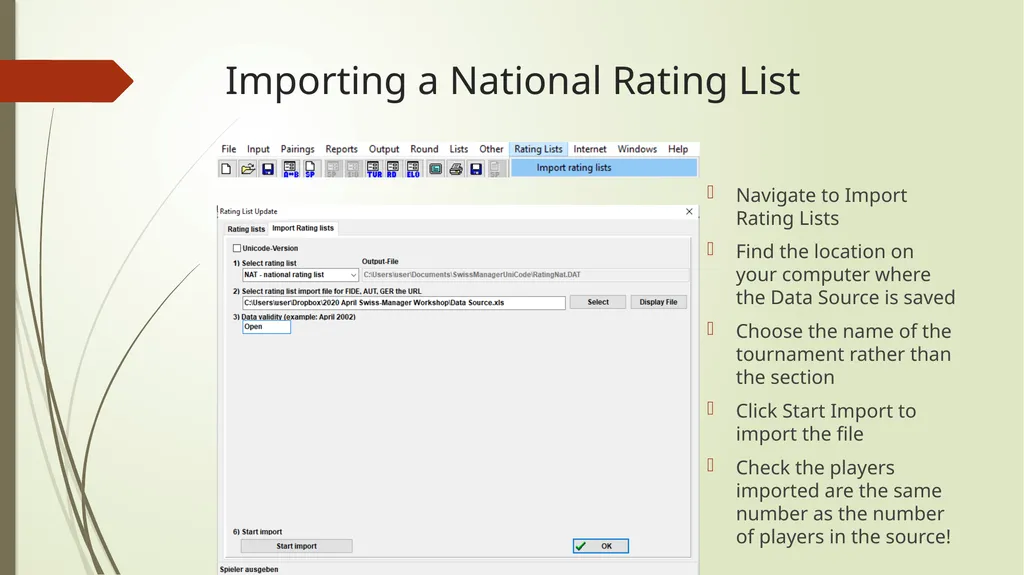
Importing a National Rating List Navigate to Import Rating Lists
Find the location on your computer where the Data Source is saved
Choose the name of the tournament rather than the section
Click Start Import to import the file
Check the players imported are the same number as the number of players in the source!<br>
08
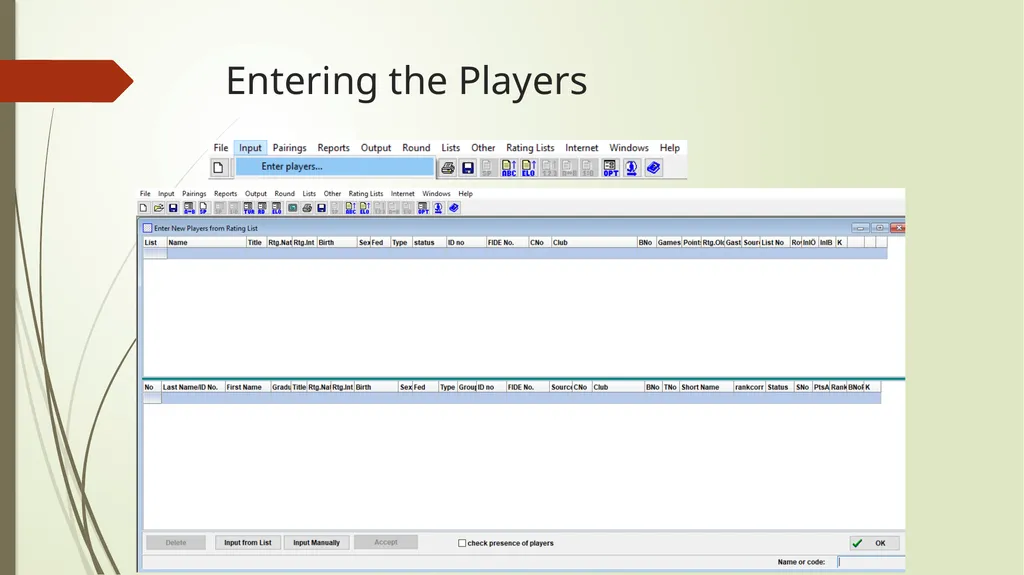
Entering the Players<br>
09
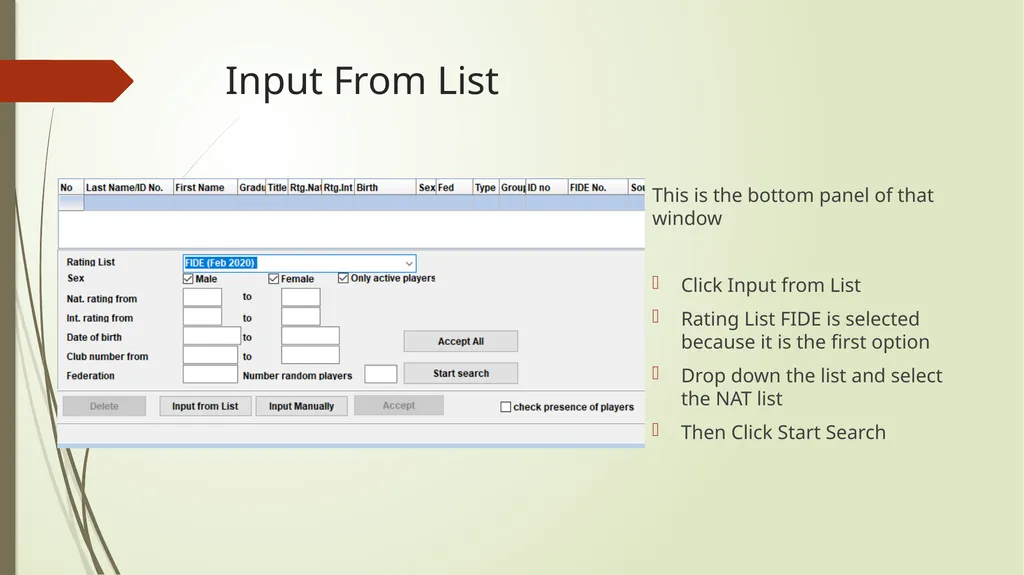
Input From List This is the bottom panel of that window
Click Input from List
Rating List FIDE is selected because it is the first option
Drop down the list and select the NAT list
Then Click Start Search<br>
10
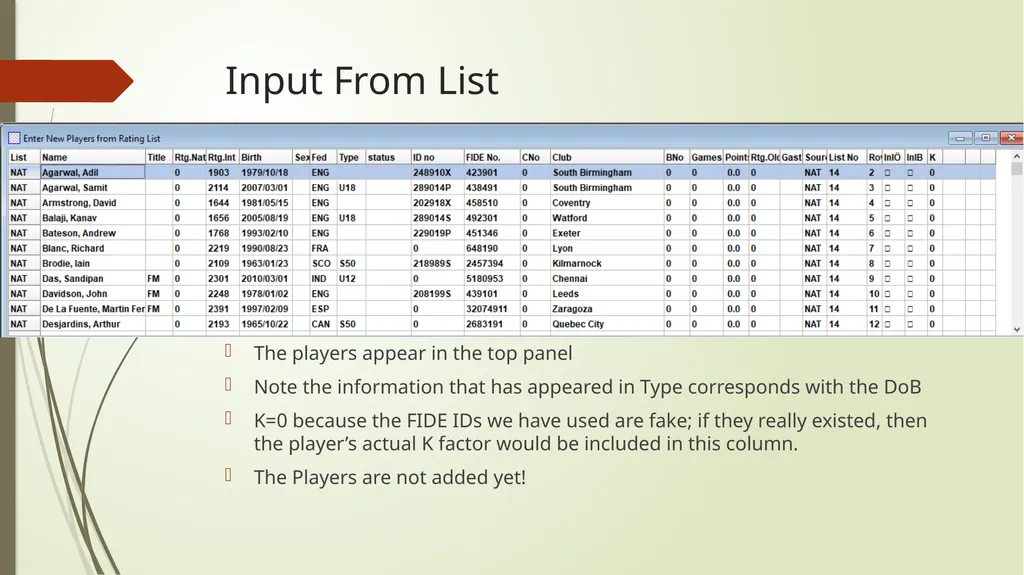
Input From List The players appear in the top panel
Note the information that has appeared in Type corresponds with the DoB
K=0 because the FIDE IDs we have used are fake; if they really existed, then the player’s actual K factor would be included in this column.
The Players are not added yet!<br>
11
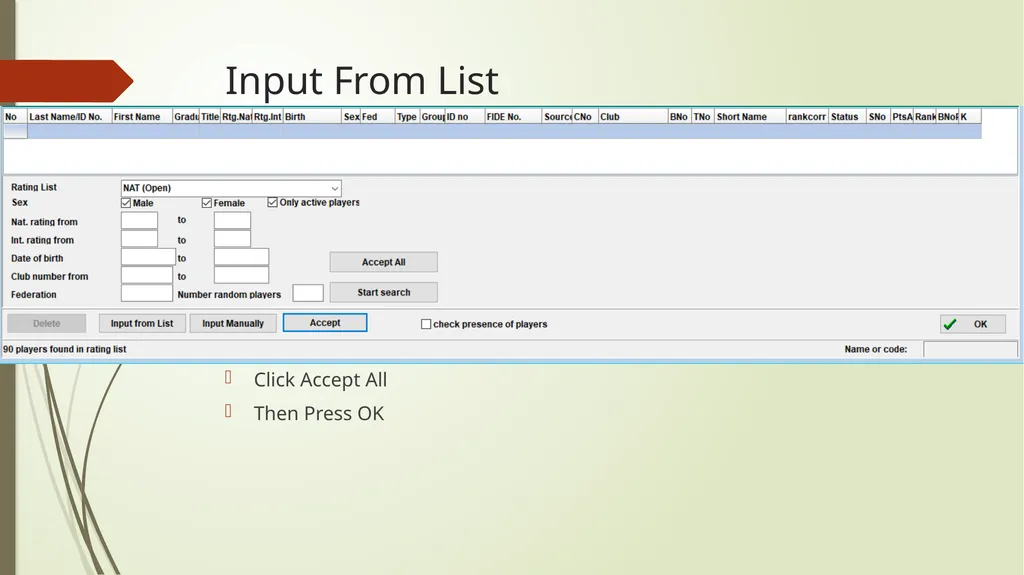
Input From List Click Accept All
Then Press OK<br>
12
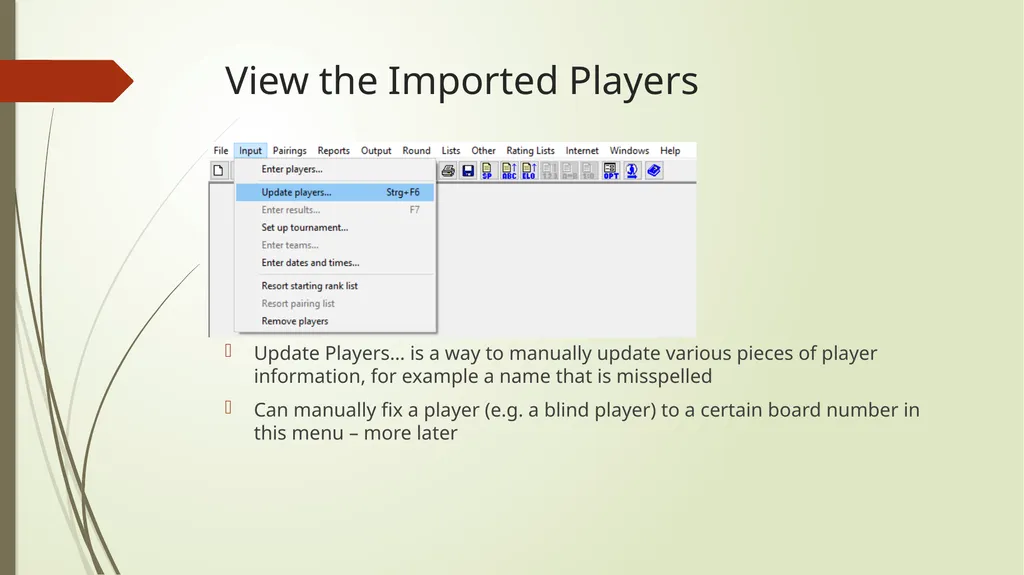
View the Imported Players Update Players… is a way to manually update various pieces of player information, for example a name that is misspelled
Can manually fix a player (e.g. a blind player) to a certain board number in this menu – more later<br>
13
Update Players<br>
14
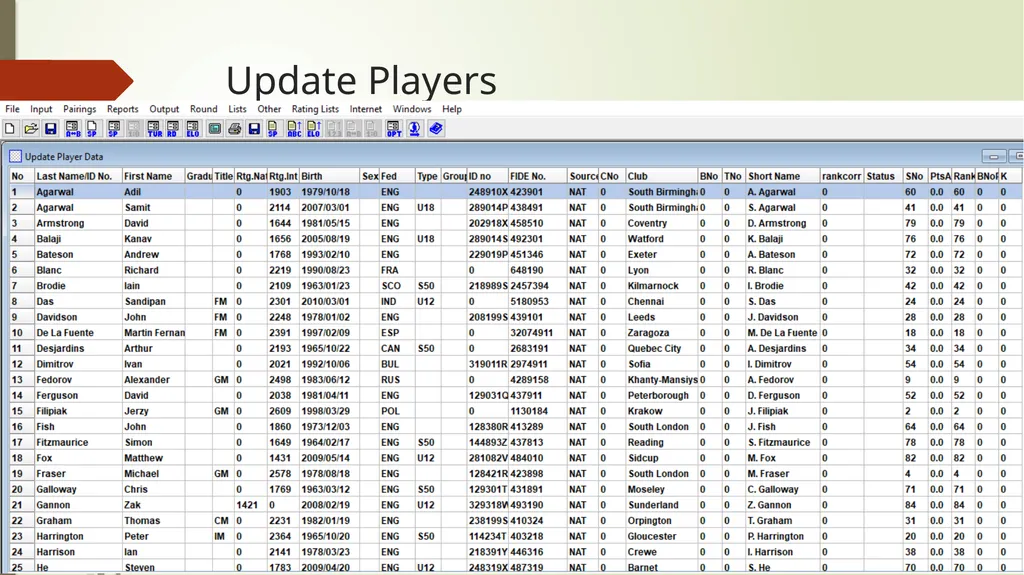
Update Players – Things to Notice The screen displays the players alphabetically
By clicking SNo, you can sort the players by starting rank (seed) rather than alphabetically
(In fact, by clicking any column heading you can sort by that – some may be more useful than others!)
Note how Zak Gannon, with a National rating of 1421, has been handled. I.e. he is inserted ahead of FIDE-rated players. This is perfectly acceptable in a FIDE-rated tournament, given that this is how the 4NCL (and presumably other events?!) define how their starting rank should be sorted.
The column widths can be dragged to be able to see more of the information<br>
15
Other Ways of Adding Players Update by Searching for their ID in the FIDE rating list
Update by Searching for their ID in the ECF grading list
Entering a completely new player manually<br>
16
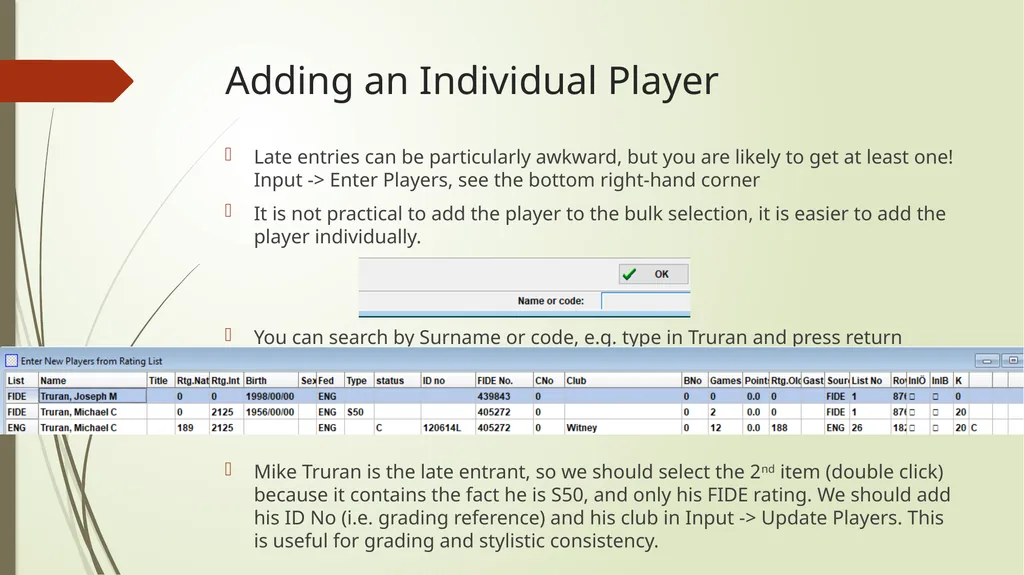
Adding an Individual Player Late entries can be particularly awkward, but you are likely to get at least one! Input -> Enter Players, see the bottom right-hand corner
It is not practical to add the player to the bulk selection, it is easier to add the player individually.
You can search by Surname or code, e.g. type in Truran and press return
Mike Truran is the late entrant, so we should select the 2nd item (double click) because it contains the fact he is S50, and only his FIDE rating. We should add his ID No (i.e. grading reference) and his club in Input -> Update Players. This is useful for grading and stylistic consistency.<br>
17
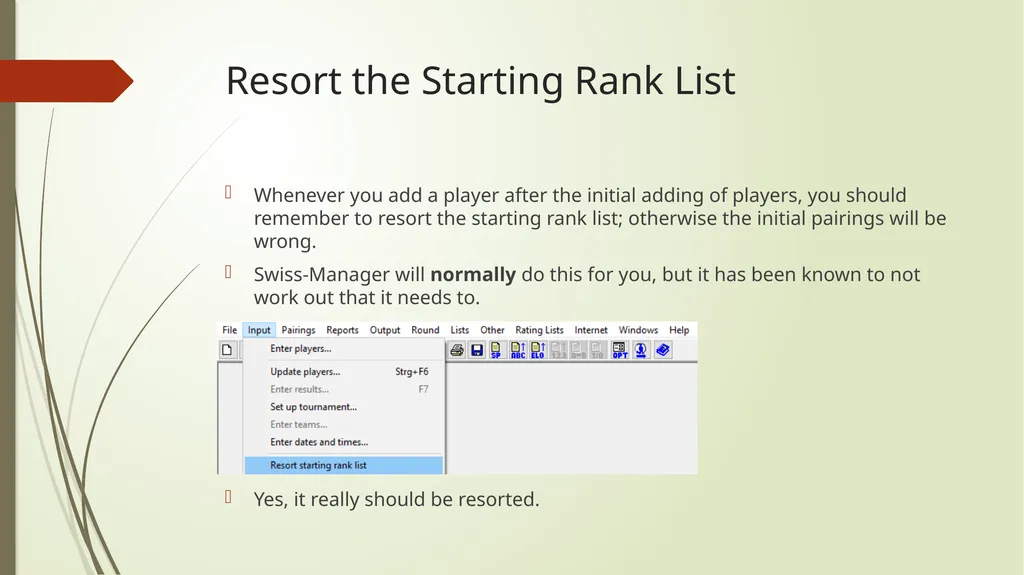
Resort the Starting Rank List Whenever you add a player after the initial adding of players, you should remember to resort the starting rank list; otherwise the initial pairings will be wrong.
Swiss-Manager will normally do this for you, but it has been known to not work out that it needs to.
Yes, it really should be resorted.<br>
18
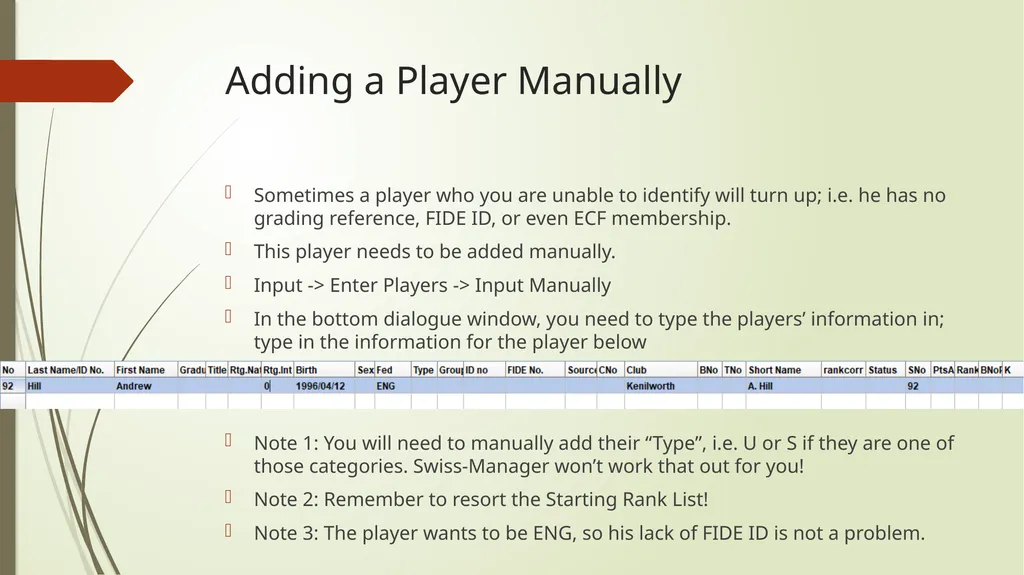
Adding a Player Manually Sometimes a player who you are unable to identify will turn up; i.e. he has no grading reference, FIDE ID, or even ECF membership.
This player needs to be added manually.
Input -> Enter Players -> Input Manually
In the bottom dialogue window, you need to type the players’ information in; type in the information for the player below
Note 1: You will need to manually add their “Type”, i.e. U or S if they are one of those categories. Swiss-Manager won’t work that out for you!
Note 2: Remember to resort the Starting Rank List!
Note 3: The player wants to be ENG, so his lack of FIDE ID is not a problem.<br>
19
Summary and Next Steps There are 92 players in the Swiss-Manager file for this tournament
They are sorted in rating order correctly
At no stage have the bye requests been added; this is the next step!<br>