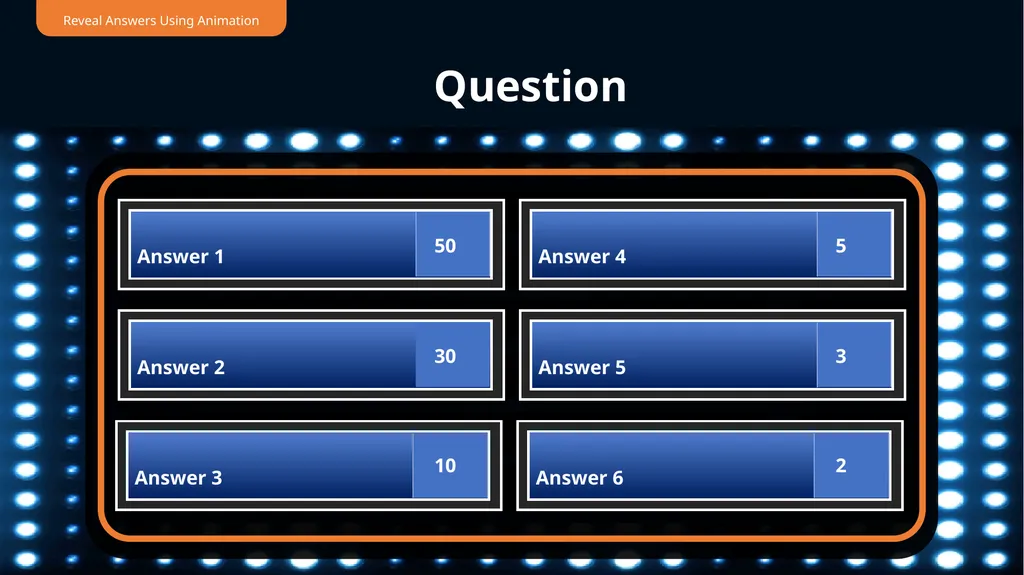
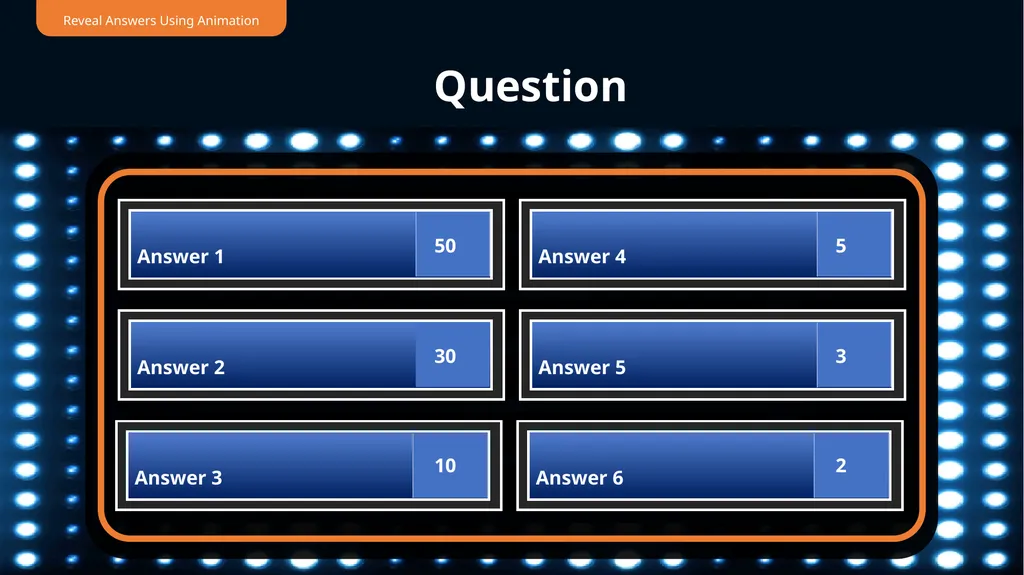
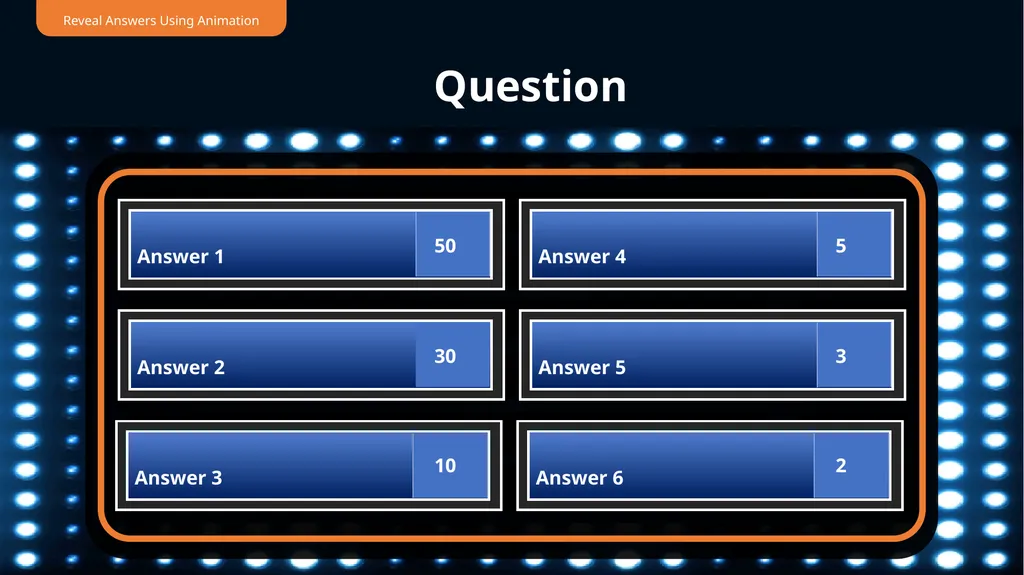
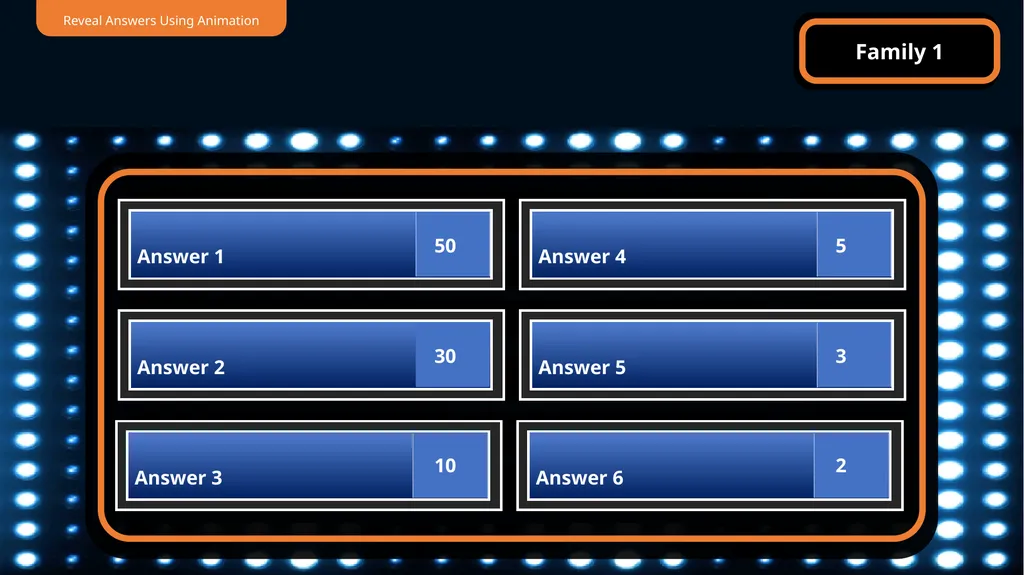
How to Use This Template (Version A): Download ClassPoint for free. Fill in the team members names, survey questions and answers in the respective slides. Choose from a wide selection of ClassPoints interactive quiz buttons at your
"How to Use This Template (Version A): Download" is the property of its rightful owner. Permission is granted to
download and print the materials on this website for personal, non-commercial use only, and to display it
on your personal computer provided you do not modify the materials and that you retain all copyright
notices contained in the materials. By downloading content from our website, you accept the terms of this
agreement.
Presentation Transcript
01
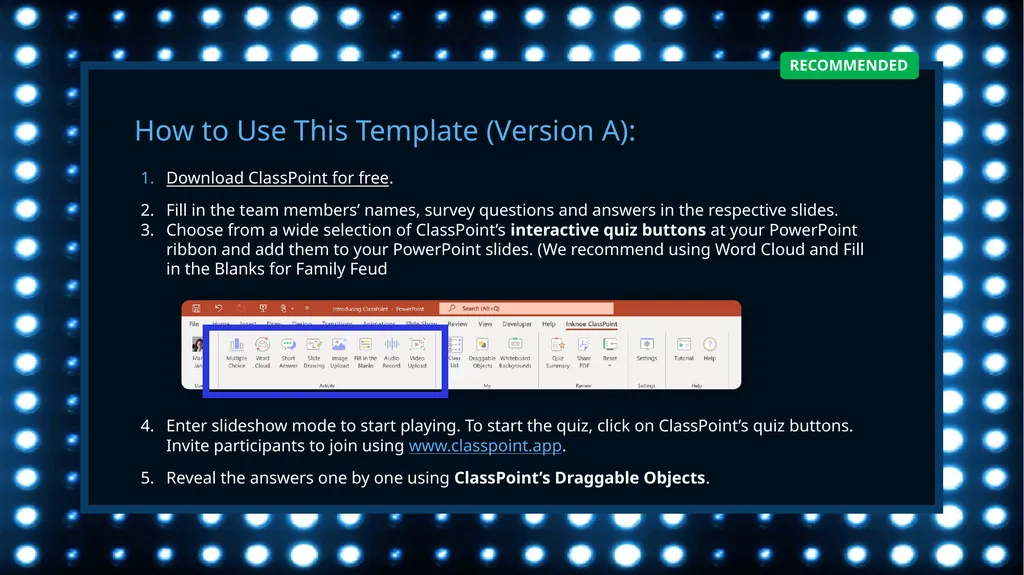
How to Use This Template (Version A): Download ClassPoint for free.
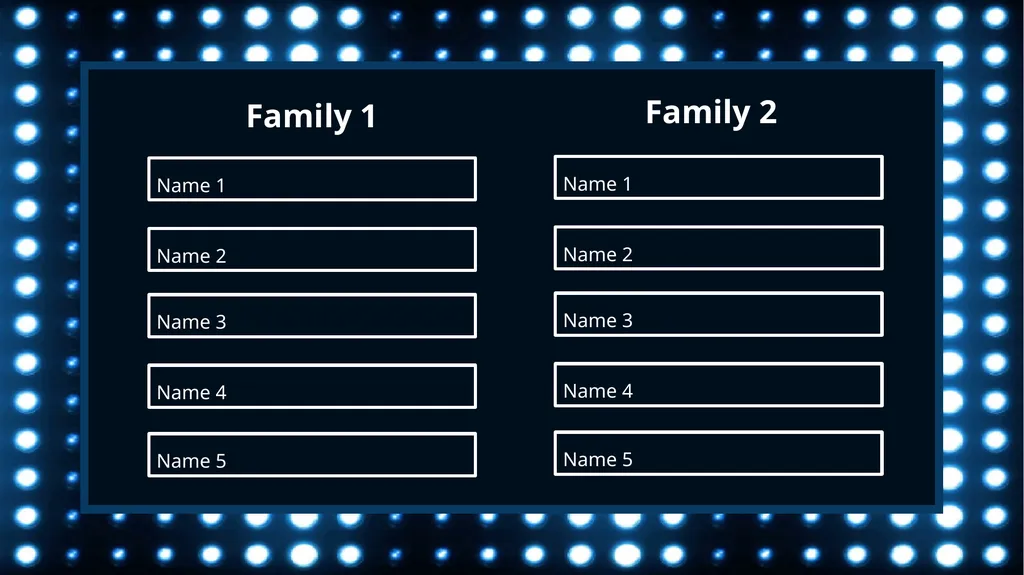
Fill in the team members’ names, survey questions and answers in the respective slides.
Choose from a wide selection of ClassPoint’s interactive quiz buttons at your PowerPoint ribbon and add them to your PowerPoint slides. (We recommend using Word Cloud and Fill in the Blanks for Family Feud
Enter slideshow mode to start playing. To start the quiz, click on ClassPoint’s quiz buttons. Invite participants to join using www.classpoint.app.
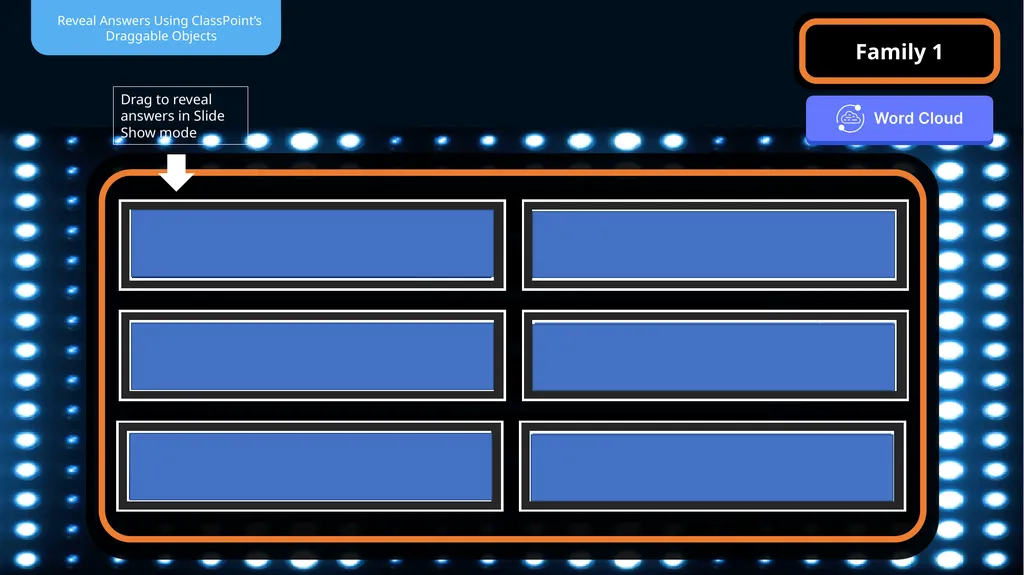
Reveal the answers one by one using ClassPoint’s Draggable Objects.<br>
02
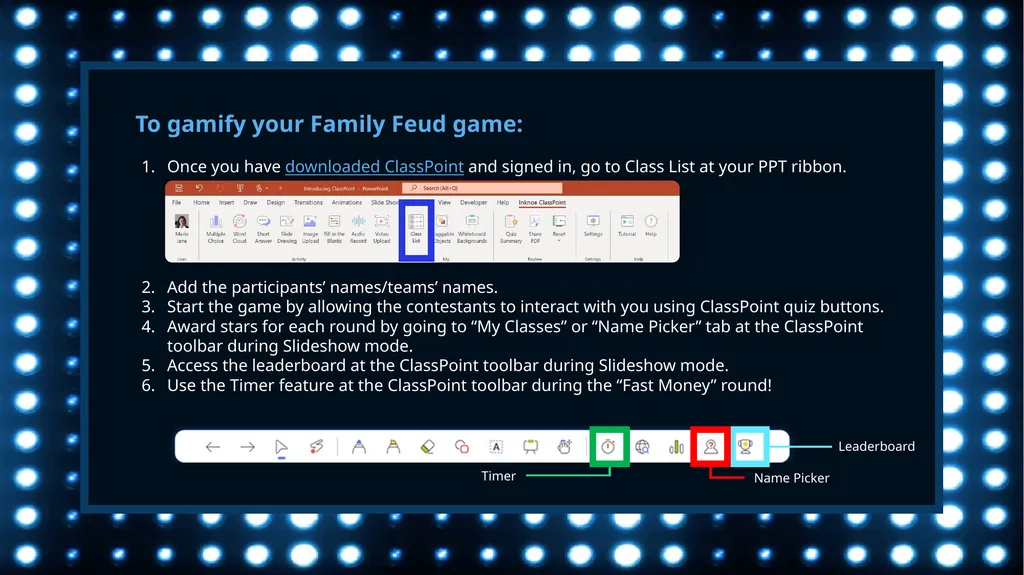
To gamify your Family Feud game: Once you have downloaded ClassPoint and signed in, go to Class List at your PPT ribbon.
Add the participants’ names/teams’ names.
Start the game by allowing the contestants to interact with you using ClassPoint quiz buttons.
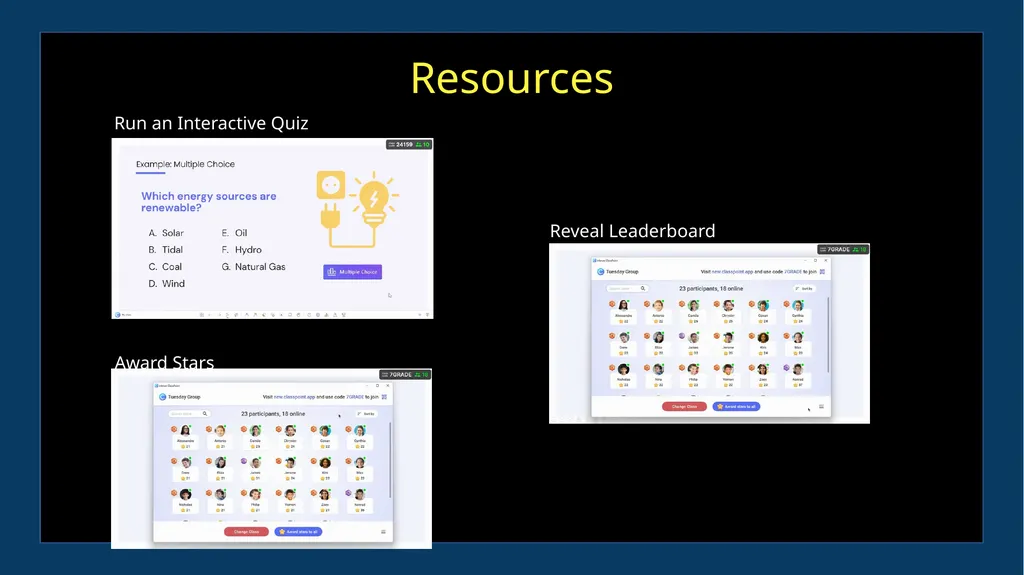
Award stars for each round by going to “My Classes” or “Name Picker” tab at the ClassPoint toolbar during Slideshow mode.
Access the leaderboard at the ClassPoint toolbar during Slideshow mode.
Use the Timer feature at the ClassPoint toolbar during the “Fast Money” round! Timer Name Picker Leaderboard<br>
03
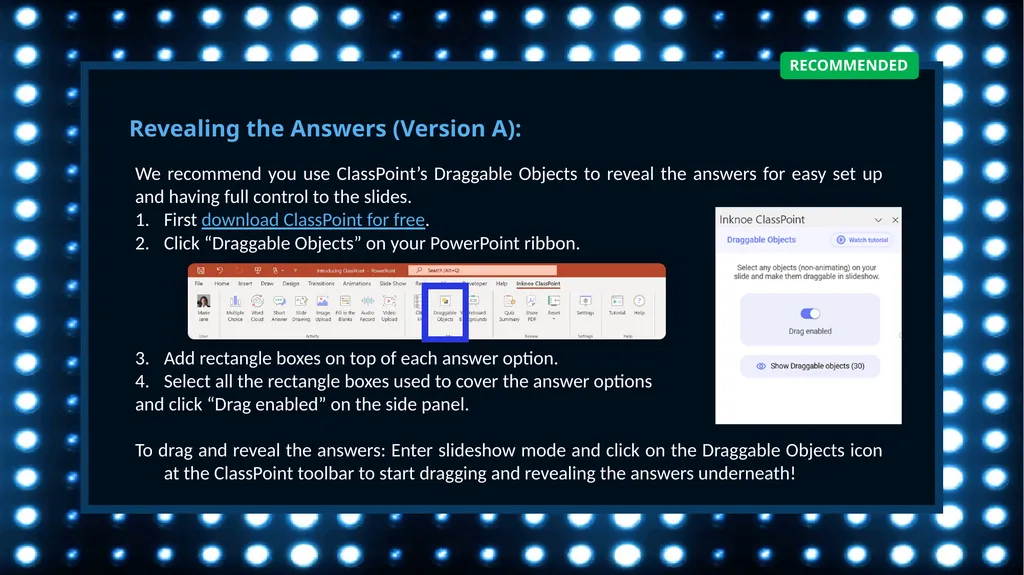
Revealing the Answers (Version A): We recommend you use ClassPoint’s Draggable Objects to reveal the answers for easy set up and having full control to the slides.
First download ClassPoint for free.
Click “Draggable Objects” on your PowerPoint ribbon.
Add rectangle boxes on top of each answer option.
Select all the rectangle boxes used to cover the answer options
and click “Drag enabled” on the side panel.
To drag and reveal the answers: Enter slideshow mode and click on the Draggable Objects icon at the ClassPoint toolbar to start dragging and revealing the answers underneath!<br>
04
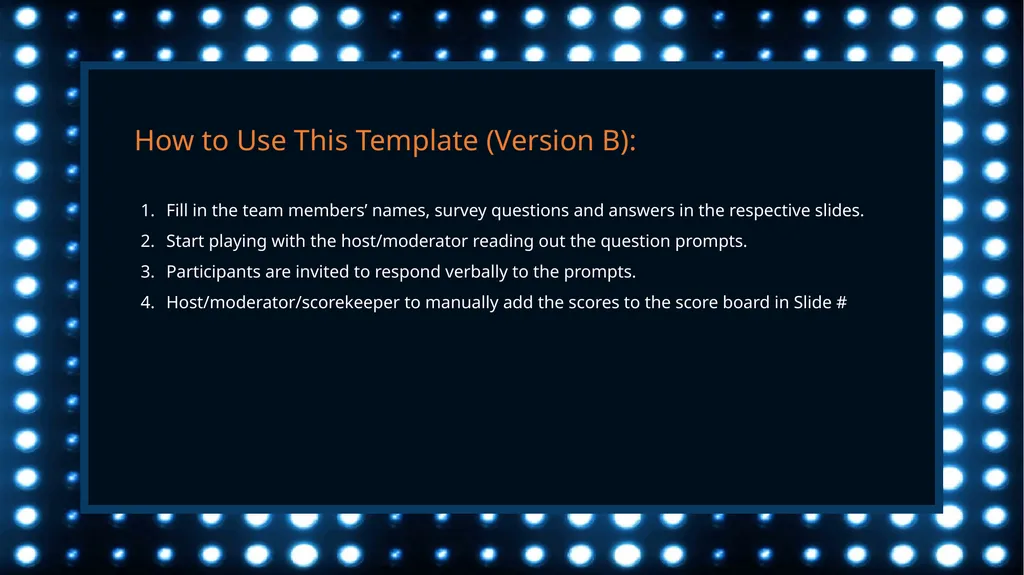
Fill in the team members’ names, survey questions and answers in the respective slides.
Start playing with the host/moderator reading out the question prompts.
Participants are invited to respond verbally to the prompts.
Host/moderator/scorekeeper to manually add the scores to the score board in Slide # How to Use This Template (Version B):<br>
05
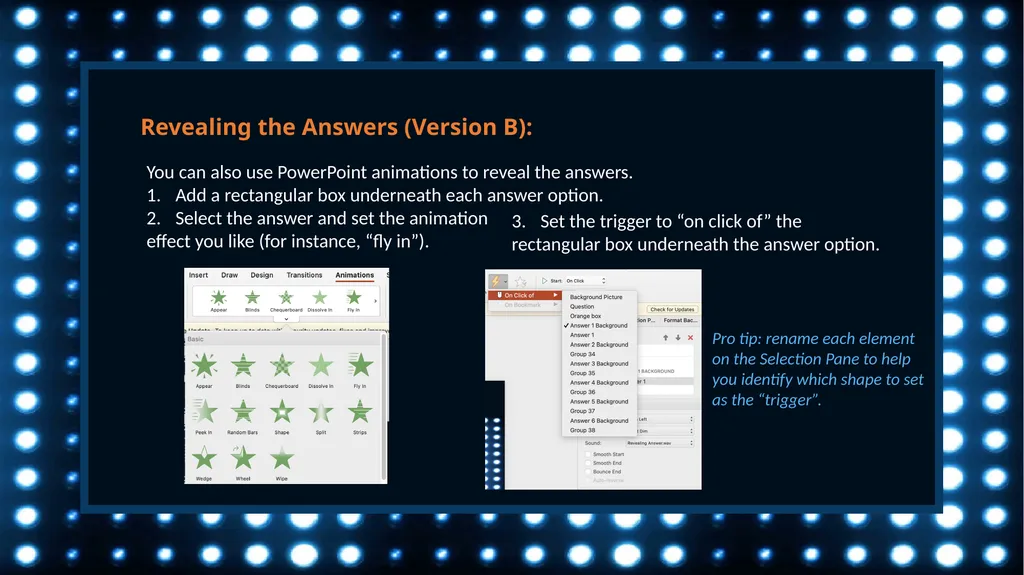
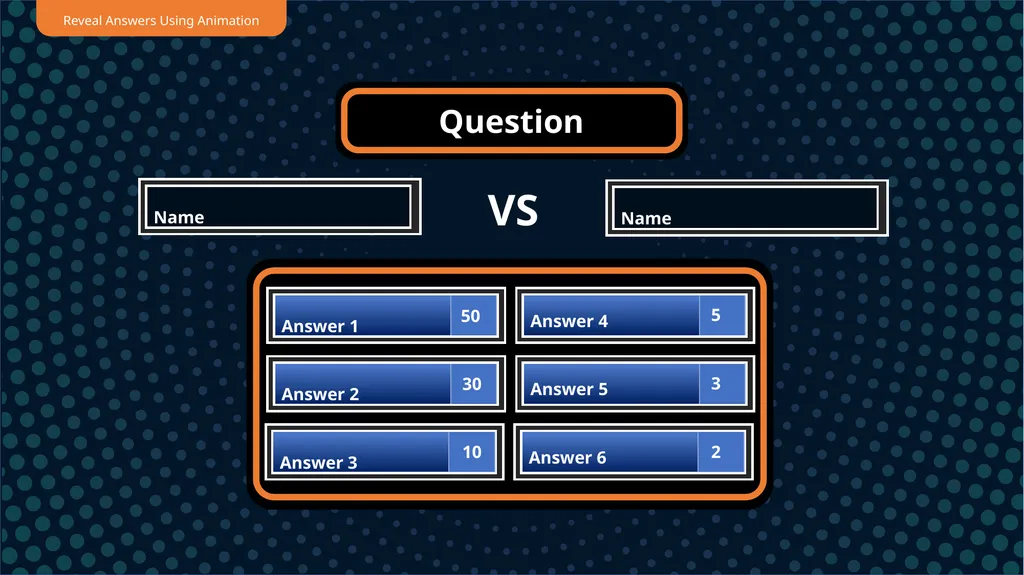
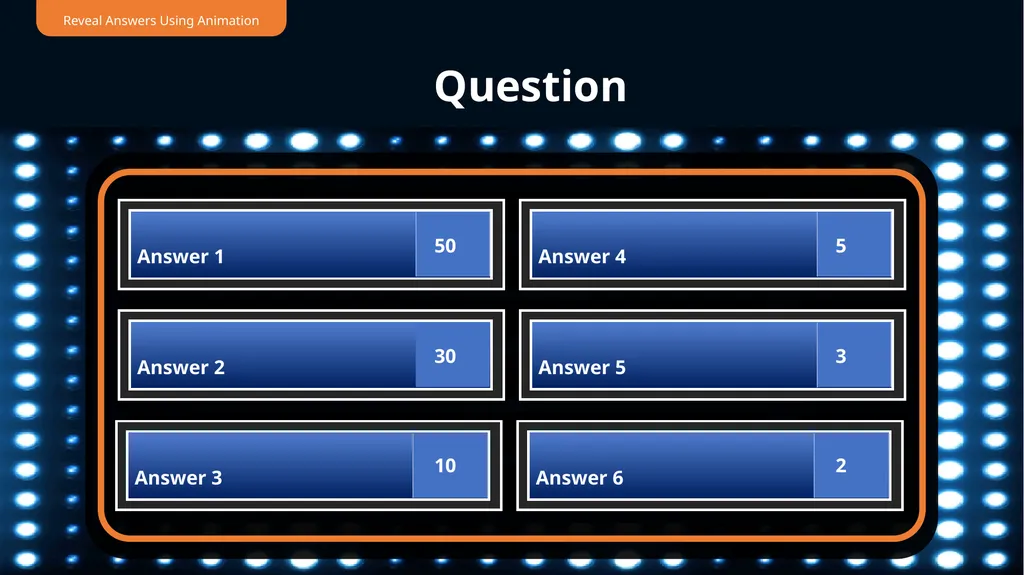
Revealing the Answers (Version B): You can also use PowerPoint animations to reveal the answers.
Add a rectangular box underneath each answer option.
Select the answer and set the animation
effect you like (for instance, “fly in”). Set the trigger to “on click of” the
rectangular box underneath the answer option. Pro tip: rename each element
on the Selection Pane to help
you identify which shape to set
as the “trigger”.<br>
06
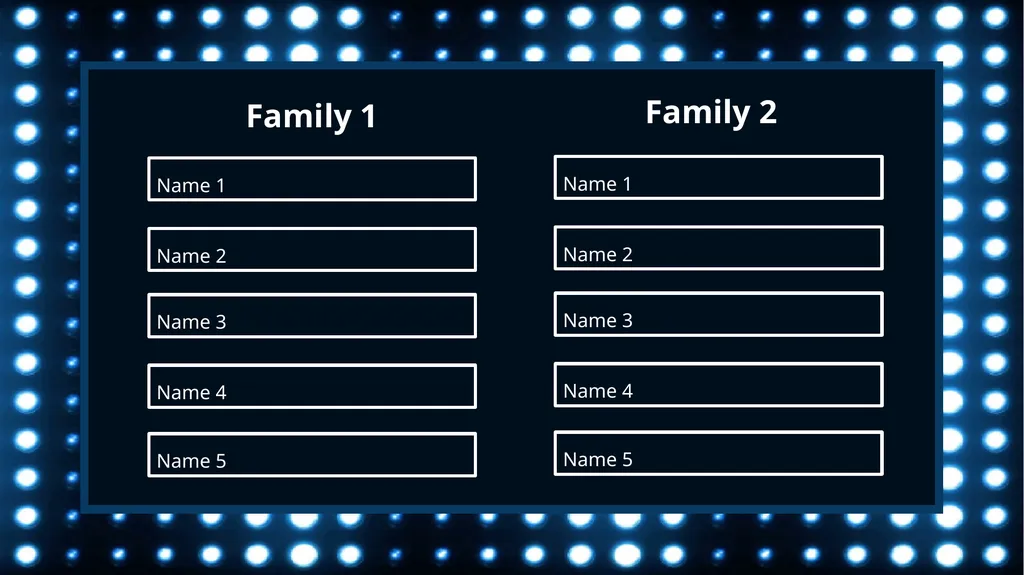
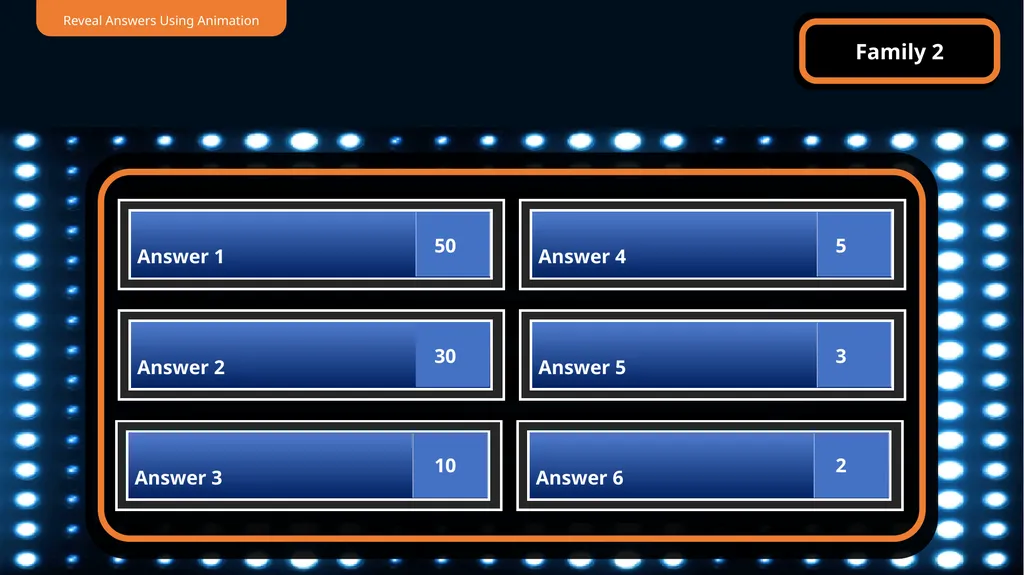
Family 1 Family 2<br>
07
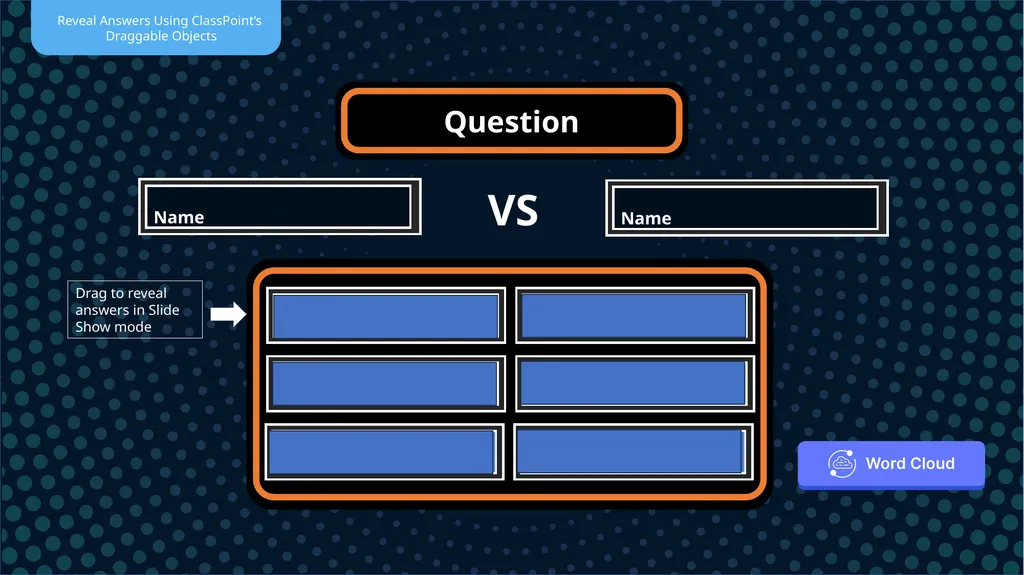
Question Name Name VS Drag to reveal
answers in Slide Show mode<br>
08
REGULAR ROUNDS<br>
09
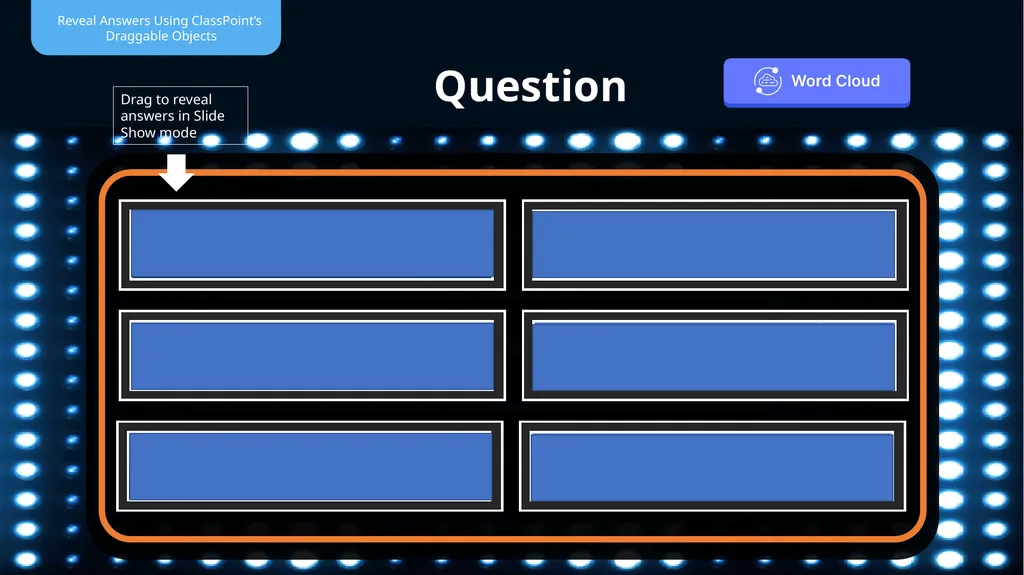
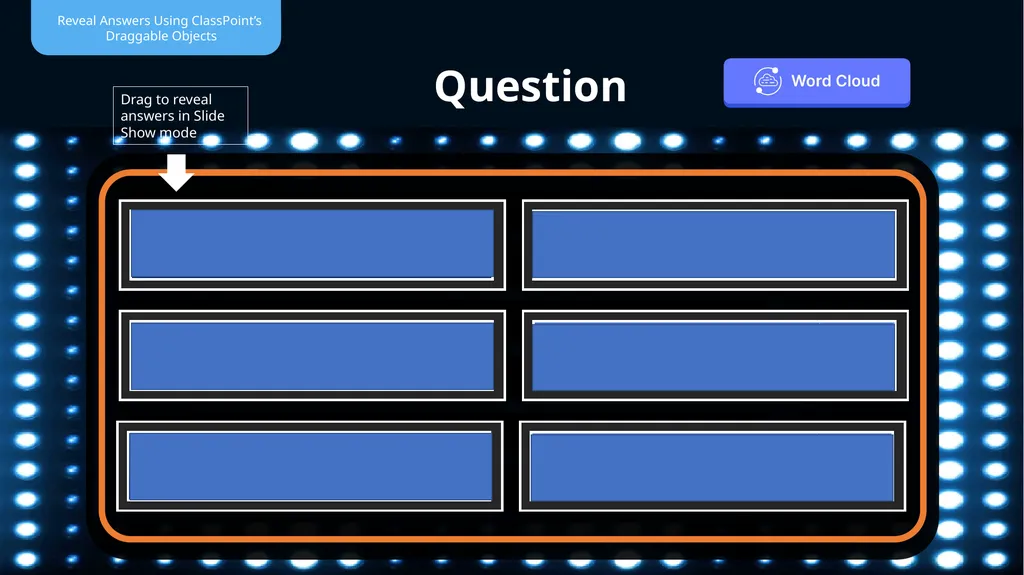
Question Drag to reveal
answers in Slide Show mode<br>
10
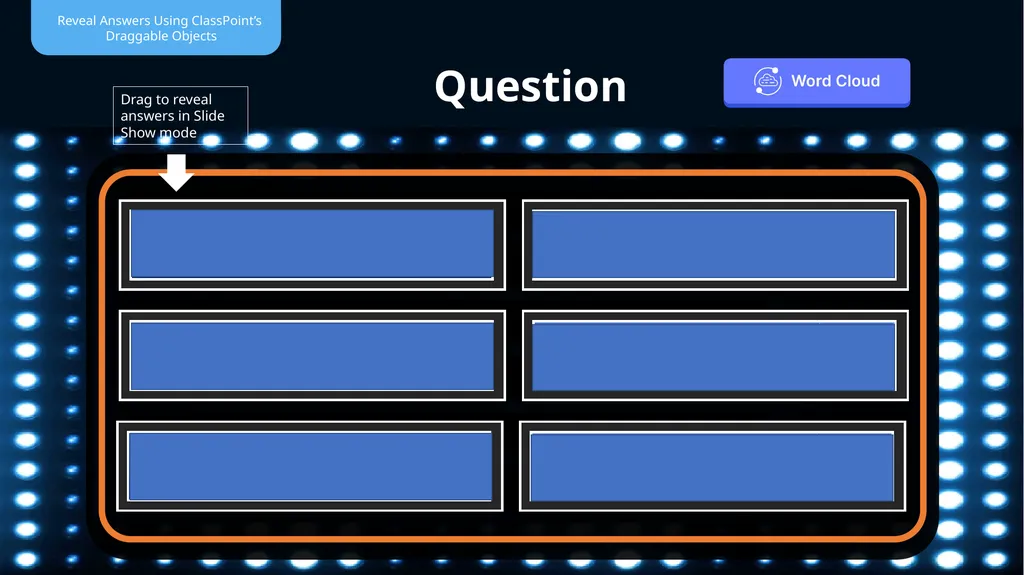
Question Drag to reveal
answers in Slide Show mode<br>
11
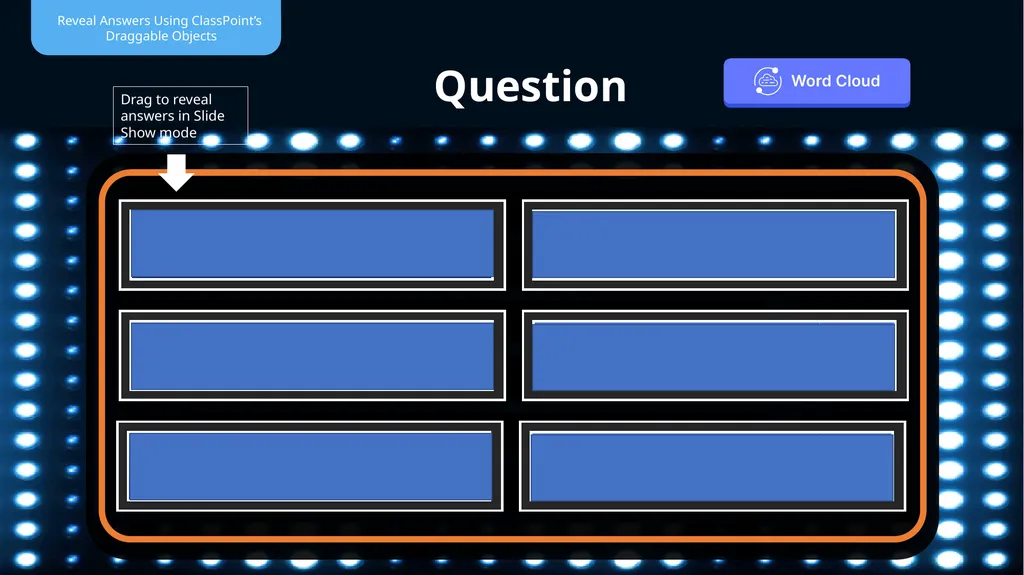
Question Drag to reveal
answers in Slide Show mode<br>
12
Question Drag to reveal
answers in Slide Show mode<br>
13
Question<br>
14
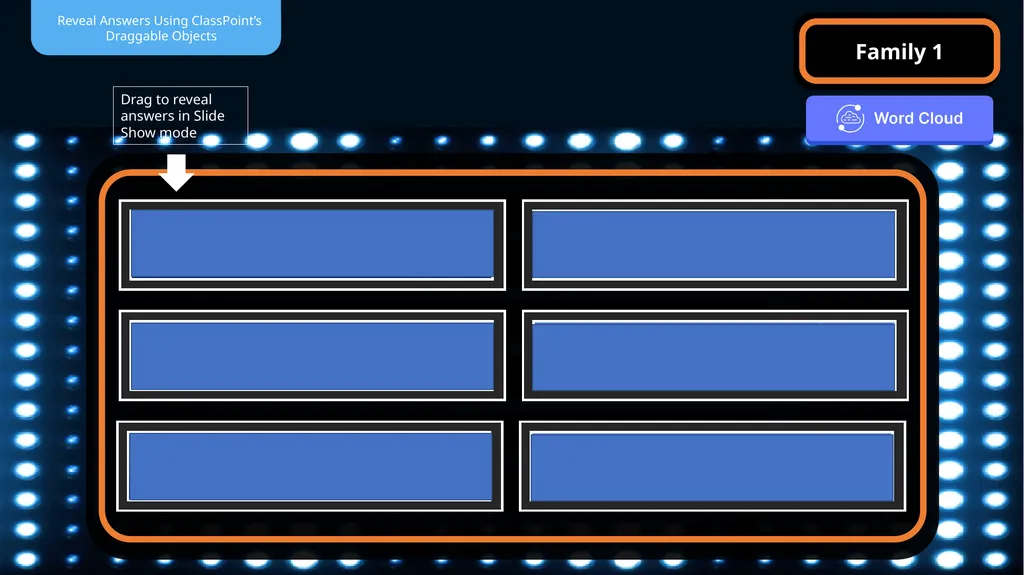
Family 1 Drag to reveal
answers in Slide Show mode<br>
15
Family 1 Drag to reveal
answers in Slide Show mode<br>
16
Winning Team: NAME<br>
17
Family 1 Family 2<br>
18
Question Name Name VS<br>
19
REGULAR ROUNDS<br>
20
Question<br>
21
Question<br>
22
Question<br>
23
Question<br>
24
Question<br>
25
Family 1<br>
26
Family 2<br>
27
Winning Team: NAME<br>
28
Resources Award Stars Run an Interactive Quiz Reveal Leaderboard<br>