iLab Introduction Internal User Guide Rodent Metabolic Phenotyping Core Perelman School of Medicine Link: https:med-upenn.corefacilities.orgservicecentershowexternal5249 To register as a new user, please click the Register button
"iLab Introduction Internal User Guide Rodent" is the property of its rightful owner. Permission is granted to
download and print the materials on this website for personal, non-commercial use only, and to display it
on your personal computer provided you do not modify the materials and that you retain all copyright
notices contained in the materials. By downloading content from our website, you accept the terms of this
agreement.
Presentation Transcript
01
iLab Introduction Internal User Guide Rodent Metabolic Phenotyping Core Perelman School of Medicine Link: https://med-upenn.corefacilities.org/service_center/show_external/5249<br>
02
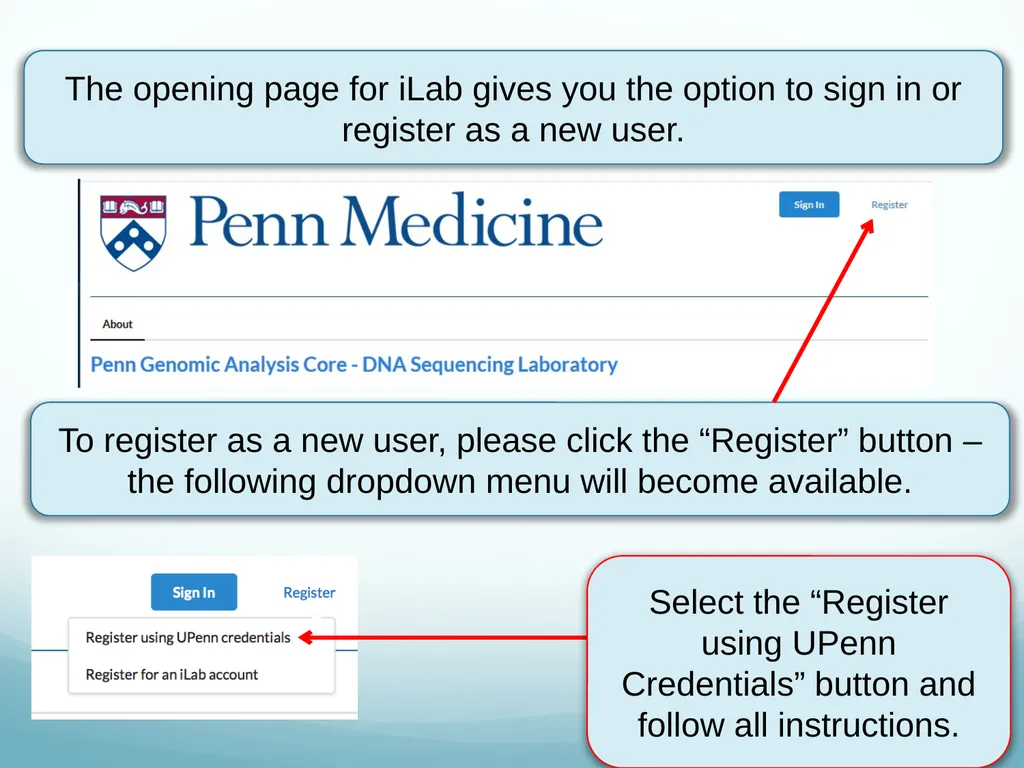
To register as a new user, please click the “Register” button – the following dropdown menu will become available. The opening page for iLab gives you the option to sign in or register as a new user. Select the “Register using UPenn Credentials” button and follow all instructions.<br>
03
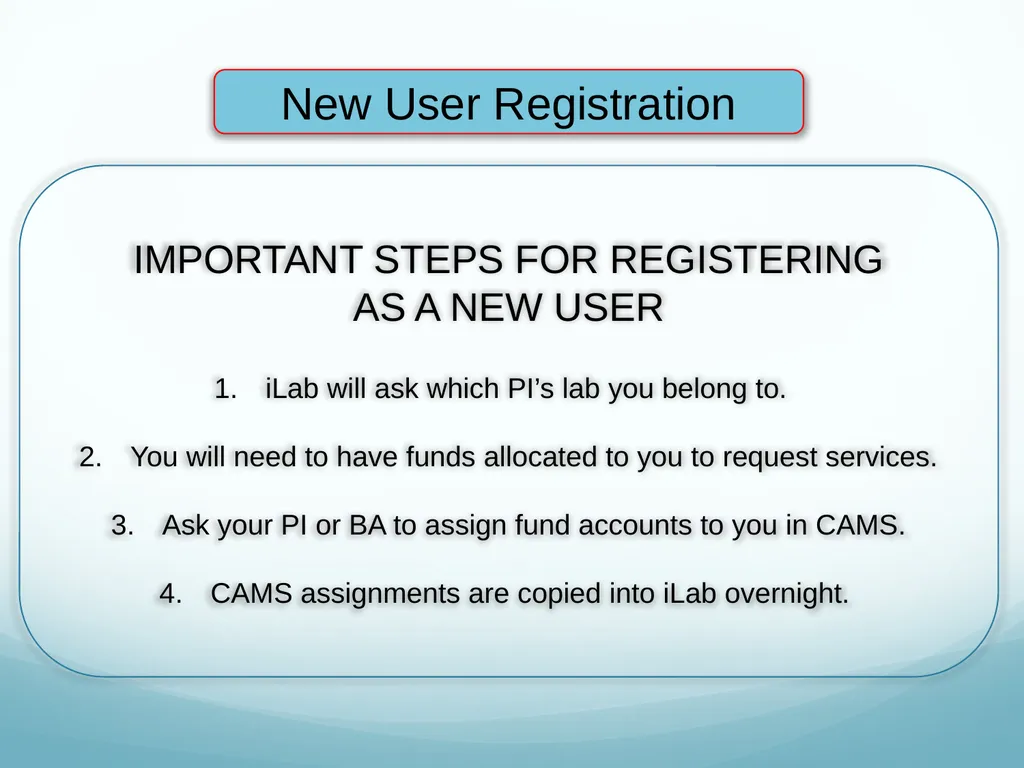
IMPORTANT STEPS FOR REGISTERING
AS A NEW USER
iLab will ask which PI’s lab you belong to.
You will need to have funds allocated to you to request services.
Ask your PI or BA to assign fund accounts to you in CAMS.
CAMS assignments are copied into iLab overnight. New User Registration<br>
04
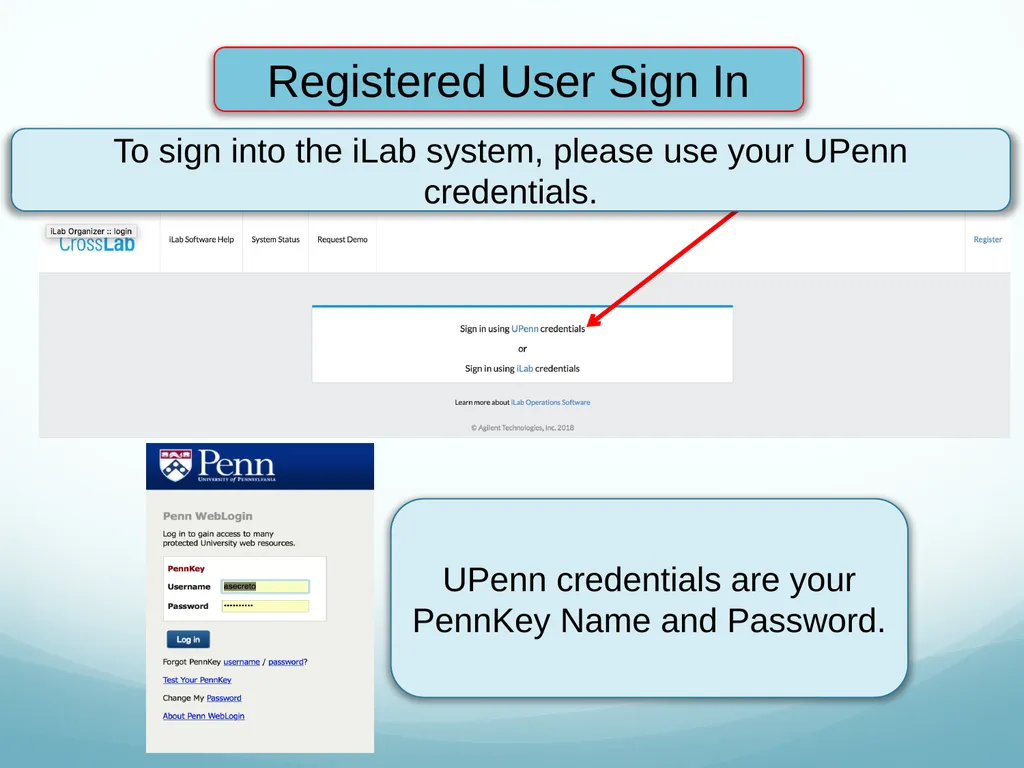
UPenn credentials are your PennKey Name and Password. Registered User Sign In To sign into the iLab system, please use your UPenn credentials.<br>
05
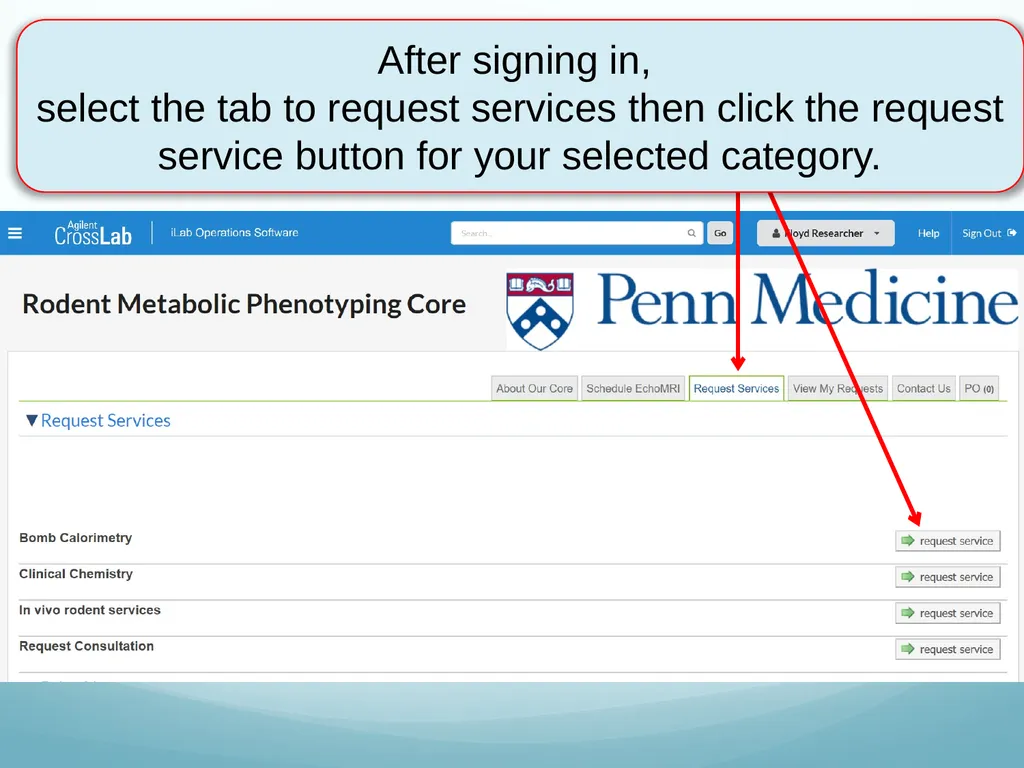
After signing in,
select the tab to request services then click the request service button for your selected category.<br>
06
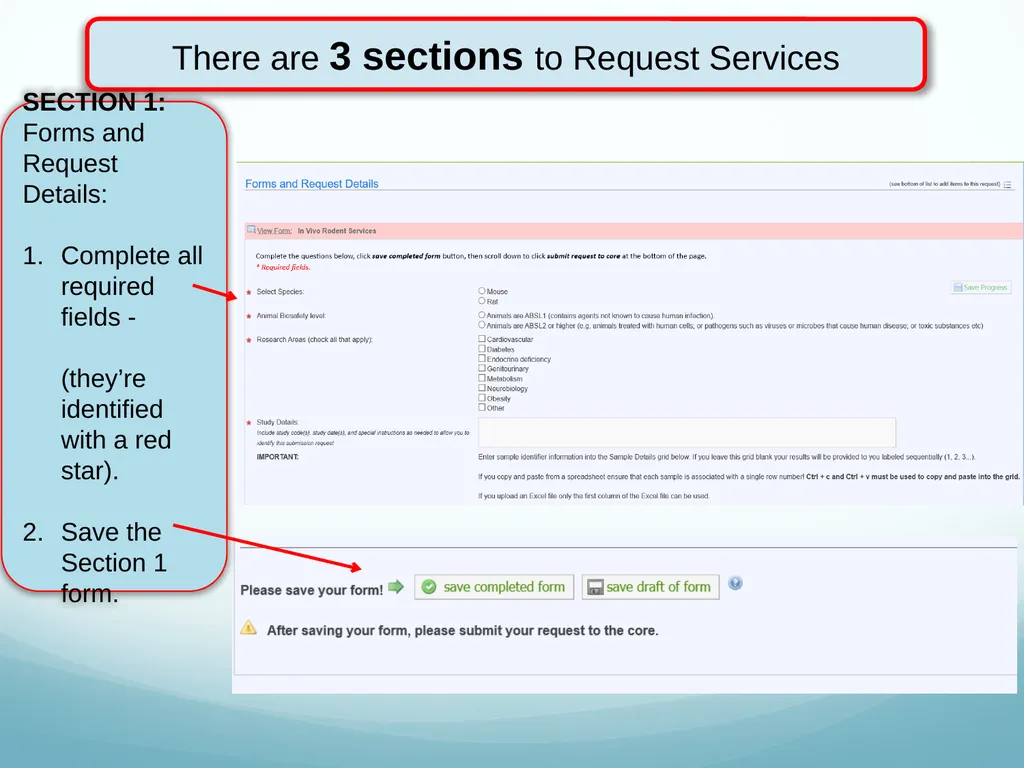
There are 3 sections to Request Services SECTION 1: Forms and Request Details:
Complete all required fields - (they’re identified with a red star).
Save the Section 1 form.<br>
07
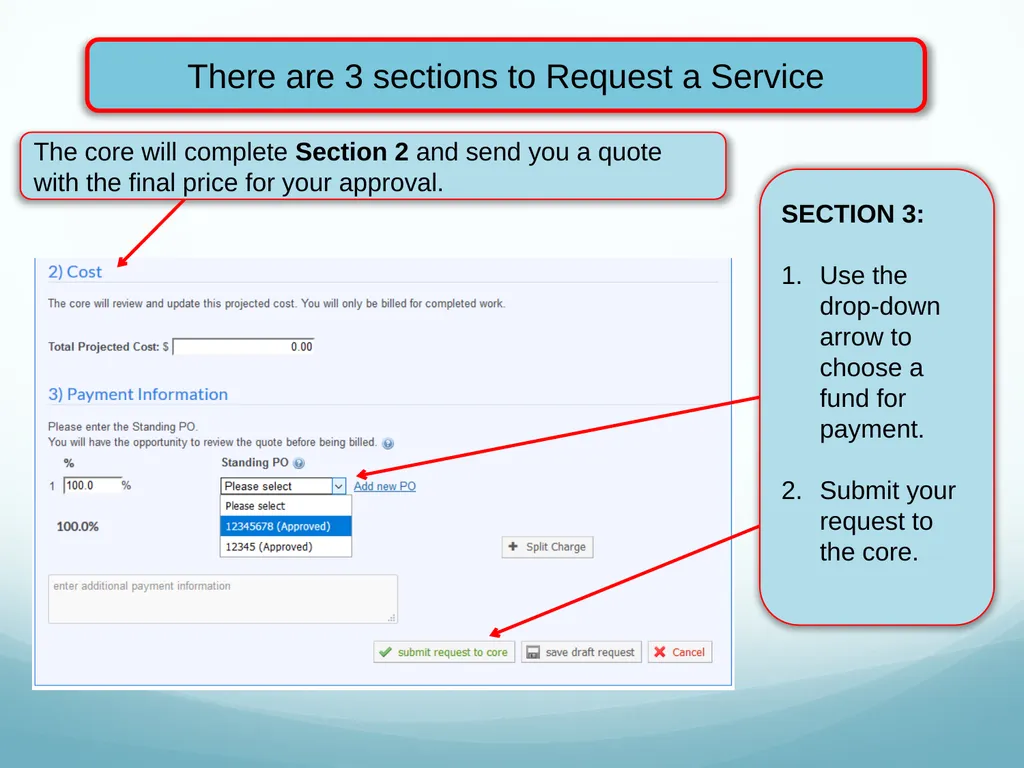
SECTION 3:
Use the drop-down arrow to choose a fund for payment.
Submit your request to the core. There are 3 sections to Request a Service The core will complete Section 2 and send you a quote with the final price for your approval.<br>
08
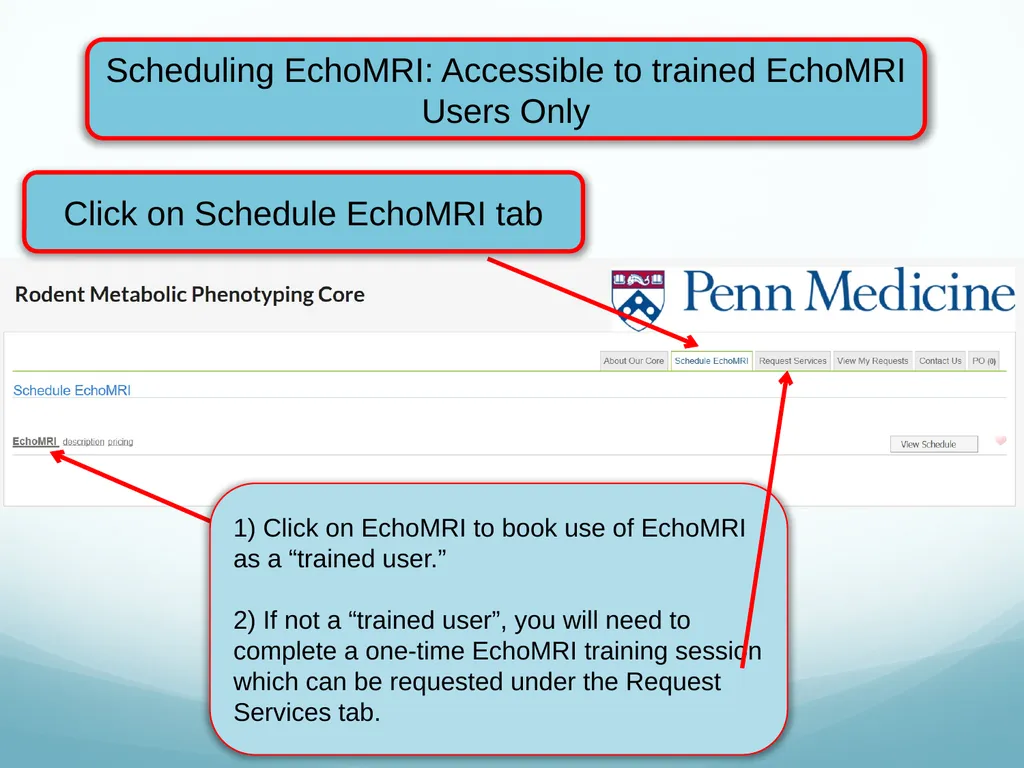
Scheduling EchoMRI: Accessible to trained EchoMRI Users Only 1) Click on EchoMRI to book use of EchoMRI as a “trained user.”
2) If not a “trained user”, you will need to complete a one-time EchoMRI training session which can be requested under the Request Services tab. Click on Schedule EchoMRI tab<br>
09
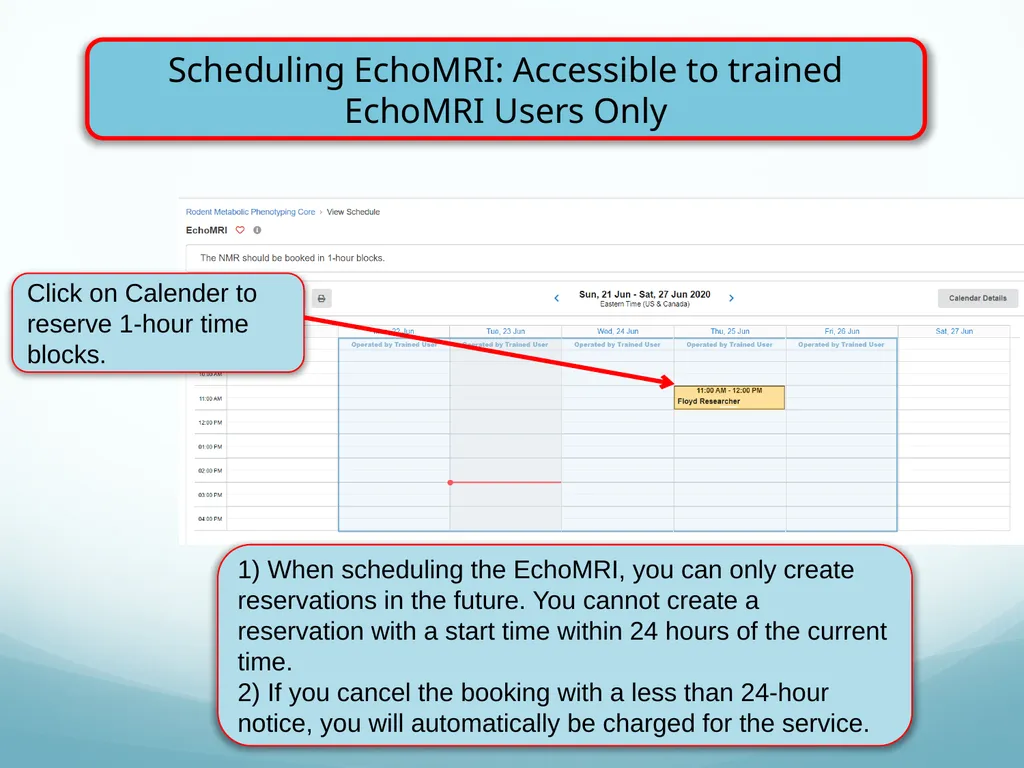
Scheduling EchoMRI: Accessible to trained EchoMRI Users Only 1) When scheduling the EchoMRI, you can only create reservations in the future. You cannot create a reservation with a start time within 24 hours of the current time.
2) If you cancel the booking with a less than 24-hour notice, you will automatically be charged for the service. Click on Calender to reserve 1-hour time blocks.<br>
10
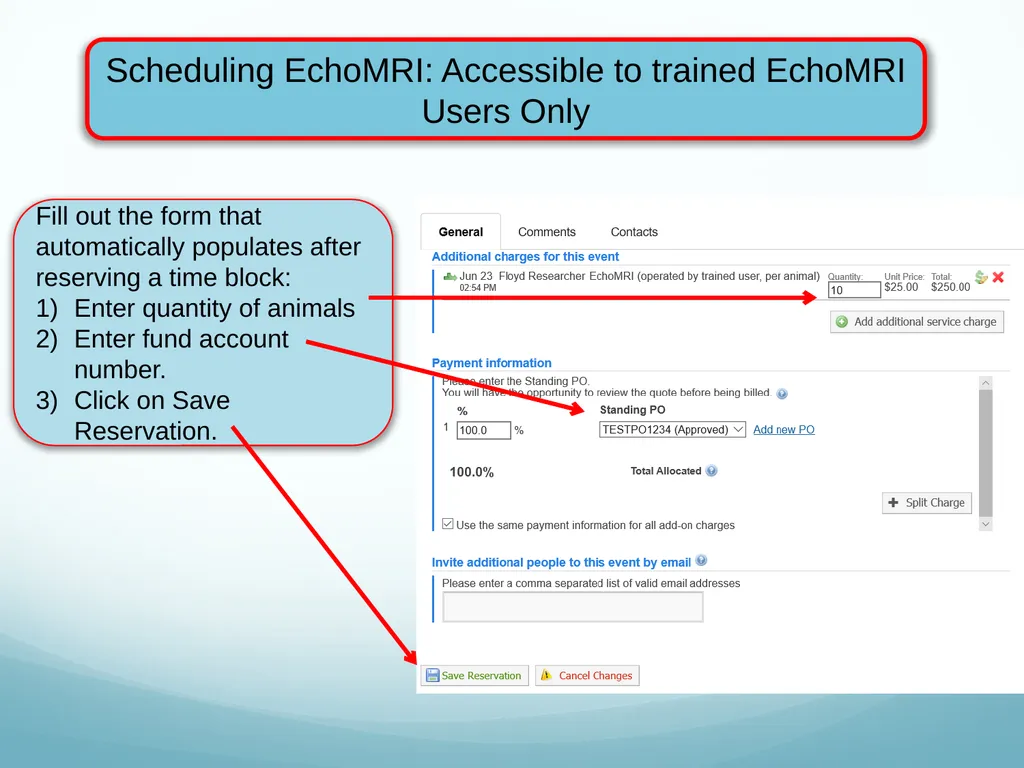
Scheduling EchoMRI: Accessible to trained EchoMRI Users Only Fill out the form that automatically populates after reserving a time block:
Enter quantity of animals
Enter fund account number.
Click on Save Reservation.<br>
11
iLab access issues If you are unable to access iLab:
Make sure you are a registered user of the iLab system
Please send an e-mail to ilab-support@agilent.com describing your issue. iLab staff responds quickly to support requests.
iLab can help with funding source issues AFTER your BA has added you to funding sources in CAMS.<br>
12
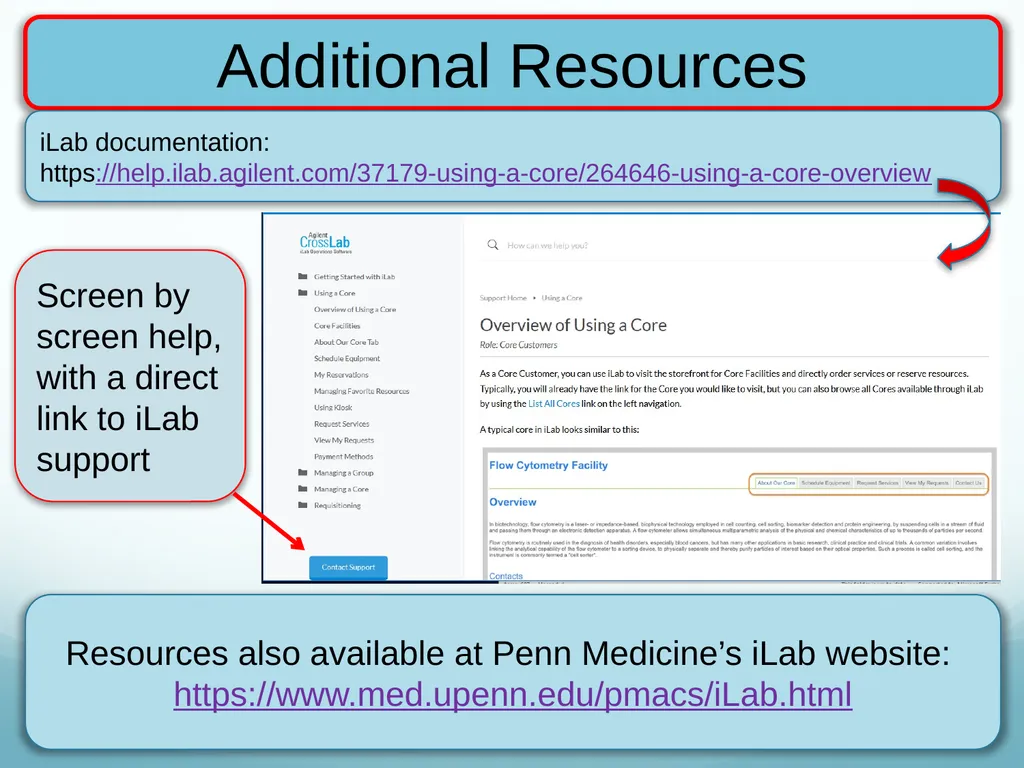
Additional Resources iLab documentation:
https://help.ilab.agilent.com/37179-using-a-core/264646-using-a-core-overview Resources also available at Penn Medicine’s iLab website: https://www.med.upenn.edu/pmacs/iLab.html Screen by screen help, with a direct link to iLab support<br>