Introduction This resource is not a teaching and learning program. It should be used in conjunction with Year 8 term 3 program From page to stage. Introduction for the teacher 1 Instructions for use Instructions for the teacher Classroom
"Introduction This resource is not a teaching and" is the property of its rightful owner. Permission is granted to
download and print the materials on this website for personal, non-commercial use only, and to display it
on your personal computer provided you do not modify the materials and that you retain all copyright
notices contained in the materials. By downloading content from our website, you accept the terms of this
agreement.
Presentation Transcript
01
Introduction This resource is not a teaching and learning program. It should be used in conjunction with Year 8 term 3 program ‘From page to stage’. Introduction for the teacher 1<br>
02
Instructions for use Instructions for the teacher Classroom teachers are encouraged to add and adapt slides as required to meet the needs of their students.
Save a copy of the file to make changes to the slide deck. Go to File > Download a Copy (this downloads a copy to the computer to edit in the PowerPoint application).
To convert the PowerPoint to Google Slides:
Upload the file into Google Drive and open it.
Go to File > Save as Google Slides.
(Note – conversion may cause formatting changes in the slides.) 2<br>
03
Phase 2 – learning about intertextuality Year 8 – Term 3 8.3 – ‘From page to stage’ Photo by Unseen Studio on Unsplash<br>
04
Sharing learning intentions and success criteria 4<br>
05
Learning intentions and success criteria We are learning to:
understand intertextuality and how texts connect to other texts
identify how composers adapt and transform existing stories for new contexts
explore how language choices influence how characters are represented
develop vocabulary to help us analyse and discuss texts.
We can:
[classroom teacher to insert sample success criteria]
[classroom teacher to insert sample success criteria]
[classroom teacher to insert sample success criteria]. 5<br>
06
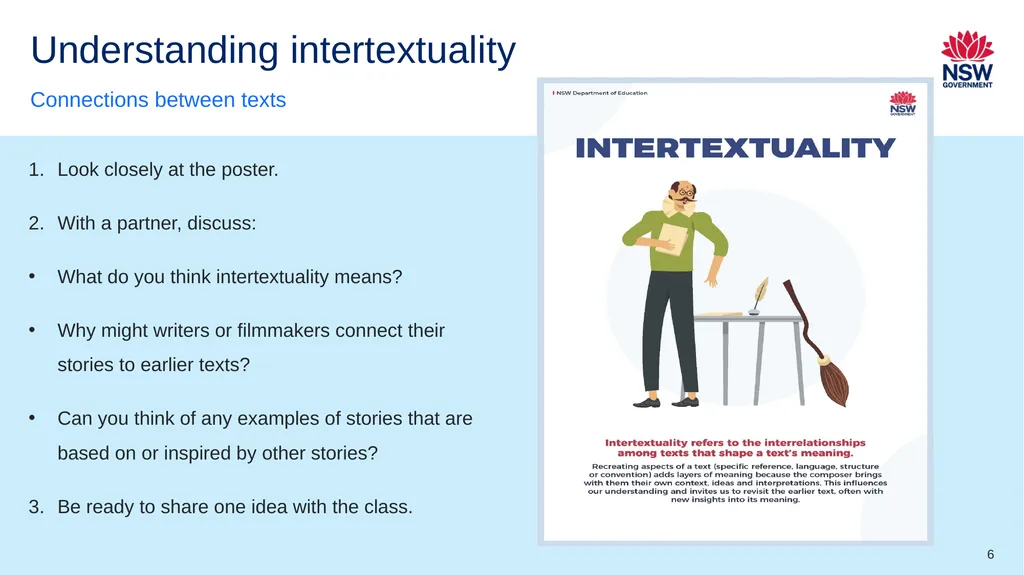
Understanding intertextuality Connections between texts Look closely at the poster.
With a partner, discuss:
What do you think intertextuality means?
Why might writers or filmmakers connect their stories to earlier texts?
Can you think of any examples of stories that are based on or inspired by other stories?
Be ready to share one idea with the class. 6<br>
07
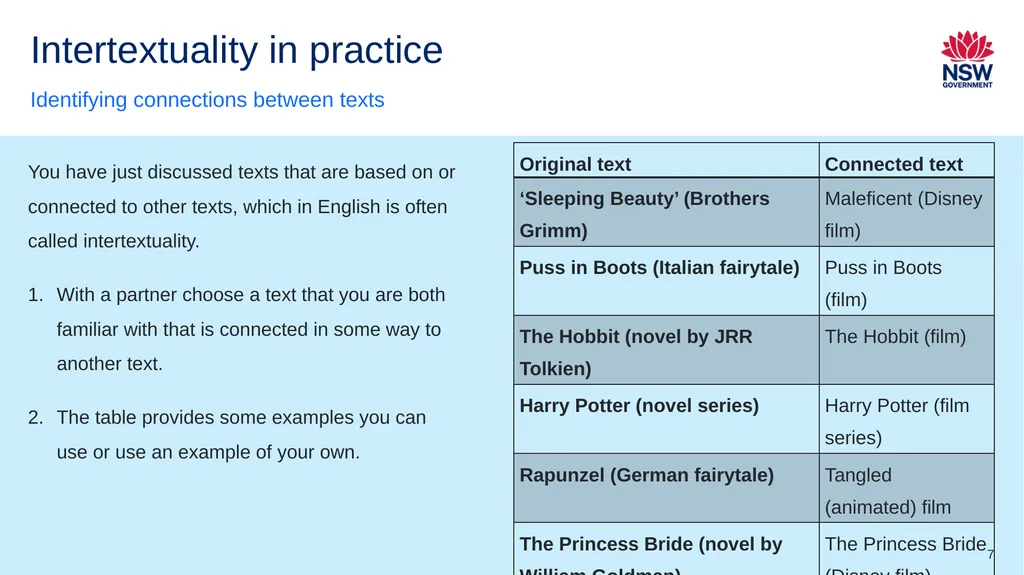
Intertextuality in practice Identifying connections between texts You have just discussed texts that are based on or connected to other texts, which in English is often called intertextuality.
With a partner choose a text that you are both familiar with that is connected in some way to another text.
The table provides some examples you can use or use an example of your own. 7<br>
08
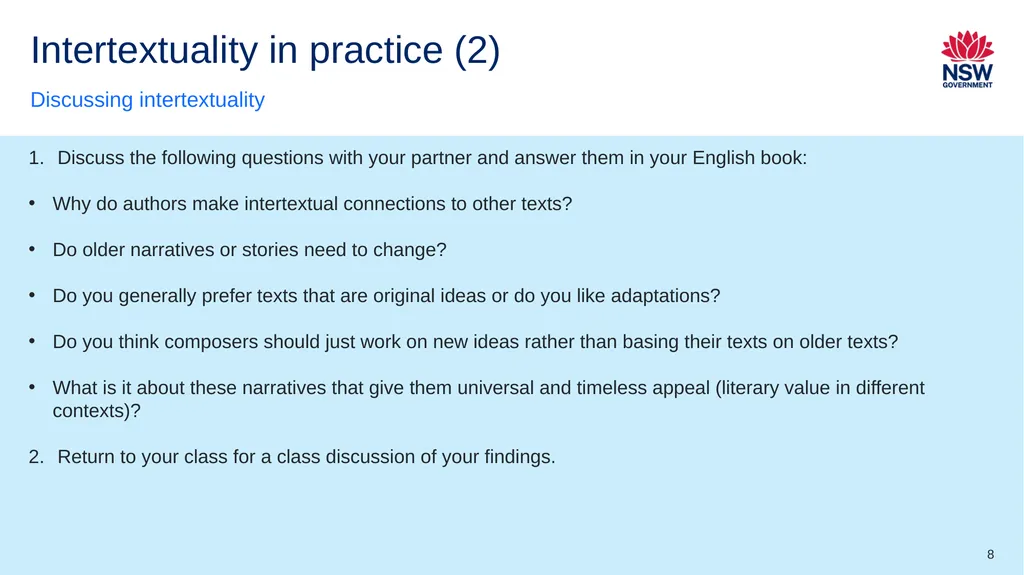
Intertextuality in practice (2) Discussing intertextuality Discuss the following questions with your partner and answer them in your English book:
Why do authors make intertextual connections to other texts?
Do older narratives or stories need to change?
Do you generally prefer texts that are original ideas or do you like adaptations?
Do you think composers should just work on new ideas rather than basing their texts on older texts?
What is it about these narratives that give them universal and timeless appeal (literary value in different contexts)?
Return to your class for a class discussion of your findings. 8<br>
09
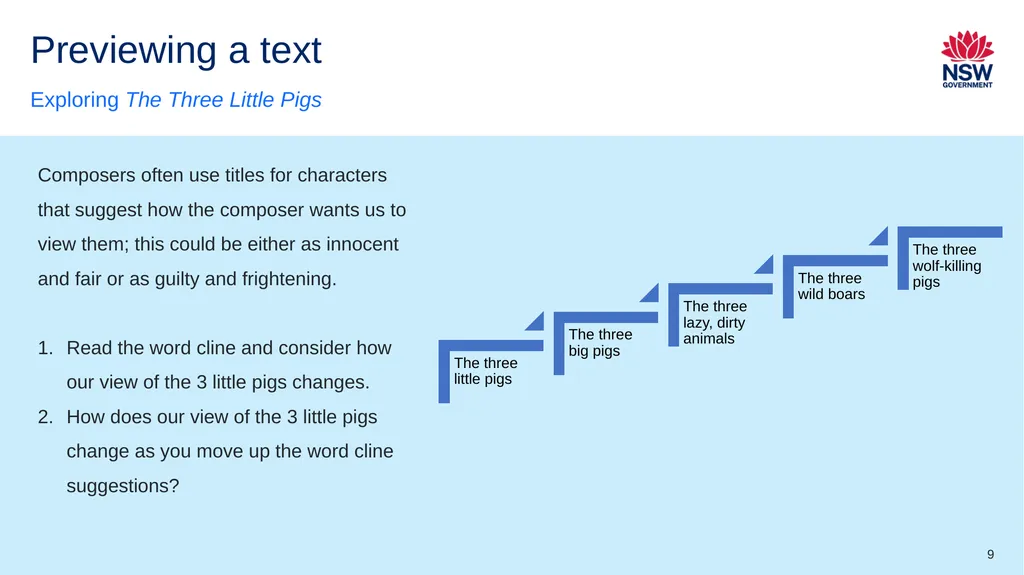
Previewing a text Exploring The Three Little Pigs Composers often use titles for characters that suggest how the composer wants us to view them; this could be either as innocent and fair or as guilty and frightening.
Read the word cline and consider how our view of the 3 little pigs changes.
How does our view of the 3 little pigs change as you move up the word cline suggestions? 9<br>
10
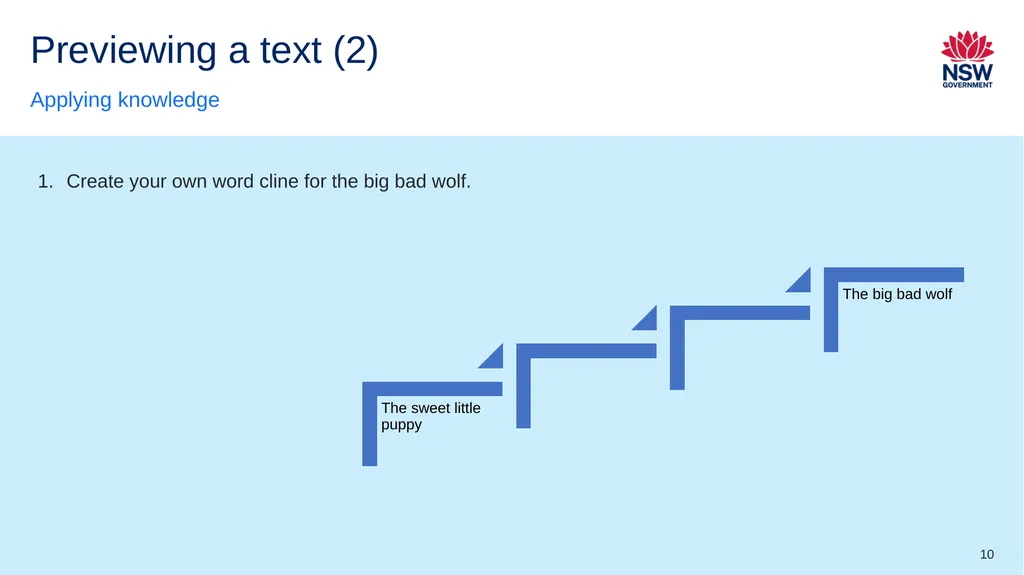
Previewing a text (2) Applying knowledge Create your own word cline for the big bad wolf. 10<br>
11
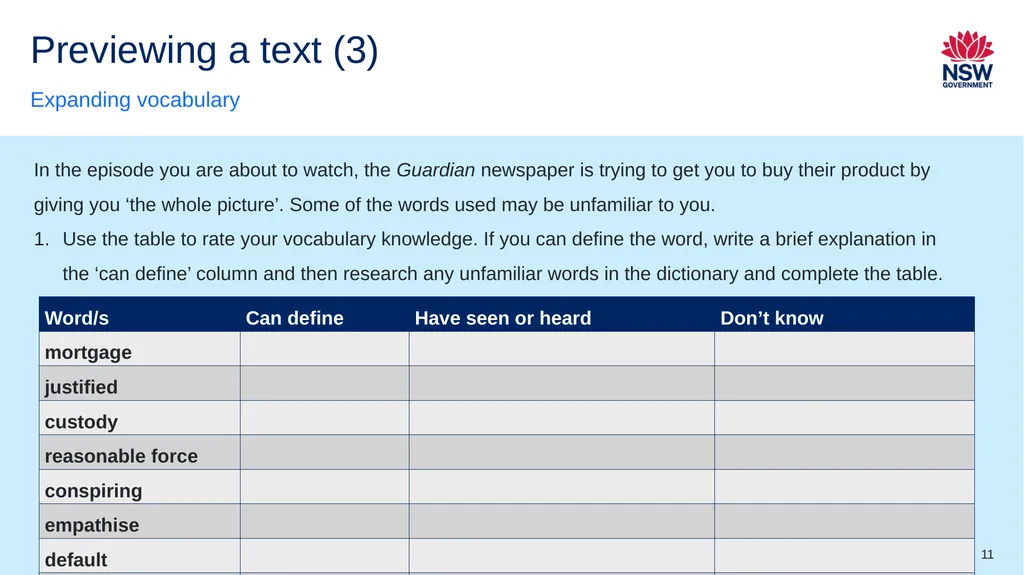
Previewing a text (3) Expanding vocabulary In the episode you are about to watch, the Guardian newspaper is trying to get you to buy their product by giving you ‘the whole picture’. Some of the words used may be unfamiliar to you.
Use the table to rate your vocabulary knowledge. If you can define the word, write a brief explanation in the ‘can define’ column and then research any unfamiliar words in the dictionary and complete the table. 11<br>
References (2) This presentation contains NSW Curriculum and syllabus content. The NSW Curriculum is developed by the NSW Education Standards Authority. This content is prepared by NESA for and on behalf of the Crown in the right of the State of New South Wales. The material is protected by Crown copyright.
Please refer to the NESA Copyright Disclaimer for more information https://educationstandards.nsw.edu.au/wps/portal/nesa/mini-footer/copyright.
NESA holds the only official and up-to-date versions of the NSW Curriculum and syllabus documents. Please visit the NSW Education Standards Authority (NESA) website https://educationstandards.nsw.edu.au/wps/portal/nesa/home and the NSW Curriculum website https://curriculum.nsw.edu.au. Rapunzel (German fairytale)
The Princess Bride (novel by William Goldman)
Maleficent (Disney film)
Puss in Boots (film)
The Hobbit (film)
Harry Potter (film series)
Tangled (animated) film
The Princess Bride (Disney film) 13<br>