
Introduction to Python Programming Part 3: Adding
Description: Introduction to Python Programming Part 3: Adding Comments to your Code How to use this resource Within each unit, you will learn how to develop and apply a range of Python programming skills. Skill explanations are in pink. After reading
Related Topics
Download Presentation
"Introduction to Python Programming Part 3: Adding" is the property of its rightful owner. Permission is granted to download and print the materials on this website for personal, non-commercial use only, and to display it on your personal computer provided you do not modify the materials and that you retain all copyright notices contained in the materials. By downloading content from our website, you accept the terms of this agreement.
Presentation Transcript
slide1. Introduction to Python
Programming Part 3: Adding Comments to your Code<br>
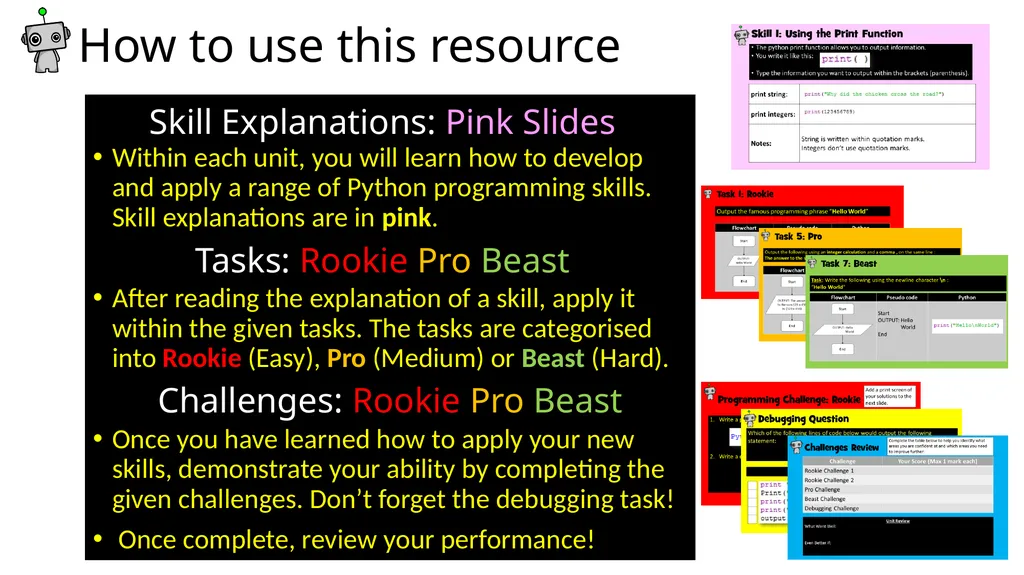
slide2. How to use this resource Within each unit, you will learn how to develop and apply a range of Python programming skills. Skill explanations are in pink.
After reading the explanation of a skill, apply it within the given tasks. The tasks are categorised into Rookie (Easy), Pro (Medium) or Beast (Hard).
Once you have learned how to apply your new skills, demonstrate your ability by completing the given challenges. Don’t forget the debugging task!
Once complete, review your performance! Skill Explanations: Pink Slides Tasks: Rookie Pro Beast Challenges: Rookie Pro Beast<br>
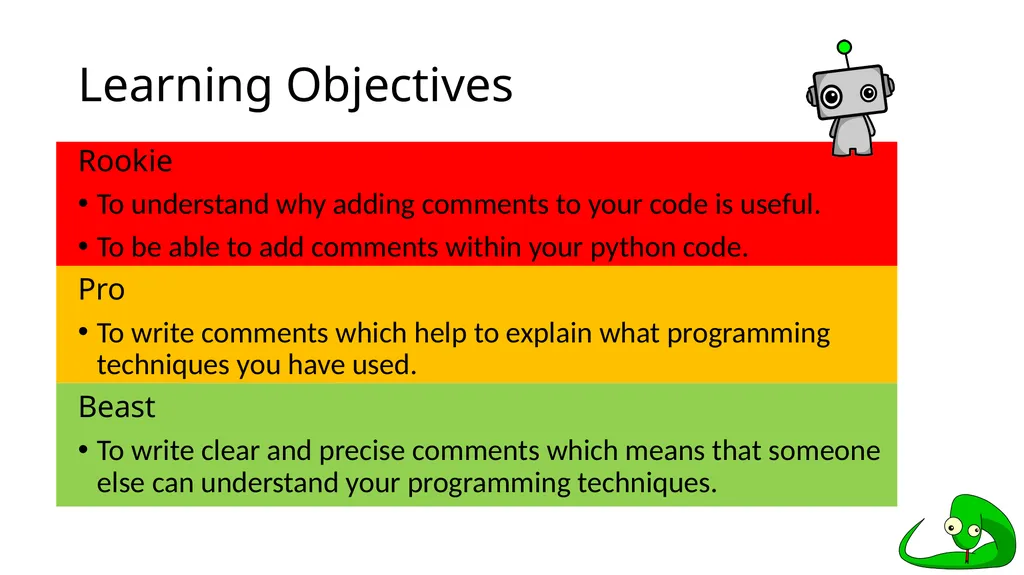
slide3. Learning Objectives Rookie
To understand why adding comments to your code is useful.
To be able to add comments within your python code.
Pro
To write comments which help to explain what programming techniques you have used.
Beast
To write clear and precise comments which means that someone else can understand your programming techniques.<br>
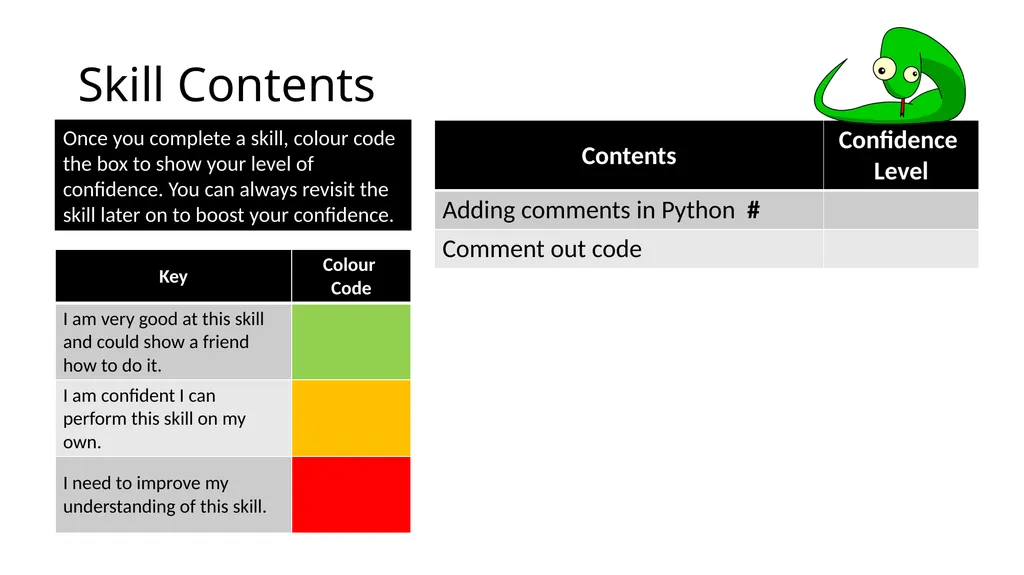
slide4. Skill Contents Once you complete a skill, colour code the box to show your level of confidence. You can always revisit the skill later on to boost your confidence.<br>
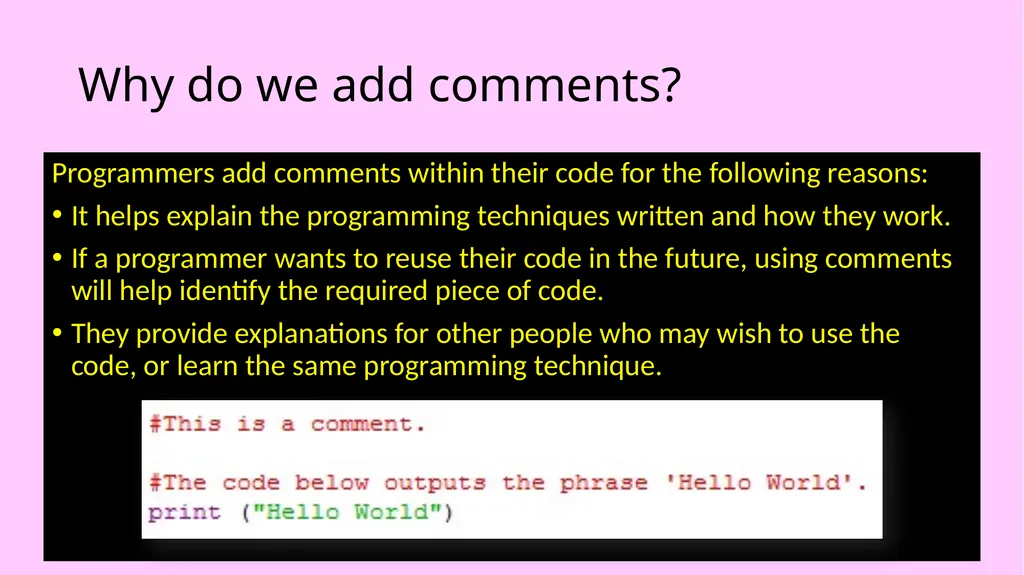
slide5. Why do we add comments? Programmers add comments within their code for the following reasons:
It helps explain the programming techniques written and how they work.
If a programmer wants to reuse their code in the future, using comments will help identify the required piece of code.
They provide explanations for other people who may wish to use the code, or learn the same programming technique.<br>
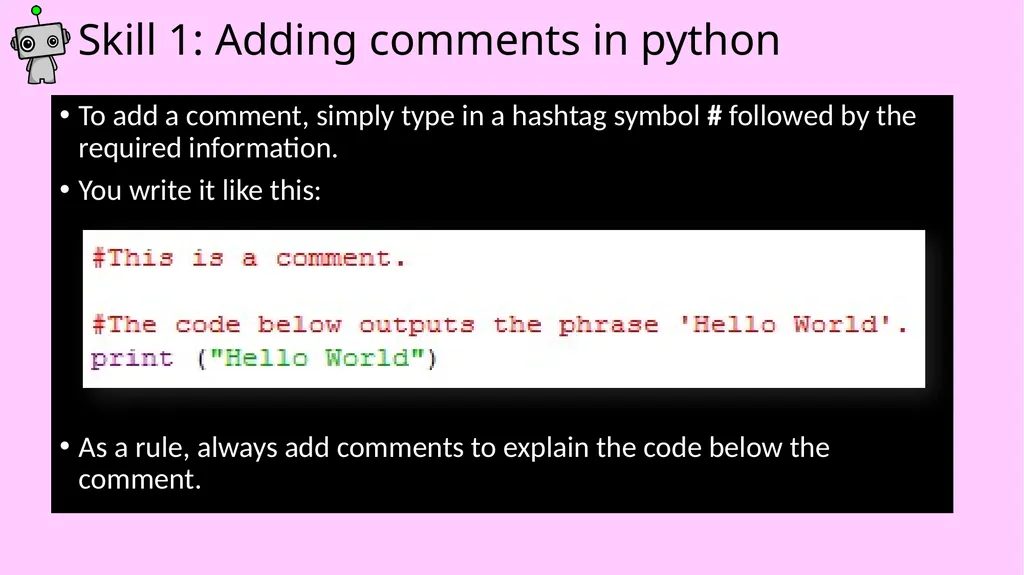
slide6. Skill 1: Adding comments in python To add a comment, simply type in a hashtag symbol # followed by the required information.
You write it like this:
As a rule, always add comments to explain the code below the comment.<br>
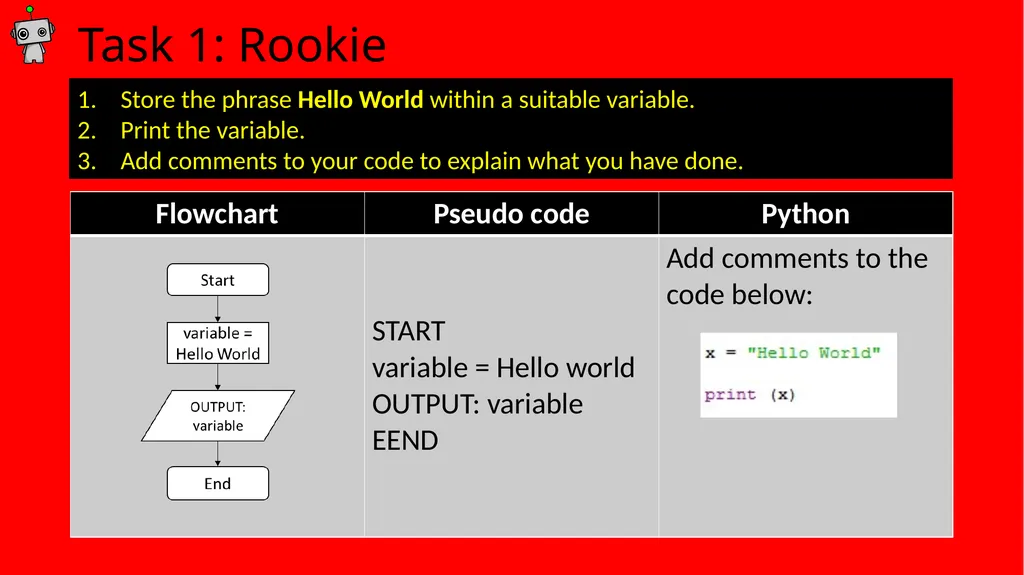
slide7. Task 1: Rookie Store the phrase Hello World within a suitable variable.
Print the variable.
Add comments to your code to explain what you have done.<br>
slide8. Task 1: Solution Add a print screen to show your coding here. Add a print screen to show your output solution here.<br>
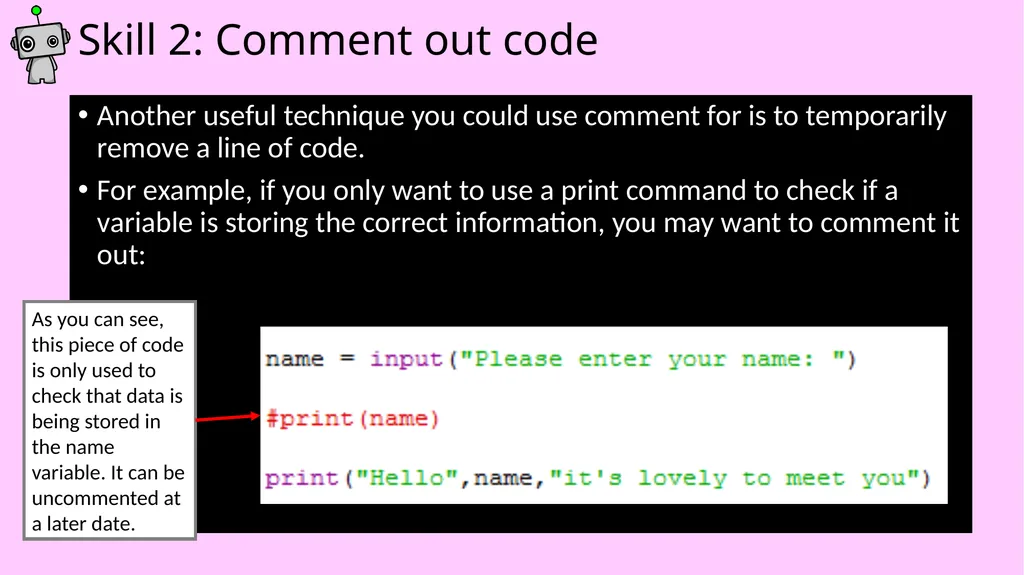
slide9. Skill 2: Comment out code Another useful technique you could use comment for is to temporarily remove a line of code.
For example, if you only want to use a print command to check if a variable is storing the correct information, you may want to comment it out: As you can see, this piece of code is only used to check that data is being stored in the name variable. It can be uncommented at a later date.<br>
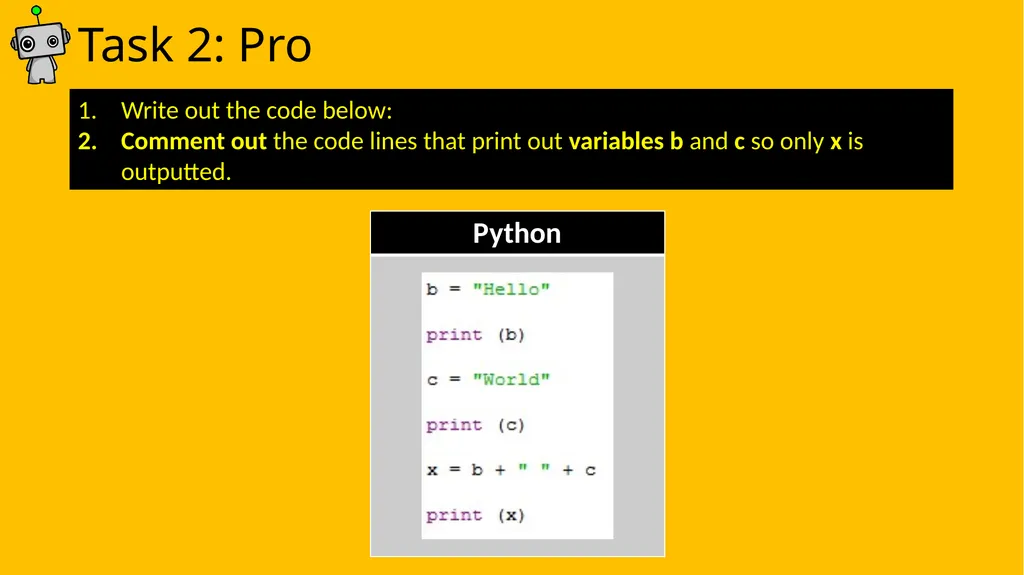
slide10. Task 2: Pro Write out the code below:
Comment out the code lines that print out variables b and c so only x is outputted.<br>
slide11. Skill Task 2: Solution Add a print screen to show your coding here. Add a print screen to show your output solution here.<br>
slide12. Programming Challenges Now you have learned some programming skills, it’s time to put them into practice!
Complete the following programming challenges. Start with the Rookie challenge and see how far you can push yourself.
Finally, complete the debugging challenge.
Once you have finished your challenges, complete the review. Look back at the skills you have learned so far to help you solve the challenge.<br>
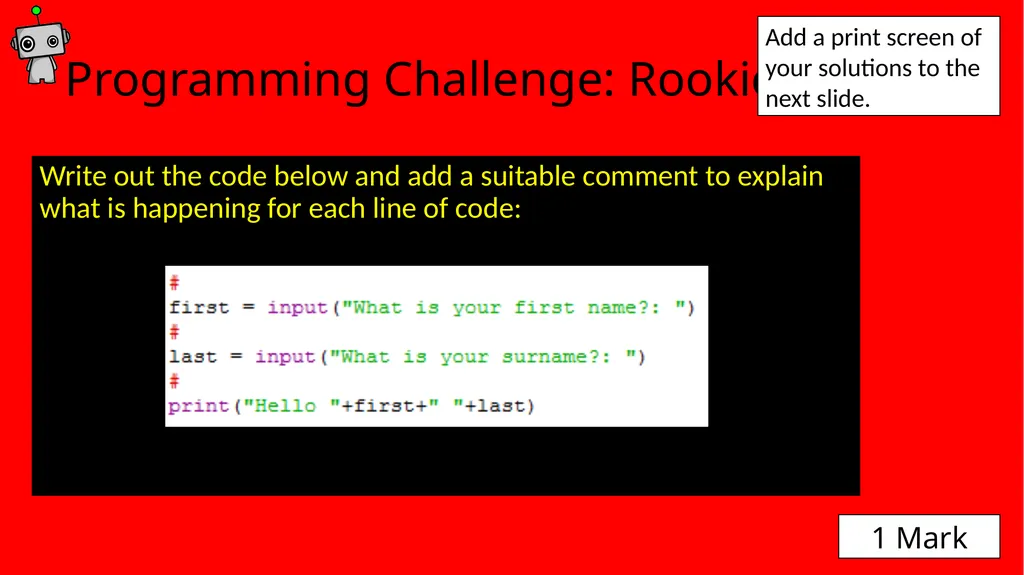
slide13. Programming Challenge: Rookie Write out the code below and add a suitable comment to explain what is happening for each line of code: Add a print screen of your solutions to the next slide. 1 Mark<br>
slide14. Programming Challenge: Rookie - Answer Add a print screen to show your coding here. Add a print screen to show your output solution here.<br>
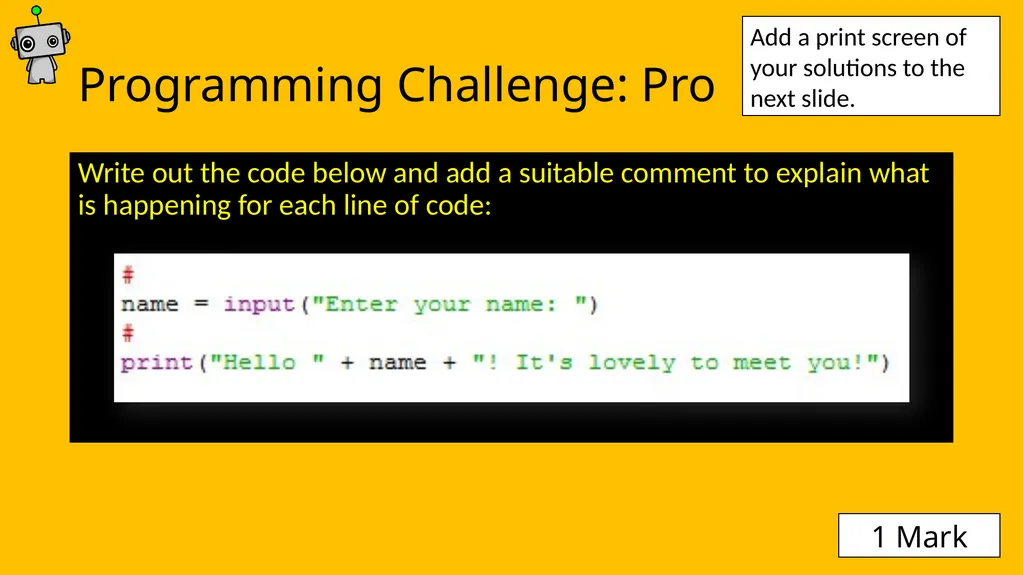
slide15. Programming Challenge: Pro Write out the code below and add a suitable comment to explain what is happening for each line of code: Add a print screen of your solutions to the next slide. 1 Mark<br>
slide16. Programming Challenge: Pro - Answer Add a print screen to show your coding here. Add a print screen to show your output solution here.<br>
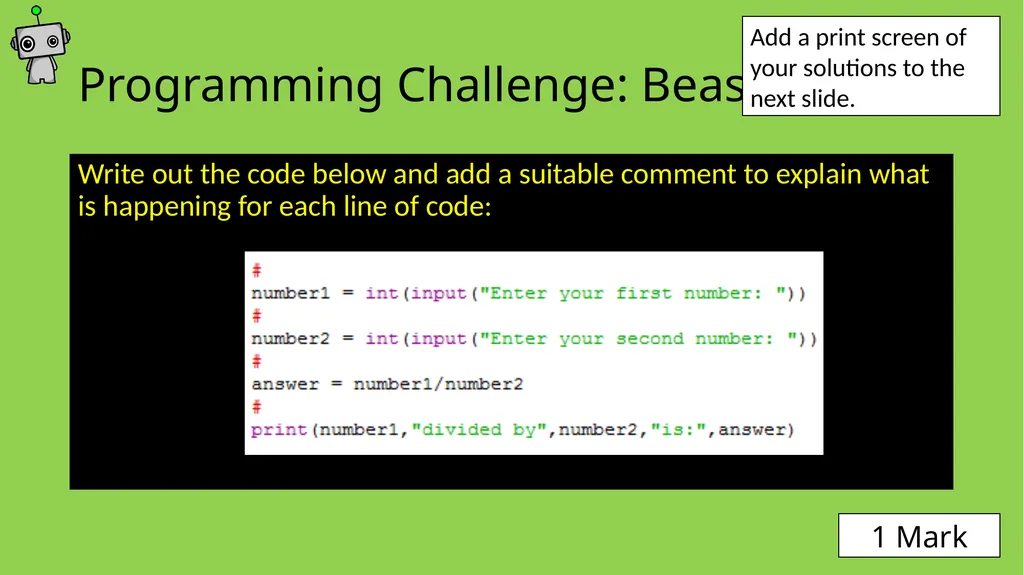
slide17. Programming Challenge: Beast Write out the code below and add a suitable comment to explain what is happening for each line of code: Add a print screen of your solutions to the next slide. 1 Mark<br>
slide18. Programming Challenge: Beast - Answer Add a print screen to show your coding here. Add a print screen to show your output solution here.<br>
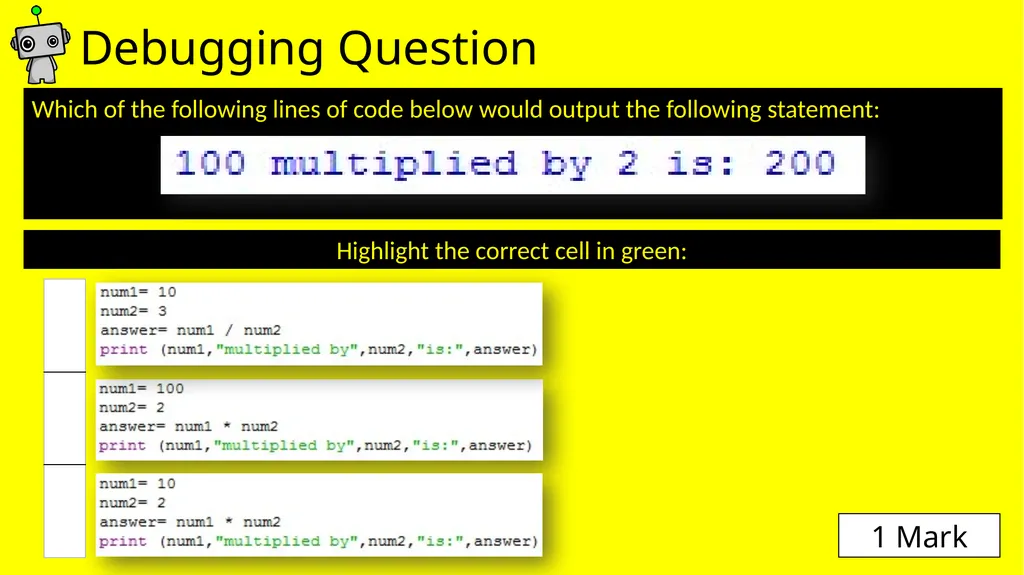
slide19. Which of the following lines of code below would output the following statement: Debugging Question Highlight the correct cell in green: 1 Mark<br>
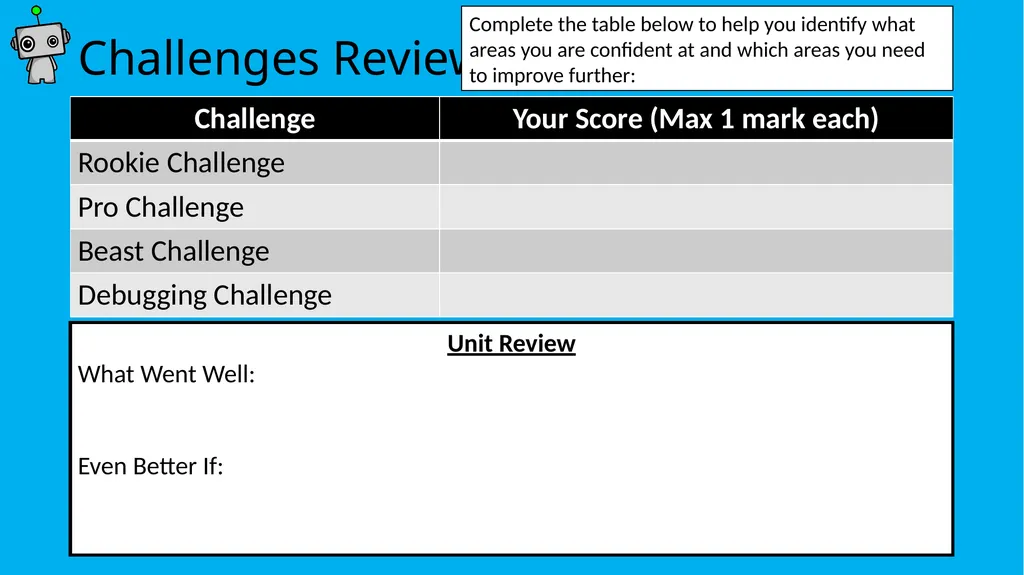
slide20. Challenges Review Unit Review
What Went Well:
Even Better If: Complete the table below to help you identify what areas you are confident at and which areas you need to improve further:<br>
slide2. How to use this resource Within each unit, you will learn how to develop and apply a range of Python programming skills. Skill explanations are in pink.
After reading the explanation of a skill, apply it within the given tasks. The tasks are categorised into Rookie (Easy), Pro (Medium) or Beast (Hard).
Once you have learned how to apply your new skills, demonstrate your ability by completing the given challenges. Don’t forget the debugging task!
Once complete, review your performance! Skill Explanations: Pink Slides Tasks: Rookie Pro Beast Challenges: Rookie Pro Beast<br>
slide3. Learning Objectives Rookie
To understand why adding comments to your code is useful.
To be able to add comments within your python code.
Pro
To write comments which help to explain what programming techniques you have used.
Beast
To write clear and precise comments which means that someone else can understand your programming techniques.<br>
slide4. Skill Contents Once you complete a skill, colour code the box to show your level of confidence. You can always revisit the skill later on to boost your confidence.<br>
slide5. Why do we add comments? Programmers add comments within their code for the following reasons:
It helps explain the programming techniques written and how they work.
If a programmer wants to reuse their code in the future, using comments will help identify the required piece of code.
They provide explanations for other people who may wish to use the code, or learn the same programming technique.<br>
slide6. Skill 1: Adding comments in python To add a comment, simply type in a hashtag symbol # followed by the required information.
You write it like this:
As a rule, always add comments to explain the code below the comment.<br>
slide7. Task 1: Rookie Store the phrase Hello World within a suitable variable.
Print the variable.
Add comments to your code to explain what you have done.<br>
slide8. Task 1: Solution Add a print screen to show your coding here. Add a print screen to show your output solution here.<br>
slide9. Skill 2: Comment out code Another useful technique you could use comment for is to temporarily remove a line of code.
For example, if you only want to use a print command to check if a variable is storing the correct information, you may want to comment it out: As you can see, this piece of code is only used to check that data is being stored in the name variable. It can be uncommented at a later date.<br>
slide10. Task 2: Pro Write out the code below:
Comment out the code lines that print out variables b and c so only x is outputted.<br>
slide11. Skill Task 2: Solution Add a print screen to show your coding here. Add a print screen to show your output solution here.<br>
slide12. Programming Challenges Now you have learned some programming skills, it’s time to put them into practice!
Complete the following programming challenges. Start with the Rookie challenge and see how far you can push yourself.
Finally, complete the debugging challenge.
Once you have finished your challenges, complete the review. Look back at the skills you have learned so far to help you solve the challenge.<br>
slide13. Programming Challenge: Rookie Write out the code below and add a suitable comment to explain what is happening for each line of code: Add a print screen of your solutions to the next slide. 1 Mark<br>
slide14. Programming Challenge: Rookie - Answer Add a print screen to show your coding here. Add a print screen to show your output solution here.<br>
slide15. Programming Challenge: Pro Write out the code below and add a suitable comment to explain what is happening for each line of code: Add a print screen of your solutions to the next slide. 1 Mark<br>
slide16. Programming Challenge: Pro - Answer Add a print screen to show your coding here. Add a print screen to show your output solution here.<br>
slide17. Programming Challenge: Beast Write out the code below and add a suitable comment to explain what is happening for each line of code: Add a print screen of your solutions to the next slide. 1 Mark<br>
slide18. Programming Challenge: Beast - Answer Add a print screen to show your coding here. Add a print screen to show your output solution here.<br>
slide19. Which of the following lines of code below would output the following statement: Debugging Question Highlight the correct cell in green: 1 Mark<br>
slide20. Challenges Review Unit Review
What Went Well:
Even Better If: Complete the table below to help you identify what areas you are confident at and which areas you need to improve further:<br>