
<link href="filename" type="text/css"
T
Published · 32 slides · 0 views
1 / 1
Description
link hreffilename typetextcss relstylesheet More CSS CS380 1 HTML id attribute 2 Coding Horror! Coding Horror! Our mission is to combine programming and human factors with geekiness! output A unique ID for an element on a
Related Topics
Share
Embed code
Download this presentation From Below
"<link href="filename" type="text/css"" is the property of its rightful owner. Permission is granted to download and print the materials on this website for personal, non-commercial use only, and to display it on your personal computer provided you do not modify the materials and that you retain all copyright notices contained in the materials. By downloading content from our website, you accept the terms of this agreement.
Presentation Transcript
01
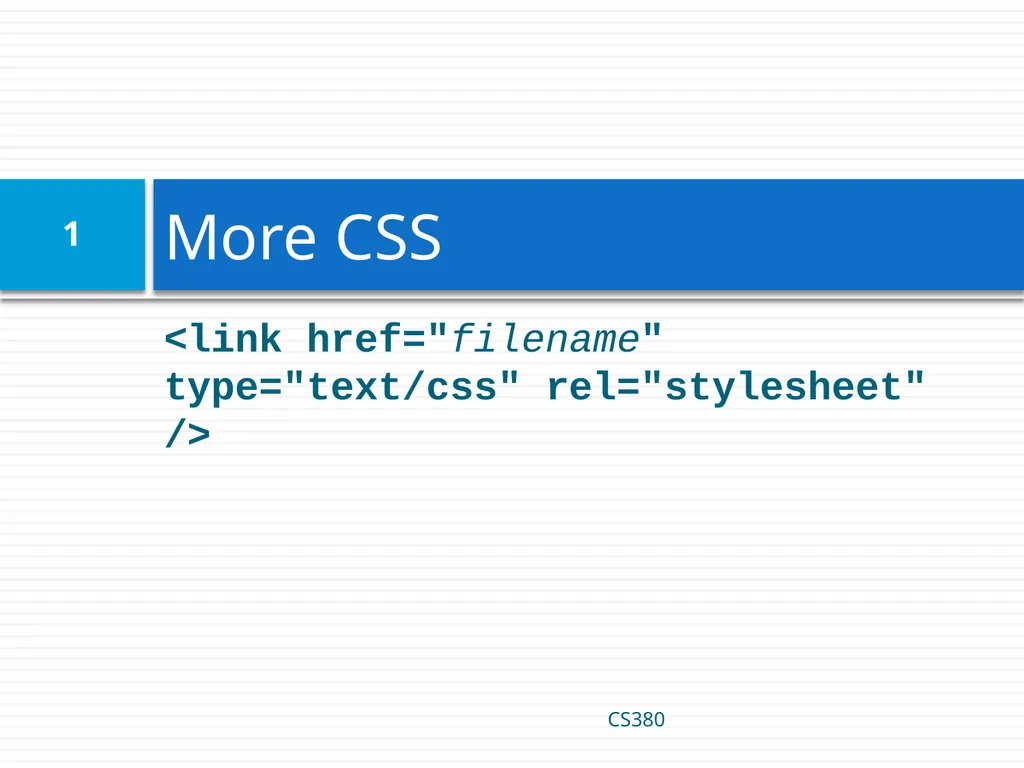
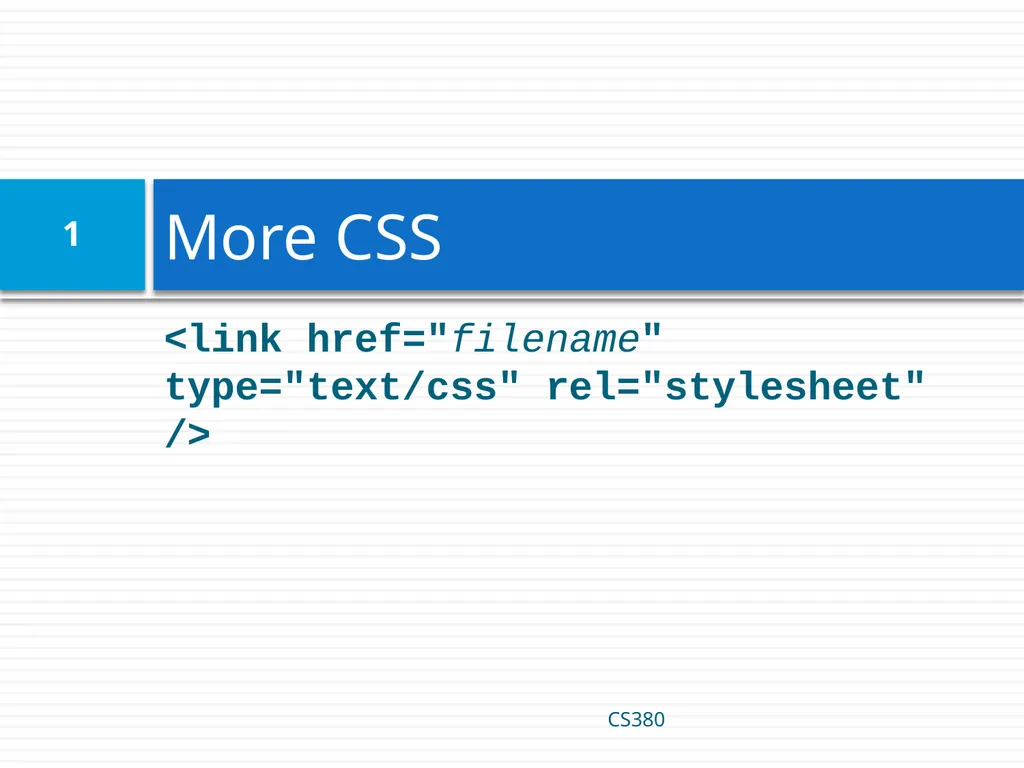
<link href="filename" type="text/css" rel="stylesheet" /> More CSS CS380 1<br>
02
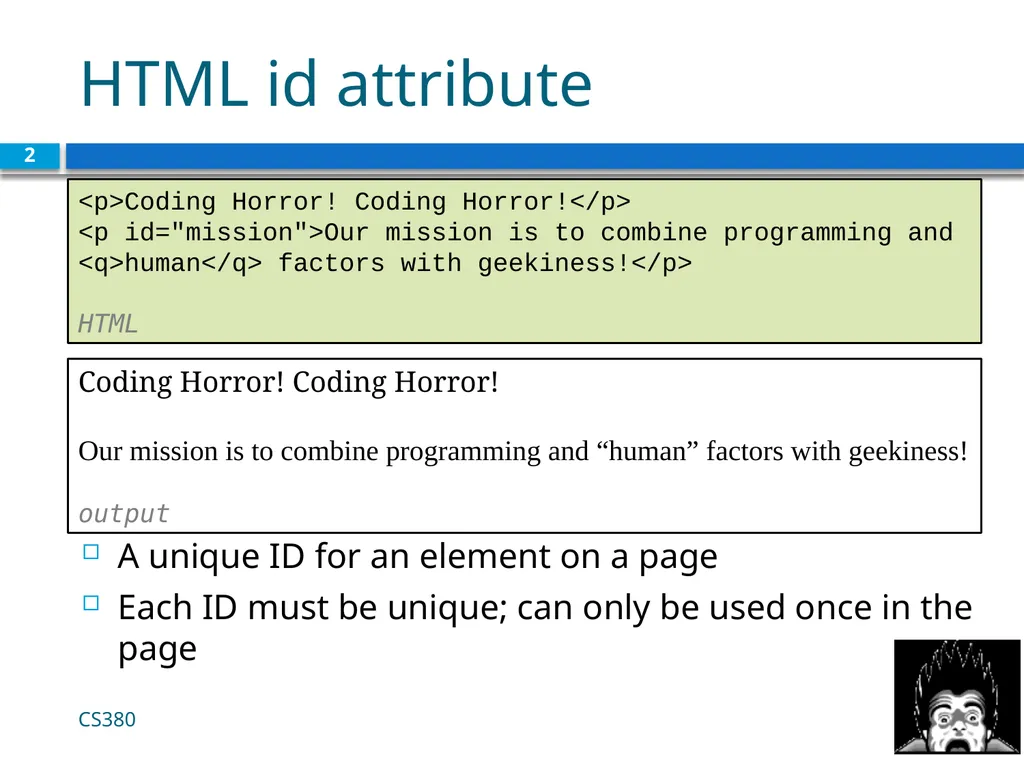
HTML id attribute 2 Coding Horror! Coding Horror!
Our mission is to combine programming and “human” factors with geekiness! output A unique ID for an element on a page
Each ID must be unique; can only be used once in the page CS380 <p>Coding Horror! Coding Horror!</p>
<p id="mission">Our mission is to combine programming and <q>human</q> factors with geekiness!</p>
HTML<br>
Our mission is to combine programming and “human” factors with geekiness! output A unique ID for an element on a page
Each ID must be unique; can only be used once in the page CS380 <p>Coding Horror! Coding Horror!</p>
<p id="mission">Our mission is to combine programming and <q>human</q> factors with geekiness!</p>
HTML<br>
03
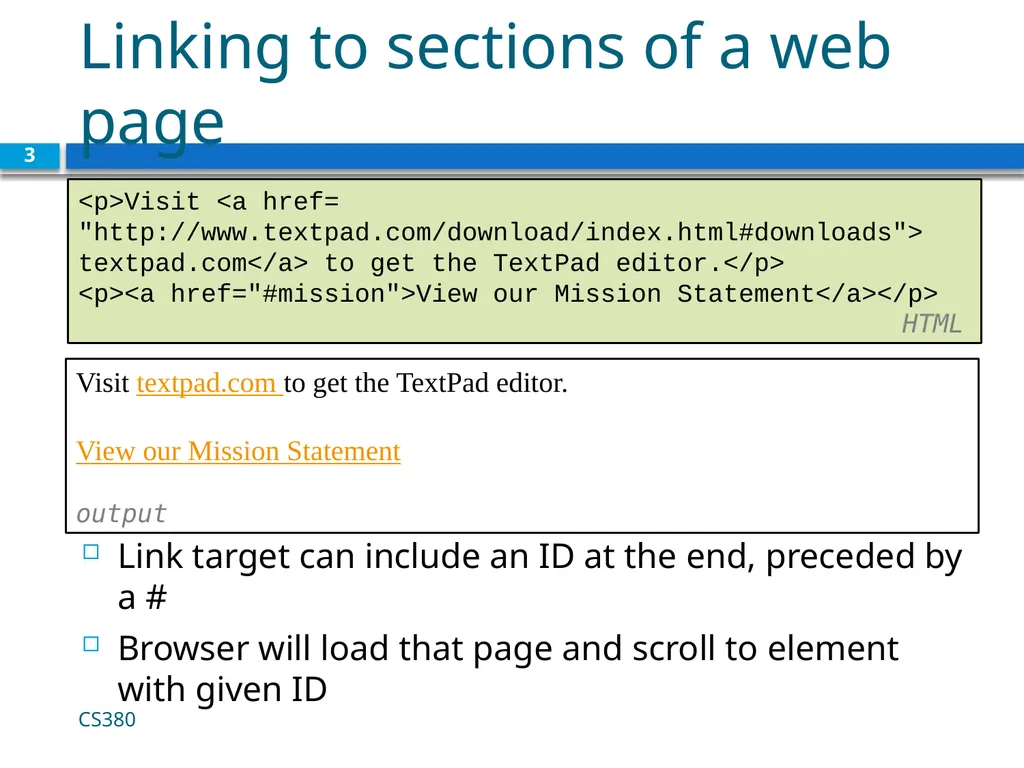
Linking to sections of a web page 3 Visit textpad.com to get the TextPad editor.
View our Mission Statement output Link target can include an ID at the end, preceded by a #
Browser will load that page and scroll to element with given ID CS380 <p>Visit <a href=
"http://www.textpad.com/download/index.html#downloads">
textpad.com</a> to get the TextPad editor.</p>
<p><a href="#mission">View our Mission Statement</a></p> HTML<br>
View our Mission Statement output Link target can include an ID at the end, preceded by a #
Browser will load that page and scroll to element with given ID CS380 <p>Visit <a href=
"http://www.textpad.com/download/index.html#downloads">
textpad.com</a> to get the TextPad editor.</p>
<p><a href="#mission">View our Mission Statement</a></p> HTML<br>
04
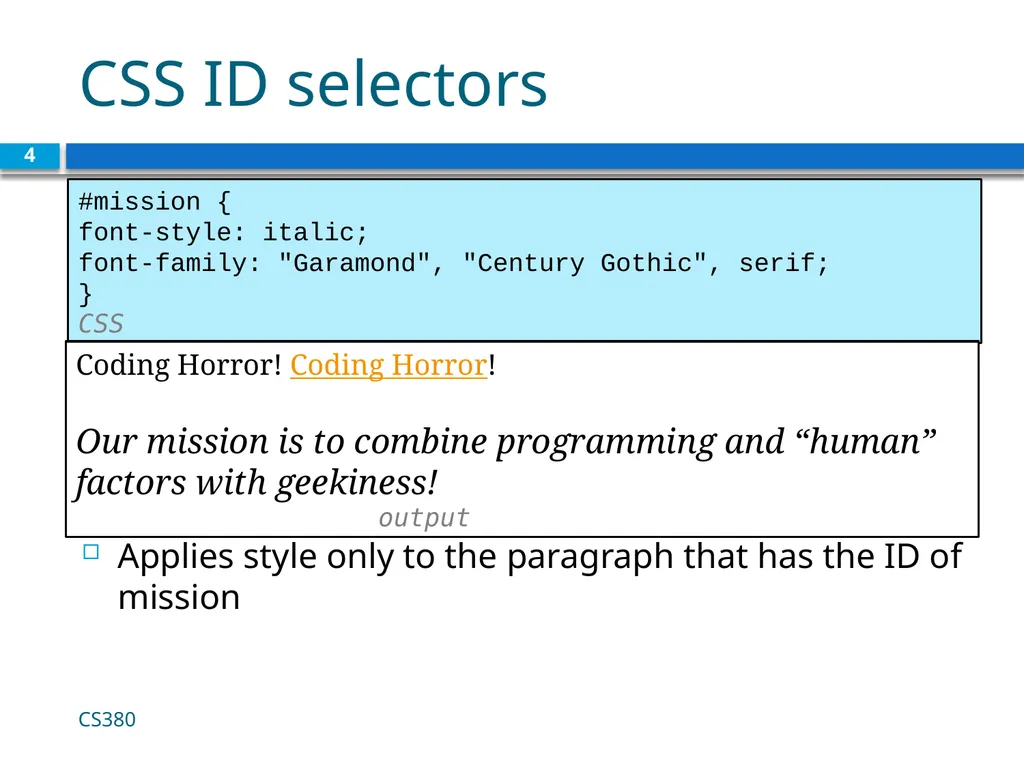
CSS ID selectors 4 #mission {
font-style: italic;
font-family: "Garamond", "Century Gothic", serif;
} CSS Applies style only to the paragraph that has the ID of mission CS380 Coding Horror! Coding Horror!
Our mission is to combine programming and “human” factors with geekiness! output<br>
font-style: italic;
font-family: "Garamond", "Century Gothic", serif;
} CSS Applies style only to the paragraph that has the ID of mission CS380 Coding Horror! Coding Horror!
Our mission is to combine programming and “human” factors with geekiness! output<br>
05
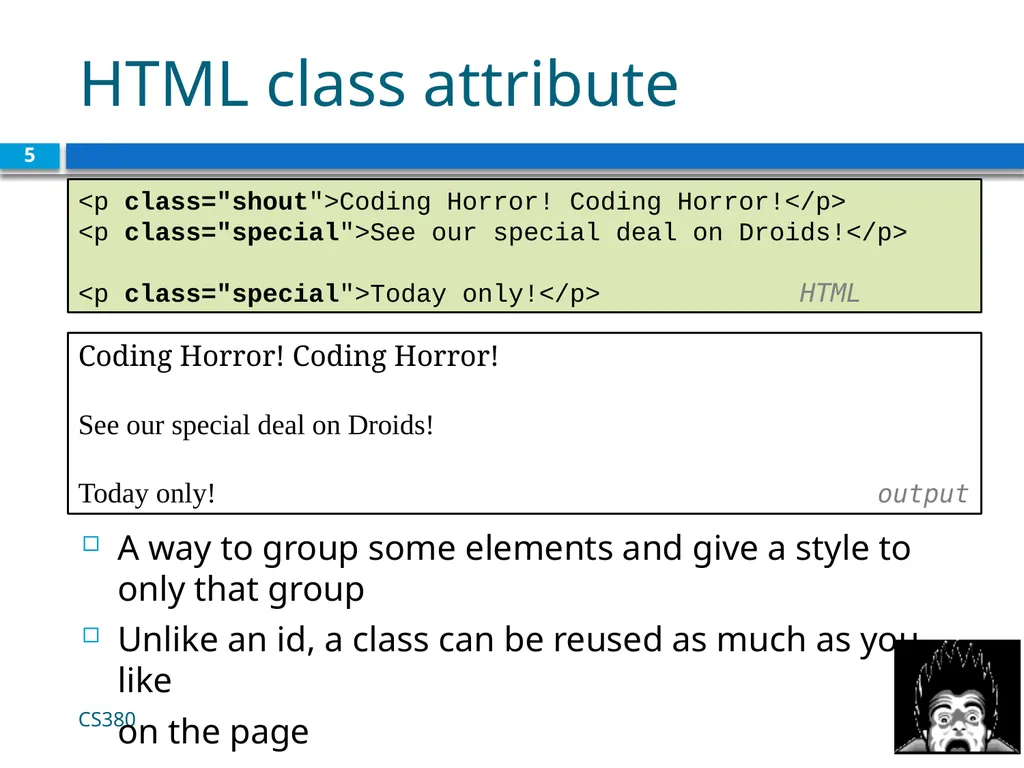
HTML class attribute 5 Coding Horror! Coding Horror!
See our special deal on Droids!
Today only! output A way to group some elements and give a style to only that group
Unlike an id, a class can be reused as much as you like
on the page CS380 <p class="shout">Coding Horror! Coding Horror!</p>
<p class="special">See our special deal on Droids!</p>
<p class="special">Today only!</p> HTML<br>
See our special deal on Droids!
Today only! output A way to group some elements and give a style to only that group
Unlike an id, a class can be reused as much as you like
on the page CS380 <p class="shout">Coding Horror! Coding Horror!</p>
<p class="special">See our special deal on Droids!</p>
<p class="special">Today only!</p> HTML<br>
06
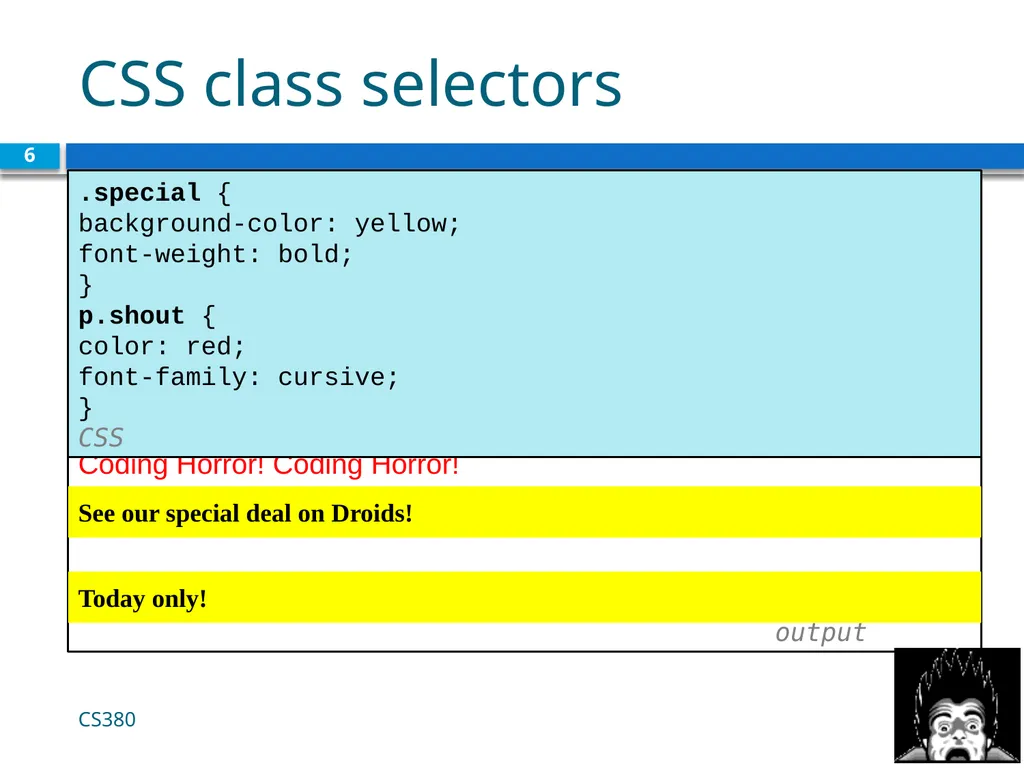
CSS class selectors 6 Coding Horror! Coding Horror!
output CS380 .special {
background-color: yellow;
font-weight: bold;
}
p.shout {
color: red;
font-family: cursive;
} CSS See our special deal on Droids! Today only!<br>
output CS380 .special {
background-color: yellow;
font-weight: bold;
}
p.shout {
color: red;
font-family: cursive;
} CSS See our special deal on Droids! Today only!<br>
07
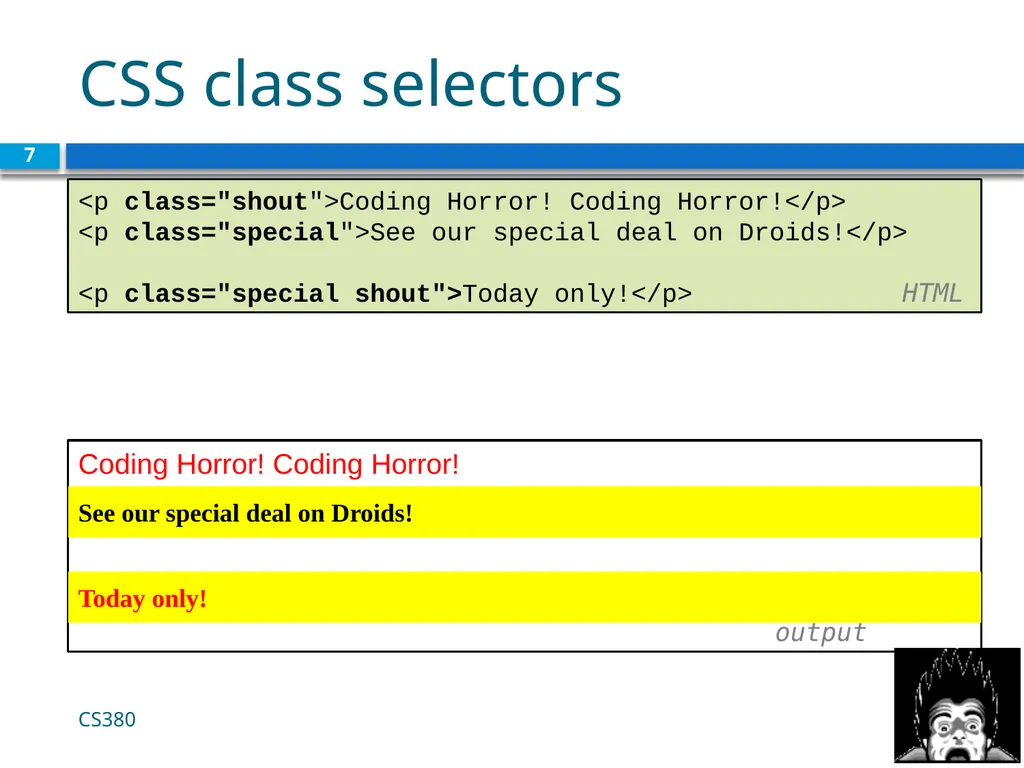
CSS class selectors 7 Coding Horror! Coding Horror!
output CS380 See our special deal on Droids! Today only! <p class="shout">Coding Horror! Coding Horror!</p>
<p class="special">See our special deal on Droids!</p>
<p class="special shout">Today only!</p> HTML<br>
output CS380 See our special deal on Droids! Today only! <p class="shout">Coding Horror! Coding Horror!</p>
<p class="special">See our special deal on Droids!</p>
<p class="special shout">Today only!</p> HTML<br>
08
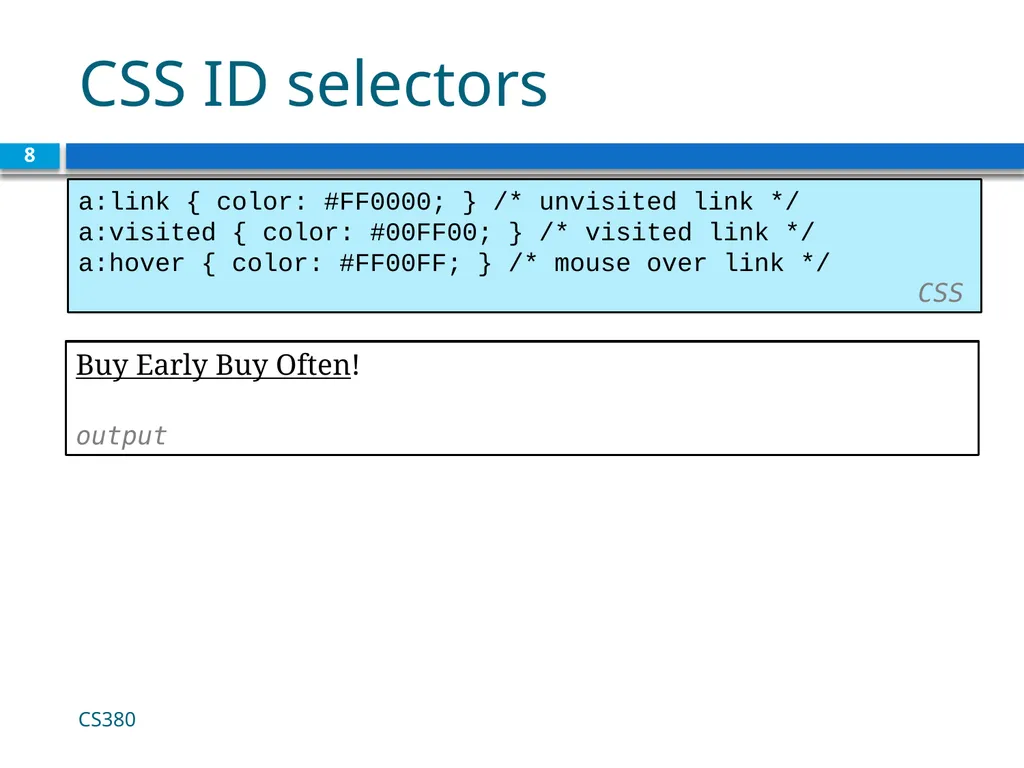
CSS ID selectors 8 a:link { color: #FF0000; } /* unvisited link */
a:visited { color: #00FF00; } /* visited link */
a:hover { color: #FF00FF; } /* mouse over link */ CSS CS380 Buy Early Buy Often!
output<br>
a:visited { color: #00FF00; } /* visited link */
a:hover { color: #FF00FF; } /* mouse over link */ CSS CS380 Buy Early Buy Often!
output<br>
09
CSS ID selectors 9 CS380<br>
10
Styling Page Sections 10 CS380<br>
11
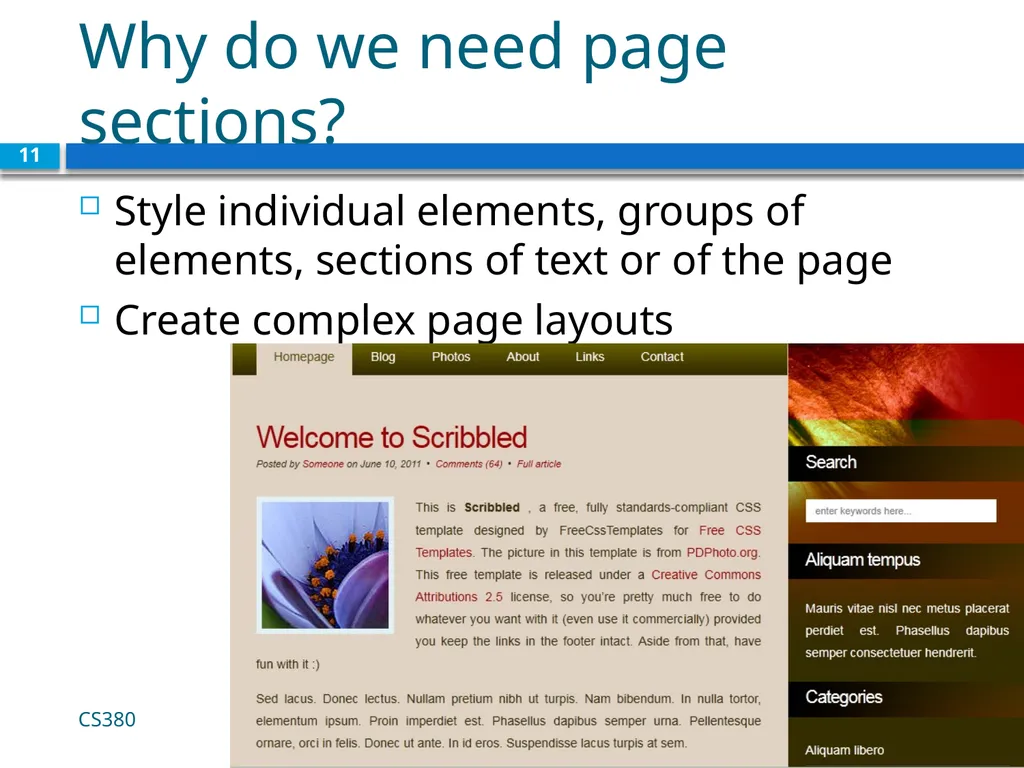
Why do we need page sections? Style individual elements, groups of elements, sections of text or of the page
Create complex page layouts CS380 11<br>
Create complex page layouts CS380 11<br>
12
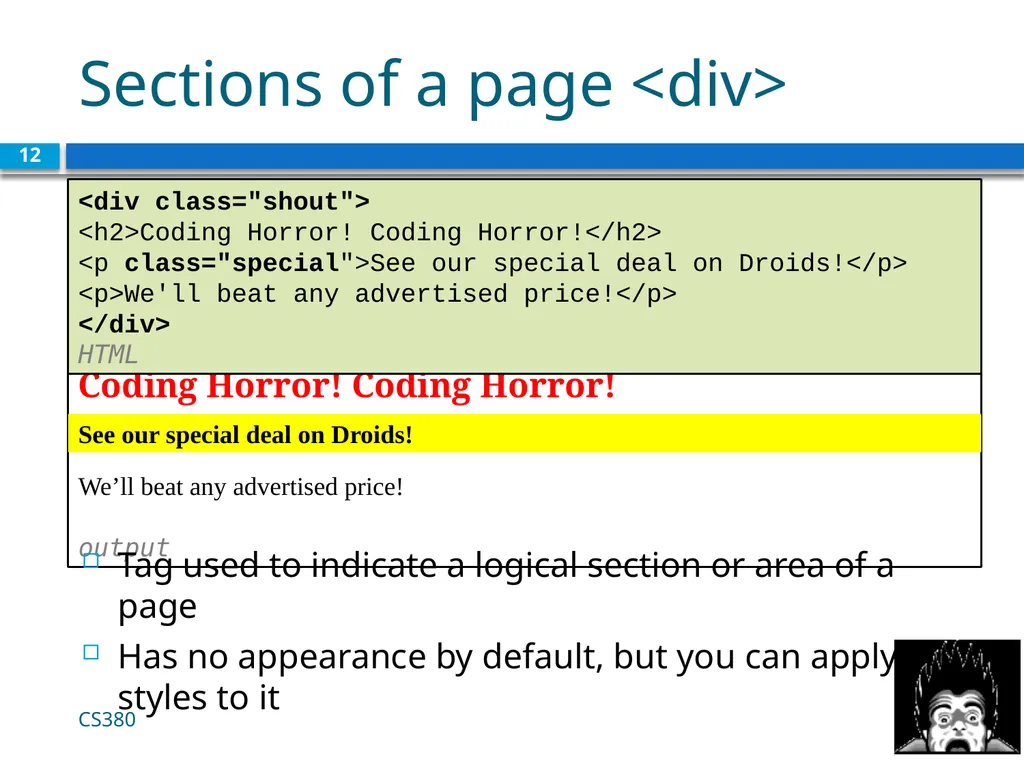
Sections of a page <div> 12 Coding Horror! Coding Horror!
We’ll beat any advertised price! output Tag used to indicate a logical section or area of a page
Has no appearance by default, but you can apply styles to it CS380 <div class="shout">
<h2>Coding Horror! Coding Horror!</h2>
<p class="special">See our special deal on Droids!</p> <p>We'll beat any advertised price!</p>
</div> HTML See our special deal on Droids!<br>
We’ll beat any advertised price! output Tag used to indicate a logical section or area of a page
Has no appearance by default, but you can apply styles to it CS380 <div class="shout">
<h2>Coding Horror! Coding Horror!</h2>
<p class="special">See our special deal on Droids!</p> <p>We'll beat any advertised price!</p>
</div> HTML See our special deal on Droids!<br>
13
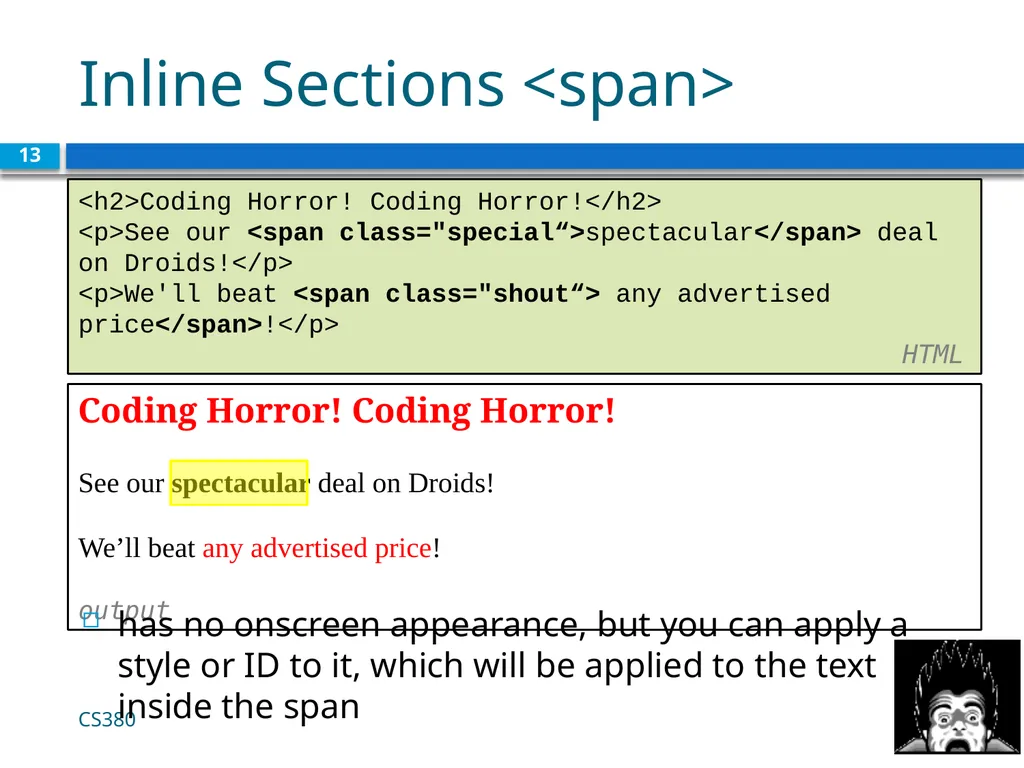
Inline Sections <span> 13 Coding Horror! Coding Horror!
See our spectacular deal on Droids!
We’ll beat any advertised price! output has no onscreen appearance, but you can apply a style or ID to it, which will be applied to the text inside the span CS380 <h2>Coding Horror! Coding Horror!</h2>
<p>See our <span class="special“>spectacular</span> deal on Droids!</p>
<p>We'll beat <span class="shout“> any advertised price</span>!</p>
HTML<br>
See our spectacular deal on Droids!
We’ll beat any advertised price! output has no onscreen appearance, but you can apply a style or ID to it, which will be applied to the text inside the span CS380 <h2>Coding Horror! Coding Horror!</h2>
<p>See our <span class="special“>spectacular</span> deal on Droids!</p>
<p>We'll beat <span class="shout“> any advertised price</span>!</p>
HTML<br>
14
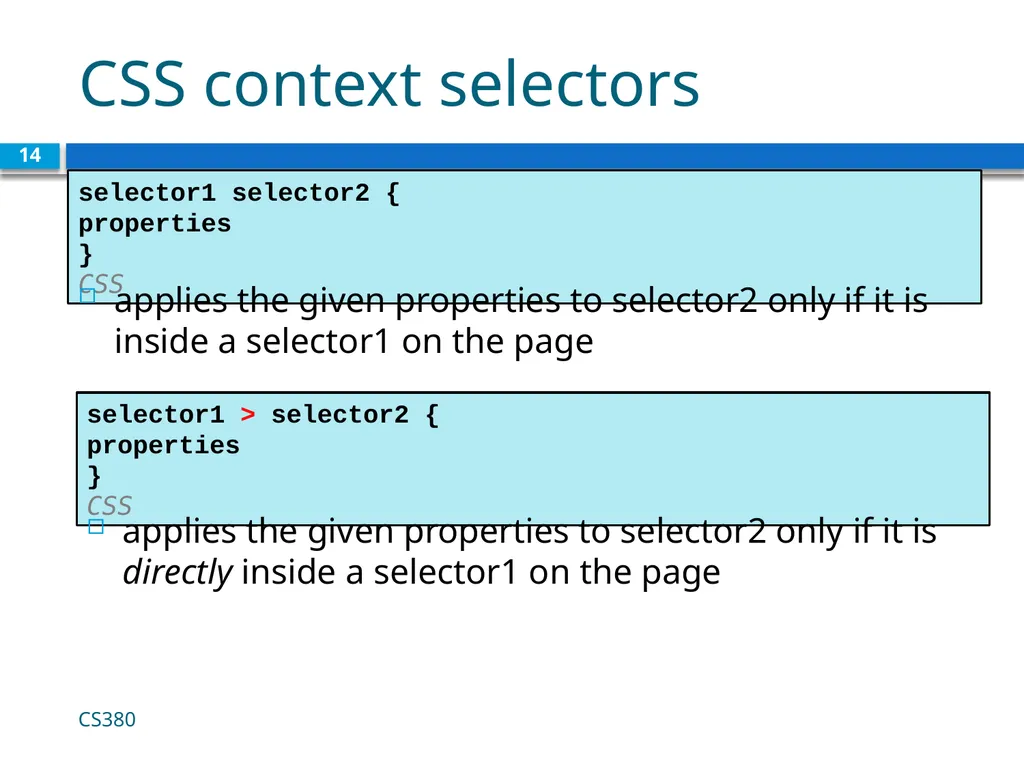
CSS context selectors 14 CS380 selector1 selector2 {
properties
} CSS applies the given properties to selector2 only if it is inside a selector1 on the page selector1 > selector2 {
properties
} CSS applies the given properties to selector2 only if it is directly inside a selector1 on the page<br>
properties
} CSS applies the given properties to selector2 only if it is inside a selector1 on the page selector1 > selector2 {
properties
} CSS applies the given properties to selector2 only if it is directly inside a selector1 on the page<br>
15
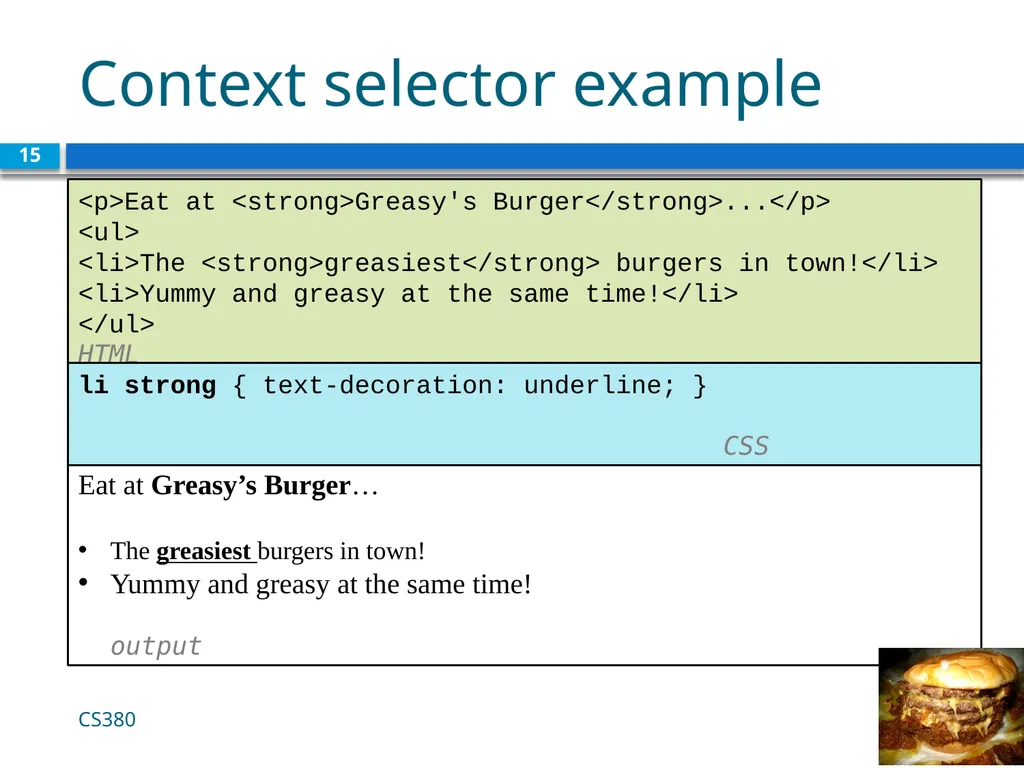
Context selector example 15 Eat at Greasy’s Burger…
The greasiest burgers in town!
Yummy and greasy at the same time! output CS380 <p>Eat at <strong>Greasy's Burger</strong>...</p>
<ul>
<li>The <strong>greasiest</strong> burgers in town!</li>
<li>Yummy and greasy at the same time!</li>
</ul> HTML li strong { text-decoration: underline; } CSS<br>
The greasiest burgers in town!
Yummy and greasy at the same time! output CS380 <p>Eat at <strong>Greasy's Burger</strong>...</p>
<ul>
<li>The <strong>greasiest</strong> burgers in town!</li>
<li>Yummy and greasy at the same time!</li>
</ul> HTML li strong { text-decoration: underline; } CSS<br>
16
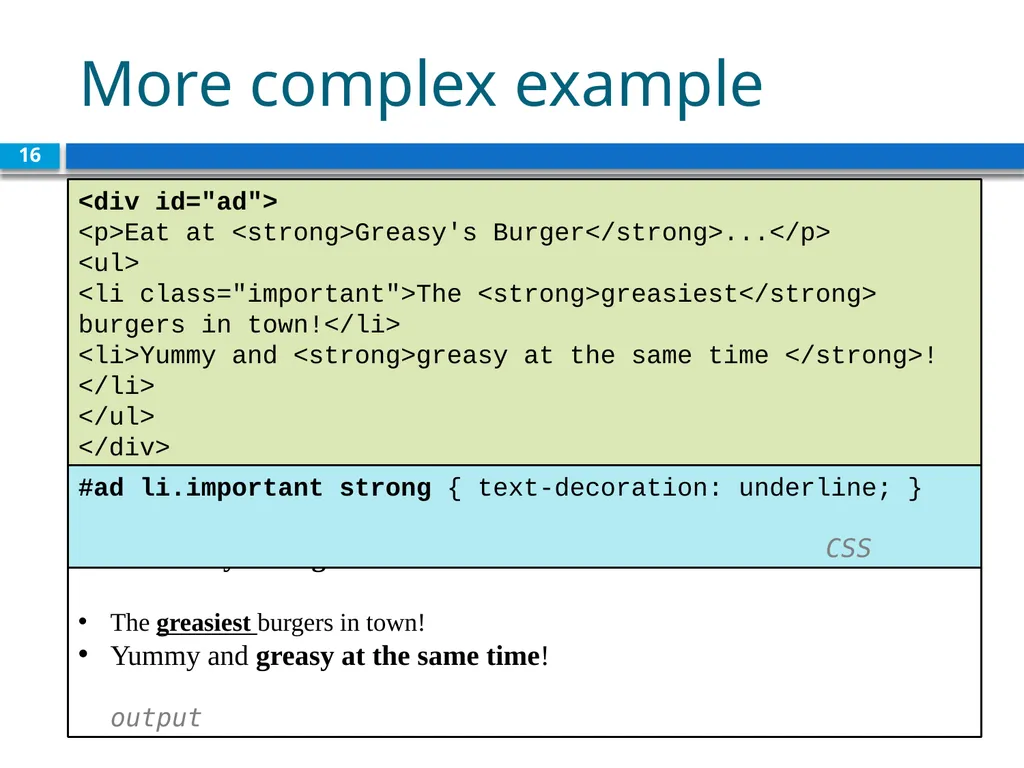
More complex example 16 Eat at Greasy’s Burger…
The greasiest burgers in town!
Yummy and greasy at the same time! output CS380 <div id="ad">
<p>Eat at <strong>Greasy's Burger</strong>...</p>
<ul>
<li class="important">The <strong>greasiest</strong> burgers in town!</li>
<li>Yummy and <strong>greasy at the same time </strong>!</li>
</ul>
</div> HTML #ad li.important strong { text-decoration: underline; } CSS<br>
The greasiest burgers in town!
Yummy and greasy at the same time! output CS380 <div id="ad">
<p>Eat at <strong>Greasy's Burger</strong>...</p>
<ul>
<li class="important">The <strong>greasiest</strong> burgers in town!</li>
<li>Yummy and <strong>greasy at the same time </strong>!</li>
</ul>
</div> HTML #ad li.important strong { text-decoration: underline; } CSS<br>
17
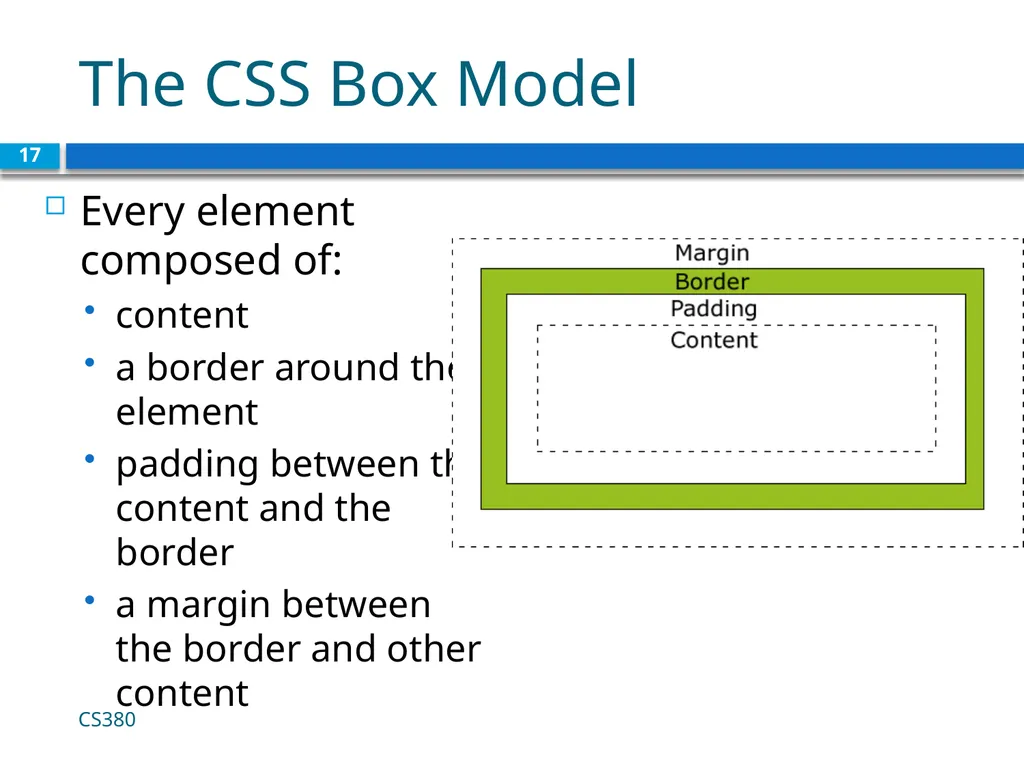
The CSS Box Model Every element composed of:
content
a border around the element
padding between the content and the border
a margin between the border and other content CS380 17<br>
content
a border around the element
padding between the content and the border
a margin between the border and other content CS380 17<br>
18
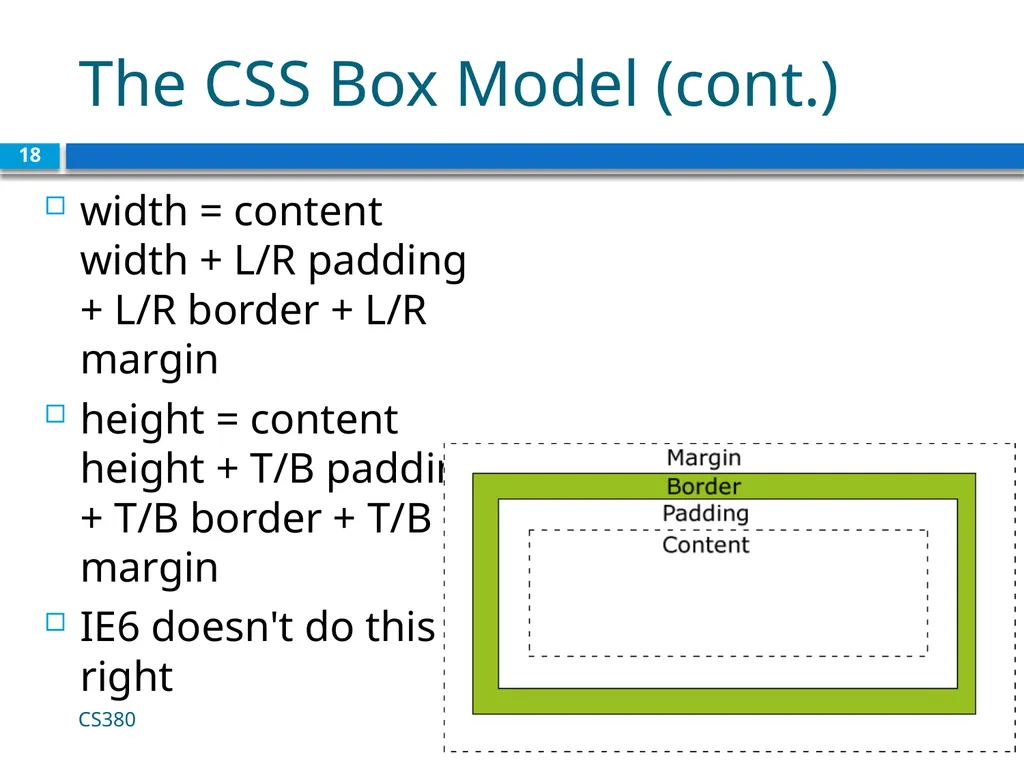
The CSS Box Model (cont.) width = content width + L/R padding + L/R border + L/R margin
height = content height + T/B padding + T/B border + T/B margin
IE6 doesn't do this right CS380 18<br>
height = content height + T/B padding + T/B border + T/B margin
IE6 doesn't do this right CS380 18<br>
19
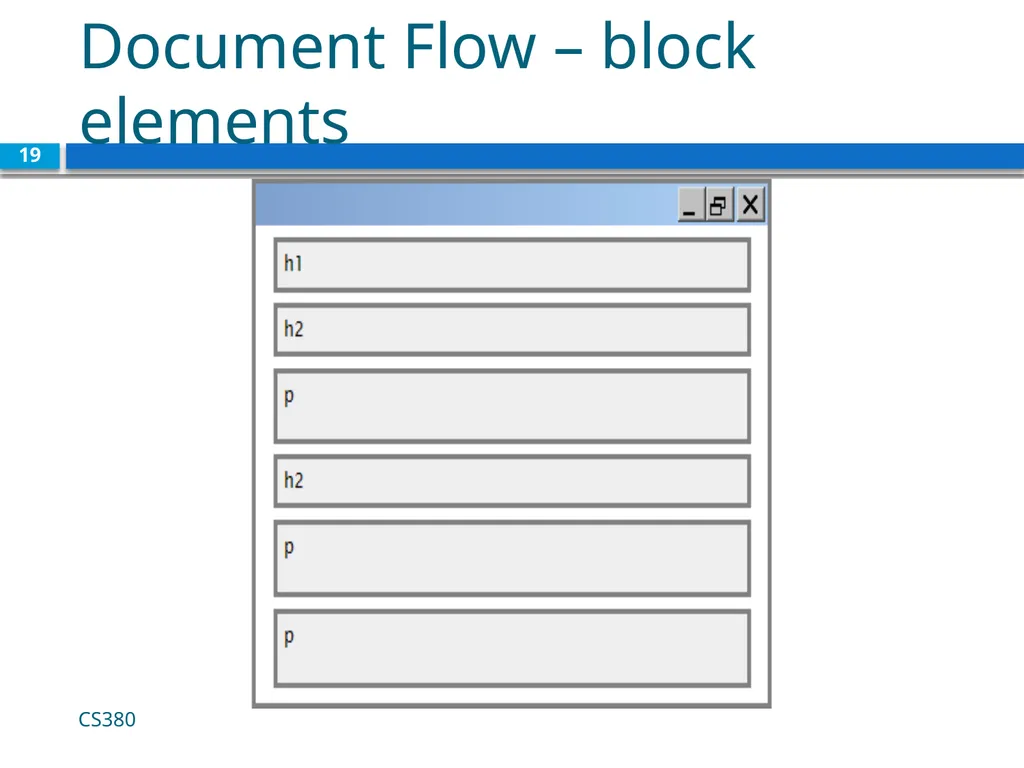
Document Flow – block elements CS380 19<br>
20
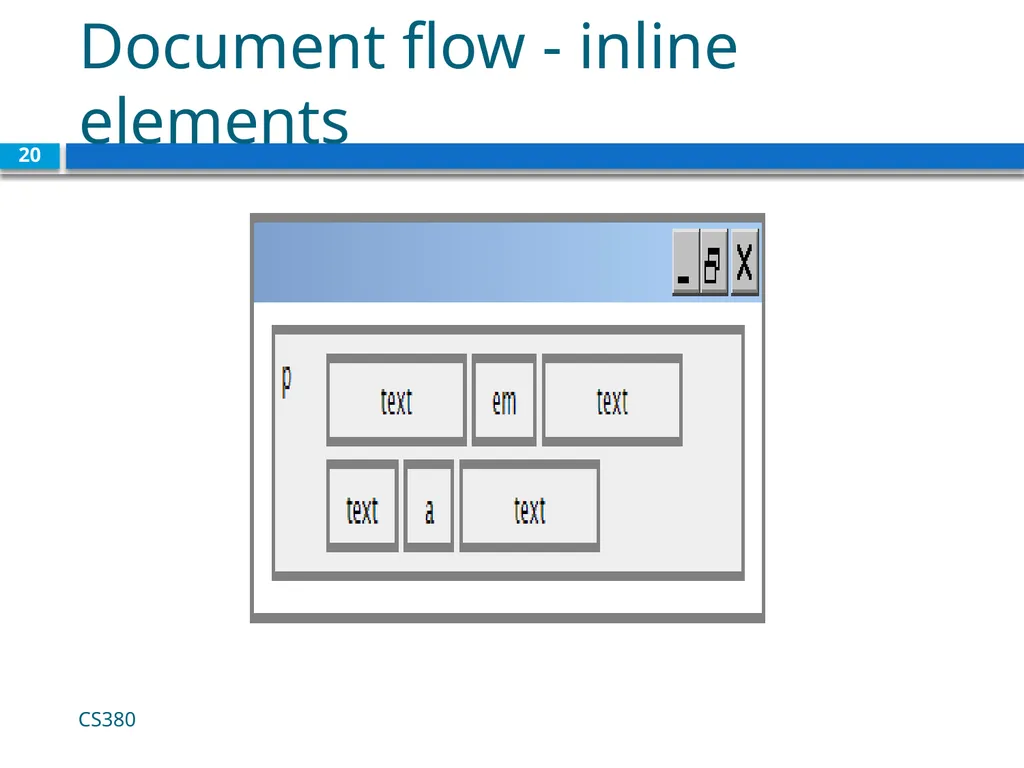
Document flow - inline elements CS380 20<br>
21
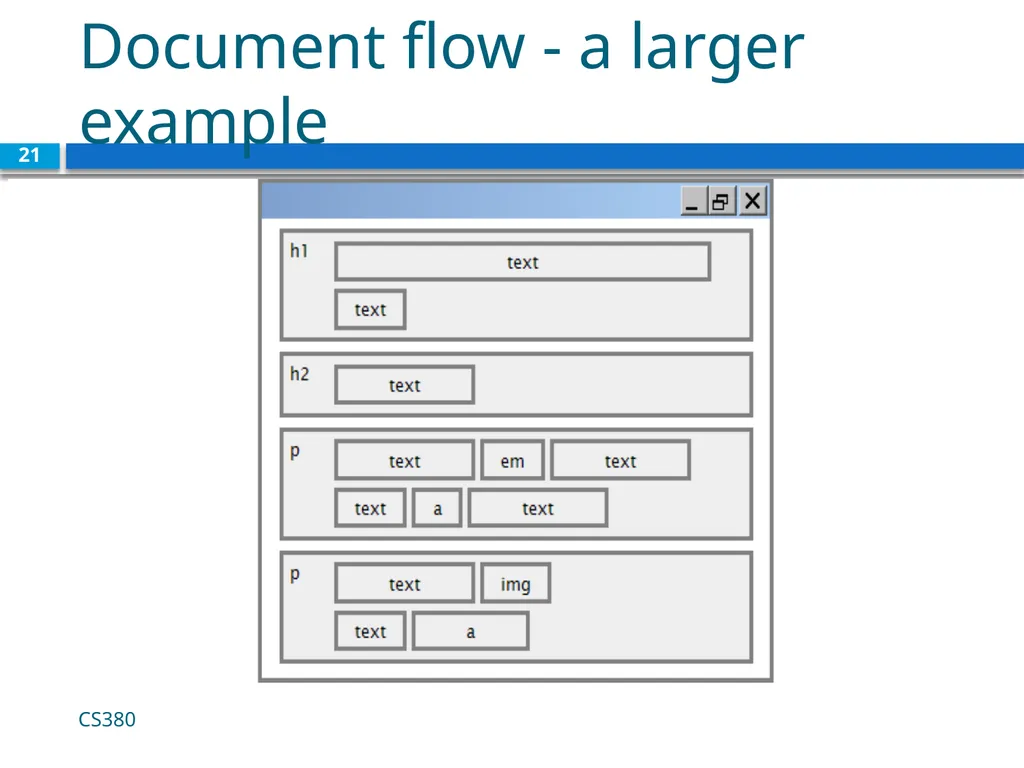
Document flow - a larger example CS380 21<br>
22
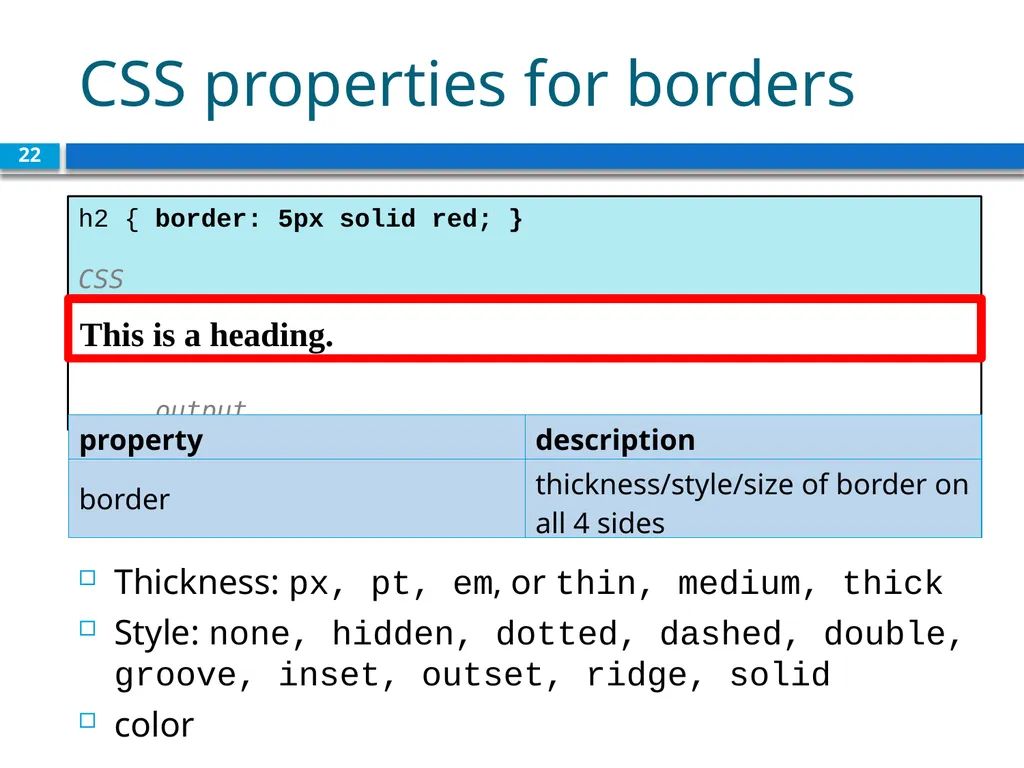
CSS properties for borders 22 output h2 { border: 5px solid red; } CSS This is a heading. Thickness: px, pt, em, or thin, medium, thick
Style: none, hidden, dotted, dashed, double, groove, inset, outset, ridge, solid
color<br>
Style: none, hidden, dotted, dashed, double, groove, inset, outset, ridge, solid
color<br>
23
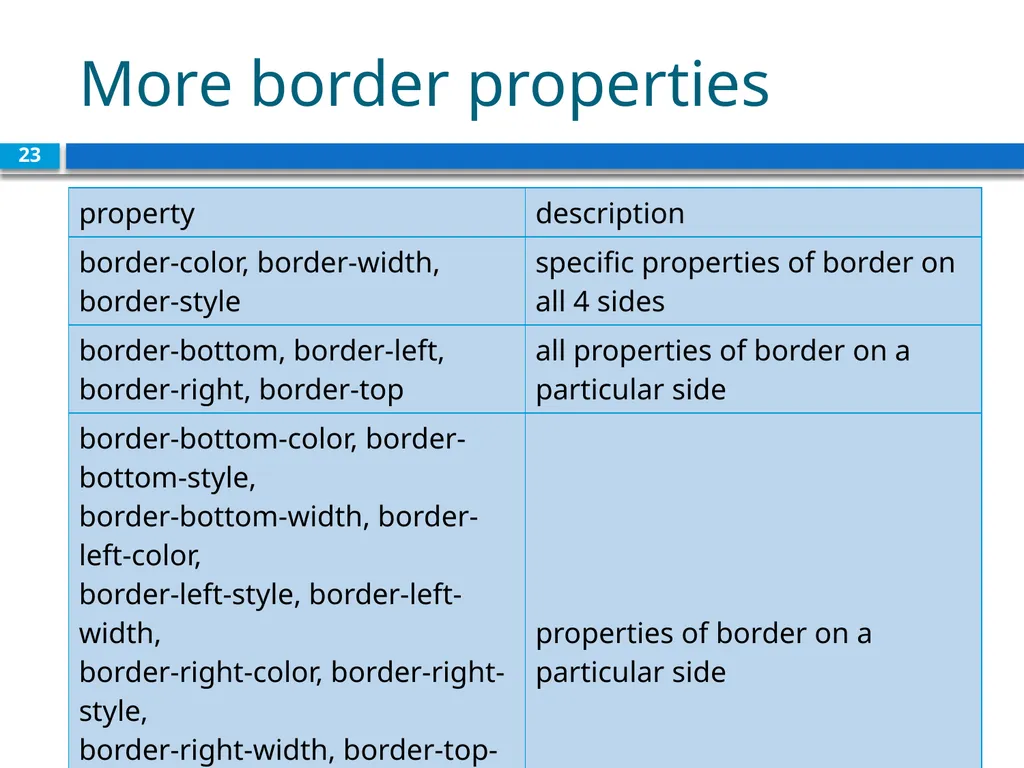
More border properties 23<br>
24
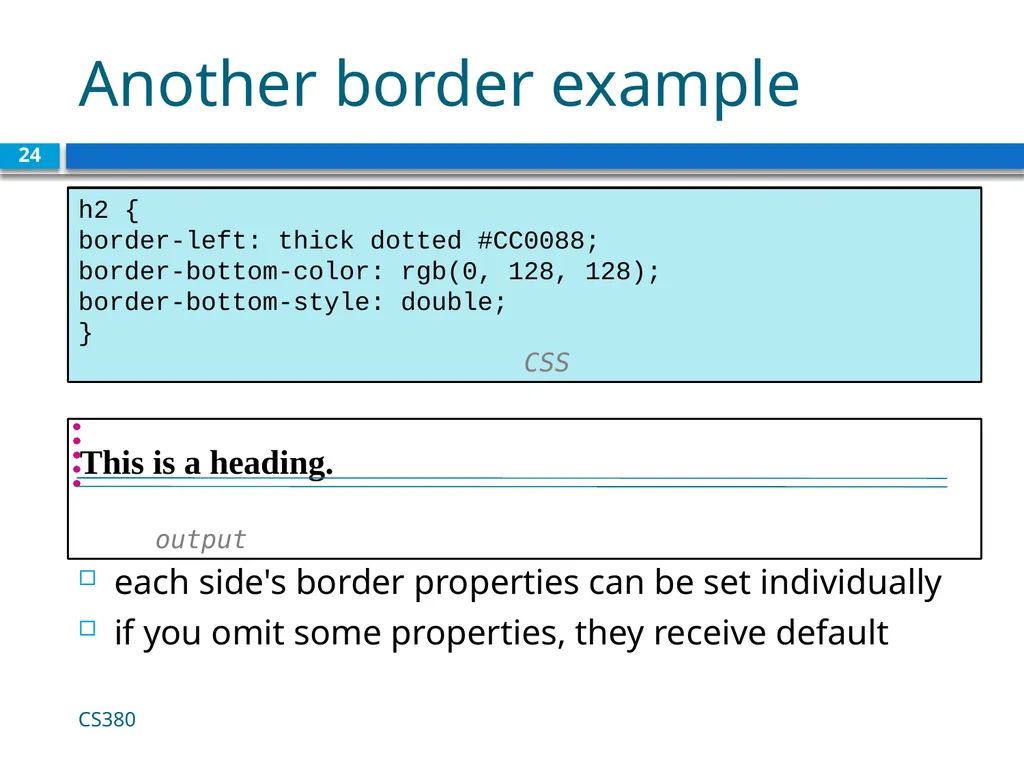
Another border example 24 output h2 {
border-left: thick dotted #CC0088;
border-bottom-color: rgb(0, 128, 128);
border-bottom-style: double;
} CSS This is a heading. each side's border properties can be set individually
if you omit some properties, they receive default CS380<br>
border-left: thick dotted #CC0088;
border-bottom-color: rgb(0, 128, 128);
border-bottom-style: double;
} CSS This is a heading. each side's border properties can be set individually
if you omit some properties, they receive default CS380<br>
25
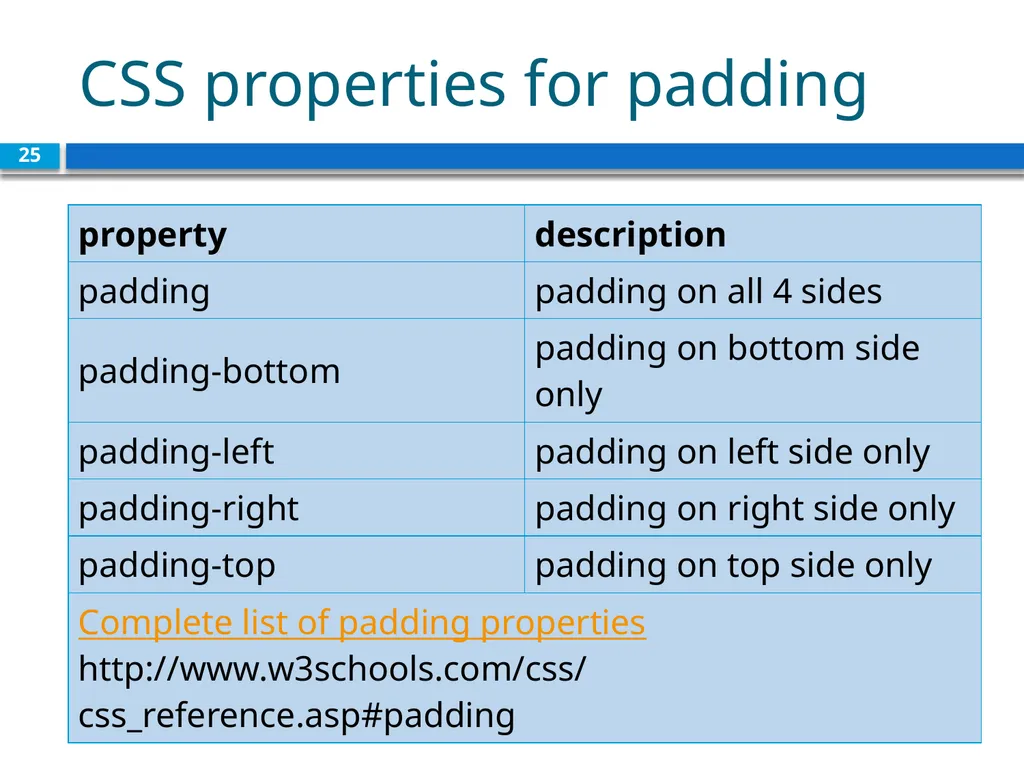
CSS properties for padding CS380 25<br>
26
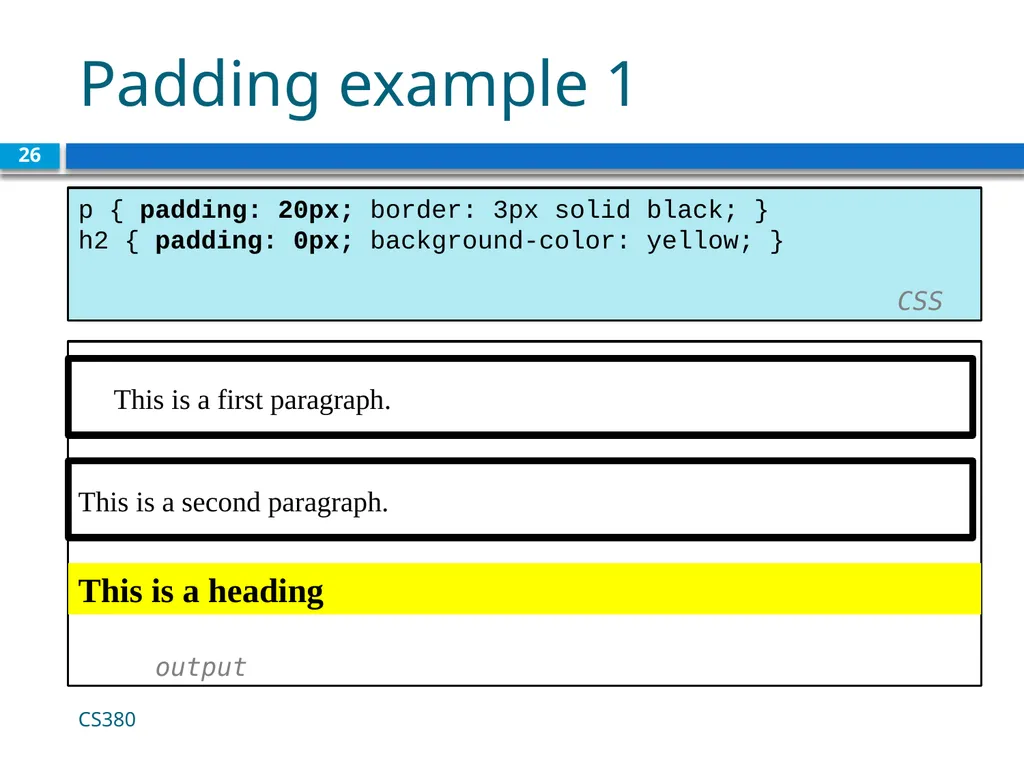
Padding example 1 26 This is a first paragraph.
This is a second paragraph.
output p { padding: 20px; border: 3px solid black; }
h2 { padding: 0px; background-color: yellow; } CSS CS380 This is a heading<br>
This is a second paragraph.
output p { padding: 20px; border: 3px solid black; }
h2 { padding: 0px; background-color: yellow; } CSS CS380 This is a heading<br>
27
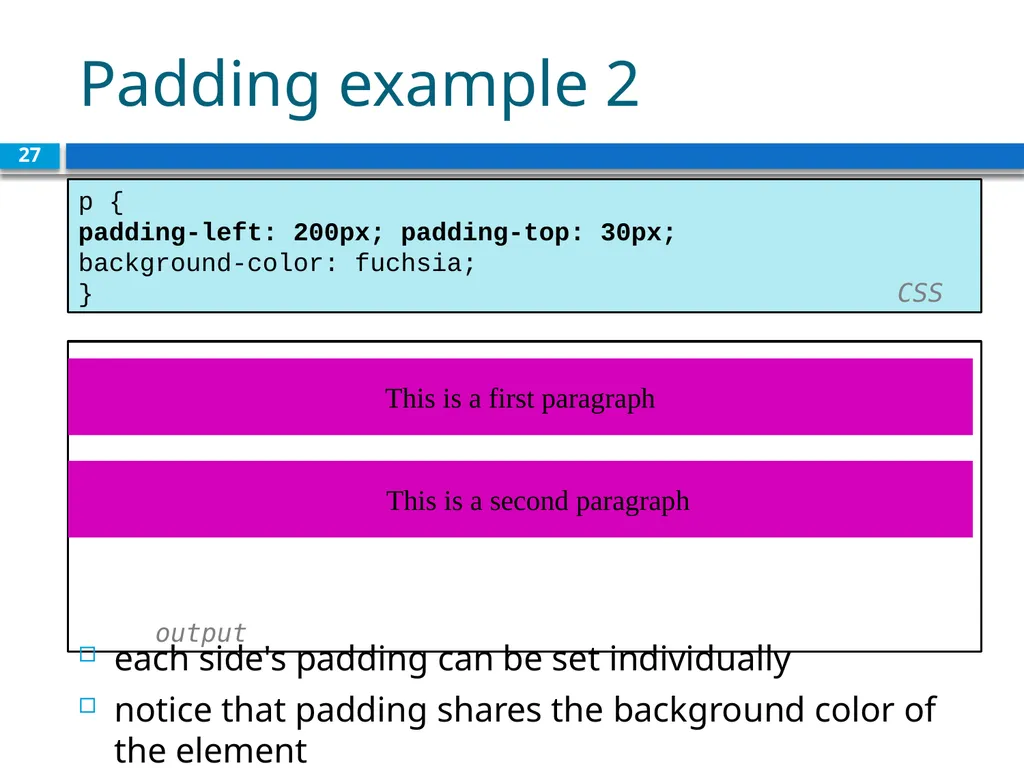
Padding example 2 27 This is a first paragraph.
output p {
padding-left: 200px; padding-top: 30px;
background-color: fuchsia;
} CSS This is a first paragraph This is a second paragraph each side's padding can be set individually
notice that padding shares the background color of the element<br>
output p {
padding-left: 200px; padding-top: 30px;
background-color: fuchsia;
} CSS This is a first paragraph This is a second paragraph each side's padding can be set individually
notice that padding shares the background color of the element<br>
28
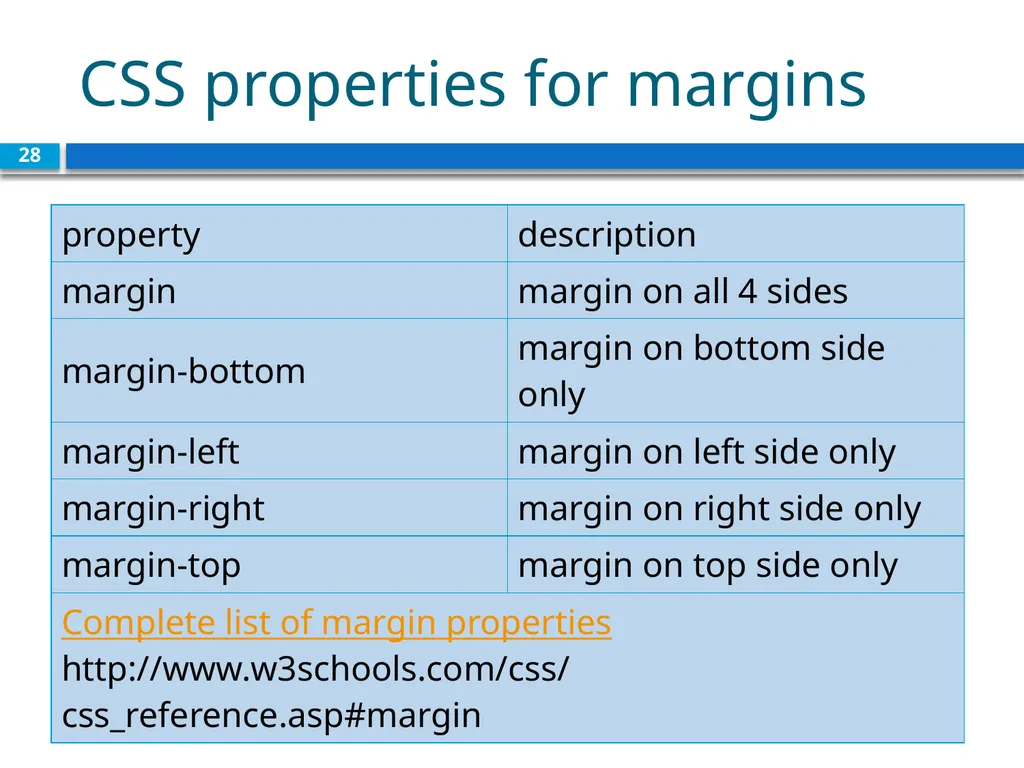
CSS properties for margins CS380 28<br>
29
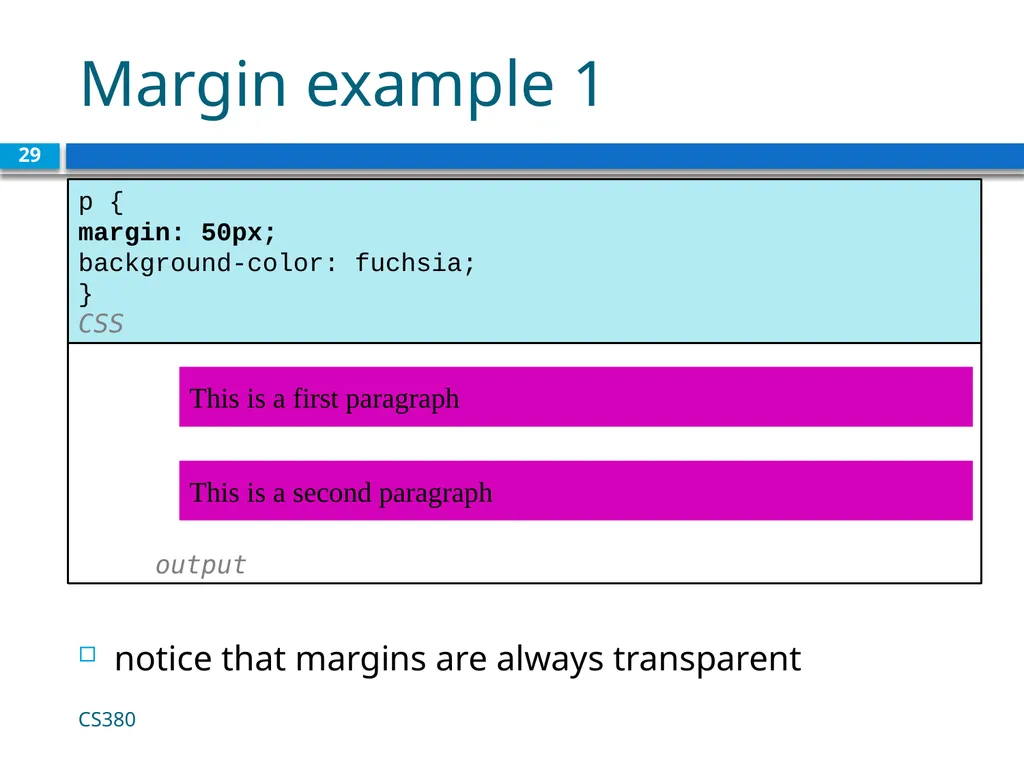
Margin example 1 29 output p {
margin: 50px;
background-color: fuchsia;
} CSS notice that margins are always transparent This is a second paragraph This is a first paragraph CS380<br>
margin: 50px;
background-color: fuchsia;
} CSS notice that margins are always transparent This is a second paragraph This is a first paragraph CS380<br>
30
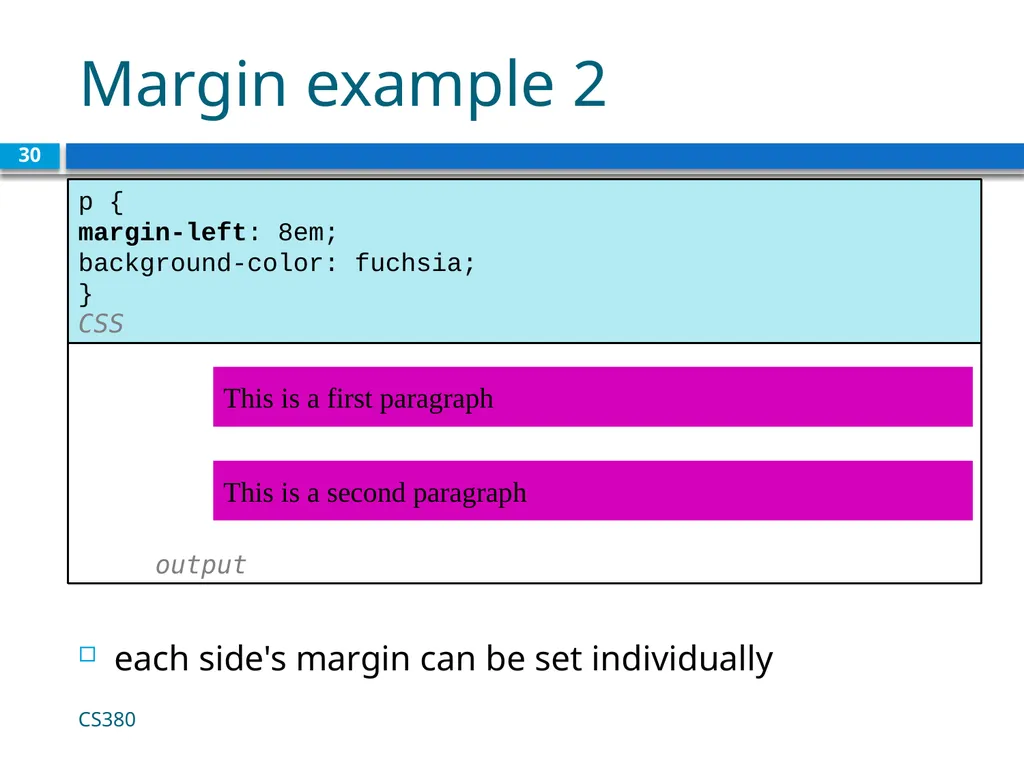
Margin example 2 30 output p {
margin-left: 8em;
background-color: fuchsia;
} CSS each side's margin can be set individually This is a second paragraph This is a first paragraph CS380<br>
margin-left: 8em;
background-color: fuchsia;
} CSS each side's margin can be set individually This is a second paragraph This is a first paragraph CS380<br>
31
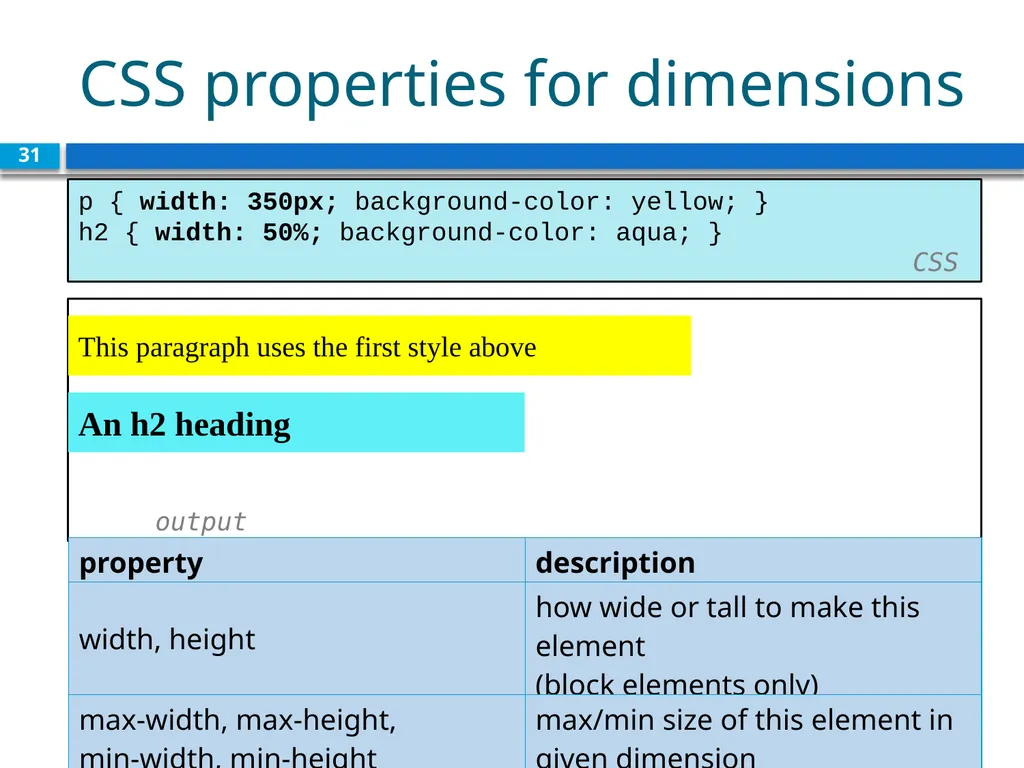
CSS properties for dimensions 31 output p { width: 350px; background-color: yellow; }
h2 { width: 50%; background-color: aqua; } CSS An h2 heading This paragraph uses the first style above<br>
h2 { width: 50%; background-color: aqua; } CSS An h2 heading This paragraph uses the first style above<br>
32
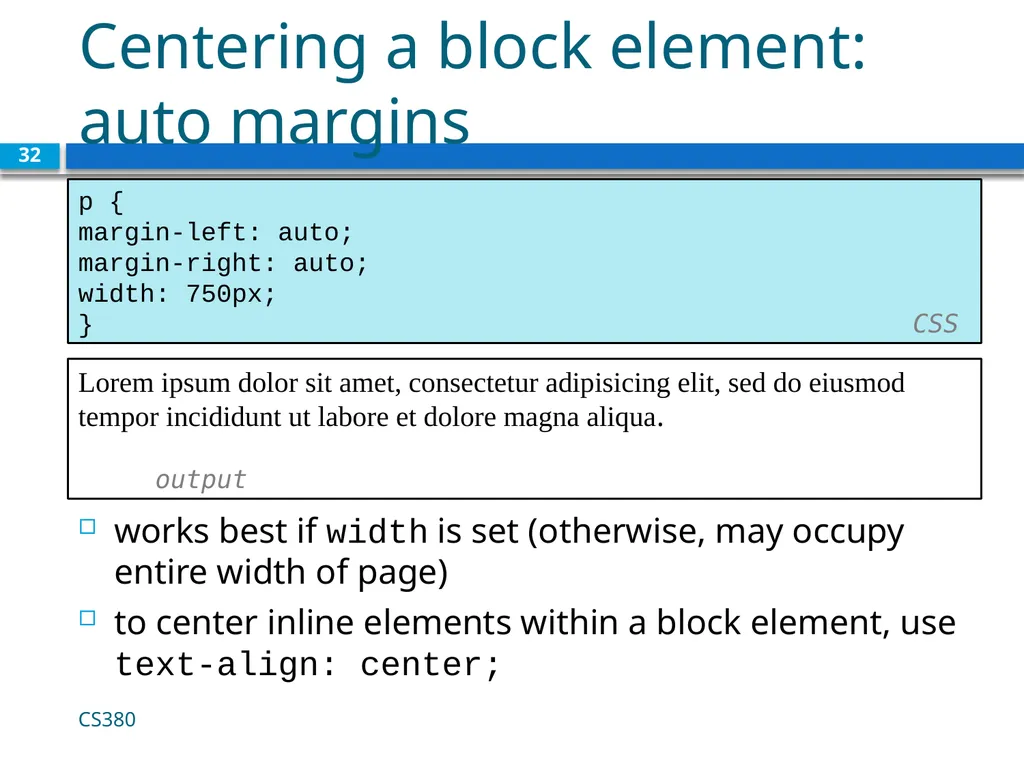
Centering a block element: auto margins 32 Lorem ipsum dolor sit amet, consectetur adipisicing elit, sed do eiusmod tempor incididunt ut labore et dolore magna aliqua.
output p {
margin-left: auto;
margin-right: auto;
width: 750px;
} CSS works best if width is set (otherwise, may occupy entire width of page)
to center inline elements within a block element, use text-align: center; CS380<br>
output p {
margin-left: auto;
margin-right: auto;
width: 750px;
} CSS works best if width is set (otherwise, may occupy entire width of page)
to center inline elements within a block element, use text-align: center; CS380<br>