
Microsoft online Forms and Quizzes Open this

Published  . 0 views
↓ Download
Microsoft online Forms and Quizzes Open this
1 / 1
Microsoft online Forms and Quizzes Open this - slide 1 of 14 Microsoft online Forms and Quizzes Open this - slide 2 of 14 Microsoft online Forms and Quizzes Open this - slide 3 of 14 Microsoft online Forms and Quizzes Open this - slide 4 of 14 Microsoft online Forms and Quizzes Open this - slide 5 of 14 Microsoft online Forms and Quizzes Open this - slide 6 of 14 Microsoft online Forms and Quizzes Open this - slide 7 of 14 Microsoft online Forms and Quizzes Open this - slide 8 of 14 Microsoft online Forms and Quizzes Open this - slide 9 of 14 Microsoft online Forms and Quizzes Open this - slide 10 of 14 Microsoft online Forms and Quizzes Open this - slide 11 of 14 Microsoft online Forms and Quizzes Open this - slide 12 of 14 Microsoft online Forms and Quizzes Open this - slide 13 of 14 Microsoft online Forms and Quizzes Open this - slide 14 of 14

Description: Microsoft online Forms and Quizzes Open this Presentation in Slide Show for special visual effects added to text or objects On the Slide Show tab, in the Start Slide Show group, click From Beginning When to use a Form and when to use a Quiz

Related Topics

Download Presentation

"Microsoft online Forms and Quizzes Open this" is the property of its rightful owner. Permission is granted to download and print the materials on this website for personal, non-commercial use only, and to display it on your personal computer provided you do not modify the materials and that you retain all copyright notices contained in the materials. By downloading content from our website, you accept the terms of this agreement.

Presentation Transcript

slide1. Microsoft online Forms and Quizzes<br>
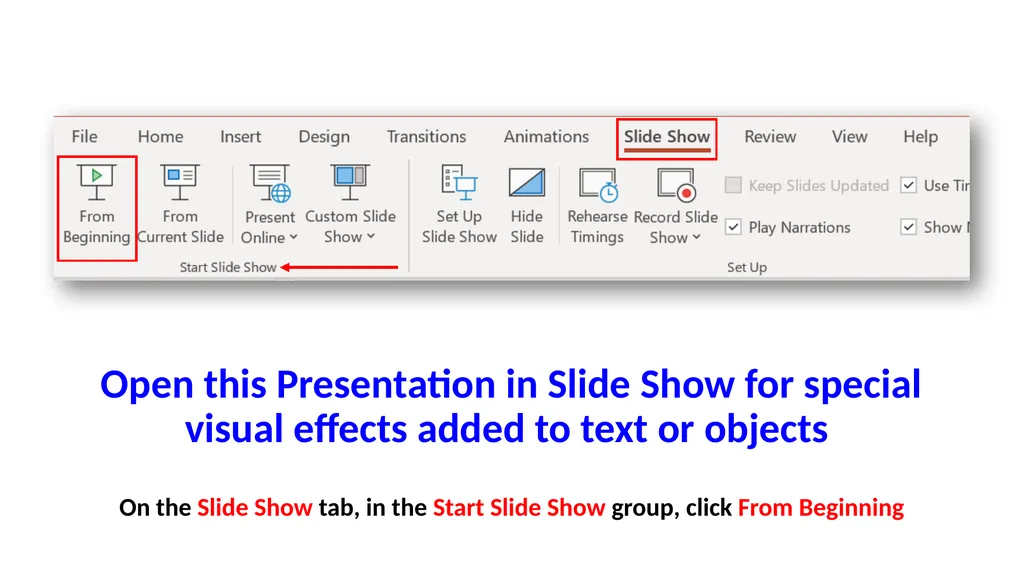
slide2. Open this Presentation in Slide Show for special visual effects added to text or objects On the Slide Show tab, in the Start Slide Show group, click From Beginning<br>
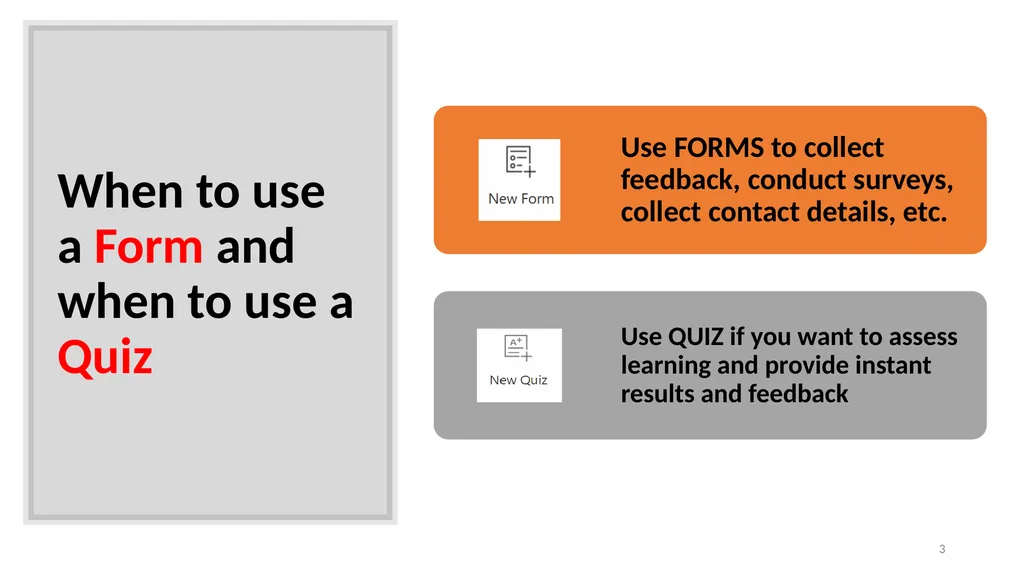
slide3. When to use a Form and when to use a Quiz 3<br>
slide4. Suggestion Download the videos to solve your problems with Internet connectivity
Shorten your links with https://bitly.com 4<br>
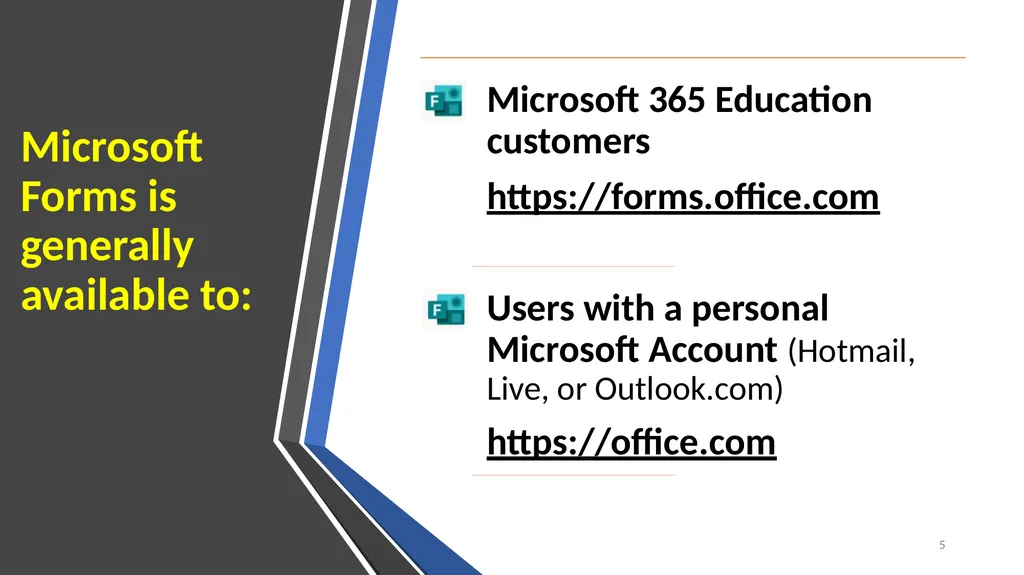
slide5. Microsoft Forms is generally available to: 5<br>
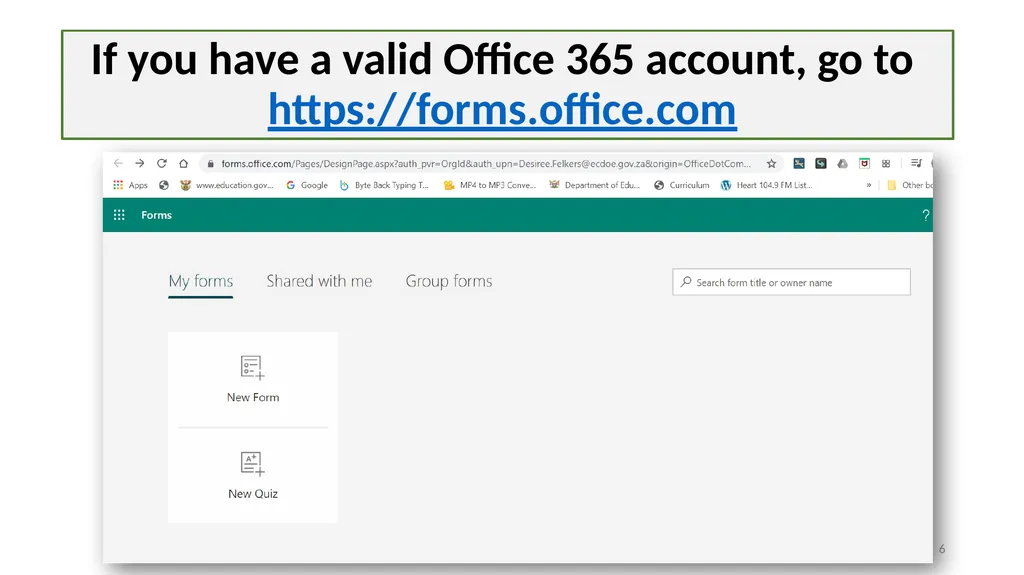
slide6. If you have a valid Office 365 account, go to https://forms.office.com 6<br>
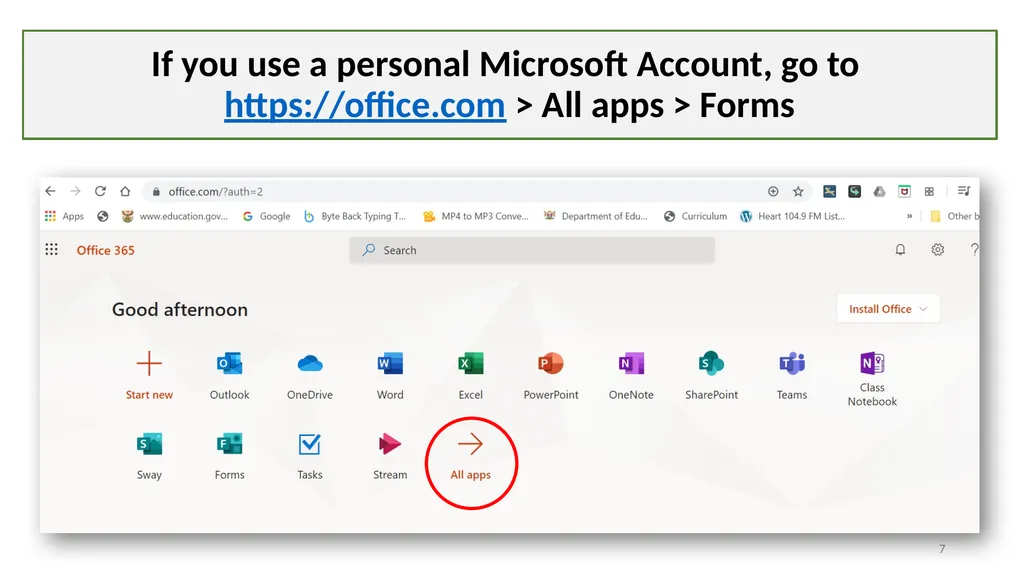
slide7. If you use a personal Microsoft Account, go to https://office.com > All apps > Forms 7<br>
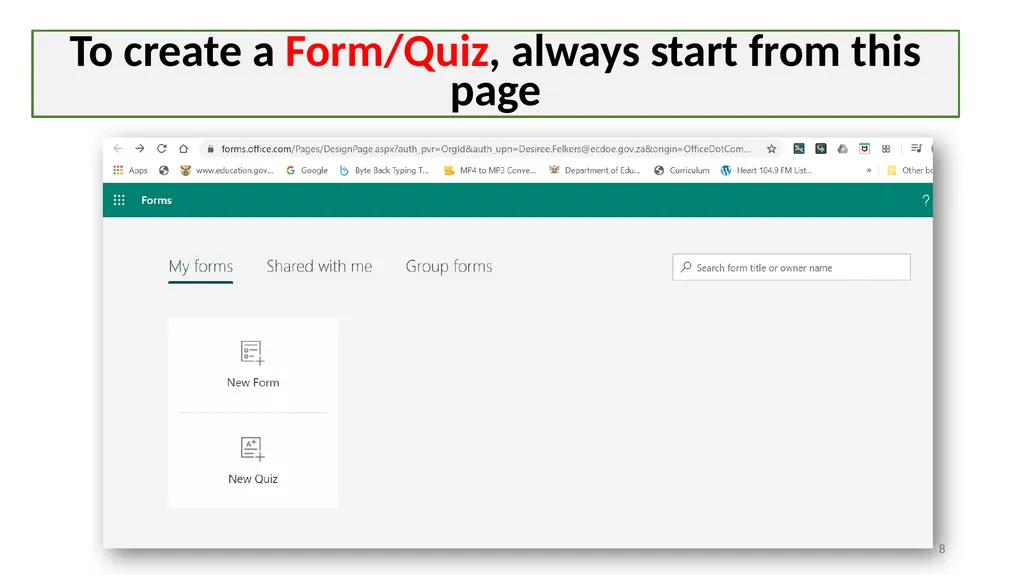
slide8. To create a Form/Quiz, always start from this page 8<br>
slide9. You should always add fields to collect learners’ names and class groups
If you do not, then each response will be labelled Responder 1, Responder 2 etc. with no names associated 9<br>
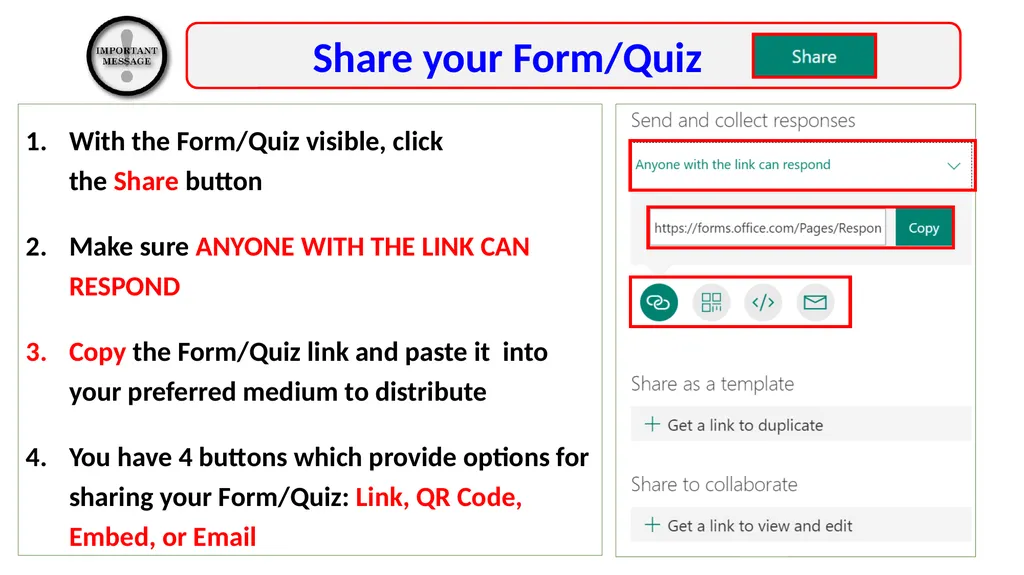
slide10. With the Form/Quiz visible, click the Share button
Make sure ANYONE WITH THE LINK CAN RESPOND
Copy the Form/Quiz link and paste it into your preferred medium to distribute
You have 4 buttons which provide options for sharing your Form/Quiz: Link, QR Code, Embed, or Email 10 Share your Form/Quiz<br>
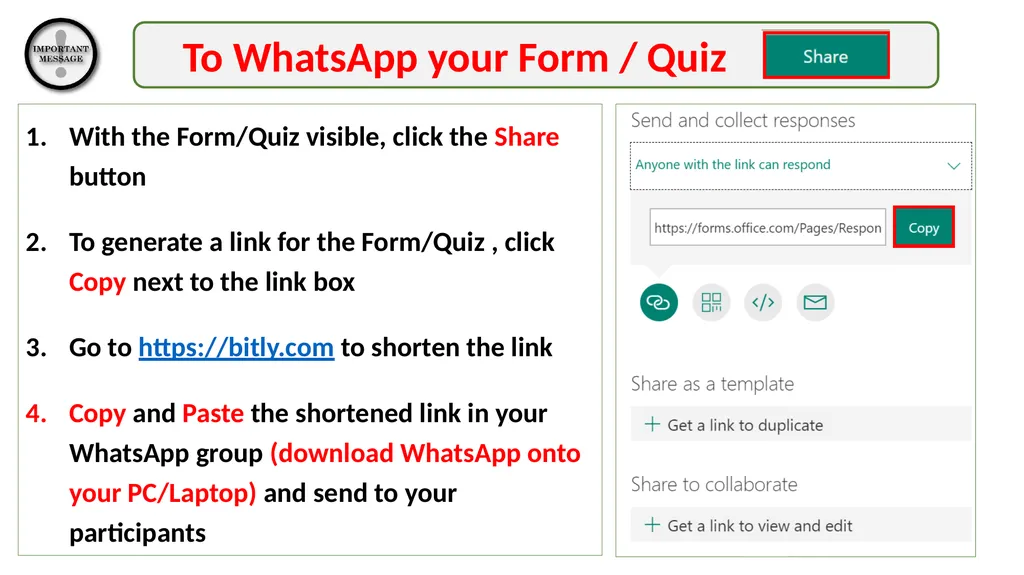
slide11. With the Form/Quiz visible, click the Share button
To generate a link for the Form/Quiz , click Copy next to the link box
Go to https://bitly.com to shorten the link
Copy and Paste the shortened link in your WhatsApp group (download WhatsApp onto your PC/Laptop) and send to your participants 11 To WhatsApp your Form / Quiz<br>
slide12. To create a Form or a Quiz, watch the video’s by clicking on the links on the next 2 slides 12<br>
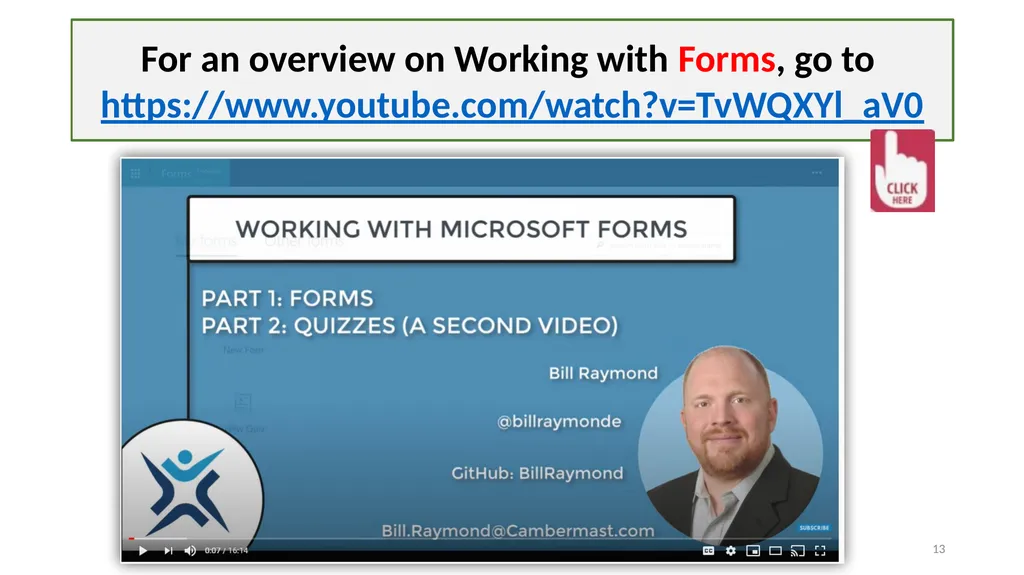
slide13. For an overview on Working with Forms, go to https://www.youtube.com/watch?v=TvWQXYl_aV0 13<br>
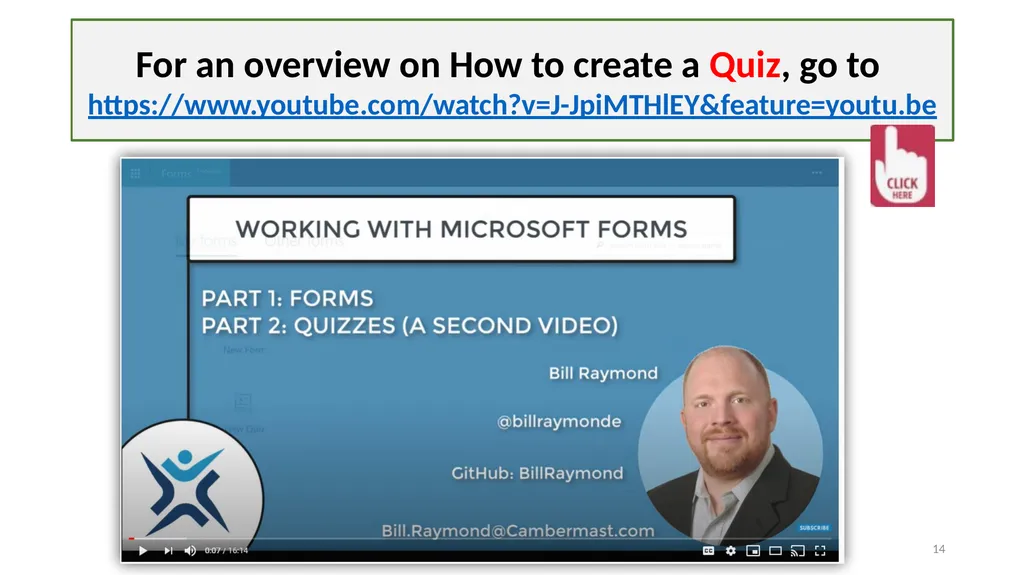
slide14. For an overview on How to create a Quiz, go to https://www.youtube.com/watch?v=J-JpiMTHlEY&feature=youtu.be 14<br>