Migrating User files and settings Kyle Rosenthal Technical Lead WindowsPCGuy Microsoft Virtual Academy Explain the purpose and requirements of USMT and Windows Easy Transfer Understand how the different migration tools work Objectives 2
"Migrating User files and settings Kyle Rosenthal" is the property of its rightful owner. Permission is granted to
download and print the materials on this website for personal, non-commercial use only, and to display it
on your personal computer provided you do not modify the materials and that you retain all copyright
notices contained in the materials. By downloading content from our website, you accept the terms of this
agreement.
Presentation Transcript
01
Migrating User files and settings Kyle Rosenthal Technical Lead @WindowsPCGuy Microsoft Virtual Academy<br>
02
Explain the purpose and requirements of USMT and Windows Easy Transfer
Understand how the different migration tools work Objectives 2<br>
03
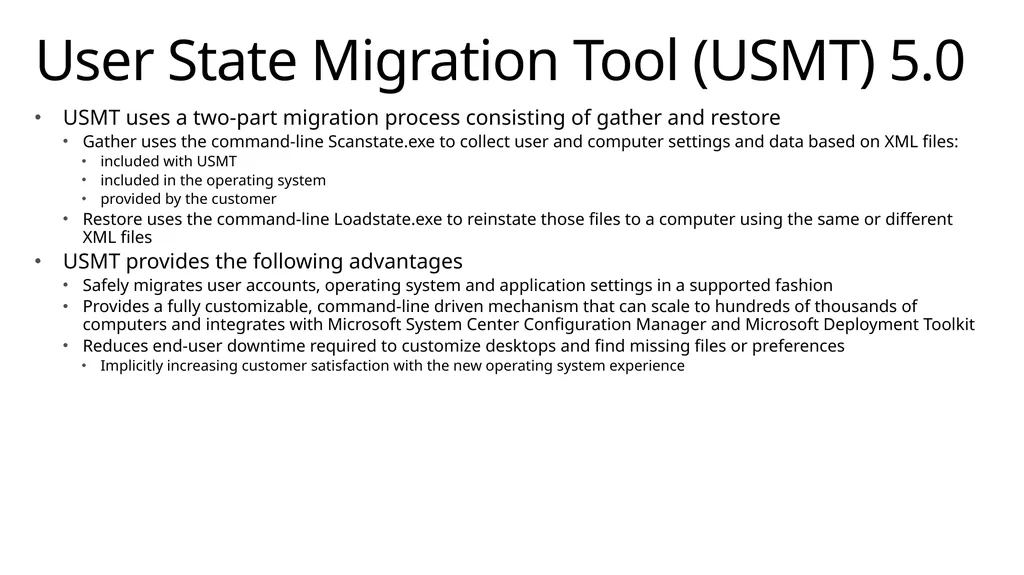
USMT uses a two-part migration process consisting of gather and restore
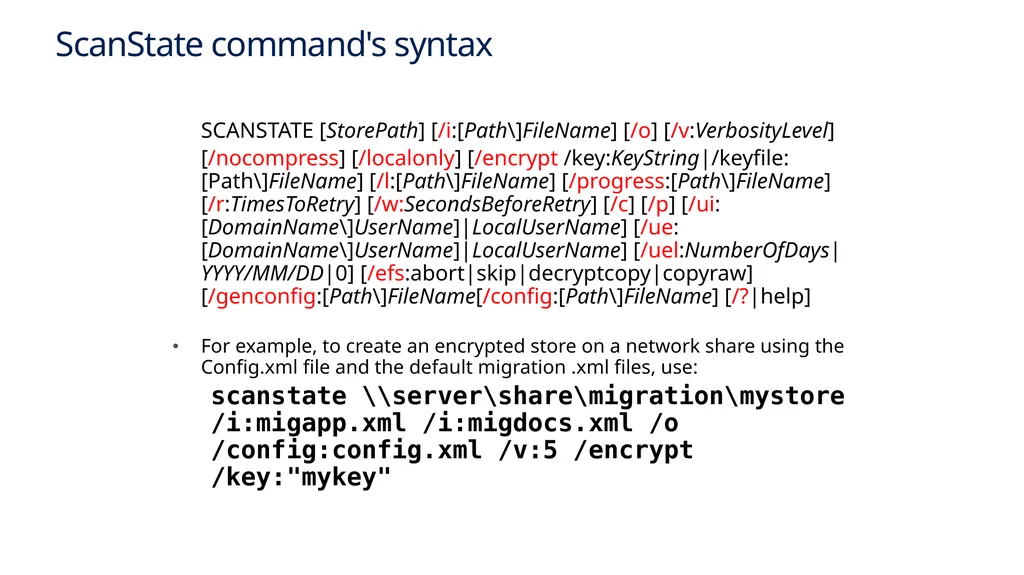
Gather uses the command-line Scanstate.exe to collect user and computer settings and data based on XML files:
included with USMT
included in the operating system
provided by the customer
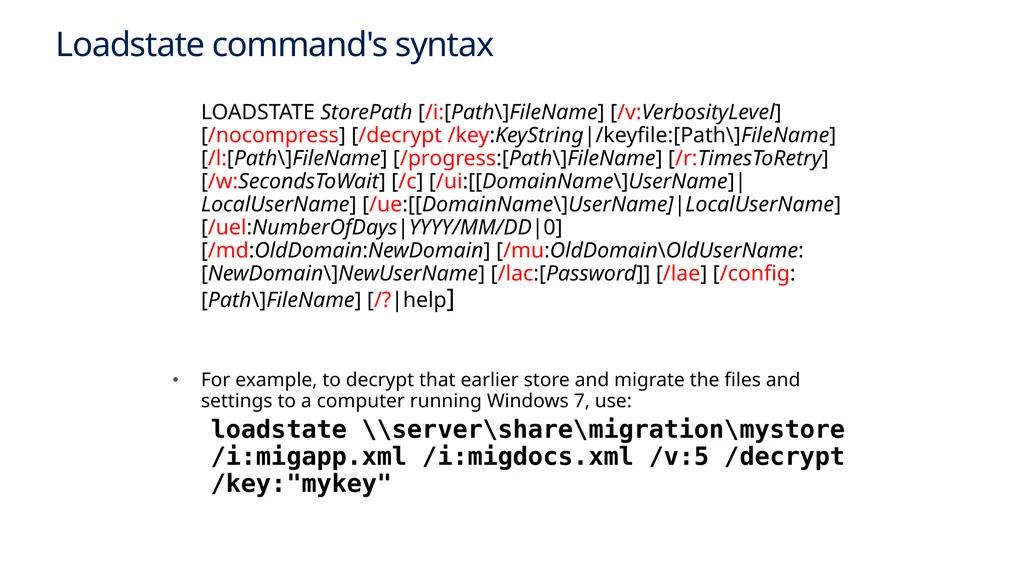
Restore uses the command-line Loadstate.exe to reinstate those files to a computer using the same or different XML files
USMT provides the following advantages
Safely migrates user accounts, operating system and application settings in a supported fashion
Provides a fully customizable, command-line driven mechanism that can scale to hundreds of thousands of computers and integrates with Microsoft System Center Configuration Manager and Microsoft Deployment Toolkit
Reduces end-user downtime required to customize desktops and find missing files or preferences
Implicitly increasing customer satisfaction with the new operating system experience User State Migration Tool (USMT) 5.0<br>
04
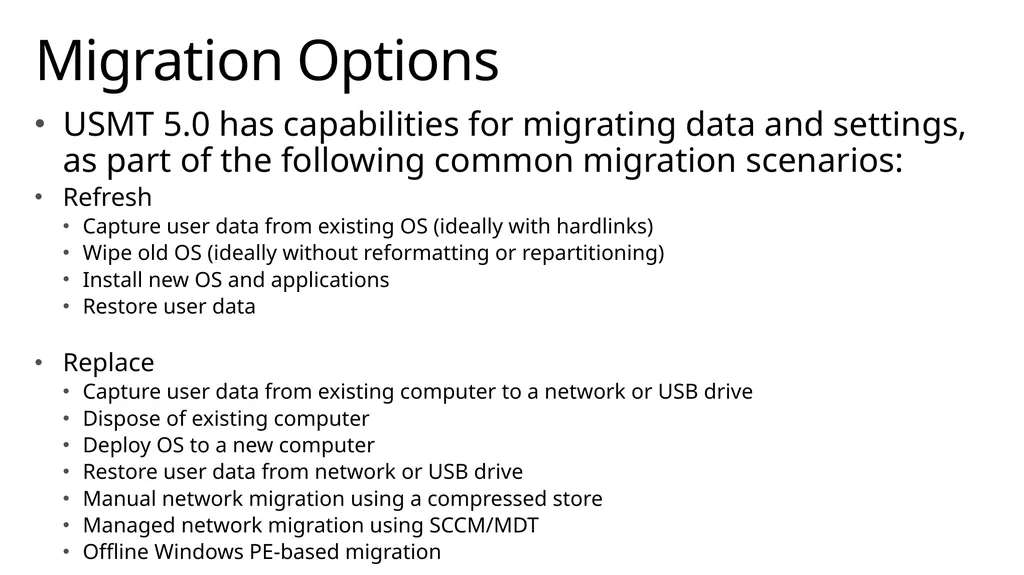
USMT 5.0 has capabilities for migrating data and settings, as part of the following common migration scenarios:
Refresh
Capture user data from existing OS (ideally with hardlinks)
Wipe old OS (ideally without reformatting or repartitioning)
Install new OS and applications
Restore user data
Replace
Capture user data from existing computer to a network or USB drive
Dispose of existing computer
Deploy OS to a new computer
Restore user data from network or USB drive
Manual network migration using a compressed store
Managed network migration using SCCM/MDT
Offline Windows PE-based migration Migration Options<br>
05
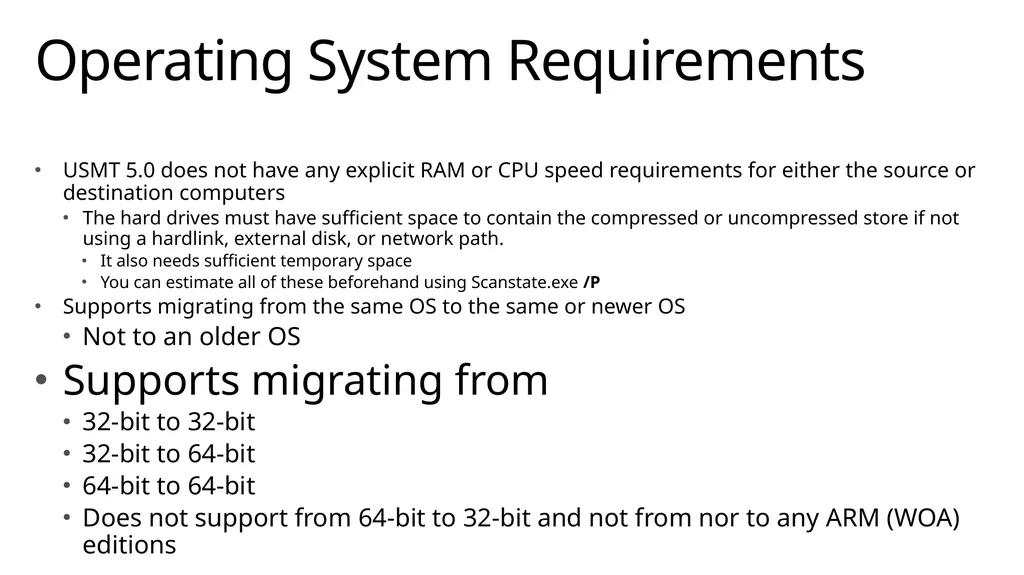
USMT 5.0 does not have any explicit RAM or CPU speed requirements for either the source or destination computers
The hard drives must have sufficient space to contain the compressed or uncompressed store if not using a hardlink, external disk, or network path.
It also needs sufficient temporary space
You can estimate all of these beforehand using Scanstate.exe /P
Supports migrating from the same OS to the same or newer OS
Not to an older OS
Supports migrating from
32-bit to 32-bit
32-bit to 64-bit
64-bit to 64-bit
Does not support from 64-bit to 32-bit and not from nor to any ARM (WOA) editions Operating System Requirements<br>
06
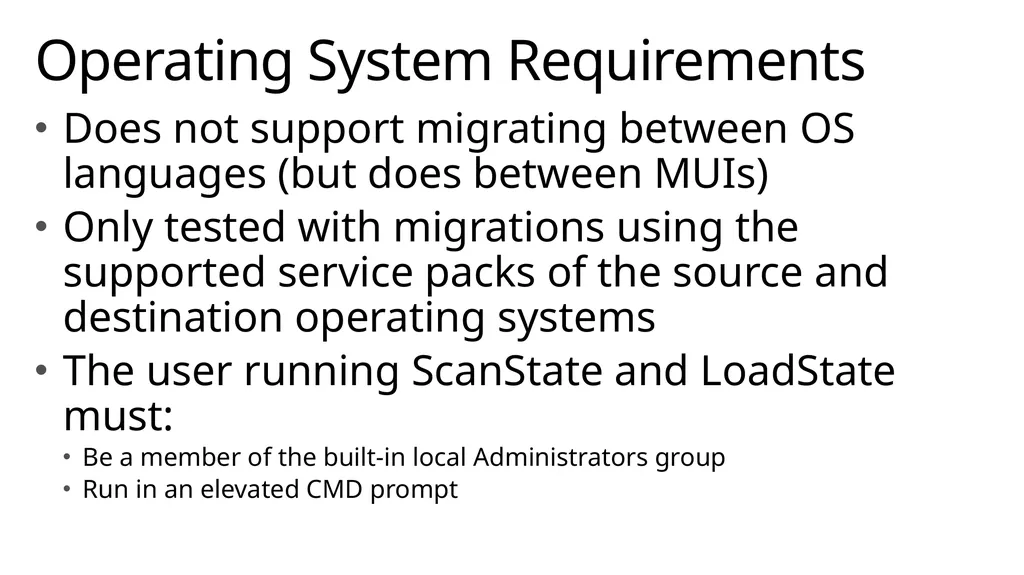
Does not support migrating between OS languages (but does between MUIs)
Only tested with migrations using the supported service packs of the source and destination operating systems
The user running ScanState and LoadState must:
Be a member of the built-in local Administrators group
Run in an elevated CMD prompt Operating System Requirements<br>
07
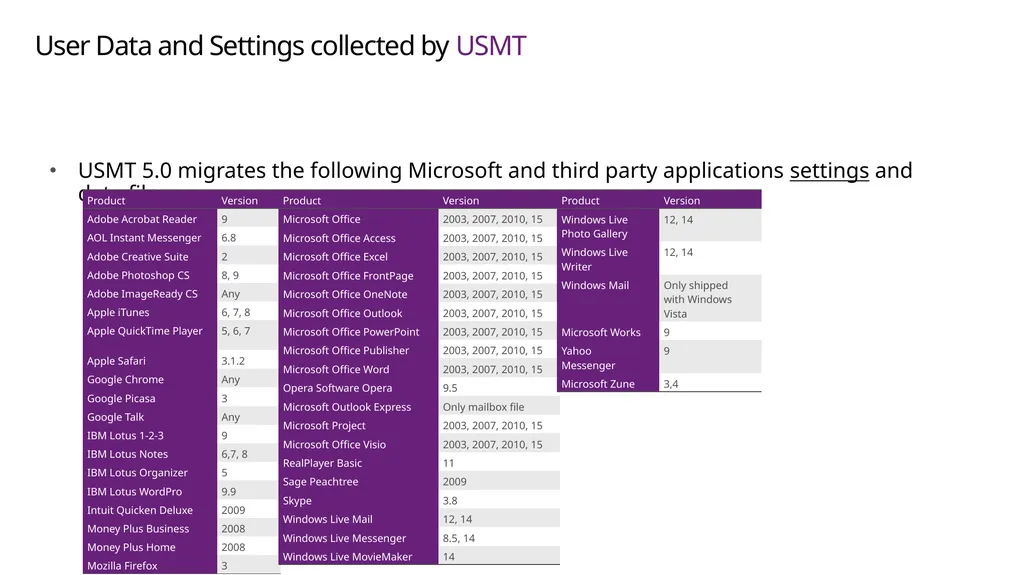
User Data and Settings collected by USMT USMT 5.0 migrates the following Microsoft and third party applications settings and data files<br>
For example, to create an encrypted store on a network share using the Config.xml file and the default migration .xml files, use:
scanstate \\server\share\migration\mystore /i:migapp.xml /i:migdocs.xml /o /config:config.xml /v:5 /encrypt /key:"mykey"<br>
For example, to decrypt that earlier store and migrate the files and settings to a computer running Windows 7, use:
loadstate \\server\share\migration\mystore /i:migapp.xml /i:migdocs.xml /v:5 /decrypt /key:"mykey"<br>
10
User State Migration DEMO<br>
11
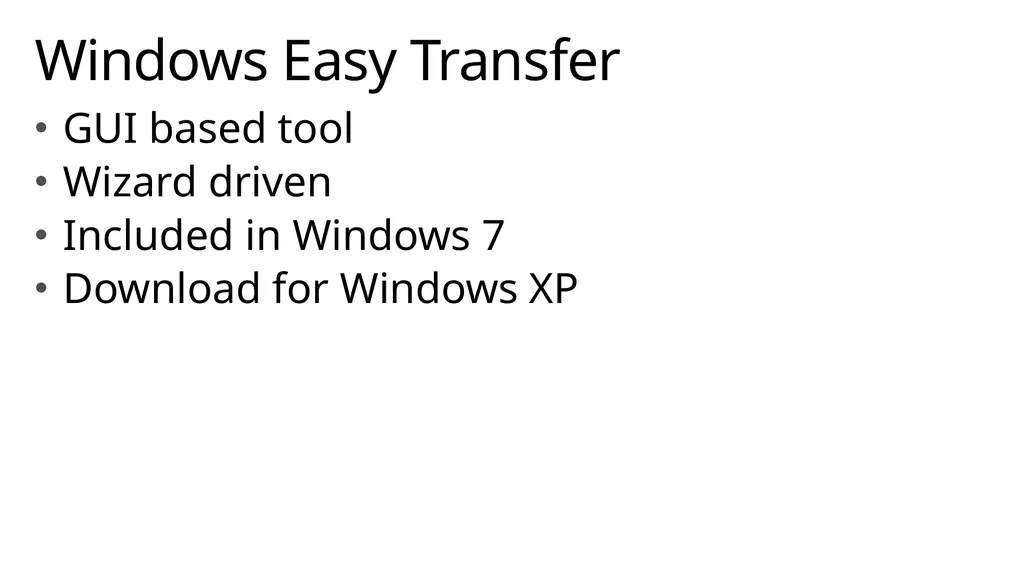
GUI based tool
Wizard driven
Included in Windows 7
Download for Windows XP Windows Easy Transfer<br>
12
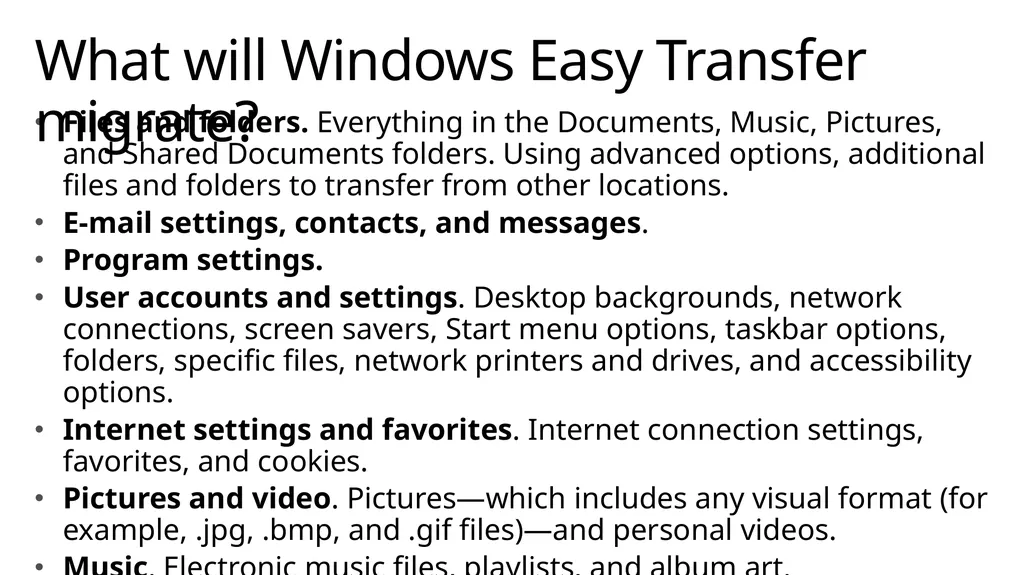
Files and folders. Everything in the Documents, Music, Pictures, and Shared Documents folders. Using advanced options, additional files and folders to transfer from other locations.
E‑mail settings, contacts, and messages.
Program settings.
User accounts and settings. Desktop backgrounds, network connections, screen savers, Start menu options, taskbar options, folders, specific files, network printers and drives, and accessibility options.
Internet settings and favorites. Internet connection settings, favorites, and cookies.
Pictures and video. Pictures—which includes any visual format (for example, .jpg, .bmp, and .gif files)—and personal videos.
Music. Electronic music files, playlists, and album art. What will Windows Easy Transfer migrate?<br>
13
User State Migration DEMO<br>
14
USMT migration
Windows Easy Transfer Wizard Summary<br>
15
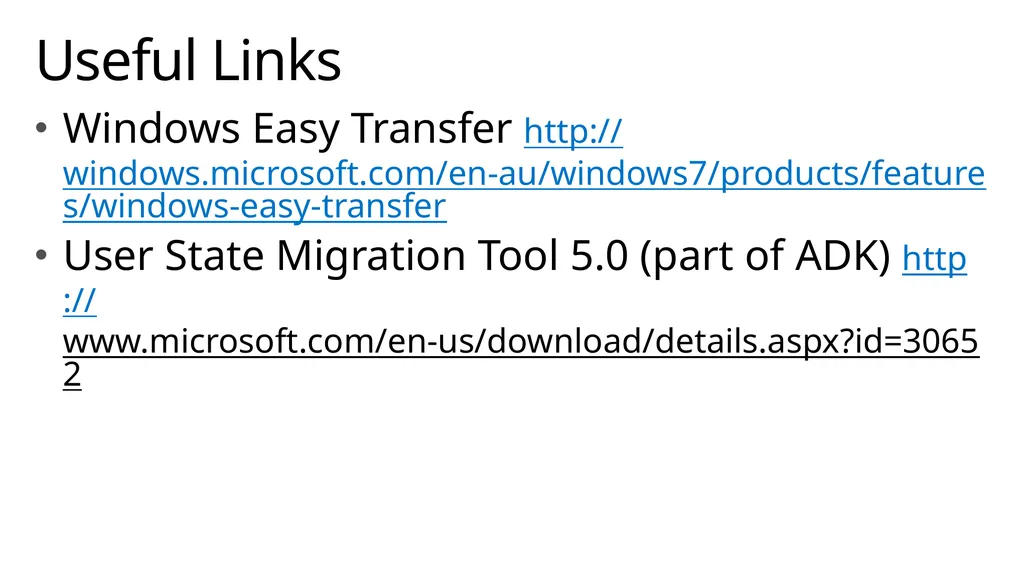
Windows Easy Transfer http://windows.microsoft.com/en-au/windows7/products/features/windows-easy-transfer
User State Migration Tool 5.0 (part of ADK) http://www.microsoft.com/en-us/download/details.aspx?id=30652 Useful Links<br>