04
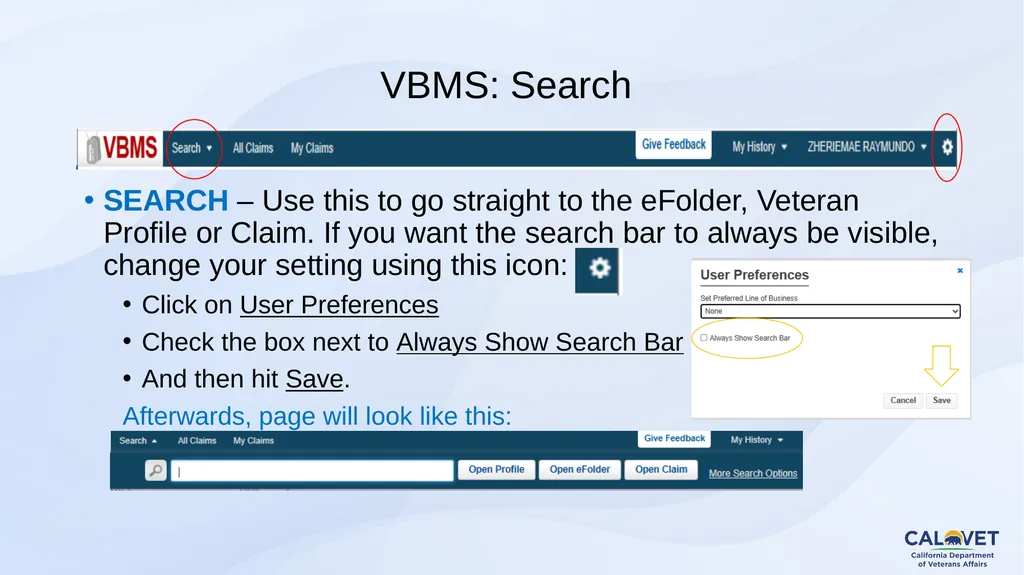
VBMS: Search SEARCH – Use this to go straight to the eFolder, Veteran Profile or Claim. If you want the search bar to always be visible, change your setting using this icon:
Click on User Preferences
Check the box next to Always Show Search Bar
And then hit Save.
Afterwards, page will look like this:<br>
05
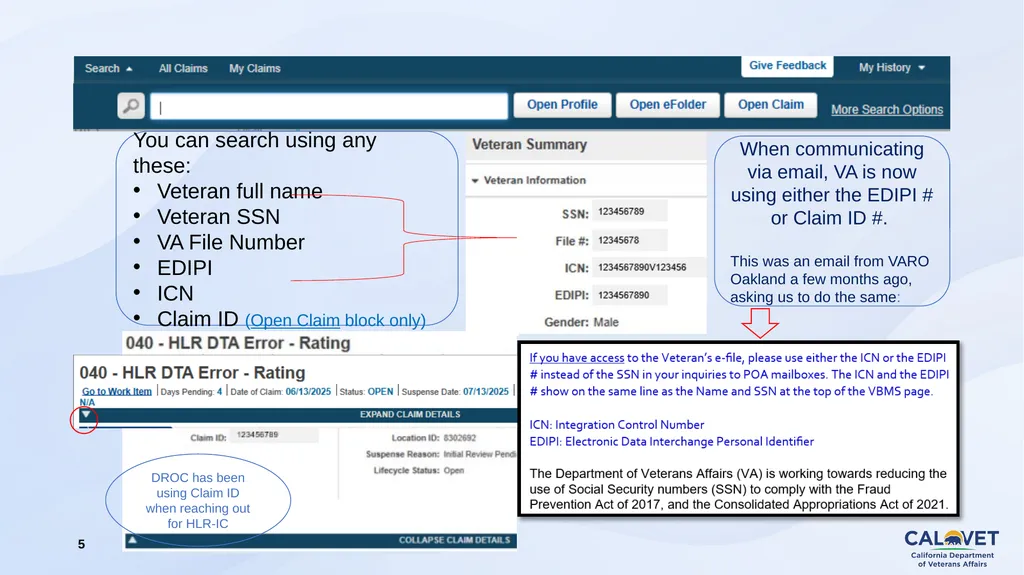
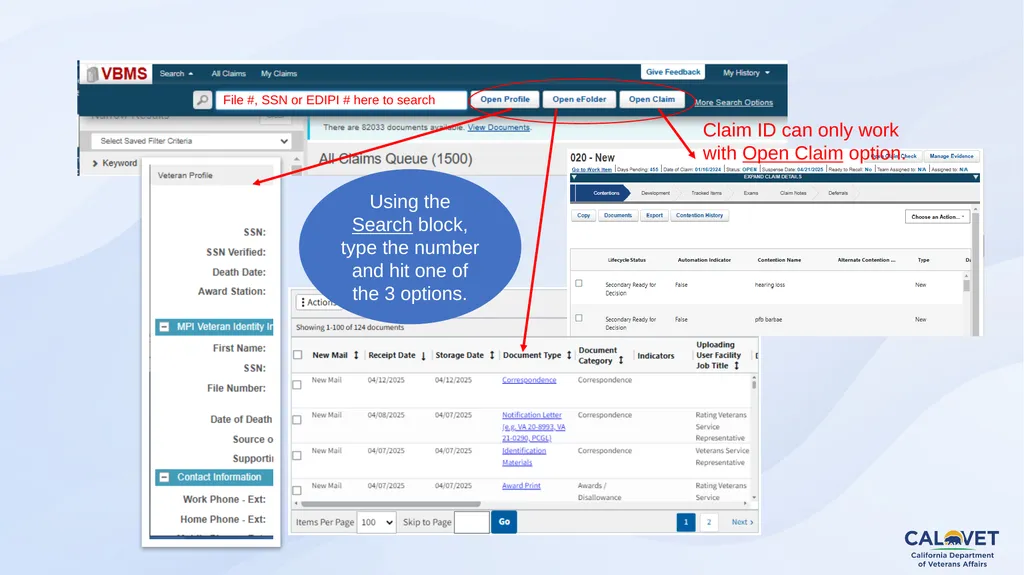
5 You can search using any these:
Veteran full name
Veteran SSN
VA File Number
EDIPI
ICN
Claim ID (Open Claim block only) When communicating via email, VA is now using either the EDIPI # or Claim ID #.
This was an email from VARO Oakland a few months ago, asking us to do the same: DROC has been using Claim ID when reaching out for HLR-IC<br>
06
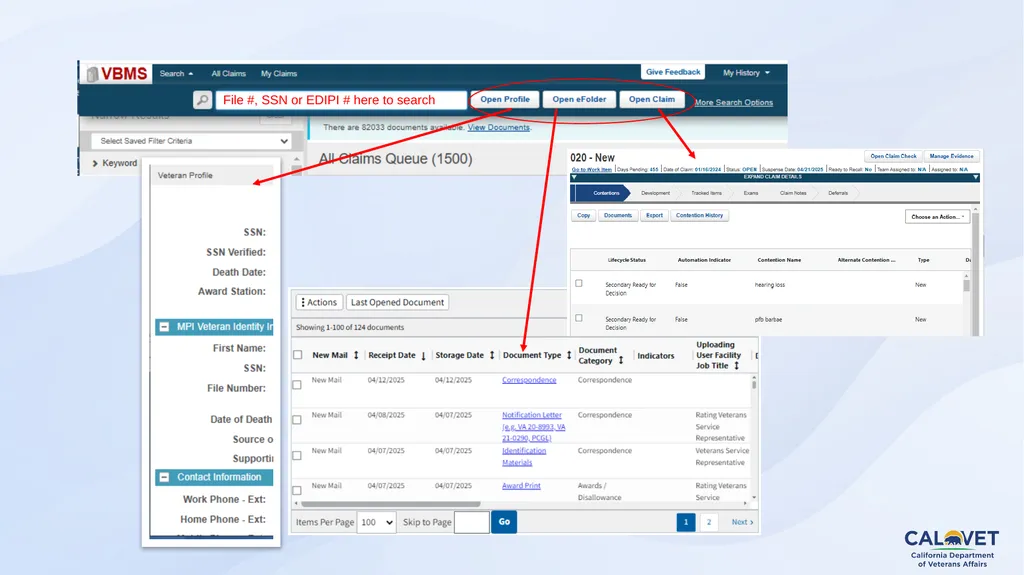
File #, SSN or EDIPI # here to search<br>
07
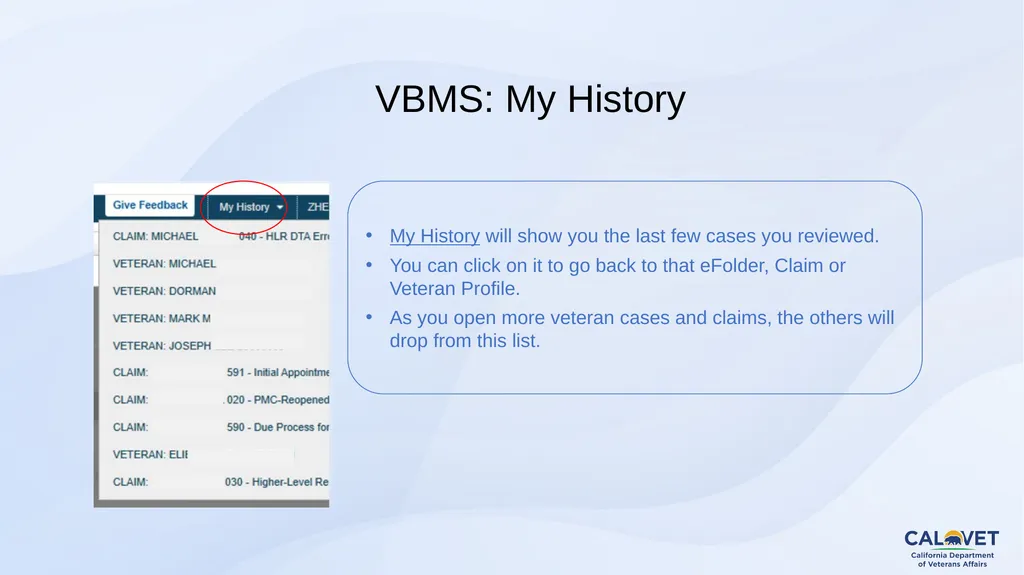
My History will show you the last few cases you reviewed.
You can click on it to go back to that eFolder, Claim or Veteran Profile.
As you open more veteran cases and claims, the others will drop from this list. VBMS: My History<br>
08
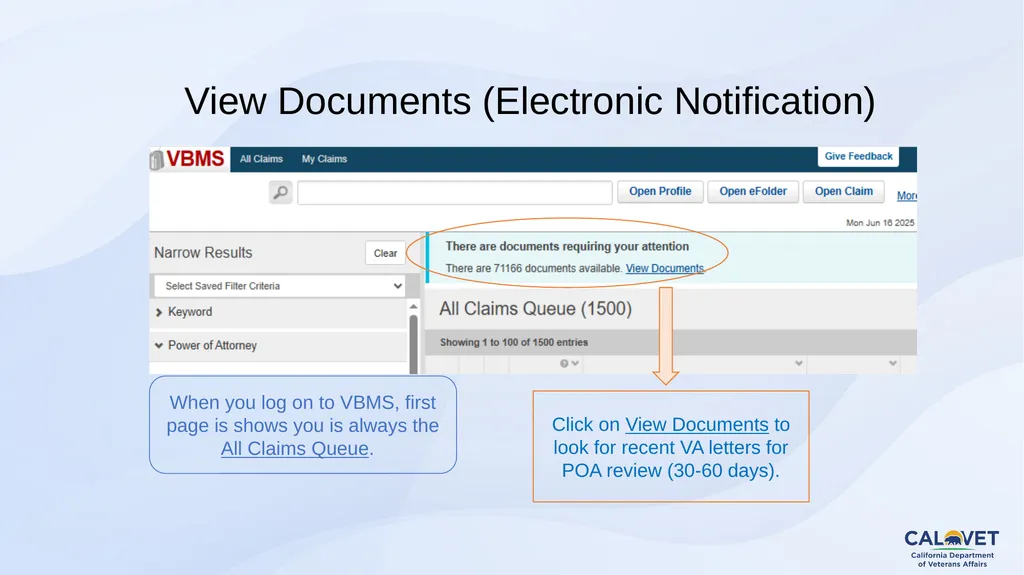
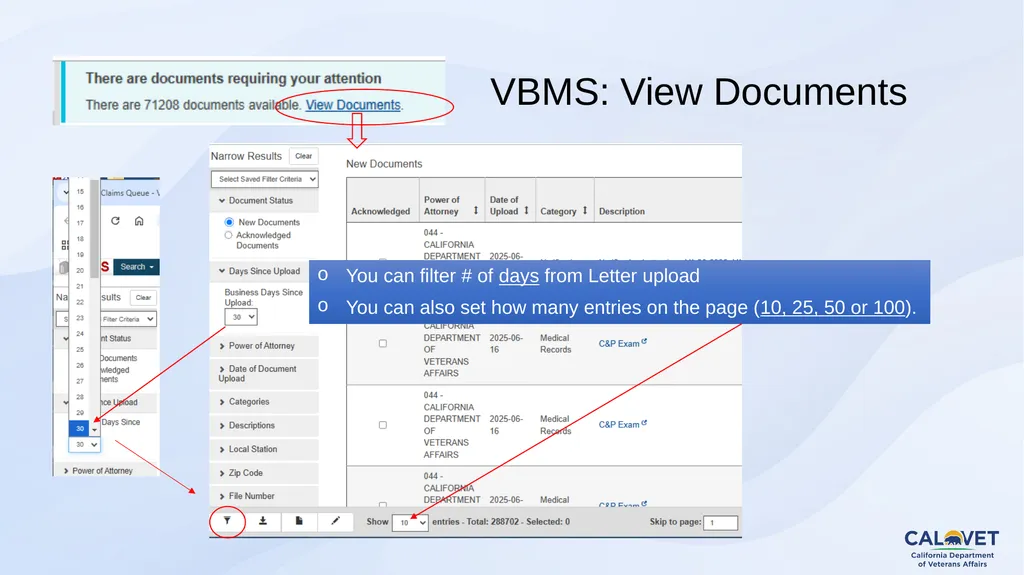
When you log on to VBMS, first page is shows you is always the All Claims Queue. Click on View Documents to look for recent VA letters for POA review (30-60 days). View Documents (Electronic Notification)<br>
09
You can filter # of days from Letter upload
You can also set how many entries on the page (10, 25, 50 or 100). VBMS: View Documents<br>
10
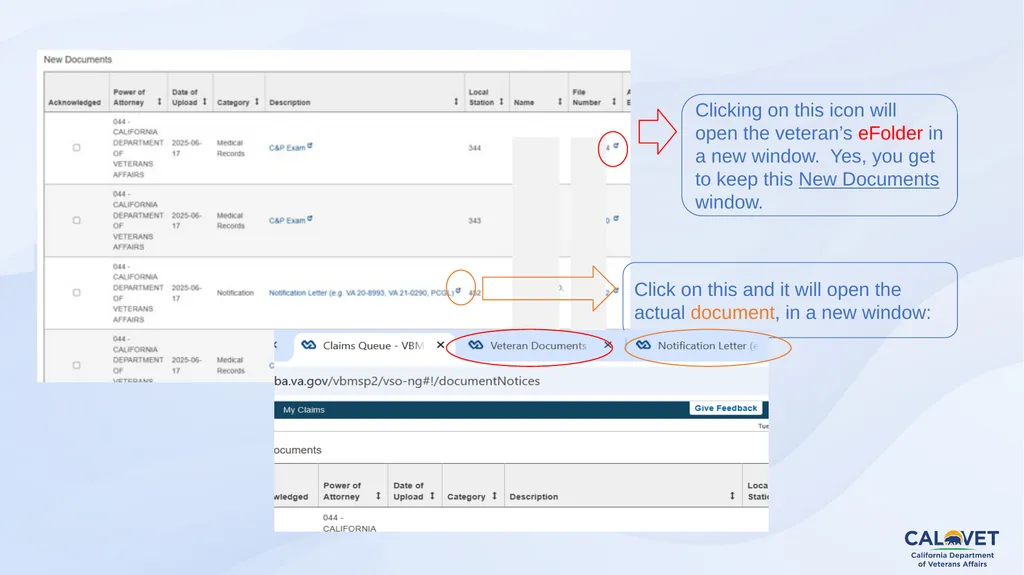
Click on this and it will open the actual document, in a new window: Clicking on this icon will open the veteran’s eFolder in a new window. Yes, you get to keep this New Documents window.<br>
11
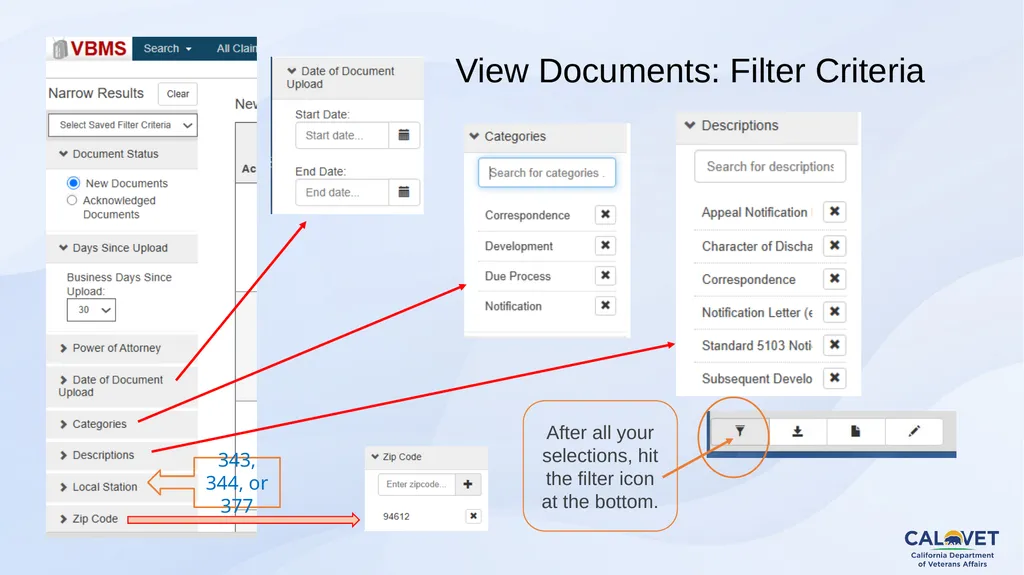
After all your selections, hit the filter icon at the bottom. 343, 344, or 377 View Documents: Filter Criteria<br>
12
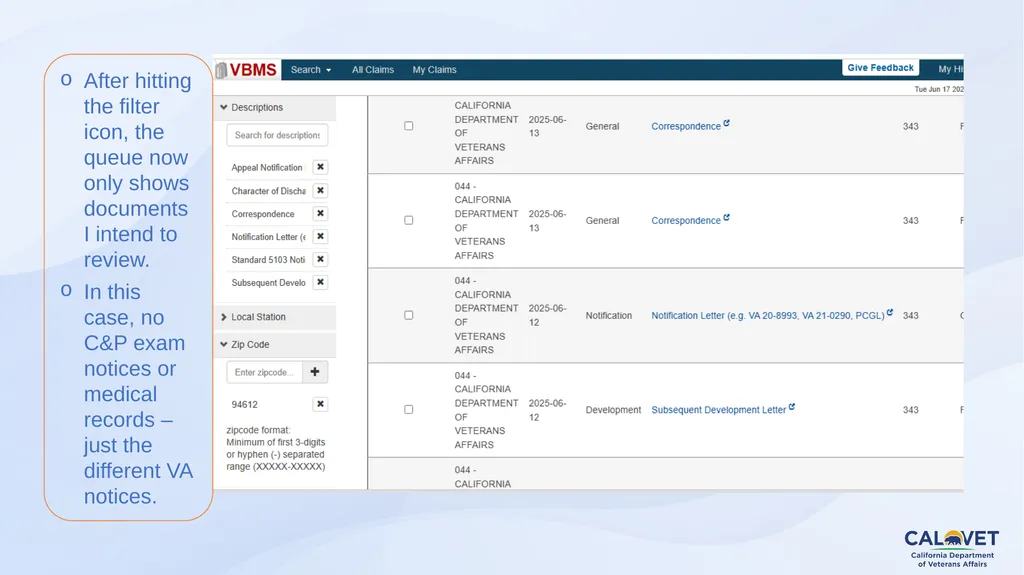
After hitting the filter icon, the queue now only shows documents I intend to review.
In this case, no C&P exam notices or medical records – just the different VA notices.<br>
13
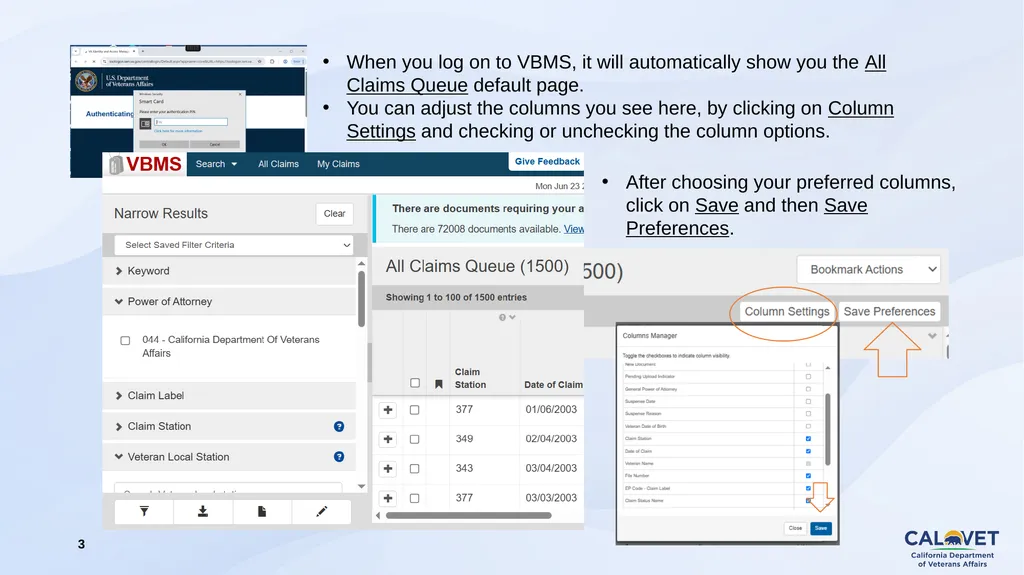
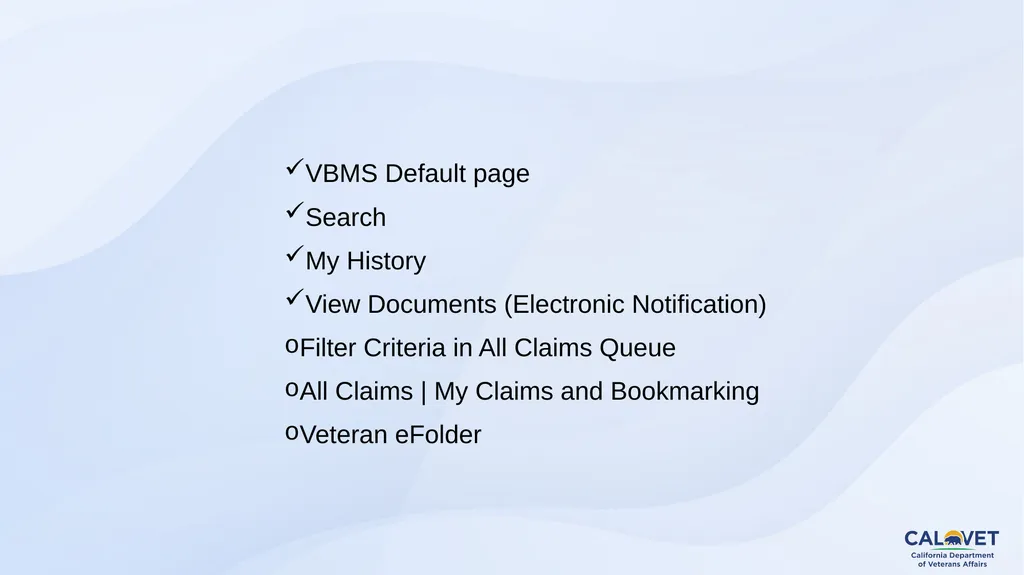
VBMS Default page
Search
My History
View Documents (Electronic Notification)
Filter Criteria in All Claims Queue
All Claims | My Claims and Bookmarking
Veteran eFolder<br>
14
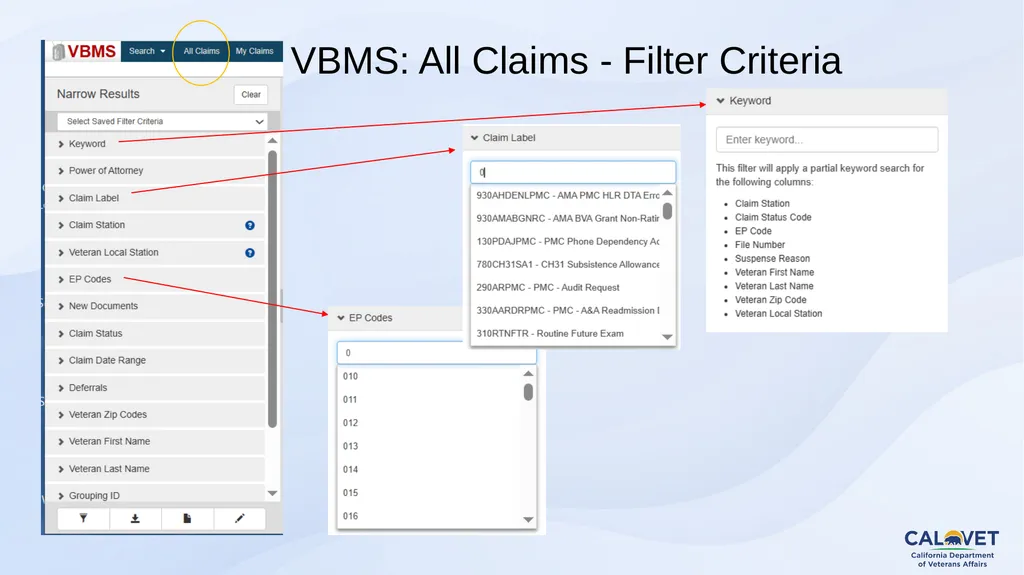
VBMS: All Claims - Filter Criteria<br>
15
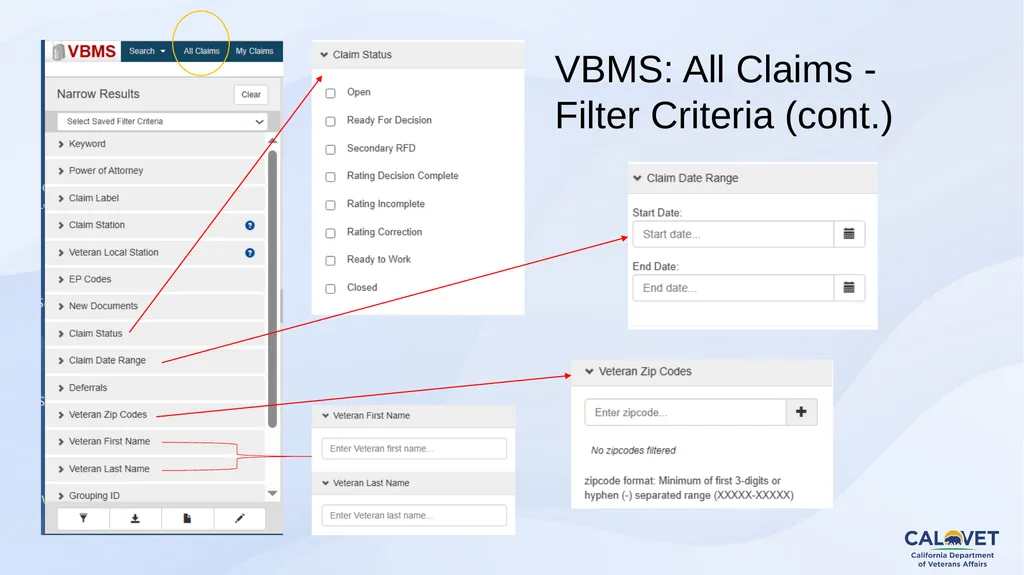
VBMS: All Claims - Filter Criteria (cont.)<br>
16
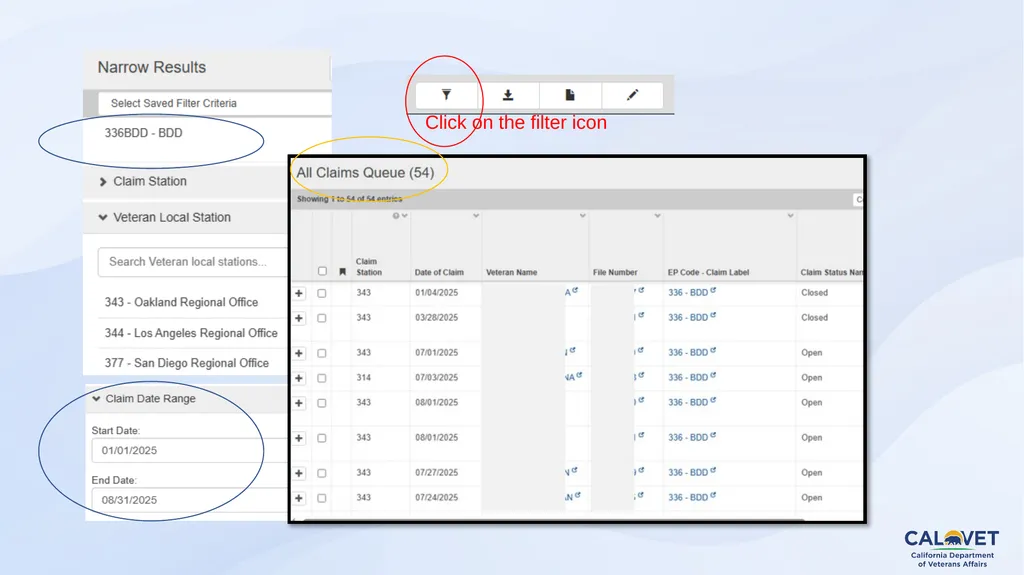
Click on the filter icon<br>
17
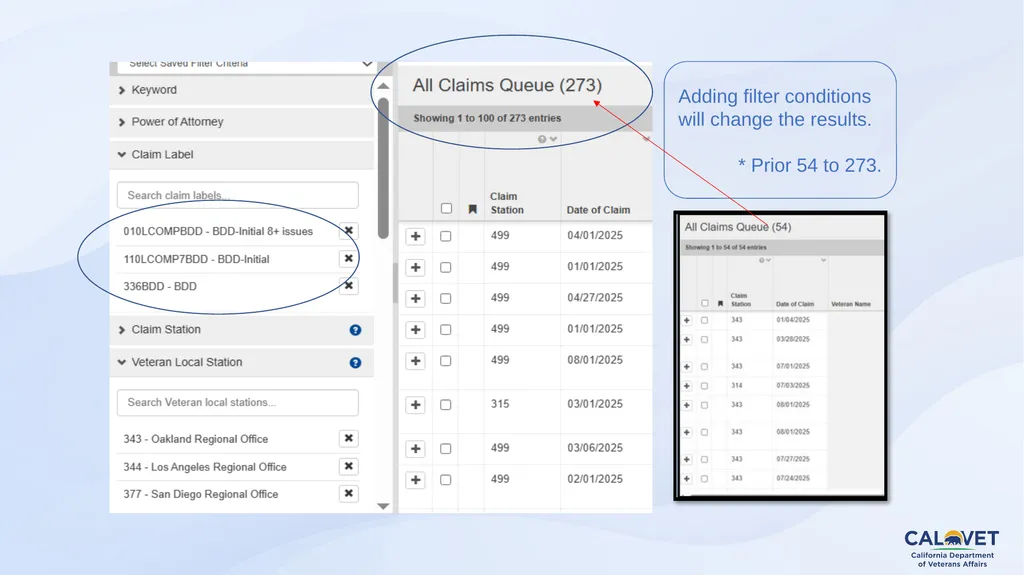
Adding filter conditions will change the results.
* Prior 54 to 273.<br>
18
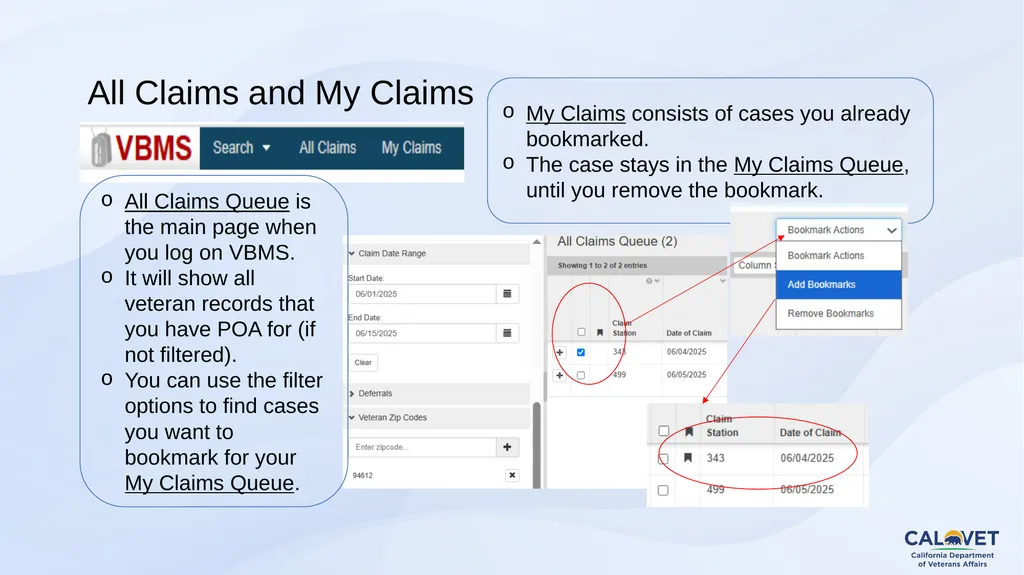
My Claims consists of cases you already bookmarked.
The case stays in the My Claims Queue, until you remove the bookmark. All Claims Queue is the main page when you log on VBMS.
It will show all veteran records that you have POA for (if not filtered).
You can use the filter options to find cases you want to bookmark for your My Claims Queue. All Claims and My Claims<br>
19
Here’s another look at the filter options. You can even filter by name in the All Claims Queue, so you can bookmark the case for your My Claims Queue.<br>
20
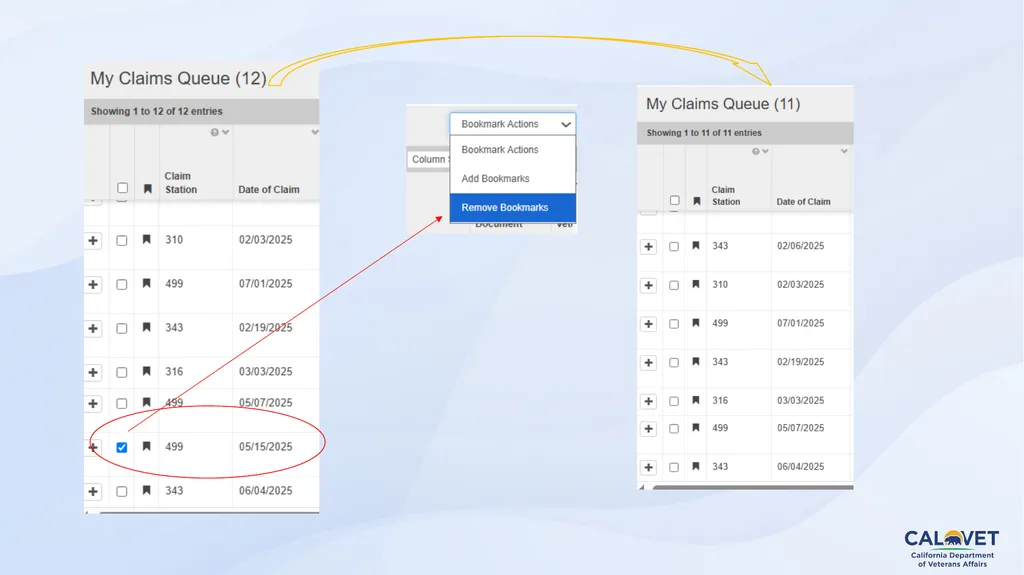
If you put a case in your My Claims Queue, you’ll be able to view and keep track of the status of your cases. No more individual searching. VBMS: My Claims<br>
21
VBMS Default page
Search
My History
View Documents (Electronic Notification)
Filter Criteria in All Claims Queue
All Claims | My Claims and Bookmarking
Veteran eFolder<br>
22
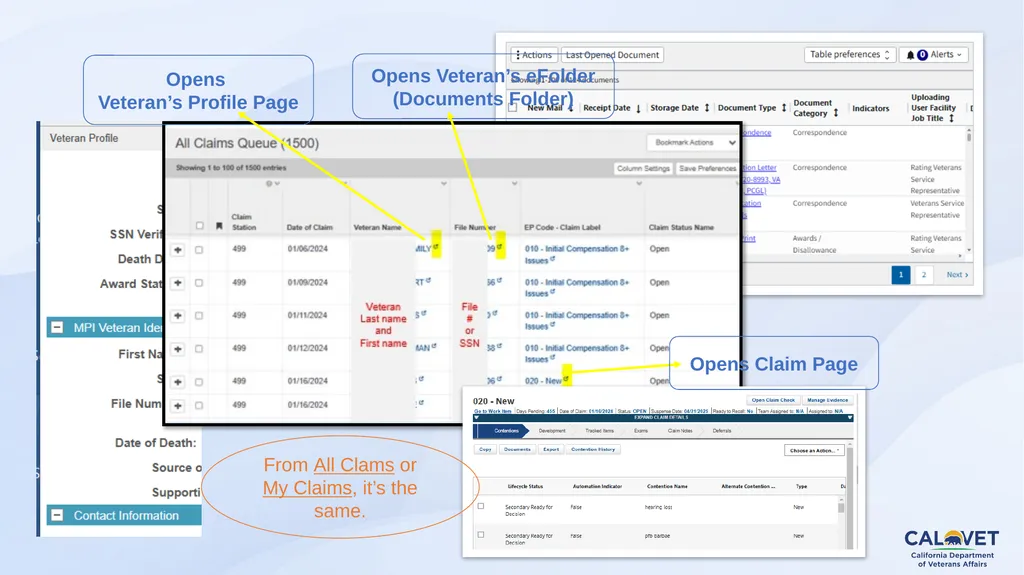
Opens Veteran’s eFolder (Documents Folder) Opens
Veteran’s Profile Page Opens Claim Page From All Clams or My Claims, it’s the same.<br>
23
File #, SSN or EDIPI # here to search Using the Search block, type the number and hit one of the 3 options. Claim ID can only work with Open Claim option.<br>
24
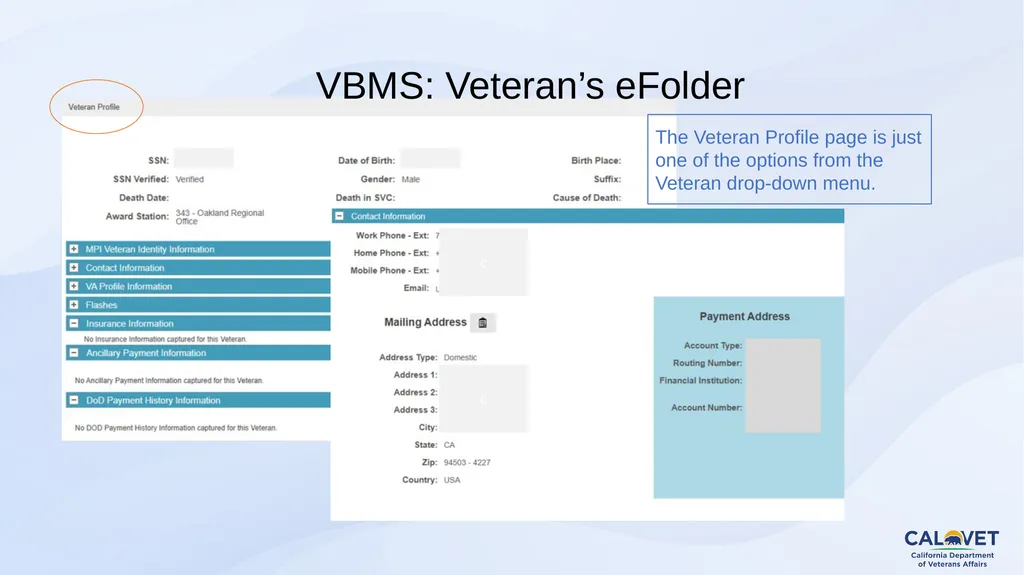
VBMS: Veteran’s eFolder The Veteran Profile page is just one of the options from the Veteran drop-down menu.<br>
25
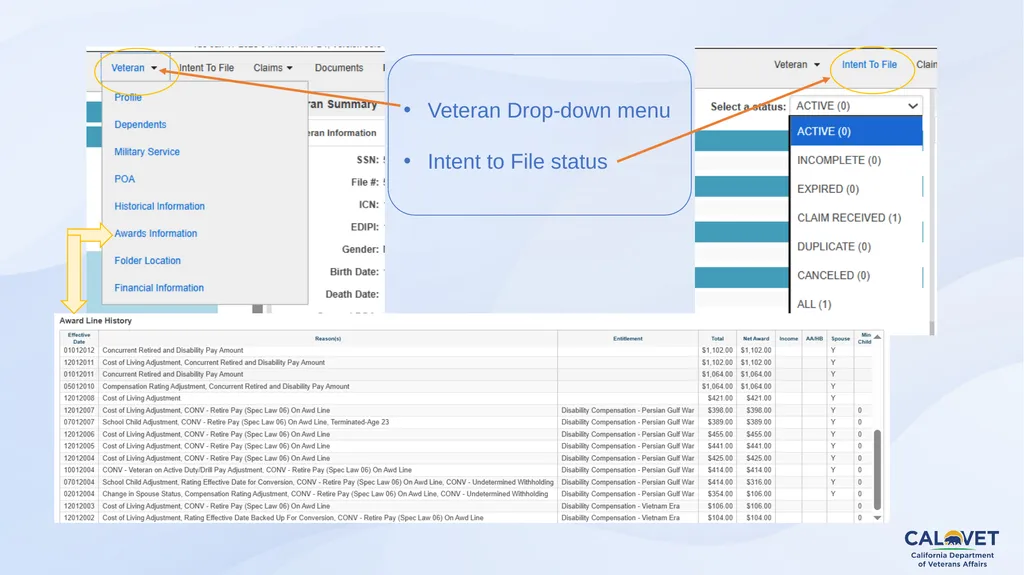
Veteran Drop-down menu
Intent to File status<br>
26
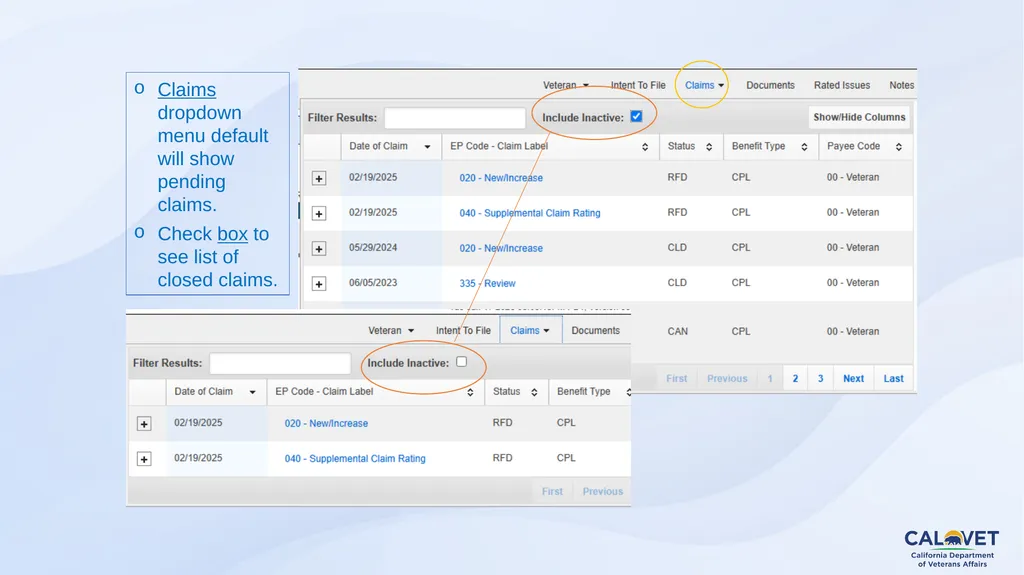
Claims dropdown menu default will show pending claims.
Check box to see list of closed claims.<br>
27
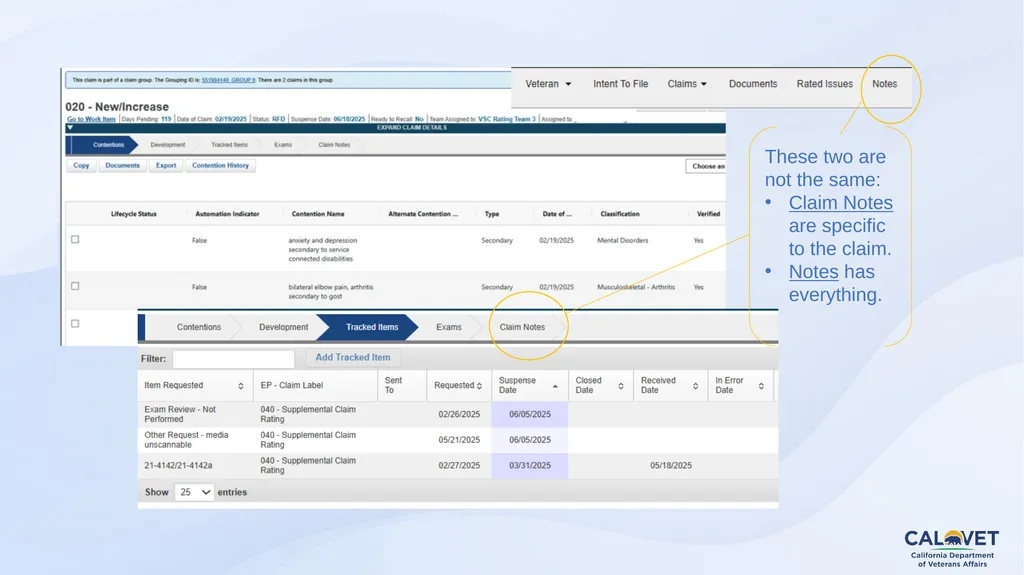
These two are not the same:
Claim Notes are specific to the claim.
Notes has everything.<br>
28
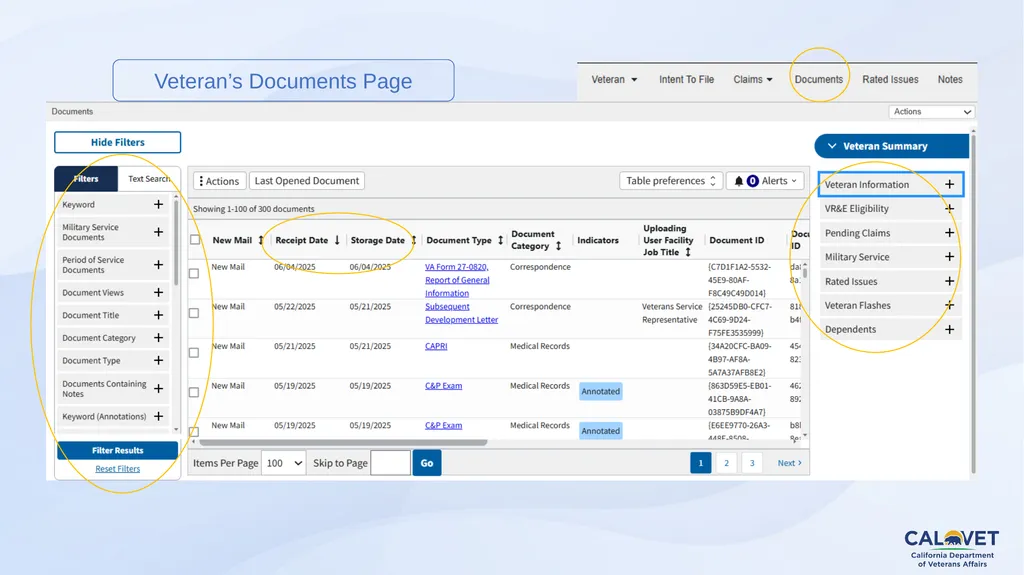
Veteran’s Documents Page<br>
29
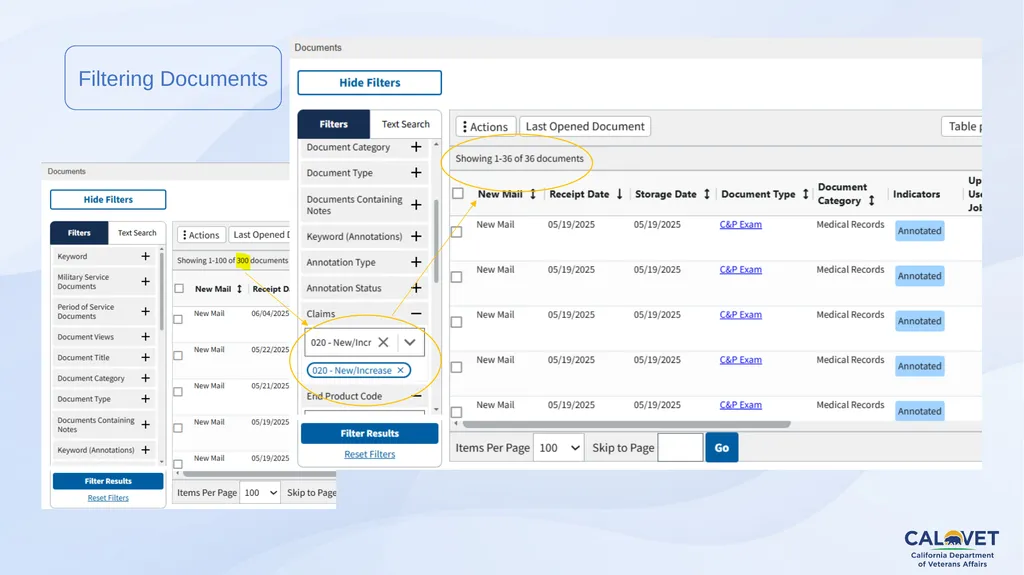
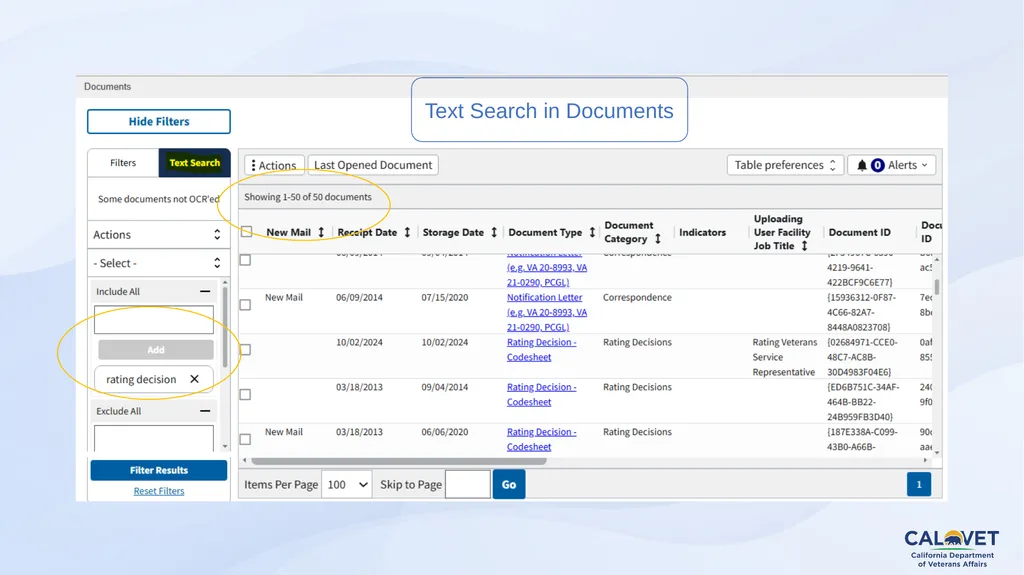
Filtering Documents<br>
30
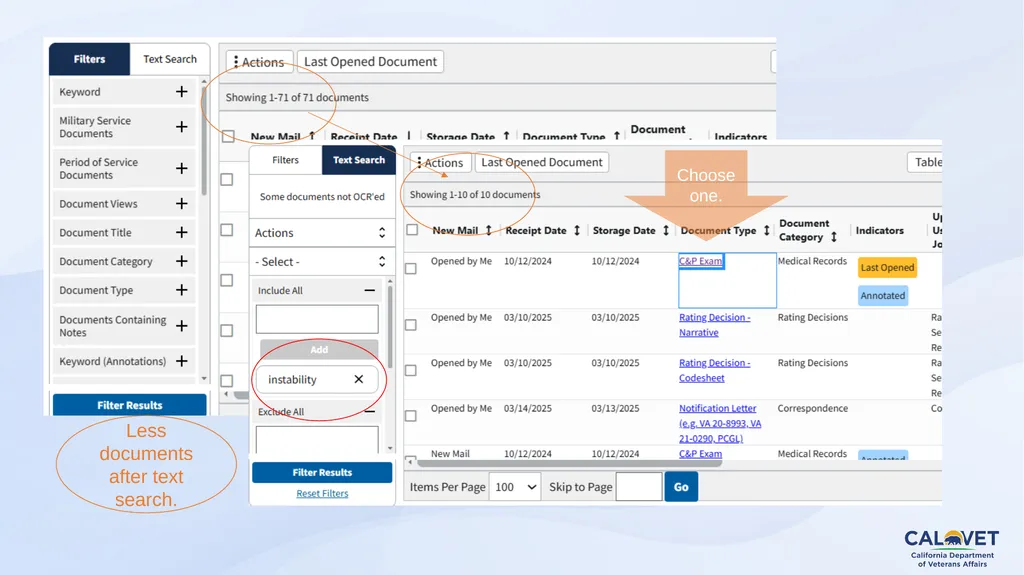
Text Search in Documents<br>
31
Less documents after text search. Choose one.<br>
32
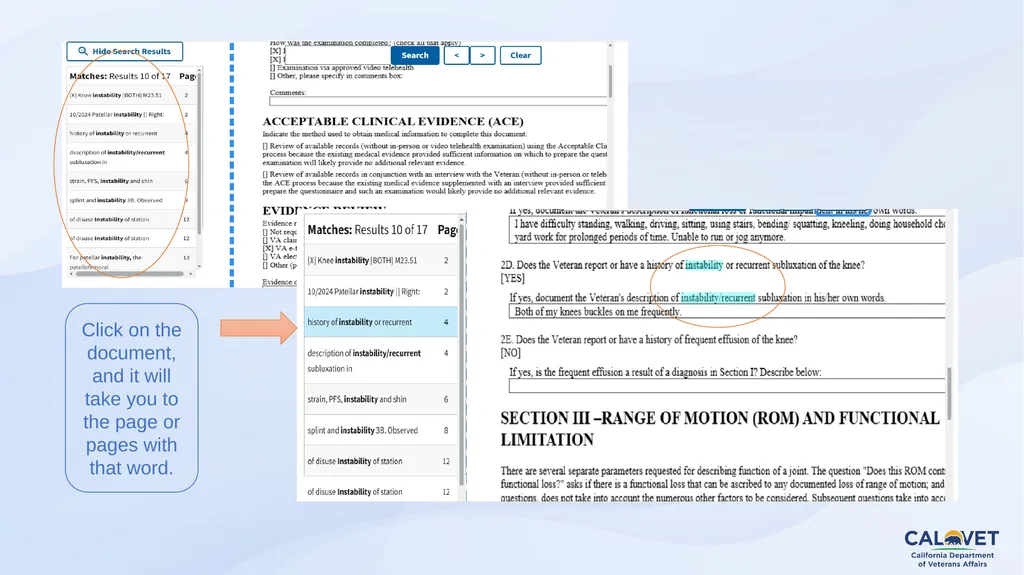
Click on the document, and it will take you to the page or pages with that word.<br>
33
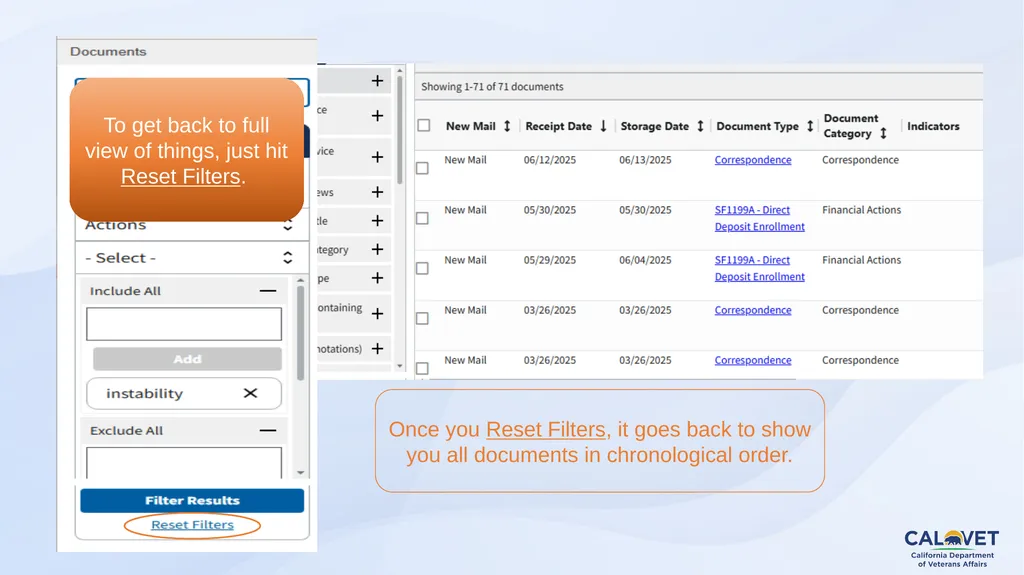
To get back to full view of things, just hit Reset Filters. Once you Reset Filters, it goes back to show you all documents in chronological order.<br>
34
VBMS (Veterans Benefits Management System)
Default page
Search
My History
View Documents (Electronic Notification)
Filter Criteria in All Claims Queue
All Claims | My Claims and Bookmarking
eFolder
VBA-SHARE 35<br>
35
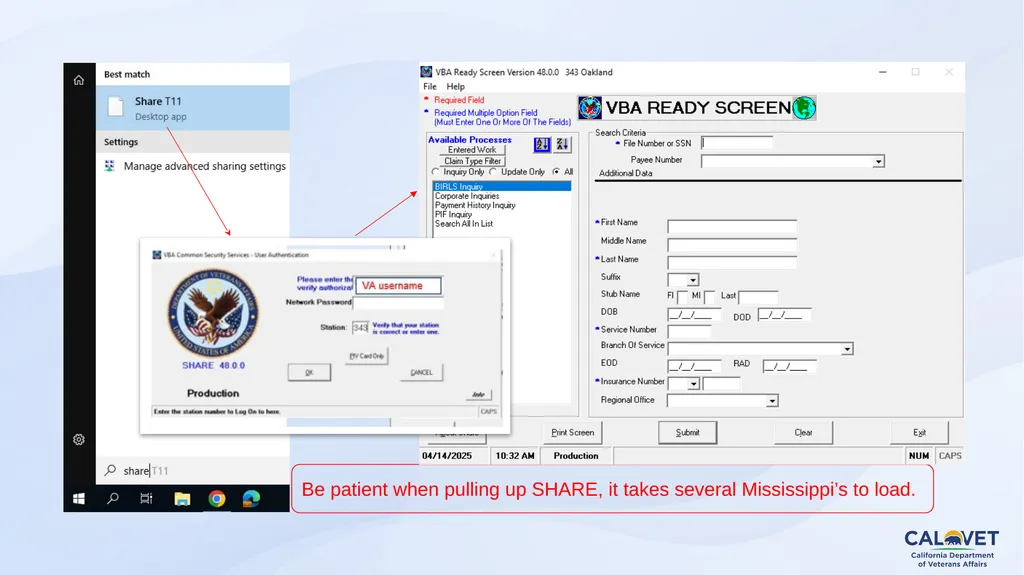
Be patient when pulling up SHARE, it takes several Mississippi’s to load.<br>
36
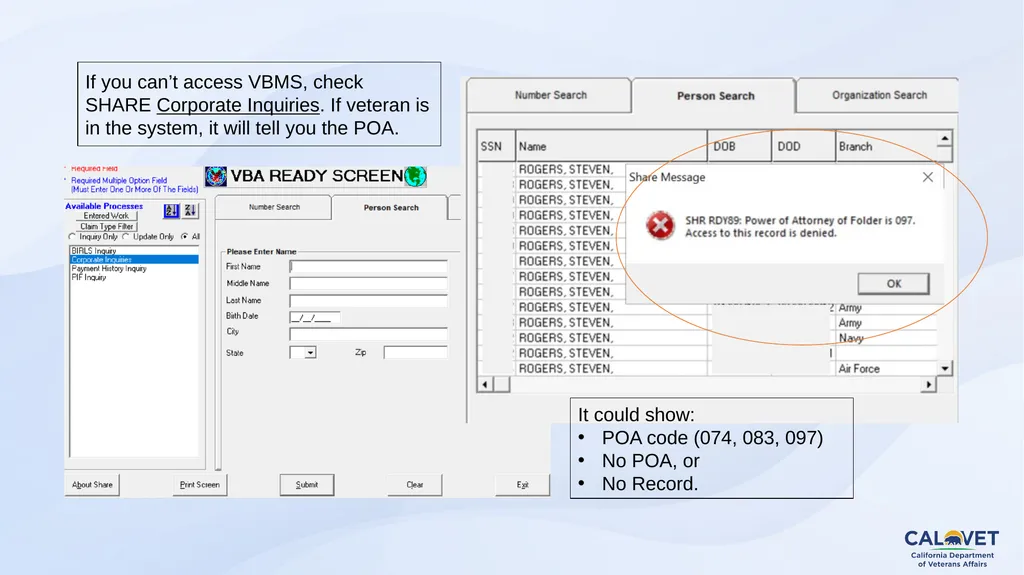
If you can’t access VBMS, check SHARE Corporate Inquiries. If veteran is in the system, it will tell you the POA. It could show:
POA code (074, 083, 097)
No POA, or
No Record.<br>
37
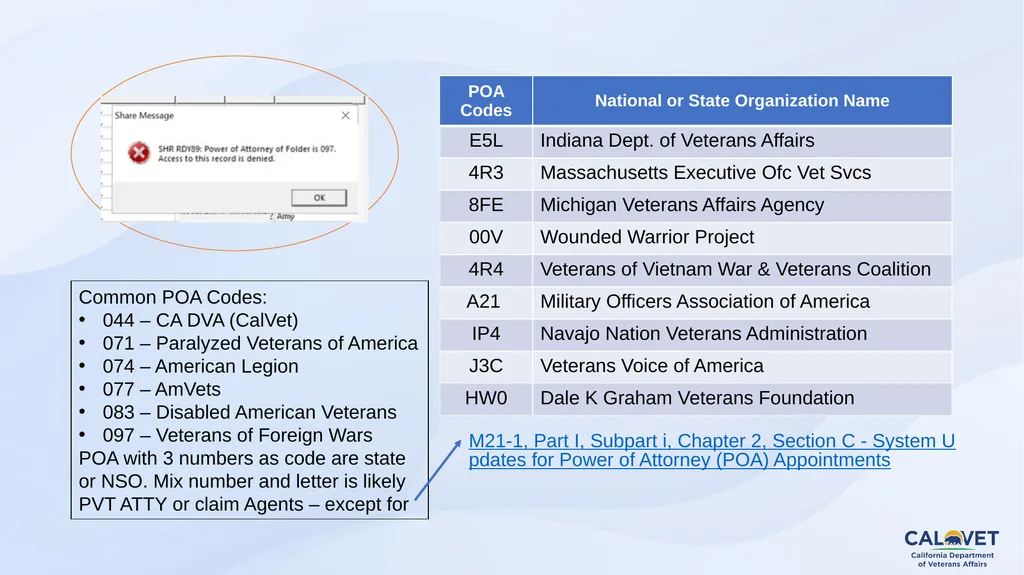
Common POA Codes:
044 – CA DVA (CalVet)
071 – Paralyzed Veterans of America
074 – American Legion
077 – AmVets
083 – Disabled American Veterans
097 – Veterans of Foreign Wars
POA with 3 numbers as code are state or NSO. Mix number and letter is likely PVT ATTY or claim Agents – except for M21-1, Part I, Subpart i, Chapter 2, Section C - System Updates for Power of Attorney (POA) Appointments<br>
38
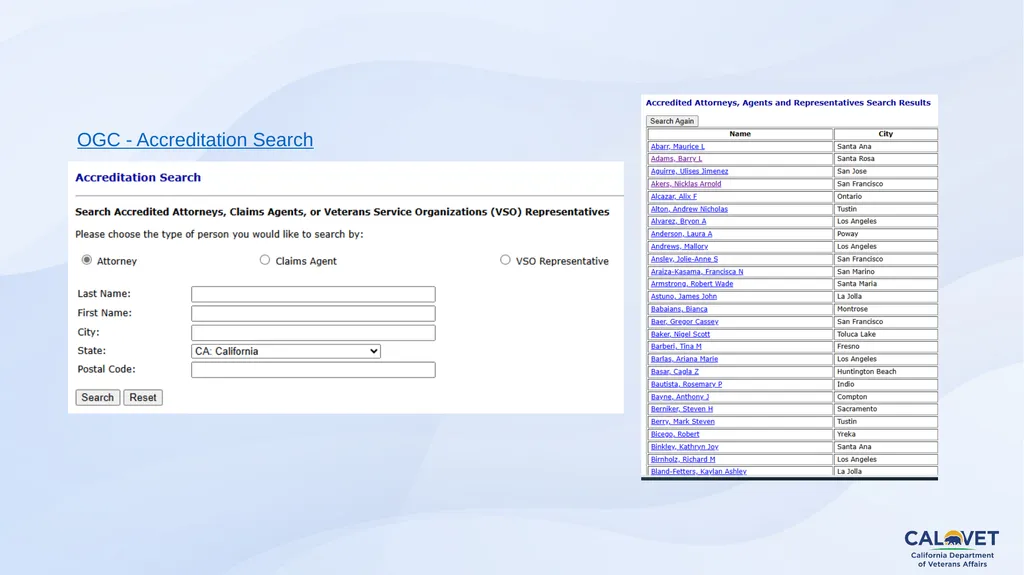
OGC - Accreditation Search<br>
39
Questions? Zmae Raymundo
District Manager
CalVet Oakland DO
Zheriemae.Raymundo@calvet.ca.gov
(510) 286-0627<br>
40
Oakland District Office General Information Oakland DO Point-of-Contact (POCs)
Appeals team:
For decision review guidance, email Steven –Steven.Smith@calvet.ca.gov
For hearing schedule confirmations & inquiries, email Cora – Leonora.Sarmiento@calvet.ca.gov
DO Review team:
The DO Reviewer of your claim activity
Diane.Susbilla@calvet.ca.gov
CDCR team:
Elizabeth.Hargove-Washington@calvet.ca.gov Oakland Office (Main):
1301 Clay St. Suite 1130N
Oakland, CA 94612
Open Tue, Wed & Thurs
9:00 AM to 3:00 PM
Phone 510.286.0627
Fax 510.286.0653
Rancho Office:
3046 Prospect Drive
Rancho Cordova, CA
Only for hearings & appointments
Phone 916.364.6774 or 6796
Corporate inbox: Oakland.Oakland@calvet.ca.gov<br>
41
Los Angeles District Office �General Information 11000 Wilshire Blvd. Ste. 505
Los Angeles, CA 90024
Open to the public:
Mon-Wed 8am to 3pm
(213) 620-2755
Corporate mail:
CDVALA@va.gov (you can send PII as long as you encrypt) LA District Office POC For issues relating to appeals (hearings or to discuss appeals issues):
Darlene Dunlap
Darlene.Dunlap@calvet.ca.gov
Darlene.Dunlap344@va.gov<br>
42
San Diego District Office �General Information New address:
8620 Spectrum Blvd. Rm 725
San Diego, CA 92123
Open to the Public:
Tue-Wed-Thur 8am-3:30pm
Public Line: (619) 857-5497
Fax Line: (858) 268-1014
San Diego Corporate Email:
state.vbasdc@va.gov San Diego Office Point of Contacts (POC) Claim Guidance, AMA Decisions/Guidance, Board hearings & Board Appeals, email Tony Devore Tony.Devore@va.gov
CDCR (Incarcerated Veterans), email Roberto Avila Roberto.Avila@calvet.ca.gov<br>