
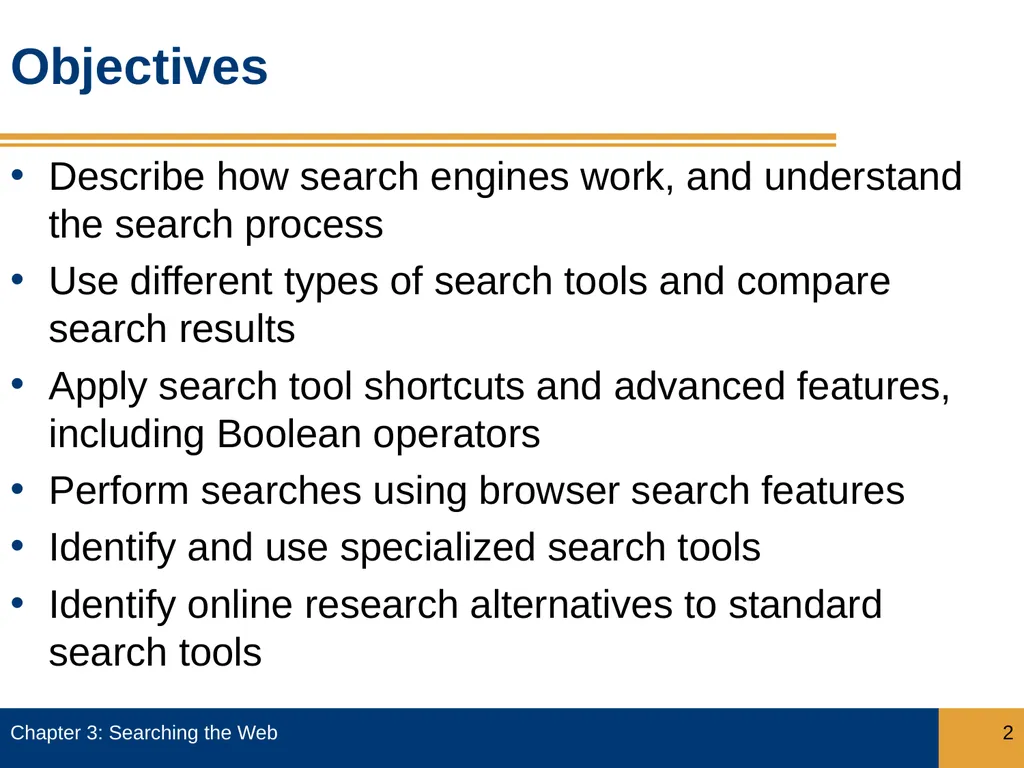
Objectives Describe how search engines work, and
Description: Objectives Describe how search engines work, and understand the search process Use different types of search tools and compare search results Apply search tool shortcuts and advanced features, including Boolean operators Perform searches
Related Topics
Download Presentation
"Objectives Describe how search engines work, and" is the property of its rightful owner. Permission is granted to download and print the materials on this website for personal, non-commercial use only, and to display it on your personal computer provided you do not modify the materials and that you retain all copyright notices contained in the materials. By downloading content from our website, you accept the terms of this agreement.
Presentation Transcript
slide2. Objectives Describe how search engines work, and understand the search process
Use different types of search tools and compare search results
Apply search tool shortcuts and advanced features, including Boolean operators
Perform searches using browser search features
Identify and use specialized search tools
Identify online research alternatives to standard search tools Chapter 3: Searching the Web 2<br>
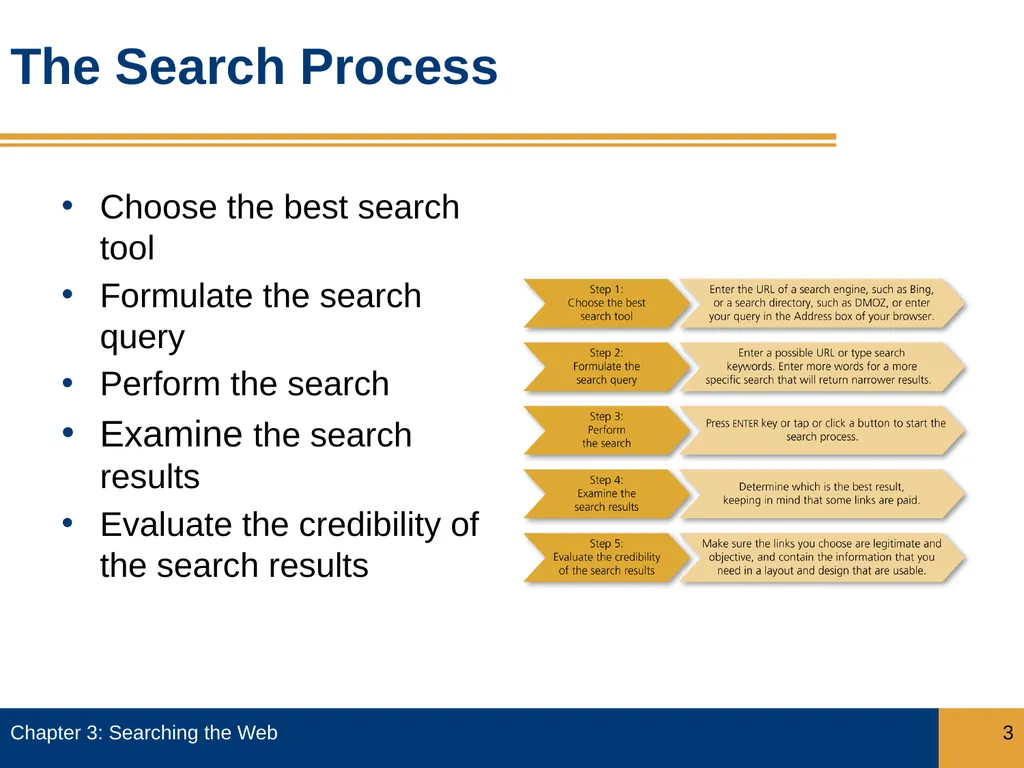
slide3. The Search Process Choose the best search tool
Formulate the search query
Perform the search
Examine the search results
Evaluate the credibility of the search results Chapter 3: Searching the Web 3<br>
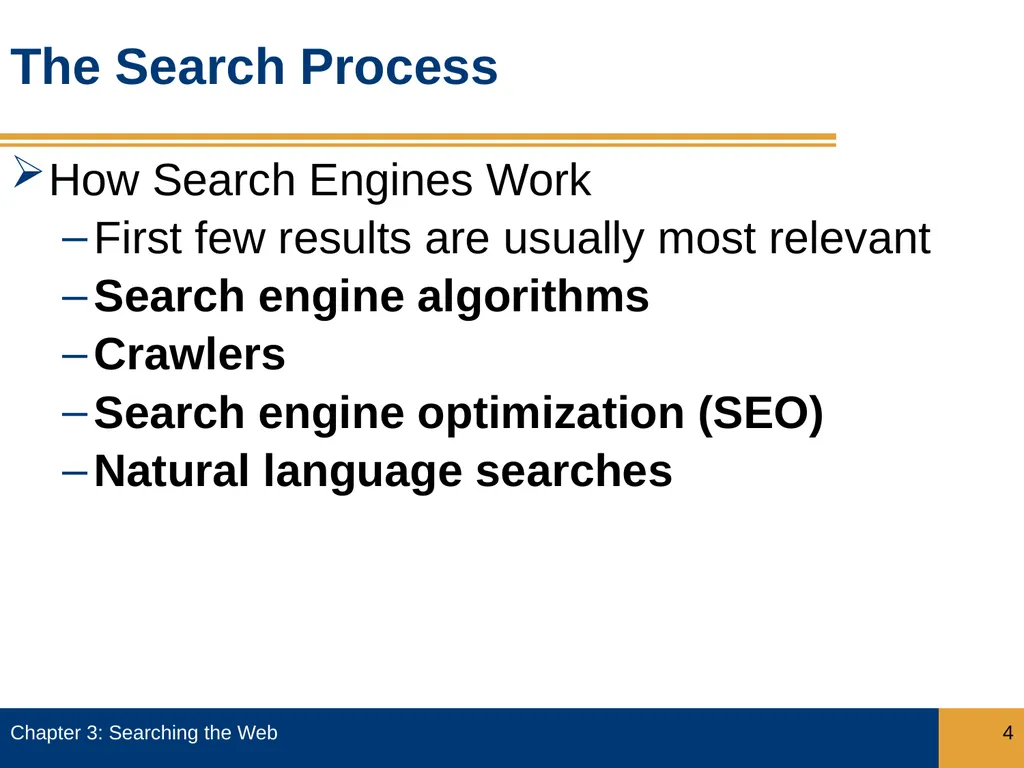
slide4. The Search Process How Search Engines Work
First few results are usually most relevant
Search engine algorithms
Crawlers
Search engine optimization (SEO)
Natural language searches Chapter 3: Searching the Web 4<br>
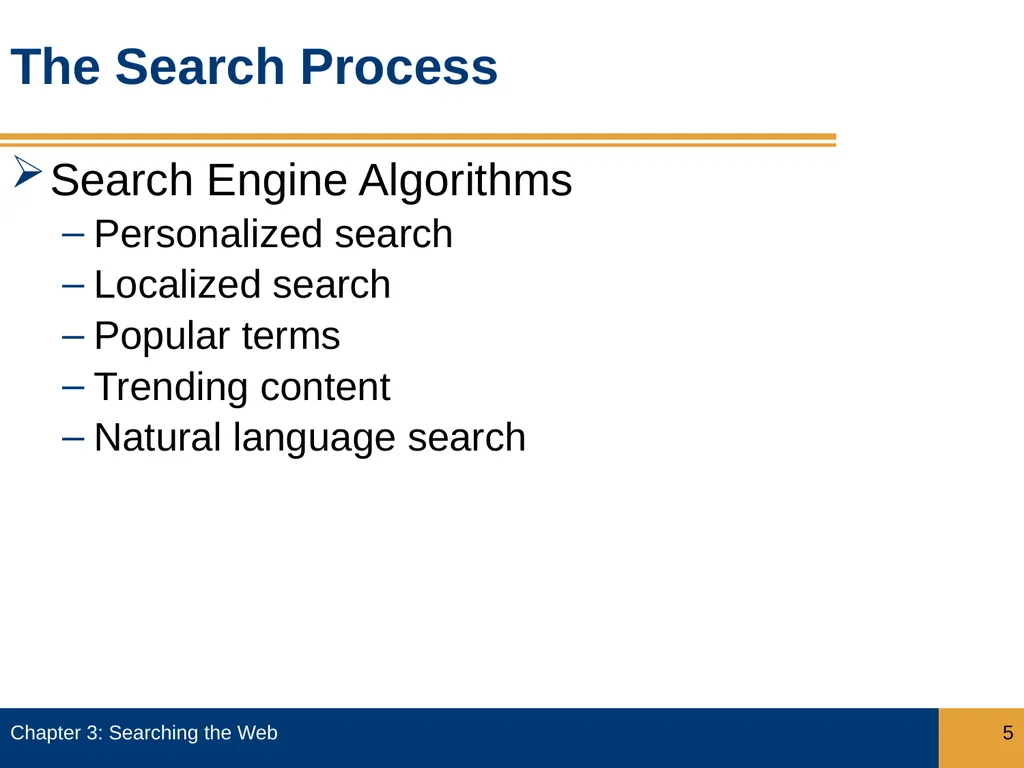
slide5. The Search Process Chapter 3: Searching the Web 5 Search Engine Algorithms
Personalized search
Localized search
Popular terms
Trending content
Natural language search<br>
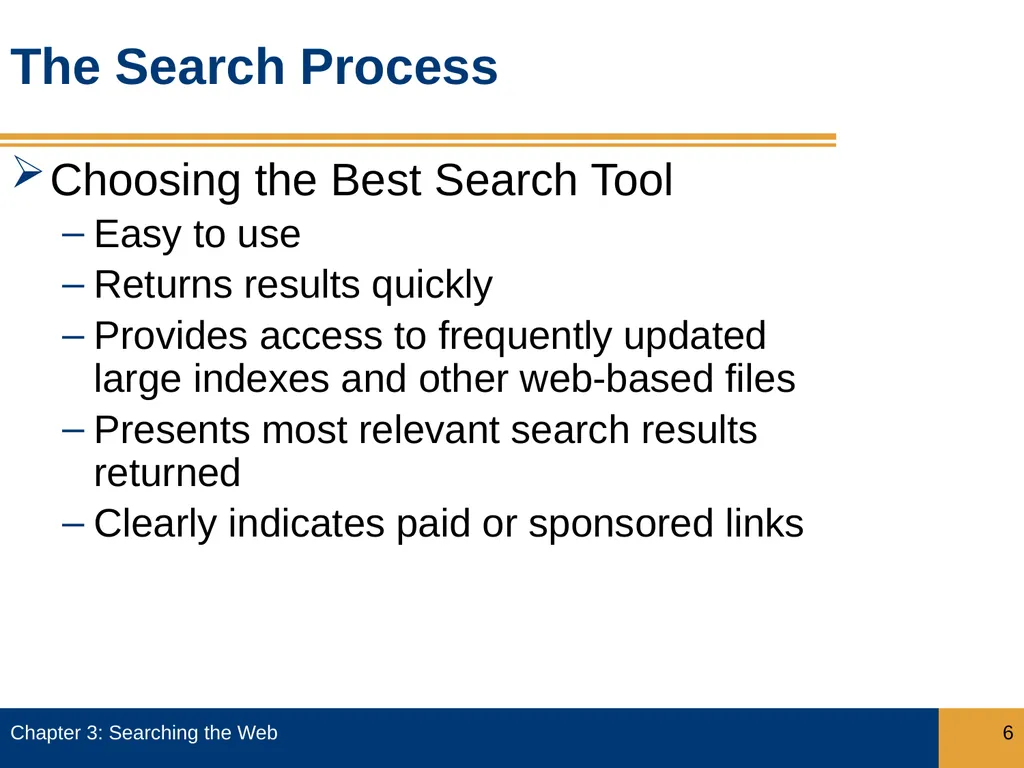
slide6. The Search Process Chapter 3: Searching the Web 6 Choosing the Best Search Tool
Easy to use
Returns results quickly
Provides access to frequently updated large indexes and other web-based files
Presents most relevant search results returned
Clearly indicates paid or sponsored links<br>
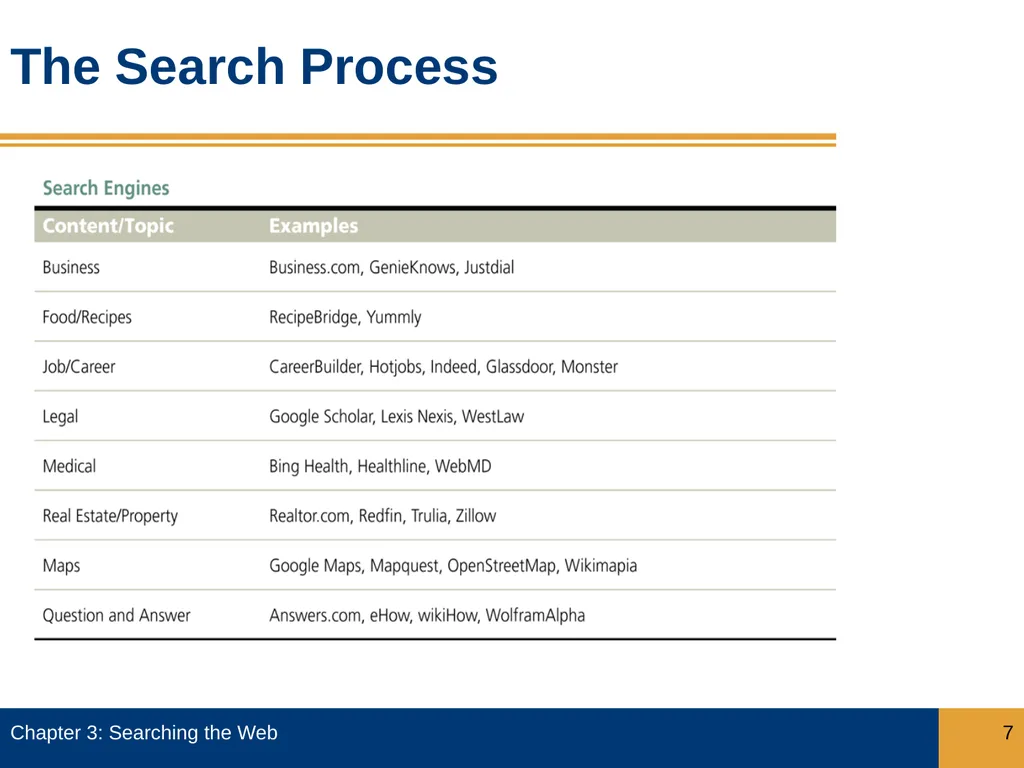
slide7. The Search Process Chapter 3: Searching the Web 7<br>
slide8. The Search Process Formulating the Search Query
The search query is the question that defines the information you seek
A query should include at least one keyword, the specific word that describes that information
Choose carefully, using specific rather than general keywords
To perform a search, enter one or more keywords into the search text box or Address box
A search tool then uses the keywords to identify relevant webpages and return a search results list Chapter 3: Searching the Web 8<br>
slide9. The Search Process Formulating the Search Query (continued)
A search tool then uses the keywords to identify relevant webpages and return a search results list
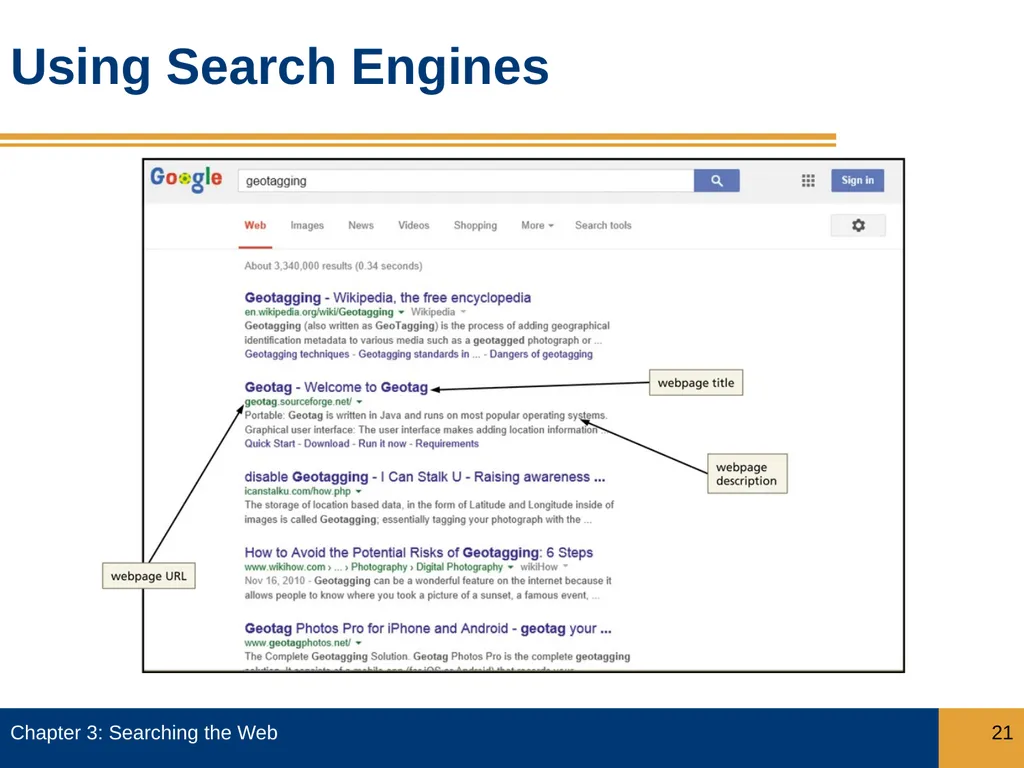
Search results list contains the URL, title, and description of and links to webpages
Each webpage item listed in search results list is a hit Chapter 3: Searching the Web 9<br>
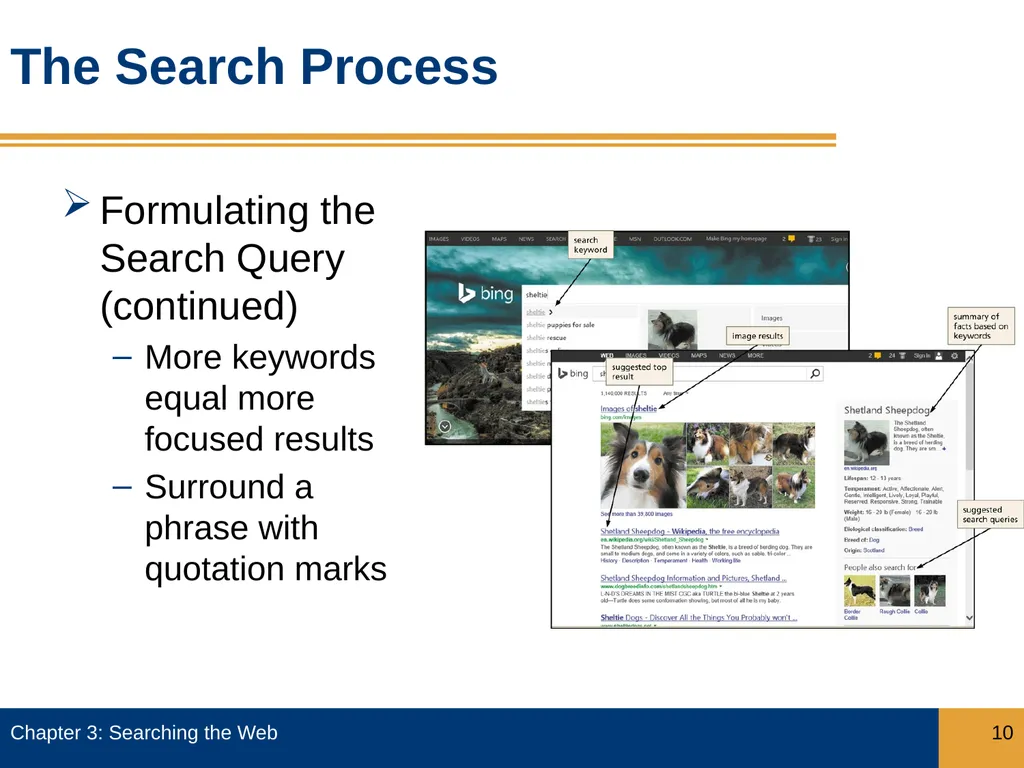
slide10. The Search Process Formulating the Search Query (continued)
More keywords equal more focused results
Surround a phrase with quotation marks Chapter 3: Searching the Web 10<br>
slide11. The Search Process Chapter 3: Searching the Web 11 Formulating the Search Query (continued)
Ensure proper spelling
A targeted search seeks specific information using keyword combinations
An open-ended search seeks information on a broader scale using a simple keyword
A search that uses complete sentences is sometimes called a natural language search
Small, unimportant words in a natural language search query are called stop words, and are usually ignored<br>
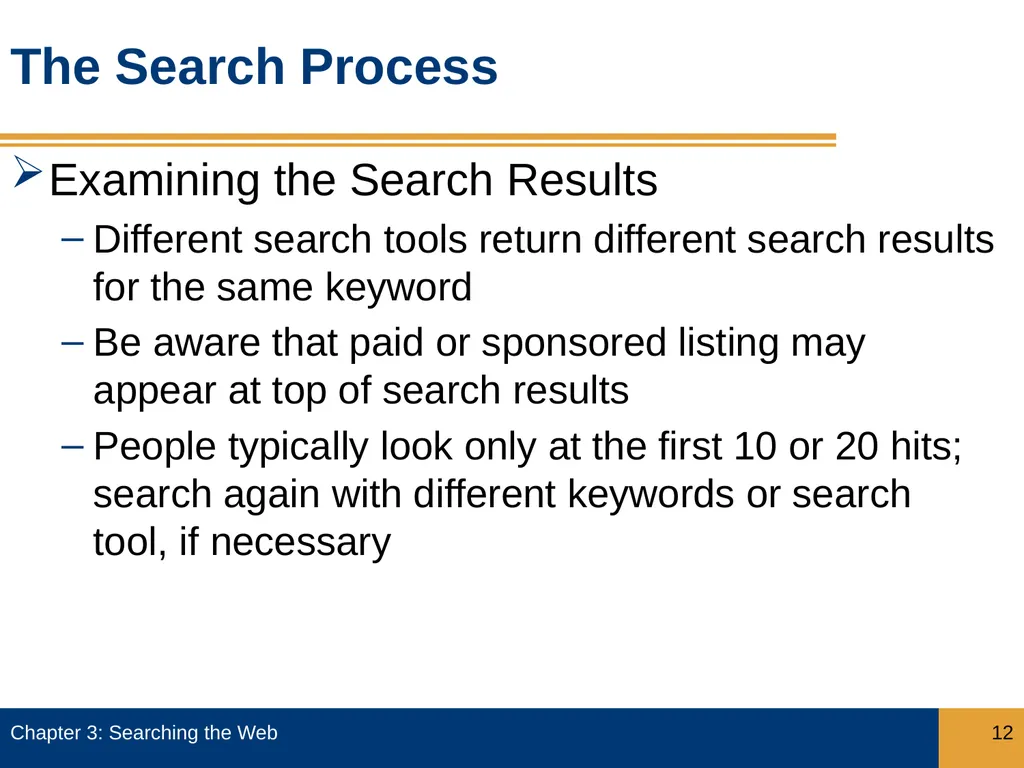
slide12. The Search Process Examining the Search Results
Different search tools return different search results for the same keyword
Be aware that paid or sponsored listing may appear at top of search results
People typically look only at the first 10 or 20 hits; search again with different keywords or search tool, if necessary Chapter 3: Searching the Web 12<br>
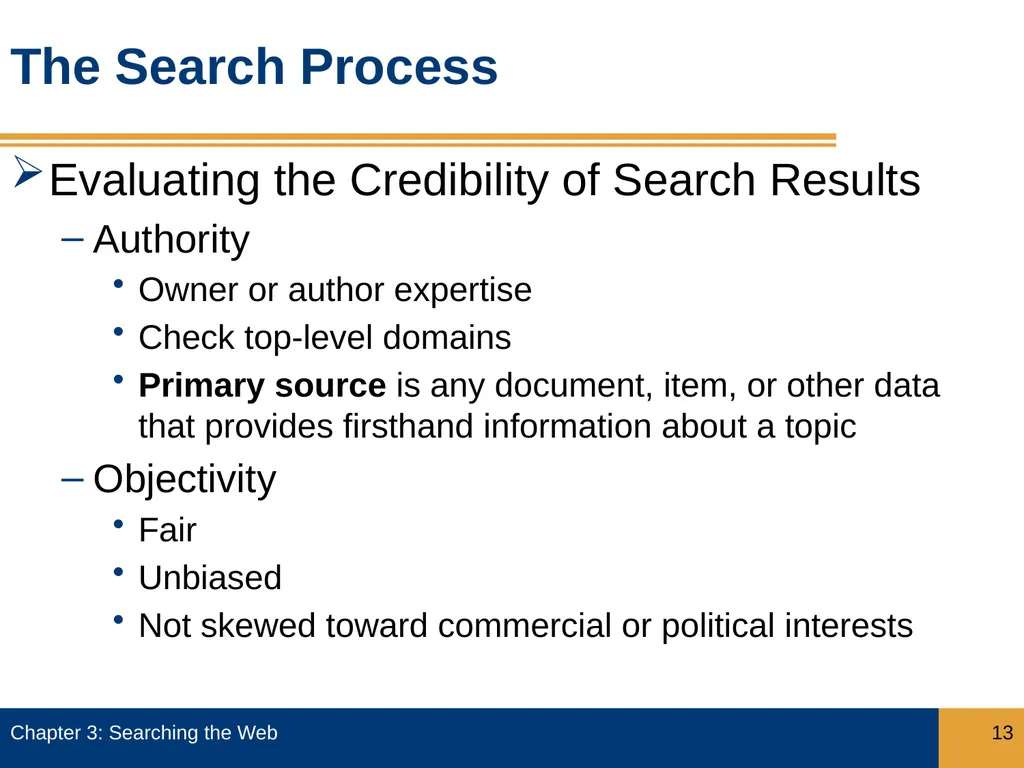
slide13. The Search Process Evaluating the Credibility of Search Results
Authority
Owner or author expertise
Check top-level domains
Primary source is any document, item, or other data that provides firsthand information about a topic
Objectivity
Fair
Unbiased
Not skewed toward commercial or political interests Chapter 3: Searching the Web 13<br>
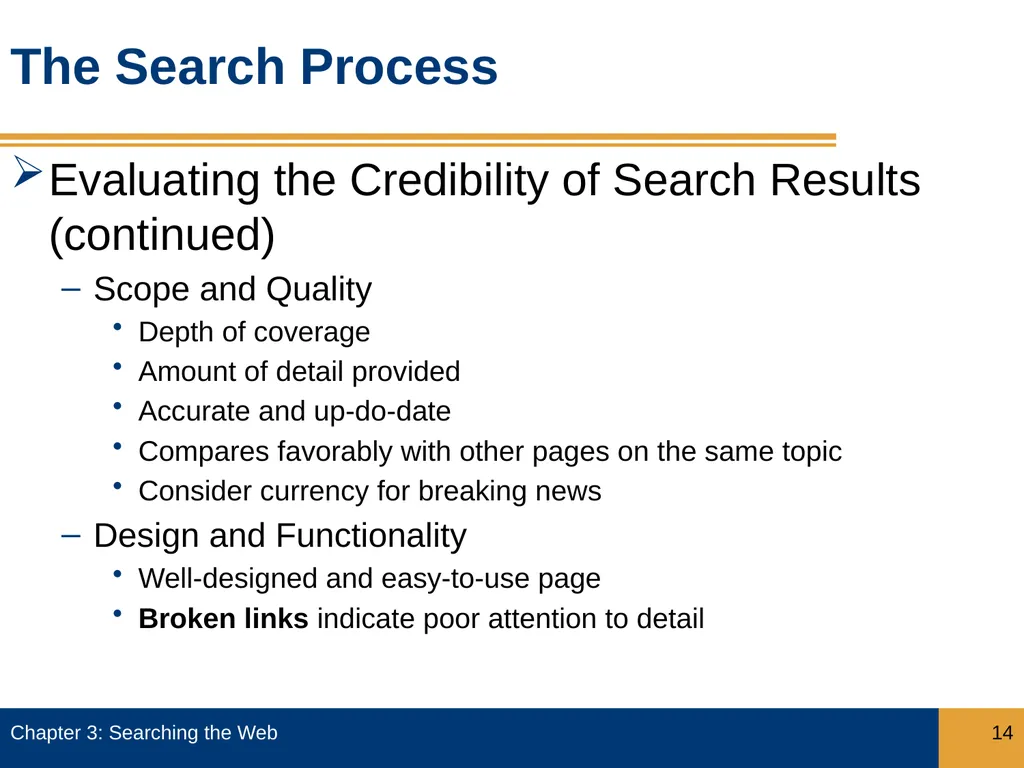
slide14. The Search Process Evaluating the Credibility of Search Results (continued)
Scope and Quality
Depth of coverage
Amount of detail provided
Accurate and up-do-date
Compares favorably with other pages on the same topic
Consider currency for breaking news
Design and Functionality
Well-designed and easy-to-use page
Broken links indicate poor attention to detail Chapter 3: Searching the Web 14<br>
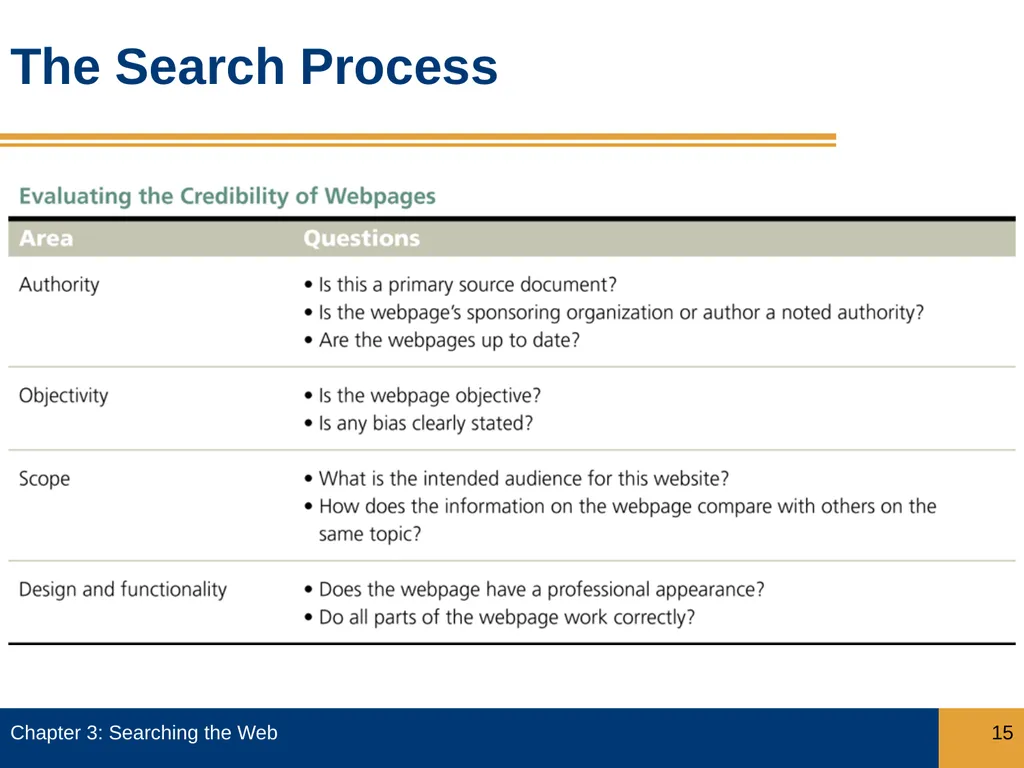
slide15. The Search Process Chapter 3: Searching the Web 15<br>
slide16. Search Tools Directories
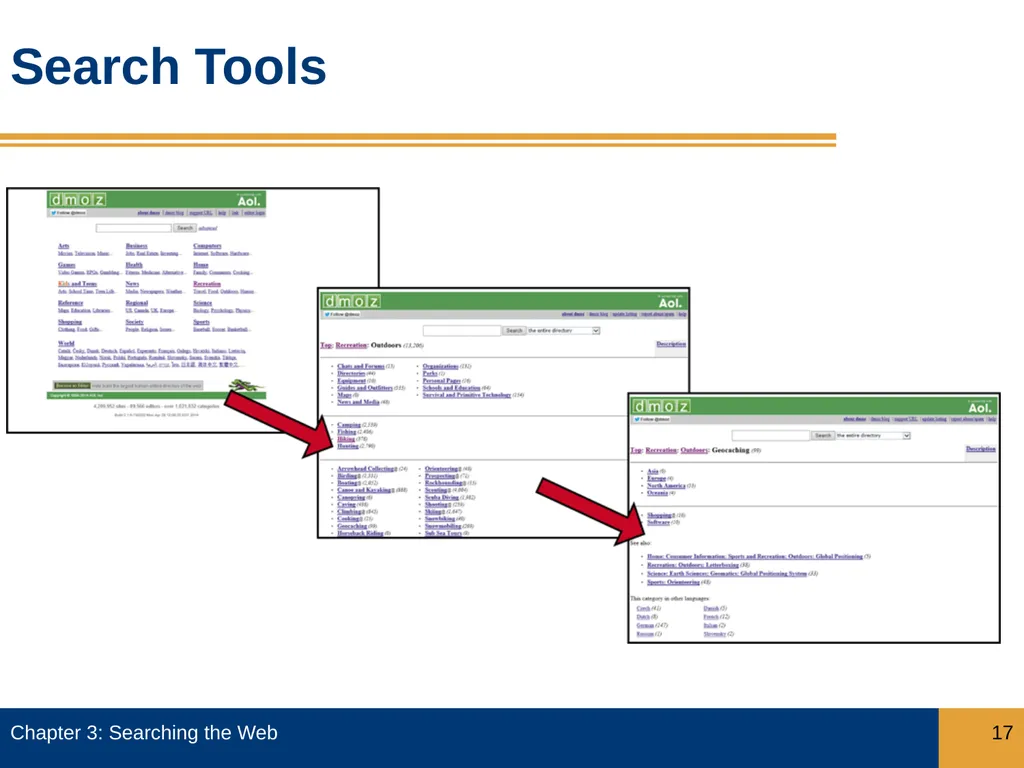
Directory is a human-compiled, hierarchical list of webpages
Yahoo! is one of the first directories
Editors create an index, or list of webpages
Organizes links in categories and subcategories
Users increasingly drilling down through categories to find specific information
A breadcrumb trail shows the hierarchical arrangement of categories and subcategories through which you have clicked Chapter 3: Searching the Web 16<br>
slide17. Search Tools Chapter 3: Searching the Web 17<br>
slide18. Search Tools Search Engines
Three major components are spider, bot, and web crawler
Typical information collected by a web crawler
Page title
URL
Meta tag keywords
Occurrence of keywords in page
All of the words on the page – full-text searching
Internal links
Number and relevancy of other webpages that link to the page Chapter 3: Searching the Web 18<br>
slide19. Search Tools Search Engines (continued)
Search engines use different algorithms to determine relevance of webpages in the search results
Most search engines also include paid or sponsored listings on the search results page
Many search tools today have become hybrids, basing results on indexes created by both web crawlers and human editors Chapter 3: Searching the Web 19<br>
slide20. Using Search Engines Start a browser and enter the search engine in the Address bar
Enter the keyword search in the search text box and then tap or click the Search button to view the search results page Chapter 3: Searching the Web 20<br>
slide21. Using Search Engines Chapter 3: Searching the Web 21<br>
slide22. Search Tools Metasearch Engines
A metasearch engine compiles the search results from multiple search engines into a single search results list
Some eliminate duplicates
Watch for paid or sponsored listings in search results list
Dogpile
Mamma.com
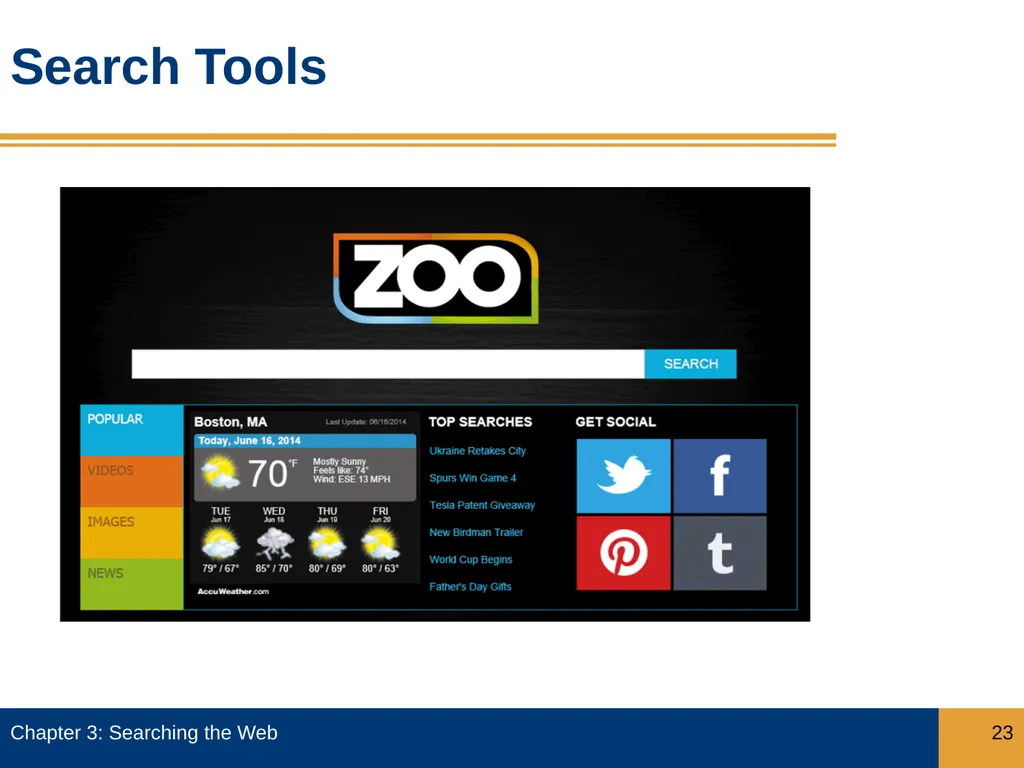
Zoo
Ixquick Chapter 3: Searching the Web 22<br>
slide23. Search Tools Chapter 3: Searching the Web 23<br>
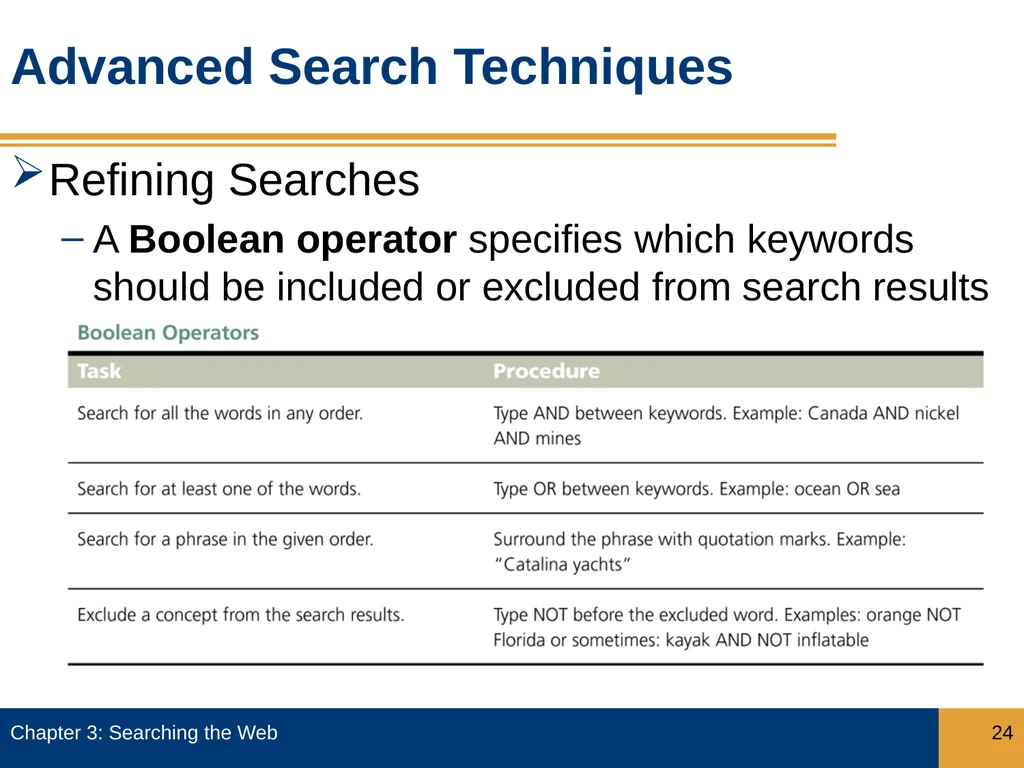
slide24. Advanced Search Techniques Refining Searches
A Boolean operator specifies which keywords should be included or excluded from search results Chapter 3: Searching the Web 24<br>
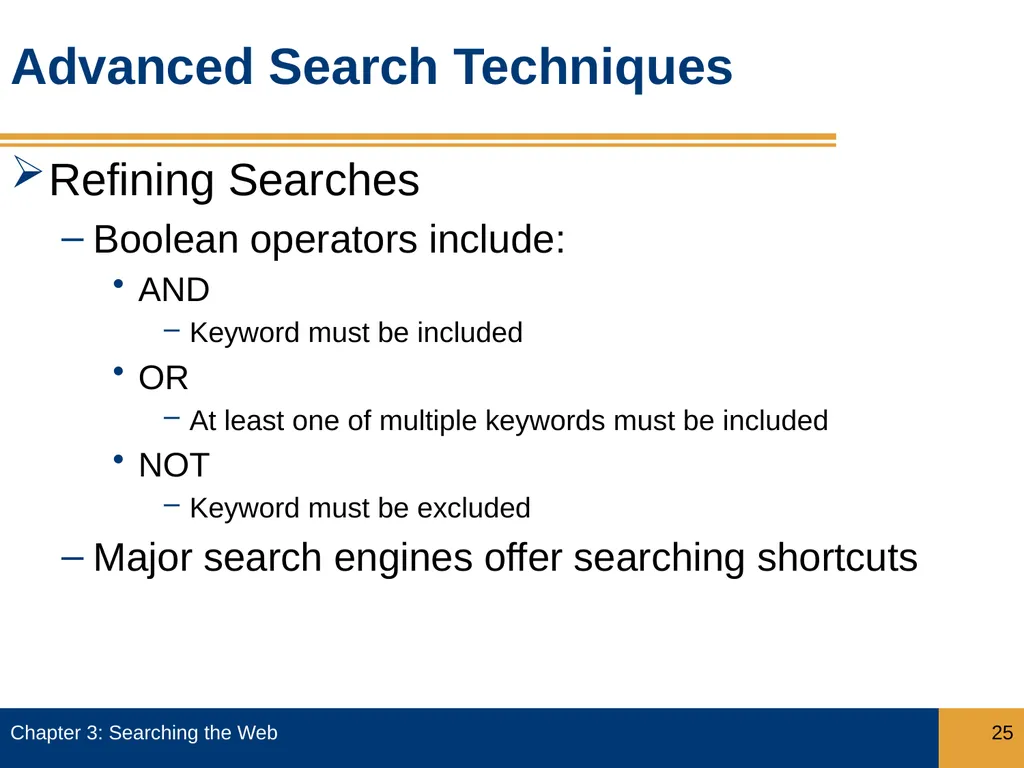
slide25. Advanced Search Techniques Refining Searches
Boolean operators include:
AND
Keyword must be included
OR
At least one of multiple keywords must be included
NOT
Keyword must be excluded
Major search engines offer searching shortcuts Chapter 3: Searching the Web 25<br>
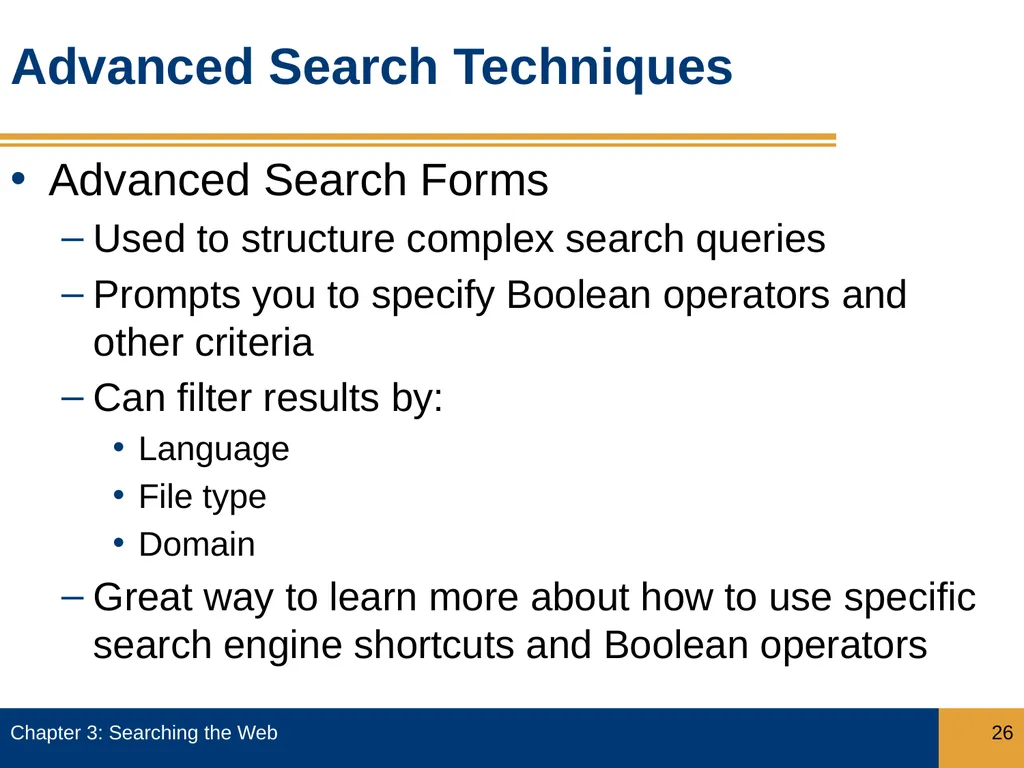
slide26. Advanced Search Techniques Advanced Search Forms
Used to structure complex search queries
Prompts you to specify Boolean operators and other criteria
Can filter results by:
Language
File type
Domain
Great way to learn more about how to use specific search engine shortcuts and Boolean operators Chapter 3: Searching the Web 26<br>
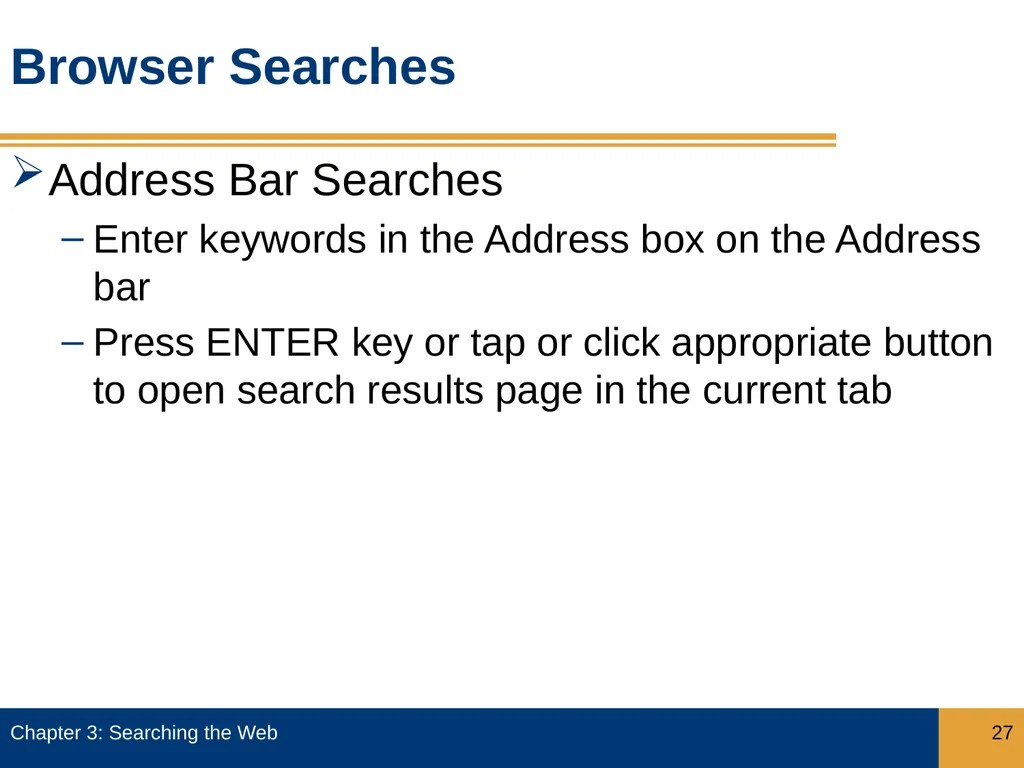
slide27. Browser Searches Address Bar Searches
Enter keywords in the Address box on the Address bar
Press ENTER key or tap or click appropriate button to open search results page in the current tab Chapter 3: Searching the Web 27<br>
slide28. Browser Searches Webpage Searches
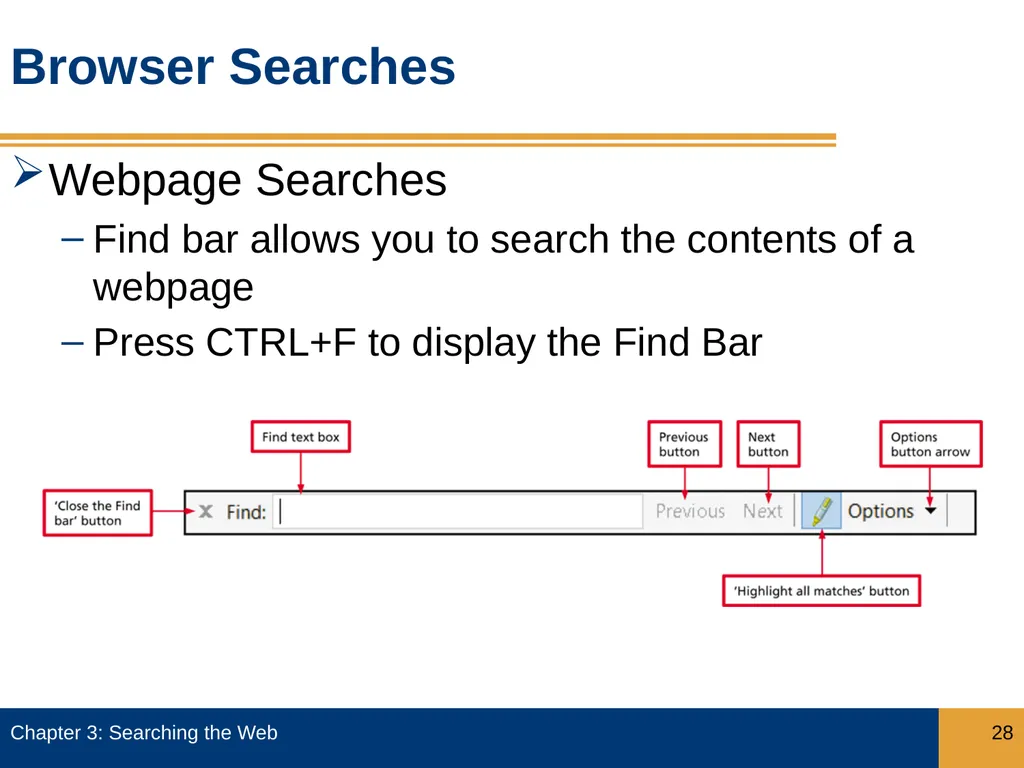
Find bar allows you to search the contents of a webpage
Press CTRL+F to display the Find Bar Chapter 3: Searching the Web 28<br>
slide29. Browser Searches Webpage Searches
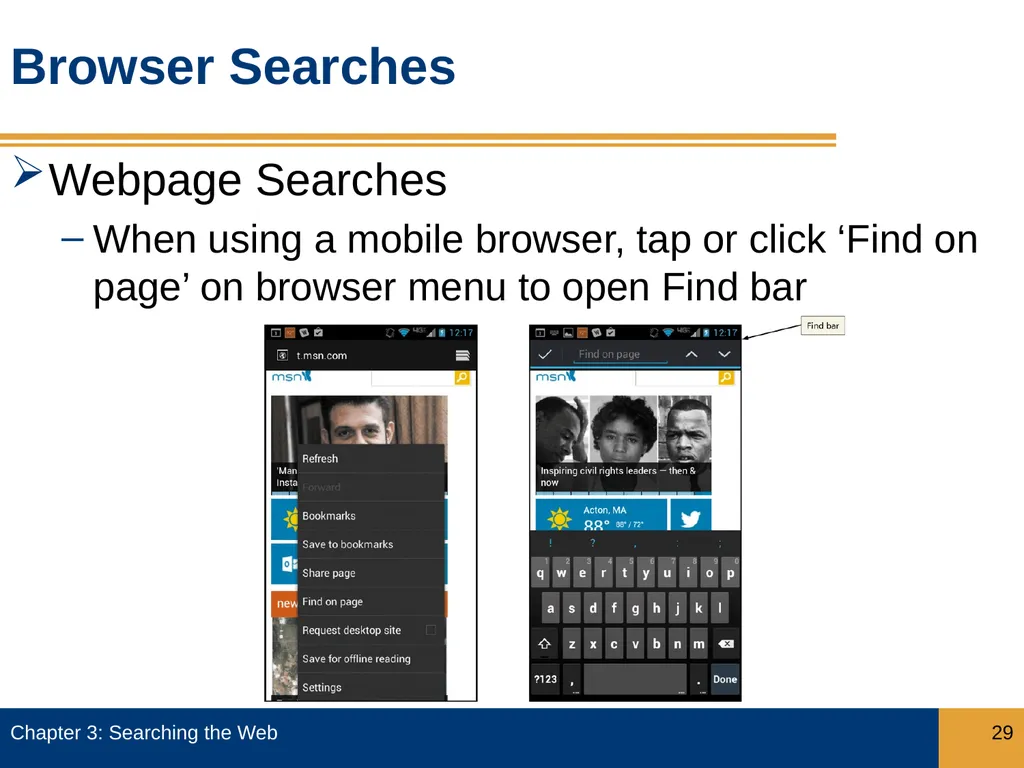
When using a mobile browser, tap or click ‘Find on page’ on browser menu to open Find bar Chapter 3: Searching the Web 29<br>
slide30. Browser Searches Sorting and Filtering Search Results
Most recent results
Specify a timeframe for results pages
Search for previously viewed webpages
Search by reading level Chapter 3: Searching the Web 30<br>
slide31. Specialized Searches People and Business Search
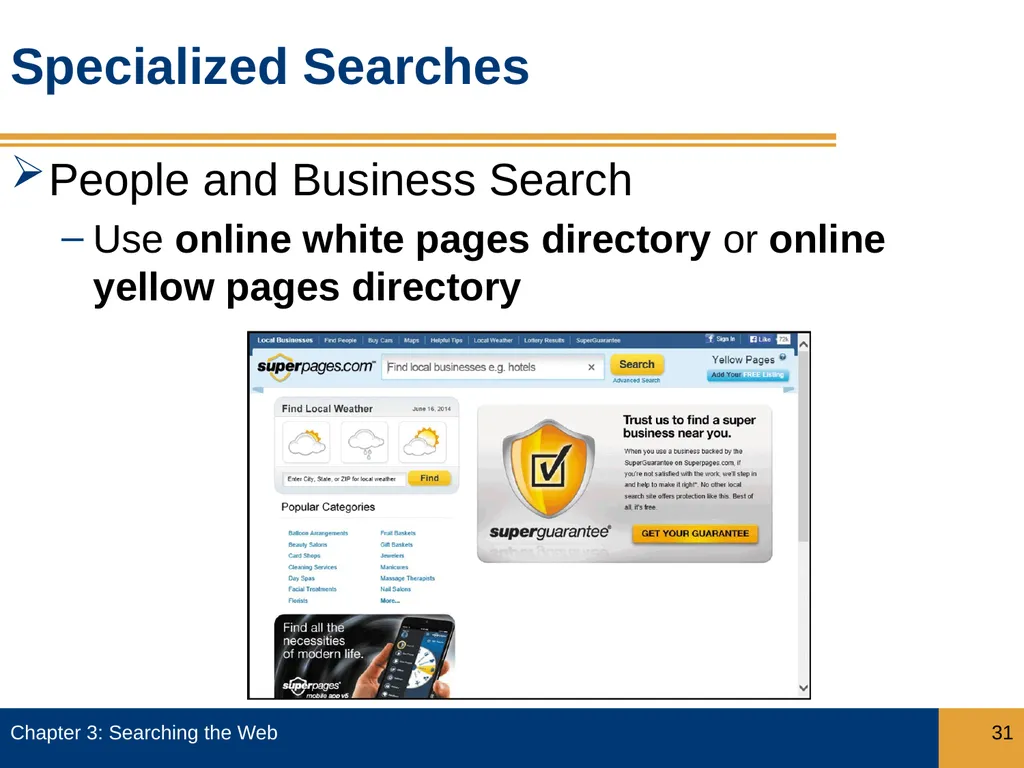
Use online white pages directory or online yellow pages directory Chapter 3: Searching the Web 31<br>
slide32. Specialized Searches People and Business Search (continued)
Free resources
Pipl
Wink
Fee-based (pay for additional information)
WhitePages
Superpages Chapter 3: Searching the Web 32<br>
slide33. Specialized Searches News and Current Event Search
MSN
Yahoo!
Associated Press (AP)
United Press International (UPI)
Reuters Chapter 3: Searching the Web 33<br>
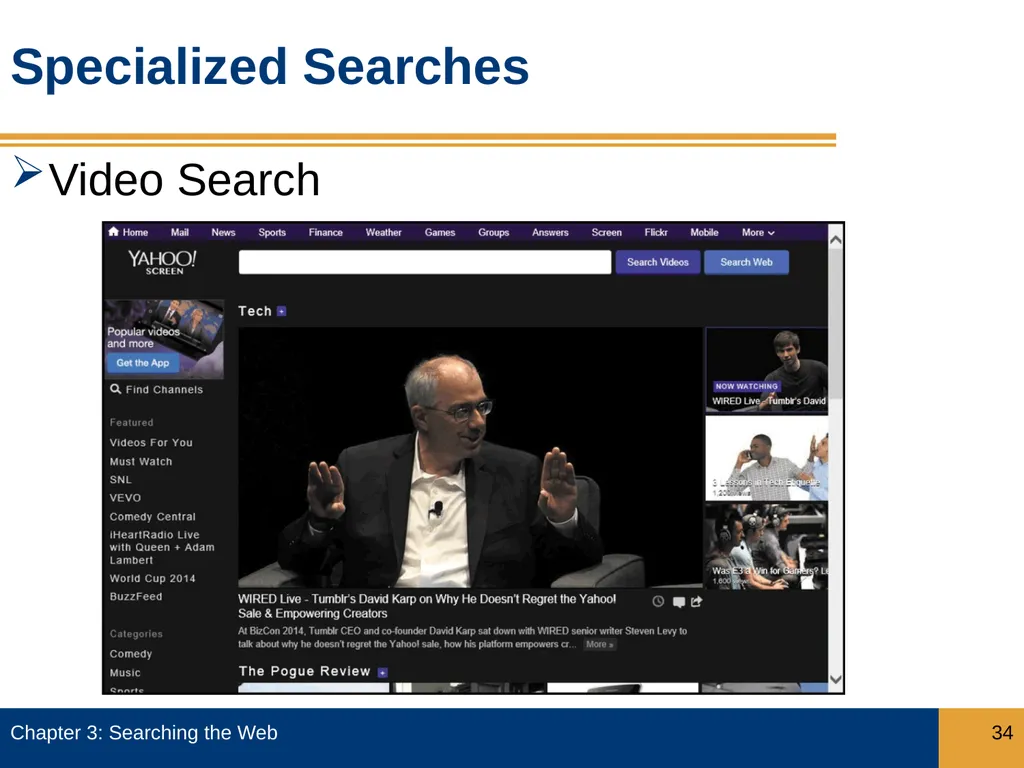
slide34. Specialized Searches Video Search Chapter 3: Searching the Web 34<br>
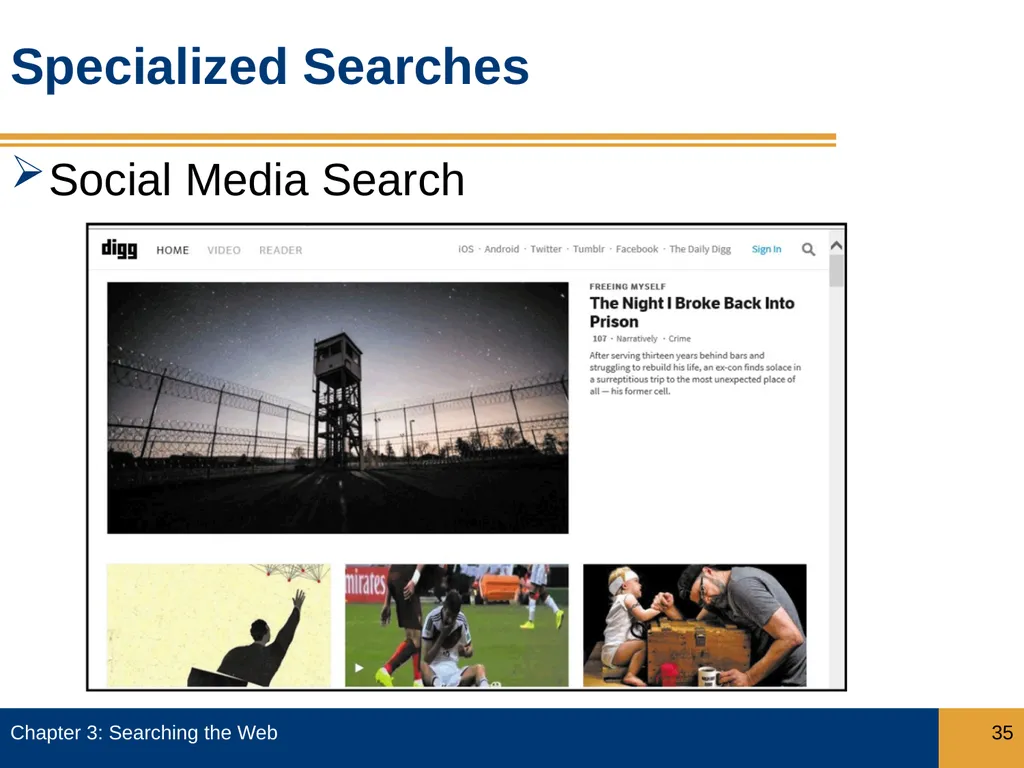
slide35. Specialized Searches Social Media Search Chapter 3: Searching the Web 35<br>
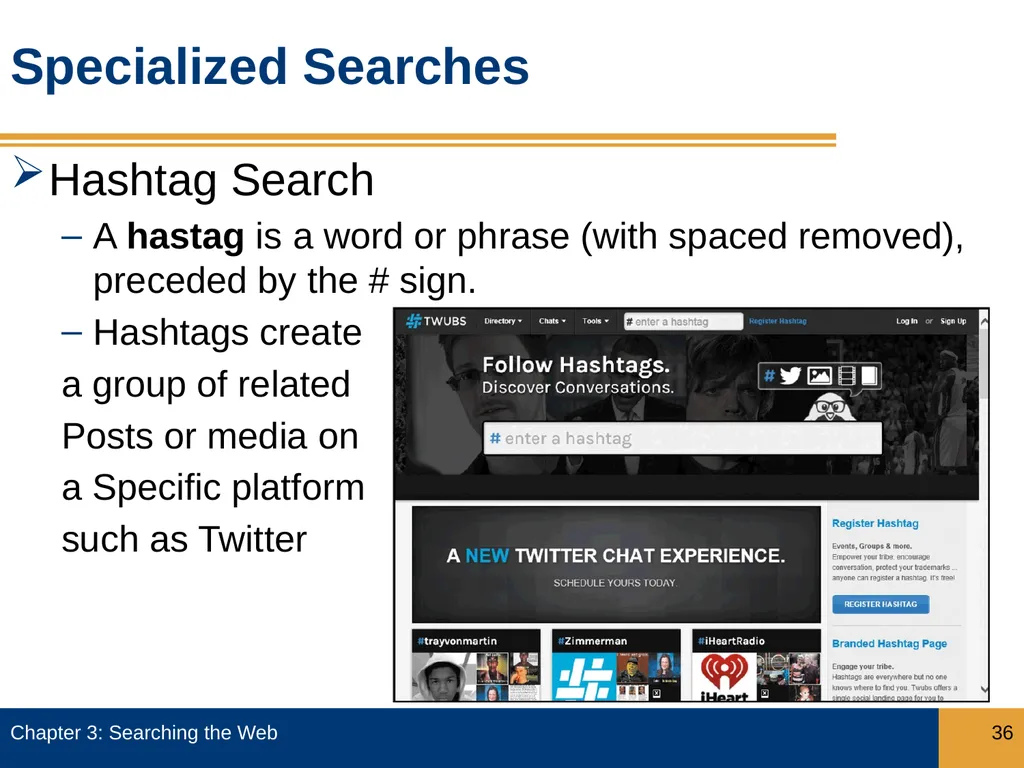
slide36. Specialized Searches Hashtag Search
A hastag is a word or phrase (with spaced removed), preceded by the # sign.
Hashtags create
a group of related
Posts or media on
a Specific platform
such as Twitter Chapter 3: Searching the Web 36<br>
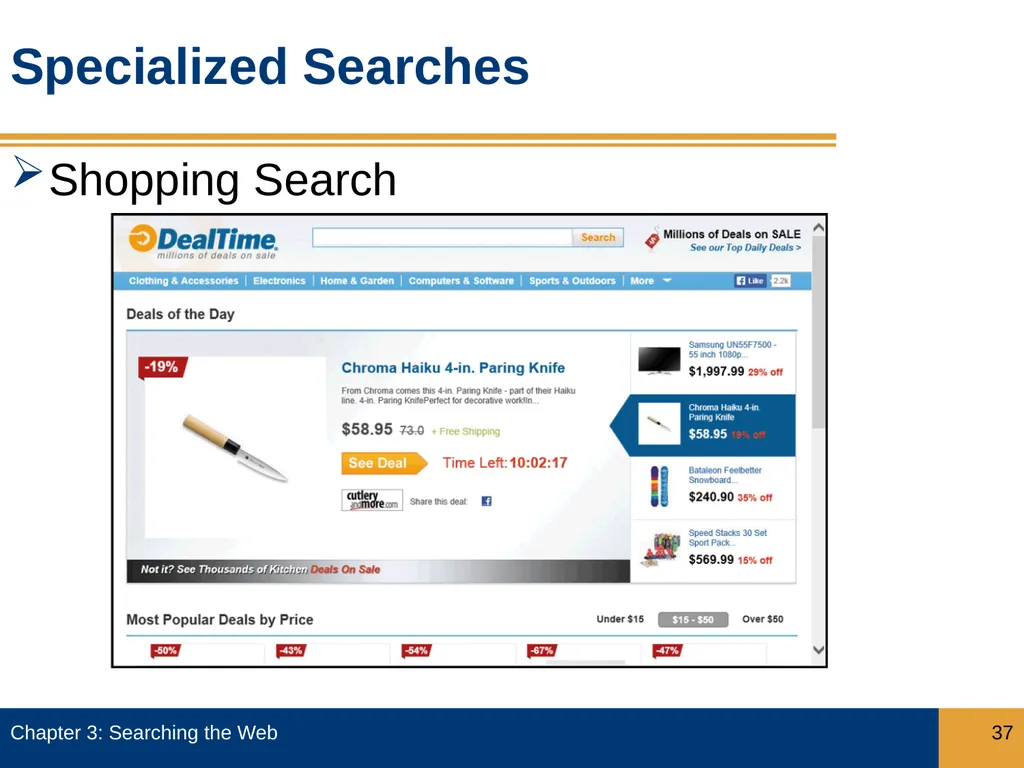
slide37. Specialized Searches Shopping Search Chapter 3: Searching the Web 37<br>
Use different types of search tools and compare search results
Apply search tool shortcuts and advanced features, including Boolean operators
Perform searches using browser search features
Identify and use specialized search tools
Identify online research alternatives to standard search tools Chapter 3: Searching the Web 2<br>
slide3. The Search Process Choose the best search tool
Formulate the search query
Perform the search
Examine the search results
Evaluate the credibility of the search results Chapter 3: Searching the Web 3<br>
slide4. The Search Process How Search Engines Work
First few results are usually most relevant
Search engine algorithms
Crawlers
Search engine optimization (SEO)
Natural language searches Chapter 3: Searching the Web 4<br>
slide5. The Search Process Chapter 3: Searching the Web 5 Search Engine Algorithms
Personalized search
Localized search
Popular terms
Trending content
Natural language search<br>
slide6. The Search Process Chapter 3: Searching the Web 6 Choosing the Best Search Tool
Easy to use
Returns results quickly
Provides access to frequently updated large indexes and other web-based files
Presents most relevant search results returned
Clearly indicates paid or sponsored links<br>
slide7. The Search Process Chapter 3: Searching the Web 7<br>
slide8. The Search Process Formulating the Search Query
The search query is the question that defines the information you seek
A query should include at least one keyword, the specific word that describes that information
Choose carefully, using specific rather than general keywords
To perform a search, enter one or more keywords into the search text box or Address box
A search tool then uses the keywords to identify relevant webpages and return a search results list Chapter 3: Searching the Web 8<br>
slide9. The Search Process Formulating the Search Query (continued)
A search tool then uses the keywords to identify relevant webpages and return a search results list
Search results list contains the URL, title, and description of and links to webpages
Each webpage item listed in search results list is a hit Chapter 3: Searching the Web 9<br>
slide10. The Search Process Formulating the Search Query (continued)
More keywords equal more focused results
Surround a phrase with quotation marks Chapter 3: Searching the Web 10<br>
slide11. The Search Process Chapter 3: Searching the Web 11 Formulating the Search Query (continued)
Ensure proper spelling
A targeted search seeks specific information using keyword combinations
An open-ended search seeks information on a broader scale using a simple keyword
A search that uses complete sentences is sometimes called a natural language search
Small, unimportant words in a natural language search query are called stop words, and are usually ignored<br>
slide12. The Search Process Examining the Search Results
Different search tools return different search results for the same keyword
Be aware that paid or sponsored listing may appear at top of search results
People typically look only at the first 10 or 20 hits; search again with different keywords or search tool, if necessary Chapter 3: Searching the Web 12<br>
slide13. The Search Process Evaluating the Credibility of Search Results
Authority
Owner or author expertise
Check top-level domains
Primary source is any document, item, or other data that provides firsthand information about a topic
Objectivity
Fair
Unbiased
Not skewed toward commercial or political interests Chapter 3: Searching the Web 13<br>
slide14. The Search Process Evaluating the Credibility of Search Results (continued)
Scope and Quality
Depth of coverage
Amount of detail provided
Accurate and up-do-date
Compares favorably with other pages on the same topic
Consider currency for breaking news
Design and Functionality
Well-designed and easy-to-use page
Broken links indicate poor attention to detail Chapter 3: Searching the Web 14<br>
slide15. The Search Process Chapter 3: Searching the Web 15<br>
slide16. Search Tools Directories
Directory is a human-compiled, hierarchical list of webpages
Yahoo! is one of the first directories
Editors create an index, or list of webpages
Organizes links in categories and subcategories
Users increasingly drilling down through categories to find specific information
A breadcrumb trail shows the hierarchical arrangement of categories and subcategories through which you have clicked Chapter 3: Searching the Web 16<br>
slide17. Search Tools Chapter 3: Searching the Web 17<br>
slide18. Search Tools Search Engines
Three major components are spider, bot, and web crawler
Typical information collected by a web crawler
Page title
URL
Meta tag keywords
Occurrence of keywords in page
All of the words on the page – full-text searching
Internal links
Number and relevancy of other webpages that link to the page Chapter 3: Searching the Web 18<br>
slide19. Search Tools Search Engines (continued)
Search engines use different algorithms to determine relevance of webpages in the search results
Most search engines also include paid or sponsored listings on the search results page
Many search tools today have become hybrids, basing results on indexes created by both web crawlers and human editors Chapter 3: Searching the Web 19<br>
slide20. Using Search Engines Start a browser and enter the search engine in the Address bar
Enter the keyword search in the search text box and then tap or click the Search button to view the search results page Chapter 3: Searching the Web 20<br>
slide21. Using Search Engines Chapter 3: Searching the Web 21<br>
slide22. Search Tools Metasearch Engines
A metasearch engine compiles the search results from multiple search engines into a single search results list
Some eliminate duplicates
Watch for paid or sponsored listings in search results list
Dogpile
Mamma.com
Zoo
Ixquick Chapter 3: Searching the Web 22<br>
slide23. Search Tools Chapter 3: Searching the Web 23<br>
slide24. Advanced Search Techniques Refining Searches
A Boolean operator specifies which keywords should be included or excluded from search results Chapter 3: Searching the Web 24<br>
slide25. Advanced Search Techniques Refining Searches
Boolean operators include:
AND
Keyword must be included
OR
At least one of multiple keywords must be included
NOT
Keyword must be excluded
Major search engines offer searching shortcuts Chapter 3: Searching the Web 25<br>
slide26. Advanced Search Techniques Advanced Search Forms
Used to structure complex search queries
Prompts you to specify Boolean operators and other criteria
Can filter results by:
Language
File type
Domain
Great way to learn more about how to use specific search engine shortcuts and Boolean operators Chapter 3: Searching the Web 26<br>
slide27. Browser Searches Address Bar Searches
Enter keywords in the Address box on the Address bar
Press ENTER key or tap or click appropriate button to open search results page in the current tab Chapter 3: Searching the Web 27<br>
slide28. Browser Searches Webpage Searches
Find bar allows you to search the contents of a webpage
Press CTRL+F to display the Find Bar Chapter 3: Searching the Web 28<br>
slide29. Browser Searches Webpage Searches
When using a mobile browser, tap or click ‘Find on page’ on browser menu to open Find bar Chapter 3: Searching the Web 29<br>
slide30. Browser Searches Sorting and Filtering Search Results
Most recent results
Specify a timeframe for results pages
Search for previously viewed webpages
Search by reading level Chapter 3: Searching the Web 30<br>
slide31. Specialized Searches People and Business Search
Use online white pages directory or online yellow pages directory Chapter 3: Searching the Web 31<br>
slide32. Specialized Searches People and Business Search (continued)
Free resources
Pipl
Wink
Fee-based (pay for additional information)
WhitePages
Superpages Chapter 3: Searching the Web 32<br>
slide33. Specialized Searches News and Current Event Search
MSN
Yahoo!
Associated Press (AP)
United Press International (UPI)
Reuters Chapter 3: Searching the Web 33<br>
slide34. Specialized Searches Video Search Chapter 3: Searching the Web 34<br>
slide35. Specialized Searches Social Media Search Chapter 3: Searching the Web 35<br>
slide36. Specialized Searches Hashtag Search
A hastag is a word or phrase (with spaced removed), preceded by the # sign.
Hashtags create
a group of related
Posts or media on
a Specific platform
such as Twitter Chapter 3: Searching the Web 36<br>
slide37. Specialized Searches Shopping Search Chapter 3: Searching the Web 37<br>