Session 1 Introduction to Coding What is a Program? A program is a set of instructions that a computer follows to complete a task. The computer receives a set of instructions (program) which it interprets and follows step by step, to
"Session 1 Introduction to Coding What is a" is the property of its rightful owner. Permission is granted to
download and print the materials on this website for personal, non-commercial use only, and to display it
on your personal computer provided you do not modify the materials and that you retain all copyright
notices contained in the materials. By downloading content from our website, you accept the terms of this
agreement.
Presentation Transcript
01
Session 1 Introduction to Coding<br>
02
What is a Program? ‹#›<br>
03
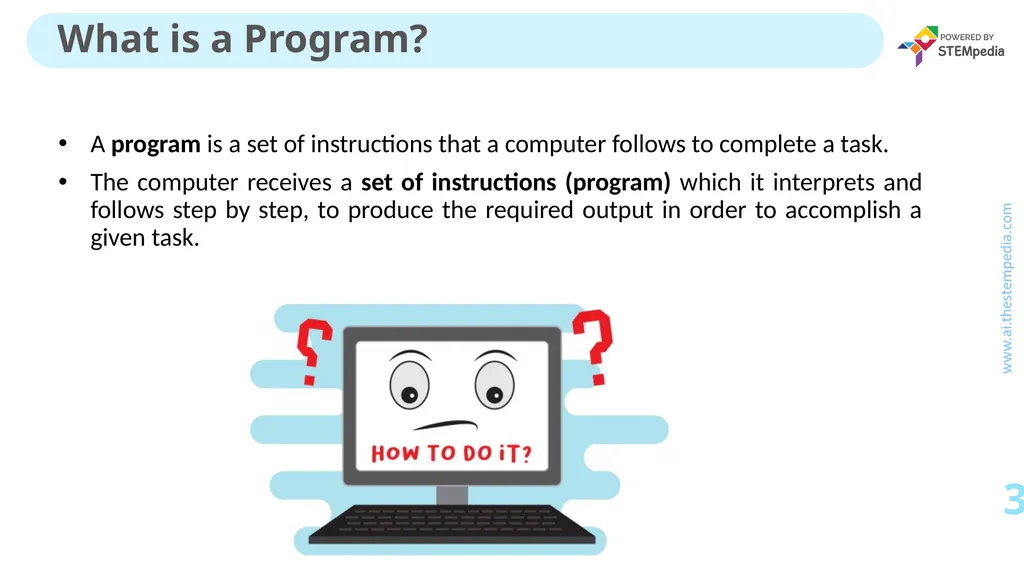
A program is a set of instructions that a computer follows to complete a task.
The computer receives a set of instructions (program) which it interprets and follows step by step, to produce the required output in order to accomplish a given task. What is a Program? ‹#›<br>
04
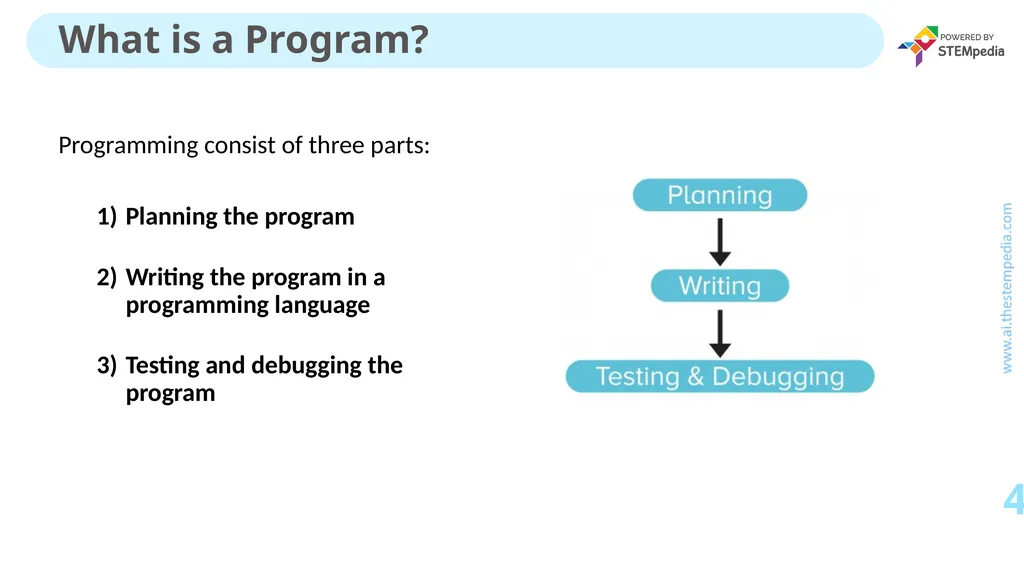
Programming consist of three parts:
Planning the program
Writing the program in a programming language
Testing and debugging the program What is a Program? ‹#›<br>
05
Programming Analogy: Getting Dressed for School ‹#›<br>
06
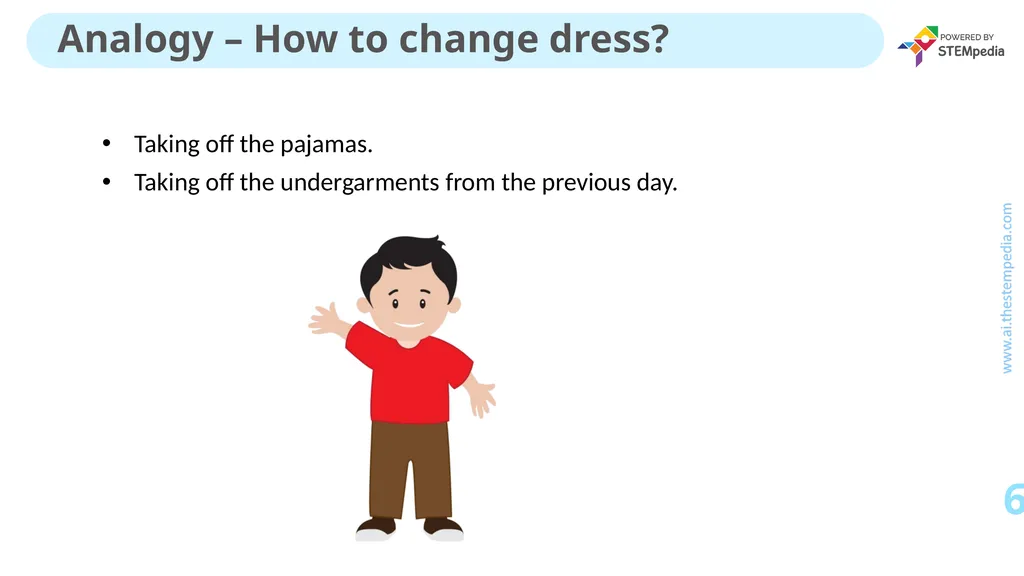
Taking off the pajamas.
Taking off the undergarments from the previous day. Analogy – How to change dress? ‹#›<br>
07
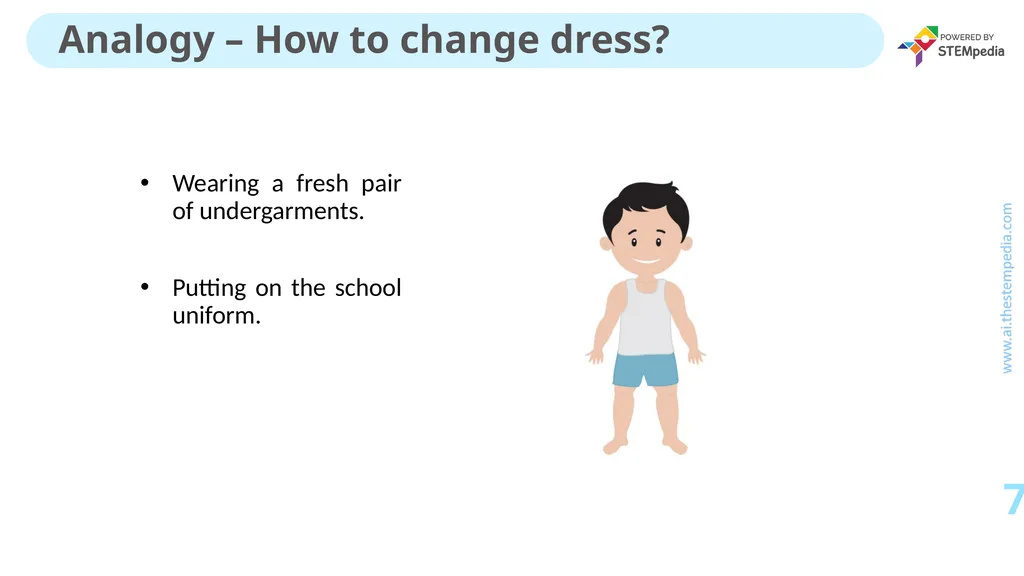
Wearing a fresh pair of undergarments.
Putting on the school uniform. Analogy – How to change dress? ‹#›<br>
08
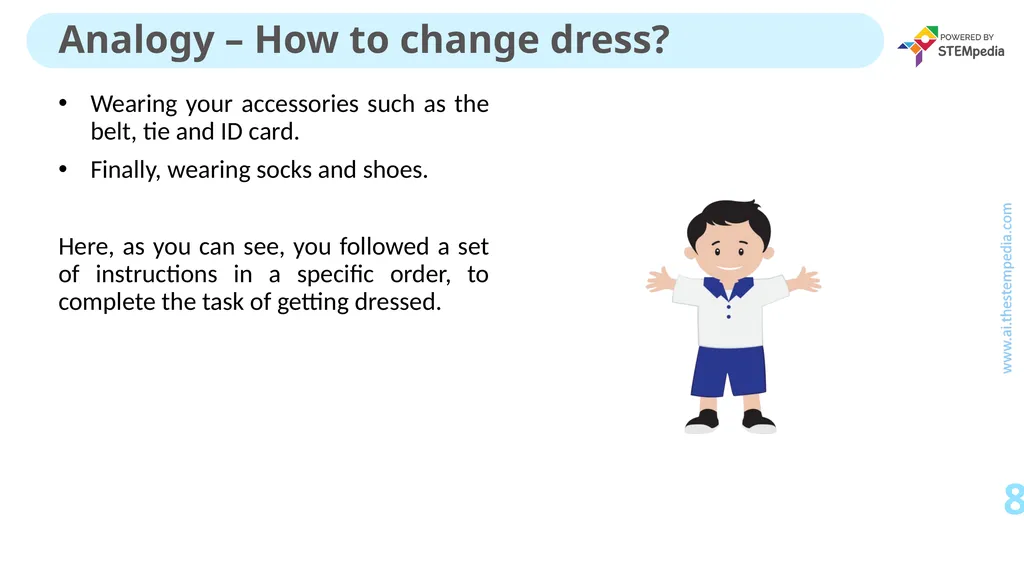
Wearing your accessories such as the belt, tie and ID card.
Finally, wearing socks and shoes.
Here, as you can see, you followed a set of instructions in a specific order, to complete the task of getting dressed. Analogy – How to change dress? ‹#›<br>
09
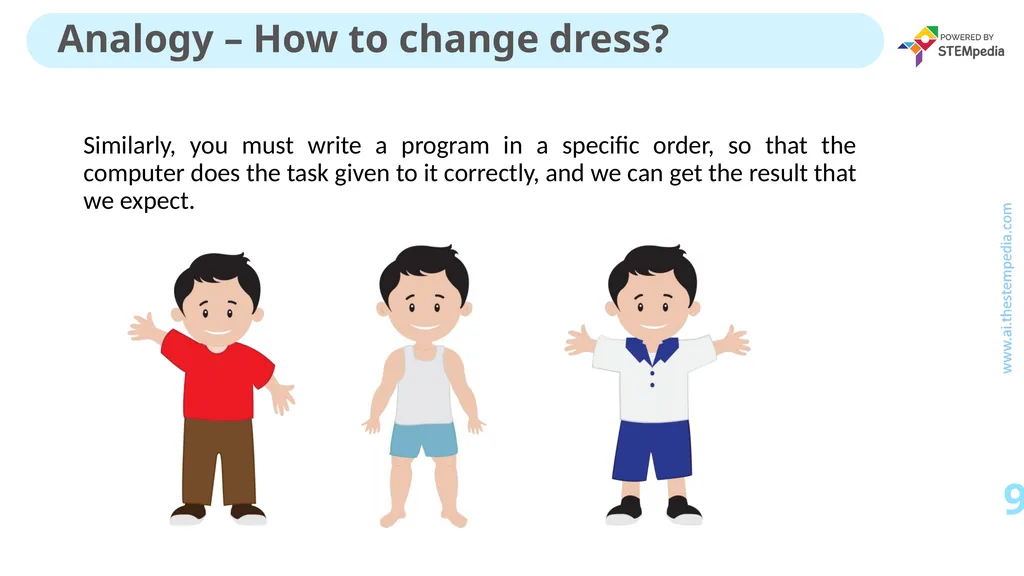
Similarly, you must write a program in a specific order, so that the computer does the task given to it correctly, and we can get the result that we expect. Analogy – How to change dress? ‹#›<br>
10
Introduction to PictoBlox ‹#›<br>
11
PictoBlox is a Scratch 3.0-based graphical programming software. It is the ideal companion for setting the first step into the world of programming.
It is a user-friendly interface where drag-and-drop functionality eliminates the need to memorize syntax and rules which is the case in traditional programming language.
It helps budding programmers like you, to learn how to write a program in a fun, educational and easy way, using blocks. What is PictoBlox? ‹#›<br>
12
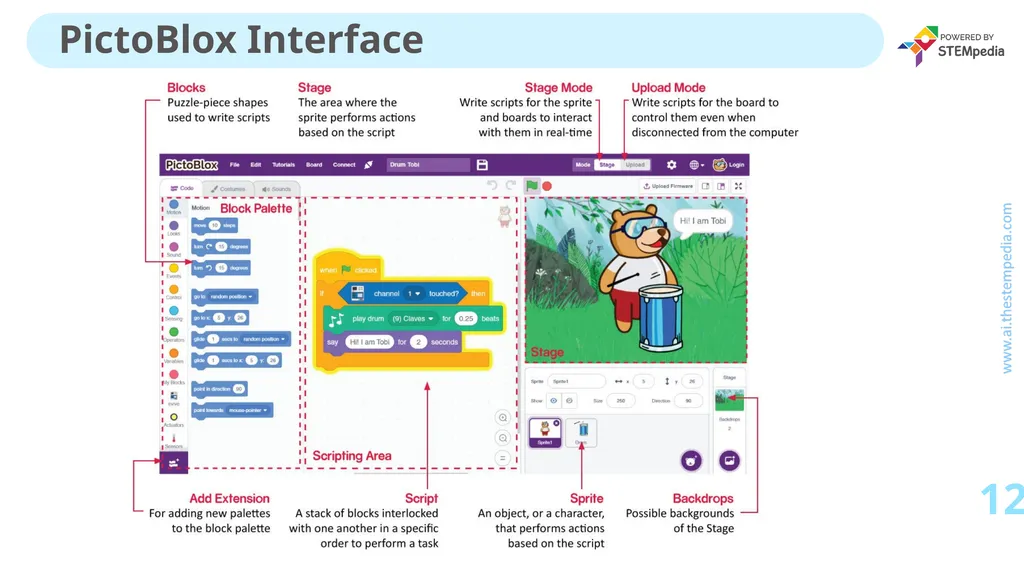
PictoBlox Interface ‹#›<br>
13
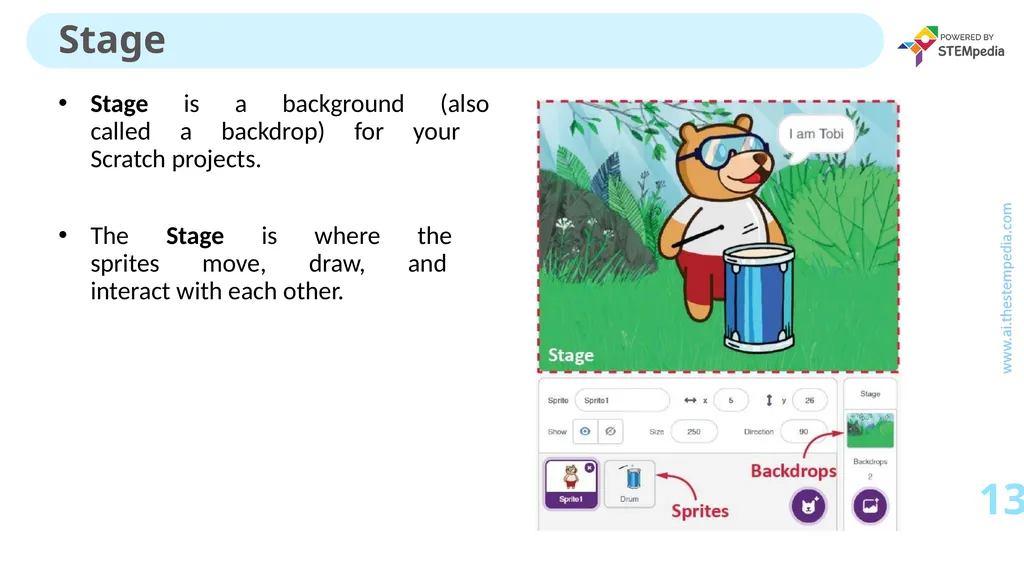
Stage is a background (also called a backdrop) for your Scratch projects.
The Stage is where the sprites move, draw, and interact with each other. Stage ‹#›<br>
14
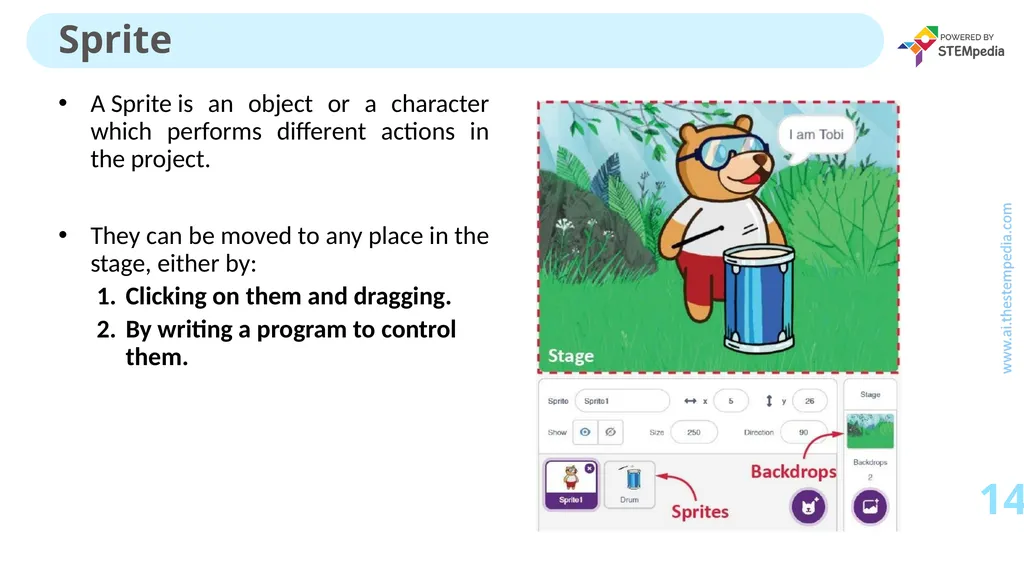
A Sprite is an object or a character which performs different actions in the project.
They can be moved to any place in the stage, either by:
Clicking on them and dragging.
By writing a program to control them. Sprite ‹#›<br>
15
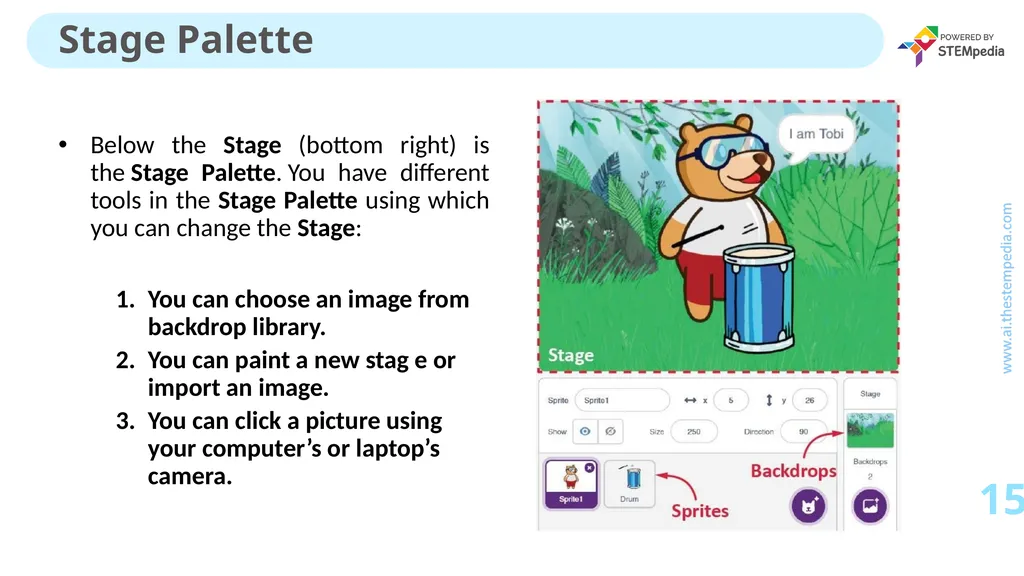
Below the Stage (bottom right) is the Stage Palette. You have different tools in the Stage Palette using which you can change the Stage:
You can choose an image from backdrop library.
You can paint a new stag e or import an image.
You can click a picture using your computer’s or laptop’s camera. Stage Palette ‹#›<br>
16
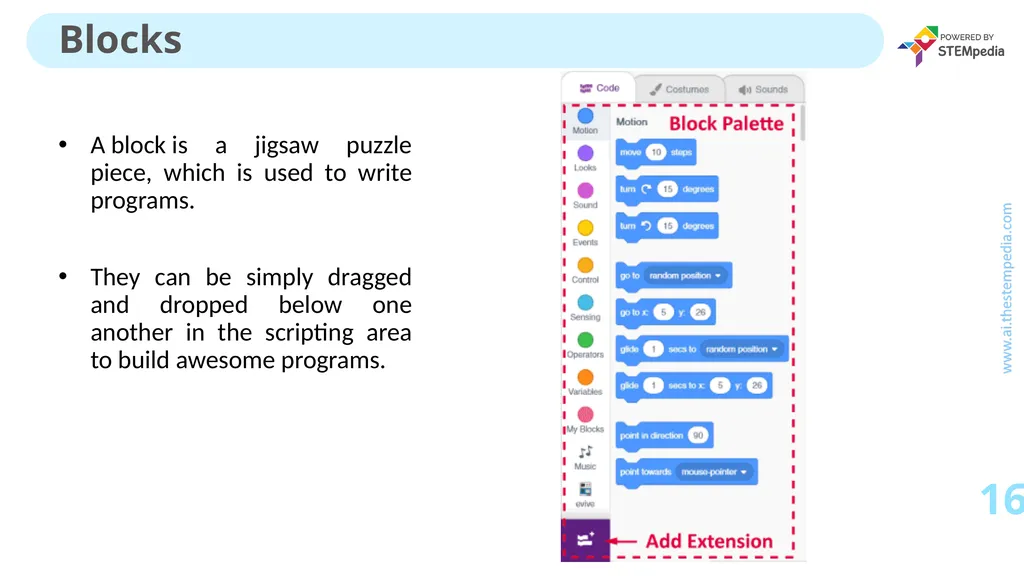
A block is a jigsaw puzzle piece, which is used to write programs.
They can be simply dragged and dropped below one another in the scripting area to build awesome programs. Blocks ‹#›<br>
17
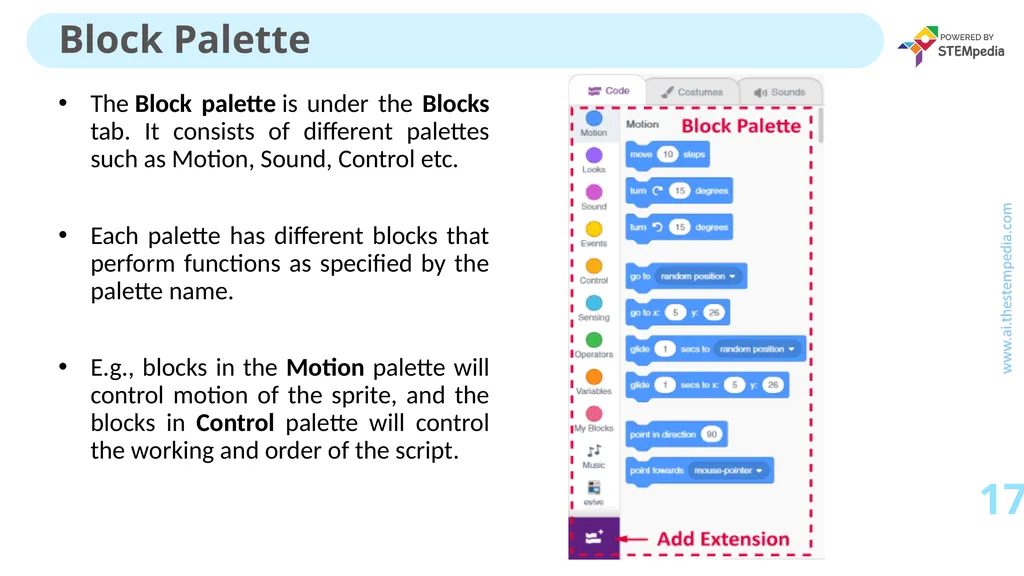
The Block palette is under the Blocks tab. It consists of different palettes such as Motion, Sound, Control etc.
Each palette has different blocks that perform functions as specified by the palette name.
E.g., blocks in the Motion palette will control motion of the sprite, and the blocks in Control palette will control the working and order of the script. Block Palette ‹#›<br>
18
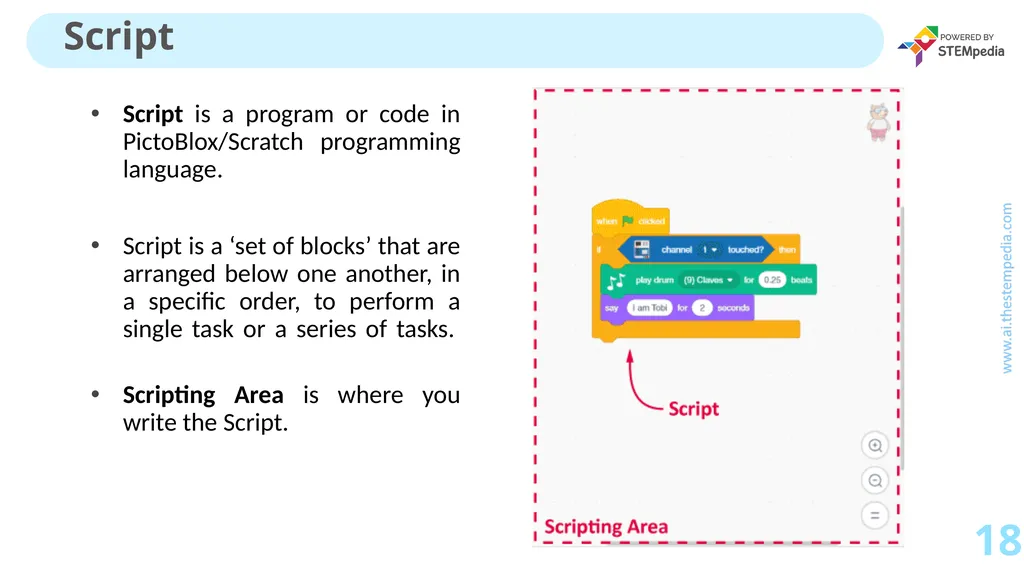
Script is a program or code in PictoBlox/Scratch programming language.
Script is a ‘set of blocks’ that are arranged below one another, in a specific order, to perform a single task or a series of tasks.
Scripting Area is where you write the Script. Script ‹#›<br>
19
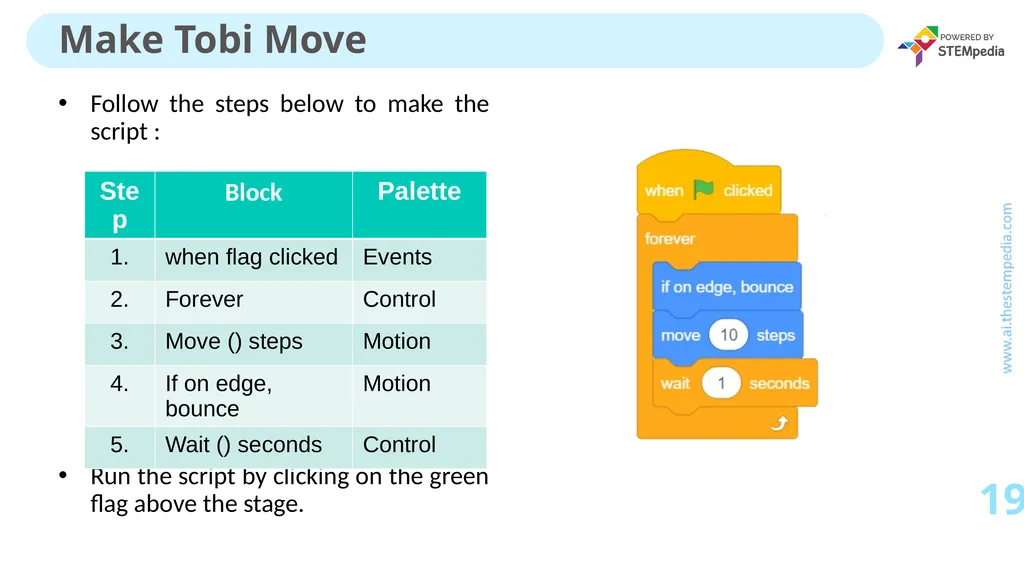
Follow the steps below to make the script :
Run the script by clicking on the green flag above the stage. Make Tobi Move ‹#›<br>
20
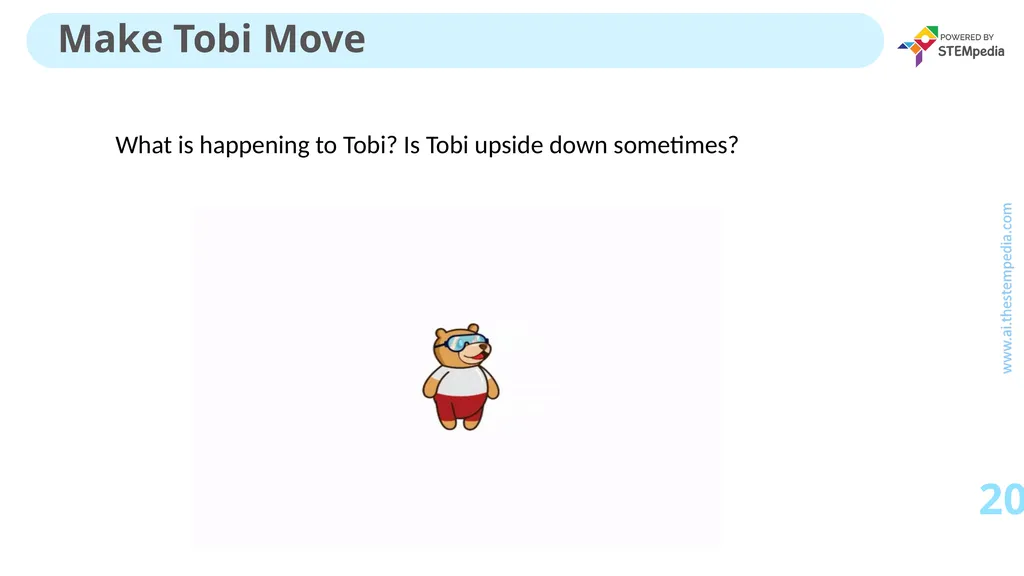
What is happening to Tobi? Is Tobi upside down sometimes? Make Tobi Move ‹#›<br>
21
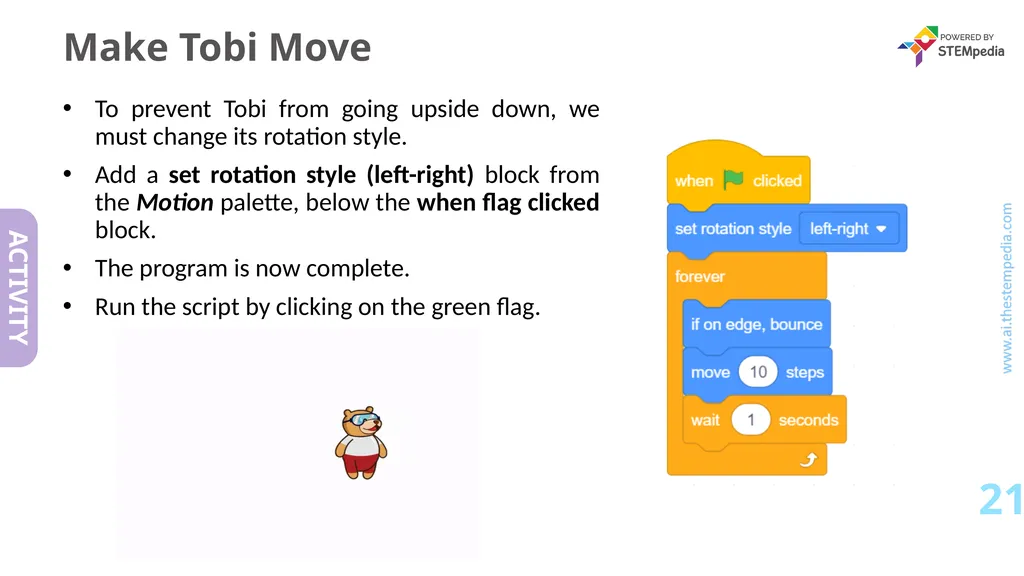
Make Tobi Move To prevent Tobi from going upside down, we must change its rotation style.
Add a set rotation style (left-right) block from the Motion palette, below the when flag clicked block.
The program is now complete.
Run the script by clicking on the green flag. ‹#›<br>