
Solid Edge ST4 Training Working with face
PC
Published · 31 slides · 0 views
1 / 1
Description
Solid Edge ST4 Training Working with face relationships When modeling synchronous features, you have control over the solve behavior of a model or an assembly during face editing. The control is achieved through relationships between faces.
Related Topics
Share
Embed code
Download this presentation From Below
"Solid Edge ST4 Training Working with face" is the property of its rightful owner. Permission is granted to download and print the materials on this website for personal, non-commercial use only, and to display it on your personal computer provided you do not modify the materials and that you retain all copyright notices contained in the materials. By downloading content from our website, you accept the terms of this agreement.
Presentation Transcript
01
Solid Edge ST4
Training
Working with face relationships<br>
02
When modeling synchronous features, you have control over the solve behavior of a model or an assembly during face editing. The control is achieved through relationships between faces. Face relationships are inherited from sketch elements used to create the faces of a body feature. Face relationships are also applied using the Relate command. Relationships applied with the Relate command are temporary by default. If a relationship is to be permanent, the user can set the applied relationship to a Persist state. The Persist must be applied during the command. Face relationships overview<br>
03
Relationships are assigned to faces. During a face move, Live Rules considers found relationships, persistent relationships and locked dimensions in the model. Live Rules allows you to control any or all of these during the operation. Found relationships are applied based on the geometric state of the model when the edit is being performed and on the Live Rules settings. Live Rules settings allow you to control what you want to look for. Face relationships overview<br>
04
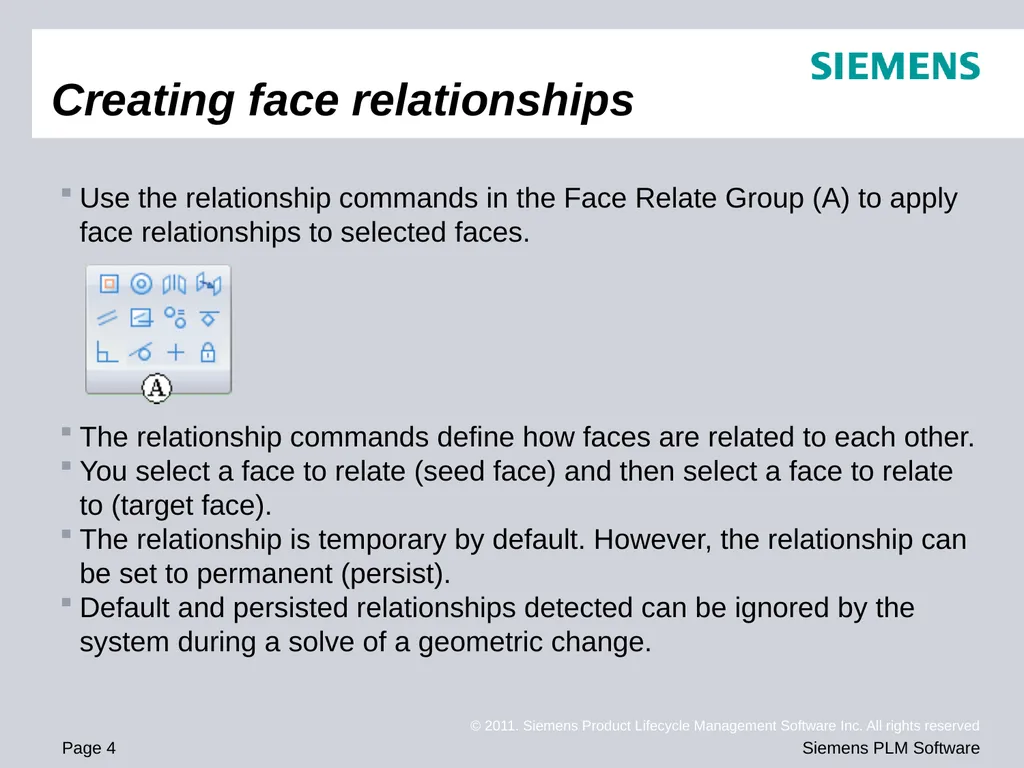
Use the relationship commands in the Face Relate Group (A) to apply face relationships to selected faces.
The relationship commands define how faces are related to each other.
You select a face to relate (seed face) and then select a face to relate to (target face).
The relationship is temporary by default. However, the relationship can be set to permanent (persist).
Default and persisted relationships detected can be ignored by the system during a solve of a geometric change. Creating face relationships<br>
The relationship commands define how faces are related to each other.
You select a face to relate (seed face) and then select a face to relate to (target face).
The relationship is temporary by default. However, the relationship can be set to permanent (persist).
Default and persisted relationships detected can be ignored by the system during a solve of a geometric change. Creating face relationships<br>
05
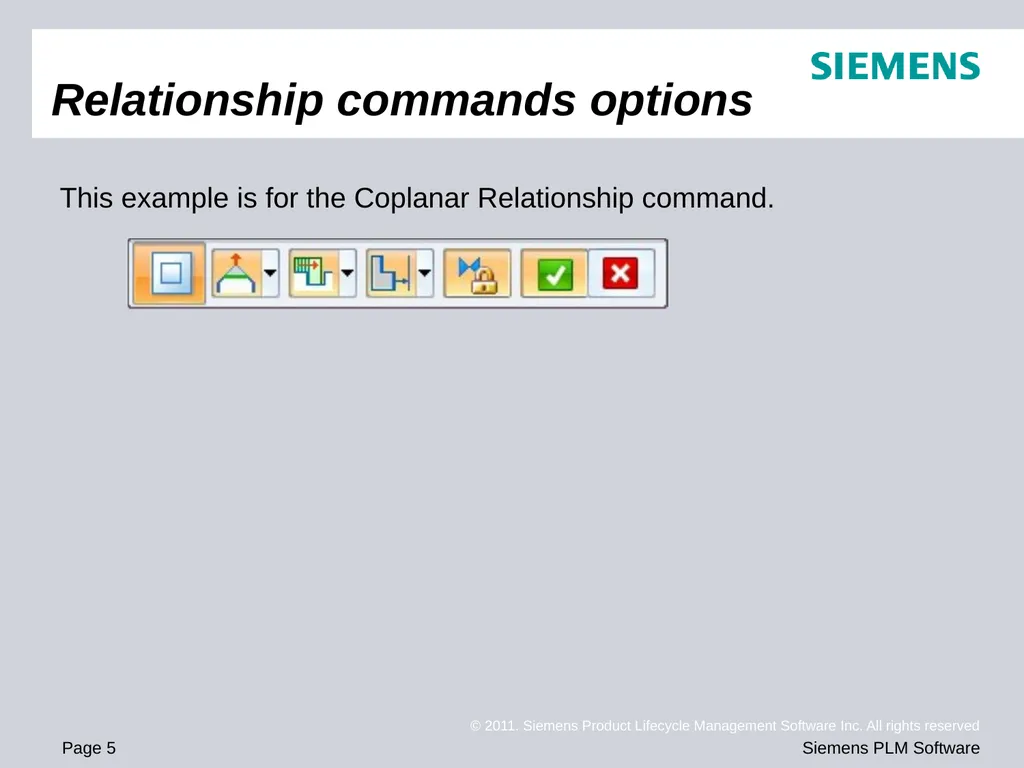
Relationship commands options This example is for the Coplanar Relationship command.<br>
06
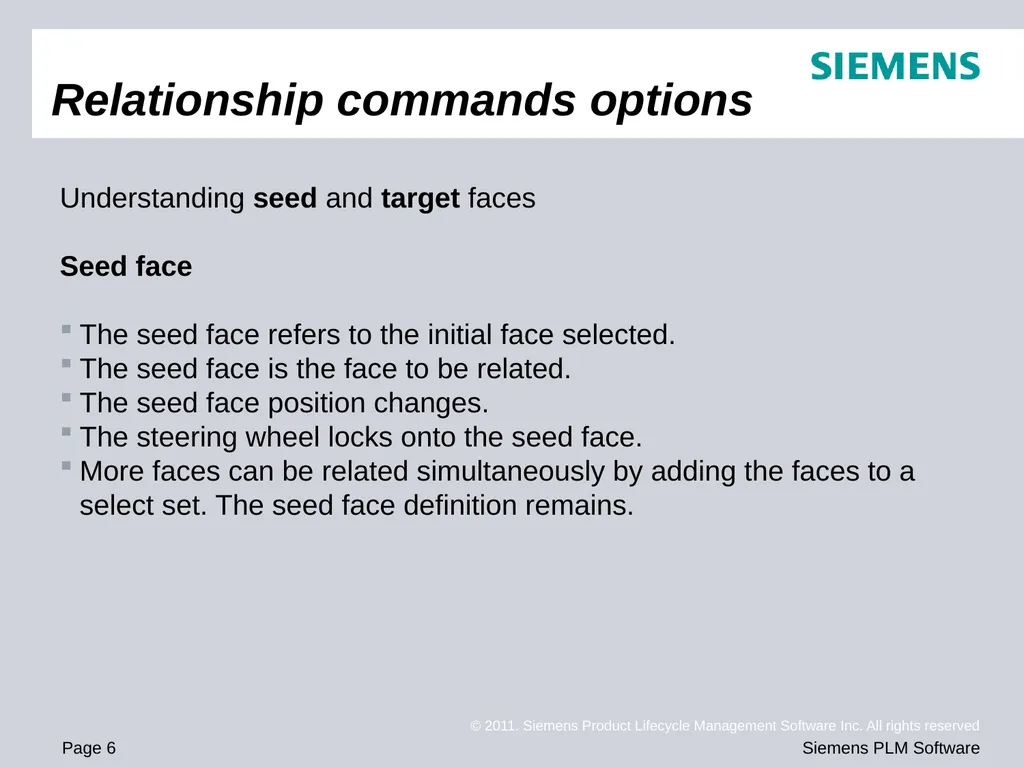
Understanding seed and target faces
Seed face
The seed face refers to the initial face selected.
The seed face is the face to be related.
The seed face position changes.
The steering wheel locks onto the seed face.
More faces can be related simultaneously by adding the faces to a select set. The seed face definition remains. Relationship commands options<br>
Seed face
The seed face refers to the initial face selected.
The seed face is the face to be related.
The seed face position changes.
The steering wheel locks onto the seed face.
More faces can be related simultaneously by adding the faces to a select set. The seed face definition remains. Relationship commands options<br>
07
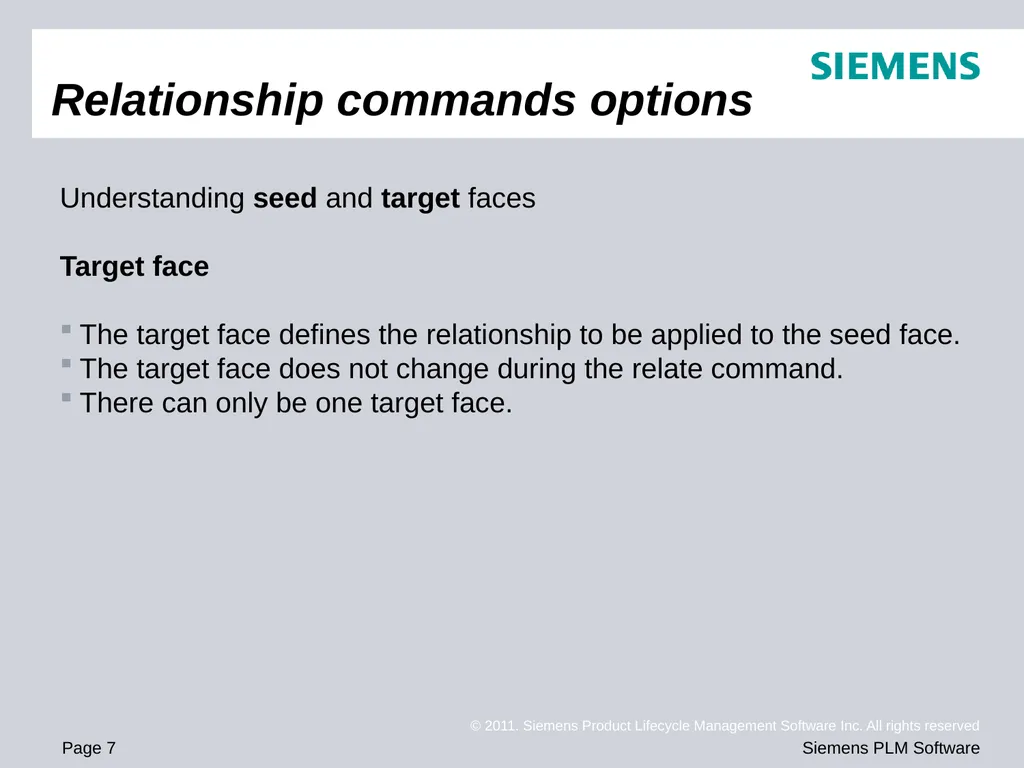
Understanding seed and target faces
Target face
The target face defines the relationship to be applied to the seed face.
The target face does not change during the relate command.
There can only be one target face. Relationship commands options<br>
Target face
The target face defines the relationship to be applied to the seed face.
The target face does not change during the relate command.
There can only be one target face. Relationship commands options<br>
08
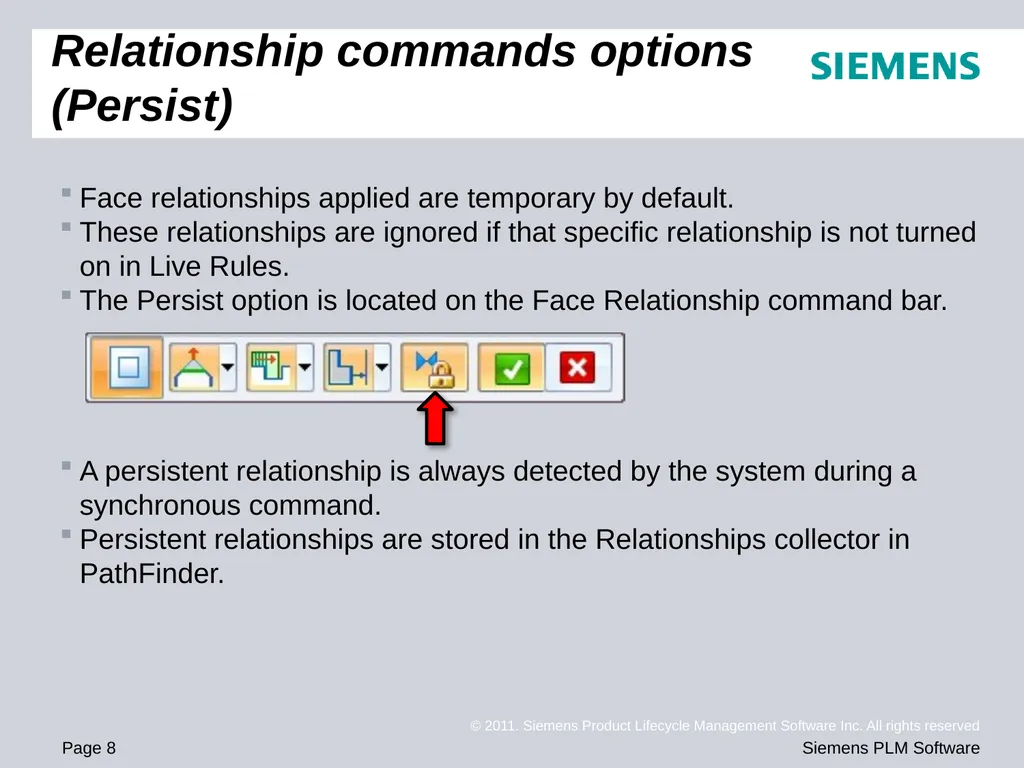
Face relationships applied are temporary by default.
These relationships are ignored if that specific relationship is not turned on in Live Rules.
The Persist option is located on the Face Relationship command bar.
A persistent relationship is always detected by the system during a synchronous command.
Persistent relationships are stored in the Relationships collector in PathFinder. Relationship commands options (Persist)<br>
These relationships are ignored if that specific relationship is not turned on in Live Rules.
The Persist option is located on the Face Relationship command bar.
A persistent relationship is always detected by the system during a synchronous command.
Persistent relationships are stored in the Relationships collector in PathFinder. Relationship commands options (Persist)<br>
09
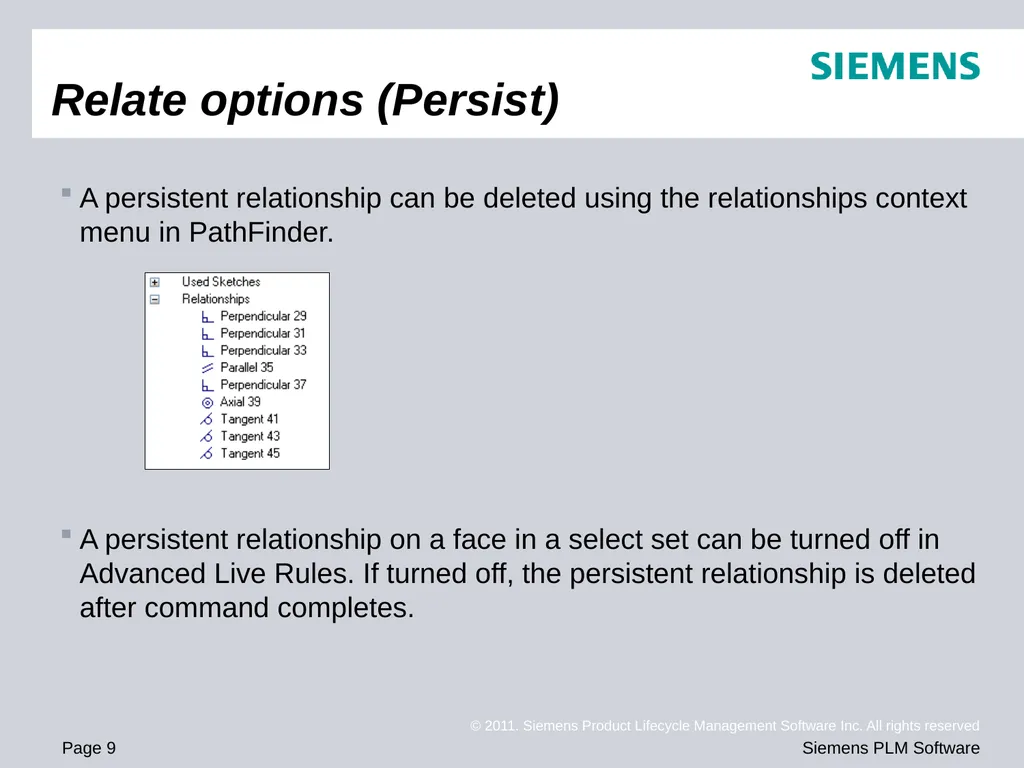
A persistent relationship can be deleted using the relationships context menu in PathFinder.
A persistent relationship on a face in a select set can be turned off in Advanced Live Rules. If turned off, the persistent relationship is deleted after command completes. Relate options (Persist)<br>
A persistent relationship on a face in a select set can be turned off in Advanced Live Rules. If turned off, the persistent relationship is deleted after command completes. Relate options (Persist)<br>
10
Accept or cancel
If the desired relationship results are achieved, click Accept. The face relationship command ends but the select set is still active.
If the desired relationship results are not achieved, click Cancel. The face relationship command ends but the select set is still active. Relationship command options<br>
If the desired relationship results are achieved, click Accept. The face relationship command ends but the select set is still active.
If the desired relationship results are not achieved, click Cancel. The face relationship command ends but the select set is still active. Relationship command options<br>
11
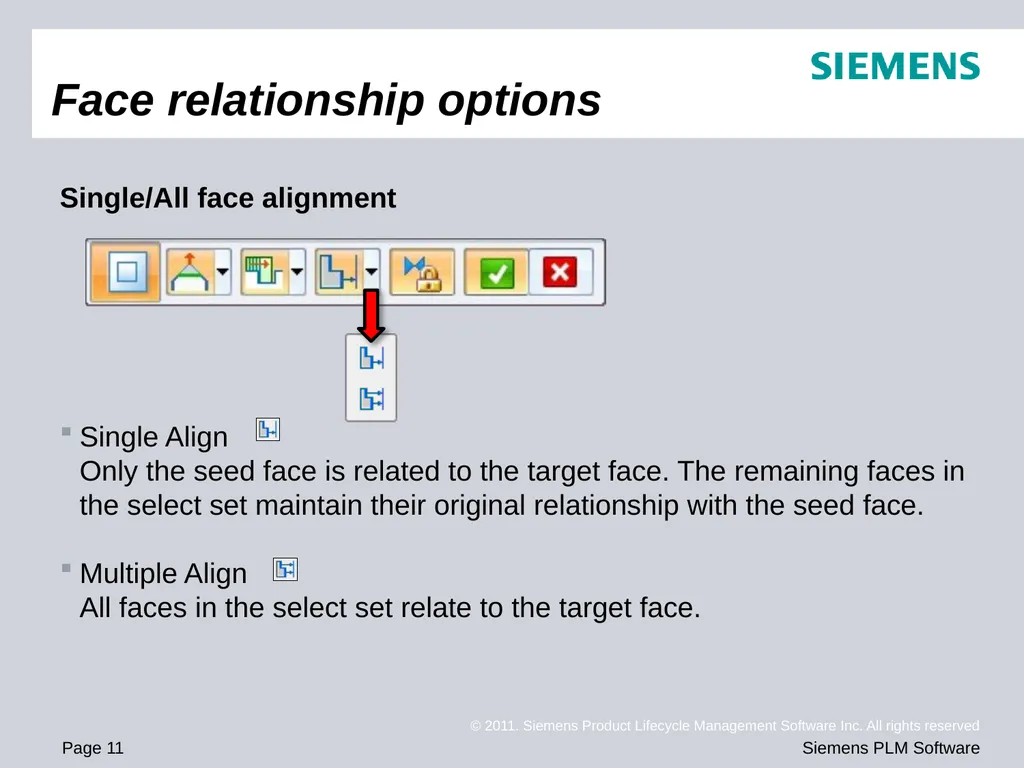
Single/All face alignment
Single Align Only the seed face is related to the target face. The remaining faces in the select set maintain their original relationship with the seed face.
Multiple Align All faces in the select set relate to the target face. Face relationship options<br>
Single Align Only the seed face is related to the target face. The remaining faces in the select set maintain their original relationship with the seed face.
Multiple Align All faces in the select set relate to the target face. Face relationship options<br>
12
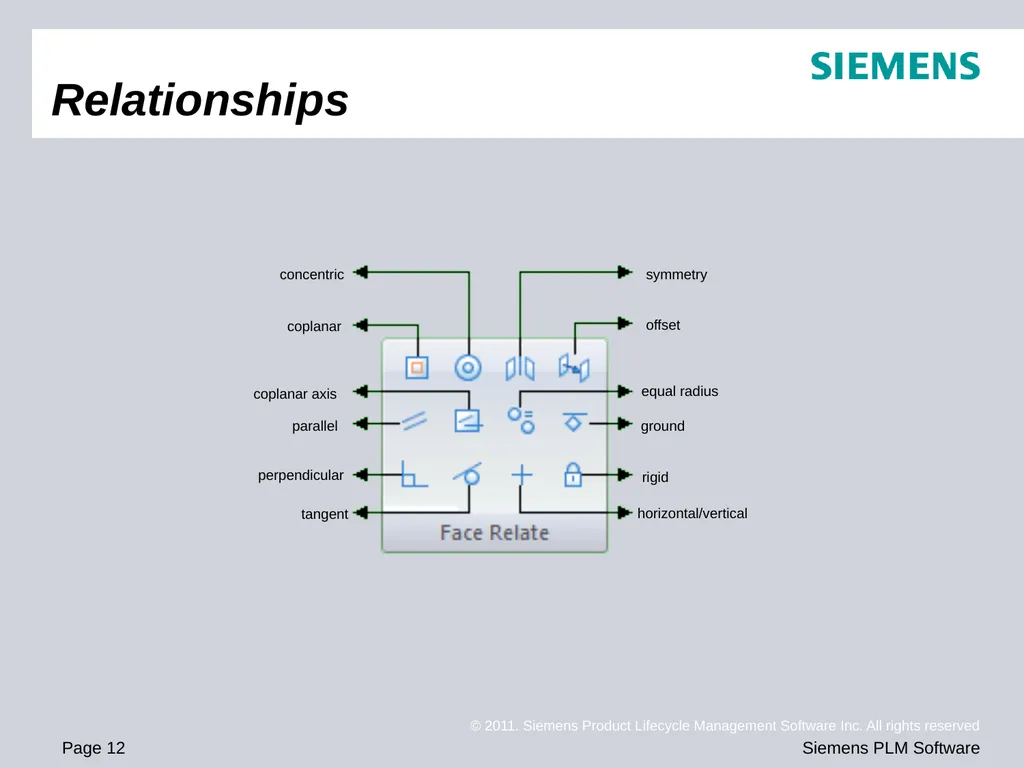
Relationships concentric perpendicular offset ground tangent rigid equal radius coplanar axis symmetry parallel horizontal/vertical coplanar<br>
13
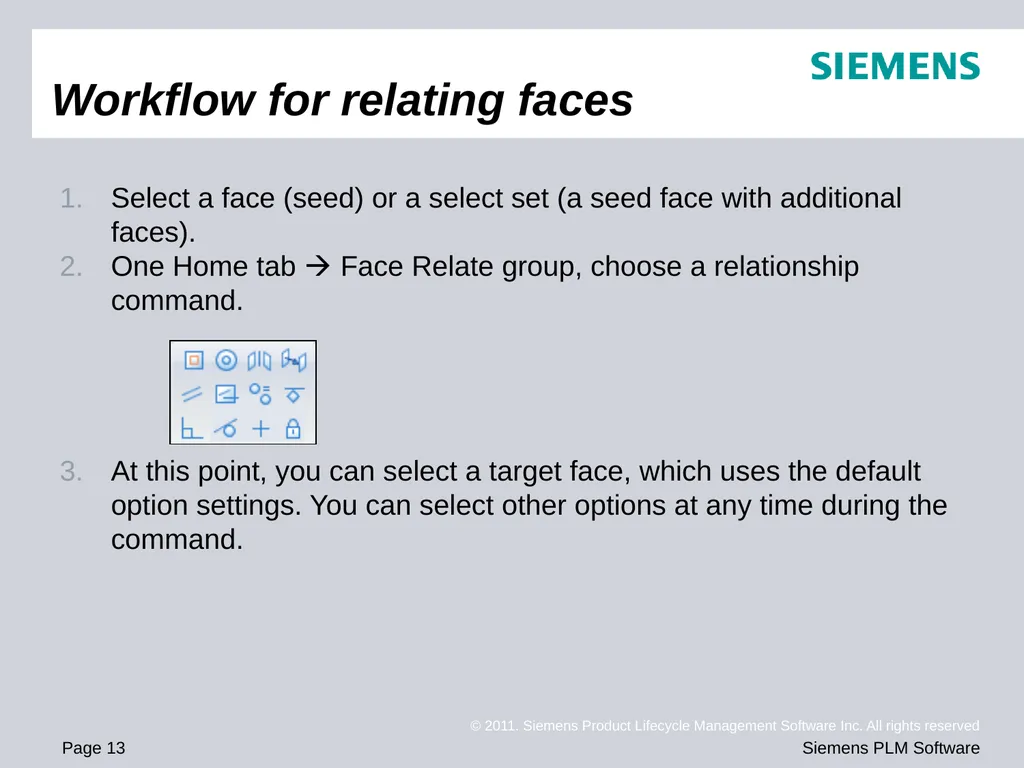
Select a face (seed) or a select set (a seed face with additional faces).
One Home tab Face Relate group, choose a relationship command.
At this point, you can select a target face, which uses the default option settings. You can select other options at any time during the command. Workflow for relating faces<br>
One Home tab Face Relate group, choose a relationship command.
At this point, you can select a target face, which uses the default option settings. You can select other options at any time during the command. Workflow for relating faces<br>
14
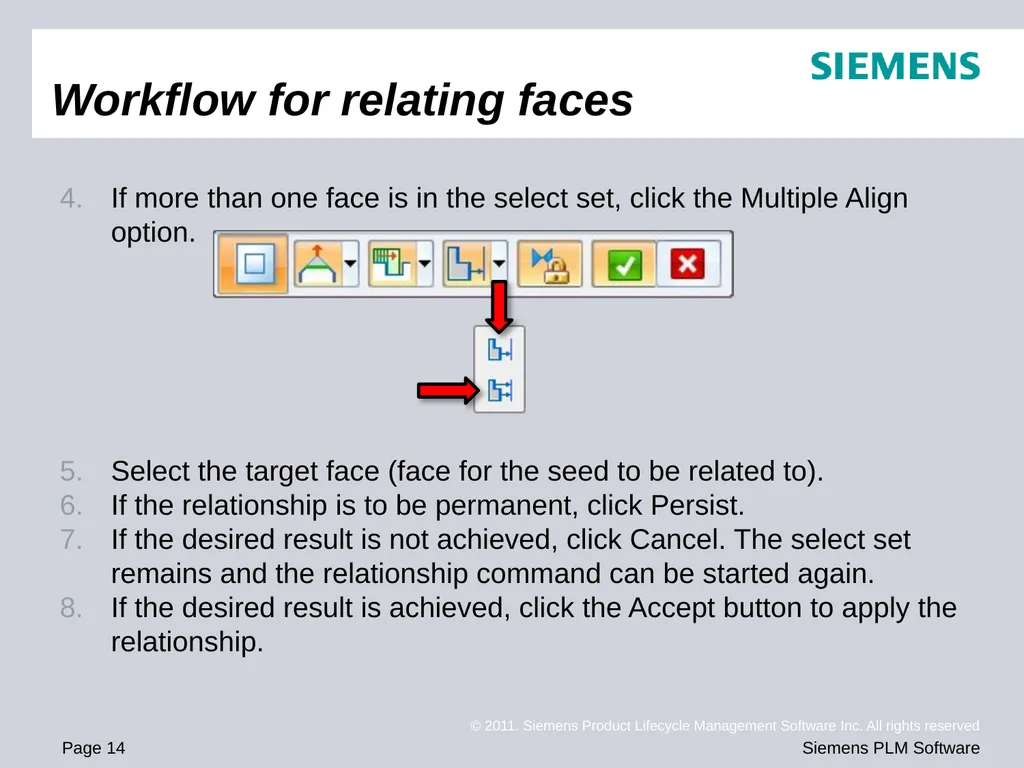
If more than one face is in the select set, click the Multiple Align option.
Select the target face (face for the seed to be related to).
If the relationship is to be permanent, click Persist.
If the desired result is not achieved, click Cancel. The select set remains and the relationship command can be started again.
If the desired result is achieved, click the Accept button to apply the relationship. Workflow for relating faces<br>
Select the target face (face for the seed to be related to).
If the relationship is to be permanent, click Persist.
If the desired result is not achieved, click Cancel. The select set remains and the relationship command can be started again.
If the desired result is achieved, click the Accept button to apply the relationship. Workflow for relating faces<br>
15
Activity: Relating a single face with a rigid select set
Activity: Relating faces using parallel, coplanar, perpendicular and concentric relationships
Activity: Relating all faces in a select set
Activity: Coplanar axis hole alignment
Activity: Coplanar axis alignment using a custom axis Relationships activities<br>
Activity: Relating faces using parallel, coplanar, perpendicular and concentric relationships
Activity: Relating all faces in a select set
Activity: Coplanar axis hole alignment
Activity: Coplanar axis alignment using a custom axis Relationships activities<br>
16
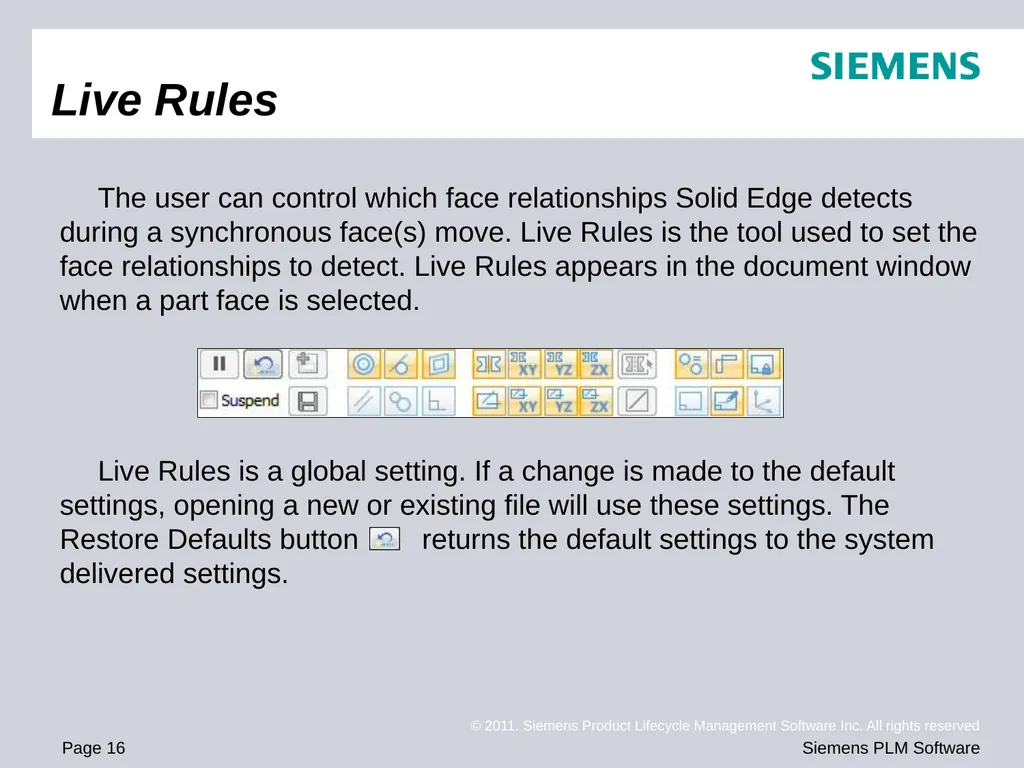
The user can control which face relationships Solid Edge detects during a synchronous face(s) move. Live Rules is the tool used to set the face relationships to detect. Live Rules appears in the document window when a part face is selected.
Live Rules is a global setting. If a change is made to the default settings, opening a new or existing file will use these settings. The Restore Defaults button returns the default settings to the system delivered settings. Live Rules<br>
Live Rules is a global setting. If a change is made to the default settings, opening a new or existing file will use these settings. The Restore Defaults button returns the default settings to the system delivered settings. Live Rules<br>
17
Overview
Face relationships are detected during a synchronous face(s) modification.
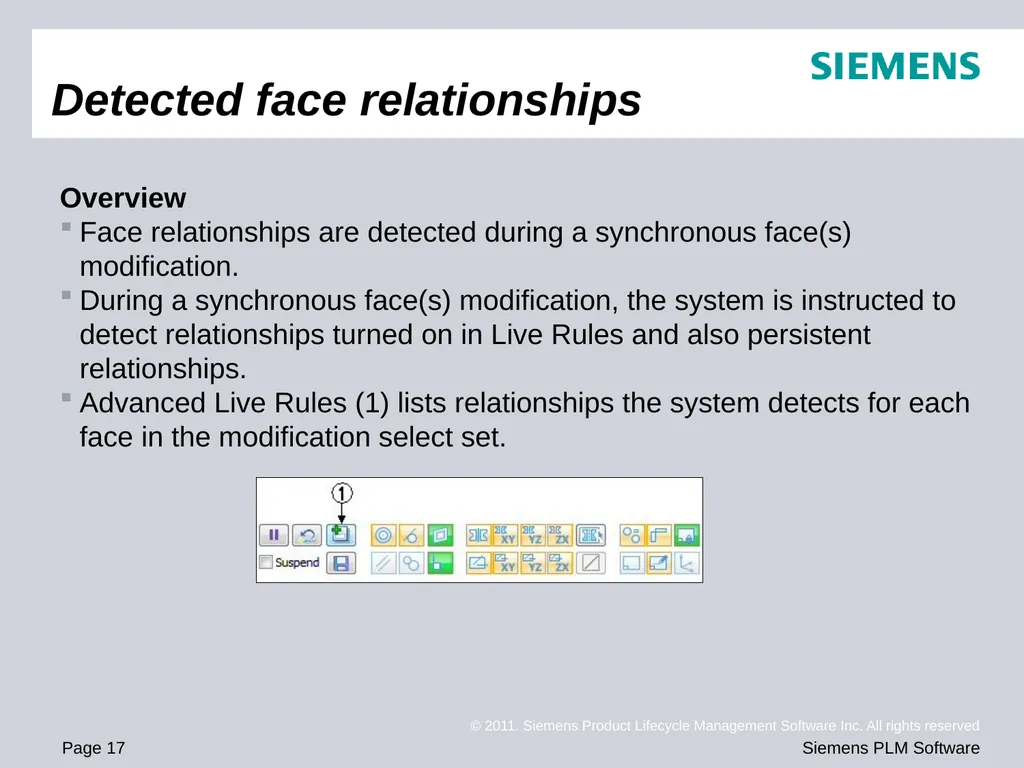
During a synchronous face(s) modification, the system is instructed to detect relationships turned on in Live Rules and also persistent relationships.
Advanced Live Rules (1) lists relationships the system detects for each face in the modification select set. Detected face relationships<br>
Face relationships are detected during a synchronous face(s) modification.
During a synchronous face(s) modification, the system is instructed to detect relationships turned on in Live Rules and also persistent relationships.
Advanced Live Rules (1) lists relationships the system detects for each face in the modification select set. Detected face relationships<br>
18
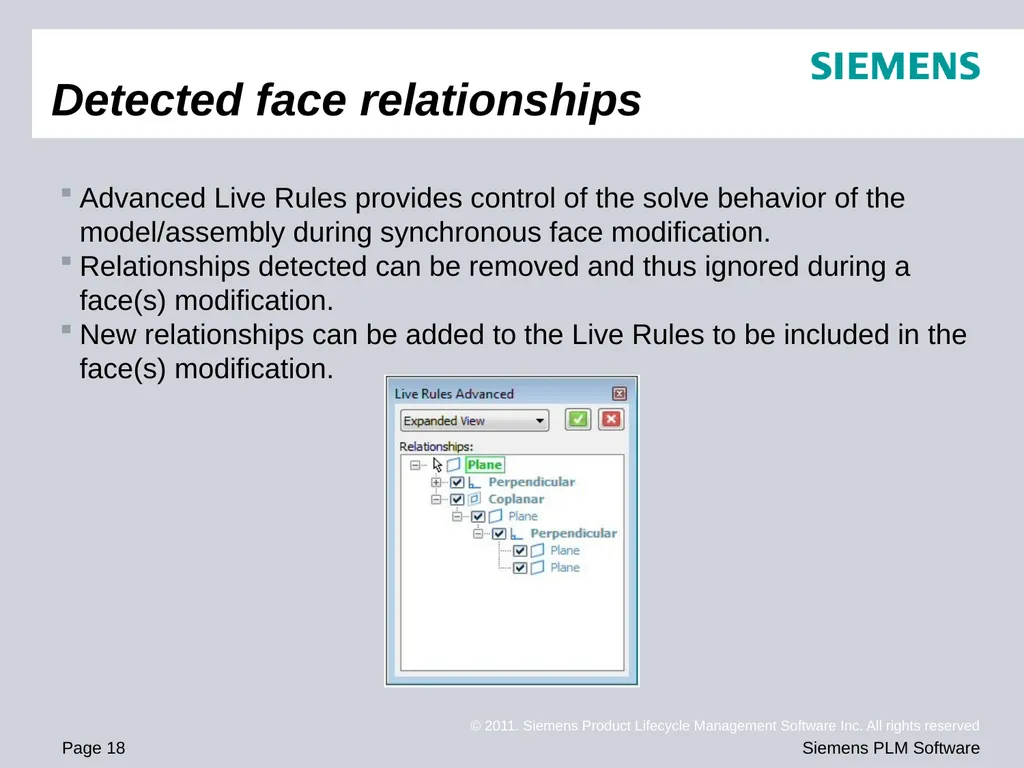
Advanced Live Rules provides control of the solve behavior of the model/assembly during synchronous face modification.
Relationships detected can be removed and thus ignored during a face(s) modification.
New relationships can be added to the Live Rules to be included in the face(s) modification. Detected face relationships<br>
Relationships detected can be removed and thus ignored during a face(s) modification.
New relationships can be added to the Live Rules to be included in the face(s) modification. Detected face relationships<br>
19
How to start Live Rules
Select any synchronous face to display the Live Rules in the document window.
Start a synchronous face edit. Select the Live Rules Advanced button (detected rules manager).
Restore default rules Option to restore the system delivered Live Rules. Live Rules always remain at the last setting when creating a new file or opening an existing file.
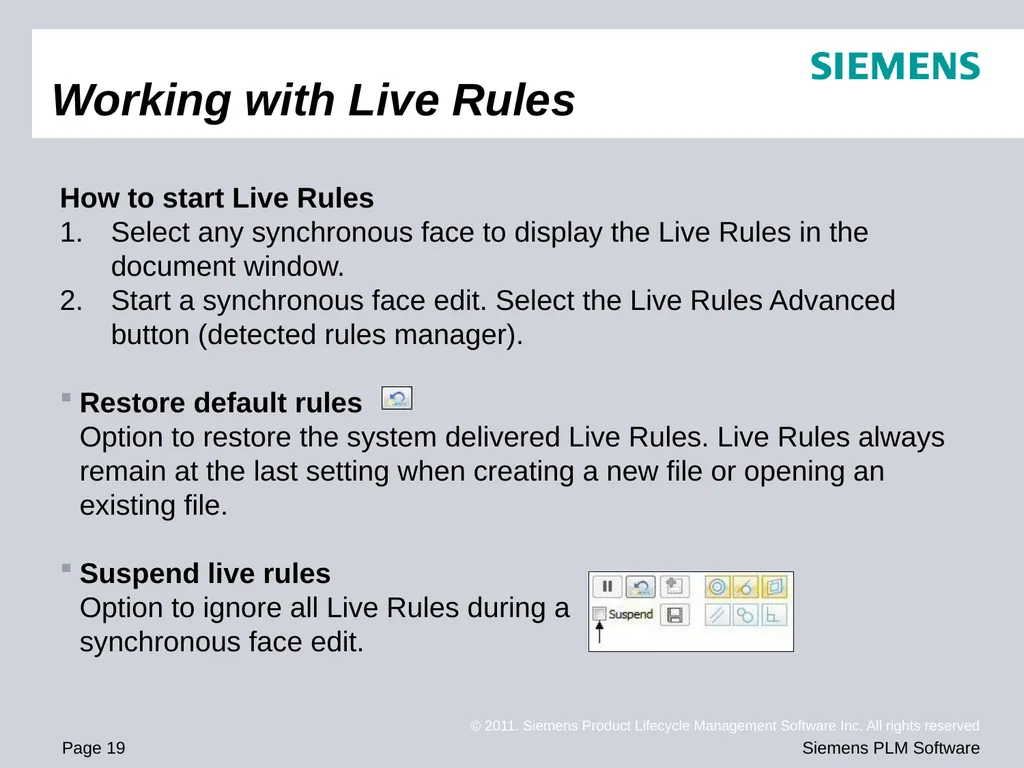
Suspend live rules Option to ignore all Live Rules during a synchronous face edit. Working with Live Rules<br>
Select any synchronous face to display the Live Rules in the document window.
Start a synchronous face edit. Select the Live Rules Advanced button (detected rules manager).
Restore default rules Option to restore the system delivered Live Rules. Live Rules always remain at the last setting when creating a new file or opening an existing file.
Suspend live rules Option to ignore all Live Rules during a synchronous face edit. Working with Live Rules<br>
20
Additional options
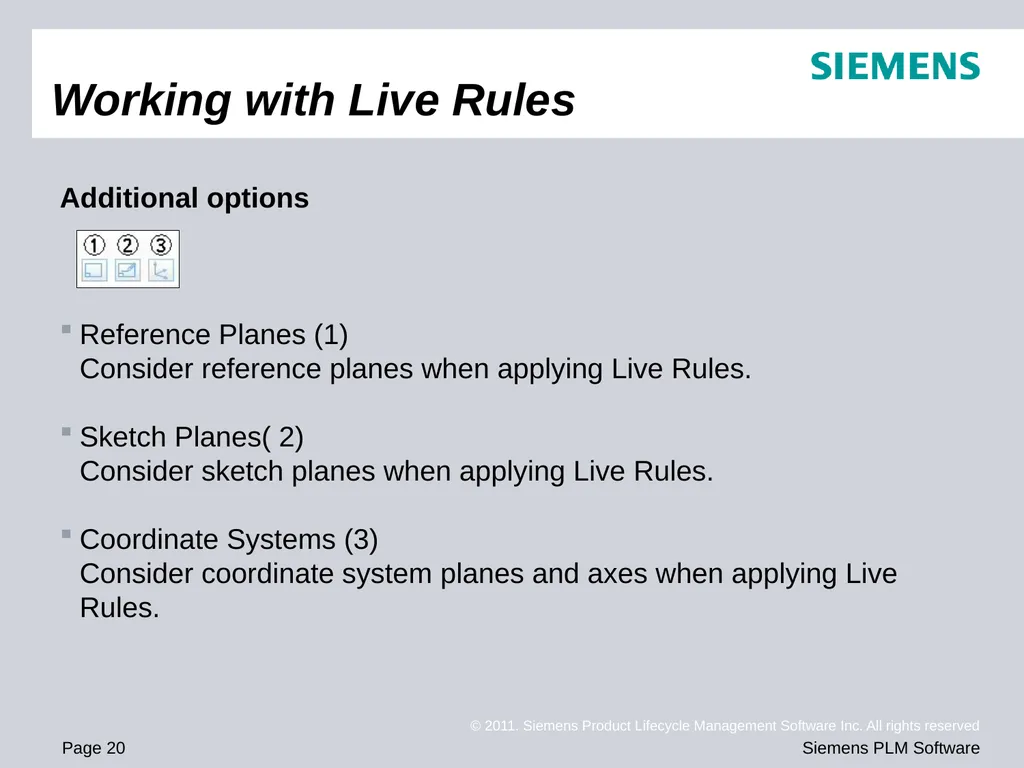
Reference Planes (1) Consider reference planes when applying Live Rules.
Sketch Planes( 2) Consider sketch planes when applying Live Rules.
Coordinate Systems (3) Consider coordinate system planes and axes when applying Live Rules. Working with Live Rules<br>
Reference Planes (1) Consider reference planes when applying Live Rules.
Sketch Planes( 2) Consider sketch planes when applying Live Rules.
Coordinate Systems (3) Consider coordinate system planes and axes when applying Live Rules. Working with Live Rules<br>
21
Detect local symmetry
Option to detect a local symmetry plane. You are prompted to select a local symmetry plane to be used for symmetric face detection.
Activity: Detecting symmetry relationships
Activity: Applying a symmetric about relationship Working with Live Rules<br>
Option to detect a local symmetry plane. You are prompted to select a local symmetry plane to be used for symmetric face detection.
Activity: Detecting symmetry relationships
Activity: Applying a symmetric about relationship Working with Live Rules<br>
22
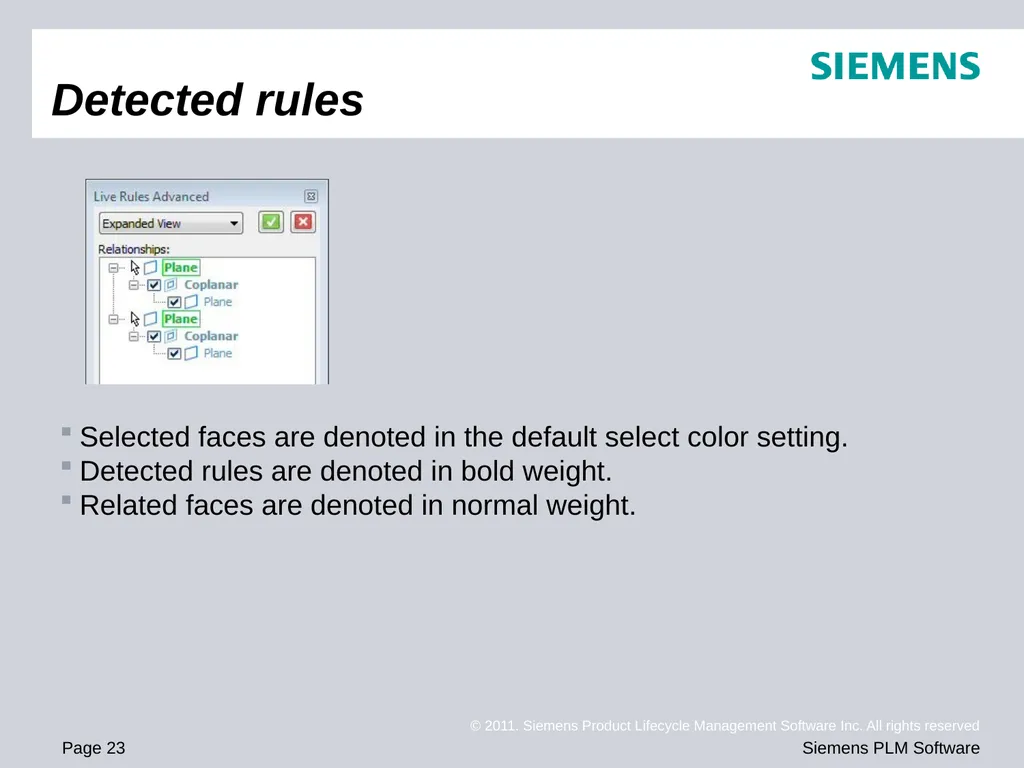
Displays the selected geometry and related geometry that matches the current Live Rules settings in a tree-like structure. You can use the options on Live Rules Advanced to specify which faces are modified, so you can adjust the result of the current synchronous modification. Live Rules Advanced<br>
23
Selected faces are denoted in the default select color setting.
Detected rules are denoted in bold weight.
Related faces are denoted in normal weight. Detected rules<br>
Detected rules are denoted in bold weight.
Related faces are denoted in normal weight. Detected rules<br>
24
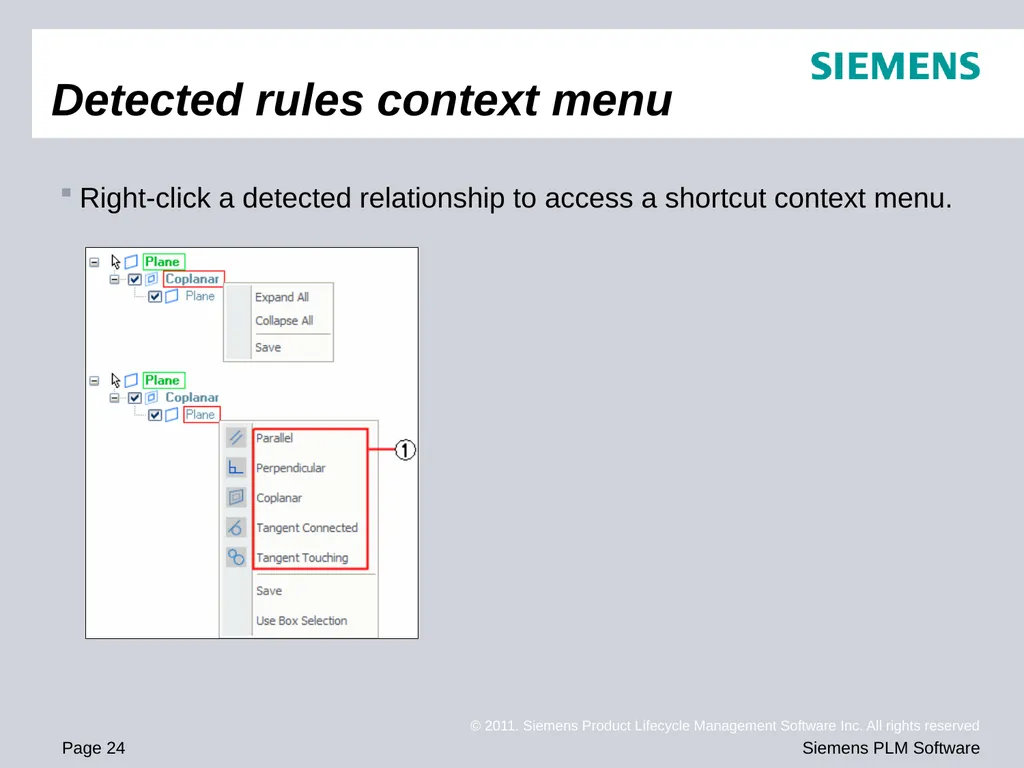
Right-click a detected relationship to access a shortcut context menu. Detected rules context menu<br>
25
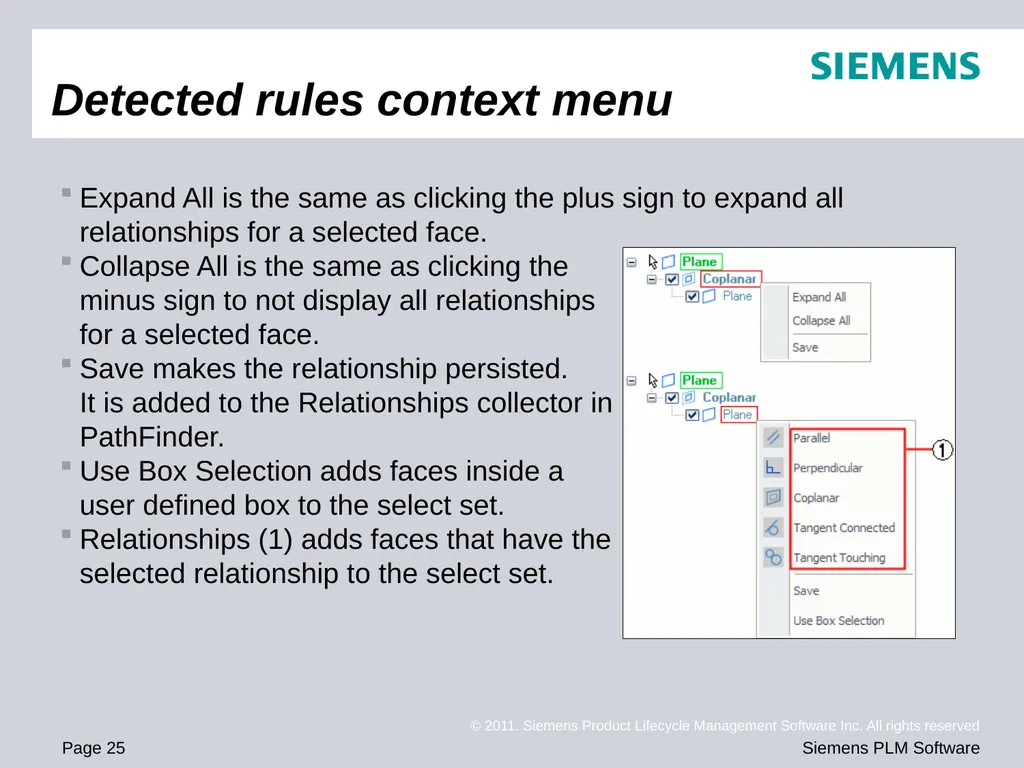
Expand All is the same as clicking the plus sign to expand all relationships for a selected face.
Collapse All is the same as clicking the minus sign to not display all relationships for a selected face.
Save makes the relationship persisted. It is added to the Relationships collector in PathFinder.
Use Box Selection adds faces inside a user defined box to the select set.
Relationships (1) adds faces that have the selected relationship to the select set. Detected rules context menu<br>
Collapse All is the same as clicking the minus sign to not display all relationships for a selected face.
Save makes the relationship persisted. It is added to the Relationships collector in PathFinder.
Use Box Selection adds faces inside a user defined box to the select set.
Relationships (1) adds faces that have the selected relationship to the select set. Detected rules context menu<br>
26
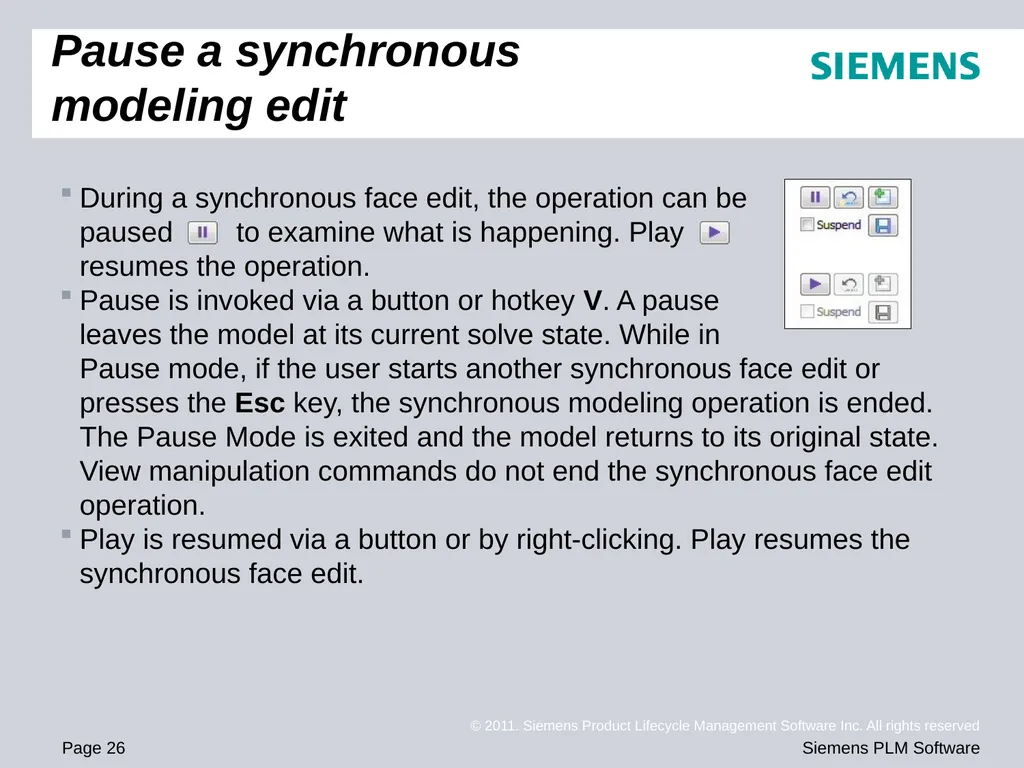
During a synchronous face edit, the operation can be
paused to examine what is happening. Play
resumes the operation.
Pause is invoked via a button or hotkey V. A pause leaves the model at its current solve state. While in Pause mode, if the user starts another synchronous face edit or presses the Esc key, the synchronous modeling operation is ended. The Pause Mode is exited and the model returns to its original state. View manipulation commands do not end the synchronous face edit operation.
Play is resumed via a button or by right-clicking. Play resumes the synchronous face edit. Pause a synchronous modeling edit<br>
Pause is invoked via a button or hotkey V. A pause leaves the model at its current solve state. While in Pause mode, if the user starts another synchronous face edit or presses the Esc key, the synchronous modeling operation is ended. The Pause Mode is exited and the model returns to its original state. View manipulation commands do not end the synchronous face edit operation.
Play is resumed via a button or by right-clicking. Play resumes the synchronous face edit. Pause a synchronous modeling edit<br>
27
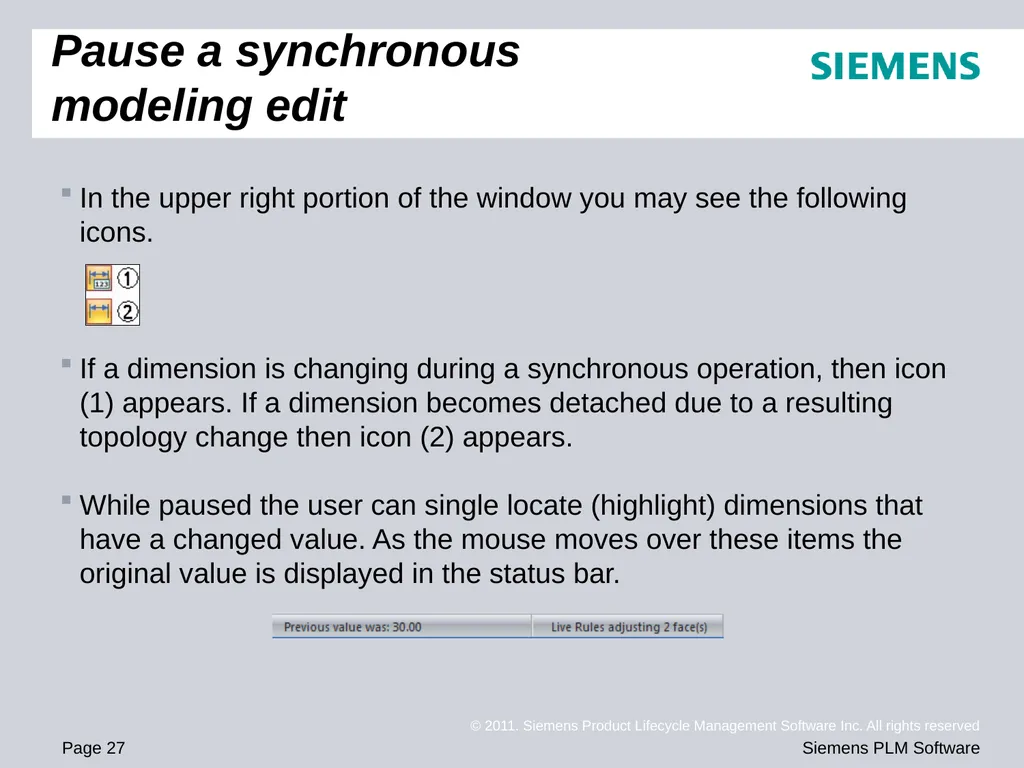
In the upper right portion of the window you may see the following icons.
If a dimension is changing during a synchronous operation, then icon (1) appears. If a dimension becomes detached due to a resulting topology change then icon (2) appears.
While paused the user can single locate (highlight) dimensions that have a changed value. As the mouse moves over these items the original value is displayed in the status bar. Pause a synchronous modeling edit<br>
If a dimension is changing during a synchronous operation, then icon (1) appears. If a dimension becomes detached due to a resulting topology change then icon (2) appears.
While paused the user can single locate (highlight) dimensions that have a changed value. As the mouse moves over these items the original value is displayed in the status bar. Pause a synchronous modeling edit<br>
28
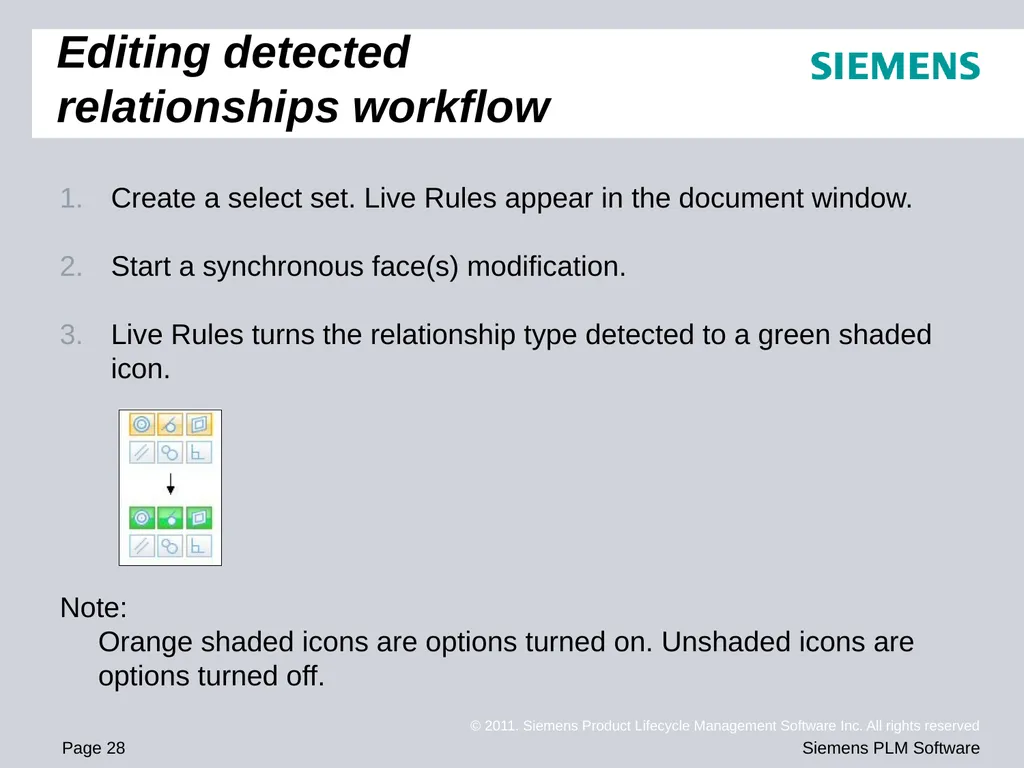
Create a select set. Live Rules appear in the document window.
Start a synchronous face(s) modification.
Live Rules turns the relationship type detected to a green shaded icon.
Note:
Orange shaded icons are options turned on. Unshaded icons are options turned off. Editing detected relationships workflow<br>
Start a synchronous face(s) modification.
Live Rules turns the relationship type detected to a green shaded icon.
Note:
Orange shaded icons are options turned on. Unshaded icons are options turned off. Editing detected relationships workflow<br>
29
To edit the detected relationships, click the Advanced button.
The detected faces and their relationships are displayed in Live Rules Advanced. While in Live Rules Advanced, the synchronous face(s) modification pauses.
At this point you can:
Click more live rules to detect.
Turn off detected relationships.
Click the Suspend Live Rules option. This ignores all rules.
Modify live rules and restore default live rules. Editing detected relationships workflow<br>
The detected faces and their relationships are displayed in Live Rules Advanced. While in Live Rules Advanced, the synchronous face(s) modification pauses.
At this point you can:
Click more live rules to detect.
Turn off detected relationships.
Click the Suspend Live Rules option. This ignores all rules.
Modify live rules and restore default live rules. Editing detected relationships workflow<br>
30
Click Accept to solve with relationships detected or click Cancel. Live Rules Advanced closes and returns to Live Rules.
The synchronous face(s) modification returns to active state.
Activity: Modifying detected relationships
Activity: Changing the default Live Rules Editing detected relationships workflow<br>
The synchronous face(s) modification returns to active state.
Activity: Modifying detected relationships
Activity: Changing the default Live Rules Editing detected relationships workflow<br>
31
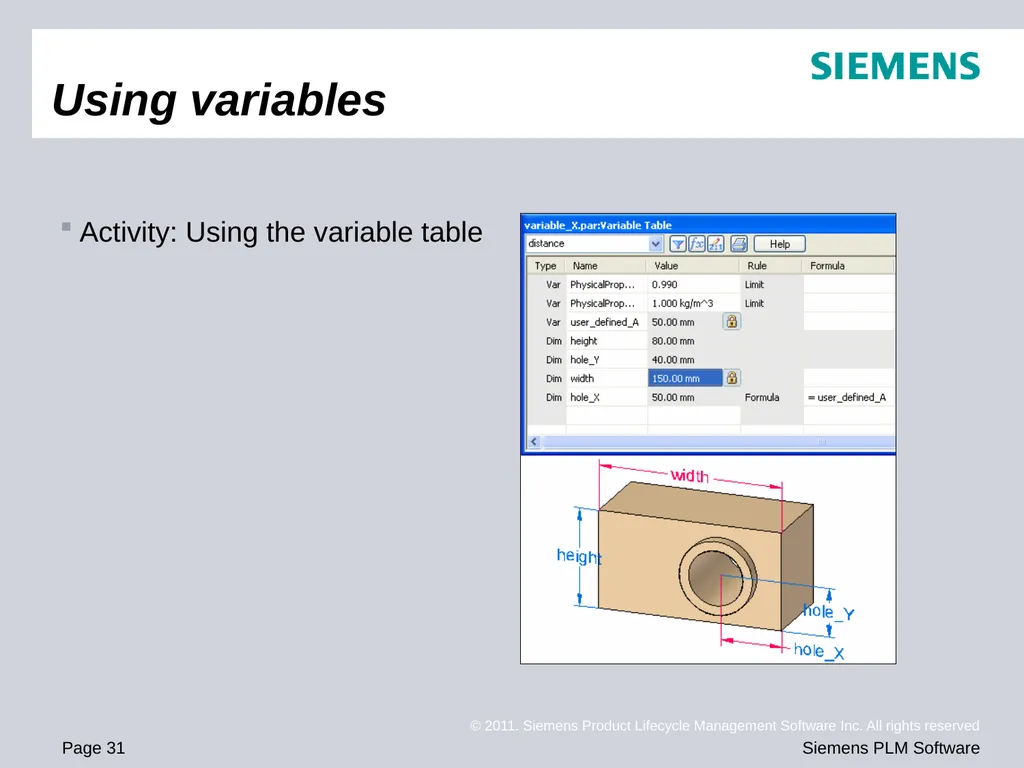
Activity: Using the variable table Using variables<br>