Student Process Steps 1a: Creating Common App
Description: Student Process Steps 1a: Creating Common App Account Signing the FERPA Release Waiver Students should follow the steps in this video to learn how to setup their Common App account how to sign the FERPA Release Waiver. Student Process
Related Topics
Download Presentation
"Student Process Steps 1a: Creating Common App" is the property of its rightful owner. Permission is granted to download and print the materials on this website for personal, non-commercial use only, and to display it on your personal computer provided you do not modify the materials and that you retain all copyright notices contained in the materials. By downloading content from our website, you accept the terms of this agreement.
Presentation Transcript
slide1. Student Process Steps 1a: Creating Common App Account / Signing the FERPA Release Waiver Students should follow the steps in this video to learn how to setup their Common App account & how to sign the FERPA Release Waiver.<br>
slide2. Student Process Step 1b: Matching the Common App Account in Naviance Students should follow the steps in this video to learn how to match their Common App Account in Naviance. Go to Colleges I’m Applying To List
Select the hot pink bar to Match Accounts
Enter the email address used for the Common App account
Confirm that the birthdate is correct
Select Match Accounts
Once a student has matched their account, schools from their application list in Common App will feed into their Colleges I’m Applying To list in Naviance<br>
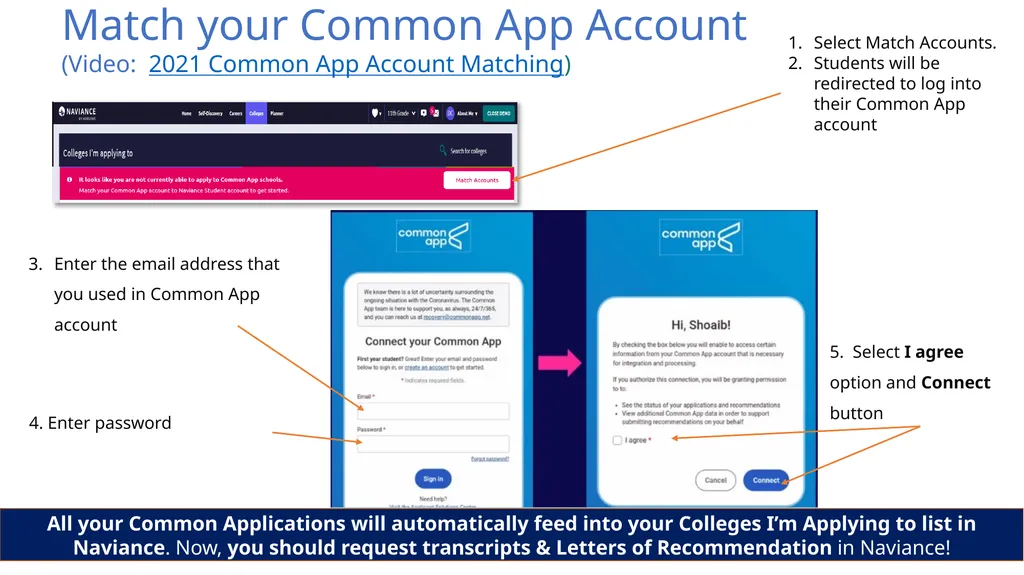
slide3. Match your Common App Account(Video: 2021 Common App Account Matching) Select Match Accounts.
Students will be redirected to log into their Common App account Enter the email address that you used in Common App account 4. Enter password 5. Select I agree option and Connect button All your Common Applications will automatically feed into your Colleges I’m Applying to list in Naviance. Now, you should request transcripts & Letters of Recommendation in Naviance!<br>
slide2. Student Process Step 1b: Matching the Common App Account in Naviance Students should follow the steps in this video to learn how to match their Common App Account in Naviance. Go to Colleges I’m Applying To List
Select the hot pink bar to Match Accounts
Enter the email address used for the Common App account
Confirm that the birthdate is correct
Select Match Accounts
Once a student has matched their account, schools from their application list in Common App will feed into their Colleges I’m Applying To list in Naviance<br>
slide3. Match your Common App Account(Video: 2021 Common App Account Matching) Select Match Accounts.
Students will be redirected to log into their Common App account Enter the email address that you used in Common App account 4. Enter password 5. Select I agree option and Connect button All your Common Applications will automatically feed into your Colleges I’m Applying to list in Naviance. Now, you should request transcripts & Letters of Recommendation in Naviance!<br>