
Thomas Dawkins | Senior Product Manager Erik
MS
Published · 46 slides · 0 views

1 / 1




Description
Thomas Dawkins Senior Product Manager Erik Downing Senior Software Development Engineer in Test (SDET) Software Testing Fundamentals Take the Exam 98-379 Software Testing Fundamentals Certiport http:www.certiport.com Prometric
Related Topics
Share
Embed code
Download this presentation From Below
"Thomas Dawkins | Senior Product Manager Erik" is the property of its rightful owner. Permission is granted to download and print the materials on this website for personal, non-commercial use only, and to display it on your personal computer provided you do not modify the materials and that you retain all copyright notices contained in the materials. By downloading content from our website, you accept the terms of this agreement.
Presentation Transcript
01
Thomas Dawkins | Senior Product Manager
Erik Downing | Senior Software Development Engineer in Test (SDET) Software Testing Fundamentals<br>
Erik Downing | Senior Software Development Engineer in Test (SDET) Software Testing Fundamentals<br>
02
Take the Exam 98-379 – Software Testing Fundamentals
Certiport
http://www.certiport.com
Prometric
http://www.prometric.com<br>
Certiport
http://www.certiport.com
Prometric
http://www.prometric.com<br>
03
Microsoft Virtual Academy
Free online learning tailored for IT Pros and Developers
Over 1M registered users
Up-to-date, relevant training on variety of Microsoft product
http://www.microsoftvirtualacademy.com Join the MVA Community!<br>
Free online learning tailored for IT Pros and Developers
Over 1M registered users
Up-to-date, relevant training on variety of Microsoft product
http://www.microsoftvirtualacademy.com Join the MVA Community!<br>
04
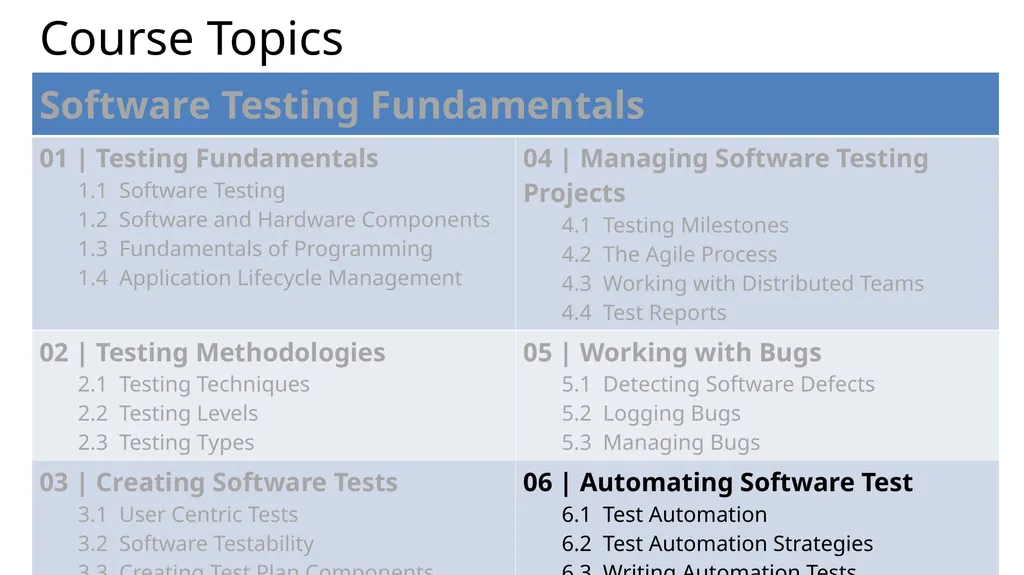
Course Topics<br>
05
06 | Automating Software Test Thomas Dawkins | Senior Product Manager
Erik Downing | Senior Software Development Engineer in Test (SDET)<br>
Erik Downing | Senior Software Development Engineer in Test (SDET)<br>
06
Understanding Test Automation
Test Automation Strategies
Writing Automation Tests
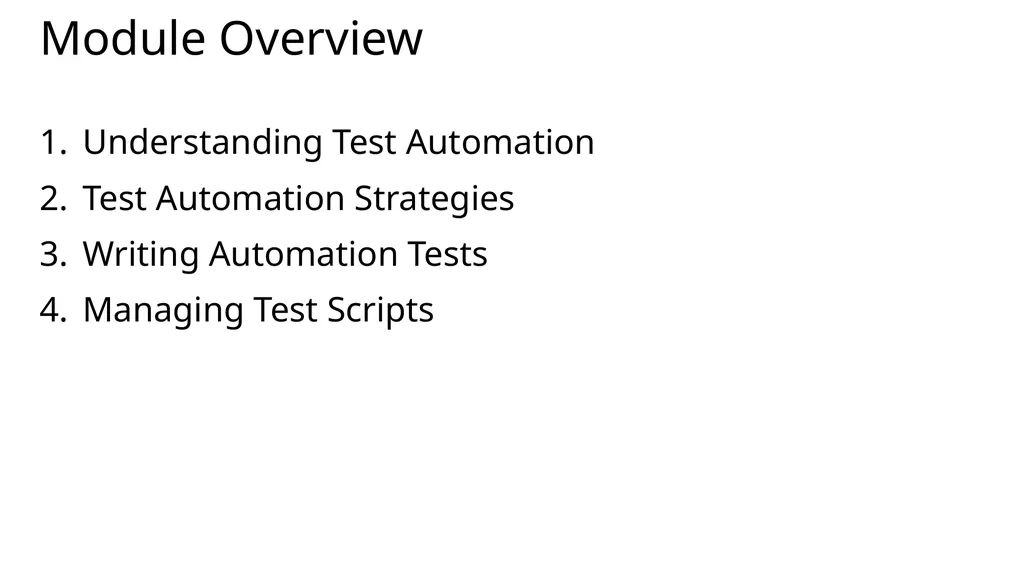
Managing Test Scripts Module Overview<br>
Test Automation Strategies
Writing Automation Tests
Managing Test Scripts Module Overview<br>
07
06 | Automating Software Test<br>
08
Section Overview In this section, we will review the following:
Benefits
Candidates for automation
Automation process<br>
Benefits
Candidates for automation
Automation process<br>
09
Guiding Questions What is the difference between an automated test and a manual test?
What are the benefits of automated testing?
What are the names of two types of tests that can be automated?<br>
What are the benefits of automated testing?
What are the names of two types of tests that can be automated?<br>
10
Automated Tests An automated test can be thought of as a set of steps that a computer may run programmatically to test the functionality of the software.
Automated testing complements, but does not replace, manual testing.
Automated tests must be created by a developer, while manual testing can be conducted by someone without programming skills.<br>
Automated testing complements, but does not replace, manual testing.
Automated tests must be created by a developer, while manual testing can be conducted by someone without programming skills.<br>
11
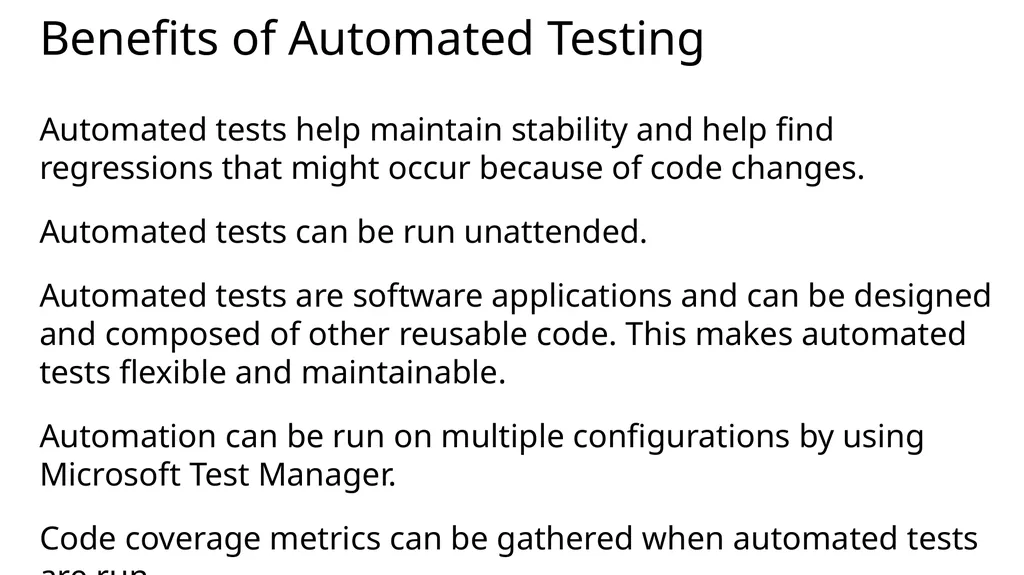
Benefits of Automated Testing Automated tests help maintain stability and help find regressions that might occur because of code changes.
Automated tests can be run unattended.
Automated tests are software applications and can be designed and composed of other reusable code. This makes automated tests flexible and maintainable.
Automation can be run on multiple configurations by using Microsoft Test Manager.
Code coverage metrics can be gathered when automated tests are run.<br>
Automated tests can be run unattended.
Automated tests are software applications and can be designed and composed of other reusable code. This makes automated tests flexible and maintainable.
Automation can be run on multiple configurations by using Microsoft Test Manager.
Code coverage metrics can be gathered when automated tests are run.<br>
12
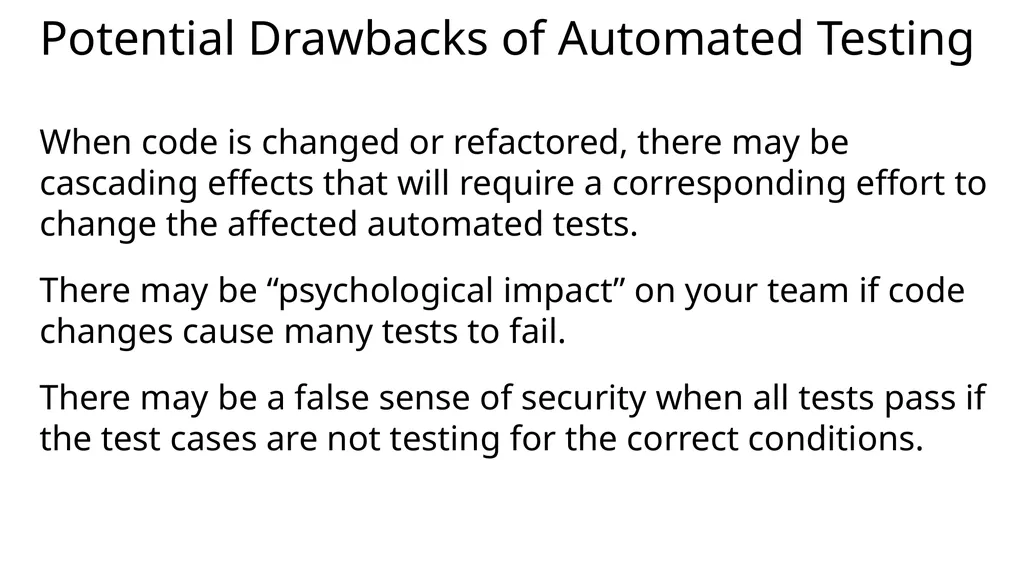
Potential Drawbacks of Automated Testing When code is changed or refactored, there may be cascading effects that will require a corresponding effort to change the affected automated tests.
There may be “psychological impact” on your team if code changes cause many tests to fail.
There may be a false sense of security when all tests pass if the test cases are not testing for the correct conditions.<br>
There may be “psychological impact” on your team if code changes cause many tests to fail.
There may be a false sense of security when all tests pass if the test cases are not testing for the correct conditions.<br>
13
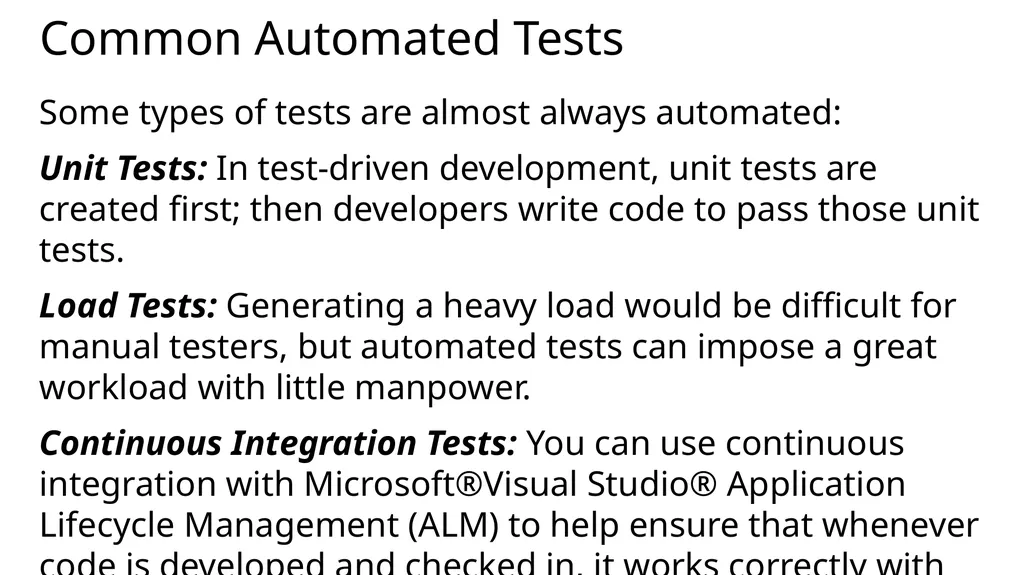
Common Automated Tests Some types of tests are almost always automated:
Unit Tests: In test-driven development, unit tests are created first; then developers write code to pass those unit tests.
Load Tests: Generating a heavy load would be difficult for manual testers, but automated tests can impose a great workload with little manpower.
Continuous Integration Tests: You can use continuous integration with Microsoft®Visual Studio® Application Lifecycle Management (ALM) to help ensure that whenever code is developed and checked in, it works correctly with the existing code.<br>
Unit Tests: In test-driven development, unit tests are created first; then developers write code to pass those unit tests.
Load Tests: Generating a heavy load would be difficult for manual testers, but automated tests can impose a great workload with little manpower.
Continuous Integration Tests: You can use continuous integration with Microsoft®Visual Studio® Application Lifecycle Management (ALM) to help ensure that whenever code is developed and checked in, it works correctly with the existing code.<br>
14
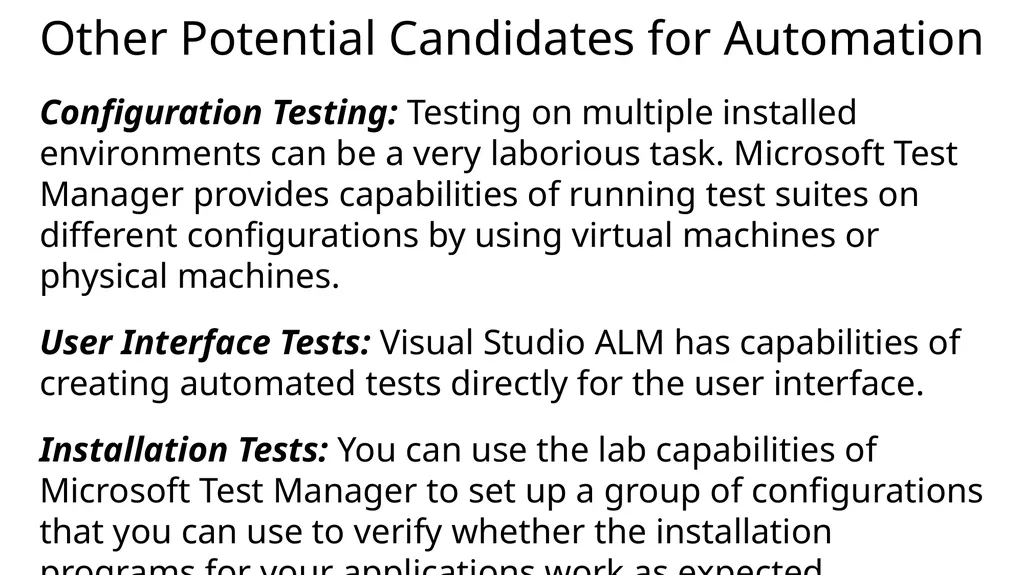
Other Potential Candidates for Automation Configuration Testing: Testing on multiple installed environments can be a very laborious task. Microsoft Test Manager provides capabilities of running test suites on different configurations by using virtual machines or physical machines.
User Interface Tests: Visual Studio ALM has capabilities of creating automated tests directly for the user interface.
Installation Tests: You can use the lab capabilities of Microsoft Test Manager to set up a group of configurations that you can use to verify whether the installation programs for your applications work as expected.<br>
User Interface Tests: Visual Studio ALM has capabilities of creating automated tests directly for the user interface.
Installation Tests: You can use the lab capabilities of Microsoft Test Manager to set up a group of configurations that you can use to verify whether the installation programs for your applications work as expected.<br>
15
Barriers to Automation The benefits of automation must be weighed against the costs. A few considerations when determining the amount of automation include:
Creating automation requires a subset of the test team to learn how to write code—or requires hiring developers just to be on the test team.
Code that is changing frequently is a moving target and will have cascading effects into test automation code because it will also need to be changed.
Code that is tightly bound to the user interface is difficult to test because it may require the user to interact with the user interface controls.<br>
Creating automation requires a subset of the test team to learn how to write code—or requires hiring developers just to be on the test team.
Code that is changing frequently is a moving target and will have cascading effects into test automation code because it will also need to be changed.
Code that is tightly bound to the user interface is difficult to test because it may require the user to interact with the user interface controls.<br>
16
Automation Process You might begin your testing cycle by creating a manual test case that you decide later is a good test to automate. You want to be able to continue to run that test as part of a test plan.
Create an automated test and associate it with a test case using Visual Studio.
After you create your automated test, you must check in your test project that contains the automated test and make sure that the test project is part of your build definition.
Then you associate the automated test with a test case that has been added to a test plan that uses this build.
Now, the automated test will run whenever the test plan is run.<br>
Create an automated test and associate it with a test case using Visual Studio.
After you create your automated test, you must check in your test project that contains the automated test and make sure that the test project is part of your build definition.
Then you associate the automated test with a test case that has been added to a test plan that uses this build.
Now, the automated test will run whenever the test plan is run.<br>
17
Section Questions What is the difference between an automated test and a manual test?
What are the benefits of automated testing?
What are the names of two types of tests that can be automated?<br>
What are the benefits of automated testing?
What are the names of two types of tests that can be automated?<br>
18
06 | Automating Software Test<br>
19
Section Overview In this section, we will review the following:
Logging
Automation priority<br>
Logging
Automation priority<br>
20
Guiding Questions What feature enables automatic logging in Visual Studio?<br>
21
Logging Data with IntelliTrace IntelliTrace keeps a log of the key events as your tests and code execute in debug mode, and also logs variable values at those events.
You can step back through the history of execution before the test failed, inspecting the values that were logged. This is particularly helpful when working on bugs that are difficult to replicated.
To enable IntelliTrace, on the Visual Studio Debug menu, choose Options and Settings, IntelliTrace. You can also vary the settings to record more or less data.<br>
You can step back through the history of execution before the test failed, inspecting the values that were logged. This is particularly helpful when working on bugs that are difficult to replicated.
To enable IntelliTrace, on the Visual Studio Debug menu, choose Options and Settings, IntelliTrace. You can also vary the settings to record more or less data.<br>
22
Prioritizing Automation Efforts Creating automated unit tests is the first priority for any test-driven development team—developers should be creating test cases before they build any methods or classes.
Likewise, integration tests become the top priority when units are combined into components.
When deciding which manual tests should be automated, consider the following:
How often will the test be run? Give priority to frequently used tests.
How often with is the code likely to change? Frequently changed code will require the tests to be maintained as well, possibly minimizing the benefits of automation.
How much time can be saved by running the test unattended? Some manual tests require a great deal of tester time. If this can be offset by automation, it may be worth the effort.<br>
Likewise, integration tests become the top priority when units are combined into components.
When deciding which manual tests should be automated, consider the following:
How often will the test be run? Give priority to frequently used tests.
How often with is the code likely to change? Frequently changed code will require the tests to be maintained as well, possibly minimizing the benefits of automation.
How much time can be saved by running the test unattended? Some manual tests require a great deal of tester time. If this can be offset by automation, it may be worth the effort.<br>
23
Section Questions What feature enables automatic logging in Visual Studio?<br>
24
Great MSPress Books How We Test Software at Microsoft
http://www.microsoft.com/learning/en-us/book.aspx?ID=11240&locale=en-us Alan Page, Ken Johnston, RJ Rollison<br>
http://www.microsoft.com/learning/en-us/book.aspx?ID=11240&locale=en-us Alan Page, Ken Johnston, RJ Rollison<br>
25
06 | Automating Software Test<br>
26
Section Overview In this section, we will review the following:
Logic
Error Handling
Commenting
Virtual Machines<br>
Logic
Error Handling
Commenting
Virtual Machines<br>
27
Guiding Questions How is a virtual machine different from a physical machine?
What is the name of a condition test used to check logic in debug builds?
What happens to these condition tests in a release build?<br>
What is the name of a condition test used to check logic in debug builds?
What happens to these condition tests in a release build?<br>
28
Testing Logic with Assertions An Assertion is a statement that tests a condition during program execution. If the assertion is true, no action occurs; if the assertion is false, the assertion fails.
In a debug build, a failed assertion causes the program to enter break mode, making it easier to examine the nature of the problem.
In a release build, assertions are ignored.
When you use an assertion, make sure that any code inside the assertion block does not change the results of the program if the assertion is removed. In other words, it should be only non-essential code.
Otherwise, you might accidentally introduce a bug that only shows up in the release version of your program.<br>
In a debug build, a failed assertion causes the program to enter break mode, making it easier to examine the nature of the problem.
In a release build, assertions are ignored.
When you use an assertion, make sure that any code inside the assertion block does not change the results of the program if the assertion is removed. In other words, it should be only non-essential code.
Otherwise, you might accidentally introduce a bug that only shows up in the release version of your program.<br>
29
Errors in Testing Because automated tests consist of code, it is possible for the tests themselves to have errors.
If a test fails to run, you can investigate the failure by checking the test environment; this includes the way the test is set up and the settings in the active test settings.
In some cases, such as those related to deployment, failures are independent of test type. In other cases, the test type determines how and what to investigate.
Errors that involve tests are reported to you at either of two levels:
Test-level errors. An example of a test-level error is a test timeout error, which occurs if the test's timeout limit is reached.
Run-level errors. An example of a run-level error is a run timeout error, which occurs if the run's timeout limit is reached.<br>
If a test fails to run, you can investigate the failure by checking the test environment; this includes the way the test is set up and the settings in the active test settings.
In some cases, such as those related to deployment, failures are independent of test type. In other cases, the test type determines how and what to investigate.
Errors that involve tests are reported to you at either of two levels:
Test-level errors. An example of a test-level error is a test timeout error, which occurs if the test's timeout limit is reached.
Run-level errors. An example of a run-level error is a run timeout error, which occurs if the run's timeout limit is reached.<br>
30
Test Comments While you run a test using Test Runner, you have the option to add comments to the test steps.
The comments can be used to relay specific details that you want to communicate to other team members regarding unexpected behavior, or suggestions about what to look for while you test an application.
These comments can be useful as supporting material related to bugs, for isolating code defects, or for refining user interface designs.<br>
The comments can be used to relay specific details that you want to communicate to other team members regarding unexpected behavior, or suggestions about what to look for while you test an application.
These comments can be useful as supporting material related to bugs, for isolating code defects, or for refining user interface designs.<br>
31
Virtual Machines In general, a computer system uses a single operating system. Since developers may want to test an application across many different operating systems for compatibility, this would necessitate having multiple computer system with various configurations, a potentially impractical approach.
However, you can set up a software environment that emulates an entire separate computer system by handling instructions in the same way a native processor (or “physical machine”) would handle instructions. This is called a virtual machine (VM).
By setting up a VM, you can test a different configuration without purchasing an additional computer.
Modern computer systems may even be capable of running multiple VM’s simultaneously.<br>
However, you can set up a software environment that emulates an entire separate computer system by handling instructions in the same way a native processor (or “physical machine”) would handle instructions. This is called a virtual machine (VM).
By setting up a VM, you can test a different configuration without purchasing an additional computer.
Modern computer systems may even be capable of running multiple VM’s simultaneously.<br>
32
Section Questions How is a virtual machine different from a physical machine?
What is the name of a condition test used to check logic in debug builds?
What happens to these condition tests in a release build?<br>
What is the name of a condition test used to check logic in debug builds?
What happens to these condition tests in a release build?<br>
33
06 | Automating Software Test<br>
34
Section Overview In this section, we will review the following:
Smoke test
Build verification test
Lab Management<br>
Smoke test
Build verification test
Lab Management<br>
35
Guiding Questions What are two types of lab environments?
What does BVT stand for?
What type of machines can a SCVMM environment manage?<br>
What does BVT stand for?
What type of machines can a SCVMM environment manage?<br>
36
Smoke Testing In software, the term smoke testing describes the process of validating code changes before the changes are checked into the product’s source tree.
After code reviews, smoke testing is the most cost effective method for identifying and fixing defects in software.
Smoke tests are designed to confirm that changes in the code function as expected and do not destabilize an entire build.
In short, smoke tests focus on the features of the software that are most likely to be affected by recent changes or additions.<br>
After code reviews, smoke testing is the most cost effective method for identifying and fixing defects in software.
Smoke tests are designed to confirm that changes in the code function as expected and do not destabilize an entire build.
In short, smoke tests focus on the features of the software that are most likely to be affected by recent changes or additions.<br>
37
Build Verification Tests (BVT) A smoke test is also known as a Build Verification Test (BVT)
In this case, it gets its name because it is typically executed after a daily (or other “short term”) build.
The following steps are necessary to execute BVTs in Microsoft® Visual Studio®:
Check in the newly created/modified test(s)
Create a build definition
Set up any necessary test agents
Use Team Explorer to queue up and start the test(s)<br>
In this case, it gets its name because it is typically executed after a daily (or other “short term”) build.
The following steps are necessary to execute BVTs in Microsoft® Visual Studio®:
Check in the newly created/modified test(s)
Create a build definition
Set up any necessary test agents
Use Team Explorer to queue up and start the test(s)<br>
38
Lab Environments A thorough testing strategy includes tests conducted across multiple systems, perhaps with different hardware and operating systems.
Rather than manually re-configuring each machine for each set of tests, Visual Studio Lab Management handles configuration, deployment, and testing.
A lab environment is a collection of computers that are managed as a single unit, and on which you deploy the system under test along with test software.<br>
Rather than manually re-configuring each machine for each set of tests, Visual Studio Lab Management handles configuration, deployment, and testing.
A lab environment is a collection of computers that are managed as a single unit, and on which you deploy the system under test along with test software.<br>
39
Advantages of a Lab Environment The results of tests can be shown on charts that relate them to system requirements.
Lab Manager automatically installs test agents on each machine, enabling test data to be collected.
You can view the consoles of the machines through a single viewer, switching easily from one machine to the other.
Lab environments manage the allocation of machines to tests for reasons that include preventing two team members from mistakenly assigning the same machine to different tests.<br>
Lab Manager automatically installs test agents on each machine, enabling test data to be collected.
You can view the consoles of the machines through a single viewer, switching easily from one machine to the other.
Lab environments manage the allocation of machines to tests for reasons that include preventing two team members from mistakenly assigning the same machine to different tests.<br>
40
Two Types of Lab Environments Standard lab environment, which can contain a mix of virtual and physical machines.
SCVMM environment, which can only contain virtual machines that are controlled by System Center Virtual Machine Manager (SCVMM).<br>
SCVMM environment, which can only contain virtual machines that are controlled by System Center Virtual Machine Manager (SCVMM).<br>
41
Features Available in SCVMM Environments Environment snapshots: Environment snapshots contain the state of a lab environment, so you can quickly restore a clean environment, or save the state of an environment that has been modified.
Network isolation: Network isolation allows you to simultaneously run multiple identical copies of an SCVMM environment without computer name conflicts.
Virtual machine templates: A virtual machine template is a virtual machine that has had its name and other identifiers removed. This allows you deploy multiple copies of a virtual machine in the same environment, or multiple environments, and then run the virtual machines simultaneously.
Stored Virtual Machines: A virtual machine that is stored in your Team Project library and includes unique identifiers.<br>
Network isolation: Network isolation allows you to simultaneously run multiple identical copies of an SCVMM environment without computer name conflicts.
Virtual machine templates: A virtual machine template is a virtual machine that has had its name and other identifiers removed. This allows you deploy multiple copies of a virtual machine in the same environment, or multiple environments, and then run the virtual machines simultaneously.
Stored Virtual Machines: A virtual machine that is stored in your Team Project library and includes unique identifiers.<br>
42
Supported Operating Systems for VM Windows® XP SP3 and later versions
Windows Vista®
Windows Server® 2003
Windows Server® 2008
Windows Server® 2008 R2
Windows Server® 2012
Windows 7
Windows 8 or later version<br>
Windows Vista®
Windows Server® 2003
Windows Server® 2008
Windows Server® 2008 R2
Windows Server® 2012
Windows 7
Windows 8 or later version<br>
43
Section Questions What are two types of lab environments?
What does BVT stand for?
What type of machines can a SCVMM environment manage?<br>
What does BVT stand for?
What type of machines can a SCVMM environment manage?<br>
44
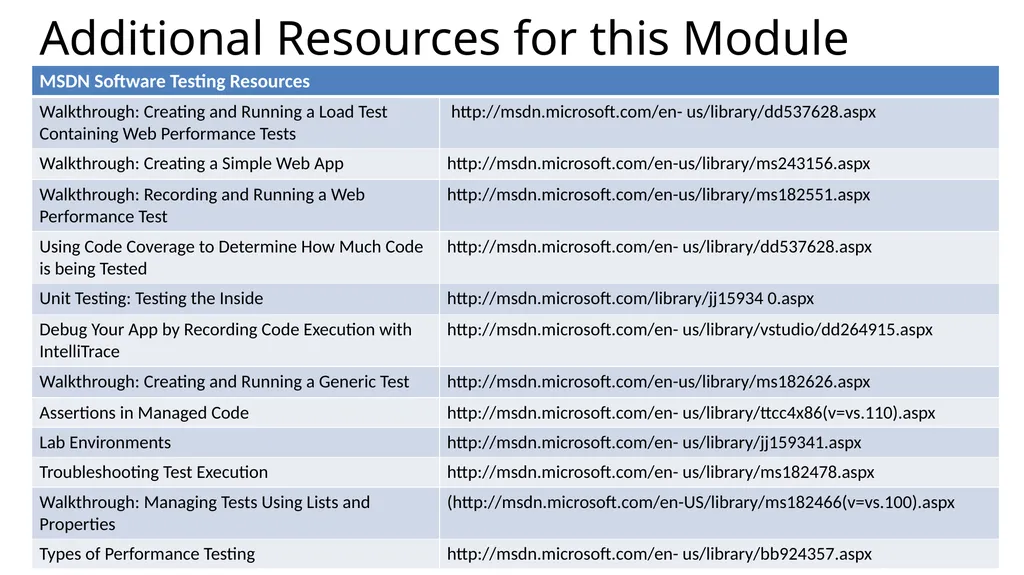
Additional Resources for this Module<br>
45
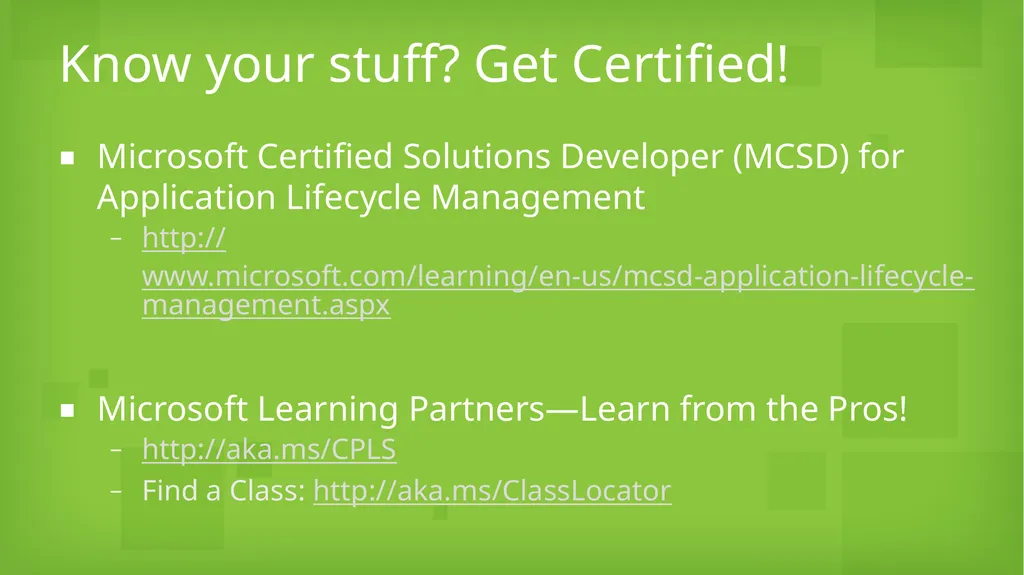
Know your stuff? Get Certified! Microsoft Certified Solutions Developer (MCSD) for Application Lifecycle Management
http://www.microsoft.com/learning/en-us/mcsd-application-lifecycle-management.aspx
Microsoft Learning Partners—Learn from the Pros!
http://aka.ms/CPLS
Find a Class: http://aka.ms/ClassLocator<br>
http://www.microsoft.com/learning/en-us/mcsd-application-lifecycle-management.aspx
Microsoft Learning Partners—Learn from the Pros!
http://aka.ms/CPLS
Find a Class: http://aka.ms/ClassLocator<br>