
Using Native Functions 7th Nov 2019 What is an


Description: Using Native Functions 7th Nov 2019 What is an app? The Android OS is a multi-user Linux system Each app has its own user OS sets permissions for all files in an app such that only the apps user can access them Every app runs its own
Related Topics
Download Presentation
"Using Native Functions 7th Nov 2019 What is an" is the property of its rightful owner. Permission is granted to download and print the materials on this website for personal, non-commercial use only, and to display it on your personal computer provided you do not modify the materials and that you retain all copyright notices contained in the materials. By downloading content from our website, you accept the terms of this agreement.
Presentation Transcript
slide1. Using Native Functions 7th Nov 2019<br>
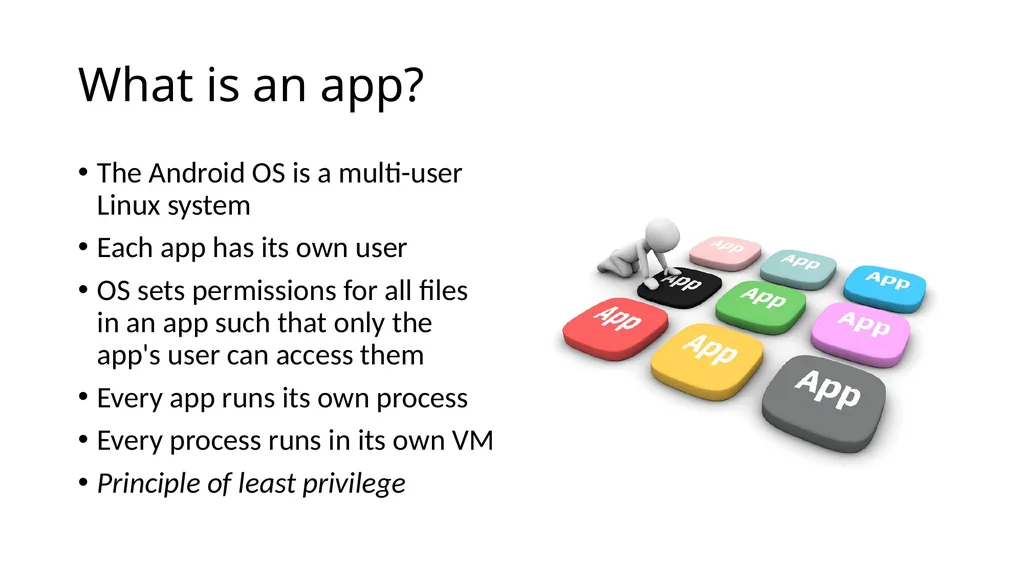
slide2. What is an app? The Android OS is a multi-user Linux system
Each app has its own user
OS sets permissions for all files in an app such that only the app's user can access them
Every app runs its own process
Every process runs in its own VM
Principle of least privilege<br>
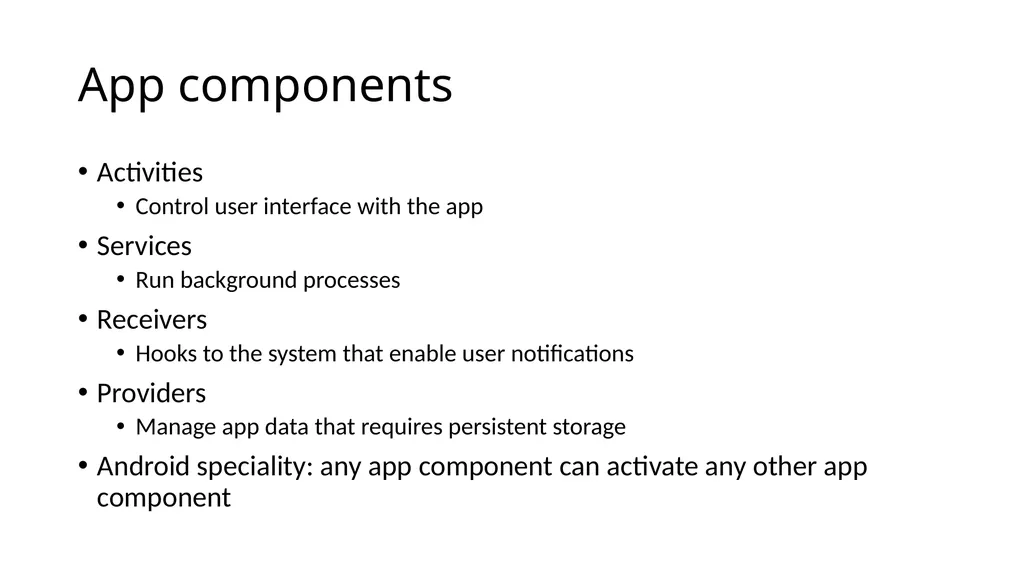
slide3. App components Activities
Control user interface with the app
Services
Run background processes
Receivers
Hooks to the system that enable user notifications
Providers
Manage app data that requires persistent storage
Android speciality: any app component can activate any other app component<br>
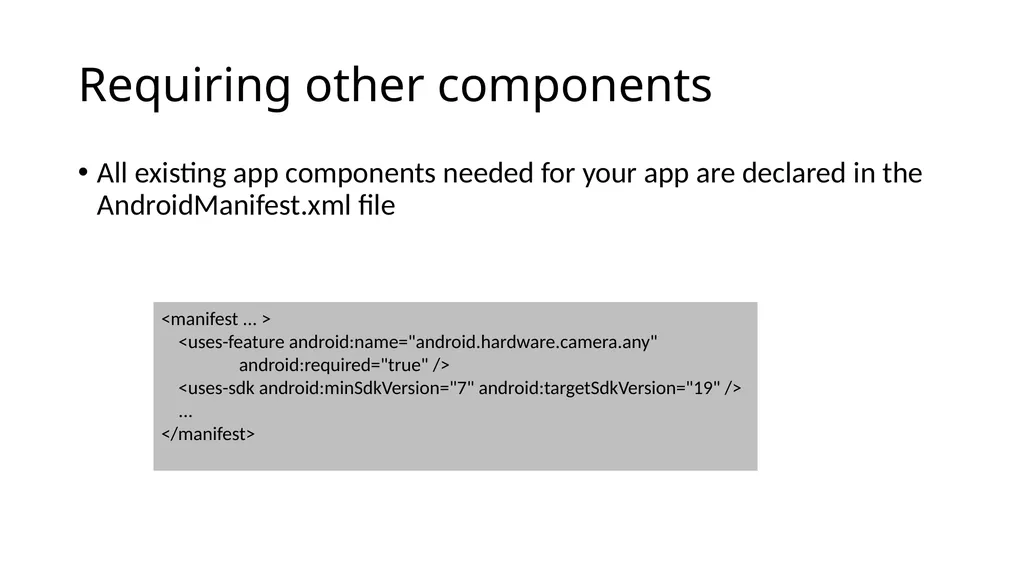
slide4. Requiring other components All existing app components needed for your app are declared in the AndroidManifest.xml file <manifest ... > <uses-feature android:name="android.hardware.camera.any" android:required="true" /> <uses-sdk android:minSdkVersion="7" android:targetSdkVersion="19" /> ... </manifest><br>
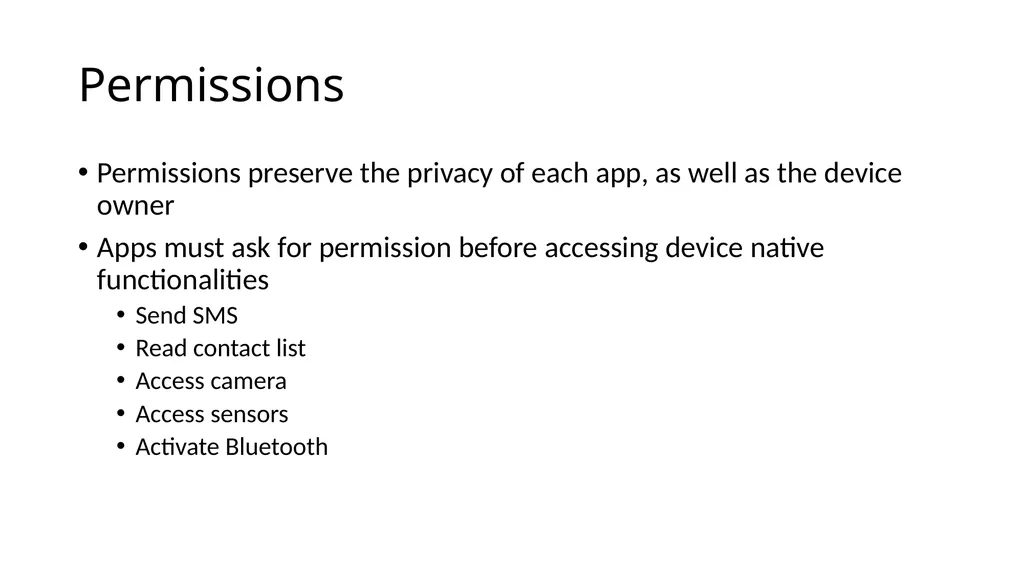
slide5. Permissions Permissions preserve the privacy of each app, as well as the device owner
Apps must ask for permission before accessing device native functionalities
Send SMS
Read contact list
Access camera
Access sensors
Activate Bluetooth<br>
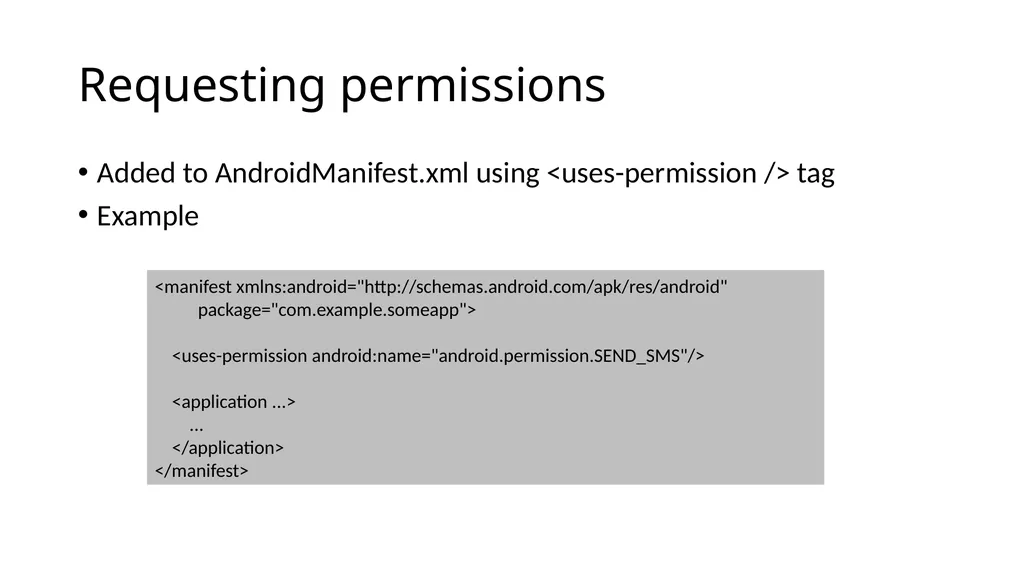
slide6. Requesting permissions Added to AndroidManifest.xml using <uses-permission /> tag
Example <manifest xmlns:android="http://schemas.android.com/apk/res/android" package="com.example.someapp"> <uses-permission android:name="android.permission.SEND_SMS"/> <application ...> ... </application> </manifest><br>
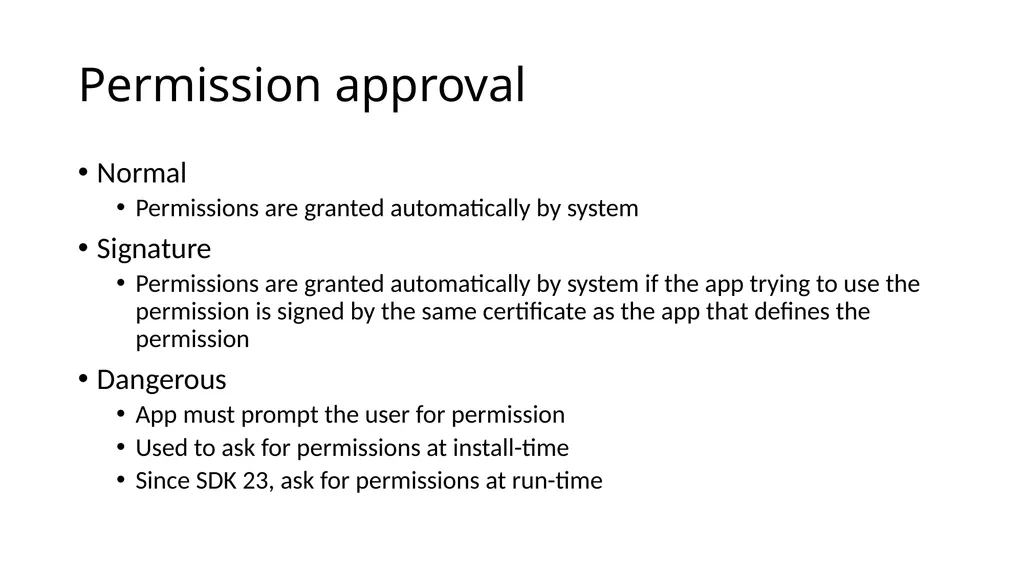
slide7. Permission approval Normal
Permissions are granted automatically by system
Signature
Permissions are granted automatically by system if the app trying to use the permission is signed by the same certificate as the app that defines the permission
Dangerous
App must prompt the user for permission
Used to ask for permissions at install-time
Since SDK 23, ask for permissions at run-time<br>
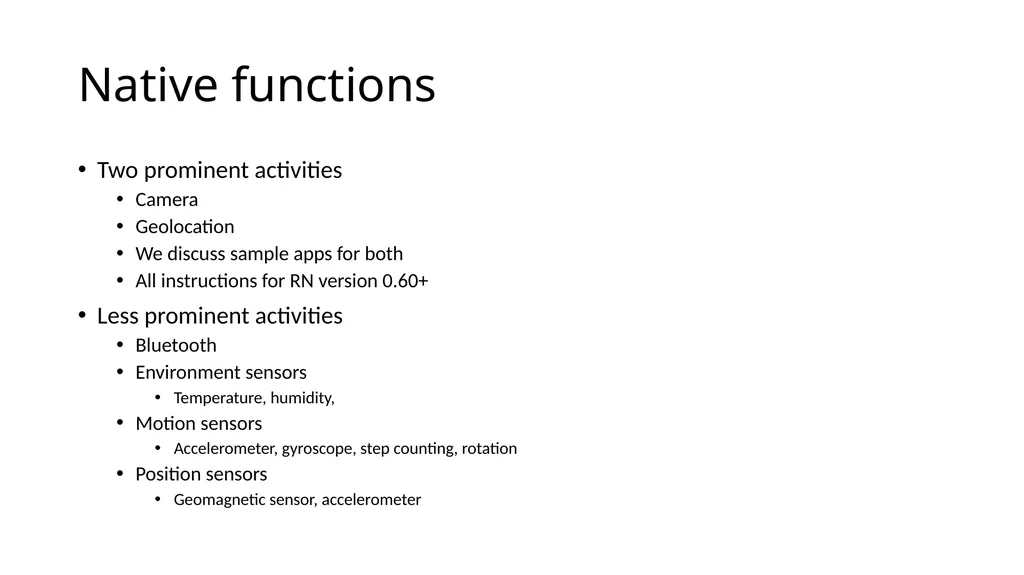
slide8. Native functions Two prominent activities
Camera
Geolocation
We discuss sample apps for both
All instructions for RN version 0.60+
Less prominent activities
Bluetooth
Environment sensors
Temperature, humidity,
Motion sensors
Accelerometer, gyroscope, step counting, rotation
Position sensors
Geomagnetic sensor, accelerometer<br>
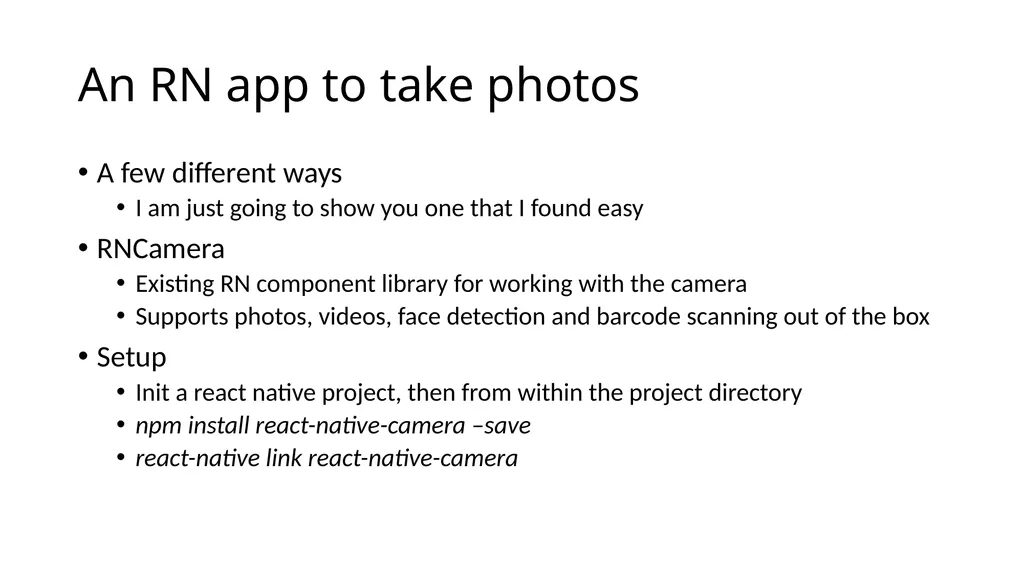
slide9. An RN app to take photos A few different ways
I am just going to show you one that I found easy
RNCamera
Existing RN component library for working with the camera
Supports photos, videos, face detection and barcode scanning out of the box
Setup
Init a react native project, then from within the project directory
npm install react-native-camera –save
react-native link react-native-camera<br>
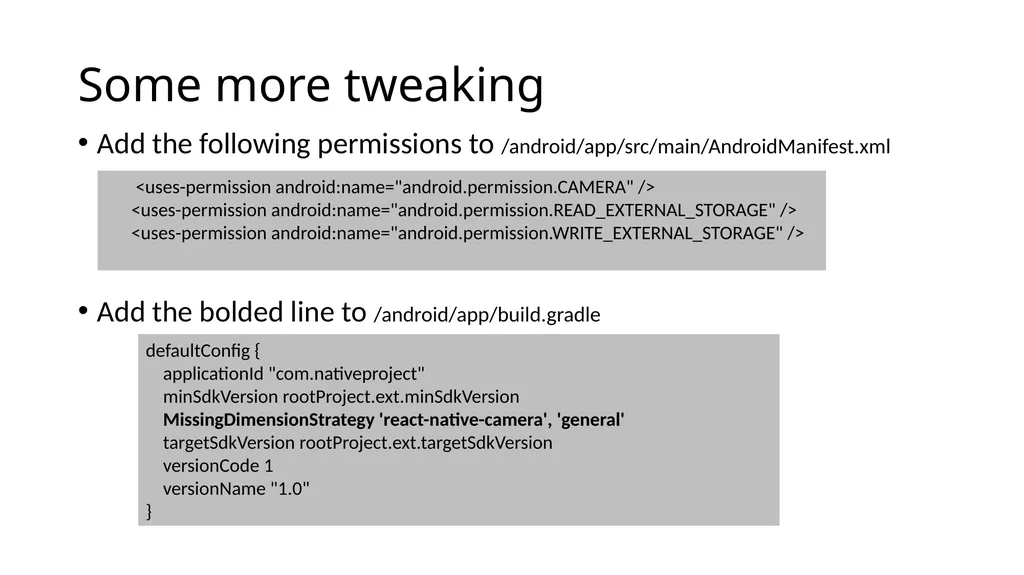
slide10. Some more tweaking Add the following permissions to /android/app/src/main/AndroidManifest.xml
Add the bolded line to /android/app/build.gradle <uses-permission android:name="android.permission.CAMERA" />
<uses-permission android:name="android.permission.READ_EXTERNAL_STORAGE" />
<uses-permission android:name="android.permission.WRITE_EXTERNAL_STORAGE" /> defaultConfig { applicationId "com.nativeproject" minSdkVersion rootProject.ext.minSdkVersion
MissingDimensionStrategy 'react-native-camera', 'general' targetSdkVersion rootProject.ext.targetSdkVersion versionCode 1 versionName "1.0" }<br>
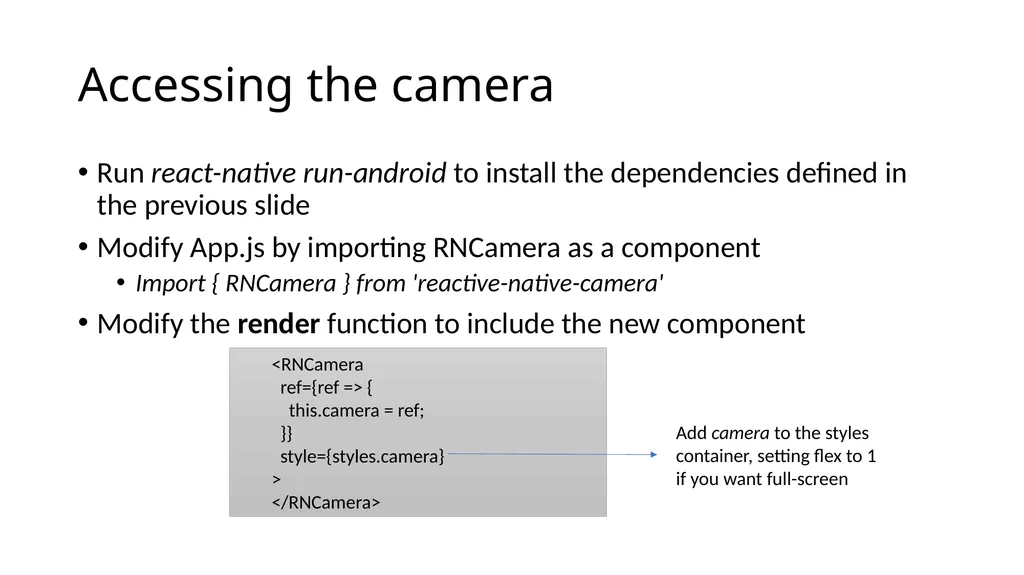
slide11. Accessing the camera Run react-native run-android to install the dependencies defined in the previous slide
Modify App.js by importing RNCamera as a component
Import { RNCamera } from 'reactive-native-camera'
Modify the render function to include the new component <RNCamera
ref={ref => {
this.camera = ref;
}}
style={styles.camera}
>
</RNCamera> Add camera to the styles container, setting flex to 1 if you want full-screen<br>
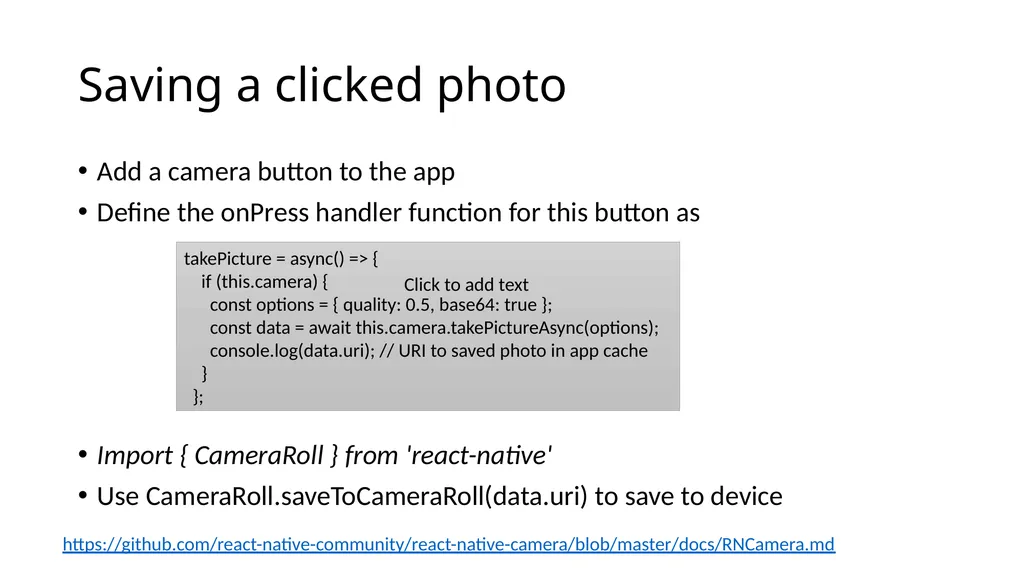
slide12. Saving a clicked photo Add a camera button to the app
Define the onPress handler function for this button as
Import { CameraRoll } from 'react-native'
Use CameraRoll.saveToCameraRoll(data.uri) to save to device takePicture = async() => {
if (this.camera) {
const options = { quality: 0.5, base64: true };
const data = await this.camera.takePictureAsync(options);
console.log(data.uri); // URI to saved photo in app cache
}
}; Click to add text https://github.com/react-native-community/react-native-camera/blob/master/docs/RNCamera.md<br>
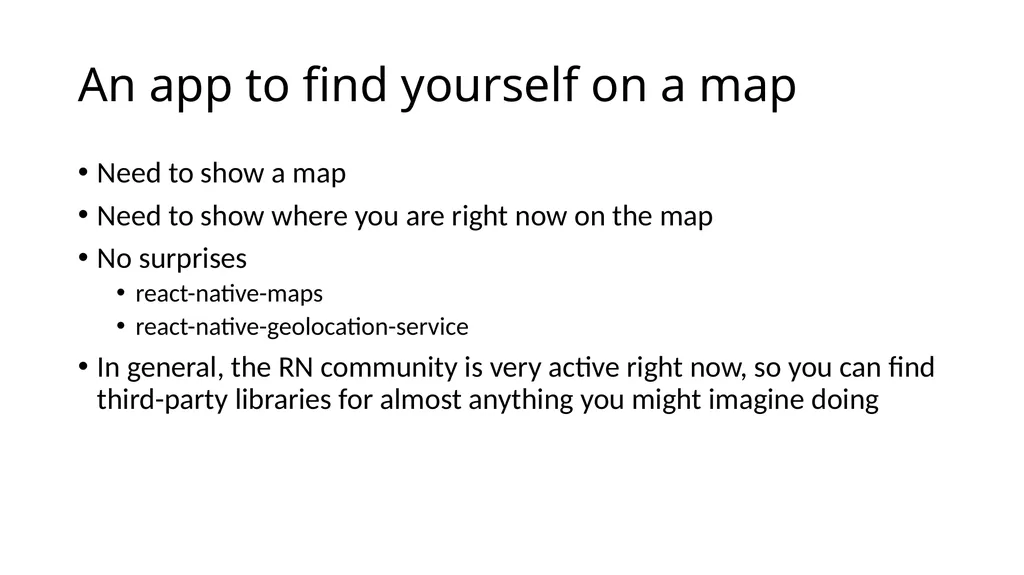
slide13. An app to find yourself on a map Need to show a map
Need to show where you are right now on the map
No surprises
react-native-maps
react-native-geolocation-service
In general, the RN community is very active right now, so you can find third-party libraries for almost anything you might imagine doing<br>
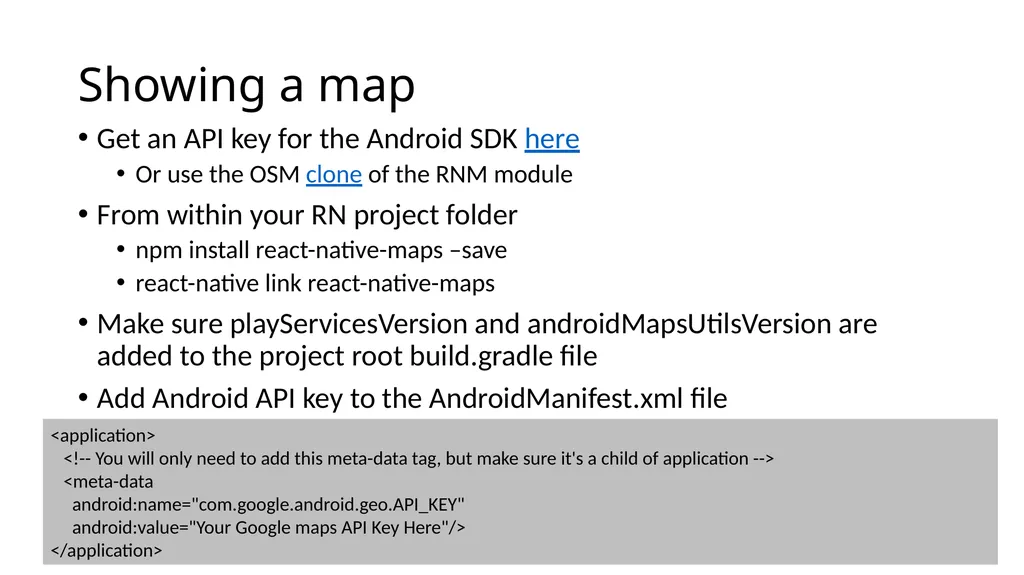
slide14. Showing a map Get an API key for the Android SDK here
Or use the OSM clone of the RNM module
From within your RN project folder
npm install react-native-maps –save
react-native link react-native-maps
Make sure playServicesVersion and androidMapsUtilsVersion are added to the project root build.gradle file
Add Android API key to the AndroidManifest.xml file <application>
<!-- You will only need to add this meta-data tag, but make sure it's a child of application -->
<meta-data
android:name="com.google.android.geo.API_KEY"
android:value="Your Google maps API Key Here"/>
</application><br>
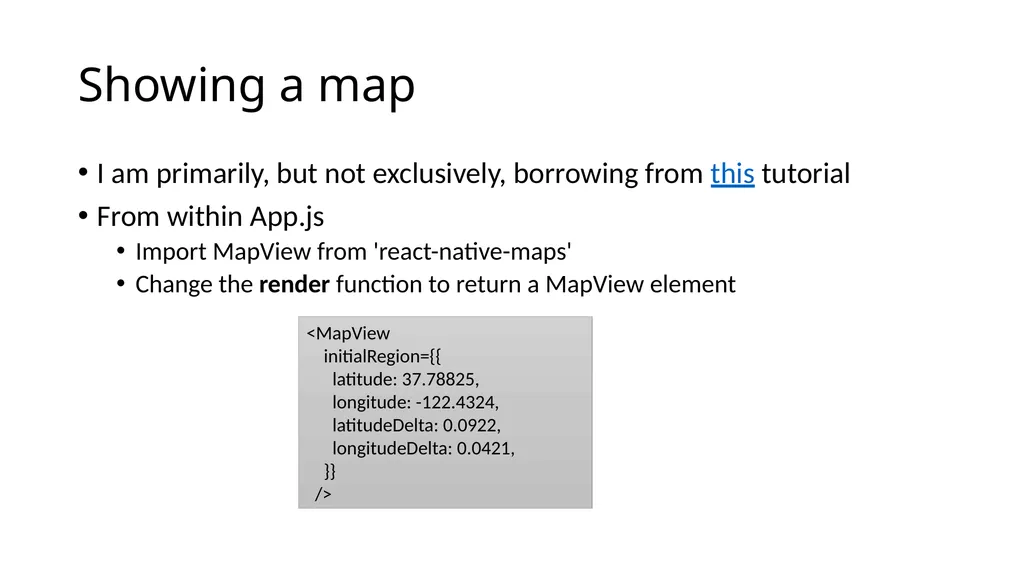
slide15. Showing a map I am primarily, but not exclusively, borrowing from this tutorial
From within App.js
Import MapView from 'react-native-maps'
Change the render function to return a MapView element <MapView
initialRegion={{
latitude: 37.78825,
longitude: -122.4324,
latitudeDelta: 0.0922,
longitudeDelta: 0.0421,
}}
/><br>
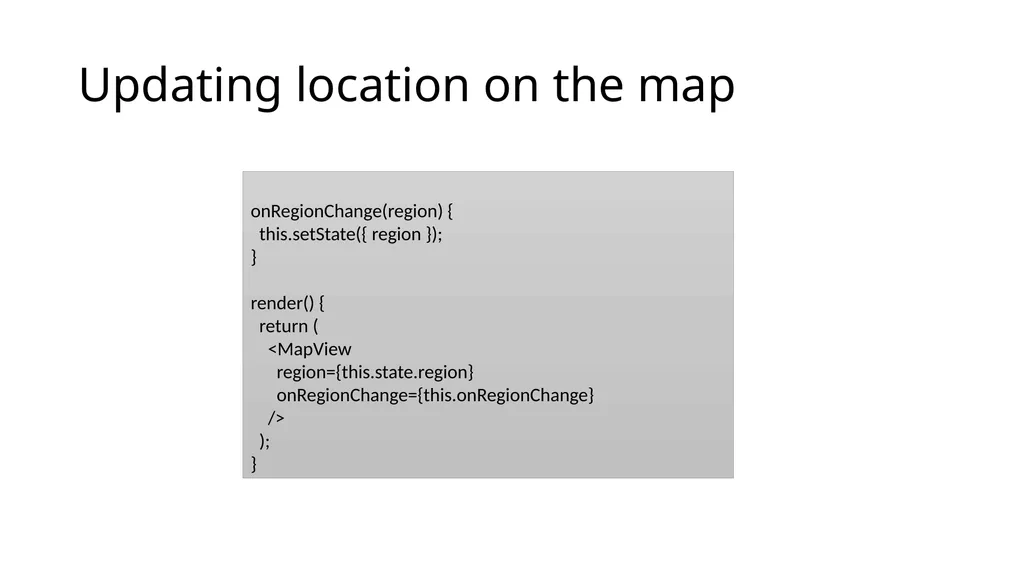
slide16. Updating location on the map onRegionChange(region) {
this.setState({ region });
}
render() {
return (
<MapView
region={this.state.region}
onRegionChange={this.onRegionChange}
/>
);
}<br>
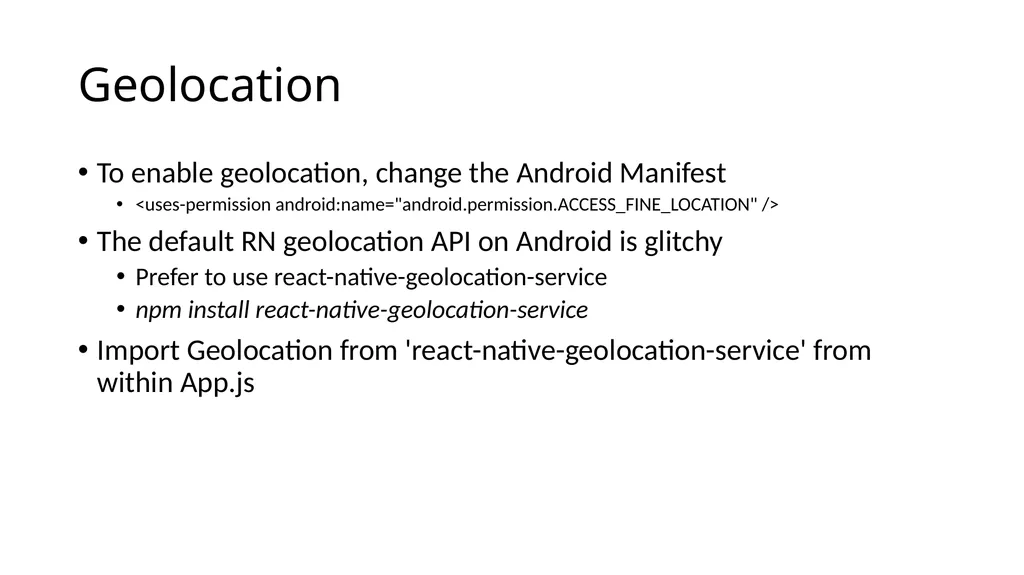
slide17. Geolocation To enable geolocation, change the Android Manifest
<uses-permission android:name="android.permission.ACCESS_FINE_LOCATION" />
The default RN geolocation API on Android is glitchy
Prefer to use react-native-geolocation-service
npm install react-native-geolocation-service
Import Geolocation from 'react-native-geolocation-service' from within App.js<br>
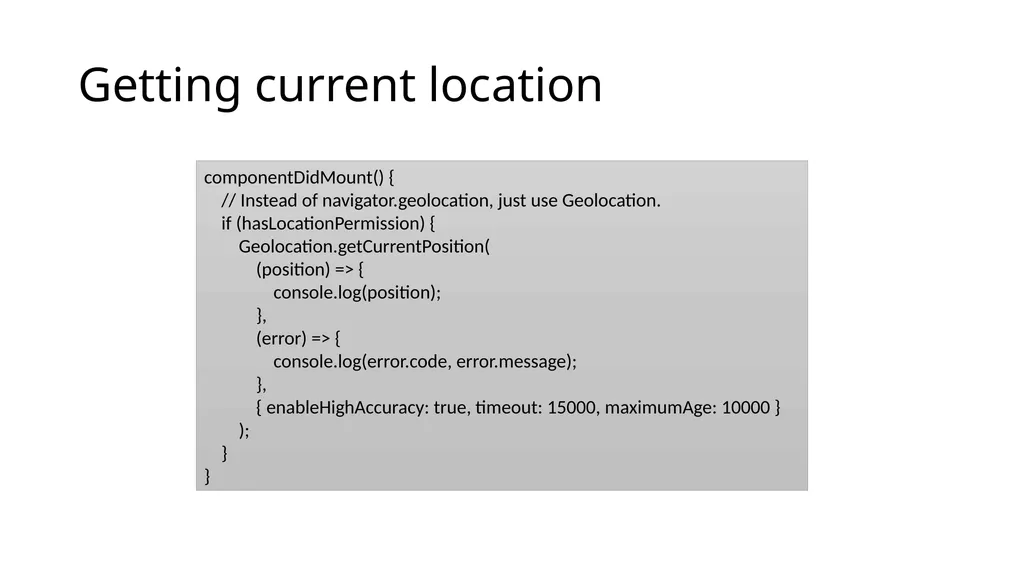
slide18. Getting current location componentDidMount() {
// Instead of navigator.geolocation, just use Geolocation.
if (hasLocationPermission) {
Geolocation.getCurrentPosition(
(position) => {
console.log(position);
},
(error) => {
console.log(error.code, error.message);
},
{ enableHighAccuracy: true, timeout: 15000, maximumAge: 10000 }
);
}
}<br>
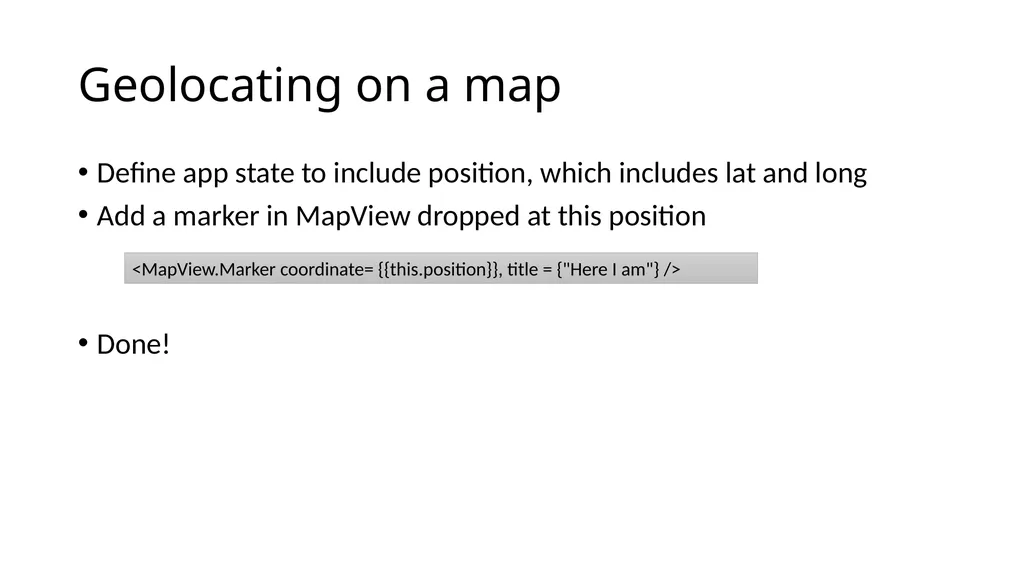
slide19. Geolocating on a map Define app state to include position, which includes lat and long
Add a marker in MapView dropped at this position
Done! <MapView.Marker coordinate= {{this.position}}, title = {"Here I am"} /><br>
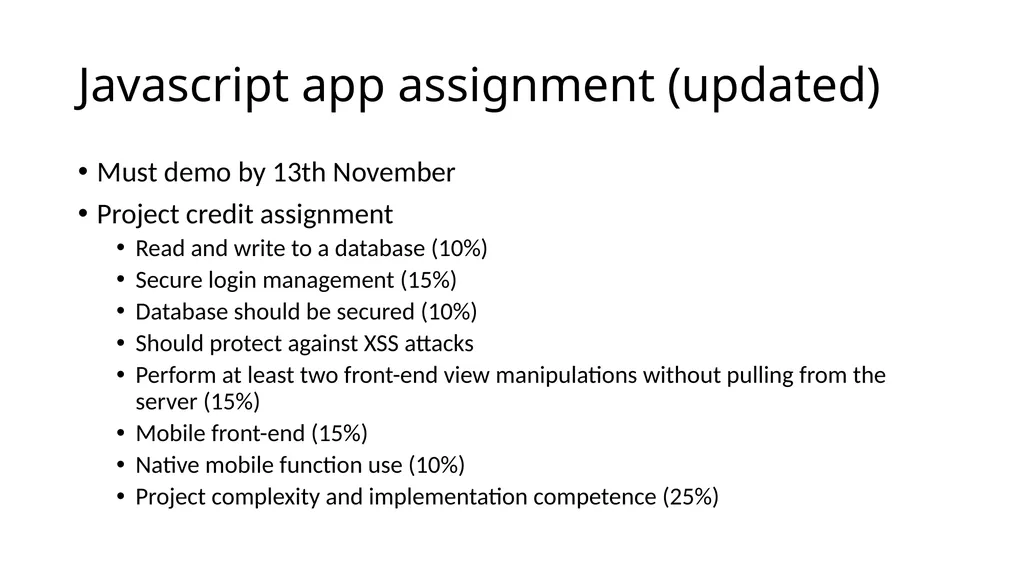
slide20. Javascript app assignment (updated) Must demo by 13th November
Project credit assignment
Read and write to a database (10%)
Secure login management (15%)
Database should be secured (10%)
Should protect against XSS attacks
Perform at least two front-end view manipulations without pulling from the server (15%)
Mobile front-end (15%)
Native mobile function use (10%)
Project complexity and implementation competence (25%)<br>
slide2. What is an app? The Android OS is a multi-user Linux system
Each app has its own user
OS sets permissions for all files in an app such that only the app's user can access them
Every app runs its own process
Every process runs in its own VM
Principle of least privilege<br>
slide3. App components Activities
Control user interface with the app
Services
Run background processes
Receivers
Hooks to the system that enable user notifications
Providers
Manage app data that requires persistent storage
Android speciality: any app component can activate any other app component<br>
slide4. Requiring other components All existing app components needed for your app are declared in the AndroidManifest.xml file <manifest ... > <uses-feature android:name="android.hardware.camera.any" android:required="true" /> <uses-sdk android:minSdkVersion="7" android:targetSdkVersion="19" /> ... </manifest><br>
slide5. Permissions Permissions preserve the privacy of each app, as well as the device owner
Apps must ask for permission before accessing device native functionalities
Send SMS
Read contact list
Access camera
Access sensors
Activate Bluetooth<br>
slide6. Requesting permissions Added to AndroidManifest.xml using <uses-permission /> tag
Example <manifest xmlns:android="http://schemas.android.com/apk/res/android" package="com.example.someapp"> <uses-permission android:name="android.permission.SEND_SMS"/> <application ...> ... </application> </manifest><br>
slide7. Permission approval Normal
Permissions are granted automatically by system
Signature
Permissions are granted automatically by system if the app trying to use the permission is signed by the same certificate as the app that defines the permission
Dangerous
App must prompt the user for permission
Used to ask for permissions at install-time
Since SDK 23, ask for permissions at run-time<br>
slide8. Native functions Two prominent activities
Camera
Geolocation
We discuss sample apps for both
All instructions for RN version 0.60+
Less prominent activities
Bluetooth
Environment sensors
Temperature, humidity,
Motion sensors
Accelerometer, gyroscope, step counting, rotation
Position sensors
Geomagnetic sensor, accelerometer<br>
slide9. An RN app to take photos A few different ways
I am just going to show you one that I found easy
RNCamera
Existing RN component library for working with the camera
Supports photos, videos, face detection and barcode scanning out of the box
Setup
Init a react native project, then from within the project directory
npm install react-native-camera –save
react-native link react-native-camera<br>
slide10. Some more tweaking Add the following permissions to /android/app/src/main/AndroidManifest.xml
Add the bolded line to /android/app/build.gradle <uses-permission android:name="android.permission.CAMERA" />
<uses-permission android:name="android.permission.READ_EXTERNAL_STORAGE" />
<uses-permission android:name="android.permission.WRITE_EXTERNAL_STORAGE" /> defaultConfig { applicationId "com.nativeproject" minSdkVersion rootProject.ext.minSdkVersion
MissingDimensionStrategy 'react-native-camera', 'general' targetSdkVersion rootProject.ext.targetSdkVersion versionCode 1 versionName "1.0" }<br>
slide11. Accessing the camera Run react-native run-android to install the dependencies defined in the previous slide
Modify App.js by importing RNCamera as a component
Import { RNCamera } from 'reactive-native-camera'
Modify the render function to include the new component <RNCamera
ref={ref => {
this.camera = ref;
}}
style={styles.camera}
>
</RNCamera> Add camera to the styles container, setting flex to 1 if you want full-screen<br>
slide12. Saving a clicked photo Add a camera button to the app
Define the onPress handler function for this button as
Import { CameraRoll } from 'react-native'
Use CameraRoll.saveToCameraRoll(data.uri) to save to device takePicture = async() => {
if (this.camera) {
const options = { quality: 0.5, base64: true };
const data = await this.camera.takePictureAsync(options);
console.log(data.uri); // URI to saved photo in app cache
}
}; Click to add text https://github.com/react-native-community/react-native-camera/blob/master/docs/RNCamera.md<br>
slide13. An app to find yourself on a map Need to show a map
Need to show where you are right now on the map
No surprises
react-native-maps
react-native-geolocation-service
In general, the RN community is very active right now, so you can find third-party libraries for almost anything you might imagine doing<br>
slide14. Showing a map Get an API key for the Android SDK here
Or use the OSM clone of the RNM module
From within your RN project folder
npm install react-native-maps –save
react-native link react-native-maps
Make sure playServicesVersion and androidMapsUtilsVersion are added to the project root build.gradle file
Add Android API key to the AndroidManifest.xml file <application>
<!-- You will only need to add this meta-data tag, but make sure it's a child of application -->
<meta-data
android:name="com.google.android.geo.API_KEY"
android:value="Your Google maps API Key Here"/>
</application><br>
slide15. Showing a map I am primarily, but not exclusively, borrowing from this tutorial
From within App.js
Import MapView from 'react-native-maps'
Change the render function to return a MapView element <MapView
initialRegion={{
latitude: 37.78825,
longitude: -122.4324,
latitudeDelta: 0.0922,
longitudeDelta: 0.0421,
}}
/><br>
slide16. Updating location on the map onRegionChange(region) {
this.setState({ region });
}
render() {
return (
<MapView
region={this.state.region}
onRegionChange={this.onRegionChange}
/>
);
}<br>
slide17. Geolocation To enable geolocation, change the Android Manifest
<uses-permission android:name="android.permission.ACCESS_FINE_LOCATION" />
The default RN geolocation API on Android is glitchy
Prefer to use react-native-geolocation-service
npm install react-native-geolocation-service
Import Geolocation from 'react-native-geolocation-service' from within App.js<br>
slide18. Getting current location componentDidMount() {
// Instead of navigator.geolocation, just use Geolocation.
if (hasLocationPermission) {
Geolocation.getCurrentPosition(
(position) => {
console.log(position);
},
(error) => {
console.log(error.code, error.message);
},
{ enableHighAccuracy: true, timeout: 15000, maximumAge: 10000 }
);
}
}<br>
slide19. Geolocating on a map Define app state to include position, which includes lat and long
Add a marker in MapView dropped at this position
Done! <MapView.Marker coordinate= {{this.position}}, title = {"Here I am"} /><br>
slide20. Javascript app assignment (updated) Must demo by 13th November
Project credit assignment
Read and write to a database (10%)
Secure login management (15%)
Database should be secured (10%)
Should protect against XSS attacks
Perform at least two front-end view manipulations without pulling from the server (15%)
Mobile front-end (15%)
Native mobile function use (10%)
Project complexity and implementation competence (25%)<br>