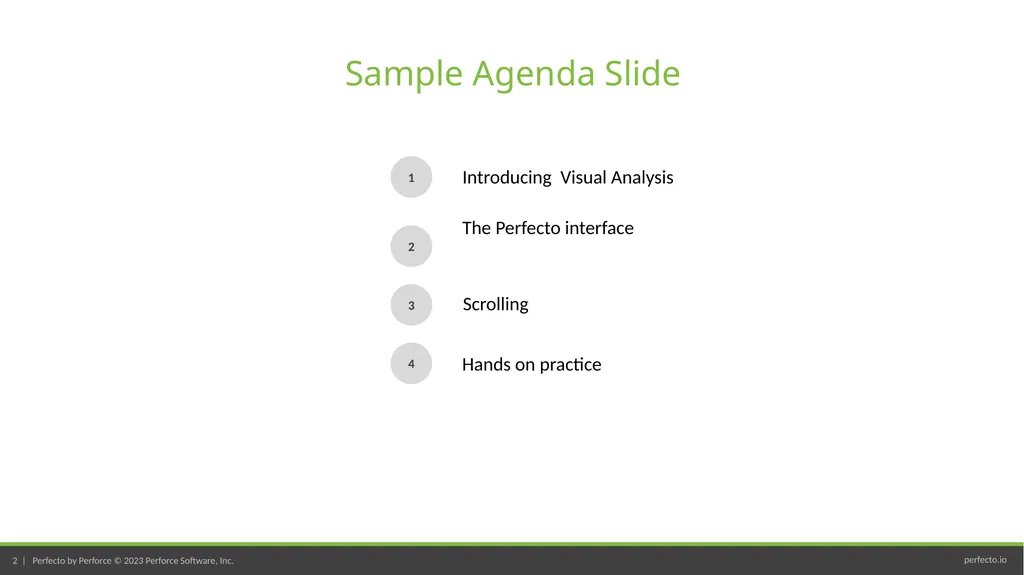
Visual Analysis Sample Agenda Slide 1 3 Introducing Visual Analysis The Perfecto interface 2 4 Scrolling Hands on practice Introducing Visual Analysis We have used object locators in our tests. These locators rely on the XHTML code which
"Visual Analysis Sample Agenda Slide 1 3" is the property of its rightful owner. Permission is granted to
download and print the materials on this website for personal, non-commercial use only, and to display it
on your personal computer provided you do not modify the materials and that you retain all copyright
notices contained in the materials. By downloading content from our website, you accept the terms of this
agreement.
Presentation Transcript
01
Visual Analysis<br>
02
Sample Agenda Slide 1 3 Introducing Visual Analysis The Perfecto interface 2 4 Scrolling Hands on practice<br>
03
Introducing Visual Analysis<br>
04
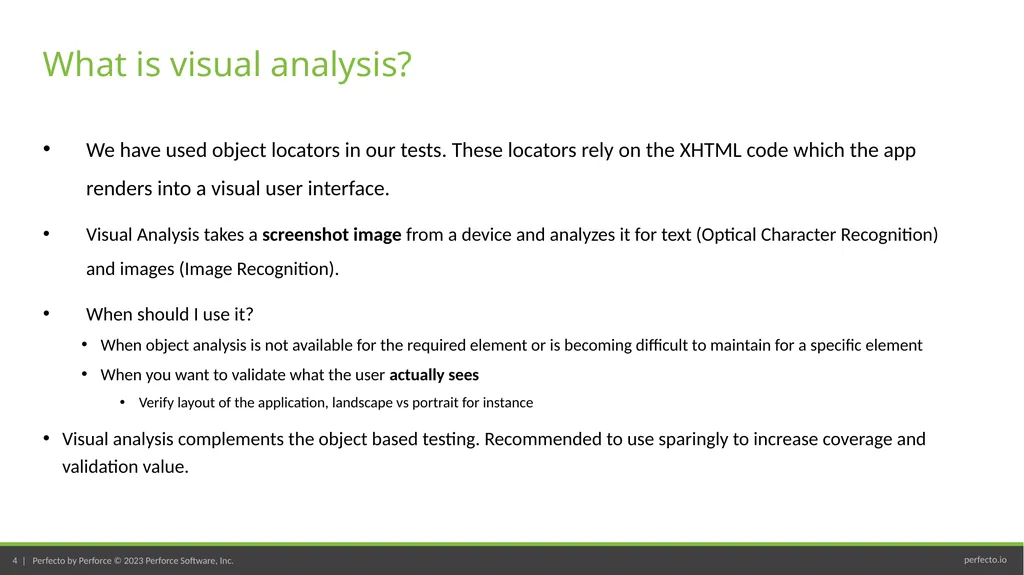
We have used object locators in our tests. These locators rely on the XHTML code which the app renders into a visual user interface.
Visual Analysis takes a screenshot image from a device and analyzes it for text (Optical Character Recognition) and images (Image Recognition).
When should I use it?
When object analysis is not available for the required element or is becoming difficult to maintain for a specific element
When you want to validate what the user actually sees
Verify layout of the application, landscape vs portrait for instance
Visual analysis complements the object based testing. Recommended to use sparingly to increase coverage and validation value. What is visual analysis?<br>
05
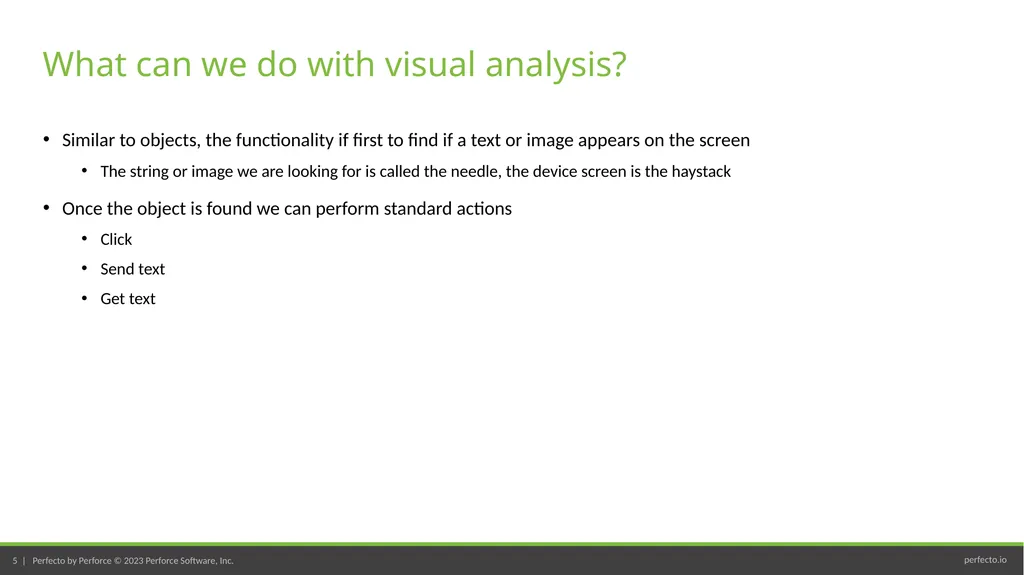
Similar to objects, the functionality if first to find if a text or image appears on the screen
The string or image we are looking for is called the needle, the device screen is the haystack
Once the object is found we can perform standard actions
Click
Send text
Get text What can we do with visual analysis?<br>
06
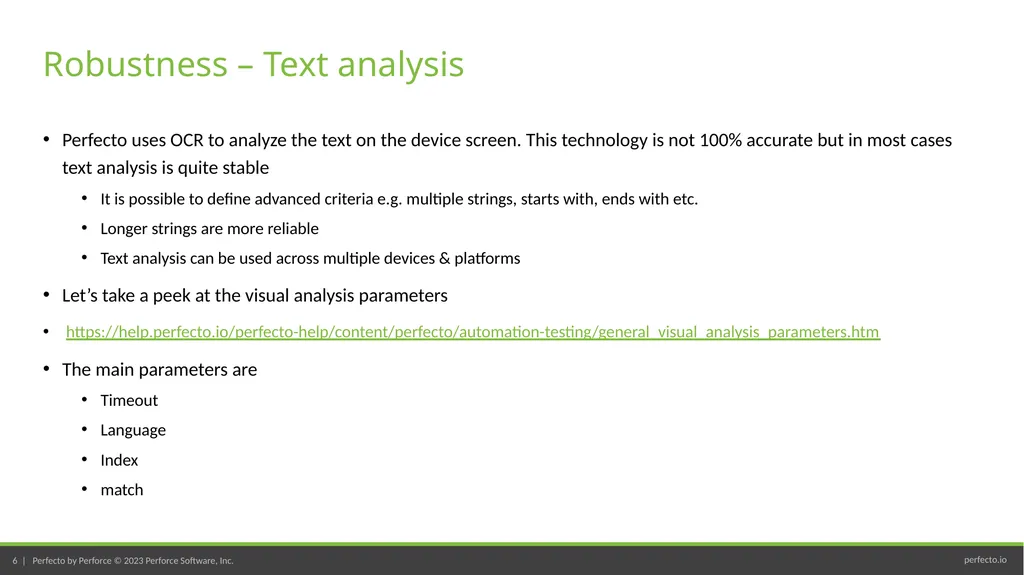
Perfecto uses OCR to analyze the text on the device screen. This technology is not 100% accurate but in most cases text analysis is quite stable
It is possible to define advanced criteria e.g. multiple strings, starts with, ends with etc.
Longer strings are more reliable
Text analysis can be used across multiple devices & platforms
Let’s take a peek at the visual analysis parameters
https://help.perfecto.io/perfecto-help/content/perfecto/automation-testing/general_visual_analysis_parameters.htm
The main parameters are
Timeout
Language
Index
match Robustness – Text analysis<br>
07
Perfecto uses bitmap comparison to analyse the image on the device screen. This technology is 100% accurate but does not carry well across different screens.
Images require downloading a screenshot and cropping it
It may be necessary to maintain an image per device model
Image analysis is not recommended Robustness – image analysis<br>
08
The Perfecto Interface<br>
09
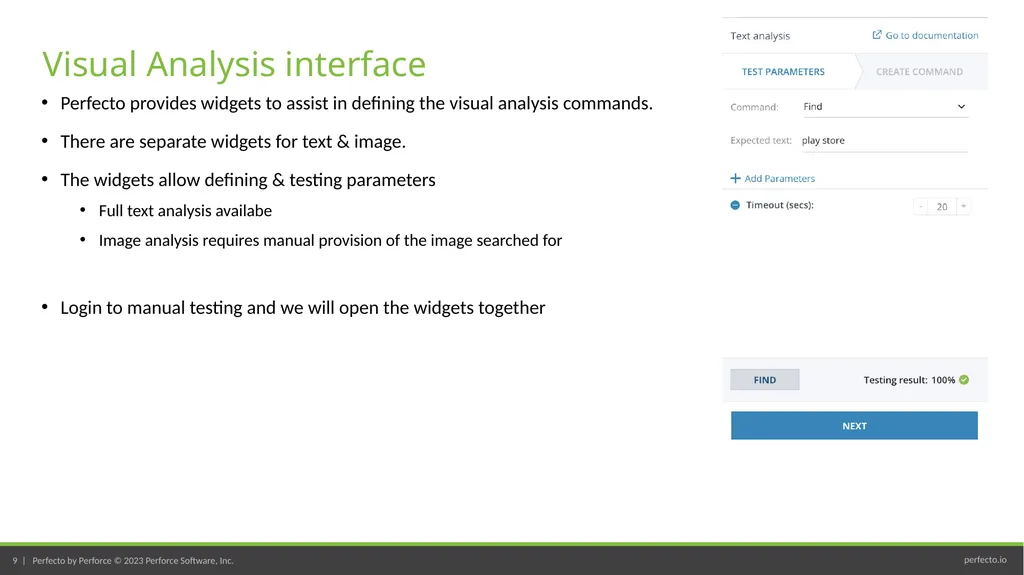
Perfecto provides widgets to assist in defining the visual analysis commands.
There are separate widgets for text & image.
The widgets allow defining & testing parameters
Full text analysis availabe
Image analysis requires manual provision of the image searched for
Login to manual testing and we will open the widgets together Visual Analysis interface<br>
10
Scrolling<br>
11
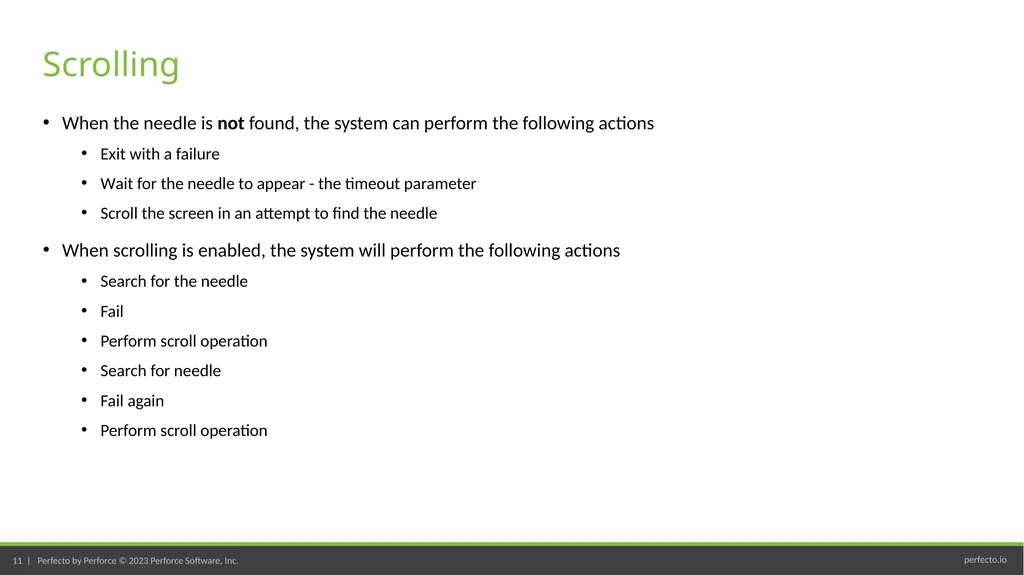
When the needle is not found, the system can perform the following actions
Exit with a failure
Wait for the needle to appear - the timeout parameter
Scroll the screen in an attempt to find the needle
When scrolling is enabled, the system will perform the following actions
Search for the needle
Fail
Perform scroll operation
Search for needle
Fail again
Perform scroll operation Scrolling<br>
12
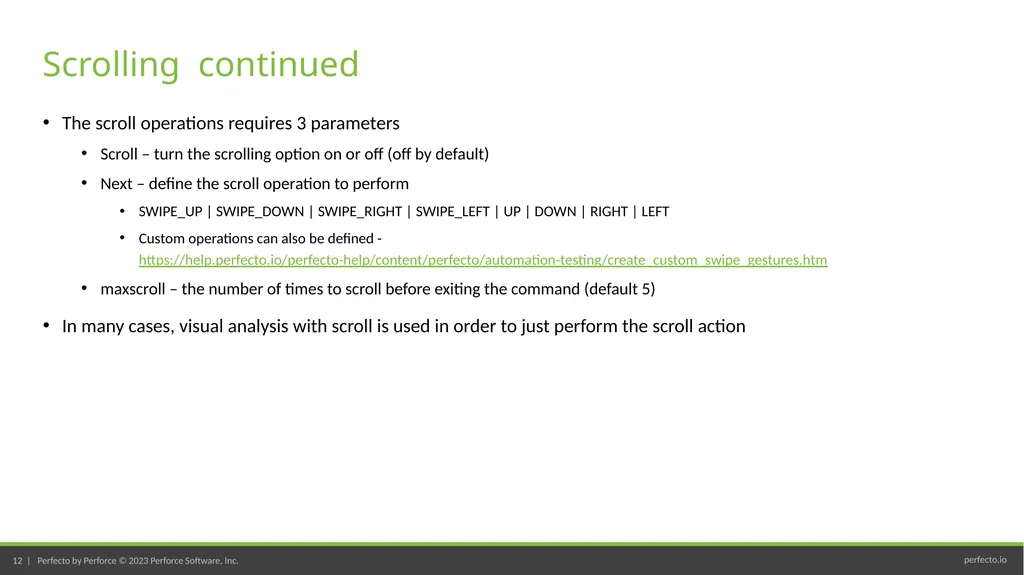
The scroll operations requires 3 parameters
Scroll – turn the scrolling option on or off (off by default)
Next – define the scroll operation to perform
SWIPE_UP | SWIPE_DOWN | SWIPE_RIGHT | SWIPE_LEFT | UP | DOWN | RIGHT | LEFT
Custom operations can also be defined - https://help.perfecto.io/perfecto-help/content/perfecto/automation-testing/create_custom_swipe_gestures.htm
maxscroll – the number of times to scroll before exiting the command (default 5)
In many cases, visual analysis with scroll is used in order to just perform the scroll action Scrolling continued<br>
13
Hands on practice<br>
14
Let’s add visual analysis to your test case
Add visual validations to the tests
Add scrolling if necessary Visual analysis in your test cases<br>