What is E-Orders? E-Orders is an application that lets authorized users, attorneys, and trustees upload a proposed order for court consideration without any docketing to CMECF occurring. Procedures for Electronic Submission of Proposed
"What is E-Orders? E-Orders is an application that" is the property of its rightful owner. Permission is granted to
download and print the materials on this website for personal, non-commercial use only, and to display it
on your personal computer provided you do not modify the materials and that you retain all copyright
notices contained in the materials. By downloading content from our website, you accept the terms of this
agreement.
Presentation Transcript
01
What is E-Orders? E-Orders is an application that lets authorized users, attorneys, and trustees upload a proposed order for court consideration without any docketing to CM/ECF occurring.<br>
02
Procedures for Electronic Submission of Proposed Orders<br>
03
Preparing the Proposed Order Create the proposed order using a word processing application (i.e. Word or WordPerfect) and convert it to a text accessible PDF file to allow editing. Do not scan the image.
Convert the proposed order from a word processing document to a portable Document Format (PDF).
Leave a four-inch margin at the bottom of the last page of the proposed order for the date and the Judge’s signature. Do not include a line for the date or the Judge’s signature. The system will automatically be affixed by the system after court review.
When assigning a filename to your PDF document do not use any special characters such as !@#$%^&*()_+*/:<<,.<br>
04
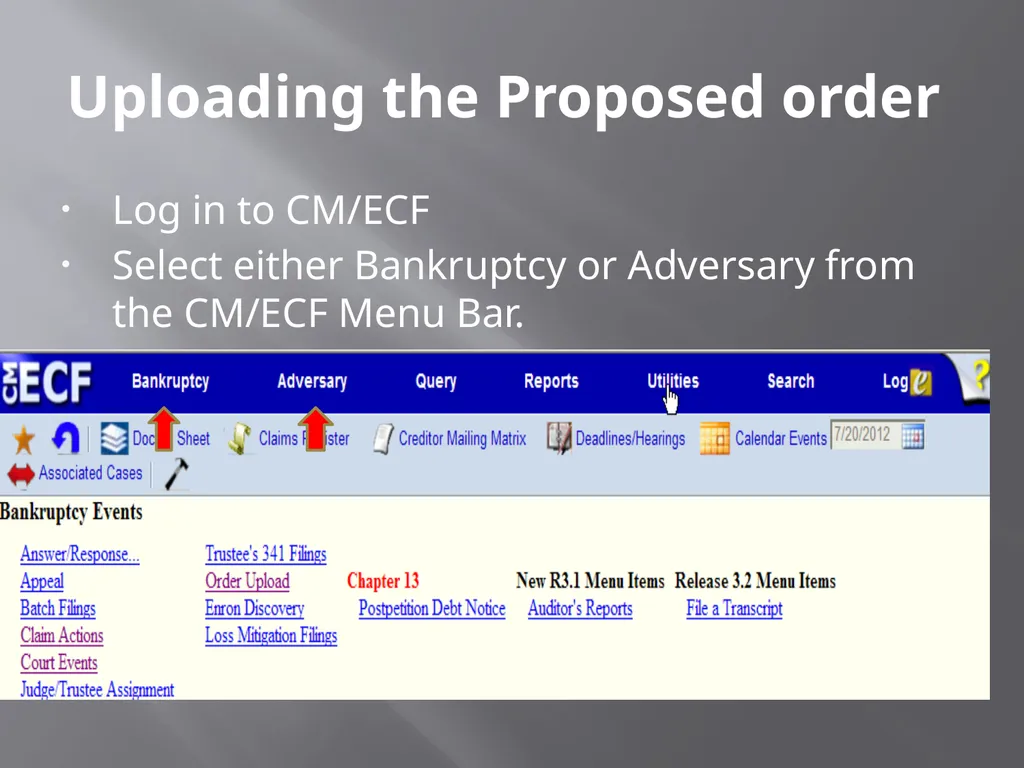
Uploading the Proposed order Log in to CM/ECF
Select either Bankruptcy or Adversary from the CM/ECF Menu Bar.<br>
05
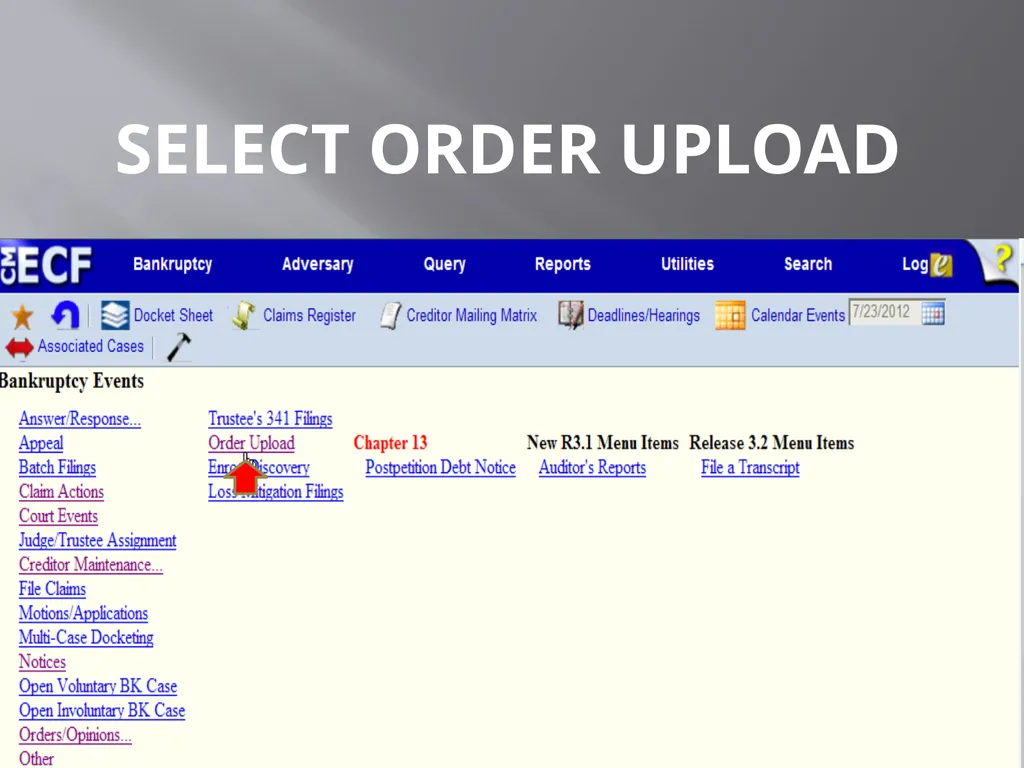
Select Order upload<br>
06
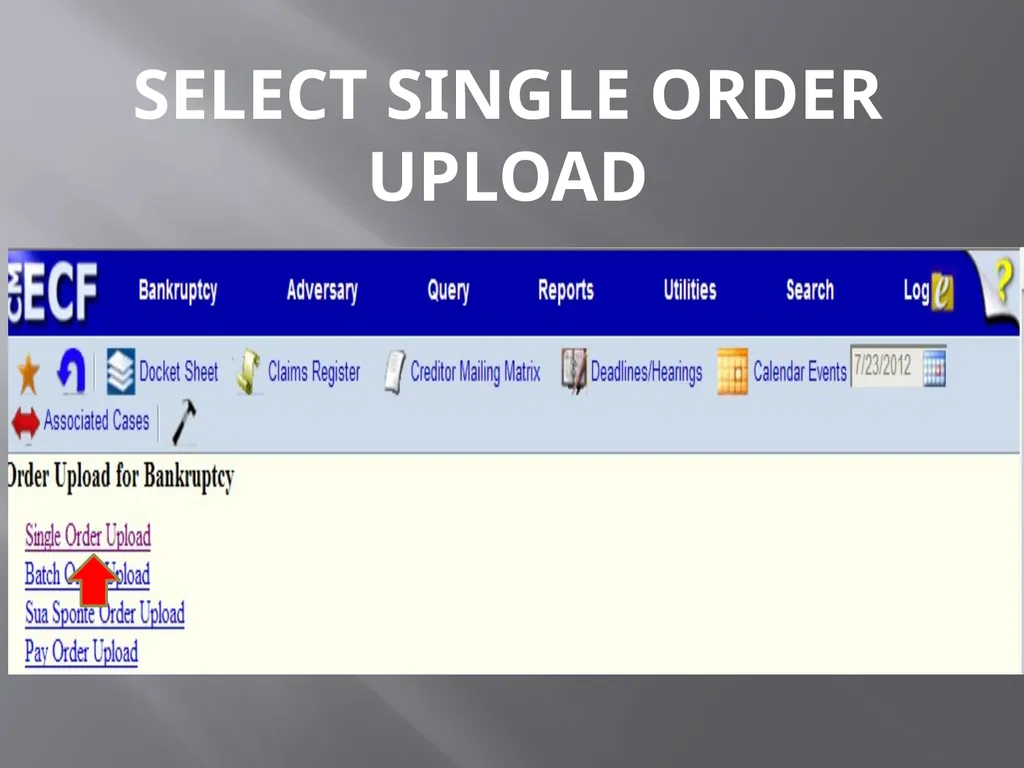
Select single order upload<br>
07
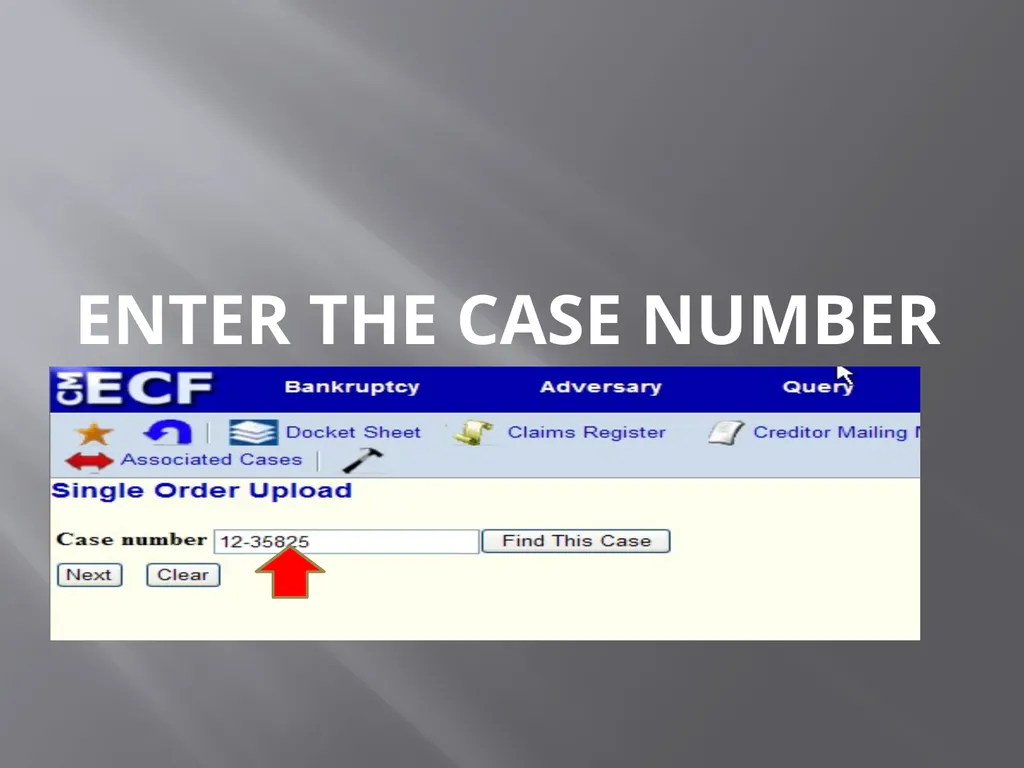
Enter the case number<br>
08
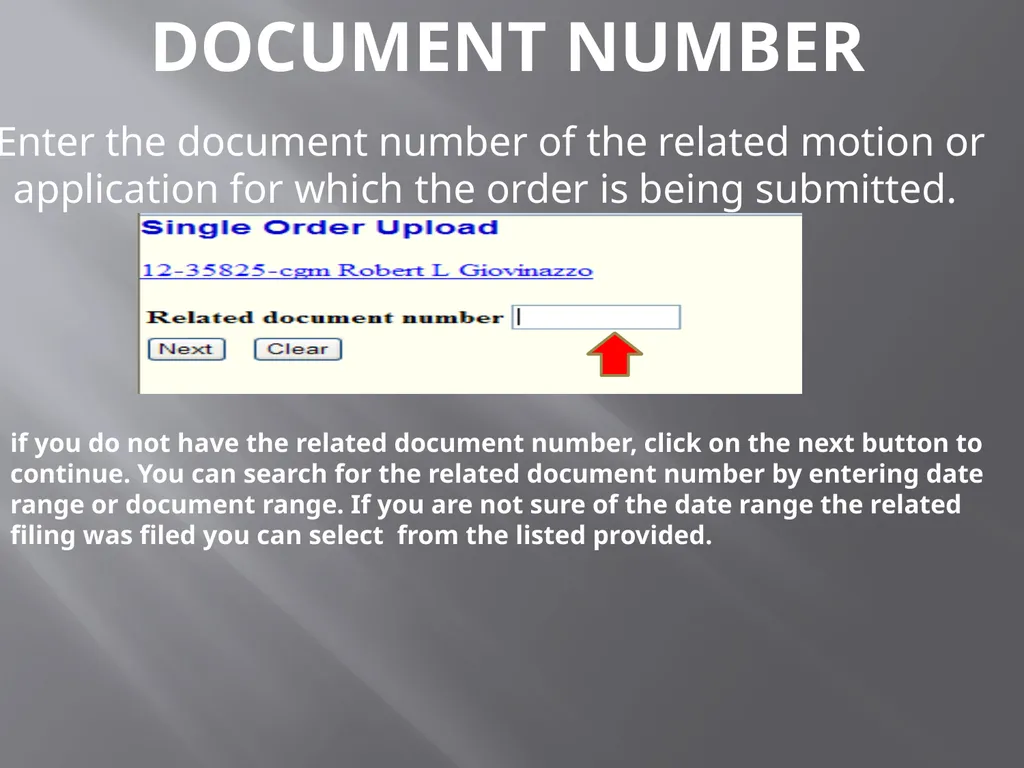
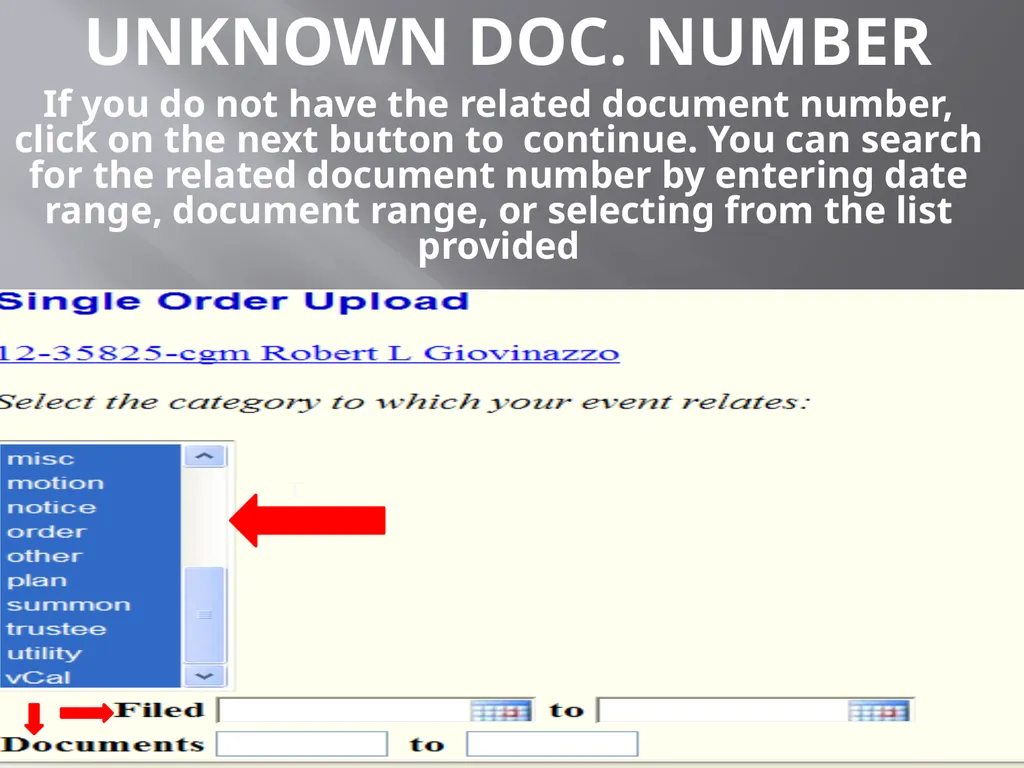
Document number Enter the document number of the related motion or application for which the order is being submitted. if you do not have the related document number, click on the next button to continue. You can search for the related document number by entering date range or document range. If you are not sure of the date range the related filing was filed you can select from the listed provided.<br>
09
Unknown Doc. number If you do not have the related document number, click on the next button to continue. You can search for the related document number by entering date range, document range, or selecting from the list provided<br>
10
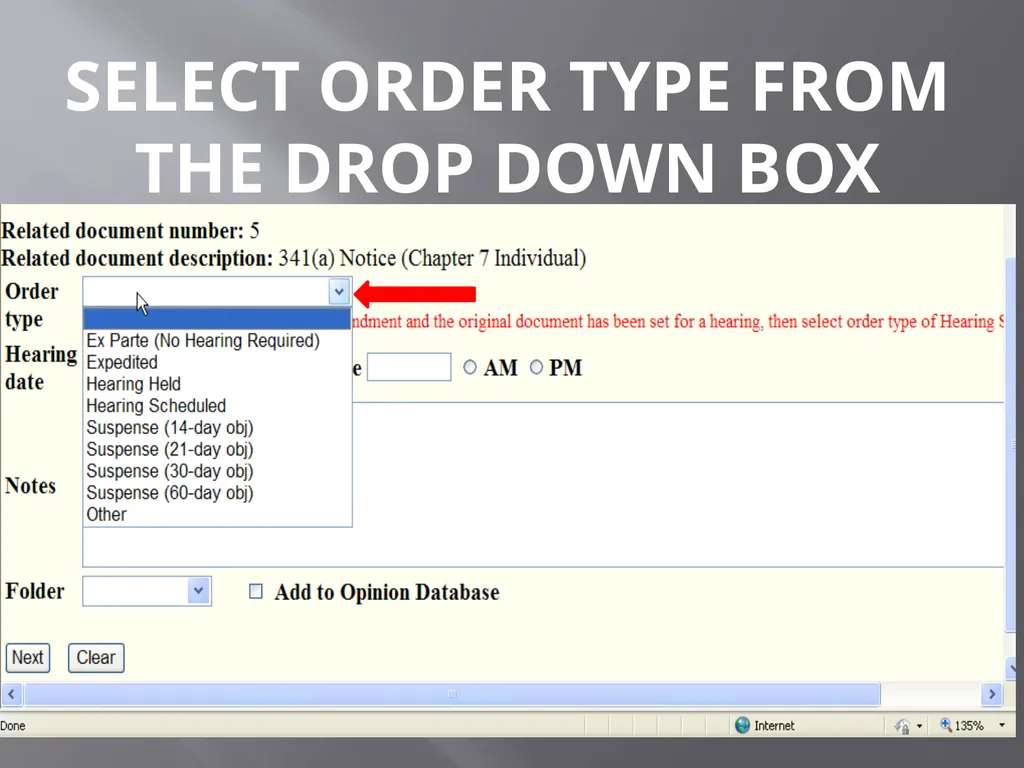
SELECT ORDER TYPE FROM THE DROP DOWN BOX<br>
11
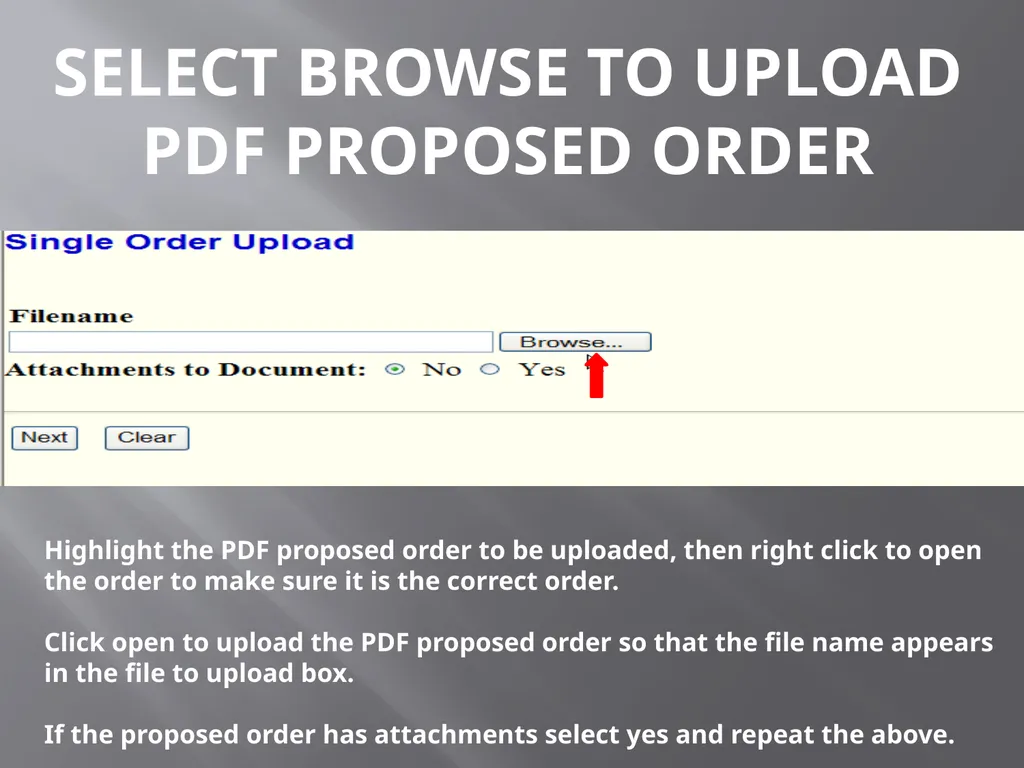
Select Browse to upload pdf proposed order f Highlight the PDF proposed order to be uploaded, then right click to open the order to make sure it is the correct order.
Click open to upload the PDF proposed order so that the file name appears in the file to upload box.
If the proposed order has attachments select yes and repeat the above.<br>
12
SUBMITTING THE ORDER Before clicking next, make sure the information and documents that have been uploaded are correct. By clicking next, the filer commits the transaction and will have no further opportunity to modify the submission<br>
13
After Uploading the proposed order Once an order is uploaded you can then track the status of the order by following these steps:
Log in to CM/ECF
Select Reports then proposed order query
Enter the case number and select next.<br>