WordPress Web Development An introduction to small business site design using the popular CMS platform. What We Will Cover How to brainstorm for a project How to choose the domain that is best for SEO or vanity or perhaps both. How to
"WordPress Web Development An introduction to small" is the property of its rightful owner. Permission is granted to
download and print the materials on this website for personal, non-commercial use only, and to display it
on your personal computer provided you do not modify the materials and that you retain all copyright
notices contained in the materials. By downloading content from our website, you accept the terms of this
agreement.
Presentation Transcript
01
WordPress Web Development An introduction to small business site design using the popular CMS platform.<br>
02
What We Will Cover How to brainstorm for a project
How to choose the domain that is best for SEO or vanity or perhaps both.
How to register for a free WordPress account and start using that site
How to purchase a domain and install WordPress on it.
How to customize a self-hosted WordPress
How to add plugins and which ones to use.<br>
03
What is WordPress? 48% share of top 100 blogs in the World
Free and open source
Professional paid themes (themeforest.net)
CMS or Content Management System
Based on PHP and MySQL
Plugin and theme architecture
Categories, tags and permalink structure<br>
04
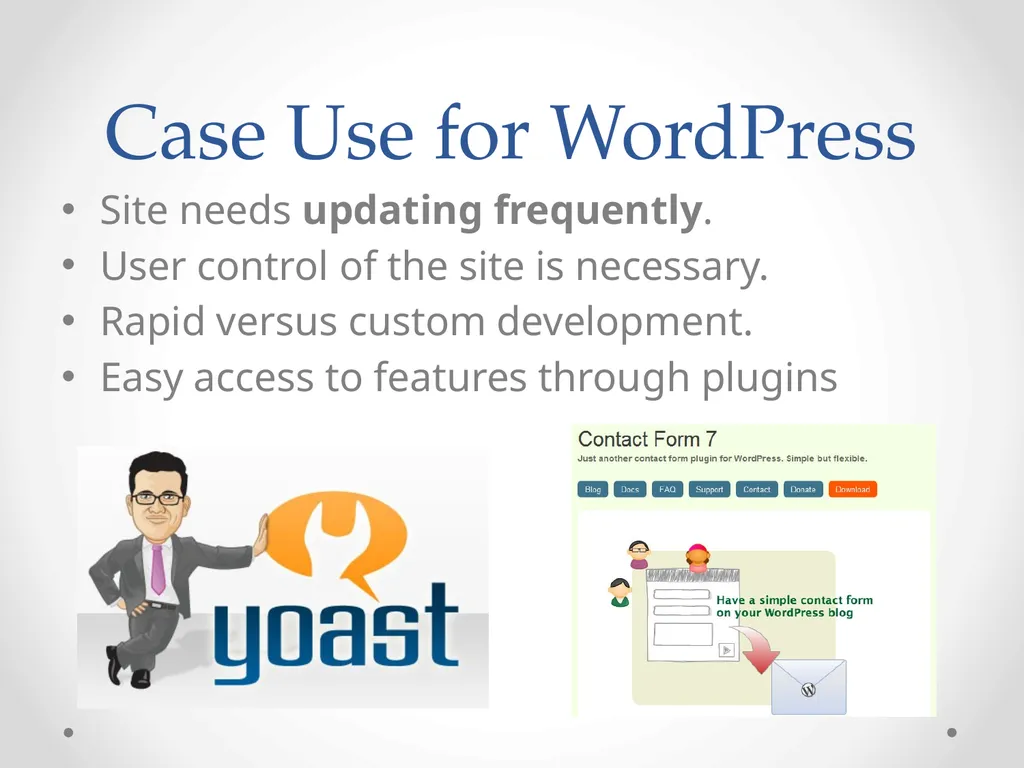
Case Use for WordPress Site needs updating frequently.
User control of the site is necessary.
Rapid versus custom development.
Easy access to features through plugins<br>
05
Brainstorm What does the project need?
When does it need to be done by?
How will the general visitor use the site?
If a customer searches for the site, what keywords would bring them to it?<br>
06
Domain Decisions First step is to pick a domain:
Choose according to keywords if SEO is important
www.webdesignclassbillings.com
Choose according to vanity if SEO is not important
www.wdcbillings.com<br>
07
Domain Decisions Cont. Pick both SEO friendly and vanity domains if appropriate
.coms are the best for SEO value and commercial marketing value
.net, .co, *.io can be good alternatives to the .com (*.io exotic Indian Ocean)
Use Fatwallet.com to get good deals on domains<br>
08
Install WordPress - Free Version Register for a free account and choose .wordpress.com extension name
Click the “Change your blog description or permissions” button to launch the Dashboard.
Change the site title and slogan
Adjust the time zone settings to UTC-7<br>
09
Choose Theme Click on Appearance on main menu
Browse and select theme (try searching for keywords like colors or use cases)
Change pages by deleting generic entry (if necessary) and adding in all the pages for the site in order using 0 base array inside page options<br>
10
Blogging Click on posts and delete any generic entries (if necessary). Click “Add New” button.
Title the post and click tab to go into main body
Notice how the permalink structure generates off of what was typed as the title (you may want to change these for better SEO)
Add content in the body, including images and/or videos using both the visual and text editors.
Choose a category for the post by clicking “Add new category” typing it in and submitting.<br>
11
Blogging Cont. Choose tags according to keyword connections between posts. (Try not to have too many 1-post tags)
Hit the publish button and go to the website to check out your work.
Make any necessary edits (revision process is part of any good blog).<br>
12
Not Custom? No Worry! Self hosted WordPress sites allow customization of the entire site code.
By editing the header.php, footer.php, page.php and post.php files the entire site can be switched around, changed up and customized.
User accounts can be created so that customers cannot access these core files, but can still interact and add to the content on the site.<br>
13
Install WordPress – Paid Choose domain and make purchase (recommend Godaddy or Bluehost).
Purchase hosting account. (try Fatwallet Godaddy coupons for great deals on hosting)
Commercial applications can benefit from premium private servers as they are much less prone to hacking.<br>
14
Install WordPress – Paid Cont. Add domain to the hosting account by launching hosting control panel
-> hosted domain control panel
-> add domain
-> install in root if first domain in account, install in named folder if it is subsequent domain.<br>
15
Wait…Now Install WP Wait 10-15 minutes for the hosting account to propagate the domain over to it.
Now choose the WordPress install option on the control panel.
Fill in the details including:
Name of domain to install on
Username and password
Hit install<br>
16
Congratulations! WordPress should install in about 20-30 minutes.<br>
17
Customize WordPress Dig into the code by clicking on Appearance and then on Editor
Here are all the PHP files that comprise the site
Change the footer by clicking on footer.php and making additions to the code.
Change the header in header.php and so on…
Add plugins and remove the garbage plugins that come with the install (Godaddy’s, WordPress welcome, Hello Dolly).<br>
18
How To Add Plugins Click on “Plugins” and then on “Add new”
Search for the function that you want to achieve “slideshows” “widgets” etc.. Or search by the name of the plugin.
Check star ratings to make sure you have the right plugin.
Be wary of installing unrated plugins or too many plugins as either of these can cause crashing and unintended consequences.<br>
19
Popular Plugins Contact Form 7 – solid contact form creator
Limit Login Attempts – protects blogs from brute force attacks
SEO Yoast – best search engine optimization plugin on the market and it’s free!
Exclude pages – adds checkbox to pages that easily toggles them in and out of the main menu.<br>
20
What We Covered How to brainstorm for a project
How to choose the domain that is best for SEO or vanity or perhaps both.
How to register for a free WordPress account and start using that site
How to purchase a domain and install WordPress on it.
How to customize a self-hosted WordPress
How to add plugins and which ones to use.<br>