
WORKFORCE ONE (WF1) Performance Walk-through WIOA
BR
Published · 42 slides · 0 views

1 / 1





Description
WORKFORCE ONE (WF1) Performance Walk-through WIOA Adult, WIOA Dislocated Worker, and State Dislocated Worker amy.carlsonstate.mn.us State Program Administrator Coordinator 1 Entering the Participants Social Security Number (SSN): Slides 2
Related Topics
Share
Embed code
Download this presentation From Below
"WORKFORCE ONE (WF1) Performance Walk-through WIOA" is the property of its rightful owner. Permission is granted to download and print the materials on this website for personal, non-commercial use only, and to display it on your personal computer provided you do not modify the materials and that you retain all copyright notices contained in the materials. By downloading content from our website, you accept the terms of this agreement.
Presentation Transcript
01
WORKFORCE ONE (WF1) Performance Walk-through
WIOA Adult, WIOA Dislocated Worker, and State Dislocated Worker
amy.carlson@state.mn.us
State Program Administrator Coordinator 1<br>
WIOA Adult, WIOA Dislocated Worker, and State Dislocated Worker
amy.carlson@state.mn.us
State Program Administrator Coordinator 1<br>
02
Entering the Participant’s Social Security Number (SSN): Slides 2 – 4
Risks of Using a Pseudo-SSN and Procedure to Create One: Slides 5 – 8
Workforce One Activities that Impact Performance: Slides 9 – 14
Workforce One Exits that Impact Performance: Slides 15 – 19
Workforce One Post-Exit that Impact Performance: Slides 20 – 23
Performance Counts: Slides 24 – 41
Performance Contact Information: Slide 42 What's in this Workforce One Guide? 2<br>
Risks of Using a Pseudo-SSN and Procedure to Create One: Slides 5 – 8
Workforce One Activities that Impact Performance: Slides 9 – 14
Workforce One Exits that Impact Performance: Slides 15 – 19
Workforce One Post-Exit that Impact Performance: Slides 20 – 23
Performance Counts: Slides 24 – 41
Performance Contact Information: Slide 42 What's in this Workforce One Guide? 2<br>
03
Required Documentation for Participant SSNs At least one of the following must be stored in the participant’s case file as proof of SSN if the SSN entered in WF1 is not in the pseudo-SSN format
SS card issued by Social Security Administration W2 form
IRS form letter 1722
Social Security benefit checks (if it has their name and the SSN on it)
DD-214 Report of Transfer or Discharge
Passport (if it has their name and the SSN on it)
Military ID (if it has their name and the SSN on it)
Other Federal or state ID with a Social Security number containing the person’s name
Please note, self-attestation is insufficient to meet this requirement 3<br>
SS card issued by Social Security Administration W2 form
IRS form letter 1722
Social Security benefit checks (if it has their name and the SSN on it)
DD-214 Report of Transfer or Discharge
Passport (if it has their name and the SSN on it)
Military ID (if it has their name and the SSN on it)
Other Federal or state ID with a Social Security number containing the person’s name
Please note, self-attestation is insufficient to meet this requirement 3<br>
04
Importance of Capturing Actual SSNs in WF1 Social Security Numbers are used to gather information on the participant’s achievements.
We report participant pre-enrollment earnings.
We report participant earnings after receiving program services
1st Quarter after program exit earnings
2nd Quarter after program exit earnings
3rd Quarter after program exit earnings
4th Quarter after program exit earnings
We report education success rates on program funded trainings your participant attends and the success rates of all their classmates attending the same training program 4<br>
We report participant pre-enrollment earnings.
We report participant earnings after receiving program services
1st Quarter after program exit earnings
2nd Quarter after program exit earnings
3rd Quarter after program exit earnings
4th Quarter after program exit earnings
We report education success rates on program funded trainings your participant attends and the success rates of all their classmates attending the same training program 4<br>
05
RISKS OF USING A
PSEUDO-SSN & REQUIRED
PROCEDURE TO CREATE ONE<br>
PSEUDO-SSN & REQUIRED
PROCEDURE TO CREATE ONE<br>
06
Risks of Using a Pseudo SSN Post-program earnings will not be determined, which will result in an automatic negative exit.
The search function in Workforce One encompasses many parameters: SSN, name, email address, MAXIS number and Workforce One Record ID or Birthdate. If a pseudo SSN is used, a later search for the person by SSN may not yield a result.<br>
The search function in Workforce One encompasses many parameters: SSN, name, email address, MAXIS number and Workforce One Record ID or Birthdate. If a pseudo SSN is used, a later search for the person by SSN may not yield a result.<br>
07
Procedure for Creating a Pseudo SSN If an individual refuses to supply an SSN and/or adequate documentation, then enter a 9-digit number based on this method:
Start the number with ”000” or “900”
Middle two numbers are the WSA /ISP number = AEOA – 21
Last 4 numbers are assigned in a sequential manner (i.e., 0001, 0002, 0003, etc.)<br>
Start the number with ”000” or “900”
Middle two numbers are the WSA /ISP number = AEOA – 21
Last 4 numbers are assigned in a sequential manner (i.e., 0001, 0002, 0003, etc.)<br>
08
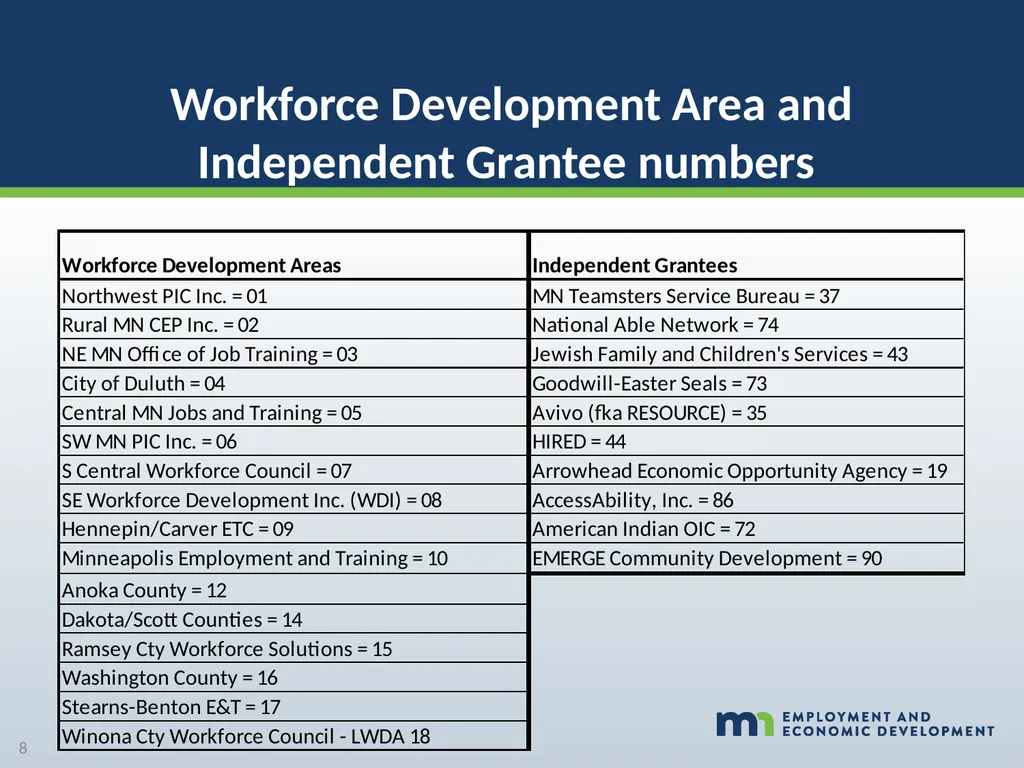
Workforce Development Area and
Independent Grantee numbers 8<br>
Independent Grantee numbers 8<br>
09
WORKFORCE ONE ACTIVITIES
THAT IMPACT
PERFORMANCE<br>
THAT IMPACT
PERFORMANCE<br>
10
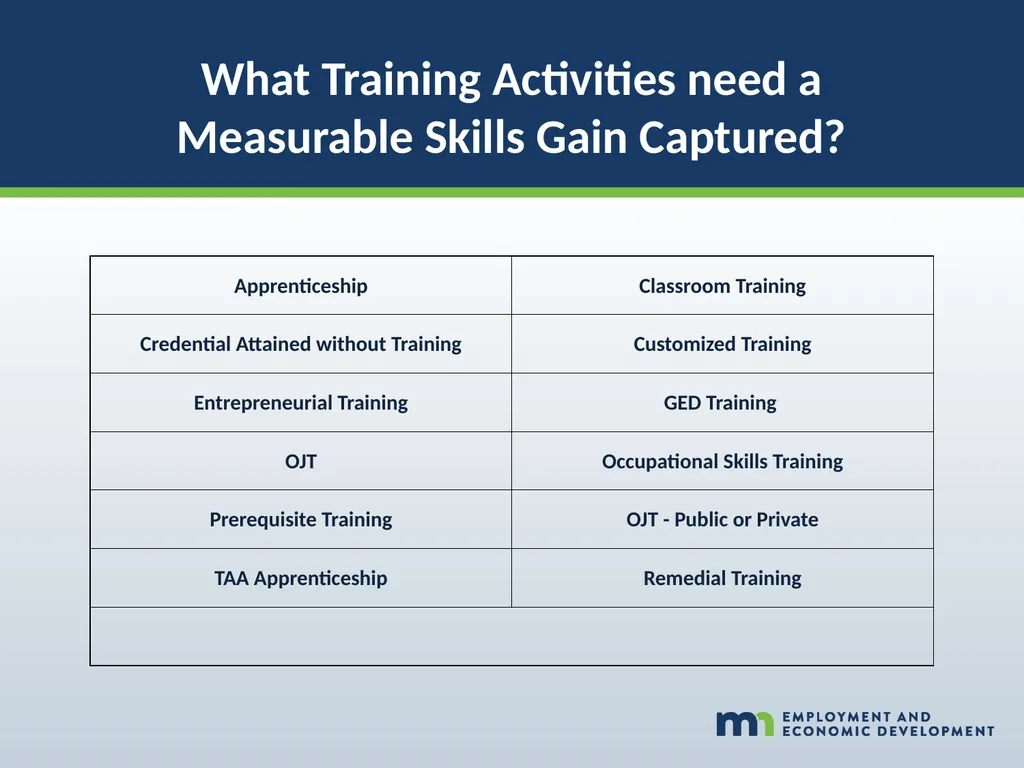
What Training Activities need a
Measurable Skills Gain Captured?<br>
Measurable Skills Gain Captured?<br>
11
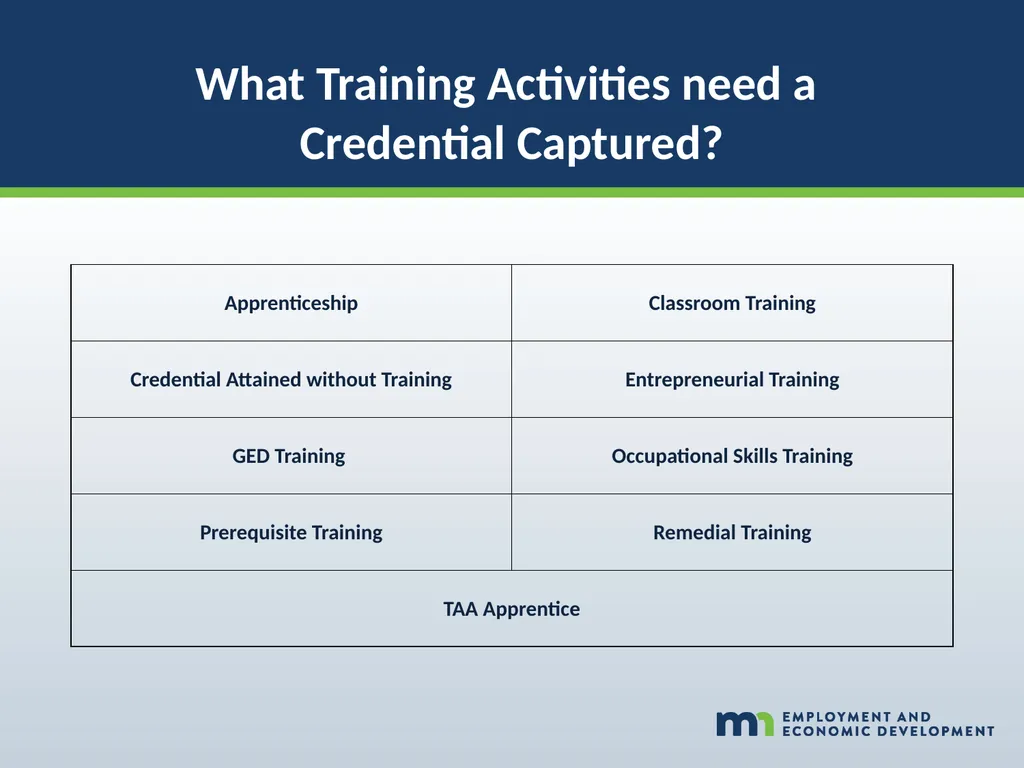
What Training Activities need a
Credential Captured?<br>
Credential Captured?<br>
12
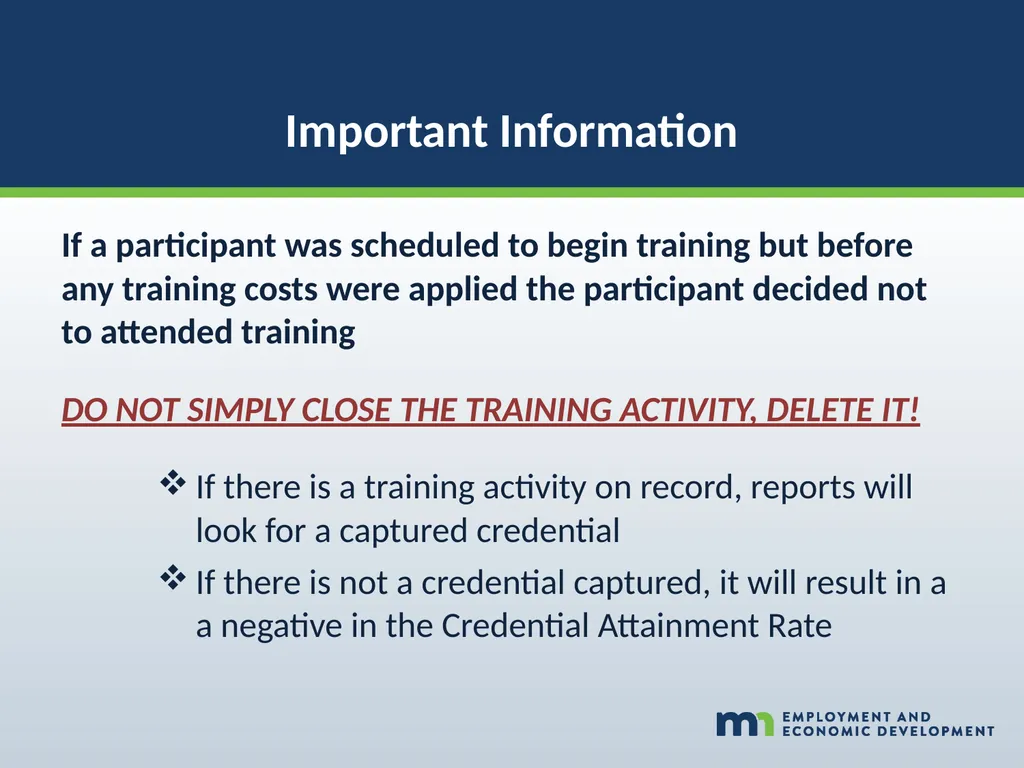
Important Information If a participant was scheduled to begin training but before any training costs were applied the participant decided not to attended training
DO NOT SIMPLY CLOSE THE TRAINING ACTIVITY, DELETE IT!
If there is a training activity on record, reports will look for a captured credential
If there is not a credential captured, it will result in a a negative in the Credential Attainment Rate<br>
DO NOT SIMPLY CLOSE THE TRAINING ACTIVITY, DELETE IT!
If there is a training activity on record, reports will look for a captured credential
If there is not a credential captured, it will result in a a negative in the Credential Attainment Rate<br>
13
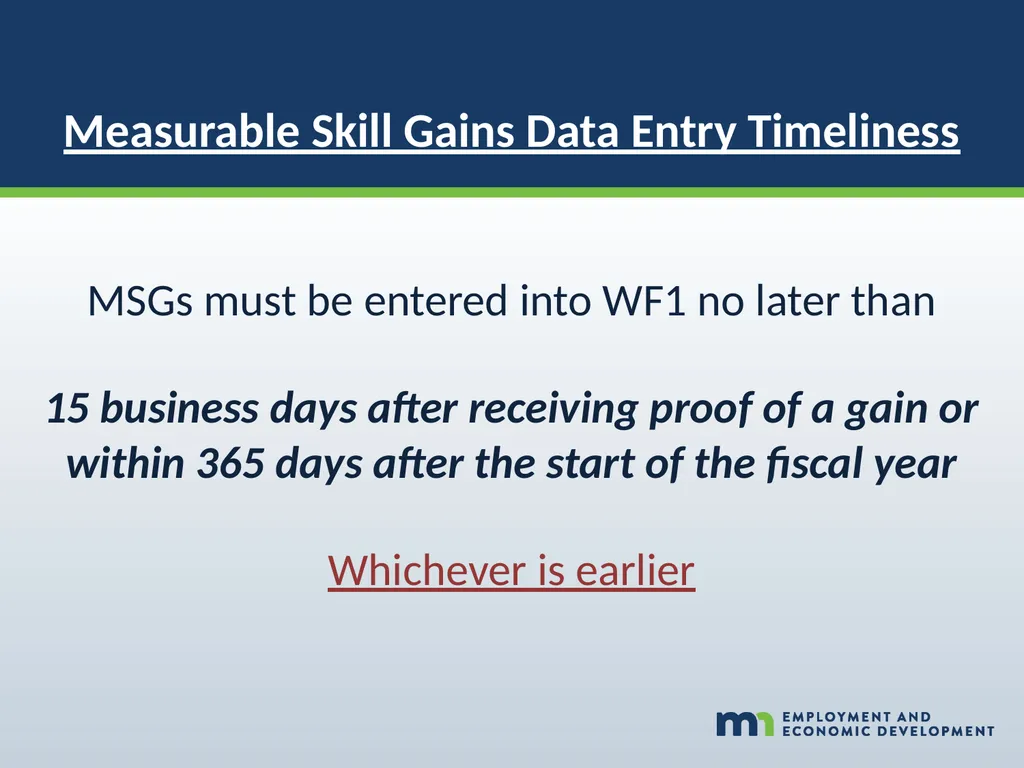
Measurable Skill Gains Data Entry Timeliness MSGs must be entered into WF1 no later than
15 business days after receiving proof of a gain or within 365 days after the start of the fiscal year
Whichever is earlier<br>
15 business days after receiving proof of a gain or within 365 days after the start of the fiscal year
Whichever is earlier<br>
14
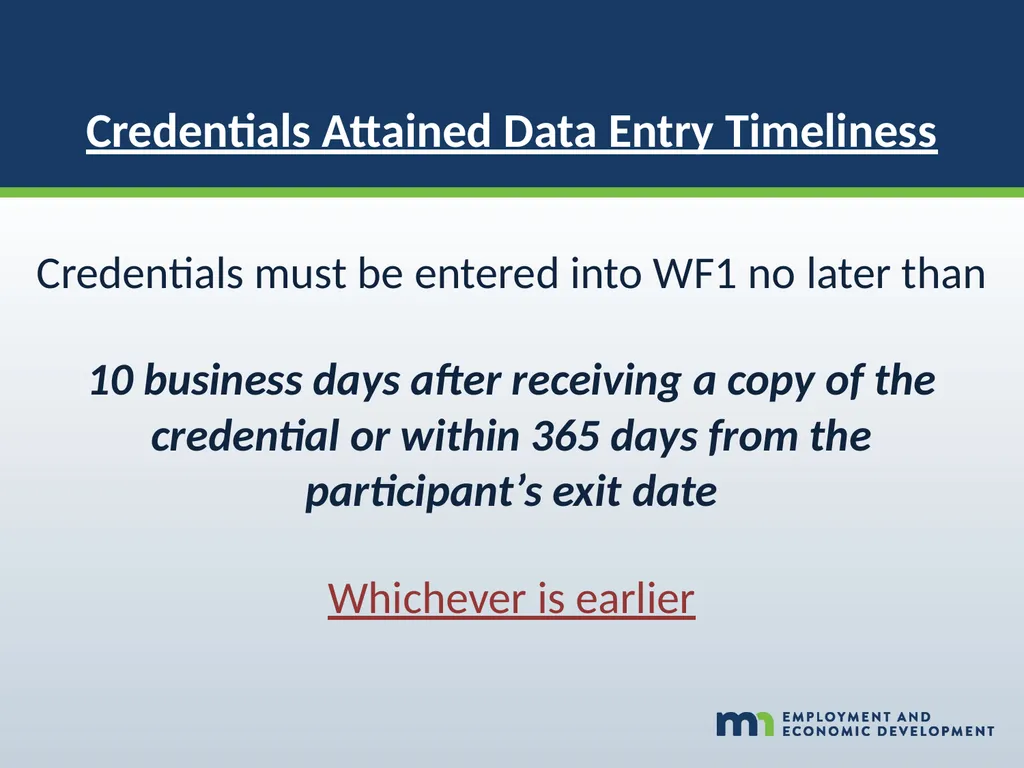
Credentials Attained Data Entry Timeliness Credentials must be entered into WF1 no later than
10 business days after receiving a copy of the credential or within 365 days from the participant’s exit date
Whichever is earlier<br>
10 business days after receiving a copy of the credential or within 365 days from the participant’s exit date
Whichever is earlier<br>
15
WORKFORCE ONE EXITS
THAT IMPACT
PERFORMANCE<br>
THAT IMPACT
PERFORMANCE<br>
16
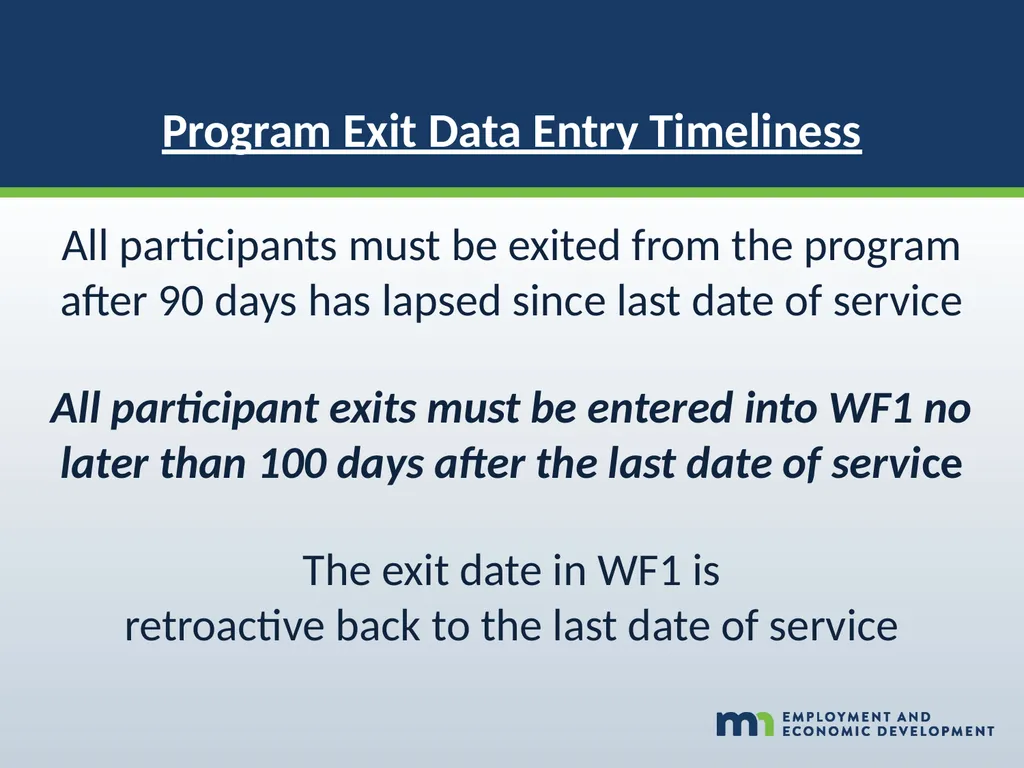
Program Exit Data Entry Timeliness All participants must be exited from the program after 90 days has lapsed since last date of service
All participant exits must be entered into WF1 no later than 100 days after the last date of service
The exit date in WF1 is
retroactive back to the last date of service<br>
All participant exits must be entered into WF1 no later than 100 days after the last date of service
The exit date in WF1 is
retroactive back to the last date of service<br>
17
If the participant exits with any of these exit reasons that participant will not be counted in performance outcomes What does Exited with Exclusion Mean?<br>
18
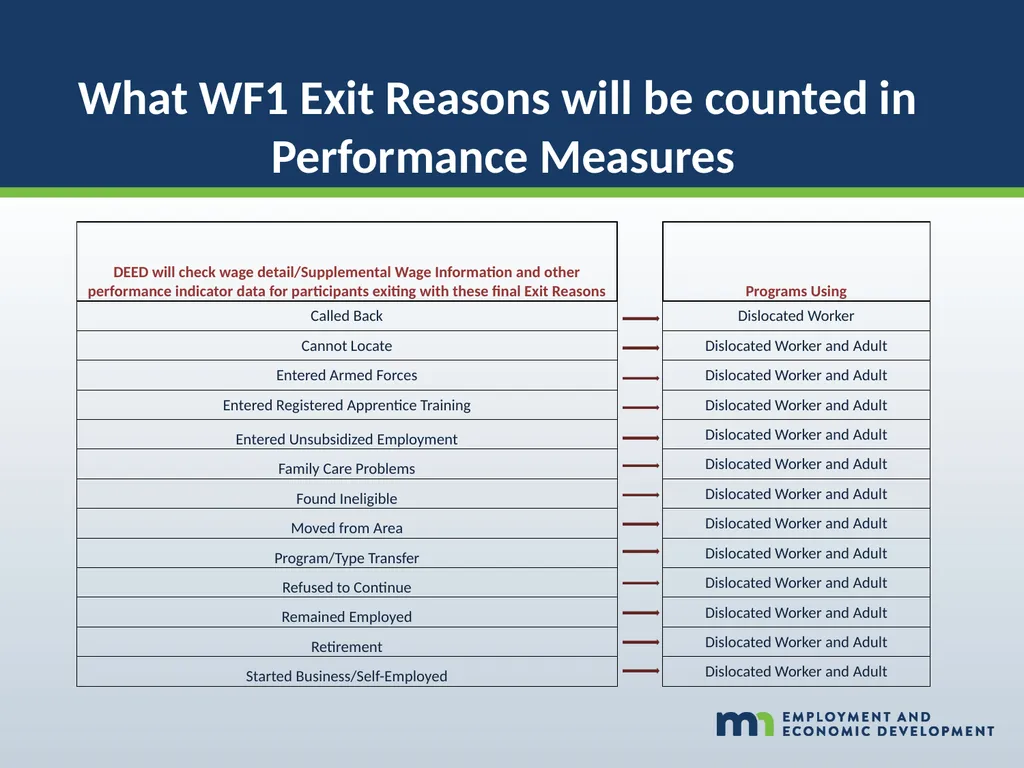
What WF1 Exit Reasons will be counted in
Performance Measures<br>
Performance Measures<br>
19
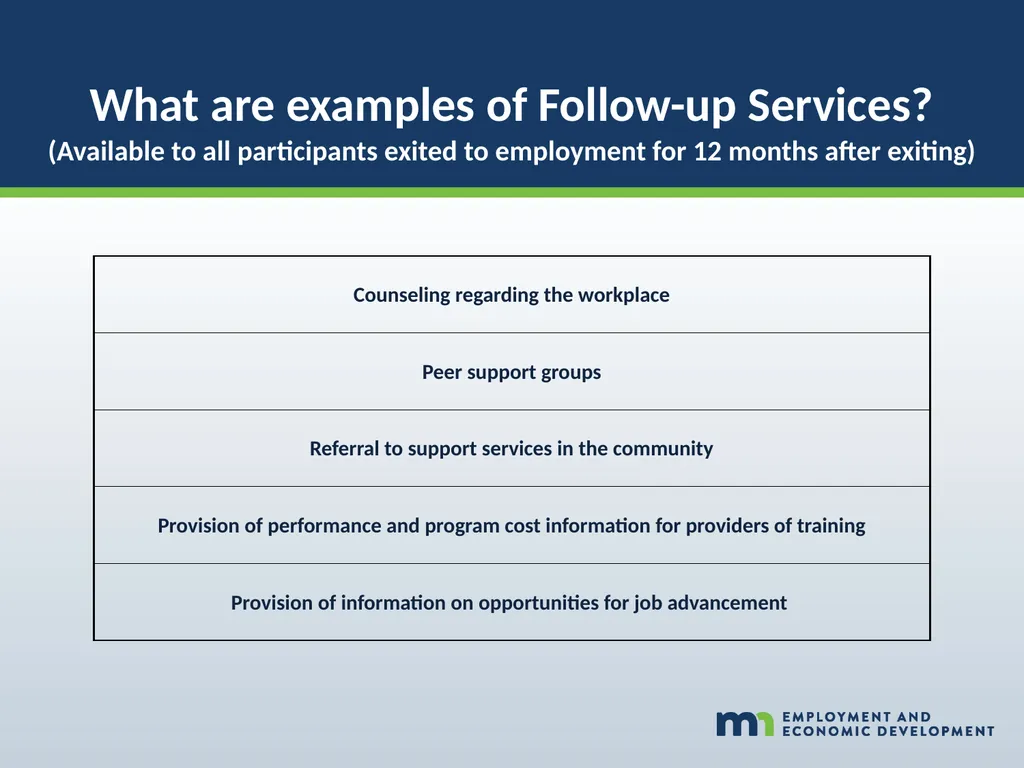
What are examples of Follow-up Services?
(Available to all participants exited to employment for 12 months after exiting)<br>
(Available to all participants exited to employment for 12 months after exiting)<br>
20
WORKFORCE ONE POST-EXIT
DATA THAT IMPACT
PERFORMANCE<br>
DATA THAT IMPACT
PERFORMANCE<br>
21
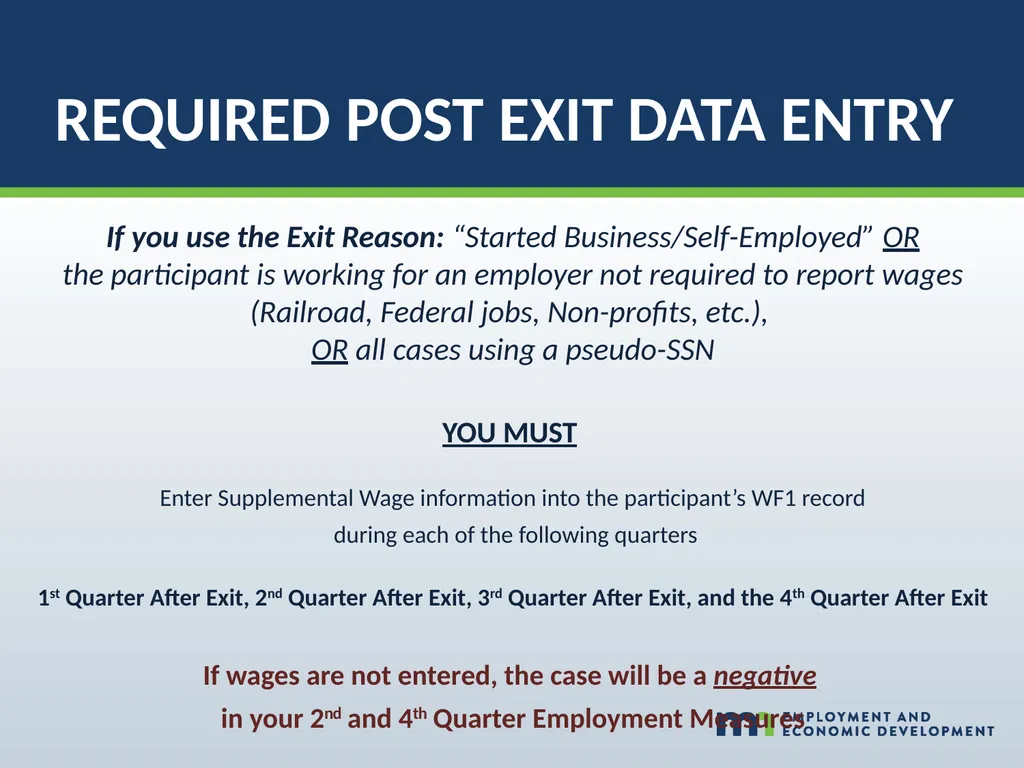
REQUIRED POST EXIT DATA ENTRY If you use the Exit Reason: “Started Business/Self-Employed” OR
the participant is working for an employer not required to report wages (Railroad, Federal jobs, Non-profits, etc.),
OR all cases using a pseudo-SSN
YOU MUST
Enter Supplemental Wage information into the participant’s WF1 record
during each of the following quarters
1st Quarter After Exit, 2nd Quarter After Exit, 3rd Quarter After Exit, and the 4th Quarter After Exit
If wages are not entered, the case will be a negative
in your 2nd and 4th Quarter Employment Measures<br>
the participant is working for an employer not required to report wages (Railroad, Federal jobs, Non-profits, etc.),
OR all cases using a pseudo-SSN
YOU MUST
Enter Supplemental Wage information into the participant’s WF1 record
during each of the following quarters
1st Quarter After Exit, 2nd Quarter After Exit, 3rd Quarter After Exit, and the 4th Quarter After Exit
If wages are not entered, the case will be a negative
in your 2nd and 4th Quarter Employment Measures<br>
22
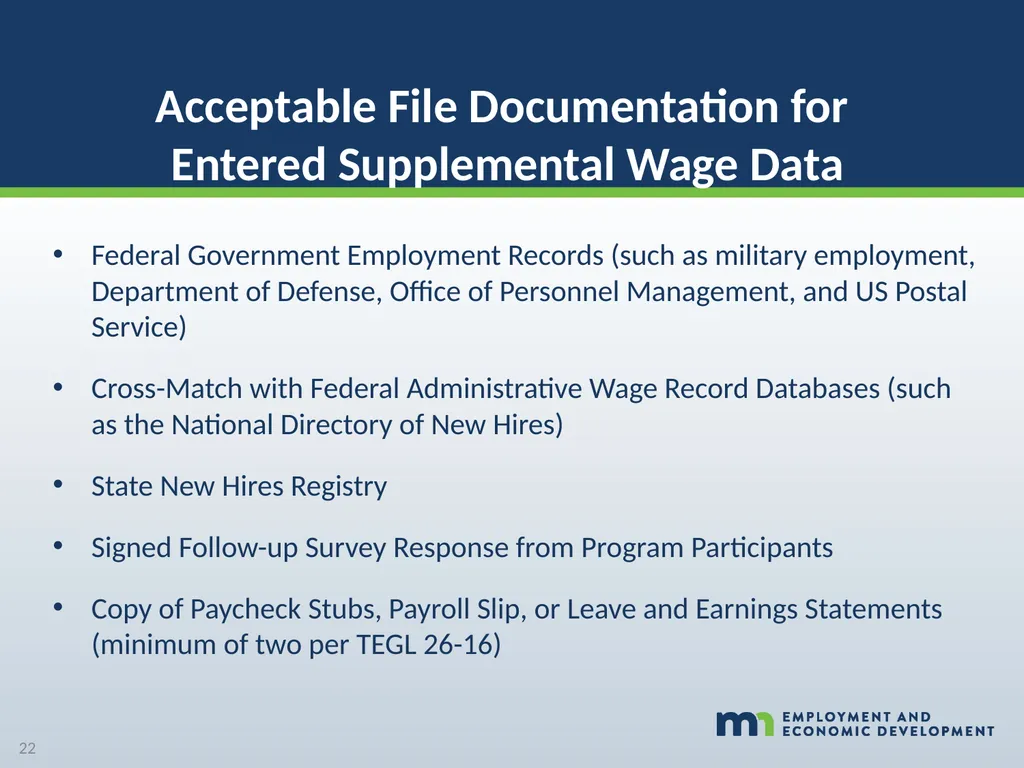
Acceptable File Documentation for
Entered Supplemental Wage Data Federal Government Employment Records (such as military employment, Department of Defense, Office of Personnel Management, and US Postal Service)
Cross-Match with Federal Administrative Wage Record Databases (such as the National Directory of New Hires)
State New Hires Registry
Signed Follow-up Survey Response from Program Participants
Copy of Paycheck Stubs, Payroll Slip, or Leave and Earnings Statements (minimum of two per TEGL 26-16) 22<br>
Cross-Match with Federal Administrative Wage Record Databases (such as the National Directory of New Hires)
State New Hires Registry
Signed Follow-up Survey Response from Program Participants
Copy of Paycheck Stubs, Payroll Slip, or Leave and Earnings Statements (minimum of two per TEGL 26-16) 22<br>
23
Acceptable File Documentation for
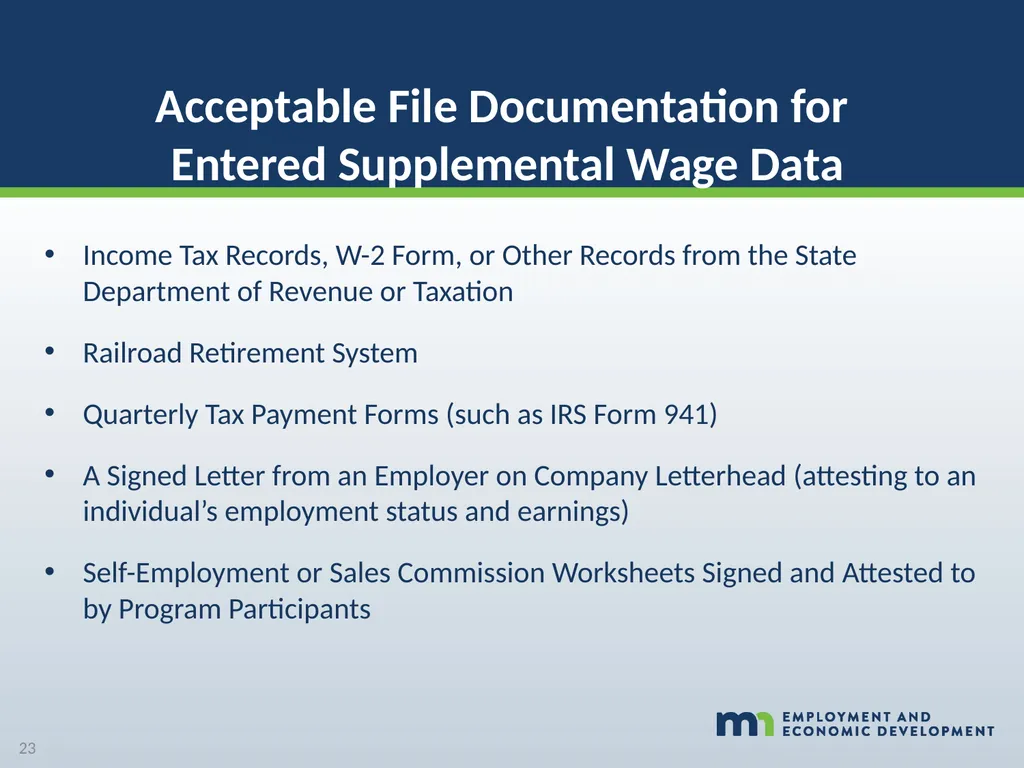
Entered Supplemental Wage Data Income Tax Records, W-2 Form, or Other Records from the State Department of Revenue or Taxation
Railroad Retirement System
Quarterly Tax Payment Forms (such as IRS Form 941)
A Signed Letter from an Employer on Company Letterhead (attesting to an individual’s employment status and earnings)
Self-Employment or Sales Commission Worksheets Signed and Attested to by Program Participants 23<br>
Railroad Retirement System
Quarterly Tax Payment Forms (such as IRS Form 941)
A Signed Letter from an Employer on Company Letterhead (attesting to an individual’s employment status and earnings)
Self-Employment or Sales Commission Worksheets Signed and Attested to by Program Participants 23<br>
24
PERFORMANCE
COUNTS<br>
COUNTS<br>
25
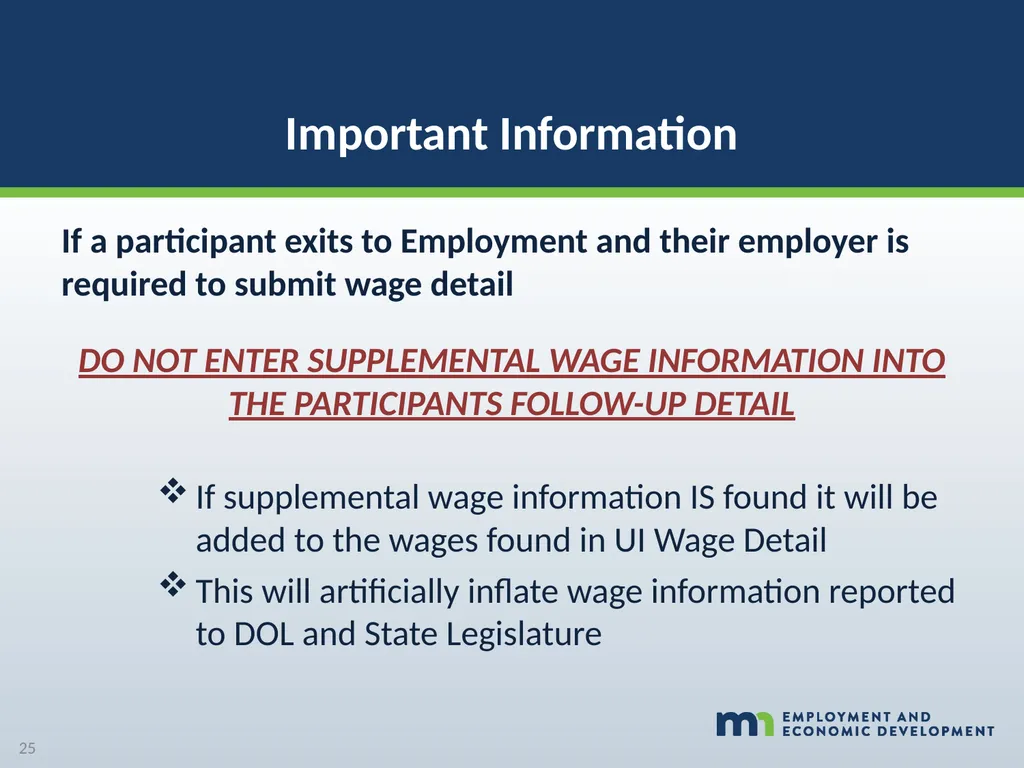
Important Information If a participant exits to Employment and their employer is required to submit wage detail
DO NOT ENTER SUPPLEMENTAL WAGE INFORMATION INTO THE PARTICIPANTS FOLLOW-UP DETAIL
If supplemental wage information IS found it will be added to the wages found in UI Wage Detail
This will artificially inflate wage information reported to DOL and State Legislature 25<br>
DO NOT ENTER SUPPLEMENTAL WAGE INFORMATION INTO THE PARTICIPANTS FOLLOW-UP DETAIL
If supplemental wage information IS found it will be added to the wages found in UI Wage Detail
This will artificially inflate wage information reported to DOL and State Legislature 25<br>
26
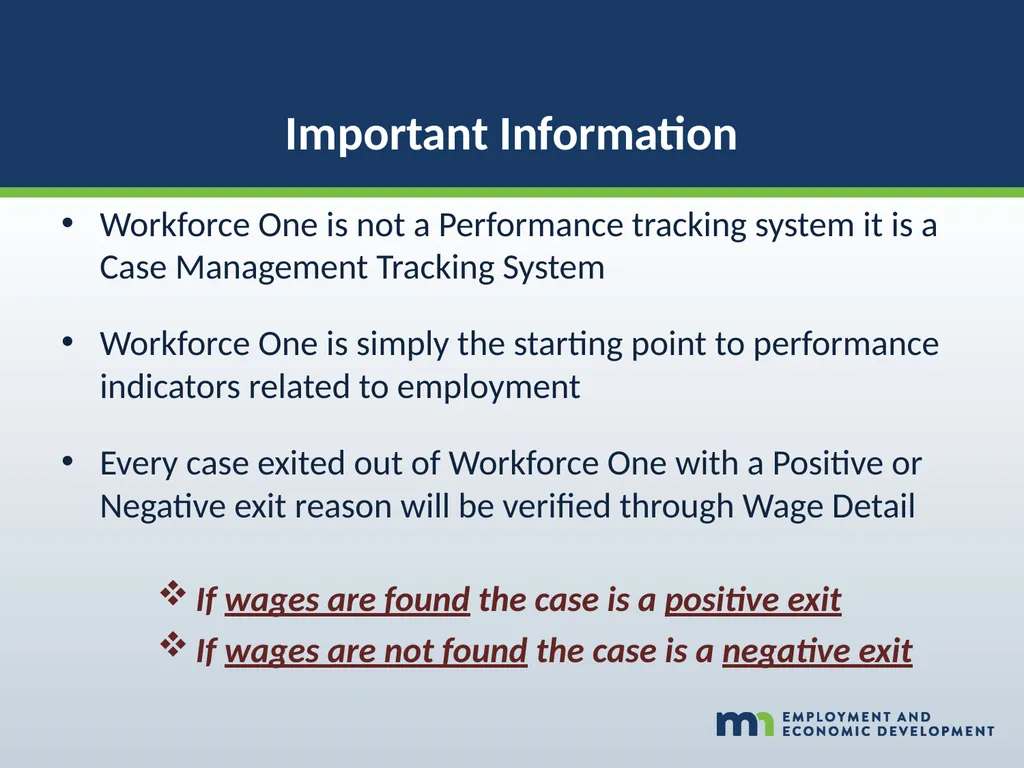
Important Information Workforce One is not a Performance tracking system it is a Case Management Tracking System
Workforce One is simply the starting point to performance indicators related to employment
Every case exited out of Workforce One with a Positive or Negative exit reason will be verified through Wage Detail
If wages are found the case is a positive exit
If wages are not found the case is a negative exit<br>
Workforce One is simply the starting point to performance indicators related to employment
Every case exited out of Workforce One with a Positive or Negative exit reason will be verified through Wage Detail
If wages are found the case is a positive exit
If wages are not found the case is a negative exit<br>
27
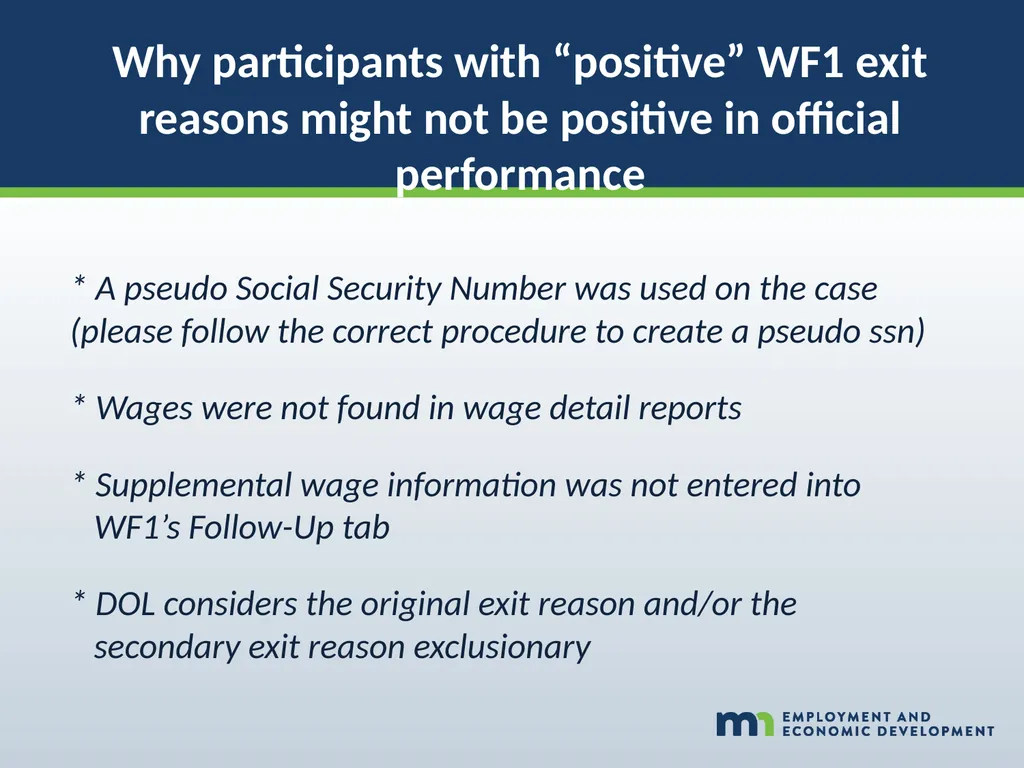
Why participants with “positive” WF1 exit reasons might not be positive in official performance * A pseudo Social Security Number was used on the case (please follow the correct procedure to create a pseudo ssn)
* Wages were not found in wage detail reports
* Supplemental wage information was not entered into
WF1’s Follow-Up tab
* DOL considers the original exit reason and/or the
secondary exit reason exclusionary<br>
* Wages were not found in wage detail reports
* Supplemental wage information was not entered into
WF1’s Follow-Up tab
* DOL considers the original exit reason and/or the
secondary exit reason exclusionary<br>
28
What’s the Difference between PY and FY for the Performance Year? NOTHING BUT A TITLE
Program Year (PY): Titled with the year it began
Fiscal Year (FY): Titled with the year it ends
THIS MEANS
July 1, 2023 – June 30, 2024
IS Performance Program Year 2023 AND Fiscal Year 2024 28<br>
Program Year (PY): Titled with the year it began
Fiscal Year (FY): Titled with the year it ends
THIS MEANS
July 1, 2023 – June 30, 2024
IS Performance Program Year 2023 AND Fiscal Year 2024 28<br>
29
What’s the Difference between PY and FY for a Grant Allocation? NOTHING BUT A TITLE
Program Year (PY): Titled with the year it began
Fiscal Year (FY): Titled with the 2nd year it is active
THIS MEANS
July 1, 2023 – June 30, 2025
IS Grant Allocation Program Year 2023 AND
Fiscal Year 2024 29<br>
Program Year (PY): Titled with the year it began
Fiscal Year (FY): Titled with the 2nd year it is active
THIS MEANS
July 1, 2023 – June 30, 2025
IS Grant Allocation Program Year 2023 AND
Fiscal Year 2024 29<br>
30
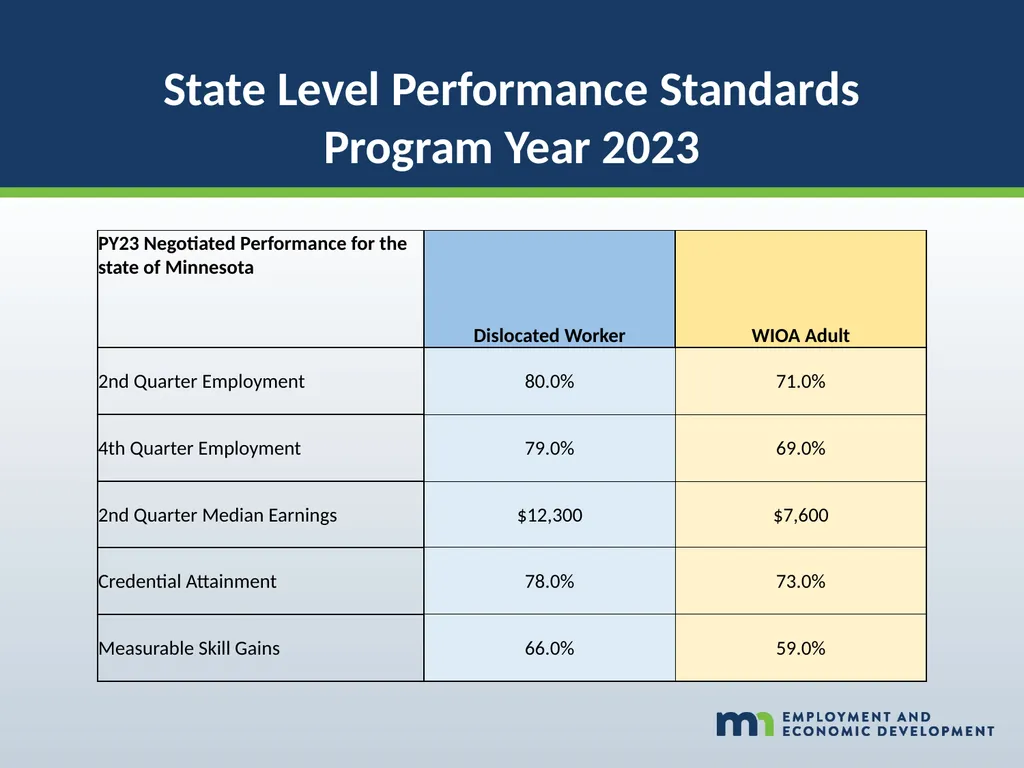
State Level Performance Standards
Program Year 2023<br>
31
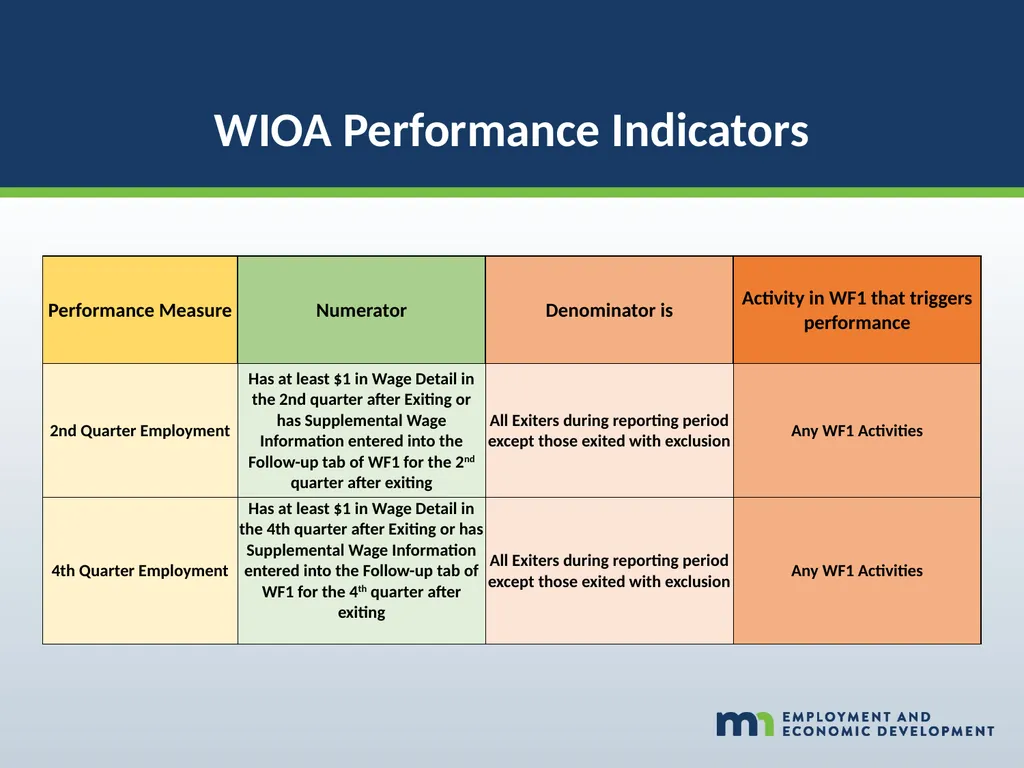
WIOA Performance Indicators<br>
32
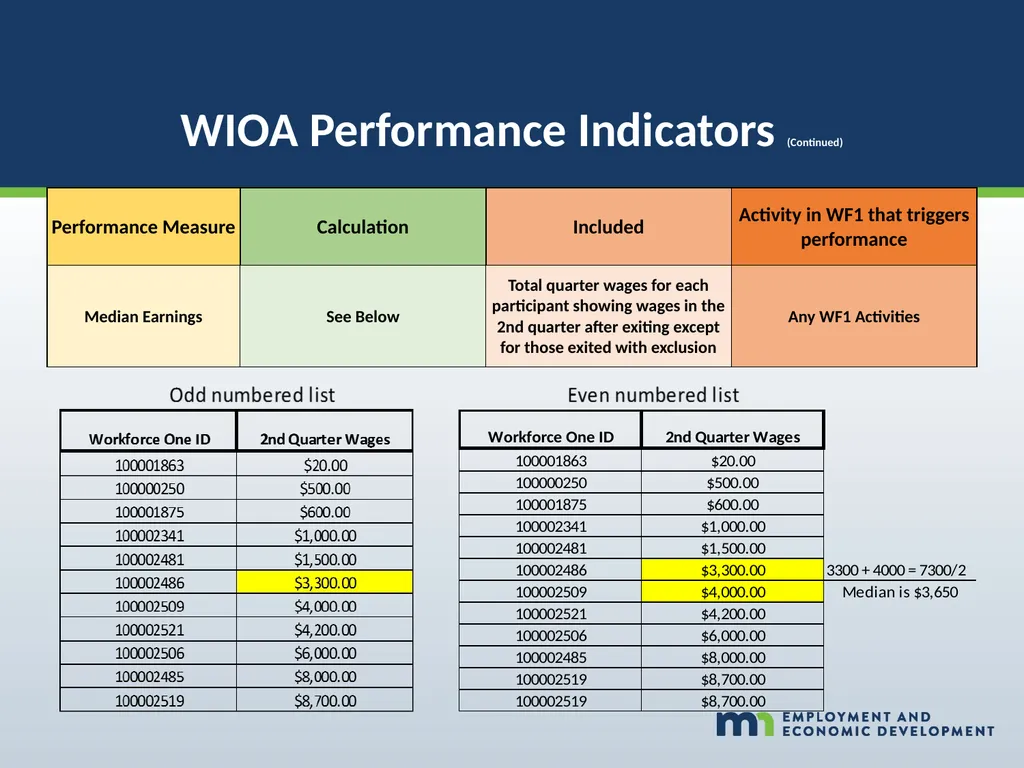
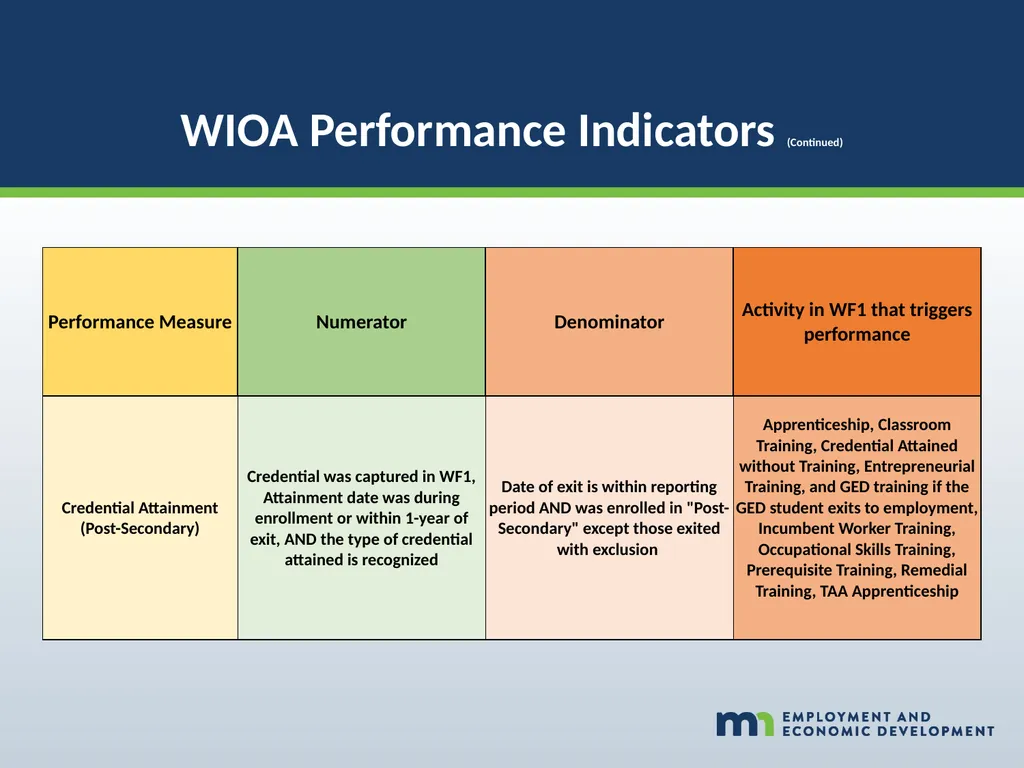
WIOA Performance Indicators (Continued)<br>
33
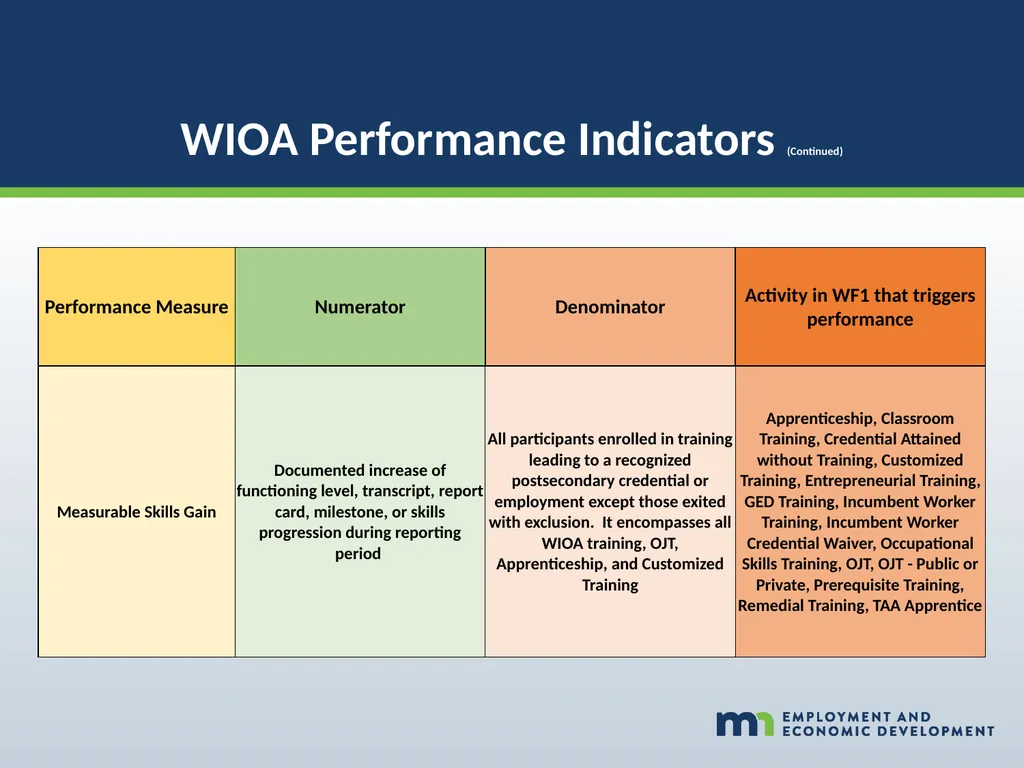
WIOA Performance Indicators (Continued)<br>
34
WIOA Performance Indicators (Continued)<br>
35
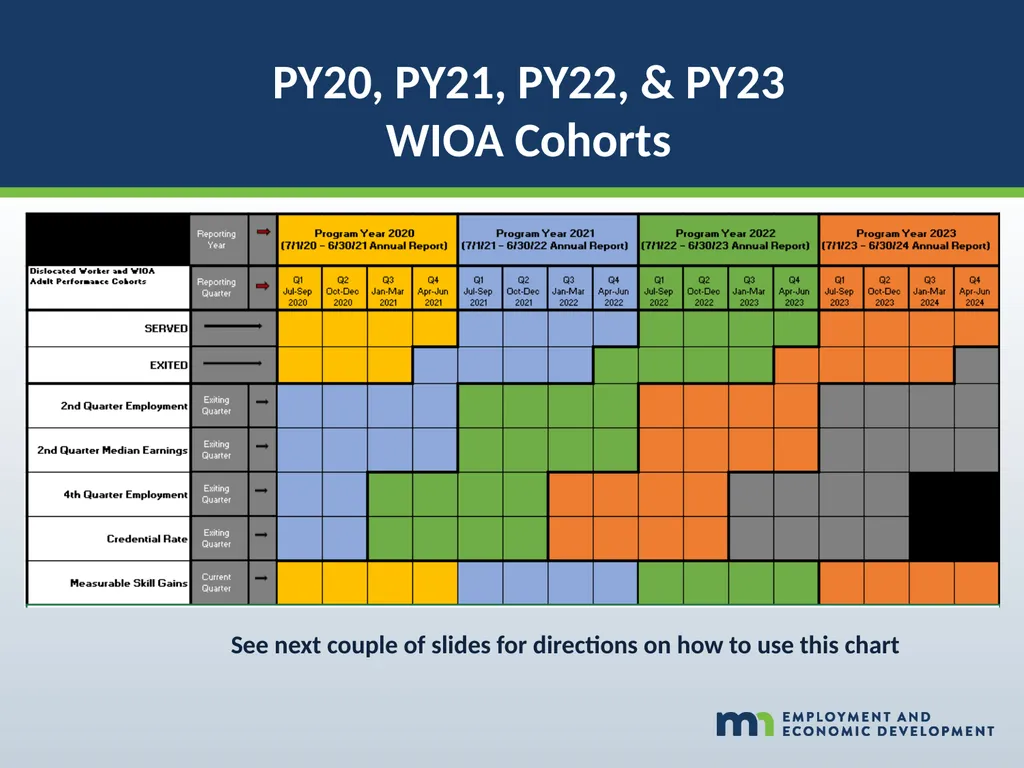
PY20, PY21, PY22, & PY23
WIOA Cohorts See next couple of slides for directions on how to use this chart<br>
36
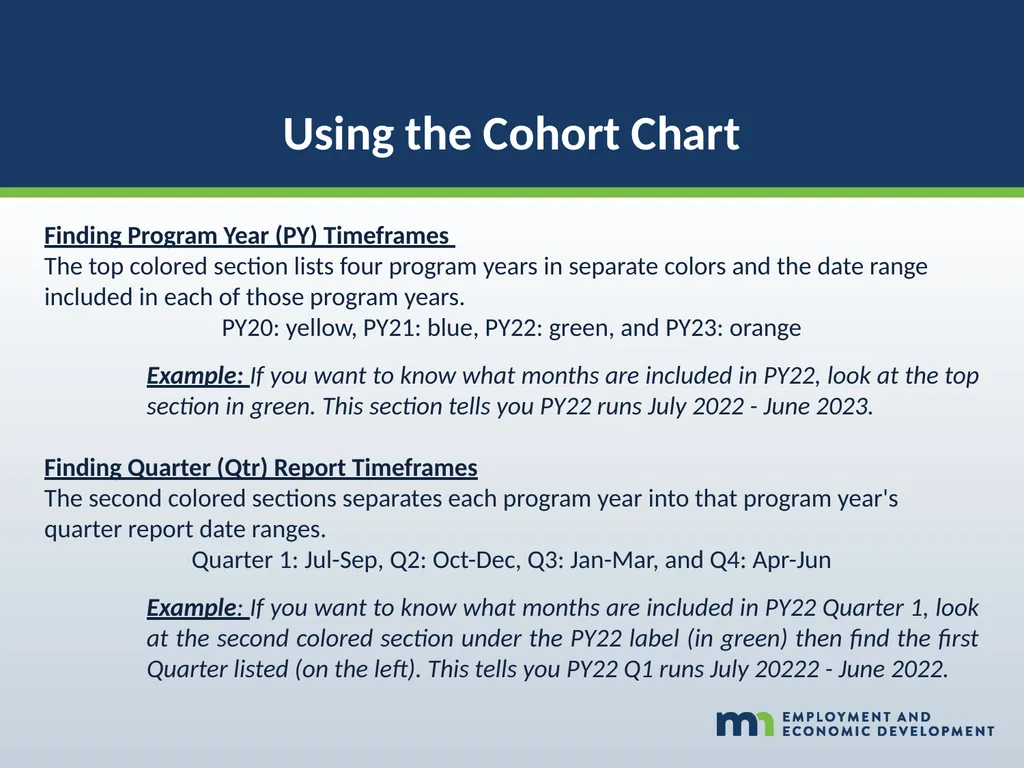
Using the Cohort Chart Finding Program Year (PY) Timeframes
The top colored section lists four program years in separate colors and the date range included in each of those program years.
PY20: yellow, PY21: blue, PY22: green, and PY23: orange
Example: If you want to know what months are included in PY22, look at the top section in green. This section tells you PY22 runs July 2022 - June 2023.
Finding Quarter (Qtr) Report Timeframes
The second colored sections separates each program year into that program year's quarter report date ranges.
Quarter 1: Jul-Sep, Q2: Oct-Dec, Q3: Jan-Mar, and Q4: Apr-Jun
Example: If you want to know what months are included in PY22 Quarter 1, look at the second colored section under the PY22 label (in green) then find the first Quarter listed (on the left). This tells you PY22 Q1 runs July 20222 - June 2022.<br>
The top colored section lists four program years in separate colors and the date range included in each of those program years.
PY20: yellow, PY21: blue, PY22: green, and PY23: orange
Example: If you want to know what months are included in PY22, look at the top section in green. This section tells you PY22 runs July 2022 - June 2023.
Finding Quarter (Qtr) Report Timeframes
The second colored sections separates each program year into that program year's quarter report date ranges.
Quarter 1: Jul-Sep, Q2: Oct-Dec, Q3: Jan-Mar, and Q4: Apr-Jun
Example: If you want to know what months are included in PY22 Quarter 1, look at the second colored section under the PY22 label (in green) then find the first Quarter listed (on the left). This tells you PY22 Q1 runs July 20222 - June 2022.<br>
37
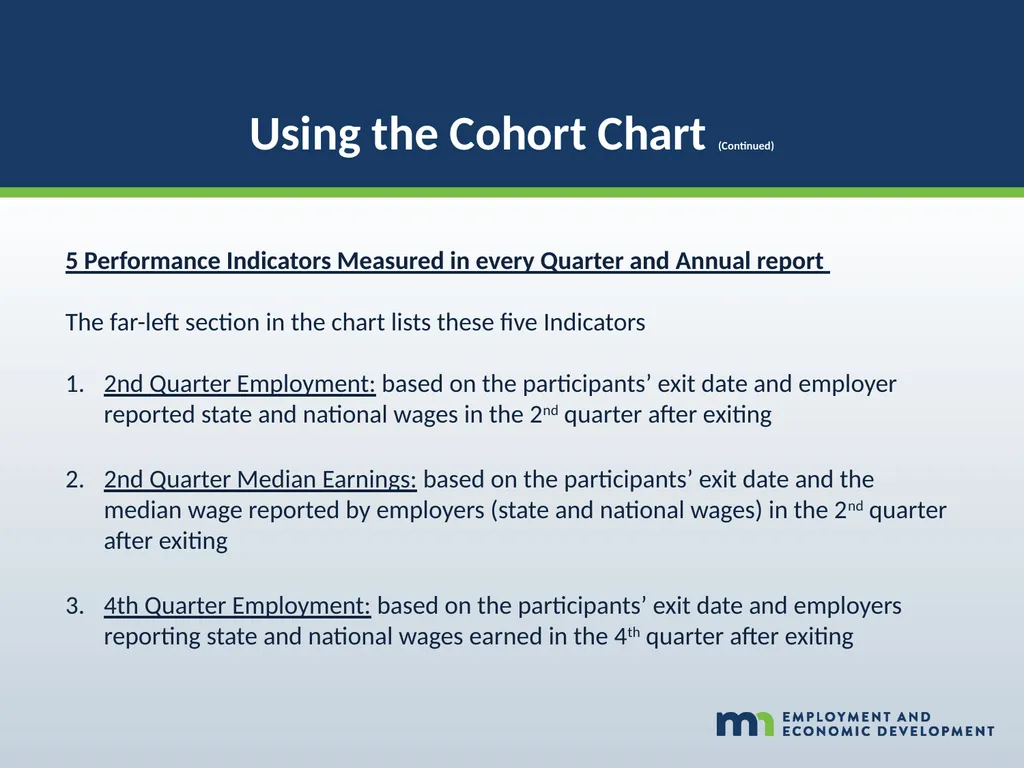
Using the Cohort Chart (Continued) 5 Performance Indicators Measured in every Quarter and Annual report
The far-left section in the chart lists these five Indicators
2nd Quarter Employment: based on the participants’ exit date and employer reported state and national wages in the 2nd quarter after exiting
2nd Quarter Median Earnings: based on the participants’ exit date and the median wage reported by employers (state and national wages) in the 2nd quarter after exiting
4th Quarter Employment: based on the participants’ exit date and employers reporting state and national wages earned in the 4th quarter after exiting<br>
The far-left section in the chart lists these five Indicators
2nd Quarter Employment: based on the participants’ exit date and employer reported state and national wages in the 2nd quarter after exiting
2nd Quarter Median Earnings: based on the participants’ exit date and the median wage reported by employers (state and national wages) in the 2nd quarter after exiting
4th Quarter Employment: based on the participants’ exit date and employers reporting state and national wages earned in the 4th quarter after exiting<br>
38
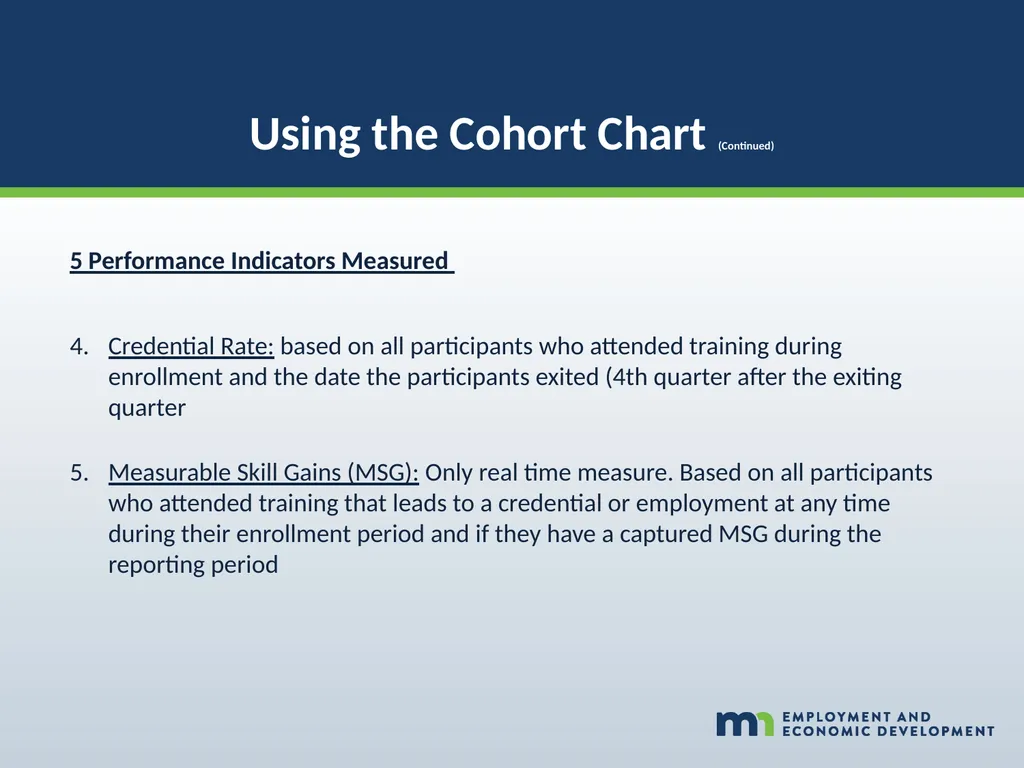
Using the Cohort Chart (Continued) 5 Performance Indicators Measured
Credential Rate: based on all participants who attended training during enrollment and the date the participants exited (4th quarter after the exiting quarter
Measurable Skill Gains (MSG): Only real time measure. Based on all participants who attended training that leads to a credential or employment at any time during their enrollment period and if they have a captured MSG during the reporting period<br>
Credential Rate: based on all participants who attended training during enrollment and the date the participants exited (4th quarter after the exiting quarter
Measurable Skill Gains (MSG): Only real time measure. Based on all participants who attended training that leads to a credential or employment at any time during their enrollment period and if they have a captured MSG during the reporting period<br>
39
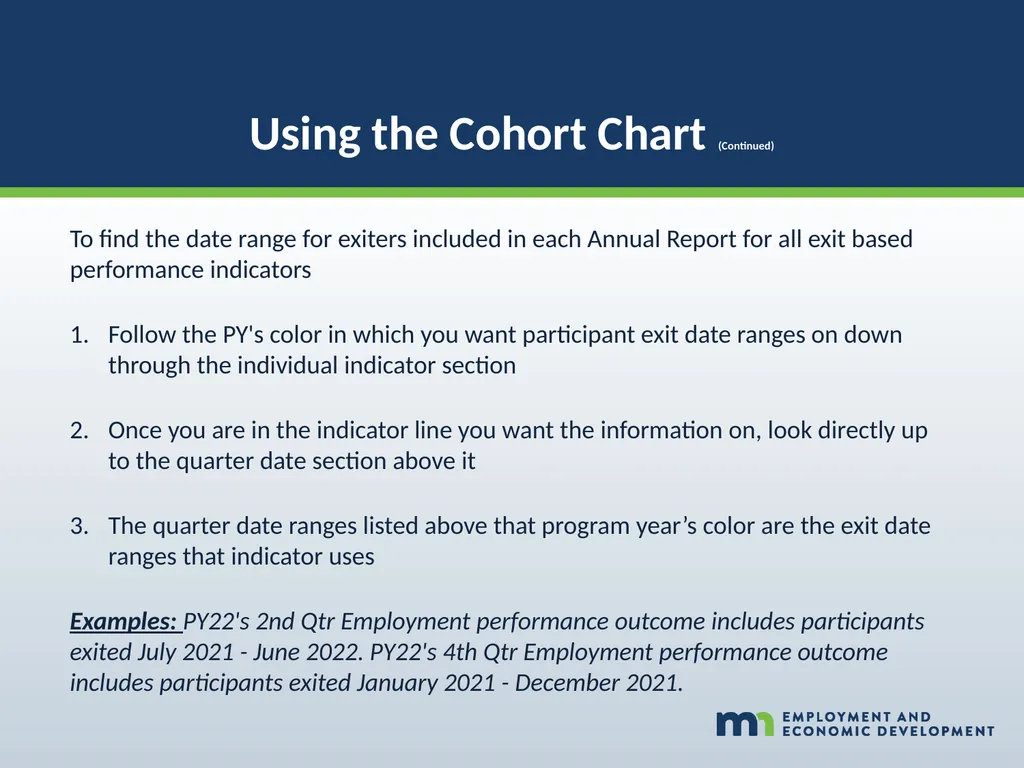
Using the Cohort Chart (Continued) To find the date range for exiters included in each Annual Report for all exit based performance indicators
Follow the PY's color in which you want participant exit date ranges on down through the individual indicator section
Once you are in the indicator line you want the information on, look directly up to the quarter date section above it
The quarter date ranges listed above that program year’s color are the exit date ranges that indicator uses
Examples: PY22's 2nd Qtr Employment performance outcome includes participants exited July 2021 - June 2022. PY22's 4th Qtr Employment performance outcome includes participants exited January 2021 - December 2021.<br>
Follow the PY's color in which you want participant exit date ranges on down through the individual indicator section
Once you are in the indicator line you want the information on, look directly up to the quarter date section above it
The quarter date ranges listed above that program year’s color are the exit date ranges that indicator uses
Examples: PY22's 2nd Qtr Employment performance outcome includes participants exited July 2021 - June 2022. PY22's 4th Qtr Employment performance outcome includes participants exited January 2021 - December 2021.<br>
40
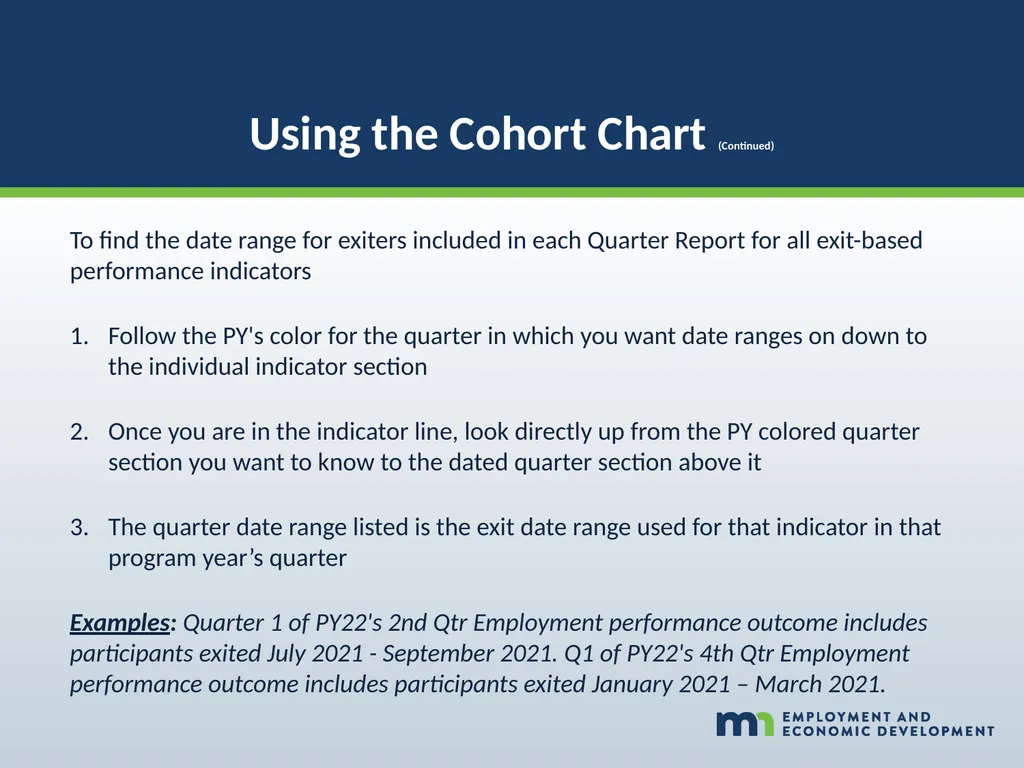
Using the Cohort Chart (Continued) To find the date range for exiters included in each Quarter Report for all exit-based performance indicators
Follow the PY's color for the quarter in which you want date ranges on down to the individual indicator section
Once you are in the indicator line, look directly up from the PY colored quarter section you want to know to the dated quarter section above it
The quarter date range listed is the exit date range used for that indicator in that program year’s quarter
Examples: Quarter 1 of PY22's 2nd Qtr Employment performance outcome includes participants exited July 2021 - September 2021. Q1 of PY22's 4th Qtr Employment performance outcome includes participants exited January 2021 – March 2021.<br>
Follow the PY's color for the quarter in which you want date ranges on down to the individual indicator section
Once you are in the indicator line, look directly up from the PY colored quarter section you want to know to the dated quarter section above it
The quarter date range listed is the exit date range used for that indicator in that program year’s quarter
Examples: Quarter 1 of PY22's 2nd Qtr Employment performance outcome includes participants exited July 2021 - September 2021. Q1 of PY22's 4th Qtr Employment performance outcome includes participants exited January 2021 – March 2021.<br>
41
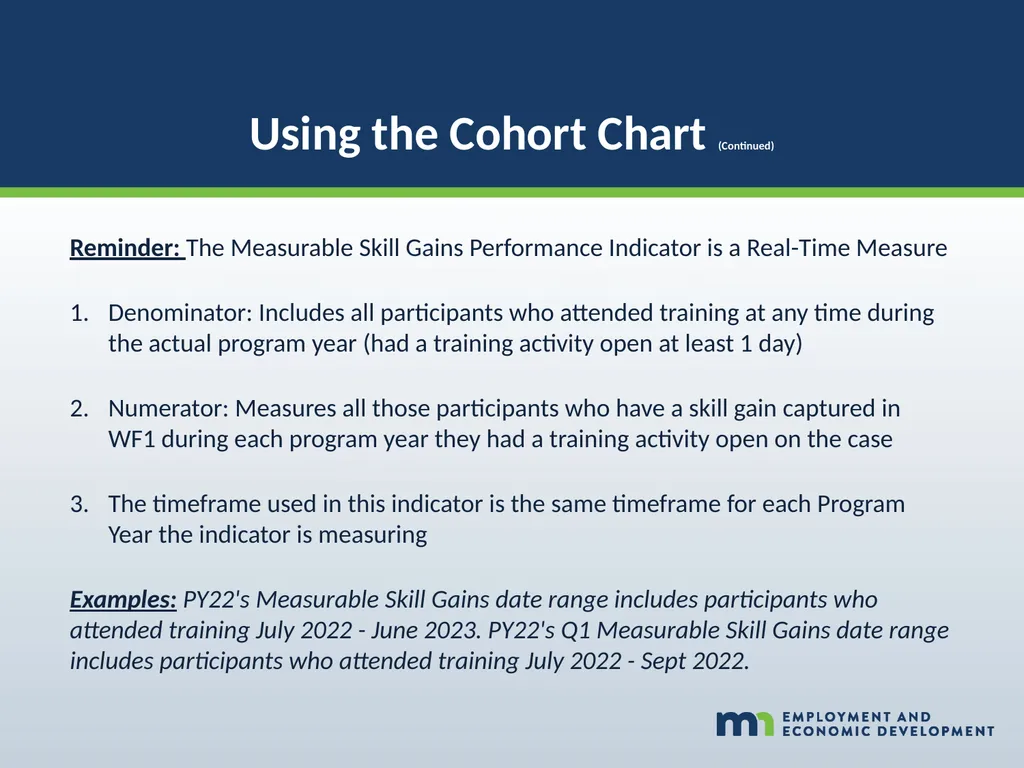
Using the Cohort Chart (Continued) Reminder: The Measurable Skill Gains Performance Indicator is a Real-Time Measure
Denominator: Includes all participants who attended training at any time during the actual program year (had a training activity open at least 1 day)
Numerator: Measures all those participants who have a skill gain captured in WF1 during each program year they had a training activity open on the case
The timeframe used in this indicator is the same timeframe for each Program Year the indicator is measuring
Examples: PY22's Measurable Skill Gains date range includes participants who attended training July 2022 - June 2023. PY22's Q1 Measurable Skill Gains date range includes participants who attended training July 2022 - Sept 2022.<br>
Denominator: Includes all participants who attended training at any time during the actual program year (had a training activity open at least 1 day)
Numerator: Measures all those participants who have a skill gain captured in WF1 during each program year they had a training activity open on the case
The timeframe used in this indicator is the same timeframe for each Program Year the indicator is measuring
Examples: PY22's Measurable Skill Gains date range includes participants who attended training July 2022 - June 2023. PY22's Q1 Measurable Skill Gains date range includes participants who attended training July 2022 - Sept 2022.<br>
42
Performance
Questions?
Amy Carlson
State Program Administrator Coordinator
amy.carlson@state.mn.us 42<br>
Questions?
Amy Carlson
State Program Administrator Coordinator
amy.carlson@state.mn.us 42<br>