
Accessing Army365 / O365 webmail, DoD Enterprise
T
Published · 22 slides · 0 views
1 / 1

Description
Accessing Army365 O365 webmail, DoD Enterprise Email, and other DoD websites with Edge on your Windows computer Performing these fixes should fix most access problems. Last Revision review: 20 November 2023 Presented by: Michael J.
Related Topics
Share
Embed code
Download this presentation From Below
"Accessing Army365 / O365 webmail, DoD Enterprise" is the property of its rightful owner. Permission is granted to download and print the materials on this website for personal, non-commercial use only, and to display it on your personal computer provided you do not modify the materials and that you retain all copyright notices contained in the materials. By downloading content from our website, you accept the terms of this agreement.
Presentation Transcript
01
Accessing Army365 / O365 webmail, DoD Enterprise Email, and other DoD websites with Edge on your Windows computer Performing these fixes “should” fix most access problems. Last Revision / review: 20 November 2023 Presented by: Michael J. Danberry Personnel utilizing this guide without a CAC should only skip the pages marked: “This page is CAC Specific.” CAC holders need to follow ALL slides.
The most up to date version of this presentation can be found at: https://milcac.us/tweaks 1<br>
The most up to date version of this presentation can be found at: https://milcac.us/tweaks 1<br>
02
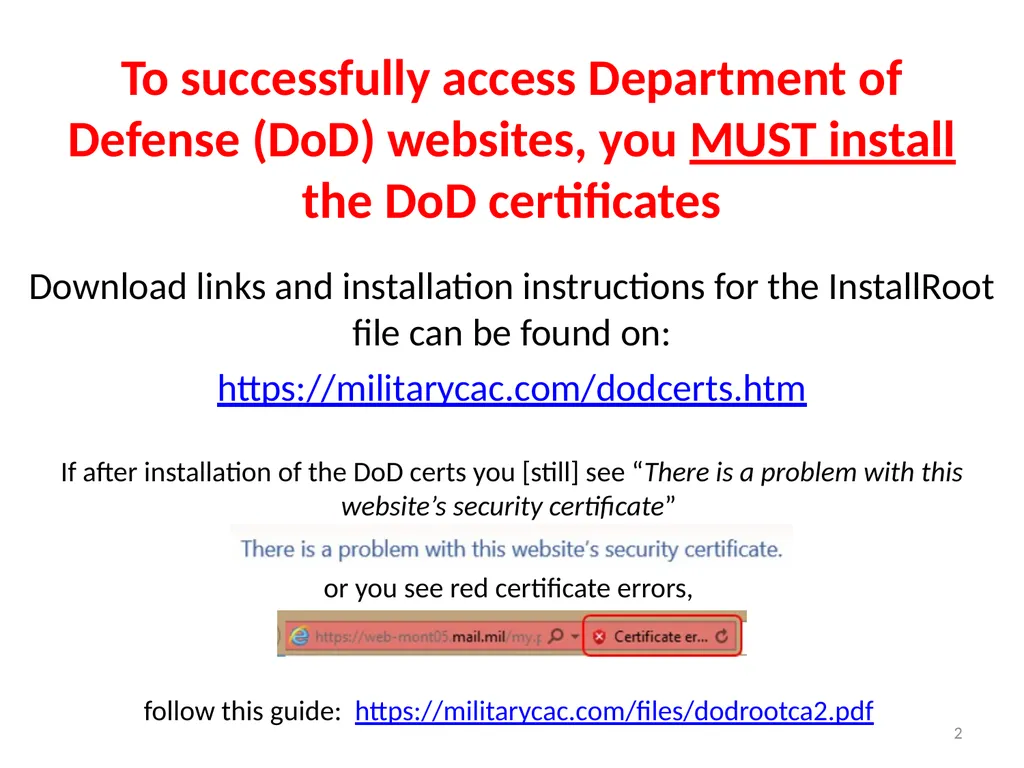
To successfully access Department of Defense (DoD) websites, you MUST install the DoD certificates Download links and installation instructions for the InstallRoot file can be found on:
https://militarycac.com/dodcerts.htm
If after installation of the DoD certs you [still] see “There is a problem with this website’s security certificate”
or you see red certificate errors,
follow this guide: https://militarycac.com/files/dodrootca2.pdf 2<br>
https://militarycac.com/dodcerts.htm
If after installation of the DoD certs you [still] see “There is a problem with this website’s security certificate”
or you see red certificate errors,
follow this guide: https://militarycac.com/files/dodrootca2.pdf 2<br>
03
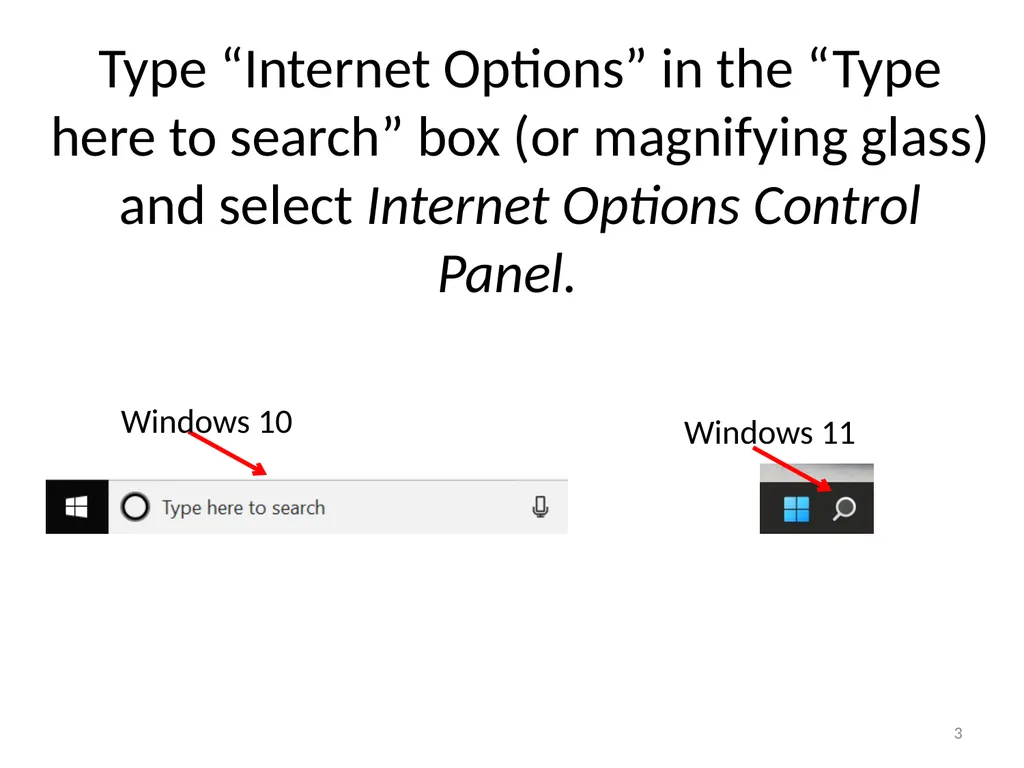
3 Type “Internet Options” in the “Type here to search” box (or magnifying glass) and select Internet Options Control Panel. Windows 10 Windows 11<br>
04
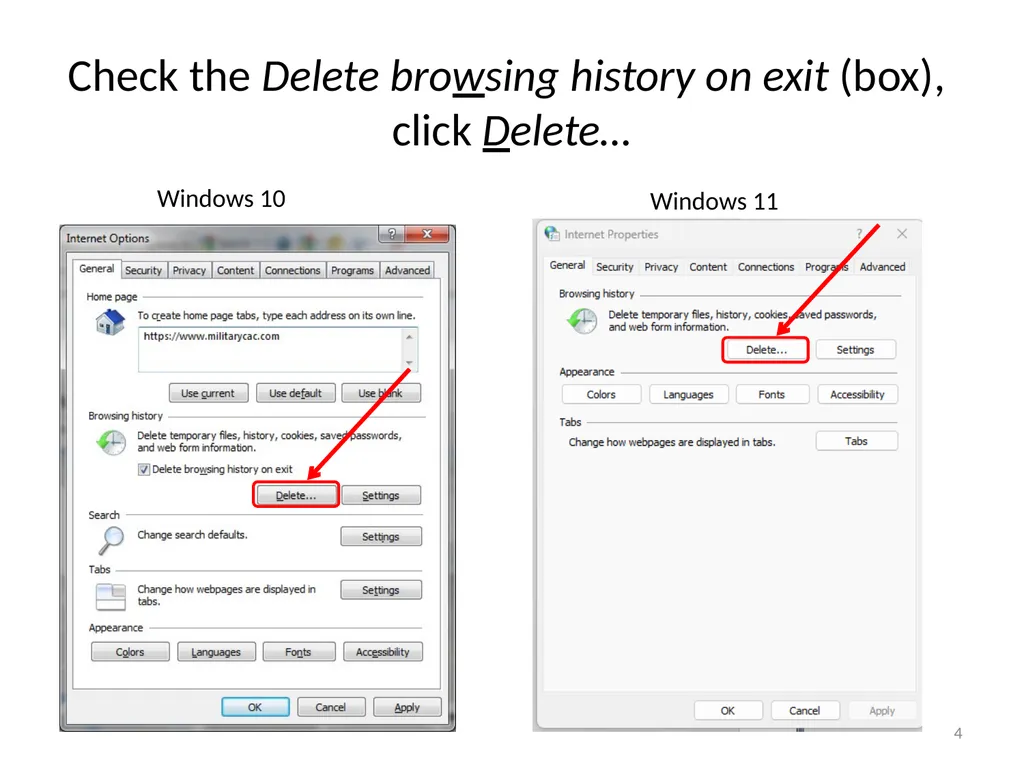
Check the Delete browsing history on exit (box),
click Delete… 4 Windows 10 Windows 11<br>
05
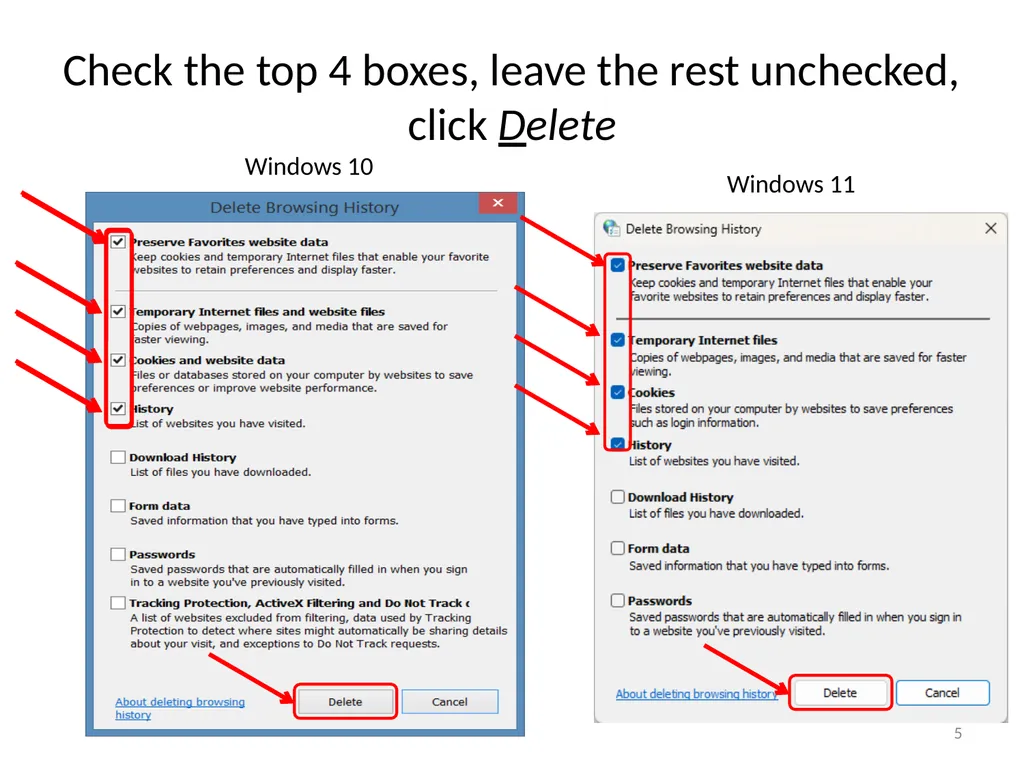
Check the top 4 boxes, leave the rest unchecked, click Delete 5 Windows 10 Windows 11<br>
06
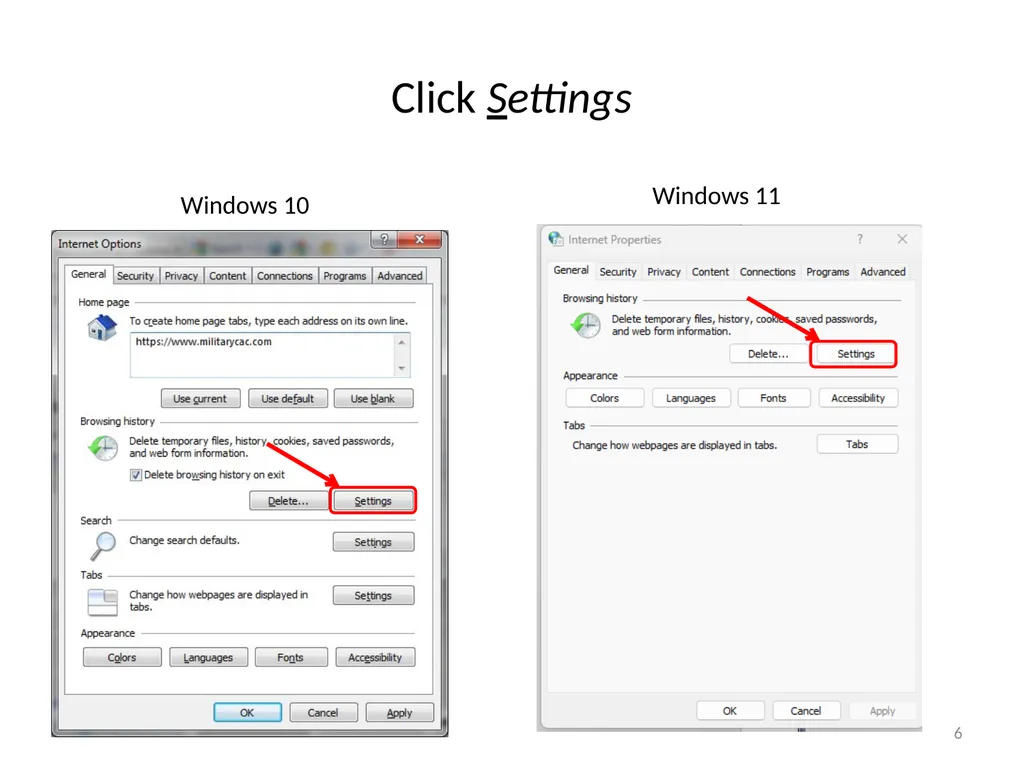
Click Settings 6 Windows 10 Windows 11<br>
07
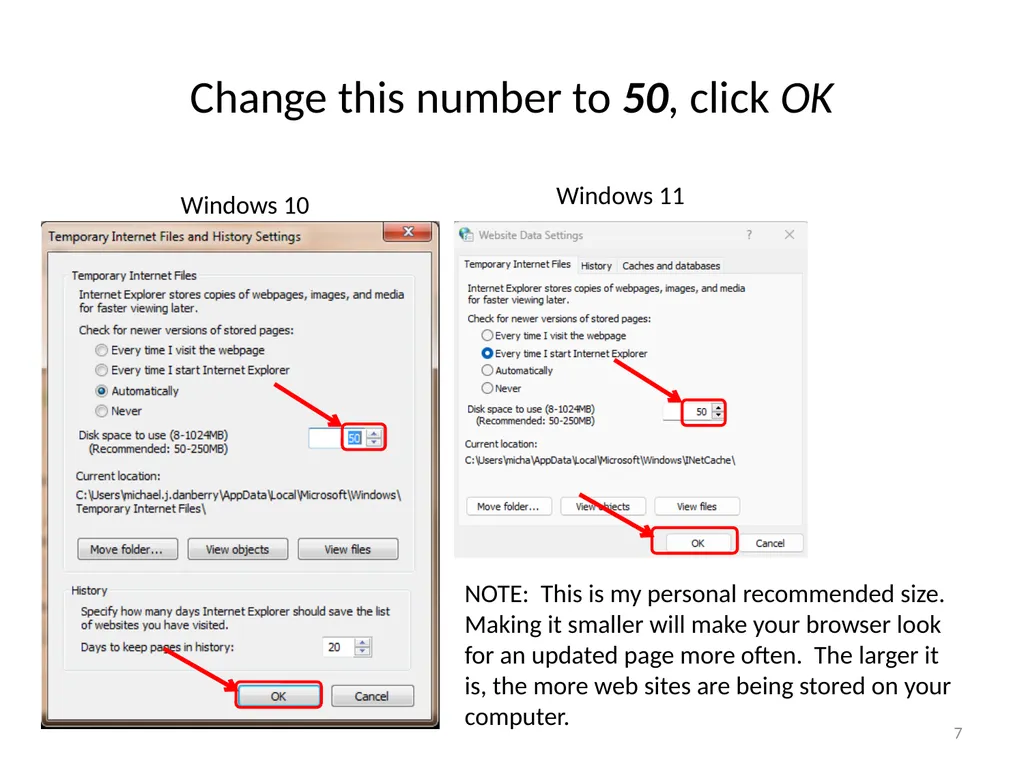
Change this number to 50, click OK NOTE: This is my personal recommended size. Making it smaller will make your browser look for an updated page more often. The larger it is, the more web sites are being stored on your computer. 7 Windows 10 Windows 11<br>
08
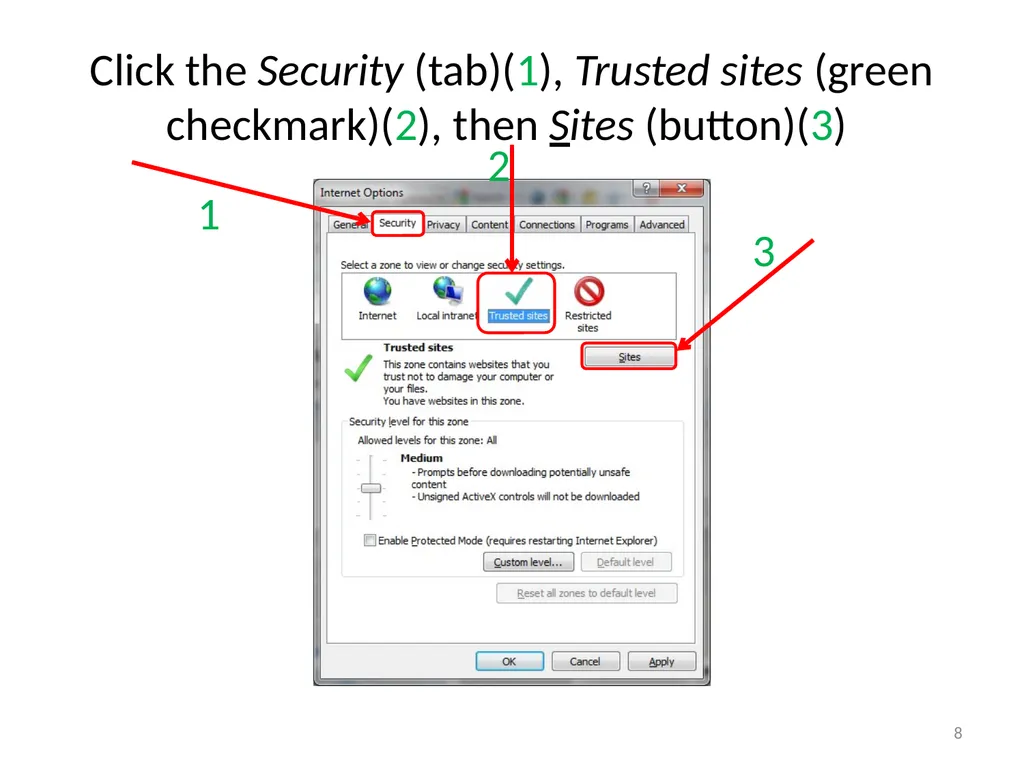
Click the Security (tab)(1), Trusted sites (green checkmark)(2), then Sites (button)(3) 1 2 3 8<br>
09
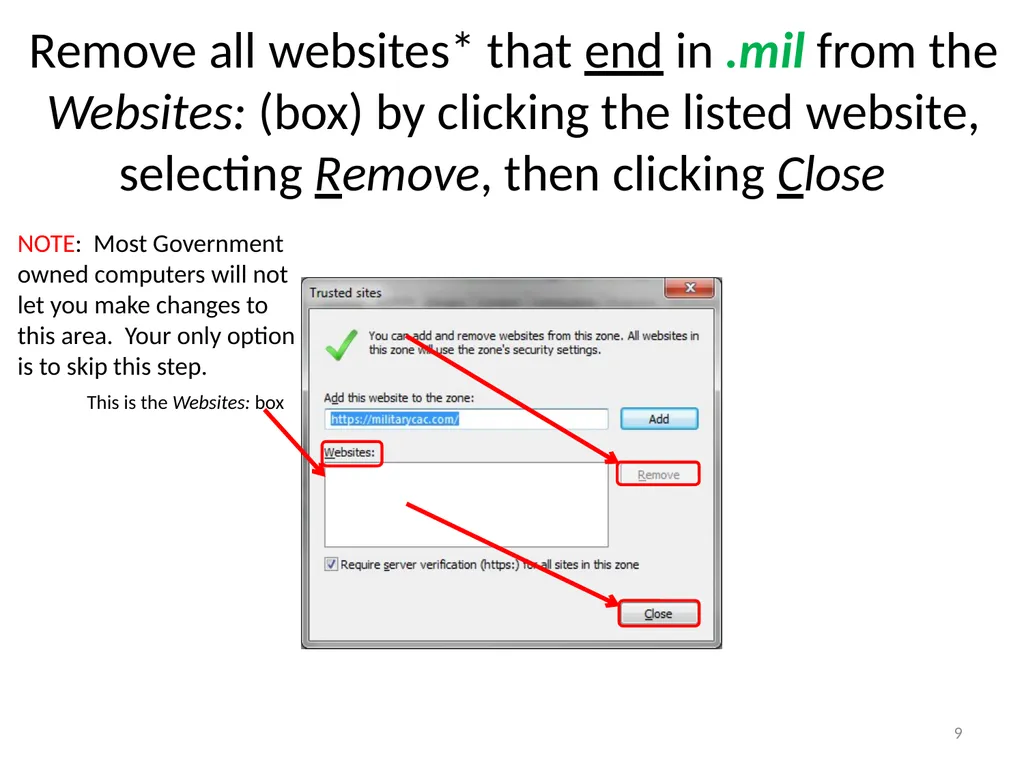
Remove all websites* that end in .mil from the Websites: (box) by clicking the listed website, selecting Remove, then clicking Close This is the Websites: box NOTE: Most Government owned computers will not let you make changes to this area. Your only option is to skip this step. 9<br>
10
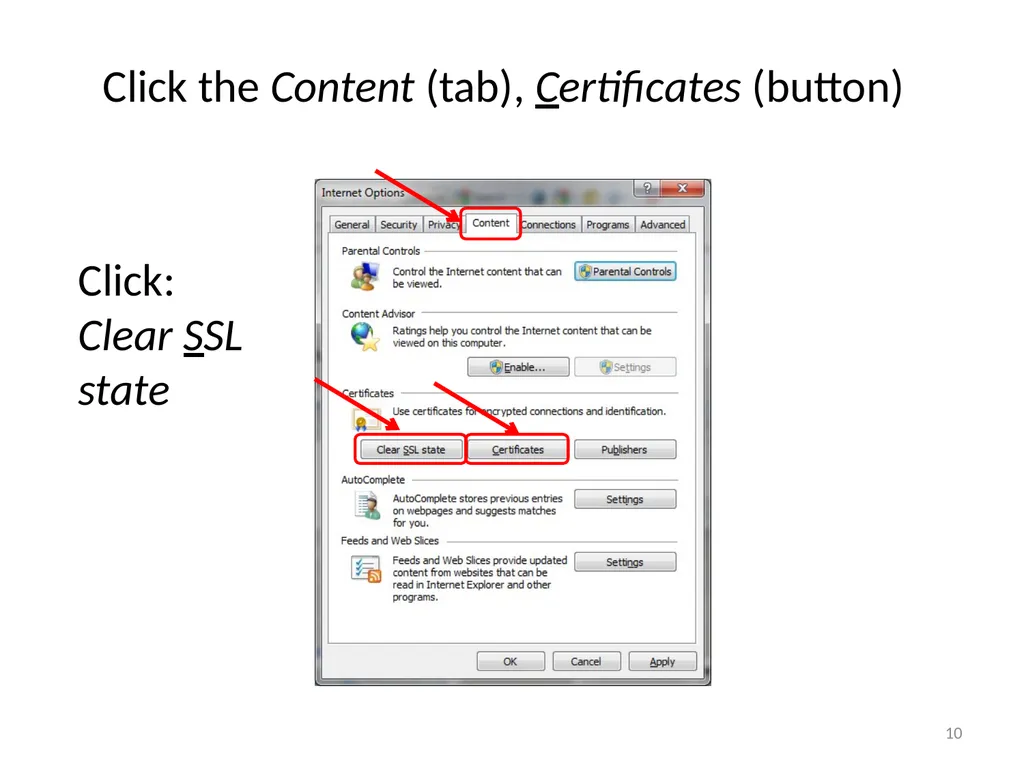
Click the Content (tab), Certificates (button) Click: Clear SSL state 10<br>
11
Most people will see 3-4 DOD certificates (2 with EMAIL and 1-2 without) under the Personal (tab) Issued By (column). CACs issued between 25 FEB 2018 and 28 FEB 2021 may see 4 certificates on their card. Cards issued after 1 MAR 2021 will see 3 in this view, 1 on websites. This page is CAC Specific 11<br>
12
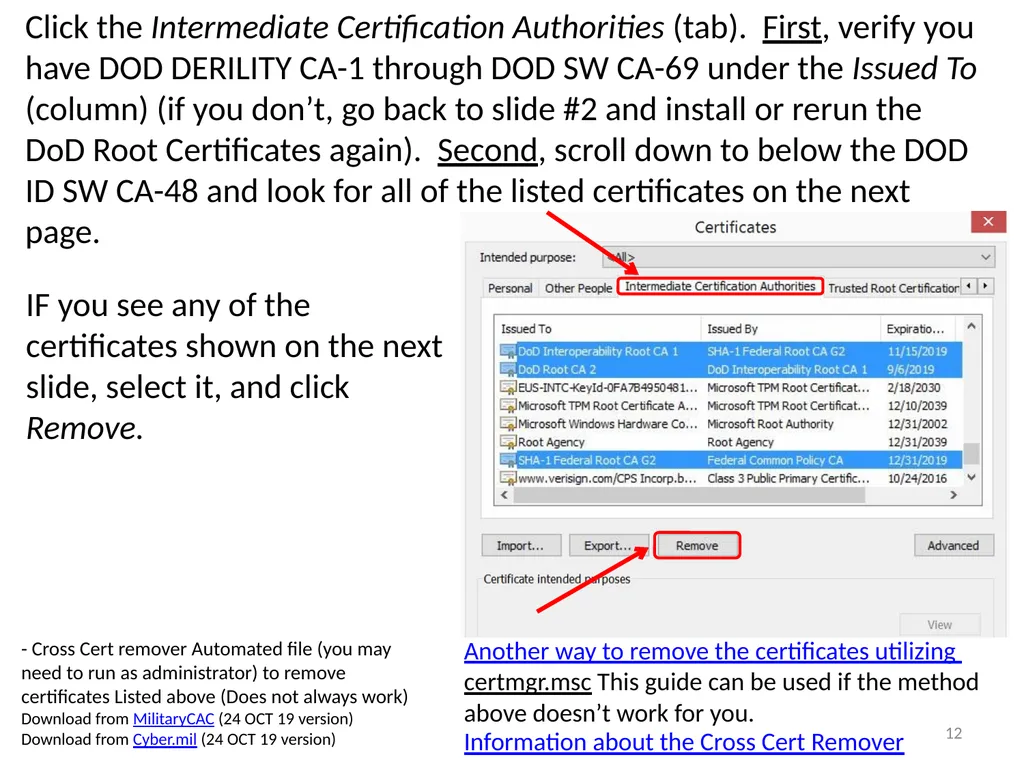
Click the Intermediate Certification Authorities (tab). First, verify you have DOD DERILITY CA-1 through DOD SW CA-69 under the Issued To (column) (if you don’t, go back to slide #2 and install or rerun the DoD Root Certificates again). Second, scroll down to below the DOD ID SW CA-48 and look for all of the listed certificates on the next page. - Cross Cert remover Automated file (you may need to run as administrator) to remove certificates Listed above (Does not always work)
Download from MilitaryCAC (24 OCT 19 version)
Download from Cyber.mil (24 OCT 19 version) Information about the Cross Cert Remover 12 Another way to remove the certificates utilizing certmgr.msc This guide can be used if the method above doesn’t work for you. IF you see any of the certificates shown on the next slide, select it, and click Remove.<br>
Download from MilitaryCAC (24 OCT 19 version)
Download from Cyber.mil (24 OCT 19 version) Information about the Cross Cert Remover 12 Another way to remove the certificates utilizing certmgr.msc This guide can be used if the method above doesn’t work for you. IF you see any of the certificates shown on the next slide, select it, and click Remove.<br>
13
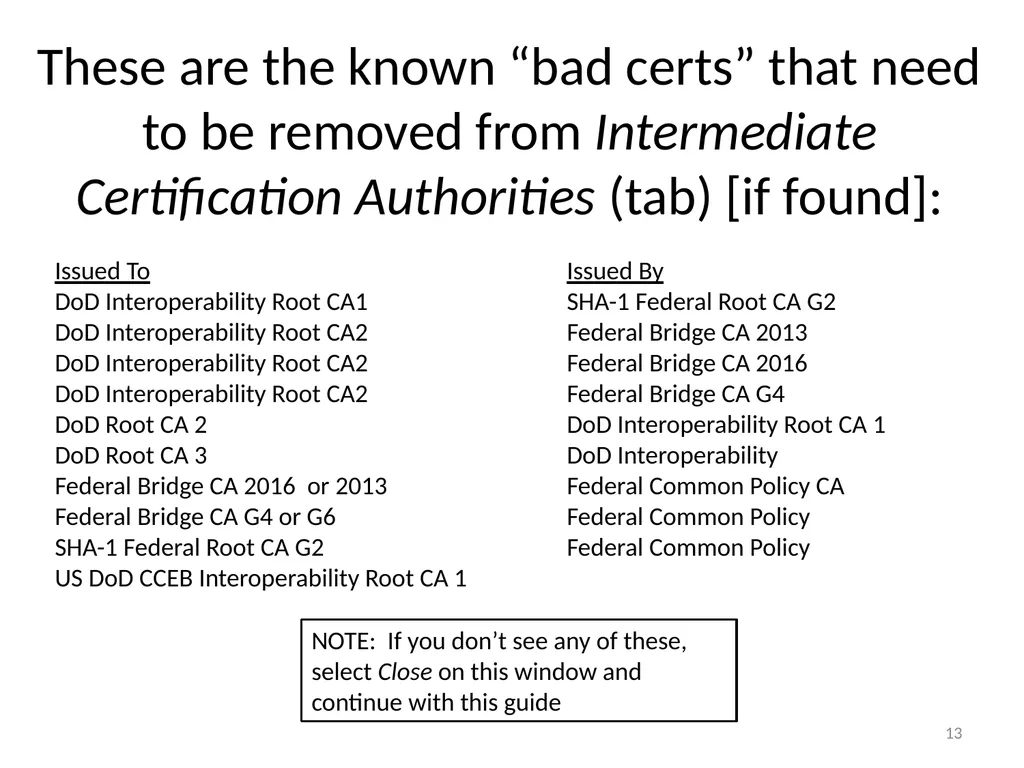
These are the known “bad certs” that need to be removed from Intermediate Certification Authorities (tab) [if found]: 13 Issued To Issued By
DoD Interoperability Root CA1 SHA-1 Federal Root CA G2
DoD Interoperability Root CA2 Federal Bridge CA 2013
DoD Interoperability Root CA2 Federal Bridge CA 2016
DoD Interoperability Root CA2 Federal Bridge CA G4
DoD Root CA 2 DoD Interoperability Root CA 1
DoD Root CA 3 DoD Interoperability
Federal Bridge CA 2016 or 2013 Federal Common Policy CA
Federal Bridge CA G4 or G6 Federal Common Policy
SHA-1 Federal Root CA G2 Federal Common Policy
US DoD CCEB Interoperability Root CA 1 NOTE: If you don’t see any of these, select Close on this window and continue with this guide<br>
DoD Interoperability Root CA1 SHA-1 Federal Root CA G2
DoD Interoperability Root CA2 Federal Bridge CA 2013
DoD Interoperability Root CA2 Federal Bridge CA 2016
DoD Interoperability Root CA2 Federal Bridge CA G4
DoD Root CA 2 DoD Interoperability Root CA 1
DoD Root CA 3 DoD Interoperability
Federal Bridge CA 2016 or 2013 Federal Common Policy CA
Federal Bridge CA G4 or G6 Federal Common Policy
SHA-1 Federal Root CA G2 Federal Common Policy
US DoD CCEB Interoperability Root CA 1 NOTE: If you don’t see any of these, select Close on this window and continue with this guide<br>
14
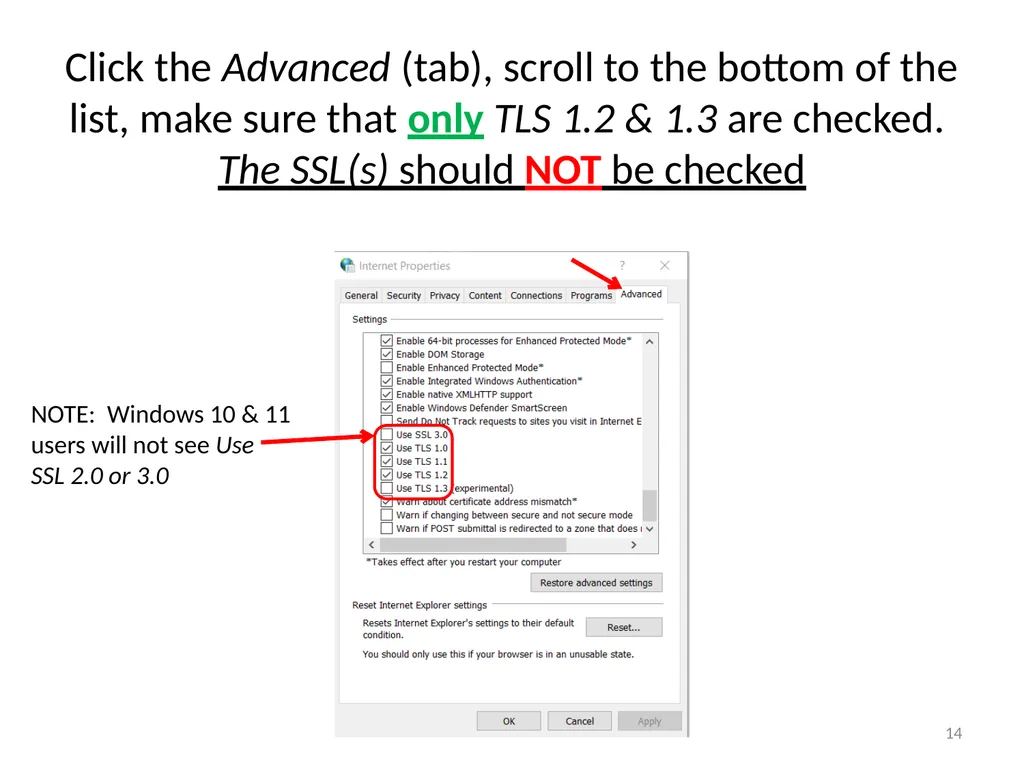
Click the Advanced (tab), scroll to the bottom of the list, make sure that only TLS 1.2 & 1.3 are checked. The SSL(s) should NOT be checked NOTE: Windows 10 & 11 users will not see Use SSL 2.0 or 3.0 14<br>
15
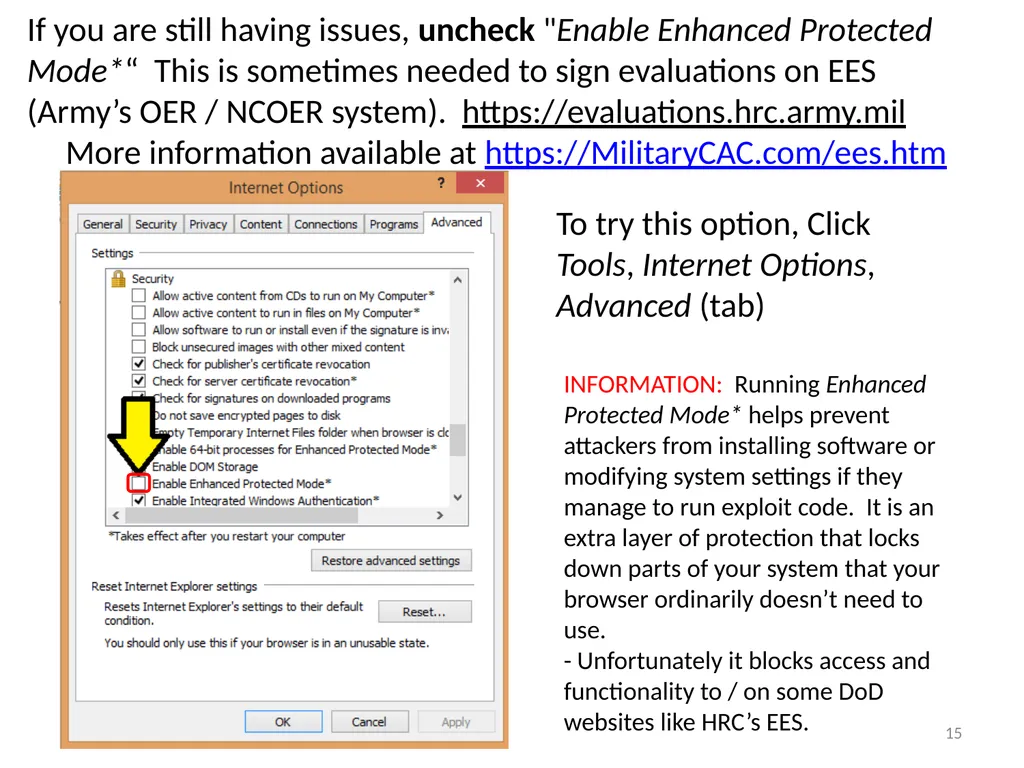
15 If you are still having issues, uncheck "Enable Enhanced Protected Mode*“ This is sometimes needed to sign evaluations on EES (Army’s OER / NCOER system). https://evaluations.hrc.army.mil
More information available at https://MilitaryCAC.com/ees.htm INFORMATION: Running Enhanced Protected Mode* helps prevent attackers from installing software or modifying system settings if they manage to run exploit code. It is an extra layer of protection that locks down parts of your system that your browser ordinarily doesn’t need to use.
- Unfortunately it blocks access and functionality to / on some DoD websites like HRC’s EES. To try this option, Click Tools, Internet Options, Advanced (tab)<br>
More information available at https://MilitaryCAC.com/ees.htm INFORMATION: Running Enhanced Protected Mode* helps prevent attackers from installing software or modifying system settings if they manage to run exploit code. It is an extra layer of protection that locks down parts of your system that your browser ordinarily doesn’t need to use.
- Unfortunately it blocks access and functionality to / on some DoD websites like HRC’s EES. To try this option, Click Tools, Internet Options, Advanced (tab)<br>
16
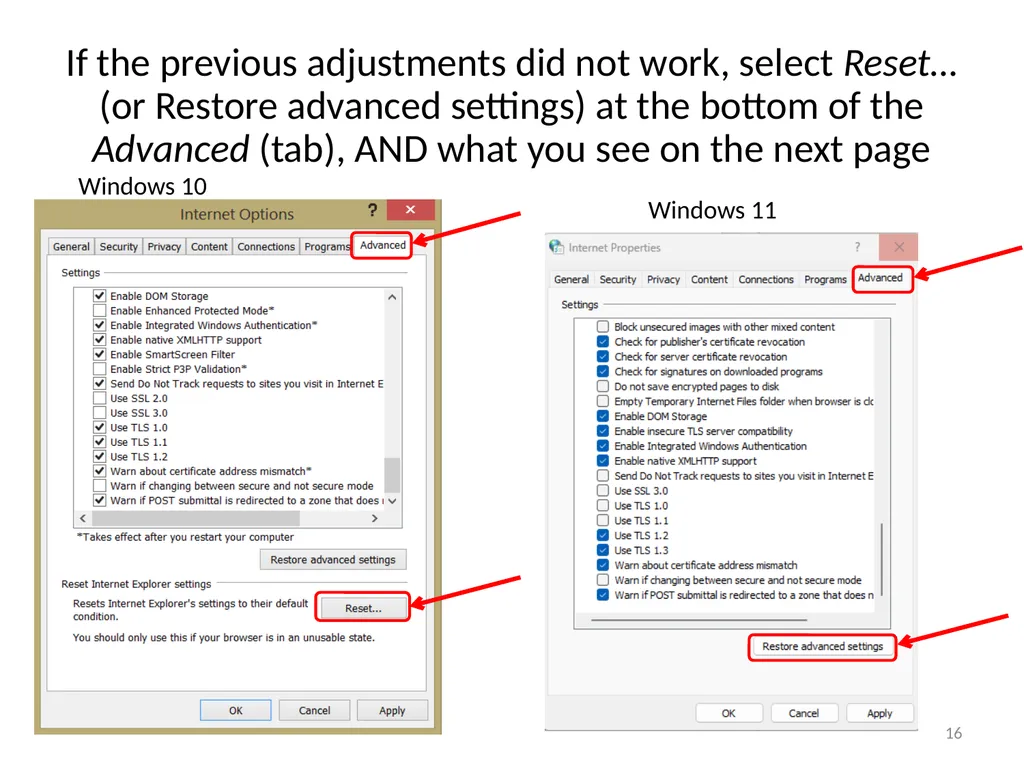
If the previous adjustments did not work, select Reset… (or Restore advanced settings) at the bottom of the Advanced (tab), AND what you see on the next page 16 Windows 10 Windows 11<br>
17
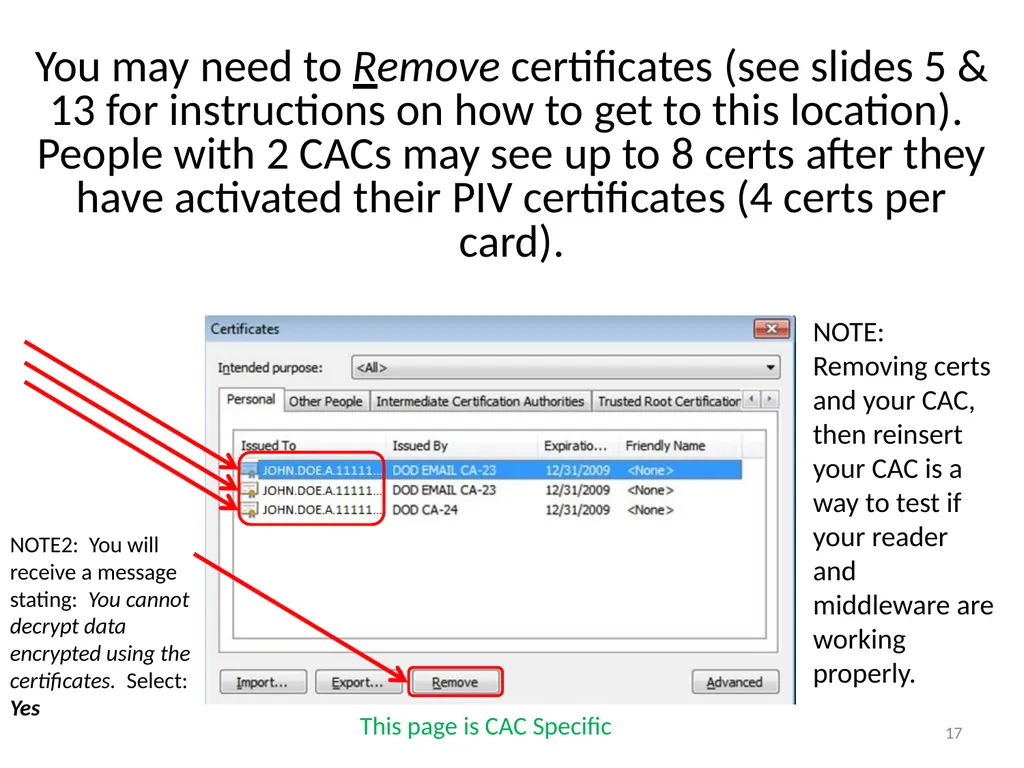
You may need to Remove certificates (see slides 5 & 13 for instructions on how to get to this location). People with 2 CACs may see up to 8 certs after they have activated their PIV certificates (4 certs per card). NOTE2: You will receive a message stating: You cannot decrypt data encrypted using the certificates. Select: Yes This page is CAC Specific 17 NOTE: Removing certs and your CAC, then reinsert your CAC is a way to test if your reader and middleware are working properly.<br>
18
Try these additional items if you are still having issues: Your time on your computer may be off by more than the server’s 5 minute allowed limit. Check your clock and time zone. 18 If all of the previous ideas did not work, please visit: https://militarycac.com/cacdrivers.htm to start troubleshooting your CAC reader<br>
19
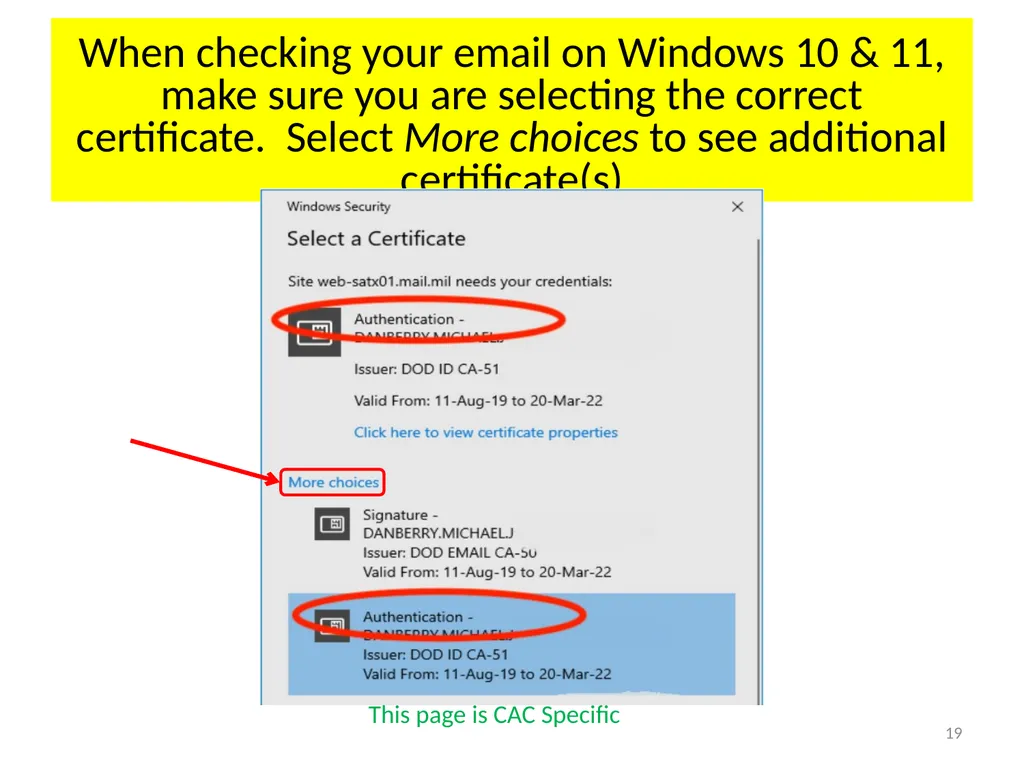
When checking your email on Windows 10 & 11, make sure you are selecting the correct certificate. Select More choices to see additional certificate(s) This page is CAC Specific 19<br>
20
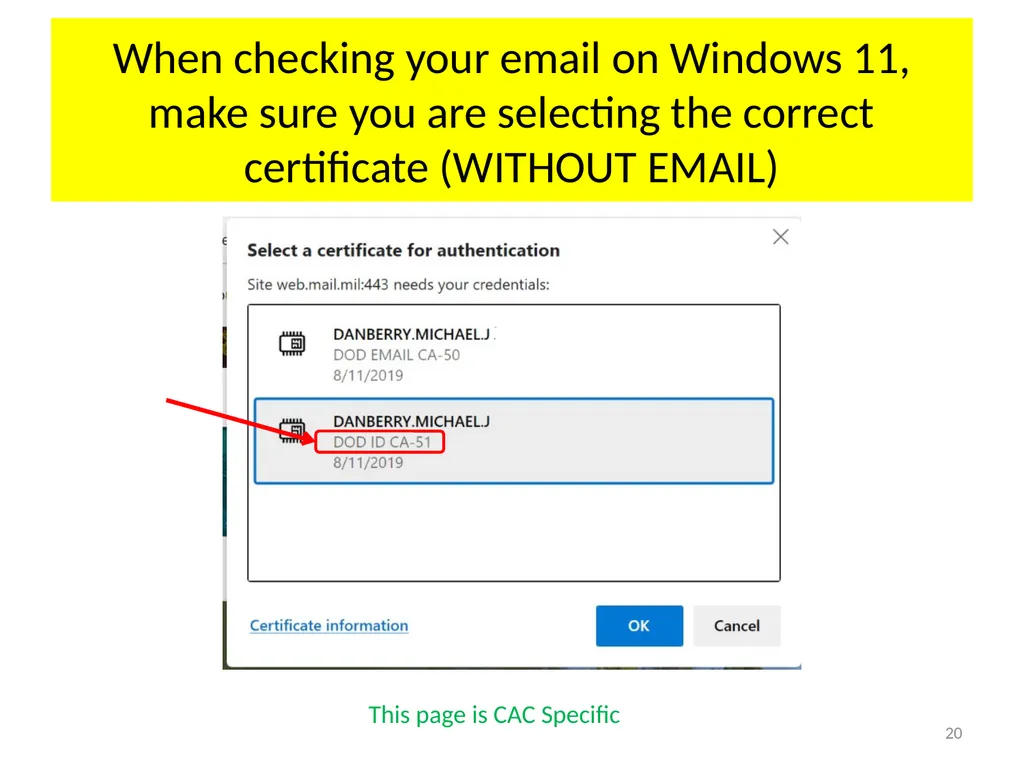
When checking your email on Windows 11, make sure you are selecting the correct certificate (WITHOUT EMAIL) This page is CAC Specific 20<br>
21
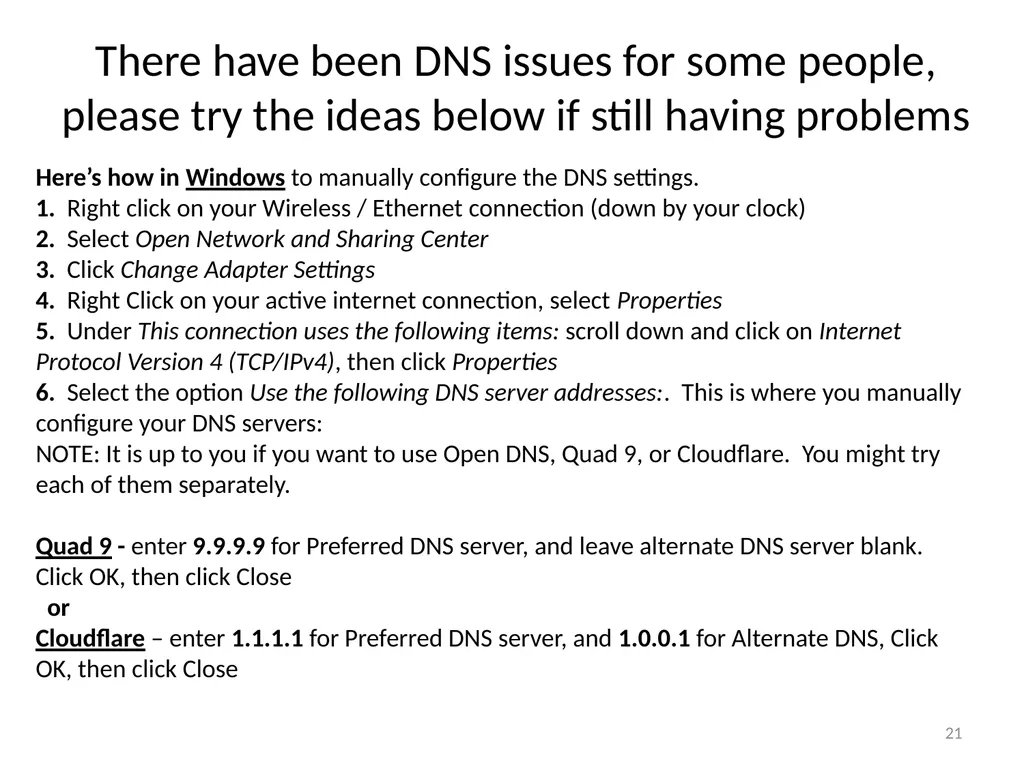
There have been DNS issues for some people, please try the ideas below if still having problems 21 Here’s how in Windows to manually configure the DNS settings.
1. Right click on your Wireless / Ethernet connection (down by your clock)
2. Select Open Network and Sharing Center
3. Click Change Adapter Settings
4. Right Click on your active internet connection, select Properties
5. Under This connection uses the following items: scroll down and click on Internet Protocol Version 4 (TCP/IPv4), then click Properties
6. Select the option Use the following DNS server addresses:. This is where you manually configure your DNS servers:
NOTE: It is up to you if you want to use Open DNS, Quad 9, or Cloudflare. You might try each of them separately.
Quad 9 - enter 9.9.9.9 for Preferred DNS server, and leave alternate DNS server blank. Click OK, then click Close
or
Cloudflare – enter 1.1.1.1 for Preferred DNS server, and 1.0.0.1 for Alternate DNS, Click OK, then click Close<br>
1. Right click on your Wireless / Ethernet connection (down by your clock)
2. Select Open Network and Sharing Center
3. Click Change Adapter Settings
4. Right Click on your active internet connection, select Properties
5. Under This connection uses the following items: scroll down and click on Internet Protocol Version 4 (TCP/IPv4), then click Properties
6. Select the option Use the following DNS server addresses:. This is where you manually configure your DNS servers:
NOTE: It is up to you if you want to use Open DNS, Quad 9, or Cloudflare. You might try each of them separately.
Quad 9 - enter 9.9.9.9 for Preferred DNS server, and leave alternate DNS server blank. Click OK, then click Close
or
Cloudflare – enter 1.1.1.1 for Preferred DNS server, and 1.0.0.1 for Alternate DNS, Click OK, then click Close<br>
22
Presentation created and maintained by:
Michael J. Danberry
https://MilitaryCAC.com
https://MilitaryCAC.org (DoD Computers)
If you still have questions, visit: https://militarycac.com/questions.htm
https://militarycac.org/questions.htm (DoD Computers) 22<br>
Michael J. Danberry
https://MilitaryCAC.com
https://MilitaryCAC.org (DoD Computers)
If you still have questions, visit: https://militarycac.com/questions.htm
https://militarycac.org/questions.htm (DoD Computers) 22<br>
23
Open Internet Explorer (IE)
[Make sure the page you are having problems accessing is NOT open in any tabs or another IE browser], Select the gear You may also click the “Alt & T” keys on your computer keyboard 23<br>
24
Windows 8.1 users need to use the Internet Explorer on the Desktop taskbar (bottom of screen) 24 NOT the one from the Start tiles Windows 10 & 11 users go to slide 5<br>
25
You can also select Tools, Internet Options 25<br>
26
When using Edge in Windows 10, you may select … (Settings and More), then Open with Internet Explorer 26 More NOTE: This option does NOT exist in Windows 11<br>
27
Click the Connections (tab)(1), LAN settings (button)(2), make sure none of the boxes are checked(3) (Personal Computers only), click OK 1 3 2 27<br>
28
Your certificates “should” automatically be available to Windows when you remove and reinsert your CAC into the reader, however… If you have ActivClient 6.2.0.x (Windows 7) installed.. You can double click the ActivClient icon (by your clock in the lower right corner of your screen) now go to slide 26
If you don’t see it there: Windows 7 users can Click Start / Windows logo, All Programs, ActivIdentity, ActivClient, User Console. Now go to next slide
Windows 8 / 8.1, & 10 native users will not see an ActivClient icon, since you are not using it.
ActivClient 7.0.x.x, 7.1.x.x, & 7.2.x.x do not have the function of making available to windows, your only option is to remove the card and reinsert it. This page is CAC Specific 28<br>
If you don’t see it there: Windows 7 users can Click Start / Windows logo, All Programs, ActivIdentity, ActivClient, User Console. Now go to next slide
Windows 8 / 8.1, & 10 native users will not see an ActivClient icon, since you are not using it.
ActivClient 7.0.x.x, 7.1.x.x, & 7.2.x.x do not have the function of making available to windows, your only option is to remove the card and reinsert it. This page is CAC Specific 28<br>
29
Resetting optimization cache in ActivClient 7.1.0.x & 7.2.0.x Click Tools, Advanced, Reset optimization cache This page is CAC Specific 29<br>
30
Forget state for all cards in ActivClient 6.2.0.x, this helps Dual CAC holders immediately after a PIV activation Click Tools, Advanced, Forget state for all cards (twice) DOE.JOHN.ANDREW.1111111111’s This page is CAC Specific Go to next page to Make Certificates available to Windows Make Certificates available to Windows... Forget state for all cards 30<br>
31
How to make your certificates available to Windows when using ActivClient 6.2.0.x Click Tools, Advanced, Make Certificates available to Windows DOE.JOHN.ANDREW.1111111111’s This page is CAC Specific You should see this message 31<br>
32
There have been DNS issues for some people, please try the ideas below if still having problems 32 Here's How on a Mac to manually configure the DNS settings.
1. Click Apple icon -> System Preferences, Network.
2. Select the network connection service you want to use (usually Wi-Fi or Ethernet, unless you named it something else) in the list, then click the Advanced (button).
3. Click the DNS (tab), click the (+) at the bottom of the DNS Servers list. This is where you will add DNS server IP addresses.
NOTE: It is up to you if you want to use Open DNS or Quad 9. You might try each of them separately.
Quad 9 - enter 9.9.9.9 and leave alternate DNS blank
or
Cloudflare – enter 1.1.1.1 and 1.0.0.1
4. When you're finished, click OK, then close the open window<br>
1. Click Apple icon -> System Preferences, Network.
2. Select the network connection service you want to use (usually Wi-Fi or Ethernet, unless you named it something else) in the list, then click the Advanced (button).
3. Click the DNS (tab), click the (+) at the bottom of the DNS Servers list. This is where you will add DNS server IP addresses.
NOTE: It is up to you if you want to use Open DNS or Quad 9. You might try each of them separately.
Quad 9 - enter 9.9.9.9 and leave alternate DNS blank
or
Cloudflare – enter 1.1.1.1 and 1.0.0.1
4. When you're finished, click OK, then close the open window<br>
33
Never Ending PIN prompts when using Internet Explorer accessing OWA 33 What I know:
1. I am receiving emails from people in the Army accessing @mail.mil, Air Force accessing @us.af.mil, Navy accessing @navy.mil, and Marines accessing @usmc.mil
2. I am also receiving emails from people using both Windows and Mac computers.
3. They are all receiving many PIN prompts when using Internet Explorer (IE) on Windows, and Safari on Mac computers.
What It appears to me:
Exchange servers were pushed a security patch in early October 2019.
What you can do:
1. If you do need encryption, use Google Chrome, OR be ready to enter your PIN between 6-24 times between actions. I hope you don’t block your CAC in the process
2. On a Windows computer, look for KB4519338 and uninstall it. You can only hold your updates for a max of 7 days. This will block all security updates, making your computer unsecure. Therefore, I do not recommended this option.
3. A few people have reported that once their mail.mil account was migrated to the Authentication certificate from the Email certificate, they no longer are experiencing this issue.
4. Call your respective help desks and let them know. https://milcac.us/questions.htm<br>
1. I am receiving emails from people in the Army accessing @mail.mil, Air Force accessing @us.af.mil, Navy accessing @navy.mil, and Marines accessing @usmc.mil
2. I am also receiving emails from people using both Windows and Mac computers.
3. They are all receiving many PIN prompts when using Internet Explorer (IE) on Windows, and Safari on Mac computers.
What It appears to me:
Exchange servers were pushed a security patch in early October 2019.
What you can do:
1. If you do need encryption, use Google Chrome, OR be ready to enter your PIN between 6-24 times between actions. I hope you don’t block your CAC in the process
2. On a Windows computer, look for KB4519338 and uninstall it. You can only hold your updates for a max of 7 days. This will block all security updates, making your computer unsecure. Therefore, I do not recommended this option.
3. A few people have reported that once their mail.mil account was migrated to the Authentication certificate from the Email certificate, they no longer are experiencing this issue.
4. Call your respective help desks and let them know. https://milcac.us/questions.htm<br>