Adjusted Budget Preface What is a Scenario in Hyperion A scenario in Hyperion can be thought of as a folder in which data is stored. Hyperion has different scenarios in which data is stored. It is important to understand in which scenario
"Adjusted Budget Preface – What is a Scenario in" is the property of its rightful owner. Permission is granted to
download and print the materials on this website for personal, non-commercial use only, and to display it
on your personal computer provided you do not modify the materials and that you retain all copyright
notices contained in the materials. By downloading content from our website, you accept the terms of this
agreement.
Presentation Transcript
01
Adjusted Budget<br>
02
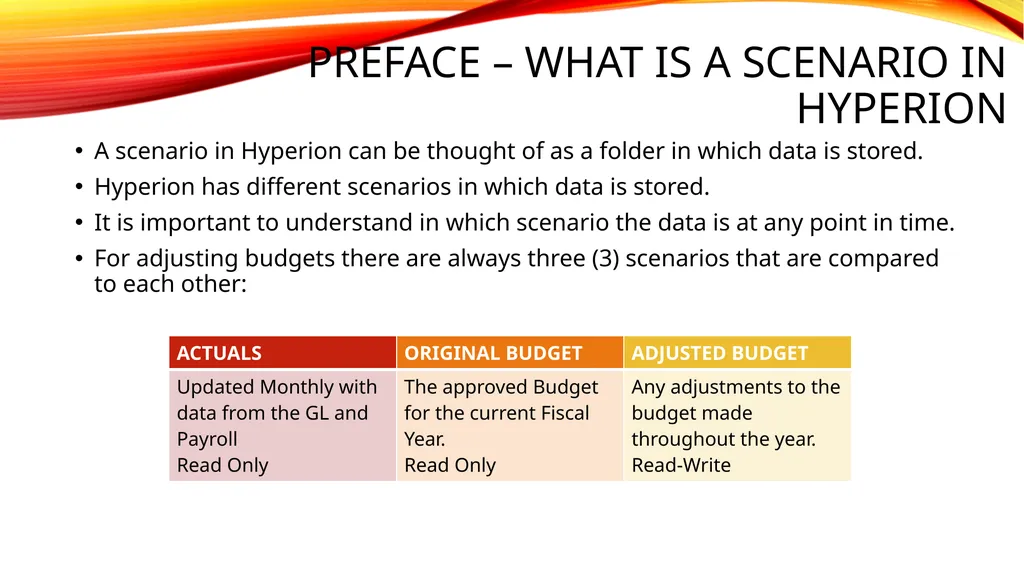
Preface – What is a Scenario in Hyperion A scenario in Hyperion can be thought of as a folder in which data is stored.
Hyperion has different scenarios in which data is stored.
It is important to understand in which scenario the data is at any point in time.
For adjusting budgets there are always three (3) scenarios that are compared to each other:<br>
03
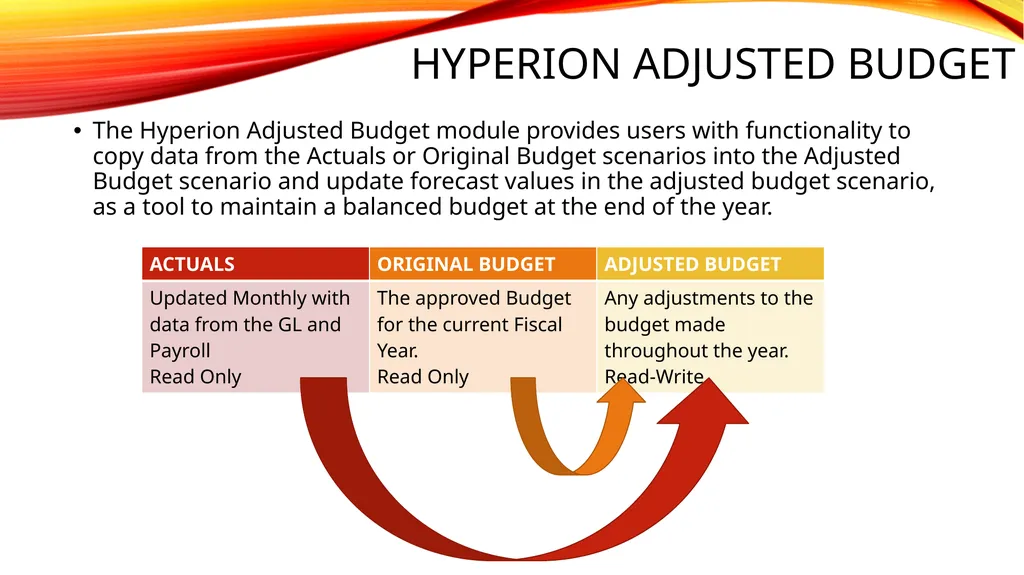
Hyperion Adjusted Budget The Hyperion Adjusted Budget module provides users with functionality to copy data from the Actuals or Original Budget scenarios into the Adjusted Budget scenario and update forecast values in the adjusted budget scenario, as a tool to maintain a balanced budget at the end of the year.<br>
04
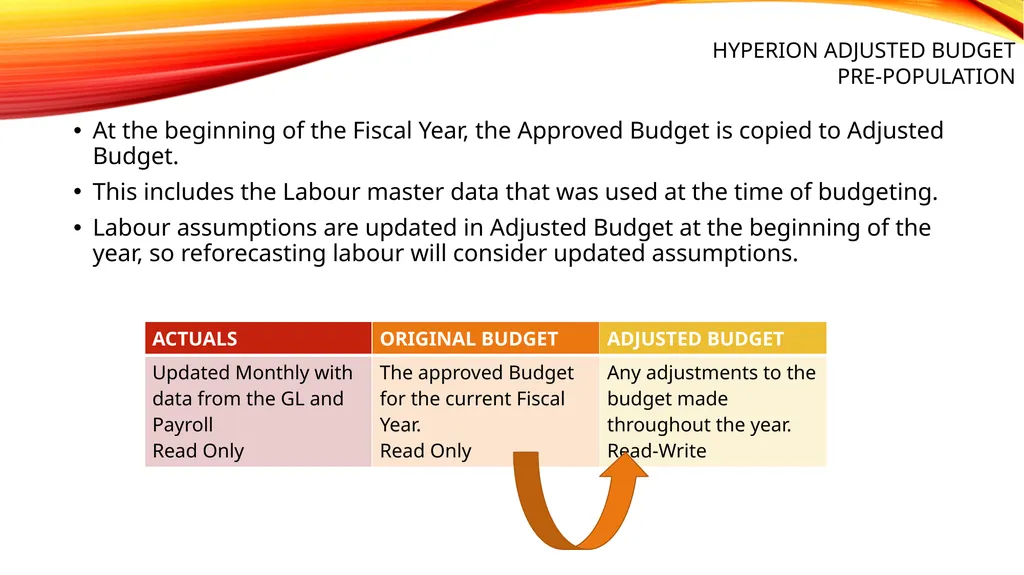
Hyperion Adjusted Budget pre-population At the beginning of the Fiscal Year, the Approved Budget is copied to Adjusted Budget.
This includes the Labour master data that was used at the time of budgeting.
Labour assumptions are updated in Adjusted Budget at the beginning of the year, so reforecasting labour will consider updated assumptions.<br>
05
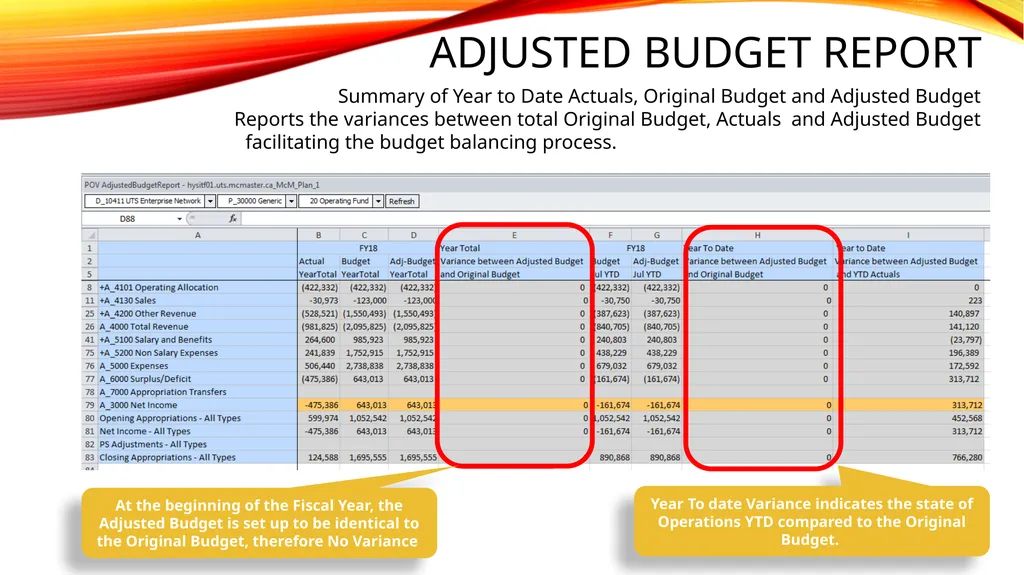
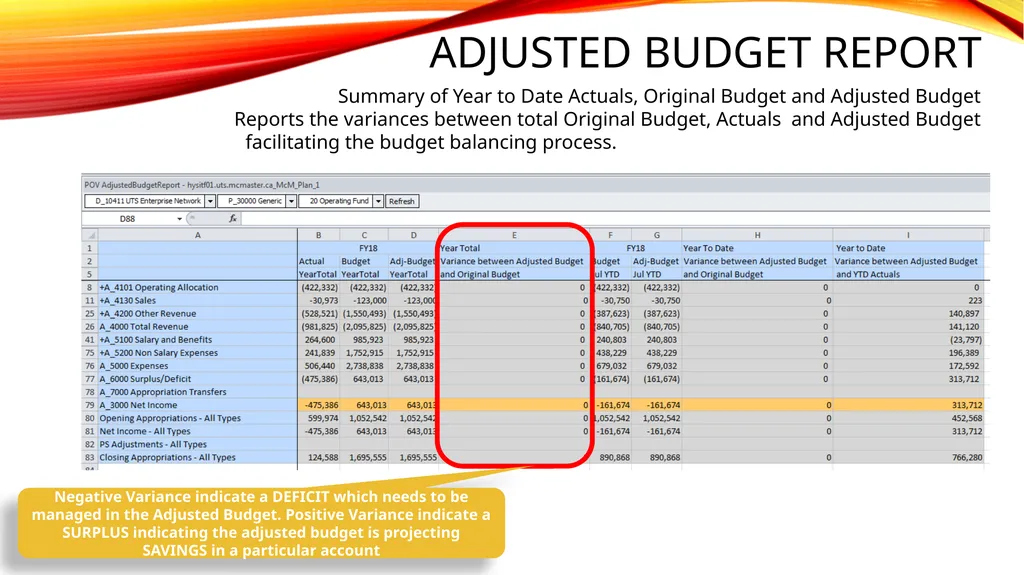
Adjusted Budget Report Summary of Year to Date Actuals, Original Budget and Adjusted Budget
Reports the variances between total Original Budget, Actuals and Adjusted Budget
facilitating the budget balancing process.<br>
06
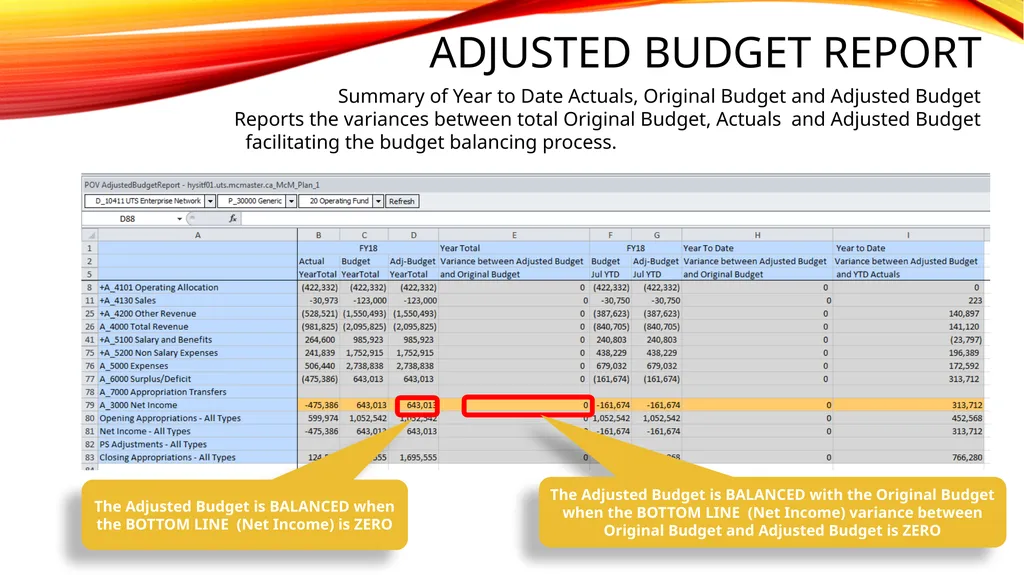
Adjusted Budget Report Summary of Year to Date Actuals, Original Budget and Adjusted Budget
Reports the variances between total Original Budget, Actuals and Adjusted Budget
facilitating the budget balancing process.<br>
07
Adjusted Budget Report Summary of Year to Date Actuals, Original Budget and Adjusted Budget
Reports the variances between total Original Budget, Actuals and Adjusted Budget
facilitating the budget balancing process.<br>
08
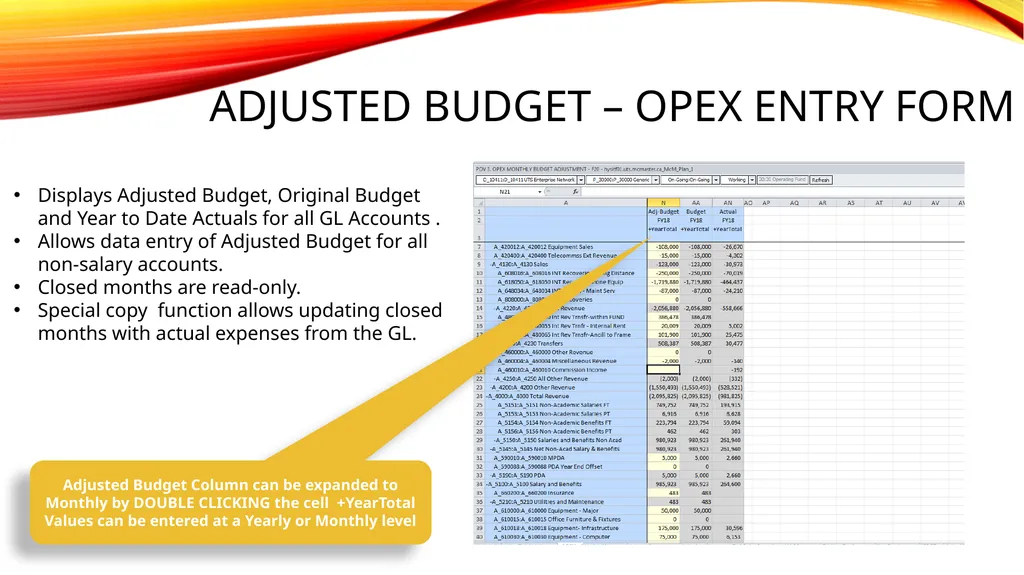
Adjusted Budget – OPEX Entry Form Displays Adjusted Budget, Original Budget and Year to Date Actuals for all GL Accounts .
Allows data entry of Adjusted Budget for all non-salary accounts.
Closed months are read-only.
Special copy function allows updating closed months with actual expenses from the GL. Adjusted Budget Column can be expanded to Monthly by DOUBLE CLICKING the cell +YearTotal
Values can be entered at a Yearly or Monthly level<br>
09
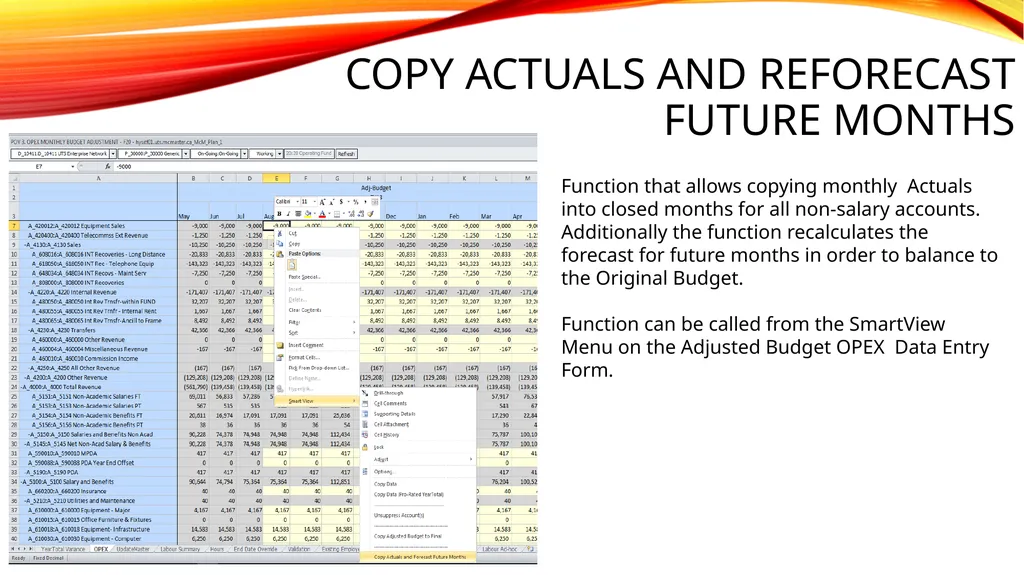
Copy Actuals and Reforecast Future Months Function that allows copying monthly Actuals into closed months for all non-salary accounts.
Additionally the function recalculates the forecast for future months in order to balance to the Original Budget.
Function can be called from the SmartView Menu on the Adjusted Budget OPEX Data Entry Form.<br>
10
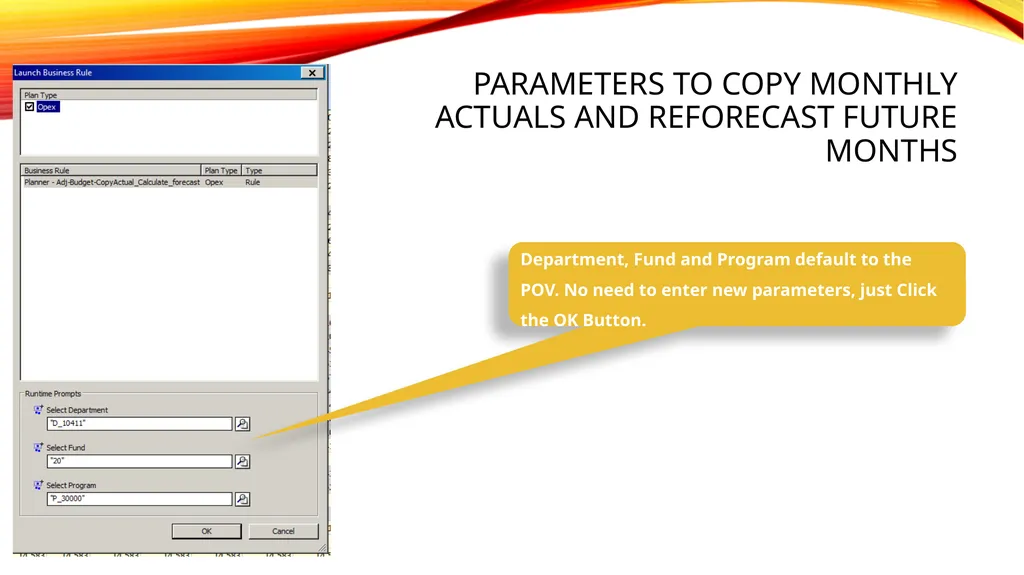
parameters to copy Monthly actuals and Reforecast Future Months Department, Fund and Program default to the POV. No need to enter new parameters, just Click the OK Button.<br>
11
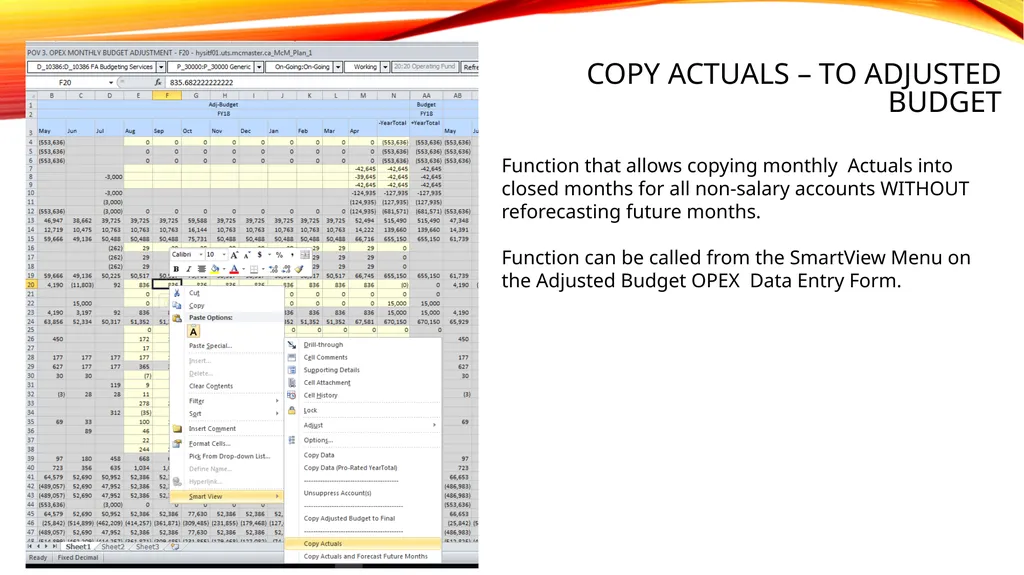
Copy ACTUALS – to Adjusted Budget Function that allows copying monthly Actuals into closed months for all non-salary accounts WITHOUT reforecasting future months.
Function can be called from the SmartView Menu on the Adjusted Budget OPEX Data Entry Form.<br>
12
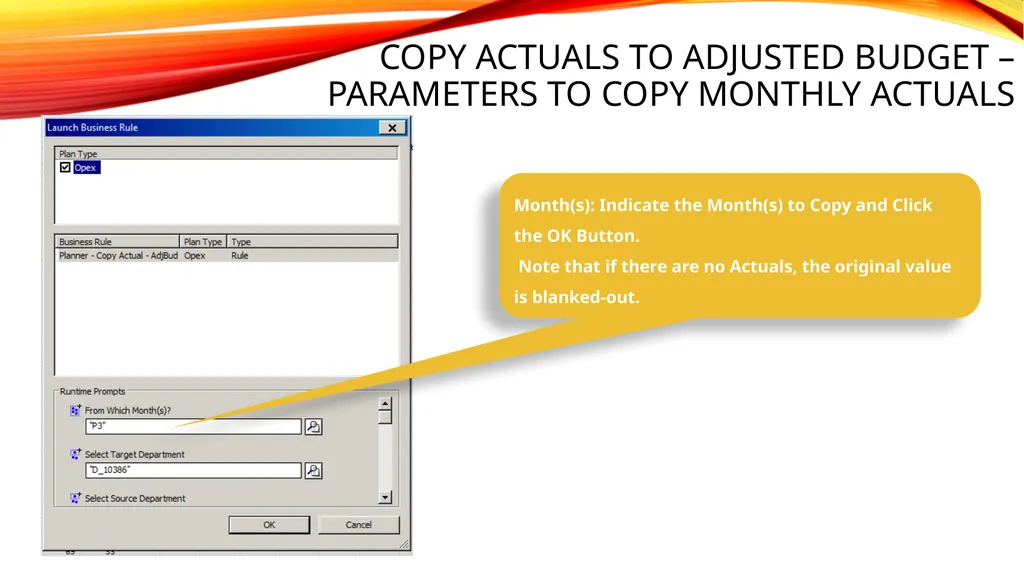
Copy ACTUALS to Adjusted Budget – parameters to copy Monthly actuals Month(s): Indicate the Month(s) to Copy and Click the OK Button.
Note that if there are no Actuals, the original value is blanked-out.<br>
13
Adjusted Budget - Labour<br>
14
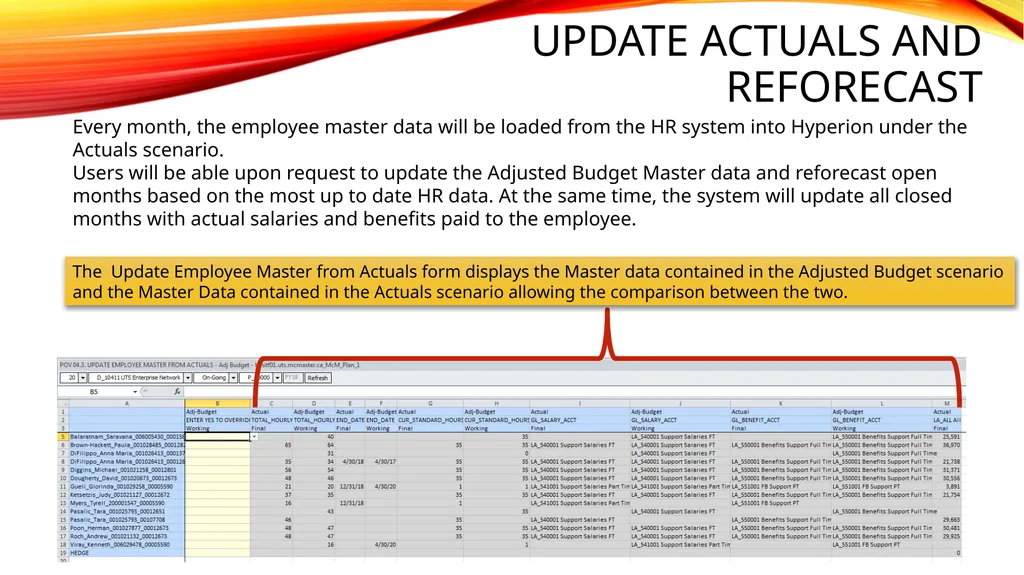
Update Actuals and reforecast Every month, the employee master data will be loaded from the HR system into Hyperion under the Actuals scenario.
Users will be able upon request to update the Adjusted Budget Master data and reforecast open months based on the most up to date HR data. At the same time, the system will update all closed months with actual salaries and benefits paid to the employee. The Update Employee Master from Actuals form displays the Master data contained in the Adjusted Budget scenario and the Master Data contained in the Actuals scenario allowing the comparison between the two.<br>
15
Update Actuals and reforecast 3. Click on the SUBMIT button 1. Select YES By selecting the option “YES” and then Submit:
the employee’s Actuals are copied into the Adjusted Budget scenario for all closed months,
the most current Master Data is updated in the Adjusted Budget scenario,
and forecast is recalculated based on new master data<br>
16
New Employee Any new employee created during budget time will appear in the adjusted budget scenario.
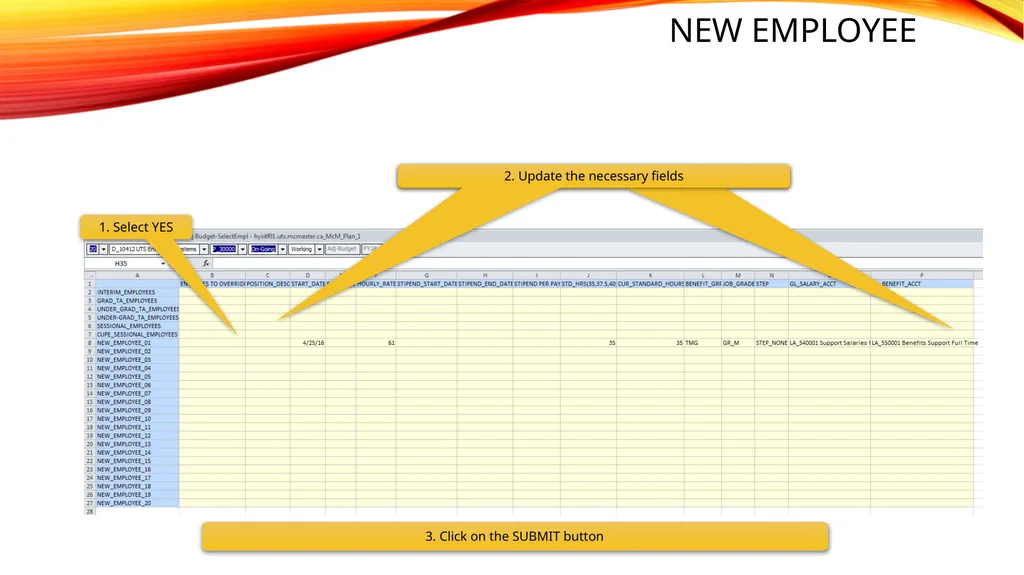
Users can update the new employee’s forecast by selecting the option “YES”, change any information for the new employee (if necessary) and then Submit.
For all New Employees selected, the New employee’s adjusted budget values for all closed months are blanked out.
The system will reforecast new employees according to any new information.
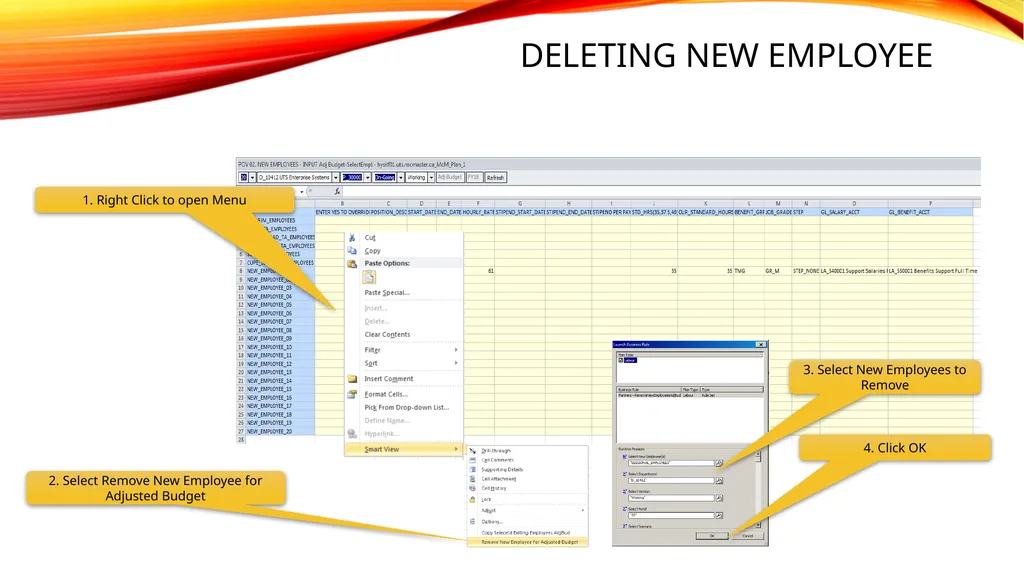
If the new employee entered in the budget is now hired, users can delete the new employee using the Delete New Employee function from the Smart View Menu.<br>
17
New Employee 3. Click on the SUBMIT button 1. Select YES 2. Update the necessary fields 2. Update the necessary fields<br>
18
Deleting New Employee 1. Right Click to open Menu 2. Select Remove New Employee for Adjusted Budget 3. Select New Employees to Remove 4. Click OK<br>
19
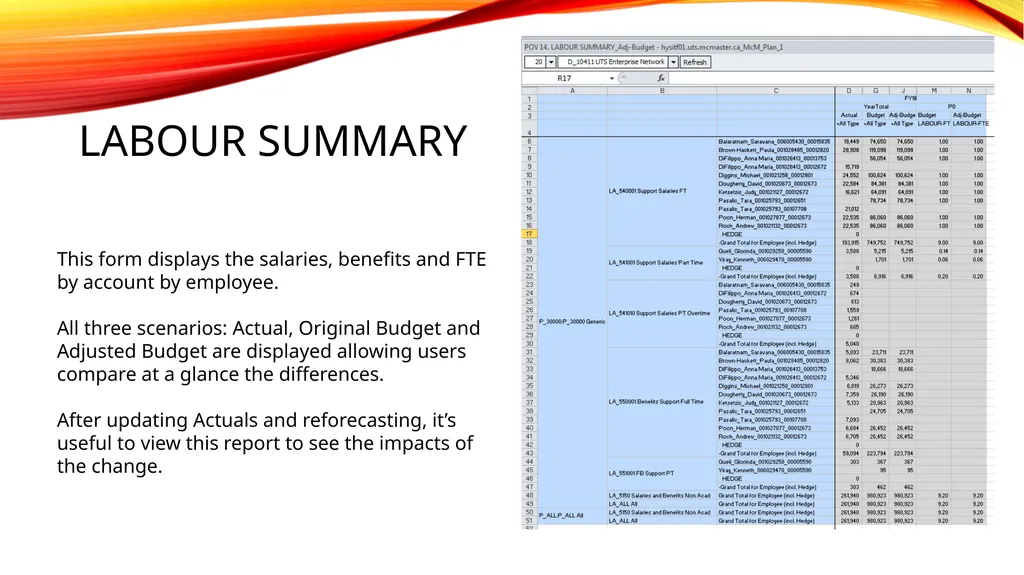
Labour Summary This form displays the salaries, benefits and FTE by account by employee.
All three scenarios: Actual, Original Budget and Adjusted Budget are displayed allowing users compare at a glance the differences.
After updating Actuals and reforecasting, it’s useful to view this report to see the impacts of the change.<br>
20
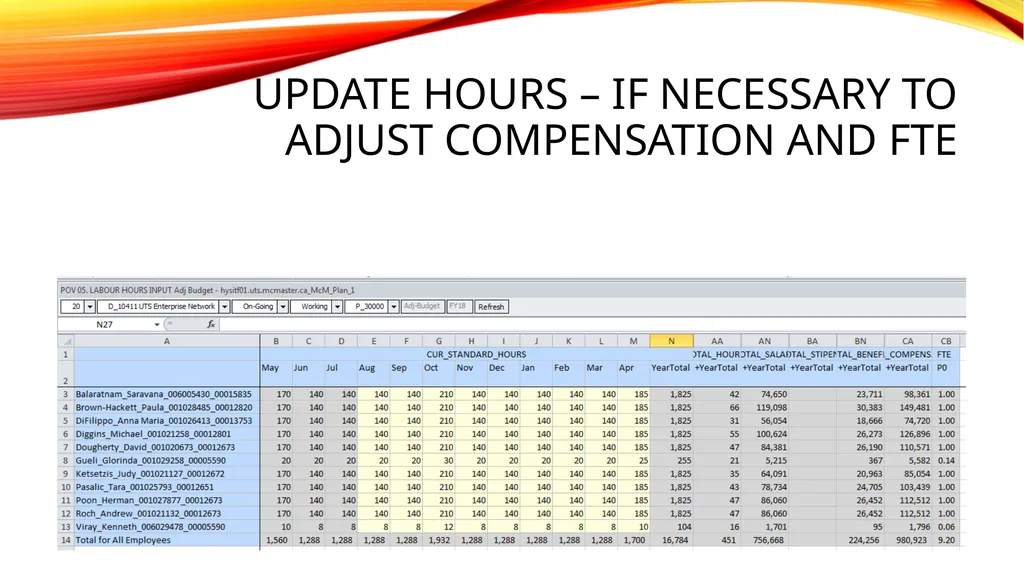
Update hours – if necessary to adjust compensation and fte<br>
21
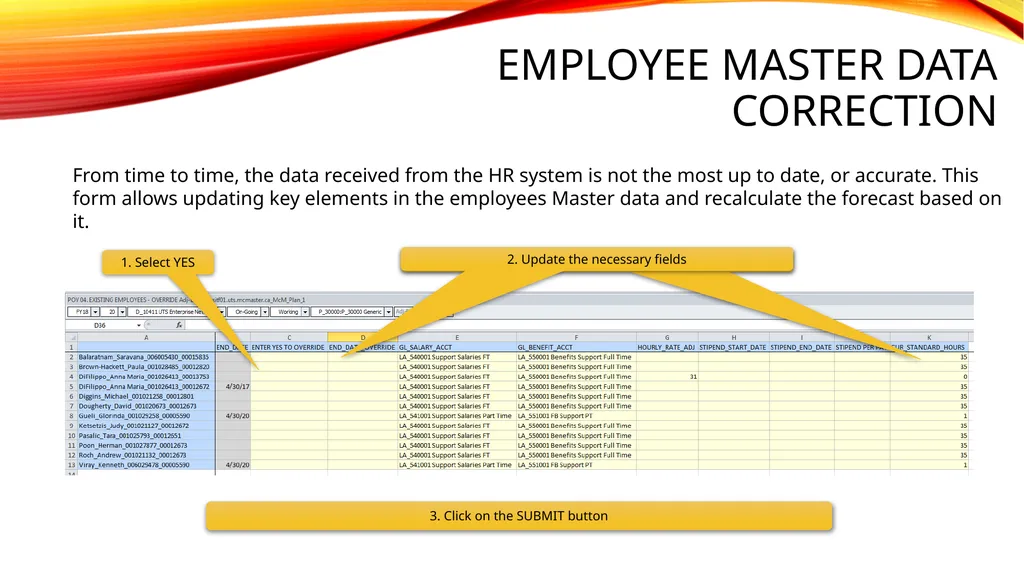
Employee master data correction From time to time, the data received from the HR system is not the most up to date, or accurate. This form allows updating key elements in the employees Master data and recalculate the forecast based on it. 3. Click on the SUBMIT button 1. Select YES 2. Update the necessary fields 2. Update the necessary fields<br>
22
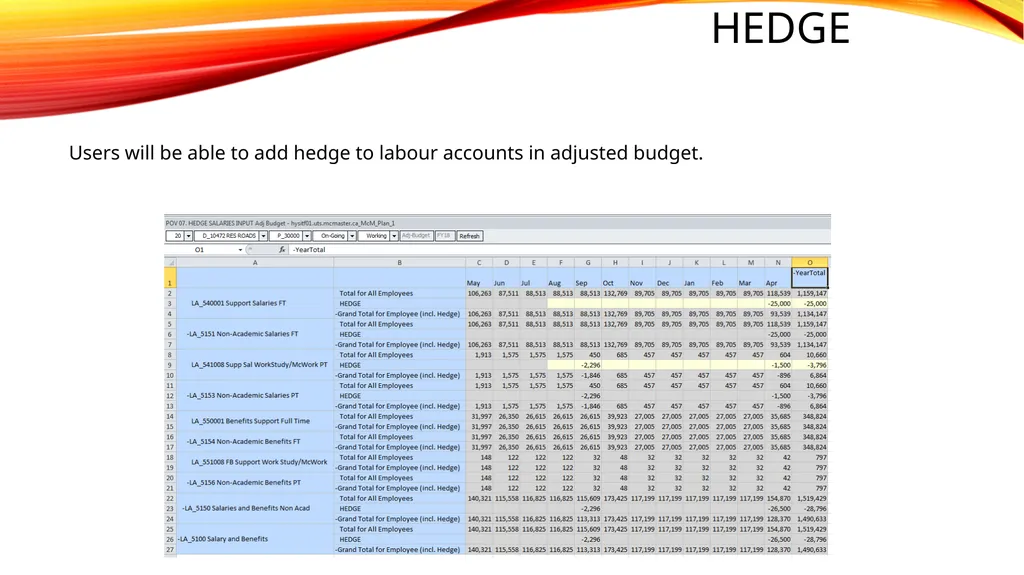
Hedge Users will be able to add hedge to labour accounts in adjusted budget.<br>