
Adobe Premiere Effects The effects (FX) you can
Description: Adobe Premiere Effects The effects (FX) you can use in Adobe Premiere are vast, ranging from something simple like stabilization (more on that later) to more complicated special effects (SFX) such as gunshots and teleportation. While you
Related Topics
Download Presentation
"Adobe Premiere Effects The effects (FX) you can" is the property of its rightful owner. Permission is granted to download and print the materials on this website for personal, non-commercial use only, and to display it on your personal computer provided you do not modify the materials and that you retain all copyright notices contained in the materials. By downloading content from our website, you accept the terms of this agreement.
Presentation Transcript
slide1. Adobe Premiere Effects<br>
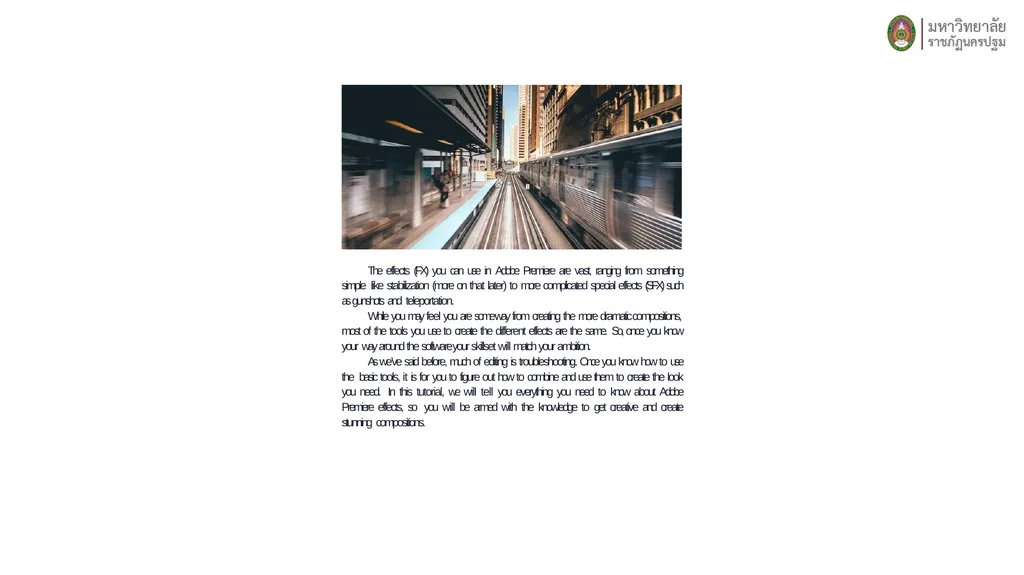
slide2. The effects (FX) you can use in Adobe Premiere are vast, ranging from something simple like stabilization (more on that later) to more complicated special effects (SFX) such as gunshots and teleportation.
While you may feel you are some way from creating the more dramatic compositions, most of the tools you use to create the different effects are the same. So, once you know your way around the software your skillset will match your ambition.
As we’ve said before, much of editing is troubleshooting. Once you know how to use the basic tools, it is for you to figure out how to combine and use them to create the look you need. In this tutorial, we will tell you everything you need to know about Adobe Premiere effects, so you will be armed with the knowledge to get creative and create stunning compositions.<br>
slide3. Types of Video Effects Fixed Effects
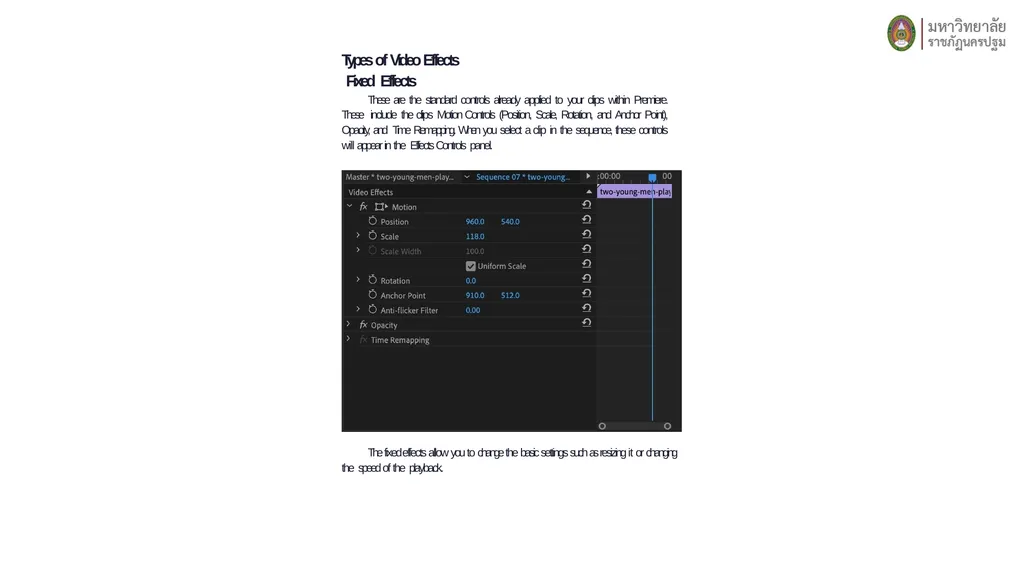
These are the standard controls already applied to your clips within Premiere. These include the clips Motion Controls (Position, Scale, Rotation, and Anchor Point), Opacity, and Time Remapping. When you select a clip in the sequence, these controls will appear in the Effects Controls panel. The fixed effects allow you to change the basic settings such as resizing it or changing the speed of the playback.<br>
slide4. Standard Effects
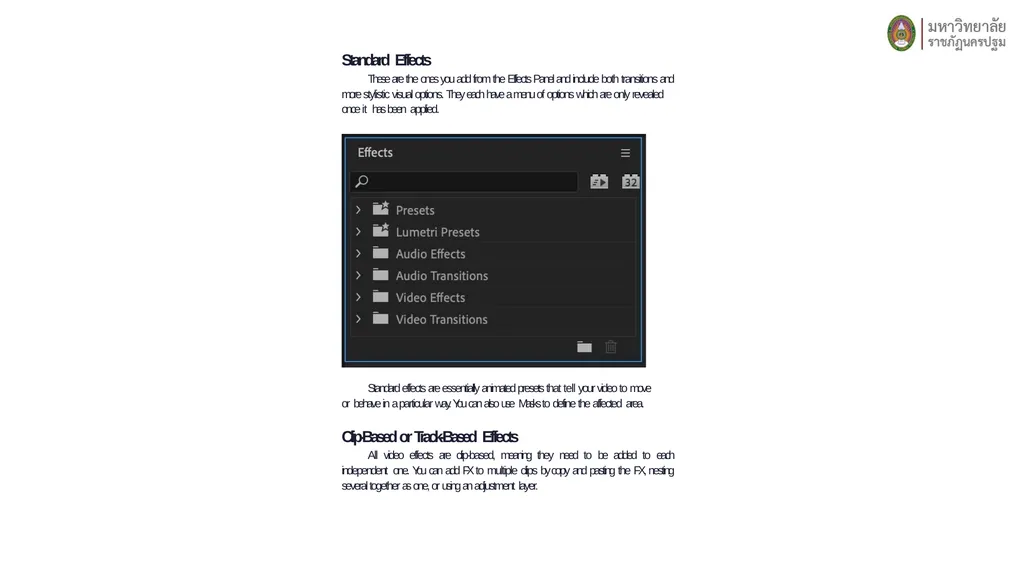
These are the ones you add from the Effects Panel and include both transitions and more stylistic visual options. They each have a menu of options which are only revealed once it has been applied. Standard effects are essentially animated presets that tell your video to move or behave in a particular way. You can also use Masks to define the affected area.
Clip-Based or Track-Based Effects
All video effects are clip-based, meaning they need to be added to each independent one. You can add FX to multiple clips by copy and pasting the FX, nesting several together as one, or using an adjustment layer.<br>
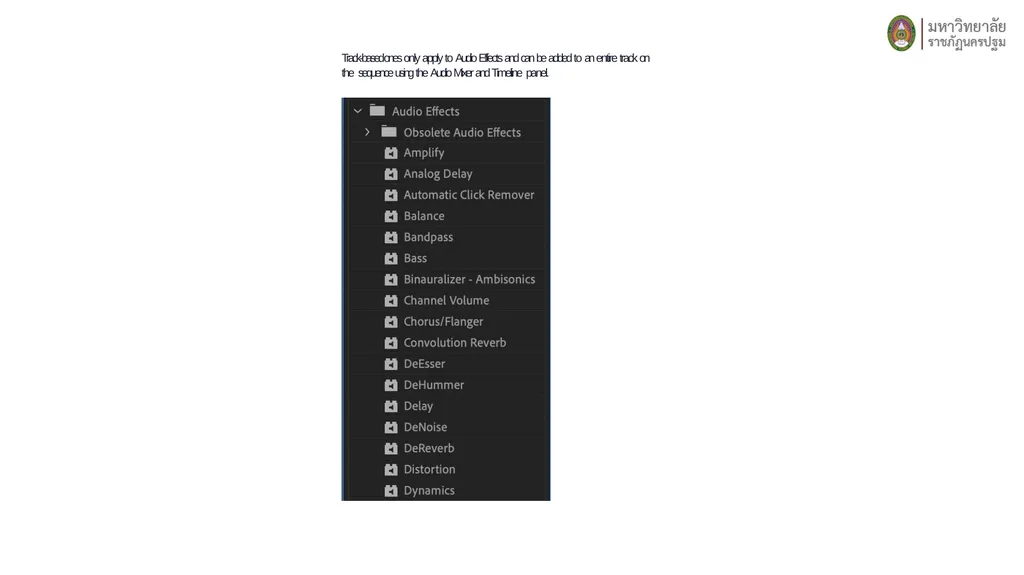
slide5. Track-based ones only apply to Audio Effects and can be added to an entire track on the sequence using the Audio Mixer and Timeline panel.<br>
slide6. Effects Plugins
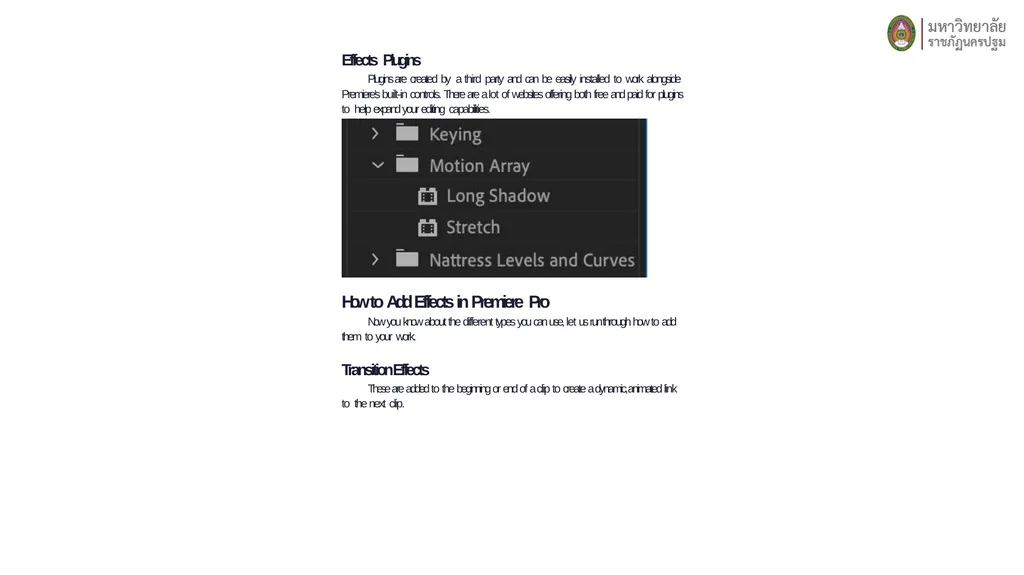
Plugins are created by a third party and can be easily installed to work alongside Premiere’s built-in controls. There are a lot of websites offering both free and paid for plugins to help expand your editing capabilities. How to Add Effects in Premiere Pro
Now you know about the different types you can use, let us run through how to add them to your work.
Transition Effects
These are added to the beginning or end of a clip to create a dynamic, animated link to the next clip.<br>
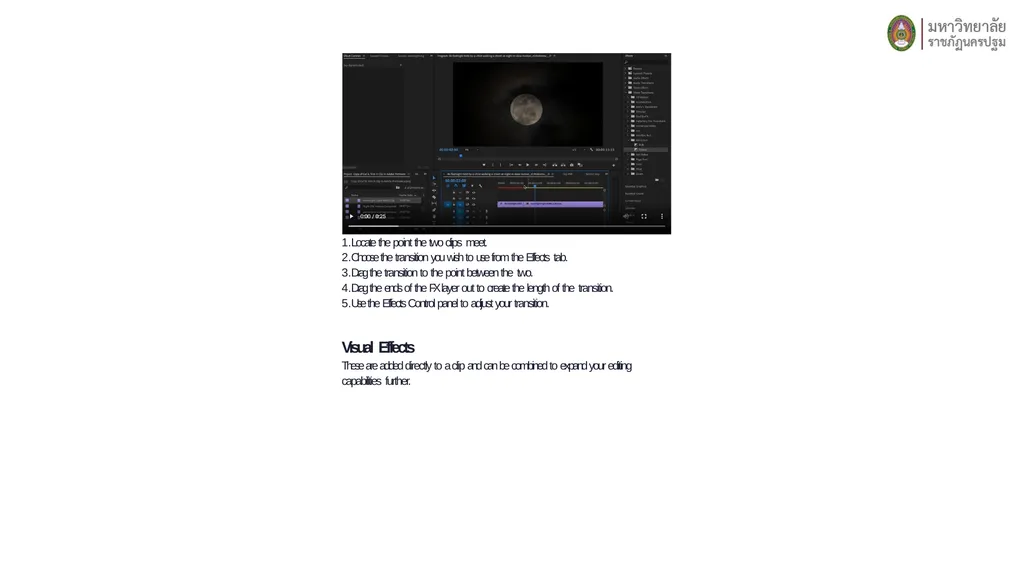
slide7. Locate the point the two clips meet.
Choose the transition you wish to use from the Effects tab.
Drag the transition to the point between the two.
Drag the ends of the FX layer out to create the length of the transition.
Use the Effects Control panel to adjust your transition.
Visual Effects
These are added directly to a clip and can be combined to expand your editing capabilities further.<br>
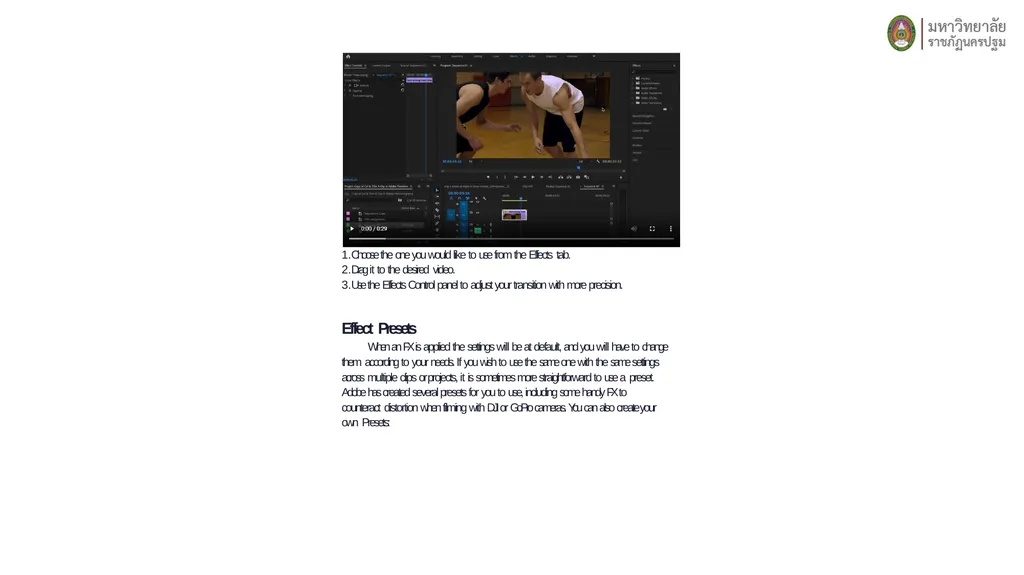
slide8. Choose the one you would like to use from the Effects tab.
Drag it to the desired video.
Use the Effects Control panel to adjust your transition with more precision.
Effect Presets
When an FX is applied the settings will be at default, and you will have to change them according to your needs. If you wish to use the same one with the same settings across multiple clips or projects, it is sometimes more straightforward to use a preset.
Adobe has created several presets for you to use, including some handy FX to counteract distortion when filming with DJI or GoPro cameras. You can also create your own Presets:<br>
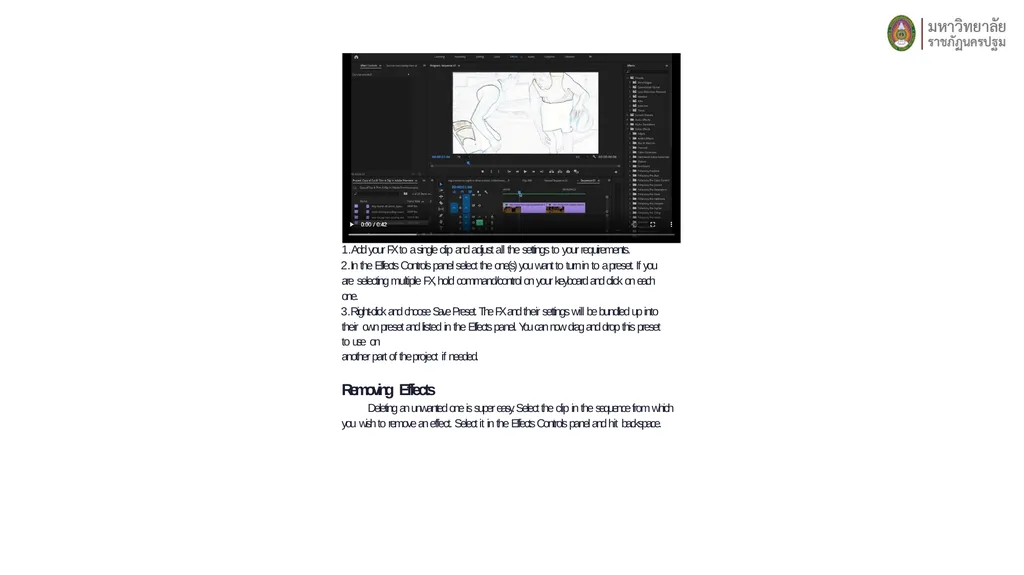
slide9. Add your FX to a single clip and adjust all the settings to your requirements.
In the Effects Controls panel select the one(s) you want to turn in to a preset. If you are selecting multiple FX, hold command/control on your keyboard and click on each one.
Right-click and choose Save Preset. The FX and their settings will be bundled up into their own preset and listed in the Effects panel. You can now drag and drop this preset to use on
another part of the project if needed.
Removing Effects
Deleting an unwanted one is super easy. Select the clip in the sequence from which you wish to remove an effect. Select it in the Effects Controls panel and hit backspace.<br>
slide2. The effects (FX) you can use in Adobe Premiere are vast, ranging from something simple like stabilization (more on that later) to more complicated special effects (SFX) such as gunshots and teleportation.
While you may feel you are some way from creating the more dramatic compositions, most of the tools you use to create the different effects are the same. So, once you know your way around the software your skillset will match your ambition.
As we’ve said before, much of editing is troubleshooting. Once you know how to use the basic tools, it is for you to figure out how to combine and use them to create the look you need. In this tutorial, we will tell you everything you need to know about Adobe Premiere effects, so you will be armed with the knowledge to get creative and create stunning compositions.<br>
slide3. Types of Video Effects Fixed Effects
These are the standard controls already applied to your clips within Premiere. These include the clips Motion Controls (Position, Scale, Rotation, and Anchor Point), Opacity, and Time Remapping. When you select a clip in the sequence, these controls will appear in the Effects Controls panel. The fixed effects allow you to change the basic settings such as resizing it or changing the speed of the playback.<br>
slide4. Standard Effects
These are the ones you add from the Effects Panel and include both transitions and more stylistic visual options. They each have a menu of options which are only revealed once it has been applied. Standard effects are essentially animated presets that tell your video to move or behave in a particular way. You can also use Masks to define the affected area.
Clip-Based or Track-Based Effects
All video effects are clip-based, meaning they need to be added to each independent one. You can add FX to multiple clips by copy and pasting the FX, nesting several together as one, or using an adjustment layer.<br>
slide5. Track-based ones only apply to Audio Effects and can be added to an entire track on the sequence using the Audio Mixer and Timeline panel.<br>
slide6. Effects Plugins
Plugins are created by a third party and can be easily installed to work alongside Premiere’s built-in controls. There are a lot of websites offering both free and paid for plugins to help expand your editing capabilities. How to Add Effects in Premiere Pro
Now you know about the different types you can use, let us run through how to add them to your work.
Transition Effects
These are added to the beginning or end of a clip to create a dynamic, animated link to the next clip.<br>
slide7. Locate the point the two clips meet.
Choose the transition you wish to use from the Effects tab.
Drag the transition to the point between the two.
Drag the ends of the FX layer out to create the length of the transition.
Use the Effects Control panel to adjust your transition.
Visual Effects
These are added directly to a clip and can be combined to expand your editing capabilities further.<br>
slide8. Choose the one you would like to use from the Effects tab.
Drag it to the desired video.
Use the Effects Control panel to adjust your transition with more precision.
Effect Presets
When an FX is applied the settings will be at default, and you will have to change them according to your needs. If you wish to use the same one with the same settings across multiple clips or projects, it is sometimes more straightforward to use a preset.
Adobe has created several presets for you to use, including some handy FX to counteract distortion when filming with DJI or GoPro cameras. You can also create your own Presets:<br>
slide9. Add your FX to a single clip and adjust all the settings to your requirements.
In the Effects Controls panel select the one(s) you want to turn in to a preset. If you are selecting multiple FX, hold command/control on your keyboard and click on each one.
Right-click and choose Save Preset. The FX and their settings will be bundled up into their own preset and listed in the Effects panel. You can now drag and drop this preset to use on
another part of the project if needed.
Removing Effects
Deleting an unwanted one is super easy. Select the clip in the sequence from which you wish to remove an effect. Select it in the Effects Controls panel and hit backspace.<br>