
All About Cayuse: Portals for Grant Proposal
DJ
Published · 39 slides · 0 views

1 / 1
Description
All About Cayuse: Portals for Grant Proposal Development, Routing and Submission Indranil Basu, PhD Assistant Director, Office of Grant Support Research Professor of Medicine Suzanne Locke Director, Research Finance November 11, 2022
Related Topics
Download this presentation From Below
"All About Cayuse: Portals for Grant Proposal" is the property of its rightful owner. Permission is granted to download and print the materials on this website for personal, non-commercial use only, and to display it on your personal computer provided you do not modify the materials and that you retain all copyright notices contained in the materials. By downloading content from our website, you accept the terms of this agreement.
Share
Embed code
Presentation Transcript
01
All About Cayuse: Portals for Grant Proposal Development, Routing and Submission Indranil Basu, PhD
Assistant Director, Office of Grant Support
Research Professor of Medicine
Suzanne Locke
Director, Research Finance
November 11, 2022<br>
Assistant Director, Office of Grant Support
Research Professor of Medicine
Suzanne Locke
Director, Research Finance
November 11, 2022<br>
02
Updates and Reminders The Cayuse accessibility issue at Einstein: Einstein-Montefiore IT and Cayuse support are still testing with the infrastructure group. Cayuse is working at the OGS office. We can help you to upload necessary documents into Cayuse SP for submission, but only IT will be able to fix the issue.
Clinical Trial or studies involving patient-related charges, two weeks are required for budget review and approval by OCT.
Please upload the revised Cayuse Supplemental Questions V3.1 form completely filled up to Cayuse SP for all new, competing renewal, and supplement applications. Please email preaward@einsteinmed.edu if you have any questions or concerns. | 1 9/29/23 Office of Grant Support<br>
Clinical Trial or studies involving patient-related charges, two weeks are required for budget review and approval by OCT.
Please upload the revised Cayuse Supplemental Questions V3.1 form completely filled up to Cayuse SP for all new, competing renewal, and supplement applications. Please email preaward@einsteinmed.edu if you have any questions or concerns. | 1 9/29/23 Office of Grant Support<br>
03
Updates and Reminders… New Other Support and Bio-sketch formats is now mandatory. We have made many presentations on this. https://grants.nih.gov/grants/guide/notice-files/NOT-OD-21-073.html;
NIH, AHRQ, and FDA require all Senior/Key Persons to have an eRA Commons username (Commons ID). https://grants.nih.gov/grants/guide/notice-files/NOT-OD-21-109.html; | 2 Office of Grant Support<br>
NIH, AHRQ, and FDA require all Senior/Key Persons to have an eRA Commons username (Commons ID). https://grants.nih.gov/grants/guide/notice-files/NOT-OD-21-109.html; | 2 Office of Grant Support<br>
04
Updates and Reminders… Investigators need to create an ORCID account and link it to eRA Commons. https://orcid.org/register; https://era.nih.gov/erahelp/ppf/default.htm#PPF_Help/8_2_orcid.htm%3FTocPath%3D_____13;
Create Login.gov account and link it to other accounts such as Grants.gov, eRA Commons, Grant Solutions, eBRAP. https://nexus.od.nih.gov/all/2021/02/24/reminder-switch-early-to-the-new-secure-two-factor-authentication-required-to-access-era-modules/;
ESIs can request eligibility extension due to COVID. https://nexus.od.nih.gov/all/2020/04/09/can-esi-status-be-extended-due-to-disruptions-from-covid-19/ | 3 9/29/23 Office of Grant Support<br>
Create Login.gov account and link it to other accounts such as Grants.gov, eRA Commons, Grant Solutions, eBRAP. https://nexus.od.nih.gov/all/2021/02/24/reminder-switch-early-to-the-new-secure-two-factor-authentication-required-to-access-era-modules/;
ESIs can request eligibility extension due to COVID. https://nexus.od.nih.gov/all/2020/04/09/can-esi-status-be-extended-due-to-disruptions-from-covid-19/ | 3 9/29/23 Office of Grant Support<br>
05
Updates and Reminders… Ray Hosein (rhosein@montefiore.org) is our technical support for Cayuse system-related issues;
All eRA portals profile creation, login ID or password management will be handled by Cynthia Cardillo;
When write to OGS please address it to one person for better services. You can CC others if you like;
Please submit your applications even it is not complete a day before the deadline. You can submit Changed/Corrected application before the deadline without any penalty.
Please log in to all external portals such as Login.gov, grants.gov, eRA Commons, eBRAP or Proposal Central, and change your email address.
eBRAP has a warning that we need to update our UEI. It is done. | 4 Office of Grant Support<br>
All eRA portals profile creation, login ID or password management will be handled by Cynthia Cardillo;
When write to OGS please address it to one person for better services. You can CC others if you like;
Please submit your applications even it is not complete a day before the deadline. You can submit Changed/Corrected application before the deadline without any penalty.
Please log in to all external portals such as Login.gov, grants.gov, eRA Commons, eBRAP or Proposal Central, and change your email address.
eBRAP has a warning that we need to update our UEI. It is done. | 4 Office of Grant Support<br>
06
What we will Cover Pre-submission:
Cayuse profile, User ID and Password;
Log in to Cayuse;
Creating an application in Cayuse (Proposals 424 and Cayuse SP);
Adding a New Person to Cause SP;
Creating a new sponsor;
Attaching documents;
Add a note to an application;
Link applications (Cayuse/Proposals 424 and Cayuse SP);
Routing and approvals;
PI Certification;
Submitting to the sponsors. | 5 Office of Grant Support<br>
Cayuse profile, User ID and Password;
Log in to Cayuse;
Creating an application in Cayuse (Proposals 424 and Cayuse SP);
Adding a New Person to Cause SP;
Creating a new sponsor;
Attaching documents;
Add a note to an application;
Link applications (Cayuse/Proposals 424 and Cayuse SP);
Routing and approvals;
PI Certification;
Submitting to the sponsors. | 5 Office of Grant Support<br>
07
What we will Cover… Post-submission:
Other pre- and post-award submission (OPAS)
Attaching or uploading documents
Not routing, but emailing the appropriate person at OGS or RF;
Just-in-Time information submission;
Account Set up
IACUC, IRB approvals, agreement and contracts;
Research Performance Progress Report (RPPR);
Final reports and close outs. | 6 Office of Grant Support<br>
Other pre- and post-award submission (OPAS)
Attaching or uploading documents
Not routing, but emailing the appropriate person at OGS or RF;
Just-in-Time information submission;
Account Set up
IACUC, IRB approvals, agreement and contracts;
Research Performance Progress Report (RPPR);
Final reports and close outs. | 6 Office of Grant Support<br>
08
Updated Cayuse Cayuse now has two components:
(I) Proposals 424 (Cayuse 424) and;
(II) Cayuse SP;
For non-technical assistance, contact Dr. Basu at indranil.basu@einsteinmed.edu.
For technical assistance, contact Ray Hosein at rhosein@Montefiore.org
For urgent help (when we are not available) you may call (503) 297-2108 Ex 201 or email at Support@cayuse.com Office of Grant Support<br>
(I) Proposals 424 (Cayuse 424) and;
(II) Cayuse SP;
For non-technical assistance, contact Dr. Basu at indranil.basu@einsteinmed.edu.
For technical assistance, contact Ray Hosein at rhosein@Montefiore.org
For urgent help (when we are not available) you may call (503) 297-2108 Ex 201 or email at Support@cayuse.com Office of Grant Support<br>
09
Features of Cayuse SP Automatically creates routing chain and helps routing the application for approval;
Stores data, files and any information that is necessary for routing and approval, but are not going to the sponsor;
Enables users to prepare application reports based on specific criteria;
Can prepare reports about submissions and awards Office of Grant Support<br>
Stores data, files and any information that is necessary for routing and approval, but are not going to the sponsor;
Enables users to prepare application reports based on specific criteria;
Can prepare reports about submissions and awards Office of Grant Support<br>
10
Creating Profile, Obtaining User ID and Password Send the following information to Ray Hosein:
Individual’s name;
Title of the person;
Role (department admin, investigator, post-doc, student…);
Address and contact info (email is a must);
Ray will create the profile and you will receive an email;
The username and password given are case-sensitive;
The person will be able to change the password once signed in. | 9 Office of Grant Support<br>
Individual’s name;
Title of the person;
Role (department admin, investigator, post-doc, student…);
Address and contact info (email is a must);
Ray will create the profile and you will receive an email;
The username and password given are case-sensitive;
The person will be able to change the password once signed in. | 9 Office of Grant Support<br>
11
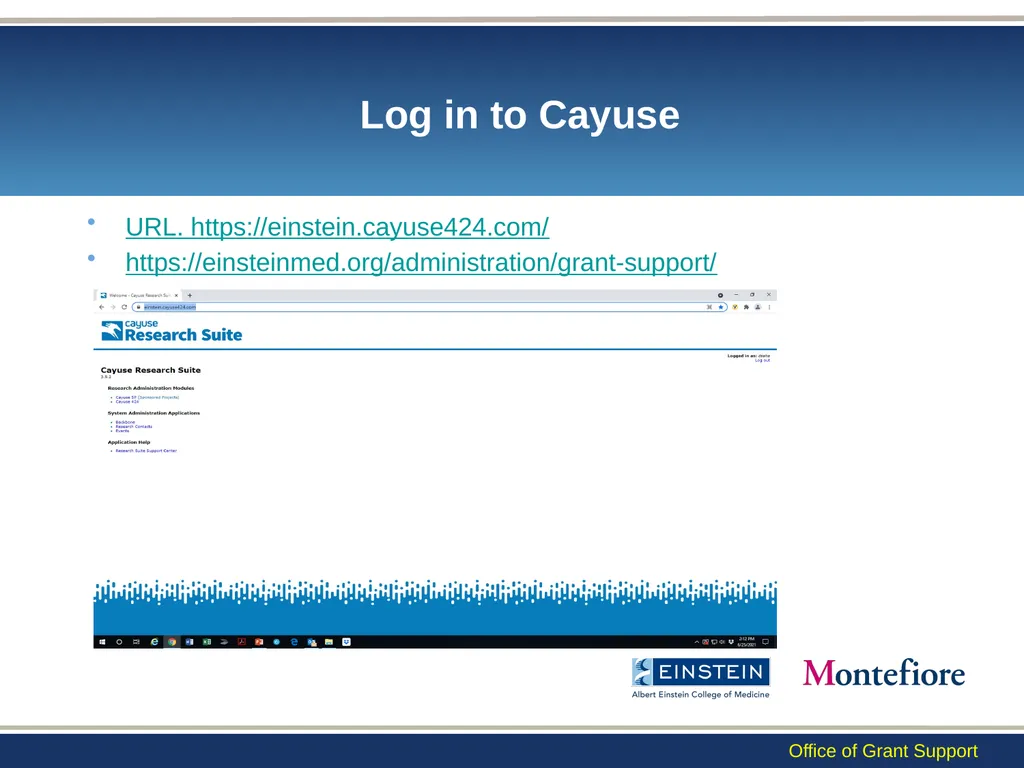
Log in to Cayuse URL. https://einstein.cayuse424.com/
https://einsteinmed.org/administration/grant-support/ Office of Grant Support<br>
https://einsteinmed.org/administration/grant-support/ Office of Grant Support<br>
12
Creating an Application in Cayuse Cayuse Handbook (can be started in either Cayuse/Proposals 424 or Cayuse SP. Link these two once created) - https://einsteinmed.org/administration/grant-support/default.aspx?id=58346;
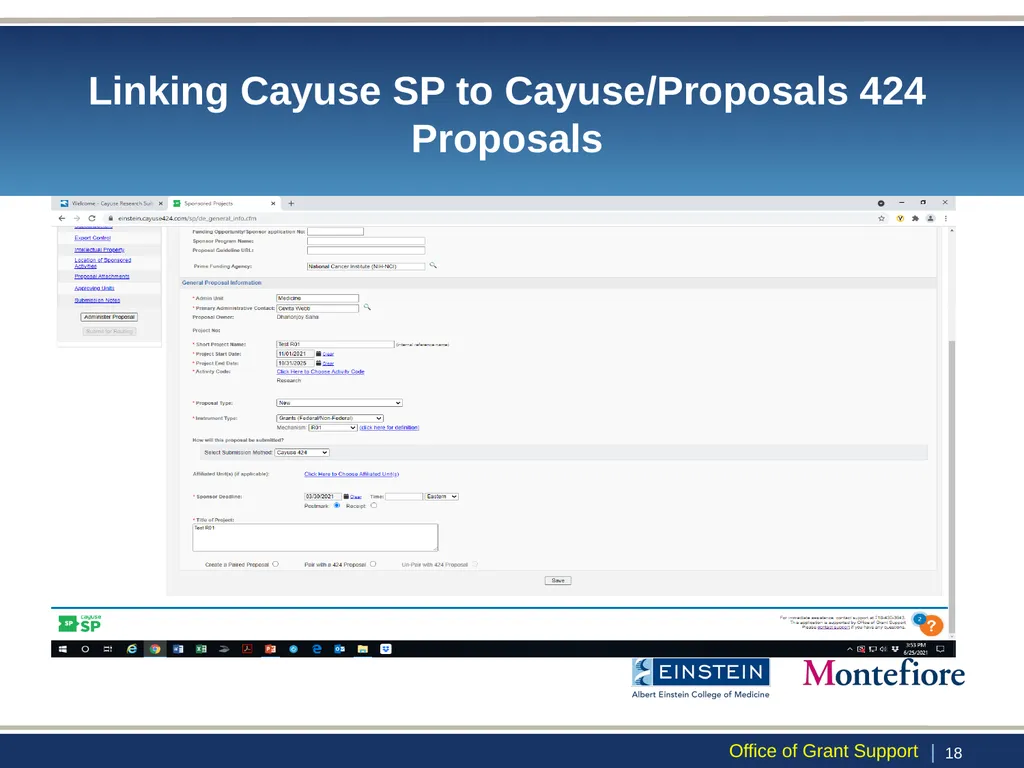
Linking must be done from Cayuse SP. | 11 Office of Grant Support<br>
Linking must be done from Cayuse SP. | 11 Office of Grant Support<br>
13
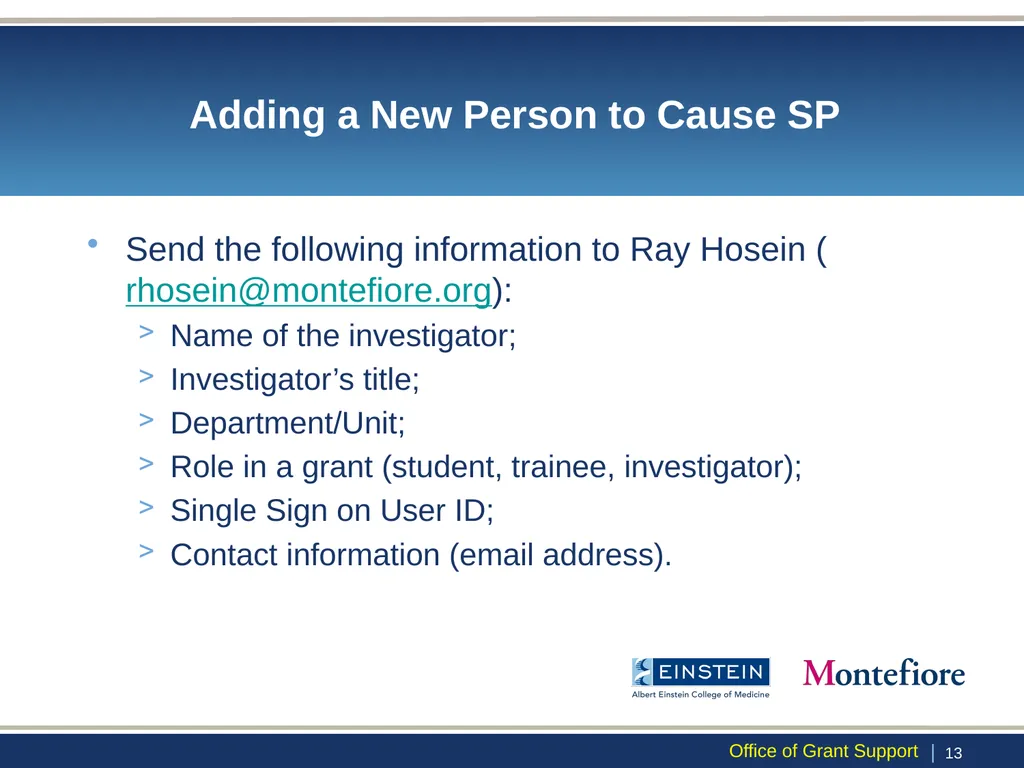
Adding a New Person to Cause SP Send the following information to Ray Hosein (rhosein@montefiore.org):
Name of the investigator;
Investigator’s title;
Department/Unit;
Role in a grant (student, trainee, investigator);
Single Sign on User ID;
Contact information (email address). | 12 Office of Grant Support<br>
Name of the investigator;
Investigator’s title;
Department/Unit;
Role in a grant (student, trainee, investigator);
Single Sign on User ID;
Contact information (email address). | 12 Office of Grant Support<br>
14
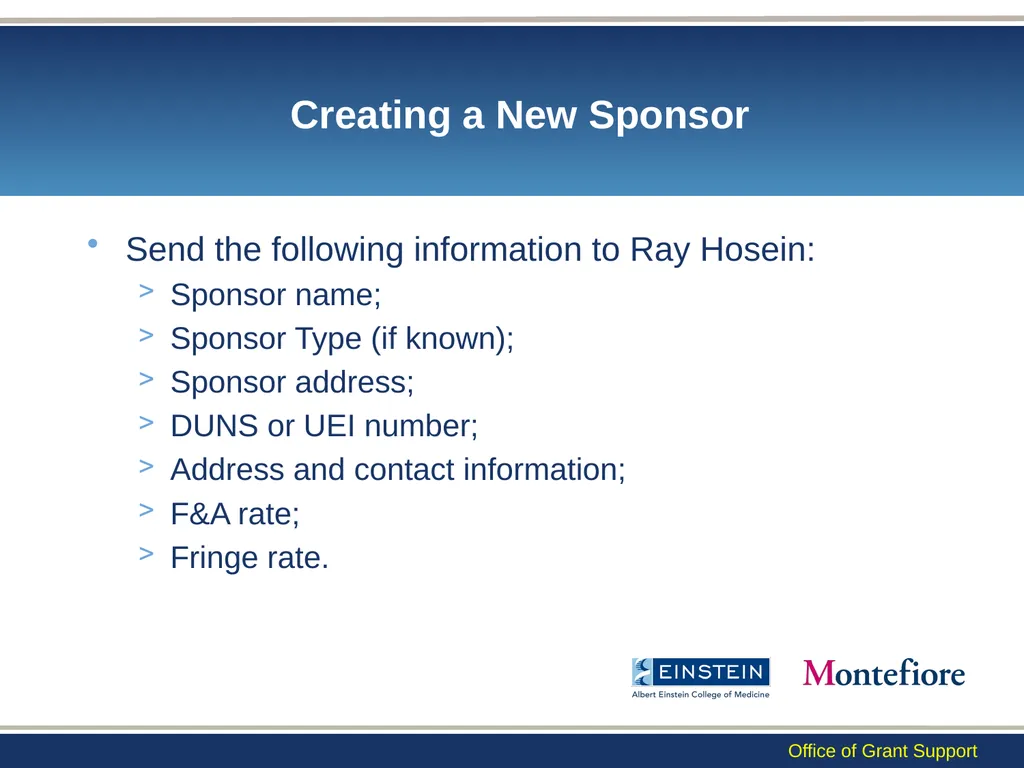
Creating a New Sponsor Send the following information to Ray Hosein:
Sponsor name;
Sponsor Type (if known);
Sponsor address;
DUNS or UEI number;
Address and contact information;
F&A rate;
Fringe rate. Office of Grant Support<br>
Sponsor name;
Sponsor Type (if known);
Sponsor address;
DUNS or UEI number;
Address and contact information;
F&A rate;
Fringe rate. Office of Grant Support<br>
15
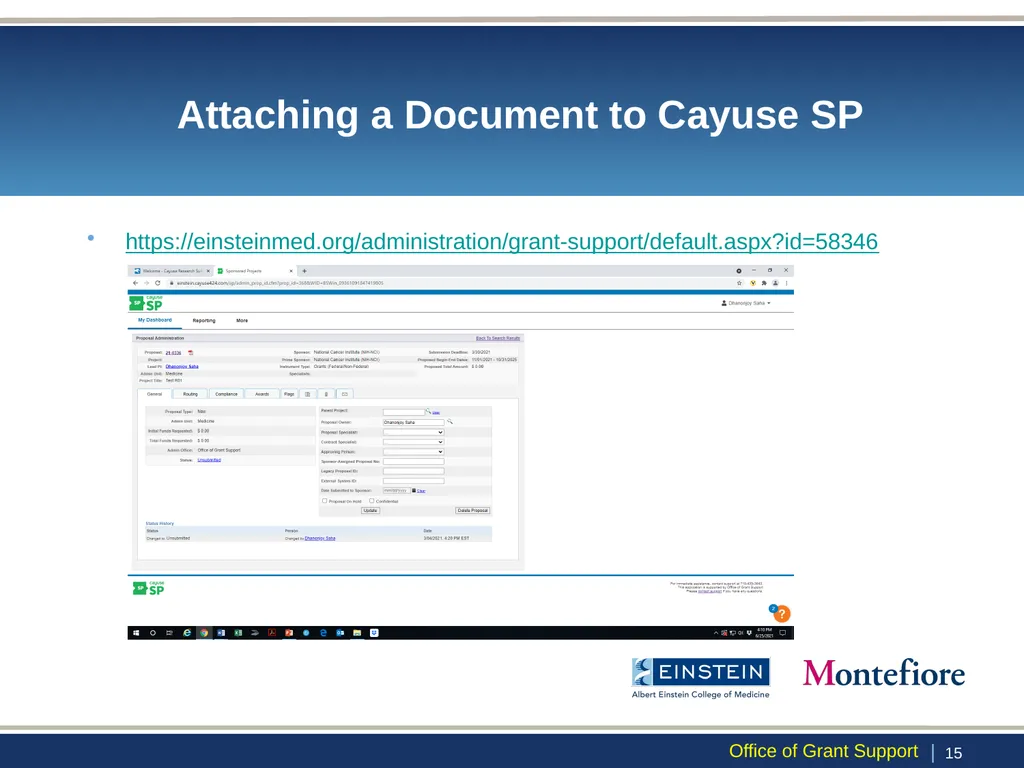
Attaching a Document to Cayuse SP https://einsteinmed.org/administration/grant-support/default.aspx?id=58346 | 14 Office of Grant Support<br>
16
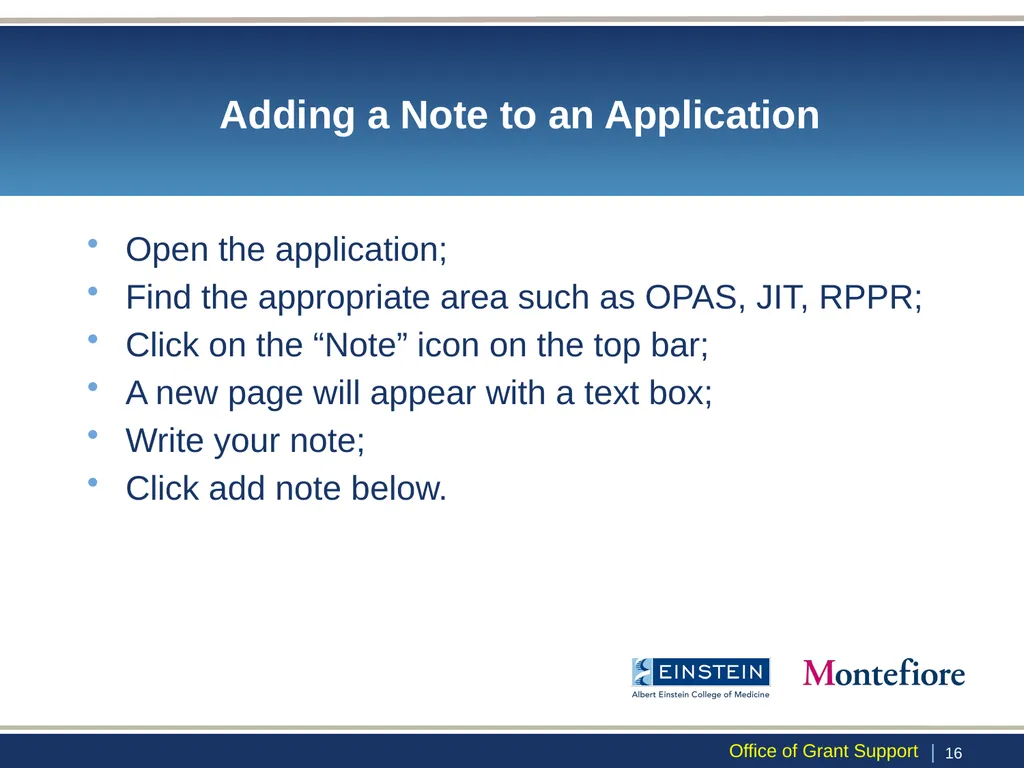
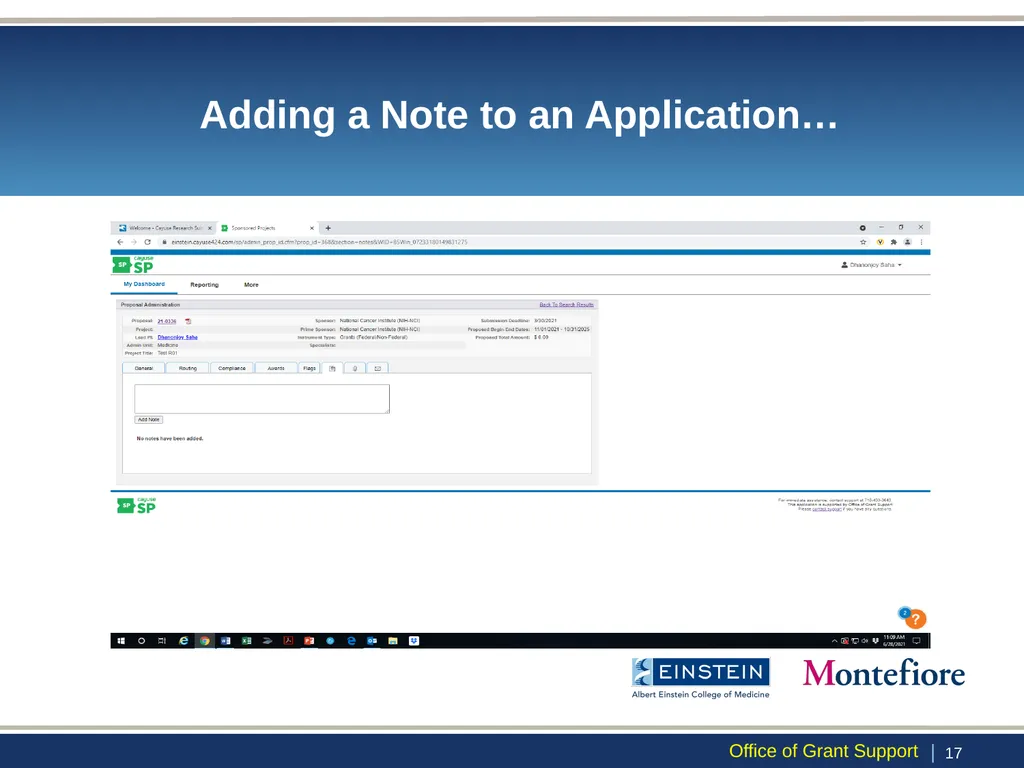
Adding a Note to an Application Open the application;
Find the appropriate area such as OPAS, JIT, RPPR;
Click on the “Note” icon on the top bar;
A new page will appear with a text box;
Write your note;
Click add note below. | 15 Office of Grant Support<br>
Find the appropriate area such as OPAS, JIT, RPPR;
Click on the “Note” icon on the top bar;
A new page will appear with a text box;
Write your note;
Click add note below. | 15 Office of Grant Support<br>
17
Adding a Note to an Application… | 16 Office of Grant Support<br>
18
Linking Cayuse SP to Cayuse/Proposals 424 Proposals | 17 Office of Grant Support<br>
19
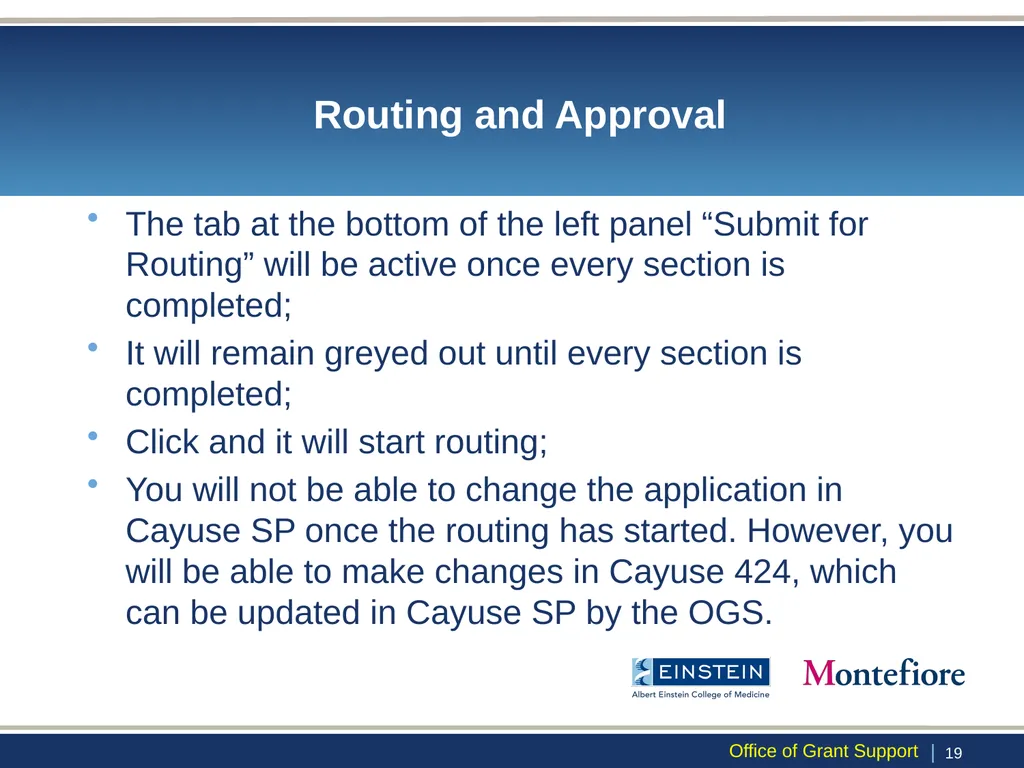
Routing and Approval The tab at the bottom of the left panel “Submit for Routing” will be active once every section is completed;
It will remain greyed out until every section is completed;
Click and it will start routing;
You will not be able to change the application in Cayuse SP once the routing has started. However, you will be able to make changes in Cayuse 424, which can be updated in Cayuse SP by the OGS. | 18 Office of Grant Support<br>
It will remain greyed out until every section is completed;
Click and it will start routing;
You will not be able to change the application in Cayuse SP once the routing has started. However, you will be able to make changes in Cayuse 424, which can be updated in Cayuse SP by the OGS. | 18 Office of Grant Support<br>
20
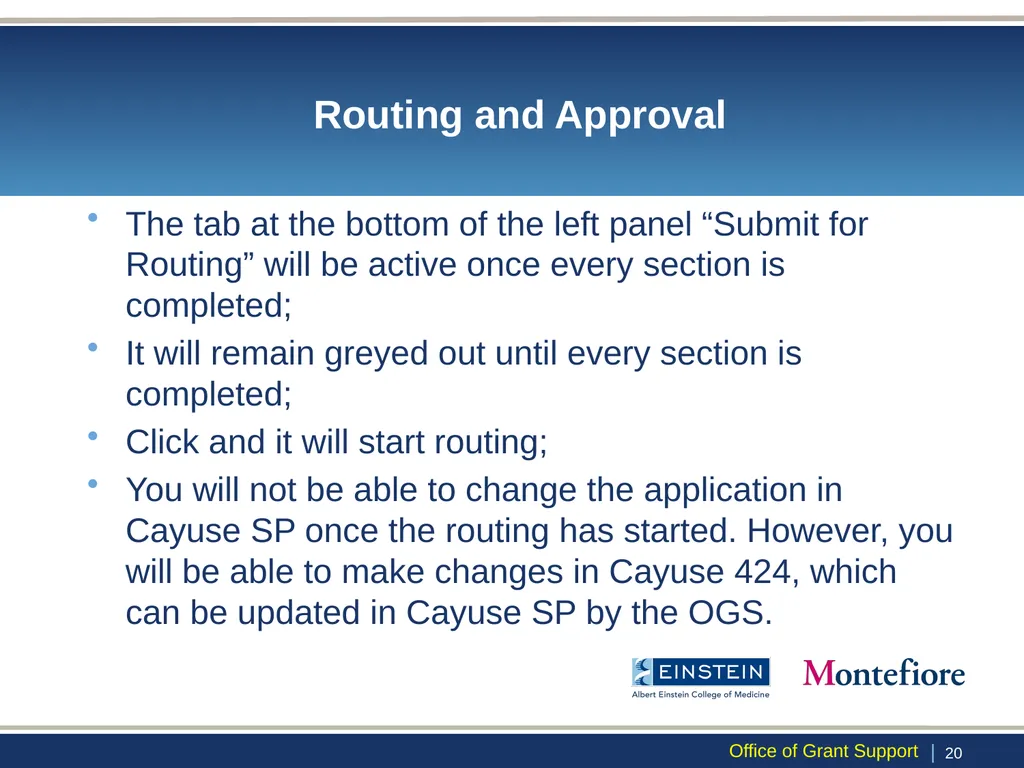
Routing and Approval The tab at the bottom of the left panel “Submit for Routing” will be active once every section is completed;
It will remain greyed out until every section is completed;
Click and it will start routing;
You will not be able to change the application in Cayuse SP once the routing has started. However, you will be able to make changes in Cayuse 424, which can be updated in Cayuse SP by the OGS. | 19 Office of Grant Support<br>
It will remain greyed out until every section is completed;
Click and it will start routing;
You will not be able to change the application in Cayuse SP once the routing has started. However, you will be able to make changes in Cayuse 424, which can be updated in Cayuse SP by the OGS. | 19 Office of Grant Support<br>
21
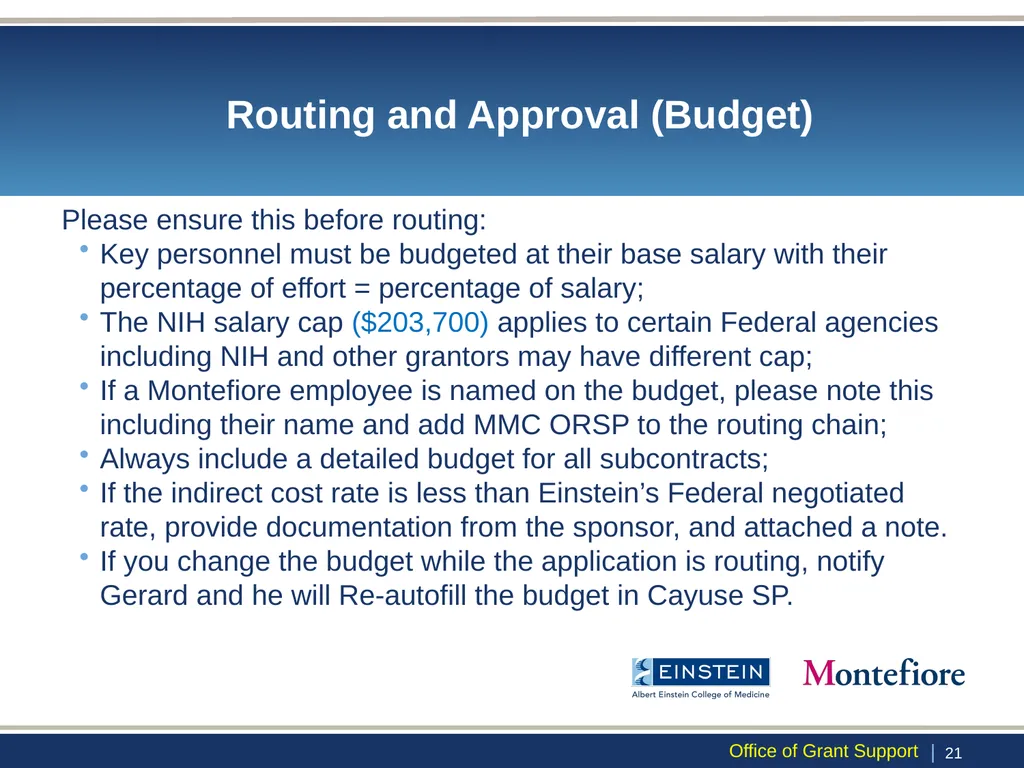
Routing and Approval (Budget) Please ensure this before routing:
Key personnel must be budgeted at their base salary with their percentage of effort = percentage of salary;
The NIH salary cap ($203,700) applies to certain Federal agencies including NIH and other grantors may have different cap;
If a Montefiore employee is named on the budget, please note this including their name and add MMC ORSP to the routing chain;
Always include a detailed budget for all subcontracts;
If the indirect cost rate is less than Einstein’s Federal negotiated rate, provide documentation from the sponsor, and attached a note.
If you change the budget while the application is routing, notify Gerard and he will Re-autofill the budget in Cayuse SP. | 20 Office of Grant Support<br>
Key personnel must be budgeted at their base salary with their percentage of effort = percentage of salary;
The NIH salary cap ($203,700) applies to certain Federal agencies including NIH and other grantors may have different cap;
If a Montefiore employee is named on the budget, please note this including their name and add MMC ORSP to the routing chain;
Always include a detailed budget for all subcontracts;
If the indirect cost rate is less than Einstein’s Federal negotiated rate, provide documentation from the sponsor, and attached a note.
If you change the budget while the application is routing, notify Gerard and he will Re-autofill the budget in Cayuse SP. | 20 Office of Grant Support<br>
22
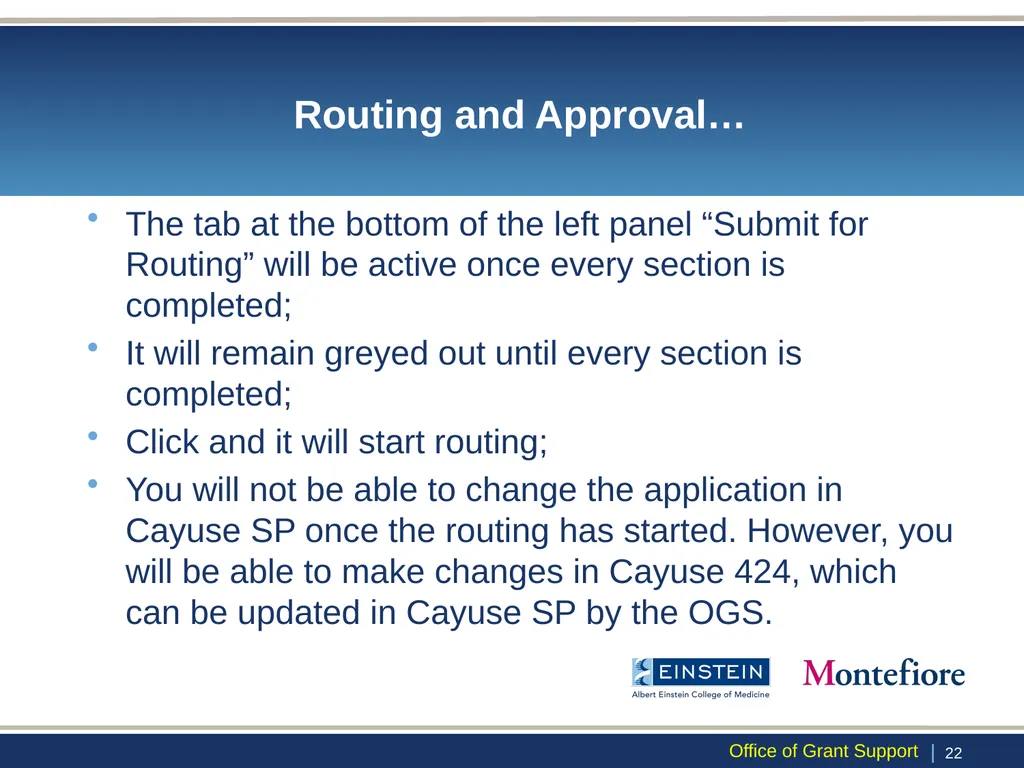
Routing and Approval… The tab at the bottom of the left panel “Submit for Routing” will be active once every section is completed;
It will remain greyed out until every section is completed;
Click and it will start routing;
You will not be able to change the application in Cayuse SP once the routing has started. However, you will be able to make changes in Cayuse 424, which can be updated in Cayuse SP by the OGS. | 21 Office of Grant Support<br>
It will remain greyed out until every section is completed;
Click and it will start routing;
You will not be able to change the application in Cayuse SP once the routing has started. However, you will be able to make changes in Cayuse 424, which can be updated in Cayuse SP by the OGS. | 21 Office of Grant Support<br>
23
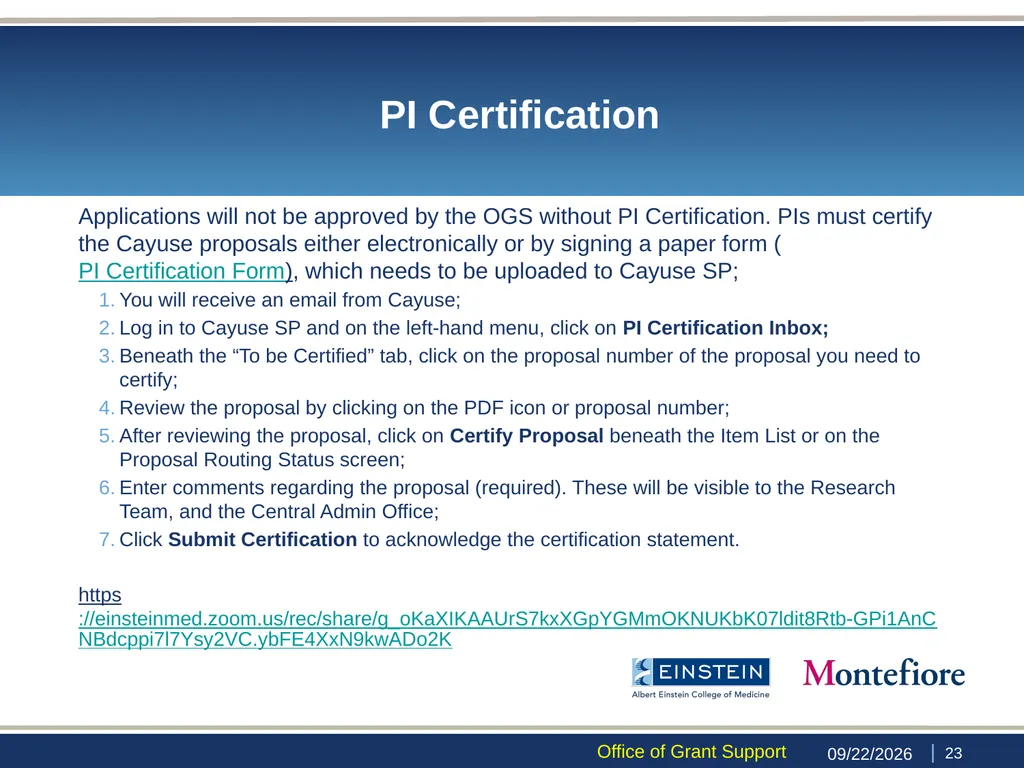
PI Certification Applications will not be approved by the OGS without PI Certification. PIs must certify the Cayuse proposals either electronically or by signing a paper form (PI Certification Form), which needs to be uploaded to Cayuse SP;
You will receive an email from Cayuse;
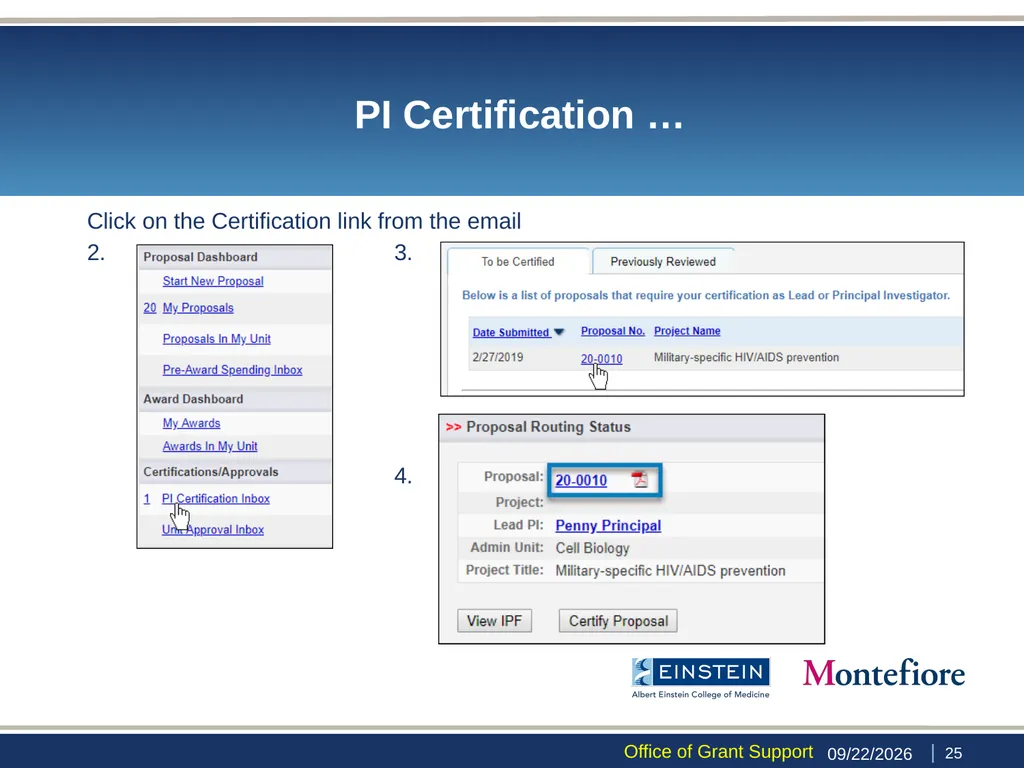
Log in to Cayuse SP and on the left-hand menu, click on PI Certification Inbox;
Beneath the “To be Certified” tab, click on the proposal number of the proposal you need to certify;
Review the proposal by clicking on the PDF icon or proposal number;
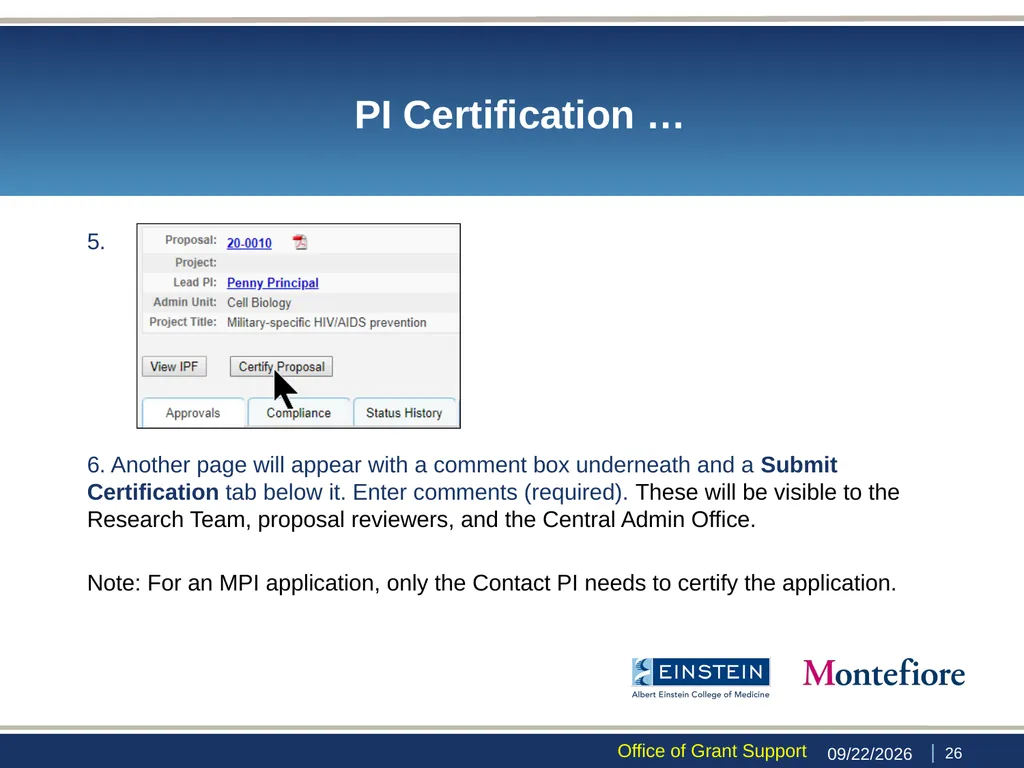
After reviewing the proposal, click on Certify Proposal beneath the Item List or on the Proposal Routing Status screen;
Enter comments regarding the proposal (required). These will be visible to the Research Team, and the Central Admin Office;
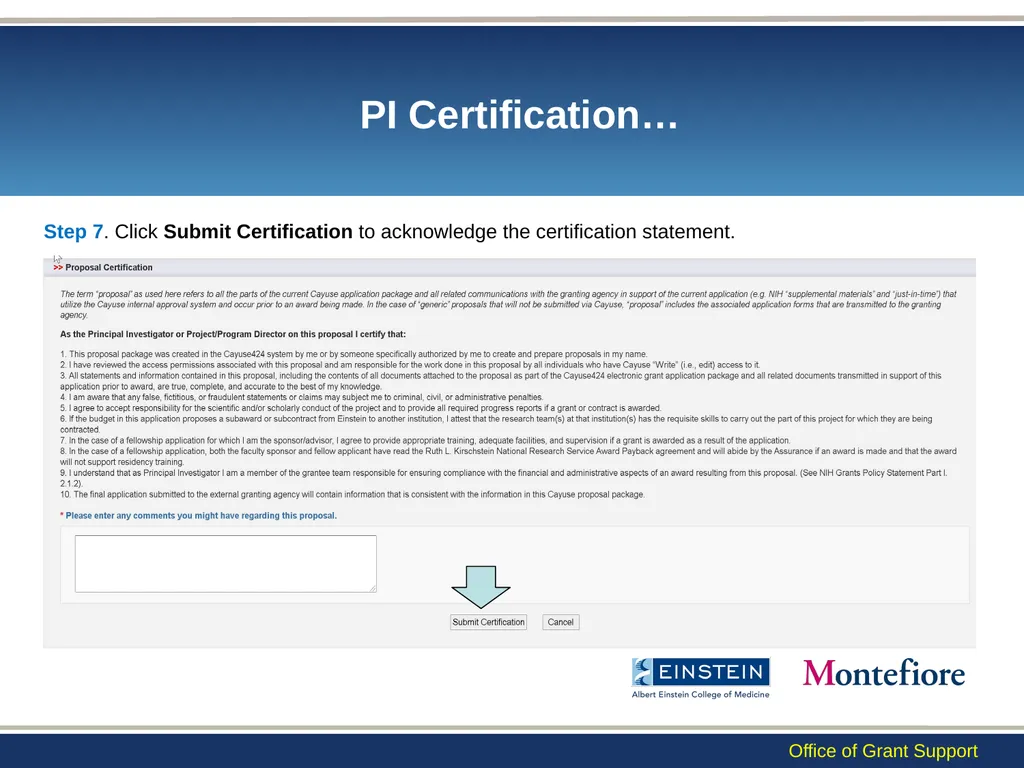
Click Submit Certification to acknowledge the certification statement.
https://einsteinmed.zoom.us/rec/share/g_oKaXIKAAUrS7kxXGpYGMmOKNUKbK07ldit8Rtb-GPi1AnCNBdcppi7l7Ysy2VC.ybFE4XxN9kwADo2K | 22 9/29/23 Office of Grant Support<br>
You will receive an email from Cayuse;
Log in to Cayuse SP and on the left-hand menu, click on PI Certification Inbox;
Beneath the “To be Certified” tab, click on the proposal number of the proposal you need to certify;
Review the proposal by clicking on the PDF icon or proposal number;
After reviewing the proposal, click on Certify Proposal beneath the Item List or on the Proposal Routing Status screen;
Enter comments regarding the proposal (required). These will be visible to the Research Team, and the Central Admin Office;
Click Submit Certification to acknowledge the certification statement.
https://einsteinmed.zoom.us/rec/share/g_oKaXIKAAUrS7kxXGpYGMmOKNUKbK07ldit8Rtb-GPi1AnCNBdcppi7l7Ysy2VC.ybFE4XxN9kwADo2K | 22 9/29/23 Office of Grant Support<br>
24
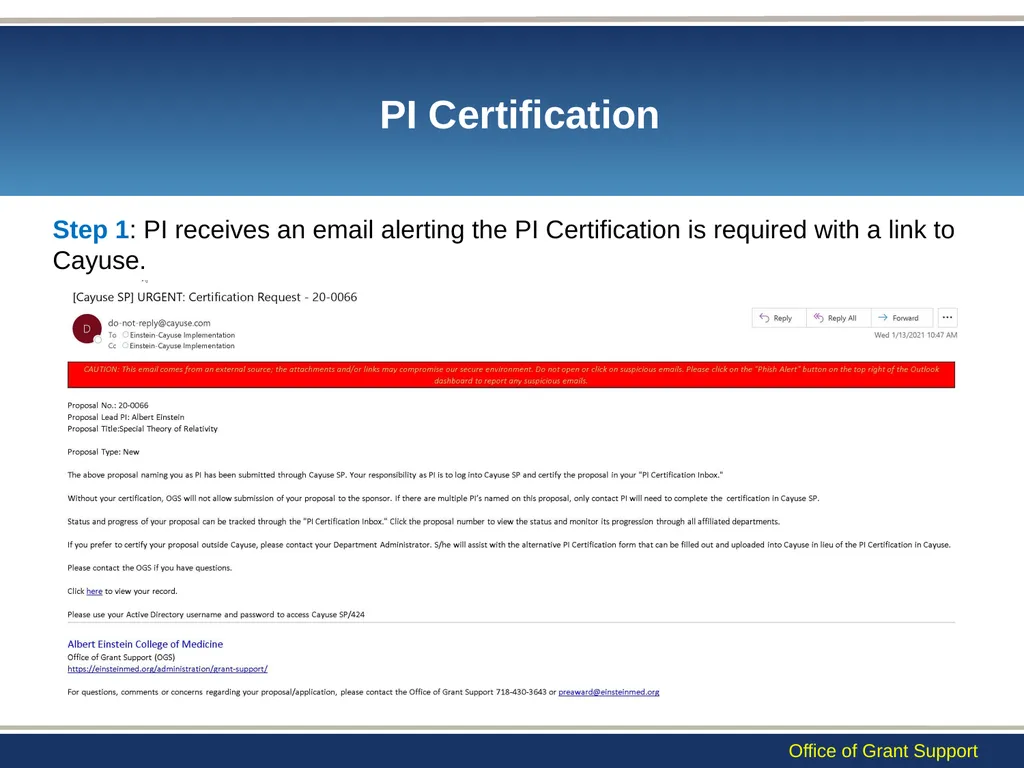
PI Certification Step 1: PI receives an email alerting the PI Certification is required with a link to Cayuse. THIS SHOULD BE AN IMAGE OF THE EMAIL Office of Grant Support<br>
25
PI Certification … Click on the Certification link from the email
2. 3.
4. | 24 9/29/23 Office of Grant Support<br>
2. 3.
4. | 24 9/29/23 Office of Grant Support<br>
26
PI Certification … 5.
6. Another page will appear with a comment box underneath and a Submit Certification tab below it. Enter comments (required). These will be visible to the Research Team, proposal reviewers, and the Central Admin Office.
Note: For an MPI application, only the Contact PI needs to certify the application. | 25 9/29/23 Office of Grant Support<br>
6. Another page will appear with a comment box underneath and a Submit Certification tab below it. Enter comments (required). These will be visible to the Research Team, proposal reviewers, and the Central Admin Office.
Note: For an MPI application, only the Contact PI needs to certify the application. | 25 9/29/23 Office of Grant Support<br>
27
PI Certification… Step 7. Click Submit Certification to acknowledge the certification statement. Office of Grant Support<br>
28
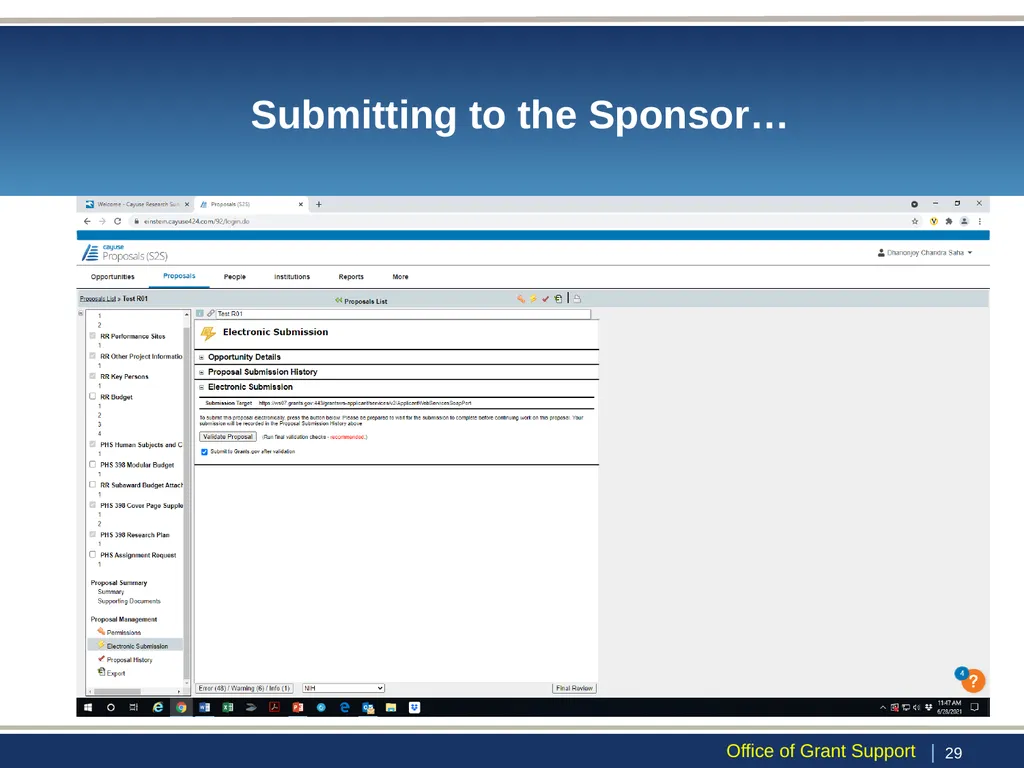
Submitting to the Sponsor | 27 Log in to Cayuse 424;
Find the application;
Click on Electronic Submission on Proposal Management (at the bottom of the left panel);
A new page appears;
Check off the button “Submit to Grants.gov after validation;”
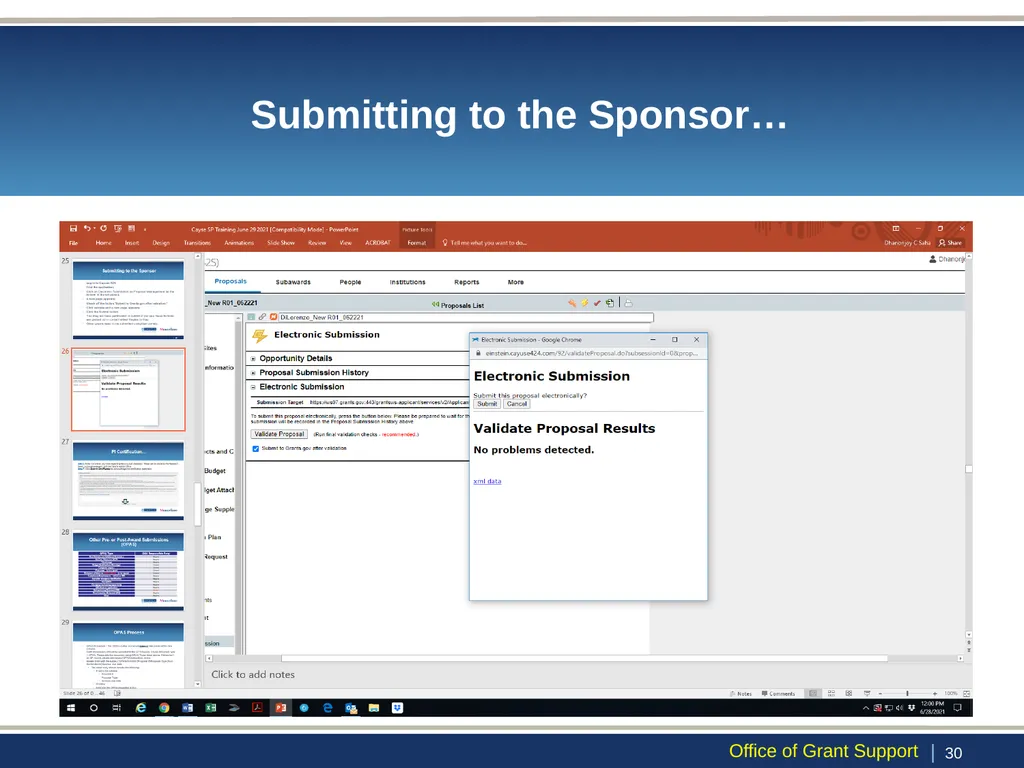
Click validate and a new page appears;
Click the Submit button;
You may not have permission to submit if you see these buttons are greyed out – contact Ray;
Other grants need to be submitted using their portals. Office of Grant Support<br>
Find the application;
Click on Electronic Submission on Proposal Management (at the bottom of the left panel);
A new page appears;
Check off the button “Submit to Grants.gov after validation;”
Click validate and a new page appears;
Click the Submit button;
You may not have permission to submit if you see these buttons are greyed out – contact Ray;
Other grants need to be submitted using their portals. Office of Grant Support<br>
29
Submitting to the Sponsor… | 28 Office of Grant Support<br>
30
Submitting to the Sponsor… | 29 Office of Grant Support<br>
31
Other Pre- or Post-Award Submissions (OPAS) Office of Grant Support<br>
32
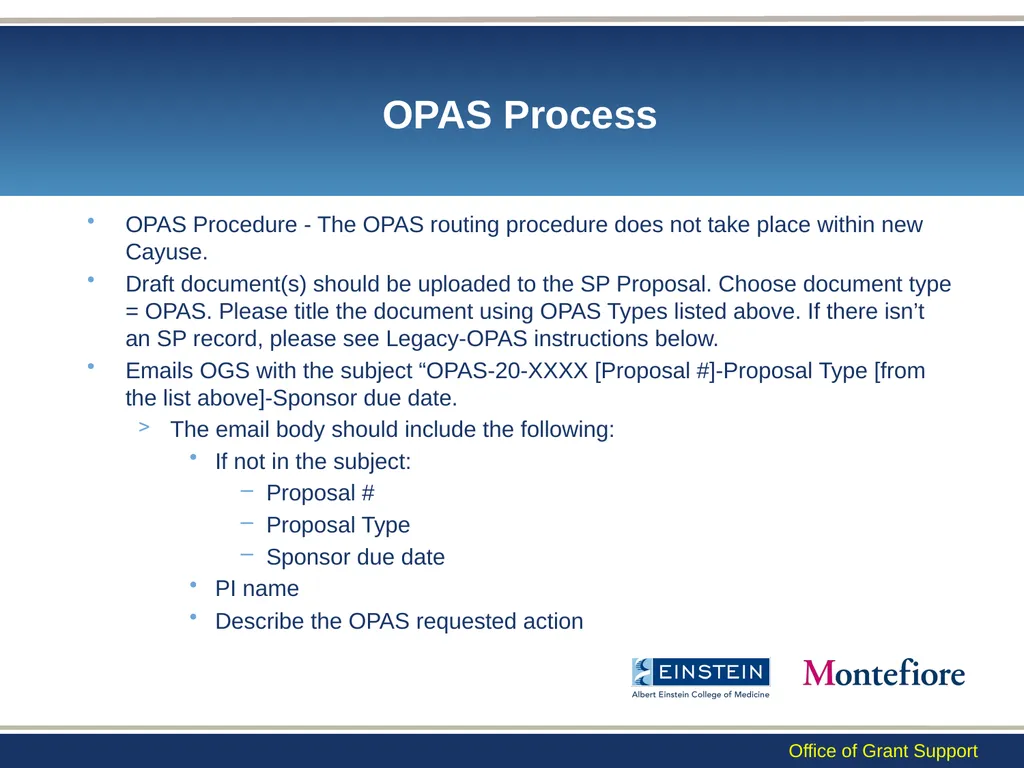
OPAS Process OPAS Procedure - The OPAS routing procedure does not take place within new Cayuse.
Draft document(s) should be uploaded to the SP Proposal. Choose document type = OPAS. Please title the document using OPAS Types listed above. If there isn’t an SP record, please see Legacy-OPAS instructions below.
Emails OGS with the subject “OPAS-20-XXXX [Proposal #]-Proposal Type [from the list above]-Sponsor due date.
The email body should include the following:
If not in the subject:
Proposal #
Proposal Type
Sponsor due date
PI name
Describe the OPAS requested action Office of Grant Support<br>
Draft document(s) should be uploaded to the SP Proposal. Choose document type = OPAS. Please title the document using OPAS Types listed above. If there isn’t an SP record, please see Legacy-OPAS instructions below.
Emails OGS with the subject “OPAS-20-XXXX [Proposal #]-Proposal Type [from the list above]-Sponsor due date.
The email body should include the following:
If not in the subject:
Proposal #
Proposal Type
Sponsor due date
PI name
Describe the OPAS requested action Office of Grant Support<br>
33
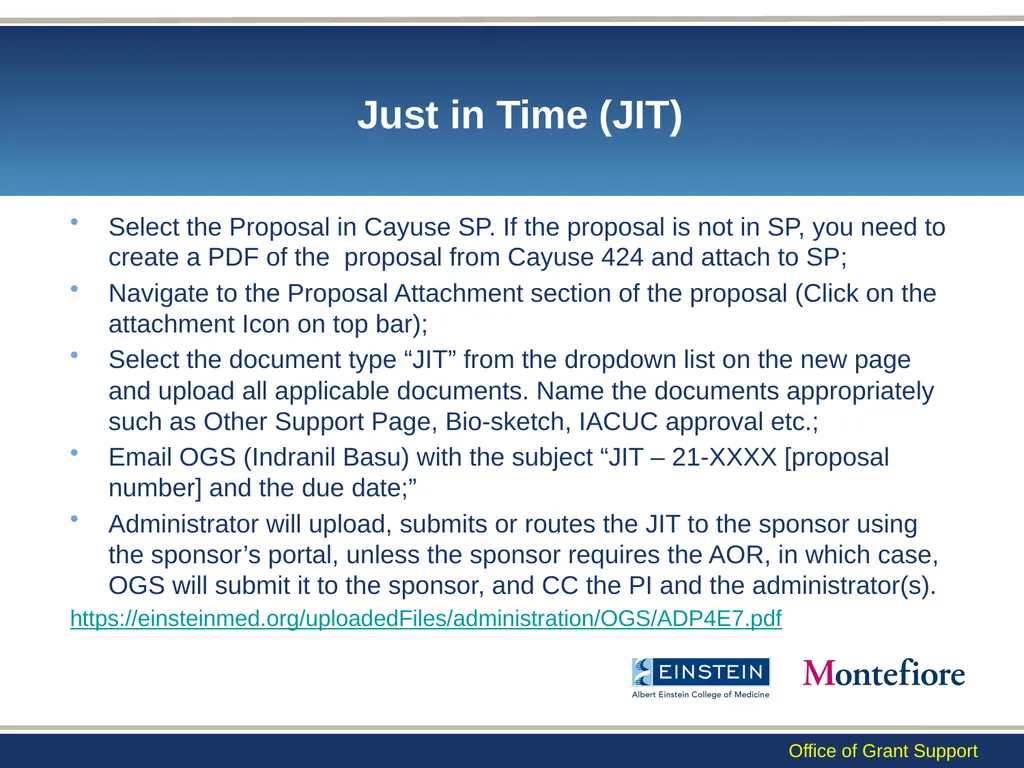
Just in Time (JIT) Select the Proposal in Cayuse SP. If the proposal is not in SP, you need to create a PDF of the proposal from Cayuse 424 and attach to SP;
Navigate to the Proposal Attachment section of the proposal (Click on the attachment Icon on top bar);
Select the document type “JIT” from the dropdown list on the new page and upload all applicable documents. Name the documents appropriately such as Other Support Page, Bio-sketch, IACUC approval etc.;
Email OGS (Indranil Basu) with the subject “JIT – 21-XXXX [proposal number] and the due date;”
Administrator will upload, submits or routes the JIT to the sponsor using the sponsor’s portal, unless the sponsor requires the AOR, in which case, OGS will submit it to the sponsor, and CC the PI and the administrator(s).
https://einsteinmed.org/uploadedFiles/administration/OGS/ADP4E7.pdf Office of Grant Support<br>
Navigate to the Proposal Attachment section of the proposal (Click on the attachment Icon on top bar);
Select the document type “JIT” from the dropdown list on the new page and upload all applicable documents. Name the documents appropriately such as Other Support Page, Bio-sketch, IACUC approval etc.;
Email OGS (Indranil Basu) with the subject “JIT – 21-XXXX [proposal number] and the due date;”
Administrator will upload, submits or routes the JIT to the sponsor using the sponsor’s portal, unless the sponsor requires the AOR, in which case, OGS will submit it to the sponsor, and CC the PI and the administrator(s).
https://einsteinmed.org/uploadedFiles/administration/OGS/ADP4E7.pdf Office of Grant Support<br>
34
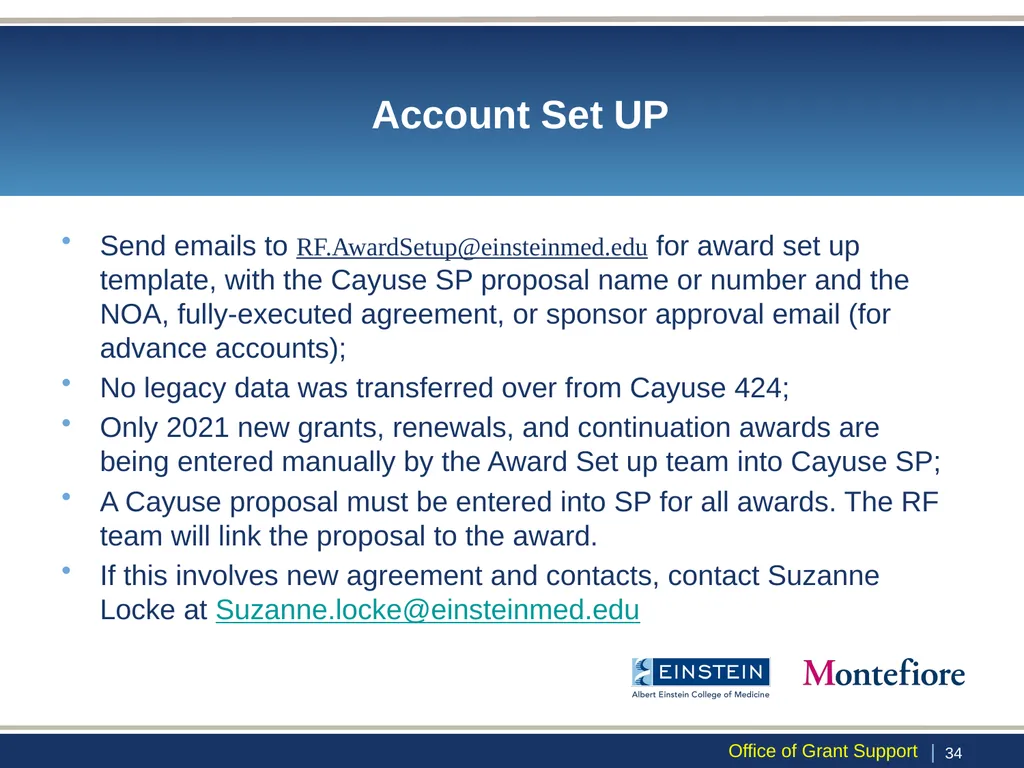
Account Set UP Send emails to RF.AwardSetup@einsteinmed.edu for award set up template, with the Cayuse SP proposal name or number and the NOA, fully-executed agreement, or sponsor approval email (for advance accounts);
No legacy data was transferred over from Cayuse 424;
Only 2021 new grants, renewals, and continuation awards are being entered manually by the Award Set up team into Cayuse SP;
A Cayuse proposal must be entered into SP for all awards. The RF team will link the proposal to the award.
If this involves new agreement and contacts, contact Suzanne Locke at Suzanne.locke@einsteinmed.edu | 33 Office of Grant Support<br>
No legacy data was transferred over from Cayuse 424;
Only 2021 new grants, renewals, and continuation awards are being entered manually by the Award Set up team into Cayuse SP;
A Cayuse proposal must be entered into SP for all awards. The RF team will link the proposal to the award.
If this involves new agreement and contacts, contact Suzanne Locke at Suzanne.locke@einsteinmed.edu | 33 Office of Grant Support<br>
35
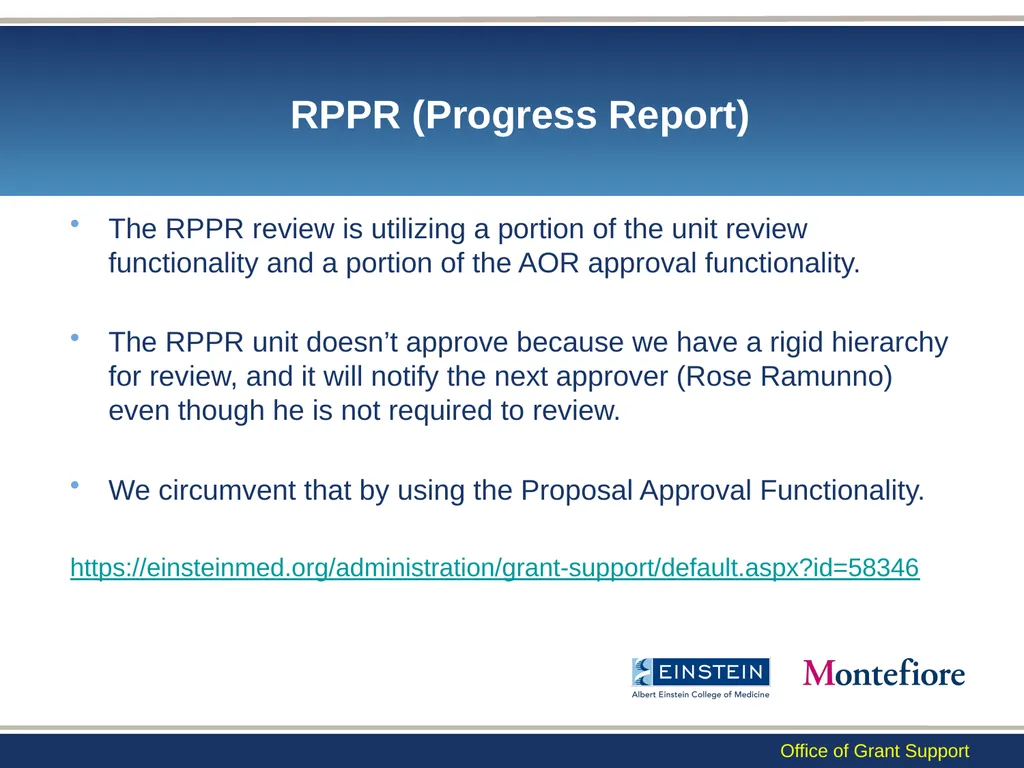
RPPR (Progress Report) The RPPR review is utilizing a portion of the unit review functionality and a portion of the AOR approval functionality.
The RPPR unit doesn’t approve because we have a rigid hierarchy for review, and it will notify the next approver (Rose Ramunno) even though he is not required to review.
We circumvent that by using the Proposal Approval Functionality.
https://einsteinmed.org/administration/grant-support/default.aspx?id=58346 Office of Grant Support<br>
The RPPR unit doesn’t approve because we have a rigid hierarchy for review, and it will notify the next approver (Rose Ramunno) even though he is not required to review.
We circumvent that by using the Proposal Approval Functionality.
https://einsteinmed.org/administration/grant-support/default.aspx?id=58346 Office of Grant Support<br>
36
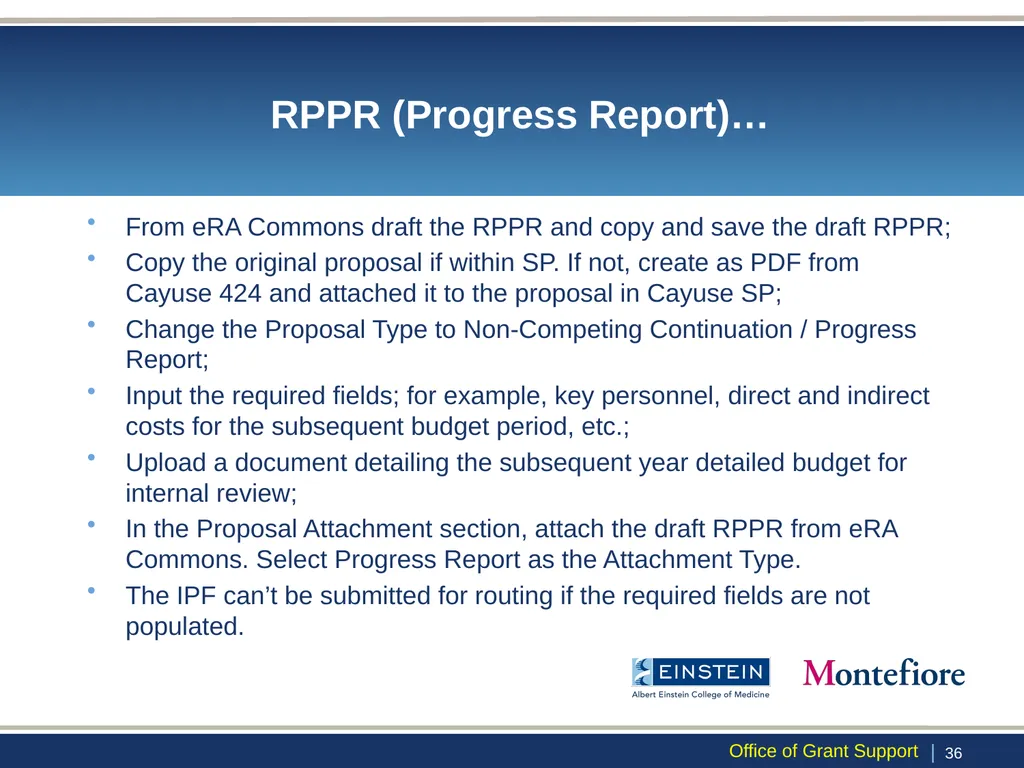
RPPR (Progress Report)… From eRA Commons draft the RPPR and copy and save the draft RPPR;
Copy the original proposal if within SP. If not, create as PDF from Cayuse 424 and attached it to the proposal in Cayuse SP;
Change the Proposal Type to Non-Competing Continuation / Progress Report;
Input the required fields; for example, key personnel, direct and indirect costs for the subsequent budget period, etc.;
Upload a document detailing the subsequent year detailed budget for internal review;
In the Proposal Attachment section, attach the draft RPPR from eRA Commons. Select Progress Report as the Attachment Type.
The IPF can’t be submitted for routing if the required fields are not populated. | 35 Office of Grant Support<br>
Copy the original proposal if within SP. If not, create as PDF from Cayuse 424 and attached it to the proposal in Cayuse SP;
Change the Proposal Type to Non-Competing Continuation / Progress Report;
Input the required fields; for example, key personnel, direct and indirect costs for the subsequent budget period, etc.;
Upload a document detailing the subsequent year detailed budget for internal review;
In the Proposal Attachment section, attach the draft RPPR from eRA Commons. Select Progress Report as the Attachment Type.
The IPF can’t be submitted for routing if the required fields are not populated. | 35 Office of Grant Support<br>
37
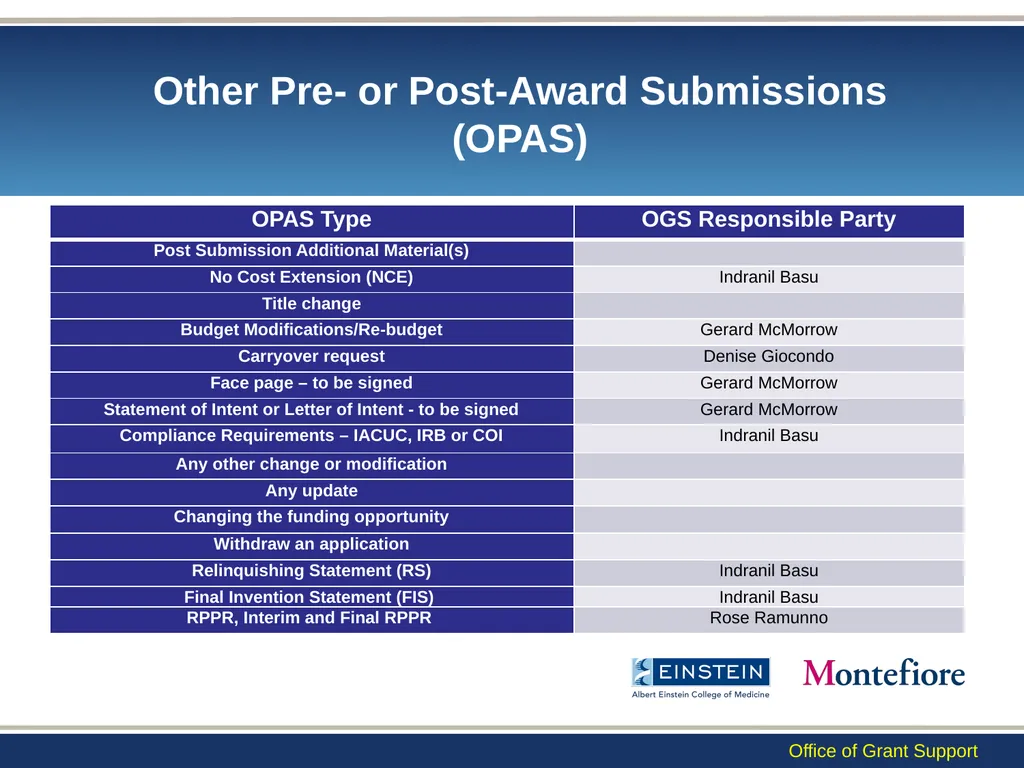
RPPRs (Progress Reports)… If NIH, please add “RPPR – NIH Only”, as #2 in the routing order, which will trigger Rose Ramunno’s review. “OGS Review for Budget” will automatically be added, please ensure it’s listed as the last approver.
If not NIH, please add “OGS Review for Budget”, which will trigger Gerard McMorrow’s review.
OGS review for basic science or clinical is automatically added and should be at the same level as EH&S, Human Subjects, Animal Institute.
REGARDING PI CERTIFICATION
In Cayuse, the lead PI will receive an email requesting s/he certifies the proposal. However, the PI certification is NOT required in Cayuse. | 36 Office of Grant Support<br>
If not NIH, please add “OGS Review for Budget”, which will trigger Gerard McMorrow’s review.
OGS review for basic science or clinical is automatically added and should be at the same level as EH&S, Human Subjects, Animal Institute.
REGARDING PI CERTIFICATION
In Cayuse, the lead PI will receive an email requesting s/he certifies the proposal. However, the PI certification is NOT required in Cayuse. | 36 Office of Grant Support<br>
38
Final Report and Close Outs Contact Rose Ramunno for FRPPR (rose.ramunno@einsteinmed.edu); follow the same process as before (create an OPAS);
Contact Indranil Basu for Final Invention Statement at indranil.basu@einsteinmed.edu;
Contact Denise Giocondo for FFR at Denise.giocondo@einsteinmed.edu. She uploads the FFR into Cayuse SP and submits it to the sponsor. | 37 Office of Grant Support<br>
Contact Indranil Basu for Final Invention Statement at indranil.basu@einsteinmed.edu;
Contact Denise Giocondo for FFR at Denise.giocondo@einsteinmed.edu. She uploads the FFR into Cayuse SP and submits it to the sponsor. | 37 Office of Grant Support<br>
39
Thank You For general information, please contact the Office of Grant Support at (718) 430-3643 or ogs@einsteinmed.edu
For pre-award budget - Gerard McMorrow at (718) 430-3580 or gerard.mcmorrow@einsteinmed.edu
For Cayuse, eRA Commons and any other help -TBA
For Cayuse system-related support or issues - Ray Hosein (rhosein@montefiore.org)
For RPPR - Rose Ramunno at (718) 430-8846 or rose.ramunno@einsteinmed.edu
For Carryover – Denise Giocondo at (718) 430-2201 or Denise.Giocondo@einsteinmed.edu.
For agreements and contracts and financial issues - Suzanne Locke at (718) 430-2688 or Suzanne.locke@einsteinmed.edu
For any other help – please contact: Indranil Basu at (718) 430-2238 or indranil.basu@einsteinmed.edu; | 38 Office of Grant Support<br>
For pre-award budget - Gerard McMorrow at (718) 430-3580 or gerard.mcmorrow@einsteinmed.edu
For Cayuse, eRA Commons and any other help -TBA
For Cayuse system-related support or issues - Ray Hosein (rhosein@montefiore.org)
For RPPR - Rose Ramunno at (718) 430-8846 or rose.ramunno@einsteinmed.edu
For Carryover – Denise Giocondo at (718) 430-2201 or Denise.Giocondo@einsteinmed.edu.
For agreements and contracts and financial issues - Suzanne Locke at (718) 430-2688 or Suzanne.locke@einsteinmed.edu
For any other help – please contact: Indranil Basu at (718) 430-2238 or indranil.basu@einsteinmed.edu; | 38 Office of Grant Support<br>