Building a Non-Rating Higher-Level Review Decision in VBMS-Awards October 2023 Lesson Objectives Learn about Non-Rating Higher-Level Review Initiative Build a Non-Rating Higher-Level Review Decision in VBMS-Awards Utilize Helpful Tips and
"Building a Non-Rating Higher-Level Review Decision" is the property of its rightful owner. Permission is granted to
download and print the materials on this website for personal, non-commercial use only, and to display it
on your personal computer provided you do not modify the materials and that you retain all copyright
notices contained in the materials. By downloading content from our website, you accept the terms of this
agreement.
Presentation Transcript
01
Building a Non-Rating Higher-Level Review Decision in VBMS-Awards October 2023<br>
02
Lesson Objectives Learn about Non-Rating Higher-Level Review Initiative
Build a Non-Rating Higher-Level Review Decision in VBMS-Awards
Utilize Helpful Tips and Tricks and Resources<br>
03
Non-Rating Higher-Level Review Decision Template Explanation and Benefits<br>
04
Non-Rating Higher-Level Review (HLR) Initiative Since the implementation of Appeals Modernization Act (AMA), users have been utilizing the AMA letter template guide to build a Non-Rating HLR decision within Microsoft Word and upload it to a Veteran’s VBMS eFolder.
Effective October 23, 2023, users can build these decisions within VBMS-Awards.
Office of Administrative Review (OAR) continues to build this functionality with the help and support of users.
The goal of building Non-Rating HLRs in VBMS-Awards is to reduce manual data entry and promote standardization and accuracy amongst AMA Non-Rating claims.<br>
05
Benefits of Building a Non-Rating HLR in VBMS-Awards Creating a Non-Rating HLR in VBMS-Awards will increase timeliness and improve efficiency.
This functionality creates an automated solution for Non-Rating HLRs by eliminating the need to build the decision outside a VBA system and then manually upload it following completion.<br>
06
Build a Non-Rating HLR Decision in VBMS-Awards<br>
07
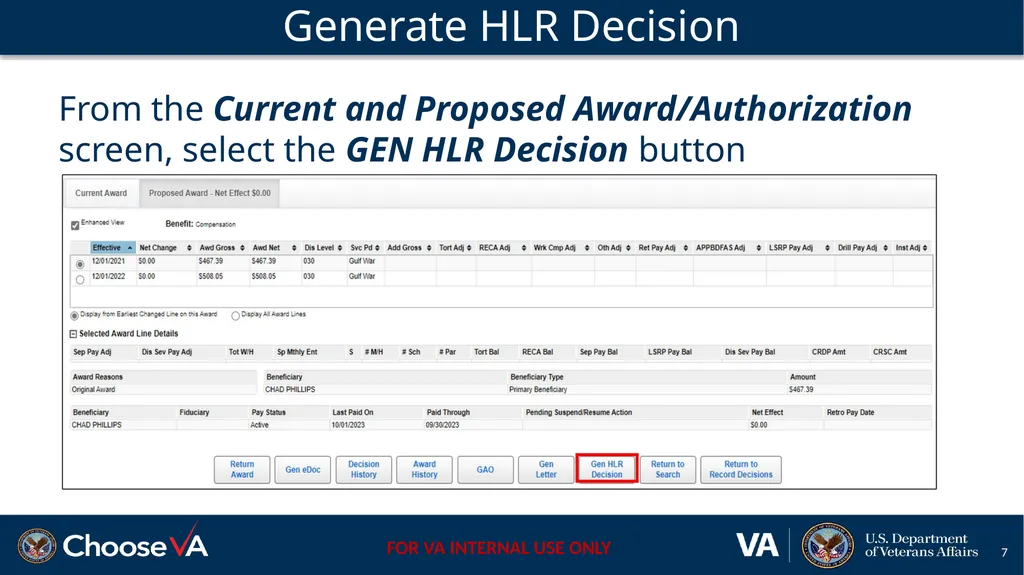
Generate HLR Decision From the Current and Proposed Award/Authorization screen, select the GEN HLR Decision button<br>
08
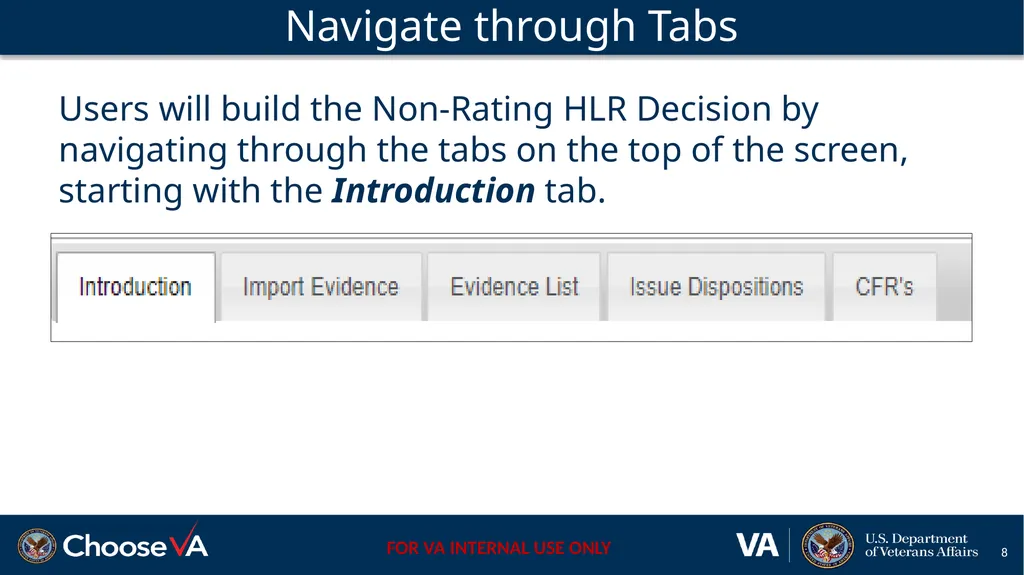
Navigate through Tabs Users will build the Non-Rating HLR Decision by navigating through the tabs on the top of the screen, starting with the Introduction tab.<br>
09
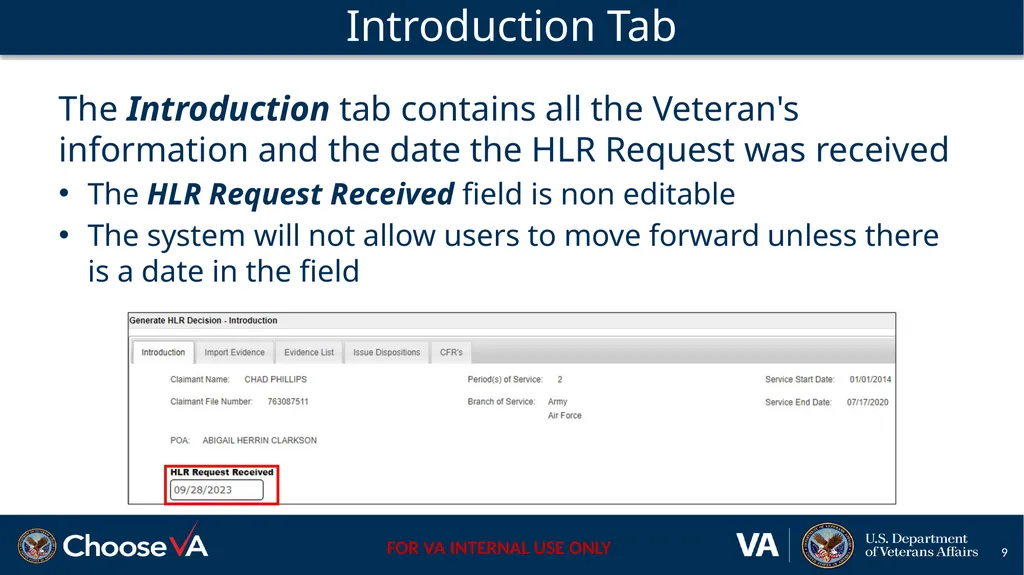
Introduction Tab The Introduction tab contains all the Veteran's information and the date the HLR Request was received
The HLR Request Received field is non editable
The system will not allow users to move forward unless there is a date in the field<br>
10
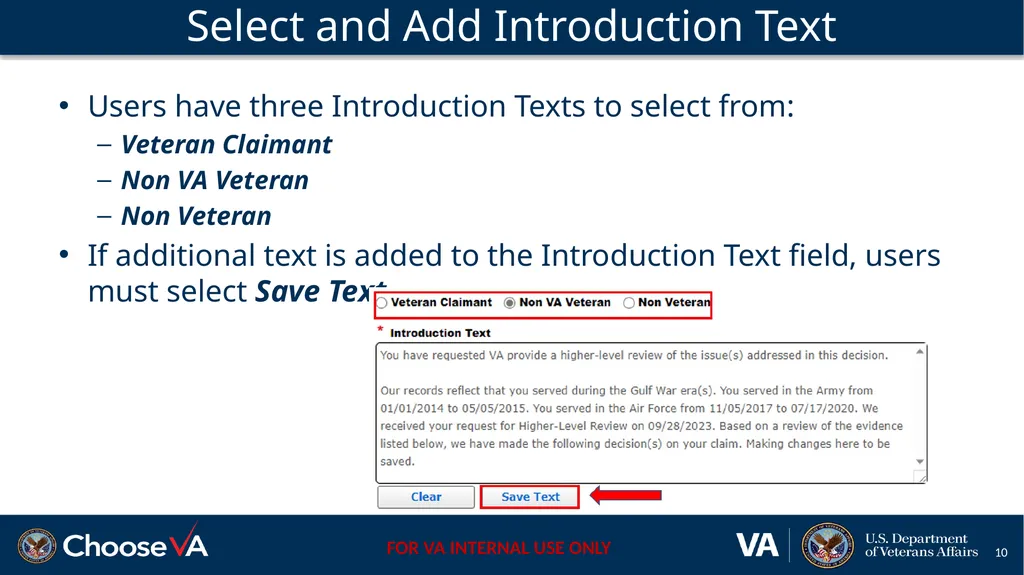
Select and Add Introduction Text Users have three Introduction Texts to select from:
Veteran Claimant
Non VA Veteran
Non Veteran
If additional text is added to the Introduction Text field, users must select Save Text<br>
11
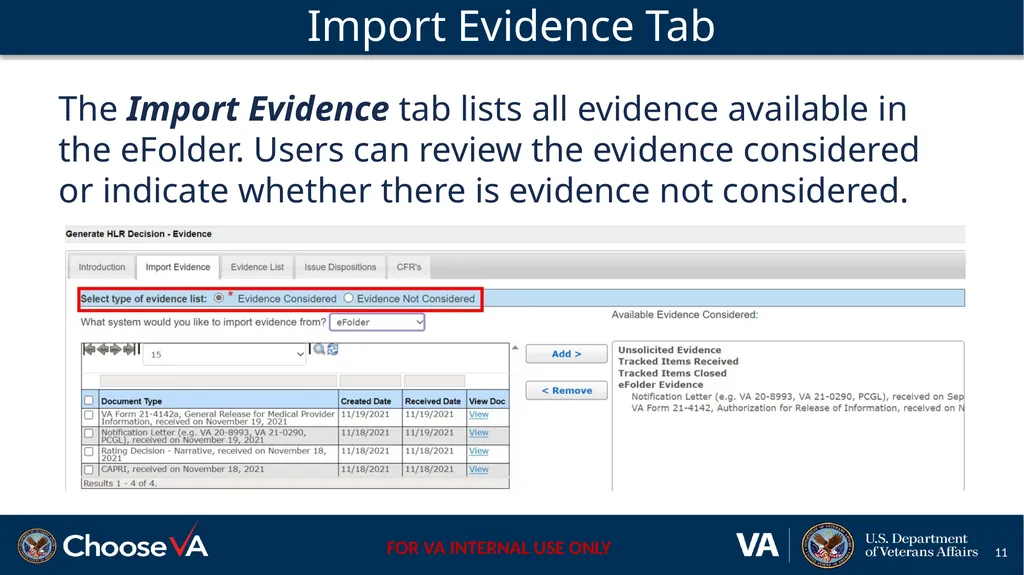
Import Evidence Tab The Import Evidence tab lists all evidence available in the eFolder. Users can review the evidence considered or indicate whether there is evidence not considered.<br>
12
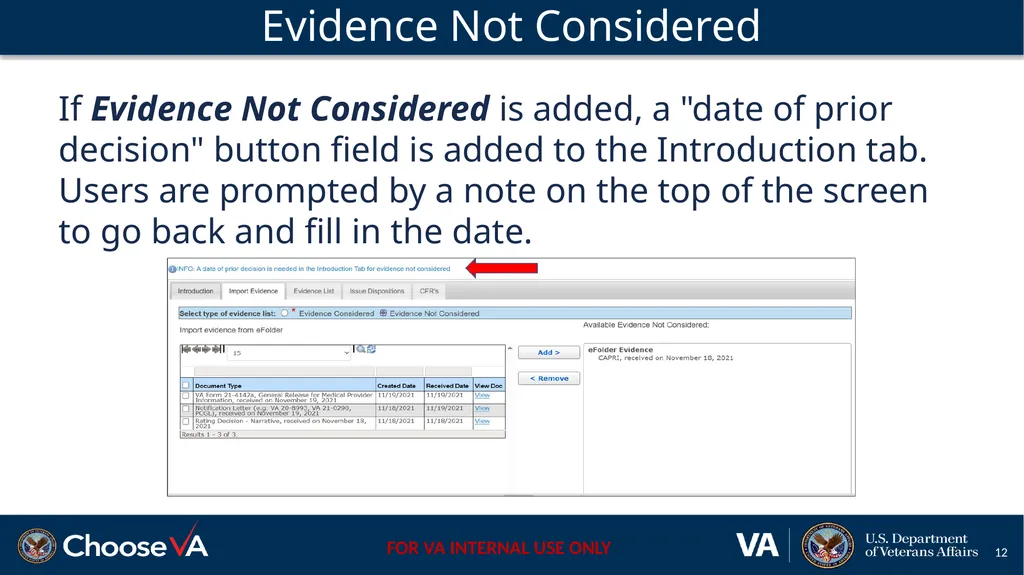
Evidence Not Considered If Evidence Not Considered is added, a "date of prior decision" button field is added to the Introduction tab. Users are prompted by a note on the top of the screen to go back and fill in the date.<br>
13
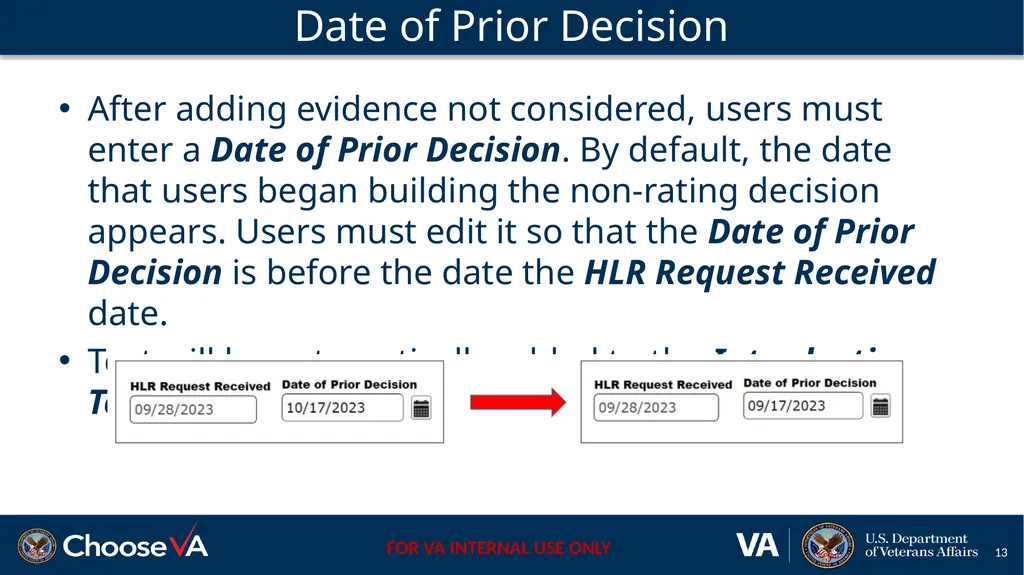
Date of Prior Decision After adding evidence not considered, users must enter a Date of Prior Decision. By default, the date that users began building the non-rating decision appears. Users must edit it so that the Date of Prior Decision is before the date the HLR Request Received date.
Text will be automatically added to the Introduction Text.<br>
14
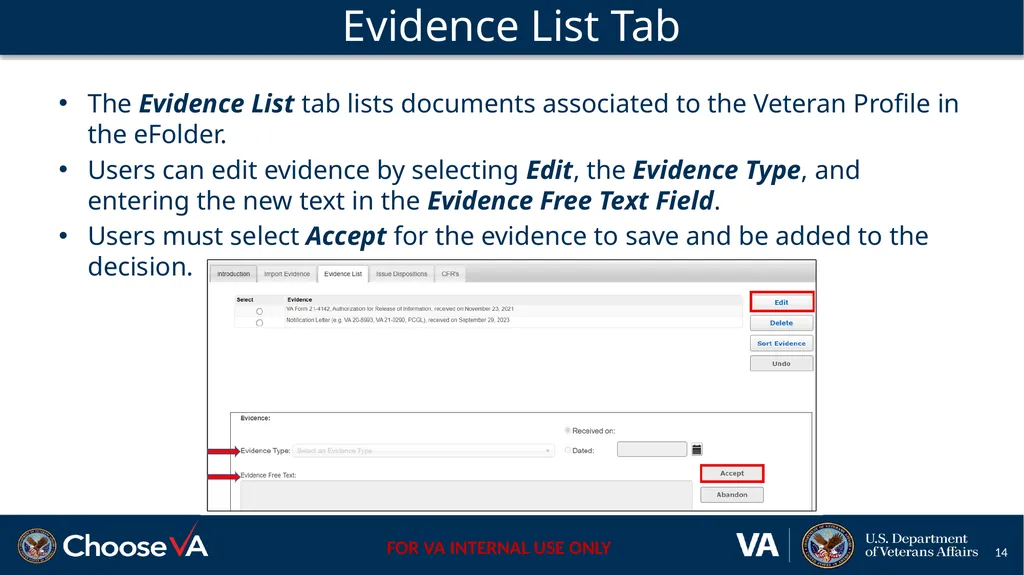
Evidence List Tab The Evidence List tab lists documents associated to the Veteran Profile in the eFolder.
Users can edit evidence by selecting Edit, the Evidence Type, and entering the new text in the Evidence Free Text Field.
Users must select Accept for the evidence to save and be added to the decision.<br>
15
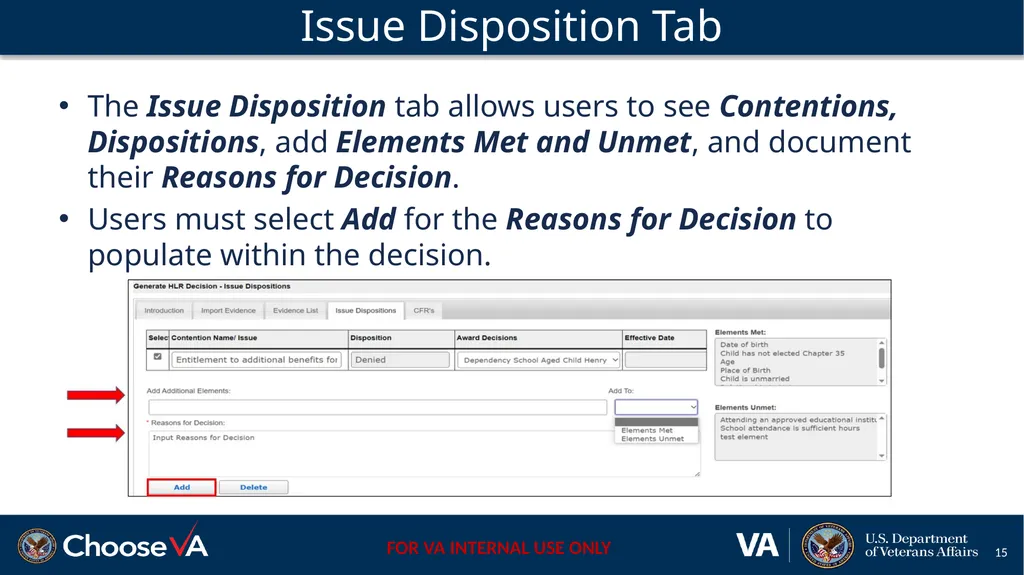
Issue Disposition Tab The Issue Disposition tab allows users to see Contentions, Dispositions, add Elements Met and Unmet, and document their Reasons for Decision.
Users must select Add for the Reasons for Decision to populate within the decision.<br>
16
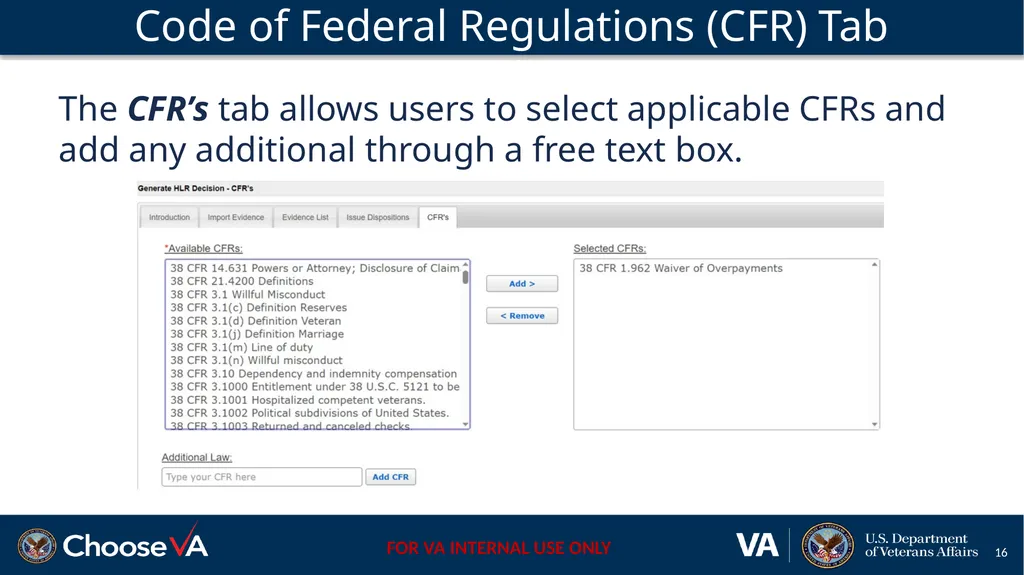
Code of Federal Regulations (CFR) Tab The CFR’s tab allows users to select applicable CFRs and add any additional through a free text box.<br>
17
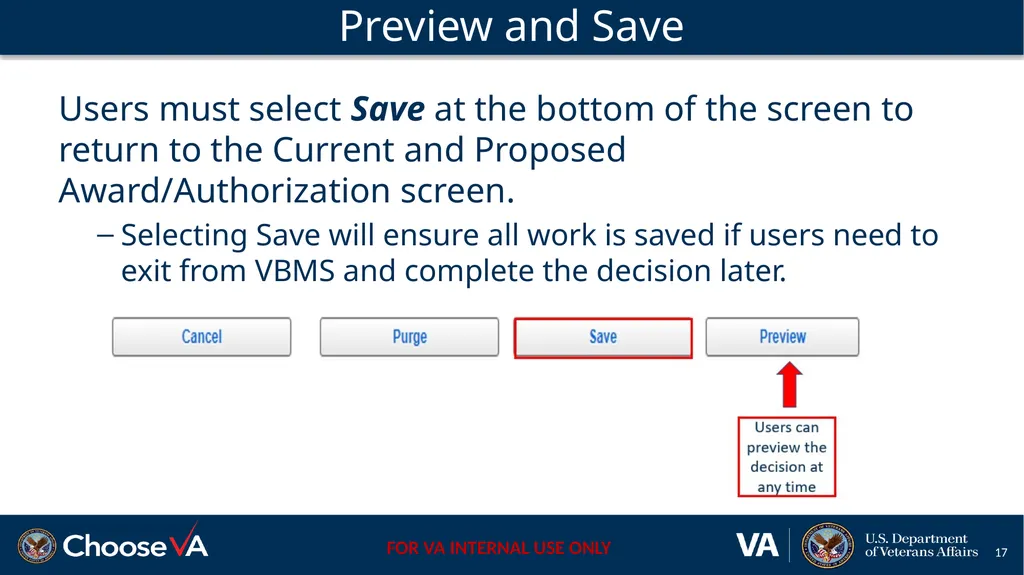
Preview and Save Users must select Save at the bottom of the screen to return to the Current and Proposed Award/Authorization screen.
Selecting Save will ensure all work is saved if users need to exit from VBMS and complete the decision later.<br>
18
Helpful Tips, Tricks, and Resources<br>
19
Helpful Tips and Tricks Users must manually upload the Non-Rating HLR decision document to a Veteran’s VBMS eFolder when working a Spouse CPD claim.
Future deployments to VBMS will include the Spouse CPD claims.
If a user needs to change the contention disposition after generating the Award/Non-Rating HLR decision, they need to remove the pending decisions to make the new disposition display.
If new met or unmet elements are added in the free text portion of the screen, users must select a different decision from the Award Decision drop down to reset the screen.
Manual references M21-5, Chapter 5.6.a and M21-5, Chapter 5.6.b have been updated to reflect VBMS-Awards.<br>
20
Resources Non-Rating Higher-Level Review Decision Training Deck
Non-Rating Higher-Level Review Decision Job Aid
M21-5, Chapter 5.6.a and M21-5, Chapter 5.6.b<br>
21
Questions? Discuss any additional questions after today’s training locally with peers, experts, quality staff, and/or management. Management may route any questions requiring OAR assistance to OARADMIN.VBAWAS@va.gov<br>
22
Next Steps A satisfaction survey has been assigned to you in TMS
Be sure to complete the survey to receive credit for this training<br>