
CGS 3066: Web Programming and Design Fall 2019
Description: CGS 3066: Web Programming and Design Fall 2019 Programming in JavaScript Expressions An expression is any piece of code that resolves to a value(numericstringBoolean etc.) We can combine literal values, variables and operators to create
Related Topics
Download Presentation
"CGS 3066: Web Programming and Design Fall 2019" is the property of its rightful owner. Permission is granted to download and print the materials on this website for personal, non-commercial use only, and to display it on your personal computer provided you do not modify the materials and that you retain all copyright notices contained in the materials. By downloading content from our website, you accept the terms of this agreement.
Presentation Transcript
slide1. CGS 3066: Web Programming and Design
Fall 2019 Programming in JavaScript<br>
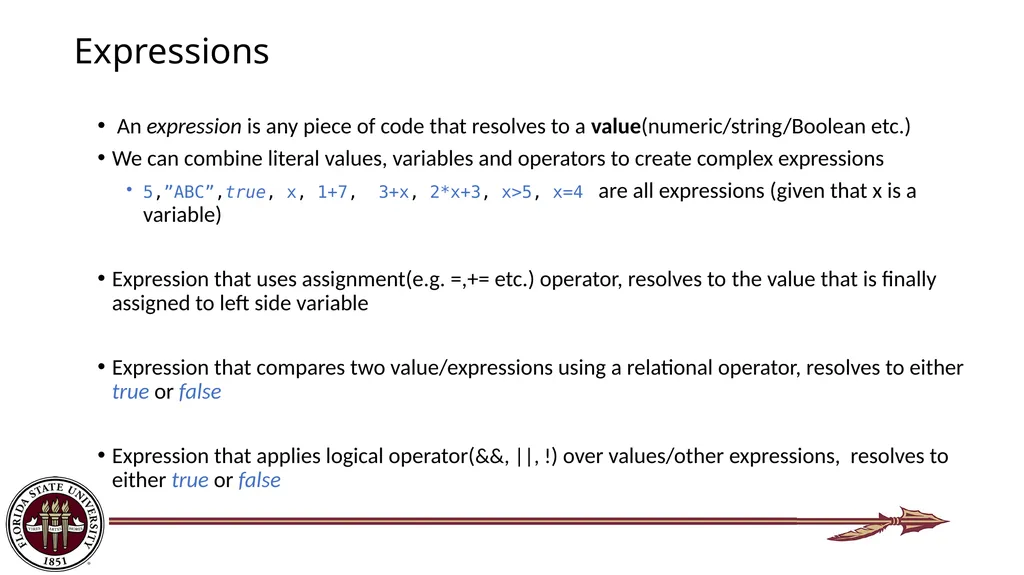
slide2. Expressions An expression is any piece of code that resolves to a value(numeric/string/Boolean etc.)
We can combine literal values, variables and operators to create complex expressions
5,”ABC”,true, x, 1+7, 3+x, 2*x+3, x>5, x=4 are all expressions (given that x is a variable)
Expression that uses assignment(e.g. =,+= etc.) operator, resolves to the value that is finally assigned to left side variable
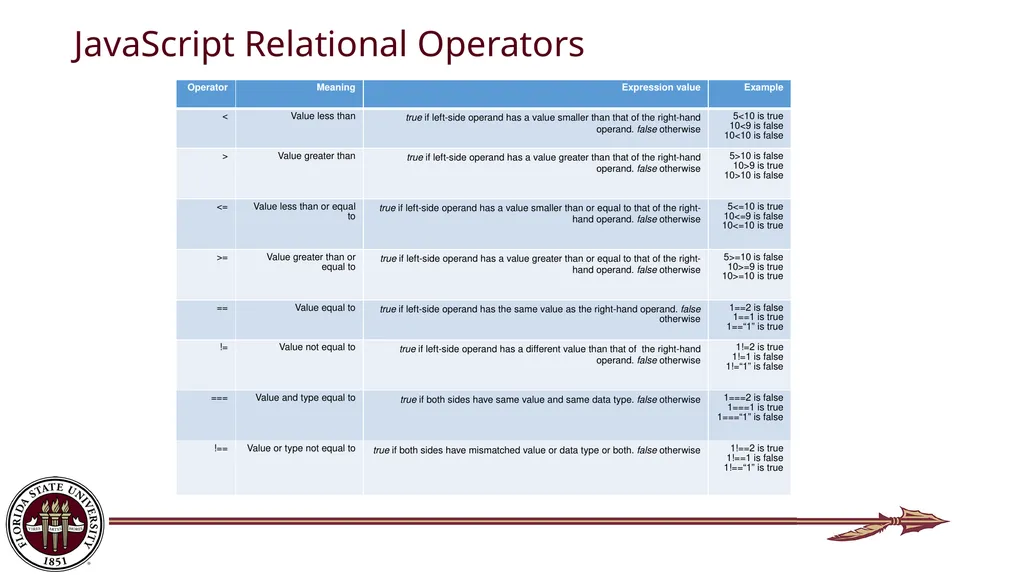
Expression that compares two value/expressions using a relational operator, resolves to either true or false
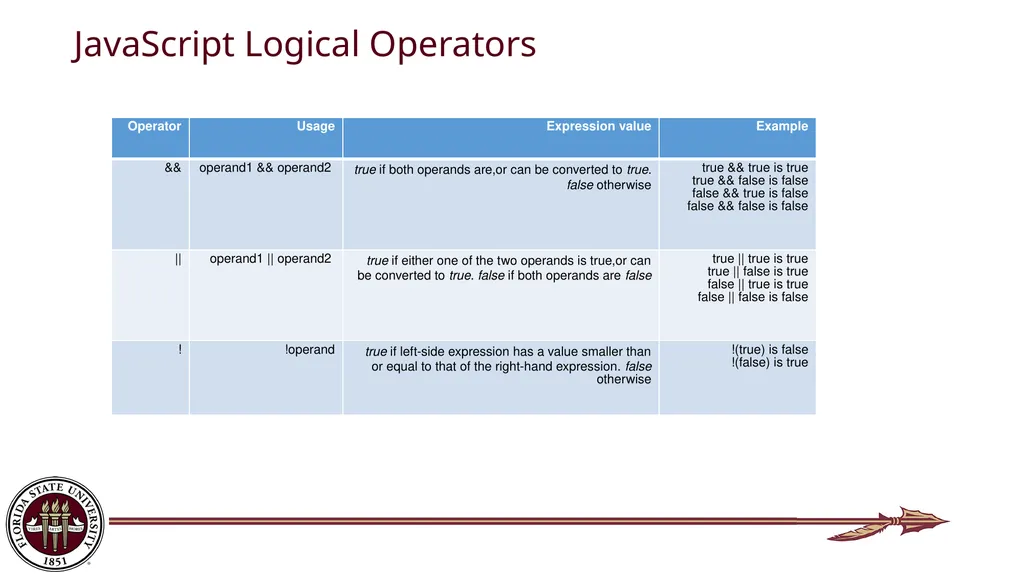
Expression that applies logical operator(&&, ||, !) over values/other expressions, resolves to either true or false<br>
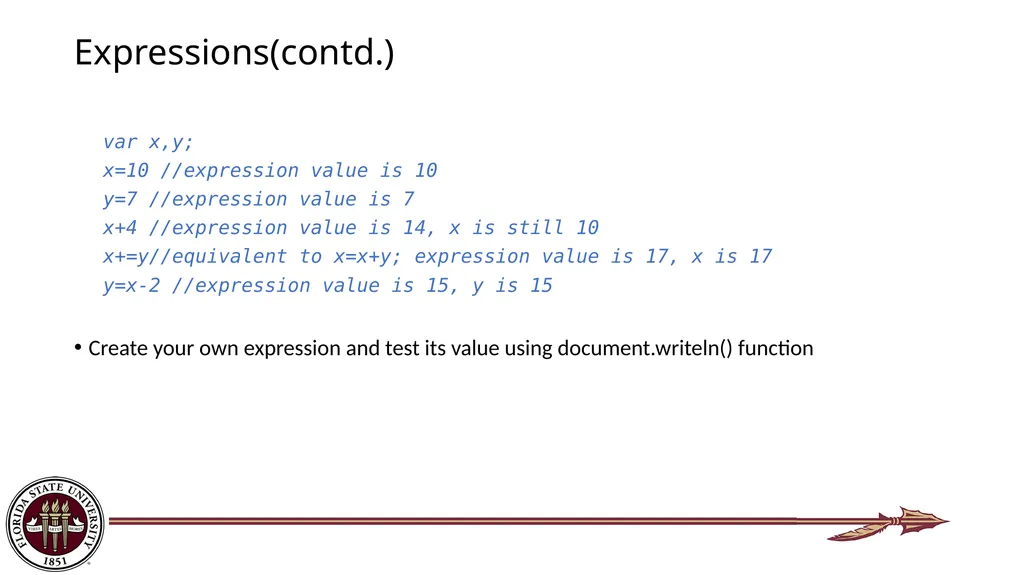
slide3. Expressions(contd.) var x,y;
x=10 //expression value is 10
y=7 //expression value is 7
x+4 //expression value is 14, x is still 10
x+=y//equivalent to x=x+y; expression value is 17, x is 17
y=x-2 //expression value is 15, y is 15
Create your own expression and test its value using document.writeln() function<br>
slide4. JavaScript Relational Operators<br>
slide5. JavaScript Logical Operators<br>
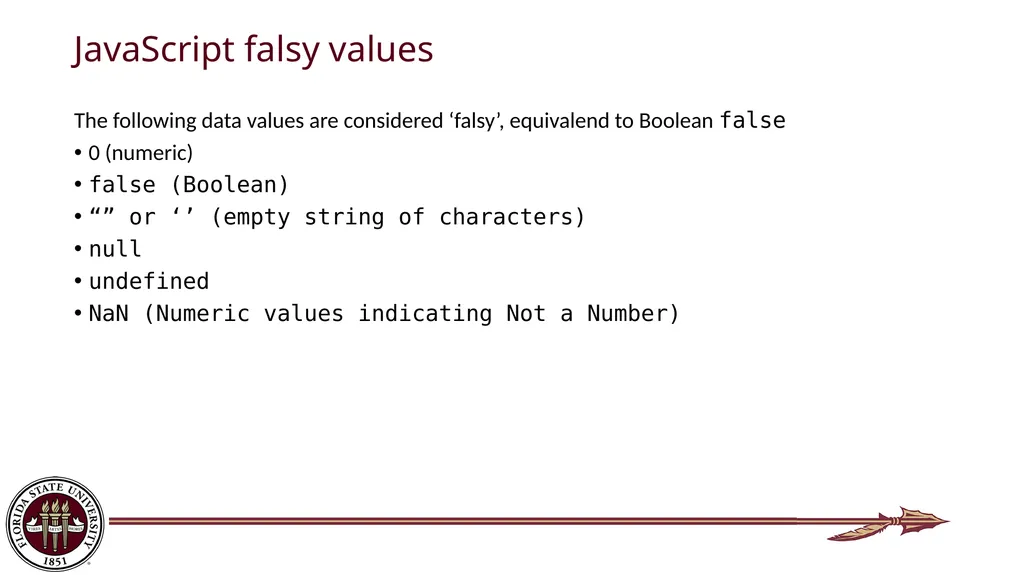
slide6. JavaScript falsy values The following data values are considered ‘falsy’, equivalend to Boolean false
0 (numeric)
false (Boolean)
“” or ‘’ (empty string of characters)
null
undefined
NaN (Numeric values indicating Not a Number)<br>
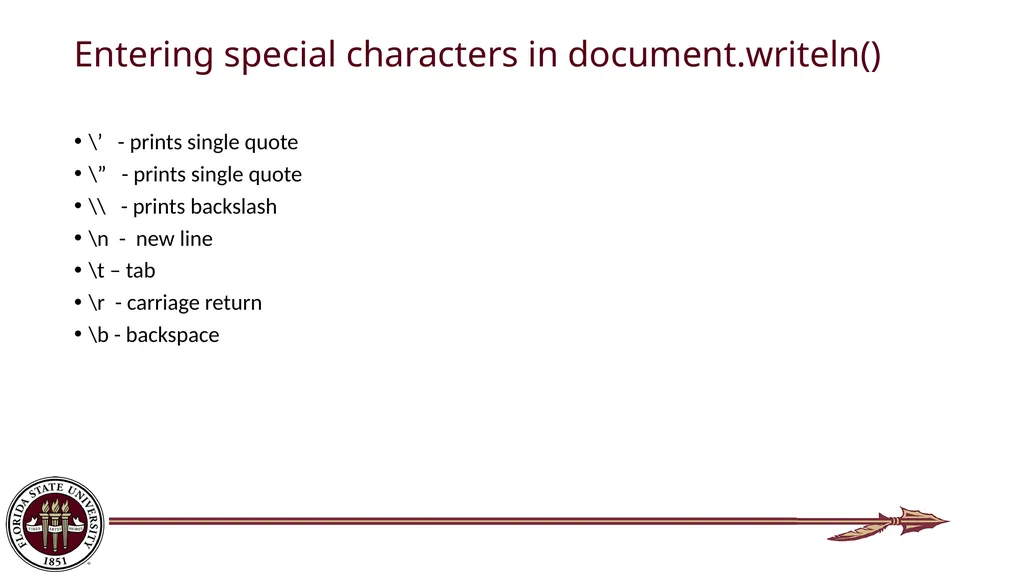
slide7. Entering special characters in document.writeln() \’ - prints single quote
\” - prints single quote
\\ - prints backslash
\n - new line
\t – tab
\r - carriage return
\b - backspace<br>
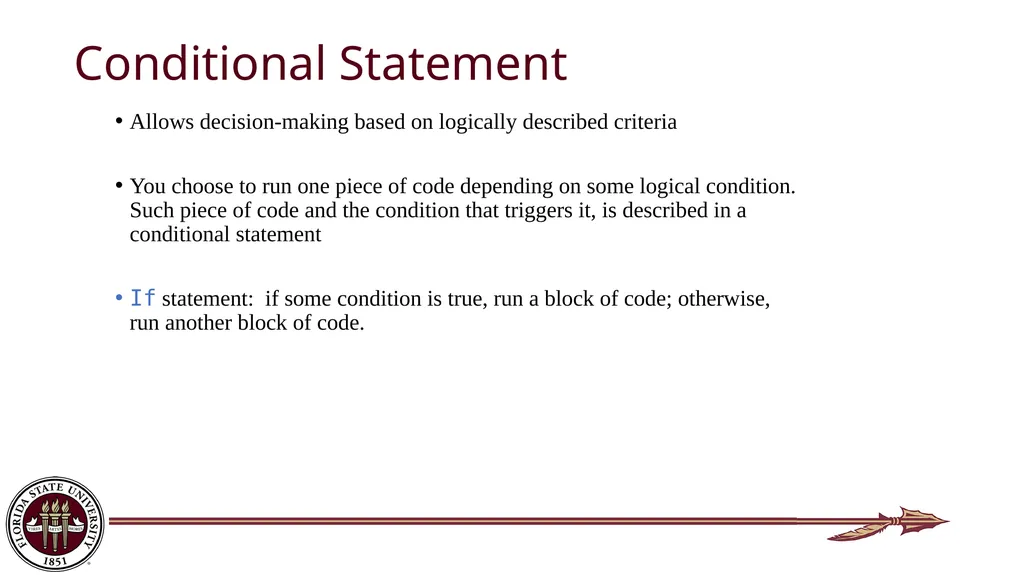
slide8. Conditional Statement Allows decision-making based on logically described criteria
You choose to run one piece of code depending on some logical condition. Such piece of code and the condition that triggers it, is described in a conditional statement
If statement: if some condition is true, run a block of code; otherwise, run another block of code.<br>
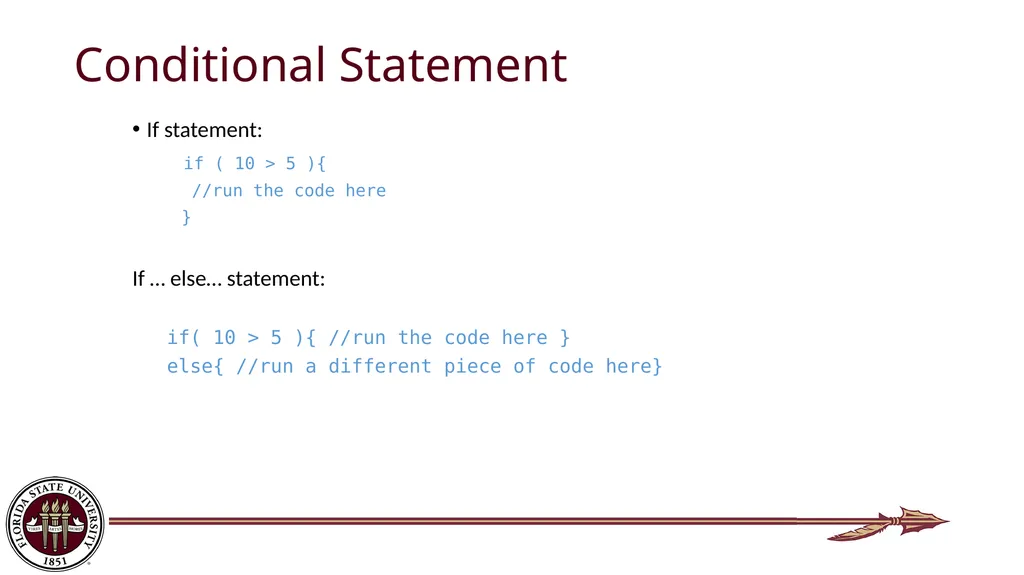
slide9. Conditional Statement If statement:
if ( 10 > 5 ){
//run the code here
}
If … else… statement:
if( 10 > 5 ){ //run the code here }
else{ //run a different piece of code here}<br>
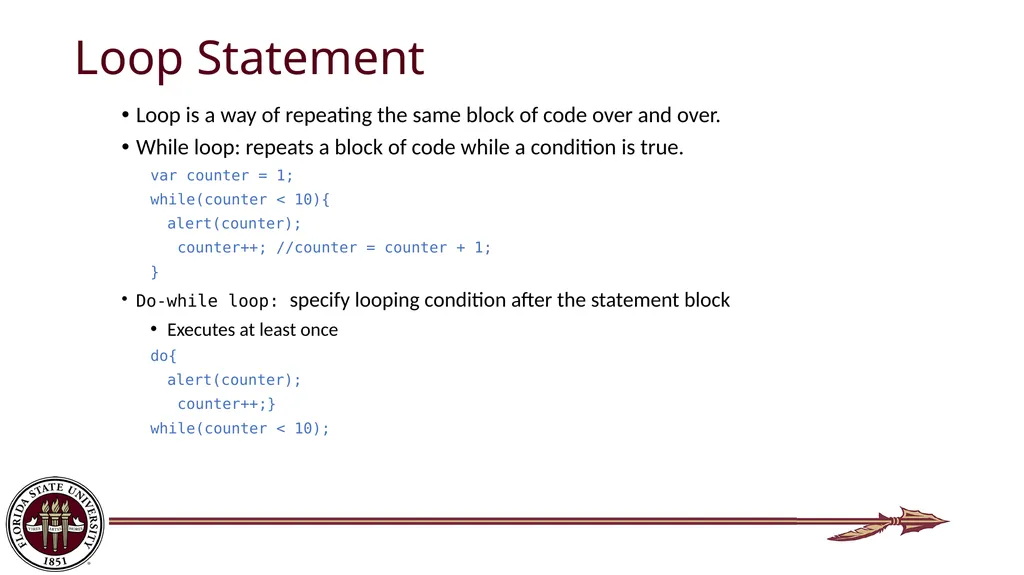
slide10. Loop Statement Loop is a way of repeating the same block of code over and over.
While loop: repeats a block of code while a condition is true.
var counter = 1;
while(counter < 10){
alert(counter);
counter++; //counter = counter + 1;
}
Do-while loop: specify looping condition after the statement block
Executes at least once
do{
alert(counter);
counter++;}
while(counter < 10);<br>
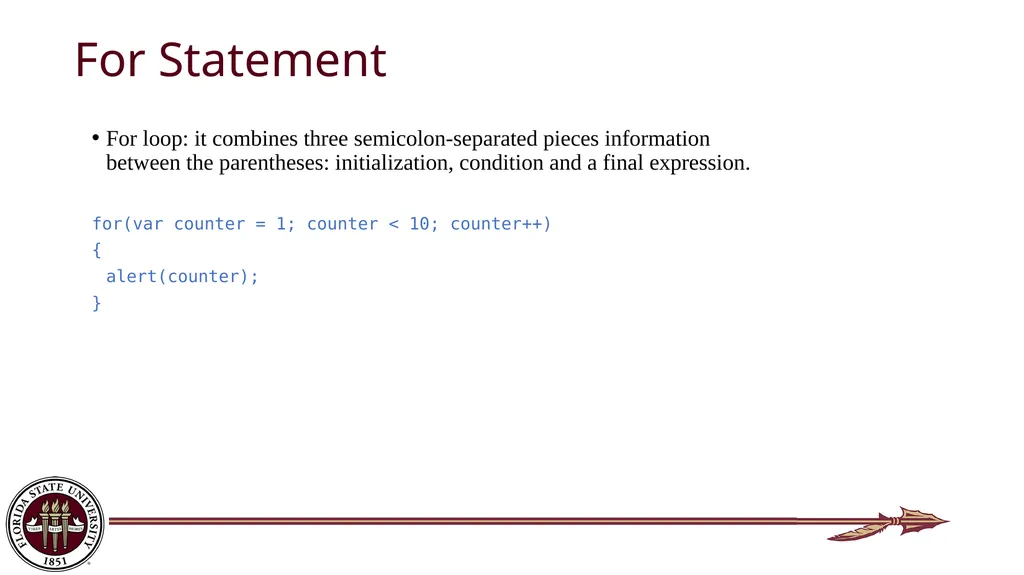
slide11. For Statement For loop: it combines three semicolon-separated pieces information between the parentheses: initialization, condition and a final expression.
for(var counter = 1; counter < 10; counter++)
{
alert(counter);
}<br>
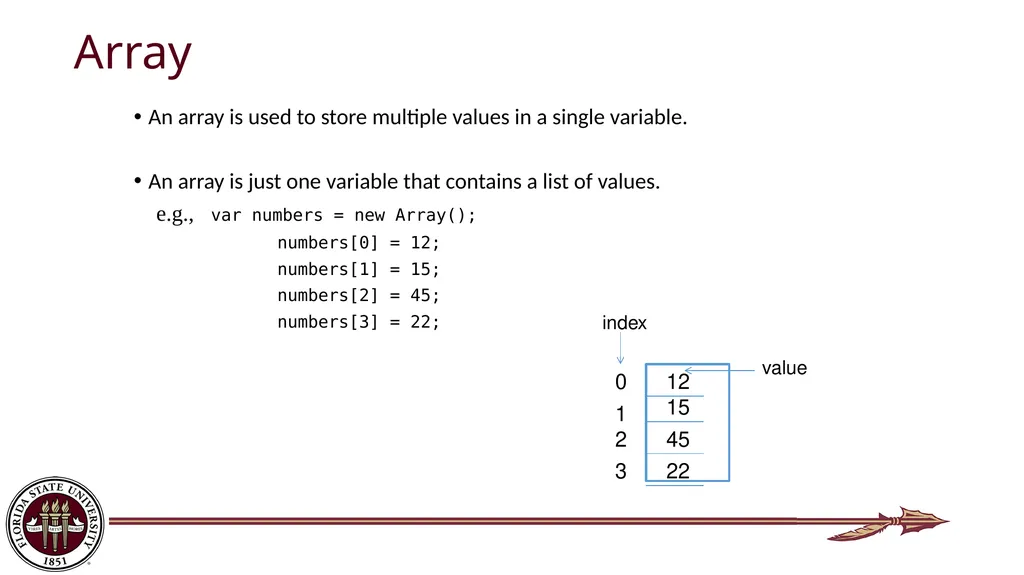
slide12. Array An array is used to store multiple values in a single variable.
An array is just one variable that contains a list of values.
e.g., var numbers = new Array();
numbers[0] = 12;
numbers[1] = 15;
numbers[2] = 45;
numbers[3] = 22; 12 45 22 15 0 1 2 3 index value<br>
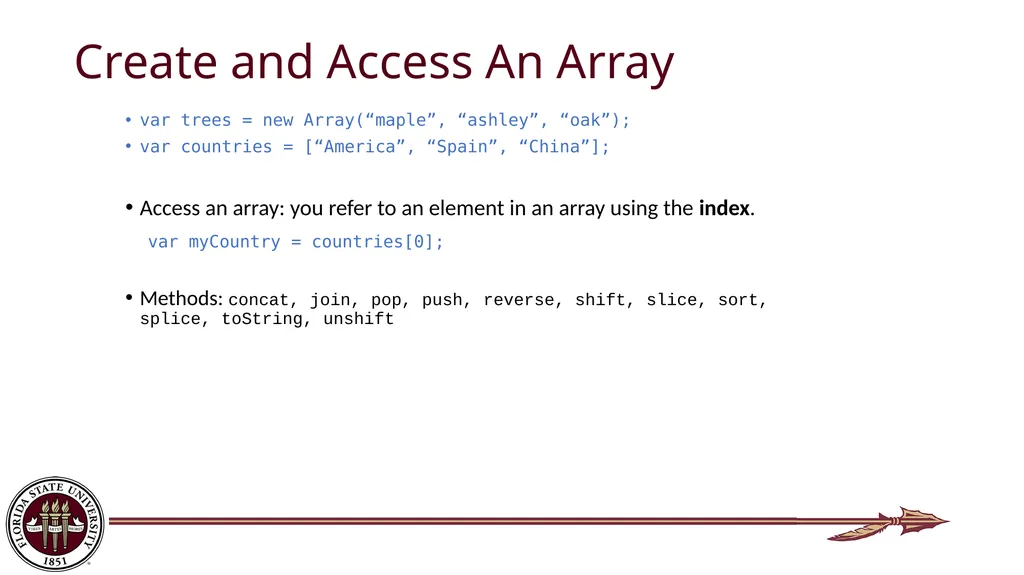
slide13. Create and Access An Array var trees = new Array(“maple”, “ashley”, “oak”);
var countries = [“America”, “Spain”, “China”];
Access an array: you refer to an element in an array using the index.
var myCountry = countries[0];
Methods: concat, join, pop, push, reverse, shift, slice, sort, splice, toString, unshift<br>
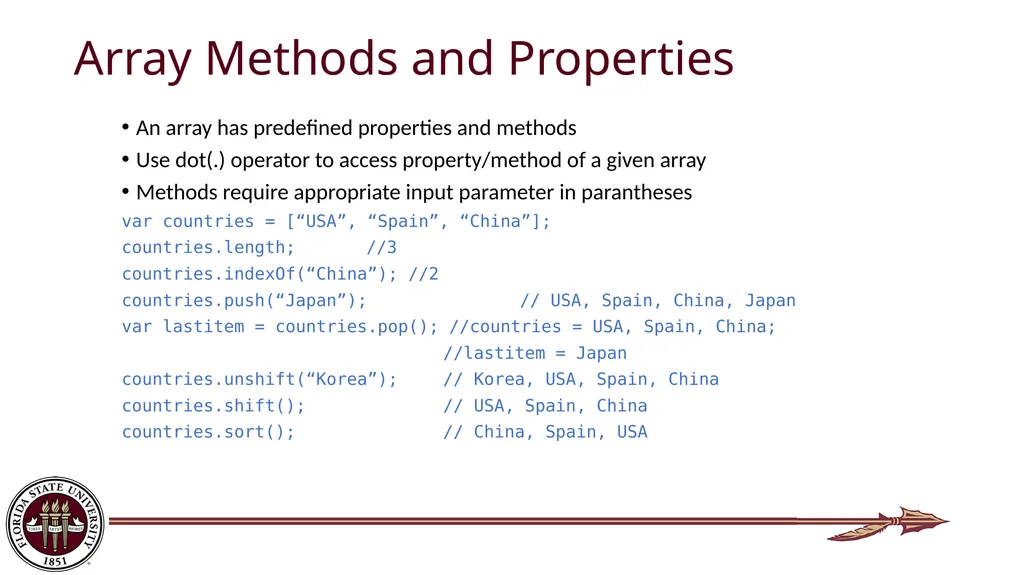
slide14. Array Methods and Properties An array has predefined properties and methods
Use dot(.) operator to access property/method of a given array
Methods require appropriate input parameter in parantheses
var countries = [“USA”, “Spain”, “China”];
countries.length; //3
countries.indexOf(“China”); //2
countries.push(“Japan”); // USA, Spain, China, Japan
var lastitem = countries.pop(); //countries = USA, Spain, China;
//lastitem = Japan
countries.unshift(“Korea”); // Korea, USA, Spain, China
countries.shift(); // USA, Spain, China
countries.sort(); // China, Spain, USA<br>
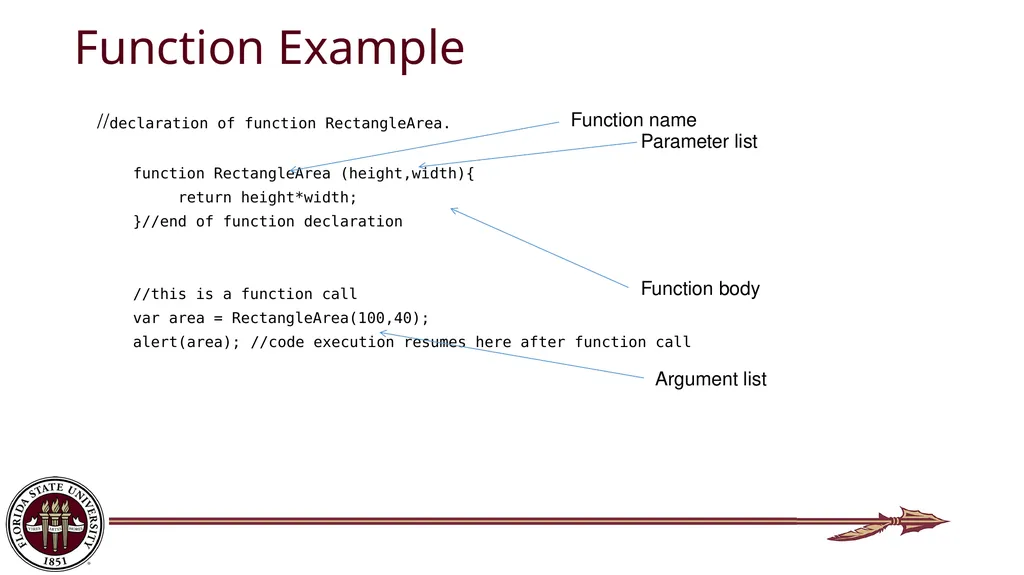
slide15. JavaScript Functions A function is a block of code that can be reused.
It consists of a function name, a parameter list, and code that is executed when the function is called.
When needed, we can call a javascript function by it’s name and provided a list of arguments(to be mapped to parameters)
Functions may also be called automatically on web events(e.g. clicking a button)
After the code inside the function are executed, execution of code resumes after the calling context.
Function may return values back to the calling context<br>
slide16. Function Example //declaration of function RectangleArea.
function RectangleArea (height,width){
return height*width;
}//end of function declaration
//this is a function call
var area = RectangleArea(100,40);
alert(area); //code execution resumes here after function call Function name Parameter list Function body Argument list<br>
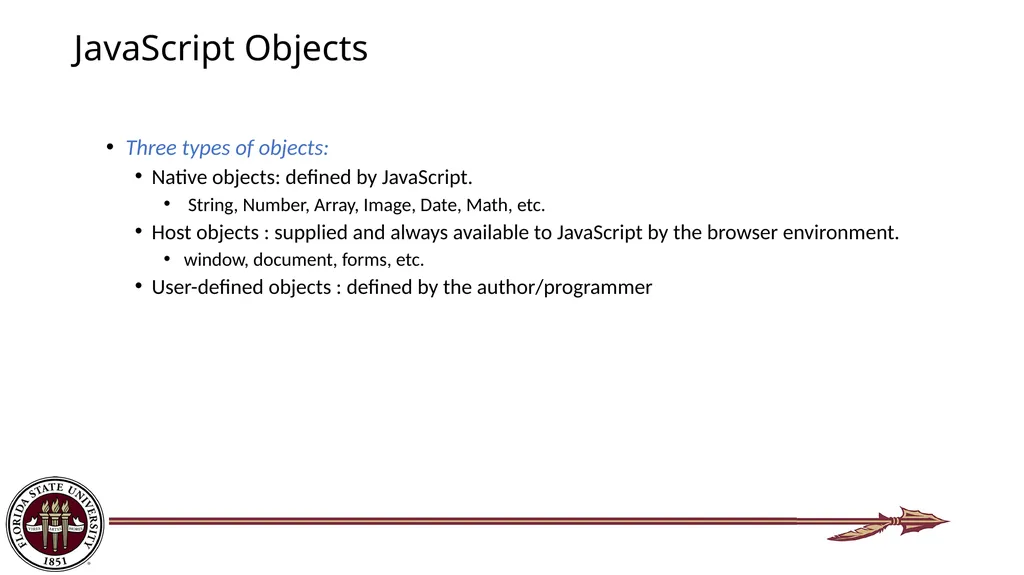
slide17. JavaScript Objects Three types of objects:
Native objects: defined by JavaScript.
String, Number, Array, Image, Date, Math, etc.
Host objects : supplied and always available to JavaScript by the browser environment.
window, document, forms, etc.
User-defined objects : defined by the author/programmer<br>
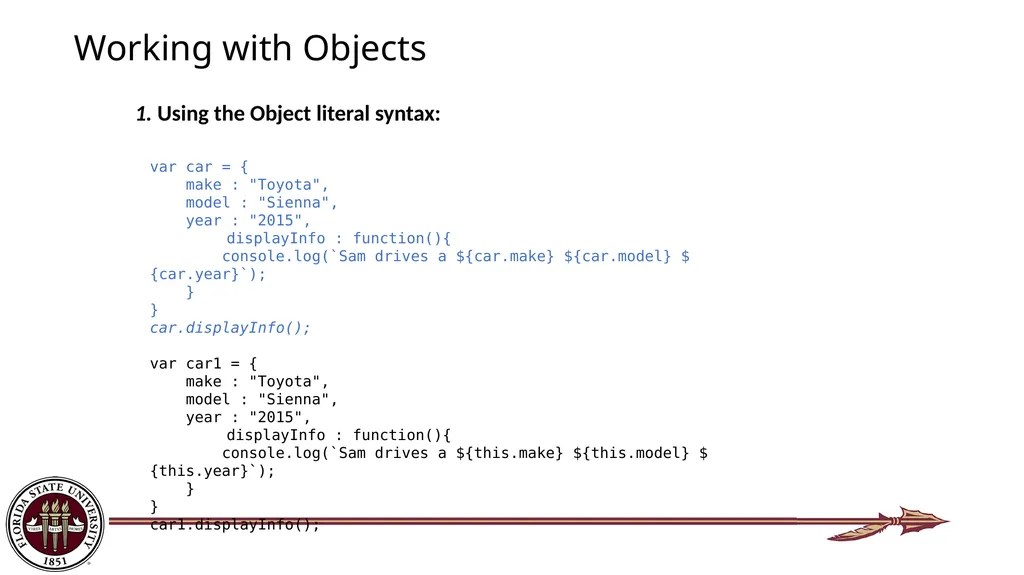
slide18. Working with Objects 1. Using the Object literal syntax: var car = {
make : "Toyota",
model : "Sienna",
year : "2015",
displayInfo : function(){
console.log(`Sam drives a ${car.make} ${car.model} ${car.year}`);
}
}
car.displayInfo();
var car1 = {
make : "Toyota",
model : "Sienna",
year : "2015",
displayInfo : function(){
console.log(`Sam drives a ${this.make} ${this.model} ${this.year}`);
}
}
car1.displayInfo();<br>
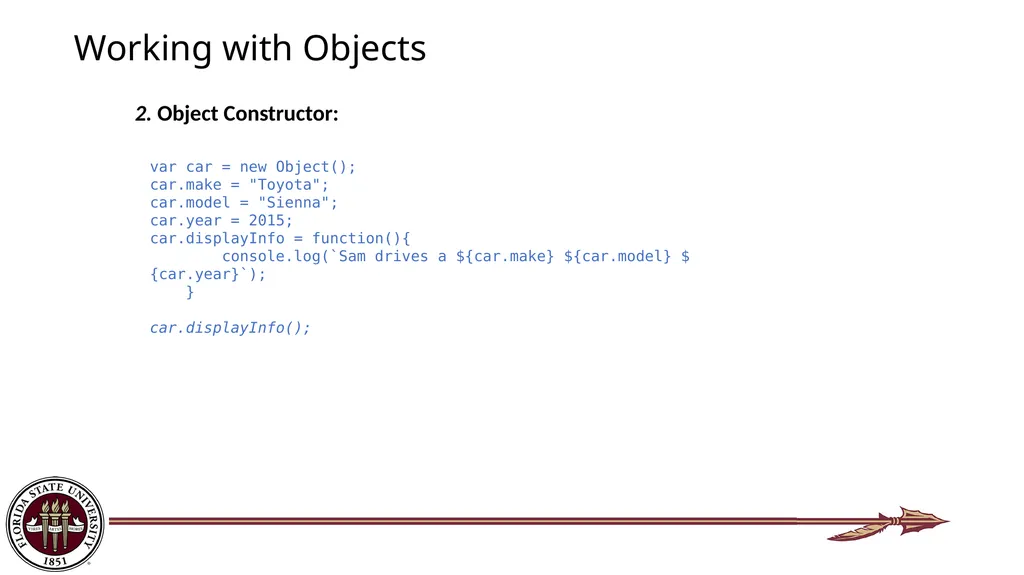
slide19. Working with Objects 2. Object Constructor: var car = new Object();
car.make = "Toyota";
car.model = "Sienna";
car.year = 2015;
car.displayInfo = function(){
console.log(`Sam drives a ${car.make} ${car.model} ${car.year}`);
}
car.displayInfo();<br>
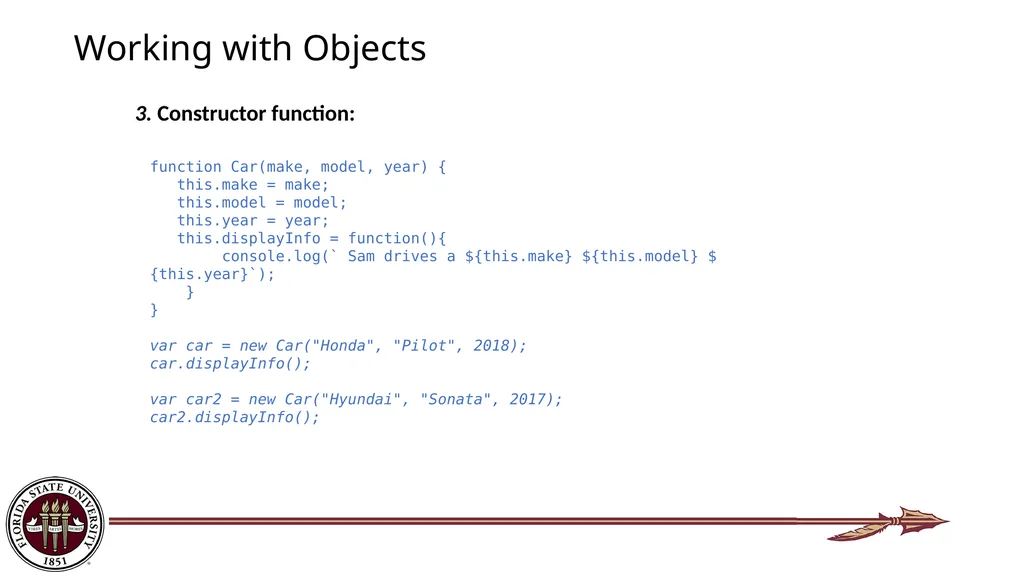
slide20. Working with Objects 3. Constructor function: function Car(make, model, year) {
this.make = make;
this.model = model;
this.year = year;
this.displayInfo = function(){
console.log(` Sam drives a ${this.make} ${this.model} ${this.year}`);
}
}
var car = new Car("Honda", "Pilot", 2018);
car.displayInfo();
var car2 = new Car("Hyundai", "Sonata", 2017);
car2.displayInfo();<br>
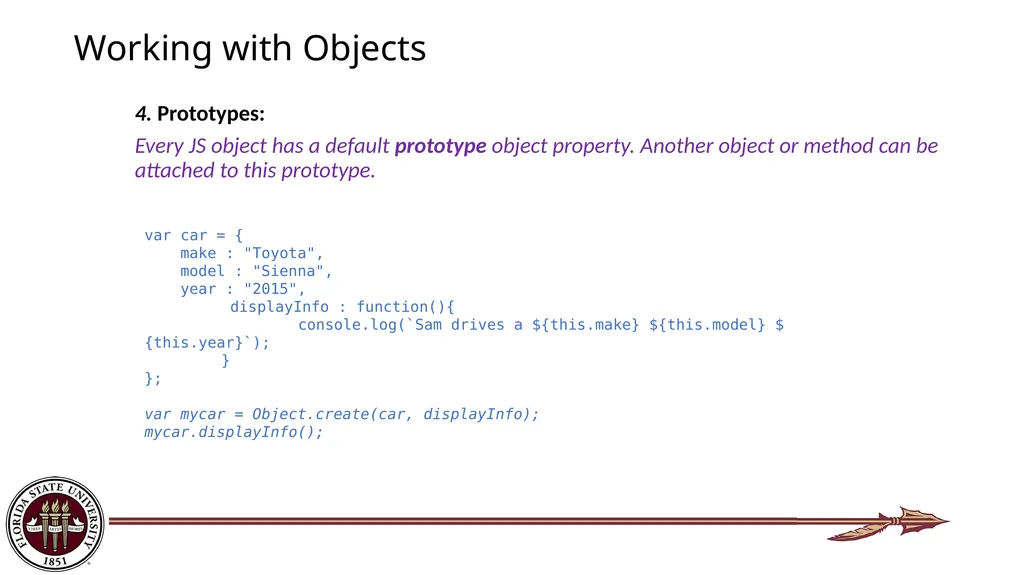
slide21. Working with Objects 4. Prototypes:
Every JS object has a default prototype object property. Another object or method can be attached to this prototype. var car = {
make : "Toyota",
model : "Sienna",
year : "2015",
displayInfo : function(){
console.log(`Sam drives a ${this.make} ${this.model} ${this.year}`);
}
};
var mycar = Object.create(car, displayInfo);
mycar.displayInfo();<br>
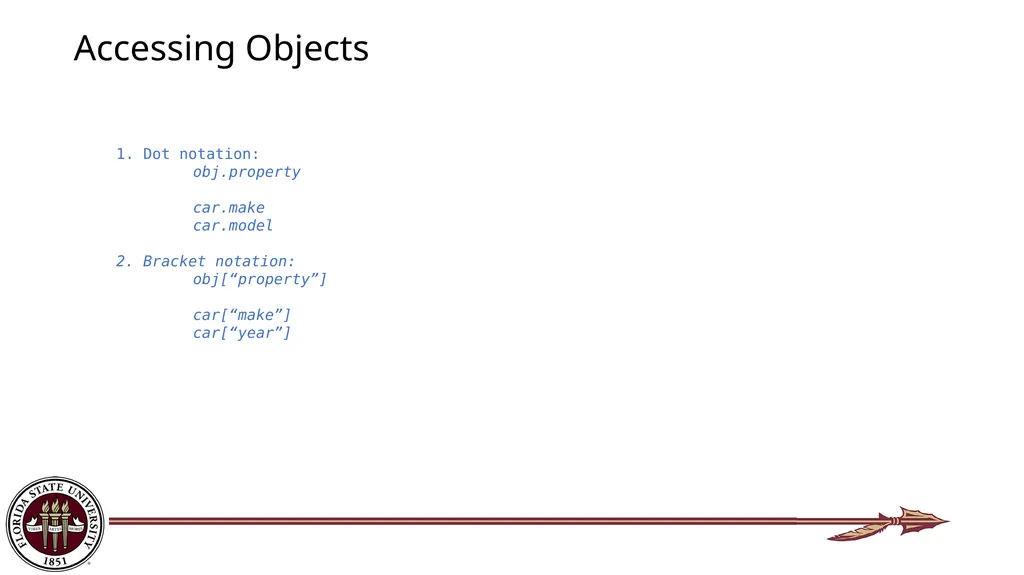
slide22. Accessing Objects 1. Dot notation:
obj.property
car.make
car.model
2. Bracket notation:
obj[“property”]
car[“make”]
car[“year”]<br>
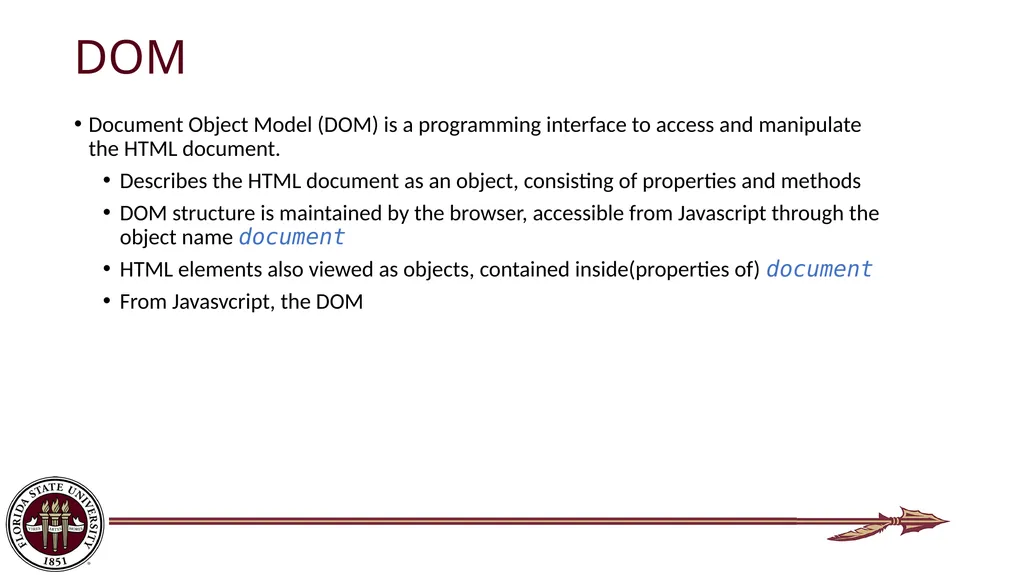
slide23. DOM Document Object Model (DOM) is a programming interface to access and manipulate the HTML document.
Describes the HTML document as an object, consisting of properties and methods
DOM structure is maintained by the browser, accessible from Javascript through the object name document
HTML elements also viewed as objects, contained inside(properties of) document
From Javasvcript, the DOM<br>
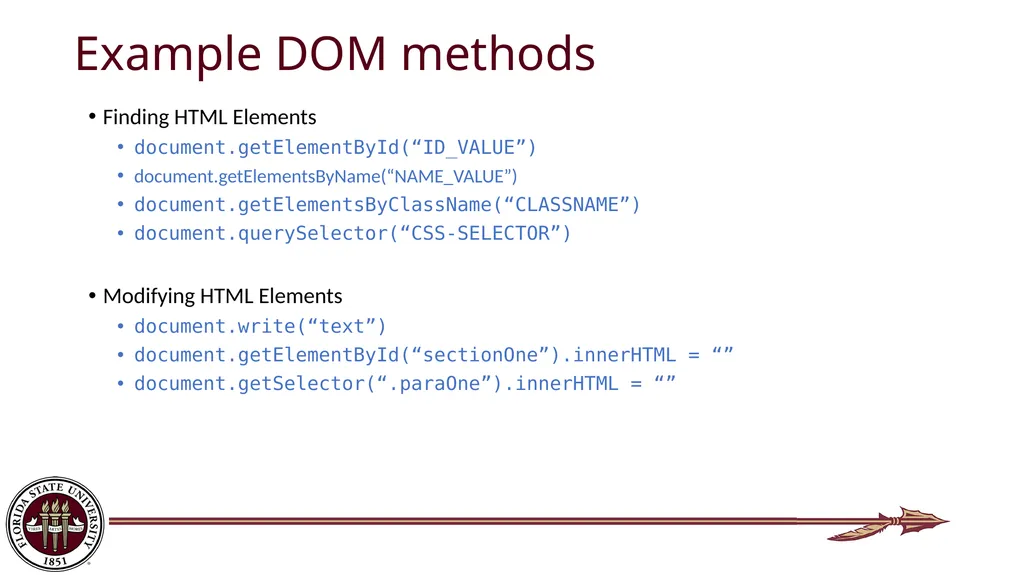
slide24. Example DOM methods Finding HTML Elements
document.getElementById(“ID_VALUE”)
document.getElementsByName(“NAME_VALUE”)
document.getElementsByClassName(“CLASSNAME”)
document.querySelector(“CSS-SELECTOR”)
Modifying HTML Elements
document.write(“text”)
document.getElementById(“sectionOne”).innerHTML = “”
document.getSelector(“.paraOne”).innerHTML = “”<br>
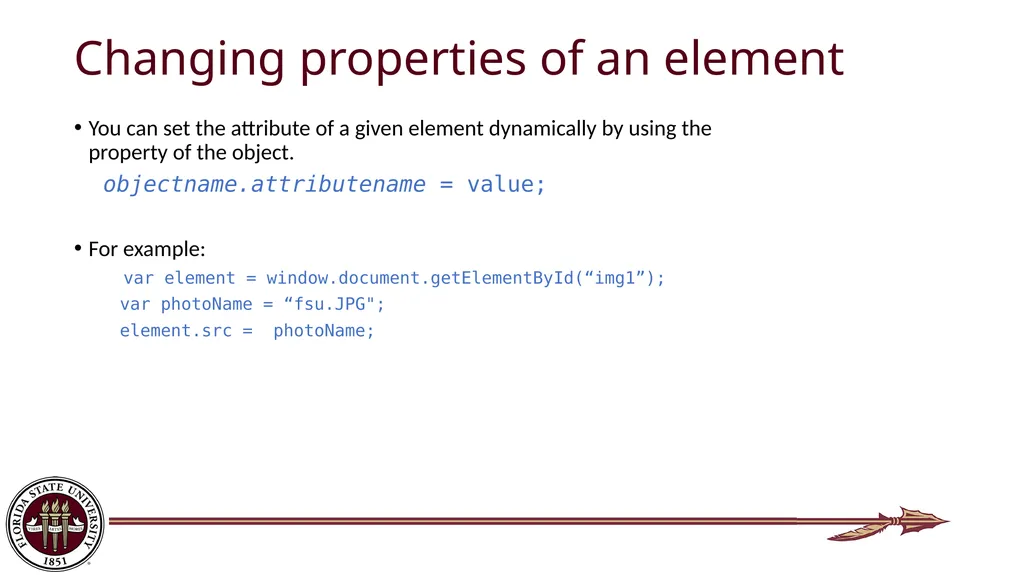
slide25. Changing properties of an element You can set the attribute of a given element dynamically by using the property of the object.
objectname.attributename = value;
For example:
var element = window.document.getElementById(“img1”);
var photoName = “fsu.JPG";
element.src = photoName;<br>
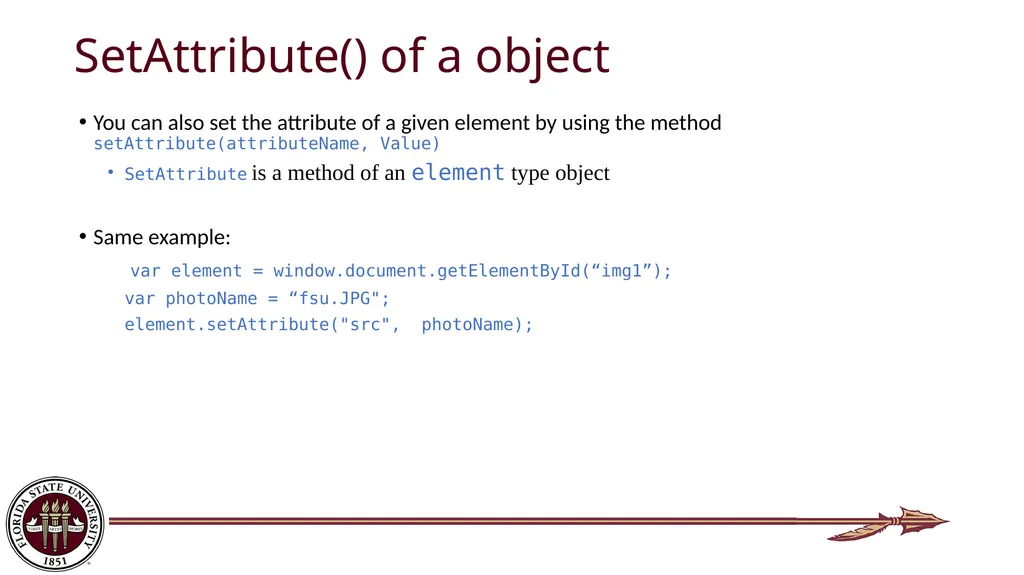
slide26. SetAttribute() of a object You can also set the attribute of a given element by using the method setAttribute(attributeName, Value)
SetAttribute is a method of an element type object
Same example:
var element = window.document.getElementById(“img1”);
var photoName = “fsu.JPG";
element.setAttribute("src", photoName);<br>
slide27. Javascript Event Handling Browser-based JavaScript programs are event-driven.
This means that a function is called in response to various user actions.
An event in a browser is an occurrence of potential interest.
The mouse moving over an element
A mouse button being clicked
A key being pressed<br>
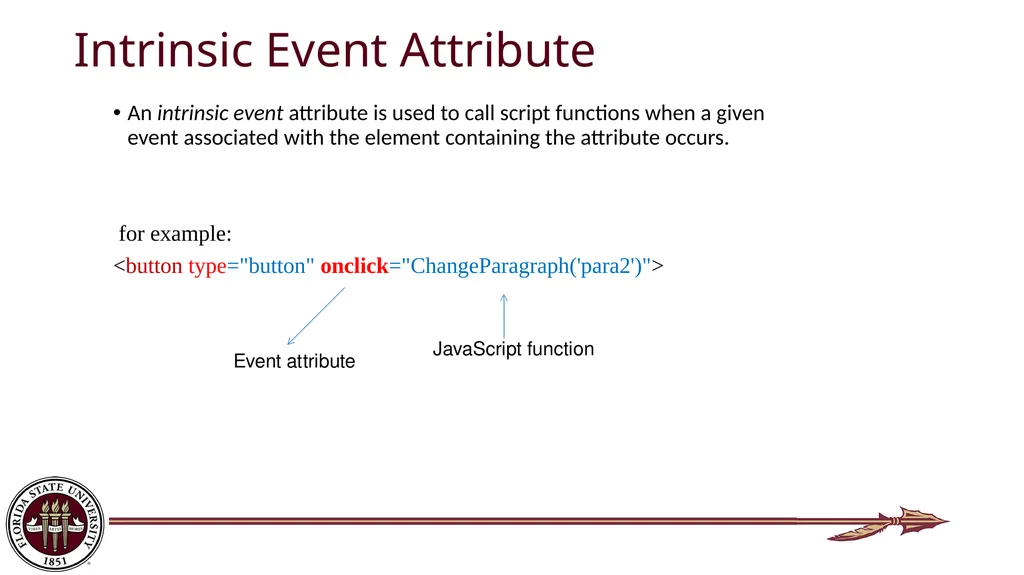
slide28. Intrinsic Event Attribute An intrinsic event attribute is used to call script functions when a given event associated with the element containing the attribute occurs.
for example:
<button type="button" onclick="ChangeParagraph('para2')"> Event attribute JavaScript function<br>
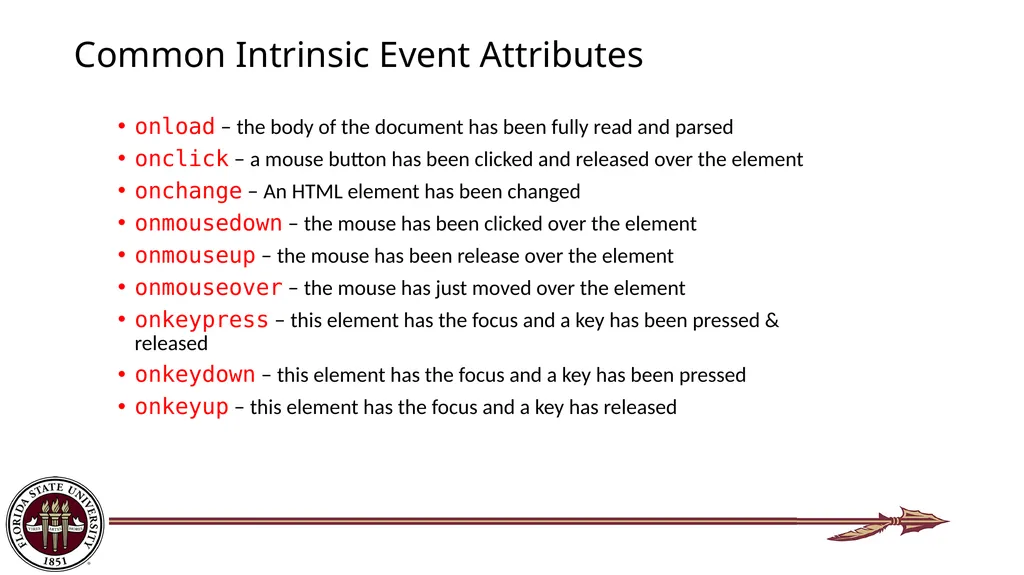
slide29. Common Intrinsic Event Attributes onload – the body of the document has been fully read and parsed
onclick – a mouse button has been clicked and released over the element
onchange – An HTML element has been changed
onmousedown – the mouse has been clicked over the element
onmouseup – the mouse has been release over the element
onmouseover – the mouse has just moved over the element
onkeypress – this element has the focus and a key has been pressed & released
onkeydown – this element has the focus and a key has been pressed
onkeyup – this element has the focus and a key has released<br>
slide2. Expressions An expression is any piece of code that resolves to a value(numeric/string/Boolean etc.)
We can combine literal values, variables and operators to create complex expressions
5,”ABC”,true, x, 1+7, 3+x, 2*x+3, x>5, x=4 are all expressions (given that x is a variable)
Expression that uses assignment(e.g. =,+= etc.) operator, resolves to the value that is finally assigned to left side variable
Expression that compares two value/expressions using a relational operator, resolves to either true or false
Expression that applies logical operator(&&, ||, !) over values/other expressions, resolves to either true or false<br>
slide3. Expressions(contd.) var x,y;
x=10 //expression value is 10
y=7 //expression value is 7
x+4 //expression value is 14, x is still 10
x+=y//equivalent to x=x+y; expression value is 17, x is 17
y=x-2 //expression value is 15, y is 15
Create your own expression and test its value using document.writeln() function<br>
slide4. JavaScript Relational Operators<br>
slide5. JavaScript Logical Operators<br>
slide6. JavaScript falsy values The following data values are considered ‘falsy’, equivalend to Boolean false
0 (numeric)
false (Boolean)
“” or ‘’ (empty string of characters)
null
undefined
NaN (Numeric values indicating Not a Number)<br>
slide7. Entering special characters in document.writeln() \’ - prints single quote
\” - prints single quote
\\ - prints backslash
\n - new line
\t – tab
\r - carriage return
\b - backspace<br>
slide8. Conditional Statement Allows decision-making based on logically described criteria
You choose to run one piece of code depending on some logical condition. Such piece of code and the condition that triggers it, is described in a conditional statement
If statement: if some condition is true, run a block of code; otherwise, run another block of code.<br>
slide9. Conditional Statement If statement:
if ( 10 > 5 ){
//run the code here
}
If … else… statement:
if( 10 > 5 ){ //run the code here }
else{ //run a different piece of code here}<br>
slide10. Loop Statement Loop is a way of repeating the same block of code over and over.
While loop: repeats a block of code while a condition is true.
var counter = 1;
while(counter < 10){
alert(counter);
counter++; //counter = counter + 1;
}
Do-while loop: specify looping condition after the statement block
Executes at least once
do{
alert(counter);
counter++;}
while(counter < 10);<br>
slide11. For Statement For loop: it combines three semicolon-separated pieces information between the parentheses: initialization, condition and a final expression.
for(var counter = 1; counter < 10; counter++)
{
alert(counter);
}<br>
slide12. Array An array is used to store multiple values in a single variable.
An array is just one variable that contains a list of values.
e.g., var numbers = new Array();
numbers[0] = 12;
numbers[1] = 15;
numbers[2] = 45;
numbers[3] = 22; 12 45 22 15 0 1 2 3 index value<br>
slide13. Create and Access An Array var trees = new Array(“maple”, “ashley”, “oak”);
var countries = [“America”, “Spain”, “China”];
Access an array: you refer to an element in an array using the index.
var myCountry = countries[0];
Methods: concat, join, pop, push, reverse, shift, slice, sort, splice, toString, unshift<br>
slide14. Array Methods and Properties An array has predefined properties and methods
Use dot(.) operator to access property/method of a given array
Methods require appropriate input parameter in parantheses
var countries = [“USA”, “Spain”, “China”];
countries.length; //3
countries.indexOf(“China”); //2
countries.push(“Japan”); // USA, Spain, China, Japan
var lastitem = countries.pop(); //countries = USA, Spain, China;
//lastitem = Japan
countries.unshift(“Korea”); // Korea, USA, Spain, China
countries.shift(); // USA, Spain, China
countries.sort(); // China, Spain, USA<br>
slide15. JavaScript Functions A function is a block of code that can be reused.
It consists of a function name, a parameter list, and code that is executed when the function is called.
When needed, we can call a javascript function by it’s name and provided a list of arguments(to be mapped to parameters)
Functions may also be called automatically on web events(e.g. clicking a button)
After the code inside the function are executed, execution of code resumes after the calling context.
Function may return values back to the calling context<br>
slide16. Function Example //declaration of function RectangleArea.
function RectangleArea (height,width){
return height*width;
}//end of function declaration
//this is a function call
var area = RectangleArea(100,40);
alert(area); //code execution resumes here after function call Function name Parameter list Function body Argument list<br>
slide17. JavaScript Objects Three types of objects:
Native objects: defined by JavaScript.
String, Number, Array, Image, Date, Math, etc.
Host objects : supplied and always available to JavaScript by the browser environment.
window, document, forms, etc.
User-defined objects : defined by the author/programmer<br>
slide18. Working with Objects 1. Using the Object literal syntax: var car = {
make : "Toyota",
model : "Sienna",
year : "2015",
displayInfo : function(){
console.log(`Sam drives a ${car.make} ${car.model} ${car.year}`);
}
}
car.displayInfo();
var car1 = {
make : "Toyota",
model : "Sienna",
year : "2015",
displayInfo : function(){
console.log(`Sam drives a ${this.make} ${this.model} ${this.year}`);
}
}
car1.displayInfo();<br>
slide19. Working with Objects 2. Object Constructor: var car = new Object();
car.make = "Toyota";
car.model = "Sienna";
car.year = 2015;
car.displayInfo = function(){
console.log(`Sam drives a ${car.make} ${car.model} ${car.year}`);
}
car.displayInfo();<br>
slide20. Working with Objects 3. Constructor function: function Car(make, model, year) {
this.make = make;
this.model = model;
this.year = year;
this.displayInfo = function(){
console.log(` Sam drives a ${this.make} ${this.model} ${this.year}`);
}
}
var car = new Car("Honda", "Pilot", 2018);
car.displayInfo();
var car2 = new Car("Hyundai", "Sonata", 2017);
car2.displayInfo();<br>
slide21. Working with Objects 4. Prototypes:
Every JS object has a default prototype object property. Another object or method can be attached to this prototype. var car = {
make : "Toyota",
model : "Sienna",
year : "2015",
displayInfo : function(){
console.log(`Sam drives a ${this.make} ${this.model} ${this.year}`);
}
};
var mycar = Object.create(car, displayInfo);
mycar.displayInfo();<br>
slide22. Accessing Objects 1. Dot notation:
obj.property
car.make
car.model
2. Bracket notation:
obj[“property”]
car[“make”]
car[“year”]<br>
slide23. DOM Document Object Model (DOM) is a programming interface to access and manipulate the HTML document.
Describes the HTML document as an object, consisting of properties and methods
DOM structure is maintained by the browser, accessible from Javascript through the object name document
HTML elements also viewed as objects, contained inside(properties of) document
From Javasvcript, the DOM<br>
slide24. Example DOM methods Finding HTML Elements
document.getElementById(“ID_VALUE”)
document.getElementsByName(“NAME_VALUE”)
document.getElementsByClassName(“CLASSNAME”)
document.querySelector(“CSS-SELECTOR”)
Modifying HTML Elements
document.write(“text”)
document.getElementById(“sectionOne”).innerHTML = “”
document.getSelector(“.paraOne”).innerHTML = “”<br>
slide25. Changing properties of an element You can set the attribute of a given element dynamically by using the property of the object.
objectname.attributename = value;
For example:
var element = window.document.getElementById(“img1”);
var photoName = “fsu.JPG";
element.src = photoName;<br>
slide26. SetAttribute() of a object You can also set the attribute of a given element by using the method setAttribute(attributeName, Value)
SetAttribute is a method of an element type object
Same example:
var element = window.document.getElementById(“img1”);
var photoName = “fsu.JPG";
element.setAttribute("src", photoName);<br>
slide27. Javascript Event Handling Browser-based JavaScript programs are event-driven.
This means that a function is called in response to various user actions.
An event in a browser is an occurrence of potential interest.
The mouse moving over an element
A mouse button being clicked
A key being pressed<br>
slide28. Intrinsic Event Attribute An intrinsic event attribute is used to call script functions when a given event associated with the element containing the attribute occurs.
for example:
<button type="button" onclick="ChangeParagraph('para2')"> Event attribute JavaScript function<br>
slide29. Common Intrinsic Event Attributes onload – the body of the document has been fully read and parsed
onclick – a mouse button has been clicked and released over the element
onchange – An HTML element has been changed
onmousedown – the mouse has been clicked over the element
onmouseup – the mouse has been release over the element
onmouseover – the mouse has just moved over the element
onkeypress – this element has the focus and a key has been pressed & released
onkeydown – this element has the focus and a key has been pressed
onkeyup – this element has the focus and a key has released<br>