
Command line Shells Georges Khazen Command line:
A
Published · 29 slides · 0 views
1 / 1

Description
Command line Shells Georges Khazen Command line: Shell A shell is an interface that sits between the OS and user allowing himher to interact with the OS. Shells occur in two primary forms Graphical User Interface (GUI) Command Line
Related Topics
Share
Embed code
Download this presentation From Below
"Command line Shells Georges Khazen Command line:" is the property of its rightful owner. Permission is granted to download and print the materials on this website for personal, non-commercial use only, and to display it on your personal computer provided you do not modify the materials and that you retain all copyright notices contained in the materials. By downloading content from our website, you accept the terms of this agreement.
Presentation Transcript
01
Command line
Shells Georges Khazen<br>
Shells Georges Khazen<br>
02
Command line: Shell A shell is an interface that sits between the OS and user allowing him/her to interact with the OS. Shells occur in two primary forms…
Graphical User Interface (GUI)
Command Line Interface (CLI)
Benefits of a CLI
Can usually perform operations faster (albeit with a learning curve)
Frequently lighter-weight
Can (more) easily be scripted<br>
Graphical User Interface (GUI)
Command Line Interface (CLI)
Benefits of a CLI
Can usually perform operations faster (albeit with a learning curve)
Frequently lighter-weight
Can (more) easily be scripted<br>
03
Command line: Shell Don’t fear the command line!
It is useful to contrast it with a graphical user interface (GUI)
GUIs have dramatically improved the friendliness and usability of computers for many tasks.
These advantages come with trade-offs, though, some of which are felt far more acutely by scientists than by other uses.<br>
It is useful to contrast it with a graphical user interface (GUI)
GUIs have dramatically improved the friendliness and usability of computers for many tasks.
These advantages come with trade-offs, though, some of which are felt far more acutely by scientists than by other uses.<br>
04
GUI Potential Disadvantages Many of the analyses that scientists need to perform consist of a long sequence of operations which may need to be repeated on different datasets, or with slight modifications on the same dataset. This does not lend itself well to GUIs. Everyone has had the frustrating experience of clicking through the same sequence of menus and dialog boxes over and over again.
Most programs do not keep a log of all the user commands issued through the GUI and if you want to recreate the steps it took you to analyze your data, they must be documented separately.<br>
Most programs do not keep a log of all the user commands issued through the GUI and if you want to recreate the steps it took you to analyze your data, they must be documented separately.<br>
05
GUI Potential Disadvantages GUIs are not conductive to controlling analyses on a cluster of computers or on a remote machine. This will be a problem when you need to access increased computing power beyond your personal computer for complex and large-scale tasks.
GUIs are labor-intensive to make and typically work on only the particular operating system for which they were developed.
Fortunately, there is another way of interacting with your computer that avoids many of these problems. This is the oft-dreaded COMMAND LINE, an entirely text based interface<br>
GUIs are labor-intensive to make and typically work on only the particular operating system for which they were developed.
Fortunately, there is another way of interacting with your computer that avoids many of these problems. This is the oft-dreaded COMMAND LINE, an entirely text based interface<br>
06
Command LIne: SHELL Using the command line requires and up-front investment in a new skill set, but provides a huge gain in the long run for many data management and analysis tasks.
To the uninitiated, the command line can seem like a primitive throwback to the days before the mouse.
However, the command line is alive and well, and is in fact the interface of choice for a wide range of computational tools.
In many cases, it is a more convenient environment for data manipulation.<br>
To the uninitiated, the command line can seem like a primitive throwback to the days before the mouse.
However, the command line is alive and well, and is in fact the interface of choice for a wide range of computational tools.
In many cases, it is a more convenient environment for data manipulation.<br>
07
Starting the Shell Shells run in what are called terminal emulators, or more simply, terminals.
The command line, as the prompt and cursor are known, is displayed within the terminal window by a program called a shell.
Shells are customizable and powerful, and at times seem simple-minded.
You can issue small commands or write scripts that do amazing things.
You can also wipe out a chunk of your hard disk with a few ill-chosen punctuations marks. The shell assumes that you mean what you say, and rarely gives you the chance to opt out of a command you issued or to undo the results<br>
The command line, as the prompt and cursor are known, is displayed within the terminal window by a program called a shell.
Shells are customizable and powerful, and at times seem simple-minded.
You can issue small commands or write scripts that do amazing things.
You can also wipe out a chunk of your hard disk with a few ill-chosen punctuations marks. The shell assumes that you mean what you say, and rarely gives you the chance to opt out of a command you issued or to undo the results<br>
08
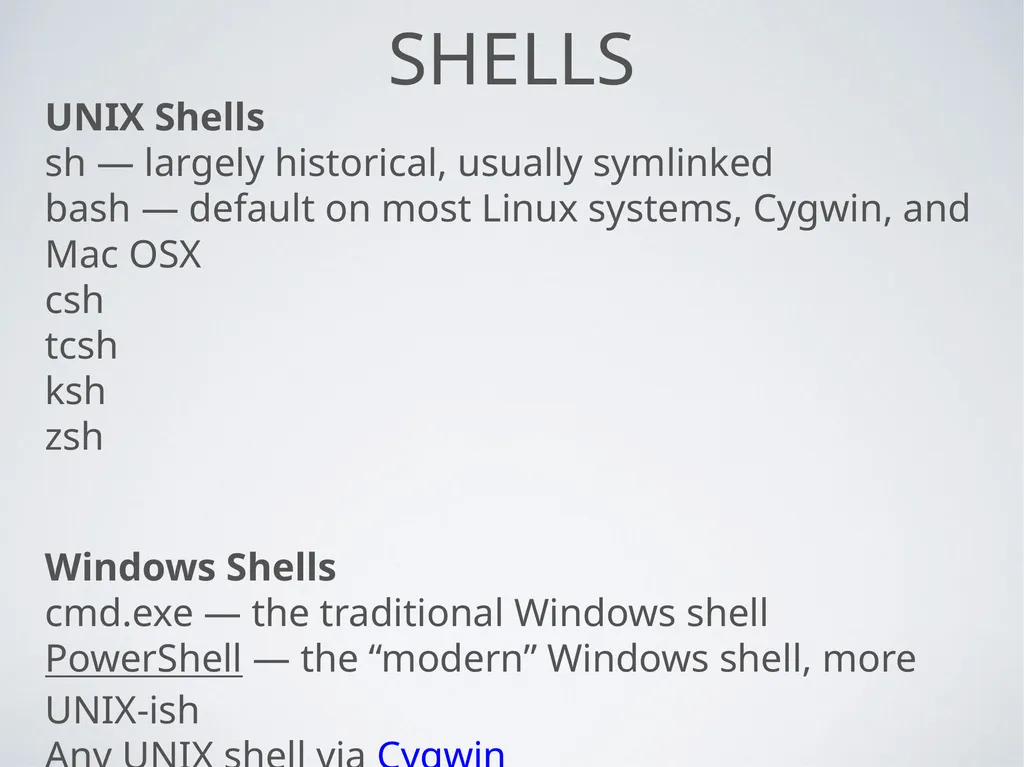
Shells UNIX Shells
sh — largely historical, usually symlinked
bash — default on most Linux systems, Cygwin, and Mac OSX
csh
tcsh
ksh
zsh
Windows Shells
cmd.exe — the traditional Windows shell
PowerShell — the “modern” Windows shell, more UNIX-ish
Any UNIX shell via Cygwin<br>
sh — largely historical, usually symlinked
bash — default on most Linux systems, Cygwin, and Mac OSX
csh
tcsh
ksh
zsh
Windows Shells
cmd.exe — the traditional Windows shell
PowerShell — the “modern” Windows shell, more UNIX-ish
Any UNIX shell via Cygwin<br>
09
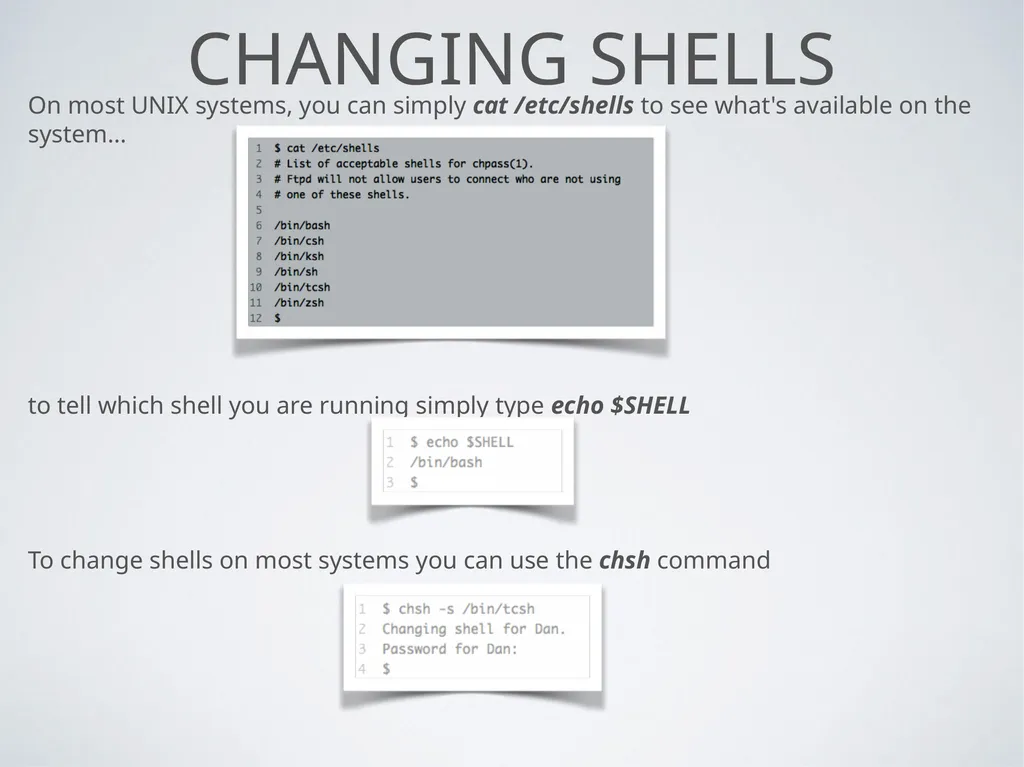
Changing SHells On most UNIX systems, you can simply cat /etc/shells to see what's available on the system…
to tell which shell you are running simply type echo $SHELL
To change shells on most systems you can use the chsh command<br>
to tell which shell you are running simply type echo $SHELL
To change shells on most systems you can use the chsh command<br>
10
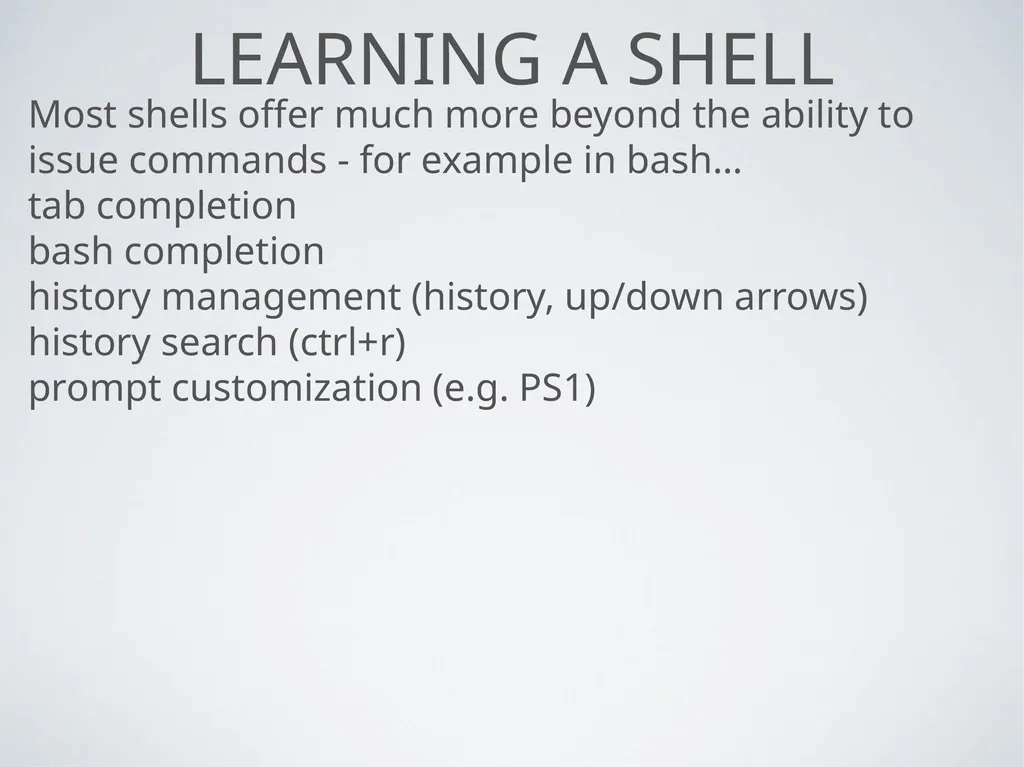
Learning a SHELL Most shells offer much more beyond the ability to issue commands - for example in bash…
tab completion
bash completion
history management (history, up/down arrows)
history search (ctrl+r)
prompt customization (e.g. PS1)<br>
tab completion
bash completion
history management (history, up/down arrows)
history search (ctrl+r)
prompt customization (e.g. PS1)<br>
11
UNIX Utilities Philosophy
Do one thing and do it well
Generally process lines of text
Silence is golden (only complain on error)
Foundations of shell scripts
Shell scripts typically leverage underlying UNIX utilities to make up their core
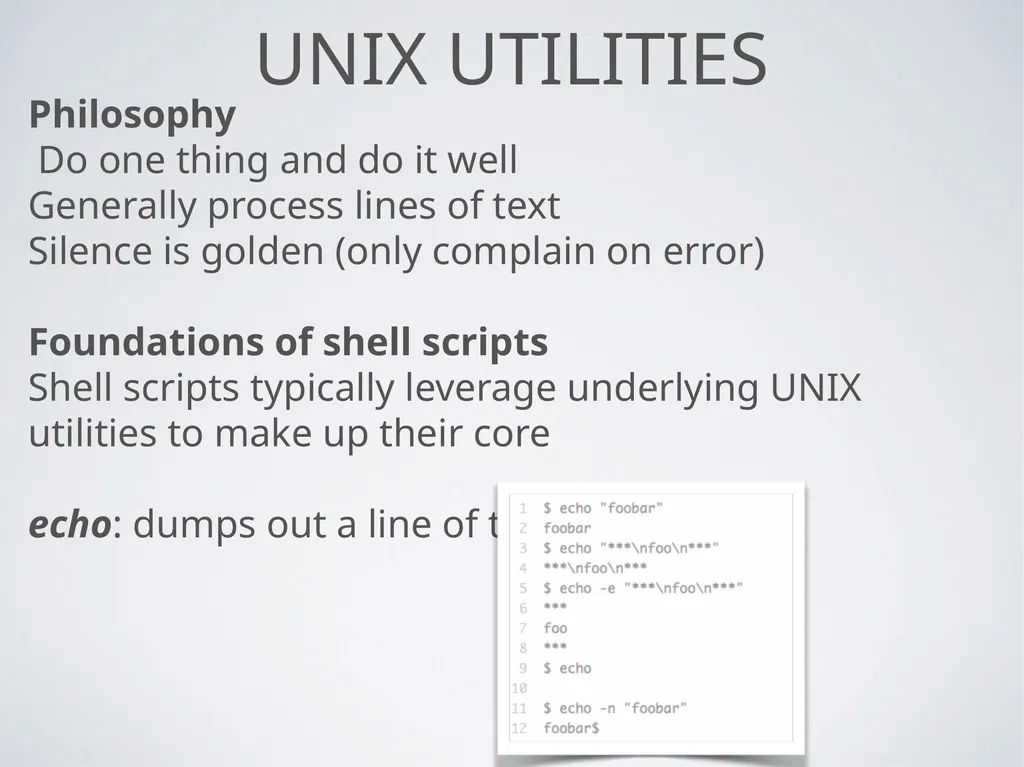
echo: dumps out a line of test<br>
Do one thing and do it well
Generally process lines of text
Silence is golden (only complain on error)
Foundations of shell scripts
Shell scripts typically leverage underlying UNIX utilities to make up their core
echo: dumps out a line of test<br>
12
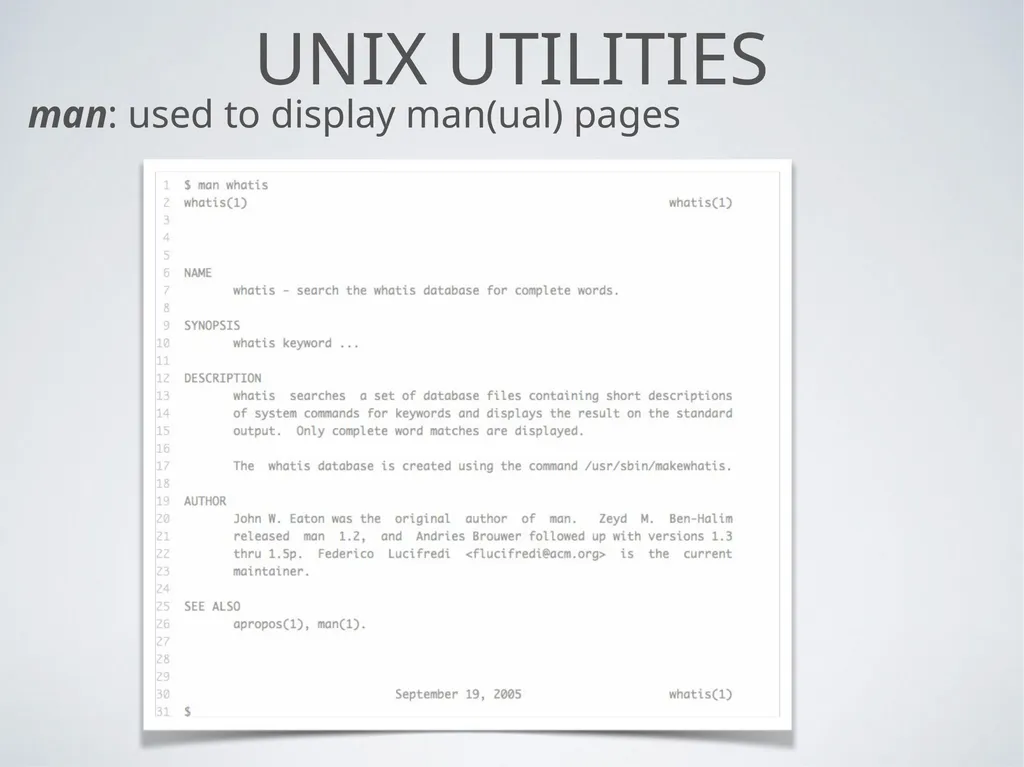
UNIX Utilities man: used to display man(ual) pages<br>
13
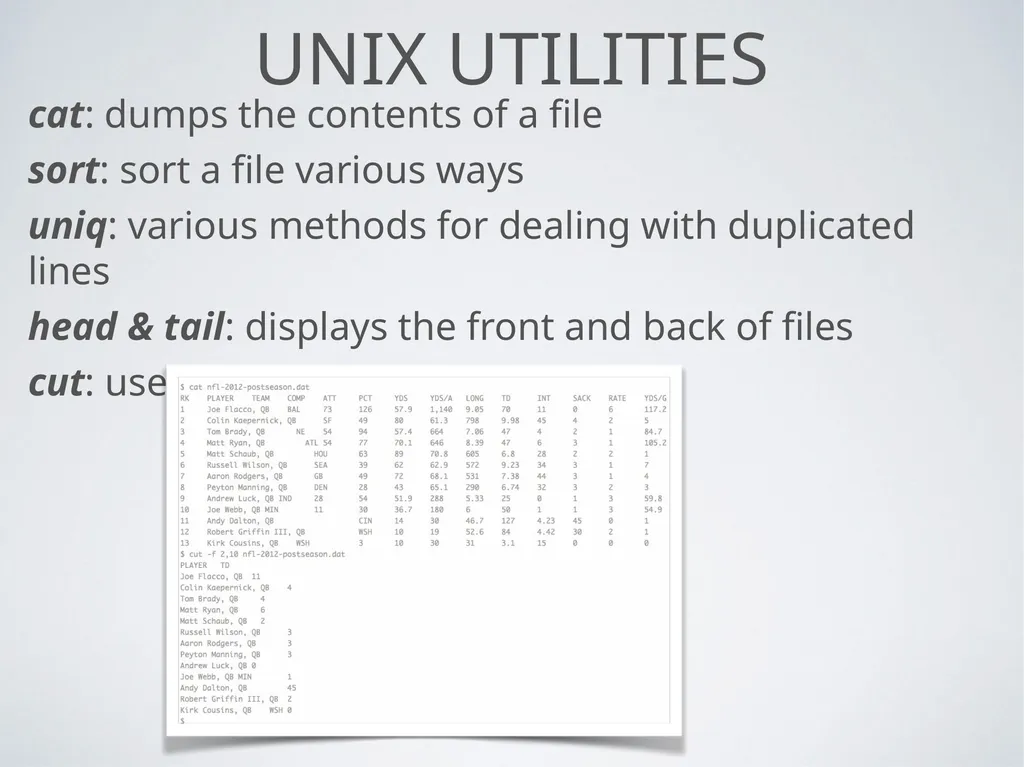
UNIX Utilities cat: dumps the contents of a file
sort: sort a file various ways
uniq: various methods for dealing with duplicated lines
head & tail: displays the front and back of files
cut: used to extract specific fields<br>
sort: sort a file various ways
uniq: various methods for dealing with duplicated lines
head & tail: displays the front and back of files
cut: used to extract specific fields<br>
14
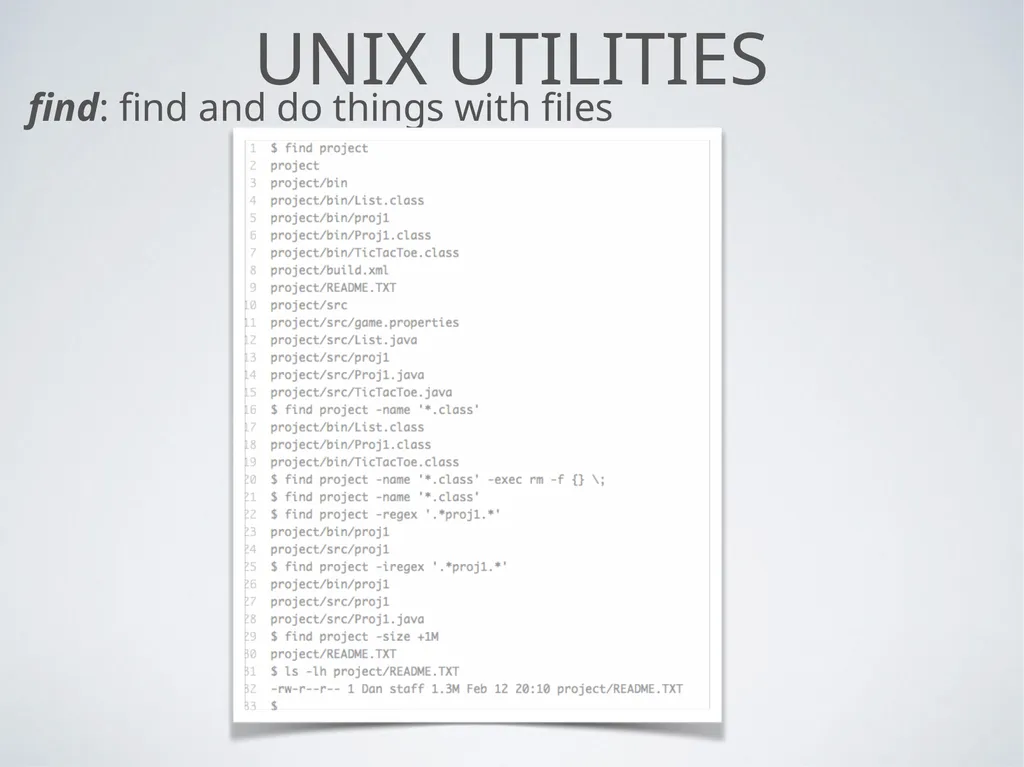
UNIX Utilities find: find and do things with files<br>
15
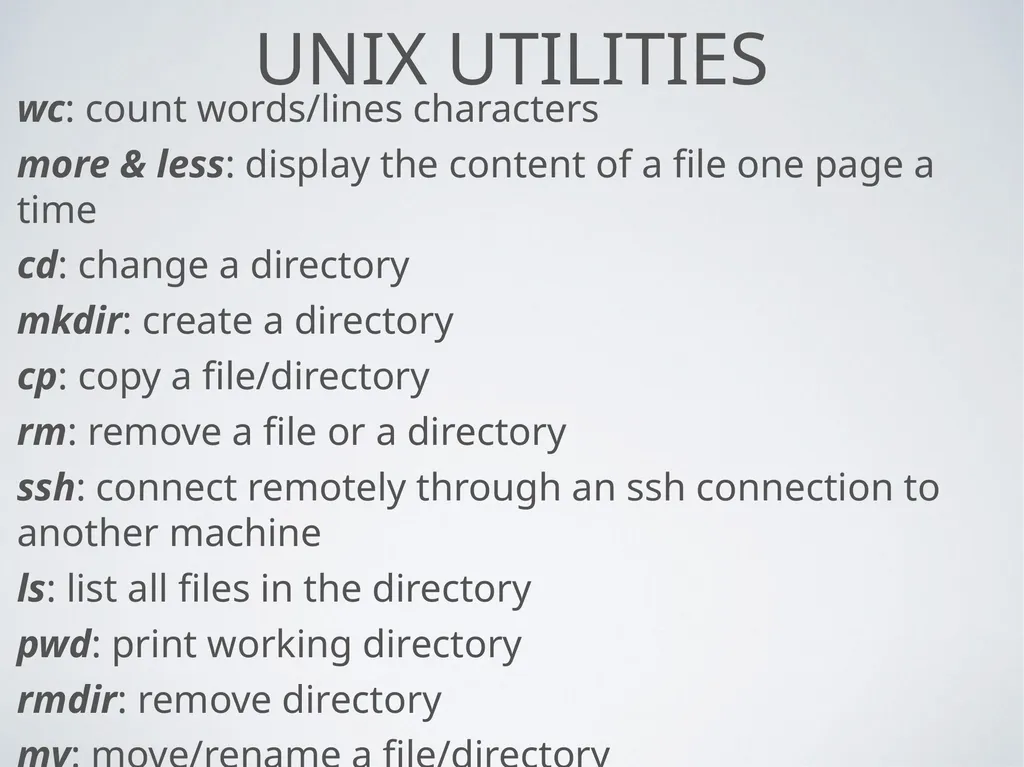
UNIX Utilities wc: count words/lines characters
more & less: display the content of a file one page a time
cd: change a directory
mkdir: create a directory
cp: copy a file/directory
rm: remove a file or a directory
ssh: connect remotely through an ssh connection to another machine
ls: list all files in the directory
pwd: print working directory
rmdir: remove directory
mv: move/rename a file/directory<br>
more & less: display the content of a file one page a time
cd: change a directory
mkdir: create a directory
cp: copy a file/directory
rm: remove a file or a directory
ssh: connect remotely through an ssh connection to another machine
ls: list all files in the directory
pwd: print working directory
rmdir: remove directory
mv: move/rename a file/directory<br>
16
A command line view of the operating System The nested hierarchy of folders on your computer is called the filesystem
root directory is the most inclusive folder on the system, serving as the container for all other files and folders. It is the base of the tree of files on your computer.
Even the hard drive is located within this single filesystem sprouting from root.
If you insert a DVD or plug in a USB, these also get their own folders within the tree.
the ~ can be used to refer to the root directory.<br>
root directory is the most inclusive folder on the system, serving as the container for all other files and folders. It is the base of the tree of files on your computer.
Even the hard drive is located within this single filesystem sprouting from root.
If you insert a DVD or plug in a USB, these also get their own folders within the tree.
the ~ can be used to refer to the root directory.<br>
17
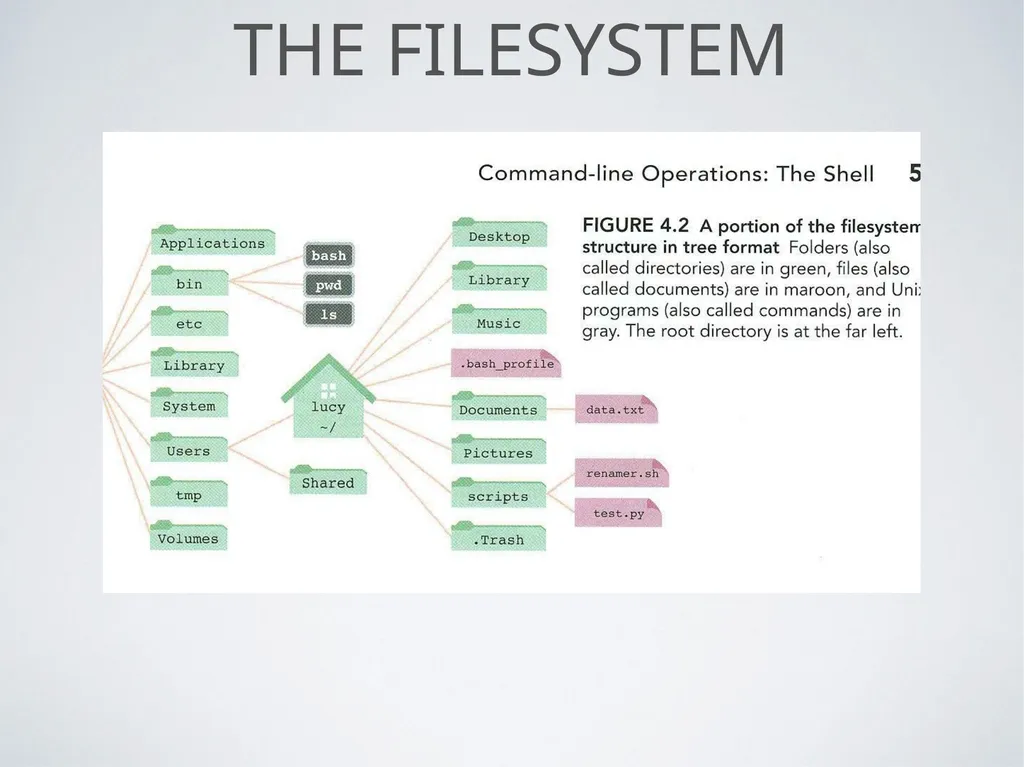
The fileSystem<br>
18
THe path The written description of where something is located in the filesystem is called the path
The path is a list of directory names separated by slashes.
If the path is for a file, then the last element of the path is the file’s name.
In Unix based operating systems, the separator is a normal forward slash (/), while that in Microsoft DOS is a backslash (\)
/Users/lucy/Documents/data.txt
/Users/lucy/Documtents/
Paths are case sensitive<br>
The path is a list of directory names separated by slashes.
If the path is for a file, then the last element of the path is the file’s name.
In Unix based operating systems, the separator is a normal forward slash (/), while that in Microsoft DOS is a backslash (\)
/Users/lucy/Documents/data.txt
/Users/lucy/Documtents/
Paths are case sensitive<br>
19
The Path The path can be absolute or relative
Absolute path is a complete and unambiguous description of where something is in relation to the root, the very base of the filesystem.
Relative path describes where a folder or a file is in relation to another folder (mainly the current working directory). In order to interpret a relative path, you need to know the reference point as well. It is essentially an offset.<br>
Absolute path is a complete and unambiguous description of where something is in relation to the root, the very base of the filesystem.
Relative path describes where a folder or a file is in relation to another folder (mainly the current working directory). In order to interpret a relative path, you need to know the reference point as well. It is essentially an offset.<br>
20
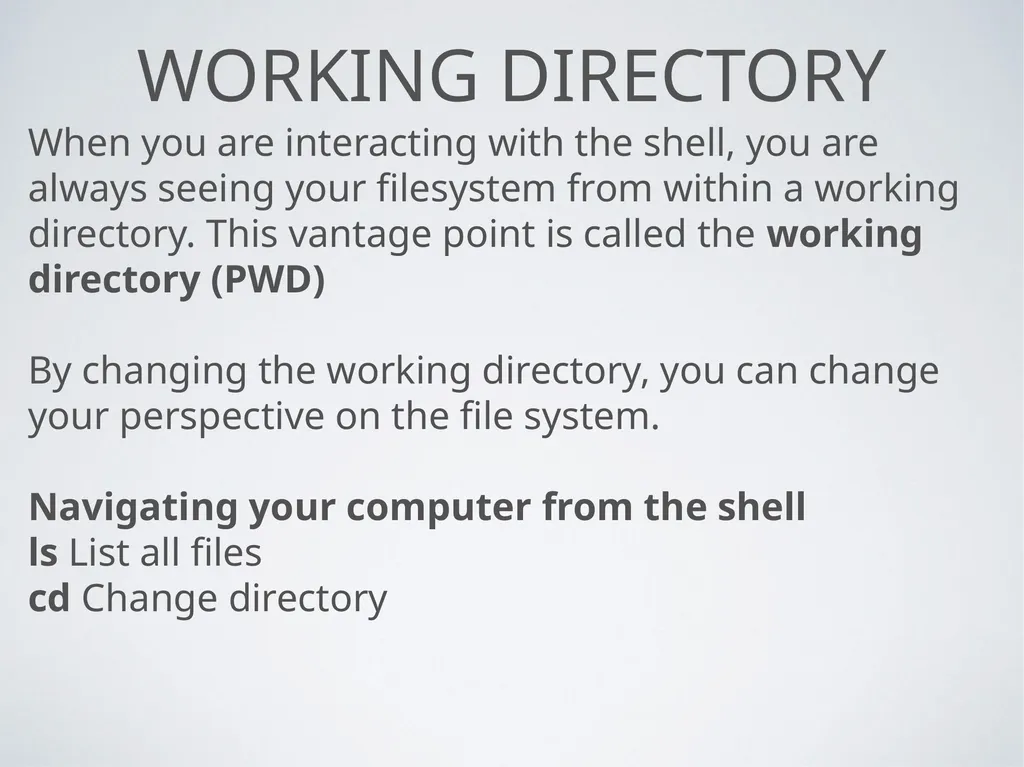
WOrking directory When you are interacting with the shell, you are always seeing your filesystem from within a working directory. This vantage point is called the working directory (PWD)
By changing the working directory, you can change your perspective on the file system.
Navigating your computer from the shell
ls List all files
cd Change directory<br>
By changing the working directory, you can change your perspective on the file system.
Navigating your computer from the shell
ls List all files
cd Change directory<br>
21
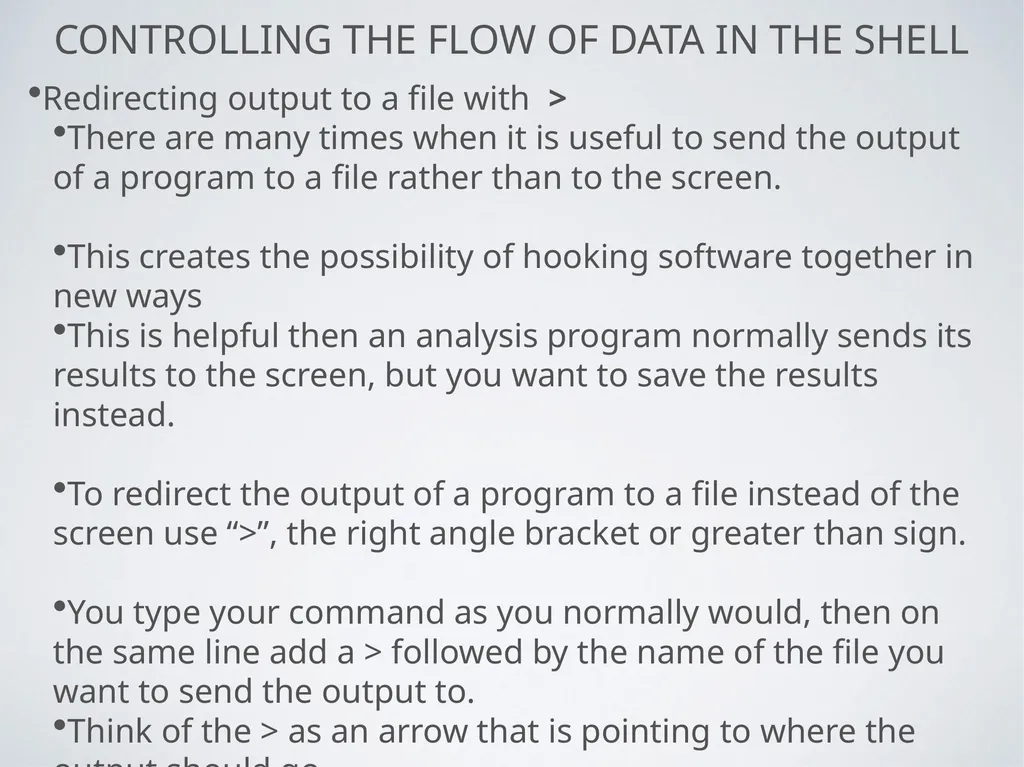
Controlling the flow of data in the shell Redirecting output to a file with >
There are many times when it is useful to send the output of a program to a file rather than to the screen.
This creates the possibility of hooking software together in new ways
This is helpful then an analysis program normally sends its results to the screen, but you want to save the results instead.
To redirect the output of a program to a file instead of the screen use “>”, the right angle bracket or greater than sign.
You type your command as you normally would, then on the same line add a > followed by the name of the file you want to send the output to.
Think of the > as an arrow that is pointing to where the output should go.<br>
There are many times when it is useful to send the output of a program to a file rather than to the screen.
This creates the possibility of hooking software together in new ways
This is helpful then an analysis program normally sends its results to the screen, but you want to save the results instead.
To redirect the output of a program to a file instead of the screen use “>”, the right angle bracket or greater than sign.
You type your command as you normally would, then on the same line add a > followed by the name of the file you want to send the output to.
Think of the > as an arrow that is pointing to where the output should go.<br>
22
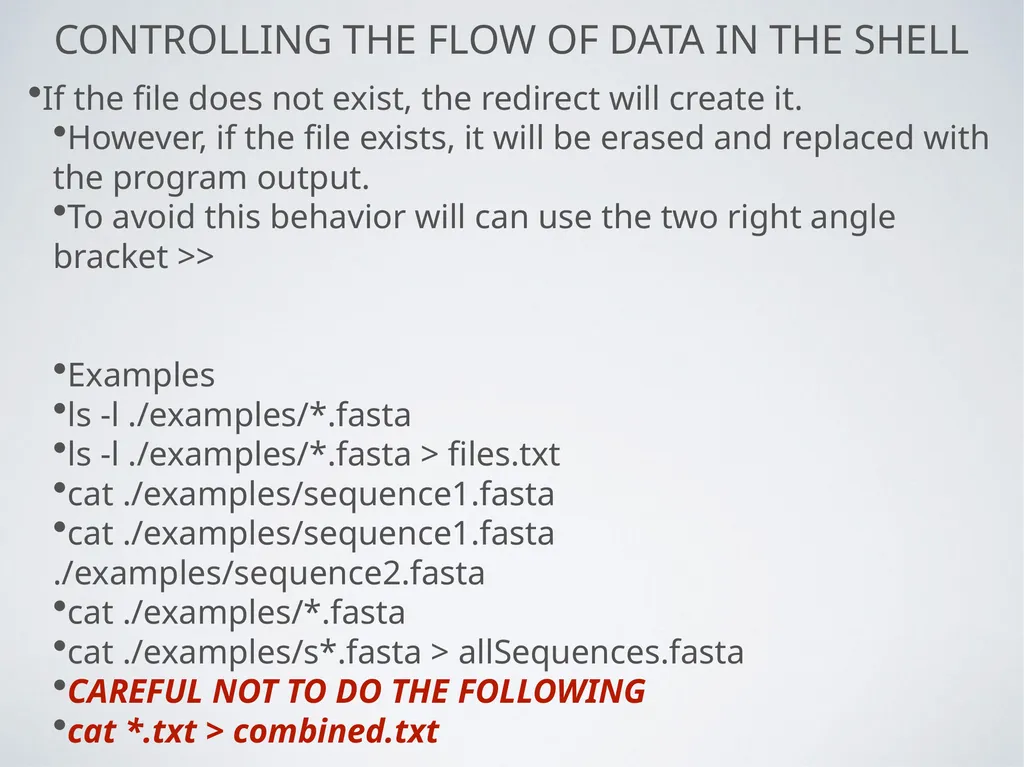
Controlling the flow of data in the shell If the file does not exist, the redirect will create it.
However, if the file exists, it will be erased and replaced with the program output.
To avoid this behavior will can use the two right angle bracket >>
Examples
ls -l ./examples/*.fasta
ls -l ./examples/*.fasta > files.txt
cat ./examples/sequence1.fasta
cat ./examples/sequence1.fasta ./examples/sequence2.fasta
cat ./examples/*.fasta
cat ./examples/s*.fasta > allSequences.fasta
CAREFUL NOT TO DO THE FOLLOWING
cat *.txt > combined.txt<br>
However, if the file exists, it will be erased and replaced with the program output.
To avoid this behavior will can use the two right angle bracket >>
Examples
ls -l ./examples/*.fasta
ls -l ./examples/*.fasta > files.txt
cat ./examples/sequence1.fasta
cat ./examples/sequence1.fasta ./examples/sequence2.fasta
cat ./examples/*.fasta
cat ./examples/s*.fasta > allSequences.fasta
CAREFUL NOT TO DO THE FOLLOWING
cat *.txt > combined.txt<br>
23
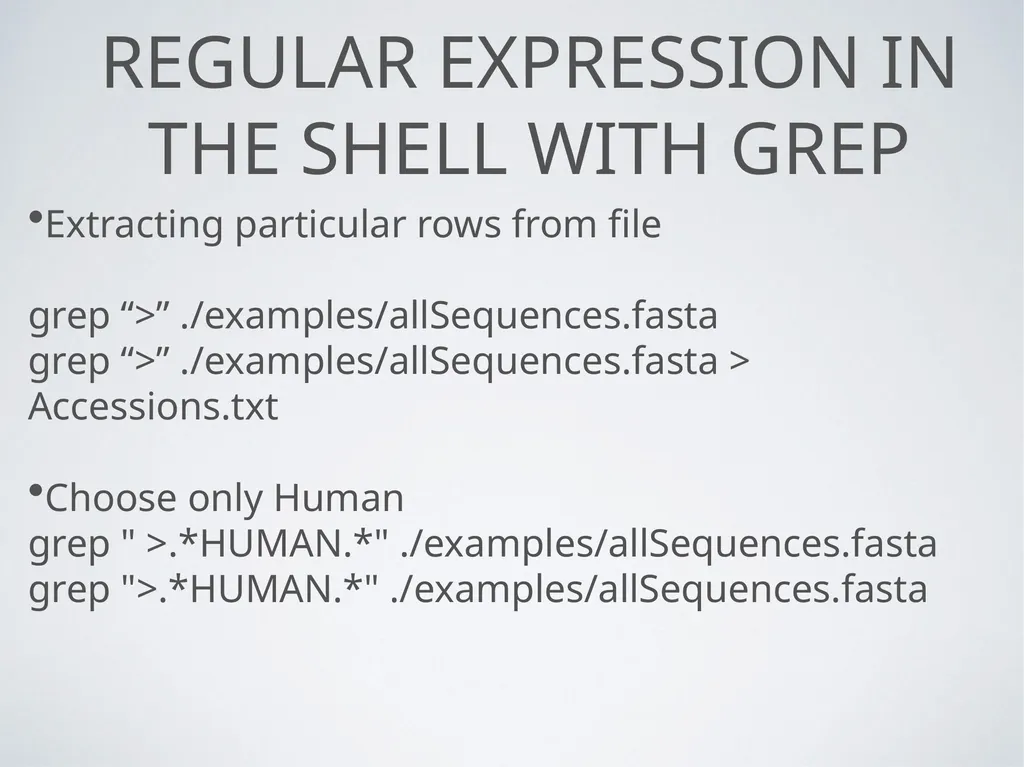
REgular expression in the shell with grep Extracting particular rows from file
grep “>” ./examples/allSequences.fasta
grep “>” ./examples/allSequences.fasta > Accessions.txt
Choose only Human
grep " >.*HUMAN.*" ./examples/allSequences.fasta
grep ">.*HUMAN.*" ./examples/allSequences.fasta<br>
grep “>” ./examples/allSequences.fasta
grep “>” ./examples/allSequences.fasta > Accessions.txt
Choose only Human
grep " >.*HUMAN.*" ./examples/allSequences.fasta
grep ">.*HUMAN.*" ./examples/allSequences.fasta<br>
24
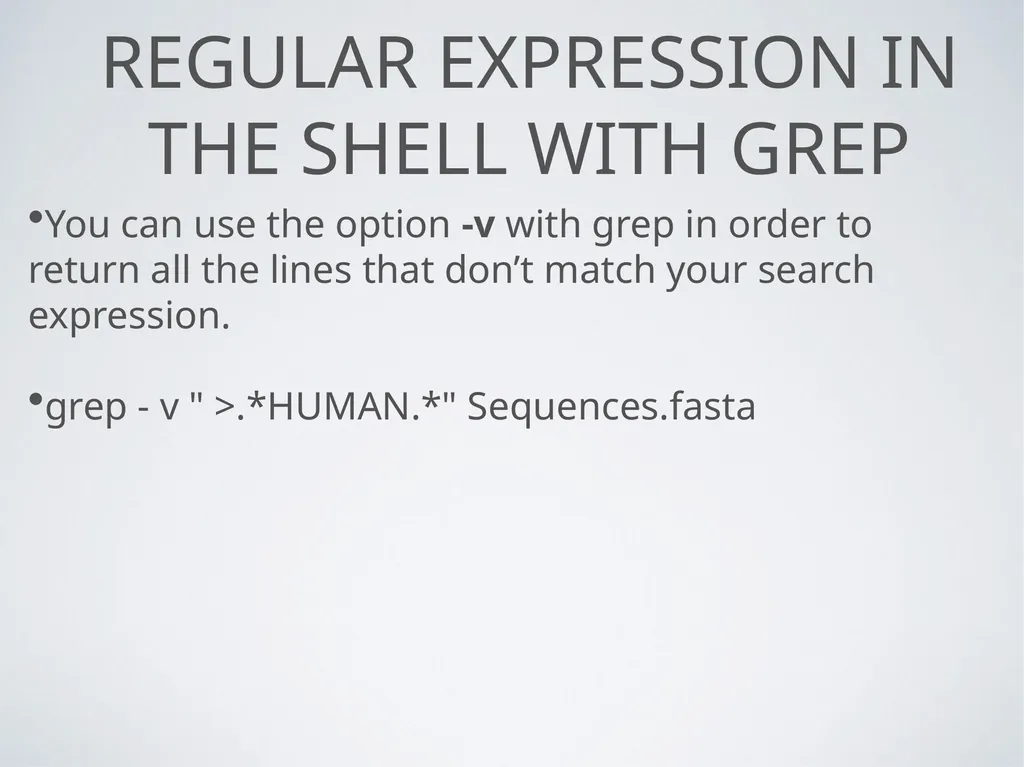
REgular expression in the shell with grep You can use the option -v with grep in order to return all the lines that don’t match your search expression.
grep - v " >.*HUMAN.*" Sequences.fasta<br>
grep - v " >.*HUMAN.*" Sequences.fasta<br>
25
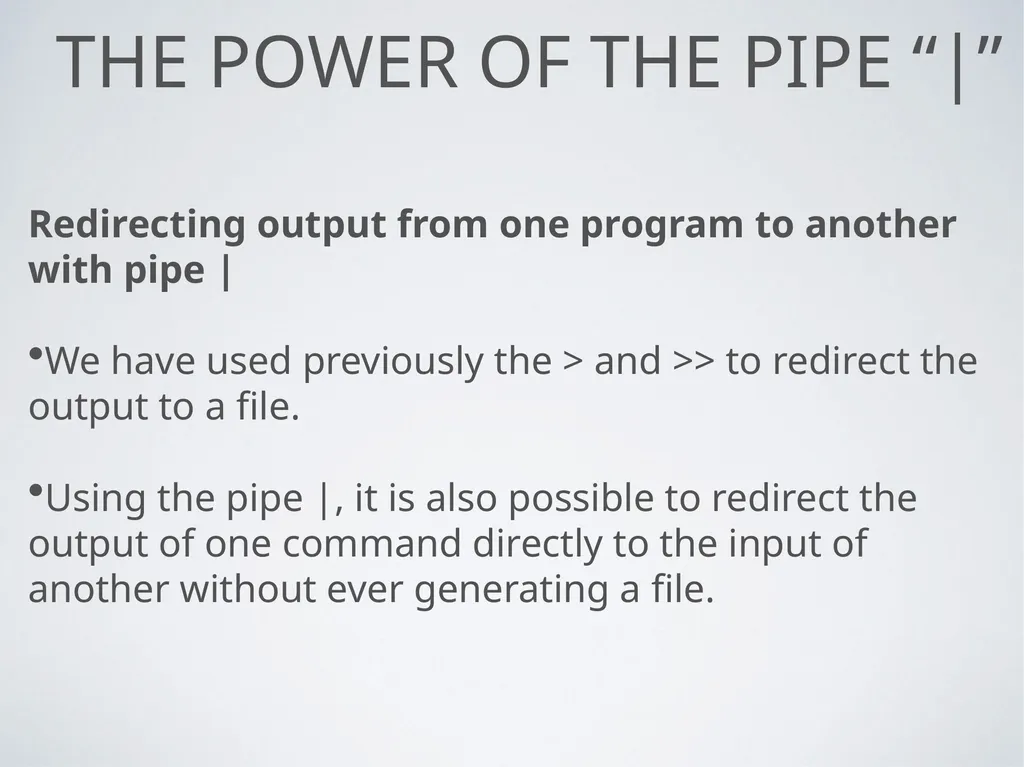
THe power of the pipe “|” Redirecting output from one program to another with pipe |
We have used previously the > and >> to redirect the output to a file.
Using the pipe |, it is also possible to redirect the output of one command directly to the input of another without ever generating a file.<br>
We have used previously the > and >> to redirect the output to a file.
Using the pipe |, it is also possible to redirect the output of one command directly to the input of another without ever generating a file.<br>
26
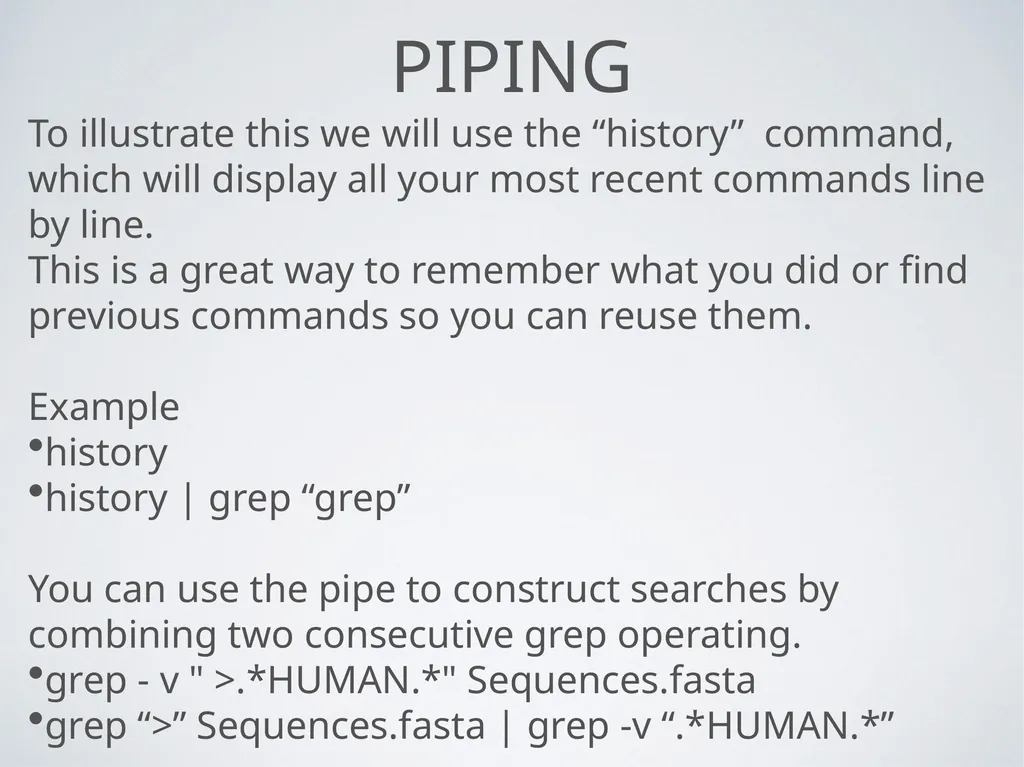
Piping To illustrate this we will use the “history” command, which will display all your most recent commands line by line.
This is a great way to remember what you did or find previous commands so you can reuse them.
Example
history
history | grep “grep”
You can use the pipe to construct searches by combining two consecutive grep operating.
grep - v " >.*HUMAN.*" Sequences.fasta
grep “>” Sequences.fasta | grep -v “.*HUMAN.*”<br>
This is a great way to remember what you did or find previous commands so you can reuse them.
Example
history
history | grep “grep”
You can use the pipe to construct searches by combining two consecutive grep operating.
grep - v " >.*HUMAN.*" Sequences.fasta
grep “>” Sequences.fasta | grep -v “.*HUMAN.*”<br>
27
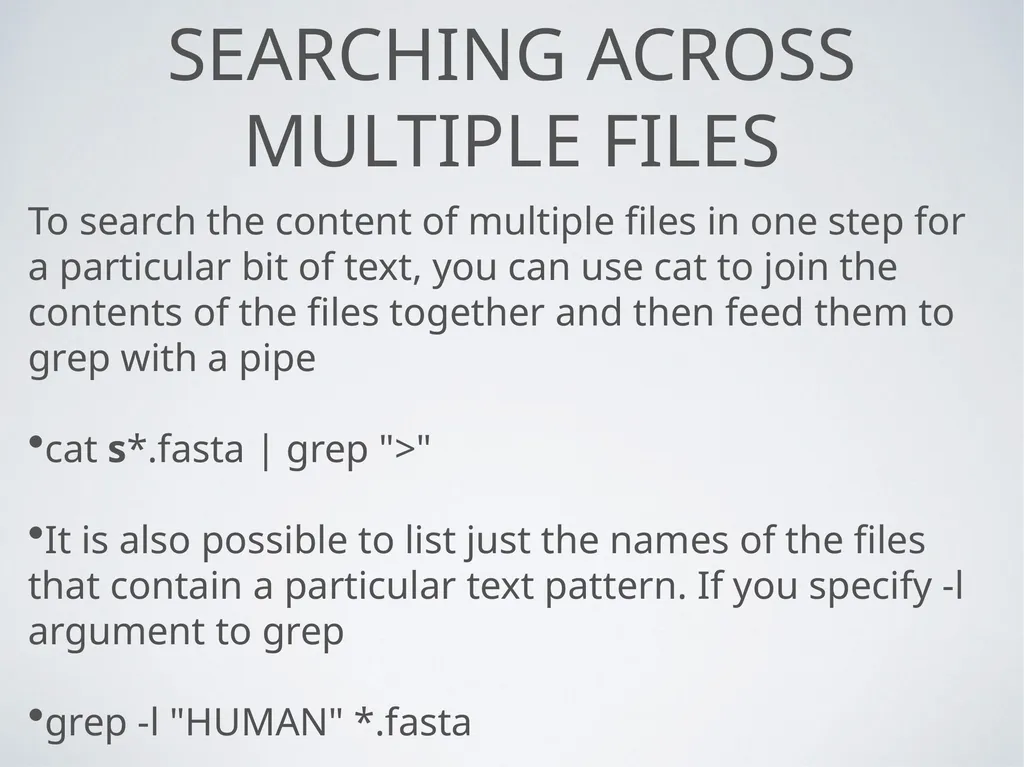
Searching ACross Multiple FIles To search the content of multiple files in one step for a particular bit of text, you can use cat to join the contents of the files together and then feed them to grep with a pipe
cat s*.fasta | grep ">"
It is also possible to list just the names of the files that contain a particular text pattern. If you specify -l argument to grep
grep -l "HUMAN" *.fasta<br>
cat s*.fasta | grep ">"
It is also possible to list just the names of the files that contain a particular text pattern. If you specify -l argument to grep
grep -l "HUMAN" *.fasta<br>
28
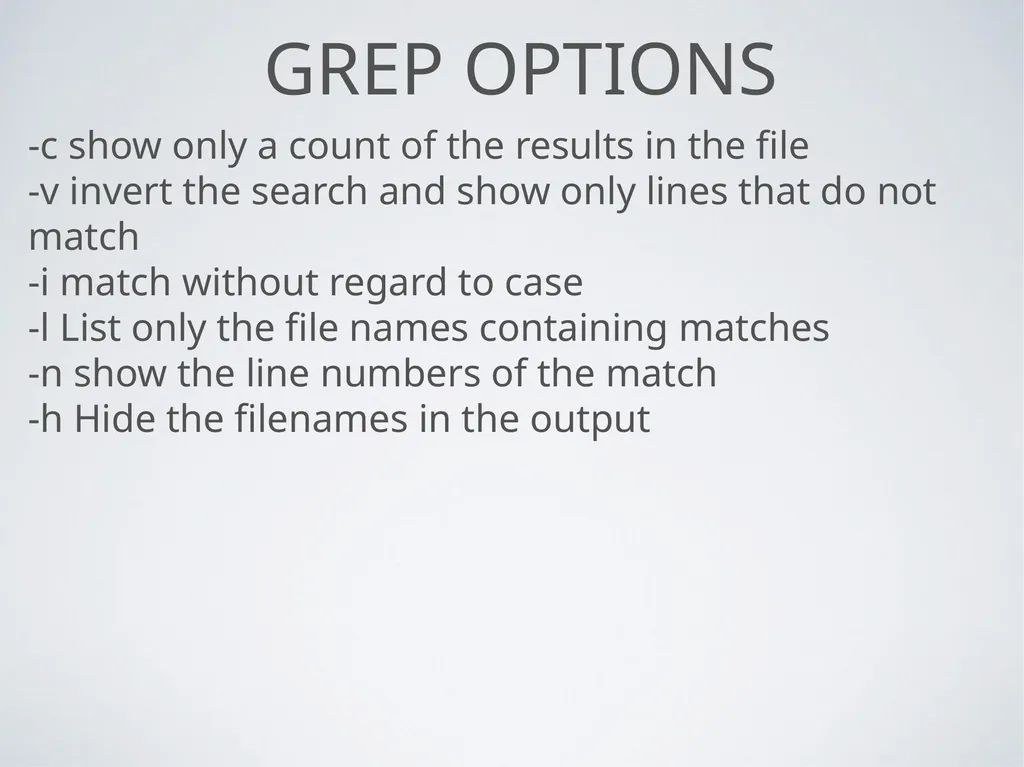
GREP options -c show only a count of the results in the file
-v invert the search and show only lines that do not match
-i match without regard to case
-l List only the file names containing matches
-n show the line numbers of the match
-h Hide the filenames in the output<br>
-v invert the search and show only lines that do not match
-i match without regard to case
-l List only the file names containing matches
-n show the line numbers of the match
-h Hide the filenames in the output<br>
29
Retrieving WEb COntent You can use the curl command to fetch data from an online database or other internet resource
curl www.lau.edu.lb<br>
curl www.lau.edu.lb<br>