Financial officer Training Your role as the financial Officer To manage your teams budget and expenses during the semester or year. What do I do as the financial officer? As the financial officer, you will: Learn how to create and maintain
"Financial officer Training Your role as the" is the property of its rightful owner. Permission is granted to
download and print the materials on this website for personal, non-commercial use only, and to display it
on your personal computer provided you do not modify the materials and that you retain all copyright
notices contained in the materials. By downloading content from our website, you accept the terms of this
agreement.
Presentation Transcript
01
Financial officer Training<br>
02
Your role as the financial Officer To manage your team’s budget and expenses during the semester or year.<br>
03
What do I do as the financial officer? As the financial officer, you will:
Learn how to create and maintain a budget for multiple projects
Track expenditures for multiple projects
A detailed description of the role and responsibilities can be found here.<br>
04
Budget Planning<br>
05
Why do I need to submit a team budget? EPICS is just like any other group – we operate on a budget. Knowing what each team might need and spend is how we determine our yearly budget. We make our overall project budget from your budget submissions.
We want your team to be successful and don’t want project progress to be held up by insufficient funds.<br>
06
Seed allocation Each team starts with a $200 seed allocation. It is automatically included on your budget form.
Your budget submission is your opportunity to request additional funding. The EPICS staff will take the project scope into consideration when evaluating your budget submission.
Question: Do I need to submit a budget if I know my team will not exceed the seed money?
Answer: Yes. Even if you are not spending over the $200 seed money, we need to know what your expenses will be.<br>
07
How do I create my budget? Have each project team on your team give you an estimate for what they will spend. It is a team budget and you need your team’s help in preparing it.
You must use the team budget form for your campus, Indianapolis or West Lafayette, found here, which will start a DocuSign document.
Tips:
Include shipping costs in your purchase estimates if you know them.
Do not include tax in your estimates. Purchases through the university are tax exempt.
Be realistic about room for error in your project.<br>
08
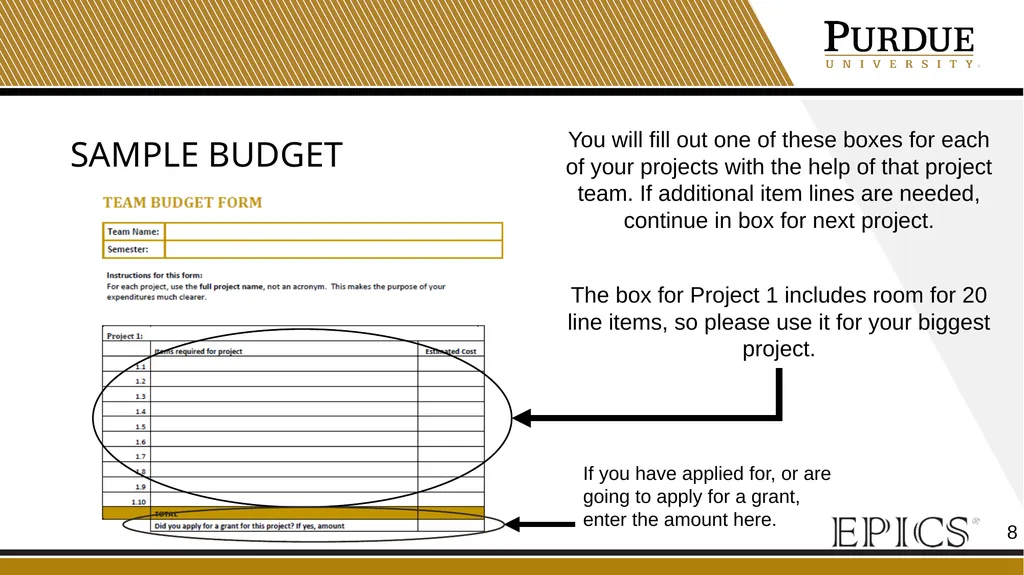
Sample Budget You will fill out one of these boxes for each of your projects with the help of that project team. If additional item lines are needed, continue in box for next project.
The box for Project 1 includes room for 20 line items, so please use it for your biggest project. If you have applied for, or are going to apply for a grant, enter the amount here.<br>
09
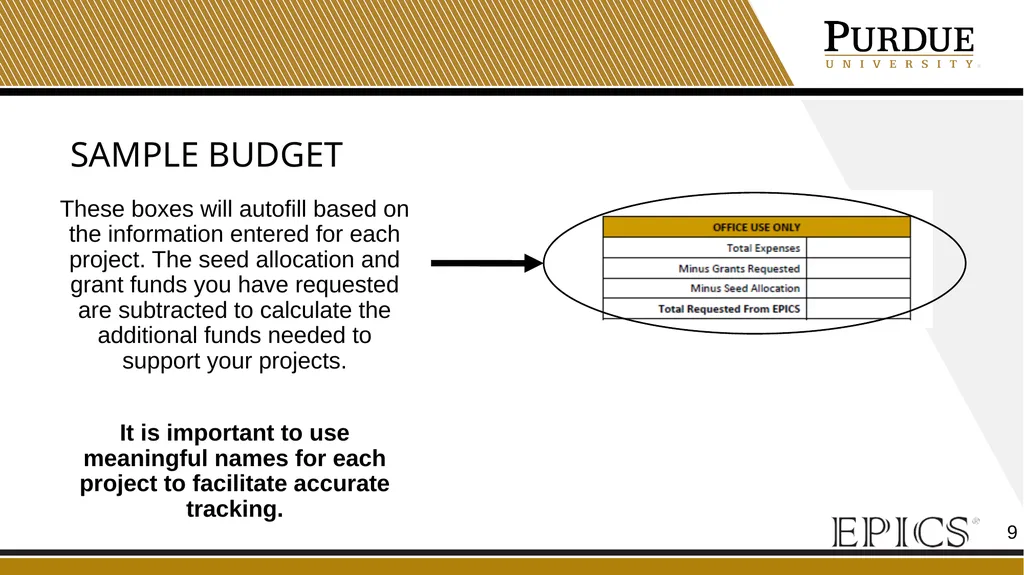
Sample Budget These boxes will autofill based on the information entered for each project. The seed allocation and grant funds you have requested are subtracted to calculate the additional funds needed to support your projects.
It is important to use meaningful names for each project to facilitate accurate tracking.<br>
10
What do I do with my completed budget form? Submit the DocuSign budget form.
Your advisor will review and sign.
EPICS administration will review and approve or request more information.
You will receive notification in the Teams Budget channel when your budget is approved. Any modifications will be noted and a copy will be posted in your budget folder, files, in Teams.<br>
11
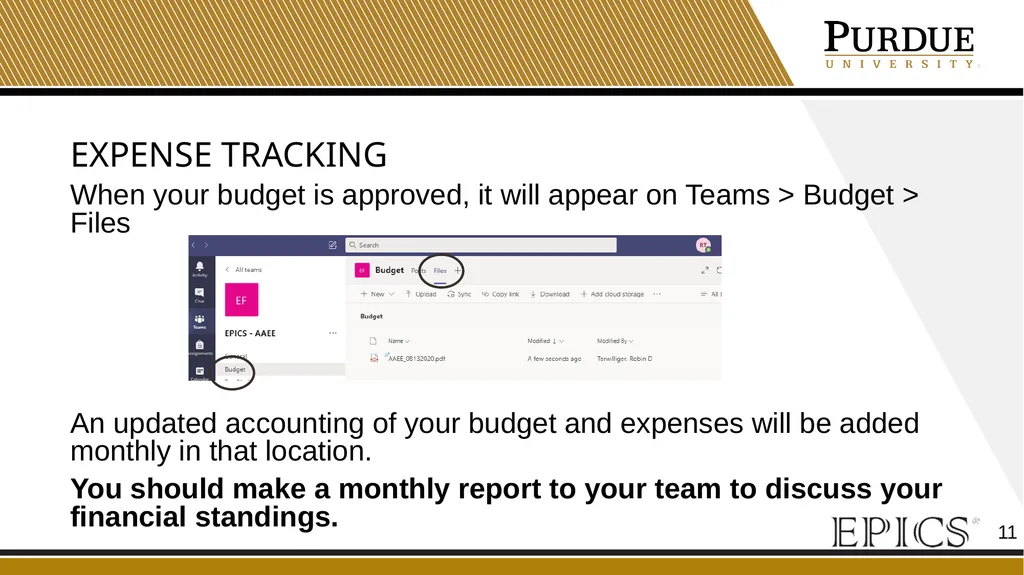
Expense Tracking When your budget is approved, it will appear on Teams > Budget > Files
An updated accounting of your budget and expenses will be added monthly in that location.
You should make a monthly report to your team to discuss your financial standings.<br>
12
Grants<br>
13
Service Learning Grants You are encouraged to apply for a service learning grant. You can either apply for a grant for your team as a whole or for each individual project. When completing the application, please use the following naming convention for each project to aid in tracking expenses.
EPICS: Team name - Project name
e.g., EPICS: AT - Colton Fishing
These grants allow EPICS to do more projects and maximize community impact. This is also a great opportunity for you to learn about grant writing.
A grant workshop is available online here to provide you with detailed information about grant writing and the submission process.<br>
14
Purchasing on Grant Funds You will be notified by the Office of Service-Learning if your application is approved. You must provide this information to the EPICS office, epics@purdue.edu, for the funds to be reflected in your budget.
The purchase request form has a place for you to indicate if grant funds are to be used. Please indicate your team, your project, and which grant you would like the purchase applied to.<br>
15
Grant fund accounting You will be required to provide a detailed accounting of your grant purchases to the Office of Service-Learning at the end of the semester.
The accounting for your grant purchases will be included in the MS Teams budget folder in the Files tab and updated monthly.<br>
16
Purchasing<br>
17
How can my team purchase items? The first step to purchasing anything is filling out the purchase request. Select the form for your campus, Indianapolis or West Lafayette, found here. As the financial officer, you are responsible for familiarizing yourself and your team with the form and its requirements.
Additional purchasing guidelines are detailed here.<br>
18
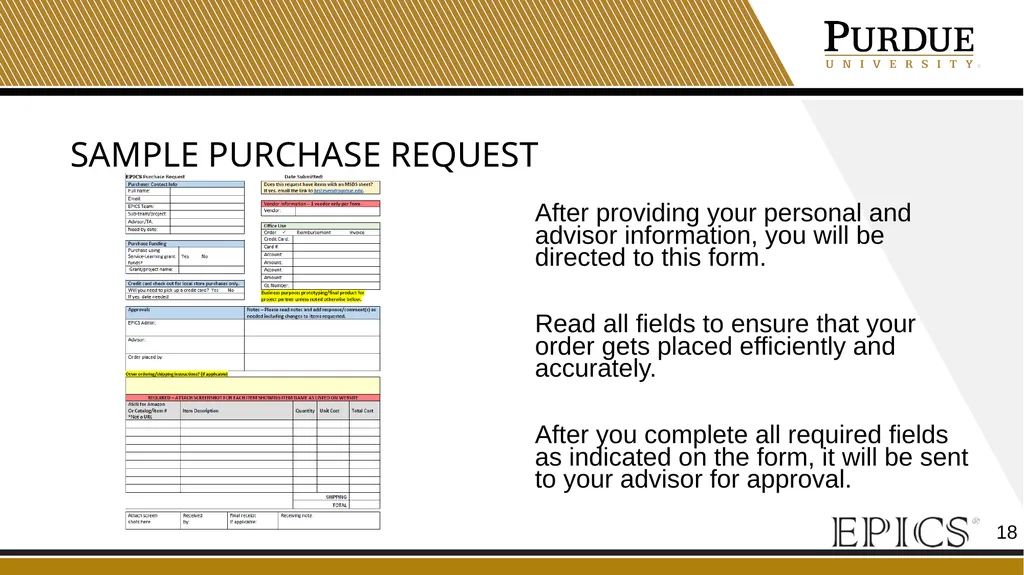
Sample Purchase Request After providing your personal and advisor information, you will be directed to this form.
Read all fields to ensure that your order gets placed efficiently and accurately.
After you complete all required fields as indicated on the form, it will be sent to your advisor for approval.<br>
19
Purchase request Tips Submit a separate purchase request for each vendor (e.g., Amazon, Home Depot, Menards, etc.).
If you are ordering too many items to fit in the lines on the document, attach a spreadsheet and indicate “spreadsheet attached” on the form. Make sure you still include the ASIN for Amazon, catalog number, item description, quantity, unit cost, and total cost for all items.
Make sure your shipping cost is consistent with the speed with which you want it shipped (“Need by date”).<br>
20
Purchase Process You will be notified via email when:
Your purchase request is submitted
When your order is placed
When your item is available for pickup from the EPICS office.
If you don’t receive an email that your order has been placed within a reasonable amount of time, check with your advisor to see if they have approved the request.
Please pick up your packages in a timely manner. If you have not received an email, your package has not arrived.<br>
21
Thank you If you have questions please contact your EPICS office. Revised 1/9/23<br>