
fx-991CW Interactive Manual Scientific ClassWiz


Description: fx-991CW Interactive Manual Scientific ClassWiz Additional resources Training video This is a recording from a live training webinar. The video introduces the key features of the fx-991 CW calculator. If youre new to using one of these
Related Topics
Download Presentation
"fx-991CW Interactive Manual Scientific ClassWiz" is the property of its rightful owner. Permission is granted to download and print the materials on this website for personal, non-commercial use only, and to display it on your personal computer provided you do not modify the materials and that you retain all copyright notices contained in the materials. By downloading content from our website, you accept the terms of this agreement.
Presentation Transcript
slide1. fx-991CW Interactive Manual Scientific ClassWiz<br>
slide2. Additional resources Training video
This is a recording from a live training webinar.
The video introduces the key features of the fx-991 CW calculator.
If you’re new to using one of these calculators, you've come to the right place!
ClassWiz Practice (worksheets/teaching slides)
Revision Mat - fx-991CW teaching resources for Higher GCSE.
Cross Number Puzzles - teaching resources focusing on Cross Number for fx-991CW calculator (Higher GCSE)
Teaching Resources page – general resources page including skills videos. 2<br>
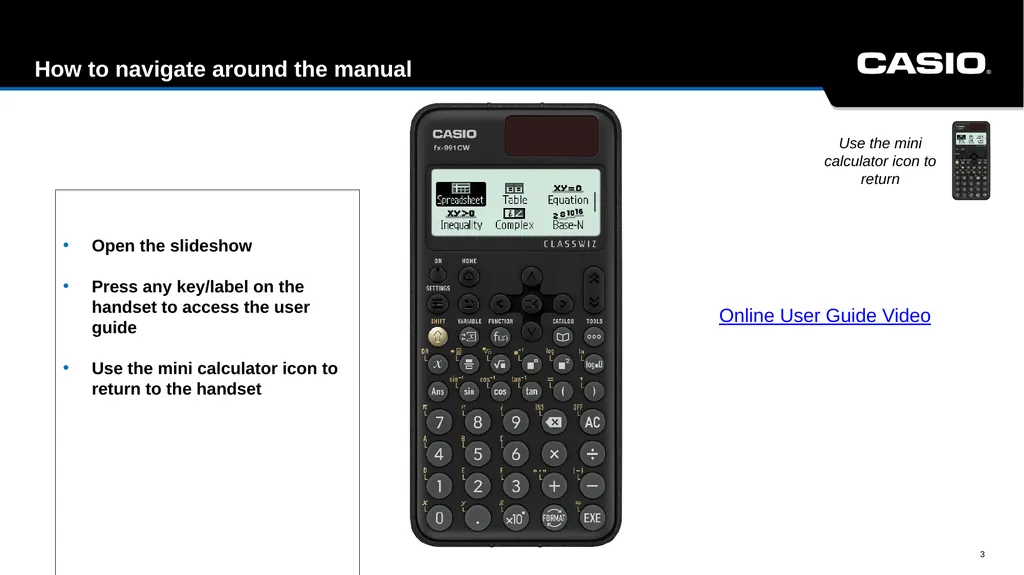
slide3. How to navigate around the manual 3 Use the mini calculator icon to return Open the slideshow
Press any key/label on the handset to access the user guide
Use the mini calculator icon to return to the handset Online User Guide Video<br>
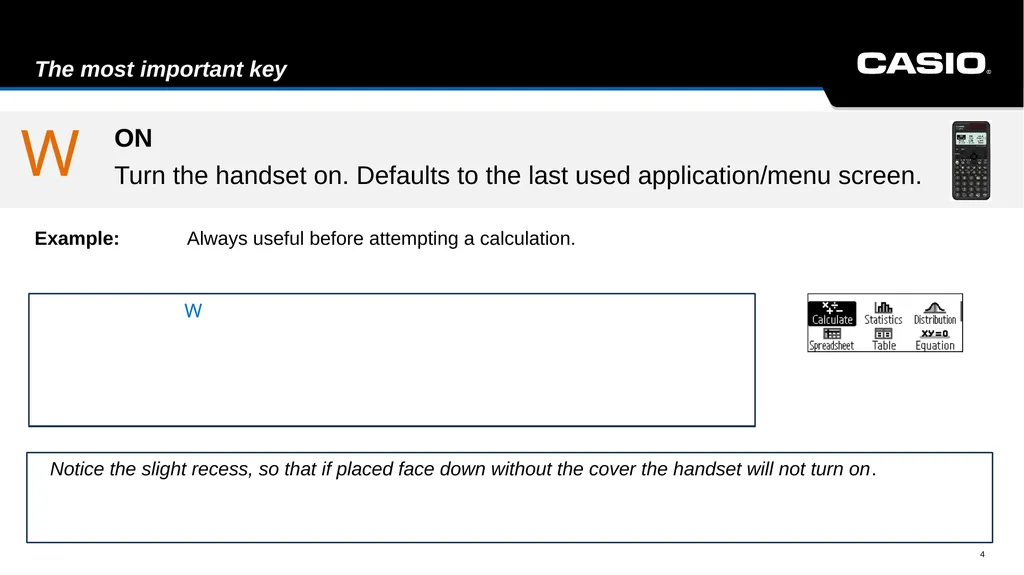
slide4. The most important key 4 Example: Always useful before attempting a calculation. Text Notice the slight recess, so that if placed face down without the cover the handset will not turn on. W W ON
Turn the handset on. Defaults to the last used application/menu screen.<br>
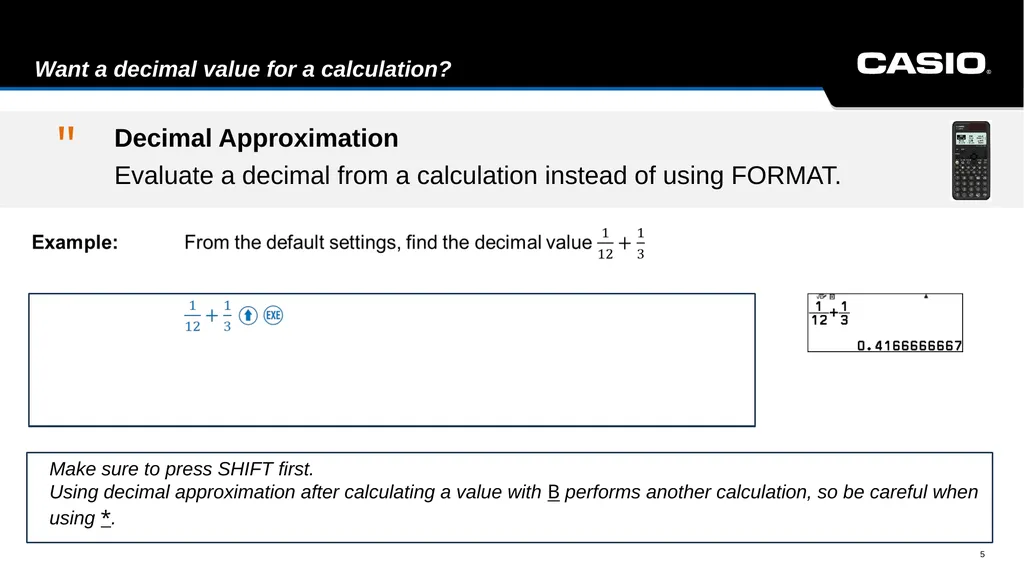
slide5. Want a decimal value for a calculation? 5 Text Make sure to press SHIFT first.
Using decimal approximation after calculating a value with B performs another calculation, so be careful when
using *. " Decimal Approximation
Evaluate a decimal from a calculation instead of using FORMAT.<br>
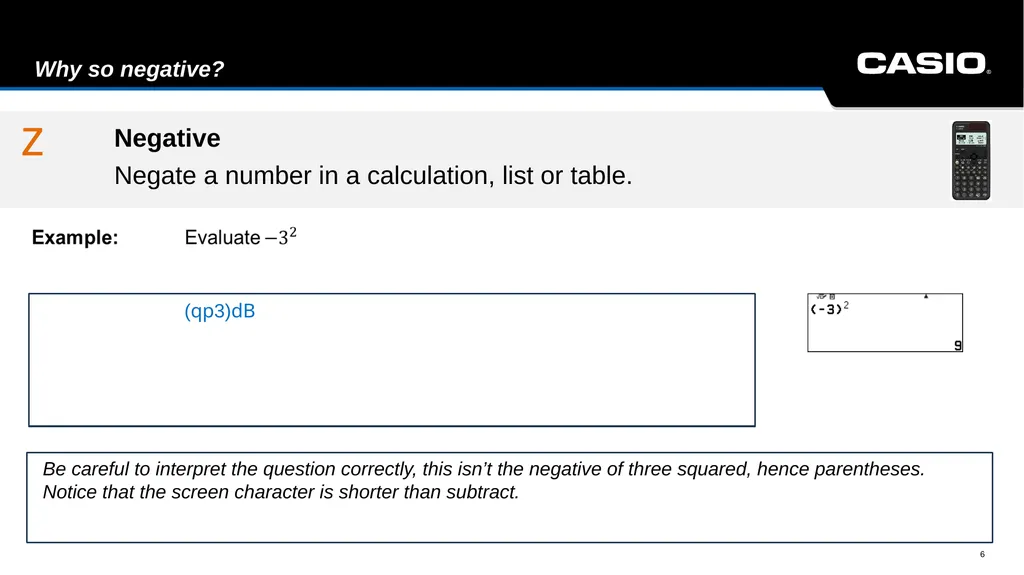
slide6. Why so negative? Negative
Negate a number in a calculation, list or table. 6 Text Be careful to interpret the question correctly, this isn’t the negative of three squared, hence parentheses.
Notice that the screen character is shorter than subtract. z (qp3)dB<br>
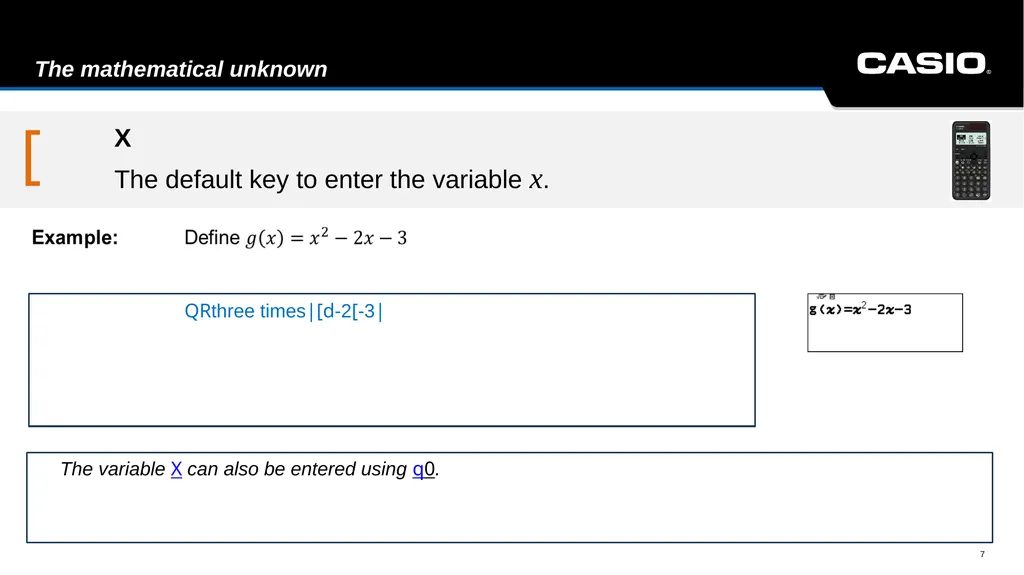
slide7. The mathematical unknown 7 Text The variable X can also be entered using q0. [ QRthree times|[d-2[-3| X
The default key to enter the variable x. QRRR|[dp2[p3| QRRR|[dp2[p3|<br>
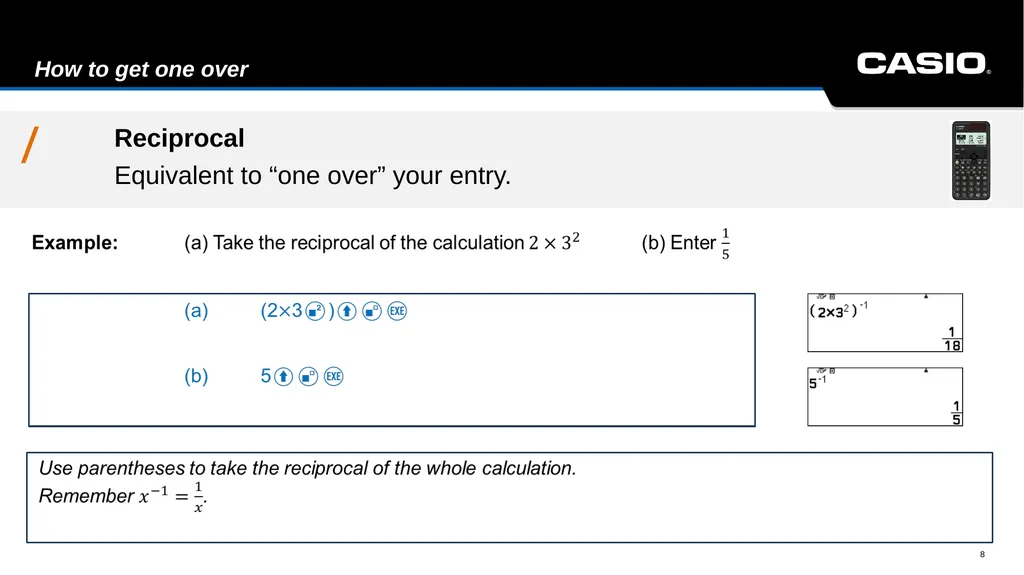
slide8. How to get one over 8 Text / Reciprocal
Equivalent to “one over” your entry.<br>
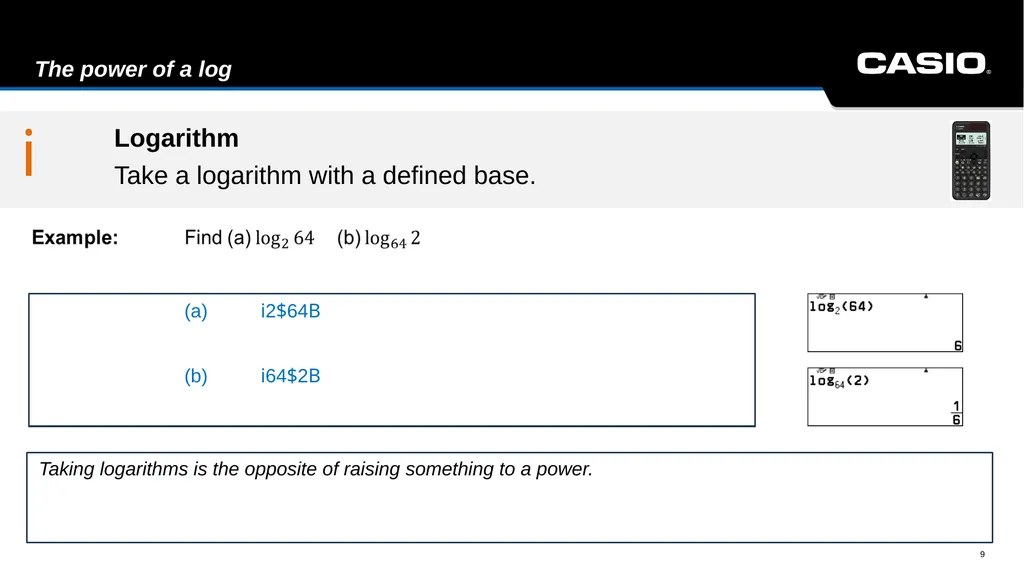
slide9. The power of a log 9 Text Taking logarithms is the opposite of raising something to a power. i (a) i2$64B
(b) i64$2B Logarithm
Take a logarithm with a defined base.<br>
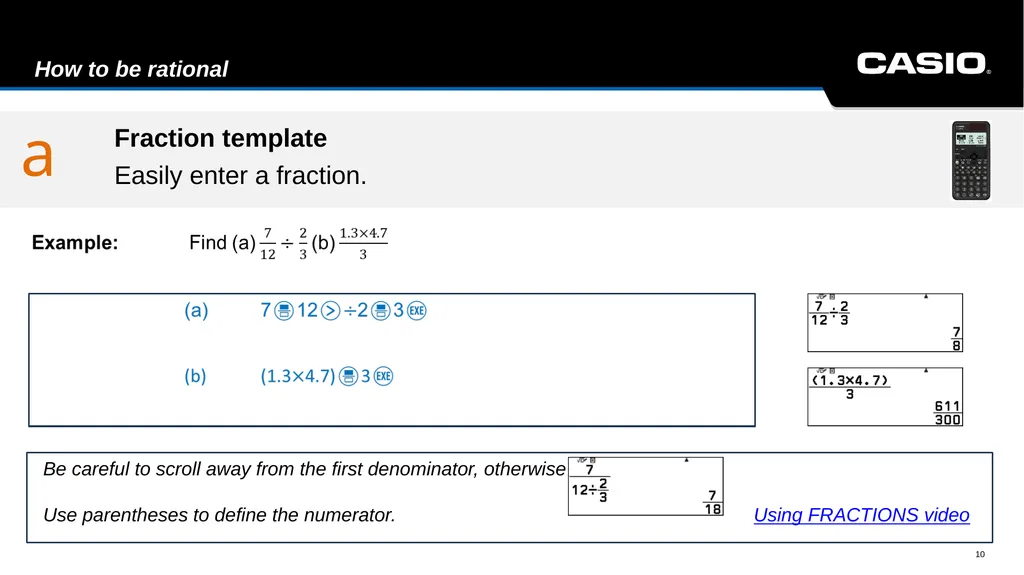
slide10. How to be rational 10 Text Be careful to scroll away from the first denominator, otherwise
Use parentheses to define the numerator. Using FRACTIONS video a Fraction template
Easily enter a fraction.<br>
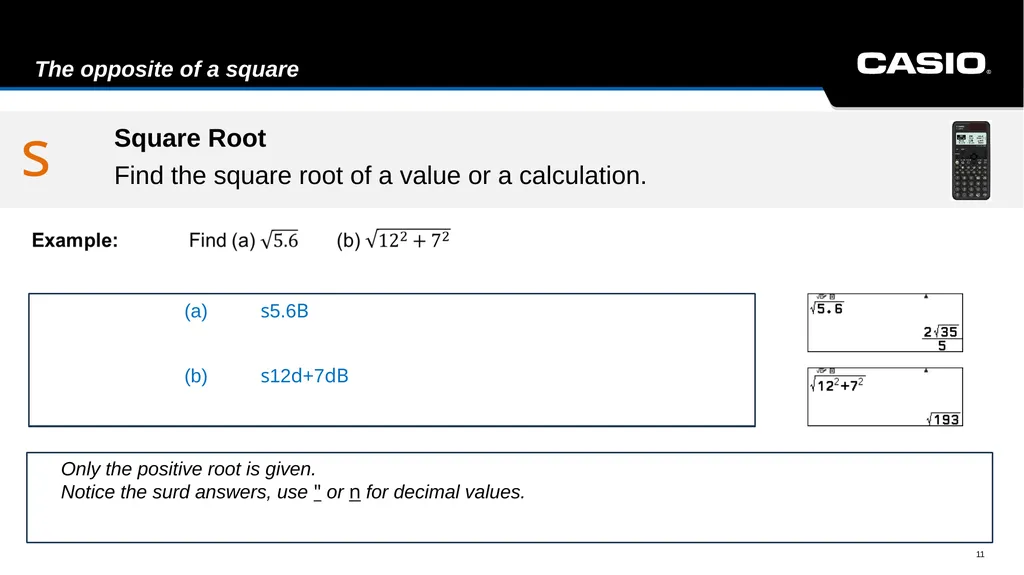
slide11. The opposite of a square 11 Text Only the positive root is given.
Notice the surd answers, use " or n for decimal values. s (a) s5.6B
(b) s12d+7dB Square Root
Find the square root of a value or a calculation.<br>
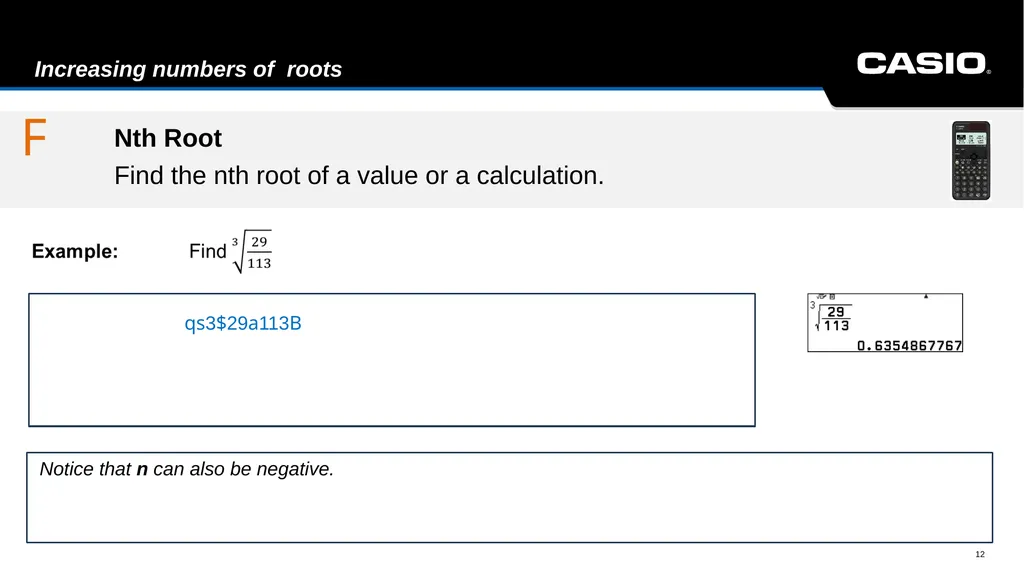
slide12. Increasing numbers of roots 12 Text F qs3$29a113B Nth Root
Find the nth root of a value or a calculation. Notice that n can also be negative.<br>
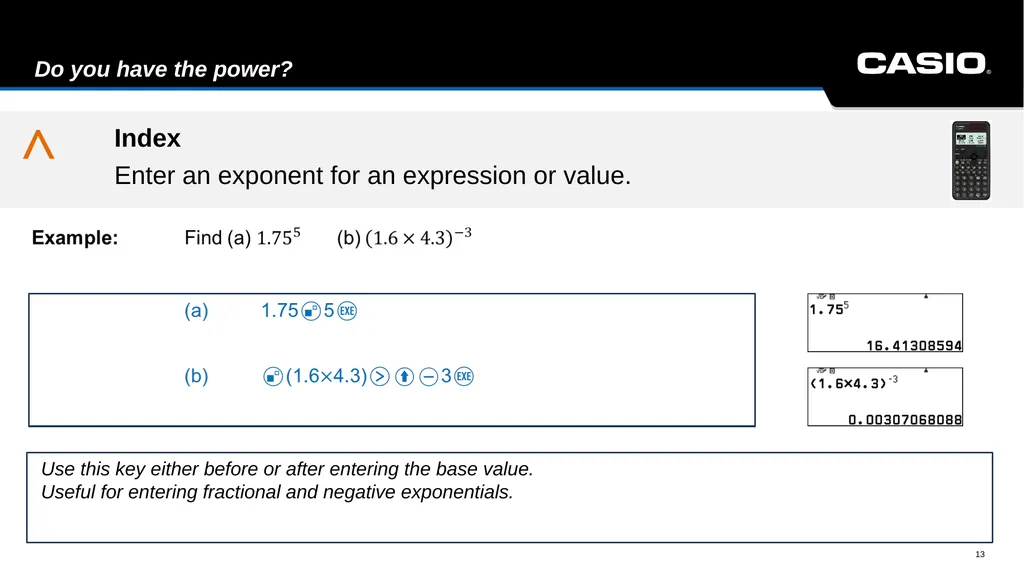
slide13. Do you have the power? 13 Text Use this key either before or after entering the base value.
Useful for entering fractional and negative exponentials. ^ Index
Enter an exponent for an expression or value.<br>
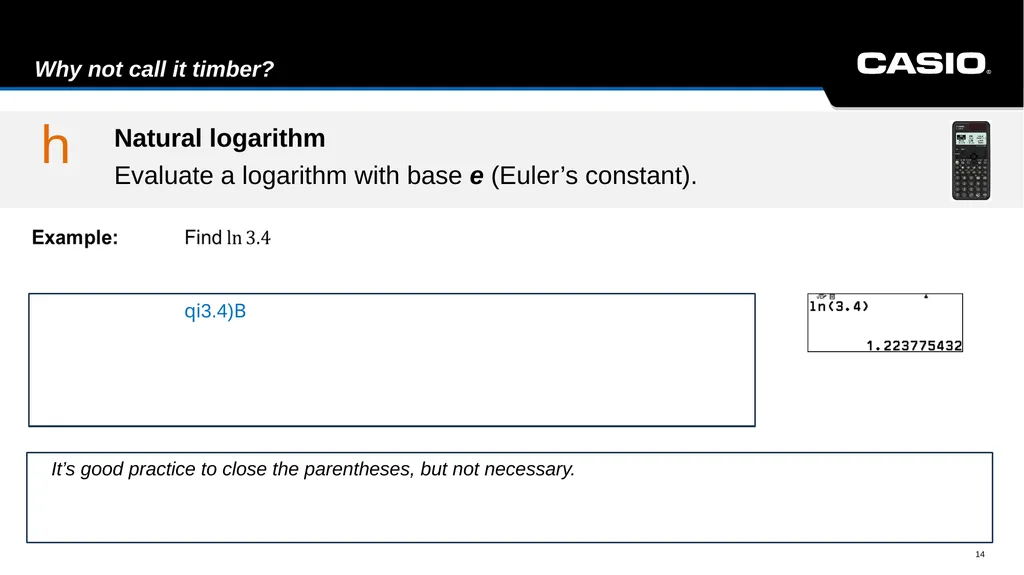
slide14. Why not call it timber? 14 Text It’s good practice to close the parentheses, but not necessary. qi3.4)B h Natural logarithm
Evaluate a logarithm with base e (Euler’s constant).<br>
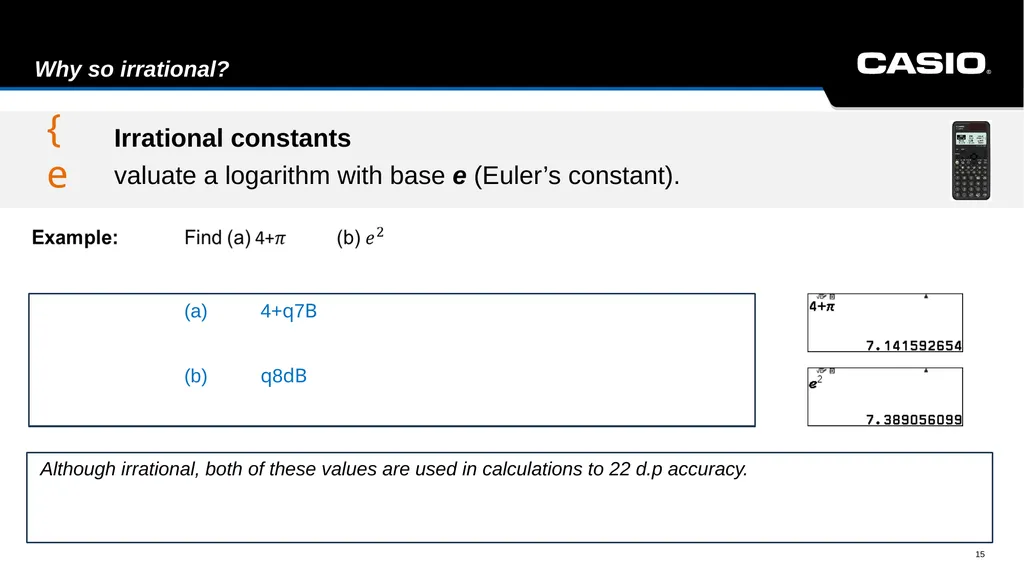
slide15. Why so irrational? 15 Text Although irrational, both of these values are used in calculations to 22 d.p accuracy. {e (a) 4+q7B
(b) q8dB Irrational constants
valuate a logarithm with base e (Euler’s constant).<br>
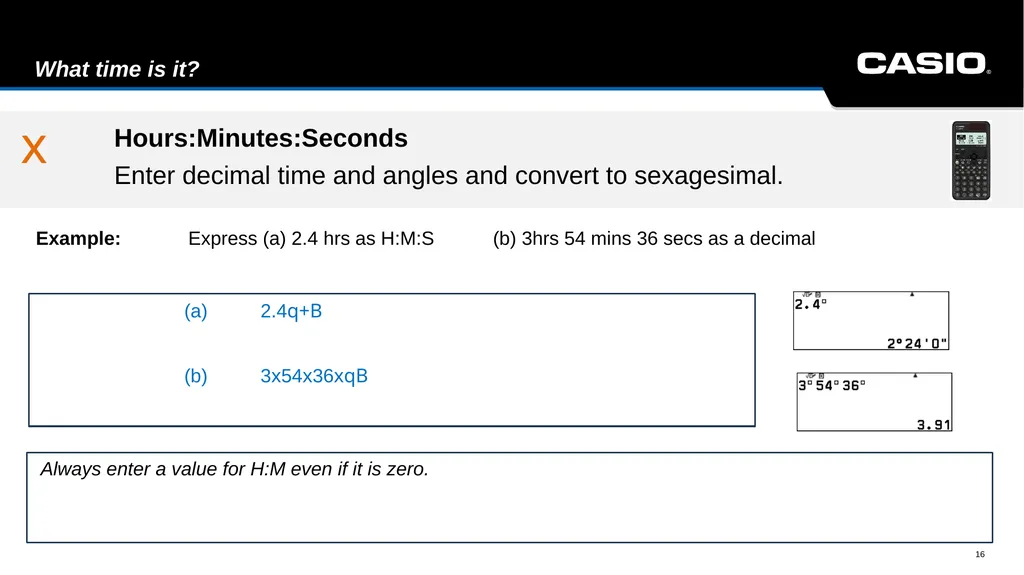
slide16. What time is it? 16 Example: Express (a) 2.4 hrs as H:M:S (b) 3hrs 54 mins 36 secs as a decimal Text Always enter a value for H:M even if it is zero. x (a) 2.4q+B
(b) 3x54x36xqB Hours:Minutes:Seconds
Enter decimal time and angles and convert to sexagesimal.<br>
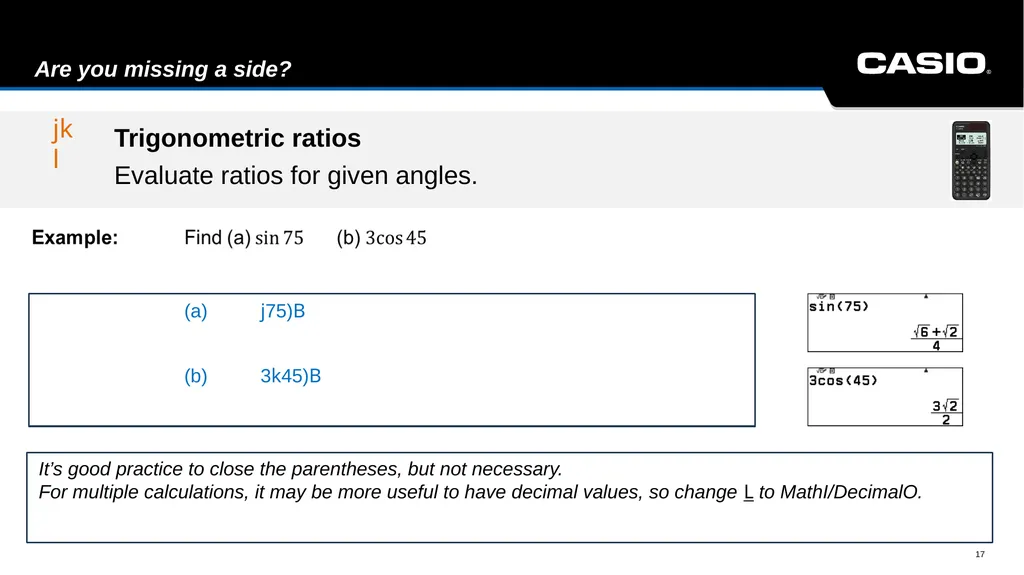
slide17. Are you missing a side? 17 Text It’s good practice to close the parentheses, but not necessary.
For multiple calculations, it may be more useful to have decimal values, so change L to MathI/DecimalO. jkl (a) j75)B
(b) 3k45)B Trigonometric ratios
Evaluate ratios for given angles.<br>
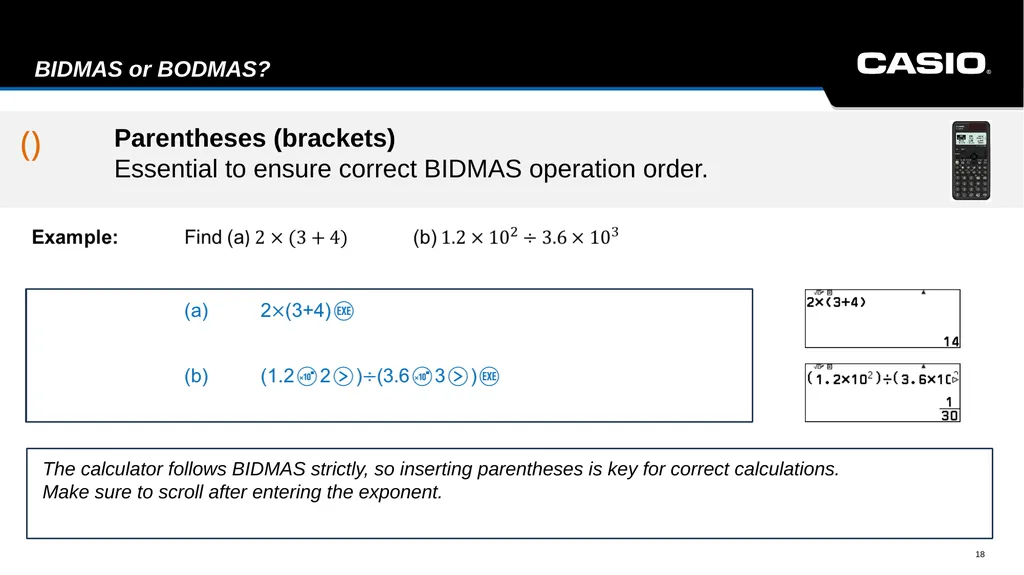
slide18. BIDMAS or BODMAS? Parentheses (brackets) Essential to ensure correct BIDMAS operation order. 18 Text The calculator follows BIDMAS strictly, so inserting parentheses is key for correct calculations.
Make sure to scroll after entering the exponent. ()<br>
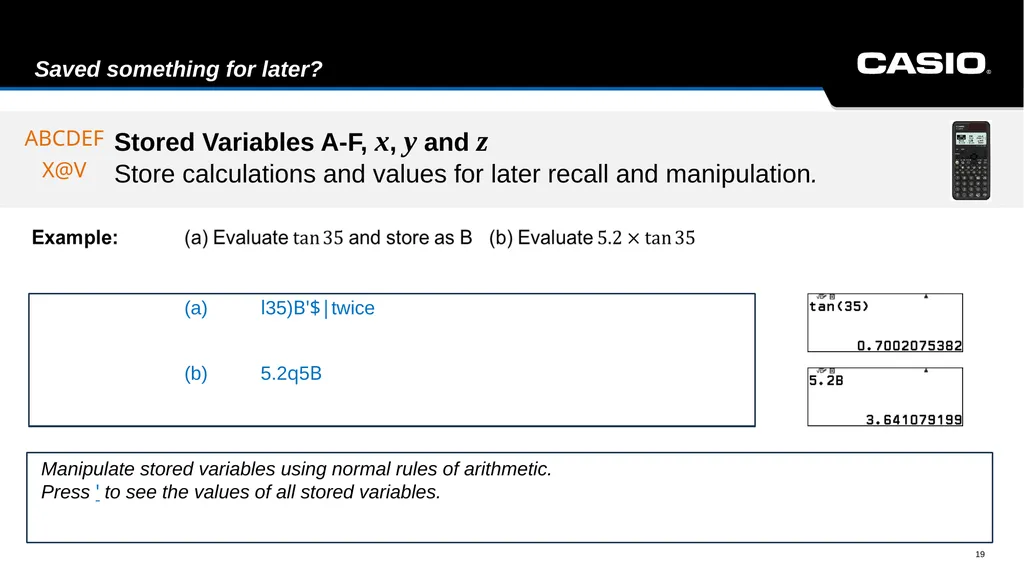
slide19. Saved something for later? ABCDEF
X@V 19 Text Manipulate stored variables using normal rules of arithmetic.
Press ' to see the values of all stored variables. (a) l35)B'$|twice
(b) 5.2q5B Stored Variables A-F, x, y and z Store calculations and values for later recall and manipulation.<br>
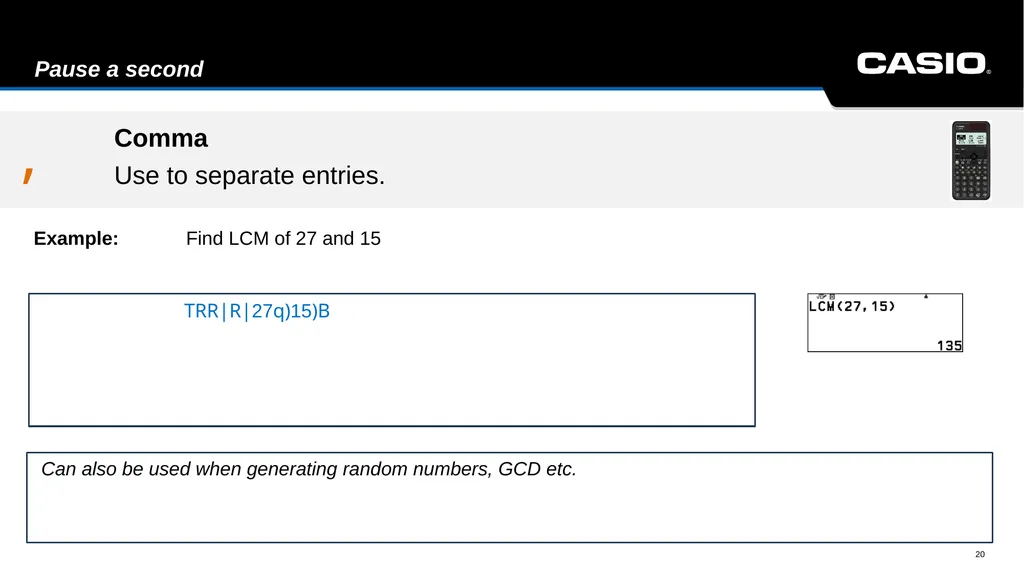
slide20. Pause a second 20 Example: Find LCM of 27 and 15 Text Can also be used when generating random numbers, GCD etc. , TRR|R|27q)15)B Comma
Use to separate entries.<br>
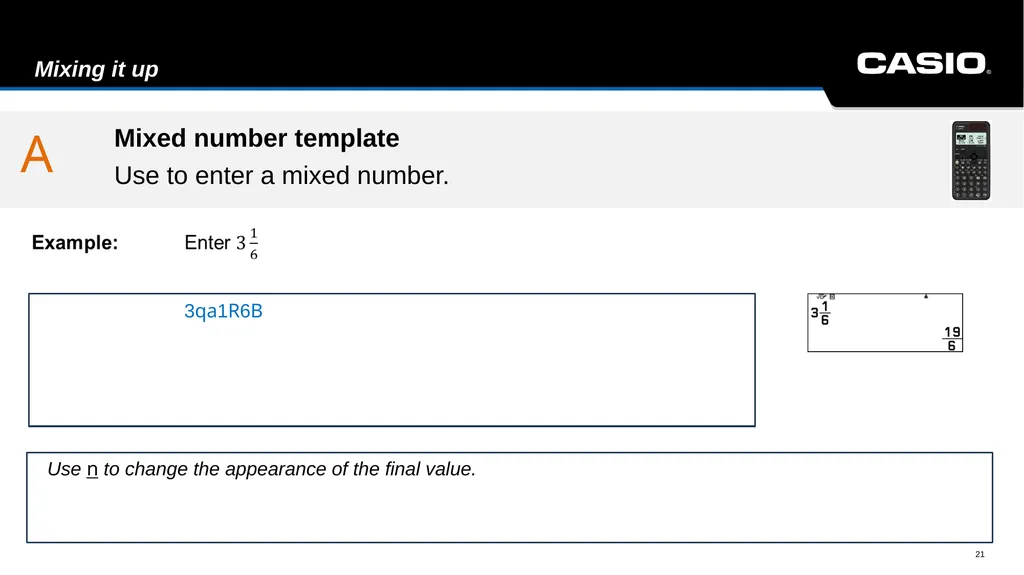
slide21. Mixing it up 21 Text Use n to change the appearance of the final value. A 3qa1R6B Mixed number template
Use to enter a mixed number.<br>
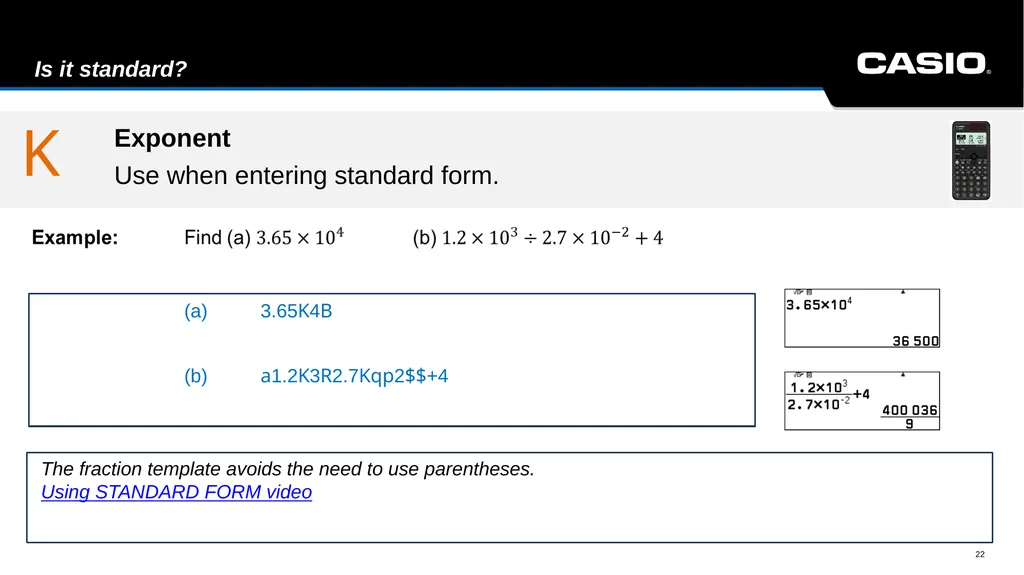
slide22. Is it standard? 22 Text The fraction template avoids the need to use parentheses.
Using STANDARD FORM video K (a) 3.65K4B
(b) a1.2K3R2.7Kqp2$$+4 Exponent
Use when entering standard form.<br>
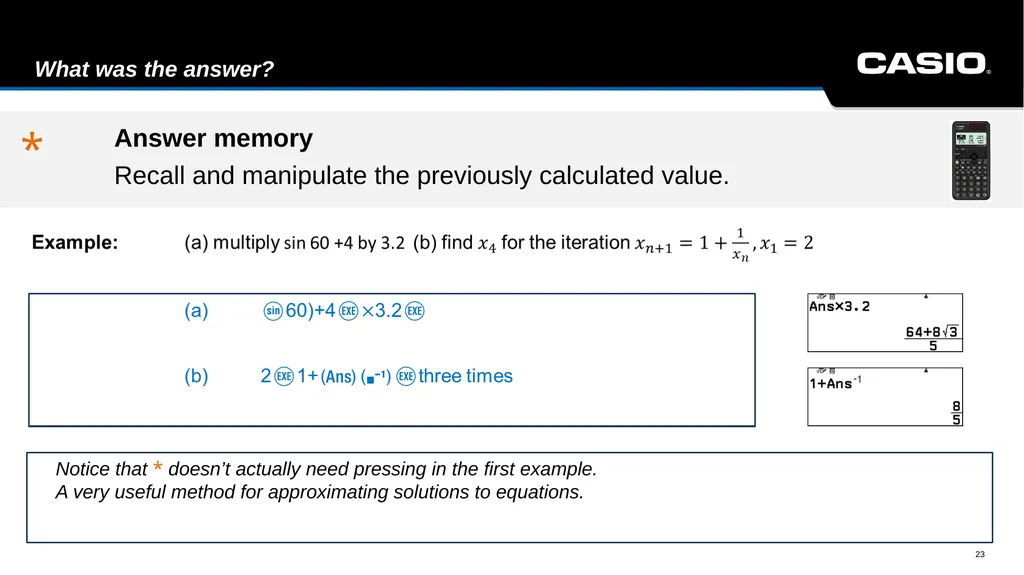
slide23. What was the answer? 23 Text Notice that * doesn’t actually need pressing in the first example.
A very useful method for approximating solutions to equations. * Answer memory
Recall and manipulate the previously calculated value.<br>
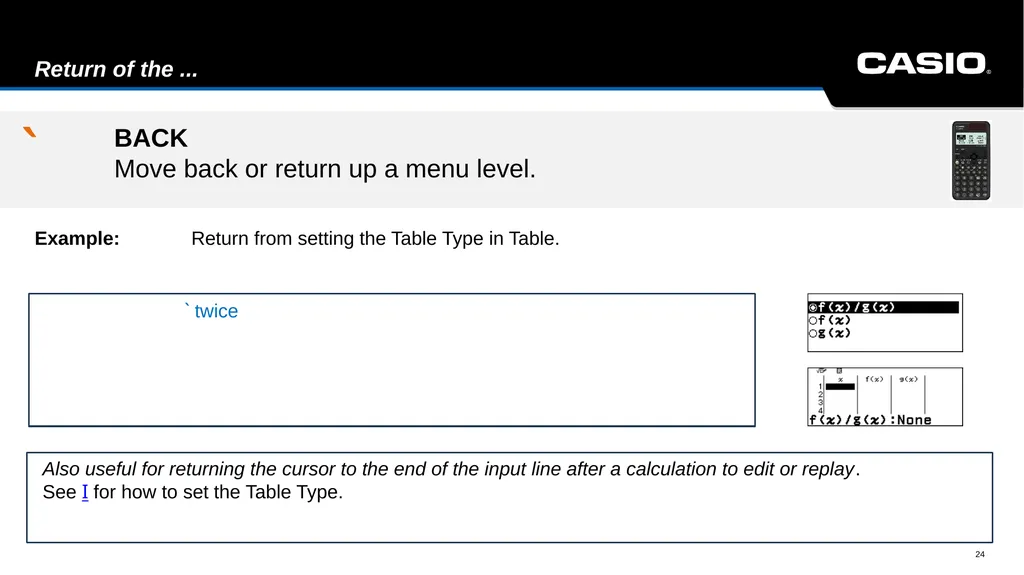
slide24. Return of the ... BACK Move back or return up a menu level. 24 Example: Return from setting the Table Type in Table. Text Also useful for returning the cursor to the end of the input line after a calculation to edit or replay.
See I for how to set the Table Type. ` ` twice<br>
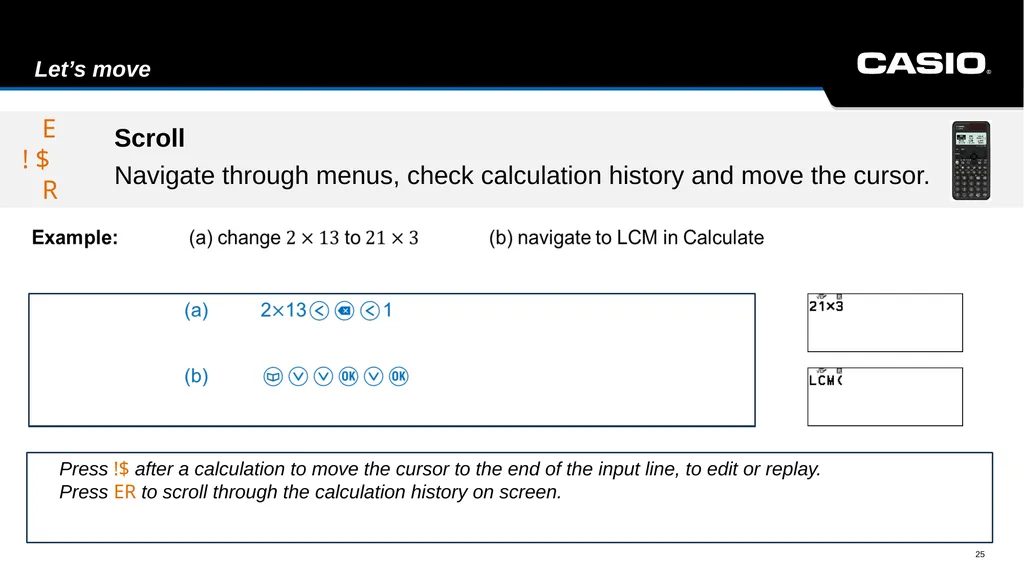
slide25. Let’s move 25 Text Press !$ after a calculation to move the cursor to the end of the input line, to edit or replay.
Press ER to scroll through the calculation history on screen. E
! $
R Scroll
Navigate through menus, check calculation history and move the cursor. !o!1 !o!1<br>
slide26. Are you sure? OK
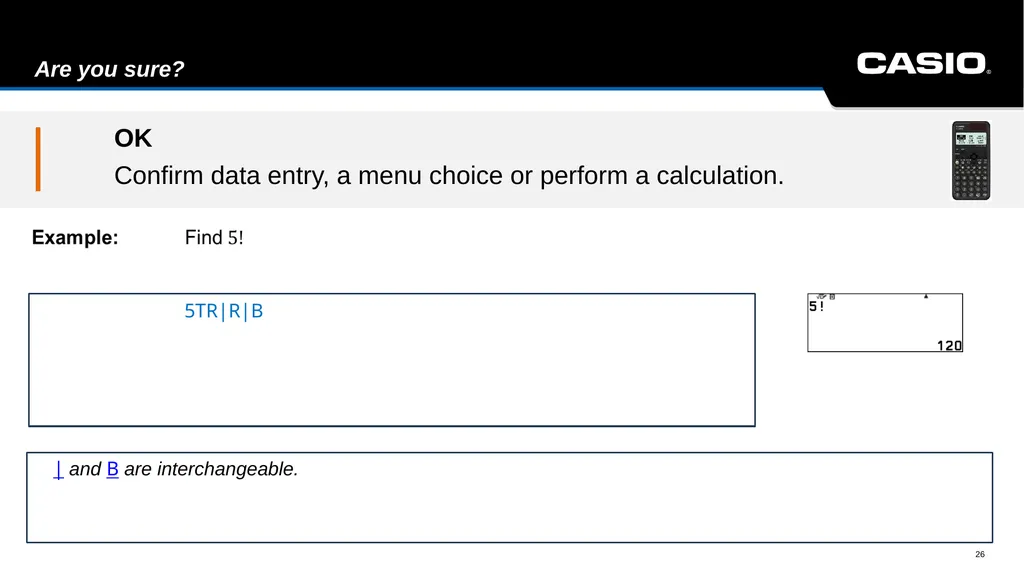
Confirm data entry, a menu choice or perform a calculation. 26 Text | and B are interchangeable. | 5TR|R|B<br>
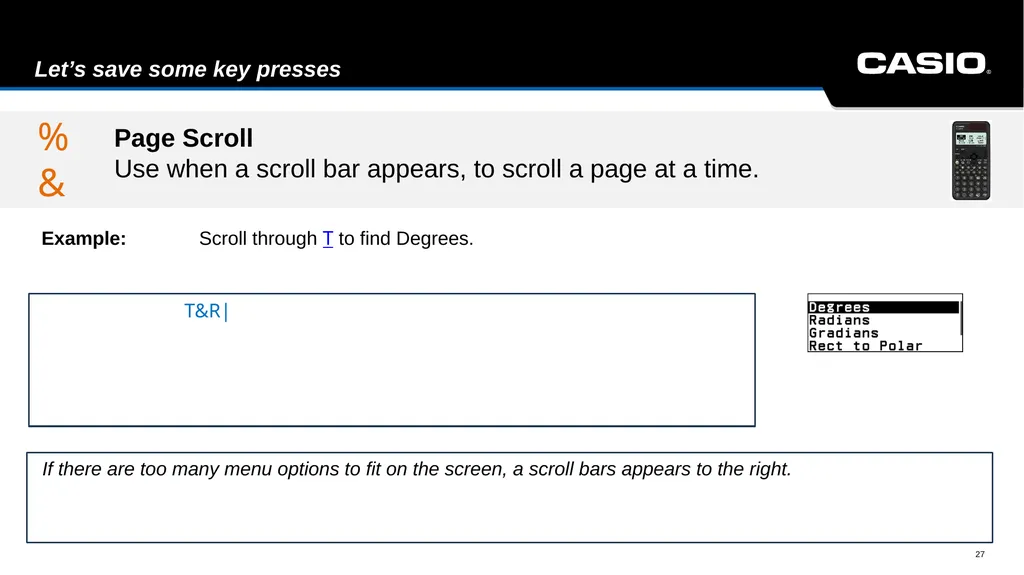
slide27. Let’s save some key presses Page Scroll Use when a scroll bar appears, to scroll a page at a time. 27 Example: Scroll through T to find Degrees. Text If there are too many menu options to fit on the screen, a scroll bars appears to the right. %& T&R|<br>
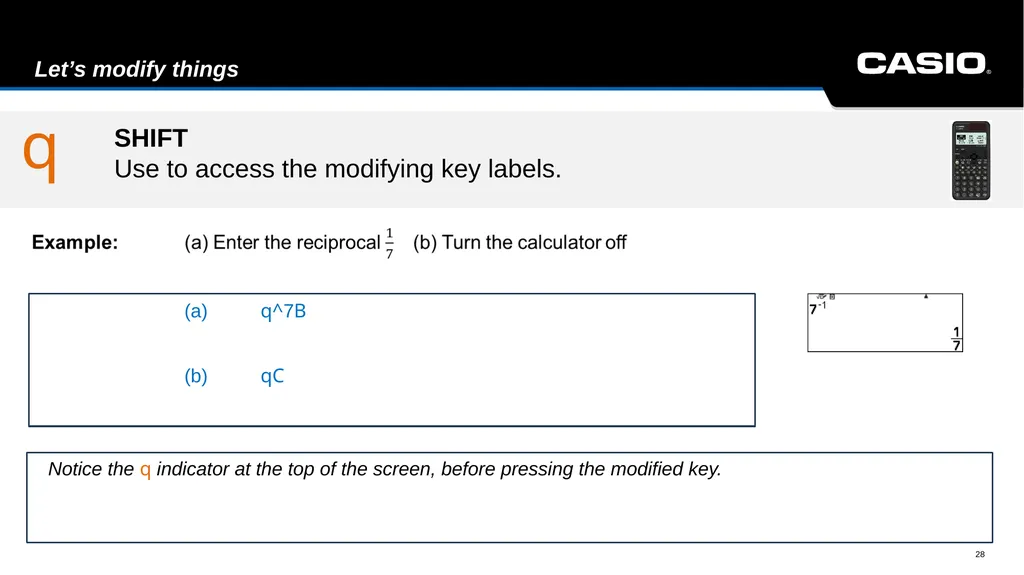
slide28. Let’s modify things 28 Text Notice the q indicator at the top of the screen, before pressing the modified key. q (a) q^7B
(b) qC SHIFT Use to access the modifying key labels.<br>
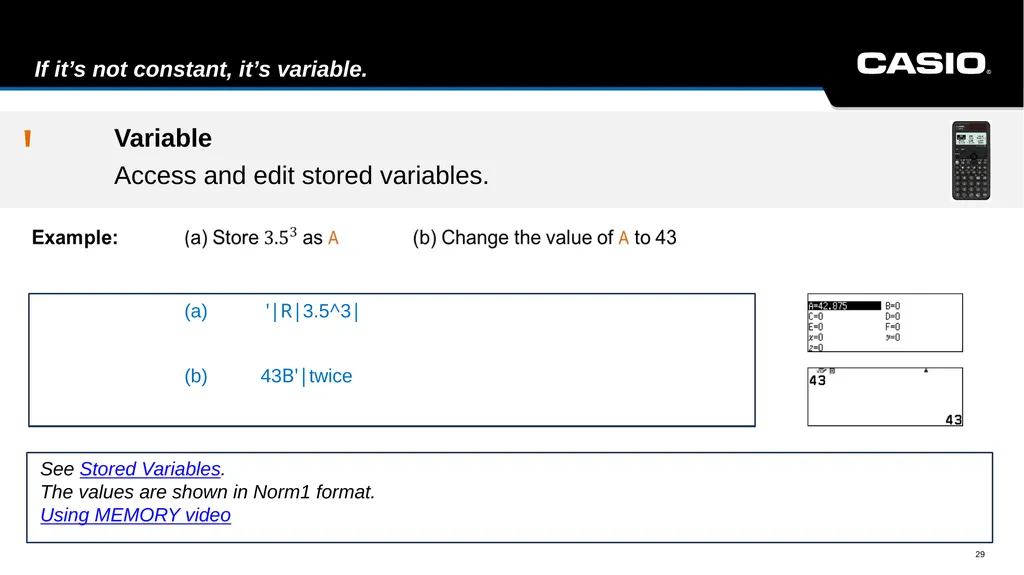
slide29. If it’s not constant, it’s variable. Variable
Access and edit stored variables. 29 Text See Stored Variables.
The values are shown in Norm1 format.
Using MEMORY video ' (a) '|R|3.5^3|
(b) 43B'|twice<br>
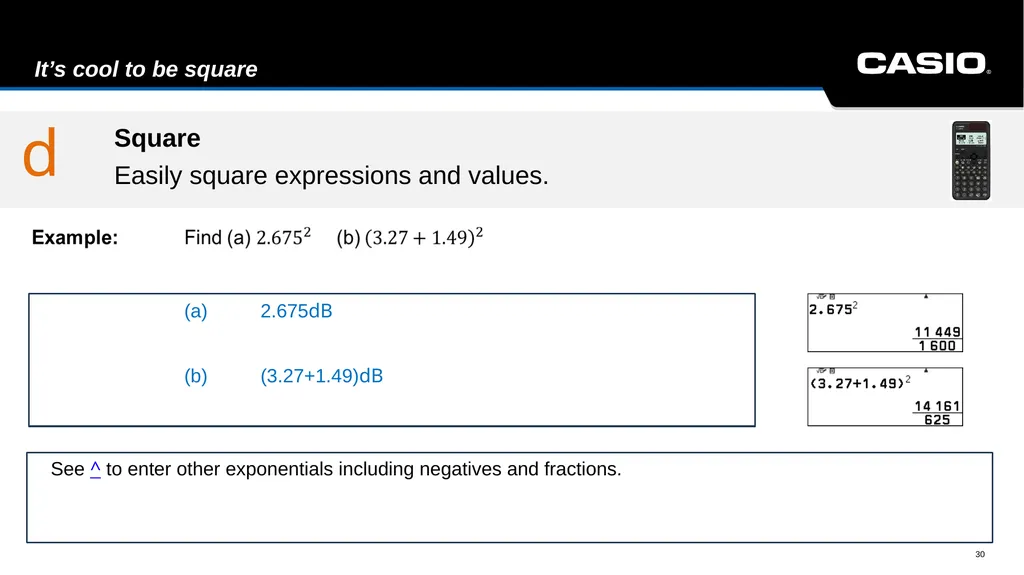
slide30. It’s cool to be square 30 Text See ^ to enter other exponentials including negatives and fractions. d (a) 2.675dB
(b) (3.27+1.49)dB Square
Easily square expressions and values.<br>
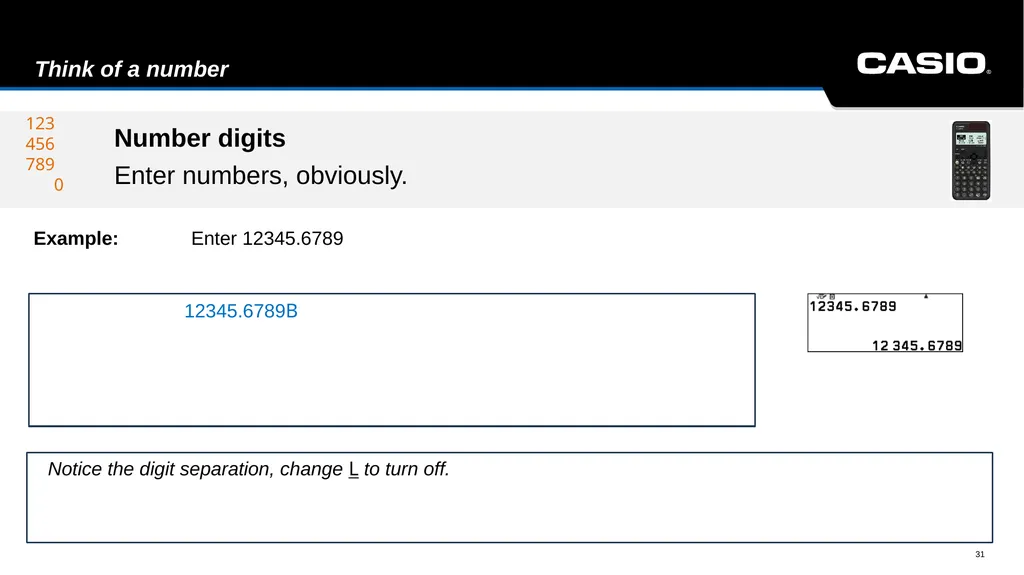
slide31. Think of a number 31 Example: Enter 12345.6789 Text Notice the digit separation, change L to turn off. 123
456
789
0 12345.6789B Number digits
Enter numbers, obviously.<br>
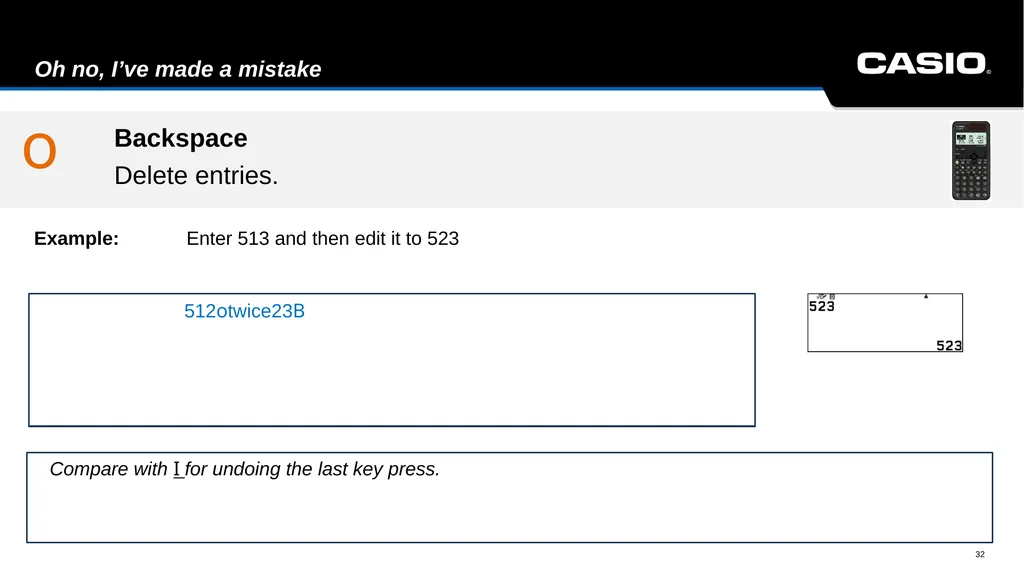
slide32. Oh no, I’ve made a mistake 32 Example: Enter 513 and then edit it to 523 Text Compare with I for undoing the last key press. o 512otwice23B Backspace
Delete entries.<br>
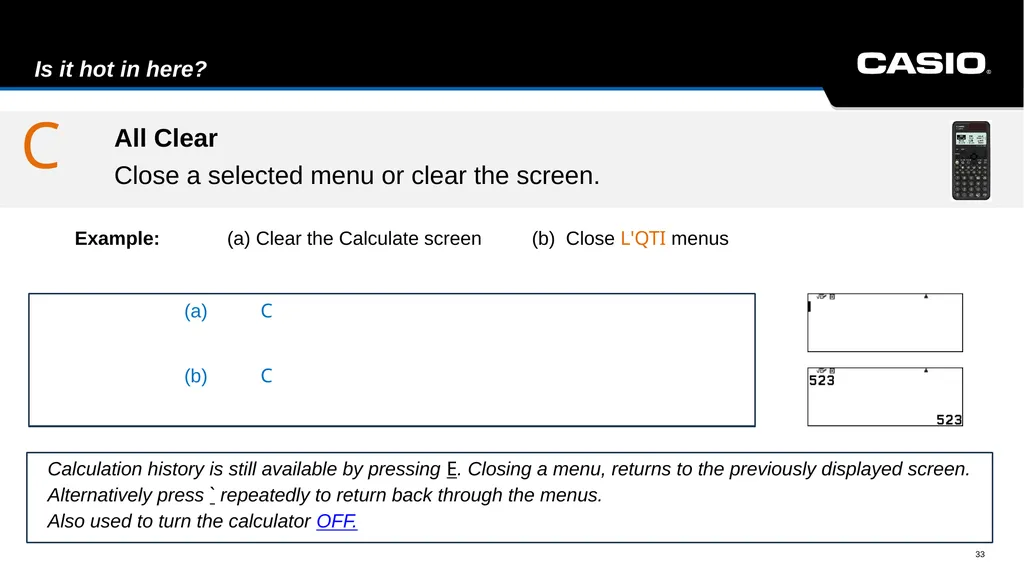
slide33. Is it hot in here? 33 Example: (a) Clear the Calculate screen (b) Close L'QTI menus Text Calculation history is still available by pressing E. Closing a menu, returns to the previously displayed screen.
Alternatively press ` repeatedly to return back through the menus.
Also used to turn the calculator OFF. C (a) C
(b) C All Clear
Close a selected menu or clear the screen.<br>
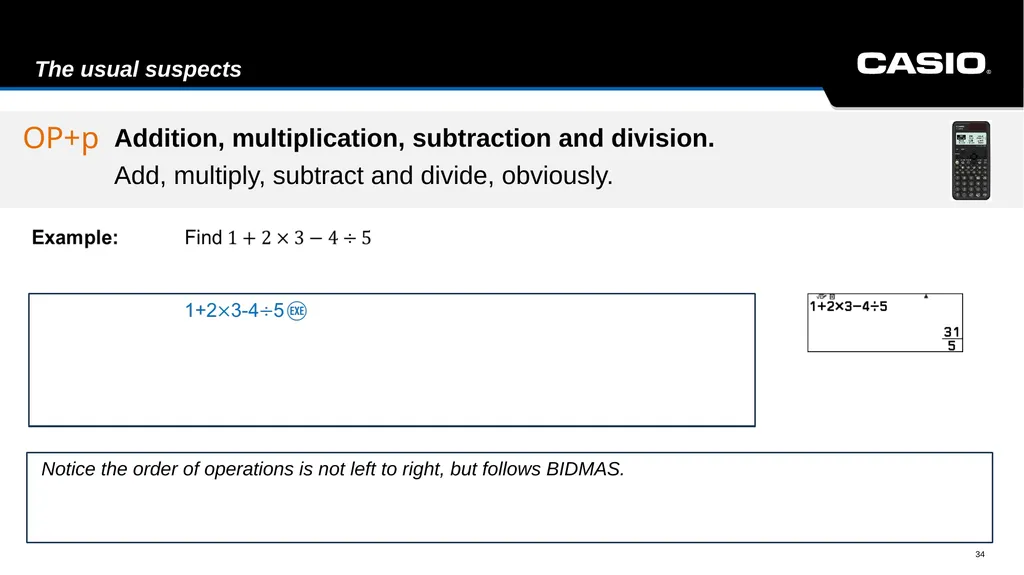
slide34. The usual suspects 34 Text Notice the order of operations is not left to right, but follows BIDMAS. OP+p Addition, multiplication, subtraction and division.
Add, multiply, subtract and divide, obviously.<br>
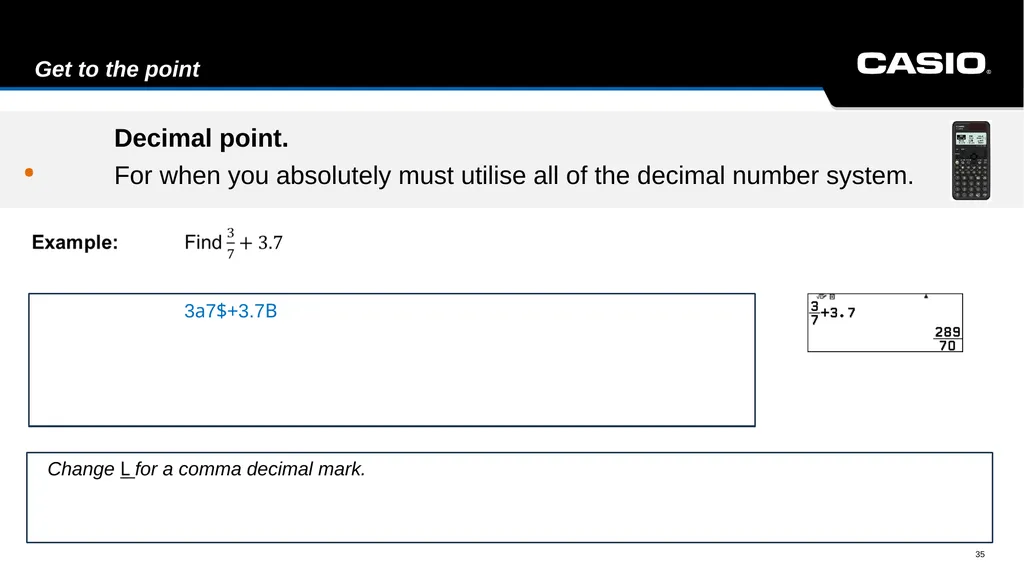
slide35. Get to the point 35 Text Change L for a comma decimal mark. . 3a7$+3.7B Decimal point.
For when you absolutely must utilise all of the decimal number system.<br>
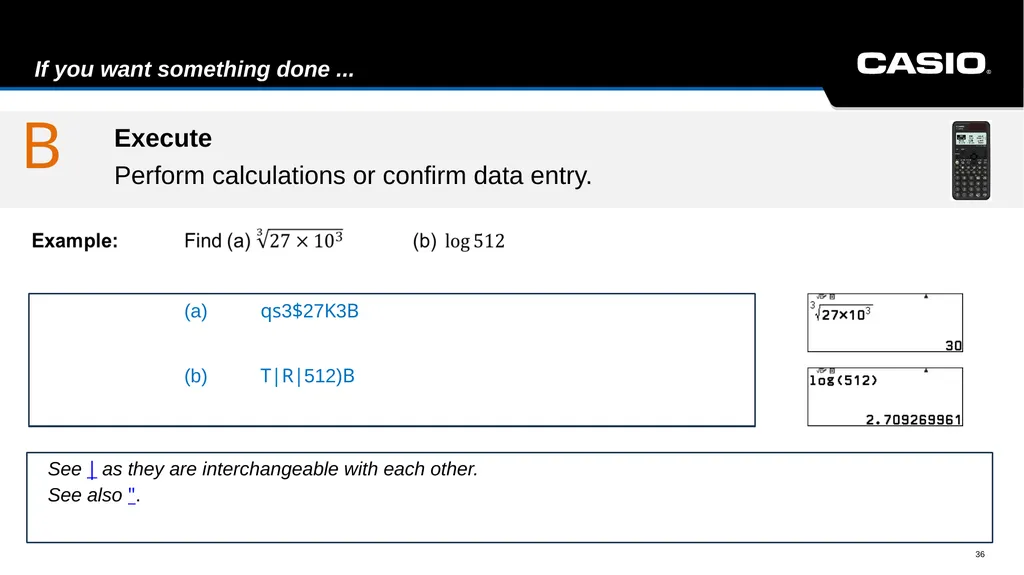
slide36. If you want something done ... 36 Text See | as they are interchangeable with each other.
See also ". B (a) qs3$27K3B
(b) T|R|512)B Execute
Perform calculations or confirm data entry.<br>
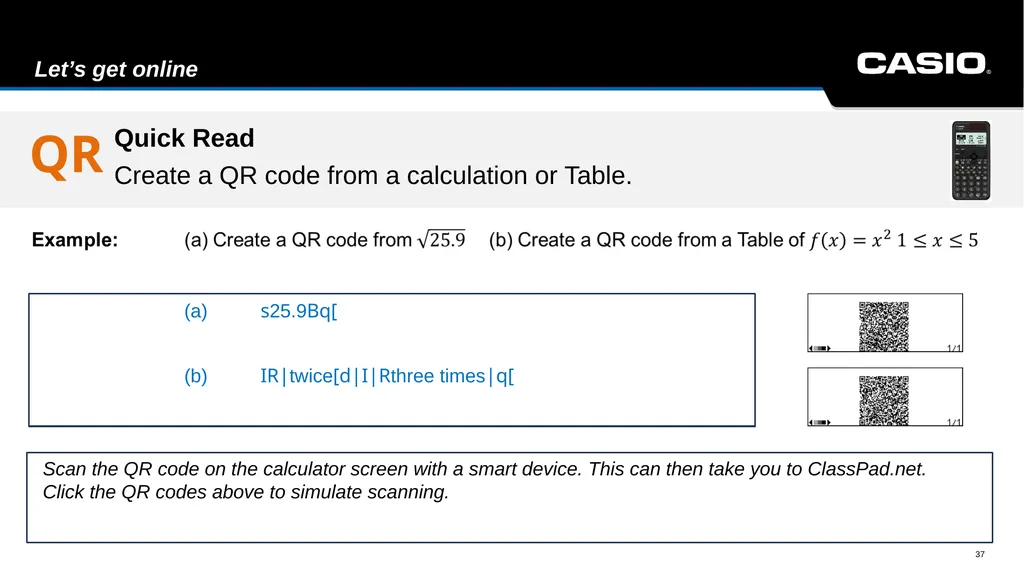
slide37. Let’s get online 37 Text Scan the QR code on the calculator screen with a smart device. This can then take you to ClassPad.net.
Click the QR codes above to simulate scanning. (a) s25.9Bq[
(b) IR|twice[d|I|Rthree times|q[ Quick Read
Create a QR code from a calculation or Table. QR<br>
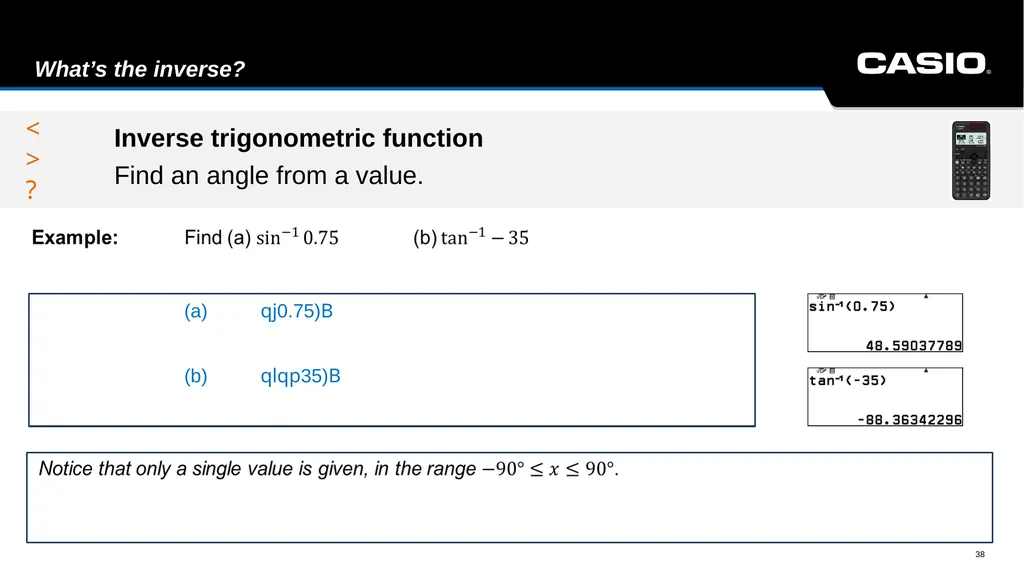
slide38. What’s the inverse? 38 Text <
>
? (a) qj0.75)B
(b) qlqp35)B Inverse trigonometric function
Find an angle from a value.<br>
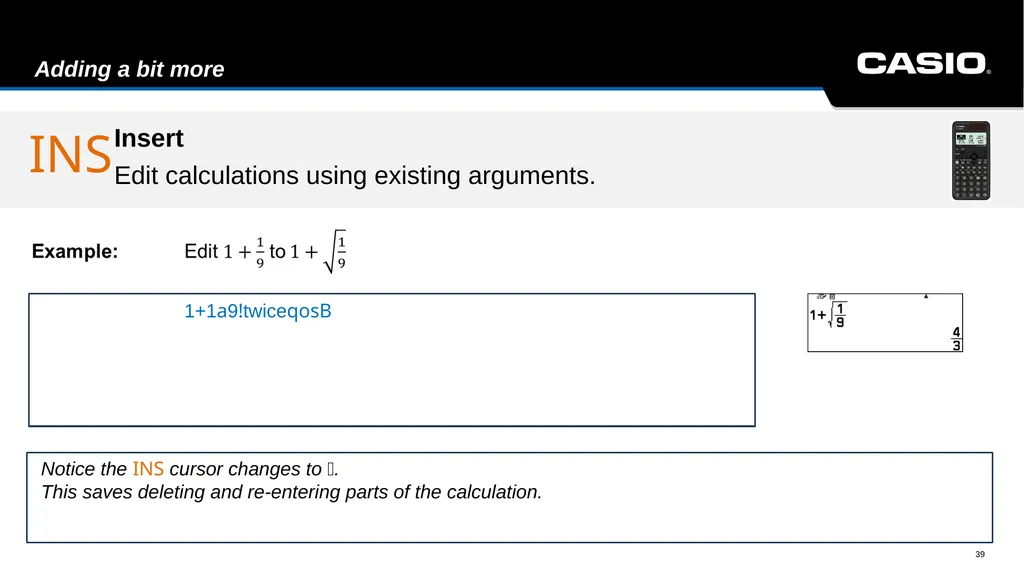
slide39. Adding a bit more 39 Text Notice the INS cursor changes to .
This saves deleting and re-entering parts of the calculation. 1+1a9!twiceqosB INS Insert
Edit calculations using existing arguments.<br>
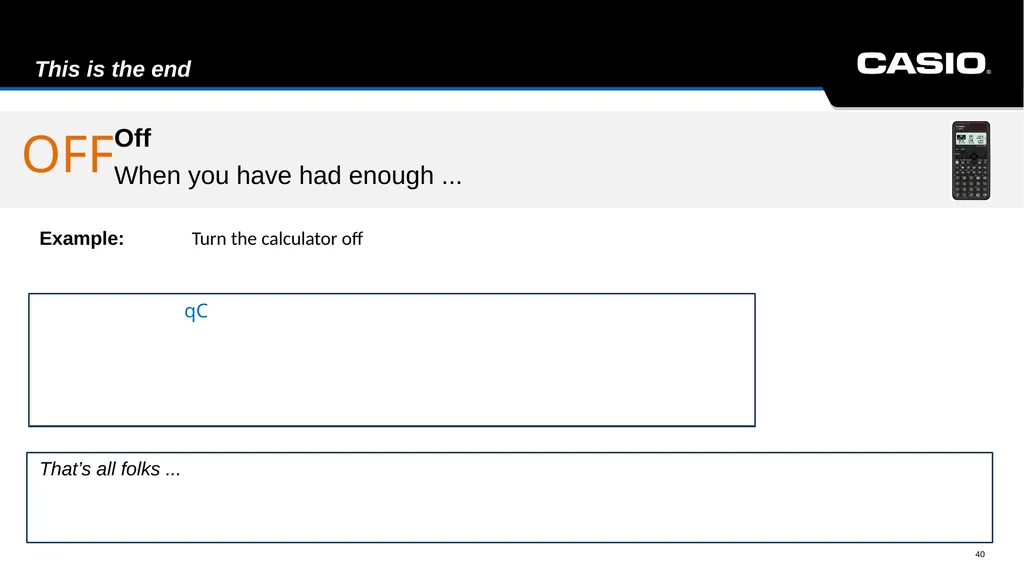
slide40. This is the end 40 Example: Turn the calculator off Text That’s all folks ... qC Off
When you have had enough ... OFF<br>
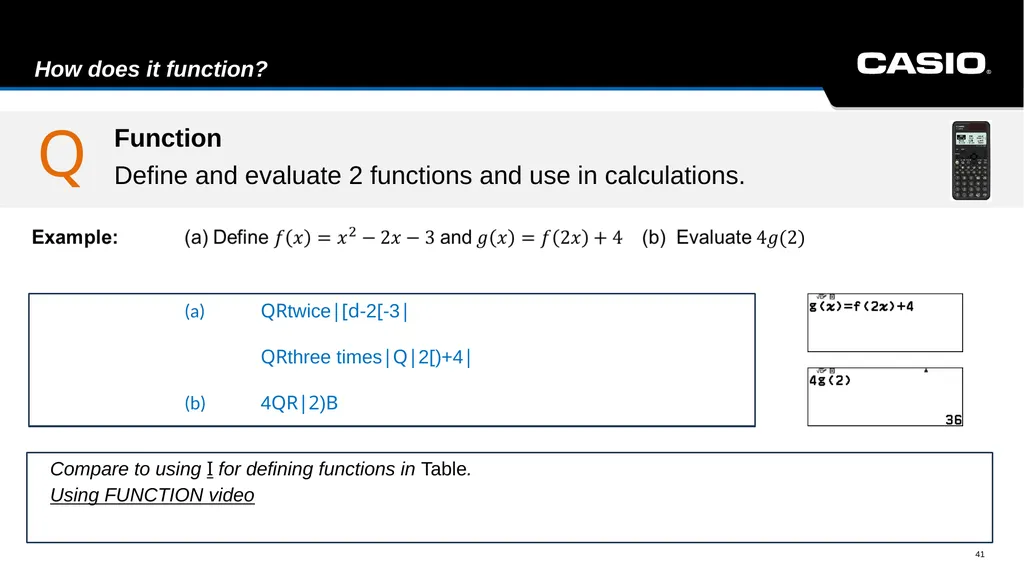
slide41. How does it function? 41 Compare to using I for defining functions in Table.
Using FUNCTION video (a) QRtwice|[d-2[-3|
QRthree times|Q|2[)+4|
(b) 4QR|2)B Function
Define and evaluate 2 functions and use in calculations. Q Text<br>
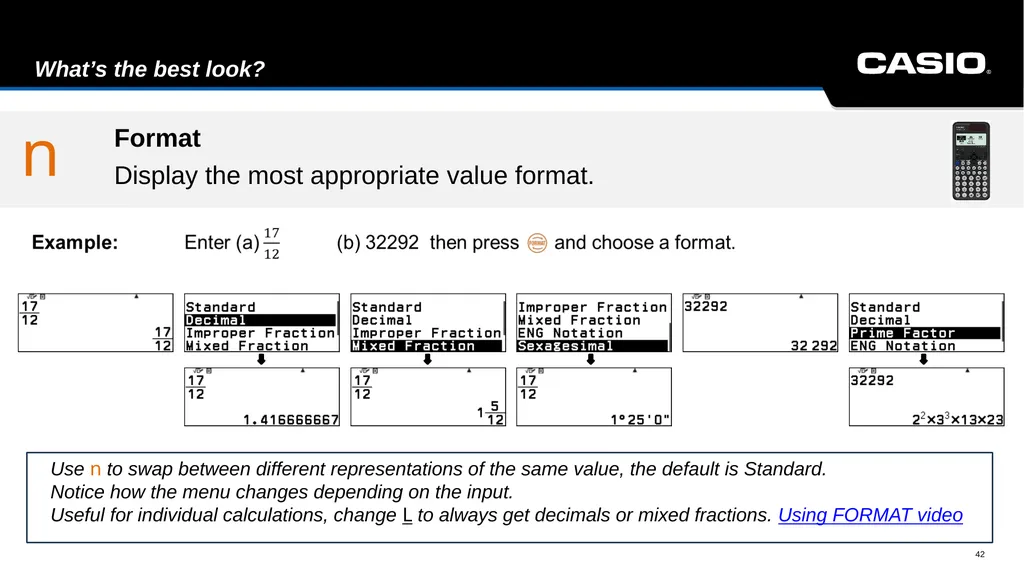
slide42. What’s the best look? 42 Text Use n to swap between different representations of the same value, the default is Standard.
Notice how the menu changes depending on the input.
Useful for individual calculations, change L to always get decimals or mixed fractions. Using FORMAT video n Format
Display the most appropriate value format.<br>
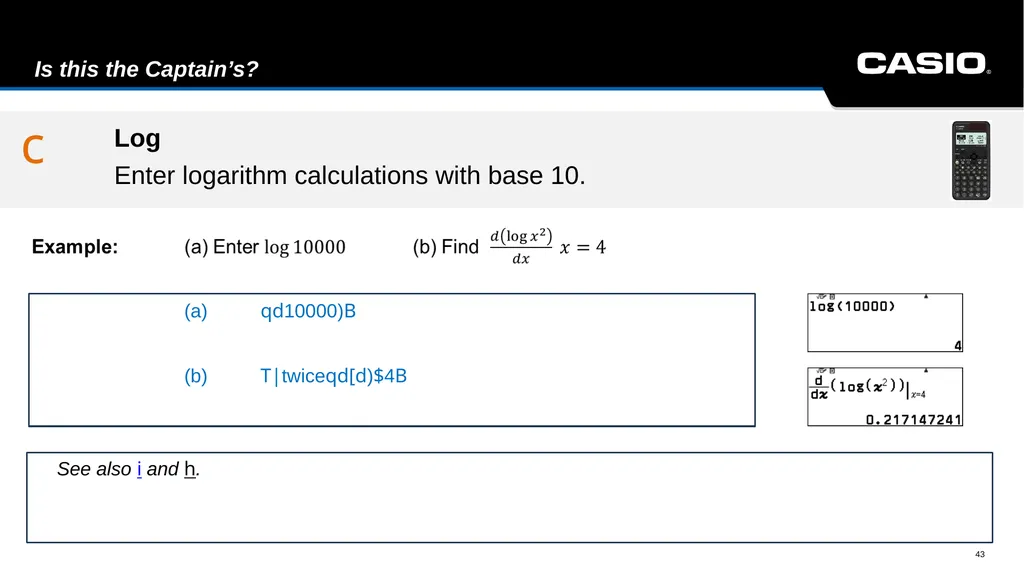
slide43. Is this the Captain’s? 43 Text See also i and h. c (a) qd10000)B
(b) T|twiceqd[d)$4B Log
Enter logarithm calculations with base 10.<br>
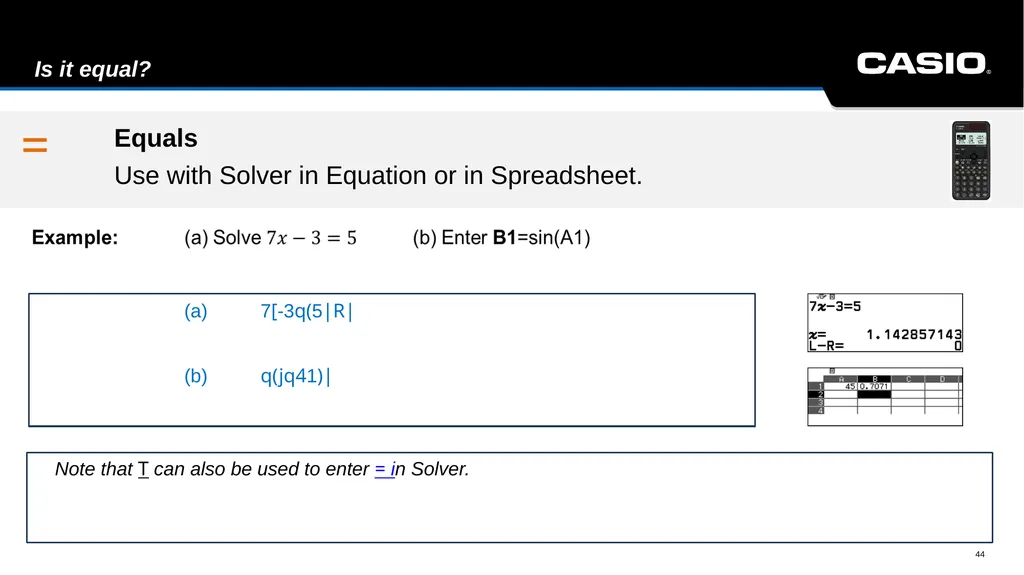
slide44. Is it equal? 44 Text = (a) 7[-3q(5|R|
(b) q(jq41)| Equals
Use with Solver in Equation or in Spreadsheet. Note that T can also be used to enter = in Solver.<br>
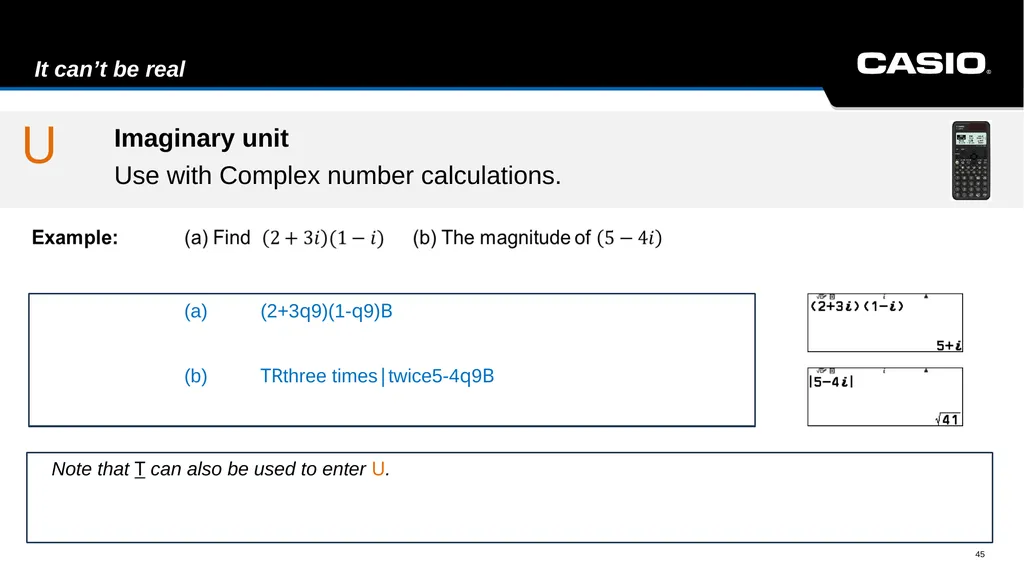
slide45. It can’t be real 45 Text U (a) (2+3q9)(1-q9)B
(b) TRthree times|twice5-4q9B Imaginary unit
Use with Complex number calculations. Note that T can also be used to enter U.<br>
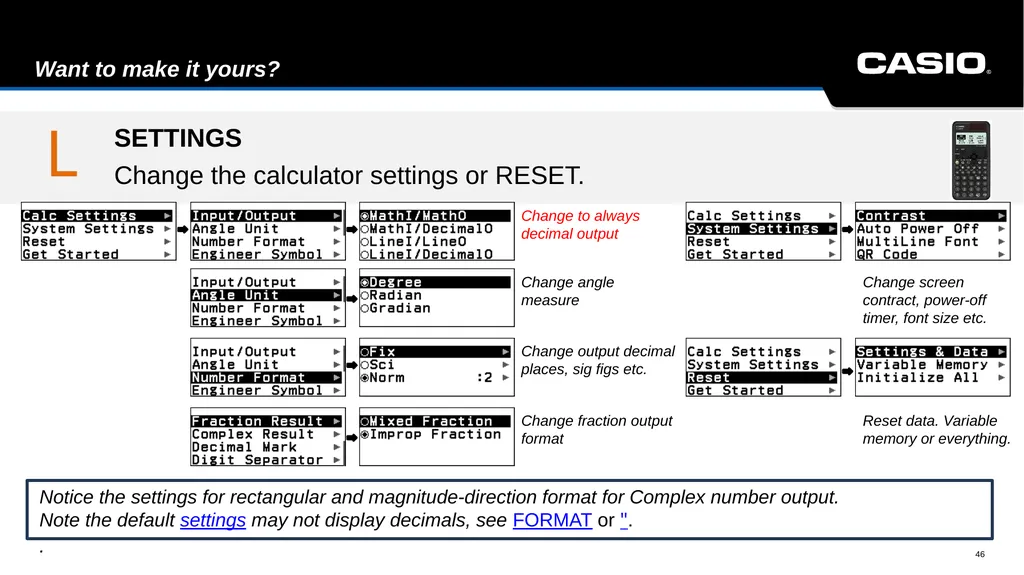
slide46. Want to make it yours? 46 Text Notice the settings for rectangular and magnitude-direction format for Complex number output.
Note the default settings may not display decimals, see FORMAT or ".
. Change to always decimal output Change angle measure Change output decimal places, sig figs etc. Change fraction output format Change screen contract, power-off timer, font size etc. Reset data. Variable memory or everything. L SETTINGS
Change the calculator settings or RESET.<br>
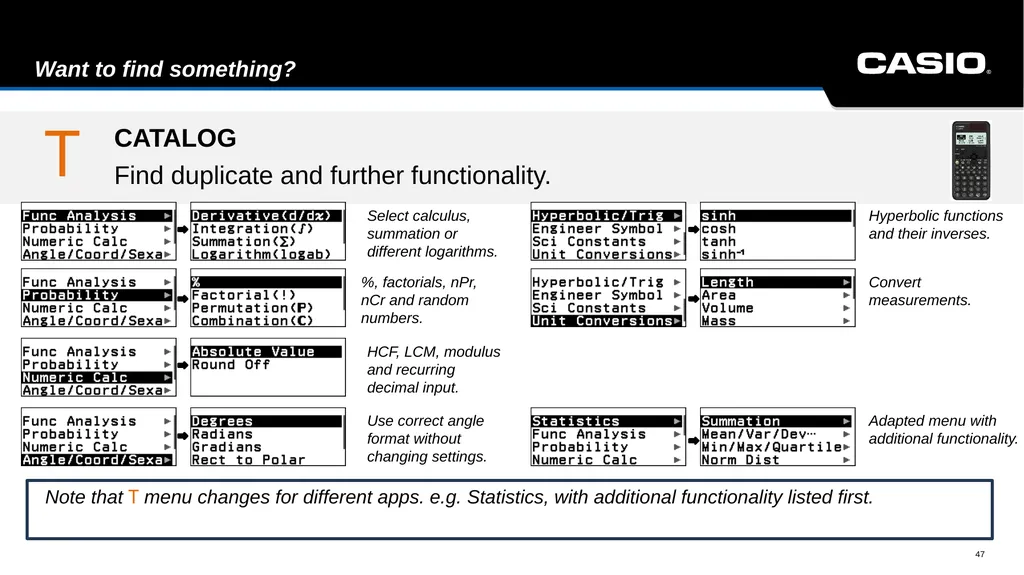
slide47. Want to find something? 47 Text Note that T menu changes for different apps. e.g. Statistics, with additional functionality listed first. Select calculus, summation or different logarithms. %, factorials, nPr, nCr and random numbers. HCF, LCM, modulus and recurring decimal input. Use correct angle format without changing settings. Hyperbolic functions and their inverses. Convert measurements. T CATALOG
Find duplicate and further functionality. Adapted menu with additional functionality.<br>
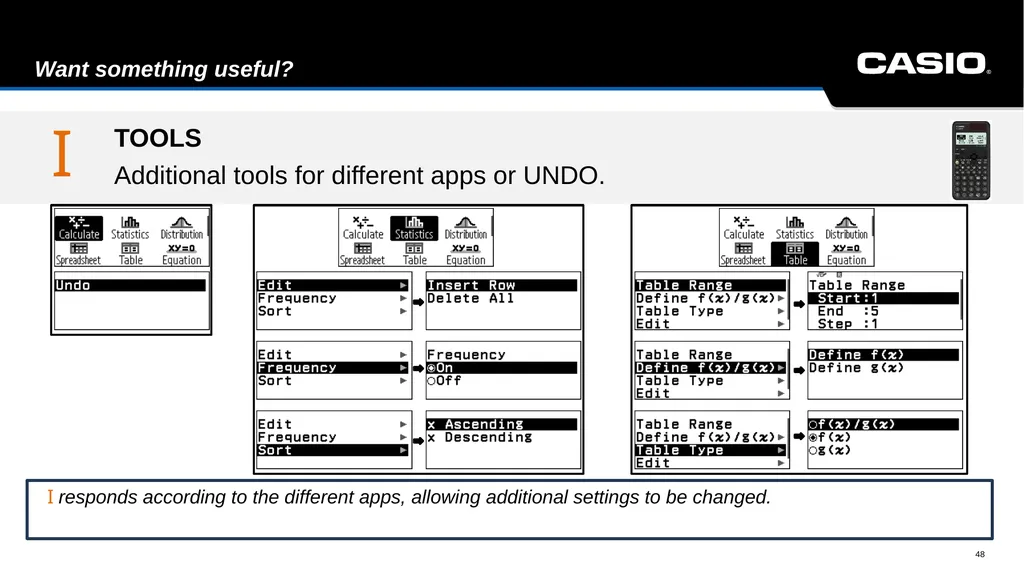
slide48. Want something useful? 48 Text I responds according to the different apps, allowing additional settings to be changed. I TOOLS
Additional tools for different apps or UNDO.<br>
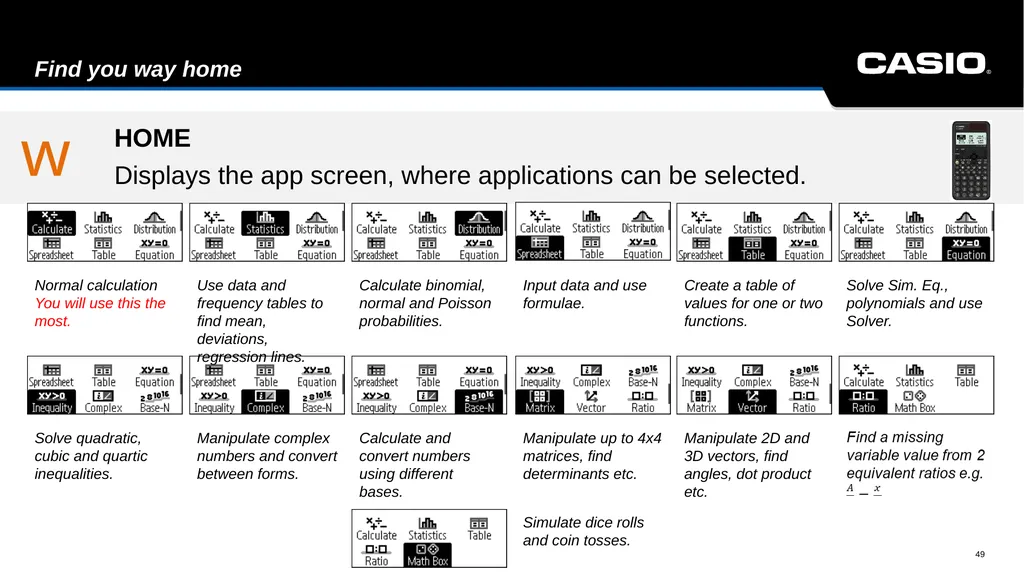
slide49. Find you way home 49 Normal calculation
You will use this the most. Use data and frequency tables to find mean, deviations, regression lines. Create a table of values for one or two functions. Simulate dice rolls and coin tosses. w HOME
Displays the app screen, where applications can be selected. Calculate binomial, normal and Poisson probabilities. Input data and use formulae. Solve Sim. Eq., polynomials and use Solver. Solve quadratic, cubic and quartic inequalities. Manipulate complex numbers and convert between forms. Calculate and convert numbers using different bases. Manipulate up to 4x4 matrices, find determinants etc. Manipulate 2D and 3D vectors, find angles, dot product etc.<br>
slide2. Additional resources Training video
This is a recording from a live training webinar.
The video introduces the key features of the fx-991 CW calculator.
If you’re new to using one of these calculators, you've come to the right place!
ClassWiz Practice (worksheets/teaching slides)
Revision Mat - fx-991CW teaching resources for Higher GCSE.
Cross Number Puzzles - teaching resources focusing on Cross Number for fx-991CW calculator (Higher GCSE)
Teaching Resources page – general resources page including skills videos. 2<br>
slide3. How to navigate around the manual 3 Use the mini calculator icon to return Open the slideshow
Press any key/label on the handset to access the user guide
Use the mini calculator icon to return to the handset Online User Guide Video<br>
slide4. The most important key 4 Example: Always useful before attempting a calculation. Text Notice the slight recess, so that if placed face down without the cover the handset will not turn on. W W ON
Turn the handset on. Defaults to the last used application/menu screen.<br>
slide5. Want a decimal value for a calculation? 5 Text Make sure to press SHIFT first.
Using decimal approximation after calculating a value with B performs another calculation, so be careful when
using *. " Decimal Approximation
Evaluate a decimal from a calculation instead of using FORMAT.<br>
slide6. Why so negative? Negative
Negate a number in a calculation, list or table. 6 Text Be careful to interpret the question correctly, this isn’t the negative of three squared, hence parentheses.
Notice that the screen character is shorter than subtract. z (qp3)dB<br>
slide7. The mathematical unknown 7 Text The variable X can also be entered using q0. [ QRthree times|[d-2[-3| X
The default key to enter the variable x. QRRR|[dp2[p3| QRRR|[dp2[p3|<br>
slide8. How to get one over 8 Text / Reciprocal
Equivalent to “one over” your entry.<br>
slide9. The power of a log 9 Text Taking logarithms is the opposite of raising something to a power. i (a) i2$64B
(b) i64$2B Logarithm
Take a logarithm with a defined base.<br>
slide10. How to be rational 10 Text Be careful to scroll away from the first denominator, otherwise
Use parentheses to define the numerator. Using FRACTIONS video a Fraction template
Easily enter a fraction.<br>
slide11. The opposite of a square 11 Text Only the positive root is given.
Notice the surd answers, use " or n for decimal values. s (a) s5.6B
(b) s12d+7dB Square Root
Find the square root of a value or a calculation.<br>
slide12. Increasing numbers of roots 12 Text F qs3$29a113B Nth Root
Find the nth root of a value or a calculation. Notice that n can also be negative.<br>
slide13. Do you have the power? 13 Text Use this key either before or after entering the base value.
Useful for entering fractional and negative exponentials. ^ Index
Enter an exponent for an expression or value.<br>
slide14. Why not call it timber? 14 Text It’s good practice to close the parentheses, but not necessary. qi3.4)B h Natural logarithm
Evaluate a logarithm with base e (Euler’s constant).<br>
slide15. Why so irrational? 15 Text Although irrational, both of these values are used in calculations to 22 d.p accuracy. {e (a) 4+q7B
(b) q8dB Irrational constants
valuate a logarithm with base e (Euler’s constant).<br>
slide16. What time is it? 16 Example: Express (a) 2.4 hrs as H:M:S (b) 3hrs 54 mins 36 secs as a decimal Text Always enter a value for H:M even if it is zero. x (a) 2.4q+B
(b) 3x54x36xqB Hours:Minutes:Seconds
Enter decimal time and angles and convert to sexagesimal.<br>
slide17. Are you missing a side? 17 Text It’s good practice to close the parentheses, but not necessary.
For multiple calculations, it may be more useful to have decimal values, so change L to MathI/DecimalO. jkl (a) j75)B
(b) 3k45)B Trigonometric ratios
Evaluate ratios for given angles.<br>
slide18. BIDMAS or BODMAS? Parentheses (brackets) Essential to ensure correct BIDMAS operation order. 18 Text The calculator follows BIDMAS strictly, so inserting parentheses is key for correct calculations.
Make sure to scroll after entering the exponent. ()<br>
slide19. Saved something for later? ABCDEF
X@V 19 Text Manipulate stored variables using normal rules of arithmetic.
Press ' to see the values of all stored variables. (a) l35)B'$|twice
(b) 5.2q5B Stored Variables A-F, x, y and z Store calculations and values for later recall and manipulation.<br>
slide20. Pause a second 20 Example: Find LCM of 27 and 15 Text Can also be used when generating random numbers, GCD etc. , TRR|R|27q)15)B Comma
Use to separate entries.<br>
slide21. Mixing it up 21 Text Use n to change the appearance of the final value. A 3qa1R6B Mixed number template
Use to enter a mixed number.<br>
slide22. Is it standard? 22 Text The fraction template avoids the need to use parentheses.
Using STANDARD FORM video K (a) 3.65K4B
(b) a1.2K3R2.7Kqp2$$+4 Exponent
Use when entering standard form.<br>
slide23. What was the answer? 23 Text Notice that * doesn’t actually need pressing in the first example.
A very useful method for approximating solutions to equations. * Answer memory
Recall and manipulate the previously calculated value.<br>
slide24. Return of the ... BACK Move back or return up a menu level. 24 Example: Return from setting the Table Type in Table. Text Also useful for returning the cursor to the end of the input line after a calculation to edit or replay.
See I for how to set the Table Type. ` ` twice<br>
slide25. Let’s move 25 Text Press !$ after a calculation to move the cursor to the end of the input line, to edit or replay.
Press ER to scroll through the calculation history on screen. E
! $
R Scroll
Navigate through menus, check calculation history and move the cursor. !o!1 !o!1<br>
slide26. Are you sure? OK
Confirm data entry, a menu choice or perform a calculation. 26 Text | and B are interchangeable. | 5TR|R|B<br>
slide27. Let’s save some key presses Page Scroll Use when a scroll bar appears, to scroll a page at a time. 27 Example: Scroll through T to find Degrees. Text If there are too many menu options to fit on the screen, a scroll bars appears to the right. %& T&R|<br>
slide28. Let’s modify things 28 Text Notice the q indicator at the top of the screen, before pressing the modified key. q (a) q^7B
(b) qC SHIFT Use to access the modifying key labels.<br>
slide29. If it’s not constant, it’s variable. Variable
Access and edit stored variables. 29 Text See Stored Variables.
The values are shown in Norm1 format.
Using MEMORY video ' (a) '|R|3.5^3|
(b) 43B'|twice<br>
slide30. It’s cool to be square 30 Text See ^ to enter other exponentials including negatives and fractions. d (a) 2.675dB
(b) (3.27+1.49)dB Square
Easily square expressions and values.<br>
slide31. Think of a number 31 Example: Enter 12345.6789 Text Notice the digit separation, change L to turn off. 123
456
789
0 12345.6789B Number digits
Enter numbers, obviously.<br>
slide32. Oh no, I’ve made a mistake 32 Example: Enter 513 and then edit it to 523 Text Compare with I for undoing the last key press. o 512otwice23B Backspace
Delete entries.<br>
slide33. Is it hot in here? 33 Example: (a) Clear the Calculate screen (b) Close L'QTI menus Text Calculation history is still available by pressing E. Closing a menu, returns to the previously displayed screen.
Alternatively press ` repeatedly to return back through the menus.
Also used to turn the calculator OFF. C (a) C
(b) C All Clear
Close a selected menu or clear the screen.<br>
slide34. The usual suspects 34 Text Notice the order of operations is not left to right, but follows BIDMAS. OP+p Addition, multiplication, subtraction and division.
Add, multiply, subtract and divide, obviously.<br>
slide35. Get to the point 35 Text Change L for a comma decimal mark. . 3a7$+3.7B Decimal point.
For when you absolutely must utilise all of the decimal number system.<br>
slide36. If you want something done ... 36 Text See | as they are interchangeable with each other.
See also ". B (a) qs3$27K3B
(b) T|R|512)B Execute
Perform calculations or confirm data entry.<br>
slide37. Let’s get online 37 Text Scan the QR code on the calculator screen with a smart device. This can then take you to ClassPad.net.
Click the QR codes above to simulate scanning. (a) s25.9Bq[
(b) IR|twice[d|I|Rthree times|q[ Quick Read
Create a QR code from a calculation or Table. QR<br>
slide38. What’s the inverse? 38 Text <
>
? (a) qj0.75)B
(b) qlqp35)B Inverse trigonometric function
Find an angle from a value.<br>
slide39. Adding a bit more 39 Text Notice the INS cursor changes to .
This saves deleting and re-entering parts of the calculation. 1+1a9!twiceqosB INS Insert
Edit calculations using existing arguments.<br>
slide40. This is the end 40 Example: Turn the calculator off Text That’s all folks ... qC Off
When you have had enough ... OFF<br>
slide41. How does it function? 41 Compare to using I for defining functions in Table.
Using FUNCTION video (a) QRtwice|[d-2[-3|
QRthree times|Q|2[)+4|
(b) 4QR|2)B Function
Define and evaluate 2 functions and use in calculations. Q Text<br>
slide42. What’s the best look? 42 Text Use n to swap between different representations of the same value, the default is Standard.
Notice how the menu changes depending on the input.
Useful for individual calculations, change L to always get decimals or mixed fractions. Using FORMAT video n Format
Display the most appropriate value format.<br>
slide43. Is this the Captain’s? 43 Text See also i and h. c (a) qd10000)B
(b) T|twiceqd[d)$4B Log
Enter logarithm calculations with base 10.<br>
slide44. Is it equal? 44 Text = (a) 7[-3q(5|R|
(b) q(jq41)| Equals
Use with Solver in Equation or in Spreadsheet. Note that T can also be used to enter = in Solver.<br>
slide45. It can’t be real 45 Text U (a) (2+3q9)(1-q9)B
(b) TRthree times|twice5-4q9B Imaginary unit
Use with Complex number calculations. Note that T can also be used to enter U.<br>
slide46. Want to make it yours? 46 Text Notice the settings for rectangular and magnitude-direction format for Complex number output.
Note the default settings may not display decimals, see FORMAT or ".
. Change to always decimal output Change angle measure Change output decimal places, sig figs etc. Change fraction output format Change screen contract, power-off timer, font size etc. Reset data. Variable memory or everything. L SETTINGS
Change the calculator settings or RESET.<br>
slide47. Want to find something? 47 Text Note that T menu changes for different apps. e.g. Statistics, with additional functionality listed first. Select calculus, summation or different logarithms. %, factorials, nPr, nCr and random numbers. HCF, LCM, modulus and recurring decimal input. Use correct angle format without changing settings. Hyperbolic functions and their inverses. Convert measurements. T CATALOG
Find duplicate and further functionality. Adapted menu with additional functionality.<br>
slide48. Want something useful? 48 Text I responds according to the different apps, allowing additional settings to be changed. I TOOLS
Additional tools for different apps or UNDO.<br>
slide49. Find you way home 49 Normal calculation
You will use this the most. Use data and frequency tables to find mean, deviations, regression lines. Create a table of values for one or two functions. Simulate dice rolls and coin tosses. w HOME
Displays the app screen, where applications can be selected. Calculate binomial, normal and Poisson probabilities. Input data and use formulae. Solve Sim. Eq., polynomials and use Solver. Solve quadratic, cubic and quartic inequalities. Manipulate complex numbers and convert between forms. Calculate and convert numbers using different bases. Manipulate up to 4x4 matrices, find determinants etc. Manipulate 2D and 3D vectors, find angles, dot product etc.<br>