Getting Started with RDA Toolkit Module 4 1 Access the RDA Toolkit Log in to the RDA Toolkit Create a user profile 2 What is the RDA Toolkit? An integrated, browser-based, online product that allows users to interact with a collection of
"Getting Started with RDA Toolkit Module 4 1 Access" is the property of its rightful owner. Permission is granted to
download and print the materials on this website for personal, non-commercial use only, and to display it
on your personal computer provided you do not modify the materials and that you retain all copyright
notices contained in the materials. By downloading content from our website, you accept the terms of this
agreement.
Presentation Transcript
01
Getting Started with RDA Toolkit Module 4 1<br>
02
Access the RDA Toolkit
Log in to the RDA Toolkit
Create a user profile 2<br>
03
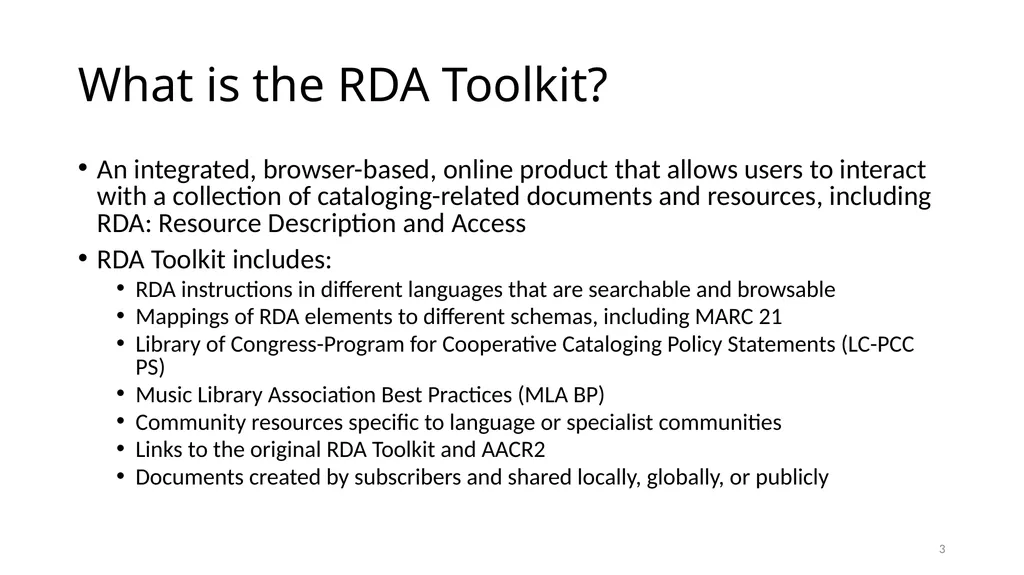
What is the RDA Toolkit? An integrated, browser-based, online product that allows users to interact with a collection of cataloging-related documents and resources, including RDA: Resource Description and Access
RDA Toolkit includes:
RDA instructions in different languages that are searchable and browsable
Mappings of RDA elements to different schemas, including MARC 21
Library of Congress-Program for Cooperative Cataloging Policy Statements (LC-PCC PS)
Music Library Association Best Practices (MLA BP)
Community resources specific to language or specialist communities
Links to the original RDA Toolkit and AACR2
Documents created by subscribers and shared locally, globally, or publicly 3<br>
04
https://access.rdatoolkit.org/
From RDA Toolkit homepage (https://www.rdatoolkit.org/)
From original RDA Toolkit (https://original.rdatoolkit.org/) Accessing RDA Toolkit 4<br>
05
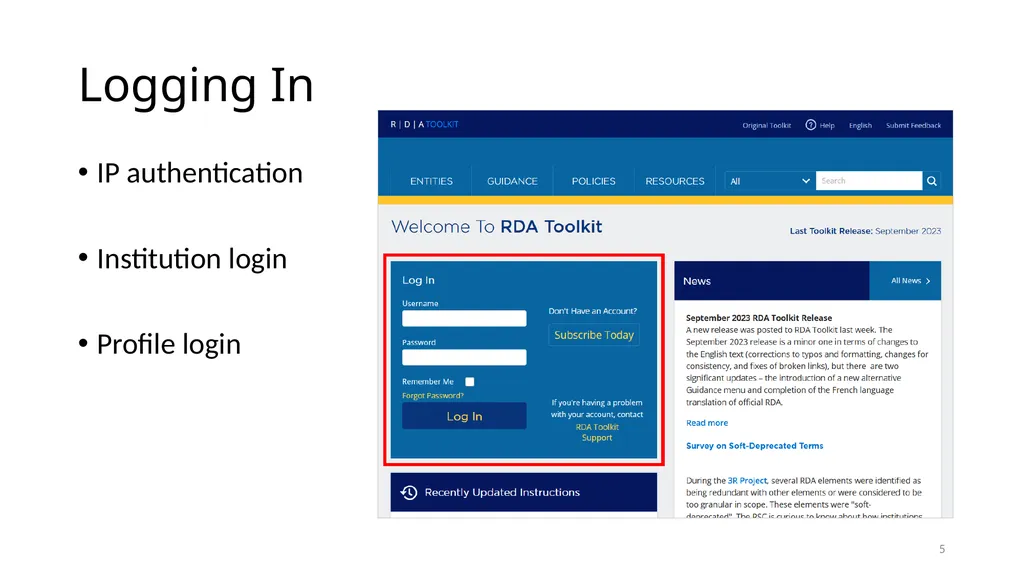
Logging In IP authentication
Institution login
Profile login 5<br>
06
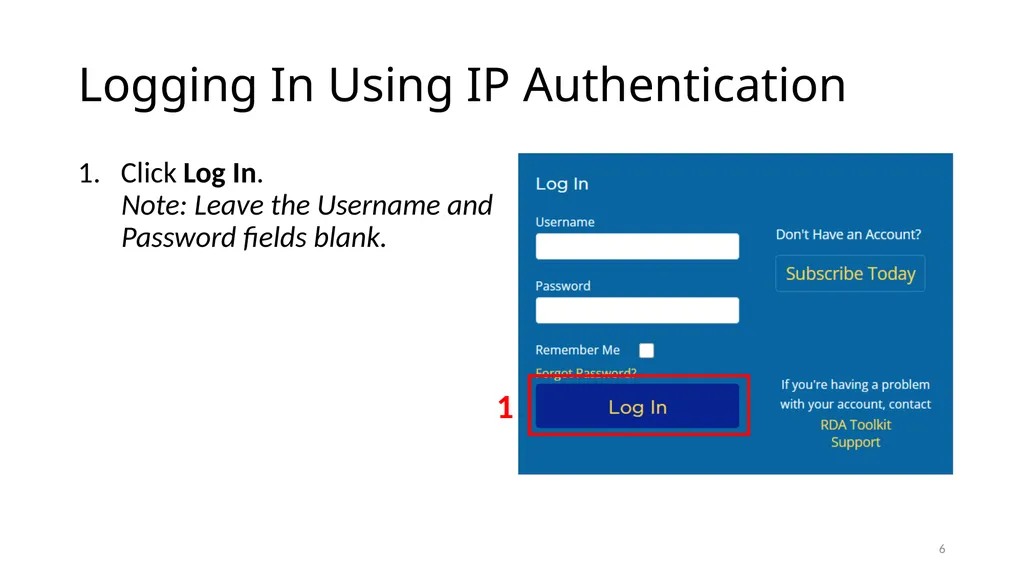
Logging In Using IP Authentication Click Log In. Note: Leave the Username and Password fields blank. 6 1<br>
07
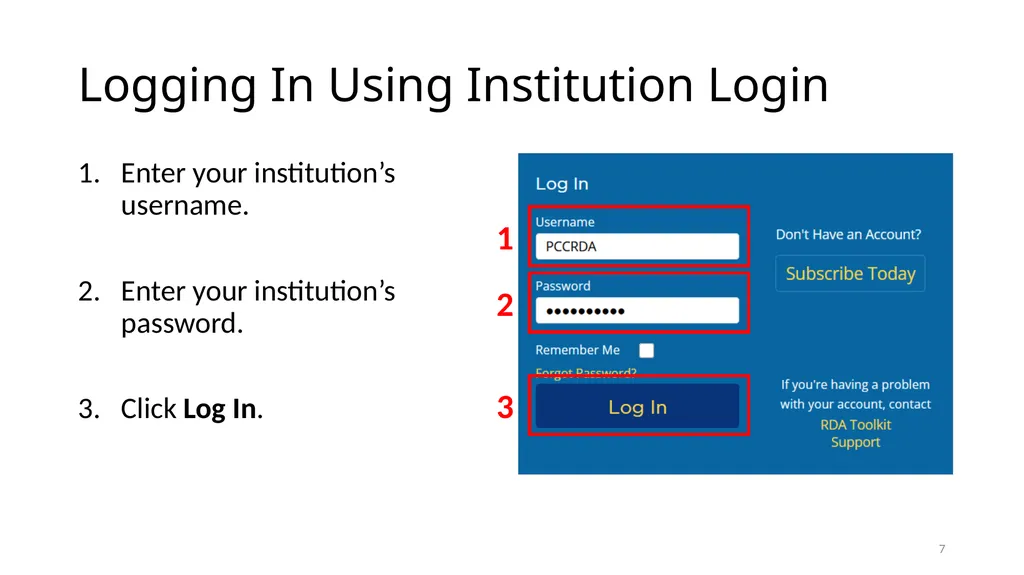
Logging In Using Institution Login Enter your institution’s username.
Enter your institution’s password.
Click Log In. 7 3 1 2<br>
08
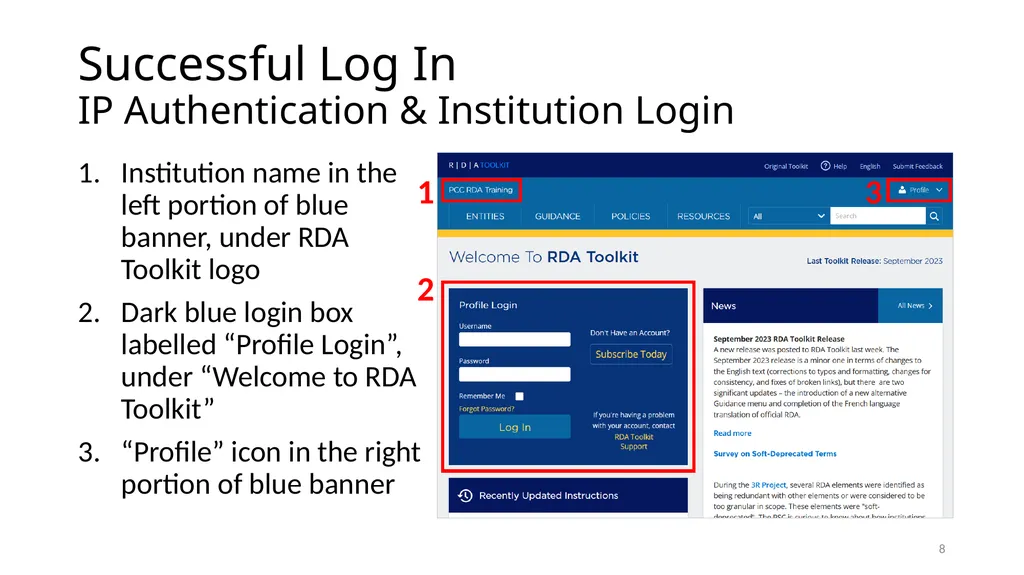
Successful Log In IP Authentication & Institution Login Institution name in the left portion of blue banner, under RDA Toolkit logo
Dark blue login box labelled “Profile Login”, under “Welcome to RDA Toolkit”
“Profile” icon in the right portion of blue banner 8 1 2 3<br>
09
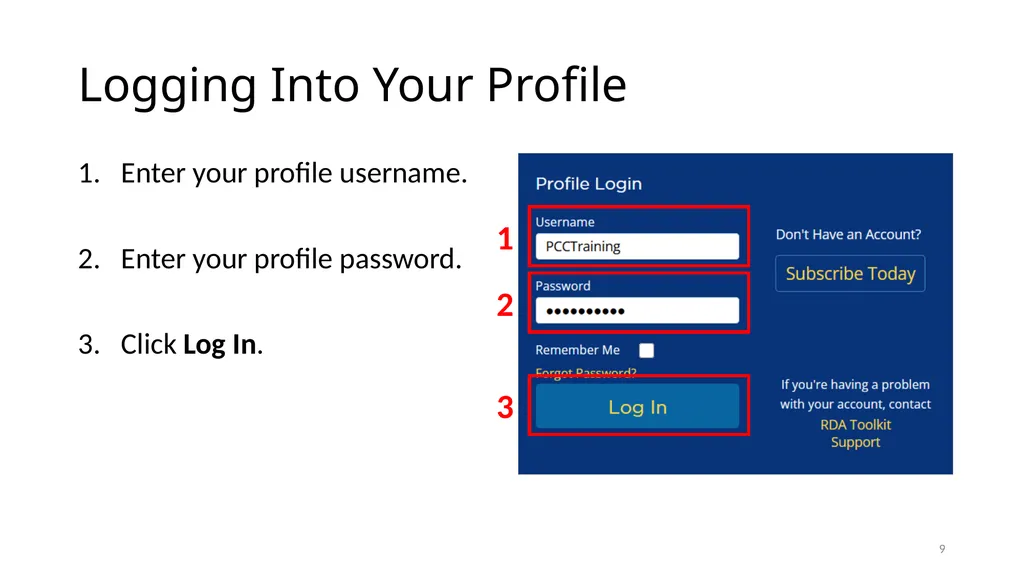
Logging Into Your Profile Enter your profile username.
Enter your profile password.
Click Log In. 9 3 1 2<br>
10
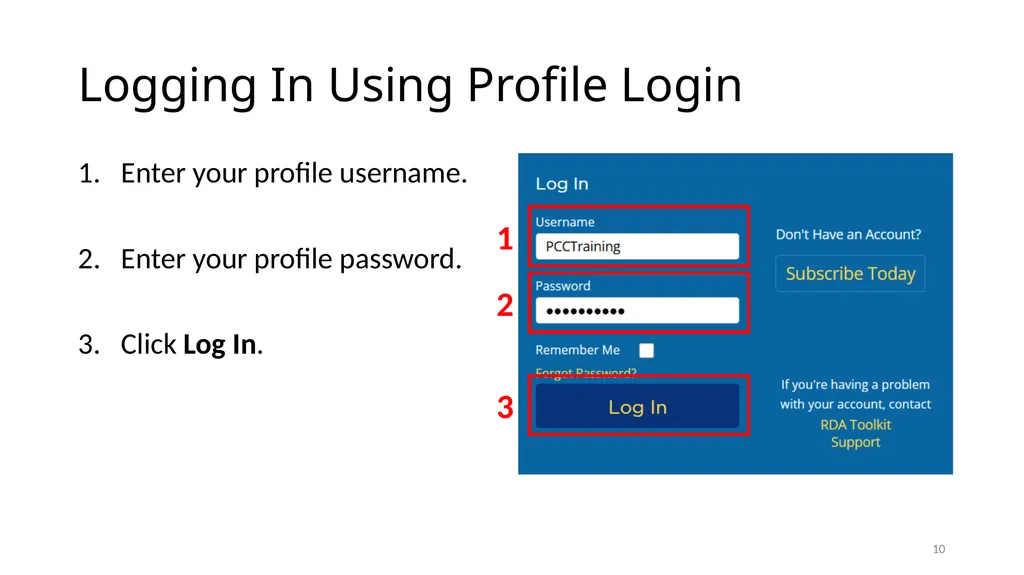
Logging In Using Profile Login Enter your profile username.
Enter your profile password.
Click Log In. 10 3 1 2<br>
11
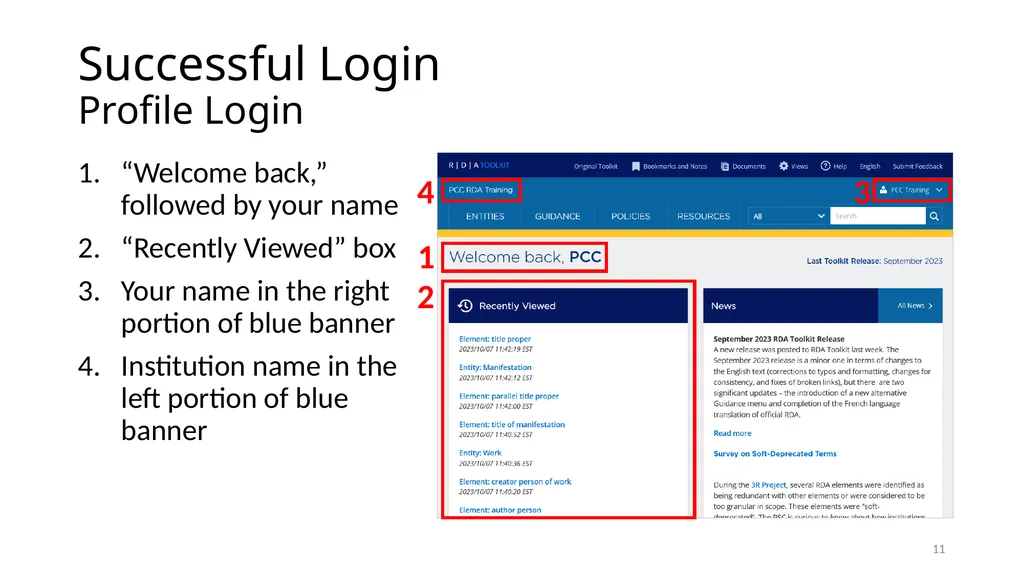
Successful Login Profile Login “Welcome back,” followed by your name
“Recently Viewed” box
Your name in the right portion of blue banner
Institution name in the left portion of blue banner 11 4 2 3 1<br>
12
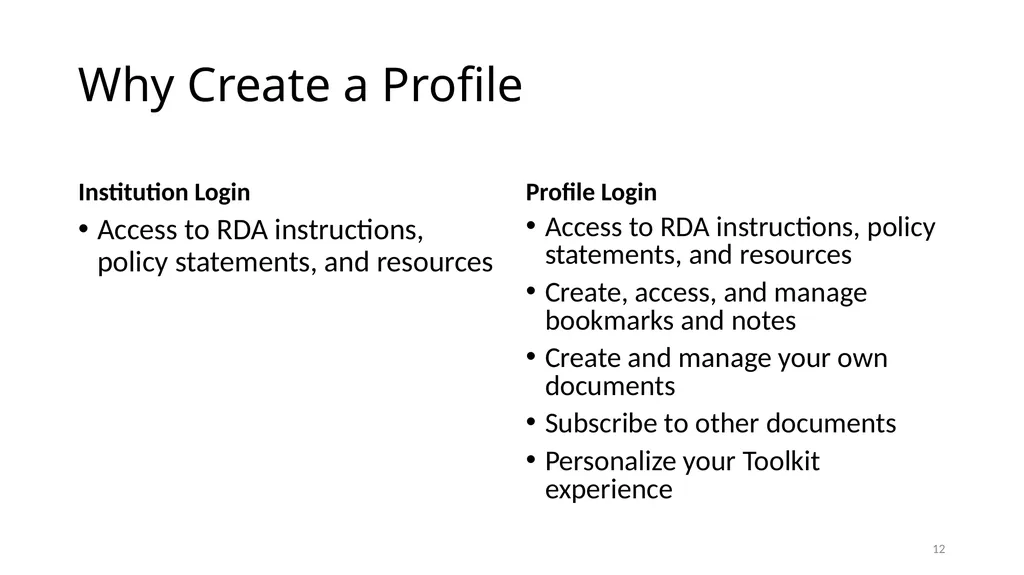
Why Create a Profile Institution Login Access to RDA instructions, policy statements, and resources Profile Login Access to RDA instructions, policy statements, and resources
Create, access, and manage bookmarks and notes
Create and manage your own documents
Subscribe to other documents
Personalize your Toolkit experience 12<br>
13
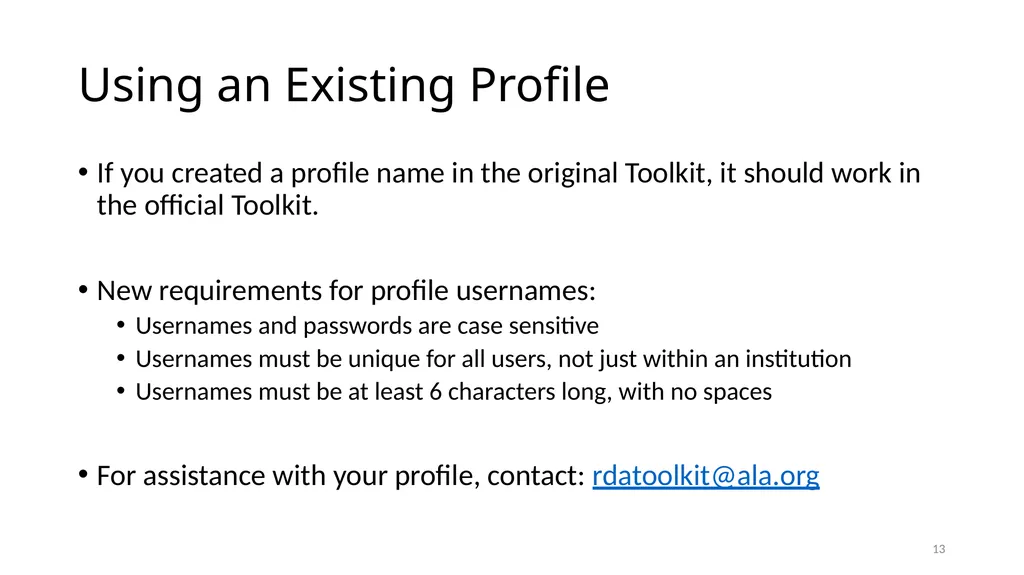
Using an Existing Profile If you created a profile name in the original Toolkit, it should work in the official Toolkit.
New requirements for profile usernames:
Usernames and passwords are case sensitive
Usernames must be unique for all users, not just within an institution
Usernames must be at least 6 characters long, with no spaces
For assistance with your profile, contact: rdatoolkit@ala.org 13<br>
14
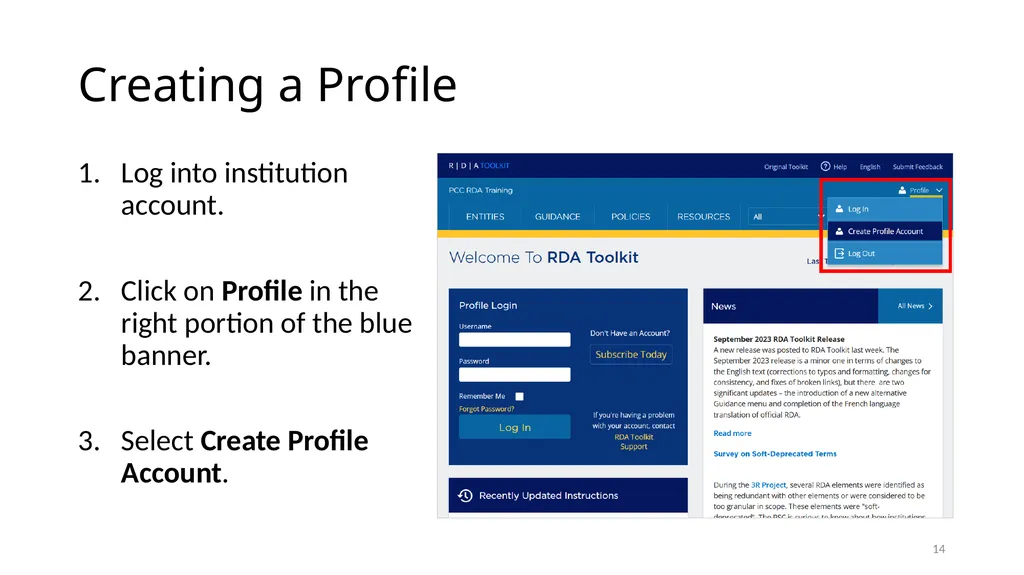
Creating a Profile Log into institution account.
Click on Profile in the right portion of the blue banner.
Select Create Profile Account. 14<br>
15
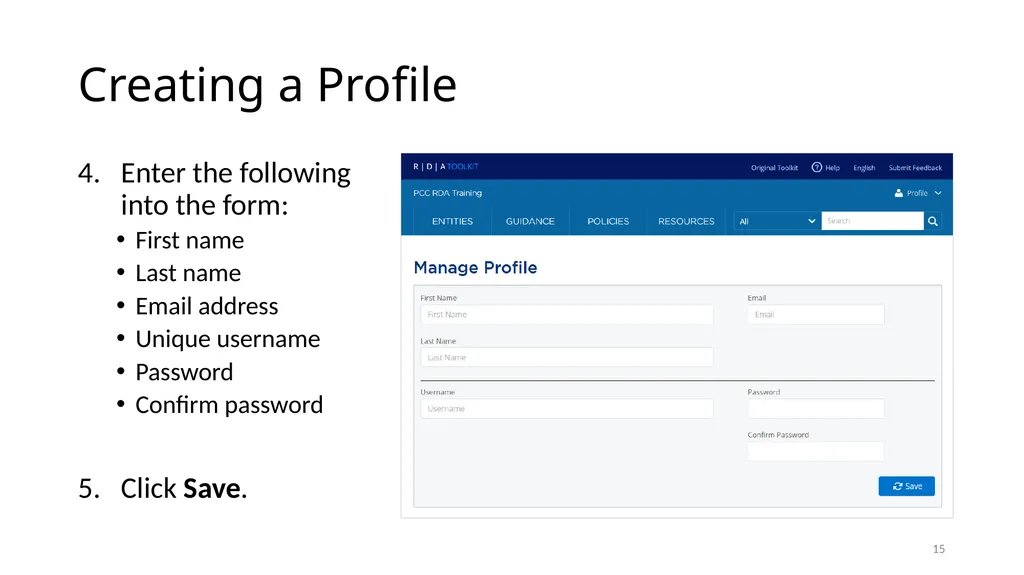
Creating a Profile Enter the following into the form:
First name
Last name
Email address
Unique username
Password
Confirm password
Click Save. 15<br>
16
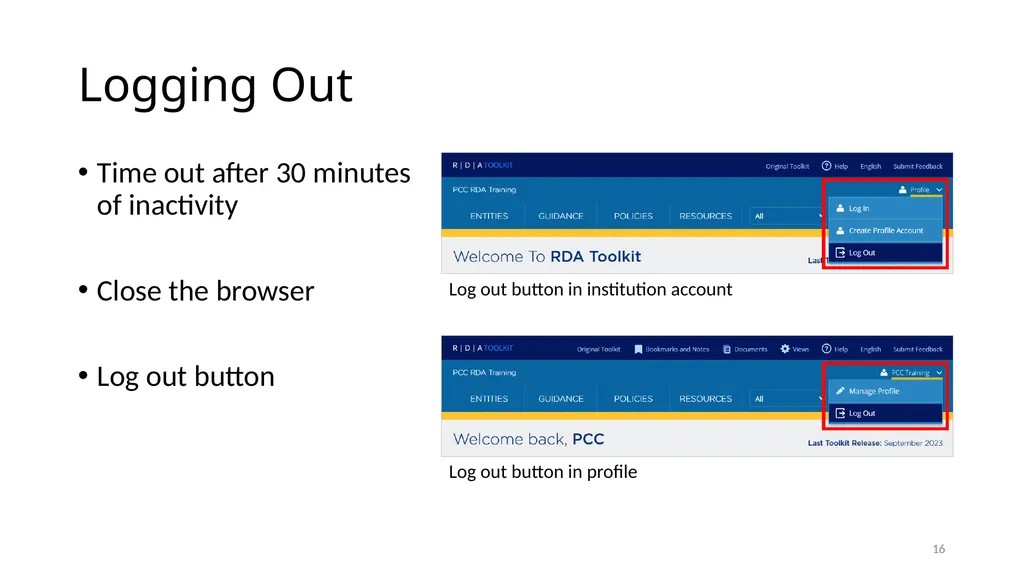
Logging Out Time out after 30 minutes of inactivity
Close the browser
Log out button 16 Log out button in institution account Log out button in profile<br>
17
Access the RDA Toolkit at: https://access.rdatoolkit.org/
Log in to the RDA Toolkit using:
IP authentication
Institution login
Profile login
Creating a profile allows you to access all RDA Toolkit features and to personalize your experience 17<br>
18
Resources RDA Toolkit Help
Getting Started
RDA Toolkit Support
RDA Toolkit YouTube Videos
How to Login to RDA Toolkit (March 1, 2022)
RDA Toolkit Demonstration (September 30, 2022) 18<br>