
Introduction to Linux Augustine Abaris Research
TG
Published · 67 slides · 0 views
1 / 1











Description
Introduction to Linux Augustine Abaris Research Computing Services Information Services Technology Topics for Today Research Computing Services Linux Overview Linux Interaction - Shell and Commands IO redirection (pipes, etc.) Navigating
Related Topics
Share
Embed code
Download this presentation From Below
"Introduction to Linux Augustine Abaris Research" is the property of its rightful owner. Permission is granted to download and print the materials on this website for personal, non-commercial use only, and to display it on your personal computer provided you do not modify the materials and that you retain all copyright notices contained in the materials. By downloading content from our website, you accept the terms of this agreement.
Presentation Transcript
01
Introduction to
Linux Augustine Abaris
Research Computing Services
Information Services & Technology<br>
Research Computing Services
Information Services & Technology<br>
02
Topics for Today Research Computing Services
Linux Overview
Linux Interaction - Shell and Commands
I/O redirection (pipes, etc.)
Navigating the file system
Processes and job control
Editors
Creating and Running Code<br>
Linux Overview
Linux Interaction - Shell and Commands
I/O redirection (pipes, etc.)
Navigating the file system
Processes and job control
Editors
Creating and Running Code<br>
03
Research Computing Services<br>
04
Research Computing Services (RCS) A group within Information Services & Technology at Boston University provides computing, storage, and visualization resources and services to support research that has specialized or highly intensive computation, storage, bandwidth, or graphics requirements.
Three Primary Services:
Research Computation
Research Visualization
Research Consulting and Training<br>
Three Primary Services:
Research Computation
Research Visualization
Research Consulting and Training<br>
05
RCS Team and Expertise Our Team
Scientific Programmers
Systems Administrators
Service Management Specialists
Research Facilitators
Special Initiatives (Grants)
help@scc.bu.edu Consulting Focus:
Bioinformatics
Data Analysis / Statistics
Molecular modeling
Geographic Information Systems
Scientific/Engineering Simulation
Visualization<br>
Scientific Programmers
Systems Administrators
Service Management Specialists
Research Facilitators
Special Initiatives (Grants)
help@scc.bu.edu Consulting Focus:
Bioinformatics
Data Analysis / Statistics
Molecular modeling
Geographic Information Systems
Scientific/Engineering Simulation
Visualization<br>
06
Me Lead Systems Programmer/Administrator
20+ years of systems administration experience
15+ years at BU, contributed to design and deployment of SCC and 2 predecessor HPC clusters
Contact: augustin@bu.edu<br>
20+ years of systems administration experience
15+ years at BU, contributed to design and deployment of SCC and 2 predecessor HPC clusters
Contact: augustin@bu.edu<br>
07
You Who has experience programming?
Using Linux?
Using compute clusters?
Using the Shared Computing Cluster (SCC)?<br>
Using Linux?
Using compute clusters?
Using the Shared Computing Cluster (SCC)?<br>
08
Linux<br>
09
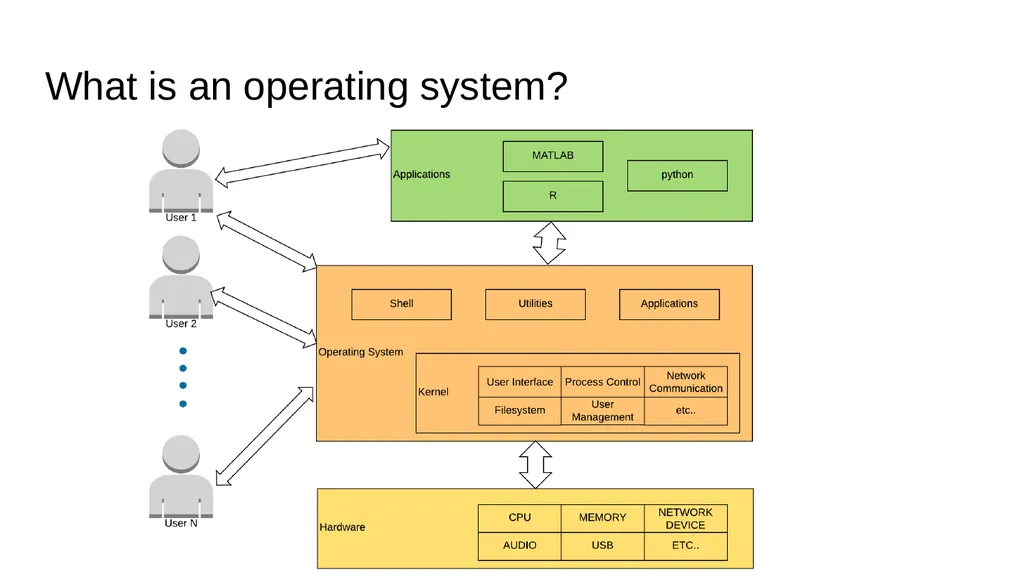
What is an operating system?<br>
10
What is Linux? Operating System
Originated in early-90s
Free
Open Source<br>
Originated in early-90s
Free
Open Source<br>
11
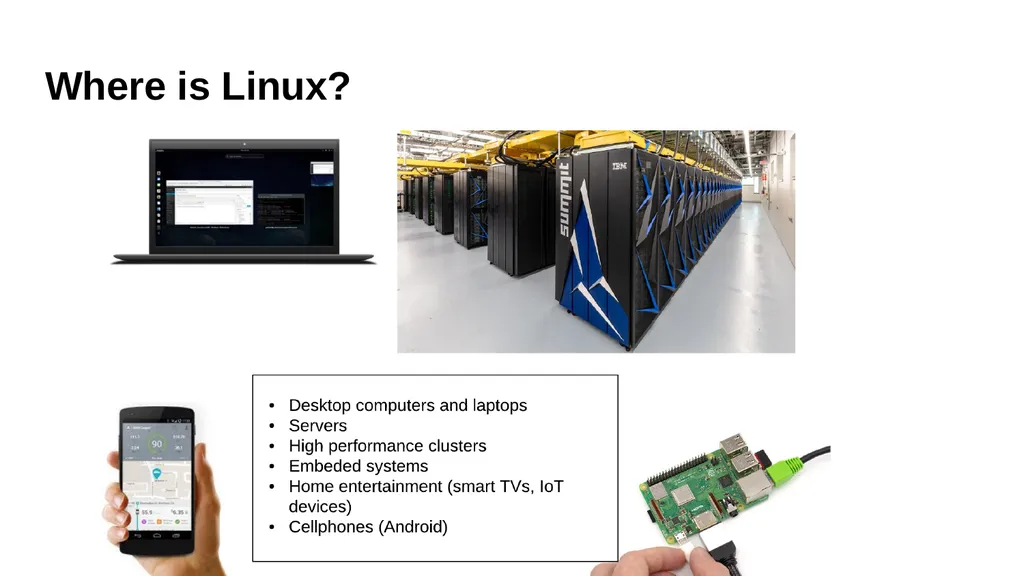
Where is Linux?<br>
12
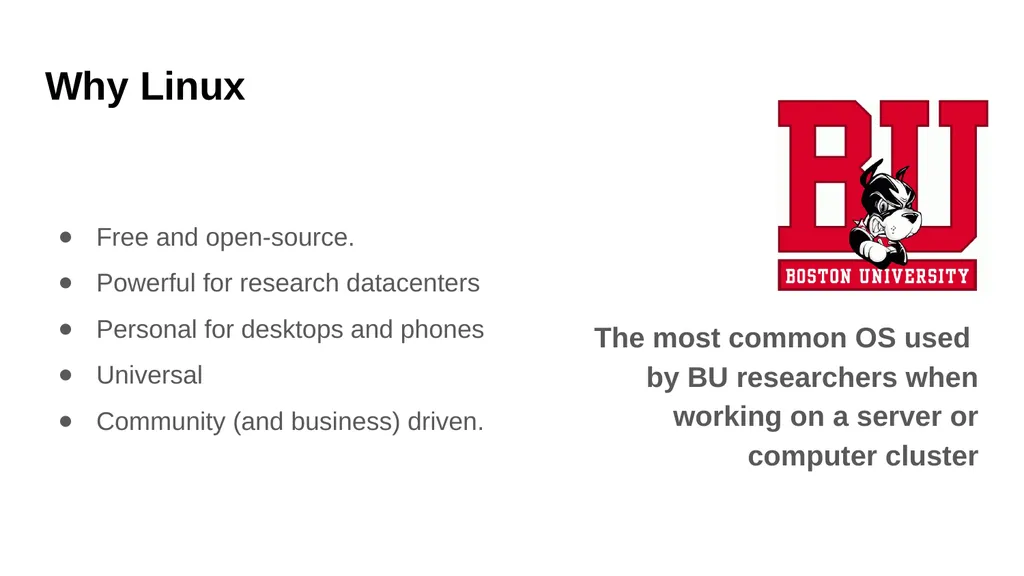
Why Linux Free and open-source.
Powerful for research datacenters
Personal for desktops and phones
Universal
Community (and business) driven. The most common OS used by BU researchers when working on a server or computer cluster<br>
Powerful for research datacenters
Personal for desktops and phones
Universal
Community (and business) driven. The most common OS used by BU researchers when working on a server or computer cluster<br>
13
Connecting Let’s use Linux<br>
14
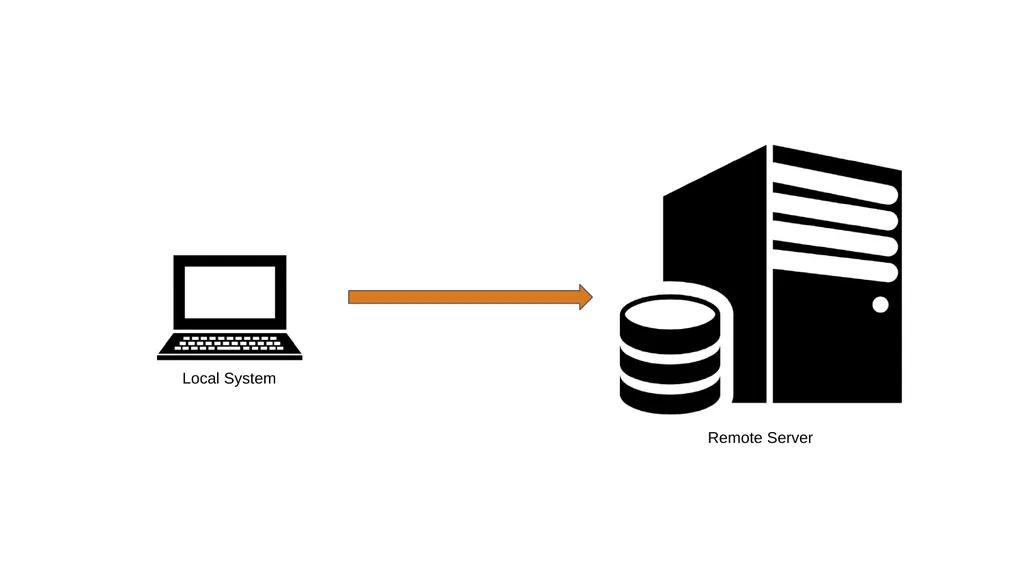
Local System Remote Server<br>
15
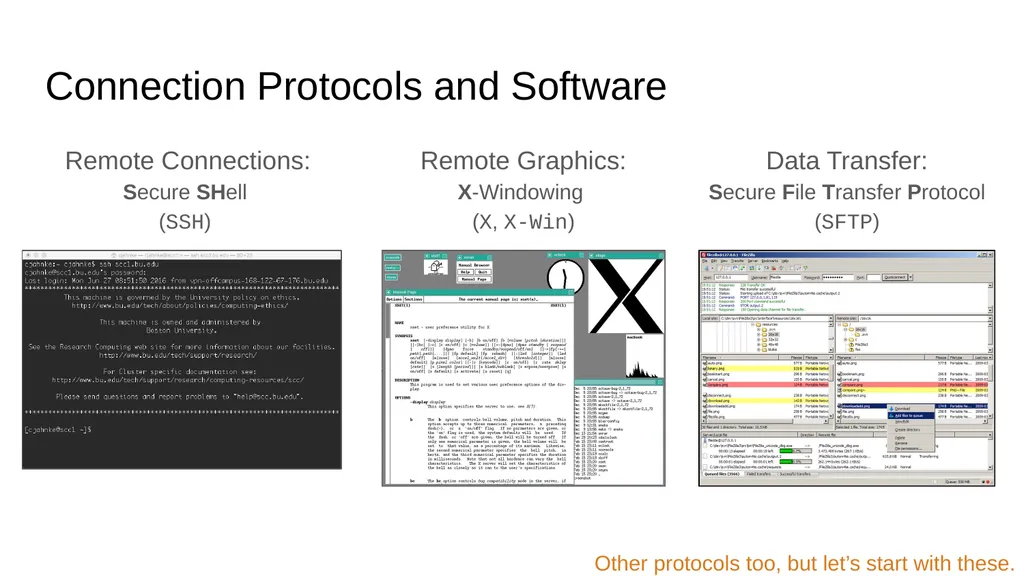
Connection Protocols and Software Remote Connections:
Secure SHell
(SSH) Remote Graphics:
X-Windowing
(X, X-Win) Data Transfer:
Secure File Transfer Protocol (SFTP) Other protocols too, but let’s start with these.<br>
16
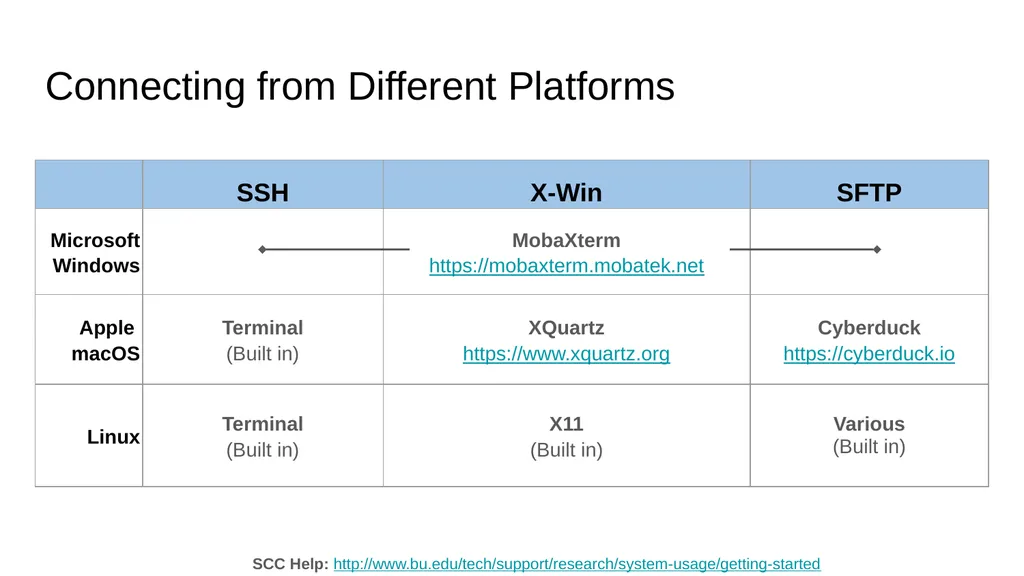
Connecting from Different Platforms SCC Help: http://www.bu.edu/tech/support/research/system-usage/getting-started<br>
17
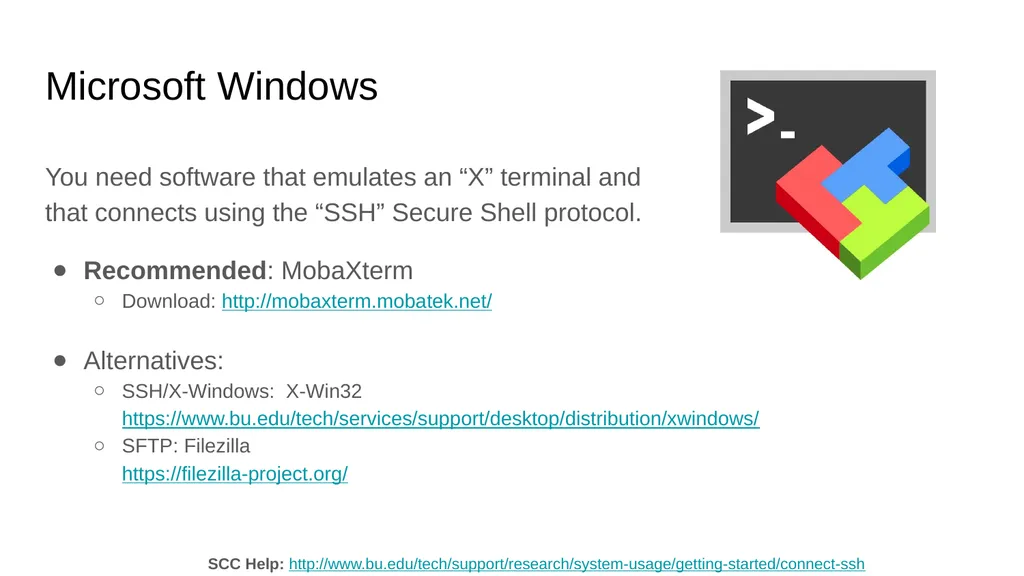
Microsoft Windows You need software that emulates an “X” terminal and
that connects using the “SSH” Secure Shell protocol.
Recommended: MobaXterm
Download: http://mobaxterm.mobatek.net/
Alternatives:
SSH/X-Windows: X-Win32 https://www.bu.edu/tech/services/support/desktop/distribution/xwindows/
SFTP: Filezilla https://filezilla-project.org/ SCC Help: http://www.bu.edu/tech/support/research/system-usage/getting-started/connect-ssh<br>
Recommended: MobaXterm
Download: http://mobaxterm.mobatek.net/
Alternatives:
SSH/X-Windows: X-Win32 https://www.bu.edu/tech/services/support/desktop/distribution/xwindows/
SFTP: Filezilla https://filezilla-project.org/ SCC Help: http://www.bu.edu/tech/support/research/system-usage/getting-started/connect-ssh<br>
18
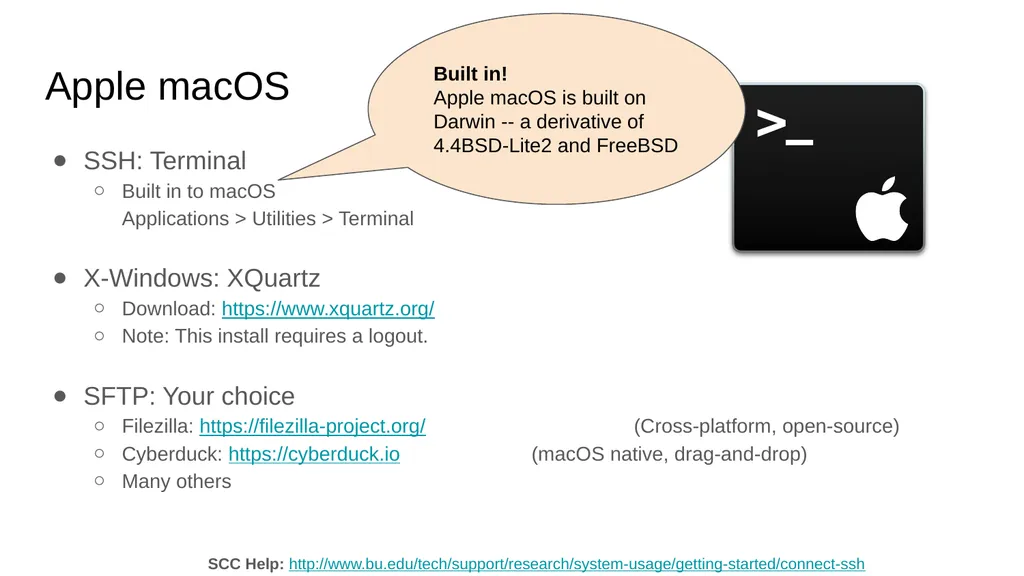
Apple macOS SSH: Terminal
Built in to macOS Applications > Utilities > Terminal
X-Windows: XQuartz
Download: https://www.xquartz.org/
Note: This install requires a logout.
SFTP: Your choice
Filezilla: https://filezilla-project.org/ (Cross-platform, open-source)
Cyberduck: https://cyberduck.io (macOS native, drag-and-drop)
Many others SCC Help: http://www.bu.edu/tech/support/research/system-usage/getting-started/connect-ssh Built in! Apple macOS is built on Darwin -- a derivative of 4.4BSD-Lite2 and FreeBSD<br>
Built in to macOS Applications > Utilities > Terminal
X-Windows: XQuartz
Download: https://www.xquartz.org/
Note: This install requires a logout.
SFTP: Your choice
Filezilla: https://filezilla-project.org/ (Cross-platform, open-source)
Cyberduck: https://cyberduck.io (macOS native, drag-and-drop)
Many others SCC Help: http://www.bu.edu/tech/support/research/system-usage/getting-started/connect-ssh Built in! Apple macOS is built on Darwin -- a derivative of 4.4BSD-Lite2 and FreeBSD<br>
19
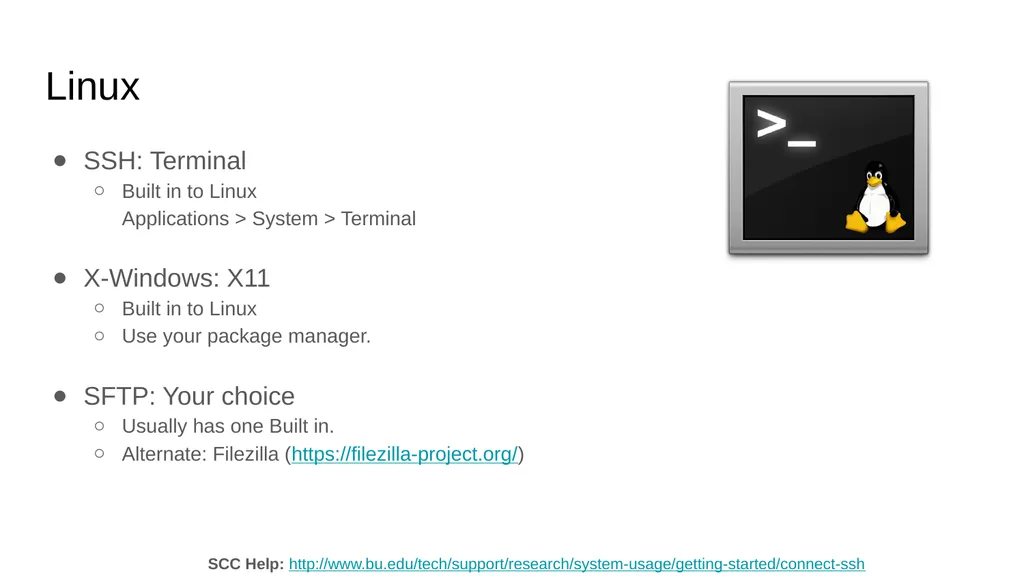
Linux SSH: Terminal
Built in to Linux Applications > System > Terminal
X-Windows: X11
Built in to Linux
Use your package manager.
SFTP: Your choice
Usually has one Built in.
Alternate: Filezilla (https://filezilla-project.org/) SCC Help: http://www.bu.edu/tech/support/research/system-usage/getting-started/connect-ssh<br>
Built in to Linux Applications > System > Terminal
X-Windows: X11
Built in to Linux
Use your package manager.
SFTP: Your choice
Usually has one Built in.
Alternate: Filezilla (https://filezilla-project.org/) SCC Help: http://www.bu.edu/tech/support/research/system-usage/getting-started/connect-ssh<br>
20
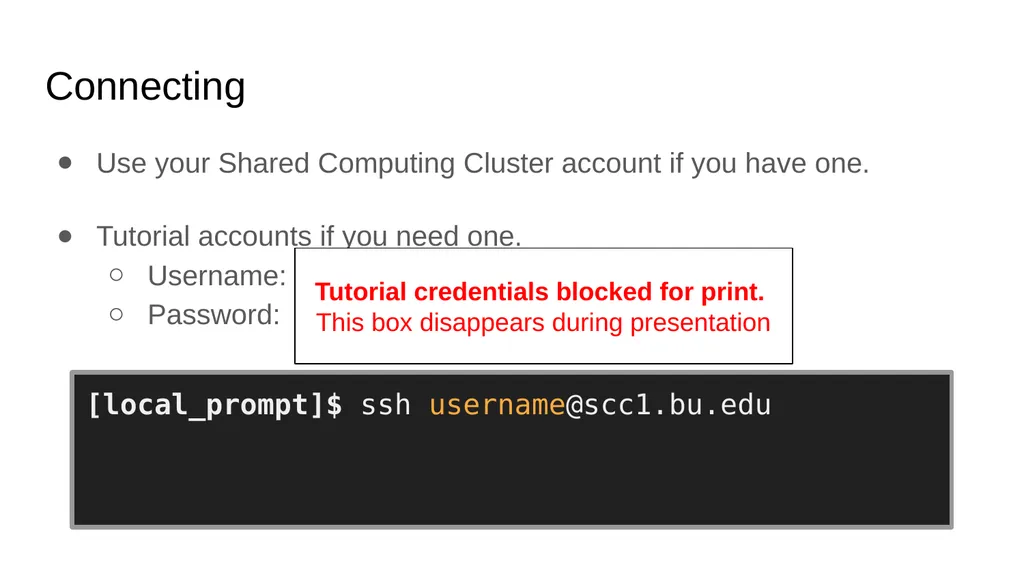
Connecting Use your Shared Computing Cluster account if you have one.
Tutorial accounts if you need one.
Username: tuta[1-20]
Password: VizTut[1-20] [local_prompt]$ ssh username@scc1.bu.edu username@scc1.bu.edu’s Password: [username@scc1 ~]$ Tutorial credentials blocked for print. This box disappears during presentation<br>
Tutorial accounts if you need one.
Username: tuta[1-20]
Password: VizTut[1-20] [local_prompt]$ ssh username@scc1.bu.edu username@scc1.bu.edu’s Password: [username@scc1 ~]$ Tutorial credentials blocked for print. This box disappears during presentation<br>
21
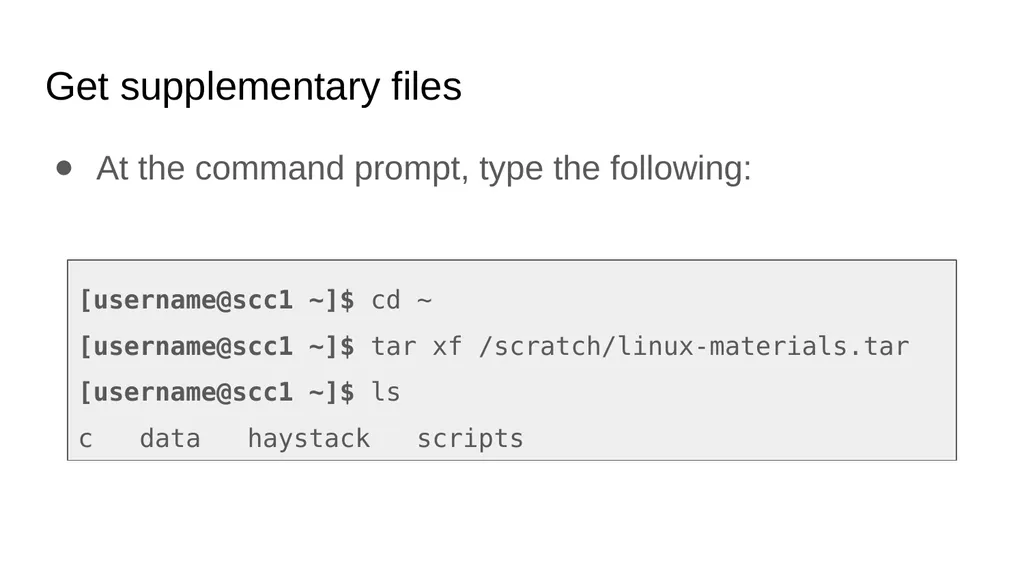
Get supplementary files At the command prompt, type the following: [username@scc1 ~]$ cd ~
[username@scc1 ~]$ tar xf /scratch/linux-materials.tar
[username@scc1 ~]$ ls
c data haystack scripts<br>
[username@scc1 ~]$ tar xf /scratch/linux-materials.tar
[username@scc1 ~]$ ls
c data haystack scripts<br>
22
Linux Interaction Shell, Prompt, Commands and System Use<br>
23
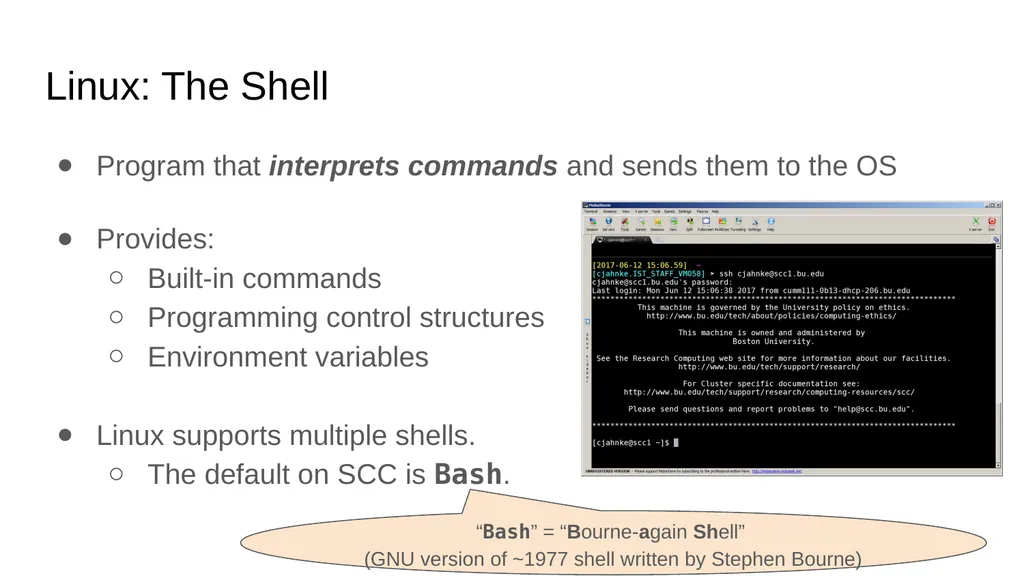
Linux: The Shell Program that interprets commands and sends them to the OS
Provides:
Built-in commands
Programming control structures
Environment variables
Linux supports multiple shells.
The default on SCC is Bash. “Bash” = “Bourne-again Shell” (GNU version of ~1977 shell written by Stephen Bourne)<br>
Provides:
Built-in commands
Programming control structures
Environment variables
Linux supports multiple shells.
The default on SCC is Bash. “Bash” = “Bourne-again Shell” (GNU version of ~1977 shell written by Stephen Bourne)<br>
24
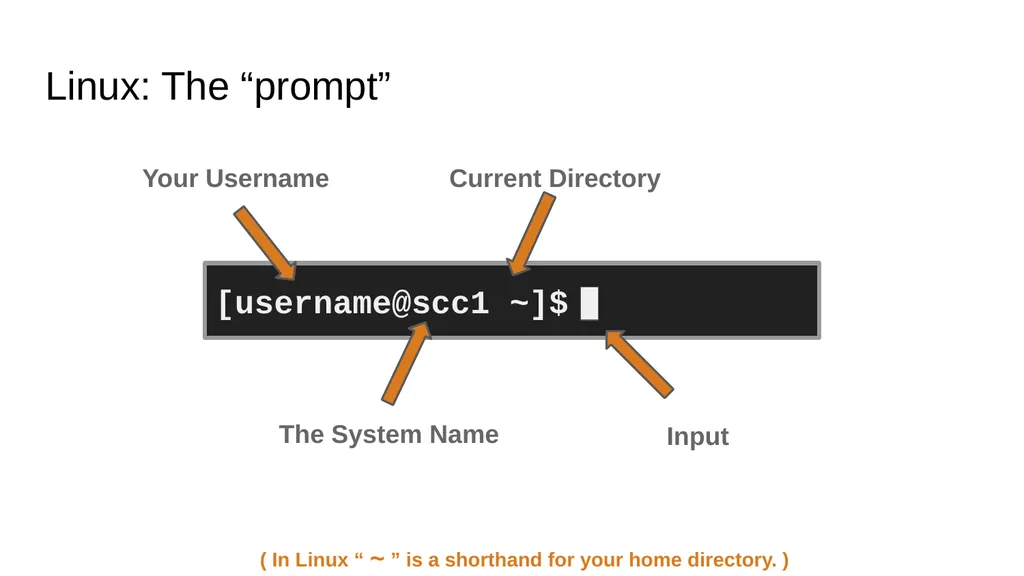
Linux: The “prompt” [username@scc1 ~]$ Your Username The System Name Current Directory ( In Linux “ ~ ” is a shorthand for your home directory. ) Input<br>
25
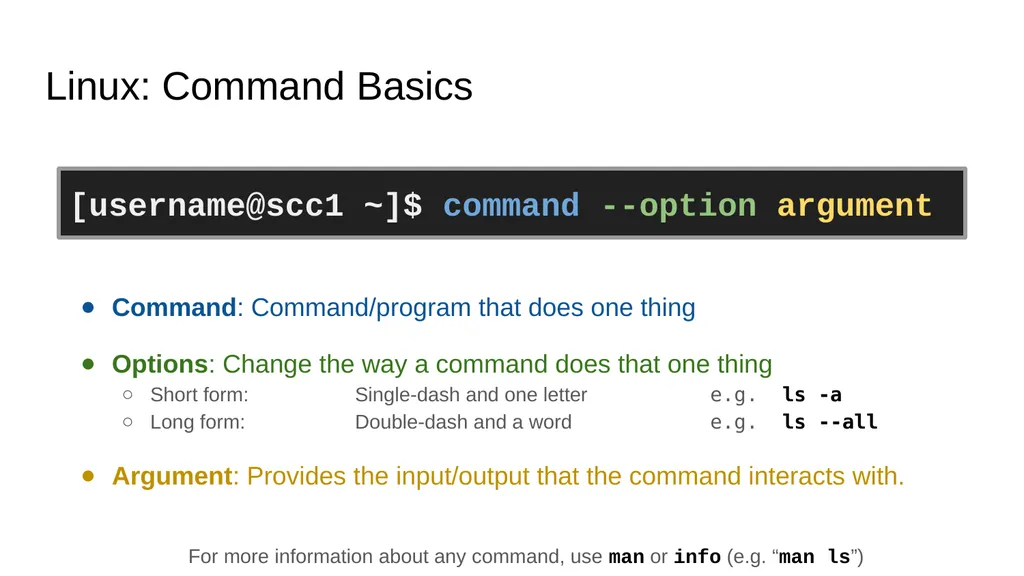
Linux: Command Basics Command: Command/program that does one thing
Options: Change the way a command does that one thing
Short form: Single-dash and one letter e.g. ls -a
Long form: Double-dash and a word e.g. ls --all
Argument: Provides the input/output that the command interacts with.
For more information about any command, use man or info (e.g. “man ls”) [username@scc1 ~]$ command --option argument<br>
Options: Change the way a command does that one thing
Short form: Single-dash and one letter e.g. ls -a
Long form: Double-dash and a word e.g. ls --all
Argument: Provides the input/output that the command interacts with.
For more information about any command, use man or info (e.g. “man ls”) [username@scc1 ~]$ command --option argument<br>
26
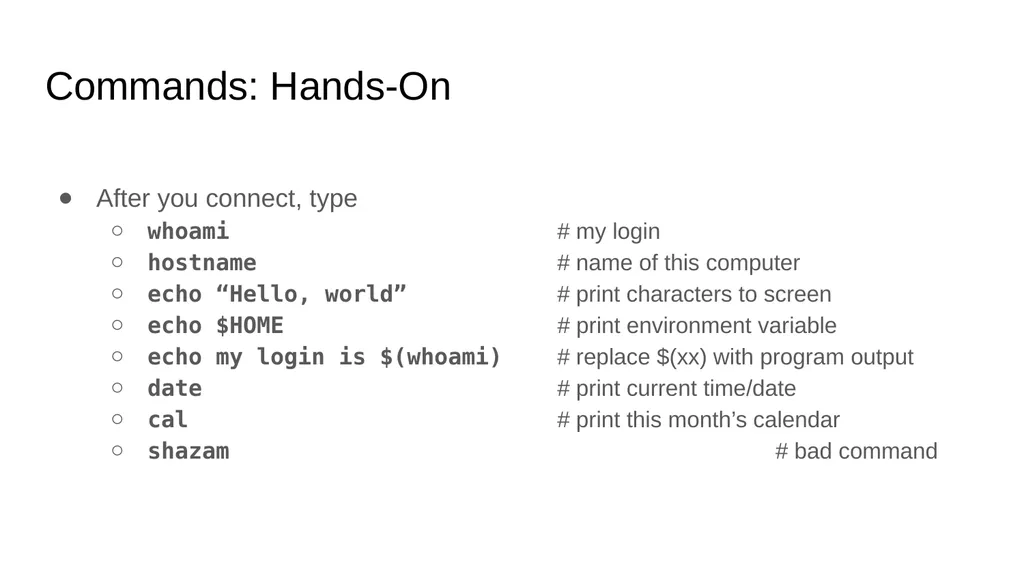
Commands: Hands-On After you connect, type
whoami # my login
hostname # name of this computer
echo “Hello, world” # print characters to screen
echo $HOME # print environment variable
echo my login is $(whoami) # replace $(xx) with program output
date # print current time/date
cal # print this month’s calendar
shazam # bad command<br>
whoami # my login
hostname # name of this computer
echo “Hello, world” # print characters to screen
echo $HOME # print environment variable
echo my login is $(whoami) # replace $(xx) with program output
date # print current time/date
cal # print this month’s calendar
shazam # bad command<br>
27
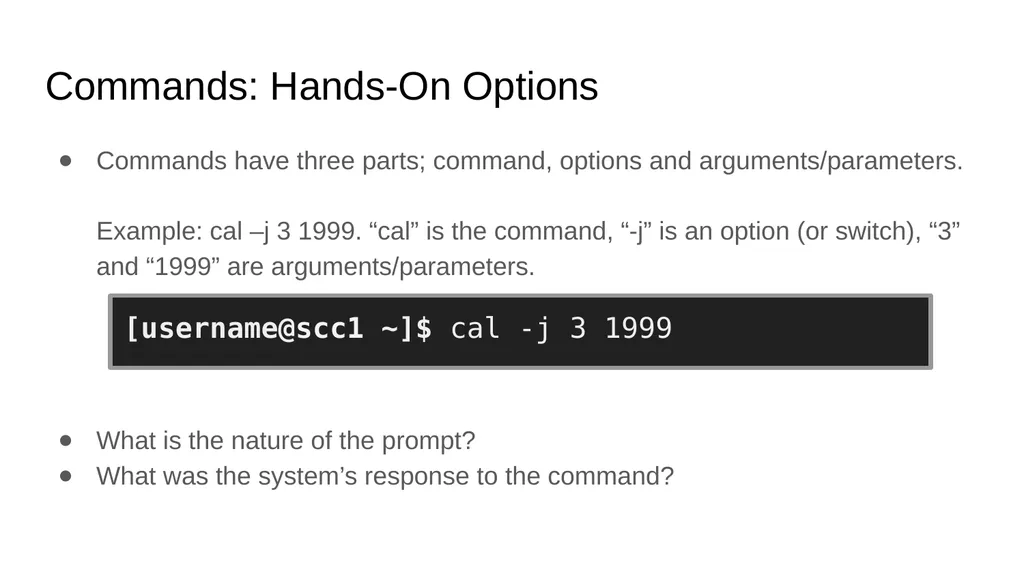
Commands: Hands-On Options Commands have three parts; command, options and arguments/parameters.
Example: cal –j 3 1999. “cal” is the command, “-j” is an option (or switch), “3” and “1999” are arguments/parameters.
What is the nature of the prompt?
What was the system’s response to the command? [username@scc1 ~]$ cal -j 3 1999<br>
What is the nature of the prompt?
What was the system’s response to the command? [username@scc1 ~]$ cal -j 3 1999<br>
28
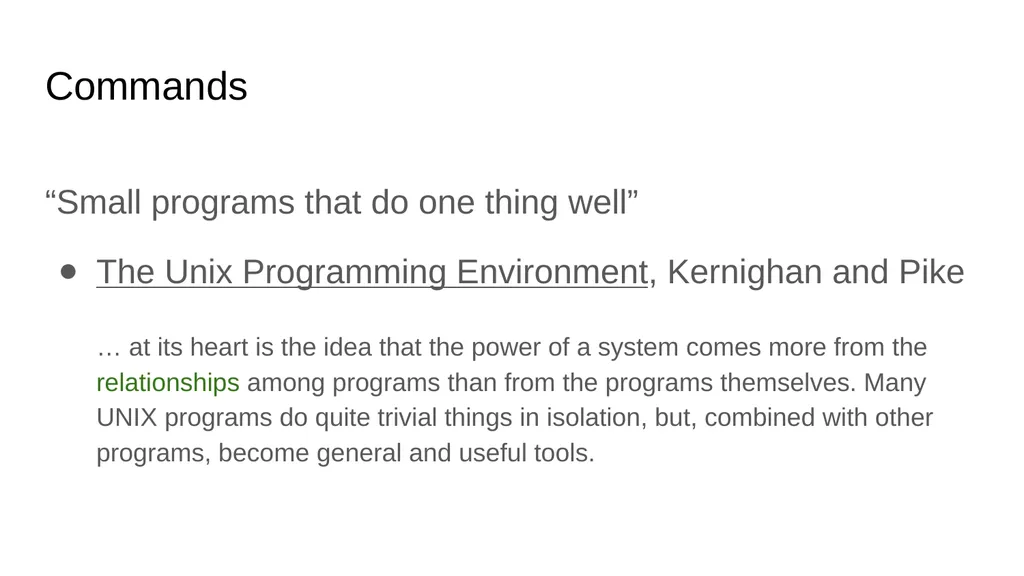
Commands “Small programs that do one thing well”
The Unix Programming Environment, Kernighan and Pike … at its heart is the idea that the power of a system comes more from the relationships among programs than from the programs themselves. Many UNIX programs do quite trivial things in isolation, but, combined with other programs, become general and useful tools.<br>
The Unix Programming Environment, Kernighan and Pike … at its heart is the idea that the power of a system comes more from the relationships among programs than from the programs themselves. Many UNIX programs do quite trivial things in isolation, but, combined with other programs, become general and useful tools.<br>
29
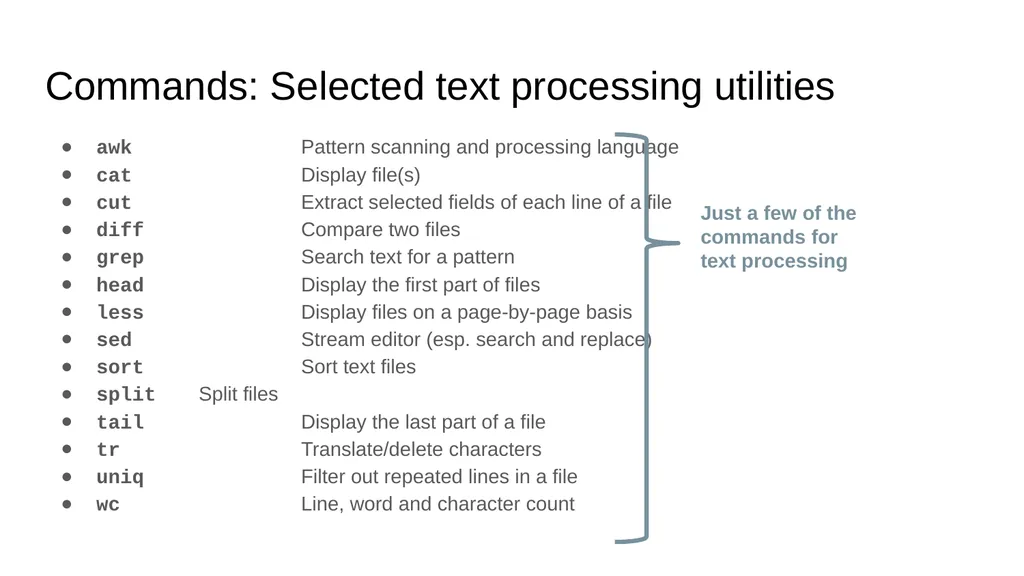
Commands: Selected text processing utilities awk Pattern scanning and processing language
cat Display file(s)
cut Extract selected fields of each line of a file
diff Compare two files
grep Search text for a pattern
head Display the first part of files
less Display files on a page-by-page basis
sed Stream editor (esp. search and replace)
sort Sort text files
split Split files
tail Display the last part of a file
tr Translate/delete characters
uniq Filter out repeated lines in a file
wc Line, word and character count Just a few of the commands for text processing<br>
cat Display file(s)
cut Extract selected fields of each line of a file
diff Compare two files
grep Search text for a pattern
head Display the first part of files
less Display files on a page-by-page basis
sed Stream editor (esp. search and replace)
sort Sort text files
split Split files
tail Display the last part of a file
tr Translate/delete characters
uniq Filter out repeated lines in a file
wc Line, word and character count Just a few of the commands for text processing<br>
30
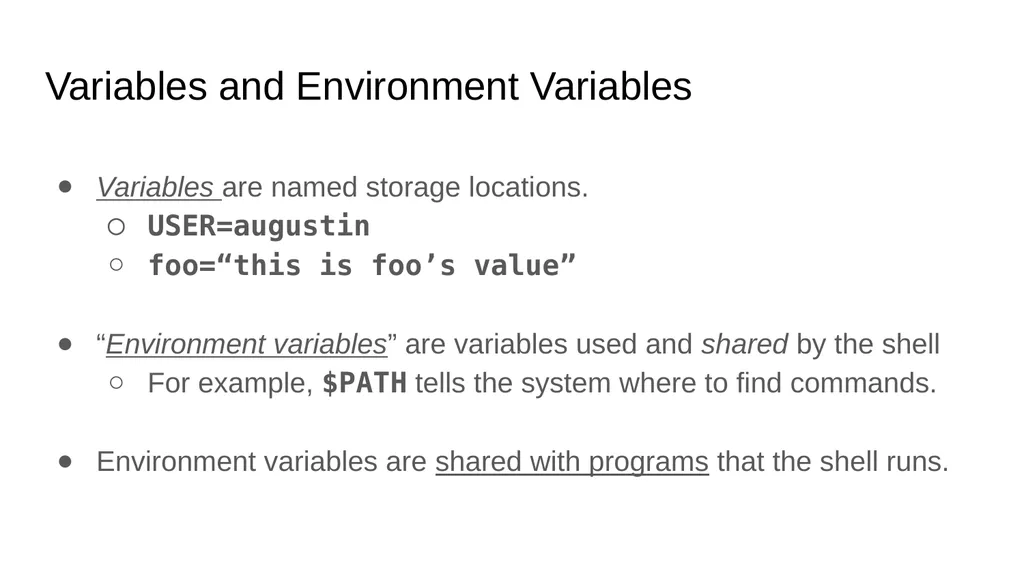
Variables and Environment Variables Variables are named storage locations.
USER=augustin
foo=“this is foo’s value”
“Environment variables” are variables used and shared by the shell
For example, $PATH tells the system where to find commands.
Environment variables are shared with programs that the shell runs.<br>
USER=augustin
foo=“this is foo’s value”
“Environment variables” are variables used and shared by the shell
For example, $PATH tells the system where to find commands.
Environment variables are shared with programs that the shell runs.<br>
31
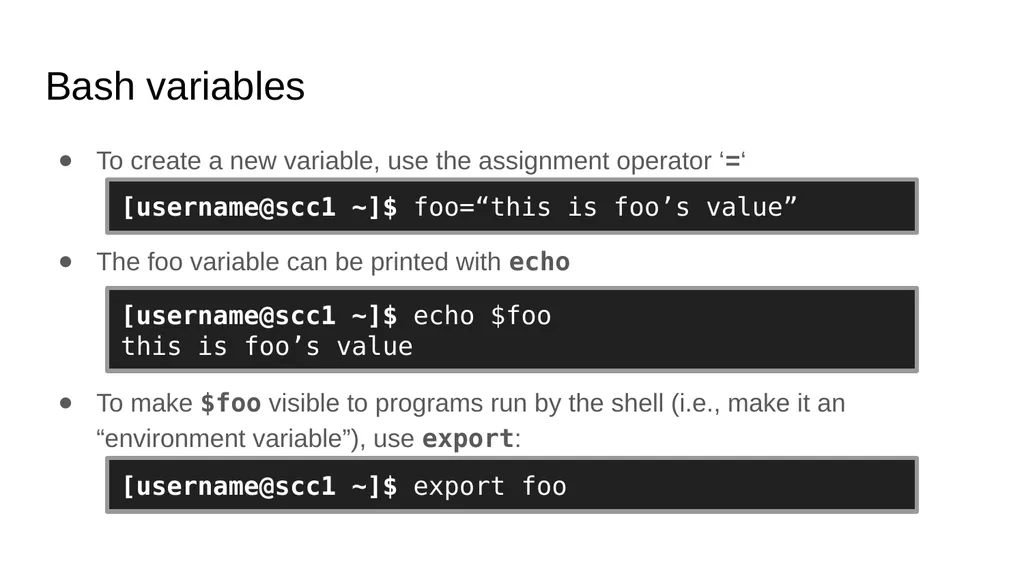
Bash variables To create a new variable, use the assignment operator ‘=‘
The foo variable can be printed with echo
To make $foo visible to programs run by the shell (i.e., make it an “environment variable”), use export: [username@scc1 ~]$ foo=“this is foo’s value” [username@scc1 ~]$ echo $foo
this is foo’s value [username@scc1 ~]$ export foo<br>
The foo variable can be printed with echo
To make $foo visible to programs run by the shell (i.e., make it an “environment variable”), use export: [username@scc1 ~]$ foo=“this is foo’s value” [username@scc1 ~]$ echo $foo
this is foo’s value [username@scc1 ~]$ export foo<br>
32
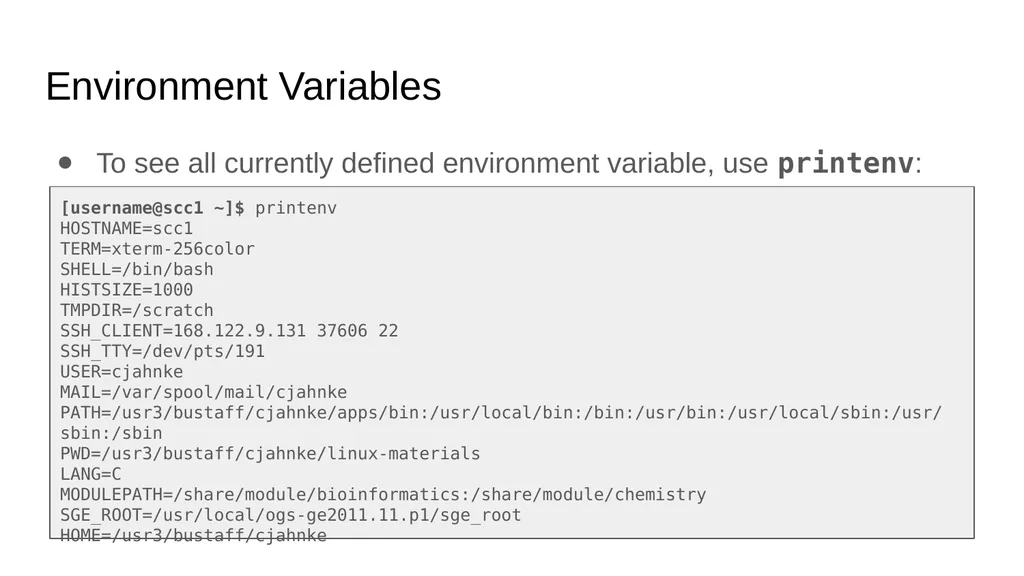
Environment Variables To see all currently defined environment variable, use printenv: [username@scc1 ~]$ printenv
HOSTNAME=scc1
TERM=xterm-256color
SHELL=/bin/bash
HISTSIZE=1000
TMPDIR=/scratch
SSH_CLIENT=168.122.9.131 37606 22
SSH_TTY=/dev/pts/191
USER=cjahnke
MAIL=/var/spool/mail/cjahnke
PATH=/usr3/bustaff/cjahnke/apps/bin:/usr/local/bin:/bin:/usr/bin:/usr/local/sbin:/usr/sbin:/sbin
PWD=/usr3/bustaff/cjahnke/linux-materials
LANG=C
MODULEPATH=/share/module/bioinformatics:/share/module/chemistry
SGE_ROOT=/usr/local/ogs-ge2011.11.p1/sge_root
HOME=/usr3/bustaff/cjahnke<br>
HOSTNAME=scc1
TERM=xterm-256color
SHELL=/bin/bash
HISTSIZE=1000
TMPDIR=/scratch
SSH_CLIENT=168.122.9.131 37606 22
SSH_TTY=/dev/pts/191
USER=cjahnke
MAIL=/var/spool/mail/cjahnke
PATH=/usr3/bustaff/cjahnke/apps/bin:/usr/local/bin:/bin:/usr/bin:/usr/local/sbin:/usr/sbin:/sbin
PWD=/usr3/bustaff/cjahnke/linux-materials
LANG=C
MODULEPATH=/share/module/bioinformatics:/share/module/chemistry
SGE_ROOT=/usr/local/ogs-ge2011.11.p1/sge_root
HOME=/usr3/bustaff/cjahnke<br>
33
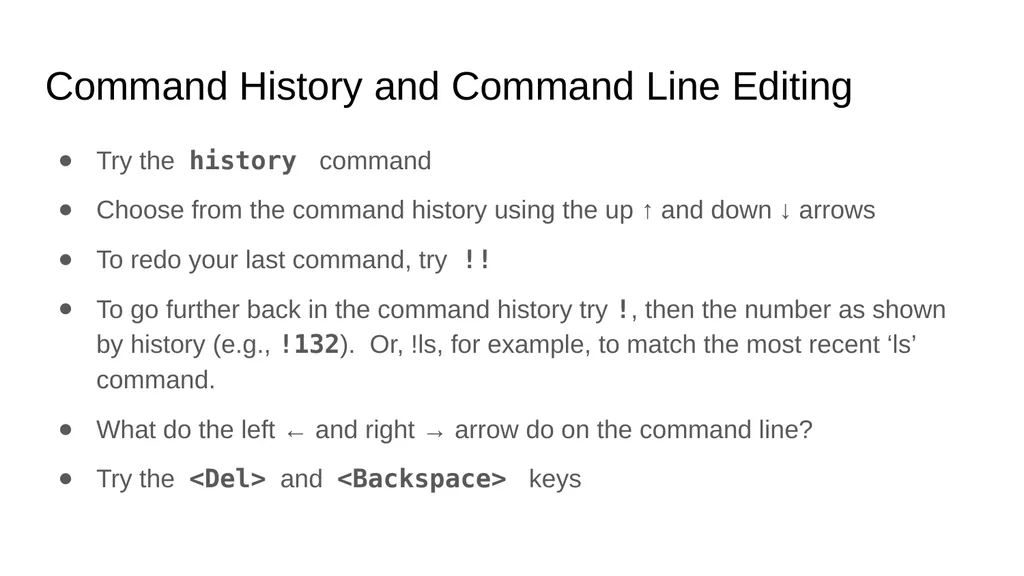
Command History and Command Line Editing Try the history command
Choose from the command history using the up ↑ and down ↓ arrows
To redo your last command, try !!
To go further back in the command history try !, then the number as shown by history (e.g., !132). Or, !ls, for example, to match the most recent ‘ls’ command.
What do the left ← and right → arrow do on the command line?
Try the <Del> and <Backspace> keys<br>
Choose from the command history using the up ↑ and down ↓ arrows
To redo your last command, try !!
To go further back in the command history try !, then the number as shown by history (e.g., !132). Or, !ls, for example, to match the most recent ‘ls’ command.
What do the left ← and right → arrow do on the command line?
Try the <Del> and <Backspace> keys<br>
34
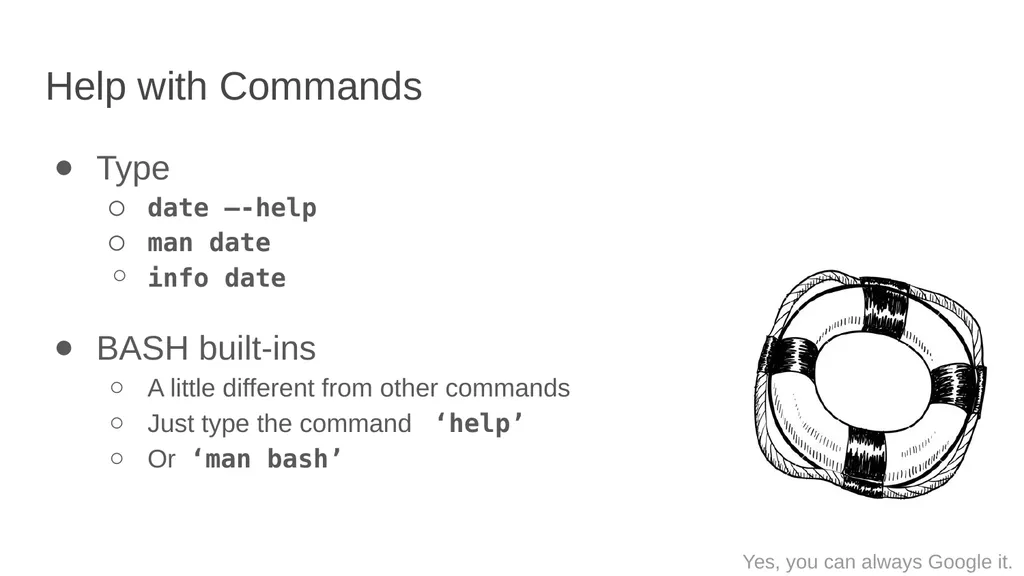
Help with Commands Type
date –-help
man date
info date
BASH built-ins
A little different from other commands
Just type the command ‘help’
Or ‘man bash’ Yes, you can always Google it.<br>
date –-help
man date
info date
BASH built-ins
A little different from other commands
Just type the command ‘help’
Or ‘man bash’ Yes, you can always Google it.<br>
35
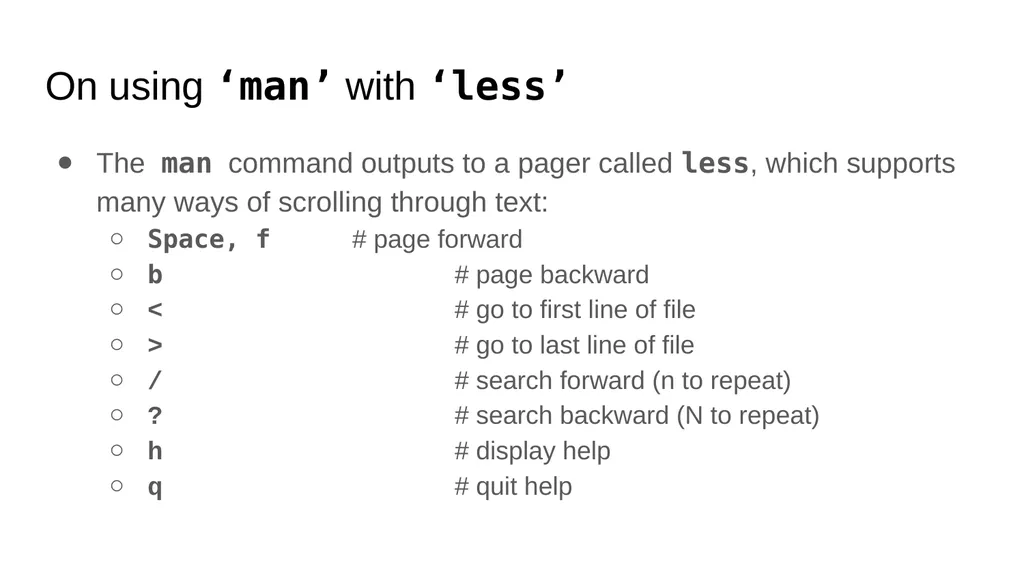
On using ‘man’ with ‘less’ The man command outputs to a pager called less, which supports many ways of scrolling through text:
Space, f # page forward
b # page backward
< # go to first line of file
> # go to last line of file
/ # search forward (n to repeat)
? # search backward (N to repeat)
h # display help
q # quit help<br>
Space, f # page forward
b # page backward
< # go to first line of file
> # go to last line of file
/ # search forward (n to repeat)
? # search backward (N to repeat)
h # display help
q # quit help<br>
36
I/O Redirection<br>
37
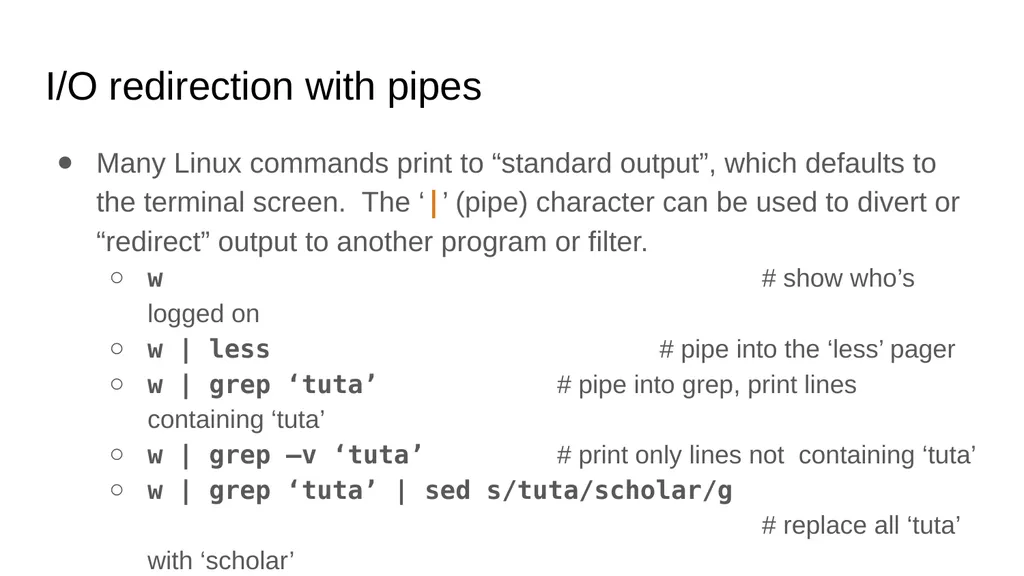
I/O redirection with pipes Many Linux commands print to “standard output”, which defaults to the terminal screen. The ‘|’ (pipe) character can be used to divert or “redirect” output to another program or filter.
w # show who’s logged on
w | less # pipe into the ‘less’ pager
w | grep ‘tuta’ # pipe into grep, print lines containing ‘tuta’
w | grep –v ‘tuta’ # print only lines not containing ‘tuta’
w | grep ‘tuta’ | sed s/tuta/scholar/g # replace all ‘tuta’ with ‘scholar’<br>
w # show who’s logged on
w | less # pipe into the ‘less’ pager
w | grep ‘tuta’ # pipe into grep, print lines containing ‘tuta’
w | grep –v ‘tuta’ # print only lines not containing ‘tuta’
w | grep ‘tuta’ | sed s/tuta/scholar/g # replace all ‘tuta’ with ‘scholar’<br>
38
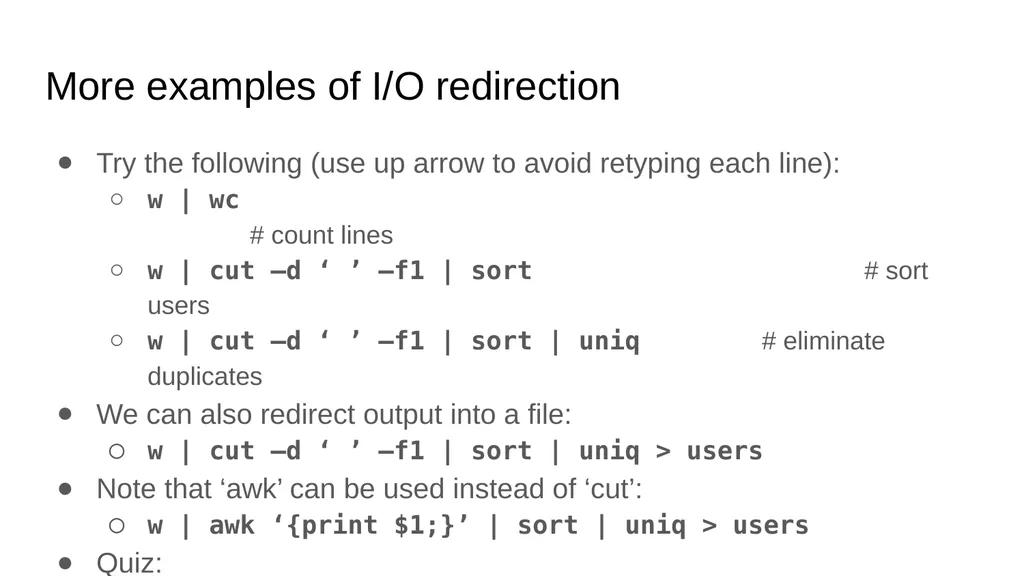
More examples of I/O redirection Try the following (use up arrow to avoid retyping each line):
w | wc # count lines
w | cut –d ‘ ’ –f1 | sort # sort users
w | cut –d ‘ ’ –f1 | sort | uniq # eliminate duplicates
We can also redirect output into a file:
w | cut –d ‘ ’ –f1 | sort | uniq > users
Note that ‘awk’ can be used instead of ‘cut’:
w | awk ‘{print $1;}’ | sort | uniq > users
Quiz:
How might we count the number of distinct users currently logged in? For extra credit, how can we avoid over-counting by 2? (Hint: use ‘tail’.)<br>
w | wc # count lines
w | cut –d ‘ ’ –f1 | sort # sort users
w | cut –d ‘ ’ –f1 | sort | uniq # eliminate duplicates
We can also redirect output into a file:
w | cut –d ‘ ’ –f1 | sort | uniq > users
Note that ‘awk’ can be used instead of ‘cut’:
w | awk ‘{print $1;}’ | sort | uniq > users
Quiz:
How might we count the number of distinct users currently logged in? For extra credit, how can we avoid over-counting by 2? (Hint: use ‘tail’.)<br>
39
The Filesystem<br>
40
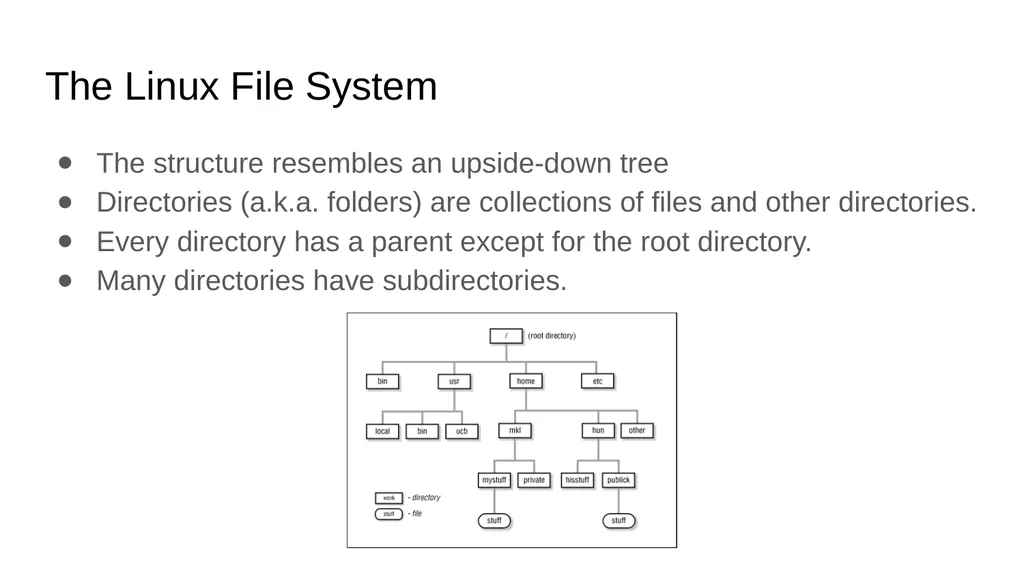
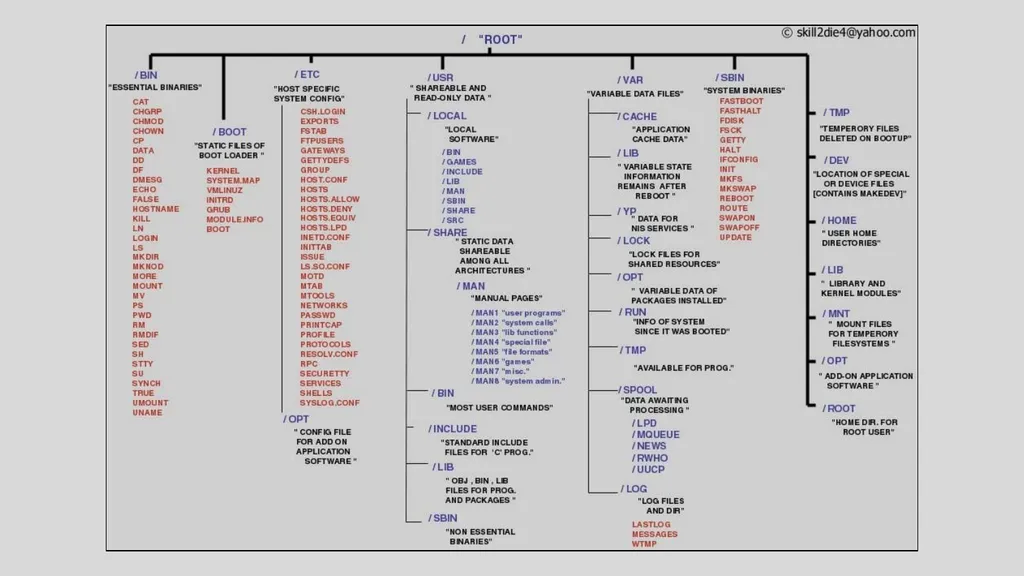
The Linux File System The structure resembles an upside-down tree
Directories (a.k.a. folders) are collections of files and other directories.
Every directory has a parent except for the root directory.
Many directories have subdirectories.<br>
Directories (a.k.a. folders) are collections of files and other directories.
Every directory has a parent except for the root directory.
Many directories have subdirectories.<br>
41
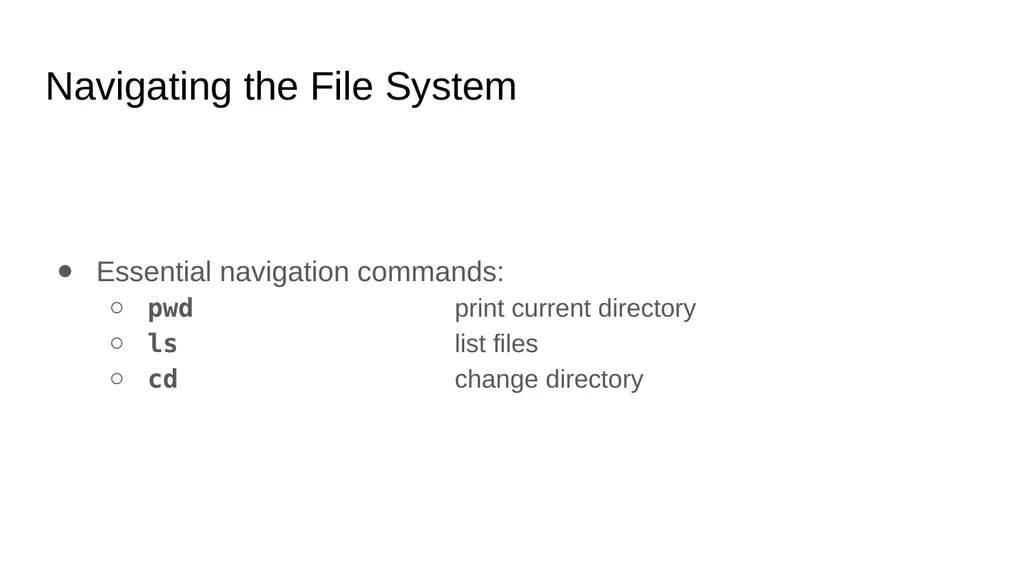
Navigating the File System Essential navigation commands:
pwd print current directory
ls list files
cd change directory<br>
pwd print current directory
ls list files
cd change directory<br>
42
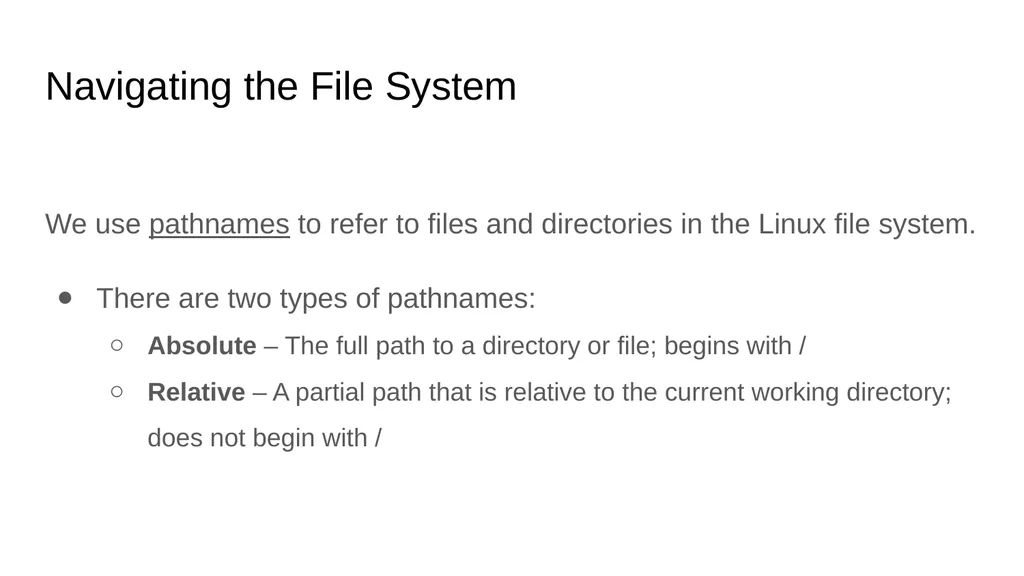
Navigating the File System We use pathnames to refer to files and directories in the Linux file system.
There are two types of pathnames:
Absolute – The full path to a directory or file; begins with /
Relative – A partial path that is relative to the current working directory; does not begin with /<br>
There are two types of pathnames:
Absolute – The full path to a directory or file; begins with /
Relative – A partial path that is relative to the current working directory; does not begin with /<br>
43
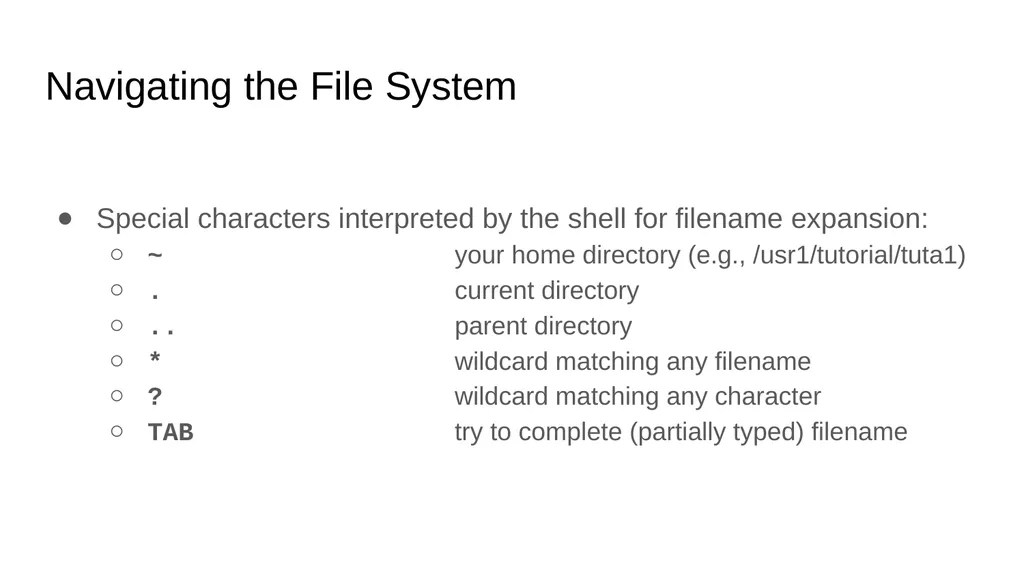
Navigating the File System Special characters interpreted by the shell for filename expansion:
~ your home directory (e.g., /usr1/tutorial/tuta1)
. current directory
.. parent directory
* wildcard matching any filename
? wildcard matching any character
TAB try to complete (partially typed) filename<br>
~ your home directory (e.g., /usr1/tutorial/tuta1)
. current directory
.. parent directory
* wildcard matching any filename
? wildcard matching any character
TAB try to complete (partially typed) filename<br>
44
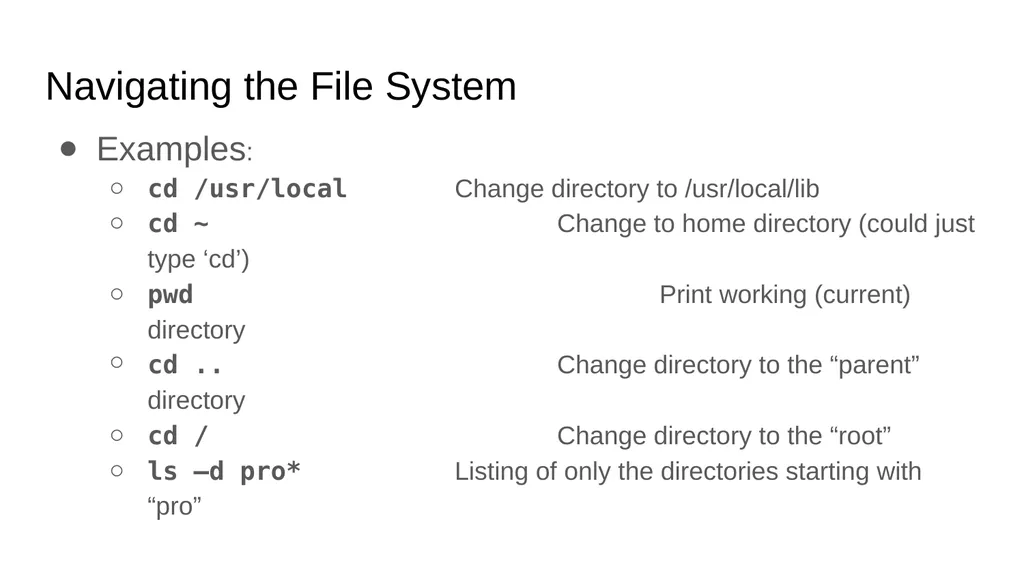
Navigating the File System Examples:
cd /usr/local Change directory to /usr/local/lib
cd ~ Change to home directory (could just type ‘cd’)
pwd Print working (current) directory
cd .. Change directory to the “parent” directory
cd / Change directory to the “root”
ls –d pro* Listing of only the directories starting with “pro”<br>
cd /usr/local Change directory to /usr/local/lib
cd ~ Change to home directory (could just type ‘cd’)
pwd Print working (current) directory
cd .. Change directory to the “parent” directory
cd / Change directory to the “root”
ls –d pro* Listing of only the directories starting with “pro”<br>
45
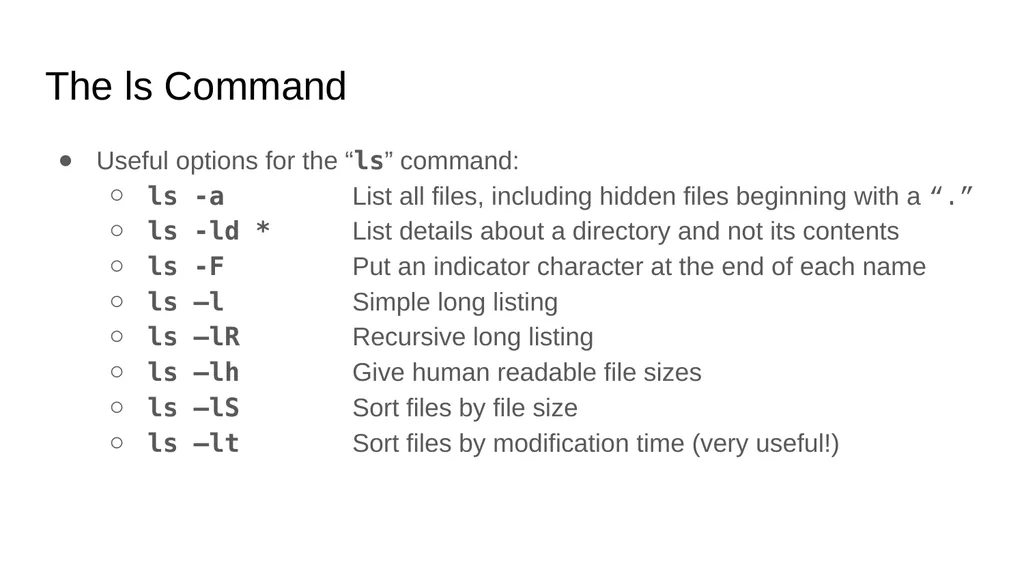
The ls Command Useful options for the “ls” command:
ls -a List all files, including hidden files beginning with a “.”
ls -ld * List details about a directory and not its contents
ls -F Put an indicator character at the end of each name
ls –l Simple long listing
ls –lR Recursive long listing
ls –lh Give human readable file sizes
ls –lS Sort files by file size
ls –lt Sort files by modification time (very useful!)<br>
ls -a List all files, including hidden files beginning with a “.”
ls -ld * List details about a directory and not its contents
ls -F Put an indicator character at the end of each name
ls –l Simple long listing
ls –lR Recursive long listing
ls –lh Give human readable file sizes
ls –lS Sort files by file size
ls –lt Sort files by modification time (very useful!)<br>
46
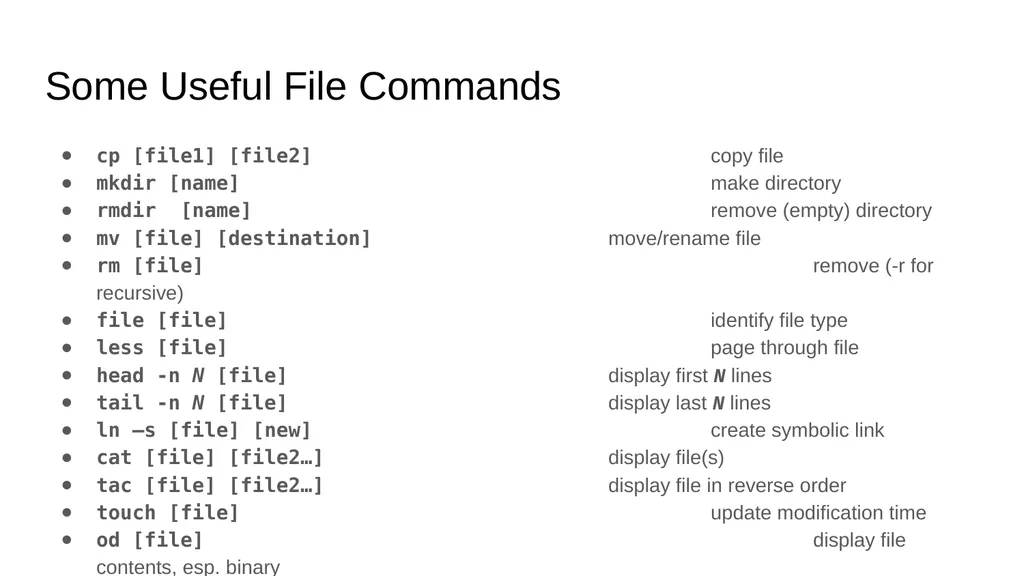
Some Useful File Commands cp [file1] [file2] copy file
mkdir [name] make directory
rmdir [name] remove (empty) directory
mv [file] [destination] move/rename file
rm [file] remove (-r for recursive)
file [file] identify file type
less [file] page through file
head -n N [file] display first N lines
tail -n N [file] display last N lines
ln –s [file] [new] create symbolic link
cat [file] [file2…] display file(s)
tac [file] [file2…] display file in reverse order
touch [file] update modification time
od [file] display file contents, esp. binary<br>
mkdir [name] make directory
rmdir [name] remove (empty) directory
mv [file] [destination] move/rename file
rm [file] remove (-r for recursive)
file [file] identify file type
less [file] page through file
head -n N [file] display first N lines
tail -n N [file] display last N lines
ln –s [file] [new] create symbolic link
cat [file] [file2…] display file(s)
tac [file] [file2…] display file in reverse order
touch [file] update modification time
od [file] display file contents, esp. binary<br>
47
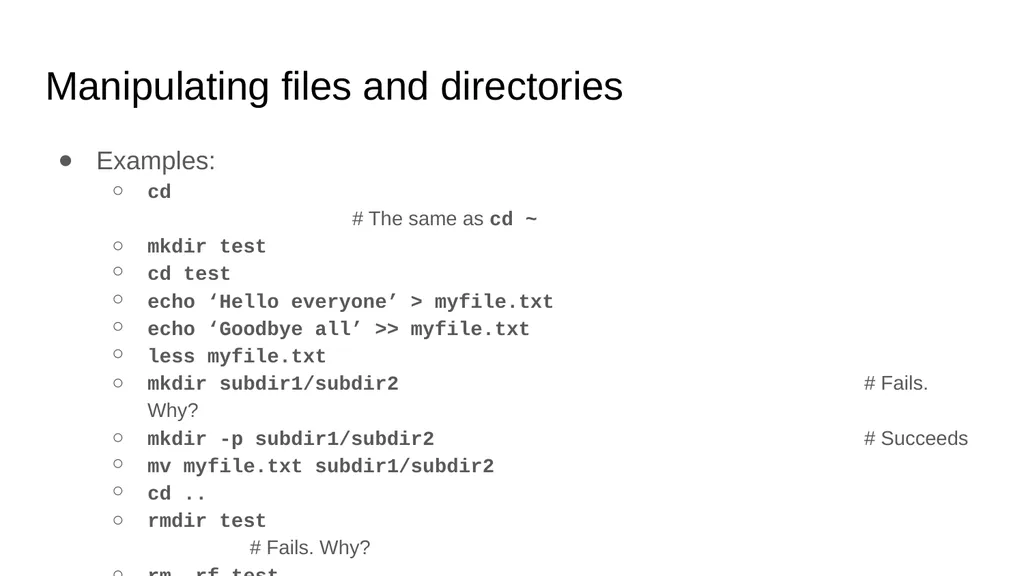
Manipulating files and directories Examples:
cd # The same as cd ~
mkdir test
cd test
echo ‘Hello everyone’ > myfile.txt
echo ‘Goodbye all’ >> myfile.txt
less myfile.txt
mkdir subdir1/subdir2 # Fails. Why?
mkdir -p subdir1/subdir2 # Succeeds
mv myfile.txt subdir1/subdir2
cd ..
rmdir test # Fails. Why?
rm –rf test # Succeeds<br>
cd # The same as cd ~
mkdir test
cd test
echo ‘Hello everyone’ > myfile.txt
echo ‘Goodbye all’ >> myfile.txt
less myfile.txt
mkdir subdir1/subdir2 # Fails. Why?
mkdir -p subdir1/subdir2 # Succeeds
mv myfile.txt subdir1/subdir2
cd ..
rmdir test # Fails. Why?
rm –rf test # Succeeds<br>
48
Symbolic links Sometimes it is helpful to be able to access a file from multiple locations within the hierarchy. On a Windows system, we might create a “shortcut.” On a Linux system, we can create a symbolic link:
mkdir foo # make foo directory
touch foo/bar # create empty file
ln –s foo/bar . # create link in current dir.<br>
mkdir foo # make foo directory
touch foo/bar # create empty file
ln –s foo/bar . # create link in current dir.<br>
49
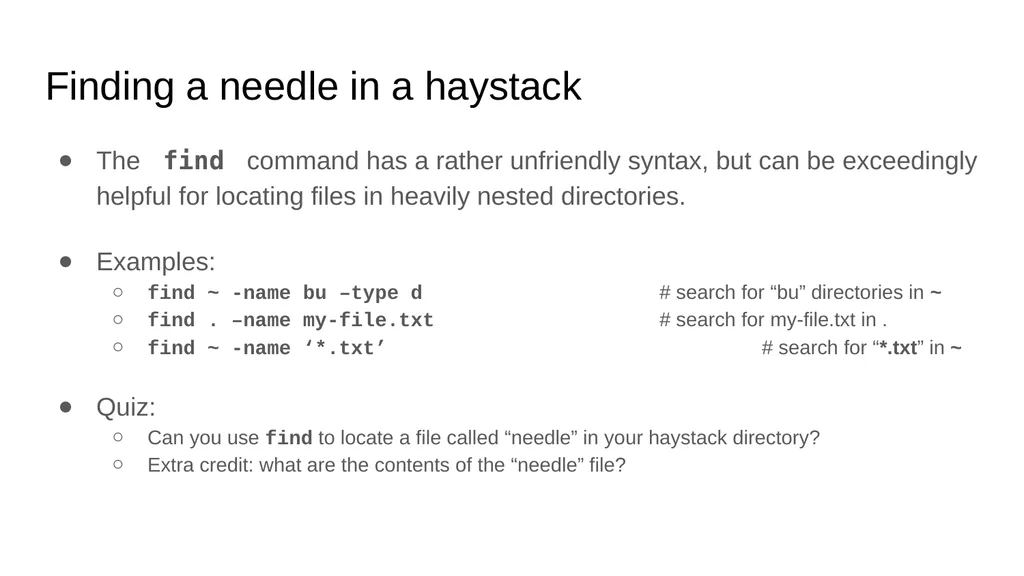
Finding a needle in a haystack The find command has a rather unfriendly syntax, but can be exceedingly helpful for locating files in heavily nested directories.
Examples:
find ~ -name bu –type d # search for “bu” directories in ~
find . –name my-file.txt # search for my-file.txt in .
find ~ -name ‘*.txt’ # search for “*.txt” in ~
Quiz:
Can you use find to locate a file called “needle” in your haystack directory?
Extra credit: what are the contents of the “needle” file?<br>
Examples:
find ~ -name bu –type d # search for “bu” directories in ~
find . –name my-file.txt # search for my-file.txt in .
find ~ -name ‘*.txt’ # search for “*.txt” in ~
Quiz:
Can you use find to locate a file called “needle” in your haystack directory?
Extra credit: what are the contents of the “needle” file?<br>
50
Processes & Job Control<br>
51
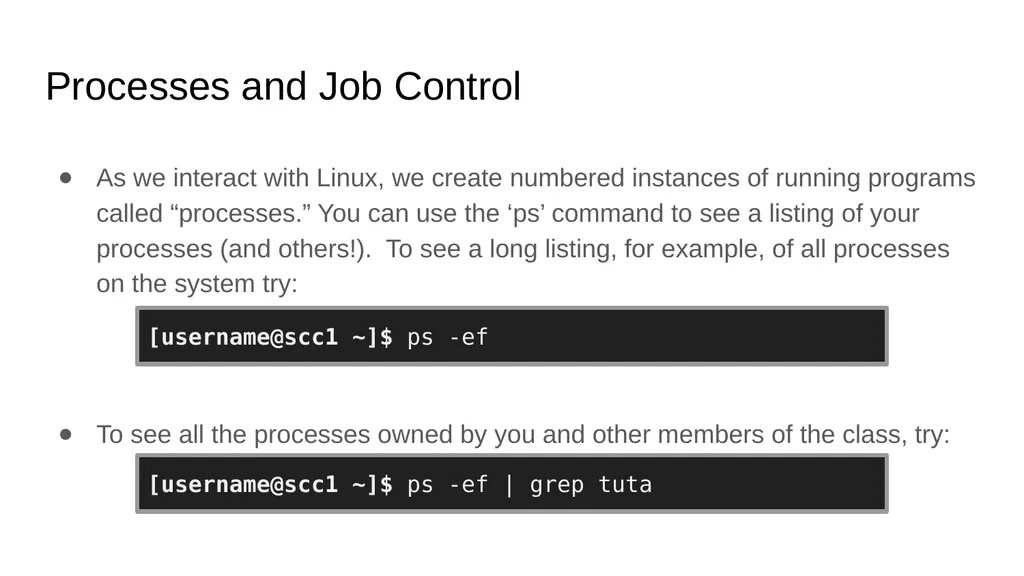
Processes and Job Control As we interact with Linux, we create numbered instances of running programs called “processes.” You can use the ‘ps’ command to see a listing of your processes (and others!). To see a long listing, for example, of all processes on the system try:
To see all the processes owned by you and other members of the class, try: [username@scc1 ~]$ ps -ef [username@scc1 ~]$ ps -ef | grep tuta<br>
To see all the processes owned by you and other members of the class, try: [username@scc1 ~]$ ps -ef [username@scc1 ~]$ ps -ef | grep tuta<br>
52
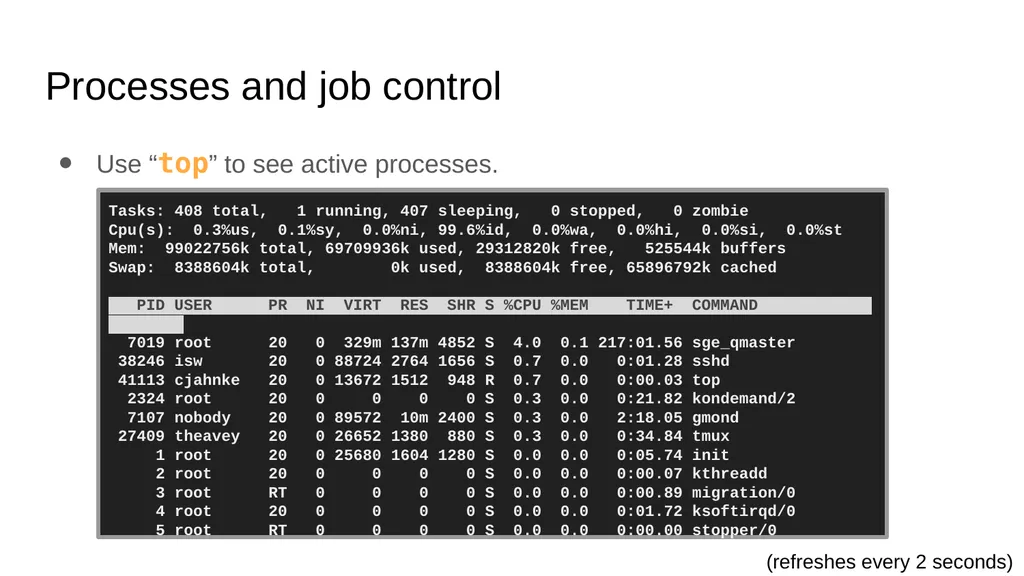
Processes and job control Use “top” to see active processes. Tasks: 408 total, 1 running, 407 sleeping, 0 stopped, 0 zombie
Cpu(s): 0.3%us, 0.1%sy, 0.0%ni, 99.6%id, 0.0%wa, 0.0%hi, 0.0%si, 0.0%st
Mem: 99022756k total, 69709936k used, 29312820k free, 525544k buffers
Swap: 8388604k total, 0k used, 8388604k free, 65896792k cached
PID USER PR NI VIRT RES SHR S %CPU %MEM TIME+ COMMAND .
7019 root 20 0 329m 137m 4852 S 4.0 0.1 217:01.56 sge_qmaster
38246 isw 20 0 88724 2764 1656 S 0.7 0.0 0:01.28 sshd
41113 cjahnke 20 0 13672 1512 948 R 0.7 0.0 0:00.03 top
2324 root 20 0 0 0 0 S 0.3 0.0 0:21.82 kondemand/2
7107 nobody 20 0 89572 10m 2400 S 0.3 0.0 2:18.05 gmond
27409 theavey 20 0 26652 1380 880 S 0.3 0.0 0:34.84 tmux
1 root 20 0 25680 1604 1280 S 0.0 0.0 0:05.74 init
2 root 20 0 0 0 0 S 0.0 0.0 0:00.07 kthreadd
3 root RT 0 0 0 0 S 0.0 0.0 0:00.89 migration/0
4 root 20 0 0 0 0 S 0.0 0.0 0:01.72 ksoftirqd/0
5 root RT 0 0 0 0 S 0.0 0.0 0:00.00 stopper/0 (refreshes every 2 seconds)<br>
Mem: 99022756k total, 69709936k used, 29312820k free, 525544k buffers
Swap: 8388604k total, 0k used, 8388604k free, 65896792k cached
PID USER PR NI VIRT RES SHR S %CPU %MEM TIME+ COMMAND .
7019 root 20 0 329m 137m 4852 S 4.0 0.1 217:01.56 sge_qmaster
38246 isw 20 0 88724 2764 1656 S 0.7 0.0 0:01.28 sshd
41113 cjahnke 20 0 13672 1512 948 R 0.7 0.0 0:00.03 top
2324 root 20 0 0 0 0 S 0.3 0.0 0:21.82 kondemand/2
7107 nobody 20 0 89572 10m 2400 S 0.3 0.0 2:18.05 gmond
27409 theavey 20 0 26652 1380 880 S 0.3 0.0 0:34.84 tmux
1 root 20 0 25680 1604 1280 S 0.0 0.0 0:05.74 init
2 root 20 0 0 0 0 S 0.0 0.0 0:00.07 kthreadd
3 root RT 0 0 0 0 S 0.0 0.0 0:00.89 migration/0
4 root 20 0 0 0 0 S 0.0 0.0 0:01.72 ksoftirqd/0
5 root RT 0 0 0 0 S 0.0 0.0 0:00.00 stopper/0 (refreshes every 2 seconds)<br>
53
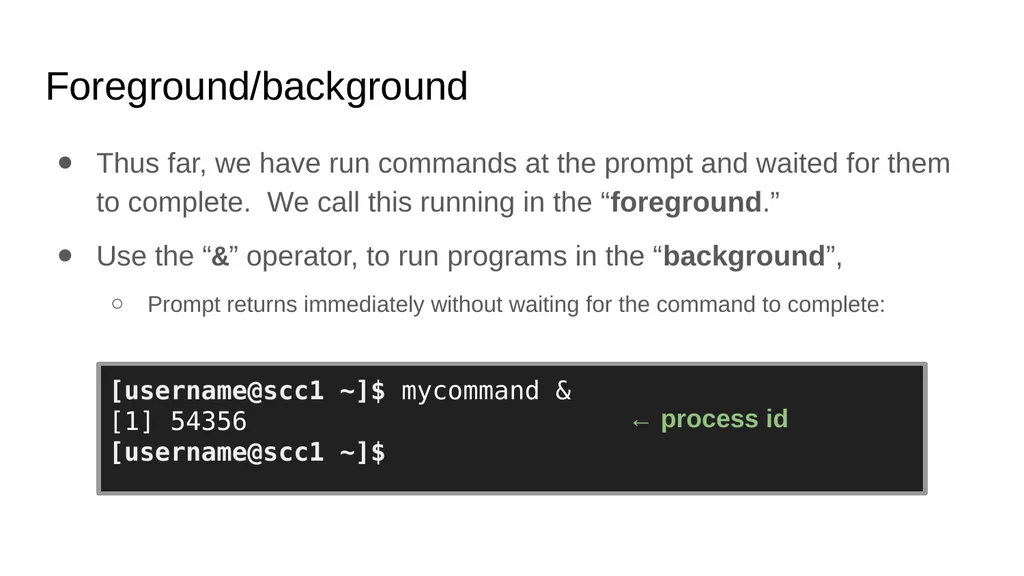
Foreground/background Thus far, we have run commands at the prompt and waited for them to complete. We call this running in the “foreground.”
Use the “&” operator, to run programs in the “background”,
Prompt returns immediately without waiting for the command to complete: [username@scc1 ~]$ mycommand & [1] 54356 [username@scc1 ~]$ ← process id<br>
Use the “&” operator, to run programs in the “background”,
Prompt returns immediately without waiting for the command to complete: [username@scc1 ~]$ mycommand & [1] 54356 [username@scc1 ~]$ ← process id<br>
54
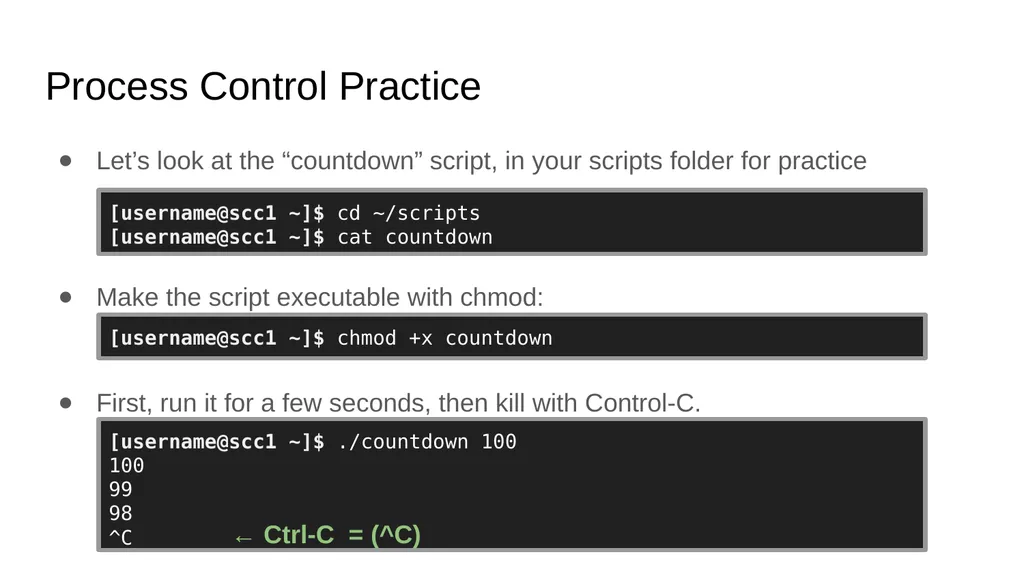
Process Control Practice Let’s look at the “countdown” script, in your scripts folder for practice
Make the script executable with chmod:
First, run it for a few seconds, then kill with Control-C. [username@scc1 ~]$ cd ~/scripts [username@scc1 ~]$ cat countdown [username@scc1 ~]$ chmod +x countdown [username@scc1 ~]$ ./countdown 100
100
99
98
^C ← Ctrl-C = (^C)<br>
Make the script executable with chmod:
First, run it for a few seconds, then kill with Control-C. [username@scc1 ~]$ cd ~/scripts [username@scc1 ~]$ cat countdown [username@scc1 ~]$ chmod +x countdown [username@scc1 ~]$ ./countdown 100
100
99
98
^C ← Ctrl-C = (^C)<br>
55
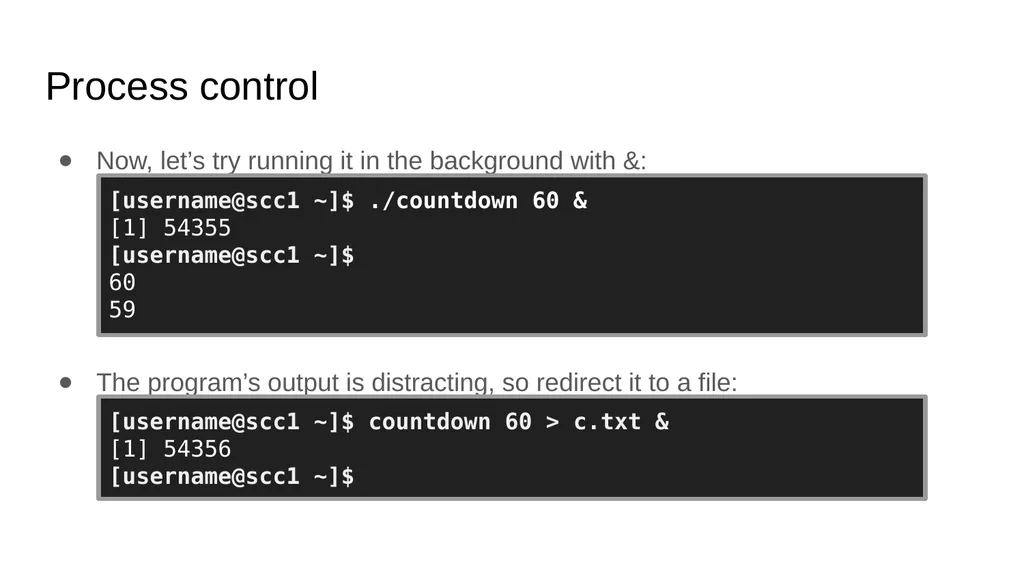
Process control Now, let’s try running it in the background with &:
The program’s output is distracting, so redirect it to a file: [username@scc1 ~]$ ./countdown 60 & [1] 54355 [username@scc1 ~]$ 60 59 [username@scc1 ~]$ countdown 60 > c.txt & [1] 54356 [username@scc1 ~]$<br>
The program’s output is distracting, so redirect it to a file: [username@scc1 ~]$ ./countdown 60 & [1] 54355 [username@scc1 ~]$ 60 59 [username@scc1 ~]$ countdown 60 > c.txt & [1] 54356 [username@scc1 ~]$<br>
56
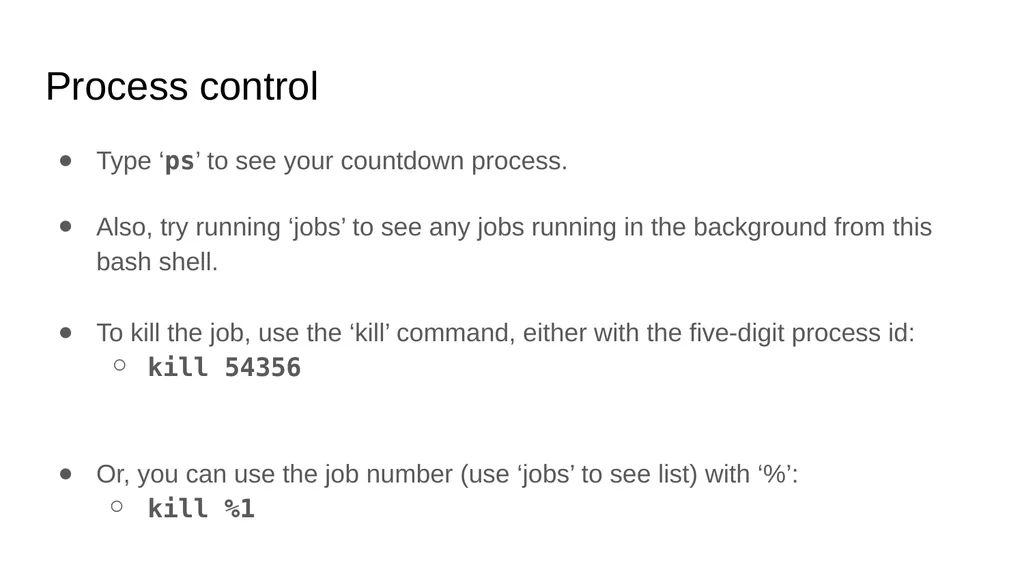
Process control Type ‘ps’ to see your countdown process.
Also, try running ‘jobs’ to see any jobs running in the background from this bash shell.
To kill the job, use the ‘kill’ command, either with the five-digit process id:
kill 54356
Or, you can use the job number (use ‘jobs’ to see list) with ‘%’:
kill %1<br>
Also, try running ‘jobs’ to see any jobs running in the background from this bash shell.
To kill the job, use the ‘kill’ command, either with the five-digit process id:
kill 54356
Or, you can use the job number (use ‘jobs’ to see list) with ‘%’:
kill %1<br>
57
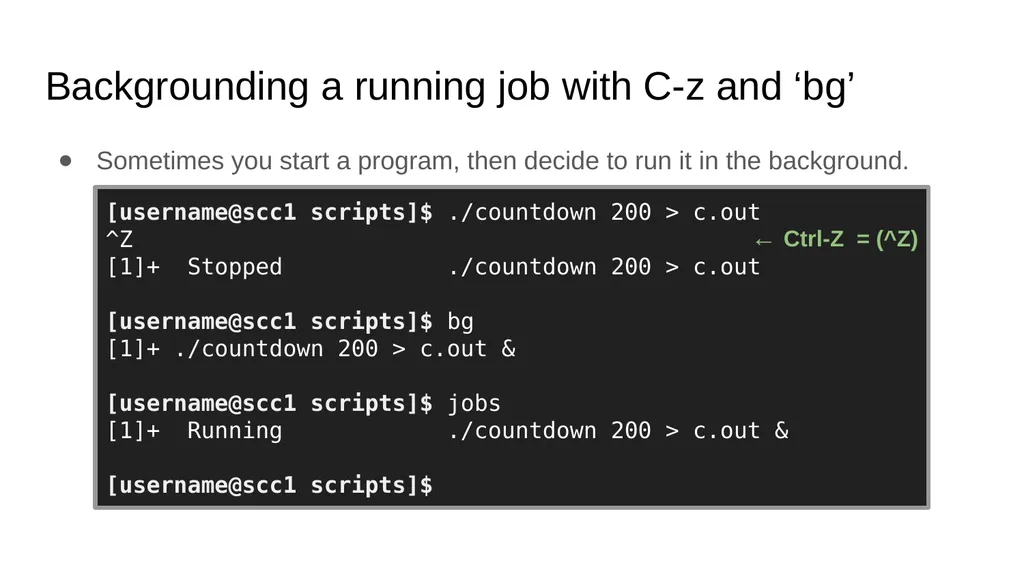
Backgrounding a running job with C-z and ‘bg’ Sometimes you start a program, then decide to run it in the background. [username@scc1 scripts]$ ./countdown 200 > c.out
^Z
[1]+ Stopped ./countdown 200 > c.out
[username@scc1 scripts]$ bg
[1]+ ./countdown 200 > c.out &
[username@scc1 scripts]$ jobs
[1]+ Running ./countdown 200 > c.out &
[username@scc1 scripts]$ ← Ctrl-Z = (^Z)<br>
^Z
[1]+ Stopped ./countdown 200 > c.out
[username@scc1 scripts]$ bg
[1]+ ./countdown 200 > c.out &
[username@scc1 scripts]$ jobs
[1]+ Running ./countdown 200 > c.out &
[username@scc1 scripts]$ ← Ctrl-Z = (^Z)<br>
58
Editors<br>
59
Regular expressions Many Linux tools, such as grep and sed, use strings that describe sequences of characters. These strings are called regular expressions.
Here are some examples:
^foo # line begins with “foo”
bar$ # line ends with “bar”
[0-9]\{3\} # 3-digit number
.*a.*e.*i.*o.*u.* # words with vowels in order*<br>
^foo # line begins with “foo”
bar$ # line ends with “bar”
[0-9]\{3\} # 3-digit number
.*a.*e.*i.*o.*u.* # words with vowels in order*<br>
60
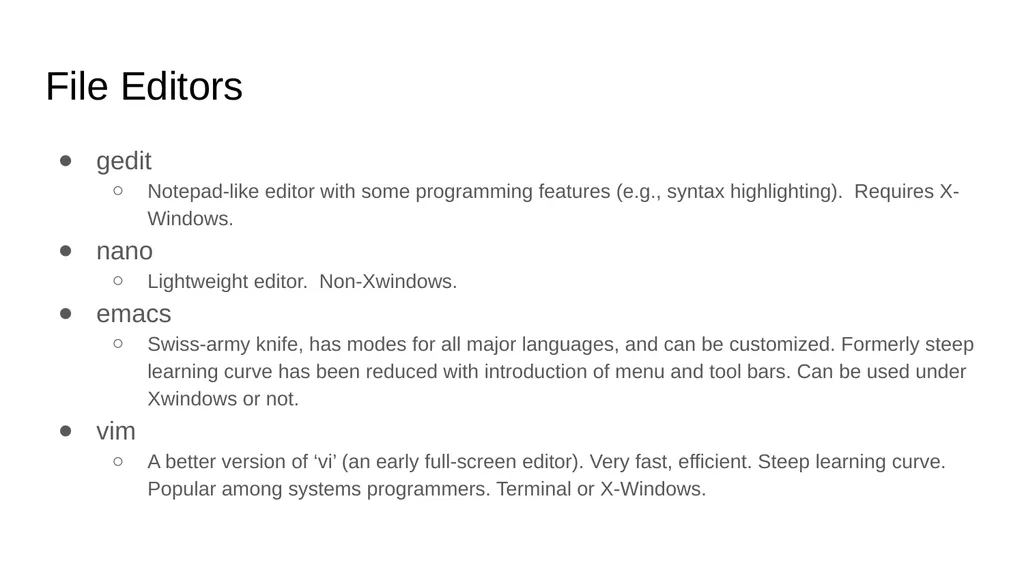
File Editors gedit
Notepad-like editor with some programming features (e.g., syntax highlighting). Requires X-Windows.
nano
Lightweight editor. Non-Xwindows.
emacs
Swiss-army knife, has modes for all major languages, and can be customized. Formerly steep learning curve has been reduced with introduction of menu and tool bars. Can be used under Xwindows or not.
vim
A better version of ‘vi’ (an early full-screen editor). Very fast, efficient. Steep learning curve. Popular among systems programmers. Terminal or X-Windows.<br>
Notepad-like editor with some programming features (e.g., syntax highlighting). Requires X-Windows.
nano
Lightweight editor. Non-Xwindows.
emacs
Swiss-army knife, has modes for all major languages, and can be customized. Formerly steep learning curve has been reduced with introduction of menu and tool bars. Can be used under Xwindows or not.
vim
A better version of ‘vi’ (an early full-screen editor). Very fast, efficient. Steep learning curve. Popular among systems programmers. Terminal or X-Windows.<br>
61
Creating and Running Code<br>
62
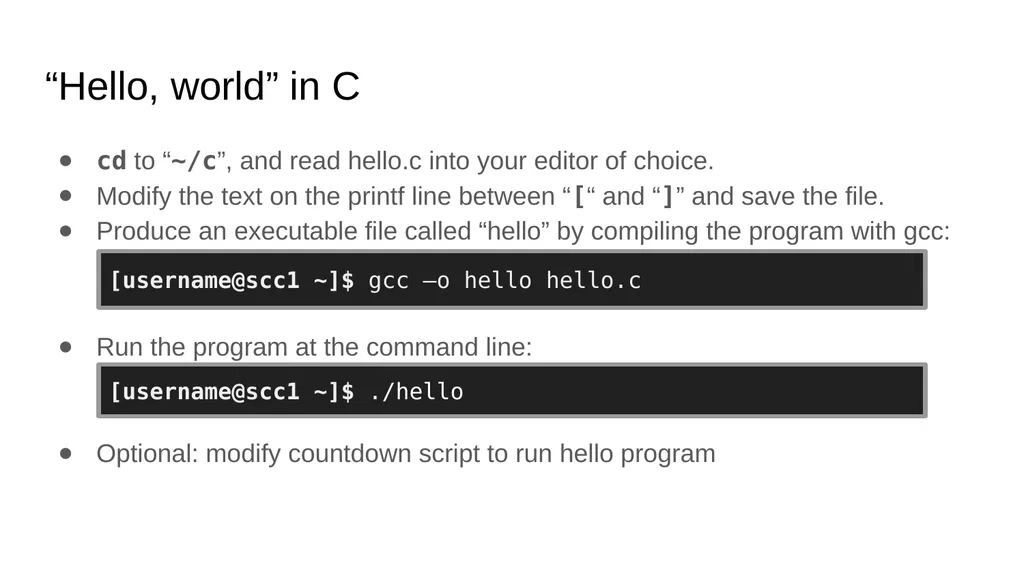
“Hello, world” in C cd to “~/c”, and read hello.c into your editor of choice.
Modify the text on the printf line between “[“ and “]” and save the file.
Produce an executable file called “hello” by compiling the program with gcc:
Run the program at the command line:
Optional: modify countdown script to run hello program [username@scc1 ~]$ ./hello [username@scc1 ~]$ gcc –o hello hello.c<br>
Modify the text on the printf line between “[“ and “]” and save the file.
Produce an executable file called “hello” by compiling the program with gcc:
Run the program at the command line:
Optional: modify countdown script to run hello program [username@scc1 ~]$ ./hello [username@scc1 ~]$ gcc –o hello hello.c<br>
63
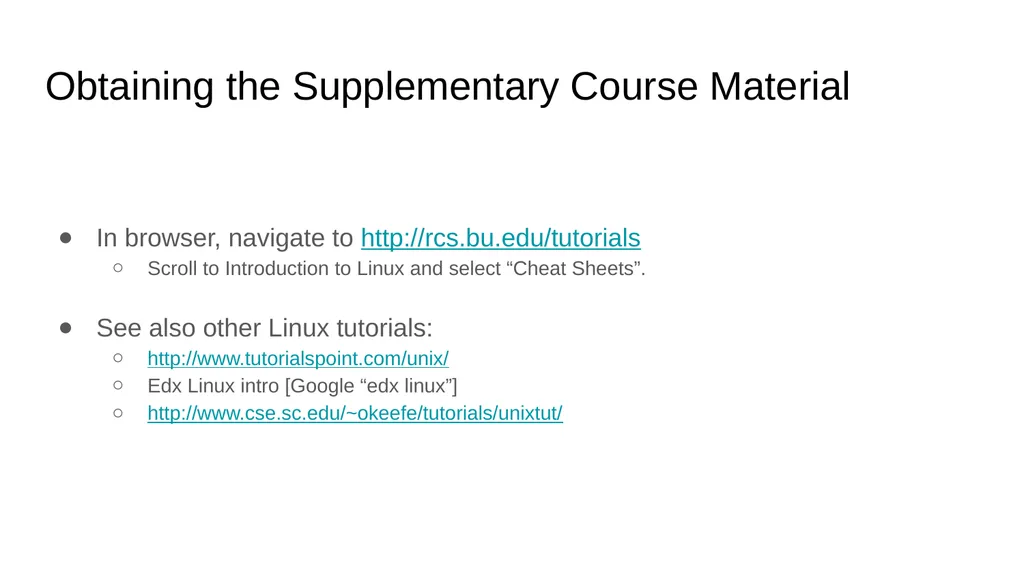
Obtaining the Supplementary Course Material In browser, navigate to http://rcs.bu.edu/tutorials
Scroll to Introduction to Linux and select “Cheat Sheets”.
See also other Linux tutorials:
http://www.tutorialspoint.com/unix/
Edx Linux intro [Google “edx linux”]
http://www.cse.sc.edu/~okeefe/tutorials/unixtut/<br>
Scroll to Introduction to Linux and select “Cheat Sheets”.
See also other Linux tutorials:
http://www.tutorialspoint.com/unix/
Edx Linux intro [Google “edx linux”]
http://www.cse.sc.edu/~okeefe/tutorials/unixtut/<br>
64
Getting Help<br>
65
How to Get Help Support Website
http://rcs.bu.edu (http://www.bu.edu/tech/support/research/)
Upcoming Tutorials:
http://rcs.bu.edu/tutorials
Email (Submit a Ticket):
help@scc.bu.edu
Email Direct:
augustin@bu.edu<br>
http://rcs.bu.edu (http://www.bu.edu/tech/support/research/)
Upcoming Tutorials:
http://rcs.bu.edu/tutorials
Email (Submit a Ticket):
help@scc.bu.edu
Email Direct:
augustin@bu.edu<br>
66
Questions?
Research Computing Services Website http://rcs.bu.edu RCS Tutorial Evaluation
http://rcs.bu.edu/eval<br>
Research Computing Services Website http://rcs.bu.edu RCS Tutorial Evaluation
http://rcs.bu.edu/eval<br>
67
Questions?<br>