
Introduction to Linux CD Poon, Mark Reed, William
TG
Published · 77 slides · 0 views
1 / 1

Description
Introduction to Linux CD Poon, Mark Reed, William Schulz https:its.unc.eduresearch-computing ITS Research Computing Course Design and Logistics Course Design: Lecture background intro to commands (30 min) Short Lab (15 min)
Related Topics
Share
Embed code
Download this presentation From Below
"Introduction to Linux CD Poon, Mark Reed, William" is the property of its rightful owner. Permission is granted to download and print the materials on this website for personal, non-commercial use only, and to display it on your personal computer provided you do not modify the materials and that you retain all copyright notices contained in the materials. By downloading content from our website, you accept the terms of this agreement.
Presentation Transcript
01
Introduction to Linux
CD Poon, Mark Reed, William Schulz
https://its.unc.edu/research-computing/ ITS Research Computing<br>
02
Course Design and Logistics Course Design:
Lecture – background & intro to commands (~30 min)
Short Lab (~15 min)
Lecture – commands in detail (~40 min)
Final Lab (~35 min)
The exercises are an integral part of the course
Please follow along by trying examples if you like
learn by doing
Feel free to ask questions
Restrooms
Breaks 2 ITS Research Computing<br>
Lecture – background & intro to commands (~30 min)
Short Lab (~15 min)
Lecture – commands in detail (~40 min)
Final Lab (~35 min)
The exercises are an integral part of the course
Please follow along by trying examples if you like
learn by doing
Feel free to ask questions
Restrooms
Breaks 2 ITS Research Computing<br>
03
Course Outline Objectives
Operating Systems
History
Variations
User Interface
Commands
Conclusion 3 ITS Research Computing<br>
Operating Systems
History
Variations
User Interface
Commands
Conclusion 3 ITS Research Computing<br>
04
Objectives What this course is:
An introduction to Linux hopefully to put it into a context for better understanding
Gain the perspective to see what it is, what it can do, why use it
What this course isn’t:
Just a list of Linux commands and what they do (although there will be plenty of that :)
Not just to answer “How do I … ?” 4 ITS Research Computing<br>
An introduction to Linux hopefully to put it into a context for better understanding
Gain the perspective to see what it is, what it can do, why use it
What this course isn’t:
Just a list of Linux commands and what they do (although there will be plenty of that :)
Not just to answer “How do I … ?” 4 ITS Research Computing<br>
05
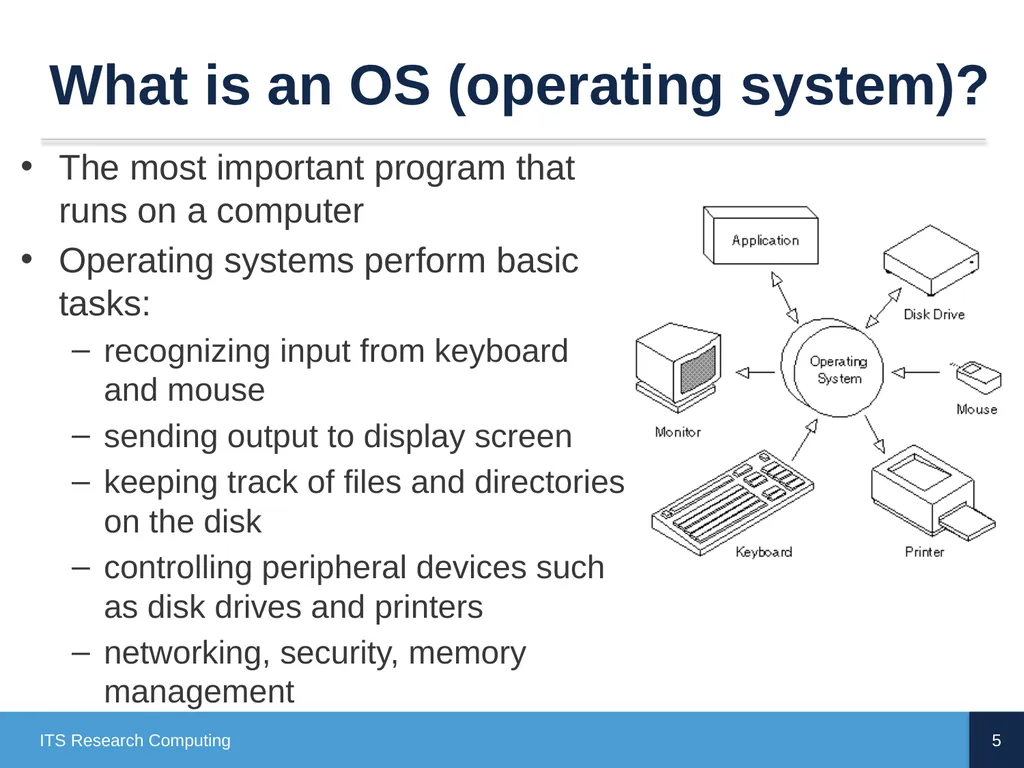
What is an OS (operating system)? The most important program that runs on a computer
Operating systems perform basic tasks:
recognizing input from keyboard and mouse
sending output to display screen
keeping track of files and directories on the disk
controlling peripheral devices such as disk drives and printers
networking, security, memory management 5 ITS Research Computing<br>
Operating systems perform basic tasks:
recognizing input from keyboard and mouse
sending output to display screen
keeping track of files and directories on the disk
controlling peripheral devices such as disk drives and printers
networking, security, memory management 5 ITS Research Computing<br>
06
Some Operating Systems DOS, MS-DOS
MS Windows (95, 98, NT, Windows 10)
Linux: RedHat, SuSE, Ubuntu, Ubuntu Kylin, Deepin, Windows Subsystem for Linux
Unix-like or *nix: HP-UX, Irix, Solaris, AIX, minix
MacOS variants, NeXT, XNU 6 ITS Research Computing<br>
MS Windows (95, 98, NT, Windows 10)
Linux: RedHat, SuSE, Ubuntu, Ubuntu Kylin, Deepin, Windows Subsystem for Linux
Unix-like or *nix: HP-UX, Irix, Solaris, AIX, minix
MacOS variants, NeXT, XNU 6 ITS Research Computing<br>
07
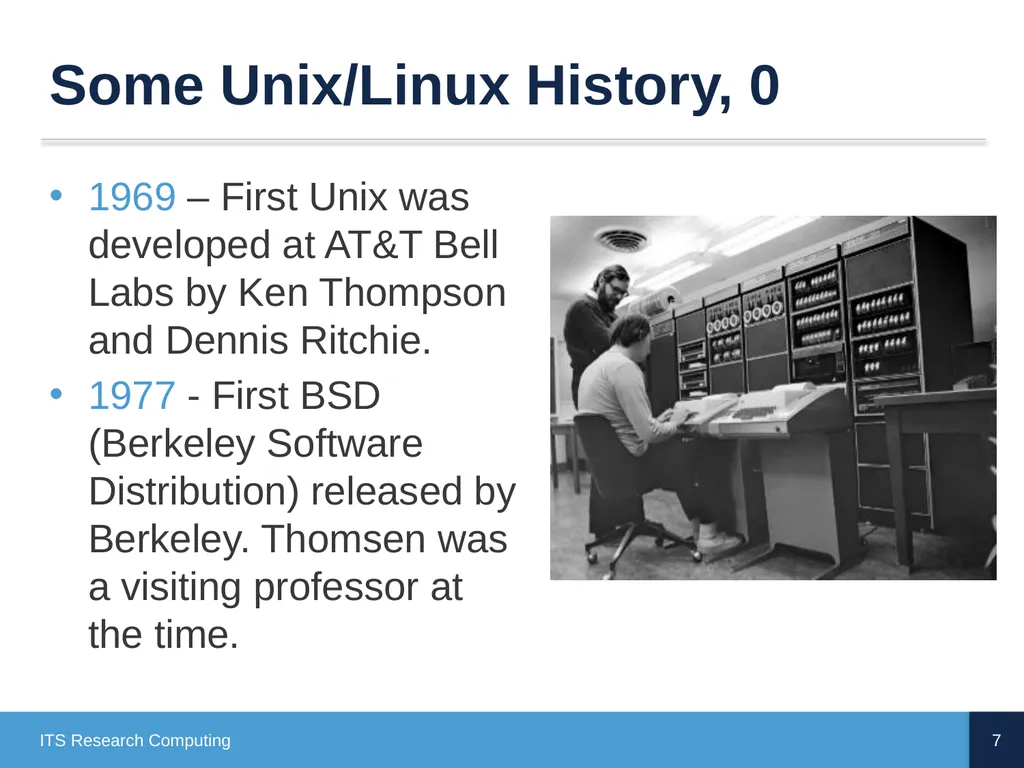
Some Unix/Linux History, 0 1969 – First Unix was developed at AT&T Bell Labs by Ken Thompson and Dennis Ritchie.
1977 - First BSD (Berkeley Software Distribution) released by Berkeley. Thomsen was a visiting professor at the time. 7 ITS Research Computing<br>
1977 - First BSD (Berkeley Software Distribution) released by Berkeley. Thomsen was a visiting professor at the time. 7 ITS Research Computing<br>
08
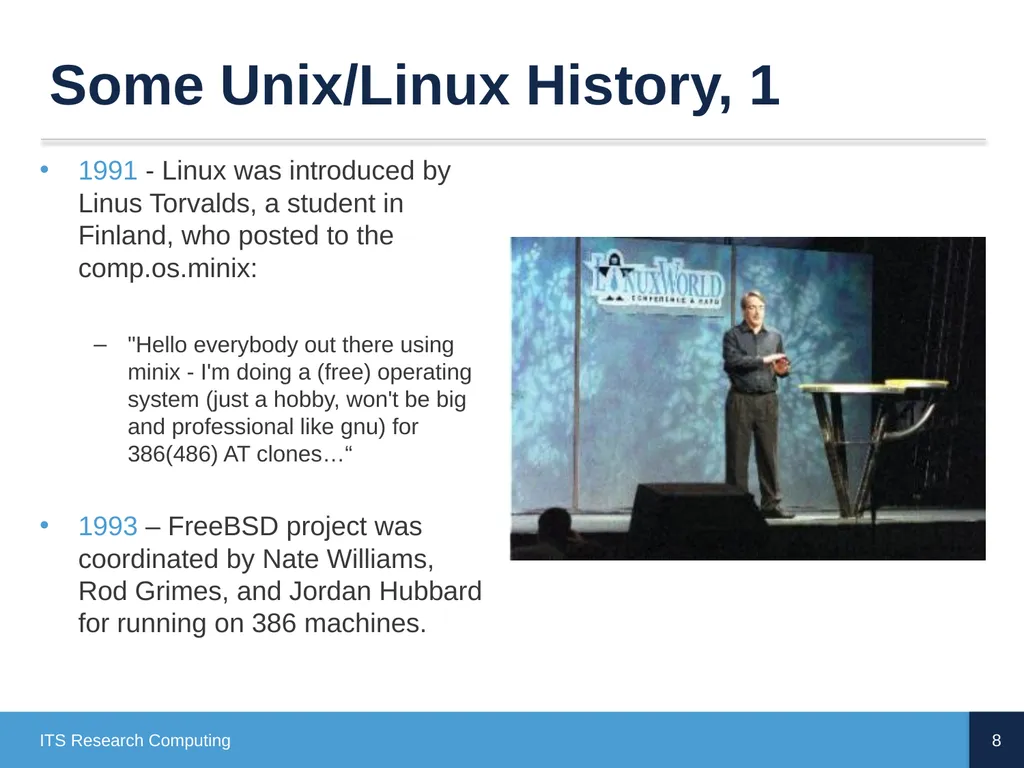
Some Unix/Linux History, 1 1991 - Linux was introduced by Linus Torvalds, a student in Finland, who posted to the comp.os.minix:
"Hello everybody out there using minix - I'm doing a (free) operating system (just a hobby, won't be big and professional like gnu) for 386(486) AT clones…“
1993 – FreeBSD project was coordinated by Nate Williams, Rod Grimes, and Jordan Hubbard for running on 386 machines. 8 ITS Research Computing<br>
"Hello everybody out there using minix - I'm doing a (free) operating system (just a hobby, won't be big and professional like gnu) for 386(486) AT clones…“
1993 – FreeBSD project was coordinated by Nate Williams, Rod Grimes, and Jordan Hubbard for running on 386 machines. 8 ITS Research Computing<br>
09
Some Unix/Linux History, 3 The GNU (Gnu’s Not Unix) was an effort to develop free and open source applications.
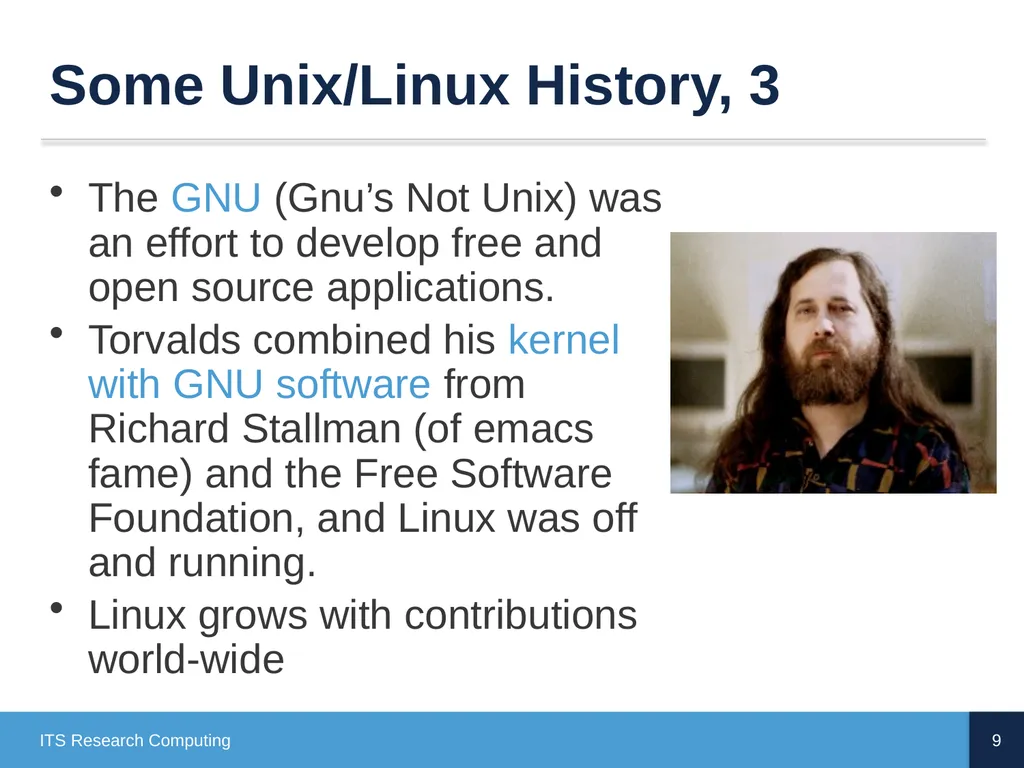
Torvalds combined his kernel with GNU software from Richard Stallman (of emacs fame) and the Free Software Foundation, and Linux was off and running.
Linux grows with contributions world-wide 9 ITS Research Computing<br>
Torvalds combined his kernel with GNU software from Richard Stallman (of emacs fame) and the Free Software Foundation, and Linux was off and running.
Linux grows with contributions world-wide 9 ITS Research Computing<br>
10
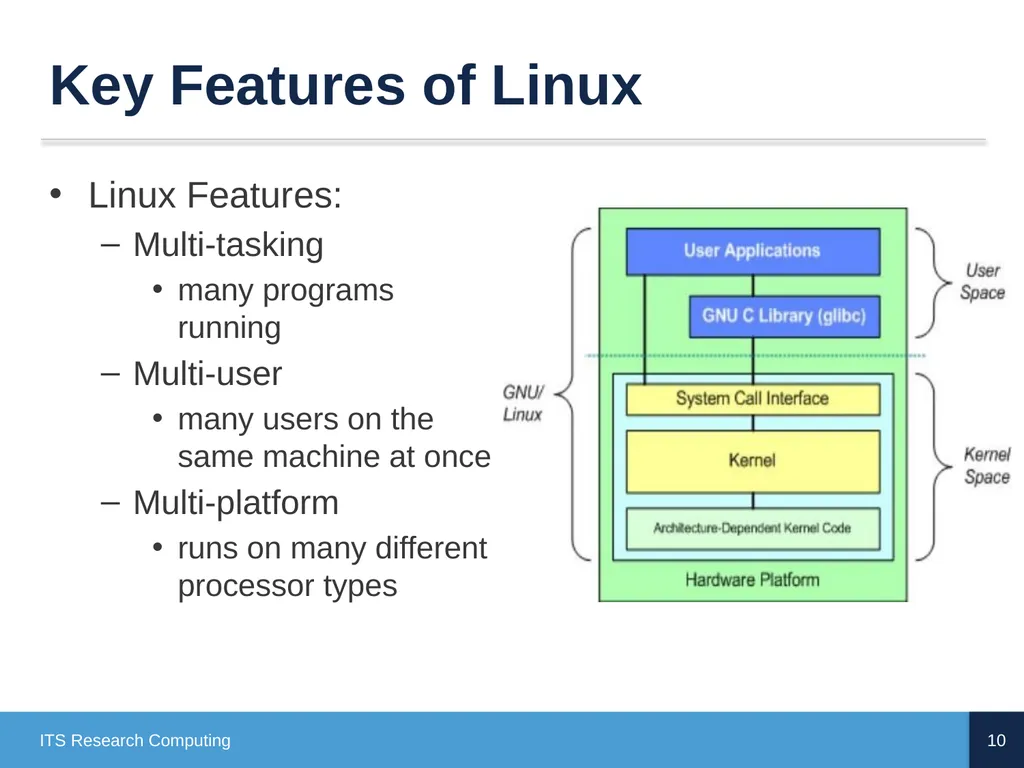
Key Features of Linux Linux Features:
Multi-tasking
many programs running
Multi-user
many users on the same machine at once
Multi-platform
runs on many different processor types 10 ITS Research Computing<br>
Multi-tasking
many programs running
Multi-user
many users on the same machine at once
Multi-platform
runs on many different processor types 10 ITS Research Computing<br>
11
Variations on a Theme 11 ITS Research Computing There are two major branches of Unix:
AT&T System V
BSD (Berkeley Software Distribution)
Lots of commercial Unix-like systems
AIX (IBM), IRIX (SGI), HP-UX (HP), OpenSolaris (Sun), MacOS X. etc.
Linux is a Unix-like system, free of proprietary software for which source code is available and freely distributed.
There are minor variations among these
Most are much more alike than they are different<br>
AT&T System V
BSD (Berkeley Software Distribution)
Lots of commercial Unix-like systems
AIX (IBM), IRIX (SGI), HP-UX (HP), OpenSolaris (Sun), MacOS X. etc.
Linux is a Unix-like system, free of proprietary software for which source code is available and freely distributed.
There are minor variations among these
Most are much more alike than they are different<br>
12
Some Linux distributions There are many groups packaging Linux for distribution.
some freely available
others commercial
A partial listing:
Red Hat
CentOS
Ubuntu
Debian
SuSE
Inspur
Sunway RaiseOS 12 ITS Research Computing<br>
some freely available
others commercial
A partial listing:
Red Hat
CentOS
Ubuntu
Debian
SuSE
Inspur
Sunway RaiseOS 12 ITS Research Computing<br>
13
User Interface The user interacts with the OS by giving it commands. This interface is either via
command line or CLI (e.g., through the shell)
graphical user interface (GUI)
Don’t confuse the operating system’s user interface with the OS itself (which does much more).
Most OSs can do both. Linux traditionally uses the command line, but modern distributions rely heavily on GUIs (similar to how DOS gave way to Windows) 13 ITS Research Computing<br>
command line or CLI (e.g., through the shell)
graphical user interface (GUI)
Don’t confuse the operating system’s user interface with the OS itself (which does much more).
Most OSs can do both. Linux traditionally uses the command line, but modern distributions rely heavily on GUIs (similar to how DOS gave way to Windows) 13 ITS Research Computing<br>
14
Shell The Command Line Interface (CLI) for Linux is through the shell
This is the application (program) that interprets what you type and carries out your directions
Common Shells:
tcsh – exTended C SHell
bash – Bourne Again Shell (most common, standard on Longleaf and dogwood clusters)
ksh – Korn SHell
csh – C SHell (early popular shell) 14 ITS Research Computing<br>
This is the application (program) that interprets what you type and carries out your directions
Common Shells:
tcsh – exTended C SHell
bash – Bourne Again Shell (most common, standard on Longleaf and dogwood clusters)
ksh – Korn SHell
csh – C SHell (early popular shell) 14 ITS Research Computing<br>
15
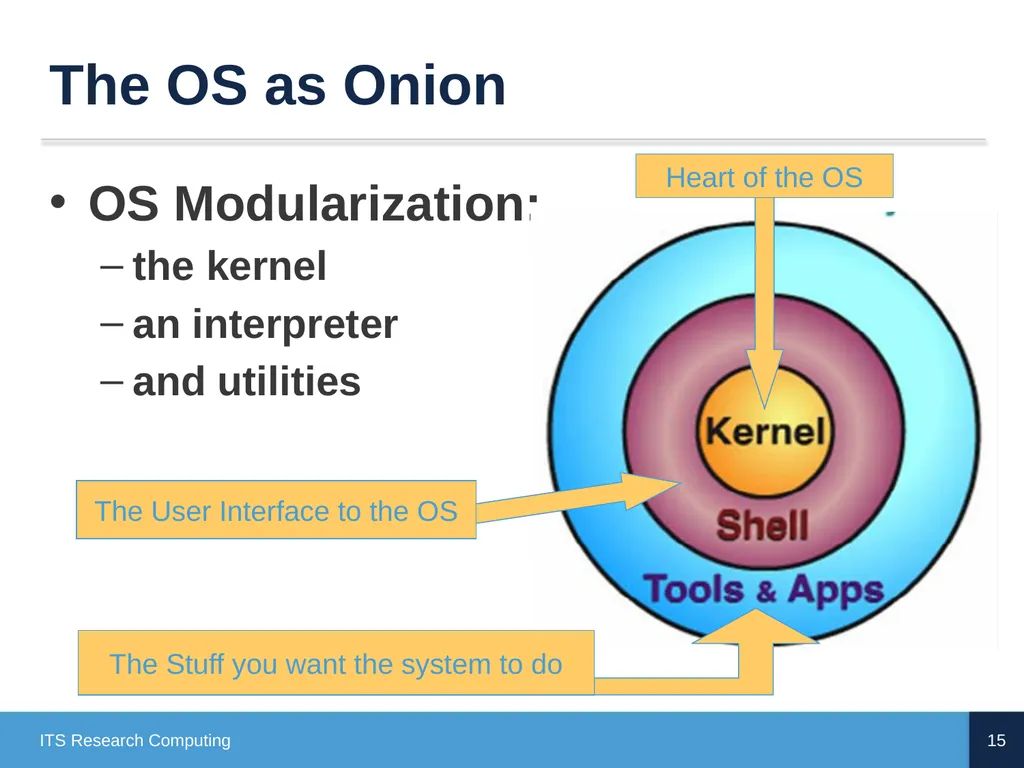
The OS as Onion OS Modularization:
the kernel
an interpreter
and utilities 15 ITS Research Computing Heart of the OS The User Interface to the OS The Stuff you want the system to do<br>
the kernel
an interpreter
and utilities 15 ITS Research Computing Heart of the OS The User Interface to the OS The Stuff you want the system to do<br>
16
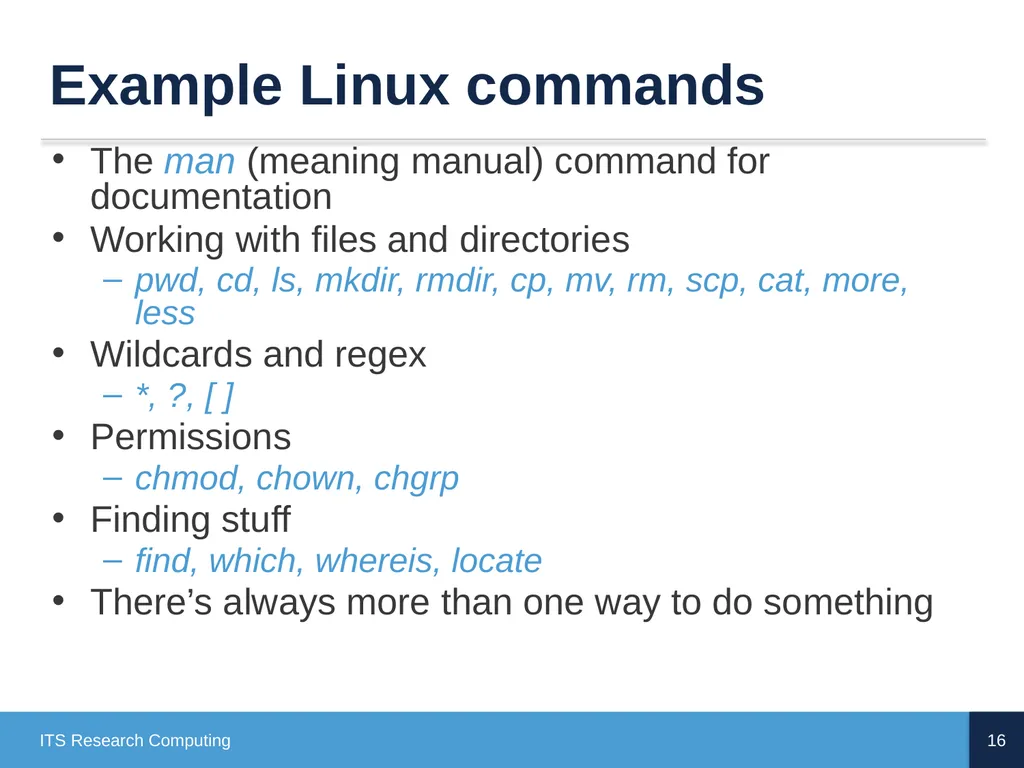
Example Linux commands The man (meaning manual) command for documentation
Working with files and directories
pwd, cd, ls, mkdir, rmdir, cp, mv, rm, scp, cat, more, less
Wildcards and regex
*, ?, [ ]
Permissions
chmod, chown, chgrp
Finding stuff
find, which, whereis, locate
There’s always more than one way to do something 16 ITS Research Computing<br>
Working with files and directories
pwd, cd, ls, mkdir, rmdir, cp, mv, rm, scp, cat, more, less
Wildcards and regex
*, ?, [ ]
Permissions
chmod, chown, chgrp
Finding stuff
find, which, whereis, locate
There’s always more than one way to do something 16 ITS Research Computing<br>
17
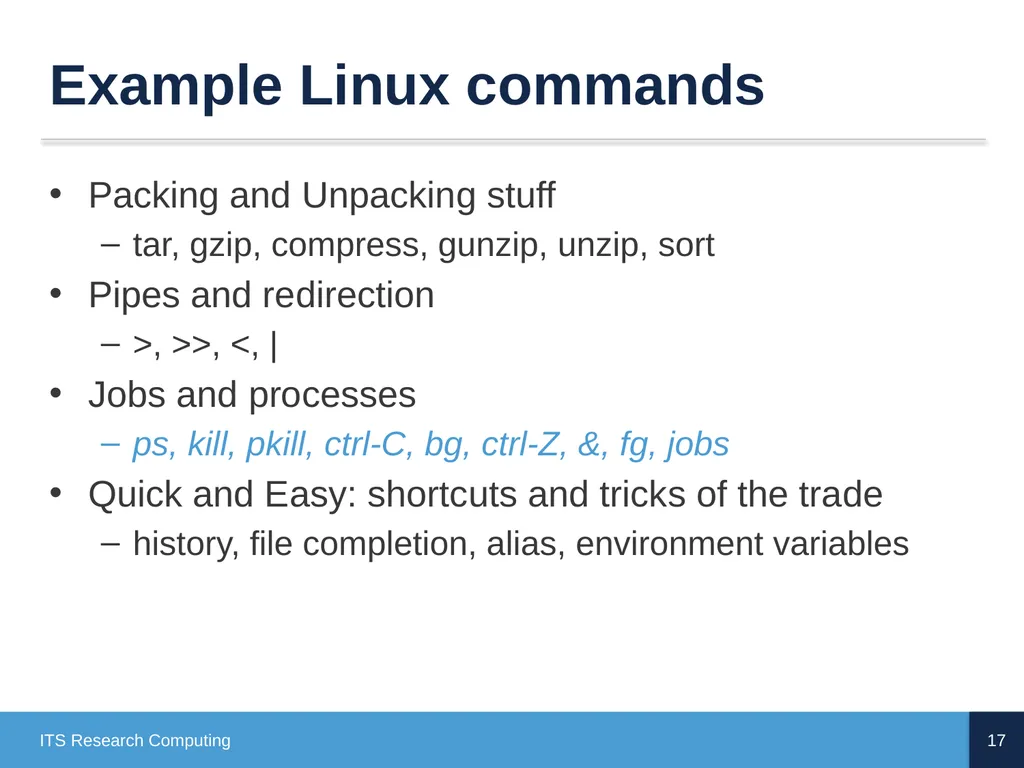
Example Linux commands Packing and Unpacking stuff
tar, gzip, compress, gunzip, unzip, sort
Pipes and redirection
>, >>, <, |
Jobs and processes
ps, kill, pkill, ctrl-C, bg, ctrl-Z, &, fg, jobs
Quick and Easy: shortcuts and tricks of the trade
history, file completion, alias, environment variables 17 ITS Research Computing<br>
tar, gzip, compress, gunzip, unzip, sort
Pipes and redirection
>, >>, <, |
Jobs and processes
ps, kill, pkill, ctrl-C, bg, ctrl-Z, &, fg, jobs
Quick and Easy: shortcuts and tricks of the trade
history, file completion, alias, environment variables 17 ITS Research Computing<br>
18
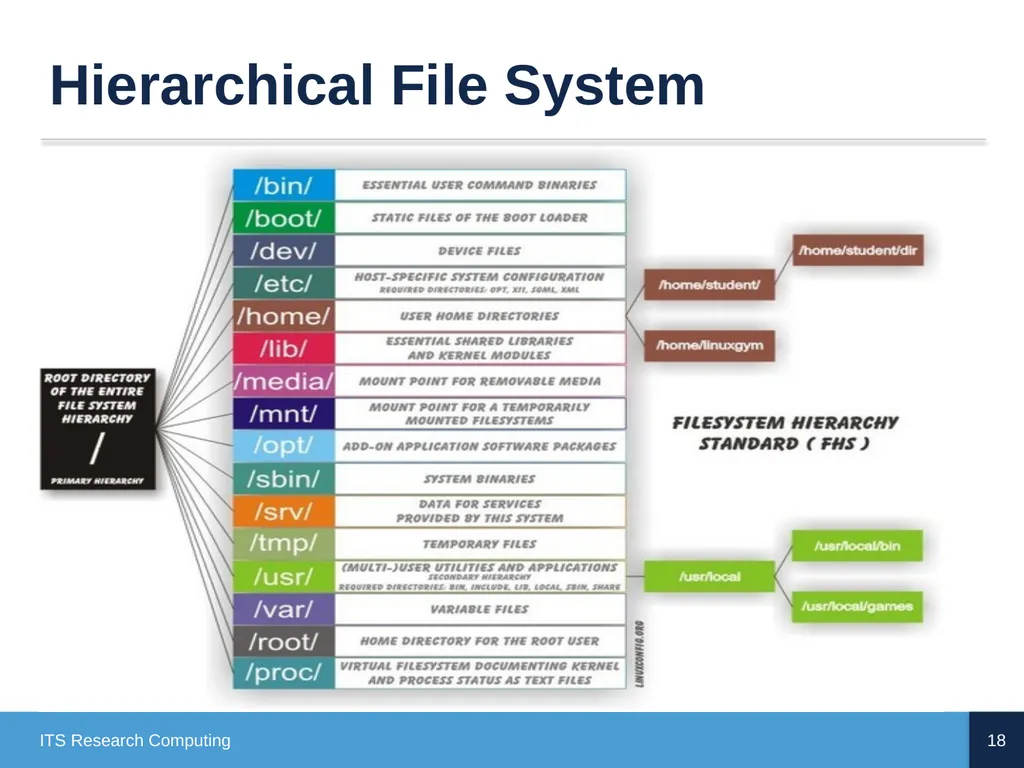
Hierarchical File System Objectives
Operating Systems
History
Variations
User Interface
Commands
Conclusion 18 ITS Research Computing<br>
Operating Systems
History
Variations
User Interface
Commands
Conclusion 18 ITS Research Computing<br>
19
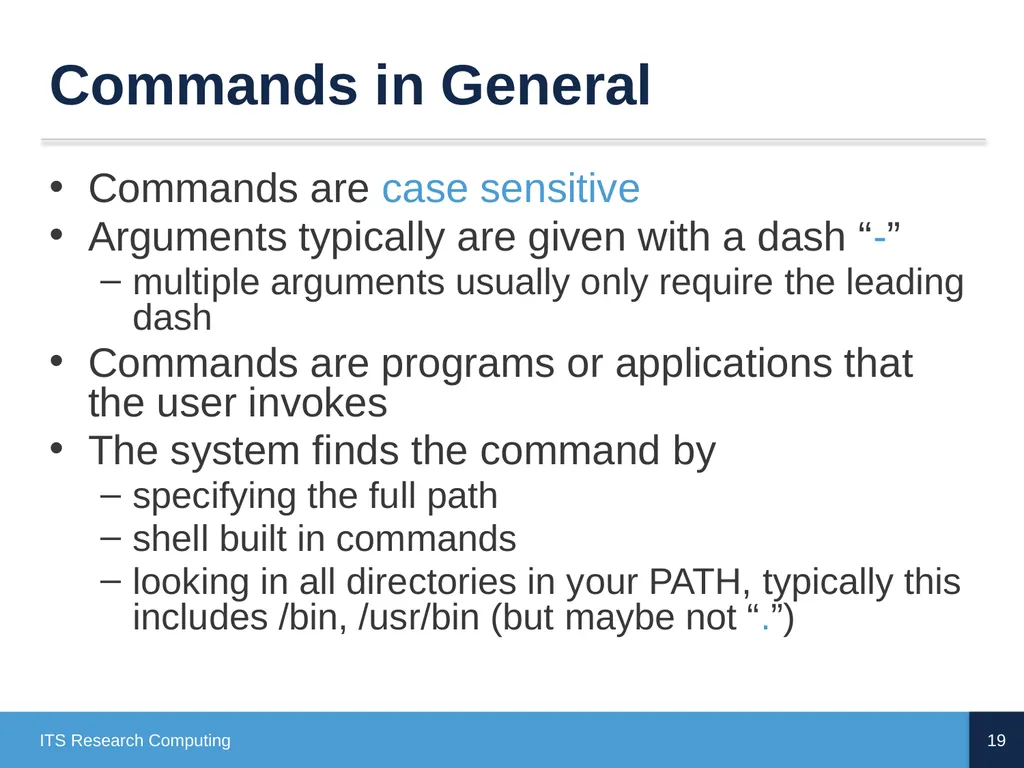
Commands in General Commands are case sensitive
Arguments typically are given with a dash “-”
multiple arguments usually only require the leading dash
Commands are programs or applications that the user invokes
The system finds the command by
specifying the full path
shell built in commands
looking in all directories in your PATH, typically this includes /bin, /usr/bin (but maybe not “.”) 19 ITS Research Computing<br>
Arguments typically are given with a dash “-”
multiple arguments usually only require the leading dash
Commands are programs or applications that the user invokes
The system finds the command by
specifying the full path
shell built in commands
looking in all directories in your PATH, typically this includes /bin, /usr/bin (but maybe not “.”) 19 ITS Research Computing<br>
20
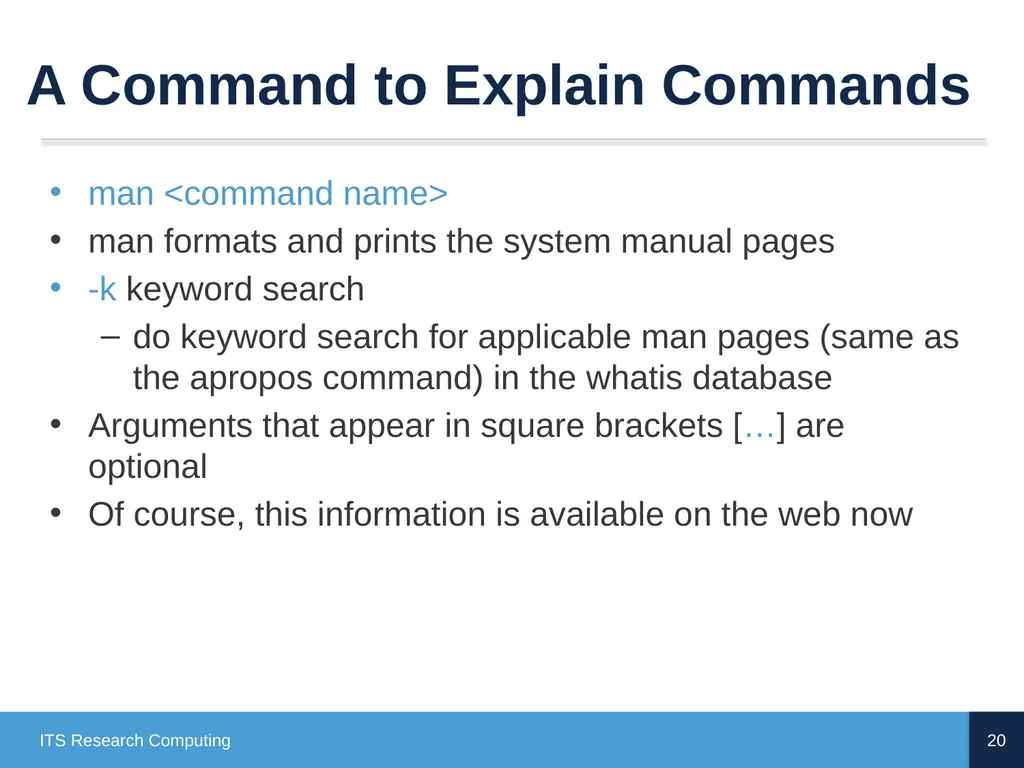
A Command to Explain Commands man <command name>
man formats and prints the system manual pages
-k keyword search
do keyword search for applicable man pages (same as the apropos command) in the whatis database
Arguments that appear in square brackets […] are optional
Of course, this information is available on the web now 20 ITS Research Computing<br>
man formats and prints the system manual pages
-k keyword search
do keyword search for applicable man pages (same as the apropos command) in the whatis database
Arguments that appear in square brackets […] are optional
Of course, this information is available on the web now 20 ITS Research Computing<br>
21
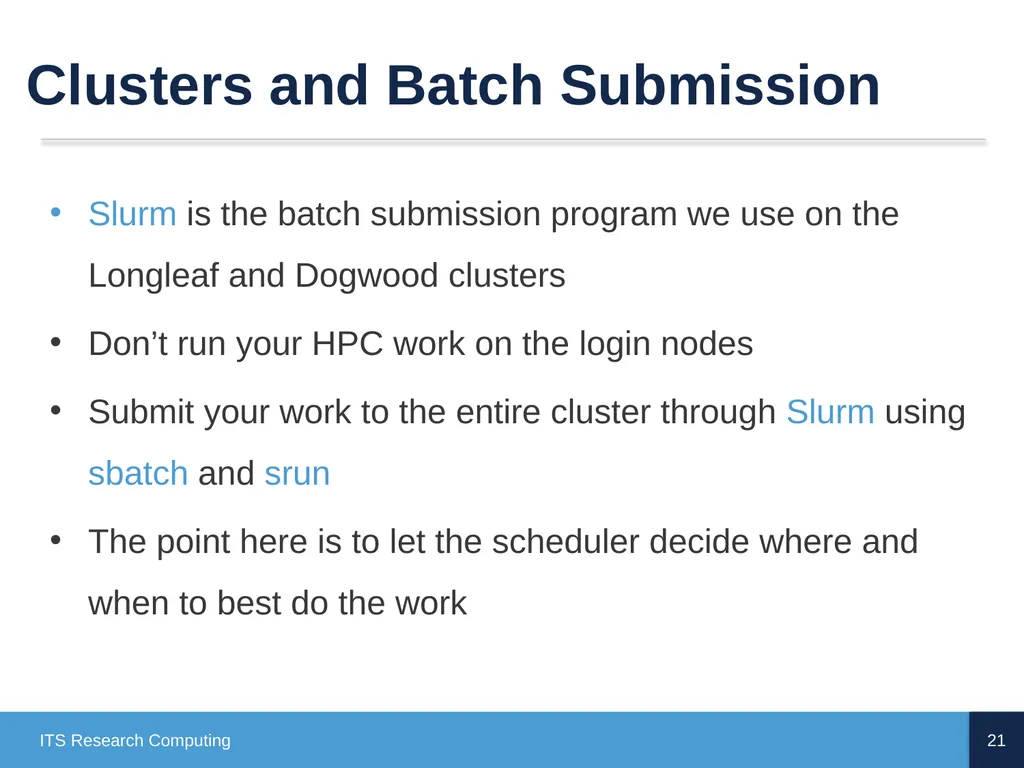
Clusters and Batch Submission Slurm is the batch submission program we use on the Longleaf and Dogwood clusters
Don’t run your HPC work on the login nodes
Submit your work to the entire cluster through Slurm using sbatch and srun
The point here is to let the scheduler decide where and when to best do the work 21 ITS Research Computing<br>
Don’t run your HPC work on the login nodes
Submit your work to the entire cluster through Slurm using sbatch and srun
The point here is to let the scheduler decide where and when to best do the work 21 ITS Research Computing<br>
22
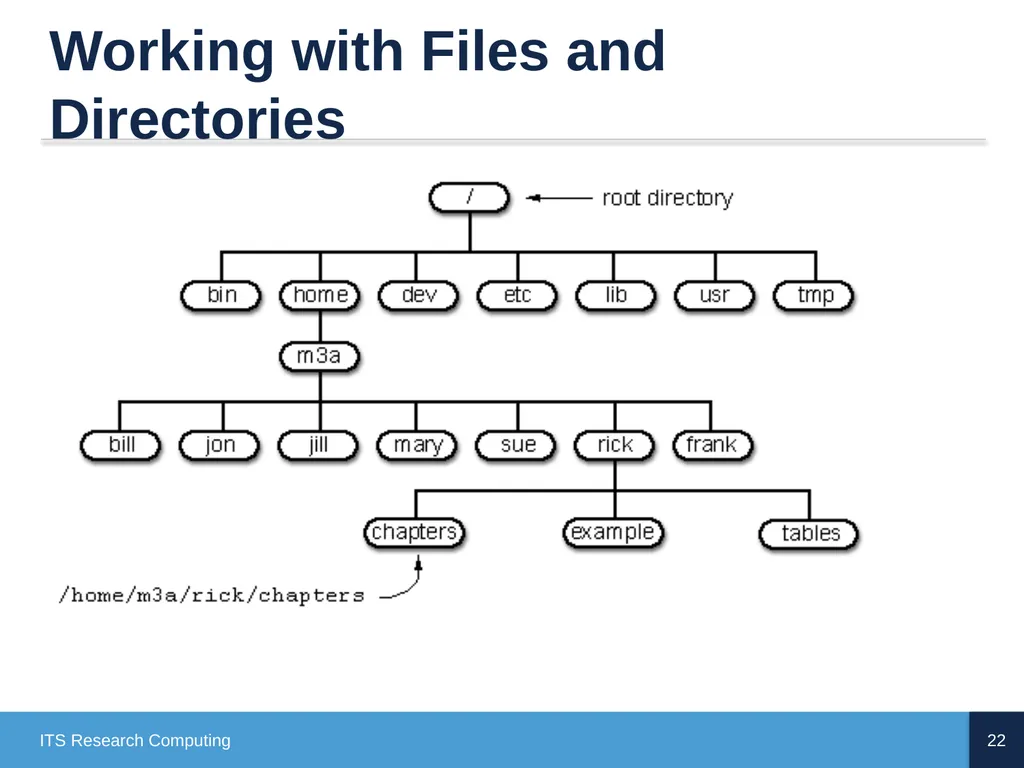
Working with Files and Directories 22 ITS Research Computing<br>
23
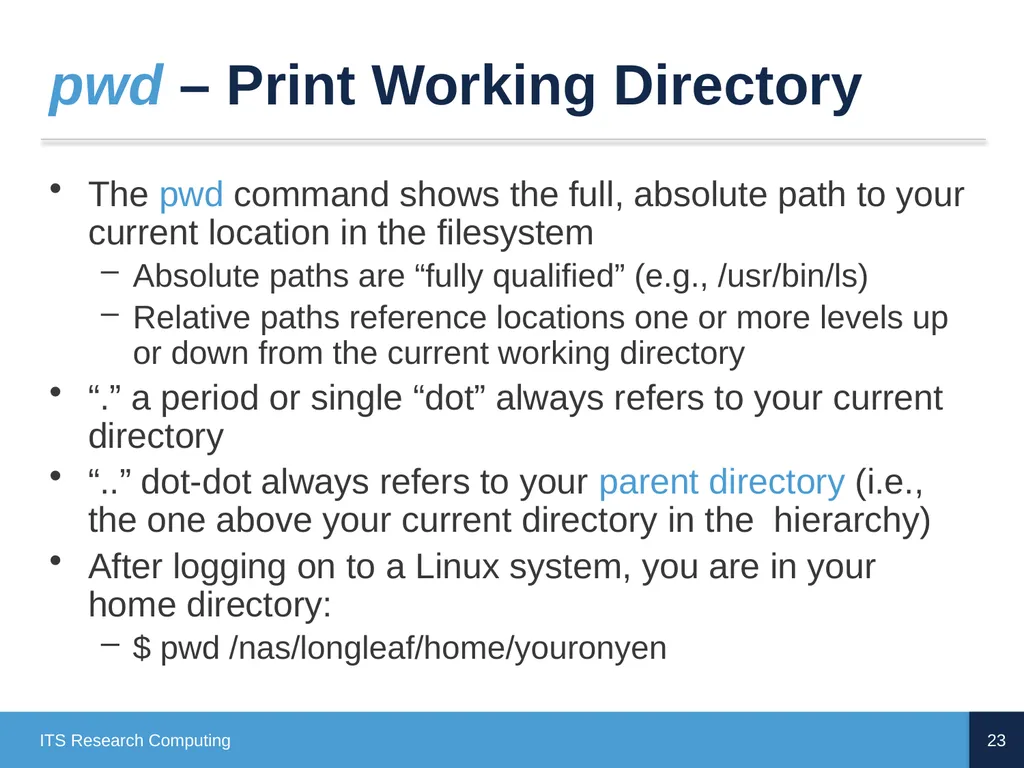
pwd – Print Working Directory The pwd command shows the full, absolute path to your current location in the filesystem
Absolute paths are “fully qualified” (e.g., /usr/bin/ls)
Relative paths reference locations one or more levels up or down from the current working directory
“.” a period or single “dot” always refers to your current directory
“..” dot-dot always refers to your parent directory (i.e., the one above your current directory in the hierarchy)
After logging on to a Linux system, you are in your home directory:
$ pwd /nas/longleaf/home/youronyen 23 ITS Research Computing<br>
Absolute paths are “fully qualified” (e.g., /usr/bin/ls)
Relative paths reference locations one or more levels up or down from the current working directory
“.” a period or single “dot” always refers to your current directory
“..” dot-dot always refers to your parent directory (i.e., the one above your current directory in the hierarchy)
After logging on to a Linux system, you are in your home directory:
$ pwd /nas/longleaf/home/youronyen 23 ITS Research Computing<br>
24
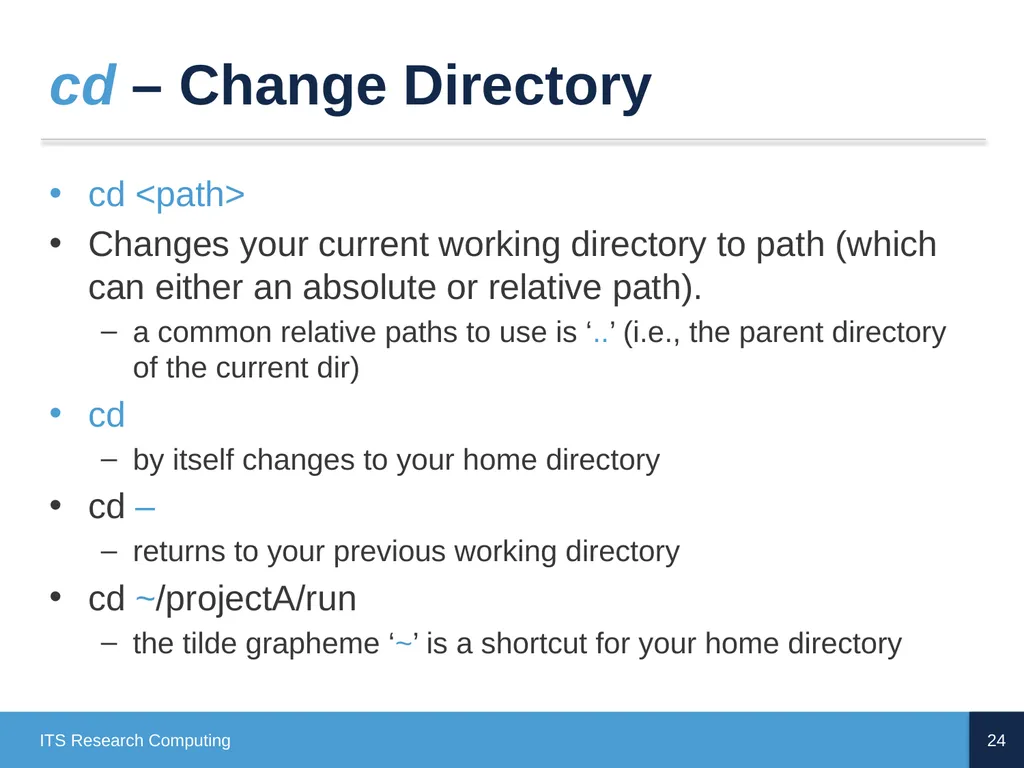
cd – Change Directory cd <path>
Changes your current working directory to path (which can either an absolute or relative path).
a common relative paths to use is ‘..’ (i.e., the parent directory of the current dir)
cd
by itself changes to your home directory
cd –
returns to your previous working directory
cd ~/projectA/run
the tilde grapheme ‘~’ is a shortcut for your home directory 24 ITS Research Computing<br>
Changes your current working directory to path (which can either an absolute or relative path).
a common relative paths to use is ‘..’ (i.e., the parent directory of the current dir)
cd
by itself changes to your home directory
cd –
returns to your previous working directory
cd ~/projectA/run
the tilde grapheme ‘~’ is a shortcut for your home directory 24 ITS Research Computing<br>
25
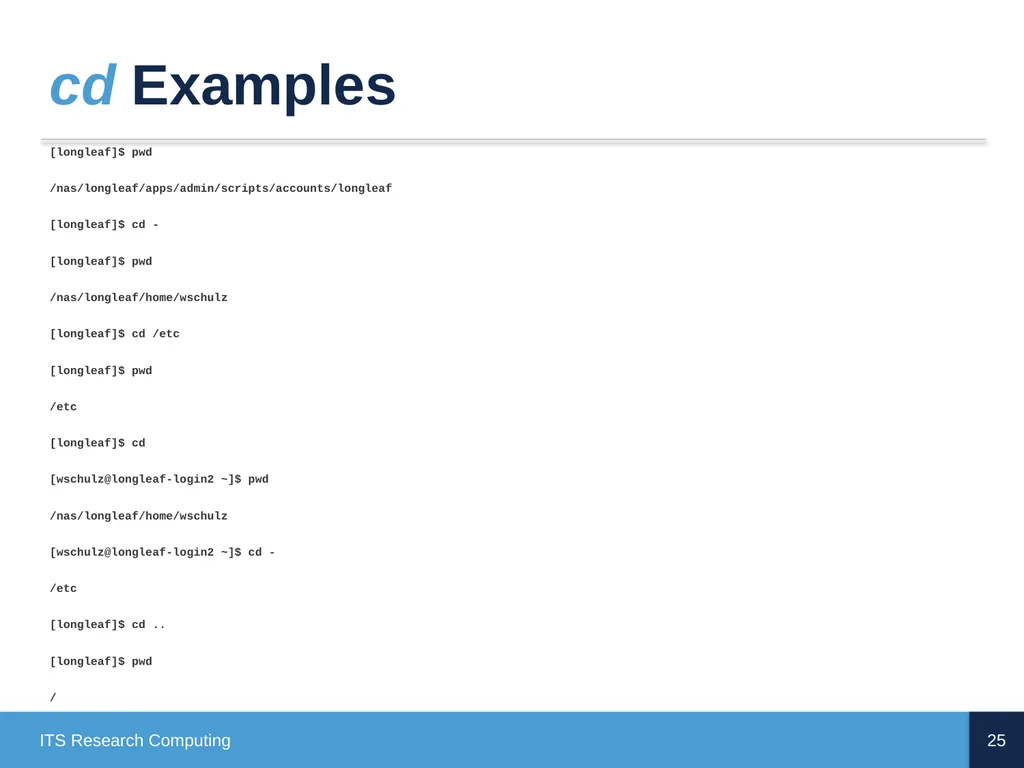
cd Examples [longleaf]$ pwd
/nas/longleaf/apps/admin/scripts/accounts/longleaf
[longleaf]$ cd -
[longleaf]$ pwd
/nas/longleaf/home/wschulz
[longleaf]$ cd /etc
[longleaf]$ pwd
/etc
[longleaf]$ cd
[wschulz@longleaf-login2 ~]$ pwd
/nas/longleaf/home/wschulz
[wschulz@longleaf-login2 ~]$ cd -
/etc
[longleaf]$ cd ..
[longleaf]$ pwd
/ 25 ITS Research Computing<br>
/nas/longleaf/apps/admin/scripts/accounts/longleaf
[longleaf]$ cd -
[longleaf]$ pwd
/nas/longleaf/home/wschulz
[longleaf]$ cd /etc
[longleaf]$ pwd
/etc
[longleaf]$ cd
[wschulz@longleaf-login2 ~]$ pwd
/nas/longleaf/home/wschulz
[wschulz@longleaf-login2 ~]$ cd -
/etc
[longleaf]$ cd ..
[longleaf]$ pwd
/ 25 ITS Research Computing<br>
26
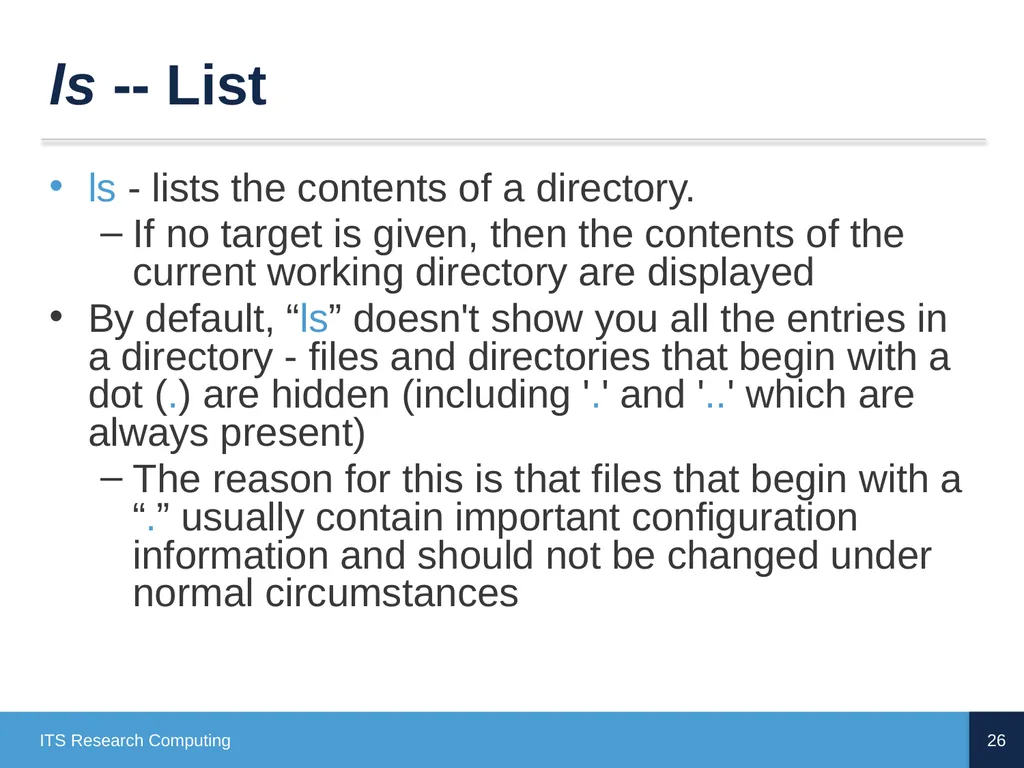
ls -- List ls - lists the contents of a directory.
If no target is given, then the contents of the current working directory are displayed
By default, “ls” doesn't show you all the entries in a directory - files and directories that begin with a dot (.) are hidden (including '.' and '..' which are always present)
The reason for this is that files that begin with a “.” usually contain important configuration information and should not be changed under normal circumstances 26 ITS Research Computing<br>
If no target is given, then the contents of the current working directory are displayed
By default, “ls” doesn't show you all the entries in a directory - files and directories that begin with a dot (.) are hidden (including '.' and '..' which are always present)
The reason for this is that files that begin with a “.” usually contain important configuration information and should not be changed under normal circumstances 26 ITS Research Computing<br>
27
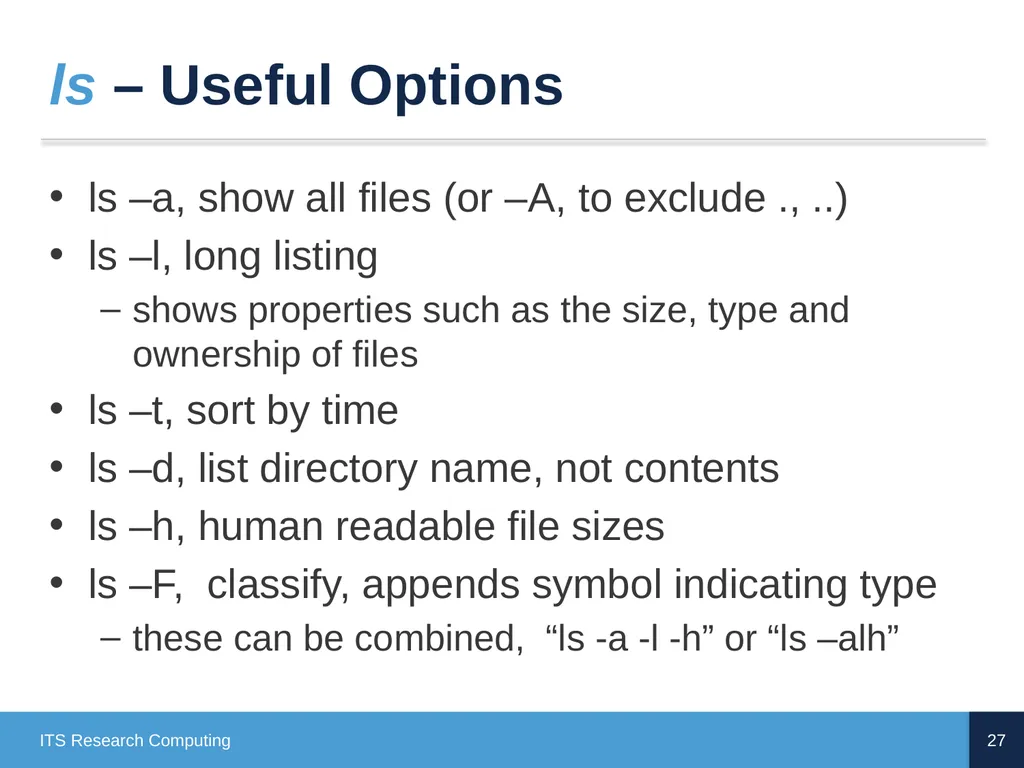
ls – Useful Options ls –a, show all files (or –A, to exclude ., ..)
ls –l, long listing
shows properties such as the size, type and ownership of files
ls –t, sort by time
ls –d, list directory name, not contents
ls –h, human readable file sizes
ls –F, classify, appends symbol indicating type
these can be combined, “ls -a -l -h” or “ls –alh” 27 ITS Research Computing<br>
ls –l, long listing
shows properties such as the size, type and ownership of files
ls –t, sort by time
ls –d, list directory name, not contents
ls –h, human readable file sizes
ls –F, classify, appends symbol indicating type
these can be combined, “ls -a -l -h” or “ls –alh” 27 ITS Research Computing<br>
28
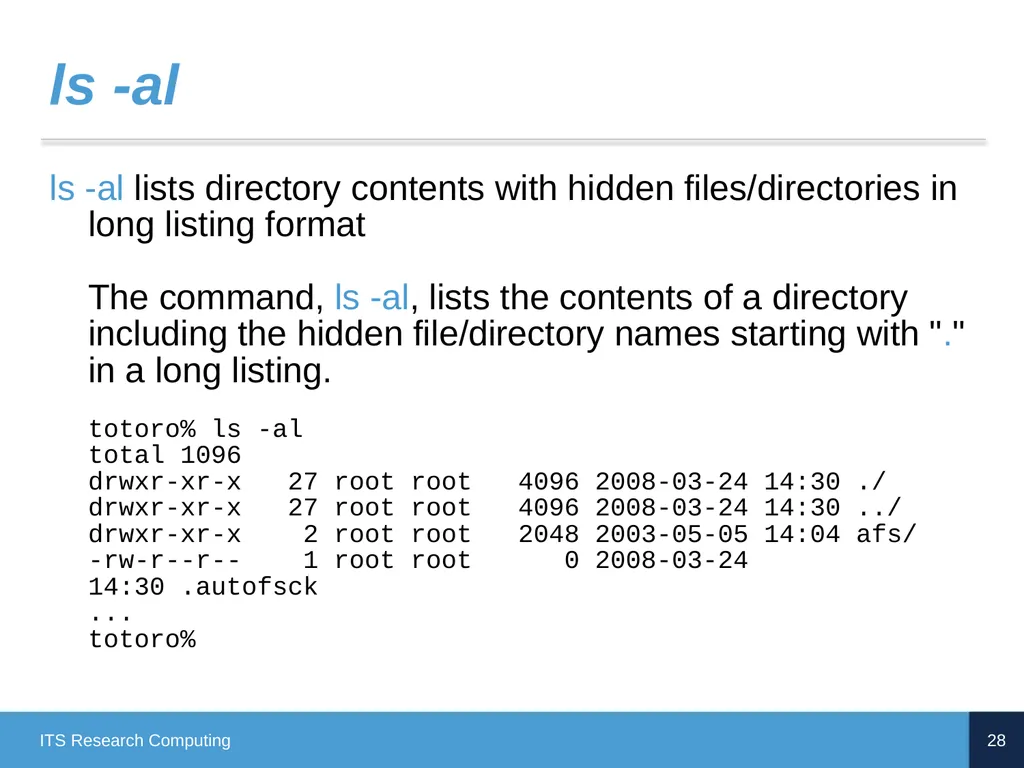
ls -al ls -al lists directory contents with hidden files/directories in long listing format
The command, ls -al, lists the contents of a directory including the hidden file/directory names starting with "." in a long listing. totoro% ls -al total 1096 drwxr-xr-x 27 root root 4096 2008-03-24 14:30 ./ drwxr-xr-x 27 root root 4096 2008-03-24 14:30 ../ drwxr-xr-x 2 root root 2048 2003-05-05 14:04 afs/ -rw-r--r-- 1 root root 0 2008-03-24 14:30 .autofsck ... totoro% 28 ITS Research Computing<br>
The command, ls -al, lists the contents of a directory including the hidden file/directory names starting with "." in a long listing. totoro% ls -al total 1096 drwxr-xr-x 27 root root 4096 2008-03-24 14:30 ./ drwxr-xr-x 27 root root 4096 2008-03-24 14:30 ../ drwxr-xr-x 2 root root 2048 2003-05-05 14:04 afs/ -rw-r--r-- 1 root root 0 2008-03-24 14:30 .autofsck ... totoro% 28 ITS Research Computing<br>
29
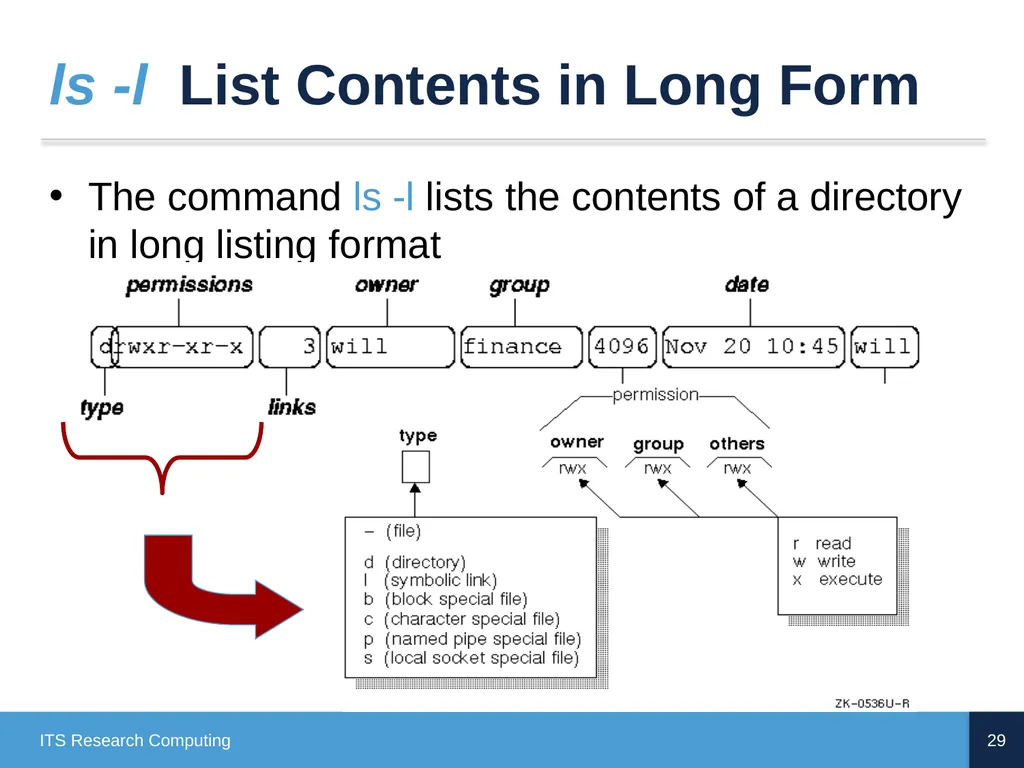
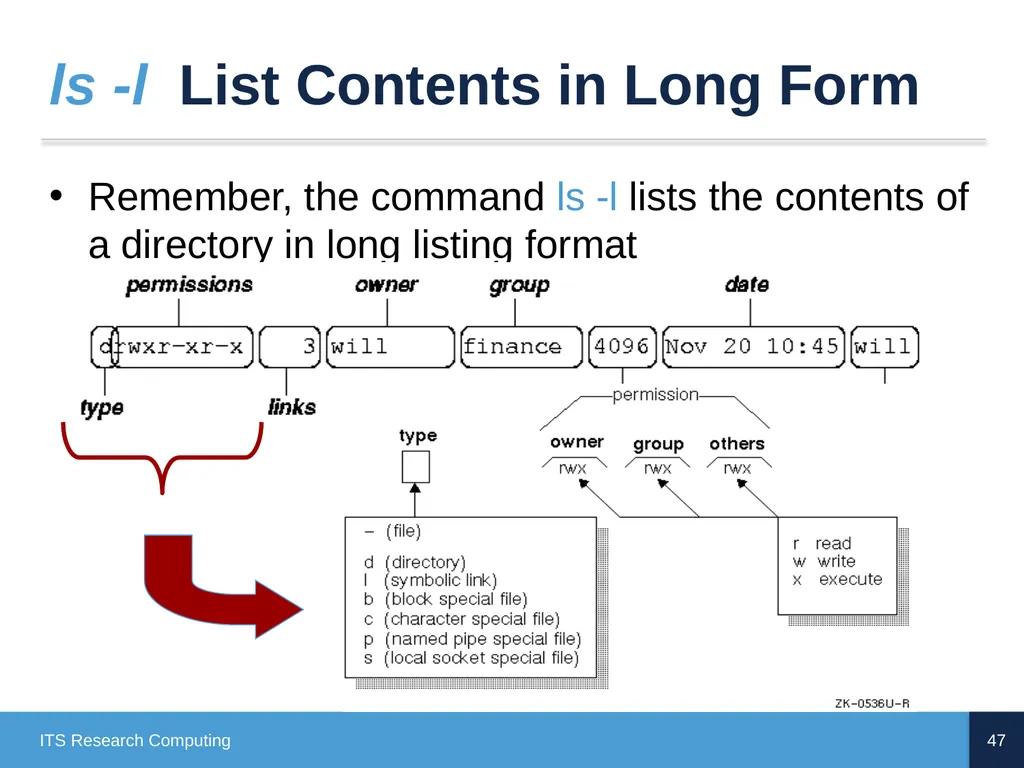
ls -l List Contents in Long Form The command ls -l lists the contents of a directory in long listing format 29 ITS Research Computing<br>
30
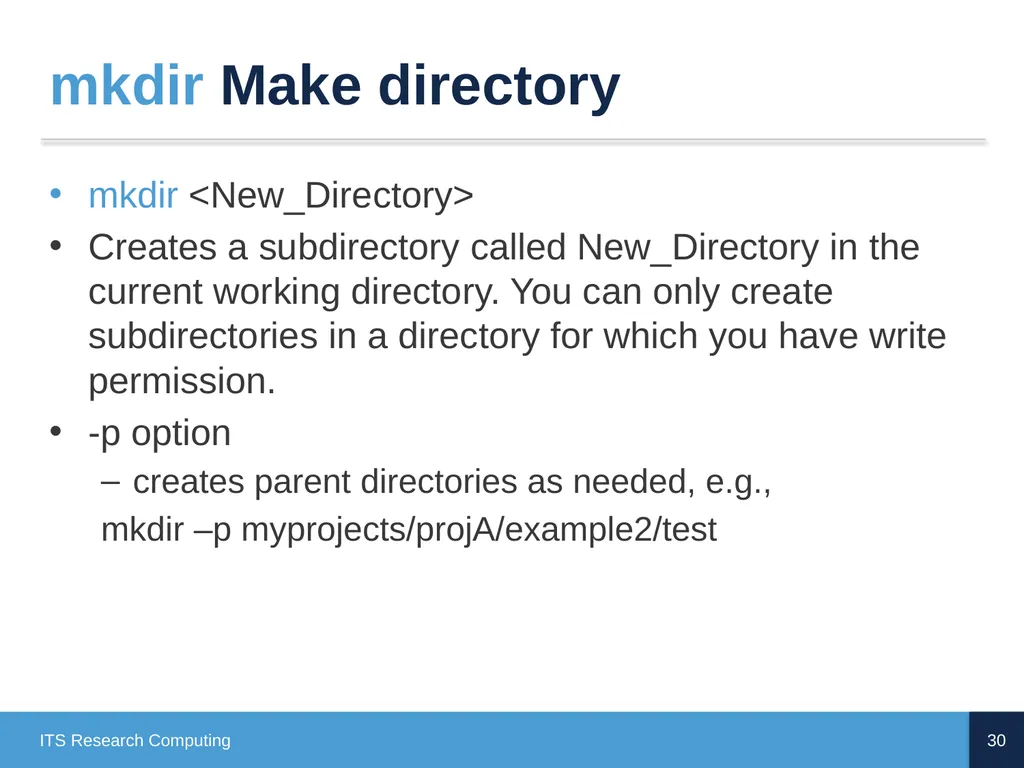
mkdir Make directory mkdir <New_Directory>
Creates a subdirectory called New_Directory in the current working directory. You can only create subdirectories in a directory for which you have write permission.
-p option
creates parent directories as needed, e.g.,
mkdir –p myprojects/projA/example2/test 30 ITS Research Computing<br>
Creates a subdirectory called New_Directory in the current working directory. You can only create subdirectories in a directory for which you have write permission.
-p option
creates parent directories as needed, e.g.,
mkdir –p myprojects/projA/example2/test 30 ITS Research Computing<br>
31
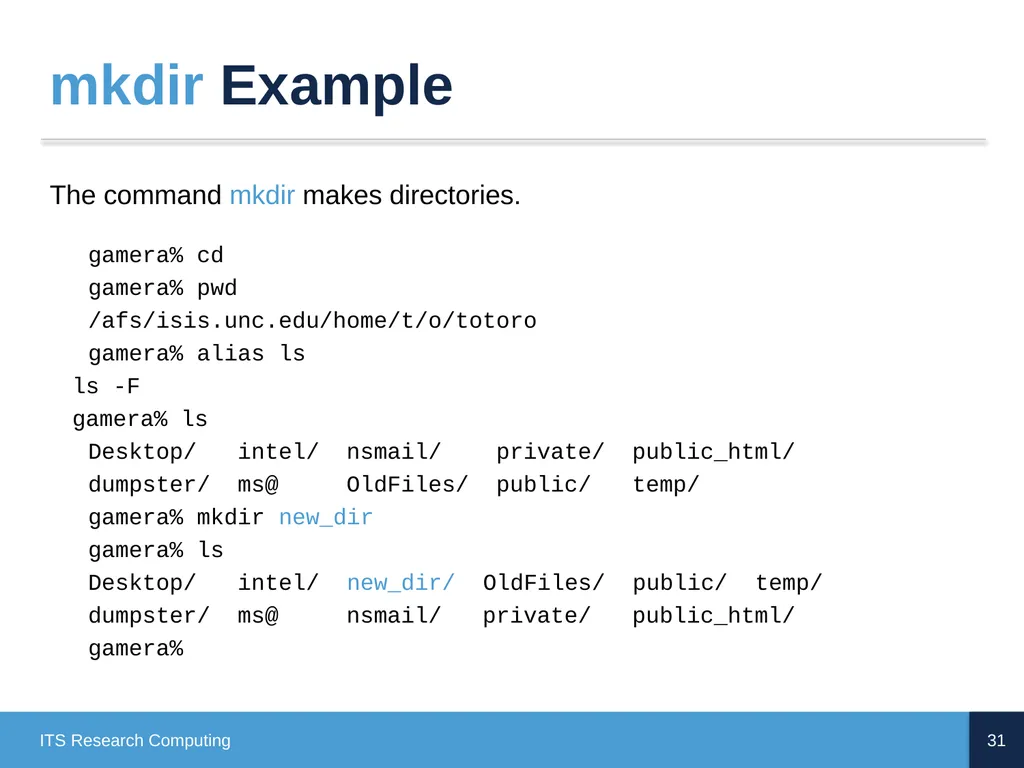
mkdir Example The command mkdir makes directories.
gamera% cd
gamera% pwd
/afs/isis.unc.edu/home/t/o/totoro
gamera% alias ls
ls -F
gamera% ls Desktop/ intel/ nsmail/ private/ public_html/ dumpster/ ms@ OldFiles/ public/ temp/ gamera% mkdir new_dir gamera% ls Desktop/ intel/ new_dir/ OldFiles/ public/ temp/ dumpster/ ms@ nsmail/ private/ public_html/ gamera% 31 ITS Research Computing<br>
ls -F
gamera% ls Desktop/ intel/ nsmail/ private/ public_html/ dumpster/ ms@ OldFiles/ public/ temp/ gamera% mkdir new_dir gamera% ls Desktop/ intel/ new_dir/ OldFiles/ public/ temp/ dumpster/ ms@ nsmail/ private/ public_html/ gamera% 31 ITS Research Computing<br>
32
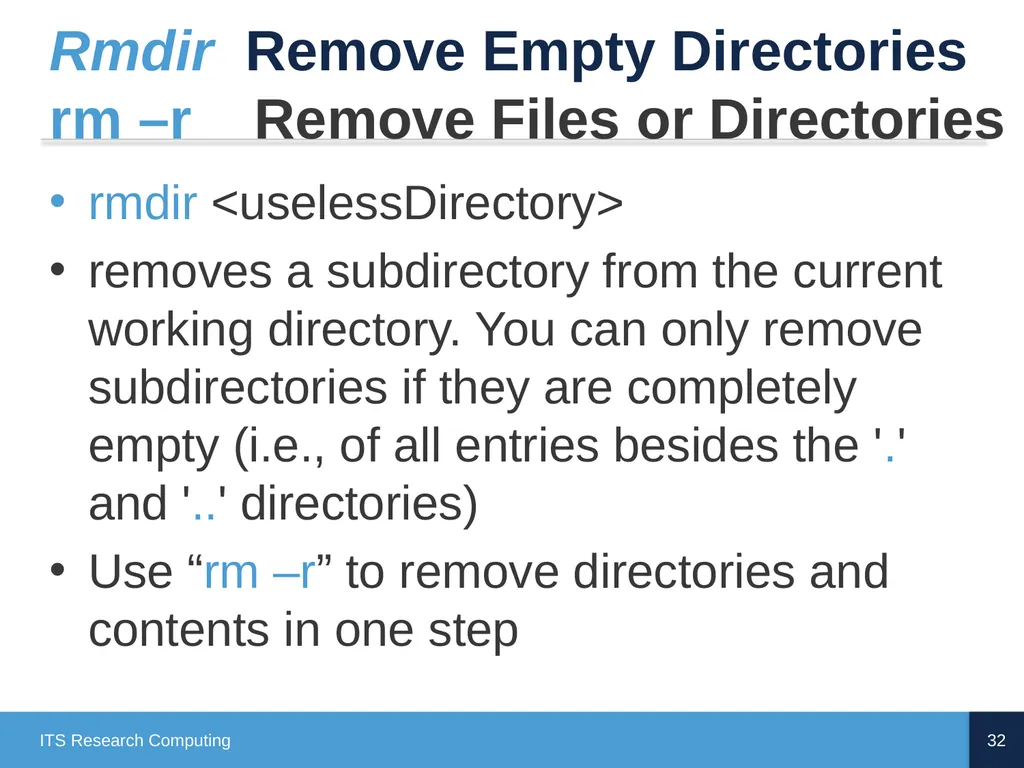
Rmdir Remove Empty Directories
rm –r Remove Files or Directories rmdir <uselessDirectory>
removes a subdirectory from the current working directory. You can only remove subdirectories if they are completely empty (i.e., of all entries besides the '.' and '..' directories)
Use “rm –r” to remove directories and contents in one step 32 ITS Research Computing<br>
removes a subdirectory from the current working directory. You can only remove subdirectories if they are completely empty (i.e., of all entries besides the '.' and '..' directories)
Use “rm –r” to remove directories and contents in one step 32 ITS Research Computing<br>
33
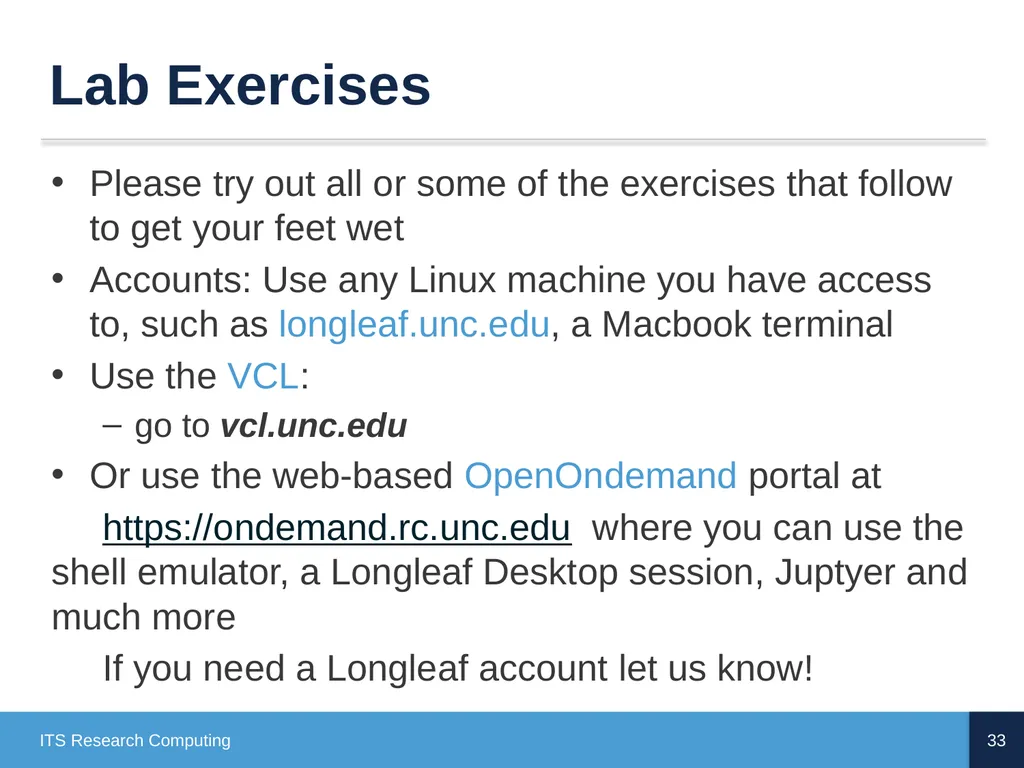
Lab Exercises Please try out all or some of the exercises that follow to get your feet wet
Accounts: Use any Linux machine you have access to, such as longleaf.unc.edu, a Macbook terminal
Use the VCL:
go to vcl.unc.edu
Or use the web-based OpenOndemand portal at
https://ondemand.rc.unc.edu where you can use the shell emulator, a Longleaf Desktop session, Juptyer and much more
If you need a Longleaf account let us know! 33 ITS Research Computing<br>
Accounts: Use any Linux machine you have access to, such as longleaf.unc.edu, a Macbook terminal
Use the VCL:
go to vcl.unc.edu
Or use the web-based OpenOndemand portal at
https://ondemand.rc.unc.edu where you can use the shell emulator, a Longleaf Desktop session, Juptyer and much more
If you need a Longleaf account let us know! 33 ITS Research Computing<br>
34
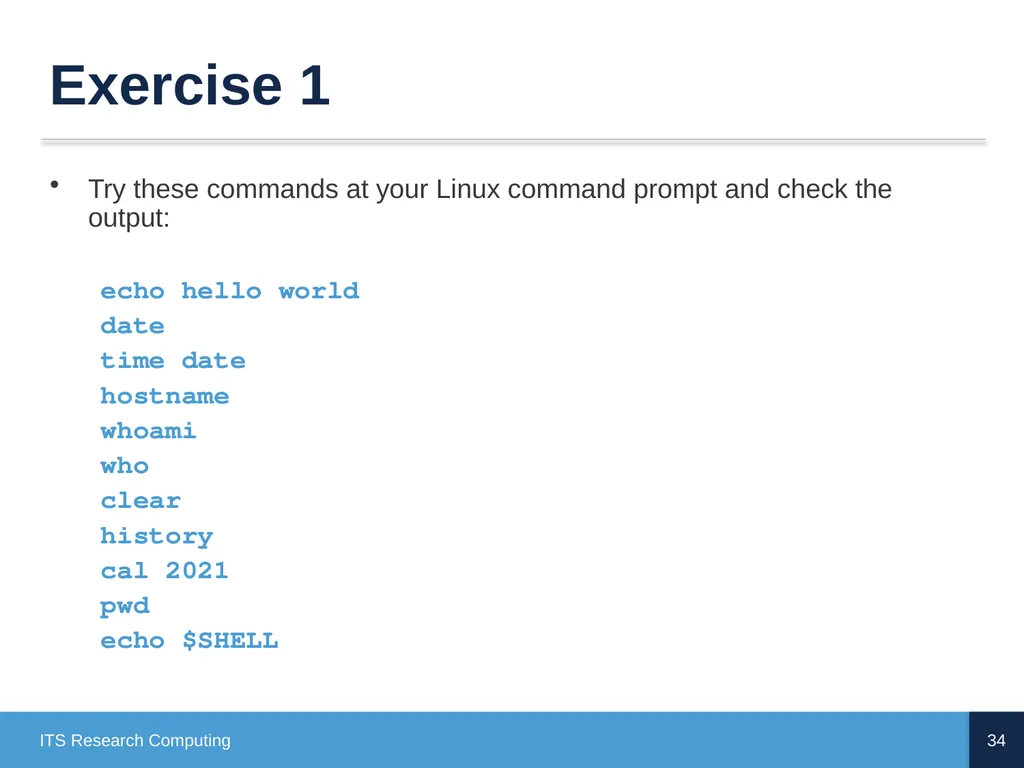
Exercise 1 Try these commands at your Linux command prompt and check the output:
echo hello world
date
time date
hostname
whoami
who
clear
history
cal 2021
pwd
echo $SHELL 34 ITS Research Computing<br>
echo hello world
date
time date
hostname
whoami
who
clear
history
cal 2021
pwd
echo $SHELL 34 ITS Research Computing<br>
35
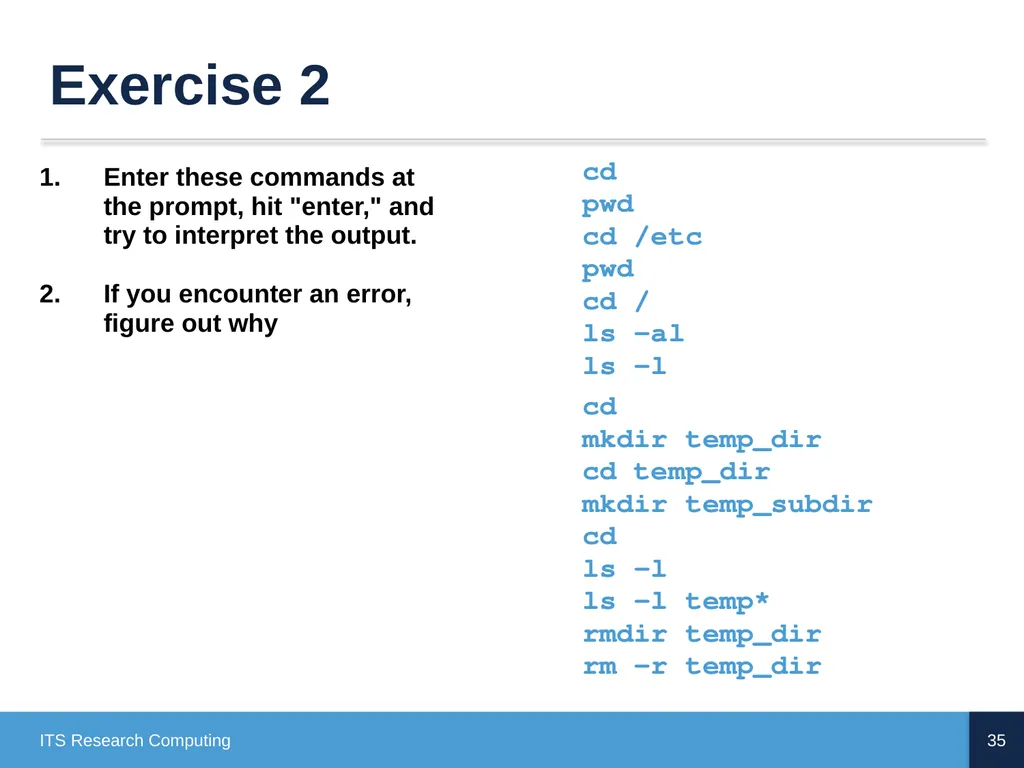
Exercise 2 35 ITS Research Computing cd
pwd
cd /etc
pwd
cd /
ls -al
ls -l cd
mkdir temp_dir
cd temp_dir
mkdir temp_subdir
cd
ls -l
ls -l temp*
rmdir temp_dir
rm -r temp_dir Enter these commands at the prompt, hit "enter," and try to interpret the output.
If you encounter an error, figure out why<br>
If you encounter an error, figure out why<br>
36
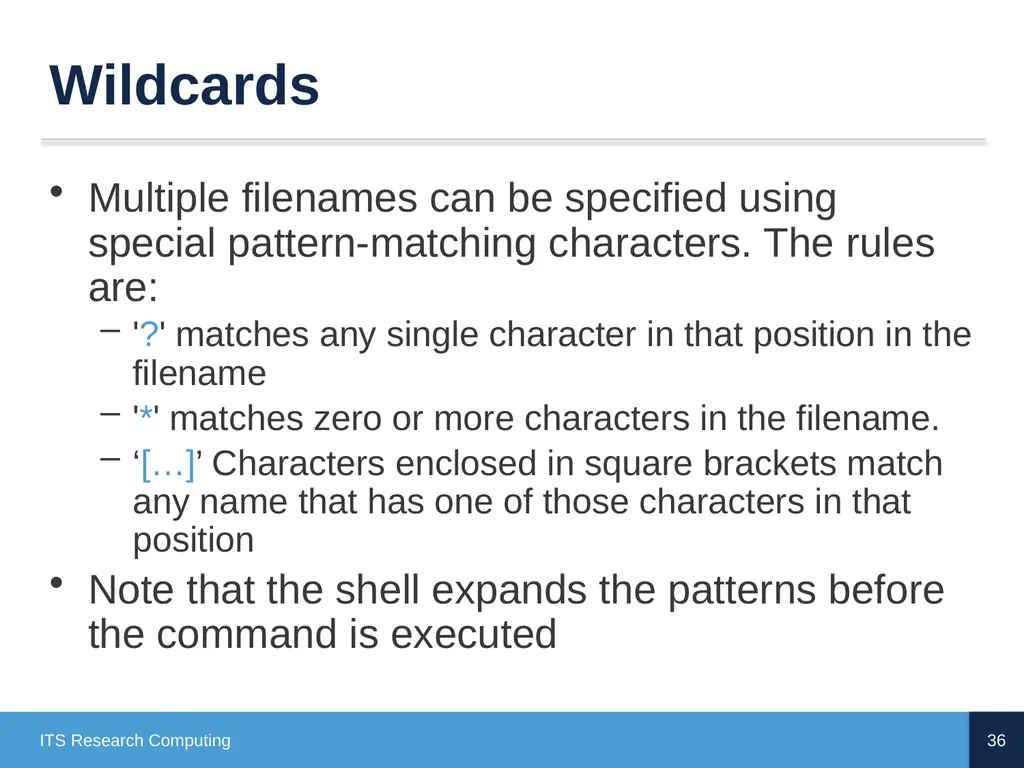
Wildcards Multiple filenames can be specified using special pattern-matching characters. The rules are:
'?' matches any single character in that position in the filename
'*' matches zero or more characters in the filename.
‘[…]’ Characters enclosed in square brackets match any name that has one of those characters in that position
Note that the shell expands the patterns before the command is executed 36 ITS Research Computing<br>
'?' matches any single character in that position in the filename
'*' matches zero or more characters in the filename.
‘[…]’ Characters enclosed in square brackets match any name that has one of those characters in that position
Note that the shell expands the patterns before the command is executed 36 ITS Research Computing<br>
37
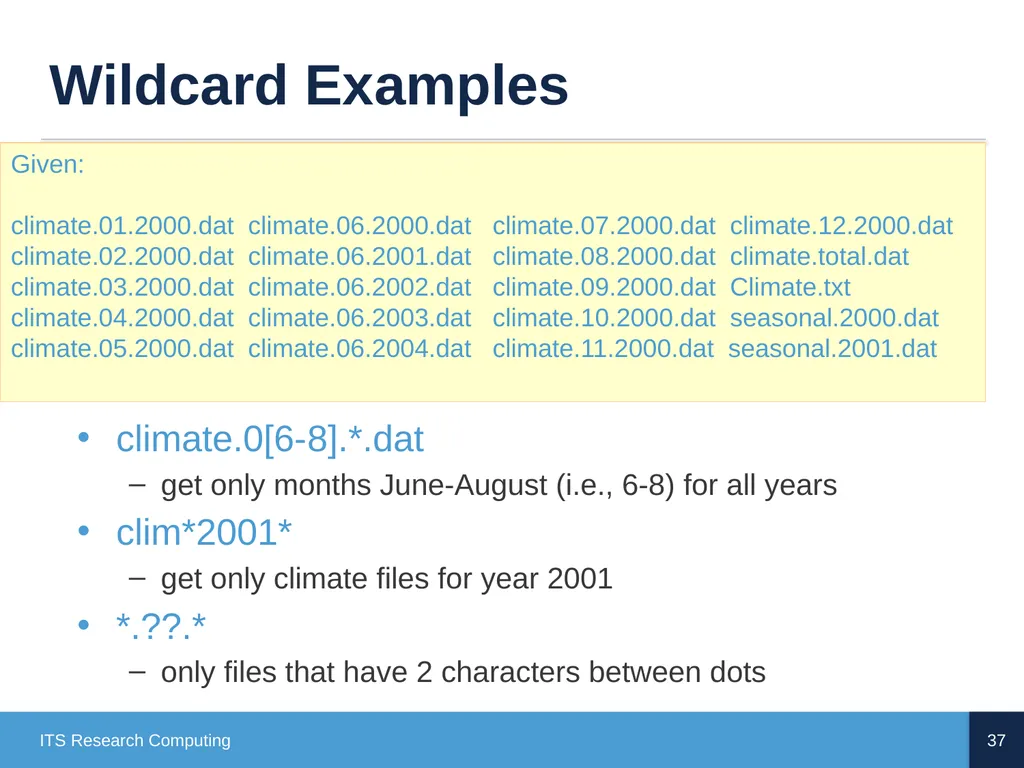
Wildcard Examples climate.0[6-8].*.dat
get only months June-August (i.e., 6-8) for all years
clim*2001*
get only climate files for year 2001
*.??.*
only files that have 2 characters between dots 37 ITS Research Computing Given:
climate.01.2000.dat climate.06.2000.dat climate.07.2000.dat climate.12.2000.dat
climate.02.2000.dat climate.06.2001.dat climate.08.2000.dat climate.total.dat
climate.03.2000.dat climate.06.2002.dat climate.09.2000.dat Climate.txt
climate.04.2000.dat climate.06.2003.dat climate.10.2000.dat seasonal.2000.dat
climate.05.2000.dat climate.06.2004.dat climate.11.2000.dat seasonal.2001.dat<br>
get only months June-August (i.e., 6-8) for all years
clim*2001*
get only climate files for year 2001
*.??.*
only files that have 2 characters between dots 37 ITS Research Computing Given:
climate.01.2000.dat climate.06.2000.dat climate.07.2000.dat climate.12.2000.dat
climate.02.2000.dat climate.06.2001.dat climate.08.2000.dat climate.total.dat
climate.03.2000.dat climate.06.2002.dat climate.09.2000.dat Climate.txt
climate.04.2000.dat climate.06.2003.dat climate.10.2000.dat seasonal.2000.dat
climate.05.2000.dat climate.06.2004.dat climate.11.2000.dat seasonal.2001.dat<br>
38
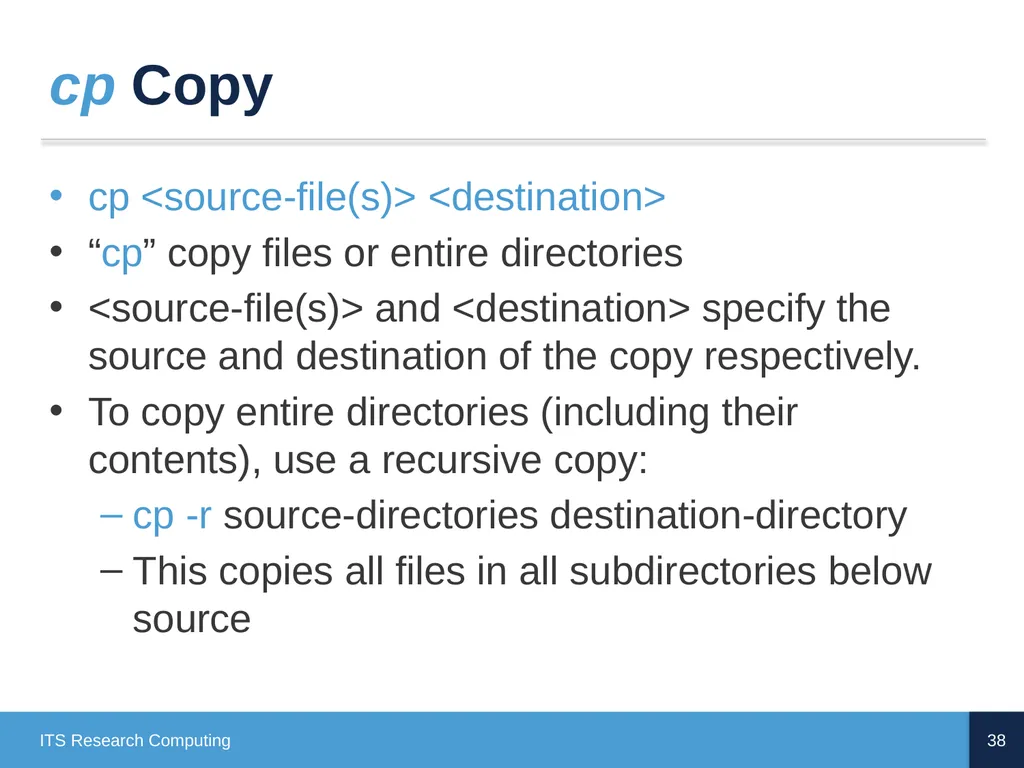
cp Copy cp <source-file(s)> <destination>
“cp” copy files or entire directories
<source-file(s)> and <destination> specify the source and destination of the copy respectively.
To copy entire directories (including their contents), use a recursive copy:
cp -r source-directories destination-directory
This copies all files in all subdirectories below source 38 ITS Research Computing<br>
“cp” copy files or entire directories
<source-file(s)> and <destination> specify the source and destination of the copy respectively.
To copy entire directories (including their contents), use a recursive copy:
cp -r source-directories destination-directory
This copies all files in all subdirectories below source 38 ITS Research Computing<br>
39
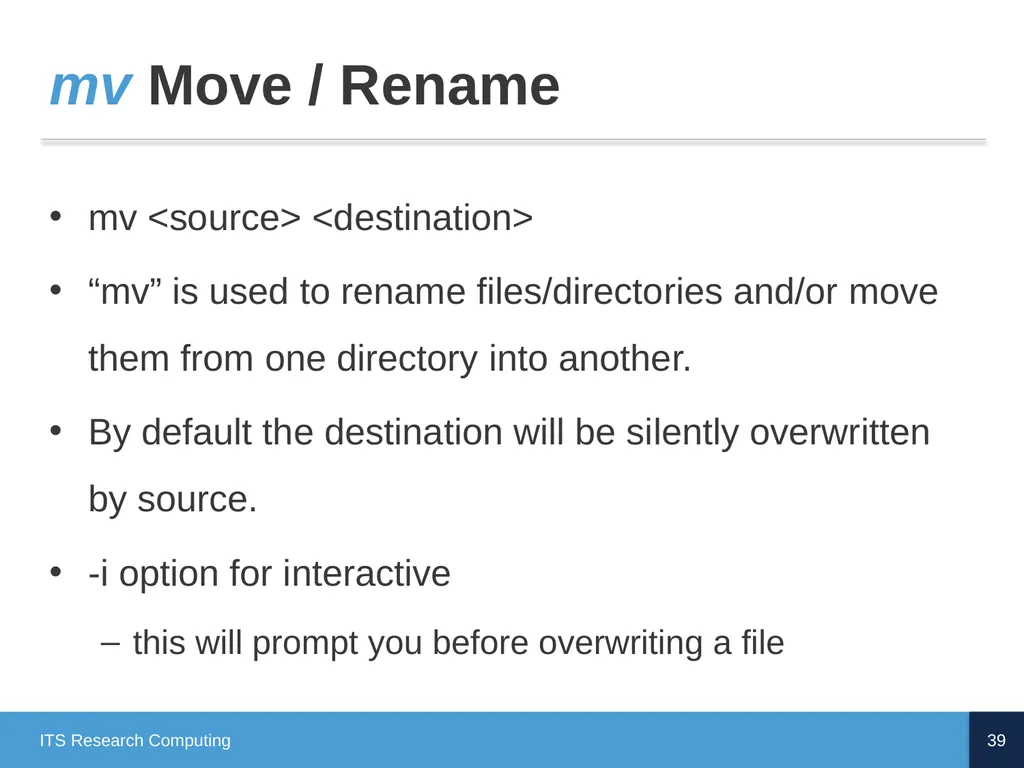
mv Move / Rename mv <source> <destination>
“mv” is used to rename files/directories and/or move them from one directory into another.
By default the destination will be silently overwritten by source.
-i option for interactive
this will prompt you before overwriting a file 39 ITS Research Computing<br>
“mv” is used to rename files/directories and/or move them from one directory into another.
By default the destination will be silently overwritten by source.
-i option for interactive
this will prompt you before overwriting a file 39 ITS Research Computing<br>
40
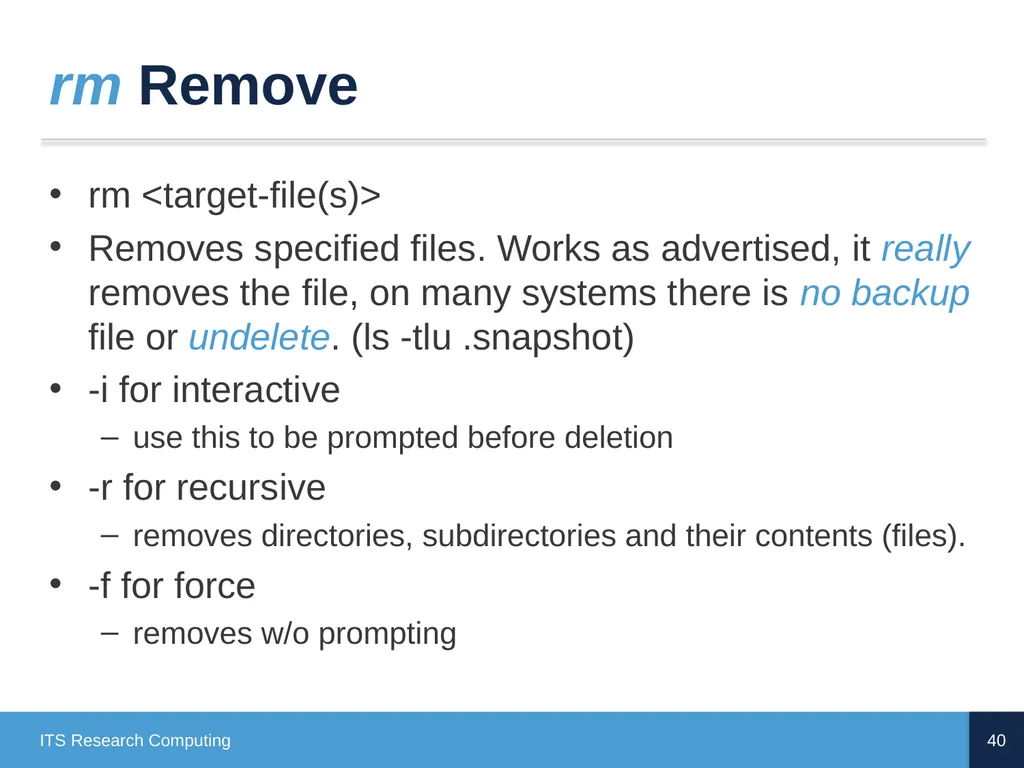
rm Remove rm <target-file(s)>
Removes specified files. Works as advertised, it really removes the file, on many systems there is no backup file or undelete. (ls -tlu .snapshot)
-i for interactive
use this to be prompted before deletion
-r for recursive
removes directories, subdirectories and their contents (files).
-f for force
removes w/o prompting 40 ITS Research Computing<br>
Removes specified files. Works as advertised, it really removes the file, on many systems there is no backup file or undelete. (ls -tlu .snapshot)
-i for interactive
use this to be prompted before deletion
-r for recursive
removes directories, subdirectories and their contents (files).
-f for force
removes w/o prompting 40 ITS Research Computing<br>
41
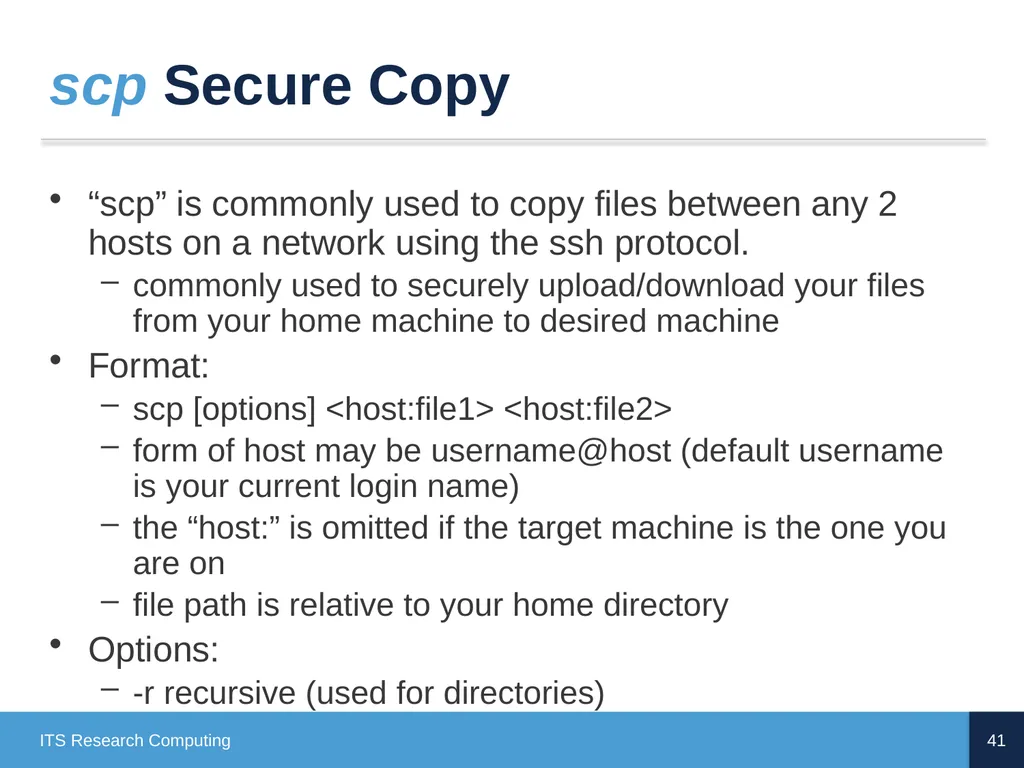
scp Secure Copy “scp” is commonly used to copy files between any 2 hosts on a network using the ssh protocol.
commonly used to securely upload/download your files from your home machine to desired machine
Format:
scp [options] <host:file1> <host:file2>
form of host may be username@host (default username is your current login name)
the “host:” is omitted if the target machine is the one you are on
file path is relative to your home directory
Options:
-r recursive (used for directories) 41 ITS Research Computing<br>
commonly used to securely upload/download your files from your home machine to desired machine
Format:
scp [options] <host:file1> <host:file2>
form of host may be username@host (default username is your current login name)
the “host:” is omitted if the target machine is the one you are on
file path is relative to your home directory
Options:
-r recursive (used for directories) 41 ITS Research Computing<br>
42
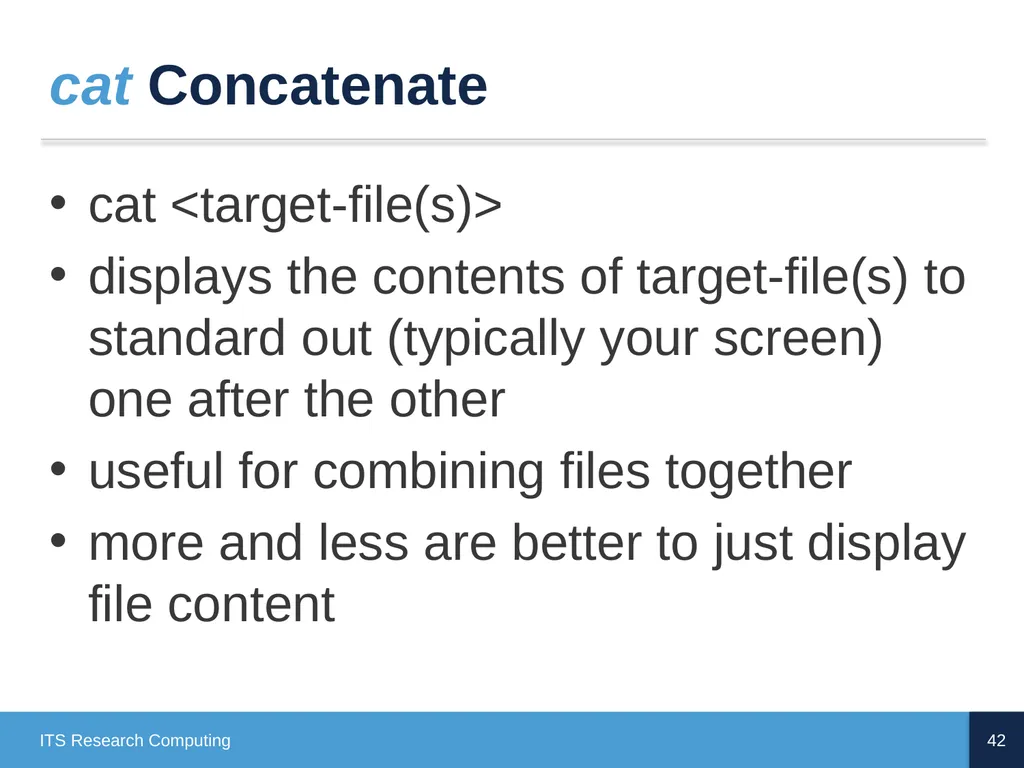
cat Concatenate cat <target-file(s)>
displays the contents of target-file(s) to standard out (typically your screen) one after the other
useful for combining files together
more and less are better to just display file content 42 ITS Research Computing<br>
displays the contents of target-file(s) to standard out (typically your screen) one after the other
useful for combining files together
more and less are better to just display file content 42 ITS Research Computing<br>
43
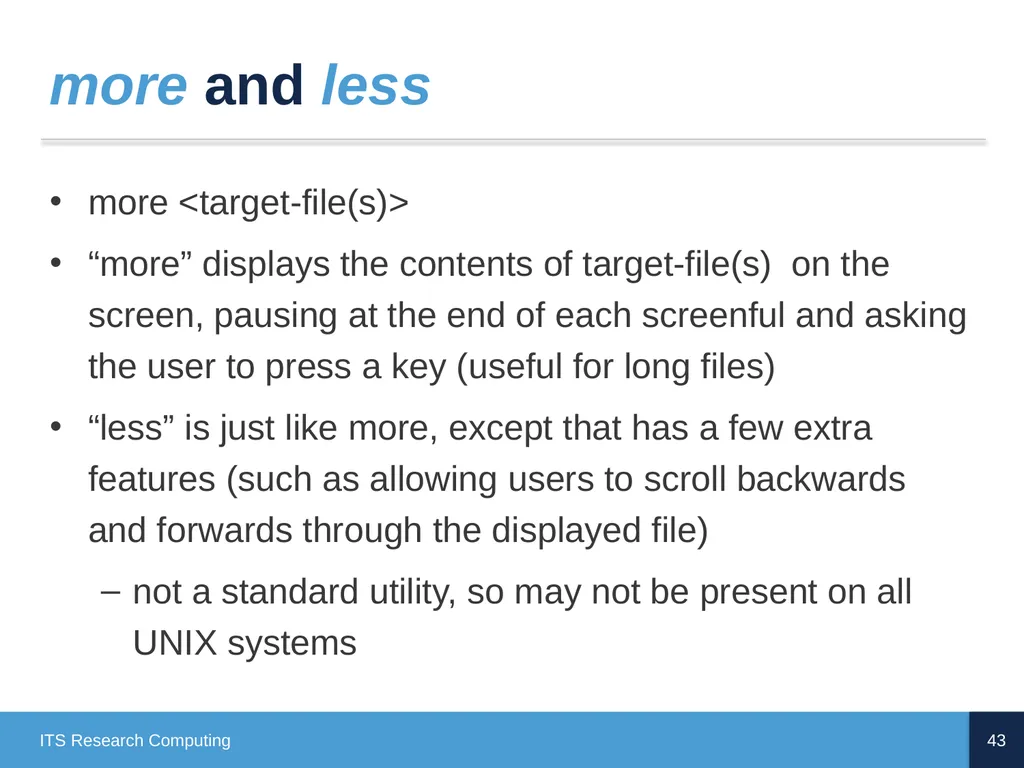
more and less more <target-file(s)>
“more” displays the contents of target-file(s) on the screen, pausing at the end of each screenful and asking the user to press a key (useful for long files)
“less” is just like more, except that has a few extra features (such as allowing users to scroll backwards and forwards through the displayed file)
not a standard utility, so may not be present on all UNIX systems 43 ITS Research Computing<br>
“more” displays the contents of target-file(s) on the screen, pausing at the end of each screenful and asking the user to press a key (useful for long files)
“less” is just like more, except that has a few extra features (such as allowing users to scroll backwards and forwards through the displayed file)
not a standard utility, so may not be present on all UNIX systems 43 ITS Research Computing<br>
44
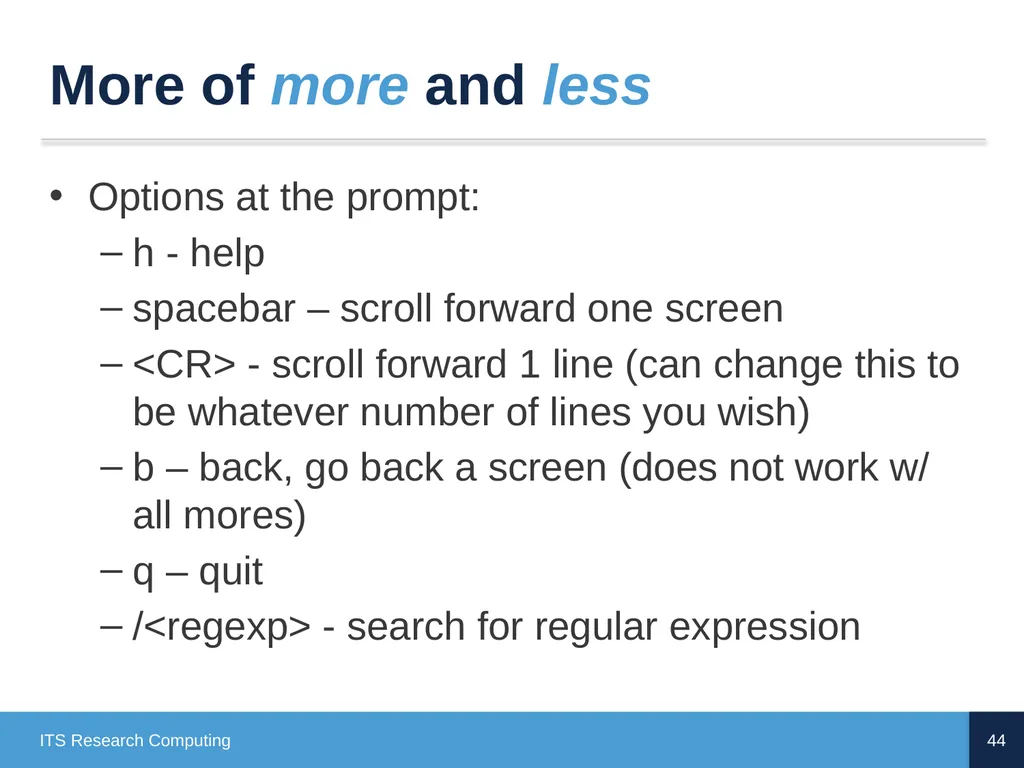
More of more and less Options at the prompt:
h - help
spacebar – scroll forward one screen
<CR> - scroll forward 1 line (can change this to be whatever number of lines you wish)
b – back, go back a screen (does not work w/ all mores)
q – quit
/<regexp> - search for regular expression 44 ITS Research Computing<br>
h - help
spacebar – scroll forward one screen
<CR> - scroll forward 1 line (can change this to be whatever number of lines you wish)
b – back, go back a screen (does not work w/ all mores)
q – quit
/<regexp> - search for regular expression 44 ITS Research Computing<br>
45
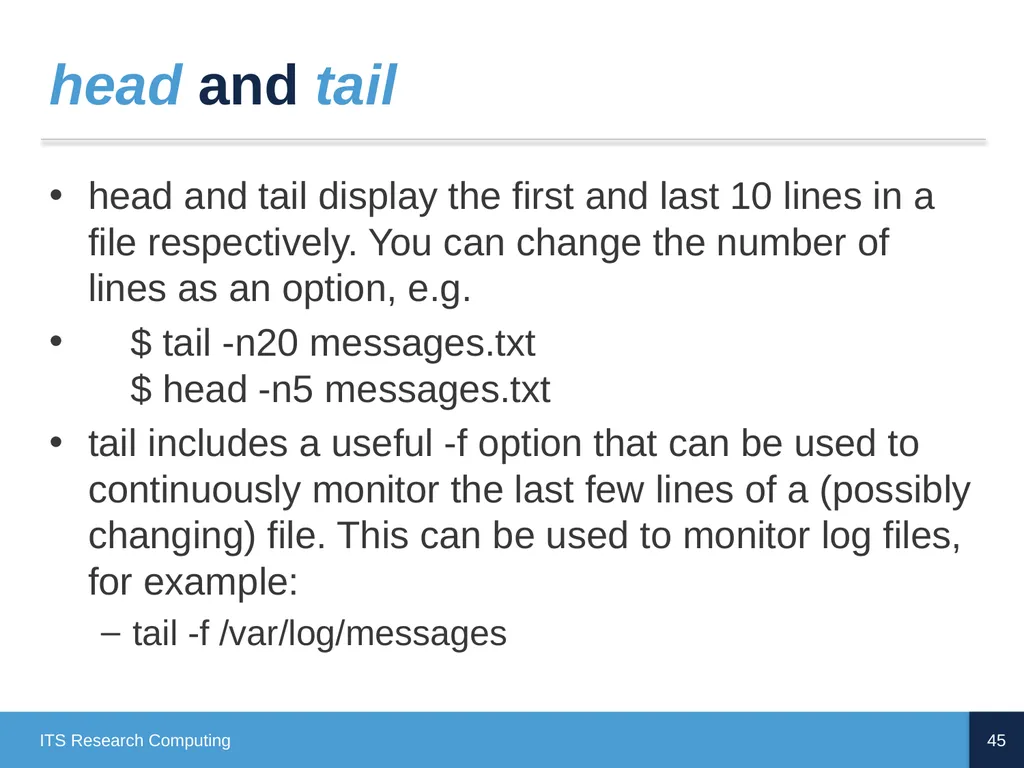
head and tail head and tail display the first and last 10 lines in a file respectively. You can change the number of lines as an option, e.g.
$ tail -n20 messages.txt $ head -n5 messages.txt
tail includes a useful -f option that can be used to continuously monitor the last few lines of a (possibly changing) file. This can be used to monitor log files, for example:
tail -f /var/log/messages 45 ITS Research Computing<br>
$ tail -n20 messages.txt $ head -n5 messages.txt
tail includes a useful -f option that can be used to continuously monitor the last few lines of a (possibly changing) file. This can be used to monitor log files, for example:
tail -f /var/log/messages 45 ITS Research Computing<br>
46
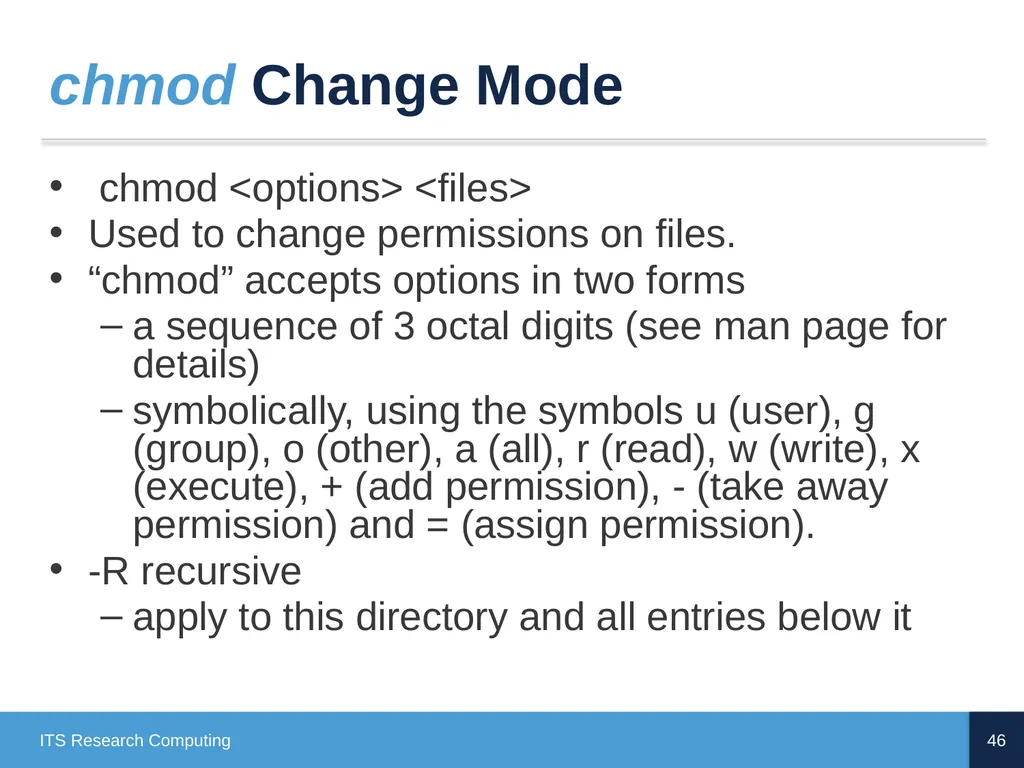
chmod Change Mode chmod <options> <files>
Used to change permissions on files.
“chmod” accepts options in two forms
a sequence of 3 octal digits (see man page for details)
symbolically, using the symbols u (user), g (group), o (other), a (all), r (read), w (write), x (execute), + (add permission), - (take away permission) and = (assign permission).
-R recursive
apply to this directory and all entries below it 46 ITS Research Computing<br>
Used to change permissions on files.
“chmod” accepts options in two forms
a sequence of 3 octal digits (see man page for details)
symbolically, using the symbols u (user), g (group), o (other), a (all), r (read), w (write), x (execute), + (add permission), - (take away permission) and = (assign permission).
-R recursive
apply to this directory and all entries below it 46 ITS Research Computing<br>
47
ls -l List Contents in Long Form Remember, the command ls -l lists the contents of a directory in long listing format 47 ITS Research Computing<br>
48
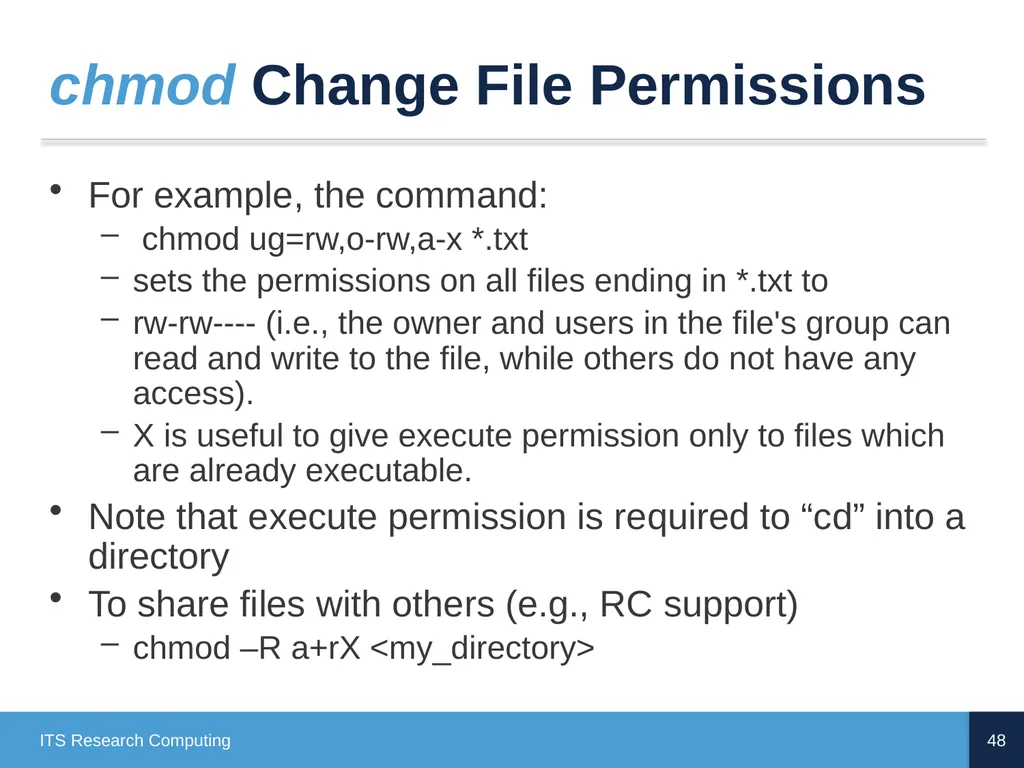
chmod Change File Permissions For example, the command:
chmod ug=rw,o-rw,a-x *.txt
sets the permissions on all files ending in *.txt to
rw-rw---- (i.e., the owner and users in the file's group can read and write to the file, while others do not have any access).
X is useful to give execute permission only to files which are already executable.
Note that execute permission is required to “cd” into a directory
To share files with others (e.g., RC support)
chmod –R a+rX <my_directory> 48 ITS Research Computing<br>
chmod ug=rw,o-rw,a-x *.txt
sets the permissions on all files ending in *.txt to
rw-rw---- (i.e., the owner and users in the file's group can read and write to the file, while others do not have any access).
X is useful to give execute permission only to files which are already executable.
Note that execute permission is required to “cd” into a directory
To share files with others (e.g., RC support)
chmod –R a+rX <my_directory> 48 ITS Research Computing<br>
49
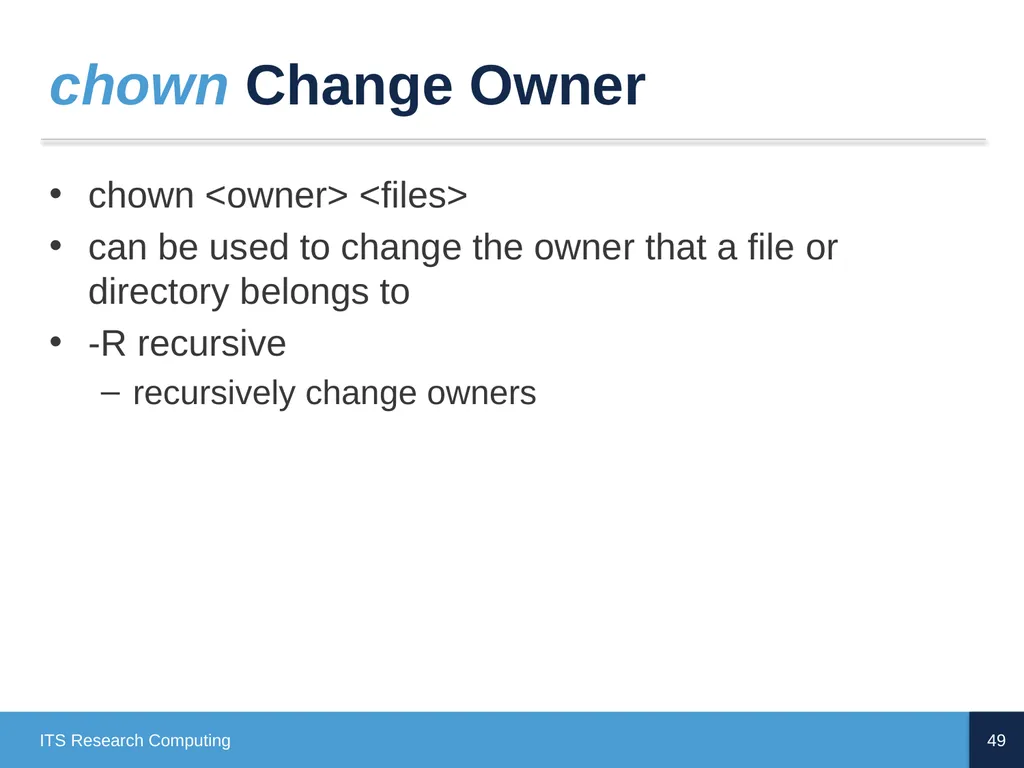
chown Change Owner chown <owner> <files>
can be used to change the owner that a file or directory belongs to
-R recursive
recursively change owners 49 ITS Research Computing<br>
can be used to change the owner that a file or directory belongs to
-R recursive
recursively change owners 49 ITS Research Computing<br>
50
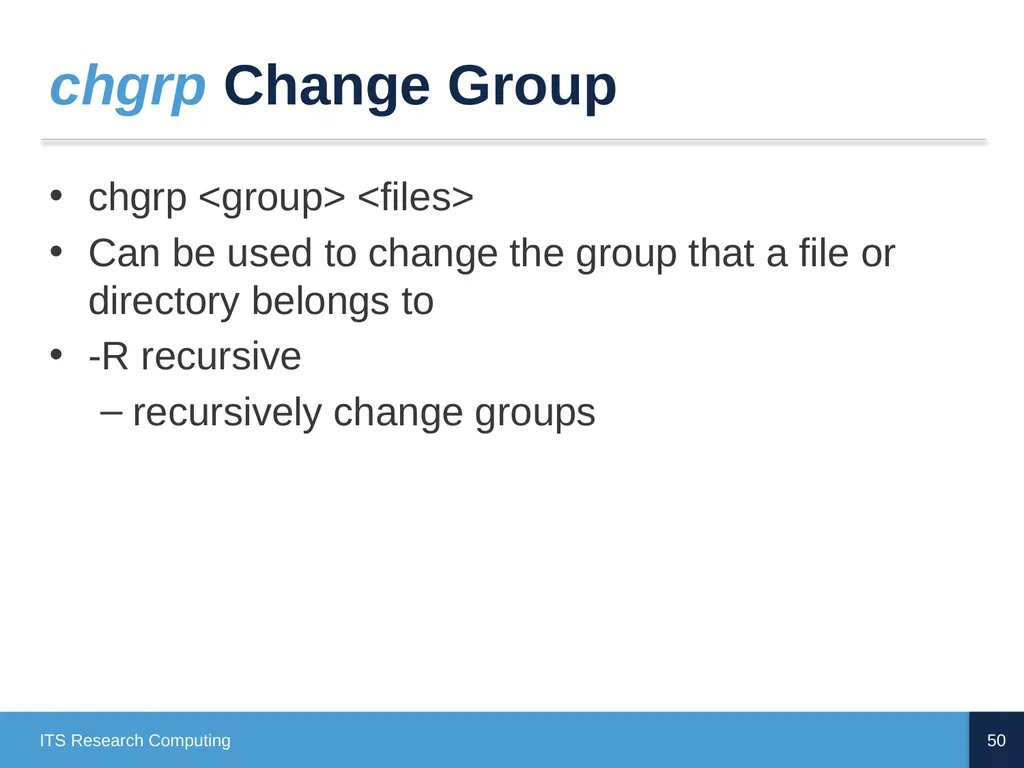
chgrp Change Group chgrp <group> <files>
Can be used to change the group that a file or directory belongs to
-R recursive
recursively change groups 50 ITS Research Computing<br>
Can be used to change the group that a file or directory belongs to
-R recursive
recursively change groups 50 ITS Research Computing<br>
51
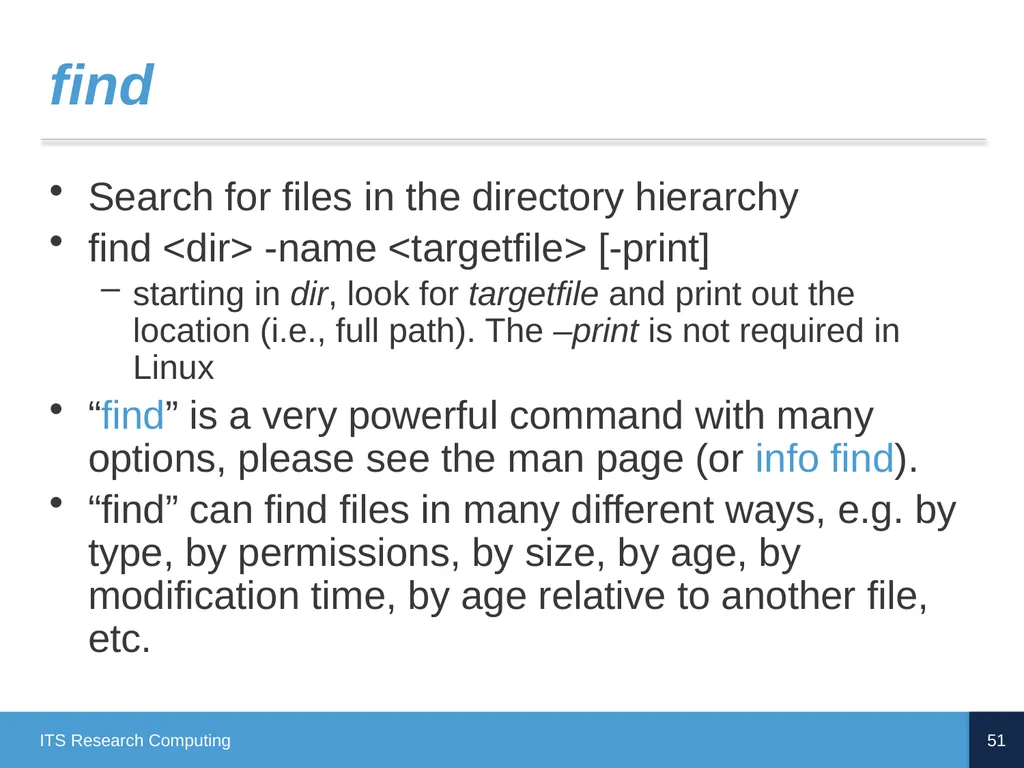
find Search for files in the directory hierarchy
find <dir> -name <targetfile> [-print]
starting in dir, look for targetfile and print out the location (i.e., full path). The –print is not required in Linux
“find” is a very powerful command with many options, please see the man page (or info find).
“find” can find files in many different ways, e.g. by type, by permissions, by size, by age, by modification time, by age relative to another file, etc. 51 ITS Research Computing<br>
find <dir> -name <targetfile> [-print]
starting in dir, look for targetfile and print out the location (i.e., full path). The –print is not required in Linux
“find” is a very powerful command with many options, please see the man page (or info find).
“find” can find files in many different ways, e.g. by type, by permissions, by size, by age, by modification time, by age relative to another file, etc. 51 ITS Research Computing<br>
52
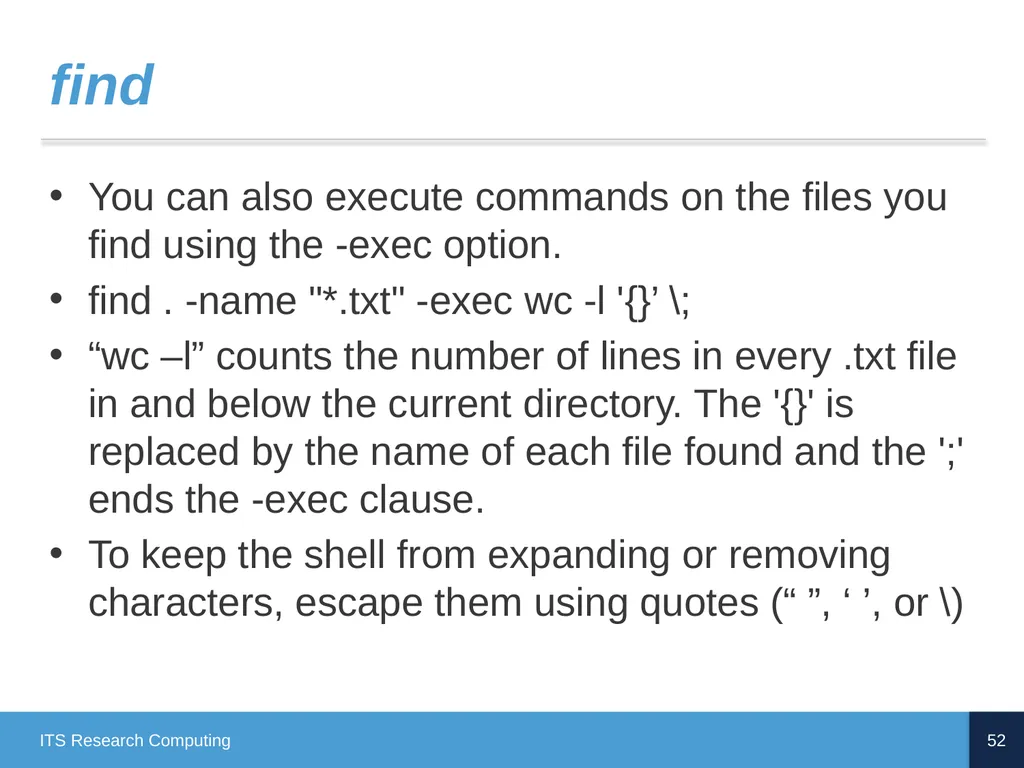
find You can also execute commands on the files you find using the -exec option.
find . -name "*.txt" -exec wc -l '{}’ \;
“wc –l” counts the number of lines in every .txt file in and below the current directory. The '{}' is replaced by the name of each file found and the ';' ends the -exec clause.
To keep the shell from expanding or removing characters, escape them using quotes (“ ”, ‘ ’, or \) 52 ITS Research Computing<br>
find . -name "*.txt" -exec wc -l '{}’ \;
“wc –l” counts the number of lines in every .txt file in and below the current directory. The '{}' is replaced by the name of each file found and the ';' ends the -exec clause.
To keep the shell from expanding or removing characters, escape them using quotes (“ ”, ‘ ’, or \) 52 ITS Research Computing<br>
53
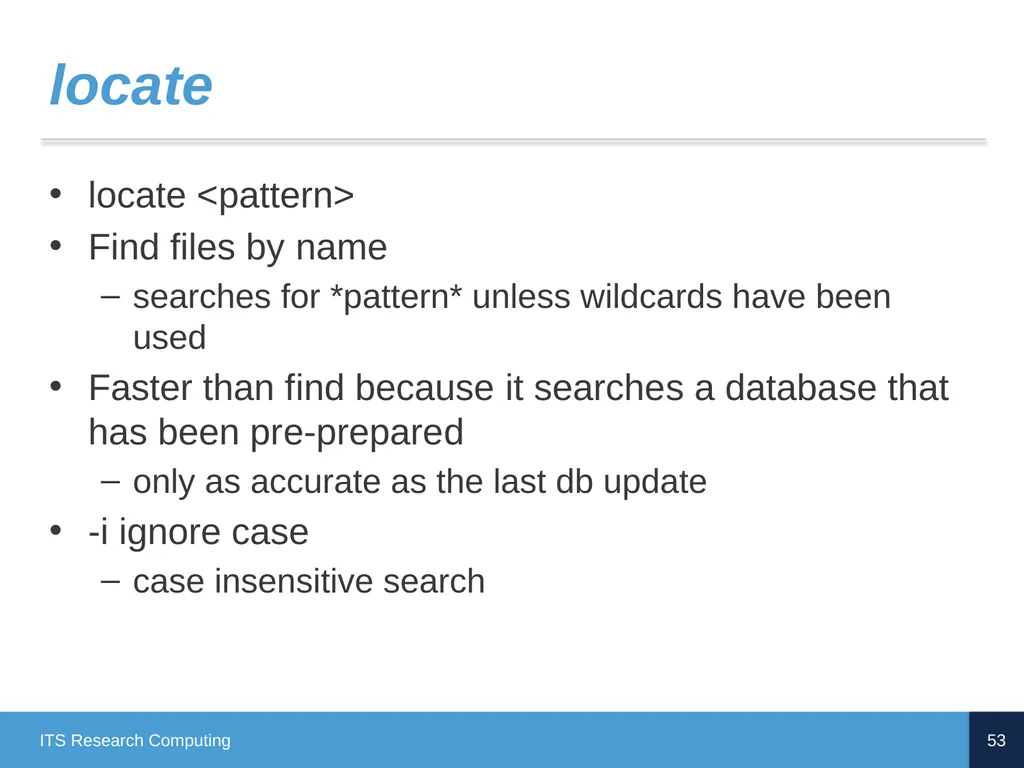
locate locate <pattern>
Find files by name
searches for *pattern* unless wildcards have been used
Faster than find because it searches a database that has been pre-prepared
only as accurate as the last db update
-i ignore case
case insensitive search 53 ITS Research Computing<br>
Find files by name
searches for *pattern* unless wildcards have been used
Faster than find because it searches a database that has been pre-prepared
only as accurate as the last db update
-i ignore case
case insensitive search 53 ITS Research Computing<br>
54
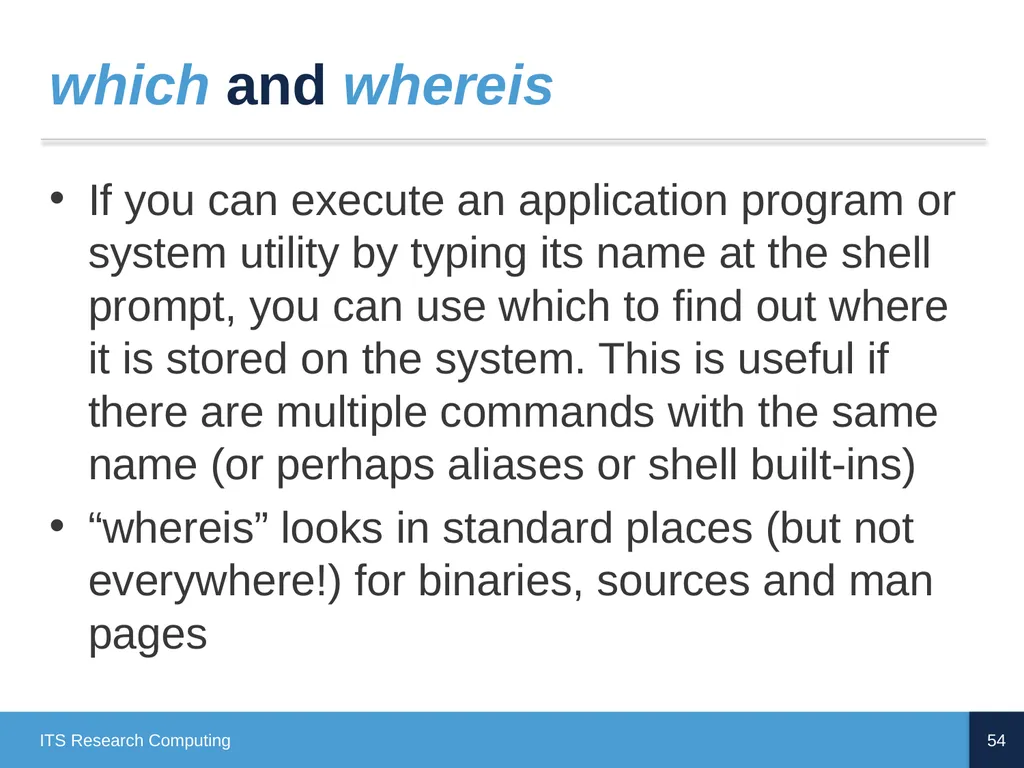
which and whereis If you can execute an application program or system utility by typing its name at the shell prompt, you can use which to find out where it is stored on the system. This is useful if there are multiple commands with the same name (or perhaps aliases or shell built-ins)
“whereis” looks in standard places (but not everywhere!) for binaries, sources and man pages 54 ITS Research Computing<br>
“whereis” looks in standard places (but not everywhere!) for binaries, sources and man pages 54 ITS Research Computing<br>
55
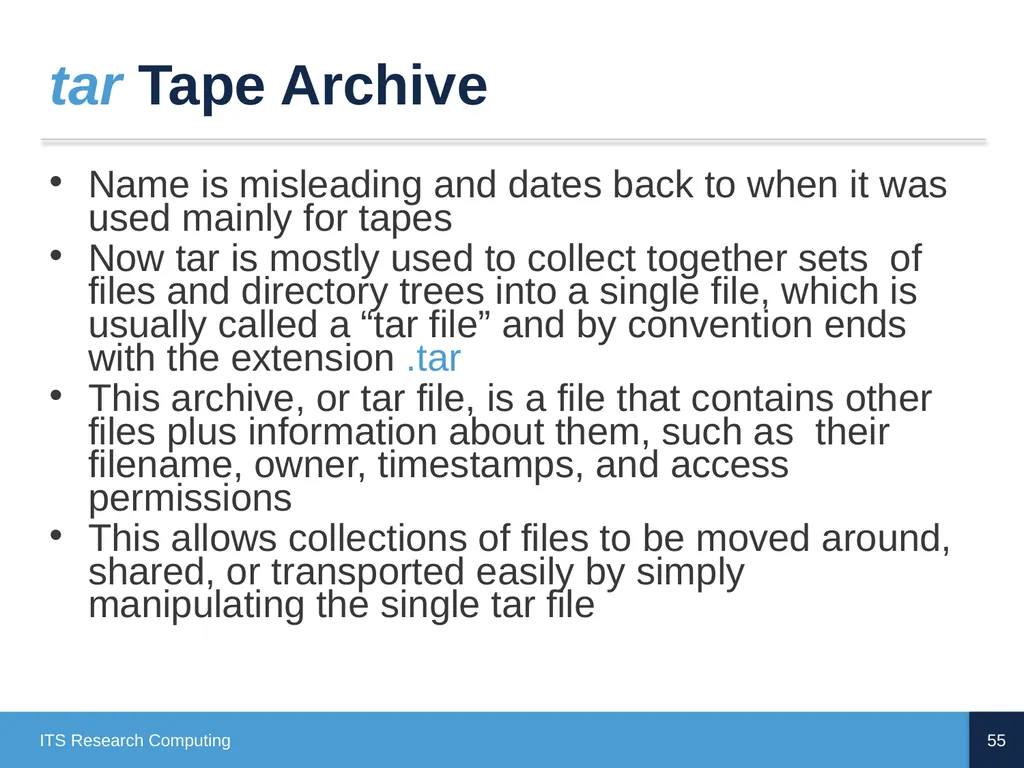
tar Tape Archive Name is misleading and dates back to when it was used mainly for tapes
Now tar is mostly used to collect together sets of files and directory trees into a single file, which is usually called a “tar file” and by convention ends with the extension .tar
This archive, or tar file, is a file that contains other files plus information about them, such as their filename, owner, timestamps, and access permissions
This allows collections of files to be moved around, shared, or transported easily by simply manipulating the single tar file 55 ITS Research Computing<br>
Now tar is mostly used to collect together sets of files and directory trees into a single file, which is usually called a “tar file” and by convention ends with the extension .tar
This archive, or tar file, is a file that contains other files plus information about them, such as their filename, owner, timestamps, and access permissions
This allows collections of files to be moved around, shared, or transported easily by simply manipulating the single tar file 55 ITS Research Computing<br>
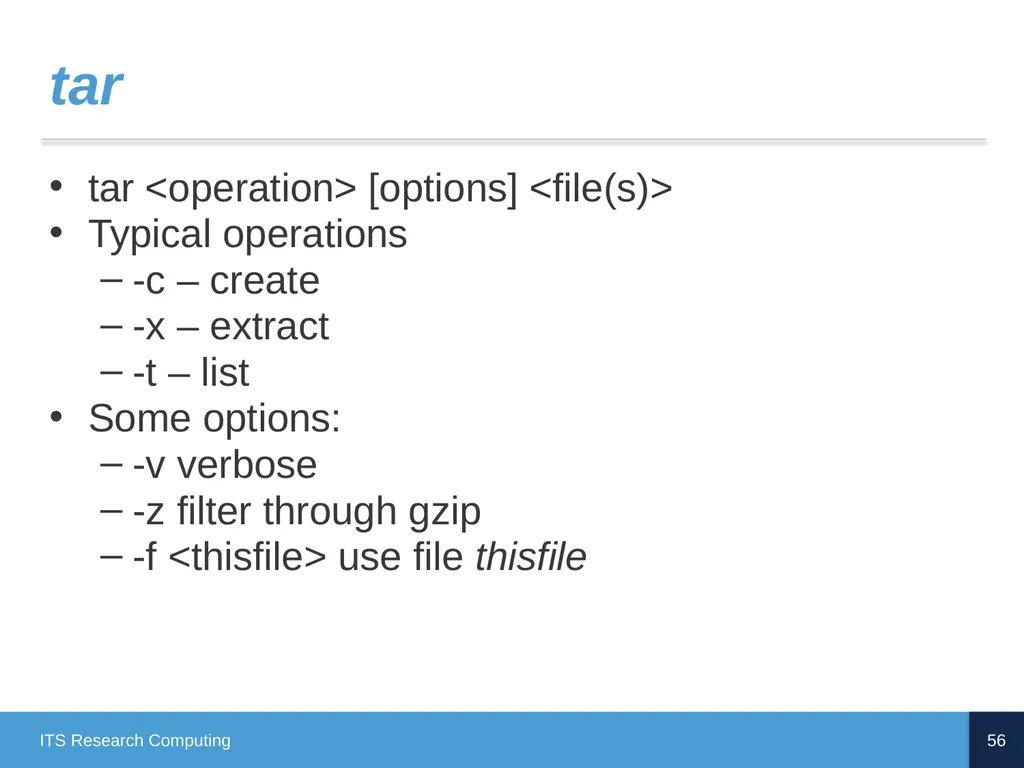
56
tar tar <operation> [options] <file(s)>
Typical operations
-c – create
-x – extract
-t – list
Some options:
-v verbose
-z filter through gzip
-f <thisfile> use file thisfile 56 ITS Research Computing<br>
Typical operations
-c – create
-x – extract
-t – list
Some options:
-v verbose
-z filter through gzip
-f <thisfile> use file thisfile 56 ITS Research Computing<br>
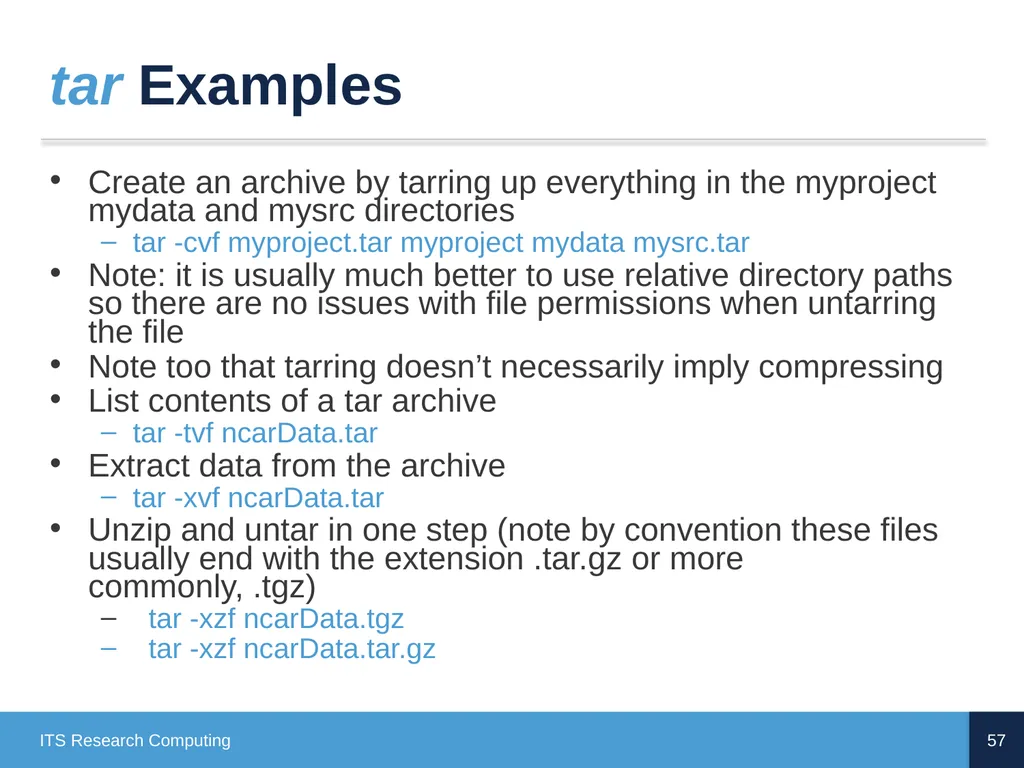
57
tar Examples Create an archive by tarring up everything in the myproject mydata and mysrc directories
tar -cvf myproject.tar myproject mydata mysrc.tar
Note: it is usually much better to use relative directory paths so there are no issues with file permissions when untarring the file
Note too that tarring doesn’t necessarily imply compressing
List contents of a tar archive
tar -tvf ncarData.tar
Extract data from the archive
tar -xvf ncarData.tar
Unzip and untar in one step (note by convention these files usually end with the extension .tar.gz or more commonly, .tgz)
tar -xzf ncarData.tgz
tar -xzf ncarData.tar.gz 57 ITS Research Computing<br>
tar -cvf myproject.tar myproject mydata mysrc.tar
Note: it is usually much better to use relative directory paths so there are no issues with file permissions when untarring the file
Note too that tarring doesn’t necessarily imply compressing
List contents of a tar archive
tar -tvf ncarData.tar
Extract data from the archive
tar -xvf ncarData.tar
Unzip and untar in one step (note by convention these files usually end with the extension .tar.gz or more commonly, .tgz)
tar -xzf ncarData.tgz
tar -xzf ncarData.tar.gz 57 ITS Research Computing<br>
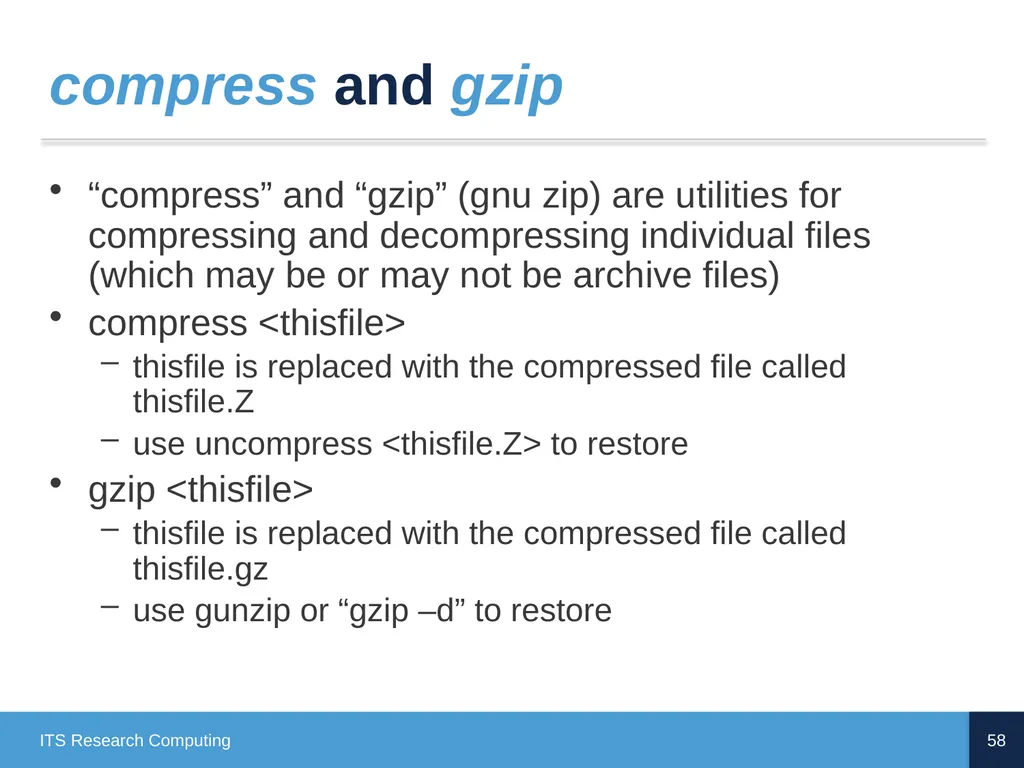
58
compress and gzip “compress” and “gzip” (gnu zip) are utilities for compressing and decompressing individual files (which may be or may not be archive files)
compress <thisfile>
thisfile is replaced with the compressed file called thisfile.Z
use uncompress <thisfile.Z> to restore
gzip <thisfile>
thisfile is replaced with the compressed file called thisfile.gz
use gunzip or “gzip –d” to restore 58 ITS Research Computing<br>
compress <thisfile>
thisfile is replaced with the compressed file called thisfile.Z
use uncompress <thisfile.Z> to restore
gzip <thisfile>
thisfile is replaced with the compressed file called thisfile.gz
use gunzip or “gzip –d” to restore 58 ITS Research Computing<br>
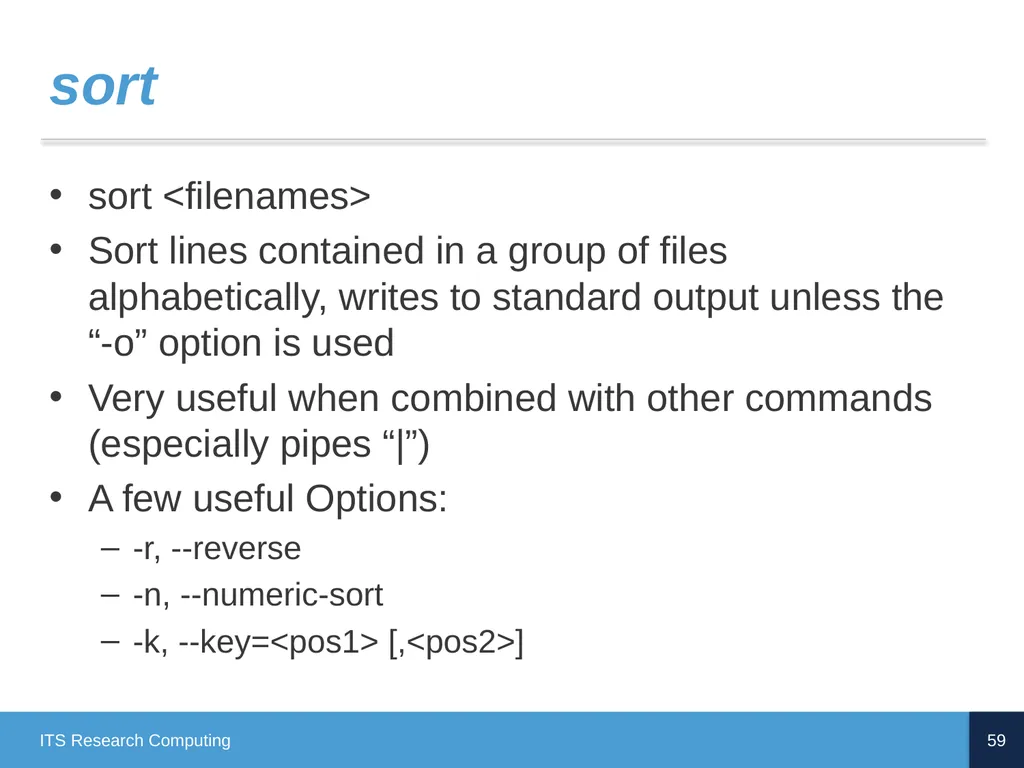
59
sort sort <filenames>
Sort lines contained in a group of files alphabetically, writes to standard output unless the “-o” option is used
Very useful when combined with other commands (especially pipes “|”)
A few useful Options:
-r, --reverse
-n, --numeric-sort
-k, --key=<pos1> [,<pos2>] 59 ITS Research Computing<br>
Sort lines contained in a group of files alphabetically, writes to standard output unless the “-o” option is used
Very useful when combined with other commands (especially pipes “|”)
A few useful Options:
-r, --reverse
-n, --numeric-sort
-k, --key=<pos1> [,<pos2>] 59 ITS Research Computing<br>
60
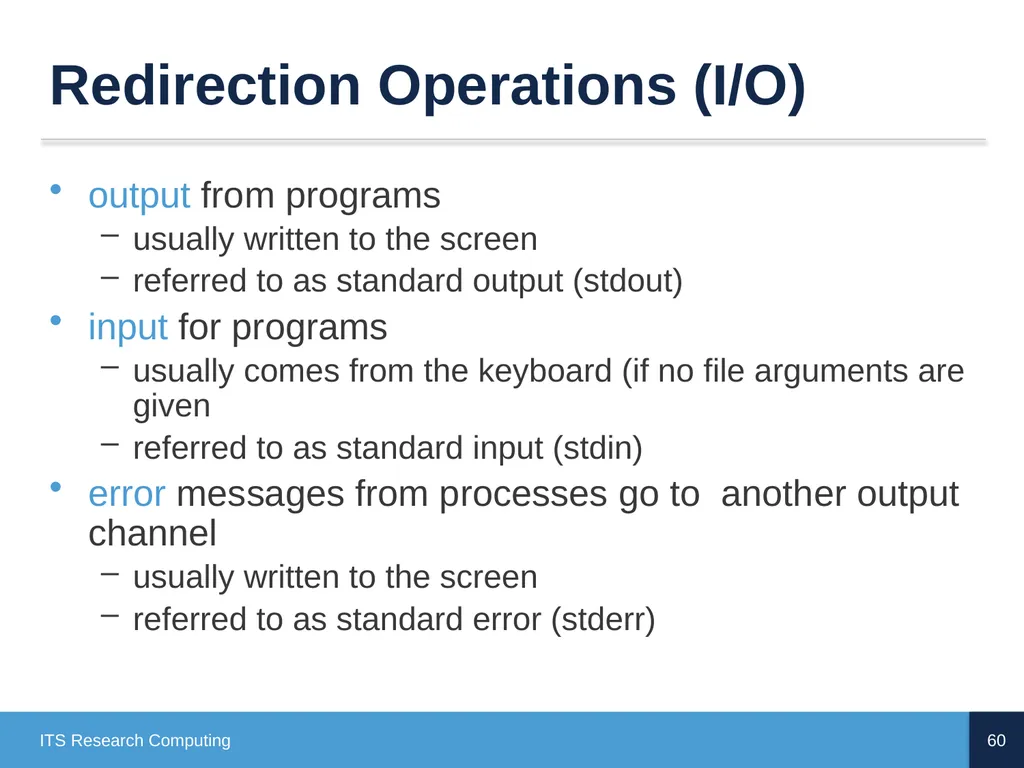
Redirection Operations (I/O) output from programs
usually written to the screen
referred to as standard output (stdout)
input for programs
usually comes from the keyboard (if no file arguments are given
referred to as standard input (stdin)
error messages from processes go to another output channel
usually written to the screen
referred to as standard error (stderr) 60 ITS Research Computing<br>
usually written to the screen
referred to as standard output (stdout)
input for programs
usually comes from the keyboard (if no file arguments are given
referred to as standard input (stdin)
error messages from processes go to another output channel
usually written to the screen
referred to as standard error (stderr) 60 ITS Research Computing<br>
61
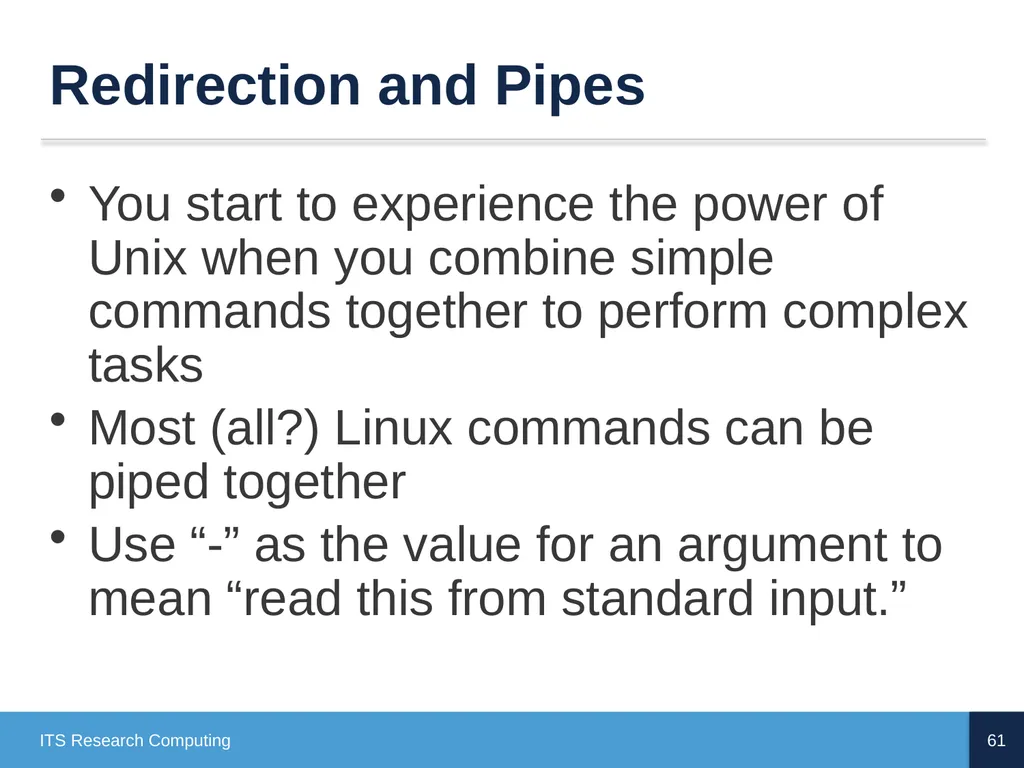
Redirection and Pipes You start to experience the power of Unix when you combine simple commands together to perform complex tasks
Most (all?) Linux commands can be piped together
Use “-” as the value for an argument to mean “read this from standard input.” 61 ITS Research Computing<br>
Most (all?) Linux commands can be piped together
Use “-” as the value for an argument to mean “read this from standard input.” 61 ITS Research Computing<br>
62
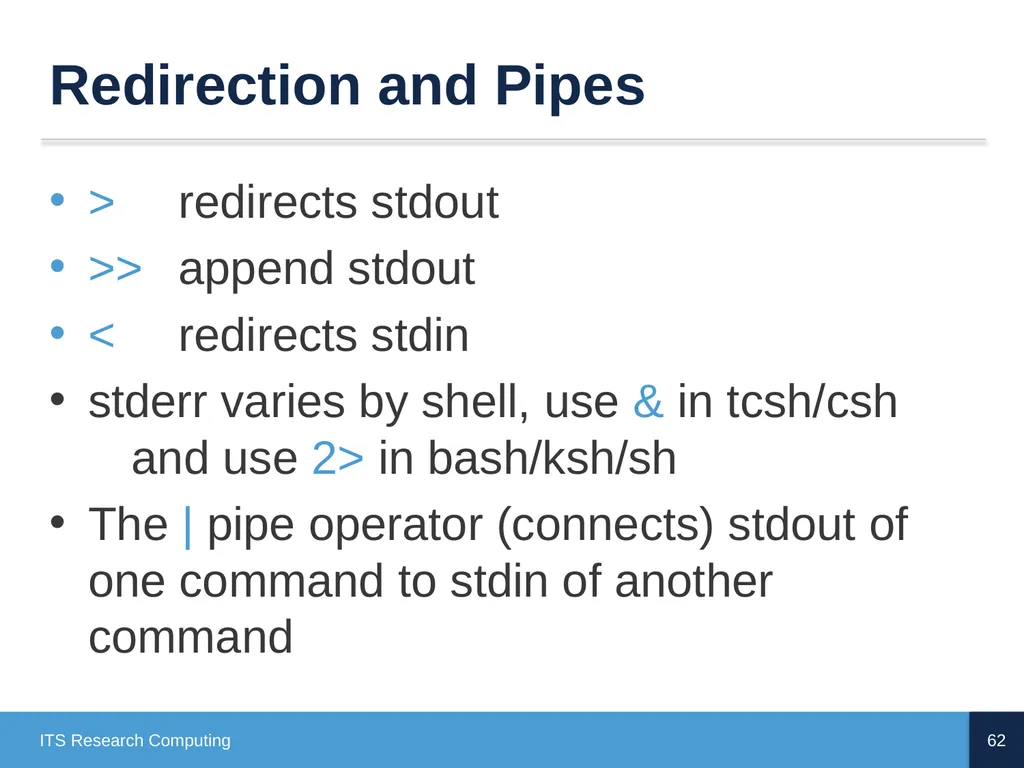
Redirection and Pipes > redirects stdout
>> append stdout
< redirects stdin
stderr varies by shell, use & in tcsh/csh and use 2> in bash/ksh/sh
The | pipe operator (connects) stdout of one command to stdin of another command 62 ITS Research Computing<br>
>> append stdout
< redirects stdin
stderr varies by shell, use & in tcsh/csh and use 2> in bash/ksh/sh
The | pipe operator (connects) stdout of one command to stdin of another command 62 ITS Research Computing<br>
63
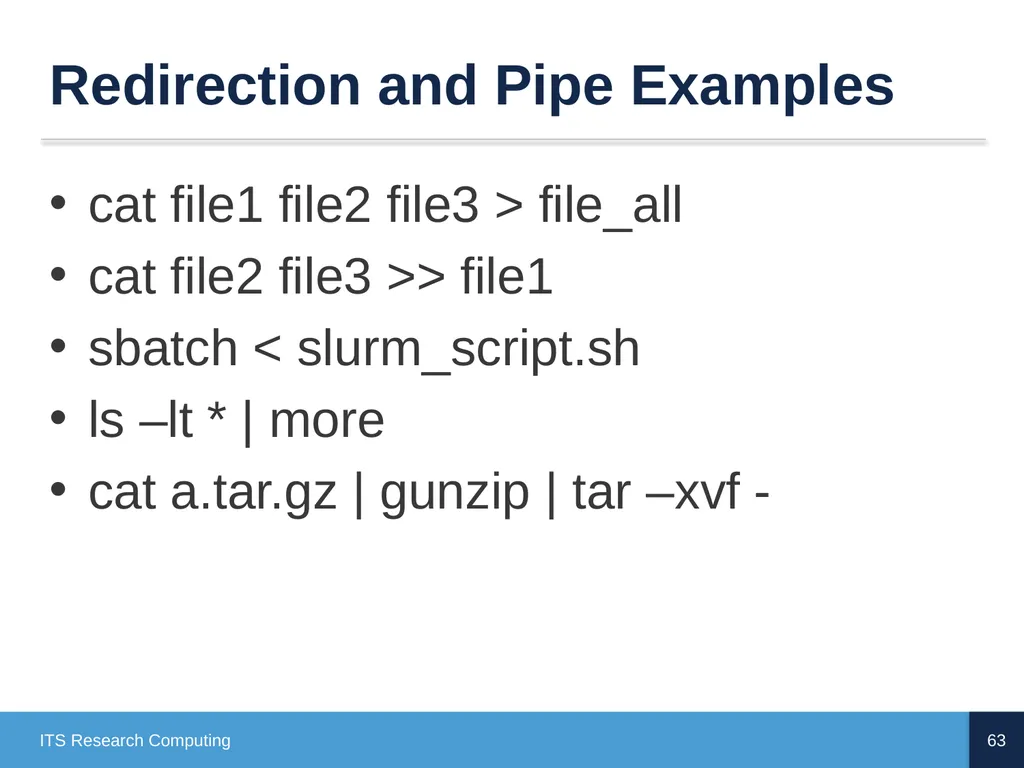
Redirection and Pipe Examples cat file1 file2 file3 > file_all
cat file2 file3 >> file1
sbatch < slurm_script.sh
ls –lt * | more
cat a.tar.gz | gunzip | tar –xvf - 63 ITS Research Computing<br>
cat file2 file3 >> file1
sbatch < slurm_script.sh
ls –lt * | more
cat a.tar.gz | gunzip | tar –xvf - 63 ITS Research Computing<br>
64
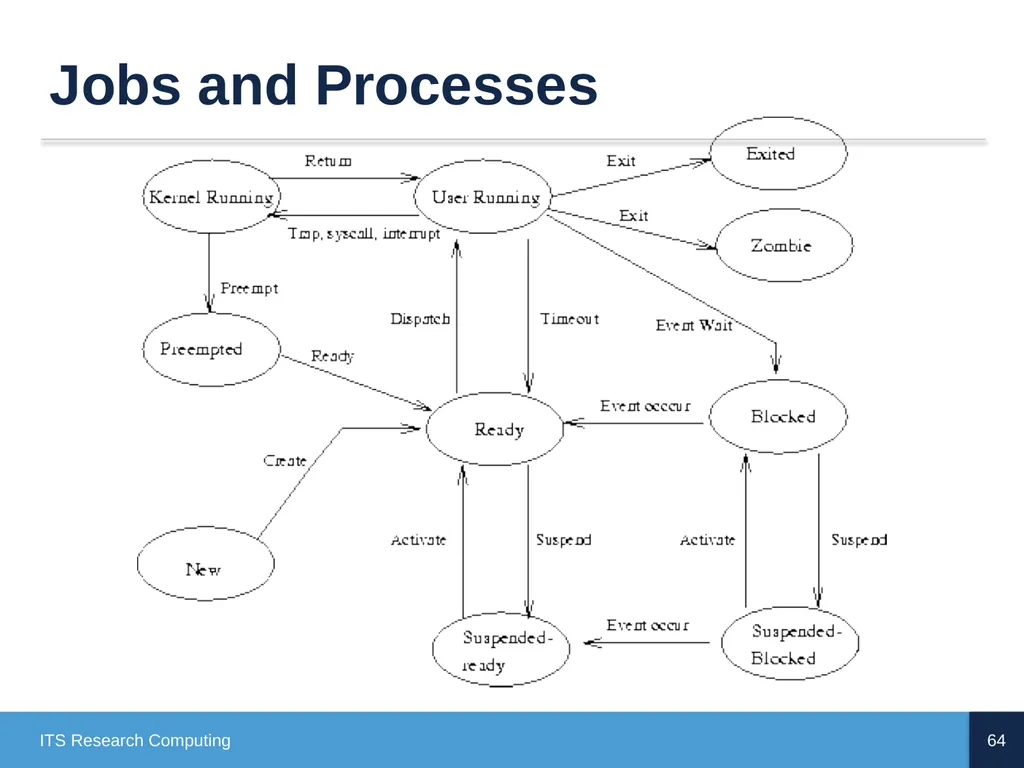
Jobs and Processes 64 ITS Research Computing<br>
65
ps Process Status Snapshot of current processes
In particular you want to know the pid
pid = process id
Many options
varies somewhat with Unix flavors
you can customize the output if desired
ps -u <my_onyen>
show all processes owned by my_onyen
ps -elf
show all processes in long format 65 ITS Research Computing<br>
In particular you want to know the pid
pid = process id
Many options
varies somewhat with Unix flavors
you can customize the output if desired
ps -u <my_onyen>
show all processes owned by my_onyen
ps -elf
show all processes in long format 65 ITS Research Computing<br>
66
kill, pkill and ctrl-C Commands ctrl-C
to kill a process running that hasn’t returned
kill <pid>
kill processes with the TERM signal
kill -9 <pid>
kill processes with the KILL signal (stronger form)
pkill <name>
looks up process by name or another attribute (not in all Unixes)
You can only kill processes you own (unless of course you are root). 66 ITS Research Computing<br>
to kill a process running that hasn’t returned
kill <pid>
kill processes with the TERM signal
kill -9 <pid>
kill processes with the KILL signal (stronger form)
pkill <name>
looks up process by name or another attribute (not in all Unixes)
You can only kill processes you own (unless of course you are root). 66 ITS Research Computing<br>
67
bg, fg, ctrl-Z, and & Commands To run a job in the background, just end the command with “&”. This allows the job to run but the shell will return control to the user (recall Linux is innately multiprocess)
myLongRunningJob &
If a job is already running and you want to interrupt it and put it in the background use ^Z (control-Z) and bg
to return a job to the foreground, use fg 67 ITS Research Computing<br>
myLongRunningJob &
If a job is already running and you want to interrupt it and put it in the background use ^Z (control-Z) and bg
to return a job to the foreground, use fg 67 ITS Research Computing<br>
68
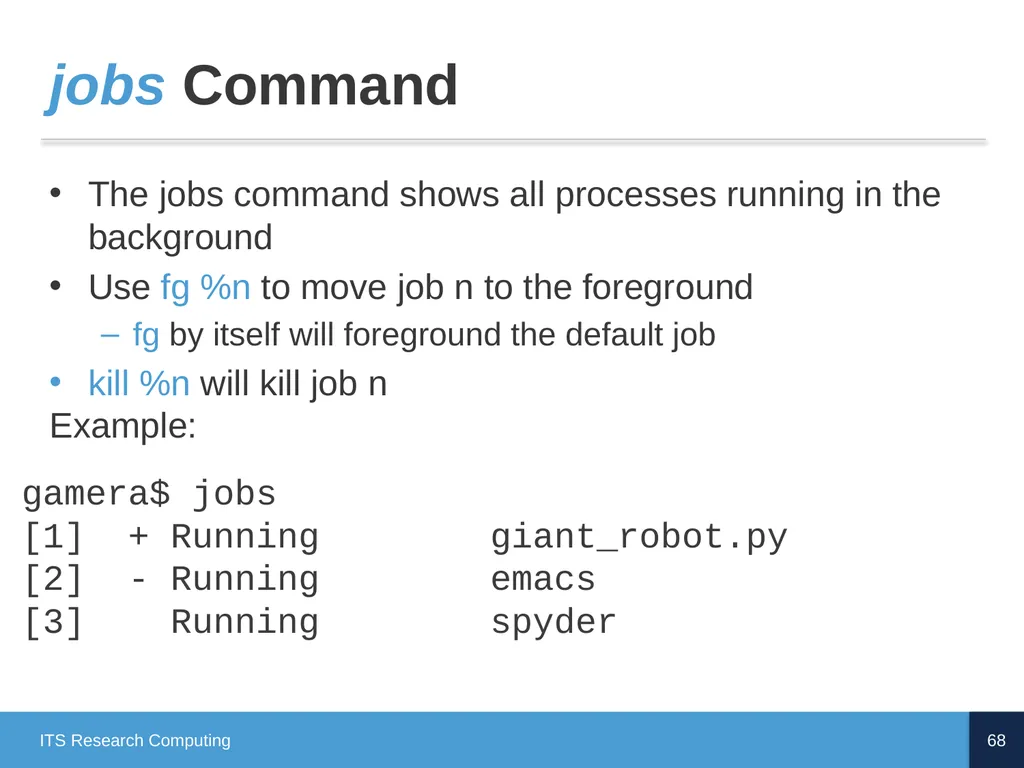
jobs Command The jobs command shows all processes running in the background
Use fg %n to move job n to the foreground
fg by itself will foreground the default job
kill %n will kill job n
Example: 68 ITS Research Computing gamera$ jobs
[1] + Running giant_robot.py
[2] - Running emacs
[3] Running spyder<br>
Use fg %n to move job n to the foreground
fg by itself will foreground the default job
kill %n will kill job n
Example: 68 ITS Research Computing gamera$ jobs
[1] + Running giant_robot.py
[2] - Running emacs
[3] Running spyder<br>
69
history Command history outputs an indexed list of the commands you’ve entered
By default, history lengths is typically set to recall the last 500 or 1000 commands across sessions. The environment variables HISTFILE, HISTFILESIZE and HISTSIZE define history’s behavior and can be set
!<history_index_#> is a great shortcut for repeating past commands
Of course, the up and down arrow keys can always be used to scroll through recent commands 69 ITS Research Computing<br>
By default, history lengths is typically set to recall the last 500 or 1000 commands across sessions. The environment variables HISTFILE, HISTFILESIZE and HISTSIZE define history’s behavior and can be set
!<history_index_#> is a great shortcut for repeating past commands
Of course, the up and down arrow keys can always be used to scroll through recent commands 69 ITS Research Computing<br>
70
File Completion To avoid typos and save keystrokes, use file completion. The <tab> character will complete up until the next non-unique character
bash:
a second <tab> shows all possible completions
tcsh:
^d shows you all possible completions
“set autolist” will show you completions automatically (put this in your .cshrc) 70 ITS Research Computing<br>
bash:
a second <tab> shows all possible completions
tcsh:
^d shows you all possible completions
“set autolist” will show you completions automatically (put this in your .cshrc) 70 ITS Research Computing<br>
71
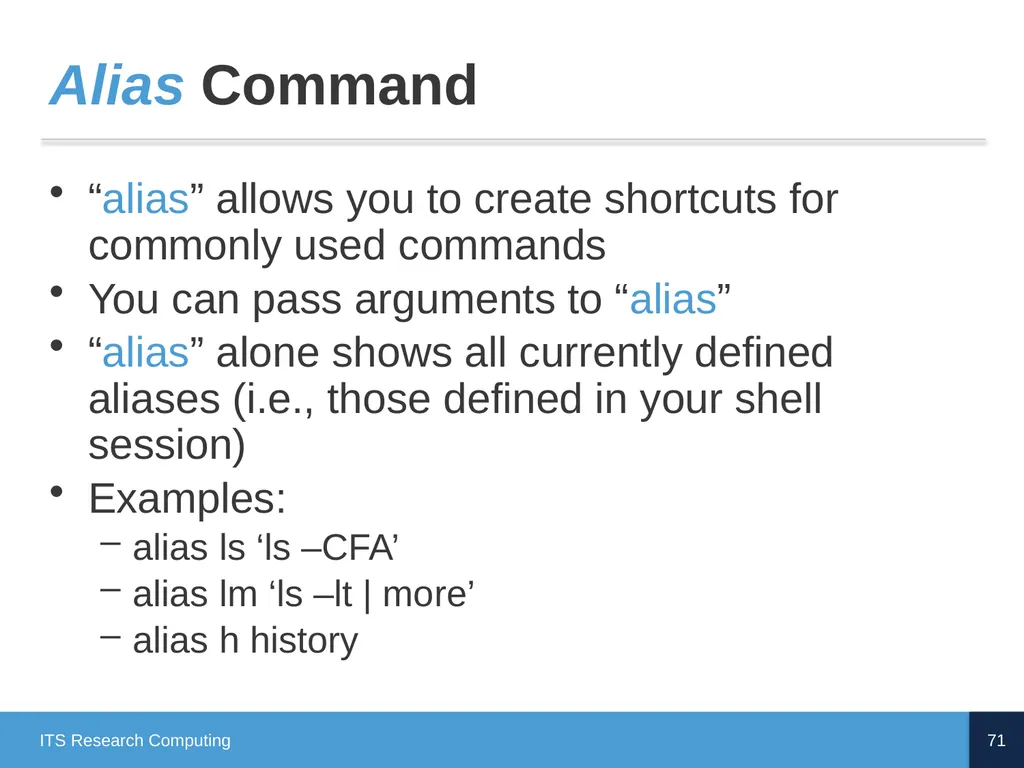
Alias Command “alias” allows you to create shortcuts for commonly used commands
You can pass arguments to “alias”
“alias” alone shows all currently defined aliases (i.e., those defined in your shell session)
Examples:
alias ls ‘ls –CFA’
alias lm ‘ls –lt | more’
alias h history 71 ITS Research Computing<br>
You can pass arguments to “alias”
“alias” alone shows all currently defined aliases (i.e., those defined in your shell session)
Examples:
alias ls ‘ls –CFA’
alias lm ‘ls –lt | more’
alias h history 71 ITS Research Computing<br>
72
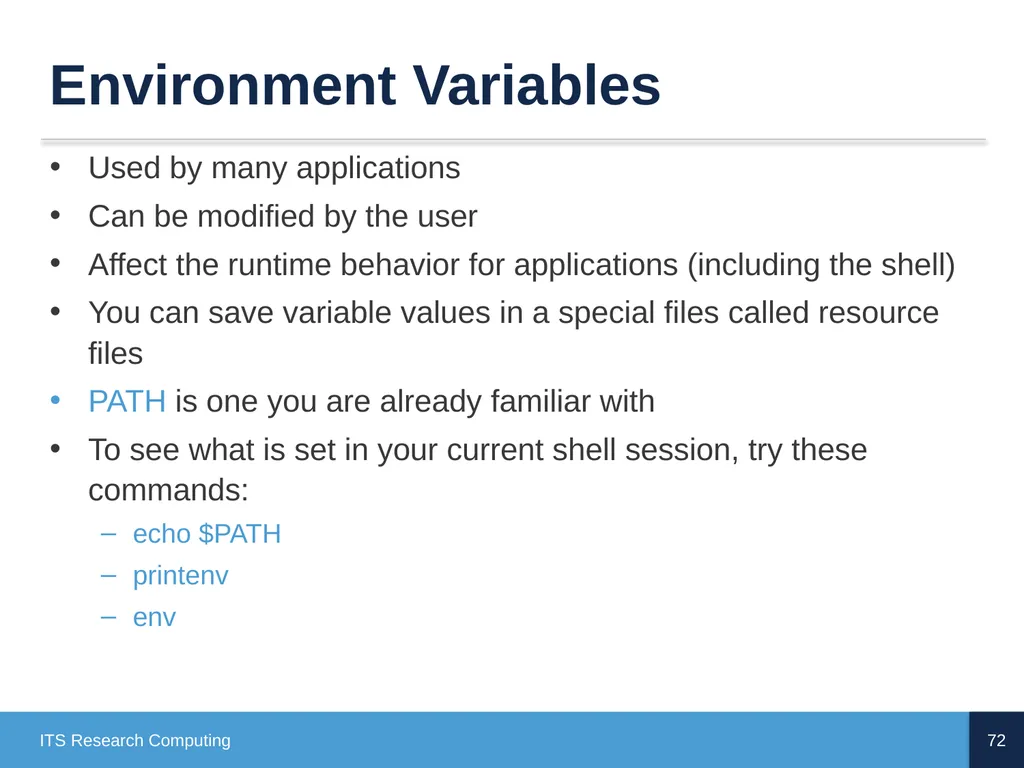
Environment Variables Used by many applications
Can be modified by the user
Affect the runtime behavior for applications (including the shell)
You can save variable values in a special files called resource files
PATH is one you are already familiar with
To see what is set in your current shell session, try these commands:
echo $PATH
printenv
env 72 ITS Research Computing<br>
Can be modified by the user
Affect the runtime behavior for applications (including the shell)
You can save variable values in a special files called resource files
PATH is one you are already familiar with
To see what is set in your current shell session, try these commands:
echo $PATH
printenv
env 72 ITS Research Computing<br>
73
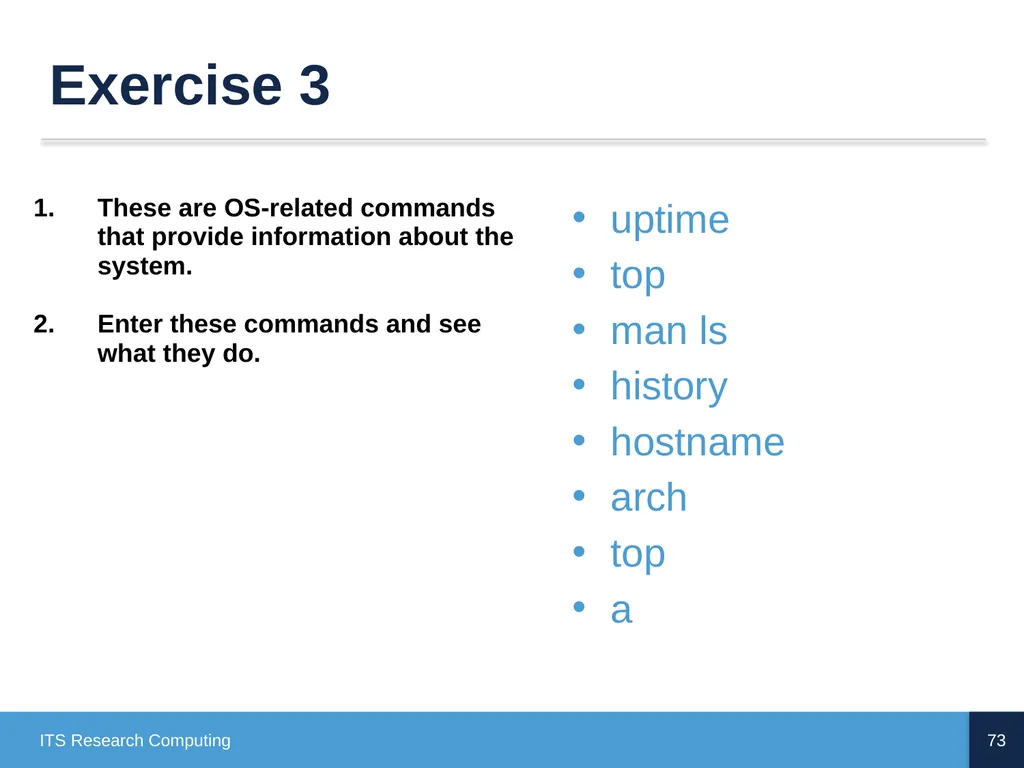
Exercise 3 73 ITS Research Computing These are OS-related commands that provide information about the system.
Enter these commands and see what they do. uptime
top
man ls
history
hostname
arch
top
a<br>
Enter these commands and see what they do. uptime
top
man ls
history
hostname
arch
top
a<br>
74
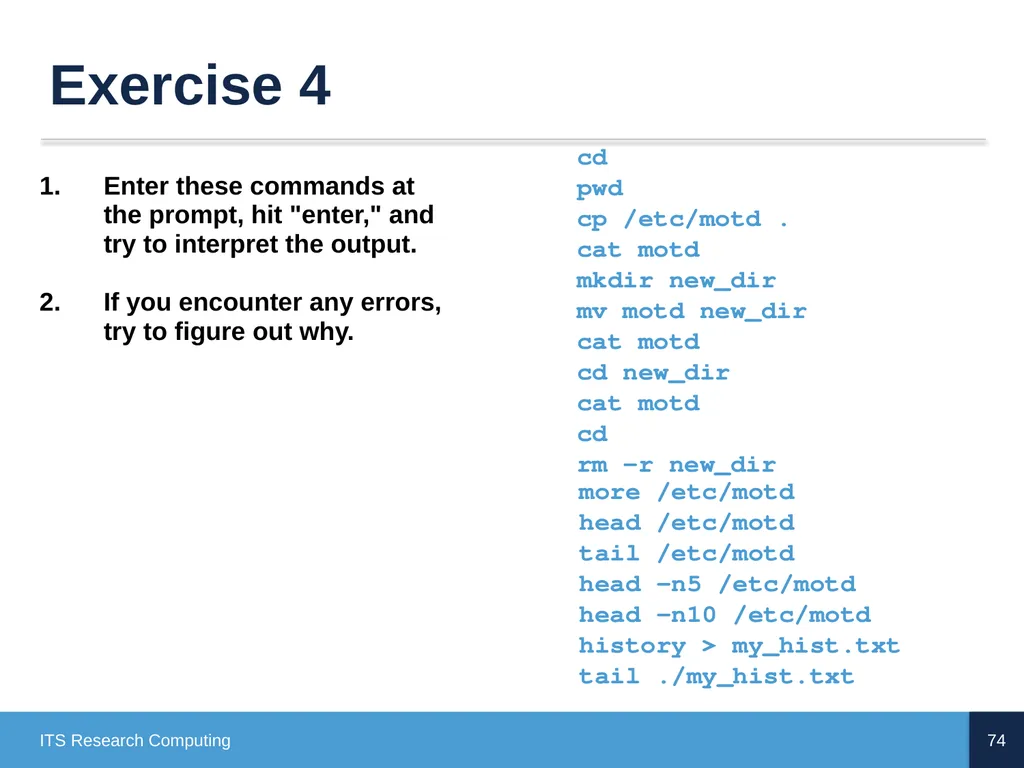
Exercise 4 74 ITS Research Computing cd
pwd
cp /etc/motd .
cat motd
mkdir new_dir
mv motd new_dir
cat motd
cd new_dir
cat motd
cd
rm -r new_dir more /etc/motd
head /etc/motd
tail /etc/motd
head –n5 /etc/motd
head –n10 /etc/motd
history > my_hist.txt
tail ./my_hist.txt Enter these commands at the prompt, hit "enter," and try to interpret the output.
If you encounter any errors, try to figure out why.<br>
history > my_hist.txt
tail ./my_hist.txt Enter these commands at the prompt, hit "enter," and try to interpret the output.
If you encounter any errors, try to figure out why.<br>
75
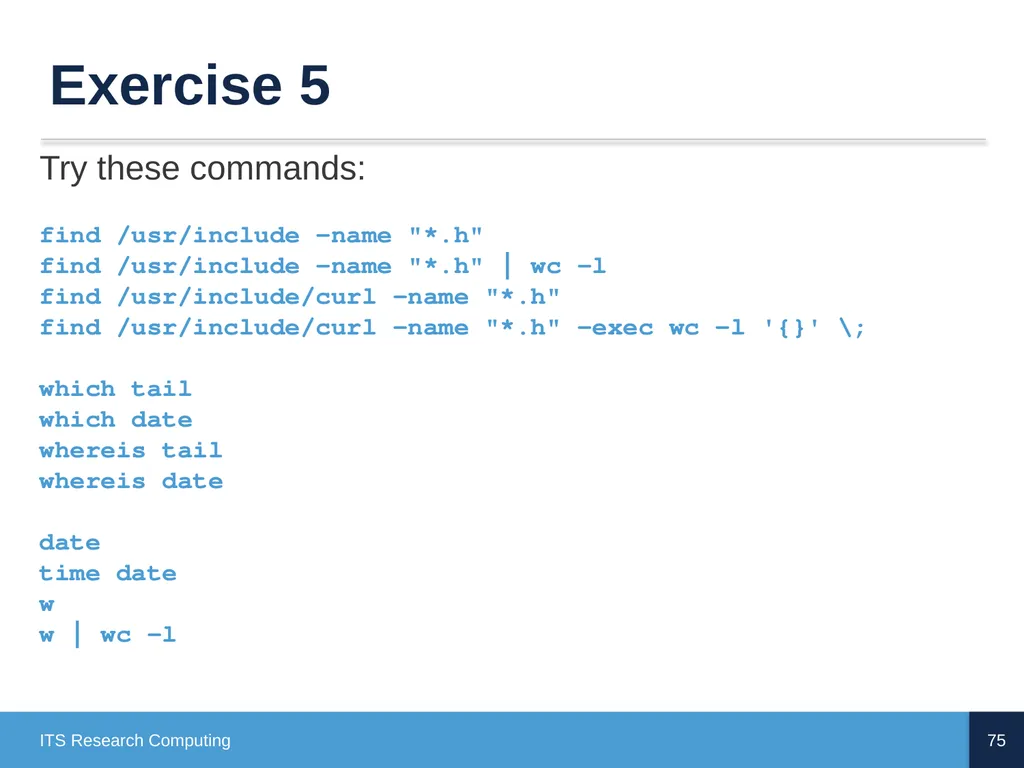
Exercise 5 75 ITS Research Computing Try these commands:
find /usr/include -name "*.h" find /usr/include -name "*.h" | wc -l find /usr/include/curl -name "*.h" find /usr/include/curl -name "*.h" -exec wc -l '{}' \; which tail which date whereis tail whereis date
date
time date
w
w | wc -l<br>
find /usr/include -name "*.h" find /usr/include -name "*.h" | wc -l find /usr/include/curl -name "*.h" find /usr/include/curl -name "*.h" -exec wc -l '{}' \; which tail which date whereis tail whereis date
date
time date
w
w | wc -l<br>
76
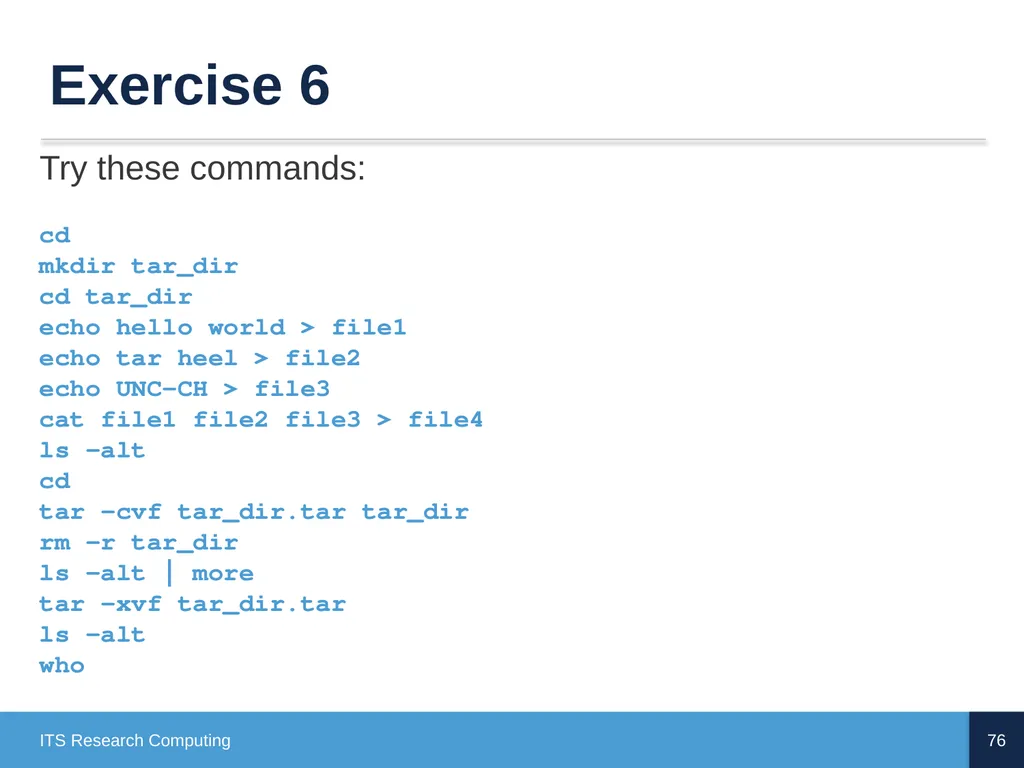
Exercise 6 76 ITS Research Computing Try these commands:
cd mkdir tar_dir cd tar_dir echo hello world > file1 echo tar heel > file2 echo UNC-CH > file3 cat file1 file2 file3 > file4 ls –alt cd tar -cvf tar_dir.tar tar_dir rm -r tar_dir ls –alt | more tar -xvf tar_dir.tar ls –alt
who<br>
cd mkdir tar_dir cd tar_dir echo hello world > file1 echo tar heel > file2 echo UNC-CH > file3 cat file1 file2 file3 > file4 ls –alt cd tar -cvf tar_dir.tar tar_dir rm -r tar_dir ls –alt | more tar -xvf tar_dir.tar ls –alt
who<br>