Introduction to Microsoft Teams Also featuring Microsoft Planner What on earth is Microsoft Teams? Good question Microsoft Teams is a cloud-based team collaboration system that is part of the Office 365 suite of applications. The core
"Introduction to Microsoft Teams Also featuring" is the property of its rightful owner. Permission is granted to
download and print the materials on this website for personal, non-commercial use only, and to display it
on your personal computer provided you do not modify the materials and that you retain all copyright
notices contained in the materials. By downloading content from our website, you accept the terms of this
agreement.
Presentation Transcript
01
Introduction to Microsoft Teams Also featuring Microsoft Planner<br>
02
What on earth is Microsoft Teams? Good question…
Microsoft Teams is a cloud-based team collaboration system that is part of the Office 365 suite of applications.
The core capabilities in Microsoft Teams include business messaging, calling, video meetings and file sharing.
Basically … it allows you and your team to work together in one place<br>
03
What’s it good for? Communication
Collaboration on documents
Sharing information
Arranging online meetings
Planning projects (with Planner)
Keeping track of tasks (with Planner)<br>
04
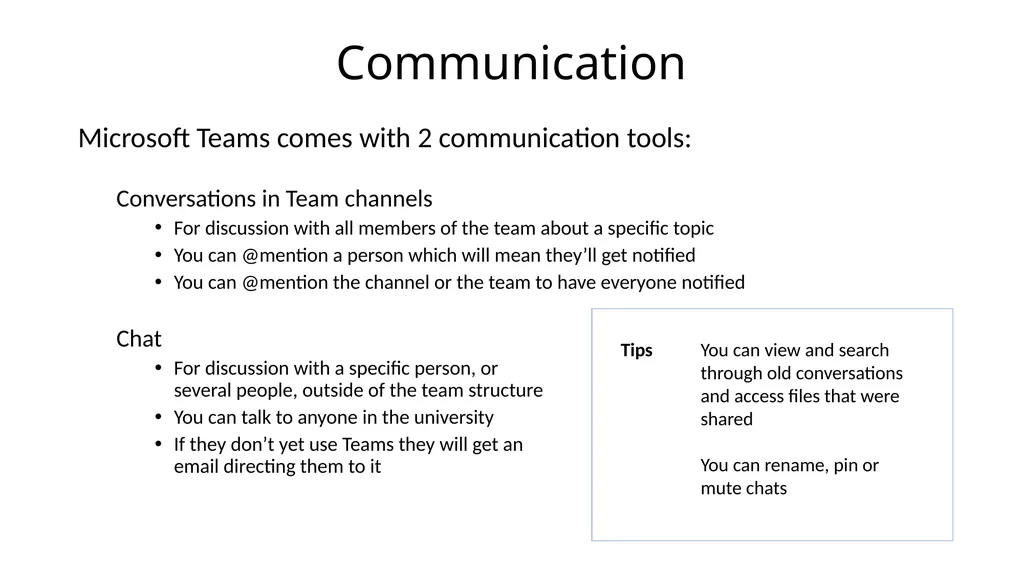
Communication Microsoft Teams comes with 2 communication tools:
Conversations in Team channels
For discussion with all members of the team about a specific topic
You can @mention a person which will mean they’ll get notified
You can @mention the channel or the team to have everyone notified
Chat
For discussion with a specific person, or several people, outside of the team structure
You can talk to anyone in the university
If they don’t yet use Teams they will get an email directing them to it You can view and search through old conversations and access files that were shared
You can rename, pin or mute chats Tips<br>
05
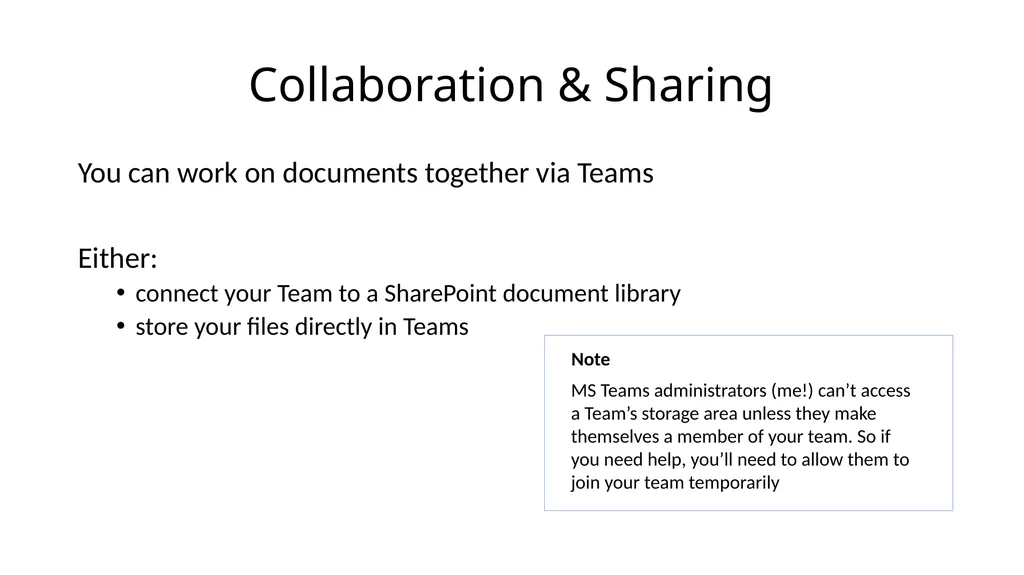
Collaboration & Sharing You can work on documents together via Teams
Either:
connect your Team to a SharePoint document library
store your files directly in Teams Note MS Teams administrators (me!) can’t access a Team’s storage area unless they make themselves a member of your team. So if you need help, you’ll need to allow them to join your team temporarily<br>
06
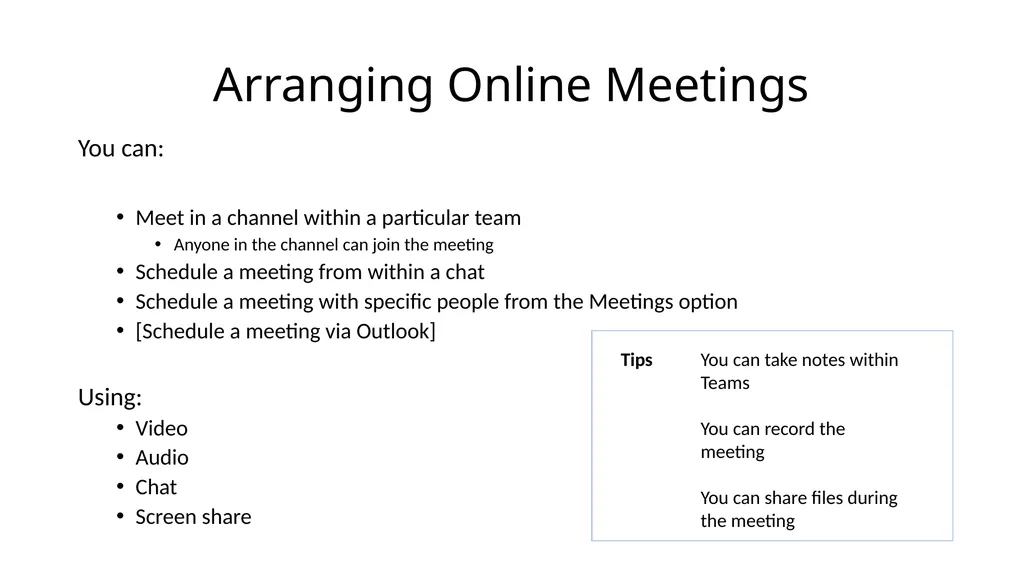
Arranging Online Meetings You can:
Meet in a channel within a particular team
Anyone in the channel can join the meeting
Schedule a meeting from within a chat
Schedule a meeting with specific people from the Meetings option
[Schedule a meeting via Outlook]
Using:
Video
Audio
Chat
Screen share You can take notes within Teams
You can record the meeting
You can share files during the meeting Tips<br>
07
Expanding on Microsoft Teams You can add to your basic Team by linking or connecting other tools.
For example:
Planner
SharePoint
OneNote<br>
08
Planner: getting stuff done Integrating Planner into Teams allows you to:
Create tasks
Allocate tasks to members of the team
Monitor progress
Organise tasks into multiple categories Why use it? Because it’s visual and easy to use<br>
09
Planner: monitoring progress In Planner (via Teams, or direct)
Board
Charts
Schedule
My Tasks
Email notifications (nagging)
Microsoft To Do
View all your Planner tasks
View all your Outlook tasks
View all your flagged emails
Add tasks to “My Day”
Microsoft Flow
Connect Planner and Outlook
Check your unfinished tasks and email you a list (easy)
Check all unfinished tasks and email you a list (not so easy)<br>
10
Isn’t this the same as SharePoint? Yes, kind of, but…
It’s prettier
It’s easier to use
It’s flexible
It includes tools to have quick conversations and arrange meetings<br>
11
Can you stop talking about it and let us try it out!? Yes! We’re going to work through exercises together which will cover:
Accessing Microsoft Teams
Creating a Team
Creating a Channel
Notifications
Having a Conversation
Adding a Planner Plan
Using Planner
Viewing your Planner Tasks
Connecting with SharePoint
Having an Online Meeting<br>