
Introduction to Web Programming Lecture 2:


Description: Introduction to Web Programming Lecture 2: Introduction to HTML5: PART (2) Images, hyperlinks, lists and tables 1 Natheer Gharaibeh 2 Outlines of todays lecture Element attributes HTML elementsimages HTML elementshyperlinks HTML
Related Topics
Download Presentation
"Introduction to Web Programming Lecture 2:" is the property of its rightful owner. Permission is granted to download and print the materials on this website for personal, non-commercial use only, and to display it on your personal computer provided you do not modify the materials and that you retain all copyright notices contained in the materials. By downloading content from our website, you accept the terms of this agreement.
Presentation Transcript
slide1. Introduction to Web Programming Lecture 2: Introduction to HTML5: PART (2)
Images, hyperlinks, lists and tables 1 Natheer Gharaibeh<br>
slide2. 2 Outlines of today’s lecture • Element attributes • HTML elements–images • HTML elements–hyperlinks • HTML elements–lists • HTML elements–tables<br>
slide3. 3 But first … what we addressed last week • What is HTML? • Why do we use it? • What is the general structure of HTML documents? • What elements did we cover?<br>
slide4. Let’s look at the big picture again! From Head first HTML and CSS, by Robson, E., & F4reeman, E., 2012, O'Reilly Media, Inc<br>
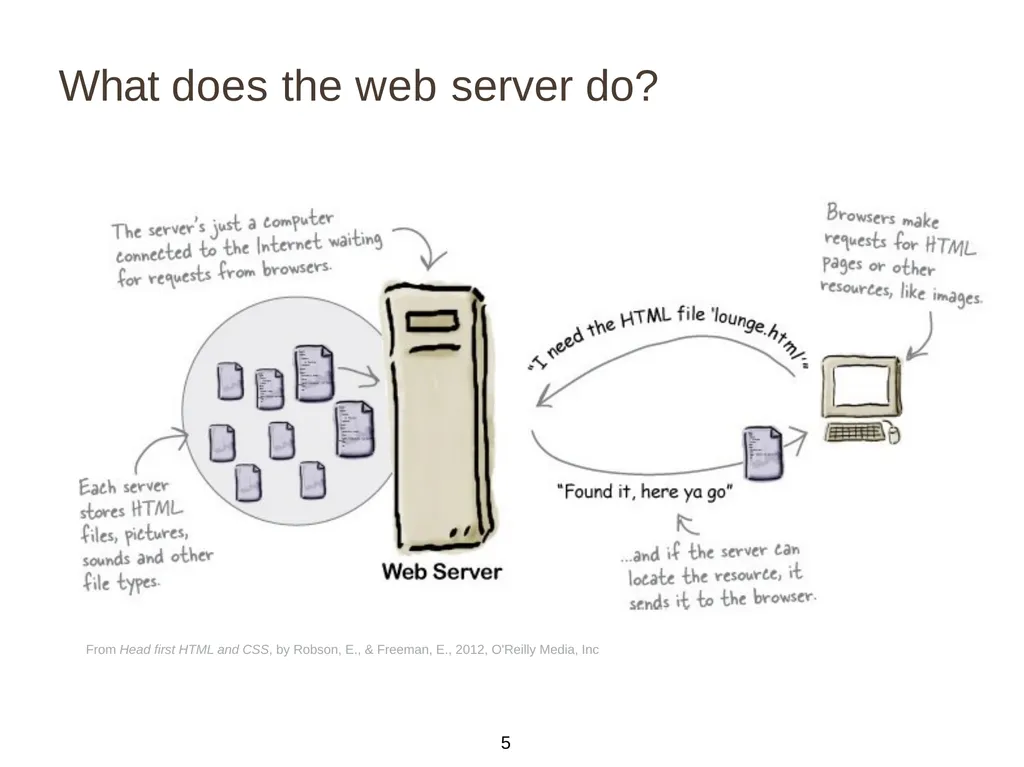
slide5. What does the web server do? From Head first HTML and CSS, by Robson, E., & Freeman, E., 2012, O'Reilly Media, Inc 5<br>
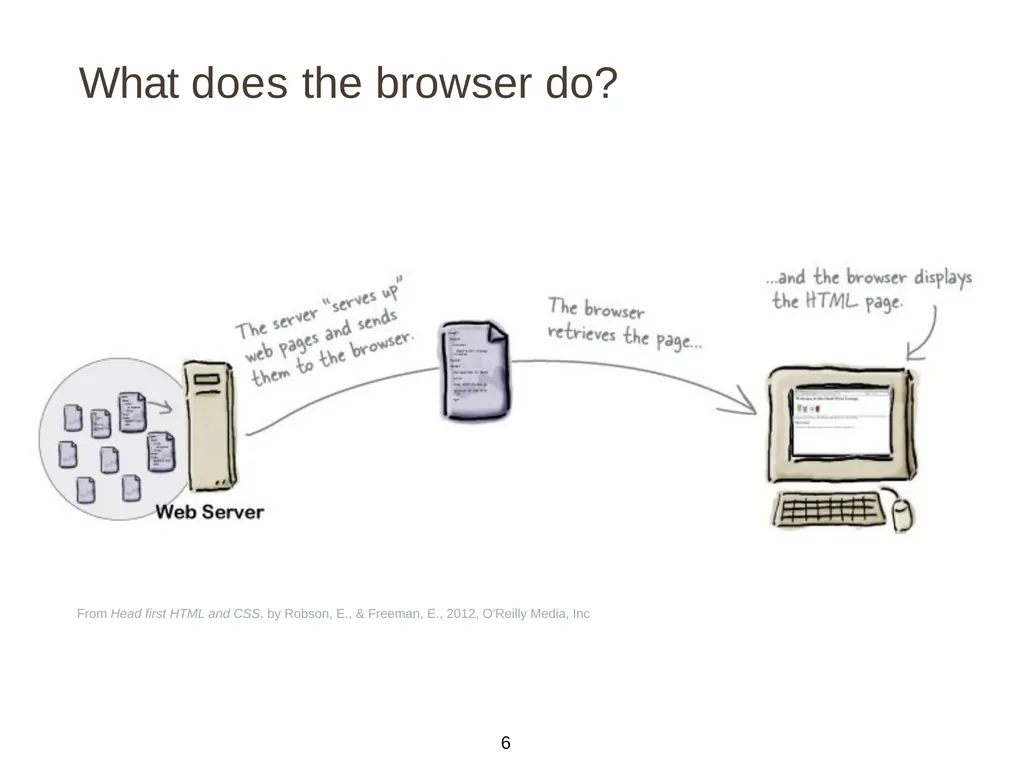
slide6. What does the browser do? From Head first HTML and CSS, by Robson, E., & Freeman, E., 2012, O'Reilly Media, Inc 6<br>
slide7. 7 HTML Attributes • HTML elements can have attributes Attributes provide additional information about an element • Attributes are always specified in the start tag • Attributes come in name/value pairs like: name=“value” • Always use lowercase and quote your attribute values<br>
slide8. 8 Examples The lang Attribute • The lang attribute specifies the language of the element's content • Syntax: <element lang=“language_code”> • Language code reference • The document language can be declared in the <html> tag • Example: <html lang=“en-US"> • Declaring a language is important for accessibility applications (such as screen readers) and
search engines–it helps search engines in filtering results based on the user’s linguistic preferences. The title Attribute • Specifies extra information about an element • The information is most often shown as a tooltip text when the mouse moves over the element • Example: <p title=“this is a paragraph title"><br>
slide9. 9 What if?! • Are quotations necessary in attribute values? • Omitting quotes might produce errors! So always use them. Example? • Single or double quotes? • It depends on the value of the attribute.
Example?<br>
slide10. 10 HTML Elements–Images We’ve shown how to mark up documents that contain only text, but web pages may also contain images, animations, graphics, audios and even videos.
img element is used to include an image in the document.
HTML Images Syntax • In HTML, images are defined with the <img> tag. • The <img> tag is empty, it contains attributes only, and does not have a closing tag.<br>
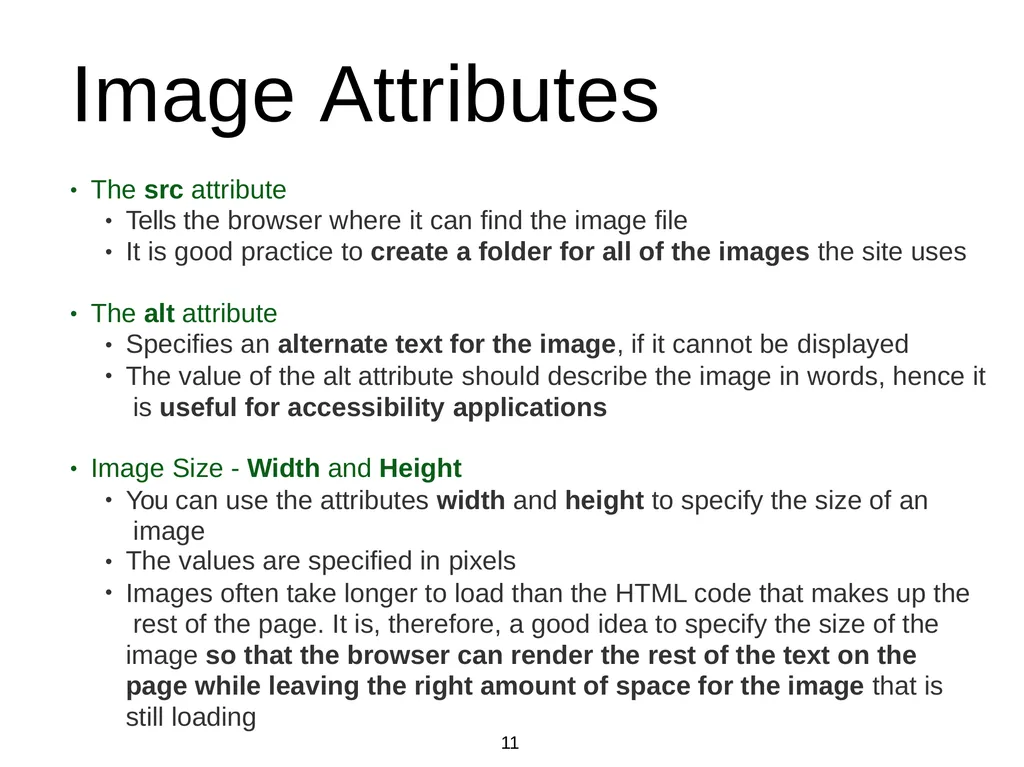
slide11. 11 Image Attributes • The src attribute •
• Tells the browser where it can find the image file
It is good practice to create a folder for all of the images the site uses • The alt attribute •
• Specifies an alternate text for the image, if it cannot be displayed
The value of the alt attribute should describe the image in words, hence it is useful for accessibility applications • Image Size - Width and Height • •
• You can use the attributes width and height to specify the size of an image
The values are specified in pixels
Images often take longer to load than the HTML code that makes up the rest of the page. It is, therefore, a good idea to specify the size of the image so that the browser can render the rest of the text on the page while leaving the right amount of space for the image that is still loading<br>
slide12. 12 Image Demo!<br>
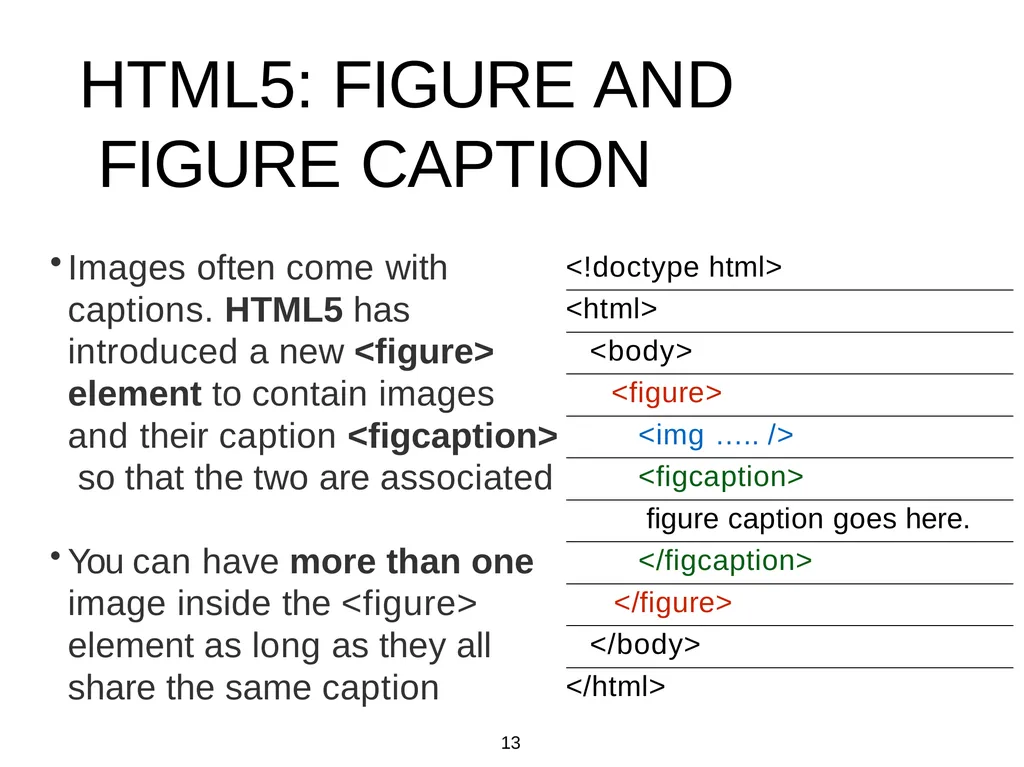
slide13. HTML5: FIGURE AND FIGURE CAPTION Images often come with captions. HTML5 has introduced a new <figure> element to contain images and their caption <figcaption> so that the two are associated You can have more than one image inside the <figure> element as long as they all share the same caption <!doctype html> <html> <body> <figure> <img ….. /> <figcaption> figure caption goes here. </figcaption> </figure> </body> </html> 13<br>
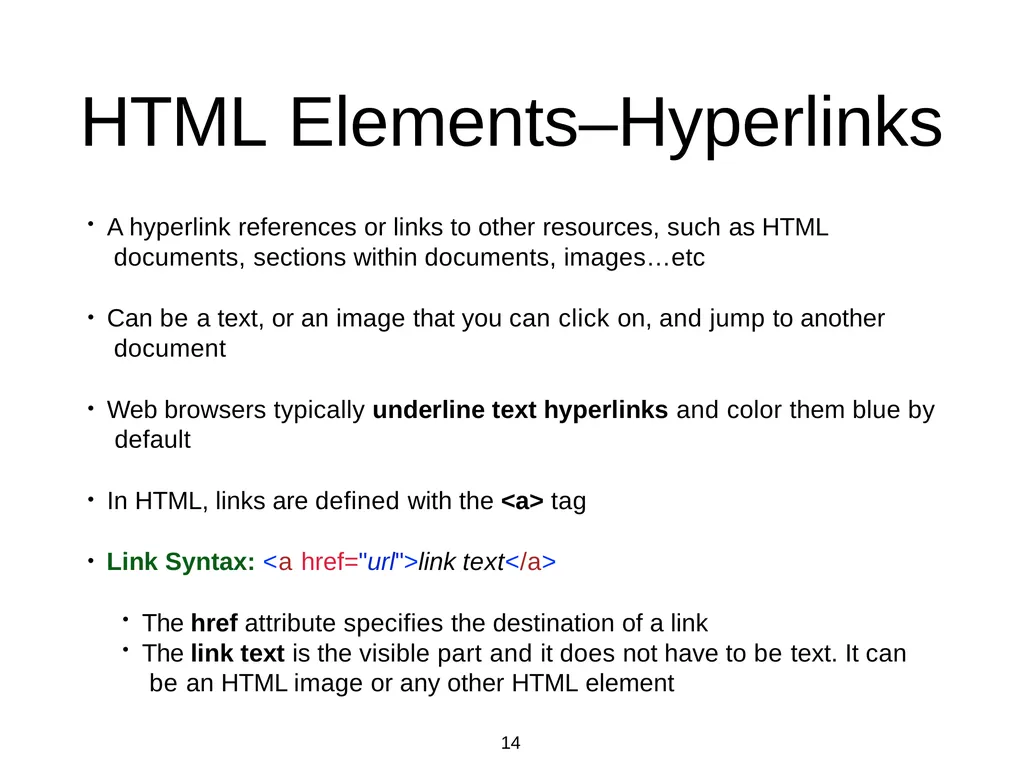
slide14. 14 HTML Elements–Hyperlinks A hyperlink references or links to other resources, such as HTML documents, sections within documents, images…etc
Can be a text, or an image that you can click on, and jump to another document
Web browsers typically underline text hyperlinks and color them blue by default
In HTML, links are defined with the <a> tag
Link Syntax: <a href="url">link text</a>
The href attribute specifies the destination of a link
The link text is the visible part and it does not have to be text. It can be an HTML image or any other HTML element<br>
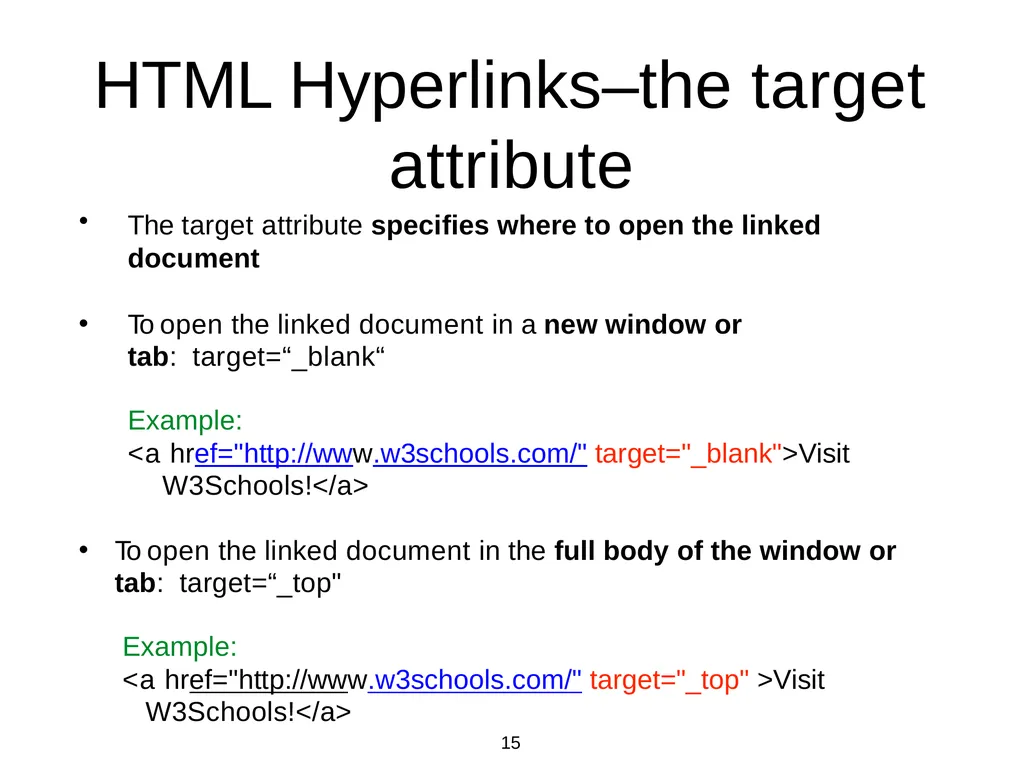
slide15. 15 HTML Hyperlinks–the target attribute The target attribute specifies where to open the linked document
To open the linked document in a new window or tab: target=“_blank“
Example:
<a href="http://www.w3schools.com/" target="_blank">Visit W3Schools!</a>
To open the linked document in the full body of the window or tab: target=“_top"
Example:
<a href="http://www.w3schools.com/" target="_top" >Visit W3Schools!</a><br>
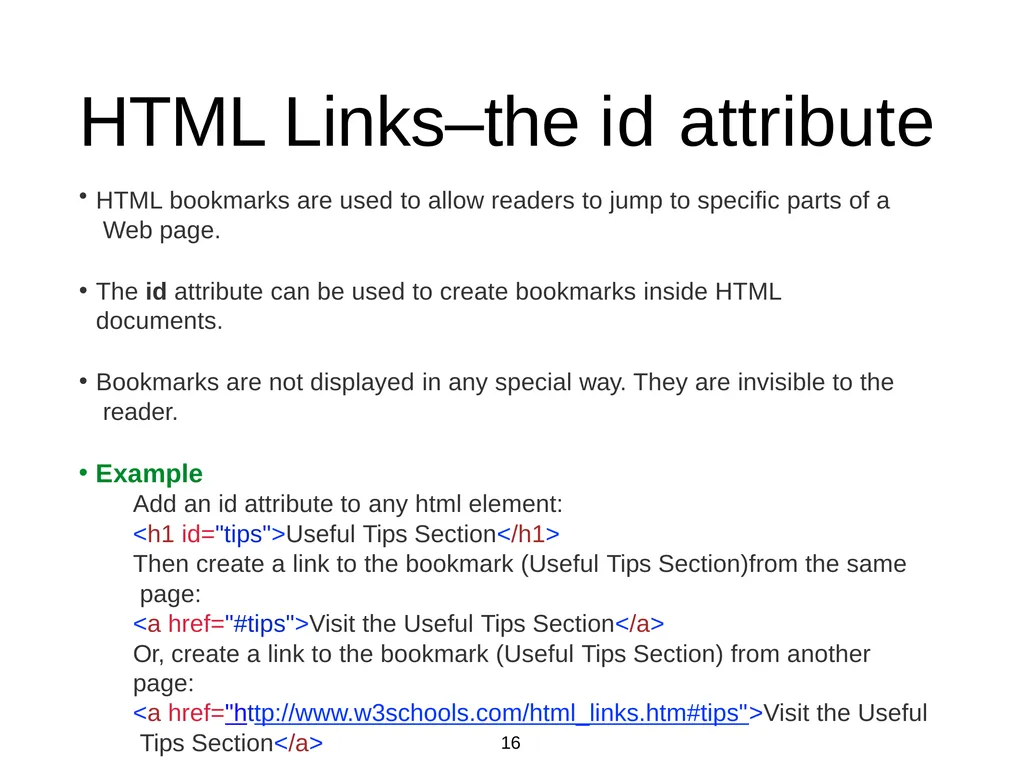
slide16. 16 HTML bookmarks are used to allow readers to jump to specific parts of a Web page.
The id attribute can be used to create bookmarks inside HTML documents.
Bookmarks are not displayed in any special way. They are invisible to the reader.
Example
Add an id attribute to any html element:
<h1 id="tips">Useful Tips Section</h1>
Then create a link to the bookmark (Useful Tips Section)from the same page:
<a href="#tips">Visit the Useful Tips Section</a>
Or, create a link to the bookmark (Useful Tips Section) from another page:
<a href="http://www.w3schools.com/html_links.htm#tips">Visit the Useful Tips Section</a> HTML Links–the id attribute<br>
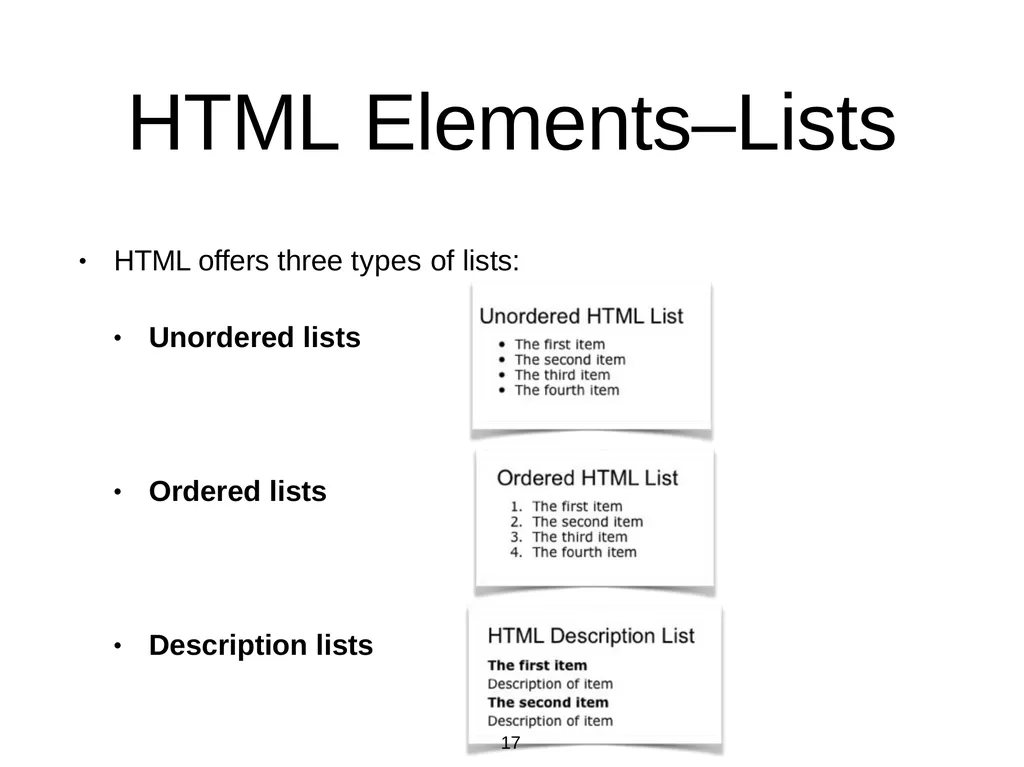
slide17. • HTML offers three types of lists: • Unordered lists • Ordered lists • Description lists HTML Elements–Lists 17<br>
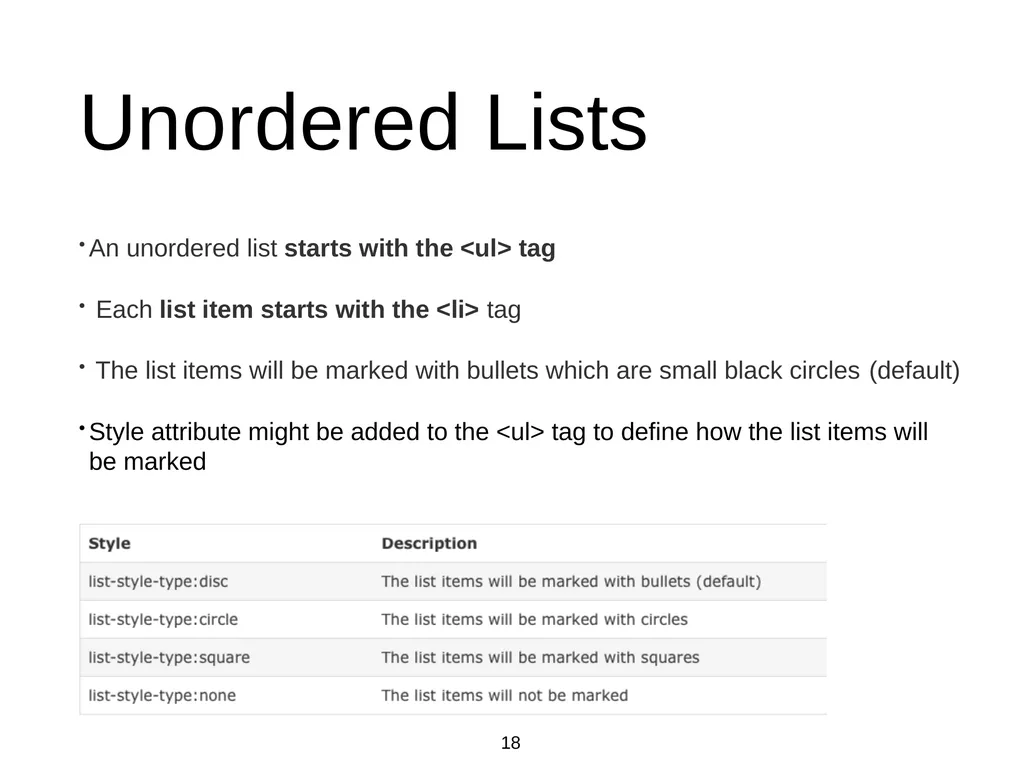
slide18. Unordered Lists An unordered list starts with the <ul> tag
Each list item starts with the <li> tag
The list items will be marked with bullets which are small black circles (default)
Style attribute might be added to the <ul> tag to define how the list items will be marked 18<br>
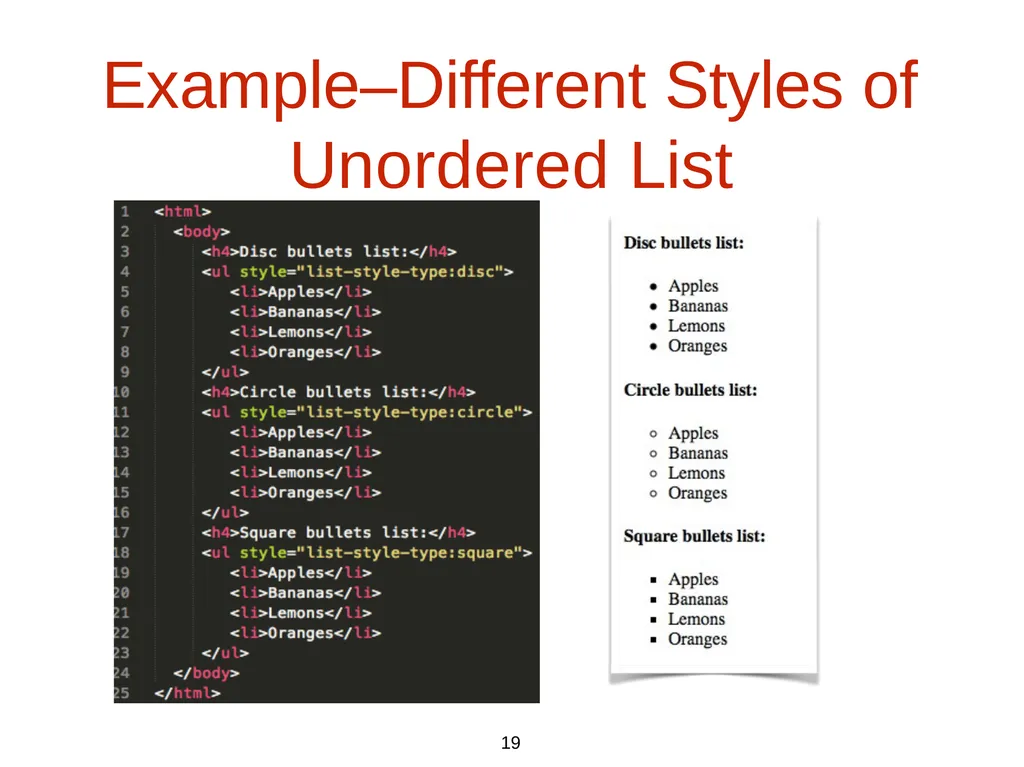
slide19. Example–Different Styles of Unordered List 19<br>
slide20. 20 Ordered Lists An ordered list starts with the <ol> tag
Each list item starts with the <li> tag
The list items will be marked with numbers (default)
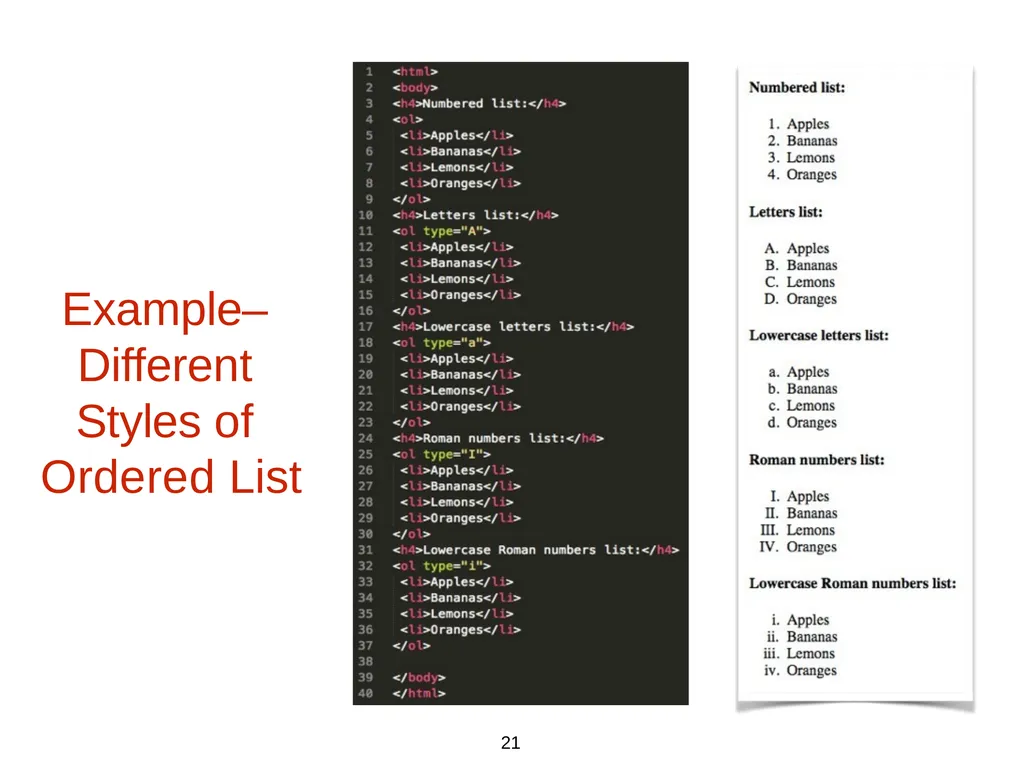
A type attribute can be added to an ordered list, to define the type of the marker<br>
slide21. Example– Different Styles of Ordered List 21<br>
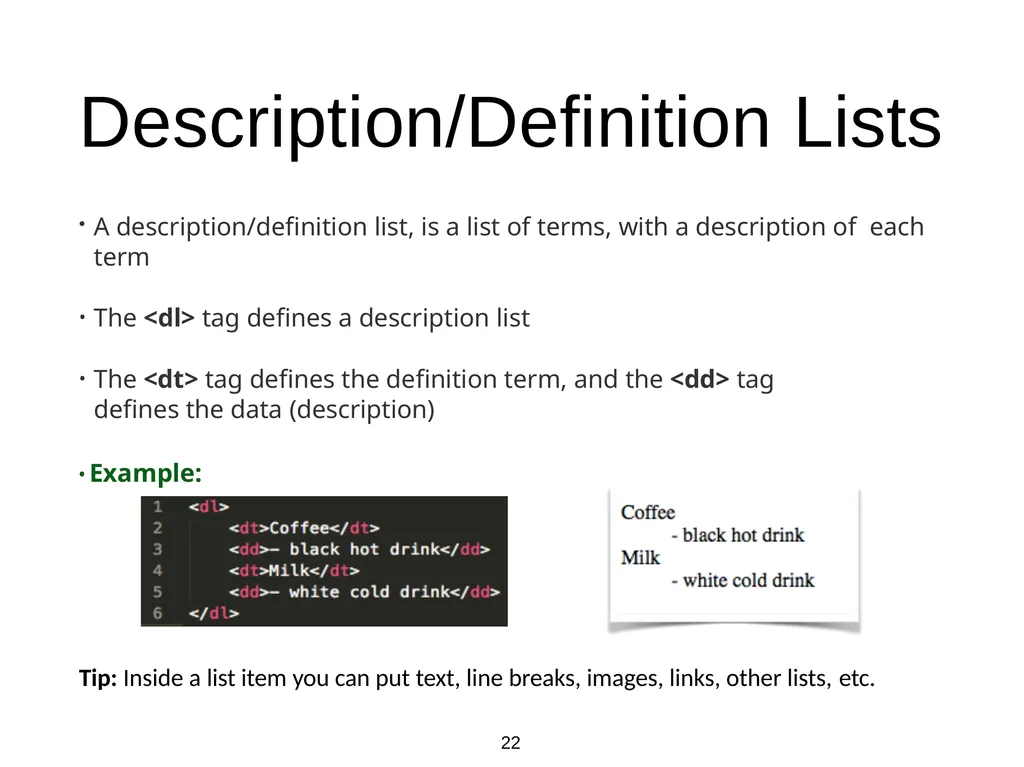
slide22. Description/Definition Lists A description/definition list, is a list of terms, with a description of each term
The <dl> tag defines a description list
The <dt> tag defines the definition term, and the <dd> tag defines the data (description)
• Example: Tip: Inside a list item you can put text, line breaks, images, links, other lists, etc. 22<br>
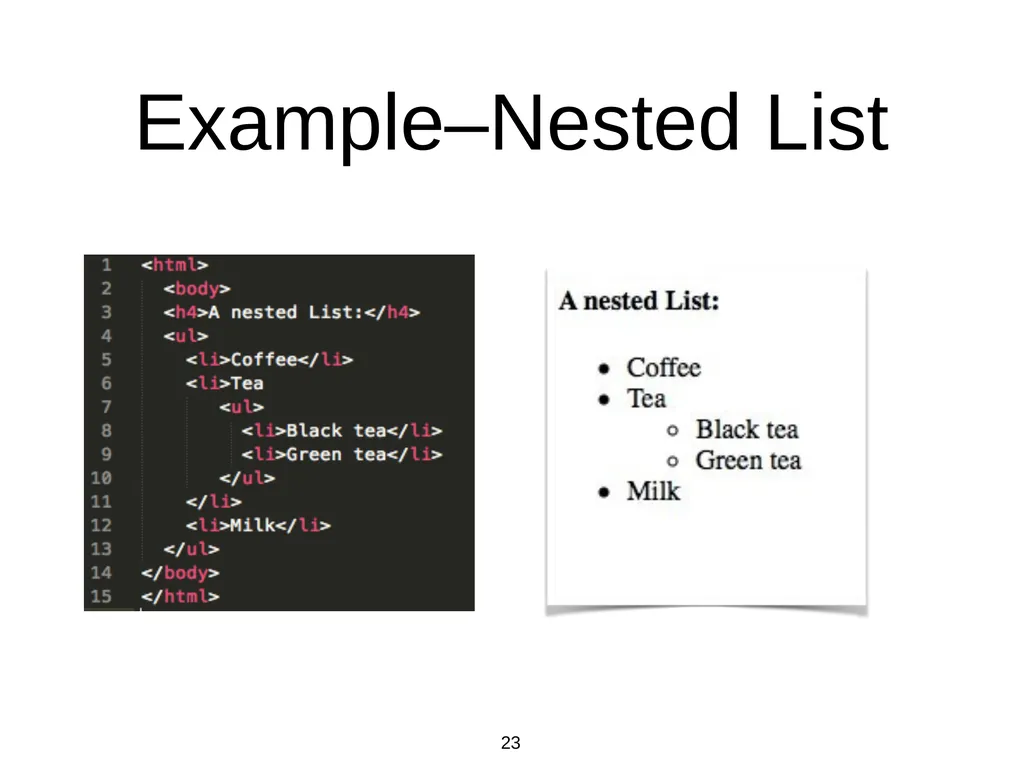
slide23. Example–Nested List 23<br>
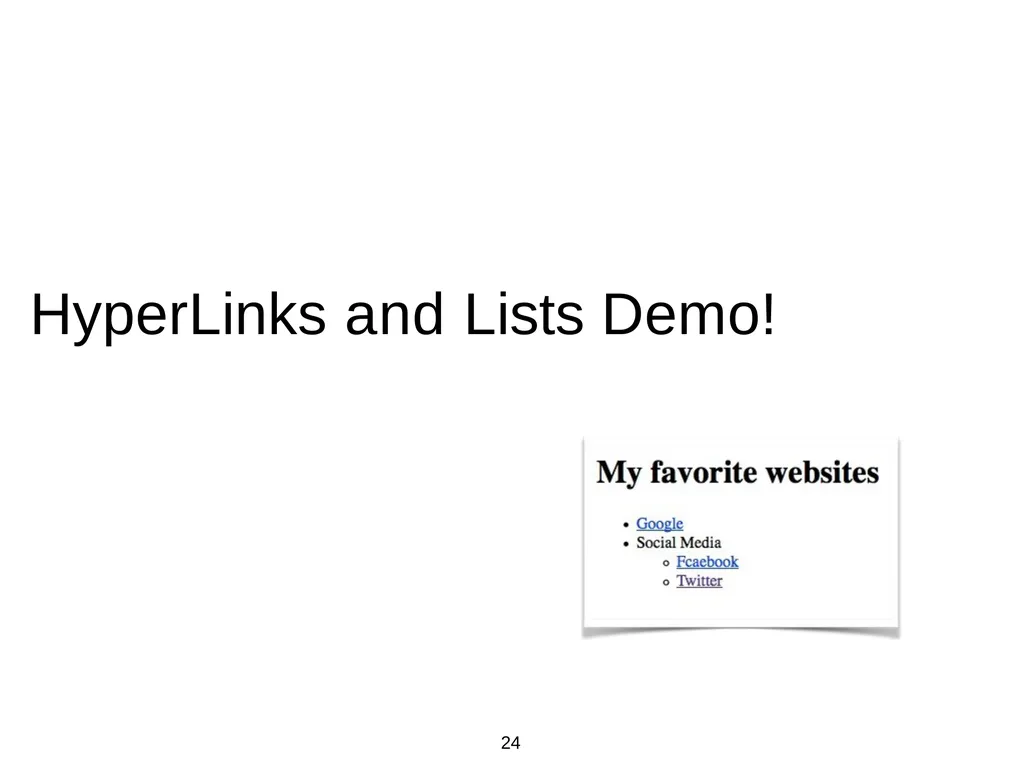
slide24. HyperLinks and Lists Demo! 24<br>
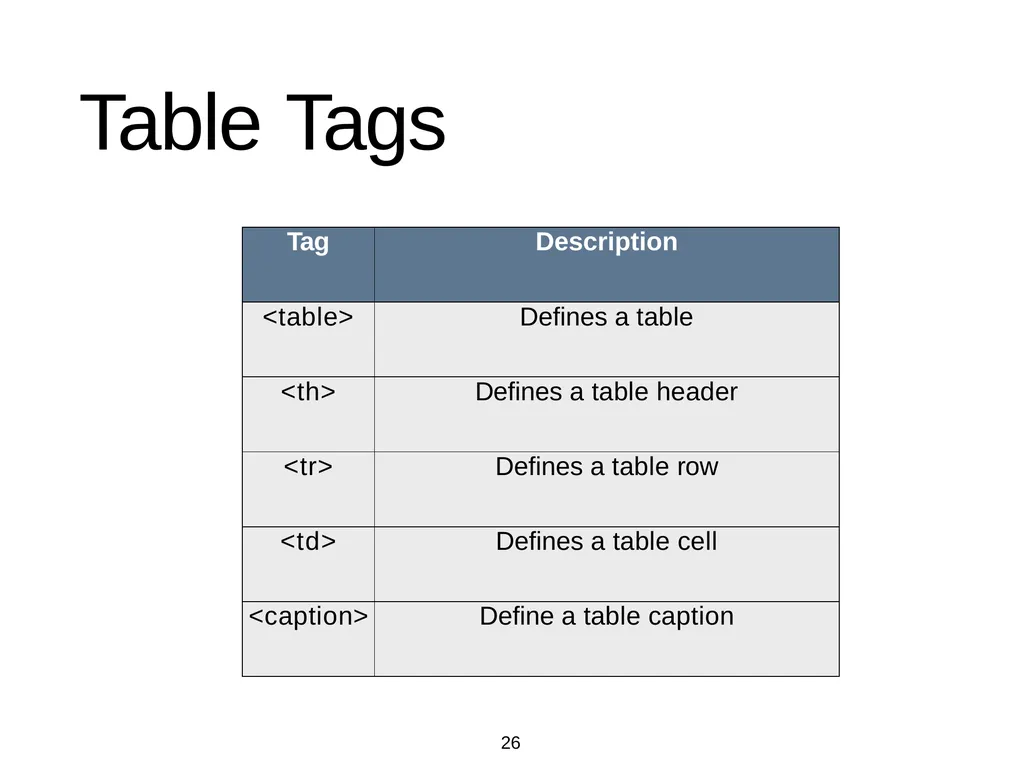
slide25. 25 Tables are defined with the <table> tag
A table is divided into rows (with the <tr> tag), and each row is divided into data cells (with the <td> tag). td stands for "table data," and holds the content of a data cell. A
<td> tag can contain text, links, images, lists, forms, other tables, etc
If you do not specify a border attribute, the table will be displayed without borders HTML Elements–Tables<br>
slide26. 26 Table Tags<br>
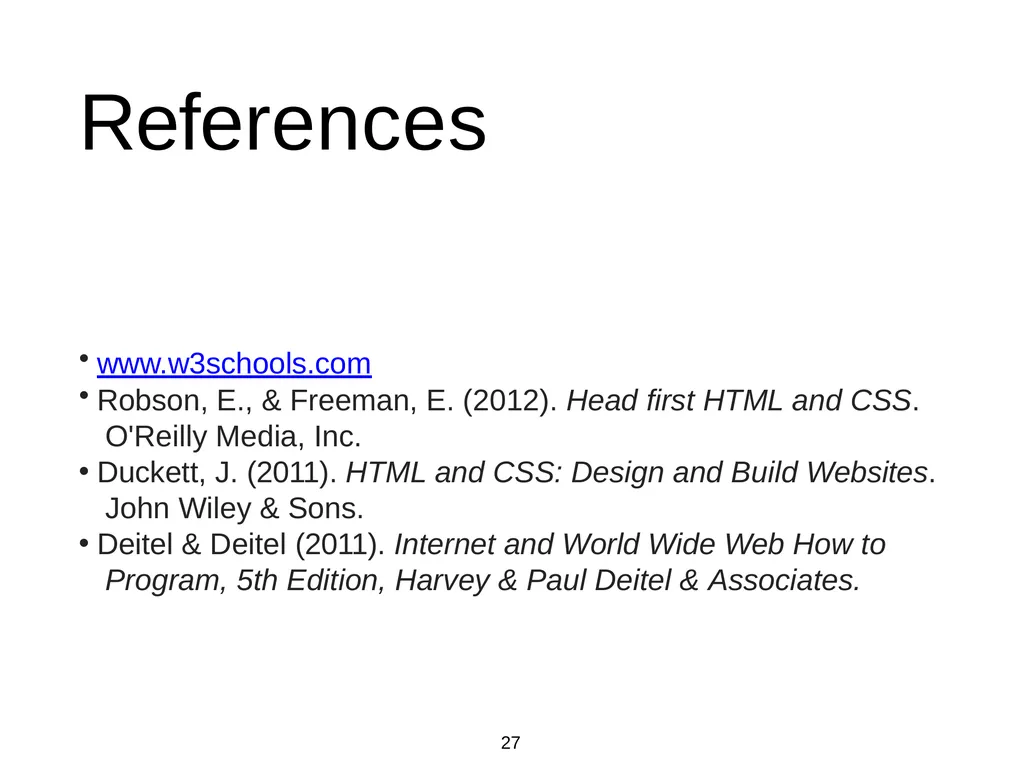
slide27. 27 References www.w3schools.com
Robson, E., & Freeman, E. (2012). Head first HTML and CSS. O'Reilly Media, Inc.
Duckett, J. (2011). HTML and CSS: Design and Build Websites. John Wiley & Sons.
Deitel & Deitel (2011). Internet and World Wide Web How to Program, 5th Edition, Harvey & Paul Deitel & Associates.<br>
Images, hyperlinks, lists and tables 1 Natheer Gharaibeh<br>
slide2. 2 Outlines of today’s lecture • Element attributes • HTML elements–images • HTML elements–hyperlinks • HTML elements–lists • HTML elements–tables<br>
slide3. 3 But first … what we addressed last week • What is HTML? • Why do we use it? • What is the general structure of HTML documents? • What elements did we cover?<br>
slide4. Let’s look at the big picture again! From Head first HTML and CSS, by Robson, E., & F4reeman, E., 2012, O'Reilly Media, Inc<br>
slide5. What does the web server do? From Head first HTML and CSS, by Robson, E., & Freeman, E., 2012, O'Reilly Media, Inc 5<br>
slide6. What does the browser do? From Head first HTML and CSS, by Robson, E., & Freeman, E., 2012, O'Reilly Media, Inc 6<br>
slide7. 7 HTML Attributes • HTML elements can have attributes Attributes provide additional information about an element • Attributes are always specified in the start tag • Attributes come in name/value pairs like: name=“value” • Always use lowercase and quote your attribute values<br>
slide8. 8 Examples The lang Attribute • The lang attribute specifies the language of the element's content • Syntax: <element lang=“language_code”> • Language code reference • The document language can be declared in the <html> tag • Example: <html lang=“en-US"> • Declaring a language is important for accessibility applications (such as screen readers) and
search engines–it helps search engines in filtering results based on the user’s linguistic preferences. The title Attribute • Specifies extra information about an element • The information is most often shown as a tooltip text when the mouse moves over the element • Example: <p title=“this is a paragraph title"><br>
slide9. 9 What if?! • Are quotations necessary in attribute values? • Omitting quotes might produce errors! So always use them. Example? • Single or double quotes? • It depends on the value of the attribute.
Example?<br>
slide10. 10 HTML Elements–Images We’ve shown how to mark up documents that contain only text, but web pages may also contain images, animations, graphics, audios and even videos.
img element is used to include an image in the document.
HTML Images Syntax • In HTML, images are defined with the <img> tag. • The <img> tag is empty, it contains attributes only, and does not have a closing tag.<br>
slide11. 11 Image Attributes • The src attribute •
• Tells the browser where it can find the image file
It is good practice to create a folder for all of the images the site uses • The alt attribute •
• Specifies an alternate text for the image, if it cannot be displayed
The value of the alt attribute should describe the image in words, hence it is useful for accessibility applications • Image Size - Width and Height • •
• You can use the attributes width and height to specify the size of an image
The values are specified in pixels
Images often take longer to load than the HTML code that makes up the rest of the page. It is, therefore, a good idea to specify the size of the image so that the browser can render the rest of the text on the page while leaving the right amount of space for the image that is still loading<br>
slide12. 12 Image Demo!<br>
slide13. HTML5: FIGURE AND FIGURE CAPTION Images often come with captions. HTML5 has introduced a new <figure> element to contain images and their caption <figcaption> so that the two are associated You can have more than one image inside the <figure> element as long as they all share the same caption <!doctype html> <html> <body> <figure> <img ….. /> <figcaption> figure caption goes here. </figcaption> </figure> </body> </html> 13<br>
slide14. 14 HTML Elements–Hyperlinks A hyperlink references or links to other resources, such as HTML documents, sections within documents, images…etc
Can be a text, or an image that you can click on, and jump to another document
Web browsers typically underline text hyperlinks and color them blue by default
In HTML, links are defined with the <a> tag
Link Syntax: <a href="url">link text</a>
The href attribute specifies the destination of a link
The link text is the visible part and it does not have to be text. It can be an HTML image or any other HTML element<br>
slide15. 15 HTML Hyperlinks–the target attribute The target attribute specifies where to open the linked document
To open the linked document in a new window or tab: target=“_blank“
Example:
<a href="http://www.w3schools.com/" target="_blank">Visit W3Schools!</a>
To open the linked document in the full body of the window or tab: target=“_top"
Example:
<a href="http://www.w3schools.com/" target="_top" >Visit W3Schools!</a><br>
slide16. 16 HTML bookmarks are used to allow readers to jump to specific parts of a Web page.
The id attribute can be used to create bookmarks inside HTML documents.
Bookmarks are not displayed in any special way. They are invisible to the reader.
Example
Add an id attribute to any html element:
<h1 id="tips">Useful Tips Section</h1>
Then create a link to the bookmark (Useful Tips Section)from the same page:
<a href="#tips">Visit the Useful Tips Section</a>
Or, create a link to the bookmark (Useful Tips Section) from another page:
<a href="http://www.w3schools.com/html_links.htm#tips">Visit the Useful Tips Section</a> HTML Links–the id attribute<br>
slide17. • HTML offers three types of lists: • Unordered lists • Ordered lists • Description lists HTML Elements–Lists 17<br>
slide18. Unordered Lists An unordered list starts with the <ul> tag
Each list item starts with the <li> tag
The list items will be marked with bullets which are small black circles (default)
Style attribute might be added to the <ul> tag to define how the list items will be marked 18<br>
slide19. Example–Different Styles of Unordered List 19<br>
slide20. 20 Ordered Lists An ordered list starts with the <ol> tag
Each list item starts with the <li> tag
The list items will be marked with numbers (default)
A type attribute can be added to an ordered list, to define the type of the marker<br>
slide21. Example– Different Styles of Ordered List 21<br>
slide22. Description/Definition Lists A description/definition list, is a list of terms, with a description of each term
The <dl> tag defines a description list
The <dt> tag defines the definition term, and the <dd> tag defines the data (description)
• Example: Tip: Inside a list item you can put text, line breaks, images, links, other lists, etc. 22<br>
slide23. Example–Nested List 23<br>
slide24. HyperLinks and Lists Demo! 24<br>
slide25. 25 Tables are defined with the <table> tag
A table is divided into rows (with the <tr> tag), and each row is divided into data cells (with the <td> tag). td stands for "table data," and holds the content of a data cell. A
<td> tag can contain text, links, images, lists, forms, other tables, etc
If you do not specify a border attribute, the table will be displayed without borders HTML Elements–Tables<br>
slide26. 26 Table Tags<br>
slide27. 27 References www.w3schools.com
Robson, E., & Freeman, E. (2012). Head first HTML and CSS. O'Reilly Media, Inc.
Duckett, J. (2011). HTML and CSS: Design and Build Websites. John Wiley & Sons.
Deitel & Deitel (2011). Internet and World Wide Web How to Program, 5th Edition, Harvey & Paul Deitel & Associates.<br>