
Microsoft Access Database Evolution from the
DP
Published · 41 slides · 0 views
1 / 1
Description
Microsoft Access Database Evolution from the Desktop to the Cloud Presented by Luke Chung President and Founder FMS, Inc. About Me President and Founder of FMS, Inc. In Vienna, Virginia, near Washington DC Designer of all products and
Related Topics
Share
Embed code
Download this presentation From Below
"Microsoft Access Database Evolution from the" is the property of its rightful owner. Permission is granted to download and print the materials on this website for personal, non-commercial use only, and to display it on your personal computer provided you do not modify the materials and that you retain all copyright notices contained in the materials. By downloading content from our website, you accept the terms of this agreement.
Presentation Transcript
01
Microsoft Access Database Evolution from the Desktop to the Cloud Presented by Luke Chung
President and Founder
FMS, Inc.<br>
02
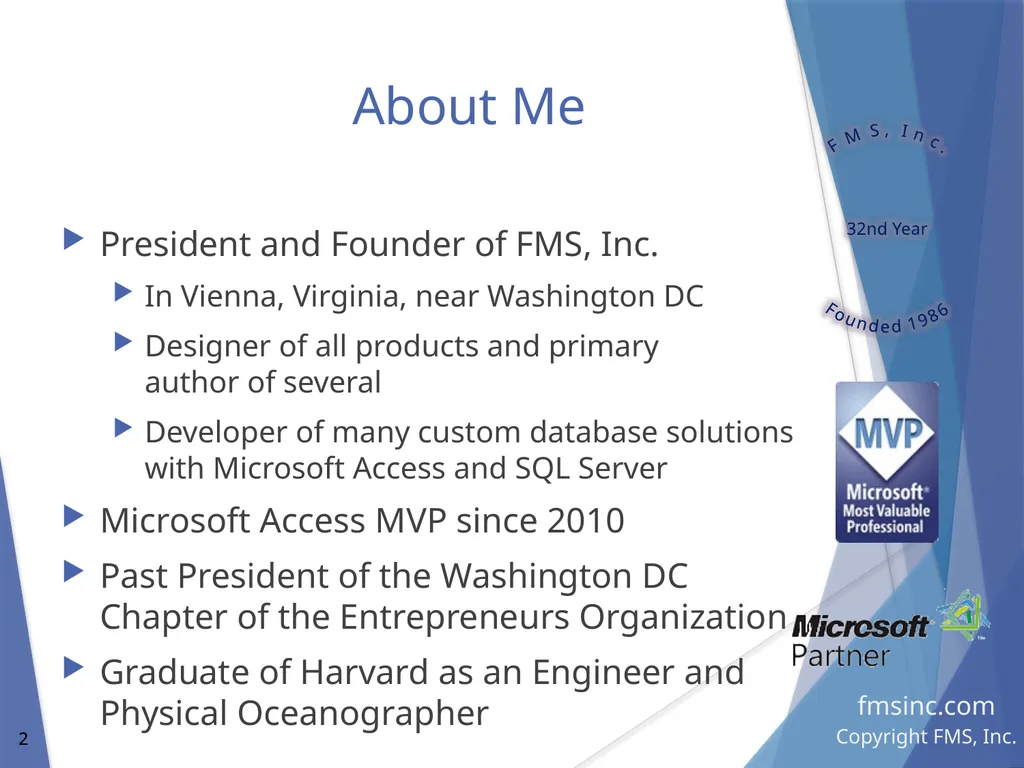
About Me President and Founder of FMS, Inc.
In Vienna, Virginia, near Washington DC
Designer of all products and primary author of several
Developer of many custom database solutions with Microsoft Access and SQL Server
Microsoft Access MVP since 2010
Past President of the Washington DC Chapter of the Entrepreneurs Organization
Graduate of Harvard as an Engineer and Physical Oceanographer FMS, Inc. 32nd Year
Founded 1986<br>
In Vienna, Virginia, near Washington DC
Designer of all products and primary author of several
Developer of many custom database solutions with Microsoft Access and SQL Server
Microsoft Access MVP since 2010
Past President of the Washington DC Chapter of the Entrepreneurs Organization
Graduate of Harvard as an Engineer and Physical Oceanographer FMS, Inc. 32nd Year
Founded 1986<br>
03
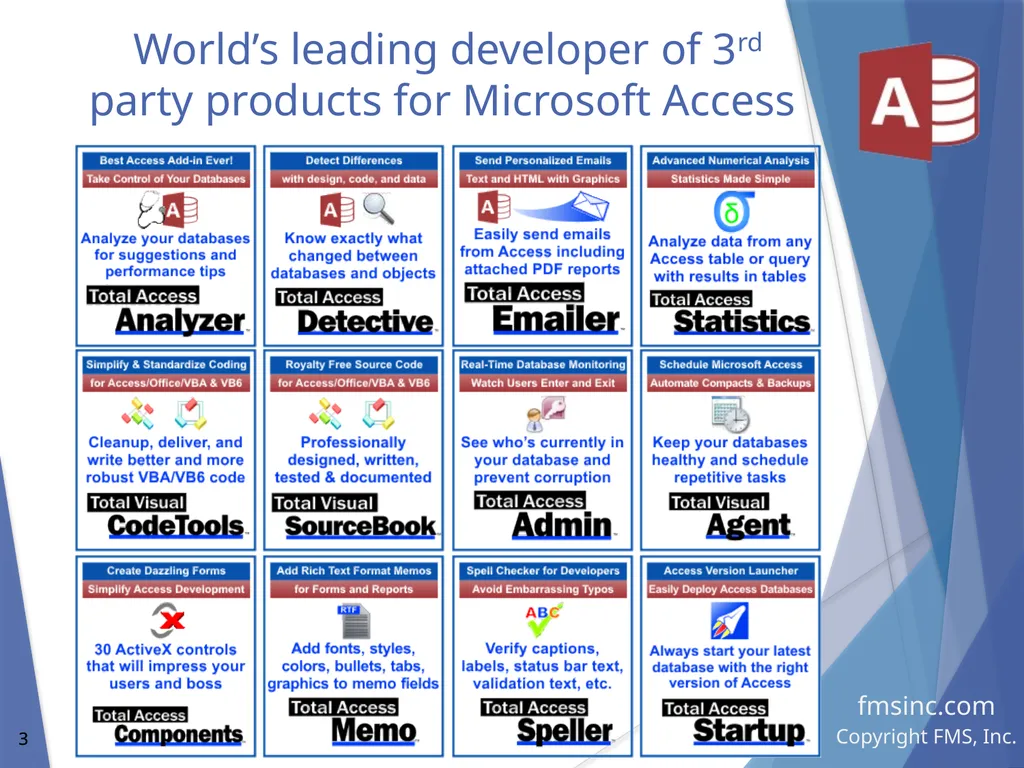
World’s leading developer of 3rd party products for Microsoft Access<br>
04
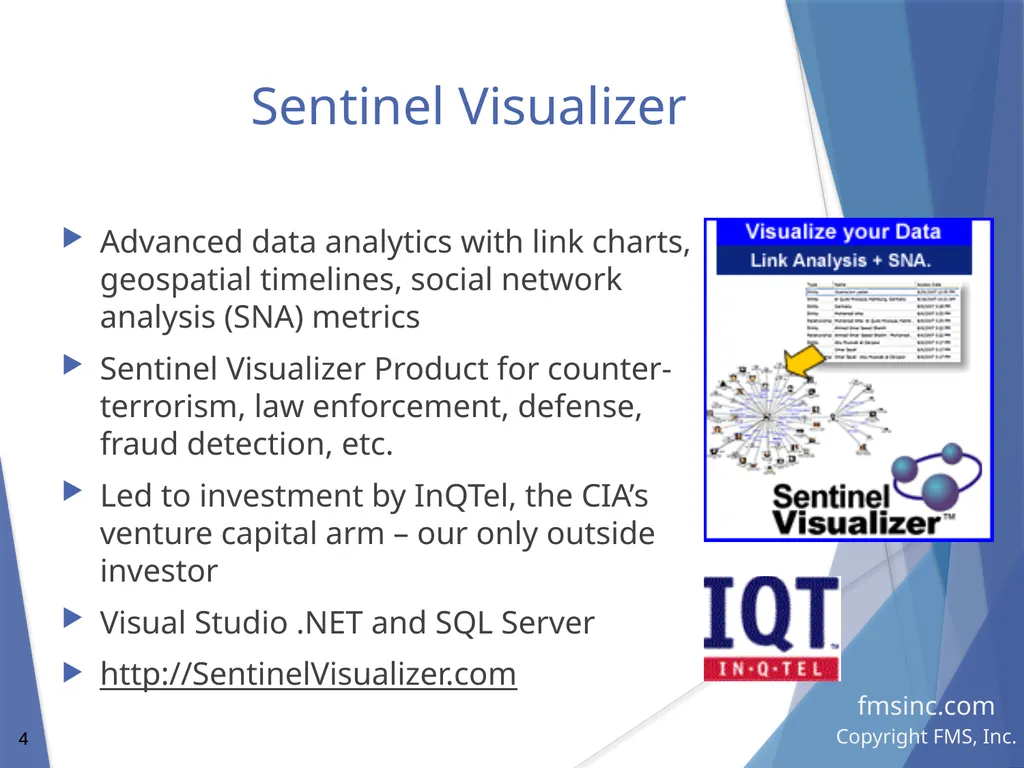
Sentinel Visualizer Advanced data analytics with link charts, geospatial timelines, social network analysis (SNA) metrics
Sentinel Visualizer Product for counter-terrorism, law enforcement, defense, fraud detection, etc.
Led to investment by InQTel, the CIA’s venture capital arm – our only outside investor
Visual Studio .NET and SQL Server
http://SentinelVisualizer.com<br>
Sentinel Visualizer Product for counter-terrorism, law enforcement, defense, fraud detection, etc.
Led to investment by InQTel, the CIA’s venture capital arm – our only outside investor
Visual Studio .NET and SQL Server
http://SentinelVisualizer.com<br>
05
Access Database Evolution
from the Desktop to the Cloud Access and Database Evolution
Single Database
Split Database
Supporting Different Access Versions
ACCDE/MDE deployments
Upsizing to SQL Server
Hosting SQL Server on the Azure
Remote Desktop/Remote App
Virtual Machines on Azure<br>
Single Database
Split Database
Supporting Different Access Versions
ACCDE/MDE deployments
Upsizing to SQL Server
Hosting SQL Server on the Azure
Remote Desktop/Remote App
Virtual Machines on Azure<br>
06
Database Evolution Databases evolve over time
Some grow and become more sophisticated
Even desktop databases become mission critical
Many die and go extinct
Bad design or developer
Business needs change
How do you determine which survive?
How do you plan for casualties?
How do you maximize Return on Investment (ROI)?<br>
Some grow and become more sophisticated
Even desktop databases become mission critical
Many die and go extinct
Bad design or developer
Business needs change
How do you determine which survive?
How do you plan for casualties?
How do you maximize Return on Investment (ROI)?<br>
07
Military Analogy A commanding officer faces a wide range of threats and is given a wide range of weapons
Why do they need bullets if they have planes?
Infantry play an important role
Others support infantry (e.g. air support)
CIO/CTOs face a battlefield with a wide range of database challenges
Organizations should have:
A wide range of tools appropriate for each challenge
Readiness to provide support when infantry gets overwhelmed<br>
Why do they need bullets if they have planes?
Infantry play an important role
Others support infantry (e.g. air support)
CIO/CTOs face a battlefield with a wide range of database challenges
Organizations should have:
A wide range of tools appropriate for each challenge
Readiness to provide support when infantry gets overwhelmed<br>
08
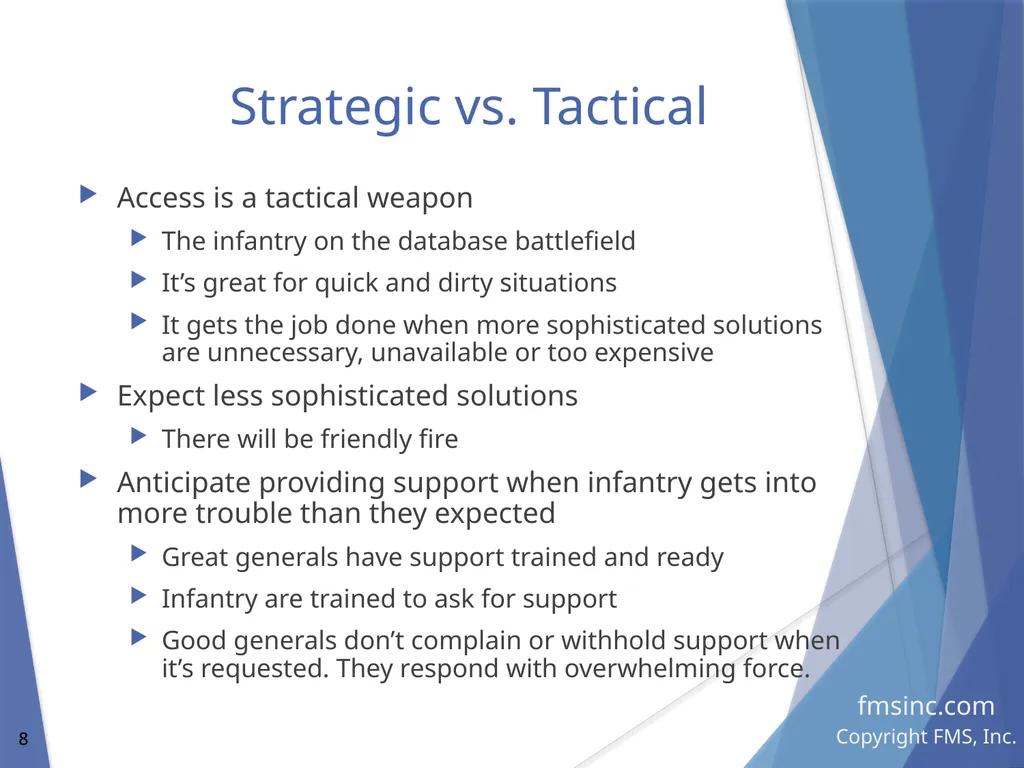
Strategic vs. Tactical Access is a tactical weapon
The infantry on the database battlefield
It’s great for quick and dirty situations
It gets the job done when more sophisticated solutions are unnecessary, unavailable or too expensive
Expect less sophisticated solutions
There will be friendly fire
Anticipate providing support when infantry gets into more trouble than they expected
Great generals have support trained and ready
Infantry are trained to ask for support
Good generals don’t complain or withhold support when it’s requested. They respond with overwhelming force.<br>
The infantry on the database battlefield
It’s great for quick and dirty situations
It gets the job done when more sophisticated solutions are unnecessary, unavailable or too expensive
Expect less sophisticated solutions
There will be friendly fire
Anticipate providing support when infantry gets into more trouble than they expected
Great generals have support trained and ready
Infantry are trained to ask for support
Good generals don’t complain or withhold support when it’s requested. They respond with overwhelming force.<br>
09
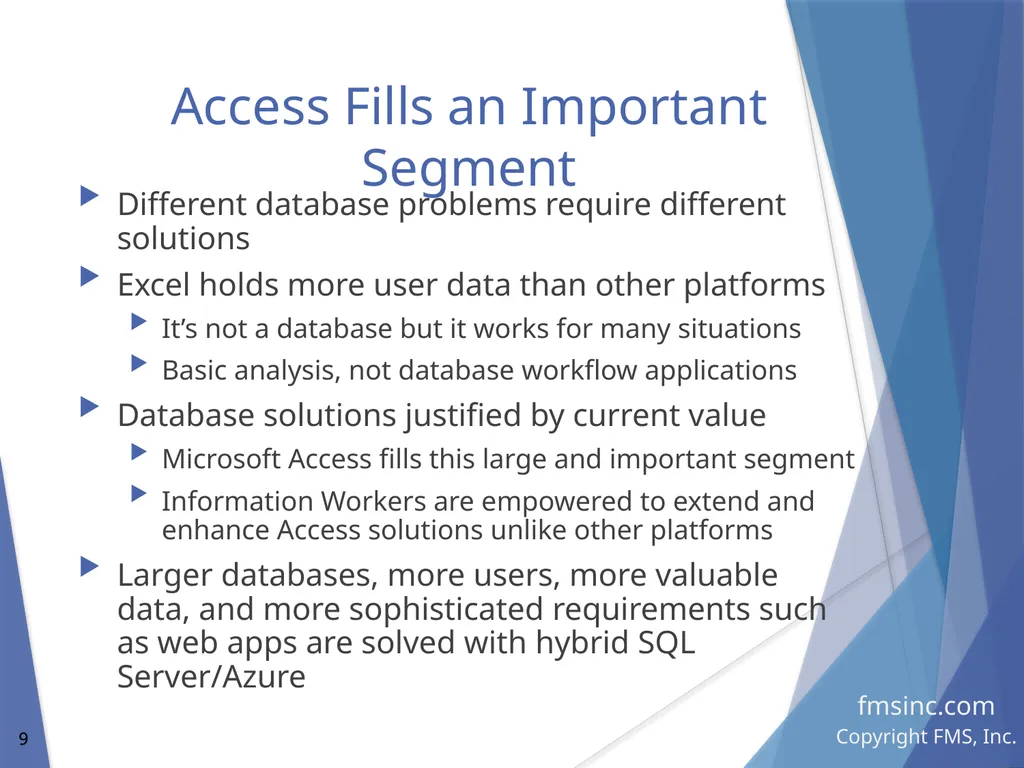
Access Fills an Important Segment Different database problems require different solutions
Excel holds more user data than other platforms
It’s not a database but it works for many situations
Basic analysis, not database workflow applications
Database solutions justified by current value
Microsoft Access fills this large and important segment
Information Workers are empowered to extend and enhance Access solutions unlike other platforms
Larger databases, more users, more valuable data, and more sophisticated requirements such as web apps are solved with hybrid SQL Server/Azure<br>
Excel holds more user data than other platforms
It’s not a database but it works for many situations
Basic analysis, not database workflow applications
Database solutions justified by current value
Microsoft Access fills this large and important segment
Information Workers are empowered to extend and enhance Access solutions unlike other platforms
Larger databases, more users, more valuable data, and more sophisticated requirements such as web apps are solved with hybrid SQL Server/Azure<br>
10
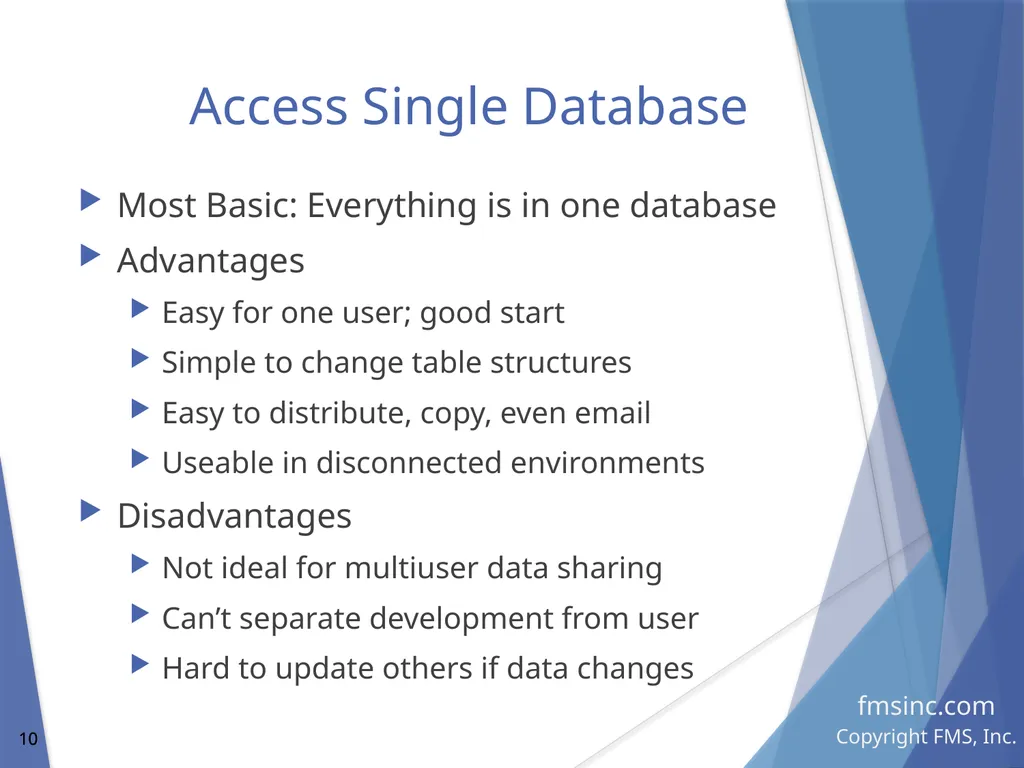
Access Single Database Most Basic: Everything is in one database
Advantages
Easy for one user; good start
Simple to change table structures
Easy to distribute, copy, even email
Useable in disconnected environments
Disadvantages
Not ideal for multiuser data sharing
Can’t separate development from user
Hard to update others if data changes<br>
Advantages
Easy for one user; good start
Simple to change table structures
Easy to distribute, copy, even email
Useable in disconnected environments
Disadvantages
Not ideal for multiuser data sharing
Can’t separate development from user
Hard to update others if data changes<br>
11
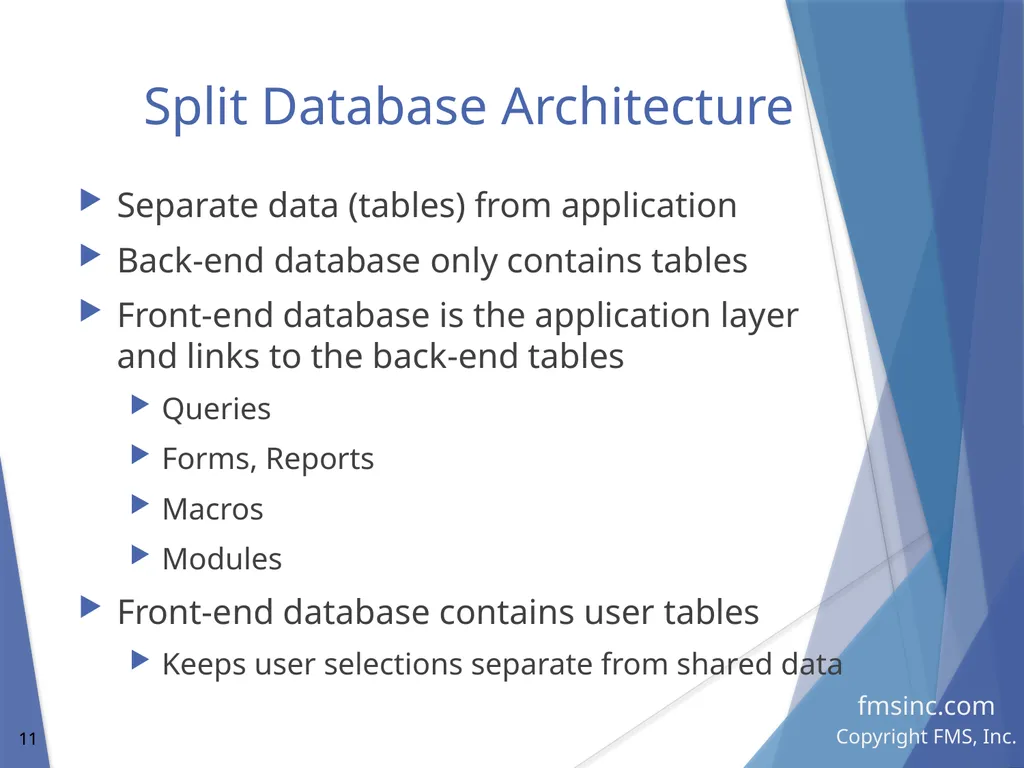
Split Database Architecture Separate data (tables) from application
Back-end database only contains tables
Front-end database is the application layer and links to the back-end tables
Queries
Forms, Reports
Macros
Modules
Front-end database contains user tables
Keeps user selections separate from shared data<br>
Back-end database only contains tables
Front-end database is the application layer and links to the back-end tables
Queries
Forms, Reports
Macros
Modules
Front-end database contains user tables
Keeps user selections separate from shared data<br>
12
Split Database Architecture Advantages Multiuser Support
Data is shared by all users across a network
Minimize database corruption
Improve performance with local database
Front-end updates without losing data
Developer can add new features and test them before deployment against test or live data
Deployments made without updating tables
Network backup and compact of back end database
Scalability with multiple backend databases >2 GB<br>
Data is shared by all users across a network
Minimize database corruption
Improve performance with local database
Front-end updates without losing data
Developer can add new features and test them before deployment against test or live data
Deployments made without updating tables
Network backup and compact of back end database
Scalability with multiple backend databases >2 GB<br>
13
Split Database Architecture Disadvantages Each user needs a copy of the front-end database
Need to update when the master database is updated
More complicated to change table structures since it is done on the backend
Plus: Linked tables to Access automatically update when structures change
Not the case for SQL Server tables which need to be relinked for structural changes
Dependencies in table design may be an issue
Lookup lists based on queries<br>
Need to update when the master database is updated
More complicated to change table structures since it is done on the backend
Plus: Linked tables to Access automatically update when structures change
Not the case for SQL Server tables which need to be relinked for structural changes
Dependencies in table design may be an issue
Lookup lists based on queries<br>
14
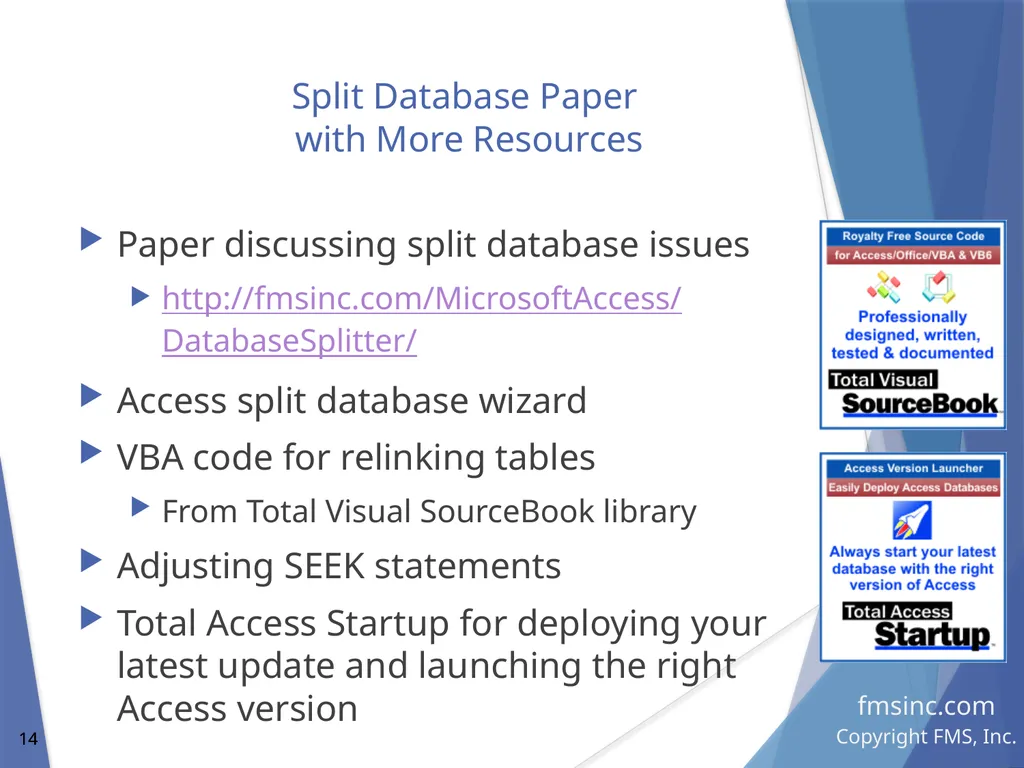
Split Database Paper
with More Resources Paper discussing split database issues
http://fmsinc.com/MicrosoftAccess/ DatabaseSplitter/
Access split database wizard
VBA code for relinking tables
From Total Visual SourceBook library
Adjusting SEEK statements
Total Access Startup for deploying your latest update and launching the right Access version<br>
http://fmsinc.com/MicrosoftAccess/ DatabaseSplitter/
Access split database wizard
VBA code for relinking tables
From Total Visual SourceBook library
Adjusting SEEK statements
Total Access Startup for deploying your latest update and launching the right Access version<br>
15
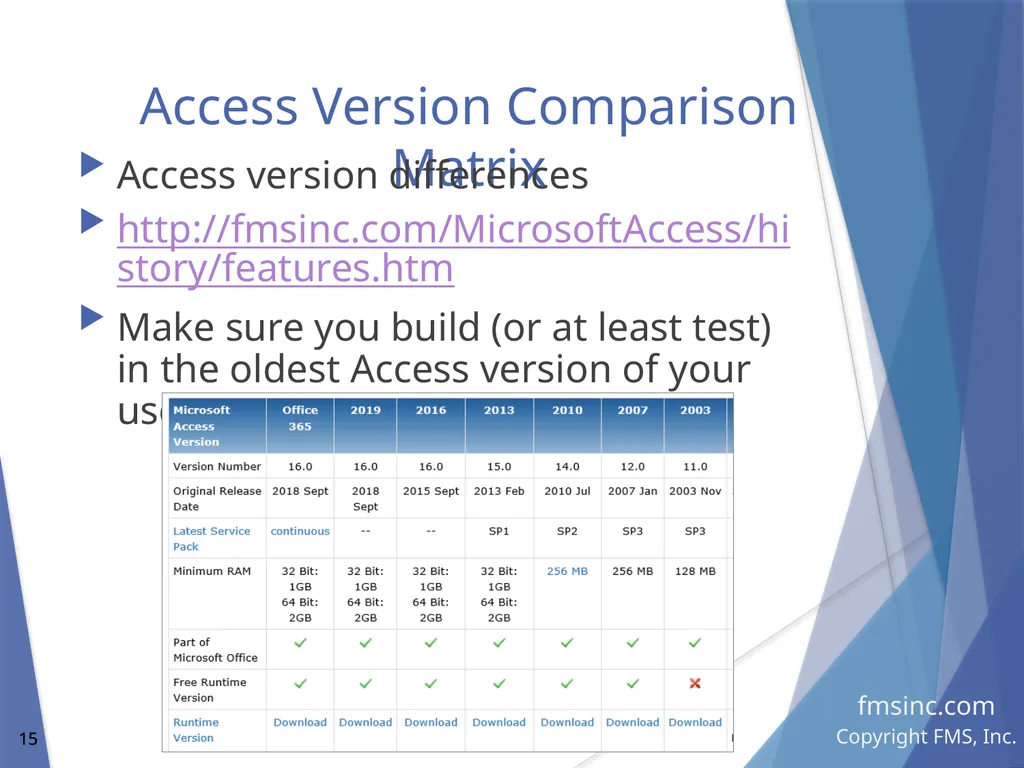
Access Version Comparison Matrix Access version differences
http://fmsinc.com/MicrosoftAccess/history/features.htm
Make sure you build (or at least test) in the oldest Access version of your users<br>
http://fmsinc.com/MicrosoftAccess/history/features.htm
Make sure you build (or at least test) in the oldest Access version of your users<br>
16
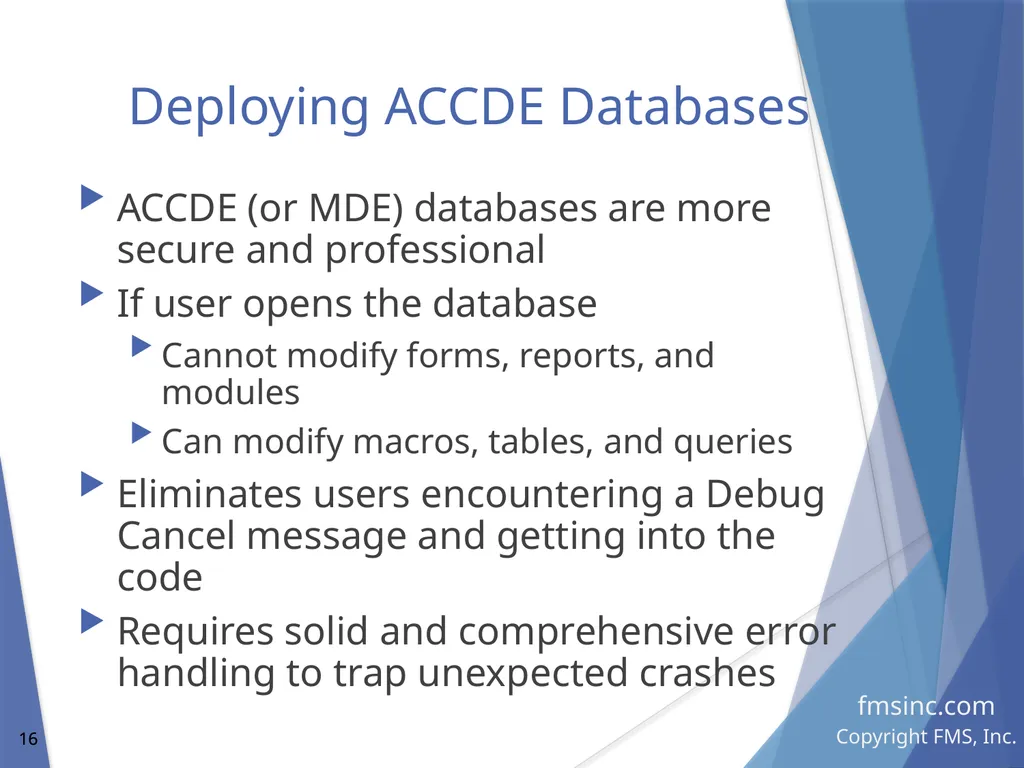
Deploying ACCDE Databases ACCDE (or MDE) databases are more secure and professional
If user opens the database
Cannot modify forms, reports, and modules
Can modify macros, tables, and queries
Eliminates users encountering a Debug Cancel message and getting into the code
Requires solid and comprehensive error handling to trap unexpected crashes<br>
If user opens the database
Cannot modify forms, reports, and modules
Can modify macros, tables, and queries
Eliminates users encountering a Debug Cancel message and getting into the code
Requires solid and comprehensive error handling to trap unexpected crashes<br>
17
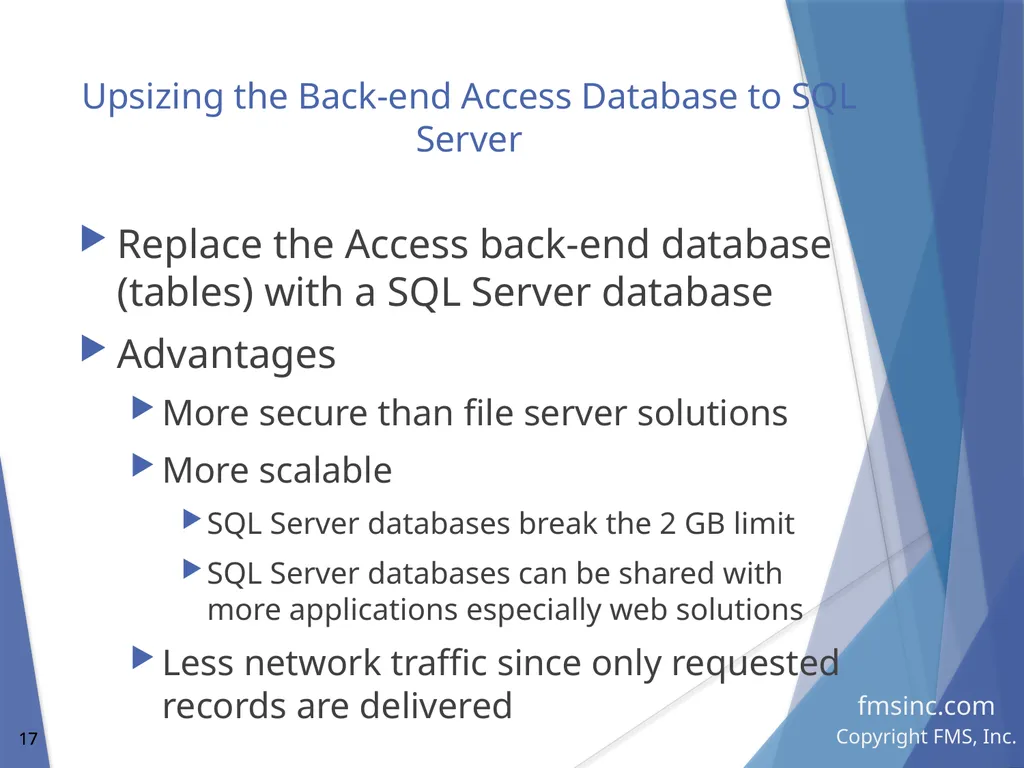
Upsizing the Back-end Access Database to SQL Server Replace the Access back-end database (tables) with a SQL Server database
Advantages
More secure than file server solutions
More scalable
SQL Server databases break the 2 GB limit
SQL Server databases can be shared with more applications especially web solutions
Less network traffic since only requested records are delivered<br>
Advantages
More secure than file server solutions
More scalable
SQL Server databases break the 2 GB limit
SQL Server databases can be shared with more applications especially web solutions
Less network traffic since only requested records are delivered<br>
18
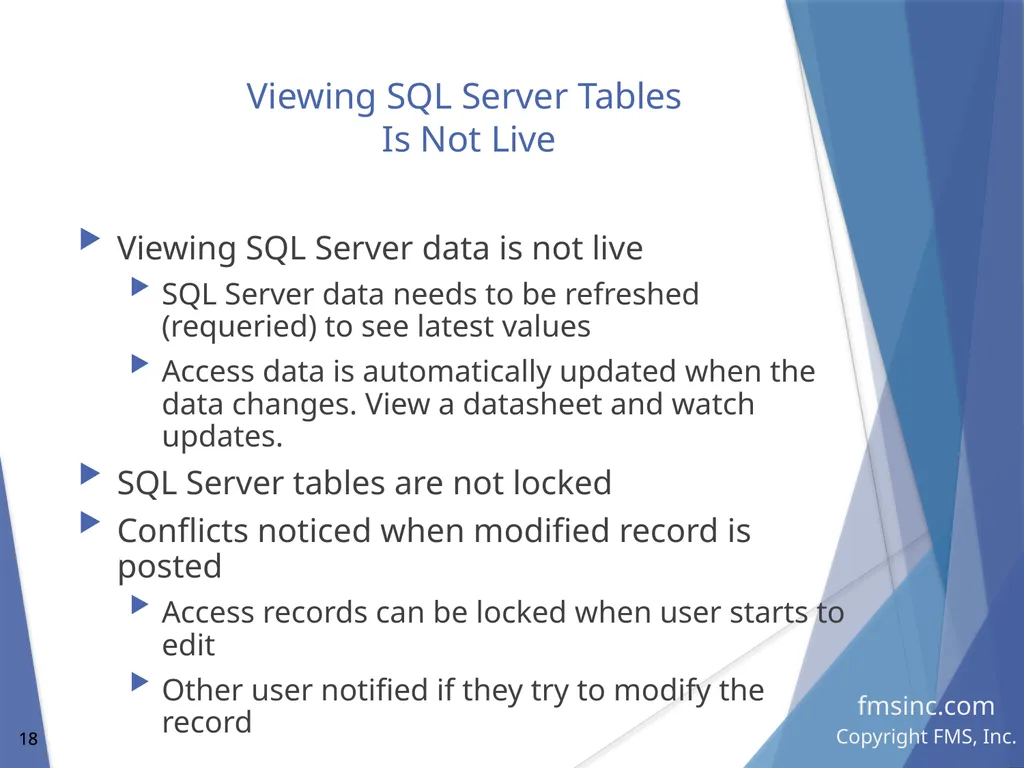
Viewing SQL Server Tables
Is Not Live Viewing SQL Server data is not live
SQL Server data needs to be refreshed (requeried) to see latest values
Access data is automatically updated when the data changes. View a datasheet and watch updates.
SQL Server tables are not locked
Conflicts noticed when modified record is posted
Access records can be locked when user starts to edit
Other user notified if they try to modify the record<br>
SQL Server data needs to be refreshed (requeried) to see latest values
Access data is automatically updated when the data changes. View a datasheet and watch updates.
SQL Server tables are not locked
Conflicts noticed when modified record is posted
Access records can be locked when user starts to edit
Other user notified if they try to modify the record<br>
19
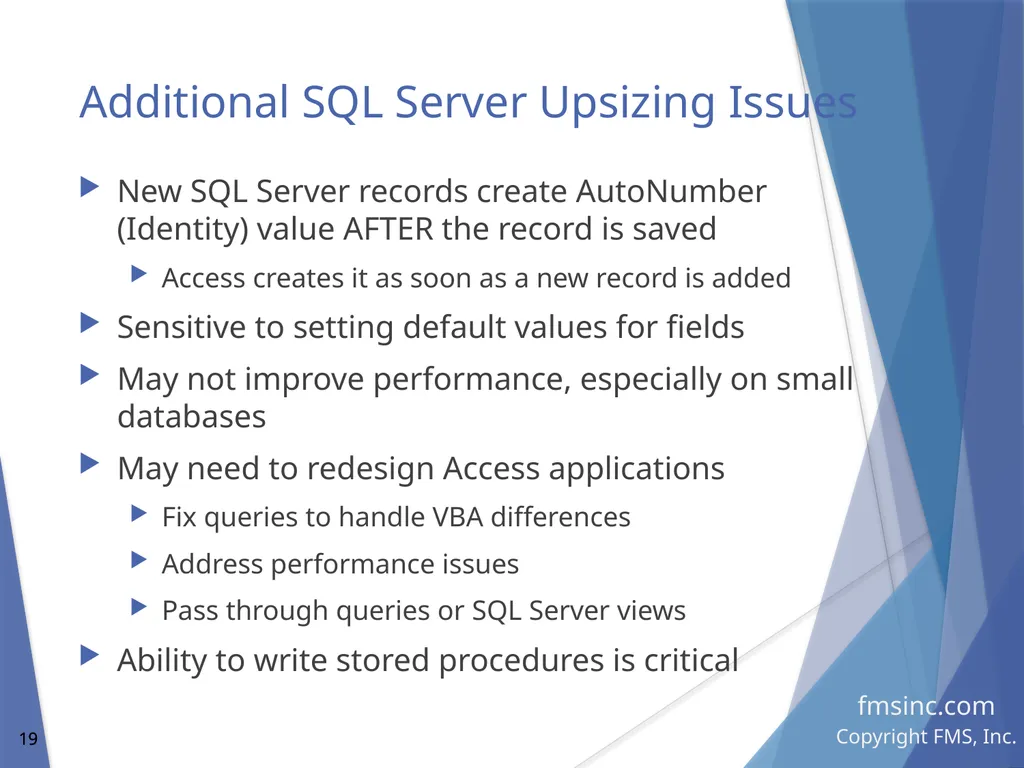
Additional SQL Server Upsizing Issues New SQL Server records create AutoNumber (Identity) value AFTER the record is saved
Access creates it as soon as a new record is added
Sensitive to setting default values for fields
May not improve performance, especially on small databases
May need to redesign Access applications
Fix queries to handle VBA differences
Address performance issues
Pass through queries or SQL Server views
Ability to write stored procedures is critical<br>
Access creates it as soon as a new record is added
Sensitive to setting default values for fields
May not improve performance, especially on small databases
May need to redesign Access applications
Fix queries to handle VBA differences
Address performance issues
Pass through queries or SQL Server views
Ability to write stored procedures is critical<br>
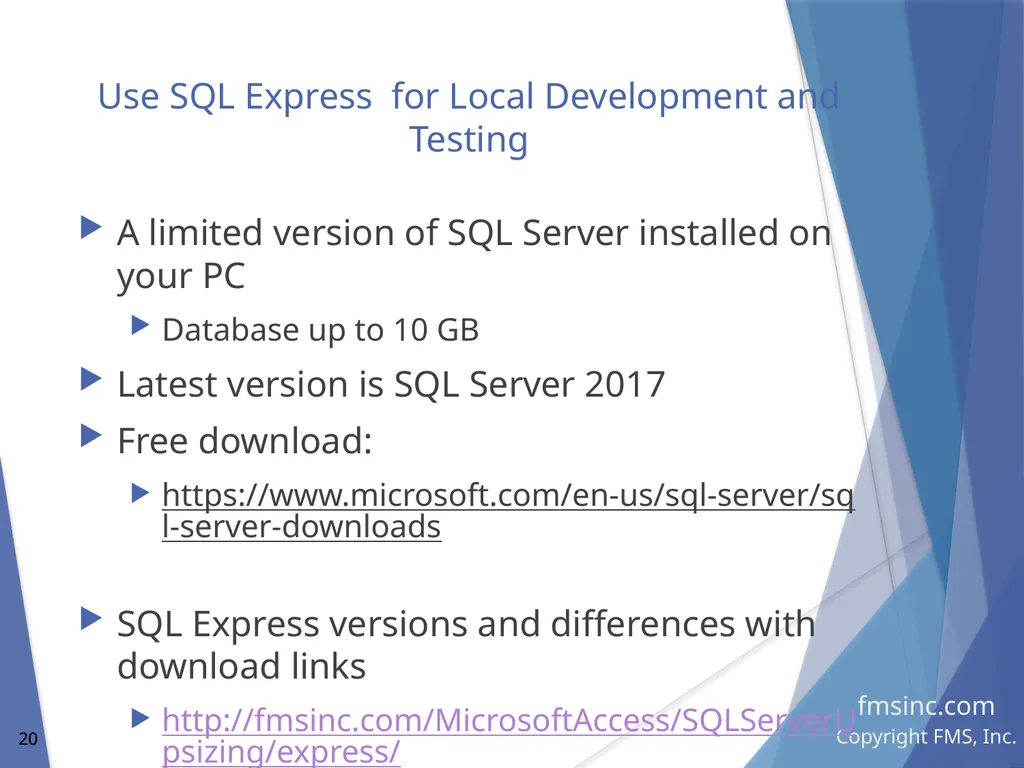
20
Use SQL Express for Local Development and Testing A limited version of SQL Server installed on your PC
Database up to 10 GB
Latest version is SQL Server 2017
Free download:
https://www.microsoft.com/en-us/sql-server/sql-server-downloads
SQL Express versions and differences with download links
http://fmsinc.com/MicrosoftAccess/SQLServerUpsizing/express/<br>
Database up to 10 GB
Latest version is SQL Server 2017
Free download:
https://www.microsoft.com/en-us/sql-server/sql-server-downloads
SQL Express versions and differences with download links
http://fmsinc.com/MicrosoftAccess/SQLServerUpsizing/express/<br>
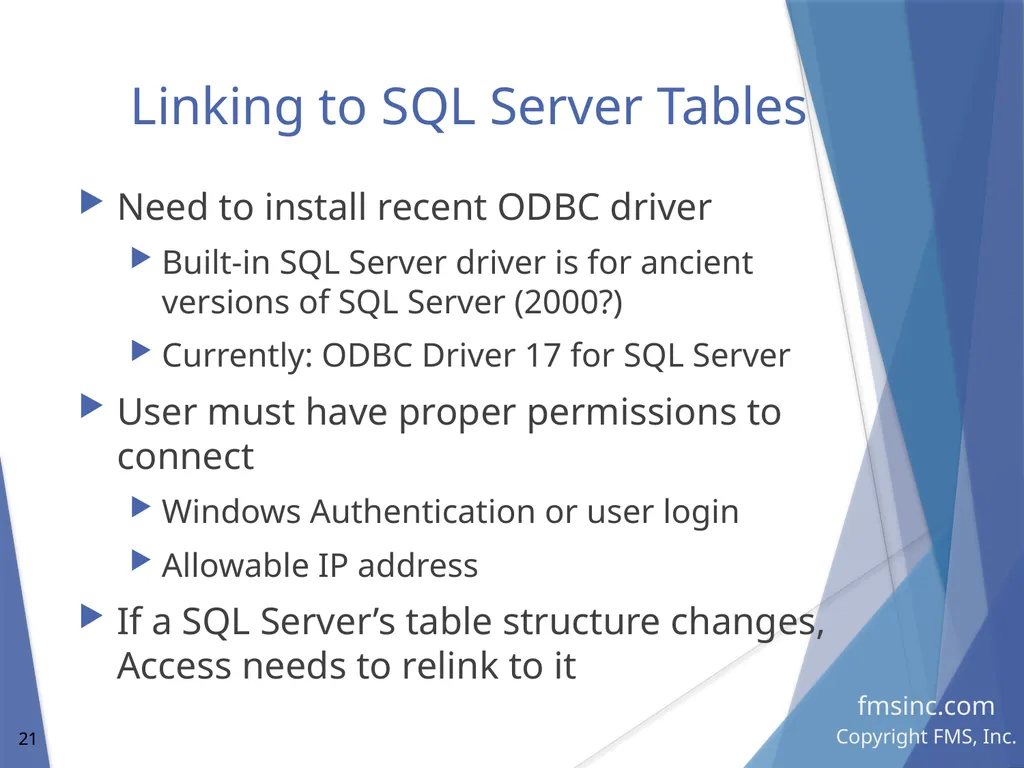
21
Linking to SQL Server Tables Need to install recent ODBC driver
Built-in SQL Server driver is for ancient versions of SQL Server (2000?)
Currently: ODBC Driver 17 for SQL Server
User must have proper permissions to connect
Windows Authentication or user login
Allowable IP address
If a SQL Server’s table structure changes, Access needs to relink to it<br>
Built-in SQL Server driver is for ancient versions of SQL Server (2000?)
Currently: ODBC Driver 17 for SQL Server
User must have proper permissions to connect
Windows Authentication or user login
Allowable IP address
If a SQL Server’s table structure changes, Access needs to relink to it<br>
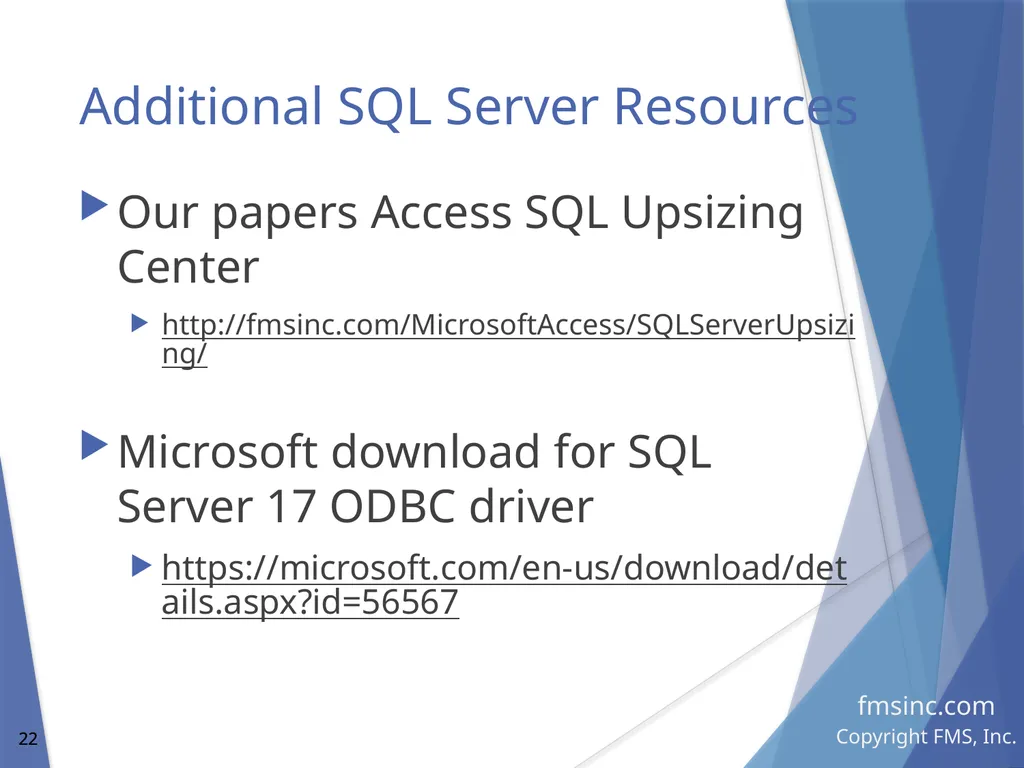
22
Additional SQL Server Resources Our papers Access SQL Upsizing Center
http://fmsinc.com/MicrosoftAccess/SQLServerUpsizing/
Microsoft download for SQL Server 17 ODBC driver
https://microsoft.com/en-us/download/details.aspx?id=56567<br>
http://fmsinc.com/MicrosoftAccess/SQLServerUpsizing/
Microsoft download for SQL Server 17 ODBC driver
https://microsoft.com/en-us/download/details.aspx?id=56567<br>
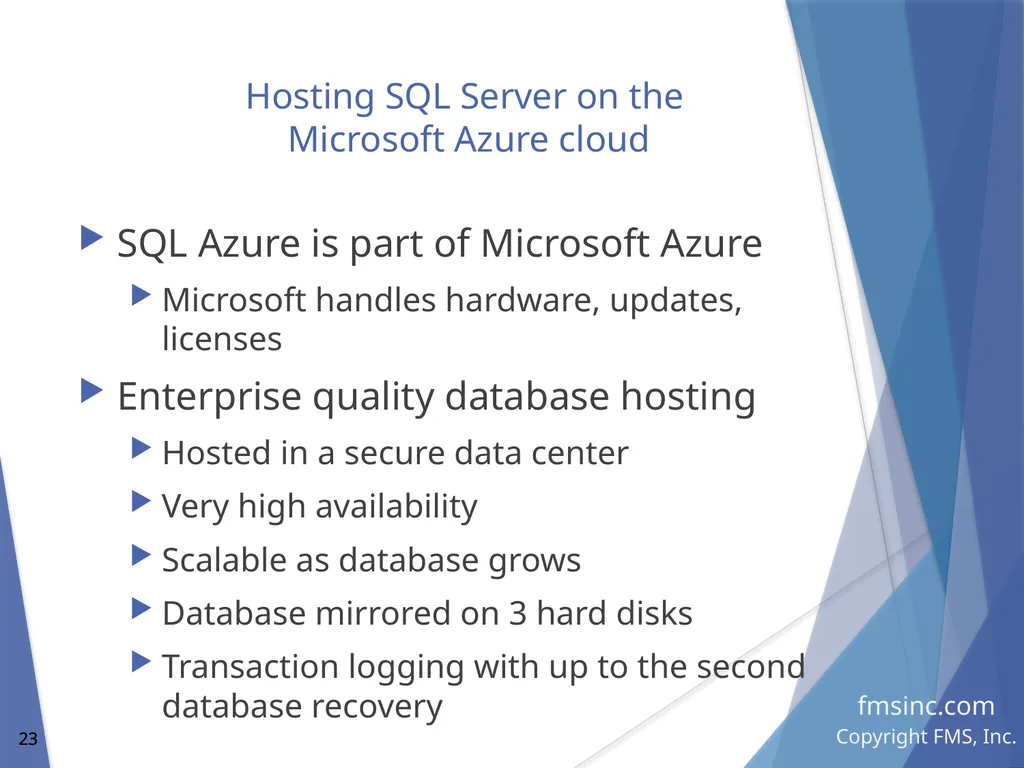
23
Hosting SQL Server on the
Microsoft Azure cloud SQL Azure is part of Microsoft Azure
Microsoft handles hardware, updates, licenses
Enterprise quality database hosting
Hosted in a secure data center
Very high availability
Scalable as database grows
Database mirrored on 3 hard disks
Transaction logging with up to the second database recovery<br>
Microsoft handles hardware, updates, licenses
Enterprise quality database hosting
Hosted in a secure data center
Very high availability
Scalable as database grows
Database mirrored on 3 hard disks
Transaction logging with up to the second database recovery<br>
24
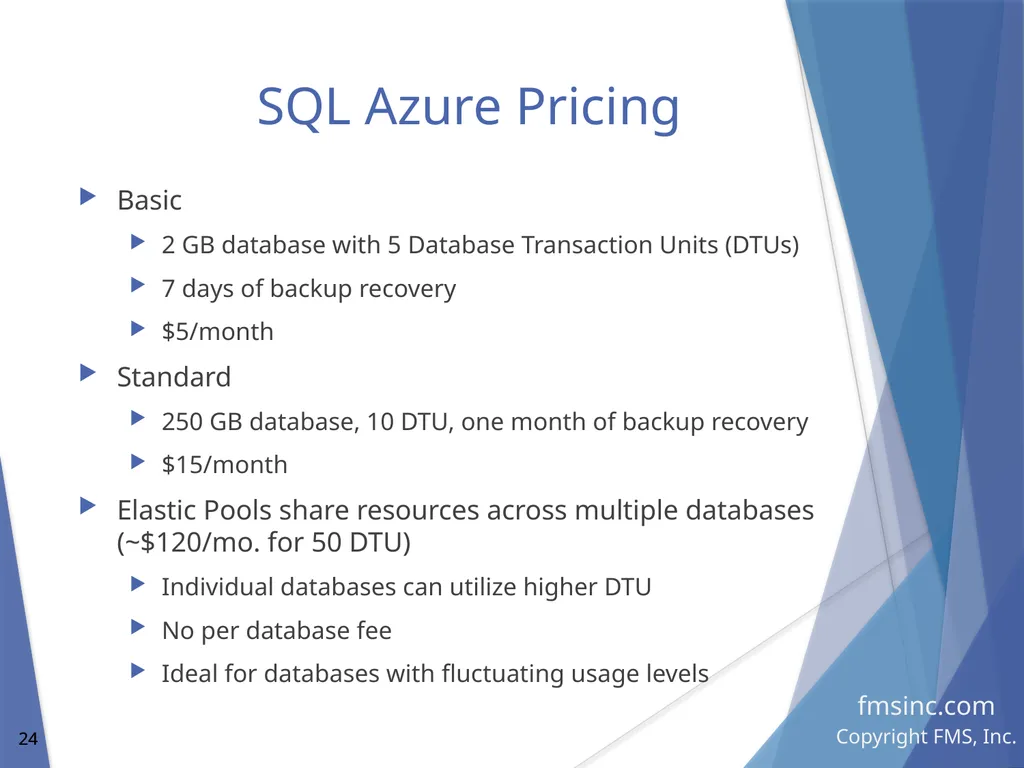
SQL Azure Pricing Basic
2 GB database with 5 Database Transaction Units (DTUs)
7 days of backup recovery
$5/month
Standard
250 GB database, 10 DTU, one month of backup recovery
$15/month
Elastic Pools share resources across multiple databases (~$120/mo. for 50 DTU)
Individual databases can utilize higher DTU
No per database fee
Ideal for databases with fluctuating usage levels<br>
2 GB database with 5 Database Transaction Units (DTUs)
7 days of backup recovery
$5/month
Standard
250 GB database, 10 DTU, one month of backup recovery
$15/month
Elastic Pools share resources across multiple databases (~$120/mo. for 50 DTU)
Individual databases can utilize higher DTU
No per database fee
Ideal for databases with fluctuating usage levels<br>
25
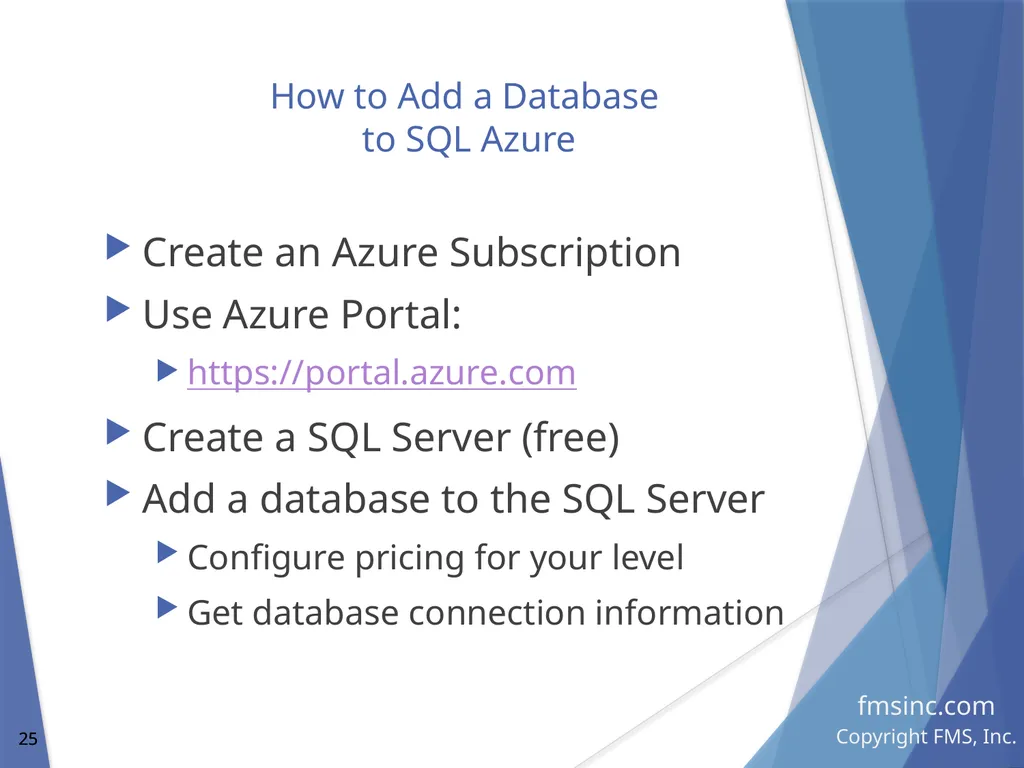
How to Add a Database
to SQL Azure Create an Azure Subscription
Use Azure Portal:
https://portal.azure.com
Create a SQL Server (free)
Add a database to the SQL Server
Configure pricing for your level
Get database connection information<br>
Use Azure Portal:
https://portal.azure.com
Create a SQL Server (free)
Add a database to the SQL Server
Configure pricing for your level
Get database connection information<br>
26
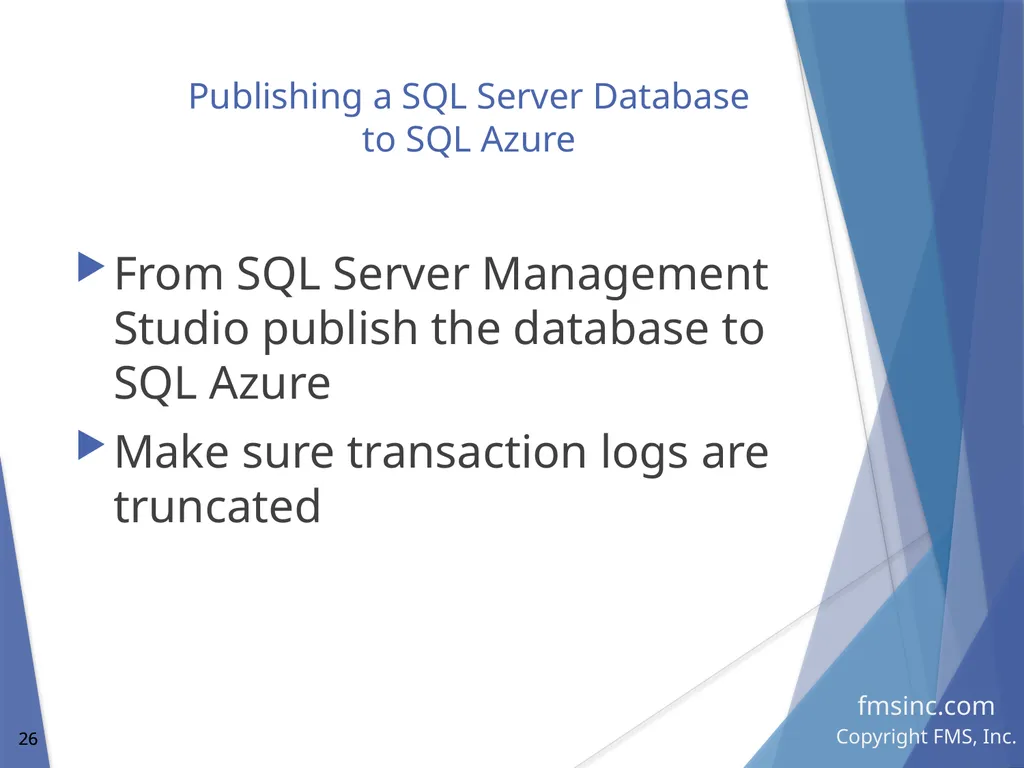
Publishing a SQL Server Database
to SQL Azure From SQL Server Management Studio publish the database to SQL Azure
Make sure transaction logs are truncated<br>
Make sure transaction logs are truncated<br>
27
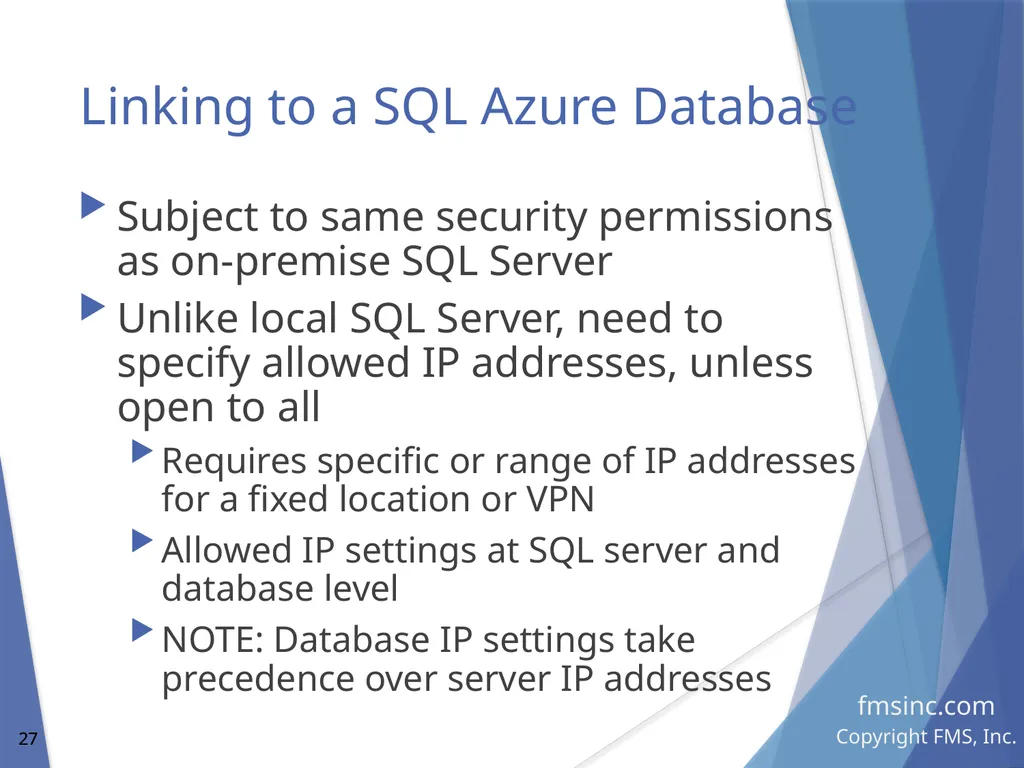
Linking to a SQL Azure Database Subject to same security permissions as on-premise SQL Server
Unlike local SQL Server, need to specify allowed IP addresses, unless open to all
Requires specific or range of IP addresses for a fixed location or VPN
Allowed IP settings at SQL server and database level
NOTE: Database IP settings take precedence over server IP addresses<br>
Unlike local SQL Server, need to specify allowed IP addresses, unless open to all
Requires specific or range of IP addresses for a fixed location or VPN
Allowed IP settings at SQL server and database level
NOTE: Database IP settings take precedence over server IP addresses<br>
28
SQL Azure Resources Linking to SQL Server Tables in Azure
http://fmsinc.com/MicrosoftAccess/cloud/link-to-azure-sql-database.html
Moving Microsoft Azure SQL Server Databases to SQL Elastic Pools
http://fmsinc.com/microsoft-azure/sql-server/pooled/<br>
http://fmsinc.com/MicrosoftAccess/cloud/link-to-azure-sql-database.html
Moving Microsoft Azure SQL Server Databases to SQL Elastic Pools
http://fmsinc.com/microsoft-azure/sql-server/pooled/<br>
29
Remote App with Access Addresses a portion of applications that need to support users “over the Internet/Intranet”
Want to run an application without installing it
Not a request for HTML pages in a web browser
Independent of operating systems such as Macs
Remote App and Remote Desktop are part of Windows server using Terminal Services to host multiple users
Each user runs their own instance of Access and Access database<br>
Want to run an application without installing it
Not a request for HTML pages in a web browser
Independent of operating systems such as Macs
Remote App and Remote Desktop are part of Windows server using Terminal Services to host multiple users
Each user runs their own instance of Access and Access database<br>
30
Remote App Remote App is similar to Remote Desktop
User can only run one application
Prevents users from running other programs
Prevents users changing their Windows desktop, files, etc.
Remote App can be configured so a user running multiple apps shares the same O/S<br>
User can only run one application
Prevents users from running other programs
Prevents users changing their Windows desktop, files, etc.
Remote App can be configured so a user running multiple apps shares the same O/S<br>
31
Remote App Advantages Simplifies deployment: No need to install Access and your database on each user’s PC
More maintainable: Centralized control of Windows and Access versions
Easier to debug problems
Supports Mac users
Can support all internal Windows applications<br>
More maintainable: Centralized control of Windows and Access versions
Easier to debug problems
Supports Mac users
Can support all internal Windows applications<br>
32
Remote App Limitations Number of concurrent users limited by server hardware
Depends what resources the application requires
Around 20-50 simultaneous users
Not as scalable as web solutions which can support hundreds or thousands<br>
Depends what resources the application requires
Around 20-50 simultaneous users
Not as scalable as web solutions which can support hundreds or thousands<br>
33
Implementing Remote App with Access Solutions Access should be a Split Database application
Back-end database can be on the network, a SQL Server database, or anything else Access supports
Front end database should be deployed to each user’s profile folder
e.g. C:\Users\Name\MyDocuments<br>
Back-end database can be on the network, a SQL Server database, or anything else Access supports
Front end database should be deployed to each user’s profile folder
e.g. C:\Users\Name\MyDocuments<br>
34
Preparation of Windows Server for Remote App Need admin permissions
Make sure the right version of Access is installed, or install the Access Runtime
Interactively test and verify you can run the Access application on the server
Make sure network connections to linked tables work<br>
Make sure the right version of Access is installed, or install the Access Runtime
Interactively test and verify you can run the Access application on the server
Make sure network connections to linked tables work<br>
35
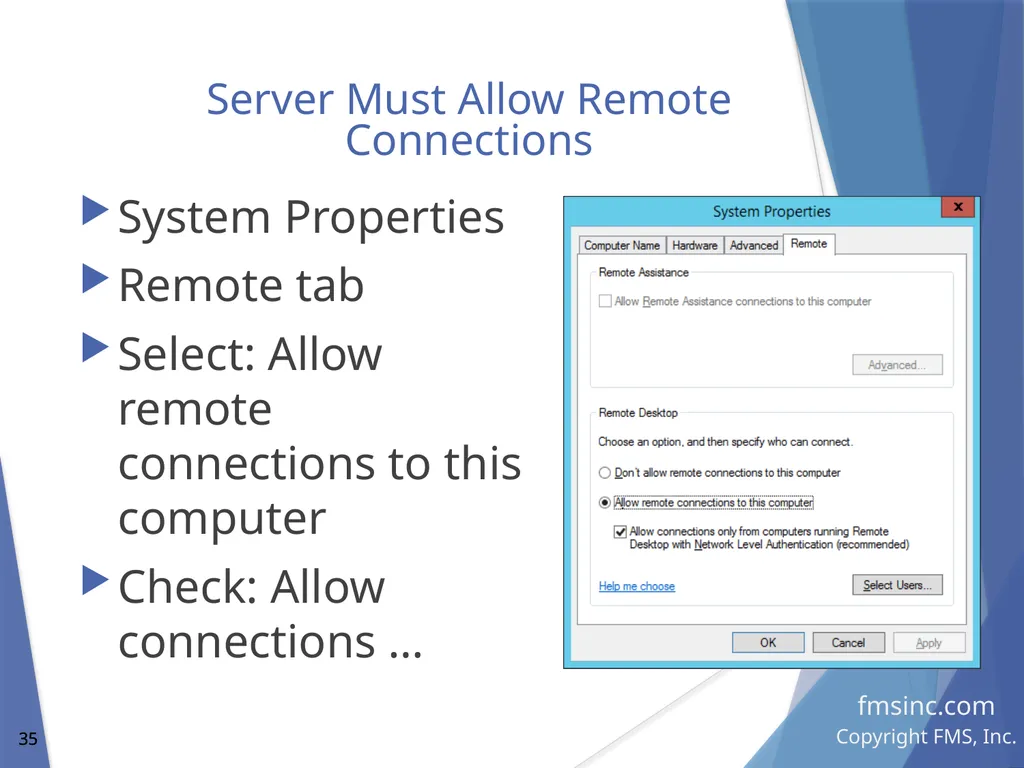
Server Must Allow Remote Connections System Properties
Remote tab
Select: Allow remote connections to this computer
Check: Allow connections …<br>
Remote tab
Select: Allow remote connections to this computer
Check: Allow connections …<br>
36
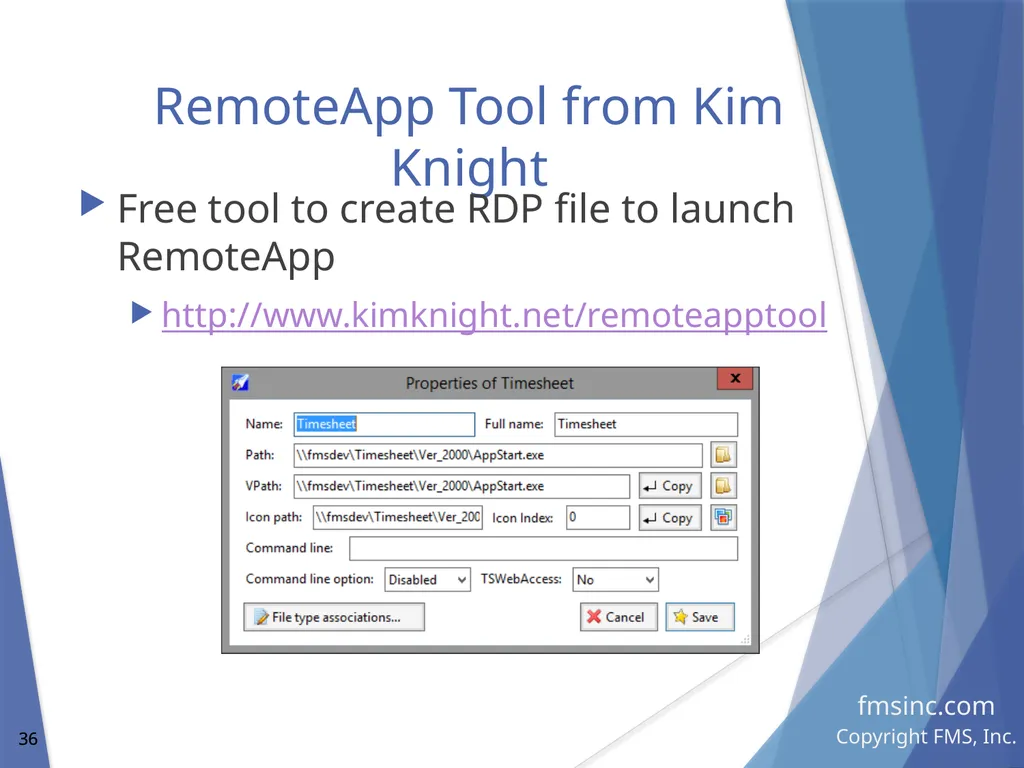
RemoteApp Tool from Kim Knight Free tool to create RDP file to launch RemoteApp
http://www.kimknight.net/remoteapptool<br>
http://www.kimknight.net/remoteapptool<br>
37
Remote App Resources Paper: Using Terminal Services and RemoteApp to Extend Your Microsoft Access and other Windows Applications Over the Internet
http://fmsinc.com/MicrosoftAccess/terminal-services/remoteapp.htm<br>
http://fmsinc.com/MicrosoftAccess/terminal-services/remoteapp.htm<br>
38
Hosting Virtual Machines on Azure Instead of your own server, you can use an Azure VM to host Access applications using Remote App
Backend database needs to be accessible by the VM
Cannot be an Access database on your network
Can be SQL Azure, ideally in the same data center<br>
Backend database needs to be accessible by the VM
Cannot be an Access database on your network
Can be SQL Azure, ideally in the same data center<br>
39
Access Addresses Database Evolution Access solutions range from the desktop the cloud
Hybrid solutions combine the strengths of the desktop and cloud
Access has a cost, migration and evolution story to support the life cycle of database solutions<br>
Hybrid solutions combine the strengths of the desktop and cloud
Access has a cost, migration and evolution story to support the life cycle of database solutions<br>
40
FMS Resource Centers (FREE) Microsoft Access Developer Papers
http://fmsinc.com/MicrosoftAccess/developer/
Microsoft Access Query Center
http://fmsinc.com/MicrosoftAccess/query/help-center.html
Microsoft Access Upsizing Center
http://fmsinc.com/MicrosoftAccess/SQLServerUpsizing/
Outlook Tips
https://fmsinc.com/MicrosoftOutlook/<br>
http://fmsinc.com/MicrosoftAccess/developer/
Microsoft Access Query Center
http://fmsinc.com/MicrosoftAccess/query/help-center.html
Microsoft Access Upsizing Center
http://fmsinc.com/MicrosoftAccess/SQLServerUpsizing/
Outlook Tips
https://fmsinc.com/MicrosoftOutlook/<br>
41
FMS Social Media Social Media
http://blog.fmsinc.com
https://facebook.com/MicrosoftAccessProducts
@fmsinc and @LukeChung
Email Newsletter http://fmsinc.com/contactus
News Media http://fmsinc.com/news/media.htm<br>
http://blog.fmsinc.com
https://facebook.com/MicrosoftAccessProducts
@fmsinc and @LukeChung
Email Newsletter http://fmsinc.com/contactus
News Media http://fmsinc.com/news/media.htm<br>