
Monthly Departmental review training Penney
AS
Published · 20 slides · 0 views

1 / 1



Description
Monthly Departmental review training Penney Doughtie Banner Trainer JANUARY 31, 2025 Agenda Required Training Required Security Review Guidelines Documentation Details Completion Log 2 Required training Subtitle Required Training prior to
Related Topics
Share
Embed code
Download this presentation From Below
"Monthly Departmental review training Penney" is the property of its rightful owner. Permission is granted to download and print the materials on this website for personal, non-commercial use only, and to display it on your personal computer provided you do not modify the materials and that you retain all copyright notices contained in the materials. By downloading content from our website, you accept the terms of this agreement.
Presentation Transcript
01
Monthly Departmental review training Penney Doughtie
Banner Trainer
JANUARY 31, 2025<br>
Banner Trainer
JANUARY 31, 2025<br>
02
Agenda Required Training
Required Security
Review Guidelines
Documentation Details
Completion Log 2<br>
Required Security
Review Guidelines
Documentation Details
Completion Log 2<br>
03
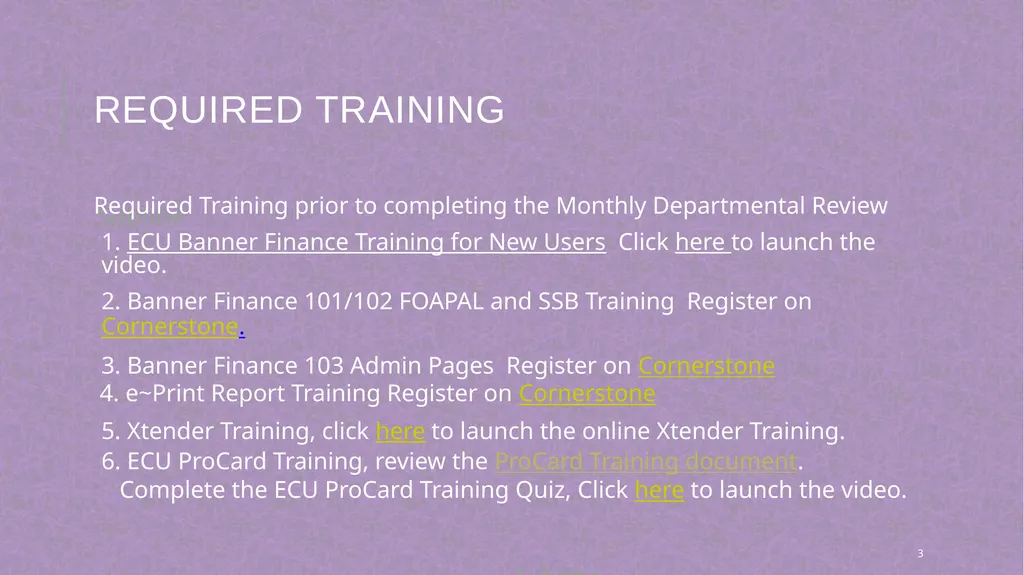
Required training Subtitle Required Training prior to completing the Monthly Departmental Review
1. ECU Banner Finance Training for New Users Click here to launch the video.
2. Banner Finance 101/102 FOAPAL and SSB Training Register on Cornerstone.
3. Banner Finance 103 Admin Pages Register on Cornerstone
4. e~Print Report Training Register on Cornerstone
5. Xtender Training, click here to launch the online Xtender Training.
6. ECU ProCard Training, review the ProCard Training document.
Complete the ECU ProCard Training Quiz, Click here to launch the video. Subtitle 3<br>
1. ECU Banner Finance Training for New Users Click here to launch the video.
2. Banner Finance 101/102 FOAPAL and SSB Training Register on Cornerstone.
3. Banner Finance 103 Admin Pages Register on Cornerstone
4. e~Print Report Training Register on Cornerstone
5. Xtender Training, click here to launch the online Xtender Training.
6. ECU ProCard Training, review the ProCard Training document.
Complete the ECU ProCard Training Quiz, Click here to launch the video. Subtitle 3<br>
04
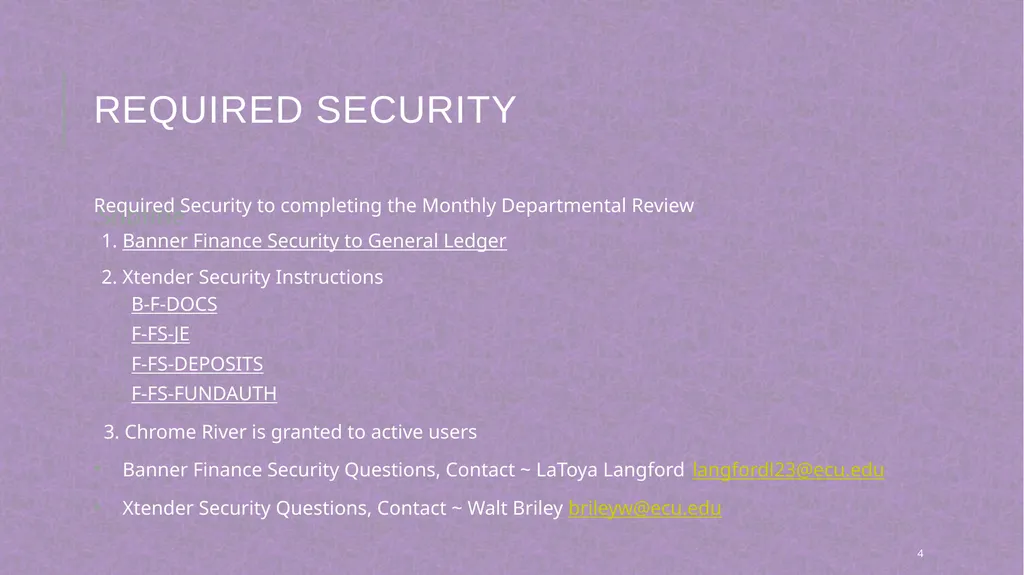
Required security Subtitle Required Security to completing the Monthly Departmental Review
1. Banner Finance Security to General Ledger
2. Xtender Security Instructions
B-F-DOCS
F-FS-JE
F-FS-DEPOSITS
F-FS-FUNDAUTH
3. Chrome River is granted to active users
Banner Finance Security Questions, Contact ~ LaToya Langford langfordl23@ecu.edu
Xtender Security Questions, Contact ~ Walt Briley brileyw@ecu.edu 4<br>
1. Banner Finance Security to General Ledger
2. Xtender Security Instructions
B-F-DOCS
F-FS-JE
F-FS-DEPOSITS
F-FS-FUNDAUTH
3. Chrome River is granted to active users
Banner Finance Security Questions, Contact ~ LaToya Langford langfordl23@ecu.edu
Xtender Security Questions, Contact ~ Walt Briley brileyw@ecu.edu 4<br>
05
Introduction The purpose of the monthly departmental review process is to ensure adequate funding sources have been identified for revenue, payroll, and expense transactions are accurate and properly classified to the correct Banner FOAPAL (FUND, ORGANIZATION, ACCOUNT, PROGRAM, ACTIVITY, LOCATION). The review process at the departmental level is an important control to ensure that departments are credited for appropriate revenues. The monthly review also allows a department to watch for potential problems such as: employee pay charged to the wrong department, former employees still on the payroll, expenses charged to the wrong department, and charges not showing in the department’s expenses. 5<br>
06
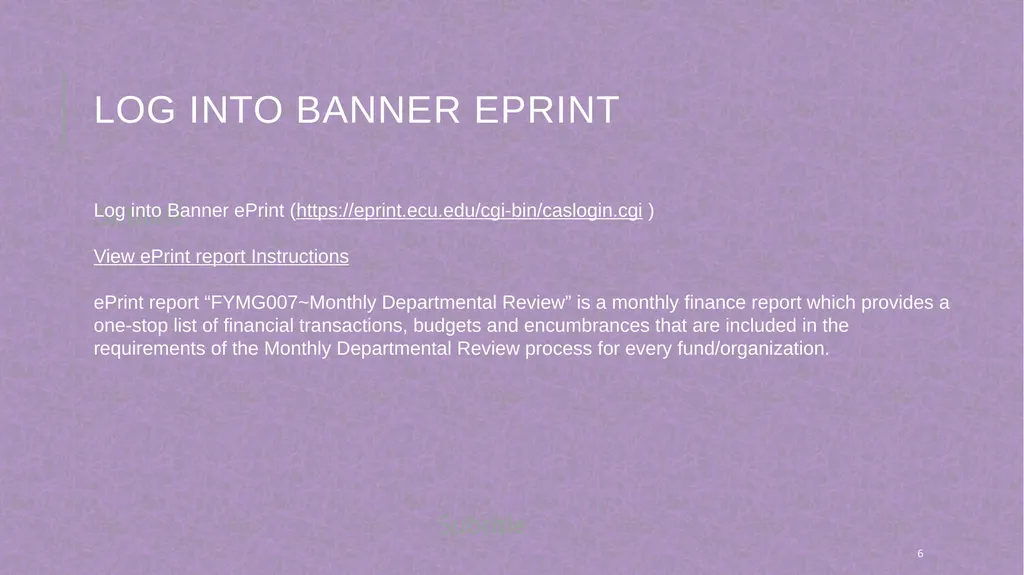
log into Banner eprint Subtitle Log into Banner ePrint (https://eprint.ecu.edu/cgi-bin/caslogin.cgi )
View ePrint report Instructions
ePrint report “FYMG007~Monthly Departmental Review” is a monthly finance report which provides a one-stop list of financial transactions, budgets and encumbrances that are included in the requirements of the Monthly Departmental Review process for every fund/organization. Subtitle 6<br>
View ePrint report Instructions
ePrint report “FYMG007~Monthly Departmental Review” is a monthly finance report which provides a one-stop list of financial transactions, budgets and encumbrances that are included in the requirements of the Monthly Departmental Review process for every fund/organization. Subtitle 6<br>
07
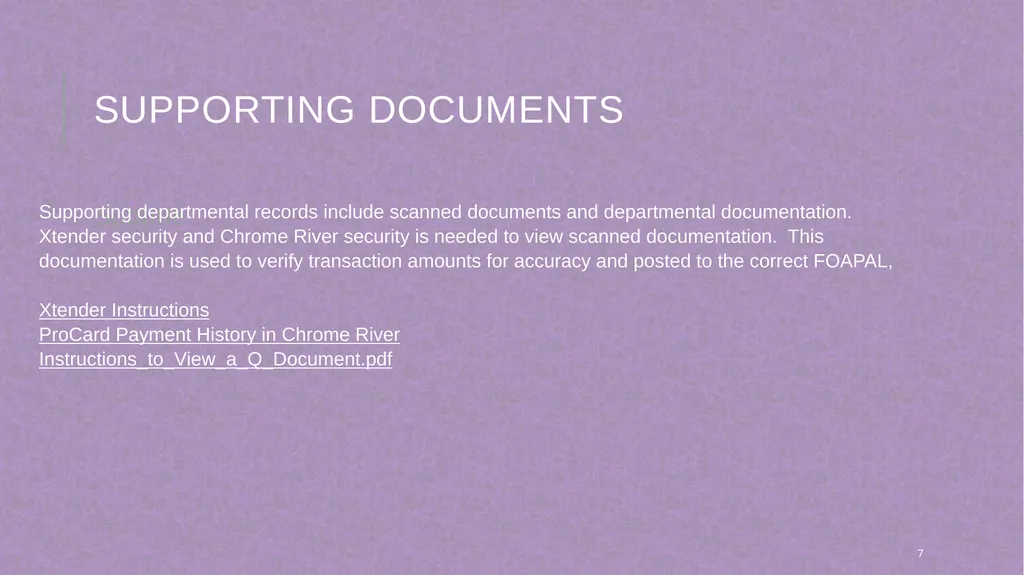
Supporting documents Subtitle Supporting departmental records include scanned documents and departmental documentation. Xtender security and Chrome River security is needed to view scanned documentation. This documentation is used to verify transaction amounts for accuracy and posted to the correct FOAPAL,
Xtender Instructions
ProCard Payment History in Chrome River
Instructions_to_View_a_Q_Document.pdf Subtitle 7<br>
Xtender Instructions
ProCard Payment History in Chrome River
Instructions_to_View_a_Q_Document.pdf Subtitle 7<br>
08
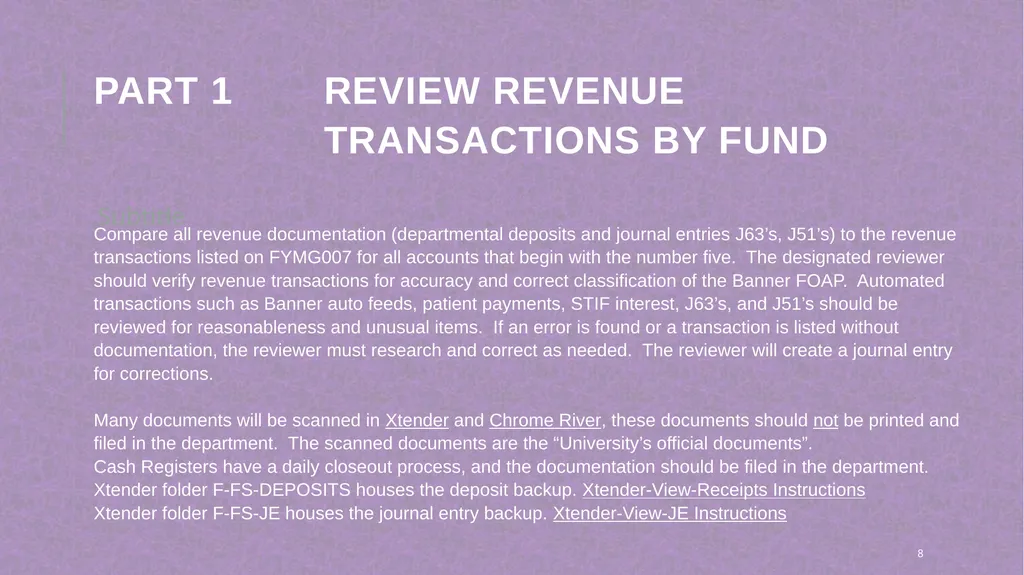
PART 1 Review Revenue Transactions by Fund Subtitle Compare all revenue documentation (departmental deposits and journal entries J63’s, J51’s) to the revenue transactions listed on FYMG007 for all accounts that begin with the number five. The designated reviewer should verify revenue transactions for accuracy and correct classification of the Banner FOAP. Automated transactions such as Banner auto feeds, patient payments, STIF interest, J63’s, and J51’s should be reviewed for reasonableness and unusual items. If an error is found or a transaction is listed without documentation, the reviewer must research and correct as needed. The reviewer will create a journal entry for corrections.
Many documents will be scanned in Xtender and Chrome River, these documents should not be printed and filed in the department. The scanned documents are the “University’s official documents”.
Cash Registers have a daily closeout process, and the documentation should be filed in the department.
Xtender folder F-FS-DEPOSITS houses the deposit backup. Xtender-View-Receipts Instructions
Xtender folder F-FS-JE houses the journal entry backup. Xtender-View-JE Instructions 8<br>
Many documents will be scanned in Xtender and Chrome River, these documents should not be printed and filed in the department. The scanned documents are the “University’s official documents”.
Cash Registers have a daily closeout process, and the documentation should be filed in the department.
Xtender folder F-FS-DEPOSITS houses the deposit backup. Xtender-View-Receipts Instructions
Xtender folder F-FS-JE houses the journal entry backup. Xtender-View-JE Instructions 8<br>
09
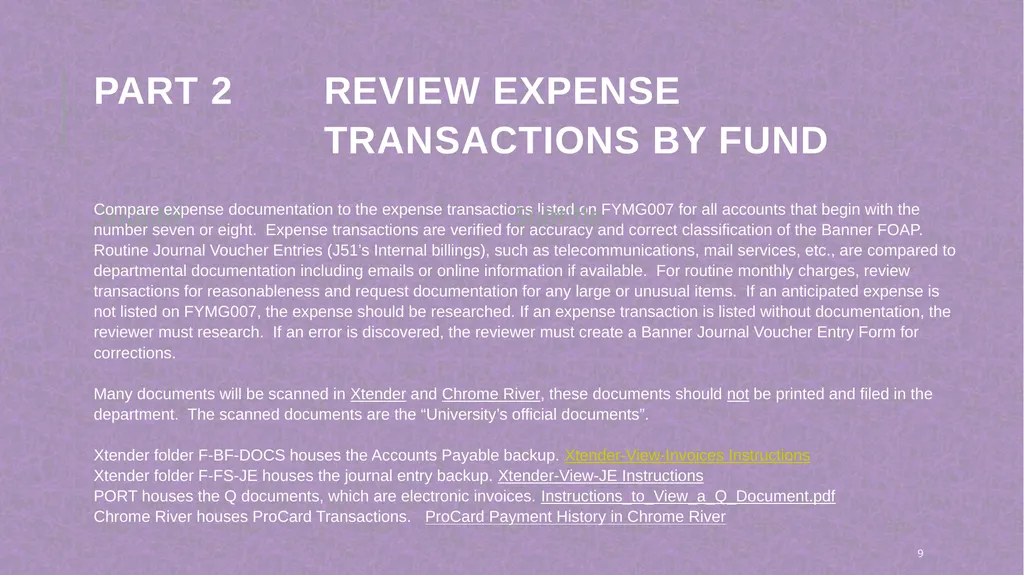
PART 2 Review Expense Transactions by Fund Subtitle Compare expense documentation to the expense transactions listed on FYMG007 for all accounts that begin with the number seven or eight. Expense transactions are verified for accuracy and correct classification of the Banner FOAP. Routine Journal Voucher Entries (J51’s Internal billings), such as telecommunications, mail services, etc., are compared to departmental documentation including emails or online information if available. For routine monthly charges, review transactions for reasonableness and request documentation for any large or unusual items. If an anticipated expense is not listed on FYMG007, the expense should be researched. If an expense transaction is listed without documentation, the reviewer must research. If an error is discovered, the reviewer must create a Banner Journal Voucher Entry Form for corrections.
Many documents will be scanned in Xtender and Chrome River, these documents should not be printed and filed in the department. The scanned documents are the “University’s official documents”.
Xtender folder F-BF-DOCS houses the Accounts Payable backup. Xtender-View-Invoices Instructions
Xtender folder F-FS-JE houses the journal entry backup. Xtender-View-JE Instructions
PORT houses the Q documents, which are electronic invoices. Instructions_to_View_a_Q_Document.pdf
Chrome River houses ProCard Transactions. ProCard Payment History in Chrome River Subtitle 9<br>
Many documents will be scanned in Xtender and Chrome River, these documents should not be printed and filed in the department. The scanned documents are the “University’s official documents”.
Xtender folder F-BF-DOCS houses the Accounts Payable backup. Xtender-View-Invoices Instructions
Xtender folder F-FS-JE houses the journal entry backup. Xtender-View-JE Instructions
PORT houses the Q documents, which are electronic invoices. Instructions_to_View_a_Q_Document.pdf
Chrome River houses ProCard Transactions. ProCard Payment History in Chrome River Subtitle 9<br>
10
PART 3A Review Encumbrances
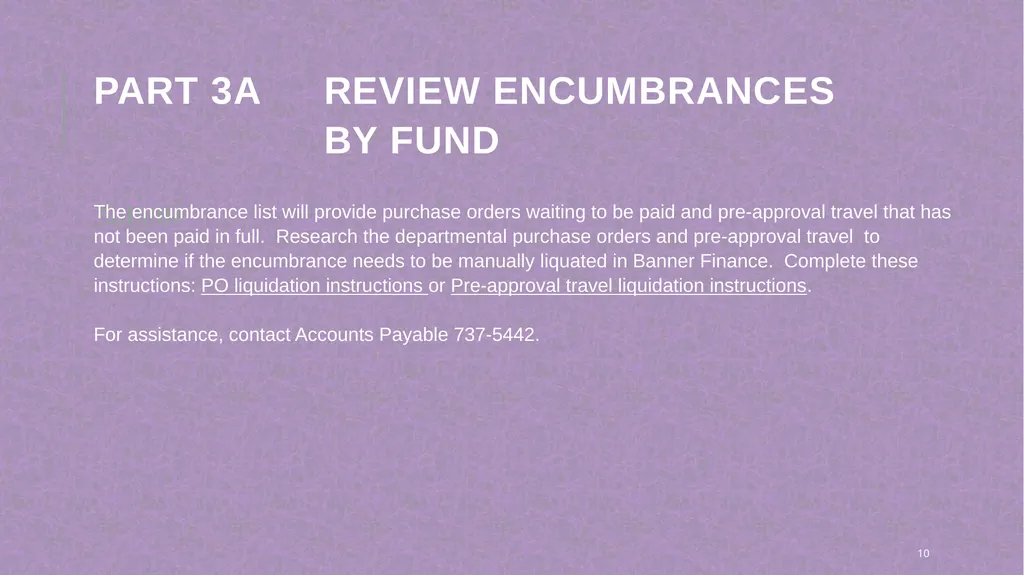
by Fund Subtitle The encumbrance list will provide purchase orders waiting to be paid and pre-approval travel that has not been paid in full. Research the departmental purchase orders and pre-approval travel to determine if the encumbrance needs to be manually liquated in Banner Finance. Complete these instructions: PO liquidation instructions or Pre-approval travel liquidation instructions.
For assistance, contact Accounts Payable 737-5442. 10<br>
For assistance, contact Accounts Payable 737-5442. 10<br>
11
PART 3B Review Invoices Not Received in PORT Subtitle The list includes invoices that have been keyed in Banner but not received in Purchasing PORT. The vendor invoice cannot be paid until the receiving process is completed in PORT. Research each invoice to determine if the items have been received and are approved for payment. Next, complete the receiving process in Purchasing PORT.
Go to www.ecu.edu.
Log into Pirate Port, Click PORT-Purchasing Request, complete the receiving process in PORT as needed. Subtitle 11<br>
Go to www.ecu.edu.
Log into Pirate Port, Click PORT-Purchasing Request, complete the receiving process in PORT as needed. Subtitle 11<br>
12
PART 4 Review Payroll Transactions by Fund Subtitle Kronos is the timekeeping application for the University and automates many payroll process.
This review will provide changes in employees pay from the previous payroll, review employee names to ensure that no one was paid who should not have been paid, including terminated employees. A comparison can be made to the prior month’s totals and the differences, if any, should be compared and verified for accuracy to departmental documentation.
Additional research may be required for Grant funds and Auxiliary funds to ensure the labor distribution to the Banner FOAP is correct and within the fund’s expiration date.
If an error is found or a payroll transaction is listed without documentation, the designated reviewer must research by communicating with the departmental payroll clerk. If a Banner FOAP error is discovered, the designated reviewer will create a Banner HR-Payroll Redistribution Form for any corrections and forward to the next level of approval for processing. The required form and detailed instructions are provided at https://financialservices.ecu.edu/systems-coordination-helpful-forms/ Subtitle 12<br>
This review will provide changes in employees pay from the previous payroll, review employee names to ensure that no one was paid who should not have been paid, including terminated employees. A comparison can be made to the prior month’s totals and the differences, if any, should be compared and verified for accuracy to departmental documentation.
Additional research may be required for Grant funds and Auxiliary funds to ensure the labor distribution to the Banner FOAP is correct and within the fund’s expiration date.
If an error is found or a payroll transaction is listed without documentation, the designated reviewer must research by communicating with the departmental payroll clerk. If a Banner FOAP error is discovered, the designated reviewer will create a Banner HR-Payroll Redistribution Form for any corrections and forward to the next level of approval for processing. The required form and detailed instructions are provided at https://financialservices.ecu.edu/systems-coordination-helpful-forms/ Subtitle 12<br>
13
PART 5 Review State Funds Budget Subtitle This step applies to departments with State Funds (funds beginning with 111 or 112). For State Funds only, review for negative balances at the pool account level. Negative balances at the pool account level can be corrected by creating a B22 Budget Transfer in Self Service Banner to transfer budget from another pool account with a positive balance to correct the negative.
The Office of Financial. Planning & Analysis will run an automated negative Budget Balance Available clean-up report weekly. This process will automatically move money within a FOAP if negative balances are in pool accounts. This clean-up process is only for STATE funds. (Grant, foundation, and institutional trust funds are not included in this process.) Each department should closely review the STATE fund budgets and make budget transfers as needed to correct any negative balances.
Also, the Office of Financial. Planning & Analysis now requires that all state fund budget transfers be rounded to the nearest dollar. Any budget transfer transaction entered with cents will be automatically reversed each night. 13<br>
The Office of Financial. Planning & Analysis will run an automated negative Budget Balance Available clean-up report weekly. This process will automatically move money within a FOAP if negative balances are in pool accounts. This clean-up process is only for STATE funds. (Grant, foundation, and institutional trust funds are not included in this process.) Each department should closely review the STATE fund budgets and make budget transfers as needed to correct any negative balances.
Also, the Office of Financial. Planning & Analysis now requires that all state fund budget transfers be rounded to the nearest dollar. Any budget transfer transaction entered with cents will be automatically reversed each night. 13<br>
14
PART 6A Monitor Institutional Trust Funds for Deficit
Cash Balances Subtitle This report will list the cash balance for departments with Institutional Trust Funds. Review the claim on cash, a credit balance in this account indicates it is negative and there is deficit cash. Identify a funding source and prepare a corrective entry. Contact the Institutional Trust Fund Office for guidance via email mailto:itf-specialfunds@ecu.edu. Subtitle 14<br>
15
PART 6B Monitor Foundation Funds for Deficit Cash Balances Subtitle This report will list the cash balance for departments with Foundation Funds. Review the claim on cash balance, a credit balance in this account indicates it is negative and there is deficit cash. Identify a funding source and prepare a corrective entry. Contact the Foundation Office for guidance ecufoundation@ecu.edu Subtitle 15<br>
16
PART 7A,B,C Grant Funds Review Subtitle PART 7A Grant Funds Revenues Year to Date Review
This step only applies to departments with Grant and Contract funds. This report lists the grant fund inception to date revenues totals. To view the revenue transaction details, go to the ePrint FRRGITD report, if errors are identified, please research and correct.
Contact the Office of Research Administration for guidance at ora@ecu.edu.
PART 7B Grant Funds Expenses Year to Date Review
This step only applies to departments with Grant and Contract funds. This report lists the grant fund inception to date transaction totals. To view the expense transaction details, go to the ePrint FRRGITD report, if errors are identified, please research and correct.
Contact the Office of Research Administration for guidance at ora@ecu.edu.
PART 7C Grant Funds Balances in an Incorrect ORGN/PROG
Research all ORGNs and PROGRAM codes listed and make corrections as needed.
Email ora@ecu.edu with questions. Subtitle 16<br>
This step only applies to departments with Grant and Contract funds. This report lists the grant fund inception to date revenues totals. To view the revenue transaction details, go to the ePrint FRRGITD report, if errors are identified, please research and correct.
Contact the Office of Research Administration for guidance at ora@ecu.edu.
PART 7B Grant Funds Expenses Year to Date Review
This step only applies to departments with Grant and Contract funds. This report lists the grant fund inception to date transaction totals. To view the expense transaction details, go to the ePrint FRRGITD report, if errors are identified, please research and correct.
Contact the Office of Research Administration for guidance at ora@ecu.edu.
PART 7C Grant Funds Balances in an Incorrect ORGN/PROG
Research all ORGNs and PROGRAM codes listed and make corrections as needed.
Email ora@ecu.edu with questions. Subtitle 16<br>
17
PART 8 Imprest Cash Funds Subtitle This step only applies to departments with imprest cash funds (petty cash). A monthly reconciliation is required, Imprest Cash Fund Monthly Reconciliation Instructions.
For more information, visit the website: https://financialservices.ecu.edu/imprest-cash/ 17<br>
For more information, visit the website: https://financialservices.ecu.edu/imprest-cash/ 17<br>
18
Step 9 Journal Entry Status Review Subtitle This step reviews the users journal entries list to verify that all journal entries have posted. If journal entries have not posted, the user should research and make needed changes or delete the journal entry. Click here for detailed instructions.
NOTE: This information is not included in ePrint Report FYMG007. The user will need to view the status of journal entries by following the detailed instructions. Subtitle 18<br>
NOTE: This information is not included in ePrint Report FYMG007. The user will need to view the status of journal entries by following the detailed instructions. Subtitle 18<br>
19
STEP 10 Complete the log Subtitle Each month, after the Monthly Departmental Review process is finalized, enter the information on the Completion Log. The reviewer and the approver are required to sign the log. Also, record any errors with an explanation regarding the corrections.
Completion Log for one FUND/ORGN
Completion Log for Multiple FUND/ORGN Subtitle 19<br>
Completion Log for one FUND/ORGN
Completion Log for Multiple FUND/ORGN Subtitle 19<br>
20
Thank you 20 Penney Doughtie
doughtiep@ecu.edu<br>
doughtiep@ecu.edu<br>