<Name> <Job Title> <Organisation> <About You>
Description: Name Job Title Organisation About You About You How to update your Teams background In PowerPoint, complete the text boxes with information about you, including your name, job title, organisation and short details that reflect
Related Topics
Download Presentation
"<Name> <Job Title> <Organisation> <About You>" is the property of its rightful owner. Permission is granted to download and print the materials on this website for personal, non-commercial use only, and to display it on your personal computer provided you do not modify the materials and that you retain all copyright notices contained in the materials. By downloading content from our website, you accept the terms of this agreement.
Presentation Transcript
slide1. <Name> <Job Title> <Organisation> <About You> <About You><br>
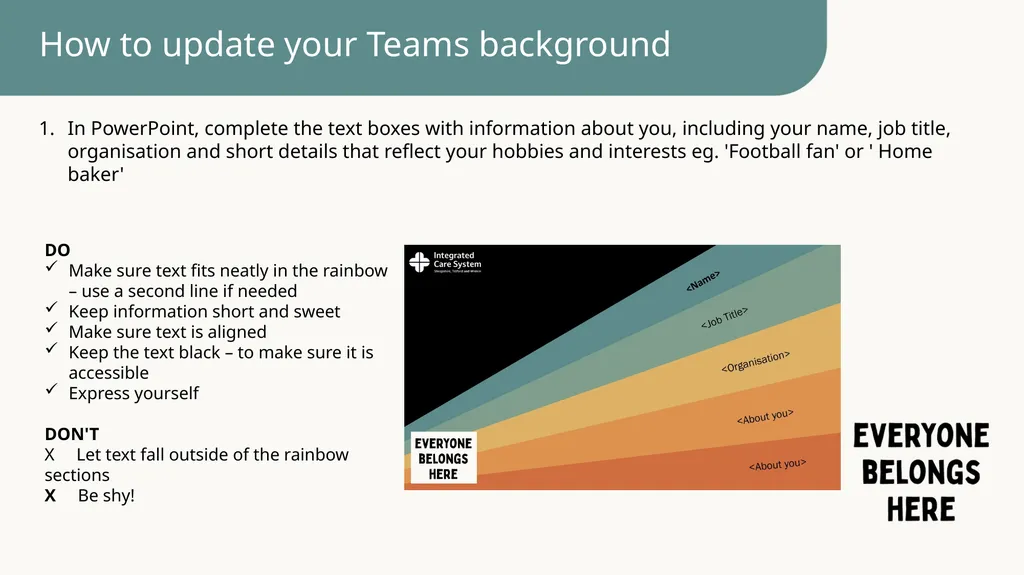
slide2. How to update your Teams background In PowerPoint, complete the text boxes with information about you, including your name, job title, organisation and short details that reflect your hobbies and interests eg. 'Football fan' or ' Home baker' DO
Make sure text fits neatly in the rainbow – use a second line if needed Â
Keep information short and sweet
Make sure text is aligned
Keep the text black – to make sure it is accessible
Express yourself
DON'T
XÂ Â Â Let text fall outside of the rainbow sections
XÂ Â Â Be shy!<br>
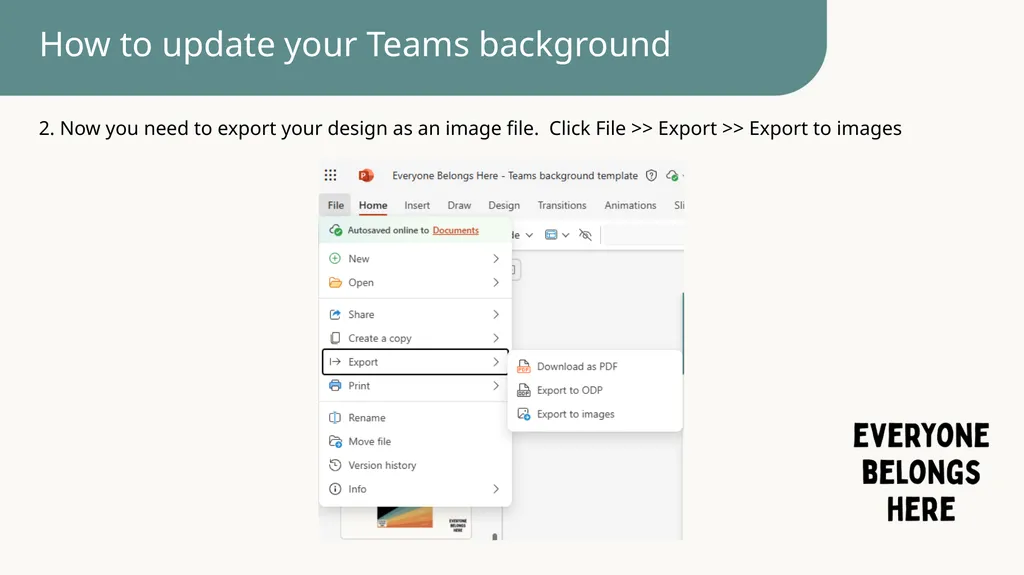
slide3. How to update your Teams background 2. Now you need to export your design as an image file. Click File >> Export >> Export to images<br>
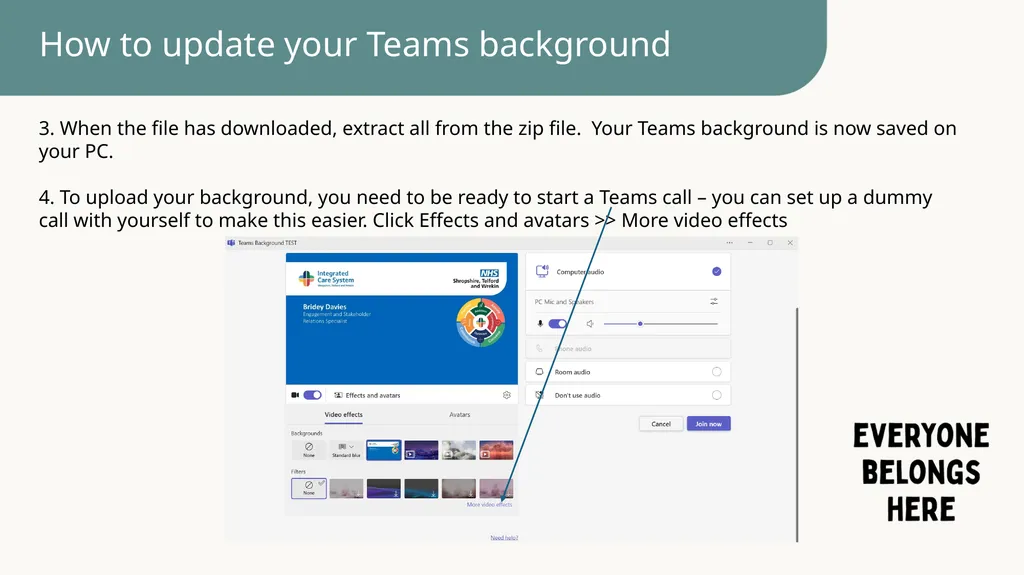
slide4. How to update your Teams background 3. When the file has downloaded, extract all from the zip file. Your Teams background is now saved on your PC.
4. To upload your background, you need to be ready to start a Teams call – you can set up a dummy call with yourself to make this easier. Click Effects and avatars >> More video effects<br>
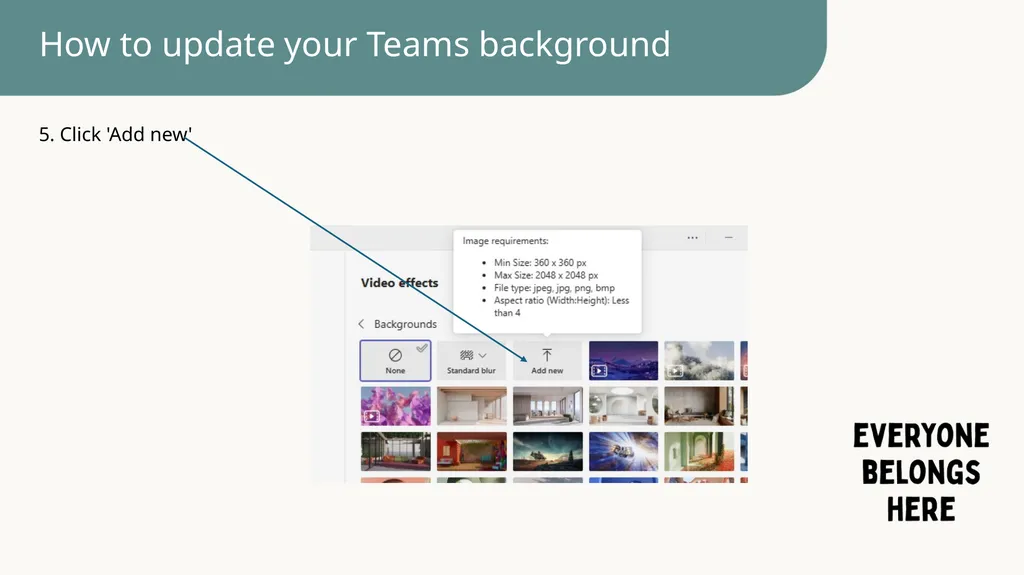
slide5. How to update your Teams background 5. Click 'Add new'<br>
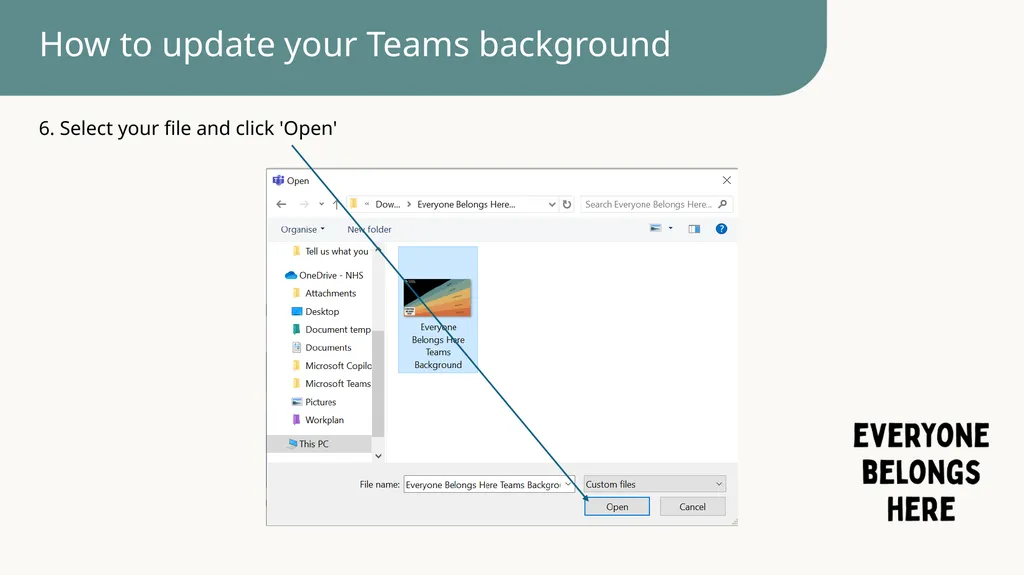
slide6. How to update your Teams background 6. Select your file and click 'Open'<br>
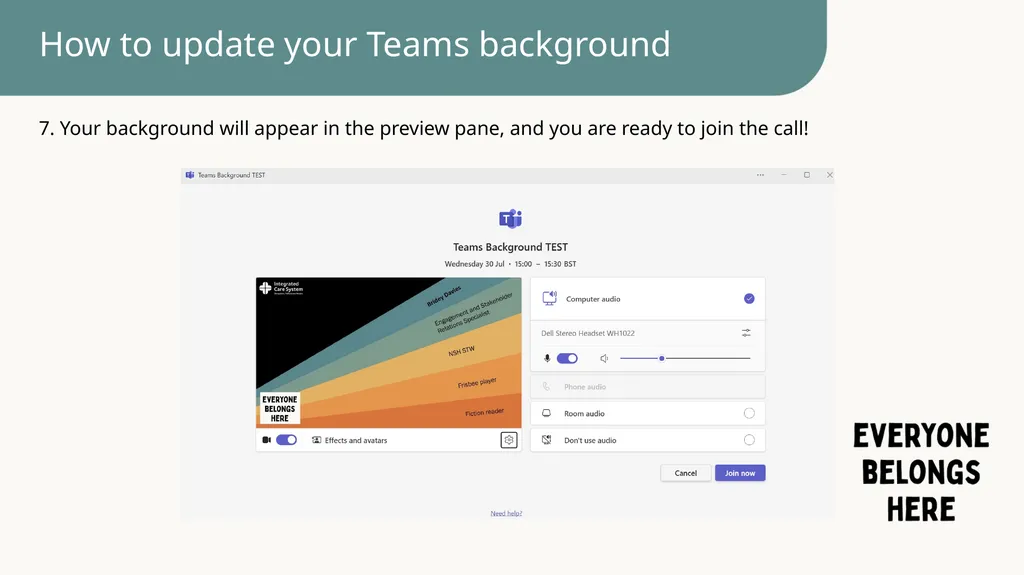
slide7. How to update your Teams background 7. Your background will appear in the preview pane, and you are ready to join the call!<br>
slide2. How to update your Teams background In PowerPoint, complete the text boxes with information about you, including your name, job title, organisation and short details that reflect your hobbies and interests eg. 'Football fan' or ' Home baker' DO
Make sure text fits neatly in the rainbow – use a second line if needed Â
Keep information short and sweet
Make sure text is aligned
Keep the text black – to make sure it is accessible
Express yourself
DON'T
XÂ Â Â Let text fall outside of the rainbow sections
XÂ Â Â Be shy!<br>
slide3. How to update your Teams background 2. Now you need to export your design as an image file. Click File >> Export >> Export to images<br>
slide4. How to update your Teams background 3. When the file has downloaded, extract all from the zip file. Your Teams background is now saved on your PC.
4. To upload your background, you need to be ready to start a Teams call – you can set up a dummy call with yourself to make this easier. Click Effects and avatars >> More video effects<br>
slide5. How to update your Teams background 5. Click 'Add new'<br>
slide6. How to update your Teams background 6. Select your file and click 'Open'<br>
slide7. How to update your Teams background 7. Your background will appear in the preview pane, and you are ready to join the call!<br>