
Network+ Guide to Networks 7th Edition Chapter 4
MJ
Published · 50 slides · 0 views
1 / 1



Description
Network Guide to Networks 7th Edition Chapter 4 Structured Cabling and Networking Elements 2016 Cengage Learning. May not be scanned, copied or duplicated, or posted to a publicly accessible website, in whole or in part. Objectives
Related Topics
Share
Embed code
Download this presentation From Below
"Network+ Guide to Networks 7th Edition Chapter 4" is the property of its rightful owner. Permission is granted to download and print the materials on this website for personal, non-commercial use only, and to display it on your personal computer provided you do not modify the materials and that you retain all copyright notices contained in the materials. By downloading content from our website, you accept the terms of this agreement.
Presentation Transcript
01
Network+ Guide to Networks
7th Edition Chapter 4
Structured Cabling and Networking Elements © 2016 Cengage Learning®. May not be scanned, copied or duplicated, or posted to a publicly accessible website, in whole or in part.<br>
Structured Cabling and Networking Elements © 2016 Cengage Learning®. May not be scanned, copied or duplicated, or posted to a publicly accessible website, in whole or in part.<br>
02
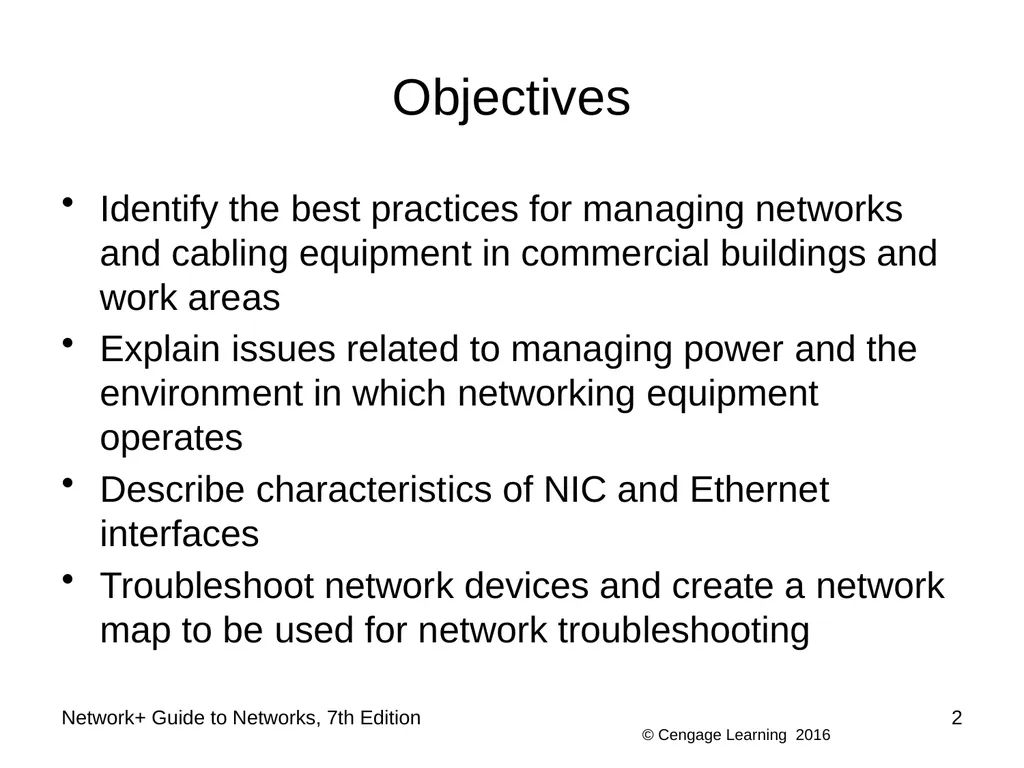
Objectives Identify the best practices for managing networks and cabling equipment in commercial buildings and work areas
Explain issues related to managing power and the environment in which networking equipment operates
Describe characteristics of NIC and Ethernet interfaces
Troubleshoot network devices and create a network map to be used for network troubleshooting 2 Network+ Guide to Networks, 7th Edition<br>
Explain issues related to managing power and the environment in which networking equipment operates
Describe characteristics of NIC and Ethernet interfaces
Troubleshoot network devices and create a network map to be used for network troubleshooting 2 Network+ Guide to Networks, 7th Edition<br>
03
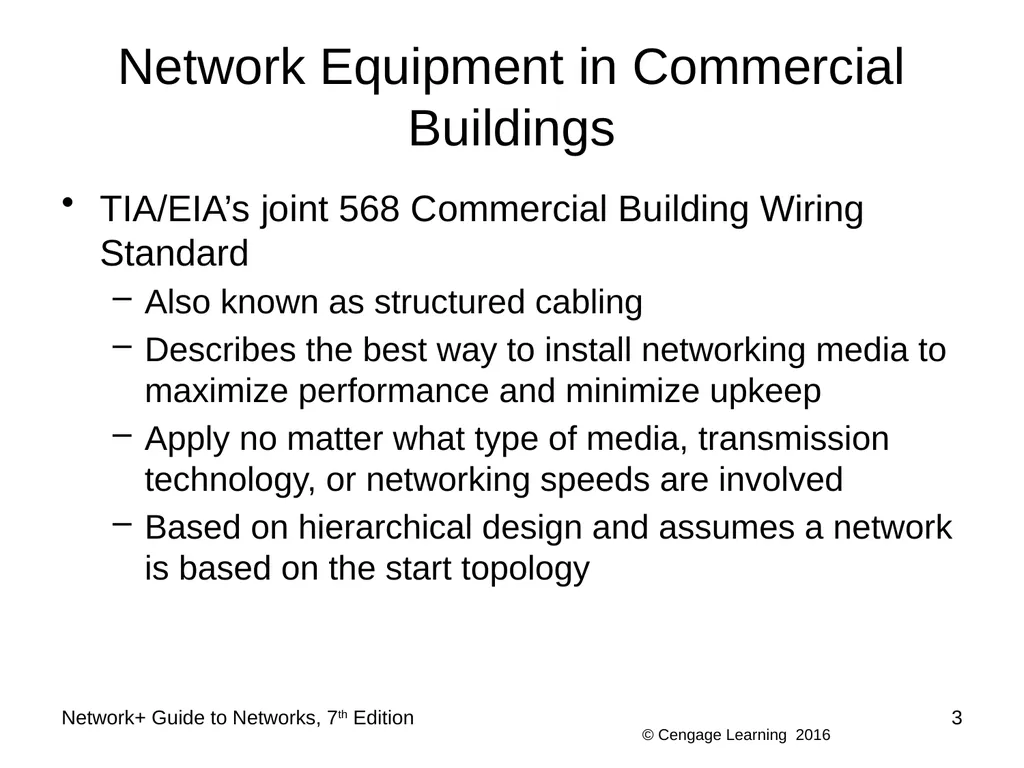
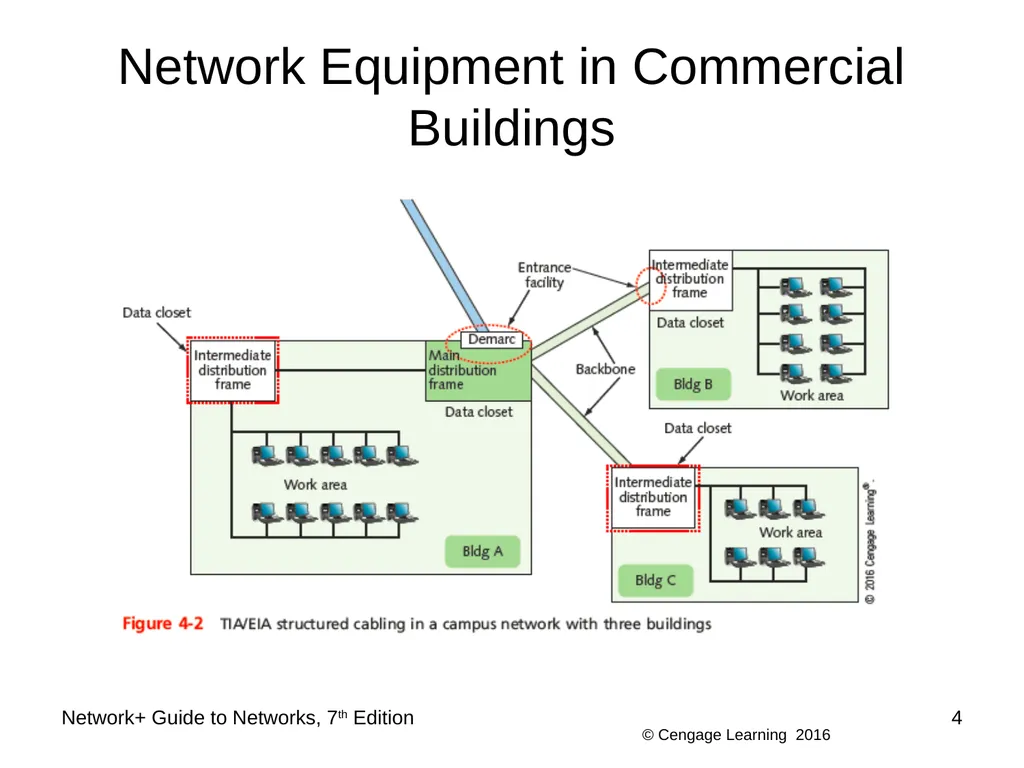
Network Equipment in Commercial Buildings TIA/EIA’s joint 568 Commercial Building Wiring Standard
Also known as structured cabling
Describes the best way to install networking media to maximize performance and minimize upkeep
Apply no matter what type of media, transmission technology, or networking speeds are involved
Based on hierarchical design and assumes a network is based on the start topology Network+ Guide to Networks, 7th Edition 3<br>
Also known as structured cabling
Describes the best way to install networking media to maximize performance and minimize upkeep
Apply no matter what type of media, transmission technology, or networking speeds are involved
Based on hierarchical design and assumes a network is based on the start topology Network+ Guide to Networks, 7th Edition 3<br>
04
Network Equipment in Commercial Buildings Network+ Guide to Networks, 7th Edition 4<br>
05
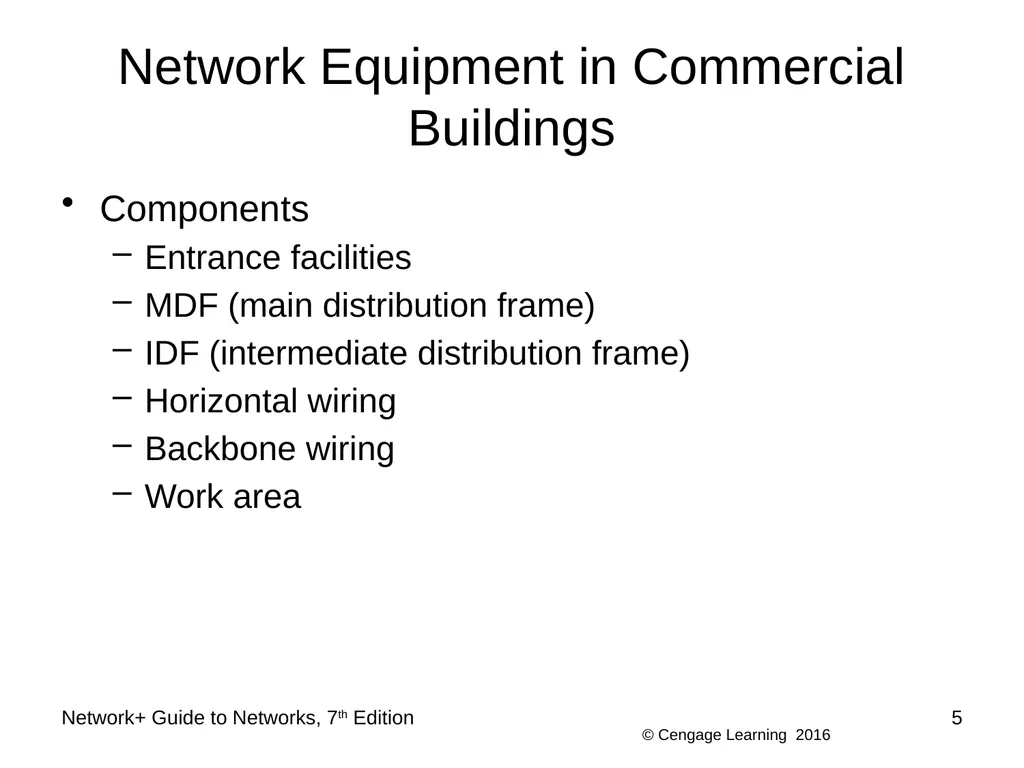
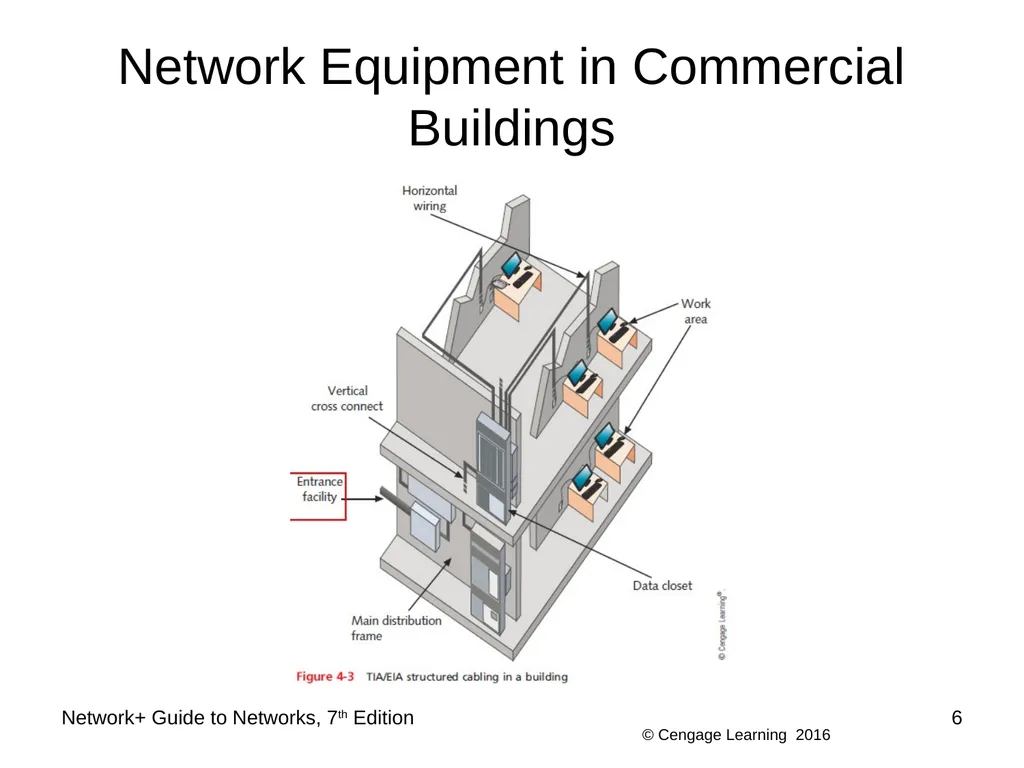
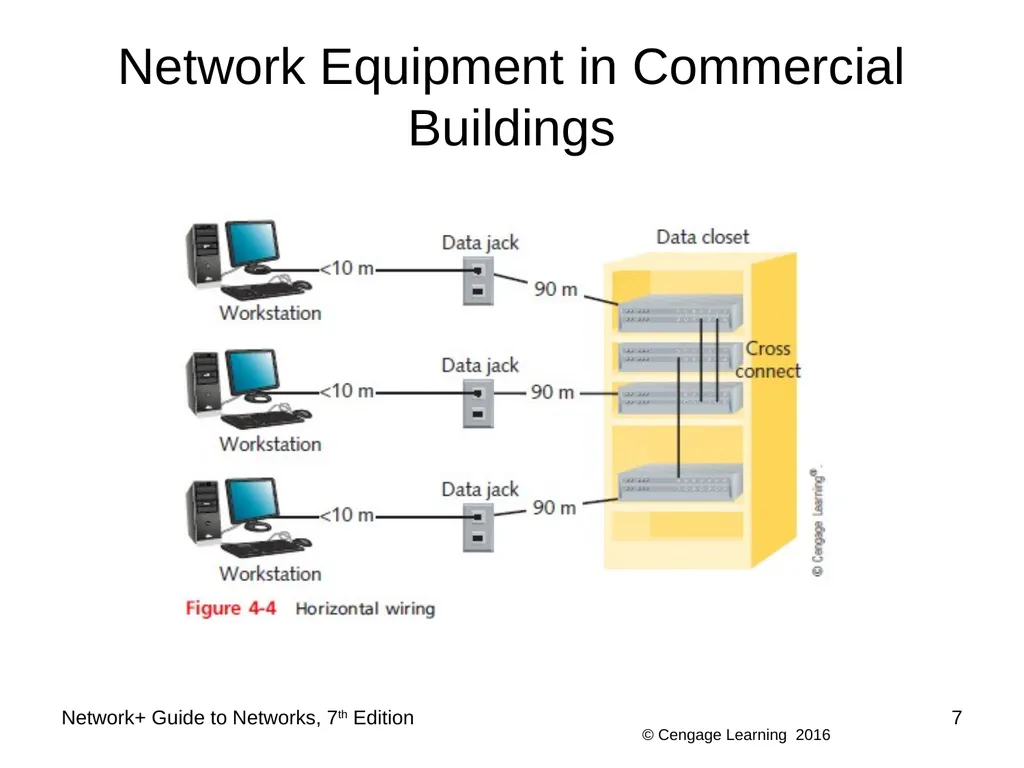
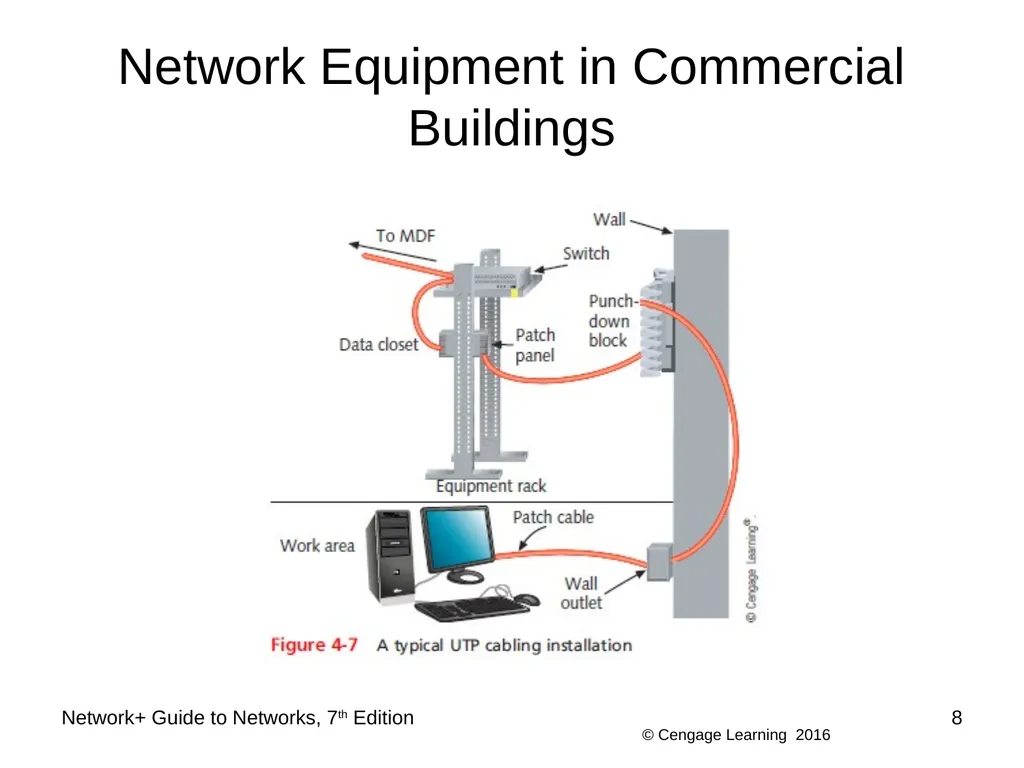
Network Equipment in Commercial Buildings Components
Entrance facilities
MDF (main distribution frame)
IDF (intermediate distribution frame)
Horizontal wiring
Backbone wiring
Work area Network+ Guide to Networks, 7th Edition 5<br>
Entrance facilities
MDF (main distribution frame)
IDF (intermediate distribution frame)
Horizontal wiring
Backbone wiring
Work area Network+ Guide to Networks, 7th Edition 5<br>
06
Network Equipment in Commercial Buildings Network+ Guide to Networks, 7th Edition 6<br>
07
Network Equipment in Commercial Buildings Network+ Guide to Networks, 7th Edition 7<br>
08
Network Equipment in Commercial Buildings Network+ Guide to Networks, 7th Edition 8<br>
09
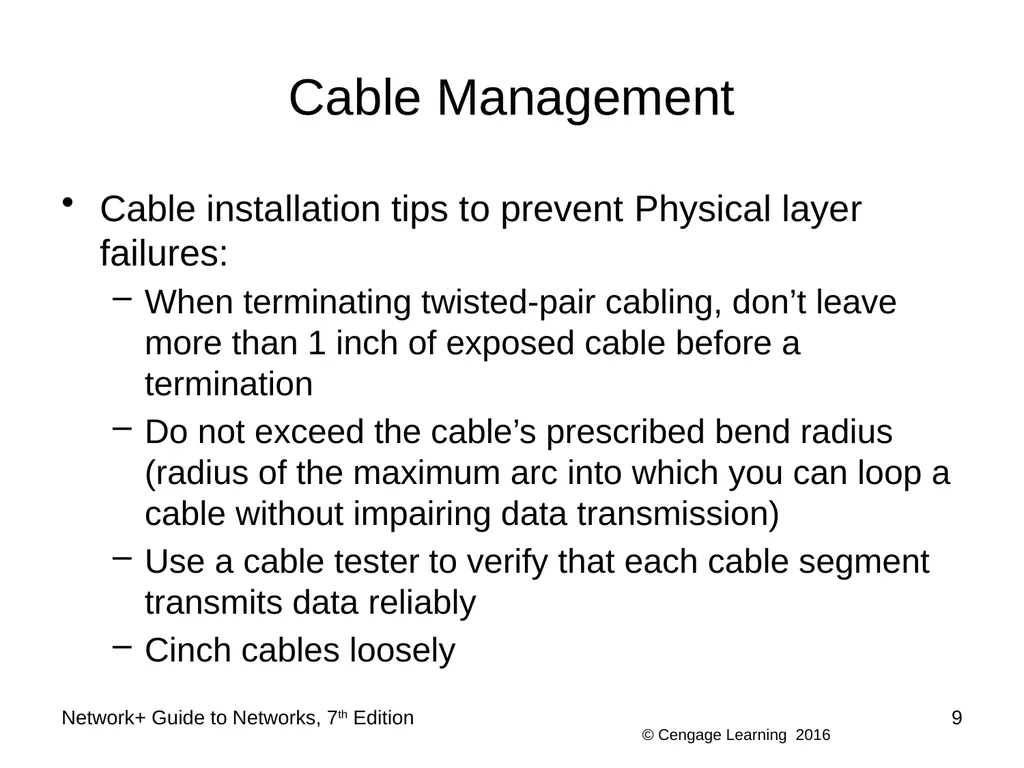
Cable Management Cable installation tips to prevent Physical layer failures:
When terminating twisted-pair cabling, don’t leave more than 1 inch of exposed cable before a termination
Do not exceed the cable’s prescribed bend radius (radius of the maximum arc into which you can loop a cable without impairing data transmission)
Use a cable tester to verify that each cable segment transmits data reliably
Cinch cables loosely Network+ Guide to Networks, 7th Edition 9<br>
When terminating twisted-pair cabling, don’t leave more than 1 inch of exposed cable before a termination
Do not exceed the cable’s prescribed bend radius (radius of the maximum arc into which you can loop a cable without impairing data transmission)
Use a cable tester to verify that each cable segment transmits data reliably
Cinch cables loosely Network+ Guide to Networks, 7th Edition 9<br>
10
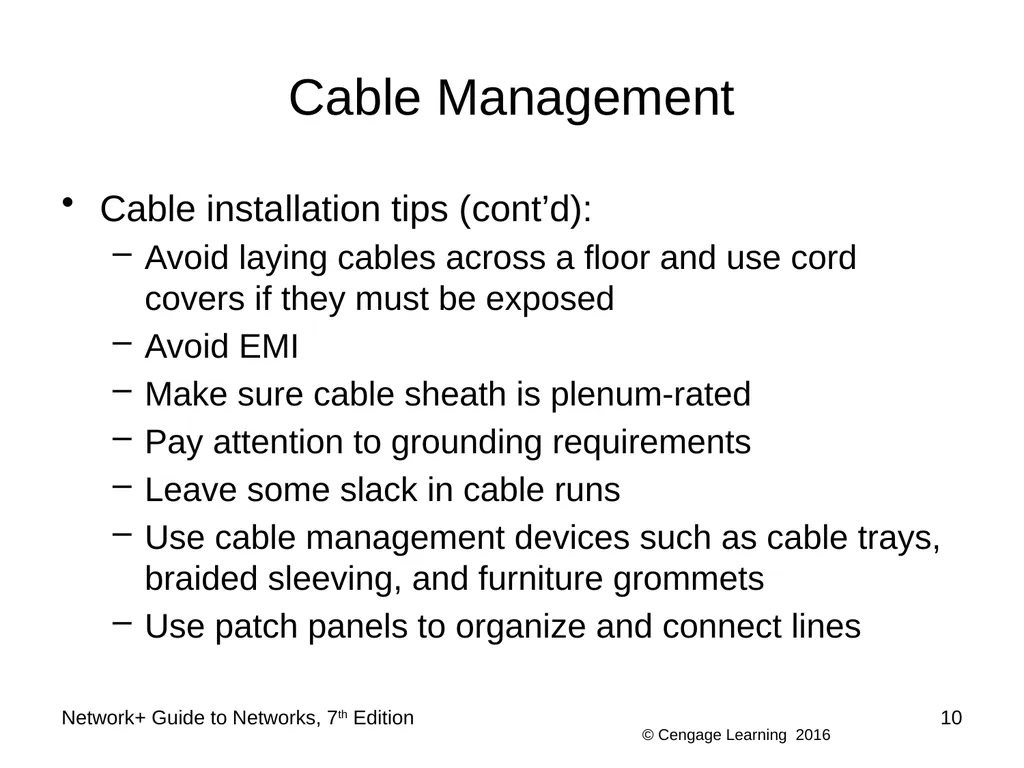
Cable Management Cable installation tips (cont’d):
Avoid laying cables across a floor and use cord covers if they must be exposed
Avoid EMI
Make sure cable sheath is plenum-rated
Pay attention to grounding requirements
Leave some slack in cable runs
Use cable management devices such as cable trays, braided sleeving, and furniture grommets
Use patch panels to organize and connect lines Network+ Guide to Networks, 7th Edition 10<br>
Avoid laying cables across a floor and use cord covers if they must be exposed
Avoid EMI
Make sure cable sheath is plenum-rated
Pay attention to grounding requirements
Leave some slack in cable runs
Use cable management devices such as cable trays, braided sleeving, and furniture grommets
Use patch panels to organize and connect lines Network+ Guide to Networks, 7th Edition 10<br>
11
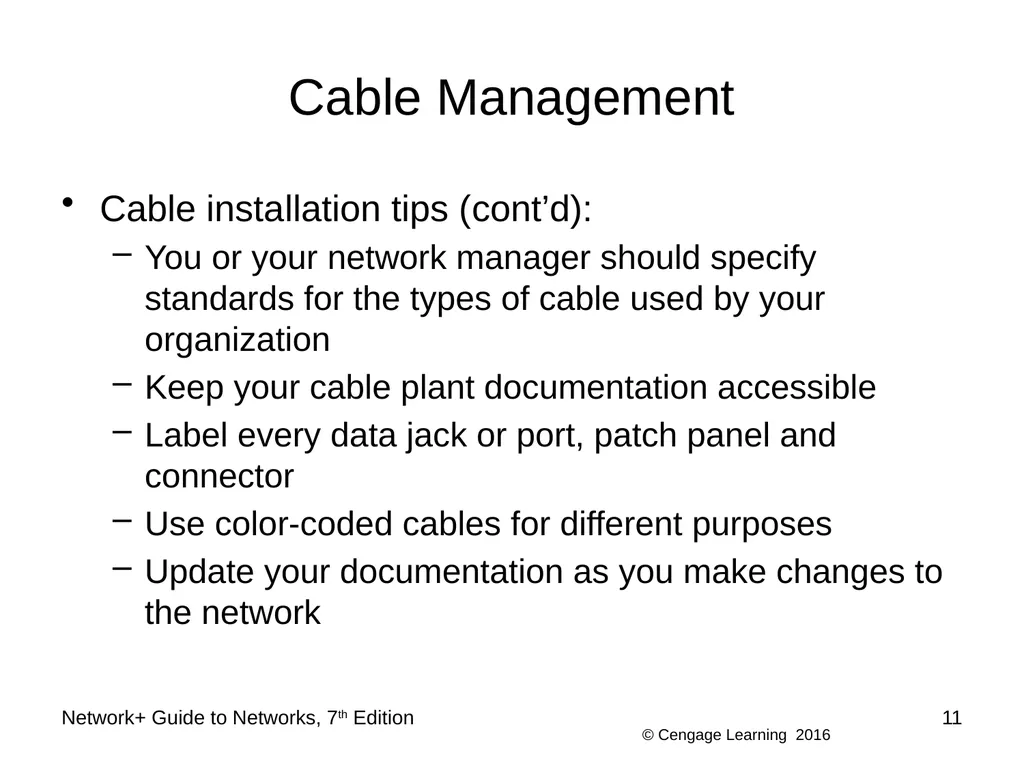
Cable Management Cable installation tips (cont’d):
You or your network manager should specify standards for the types of cable used by your organization
Keep your cable plant documentation accessible
Label every data jack or port, patch panel and connector
Use color-coded cables for different purposes
Update your documentation as you make changes to the network Network+ Guide to Networks, 7th Edition 11<br>
You or your network manager should specify standards for the types of cable used by your organization
Keep your cable plant documentation accessible
Label every data jack or port, patch panel and connector
Use color-coded cables for different purposes
Update your documentation as you make changes to the network Network+ Guide to Networks, 7th Edition 11<br>
12
Device Management Maintaining up-to-date records about your network devices will reduce your workload
Will also make troubleshooting easier and more efficient
In order to keep track of devices
Name them systematically and label them Network+ Guide to Networks, 7th Edition 12<br>
Will also make troubleshooting easier and more efficient
In order to keep track of devices
Name them systematically and label them Network+ Guide to Networks, 7th Edition 12<br>
13
Labeling and Naming Conventions Tips for labeling:
Use color-coded cables for different purposes and use cable tags to identify each cable’s purpose
Label the ports and jacks that cables connect to
Use a portable label maker and use labels that are durable and are designed to stick to plastic and metal
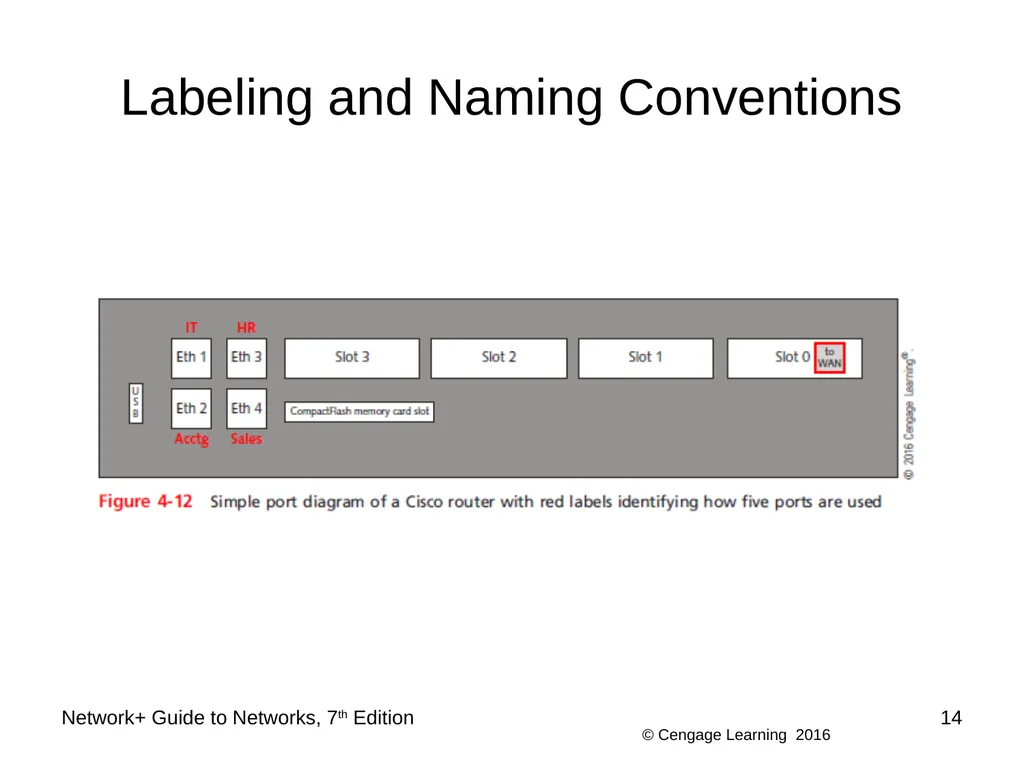
Where labels won’t fit on the device, draw a simple diagram of each device that indicates how each port is used
Use names that are as descriptive as possible
Use established naming conventions Network+ Guide to Networks, 7th Edition 13<br>
Use color-coded cables for different purposes and use cable tags to identify each cable’s purpose
Label the ports and jacks that cables connect to
Use a portable label maker and use labels that are durable and are designed to stick to plastic and metal
Where labels won’t fit on the device, draw a simple diagram of each device that indicates how each port is used
Use names that are as descriptive as possible
Use established naming conventions Network+ Guide to Networks, 7th Edition 13<br>
14
Labeling and Naming Conventions Network+ Guide to Networks, 7th Edition 14<br>
15
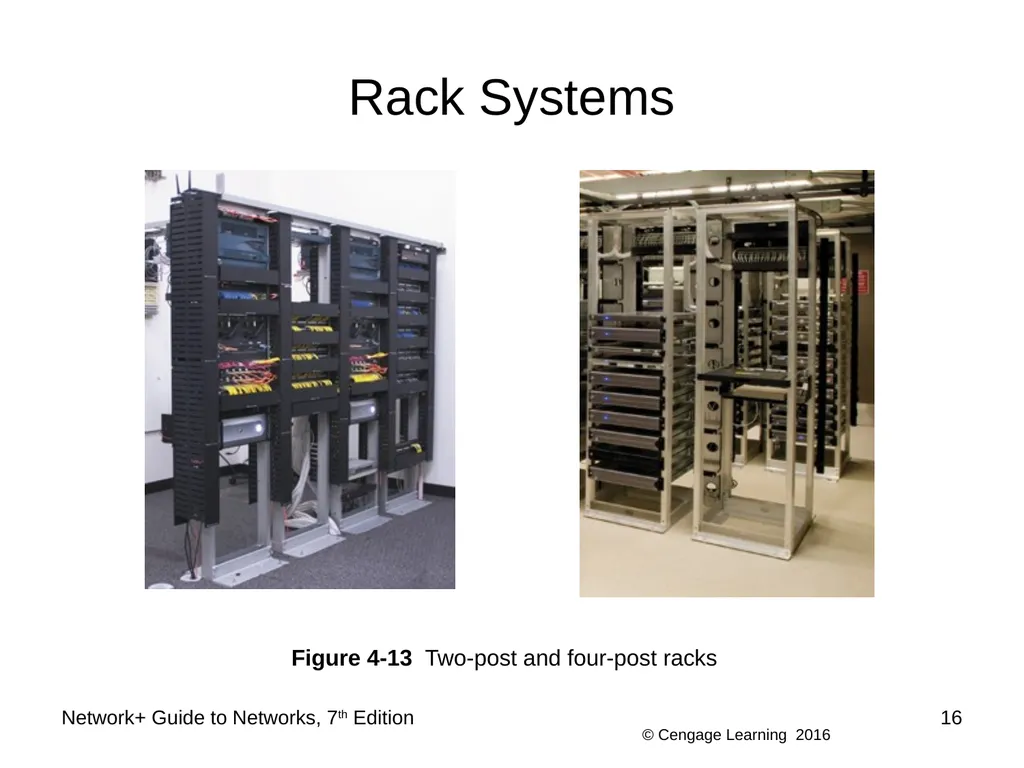
Rack Systems Rack systems - provide mounting hardware for network equipment to optimize the use of square footage in equipment rooms
And ensure adequate spacing, access, and ventilation for these devices
Come in a standard 19-inch frame, but may also come across a 23-inch rack that includes the entire width of the rack
Racks may be wall- or ceiling-mounted, or freestanding on the floor
Racks are measured in rack units (RU or U) Network+ Guide to Networks, 7th Edition 15<br>
And ensure adequate spacing, access, and ventilation for these devices
Come in a standard 19-inch frame, but may also come across a 23-inch rack that includes the entire width of the rack
Racks may be wall- or ceiling-mounted, or freestanding on the floor
Racks are measured in rack units (RU or U) Network+ Guide to Networks, 7th Edition 15<br>
16
Rack Systems Network+ Guide to Networks, 7th Edition 16 Figure 4-13 Two-post and four-post racks<br>
17
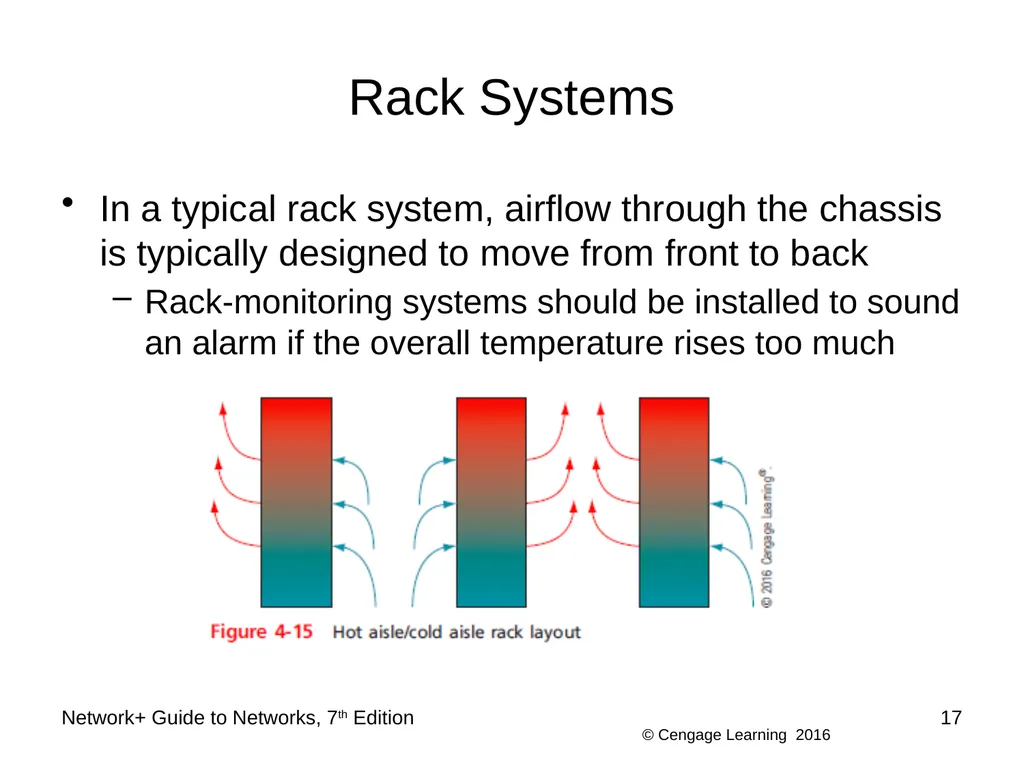
Rack Systems In a typical rack system, airflow through the chassis is typically designed to move from front to back
Rack-monitoring systems should be installed to sound an alarm if the overall temperature rises too much Network+ Guide to Networks, 7th Edition 17<br>
Rack-monitoring systems should be installed to sound an alarm if the overall temperature rises too much Network+ Guide to Networks, 7th Edition 17<br>
18
NAS (Network Attached Storage) Fault tolerance - techniques that allow data storage or other operations to continue in the event of a failure or fault of one its components
NAS - a specialized storage device or group of storage devices that provides centralized fault tolerant data storage for a network
Contains its own file system optimized for saving and serving files
Reads and writes from its disk significantly faster than other types of servers
Can be easily expanded without interrupting service Network+ Guide to Networks, 7th Edition 18<br>
NAS - a specialized storage device or group of storage devices that provides centralized fault tolerant data storage for a network
Contains its own file system optimized for saving and serving files
Reads and writes from its disk significantly faster than other types of servers
Can be easily expanded without interrupting service Network+ Guide to Networks, 7th Edition 18<br>
19
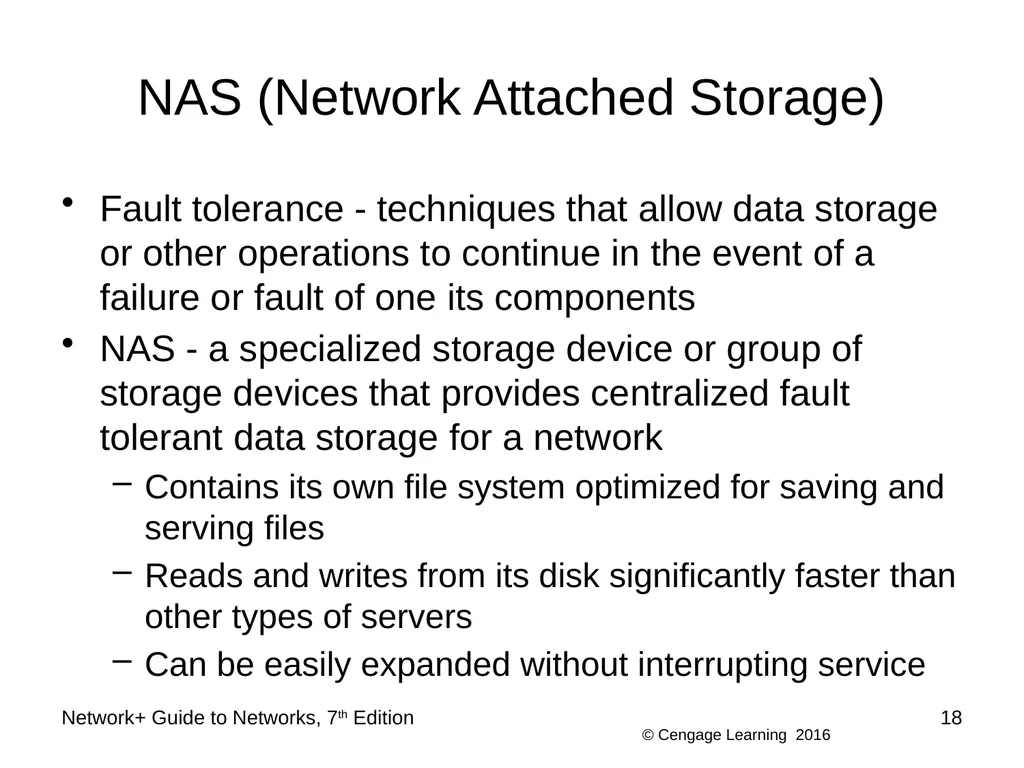
NAS (Network Attached Storage) A NAS device cannot communicate directly with clients
Clients go through a file server, which communicates with the NAS device Network+ Guide to Networks, 7th Edition 19<br>
Clients go through a file server, which communicates with the NAS device Network+ Guide to Networks, 7th Edition 19<br>
20
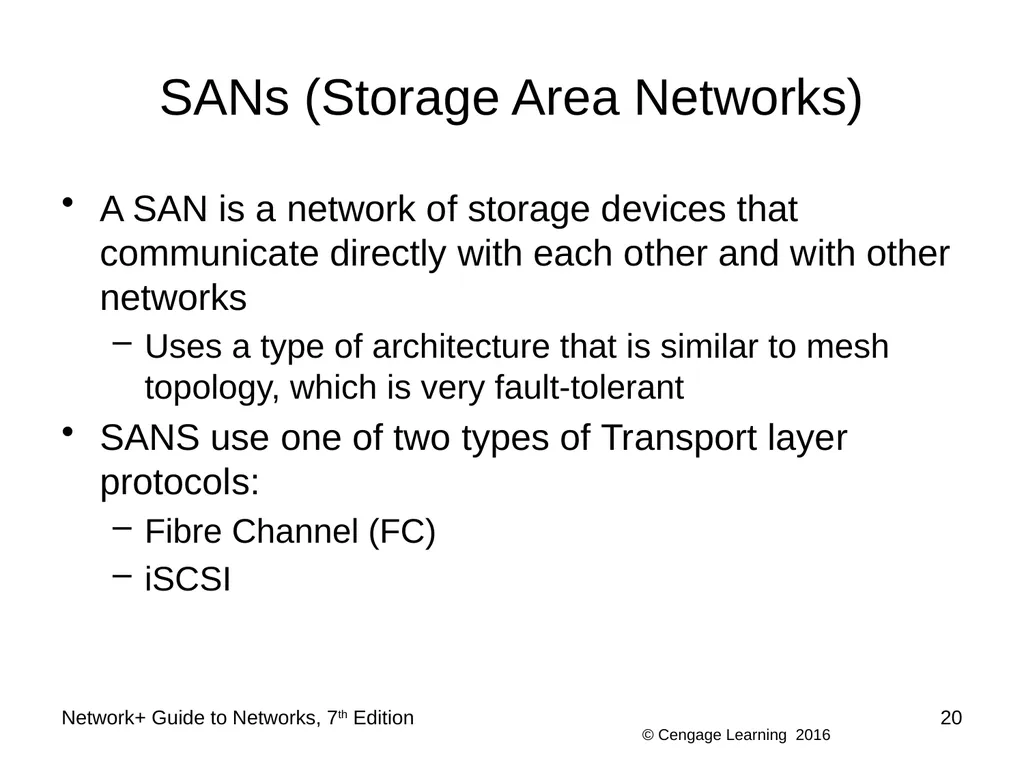
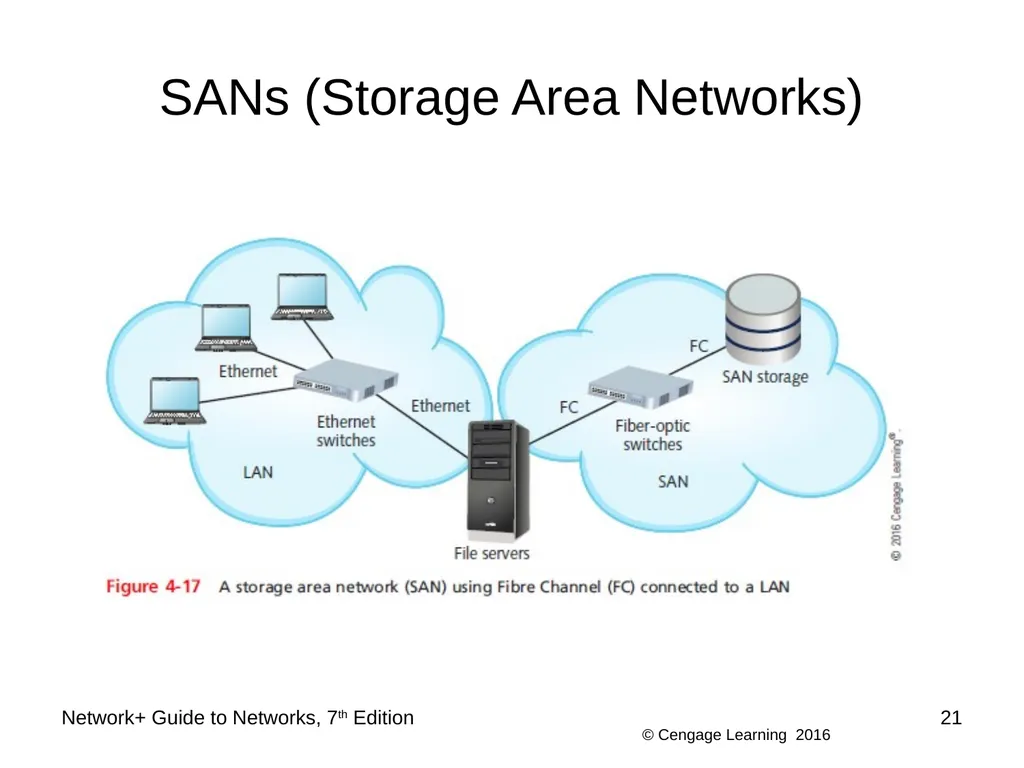
SANs (Storage Area Networks) A SAN is a network of storage devices that communicate directly with each other and with other networks
Uses a type of architecture that is similar to mesh topology, which is very fault-tolerant
SANS use one of two types of Transport layer protocols:
Fibre Channel (FC)
iSCSI Network+ Guide to Networks, 7th Edition 20<br>
Uses a type of architecture that is similar to mesh topology, which is very fault-tolerant
SANS use one of two types of Transport layer protocols:
Fibre Channel (FC)
iSCSI Network+ Guide to Networks, 7th Edition 20<br>
21
SANs (Storage Area Networks) Network+ Guide to Networks, 7th Edition 21<br>
22
SANs (Storage Area Networks) A SAN can be installed in a location separate from the LAN it serves
SANs are highly scalable and have:
A very high fault tolerance
Massive storage capabilities
Fast data access
SANs are best suited to environments with huge quantities of data that must always be quickly available Network+ Guide to Networks, 7th Edition 22<br>
SANs are highly scalable and have:
A very high fault tolerance
Massive storage capabilities
Fast data access
SANs are best suited to environments with huge quantities of data that must always be quickly available Network+ Guide to Networks, 7th Edition 22<br>
23
Managing Power Sources and the Environment Part of managing a network is managing power sources to account for outages and fluctuations
You also need to monitor and manage the environment that might affect sensitive network equipment Network+ Guide to Networks, 7th Edition 23<br>
You also need to monitor and manage the environment that might affect sensitive network equipment Network+ Guide to Networks, 7th Edition 23<br>
24
Power Management Power surges can cause serious damage to sensitive computer equipment
Can be a frustrating source of network problems
Arm yourself with an understanding of:
The nature of an electric circuit
Electrical components that manage electricity Network+ Guide to Networks, 7th Edition 24<br>
Can be a frustrating source of network problems
Arm yourself with an understanding of:
The nature of an electric circuit
Electrical components that manage electricity Network+ Guide to Networks, 7th Edition 24<br>
25
Power Flaws Power flaws that can damage your equipment:
Surge - momentary increase in voltage due to lightning strikes, solar flares, or electrical problems
Noise - fluctuation in voltage levels caused by other devices on the network or EMI
Brownout - momentary decrease in voltage; also known as a sag
Blackout - complete power loss Network+ Guide to Networks, 7th Edition 25<br>
Surge - momentary increase in voltage due to lightning strikes, solar flares, or electrical problems
Noise - fluctuation in voltage levels caused by other devices on the network or EMI
Brownout - momentary decrease in voltage; also known as a sag
Blackout - complete power loss Network+ Guide to Networks, 7th Edition 25<br>
26
UPS (Uninterruptible Power Supply) UPS - a battery-operated power source directly attached to devices and to a power supply
Prevents undesired fluctuations of power from harming the device or interrupting its services
Two UPS categories:
Standby UPS - provides continuous voltage to a device by switching to the battery when it detects a loss of power from the wall outlet
Online UPS - uses the AC power from the wall outlet to continuously charge its battery, while providing power to the device through its battery Network+ Guide to Networks, 7th Edition 26<br>
Prevents undesired fluctuations of power from harming the device or interrupting its services
Two UPS categories:
Standby UPS - provides continuous voltage to a device by switching to the battery when it detects a loss of power from the wall outlet
Online UPS - uses the AC power from the wall outlet to continuously charge its battery, while providing power to the device through its battery Network+ Guide to Networks, 7th Edition 26<br>
27
UPS (Uninterruptible Power Supply) To decide which UPS is right for your network, consider the following:
Amount of power needed
Period of time to keep a device running
Line conditioning
Cost
Testing UPSs with your equipment is an important part of the decision-making process
Some manufacturers will let you test the UPS Network+ Guide to Networks, 7th Edition 27<br>
Amount of power needed
Period of time to keep a device running
Line conditioning
Cost
Testing UPSs with your equipment is an important part of the decision-making process
Some manufacturers will let you test the UPS Network+ Guide to Networks, 7th Edition 27<br>
28
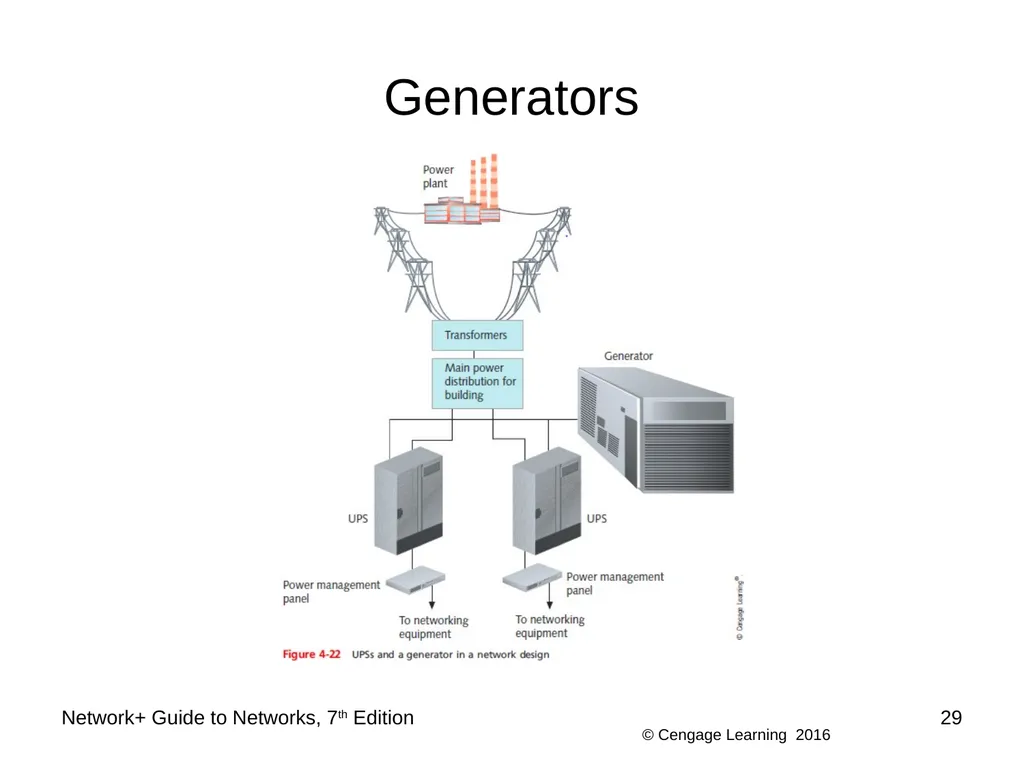
Generators Generator - backup power source, providing power redundancy in the event of a total blackout
Can be powered by diesel, liquid propane gas, natural gas, or steam
Generators can be combined with large UPSs to ensure that clean power is always available
If an organization relies on a generator, fuel levels and quality should be checked regularly Network+ Guide to Networks, 7th Edition 28<br>
Can be powered by diesel, liquid propane gas, natural gas, or steam
Generators can be combined with large UPSs to ensure that clean power is always available
If an organization relies on a generator, fuel levels and quality should be checked regularly Network+ Guide to Networks, 7th Edition 28<br>
29
Generators Network+ Guide to Networks, 7th Edition 29<br>
30
Monitoring the Environment and Security Data rooms are often service by HVAC systems separate from the rest of the building
Specialized products can monitor the critical factors of a data closet’s environment:
Unacceptable temperature
Humidity
Airflow conditions
Every data room should be locked with only limited IT personnel having keys
Security cameras are suggested Network+ Guide to Networks, 7th Edition 30<br>
Specialized products can monitor the critical factors of a data closet’s environment:
Unacceptable temperature
Humidity
Airflow conditions
Every data room should be locked with only limited IT personnel having keys
Security cameras are suggested Network+ Guide to Networks, 7th Edition 30<br>
31
NICs and Ethernet Each workstation, server, printer, connectivity device, or other device on a network uses a NIC
On local networks, a NIC uses Ethernet standards for communication Network+ Guide to Networks, 7th Edition 31<br>
On local networks, a NIC uses Ethernet standards for communication Network+ Guide to Networks, 7th Edition 31<br>
32
Characteristics of NICs The NIC contains a transceiver that transmits and receives data signals over network media
NICs belong to both the Physical and Data Link layer because they:
Issue data signals and assemble/disassemble data frames
Interpret physical addressing information
Perform routines that determine which node has the right to transmit data
Can also perform prioritization, network management, buffering, and traffic-filtering functions Network+ Guide to Networks, 7th Edition 32<br>
NICs belong to both the Physical and Data Link layer because they:
Issue data signals and assemble/disassemble data frames
Interpret physical addressing information
Perform routines that determine which node has the right to transmit data
Can also perform prioritization, network management, buffering, and traffic-filtering functions Network+ Guide to Networks, 7th Edition 32<br>
33
Characteristics of NICs NICs come in a variety of types depending on:
Connection type
Maximum network transmission speed
Connector interfaces
Number of connector interfaces, or ports
Manufacturer
Support for enhanced features, such as PoE+, buffering, or traffic management
Method of interfacing with the computer’s motherboard and interface standards Network+ Guide to Networks, 7th Edition 33<br>
Connection type
Maximum network transmission speed
Connector interfaces
Number of connector interfaces, or ports
Manufacturer
Support for enhanced features, such as PoE+, buffering, or traffic management
Method of interfacing with the computer’s motherboard and interface standards Network+ Guide to Networks, 7th Edition 33<br>
34
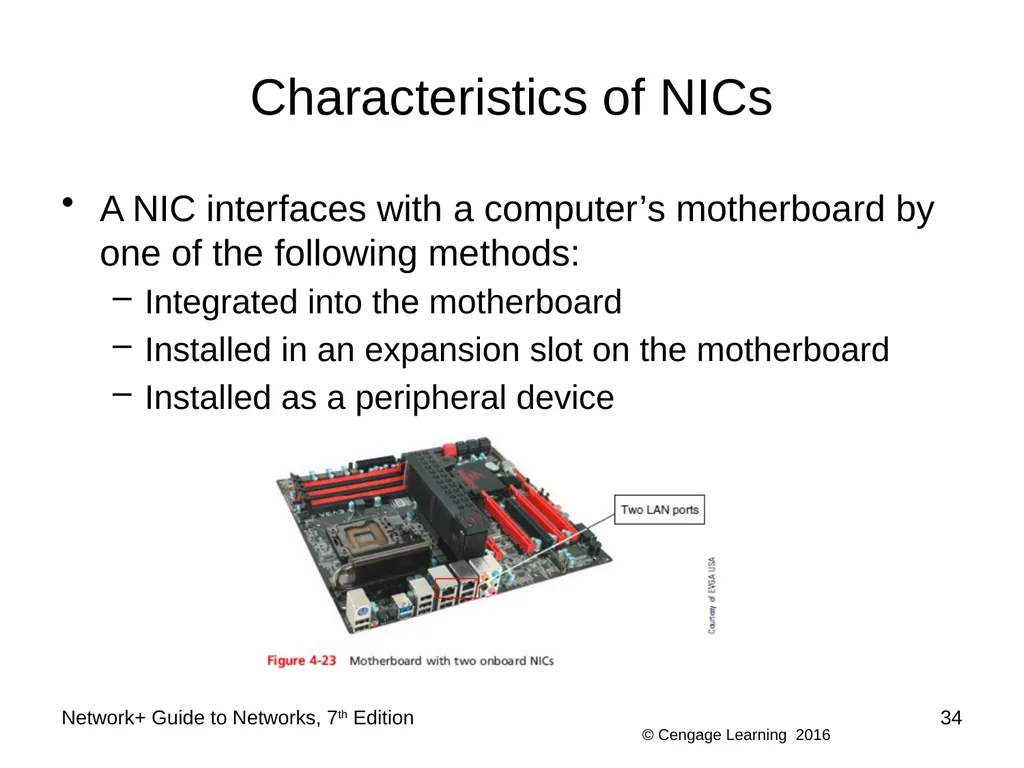
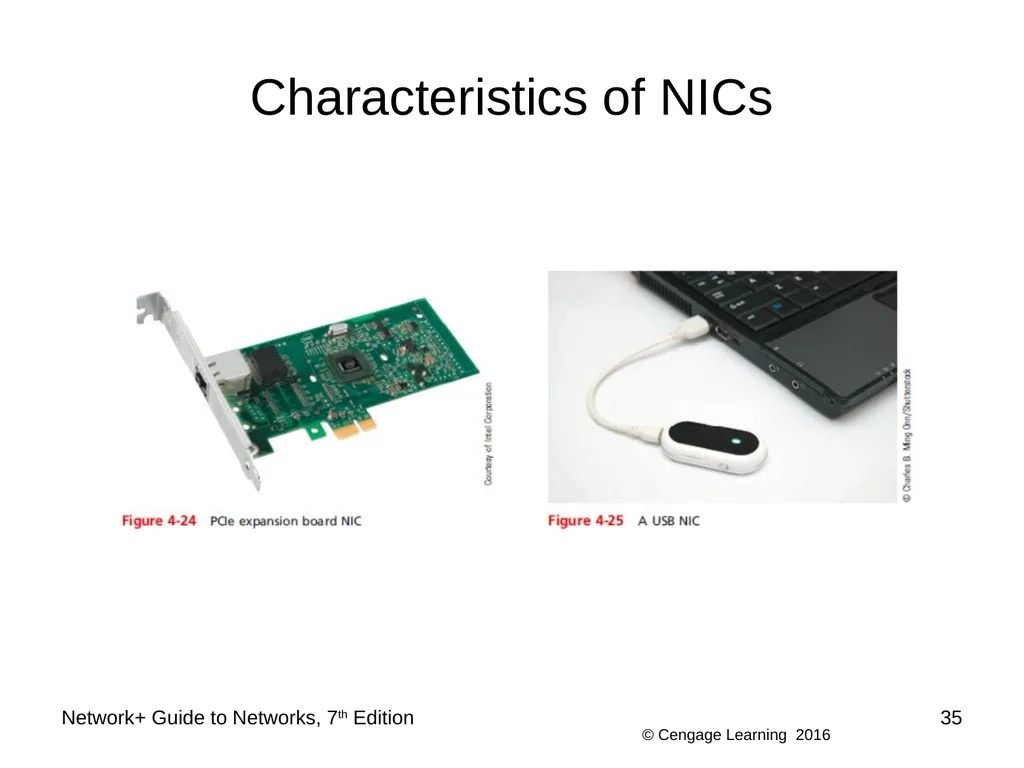
Characteristics of NICs A NIC interfaces with a computer’s motherboard by one of the following methods:
Integrated into the motherboard
Installed in an expansion slot on the motherboard
Installed as a peripheral device Network+ Guide to Networks, 7th Edition 34<br>
Integrated into the motherboard
Installed in an expansion slot on the motherboard
Installed as a peripheral device Network+ Guide to Networks, 7th Edition 34<br>
35
Characteristics of NICs Network+ Guide to Networks, 7th Edition 35<br>
36
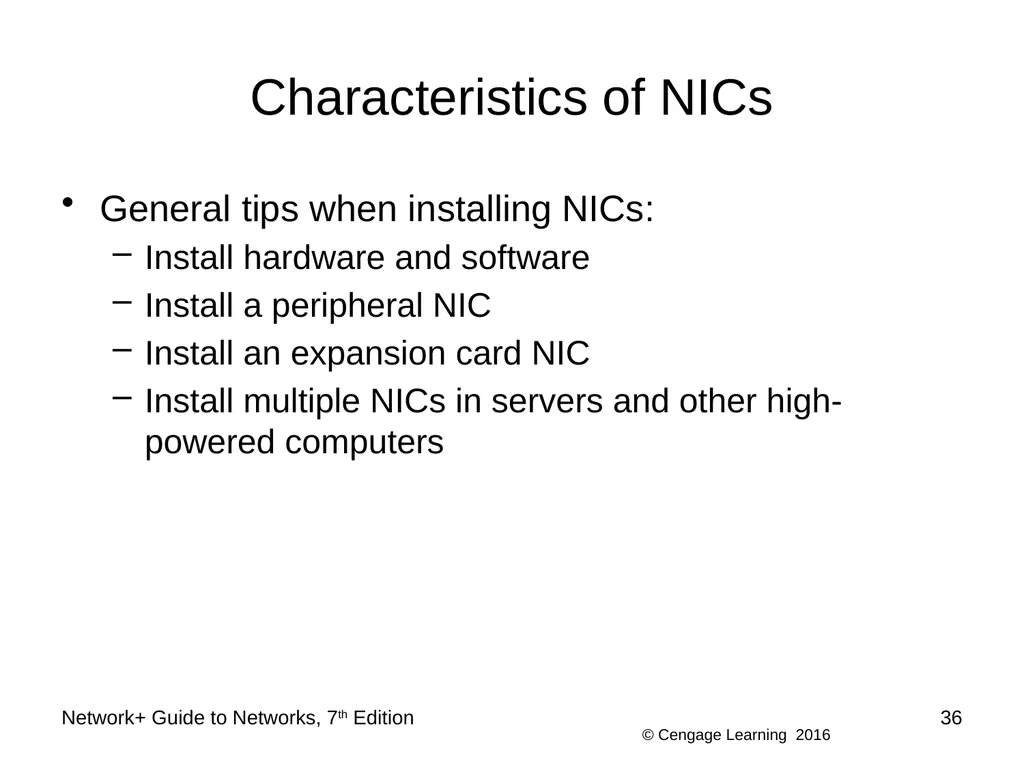
Characteristics of NICs General tips when installing NICs:
Install hardware and software
Install a peripheral NIC
Install an expansion card NIC
Install multiple NICs in servers and other high-powered computers Network+ Guide to Networks, 7th Edition 36<br>
Install hardware and software
Install a peripheral NIC
Install an expansion card NIC
Install multiple NICs in servers and other high-powered computers Network+ Guide to Networks, 7th Edition 36<br>
37
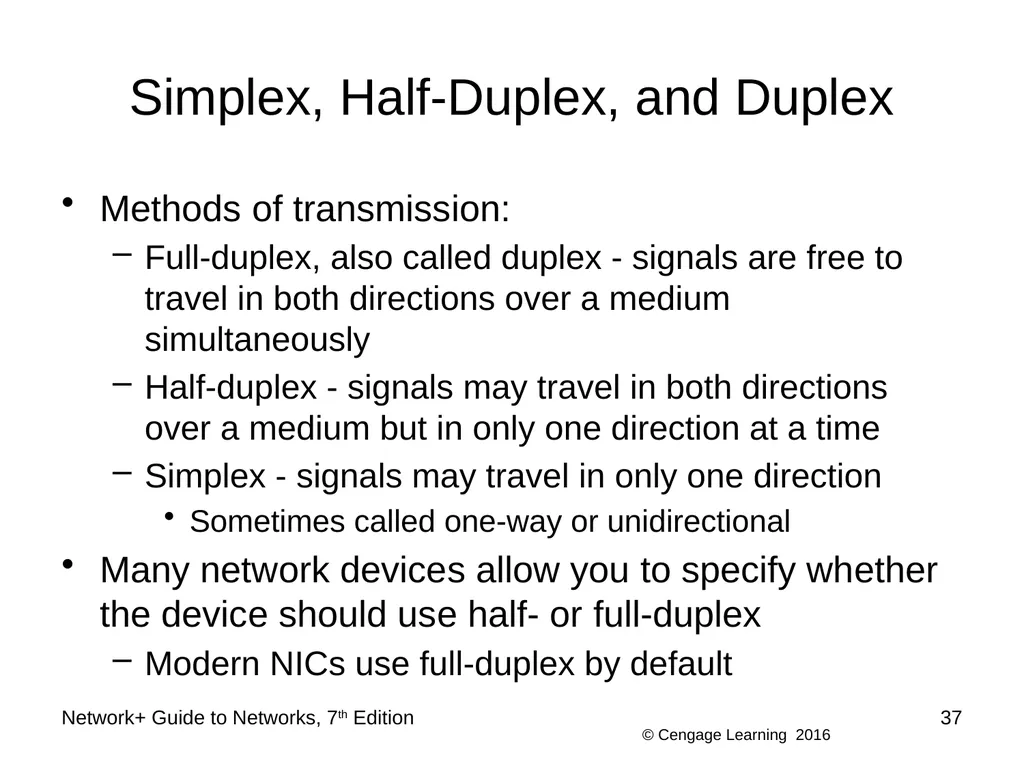
Simplex, Half-Duplex, and Duplex Methods of transmission:
Full-duplex, also called duplex - signals are free to travel in both directions over a medium simultaneously
Half-duplex - signals may travel in both directions over a medium but in only one direction at a time
Simplex - signals may travel in only one direction
Sometimes called one-way or unidirectional
Many network devices allow you to specify whether the device should use half- or full-duplex
Modern NICs use full-duplex by default Network+ Guide to Networks, 7th Edition 37<br>
Full-duplex, also called duplex - signals are free to travel in both directions over a medium simultaneously
Half-duplex - signals may travel in both directions over a medium but in only one direction at a time
Simplex - signals may travel in only one direction
Sometimes called one-way or unidirectional
Many network devices allow you to specify whether the device should use half- or full-duplex
Modern NICs use full-duplex by default Network+ Guide to Networks, 7th Edition 37<br>
38
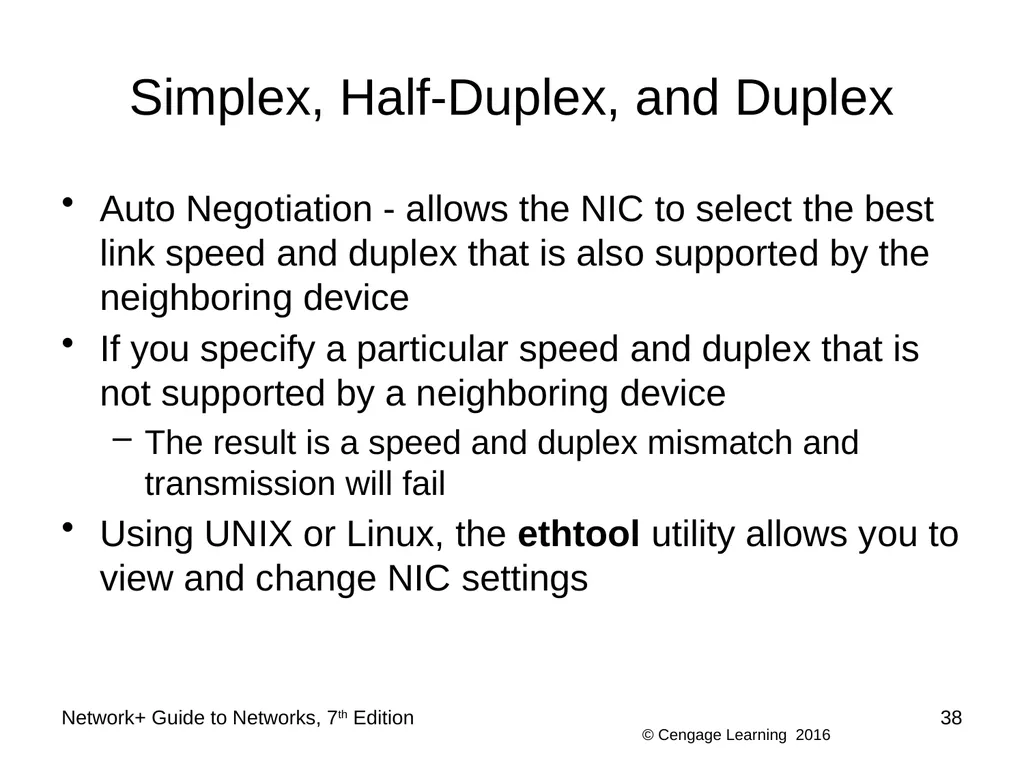
Simplex, Half-Duplex, and Duplex Auto Negotiation - allows the NIC to select the best link speed and duplex that is also supported by the neighboring device
If you specify a particular speed and duplex that is not supported by a neighboring device
The result is a speed and duplex mismatch and transmission will fail
Using UNIX or Linux, the ethtool utility allows you to view and change NIC settings Network+ Guide to Networks, 7th Edition 38<br>
If you specify a particular speed and duplex that is not supported by a neighboring device
The result is a speed and duplex mismatch and transmission will fail
Using UNIX or Linux, the ethtool utility allows you to view and change NIC settings Network+ Guide to Networks, 7th Edition 38<br>
39
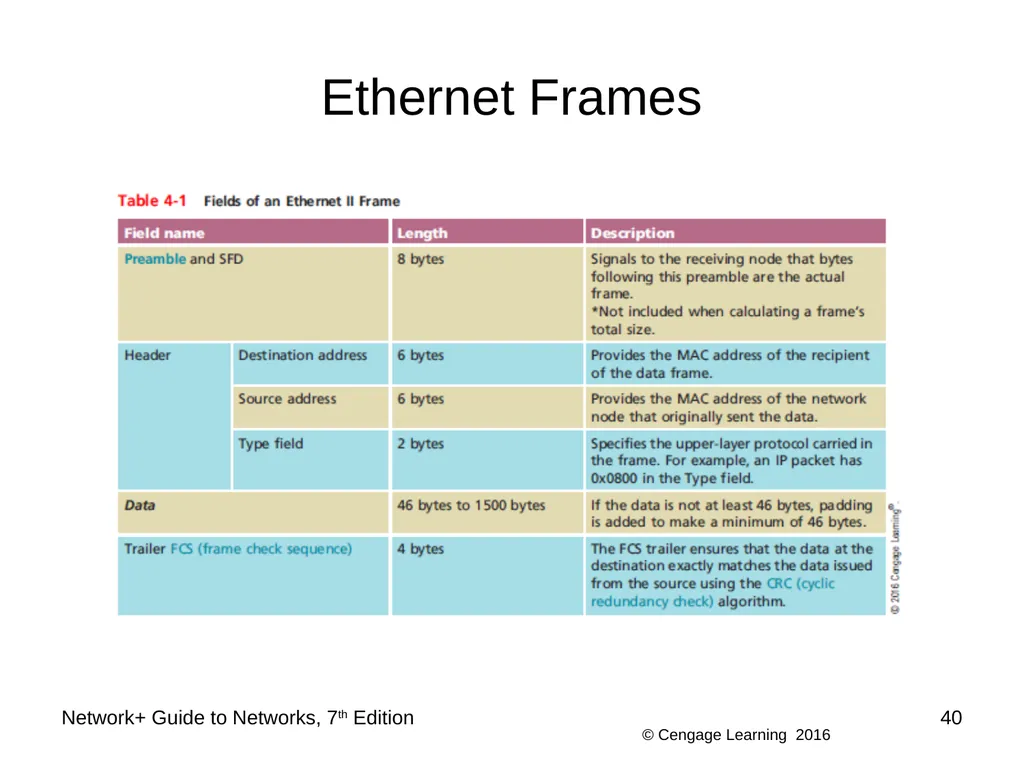
Ethernet Frames Ethernet is a Layer 2 standard that:
Is flexible
Capable of running on a variety of network media
Offers excellent throughput at a reasonable cost
Ethernet II is the current Ethernet standard Network+ Guide to Networks, 7th Edition 39<br>
Is flexible
Capable of running on a variety of network media
Offers excellent throughput at a reasonable cost
Ethernet II is the current Ethernet standard Network+ Guide to Networks, 7th Edition 39<br>
40
Ethernet Frames Network+ Guide to Networks, 7th Edition 40<br>
41
Troubleshooting Network Devices This section takes a look at some approaches to troubleshooting NIC problems
Apply what you have learned so far by completing Applying Concepts activities in this section Network+ Guide to Networks, 7th Edition 41<br>
Apply what you have learned so far by completing Applying Concepts activities in this section Network+ Guide to Networks, 7th Edition 41<br>
42
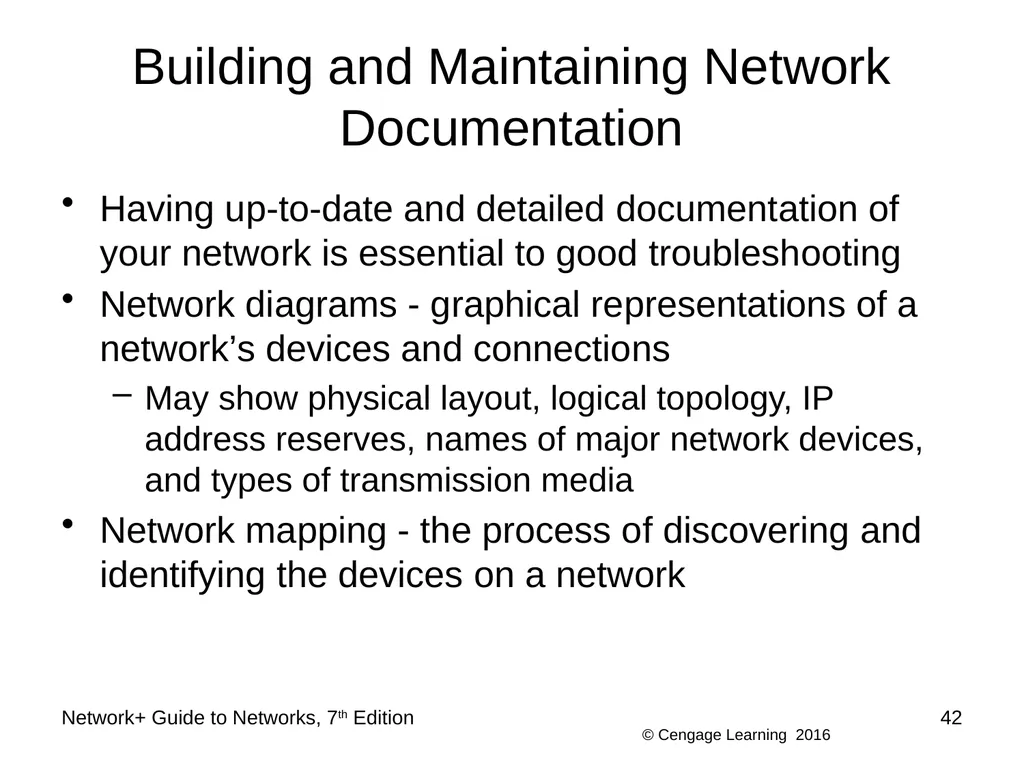
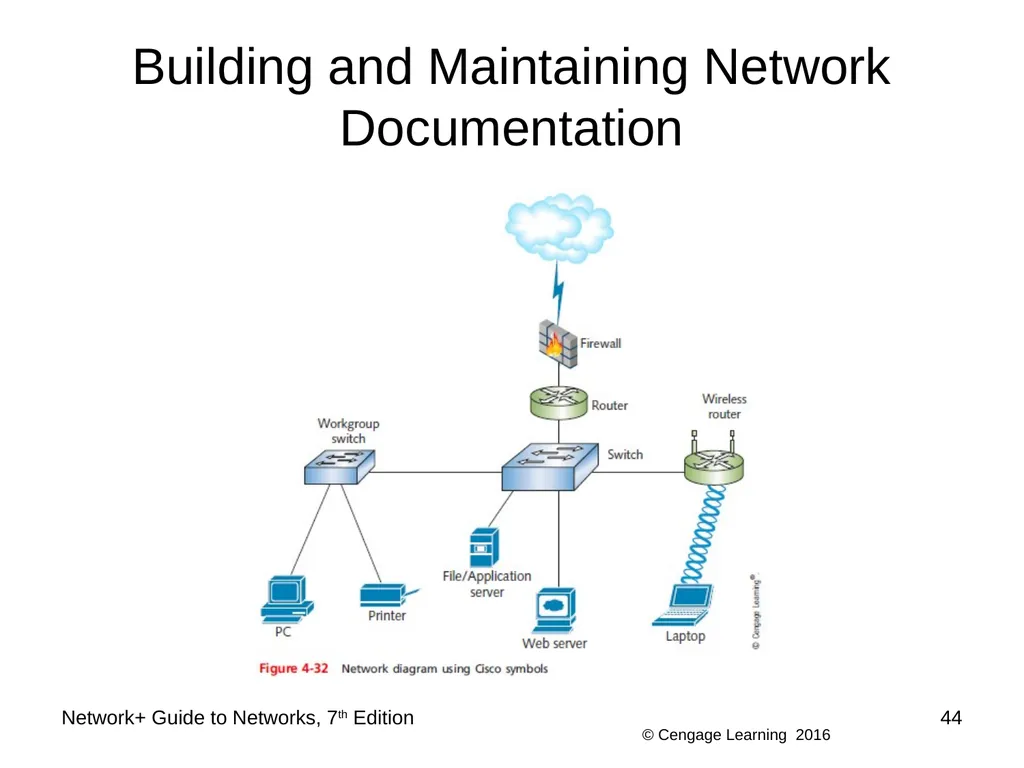
Building and Maintaining Network Documentation Having up-to-date and detailed documentation of your network is essential to good troubleshooting
Network diagrams - graphical representations of a network’s devices and connections
May show physical layout, logical topology, IP address reserves, names of major network devices, and types of transmission media
Network mapping - the process of discovering and identifying the devices on a network Network+ Guide to Networks, 7th Edition 42<br>
Network diagrams - graphical representations of a network’s devices and connections
May show physical layout, logical topology, IP address reserves, names of major network devices, and types of transmission media
Network mapping - the process of discovering and identifying the devices on a network Network+ Guide to Networks, 7th Edition 42<br>
43
Building and Maintaining Network Documentation To adequately manage a network, record the following:
Network diagrams
Physical topology
Access methods
Protocols
Devices
Operating systems
Applications
Configurations Network+ Guide to Networks, 7th Edition 43<br>
Network diagrams
Physical topology
Access methods
Protocols
Devices
Operating systems
Applications
Configurations Network+ Guide to Networks, 7th Edition 43<br>
44
Building and Maintaining Network Documentation Network+ Guide to Networks, 7th Edition 44<br>
45
Building and Maintaining Network Documentation Network diagrams provide broad snapshots of a network’s physical or logical topology
Useful for planning where to insert a new switch or determining how a particular router, gateway, or firewall interact
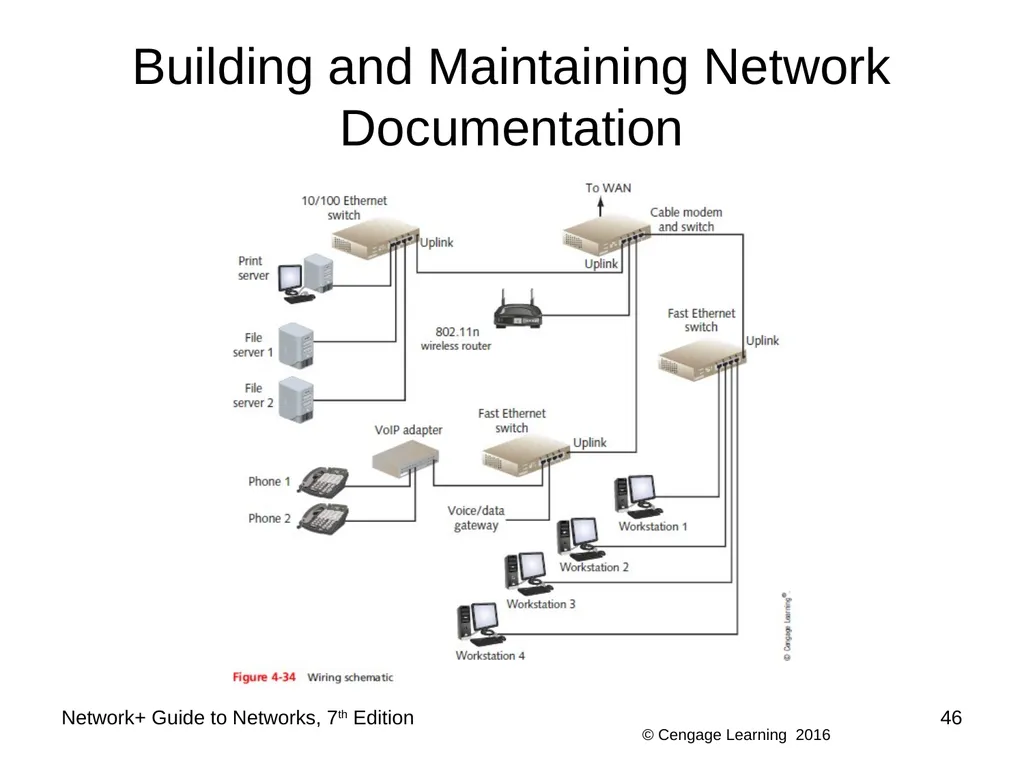
Wiring schematic - a graphical representation of a network’s wired infrastructure
In detailed form, it shows every wire necessary to interconnect network devices Network+ Guide to Networks, 7th Edition 45<br>
Useful for planning where to insert a new switch or determining how a particular router, gateway, or firewall interact
Wiring schematic - a graphical representation of a network’s wired infrastructure
In detailed form, it shows every wire necessary to interconnect network devices Network+ Guide to Networks, 7th Edition 45<br>
46
Building and Maintaining Network Documentation Network+ Guide to Networks, 7th Edition 46<br>
47
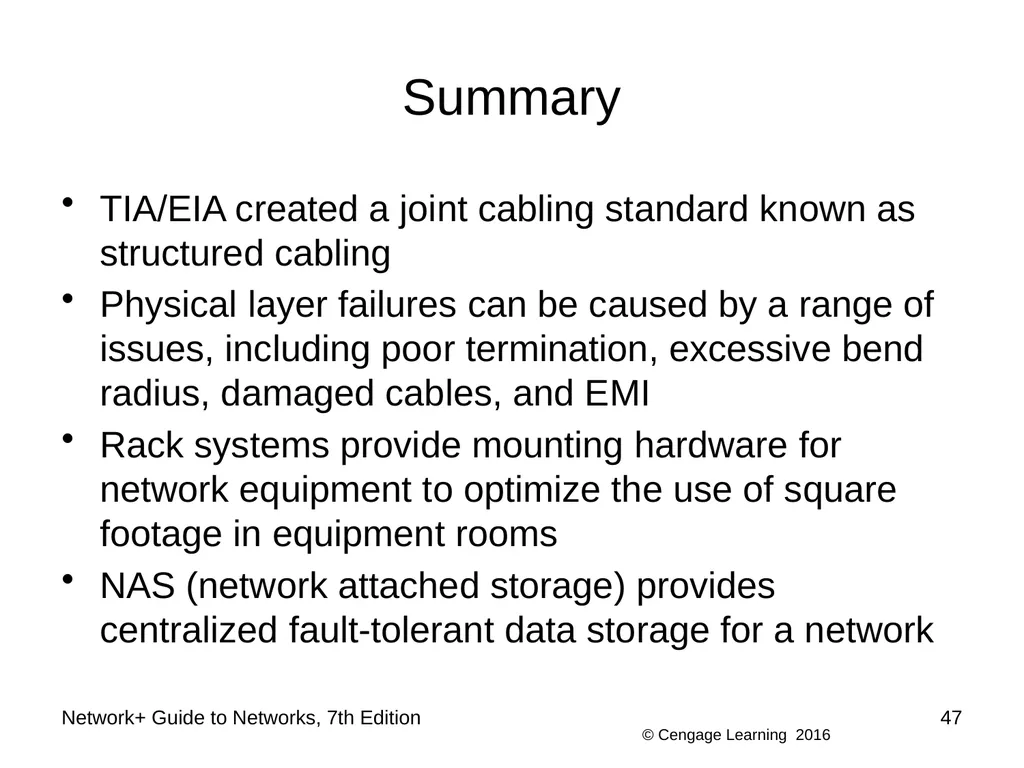
Network+ Guide to Networks, 7th Edition 47 Summary TIA/EIA created a joint cabling standard known as structured cabling
Physical layer failures can be caused by a range of issues, including poor termination, excessive bend radius, damaged cables, and EMI
Rack systems provide mounting hardware for network equipment to optimize the use of square footage in equipment rooms
NAS (network attached storage) provides centralized fault-tolerant data storage for a network<br>
Physical layer failures can be caused by a range of issues, including poor termination, excessive bend radius, damaged cables, and EMI
Rack systems provide mounting hardware for network equipment to optimize the use of square footage in equipment rooms
NAS (network attached storage) provides centralized fault-tolerant data storage for a network<br>
48
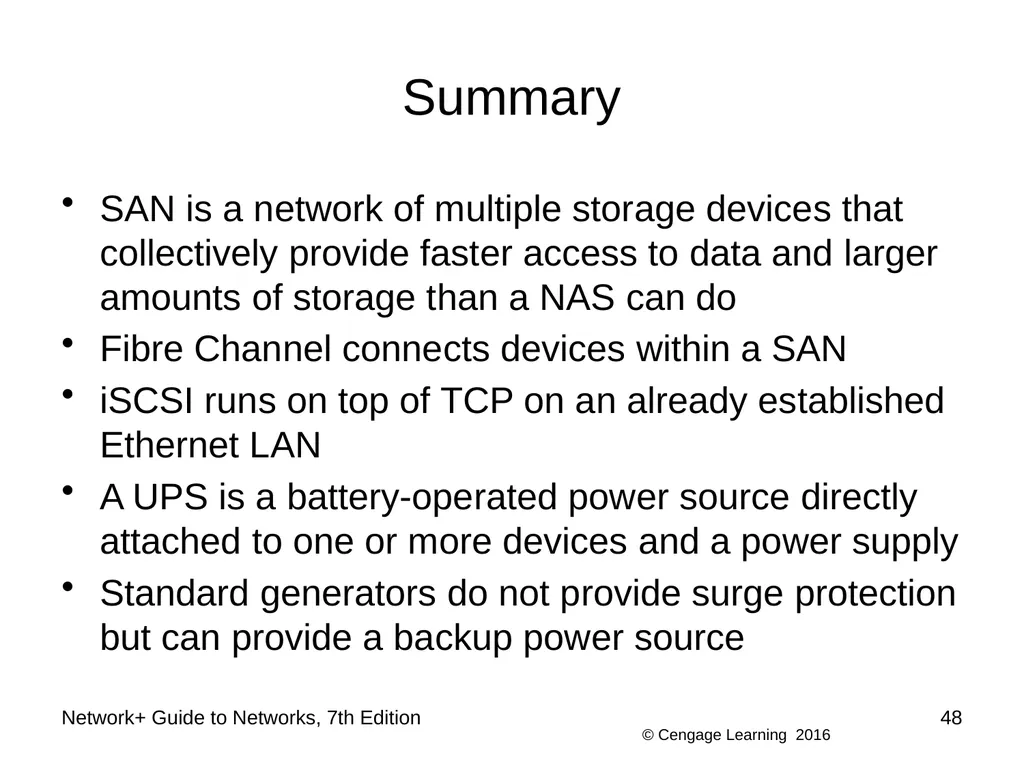
Network+ Guide to Networks, 7th Edition 48 Summary SAN is a network of multiple storage devices that collectively provide faster access to data and larger amounts of storage than a NAS can do
Fibre Channel connects devices within a SAN
iSCSI runs on top of TCP on an already established Ethernet LAN
A UPS is a battery-operated power source directly attached to one or more devices and a power supply
Standard generators do not provide surge protection but can provide a backup power source<br>
Fibre Channel connects devices within a SAN
iSCSI runs on top of TCP on an already established Ethernet LAN
A UPS is a battery-operated power source directly attached to one or more devices and a power supply
Standard generators do not provide surge protection but can provide a backup power source<br>
49
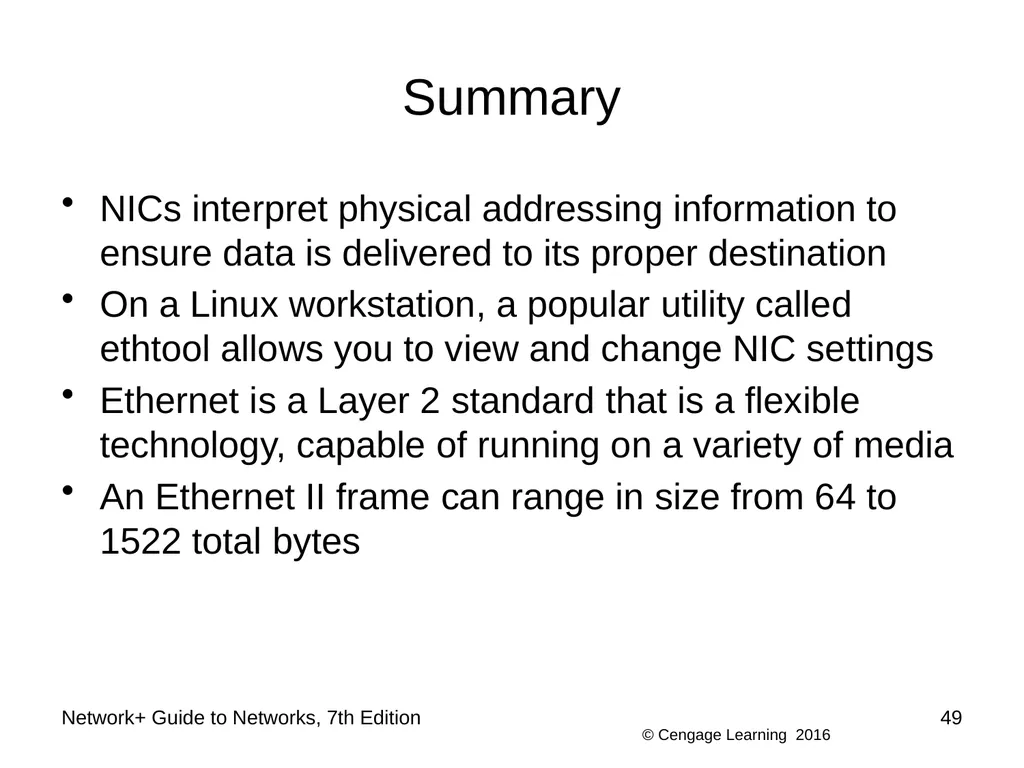
Network+ Guide to Networks, 7th Edition 49 Summary NICs interpret physical addressing information to ensure data is delivered to its proper destination
On a Linux workstation, a popular utility called ethtool allows you to view and change NIC settings
Ethernet is a Layer 2 standard that is a flexible technology, capable of running on a variety of media
An Ethernet II frame can range in size from 64 to 1522 total bytes<br>
On a Linux workstation, a popular utility called ethtool allows you to view and change NIC settings
Ethernet is a Layer 2 standard that is a flexible technology, capable of running on a variety of media
An Ethernet II frame can range in size from 64 to 1522 total bytes<br>
50
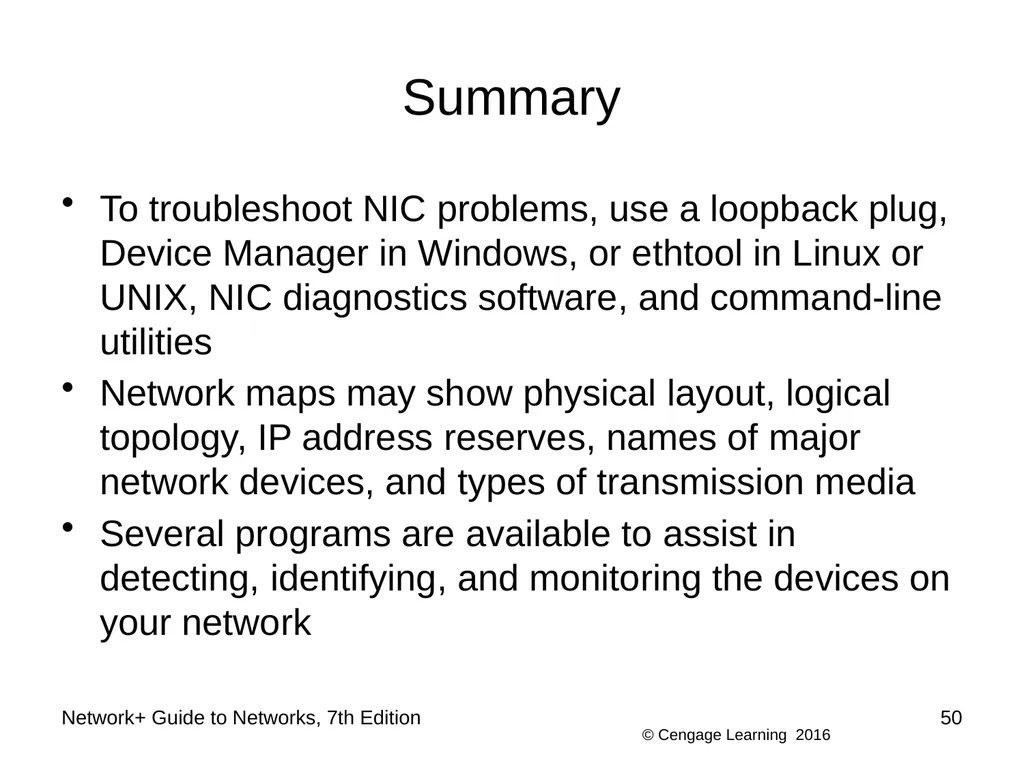
Network+ Guide to Networks, 7th Edition 50 Summary To troubleshoot NIC problems, use a loopback plug, Device Manager in Windows, or ethtool in Linux or UNIX, NIC diagnostics software, and command-line utilities
Network maps may show physical layout, logical topology, IP address reserves, names of major network devices, and types of transmission media
Several programs are available to assist in detecting, identifying, and monitoring the devices on your network<br>
Network maps may show physical layout, logical topology, IP address reserves, names of major network devices, and types of transmission media
Several programs are available to assist in detecting, identifying, and monitoring the devices on your network<br>