New Student Resident IT Orientation (2025) New SOM Student BYOD Compliance Form All SOM students are required to complete the BYOD Compliance Form and schedule a one-on-one meeting with the IT team to review their device information.
Related Topics
Share
Embed code
Download this presentation From Below
"New Student / Resident IT Orientation (2025) New" is the property of its rightful owner. Permission is granted to
download and print the materials on this website for personal, non-commercial use only, and to display it
on your personal computer provided you do not modify the materials and that you retain all copyright
notices contained in the materials. By downloading content from our website, you accept the terms of this
agreement.
Presentation Transcript
01
New Student / Resident
IT Orientation (2025)<br>
02
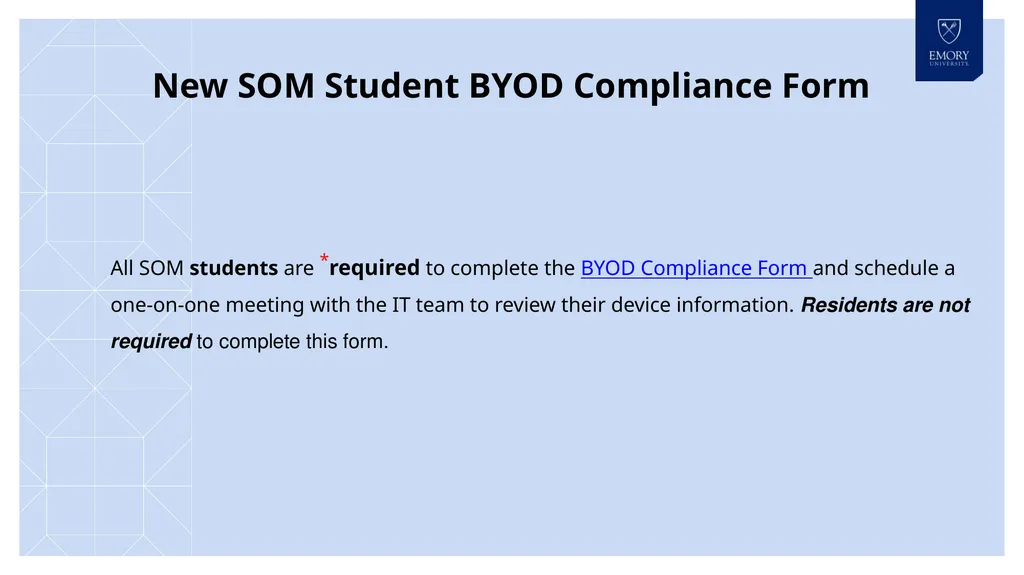
New SOM Student BYOD Compliance Form All SOM students are *required to complete the BYOD Compliance Form and schedule a one-on-one meeting with the IT team to review their device information. Residents are not required to complete this form.<br>
03
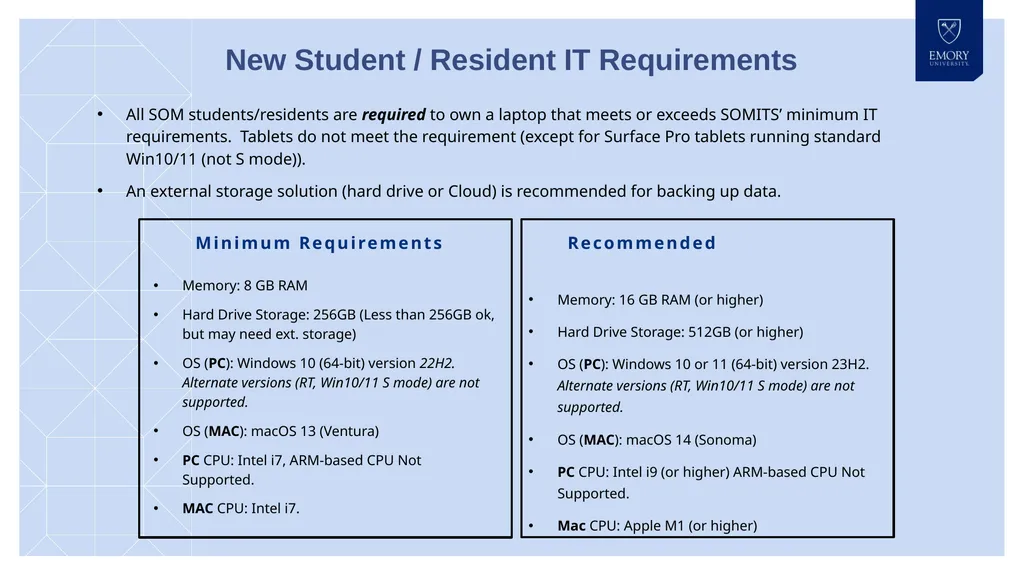
All SOM students/residents are required to own a laptop that meets or exceeds SOMITS’ minimum IT requirements. Tablets do not meet the requirement (except for Surface Pro tablets running standard Win10/11 (not S mode)).
An external storage solution (hard drive or Cloud) is recommended for backing up data. Memory: 8 GB RAM
Hard Drive Storage: 256GB (Less than 256GB ok, but may need ext. storage)
OS (PC): Windows 10 (64-bit) version 22H2. Alternate versions (RT, Win10/11 S mode) are not supported.
OS (MAC): macOS 13 (Ventura)
PC CPU: Intel i7, ARM-based CPU Not Supported.
MAC CPU: Intel i7. Memory: 16 GB RAM (or higher)
Hard Drive Storage: 512GB (or higher)
OS (PC): Windows 10 or 11 (64-bit) version 23H2. Alternate versions (RT, Win10/11 S mode) are not supported.
OS (MAC): macOS 14 (Sonoma)
PC CPU: Intel i9 (or higher) ARM-based CPU Not Supported.
Mac CPU: Apple M1 (or higher) Minimum Requirements Recommended New Student / Resident IT Requirements<br>
04
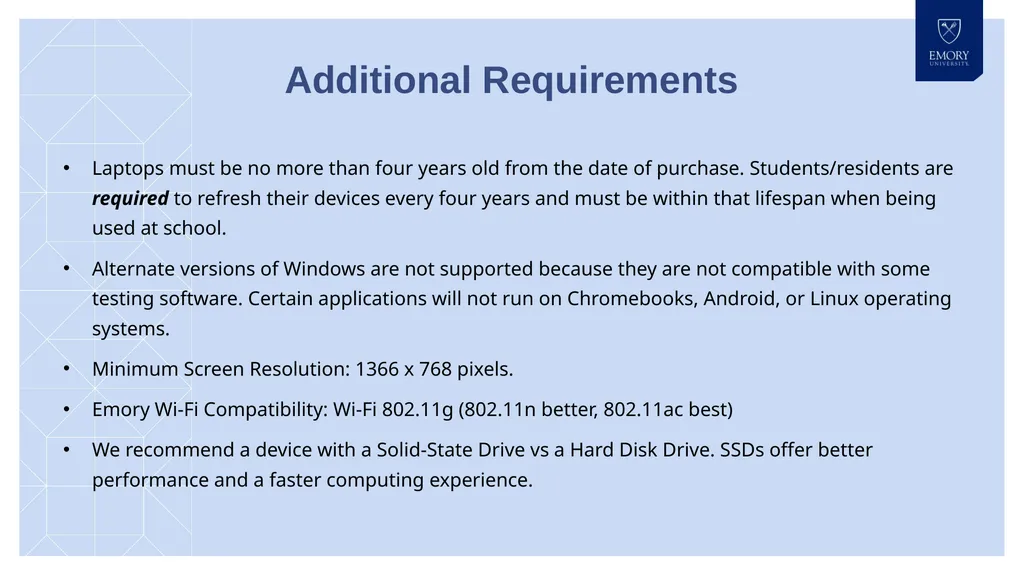
Laptops must be no more than four years old from the date of purchase. Students/residents are required to refresh their devices every four years and must be within that lifespan when being used at school.
Alternate versions of Windows are not supported because they are not compatible with some testing software. Certain applications will not run on Chromebooks, Android, or Linux operating systems.
Minimum Screen Resolution: 1366 x 768 pixels.
Emory Wi-Fi Compatibility: Wi-Fi 802.11g (802.11n better, 802.11ac best)
We recommend a device with a Solid-State Drive vs a Hard Disk Drive. SSDs offer better performance and a faster computing experience. Additional Requirements<br>
05
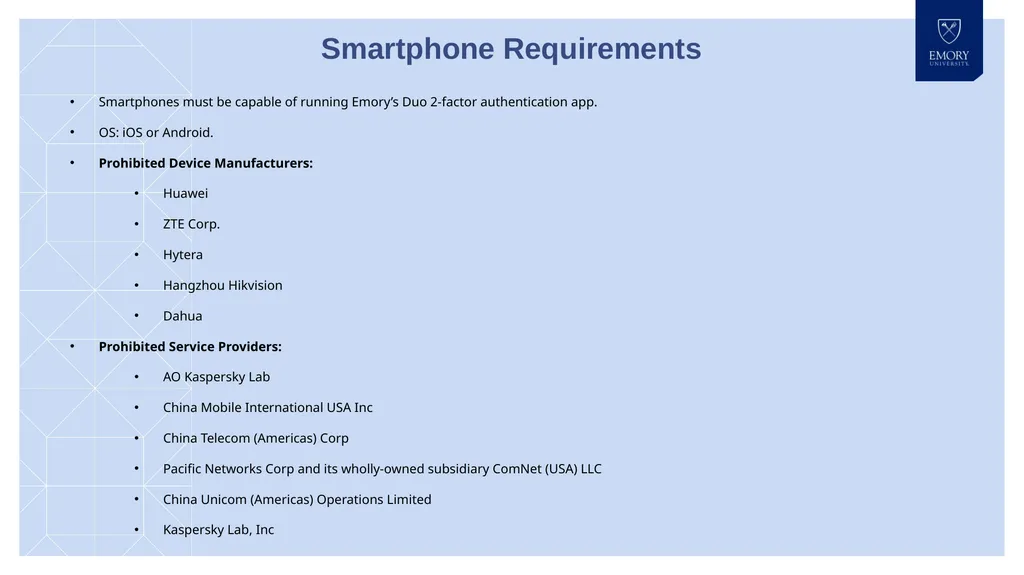
Smartphones must be capable of running Emory’s Duo 2-factor authentication app.
OS: iOS or Android.
Prohibited Device Manufacturers:
Huawei
ZTE Corp.
Hytera
Hangzhou Hikvision
Dahua
Prohibited Service Providers:
AO Kaspersky Lab
China Mobile International USA Inc
China Telecom (Americas) Corp
Pacific Networks Corp and its wholly-owned subsidiary ComNet (USA) LLC
China Unicom (Americas) Operations Limited
Kaspersky Lab, Inc Smartphone Requirements<br>
06
School of Medicine’s Office of Information Technology Services – Curricular Support (SOMITS-CS):
Monday-Friday 8:00am-5:00pm
School of Medicine Bldg. Suite AB51 (basement level)
Reach us or open a support ticket via email: meded-help@emory.edu or at: https://med.emory.edu/help
Call us @ 404-727-6648 (404-72-SOMIT) Emory Digital (ED) enterprise IT support:
Monday-Friday 7:00am-6:00pm
Walk-In Support: Woodruff Library, 1st Floor Mon-Fri 11:00am-6:00pm
Phone: 404-727-7777 IT Support Resources All students must reach out to SOMITS-CS for assistance with BYOD laptop setup (residents are not required to reach out to SOMITS-CS).<br>
07
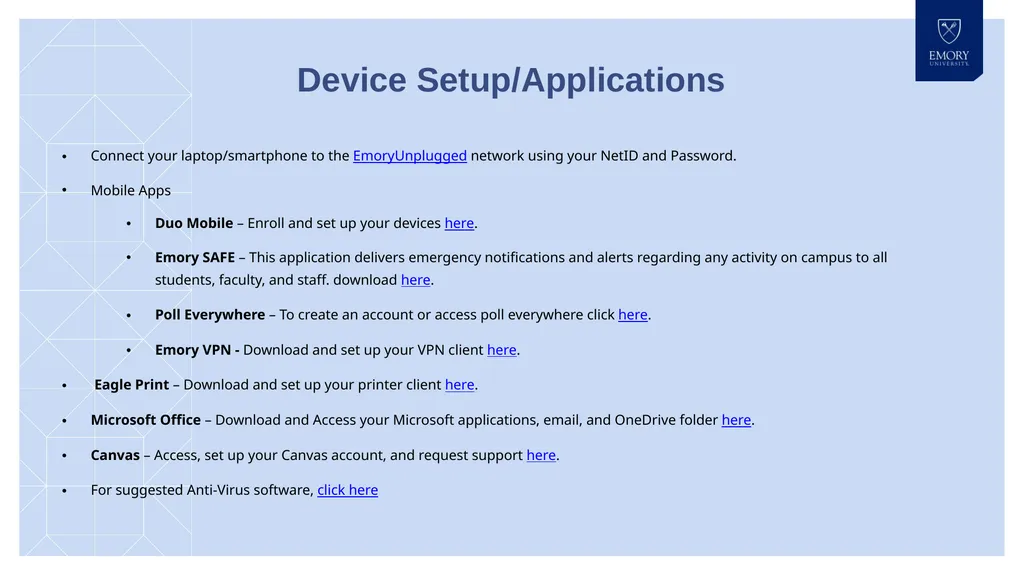
Connect your laptop/smartphone to the EmoryUnplugged network using your NetID and Password.
Mobile Apps
Duo Mobile – Enroll and set up your devices here.
Emory SAFE – This application delivers emergency notifications and alerts regarding any activity on campus to all students, faculty, and staff. download here.
Poll Everywhere – To create an account or access poll everywhere click here.
Emory VPN - Download and set up your VPN client here.
Eagle Print – Download and set up your printer client here.
Microsoft Office – Download and Access your Microsoft applications, email, and OneDrive folder here.
Canvas – Access, set up your Canvas account, and request support here.
For suggested Anti-Virus software, click here Device Setup/Applications<br>
08
Examplify - Online Testing (MD, DPT, PA students only):
Installers for Windows & Mac
If assistance with additional testing software is needed, please contact us via meded-help@emory.edu or call the SOMITS Help Line at 404-727-6648 Online Testing<br>
09
https://software.emory.edu – Free software for Students/Staff
https://emory.onthehub.com – Discounted software for Students/Staff
https://academicsuperstore.com – Additional discounted software
https://ats.emory.edu/sdl/ - Student resources
https://help.emory.edu – IT support with access to FAQ, Live Chat and Service Requests
https://med.emory.edu/help - SOMITS-CS Resources Additional Software/Tools<br>