OnShift Time Employee In-Service Training Ensure workers can always clock in As easy as taking a selfie View and request PTO View timecards and punch history A Modern, Mobile Employee Experience Confidential Time Clock Tablets Open the
"OnShift Time Employee In-Service Training Ensure" is the property of its rightful owner. Permission is granted to
download and print the materials on this website for personal, non-commercial use only, and to display it
on your personal computer provided you do not modify the materials and that you retain all copyright
notices contained in the materials. By downloading content from our website, you accept the terms of this
agreement.
Presentation Transcript
01
OnShift Time
Employee In-Service Training<br>
02
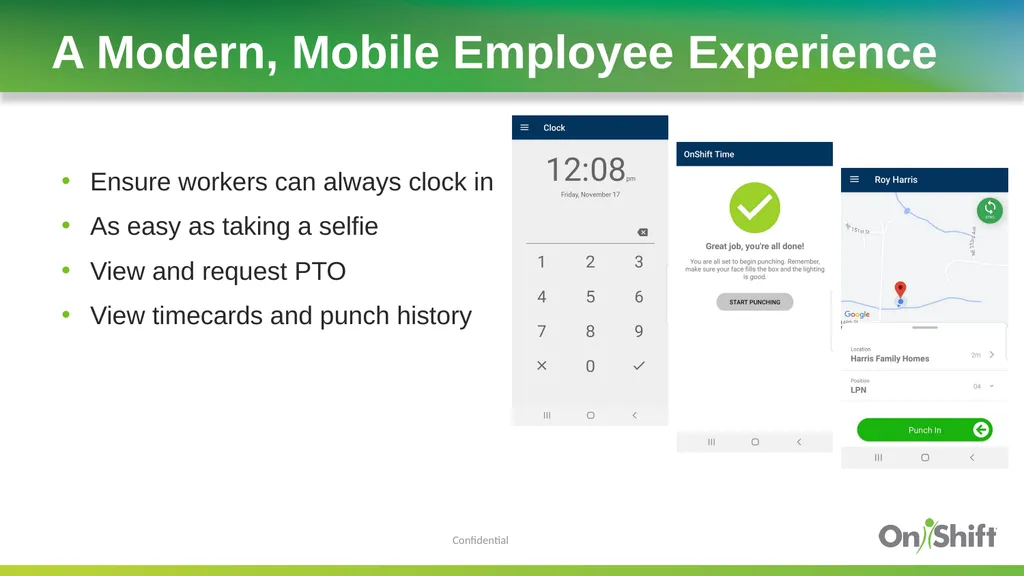
Ensure workers can always clock in
As easy as taking a selfie
View and request PTO
View timecards and punch history A Modern, Mobile Employee Experience Confidential<br>
03
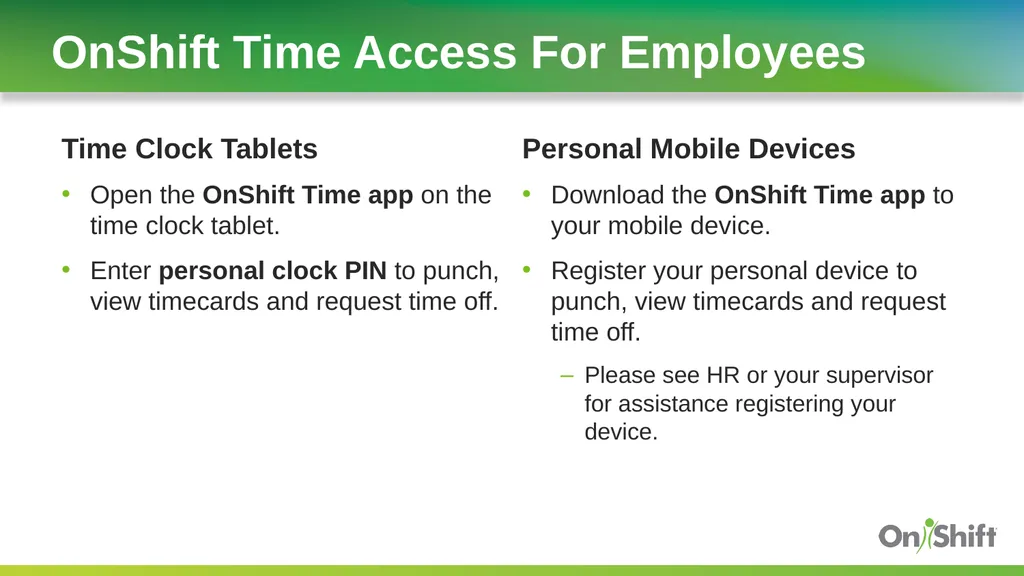
Time Clock Tablets
Open the OnShift Time app on the time clock tablet.
Enter personal clock PIN to punch, view timecards and request time off. OnShift Time Access For Employees Personal Mobile Devices
Download the OnShift Time app to your mobile device.
Register your personal device to punch, view timecards and request time off.
Please see HR or your supervisor for assistance registering your device.<br>
04
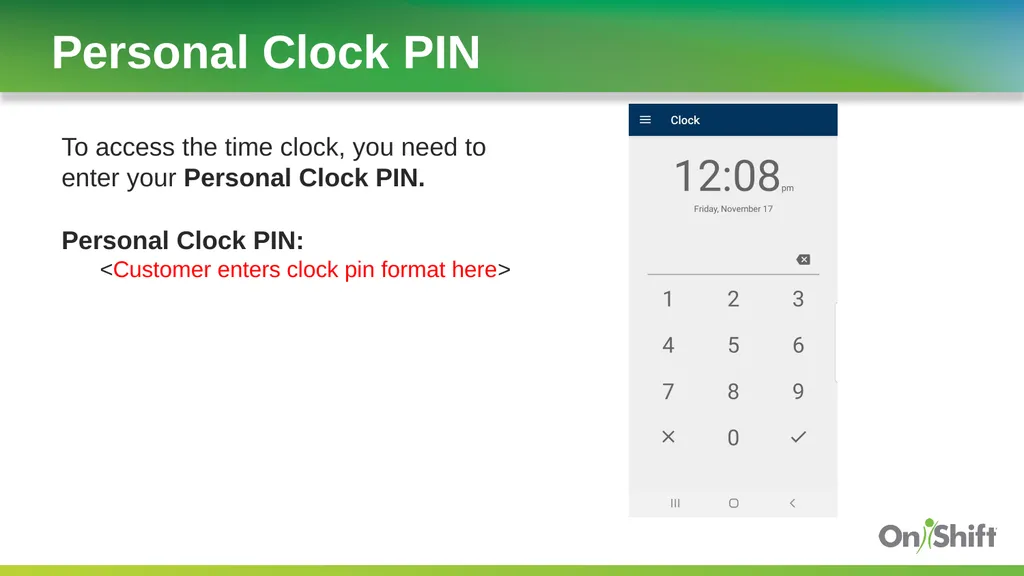
To access the time clock, you need to enter your Personal Clock PIN. Personal Clock PIN Personal Clock PIN:
<Customer enters clock pin format here><br>
05
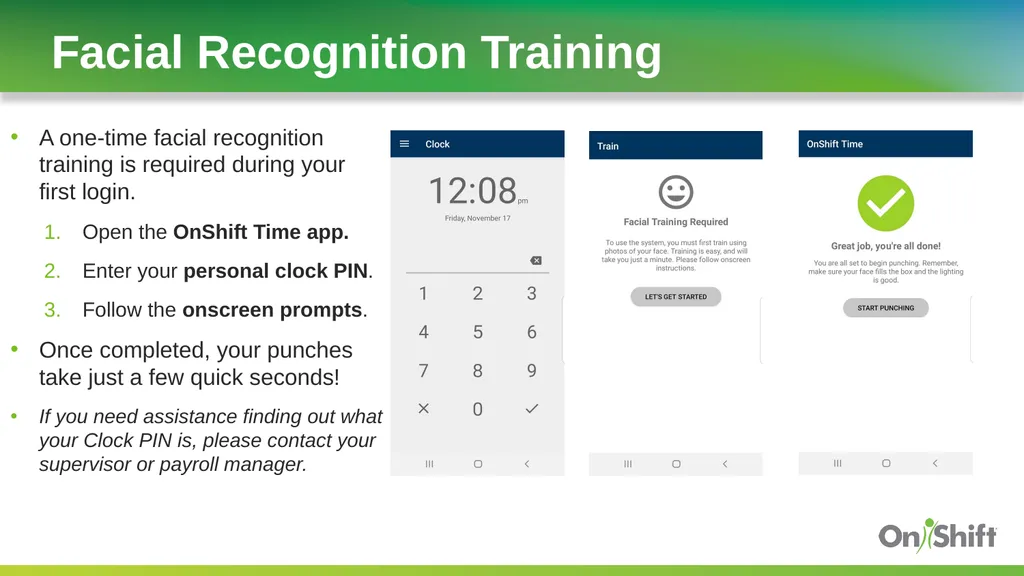
A one-time facial recognition training is required during your first login.
Open the OnShift Time app.
Enter your personal clock PIN.
Follow the onscreen prompts.
Once completed, your punches take just a few quick seconds!
If you need assistance finding out what your Clock PIN is, please contact your supervisor or payroll manager. Facial Recognition Training<br>
06
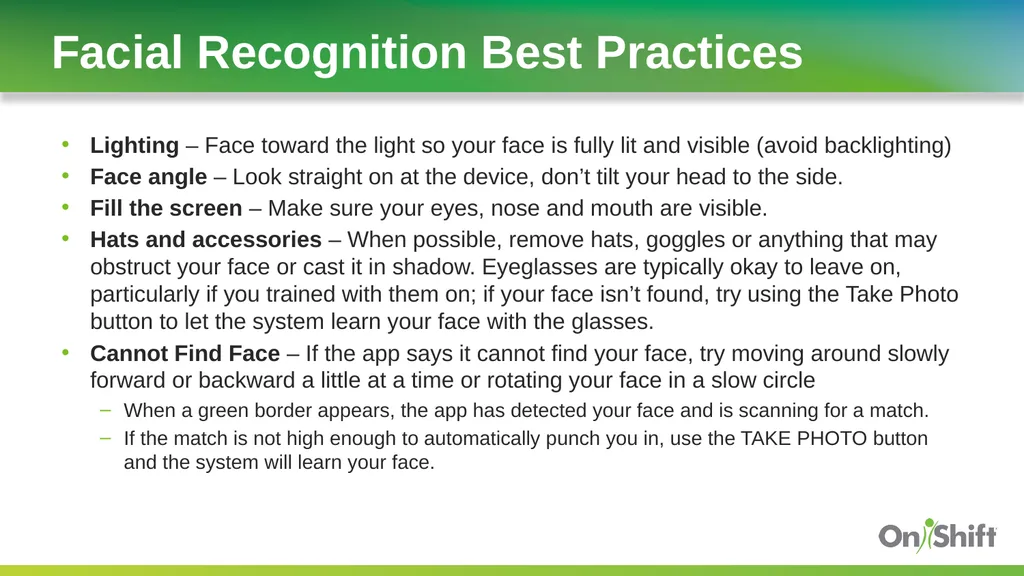
Lighting – Face toward the light so your face is fully lit and visible (avoid backlighting)
Face angle – Look straight on at the device, don’t tilt your head to the side.
Fill the screen – Make sure your eyes, nose and mouth are visible.
Hats and accessories – When possible, remove hats, goggles or anything that may obstruct your face or cast it in shadow. Eyeglasses are typically okay to leave on, particularly if you trained with them on; if your face isn’t found, try using the Take Photo button to let the system learn your face with the glasses.
Cannot Find Face – If the app says it cannot find your face, try moving around slowly forward or backward a little at a time or rotating your face in a slow circle
When a green border appears, the app has detected your face and is scanning for a match.
If the match is not high enough to automatically punch you in, use the TAKE PHOTO button and the system will learn your face. Facial Recognition Best Practices<br>
07
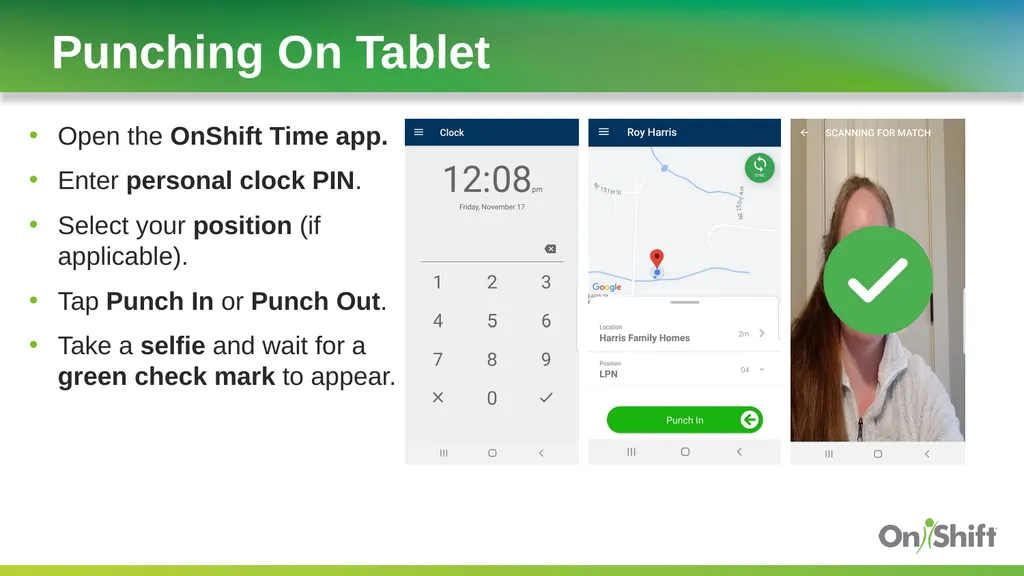
Open the OnShift Time app.
Enter personal clock PIN.
Select your position (if applicable).
Tap Punch In or Punch Out.
Take a selfie and wait for a green check mark to appear. Punching On Tablet<br>
08
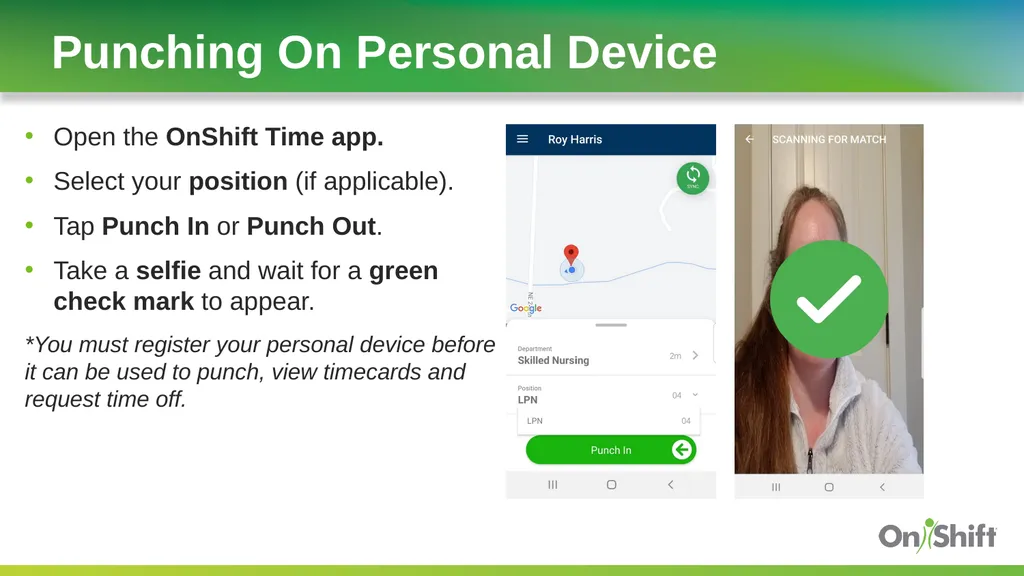
Open the OnShift Time app.
Select your position (if applicable).
Tap Punch In or Punch Out.
Take a selfie and wait for a green check mark to appear.
*You must register your personal device before it can be used to punch, view timecards and request time off. Punching On Personal Device<br>
09
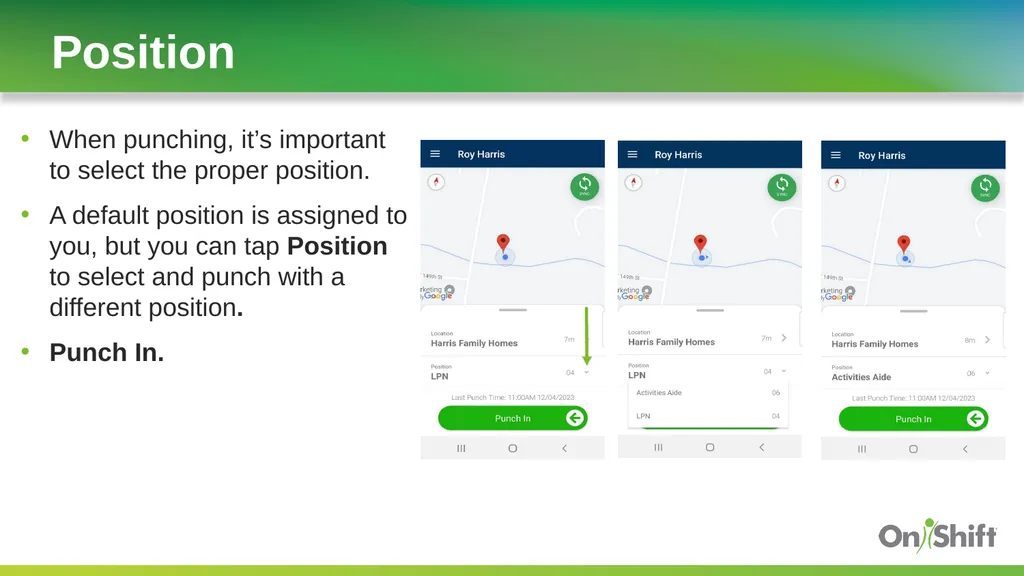
When punching, it’s important to select the proper position.
A default position is assigned to you, but you can tap Position to select and punch with a different position.
Punch In. Position<br>
10
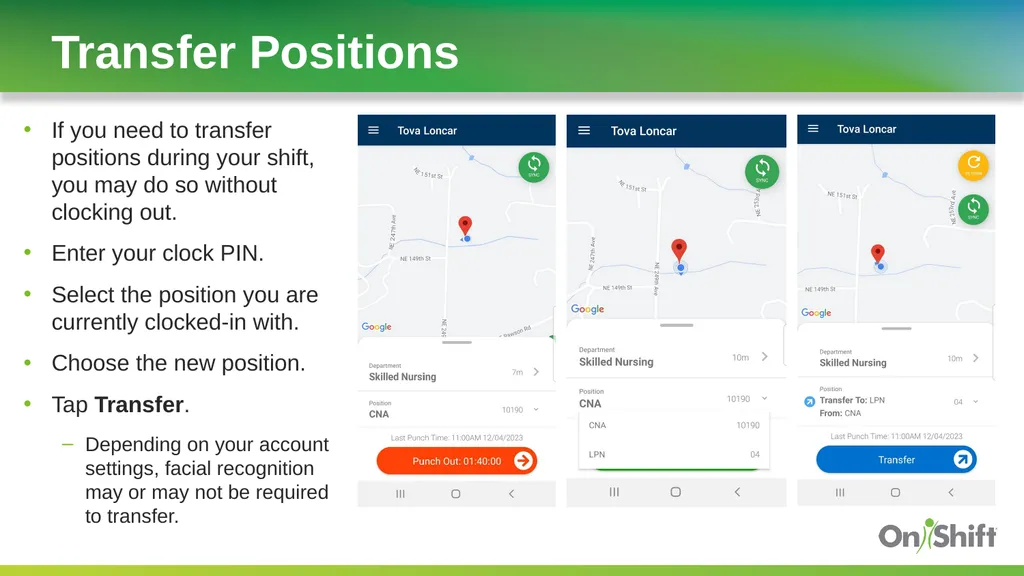
If you need to transfer positions during your shift, you may do so without clocking out.
Enter your clock PIN.
Select the position you are currently clocked-in with.
Choose the new position.
Tap Transfer.
Depending on your account settings, facial recognition may or may not be required to transfer. Transfer Positions<br>
11
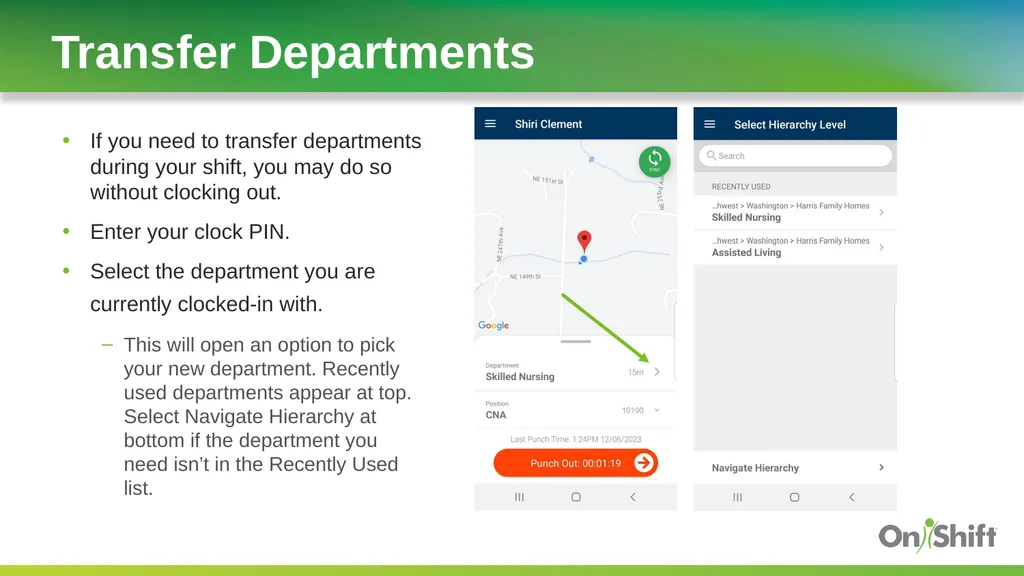
If you need to transfer departments during your shift, you may do so without clocking out.
Enter your clock PIN.
Select the department you are currently clocked-in with.
This will open an option to pick your new department. Recently used departments appear at top. Select Navigate Hierarchy at bottom if the department you need isn’t in the Recently Used list. Transfer Departments<br>
12
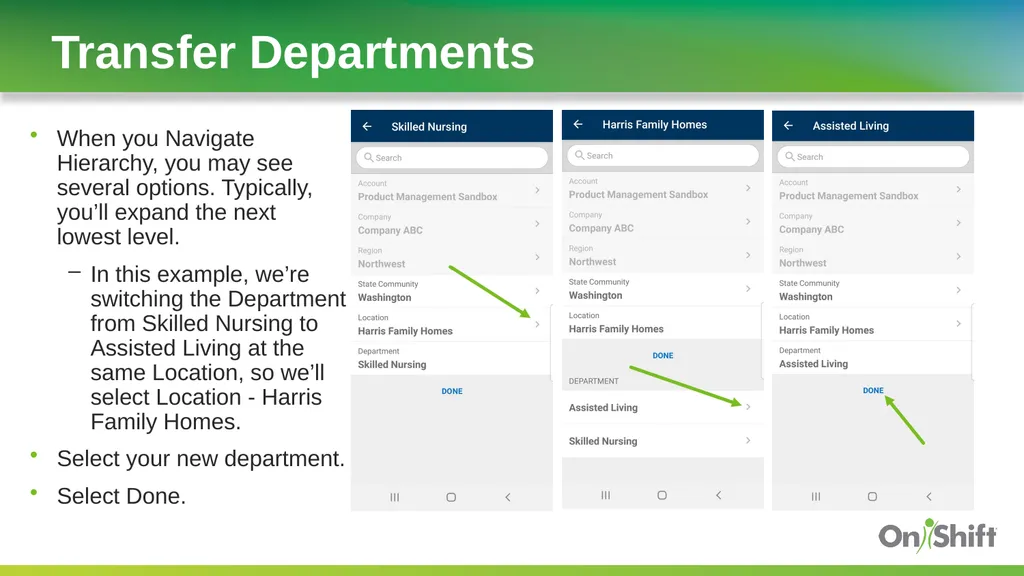
When you Navigate Hierarchy, you may see several options. Typically, you’ll expand the next lowest level.
In this example, we’re switching the Department from Skilled Nursing to Assisted Living at the same Location, so we’ll select Location - Harris Family Homes.
Select your new department.
Select Done. Transfer Departments<br>
13
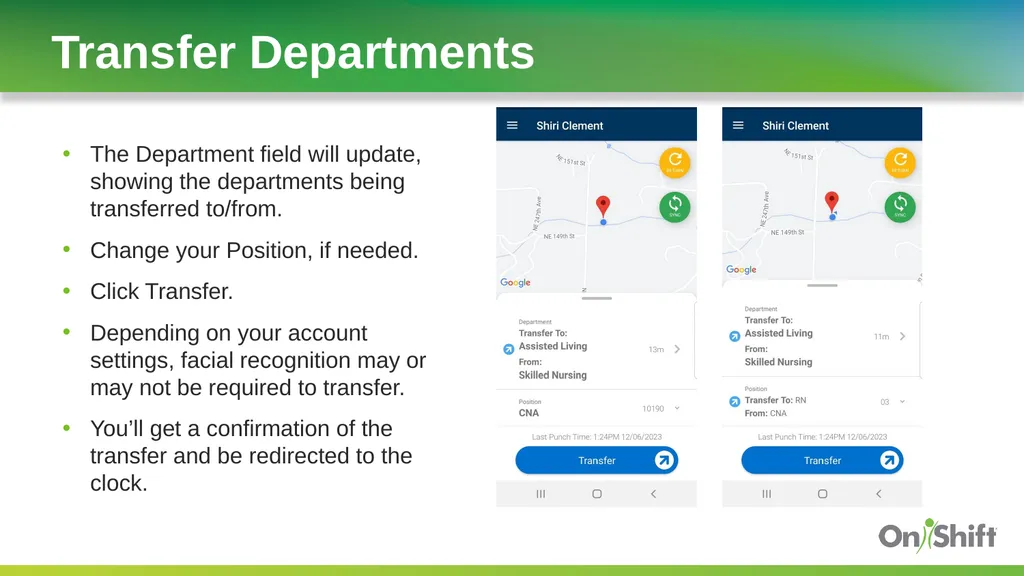
The Department field will update, showing the departments being transferred to/from.
Change your Position, if needed.
Click Transfer.
Depending on your account settings, facial recognition may or may not be required to transfer.
You’ll get a confirmation of the transfer and be redirected to the clock. Transfer Departments<br>
14
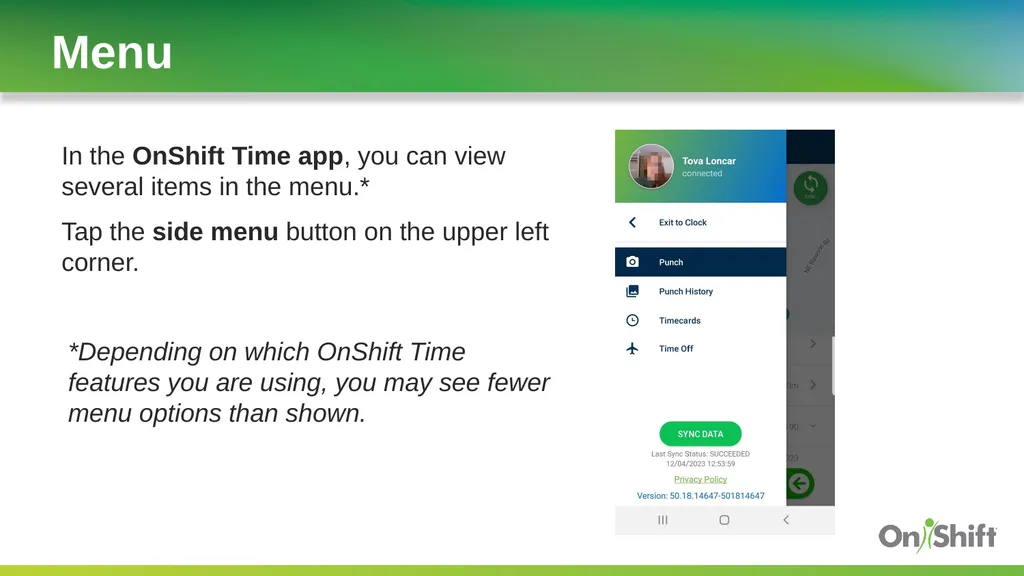
In the OnShift Time app, you can view several items in the menu.*
Tap the side menu button on the upper left corner.
*Depending on which OnShift Time features you are using, you may see fewer menu options than shown. Menu<br>
15
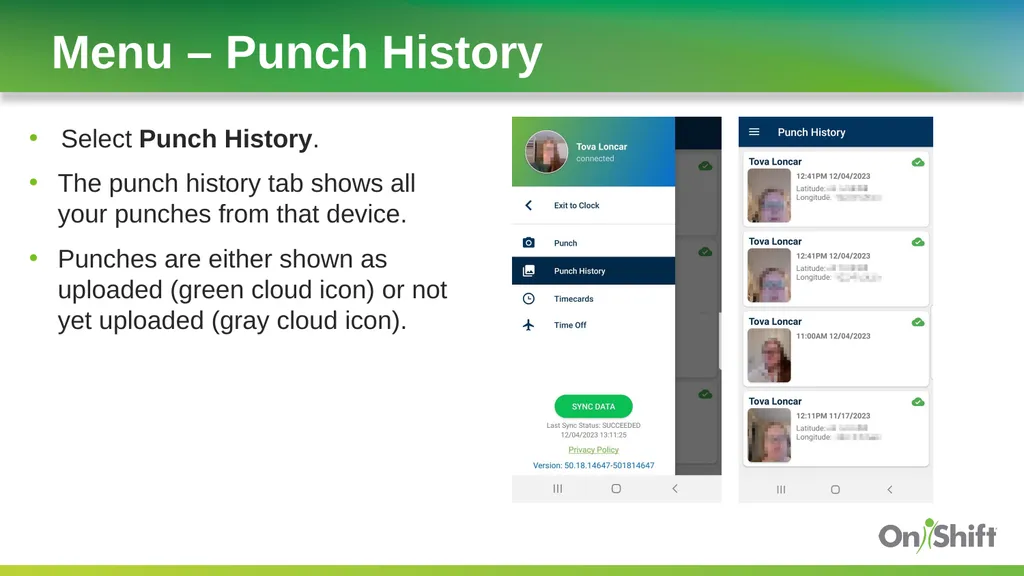
Select Punch History.
The punch history tab shows all your punches from that device.
Punches are either shown as uploaded (green cloud icon) or not yet uploaded (gray cloud icon). Menu – Punch History<br>
16
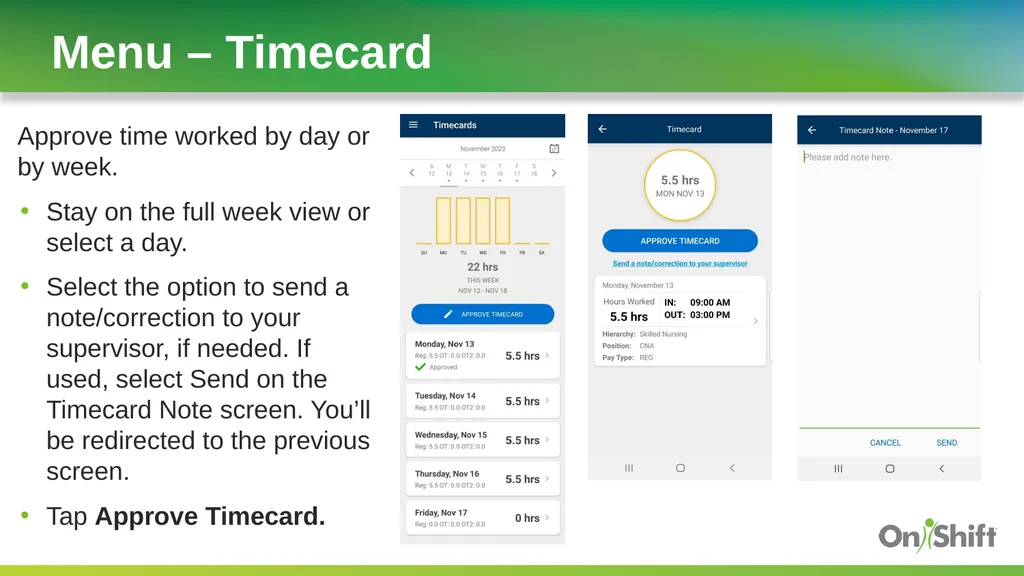
Approve time worked by day or by week.
Stay on the full week view or select a day.
Select the option to send a note/correction to your supervisor, if needed. If used, select Send on the Timecard Note screen. You’ll be redirected to the previous screen.
Tap Approve Timecard. Menu – Timecard<br>
17
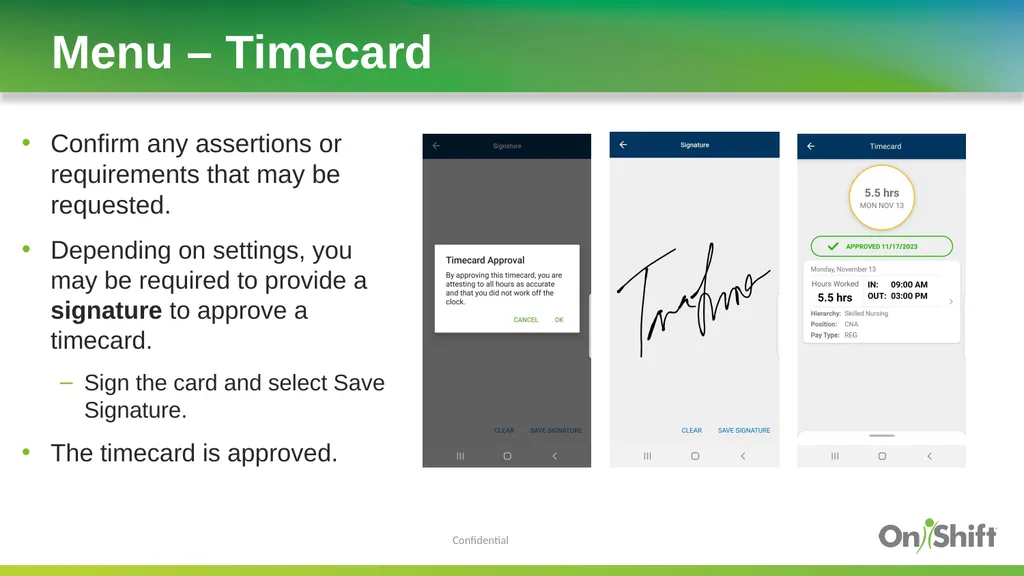
Confirm any assertions or requirements that may be requested.
Depending on settings, you may be required to provide a signature to approve a timecard.
Sign the card and select Save Signature.
The timecard is approved. Menu – Timecard Confidential<br>
18
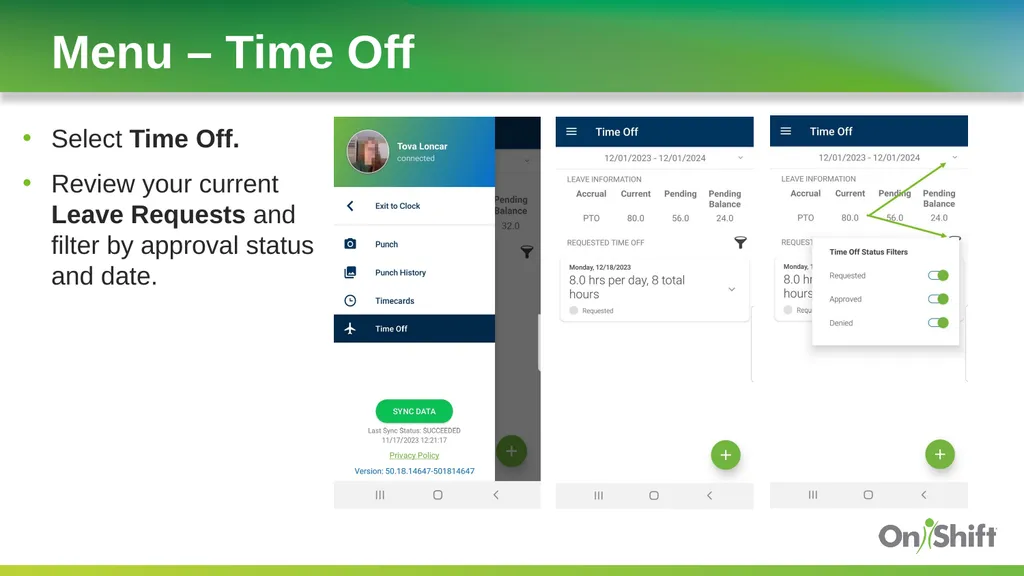
Select Time Off.
Review your current Leave Requests and filter by approval status and date. Menu – Time Off<br>
19
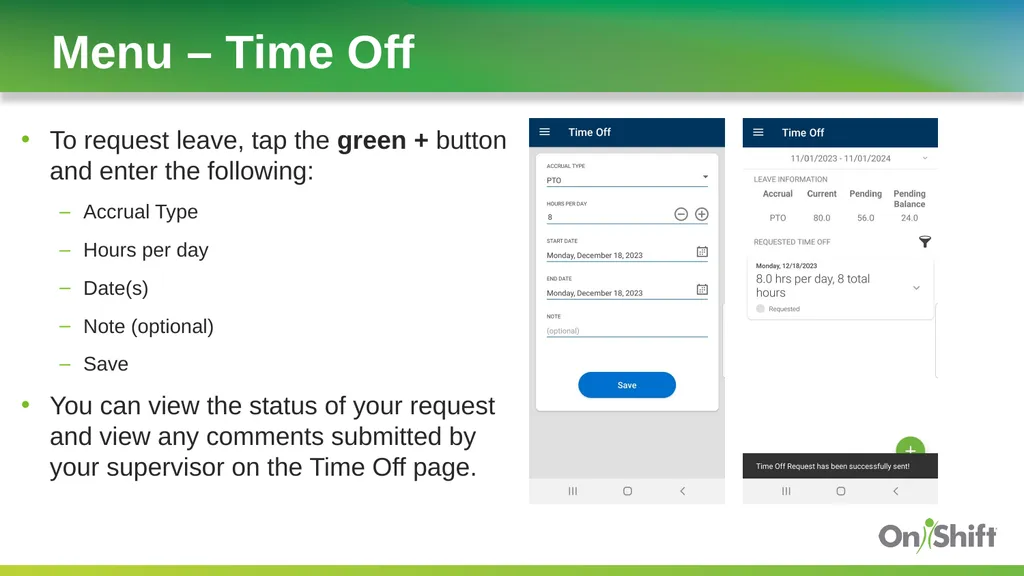
Menu – Time Off 19 To request leave, tap the green + button and enter the following:
Accrual Type
Hours per day
Date(s)
Note (optional)
Save
You can view the status of your request and view any comments submitted by your supervisor on the Time Off page.<br>