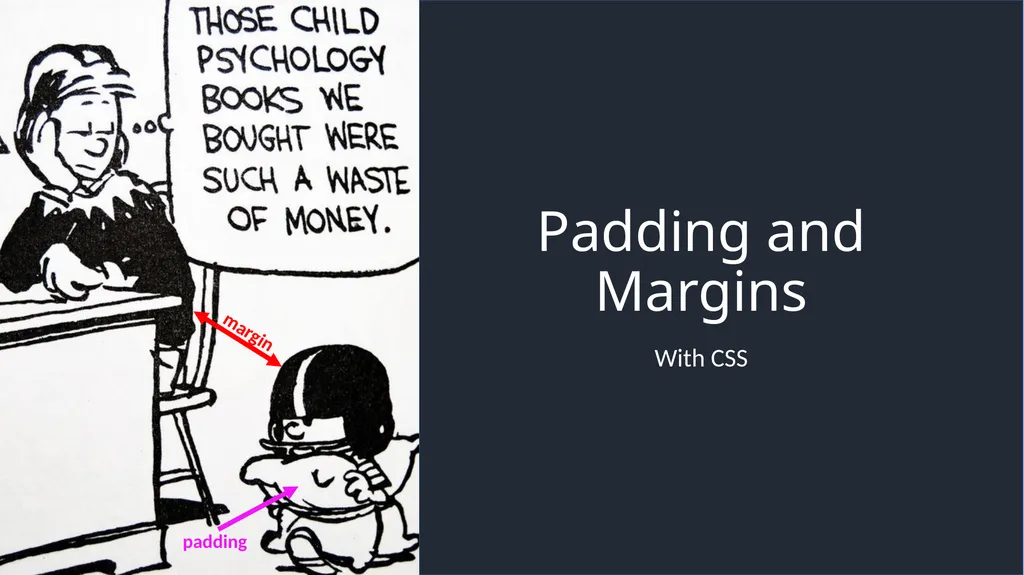
Padding and Margins With CSS padding margin
Description: Padding and Margins With CSS padding margin Padding: Inside the border Example (without padding): The space between an element and its border. Example (padding): You can also add padding to one side: h1 border: 8px solid navy; color:
Related Topics
Download Presentation
"Padding and Margins With CSS padding margin" is the property of its rightful owner. Permission is granted to download and print the materials on this website for personal, non-commercial use only, and to display it on your personal computer provided you do not modify the materials and that you retain all copyright notices contained in the materials. By downloading content from our website, you accept the terms of this agreement.
Presentation Transcript
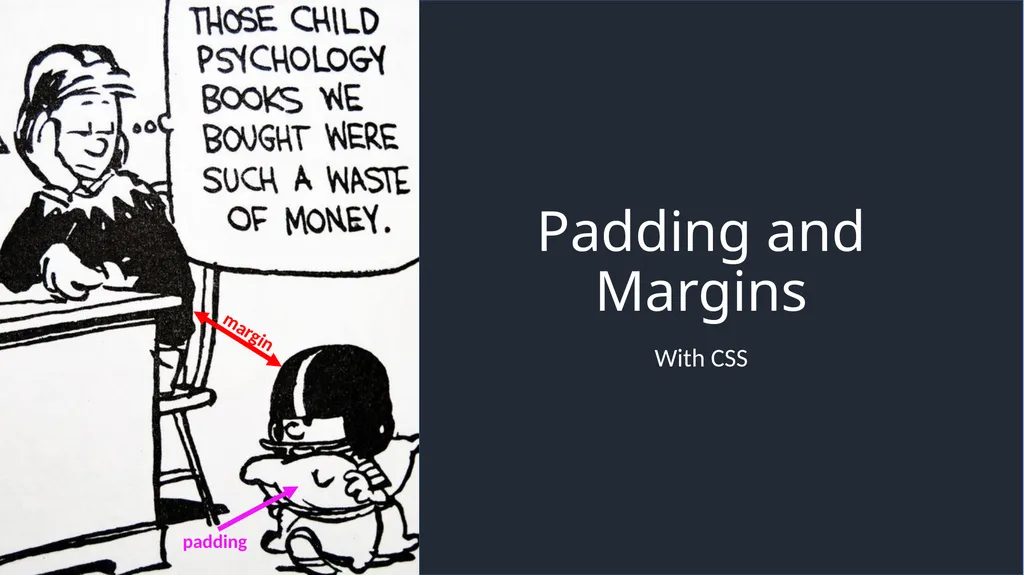
slide1. Padding and Margins With CSS padding margin<br>
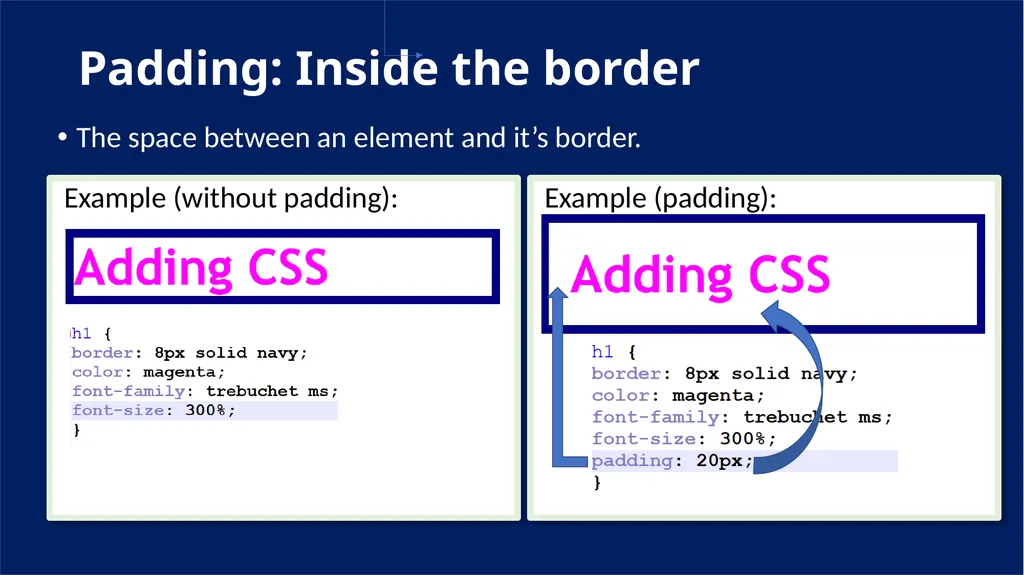
slide2. Padding: Inside the border Example (without padding): The space between an element and it’s border. Example (padding):<br>
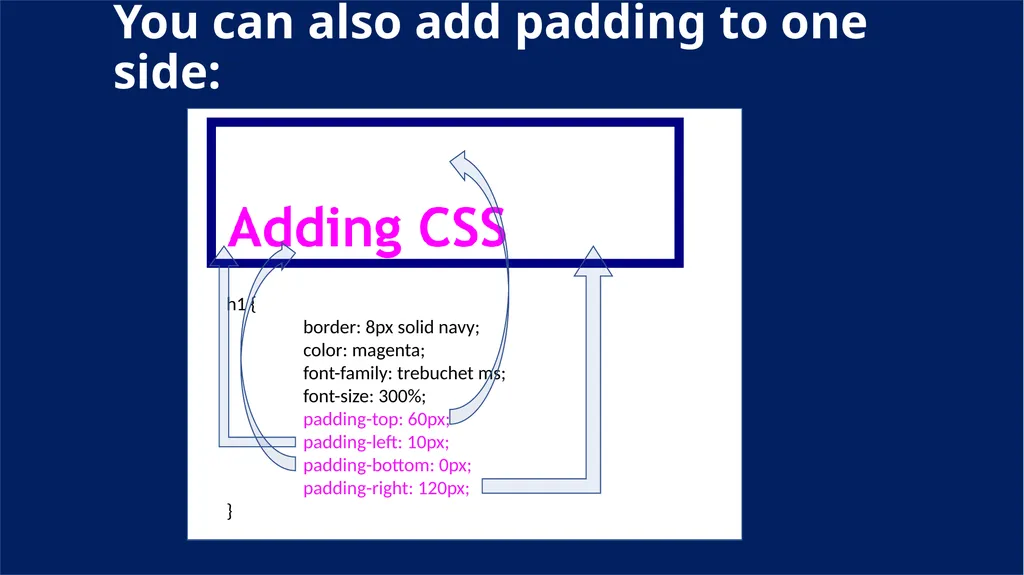
slide3. You can also add padding to one side: h1 {
border: 8px solid navy;
color: magenta;
font-family: trebuchet ms;
font-size: 300%;
padding-top: 60px;
padding-left: 10px;
padding-bottom: 0px;
padding-right: 120px;
}<br>
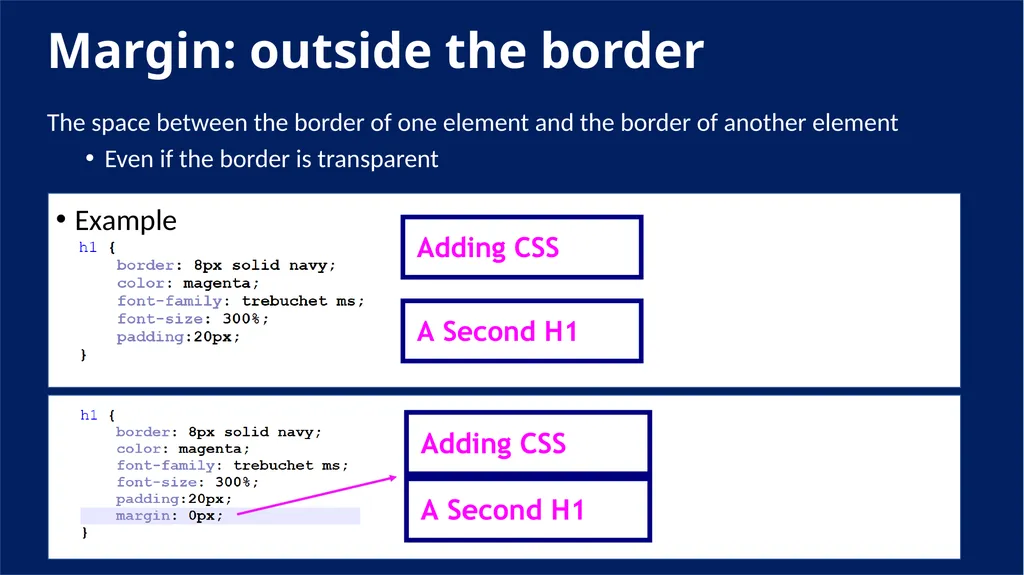
slide4. Margin: outside the border The space between the border of one element and the border of another element
Even if the border is transparent Example<br>
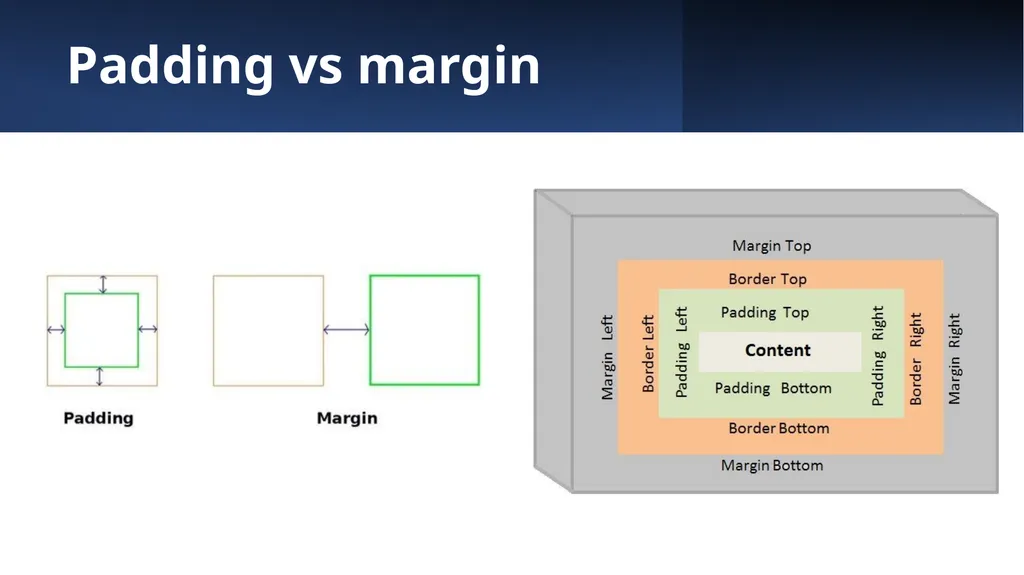
slide5. Padding vs margin<br>
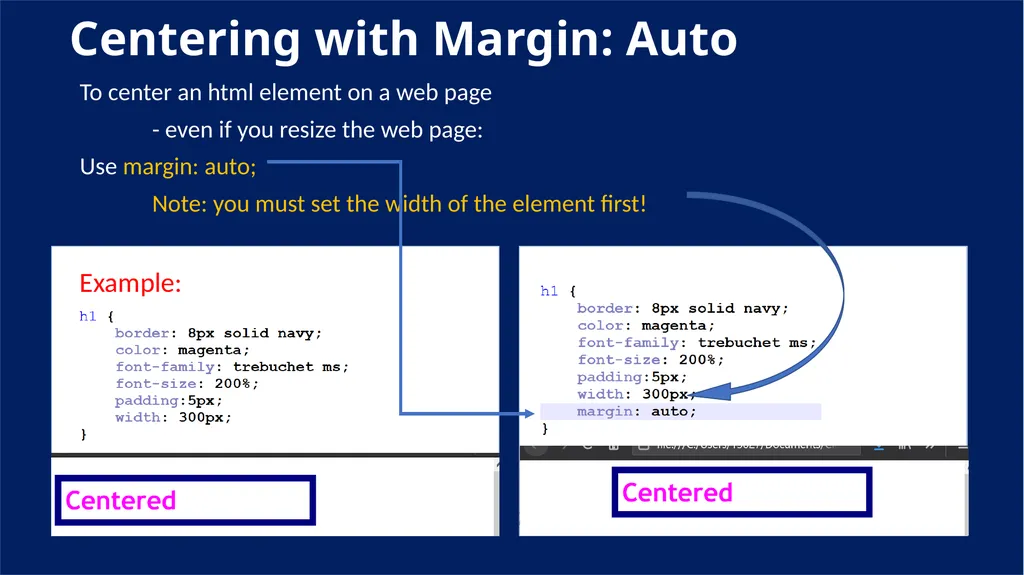
slide6. Centering with Margin: Auto To center an html element on a web page
- even if you resize the web page:
Use margin: auto;
Note: you must set the width of the element first!
Example:<br>
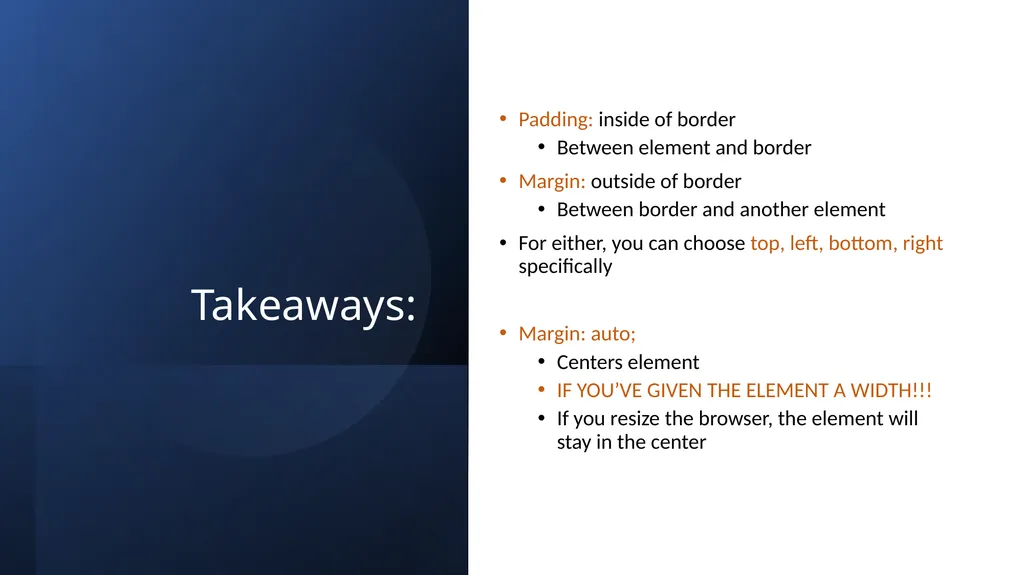
slide7. Takeaways: Padding: inside of border
Between element and border
Margin: outside of border
Between border and another element
For either, you can choose top, left, bottom, right specifically
Margin: auto;
Centers element
IF YOU’VE GIVEN THE ELEMENT A WIDTH!!!
If you resize the browser, the element will stay in the center<br>
slide2. Padding: Inside the border Example (without padding): The space between an element and it’s border. Example (padding):<br>
slide3. You can also add padding to one side: h1 {
border: 8px solid navy;
color: magenta;
font-family: trebuchet ms;
font-size: 300%;
padding-top: 60px;
padding-left: 10px;
padding-bottom: 0px;
padding-right: 120px;
}<br>
slide4. Margin: outside the border The space between the border of one element and the border of another element
Even if the border is transparent Example<br>
slide5. Padding vs margin<br>
slide6. Centering with Margin: Auto To center an html element on a web page
- even if you resize the web page:
Use margin: auto;
Note: you must set the width of the element first!
Example:<br>
slide7. Takeaways: Padding: inside of border
Between element and border
Margin: outside of border
Between border and another element
For either, you can choose top, left, bottom, right specifically
Margin: auto;
Centers element
IF YOU’VE GIVEN THE ELEMENT A WIDTH!!!
If you resize the browser, the element will stay in the center<br>