PMI Community Webinar Program Speaker PowerPoint Template This template is for use by those who want to contribute a webinar for the Community. Use this template to create your presentation first, then upload with your webinar submission.
"PMI Community Webinar Program Speaker PowerPoint" is the property of its rightful owner. Permission is granted to
download and print the materials on this website for personal, non-commercial use only, and to display it
on your personal computer provided you do not modify the materials and that you retain all copyright
notices contained in the materials. By downloading content from our website, you accept the terms of this
agreement.
Presentation Transcript
01
PMI Community Webinar Program
Speaker PowerPoint Template This template is for use by those who want to contribute a webinar for the Community.
Use this template to create your presentation first, then upload with your webinar submission. Presenter please read!<br>
02
Your presentation should be no longer than 45 minutes and will be followed up with a Q/A portion to round out the hour.
Provide 5 questions in advance to start the Q/A session.
Make sure your presentation is free of promotional materials; this includes your company’s logo and any mention of services or products for sale.
Incorporate interactive elements, like polls
Keep embedded videos to a minimum for bandwidth issues
If you would like a variety of slide types, right click on a slide to show the template menu. Choose new template. Presenter please read!<br>
03
7. Ensure your slides are accessible to all participants, including those with visual impairments, by following accessibility guidelines
When designing your slides, keep them visually appealing and easy to follow.
Limit the amount of text on each slide
Use an easy-to-read font face (Arial is good)
Use sufficient contrast between colors (“luminance contrast”)
Refrain from motion or animation
8. If you plan to reference or cite materials that are not your original work, please reference it on the slide or in a summary slide using APA as a style guide. Presenter please read!<br>
04
Insert presentation title here Speaker(s) Name
Speaker(s) Job Title & Company Month Year<br>
05
Insert presentation title here Speaker(s) Name
Speaker(s) Job Title & Company Month Year<br>
06
Insert presentation title here Speaker(s) Name
Speaker(s) Job Title & Company Month Year<br>
07
Insert presentation title here Speaker(s) Name
Speaker(s) Job Title & Company Month Year<br>
08
Divider slide title, sentence case 60pt Subtitle, sentence case 24pt<br>
09
Divider slide
title, sentence
case 60pt Subtitle, sentence case 24pt<br>
10
Divider slide
title, sentence
case 60pt Subtitle, sentence case 24pt<br>
11
Divider slide
title, sentence
case 60pt Subtitle, sentence case 24pt<br>
12
Divider slide
title, sentence
case 60pt Subtitle, sentence case 24pt<br>
13
Divider slide
title, sentence
case 60pt Subtitle, sentence case 24pt<br>
14
Agenda slide Optional subtitle, sentence case 20pt Agenda topic goes here Agenda topic goes here Agenda topic goes here Agenda topic goes here Agenda topic goes here Agenda topic goes here Section 1 Section 2 Section 3 Section 4 Section 5 Section 6<br>
15
Agenda slide Optional subtitle, sentence case 20pt Agenda topic goes here Agenda topic goes here Agenda topic goes here Agenda topic goes here Agenda topic goes here Agenda topic goes here Section 1 Section 2 Section 3 Section 4 Section 5 Section 6<br>
16
Agenda slide Optional subtitle, sentence case 20pt Agenda topic goes here Agenda topic goes here Agenda topic goes here Agenda topic goes here Agenda topic goes here Agenda topic goes here Section 1 Section 2 Section 3 Section 4 Section 5 Section 6<br>
17
I am enough of an artist to draw freely upon my imagination. Imagination is more important than knowledge. Knowledge is limited. Imagination encircles the world.” Albert Einstein “<br>
18
Albert Einstein “ “I am enough of an artist to draw freely upon my imagination. Imagination is more important than knowledge. Knowledge is limited. Imagination encircles the world.”<br>
19
To add a footer: Insert tab > Header & Footer > Select Footer > Apply Optional subtitle, sentence case 20pt 2 Column text This is what the first list level formatting looks like. To add a bullet, hit return to move the text to a new line, highlight the text and hit tab on your keyboard. Keep hitting tab to go to the next level bullet. To go back a level, hit shift + tab. This method applies to every text box placeholder in your document.
This is what the first list level bullet looks like.
This is what the second list level bullet looks like.
This is what the third list level bullet looks like.
This is what the fourth list level bullet looks like. This is what the first list level formatting looks like. To add a bullet, hit return to move the text to a new line, highlight the text and hit tab on your keyboard. Keep hitting tab to go to the next level bullet. To go back a level, hit shift + tab. This method applies to every text box placeholder in your document.
This is what the first list level bullet looks like.
This is what the second list level bullet looks like.
This is what the third list level bullet looks like.
This is what the fourth list level bullet looks like.<br>
20
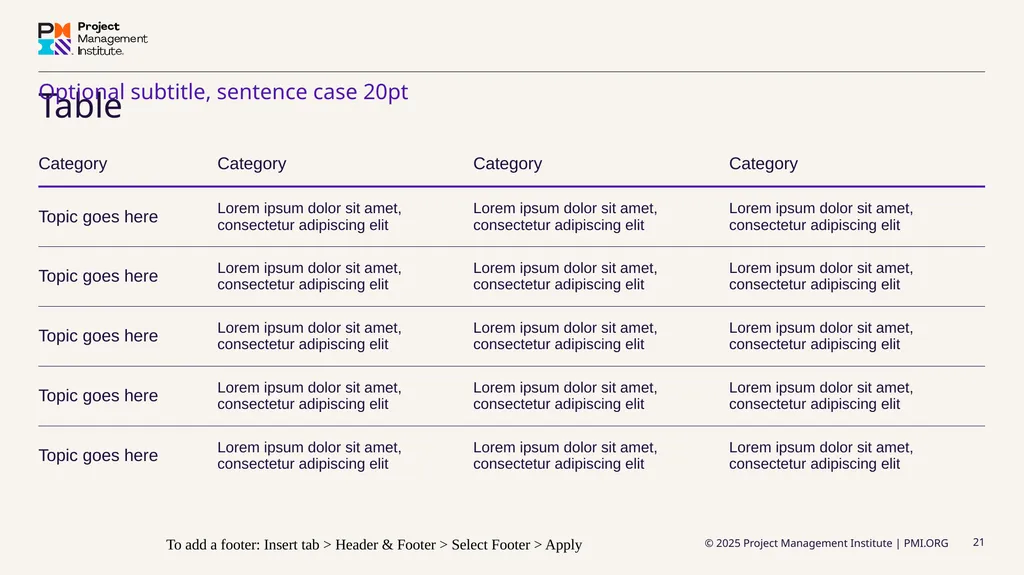
Table To add a footer: Insert tab > Header & Footer > Select Footer > Apply Optional subtitle, sentence case 20pt<br>