
Portfolio Manager 201: Editing Property Details,
CP
Published · 64 slides · 0 views

1 / 1
Description
Portfolio Manager 201: Editing Property Details, Data Quality Checker, and Sharing Property Data 2 In this session, you will learn about EPAs ENERGY STAR Portfolio Manager tool and how to: Edit property data Change property use details Use
Related Topics
Share
Embed code
Download this presentation From Below
"Portfolio Manager 201: Editing Property Details," is the property of its rightful owner. Permission is granted to download and print the materials on this website for personal, non-commercial use only, and to display it on your personal computer provided you do not modify the materials and that you retain all copyright notices contained in the materials. By downloading content from our website, you accept the terms of this agreement.
Presentation Transcript
01
Portfolio Manager 201: Editing Property Details, Data Quality Checker, and Sharing Property Data<br>
02
2 In this session, you will learn about EPA’s ENERGY STAR Portfolio Manager tool and how to:
Edit property data
Change property use details
Use the Data Quality Checker
Share property data Learning Objectives<br>
Edit property data
Change property use details
Use the Data Quality Checker
Share property data Learning Objectives<br>
03
3 If you’re brand new to using Portfolio Manager, these resources are a good place to start:
Portfolio Manager 101 webinar
Portfolio Manager Quick Start Guide Portfolio Manager 101<br>
Portfolio Manager 101 webinar
Portfolio Manager Quick Start Guide Portfolio Manager 101<br>
04
4 Edit property data
Change property use details
Use the Data Quality Checker
Share property data How To<br>
Change property use details
Use the Data Quality Checker
Share property data How To<br>
05
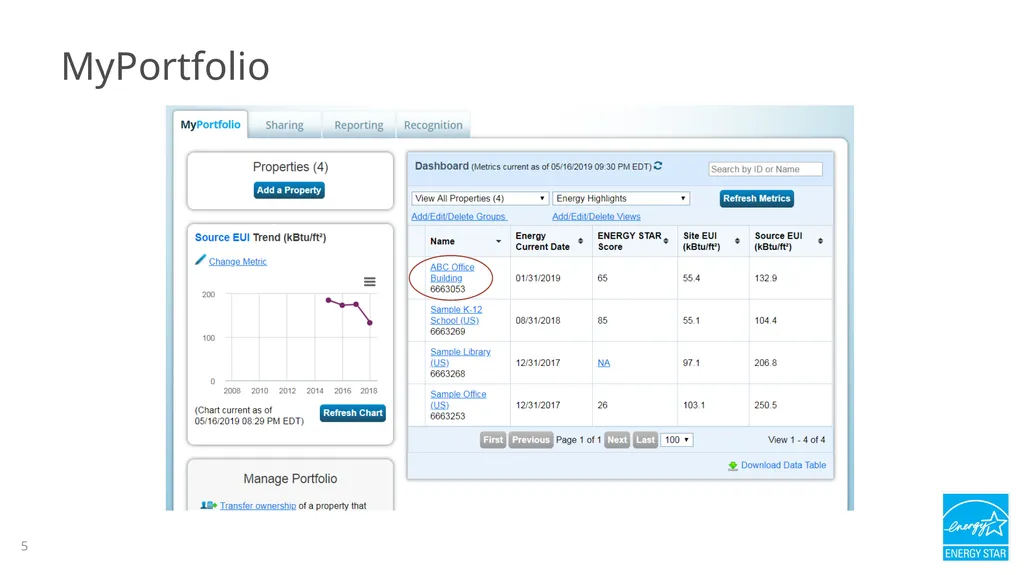
MyPortfolio 5<br>
06
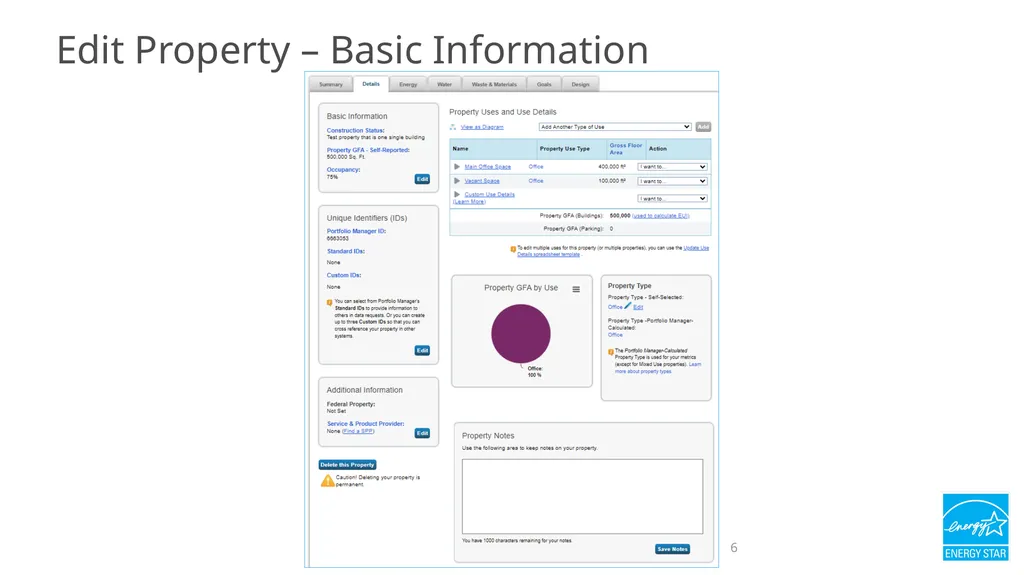
Edit Property – Basic Information 6<br>
07
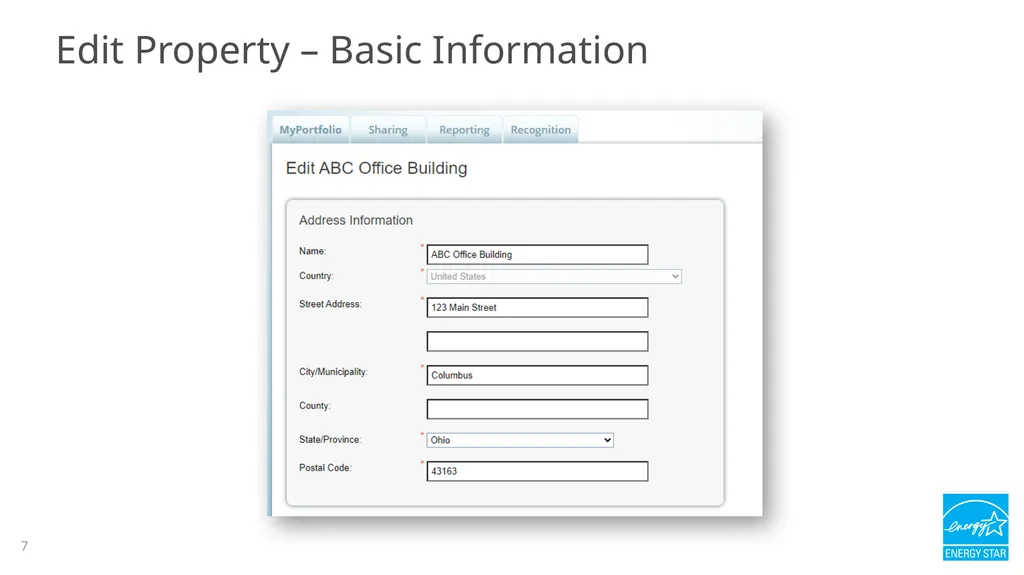
Edit Property – Basic Information 7<br>
08
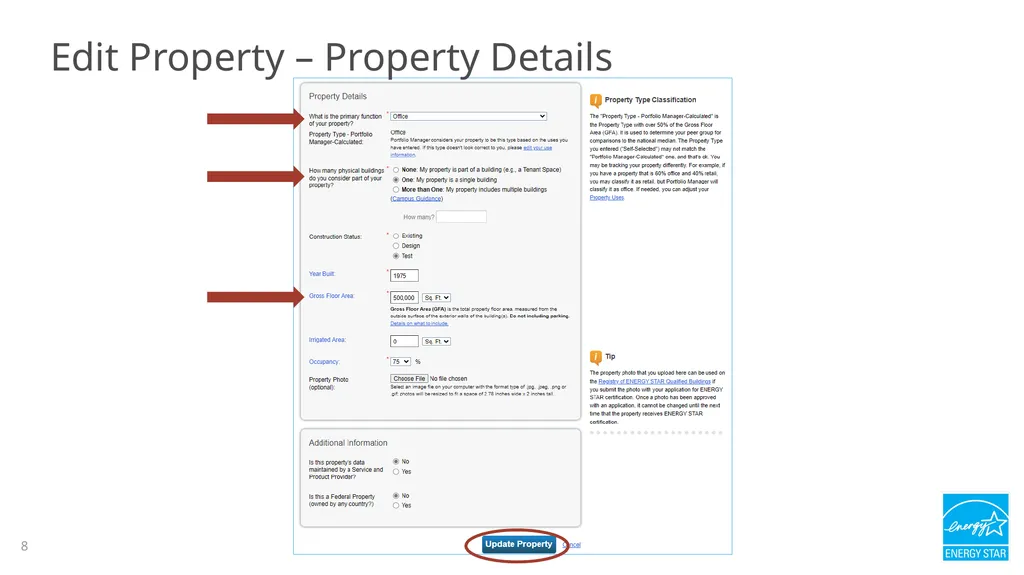
Edit Property – Property Details 8<br>
09
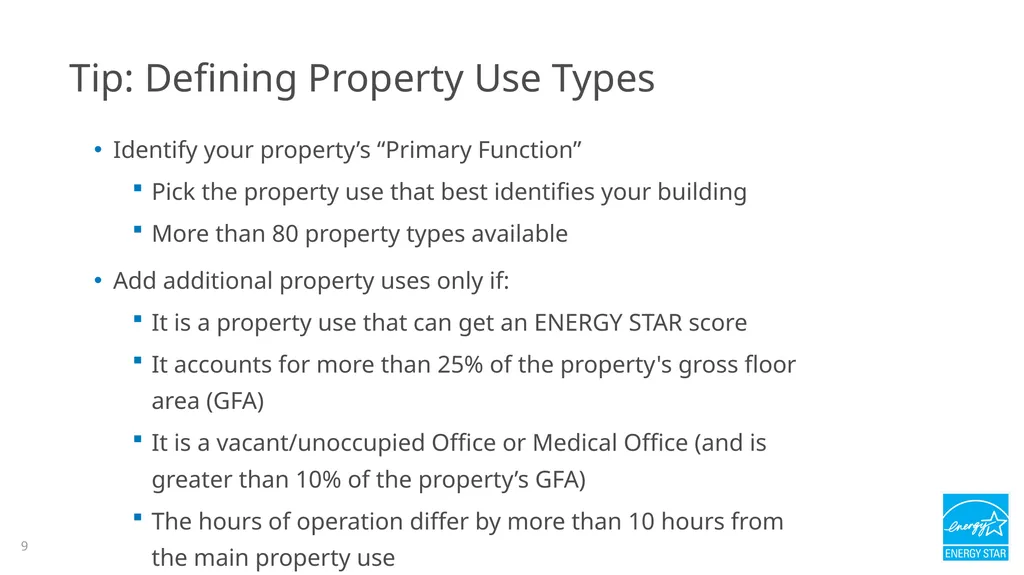
Tip: Defining Property Use Types Identify your property’s “Primary Function”
Pick the property use that best identifies your building
More than 80 property types available
Add additional property uses only if:
It is a property use that can get an ENERGY STAR score
It accounts for more than 25% of the property's gross floor area (GFA)
It is a vacant/unoccupied Office or Medical Office (and is greater than 10% of the property’s GFA)
The hours of operation differ by more than 10 hours from the main property use 9<br>
Pick the property use that best identifies your building
More than 80 property types available
Add additional property uses only if:
It is a property use that can get an ENERGY STAR score
It accounts for more than 25% of the property's gross floor area (GFA)
It is a vacant/unoccupied Office or Medical Office (and is greater than 10% of the property’s GFA)
The hours of operation differ by more than 10 hours from the main property use 9<br>
10
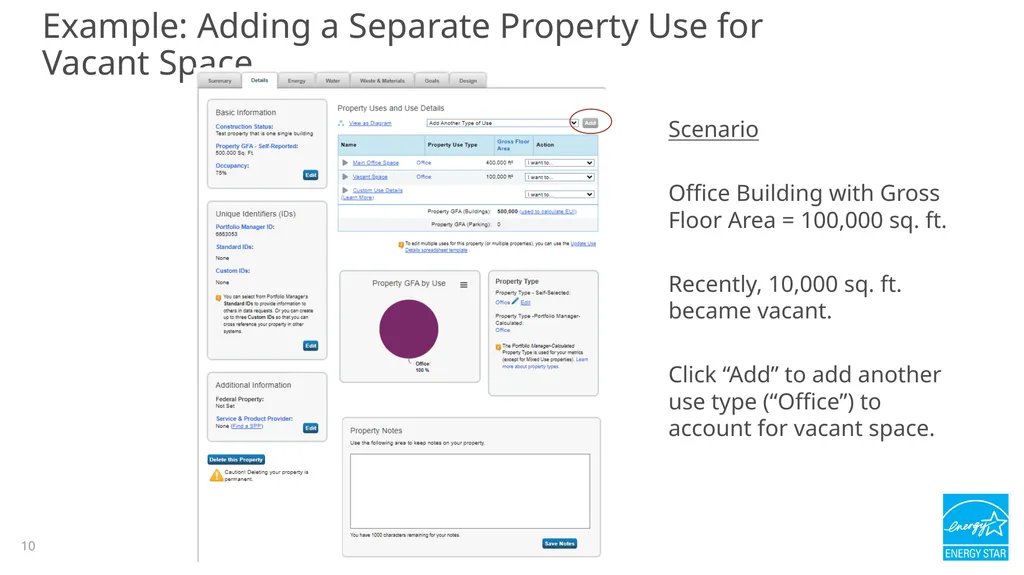
Example: Adding a Separate Property Use for Vacant Space Scenario
Office Building with Gross Floor Area = 100,000 sq. ft.
Recently, 10,000 sq. ft. became vacant.
Click “Add” to add another use type (“Office”) to account for vacant space. 10<br>
Office Building with Gross Floor Area = 100,000 sq. ft.
Recently, 10,000 sq. ft. became vacant.
Click “Add” to add another use type (“Office”) to account for vacant space. 10<br>
11
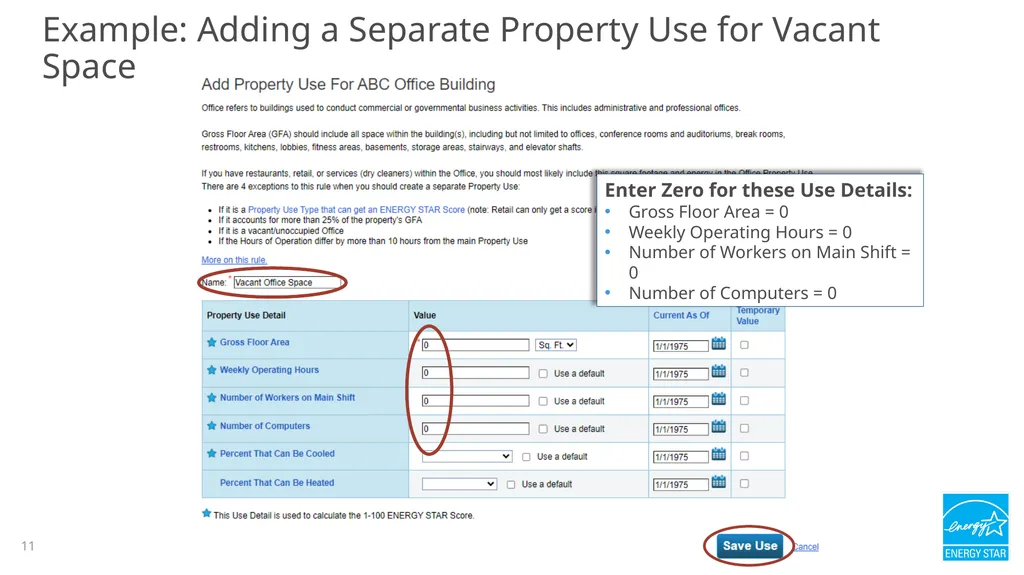
11 Example: Adding a Separate Property Use for Vacant Space Enter Zero for these Use Details:
Gross Floor Area = 0
Weekly Operating Hours = 0
Number of Workers on Main Shift = 0
Number of Computers = 0 11<br>
Gross Floor Area = 0
Weekly Operating Hours = 0
Number of Workers on Main Shift = 0
Number of Computers = 0 11<br>
12
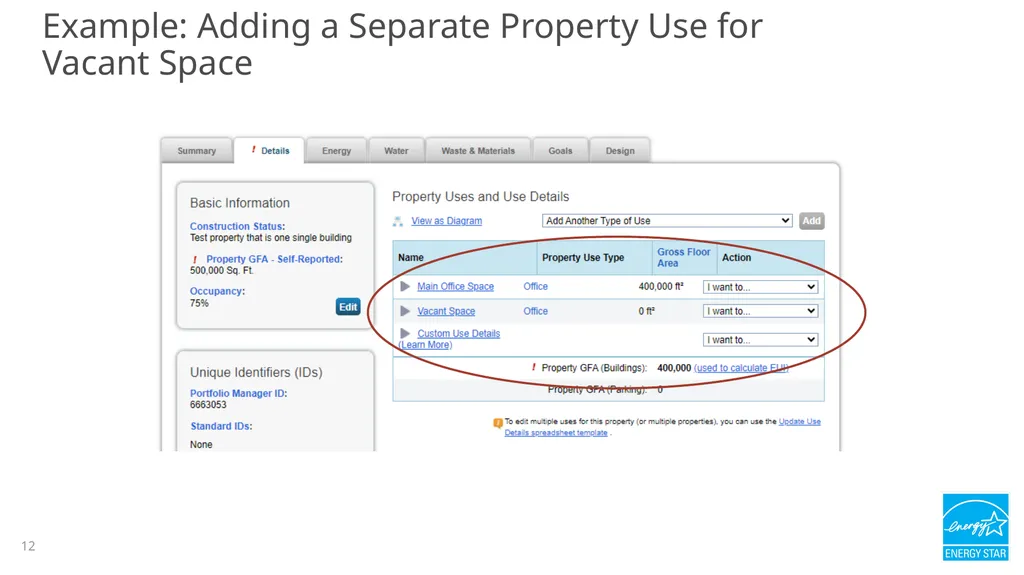
Example: Adding a Separate Property Use for Vacant Space 12<br>
13
13 Edit property data
Change property use details
Use the Data Quality Checker
Share property data How To<br>
Change property use details
Use the Data Quality Checker
Share property data How To<br>
14
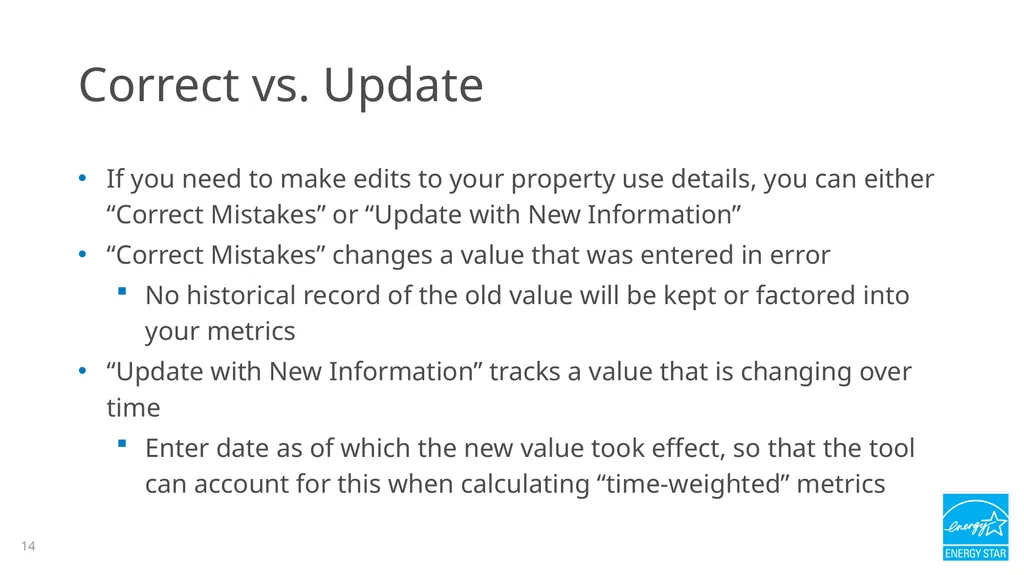
Correct vs. Update If you need to make edits to your property use details, you can either “Correct Mistakes” or “Update with New Information”
“Correct Mistakes” changes a value that was entered in error
No historical record of the old value will be kept or factored into your metrics
“Update with New Information” tracks a value that is changing over time
Enter date as of which the new value took effect, so that the tool can account for this when calculating “time-weighted” metrics 14<br>
“Correct Mistakes” changes a value that was entered in error
No historical record of the old value will be kept or factored into your metrics
“Update with New Information” tracks a value that is changing over time
Enter date as of which the new value took effect, so that the tool can account for this when calculating “time-weighted” metrics 14<br>
15
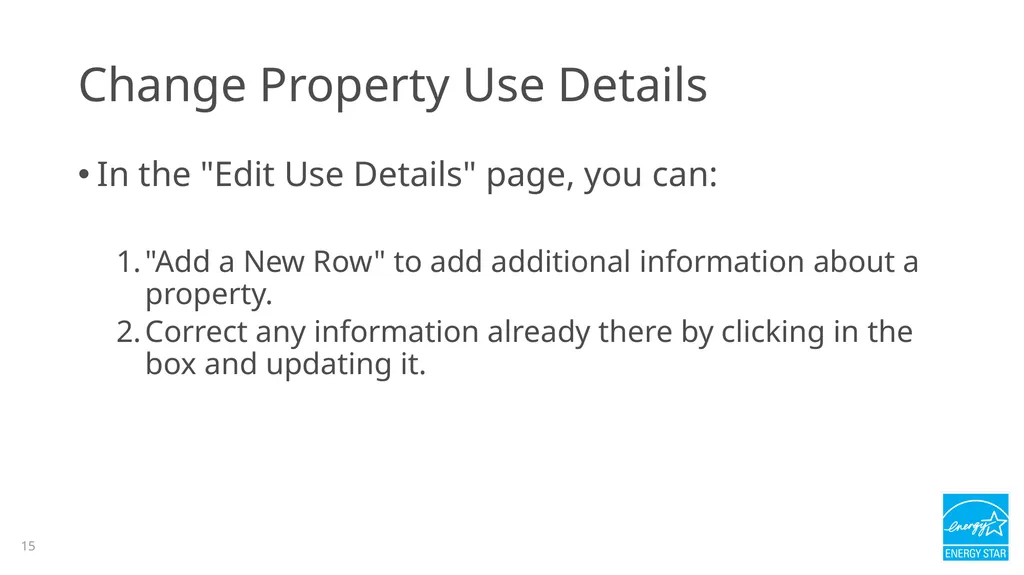
Change Property Use Details In the "Edit Use Details" page, you can:
"Add a New Row" to add additional information about a property.
Correct any information already there by clicking in the box and updating it. 15<br>
"Add a New Row" to add additional information about a property.
Correct any information already there by clicking in the box and updating it. 15<br>
16
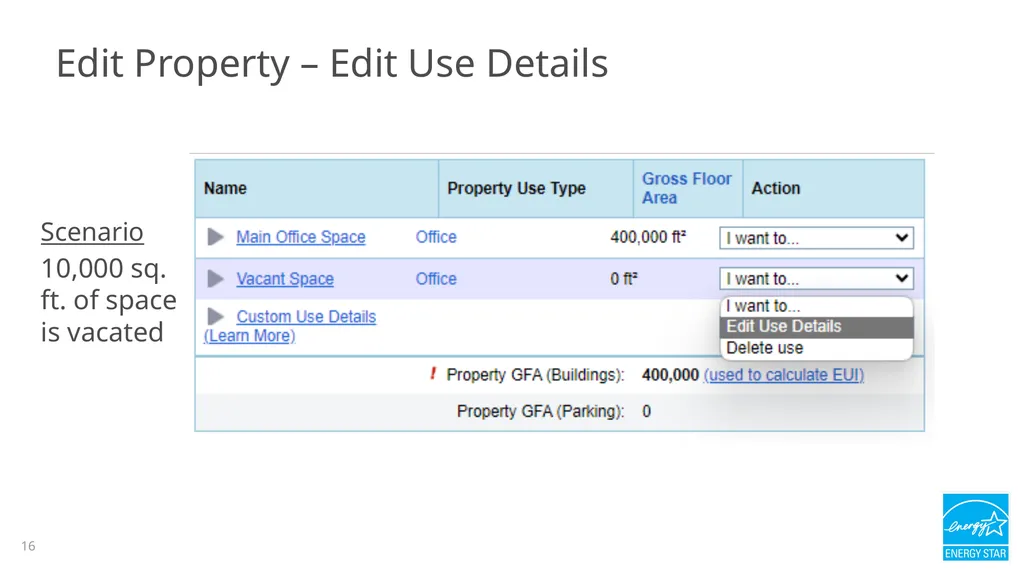
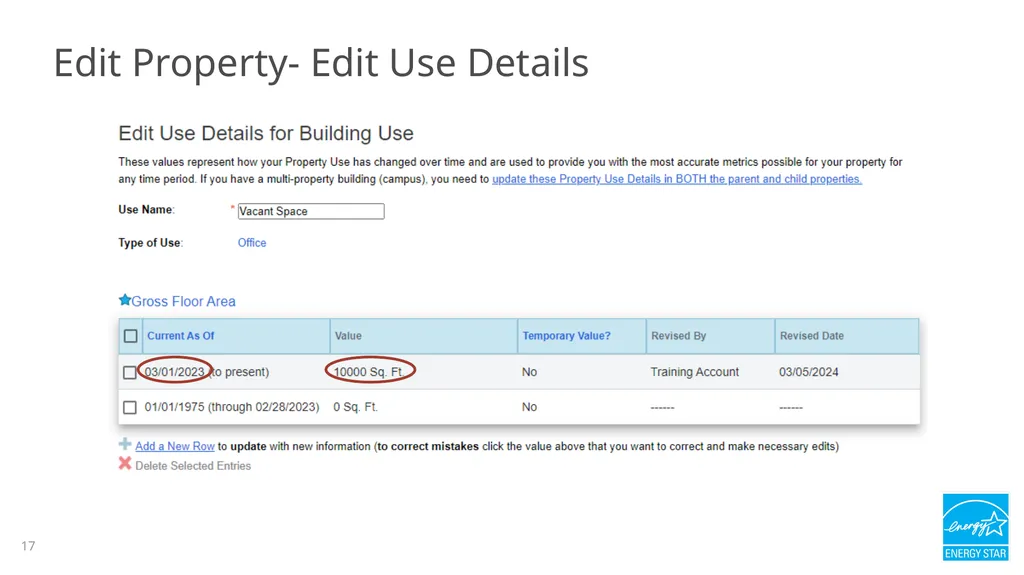
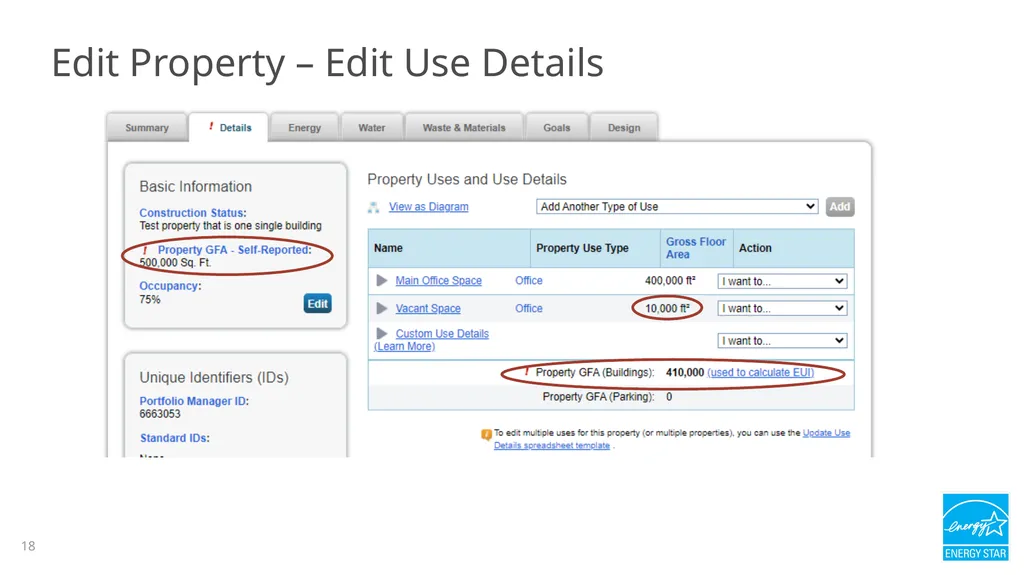
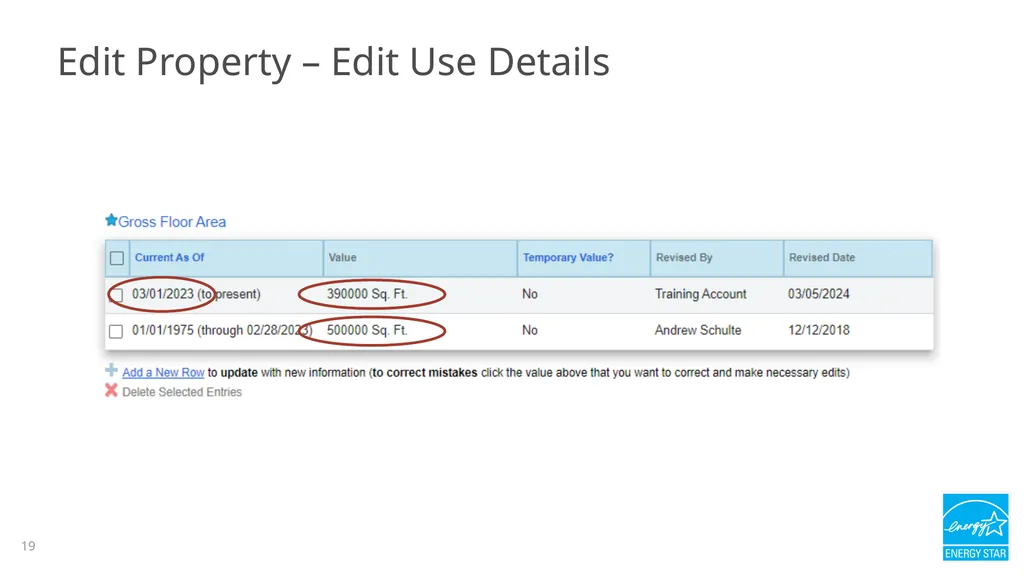
Scenario
10,000 sq. ft. of space is vacated Edit Property – Edit Use Details 16<br>
10,000 sq. ft. of space is vacated Edit Property – Edit Use Details 16<br>
17
Edit Property- Edit Use Details 17<br>
18
Edit Property – Edit Use Details 18<br>
19
Edit Property – Edit Use Details 19<br>
20
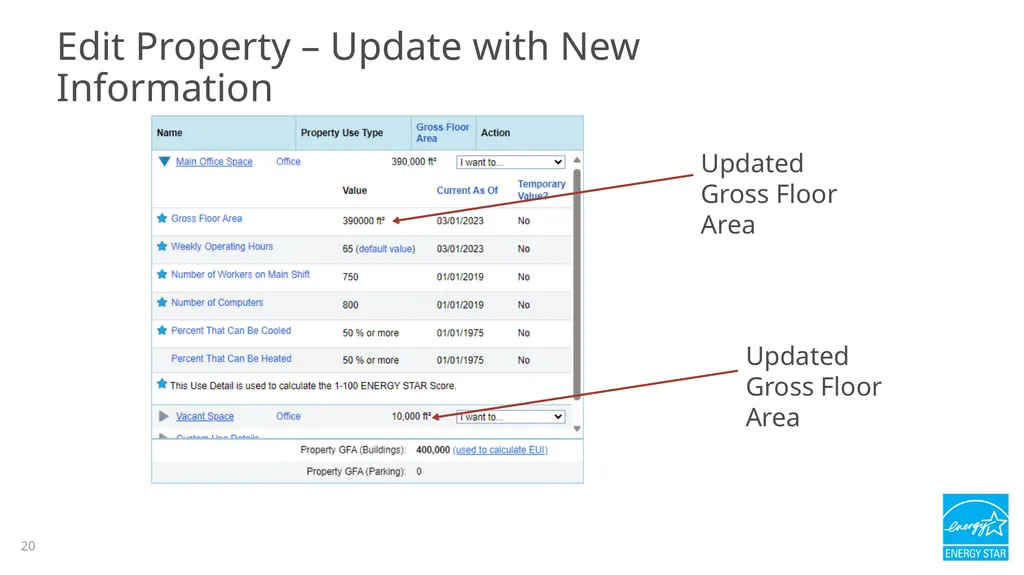
Edit Property – Update with New Information Updated
Gross Floor Area Updated
Gross Floor Area 20<br>
Gross Floor Area Updated
Gross Floor Area 20<br>
21
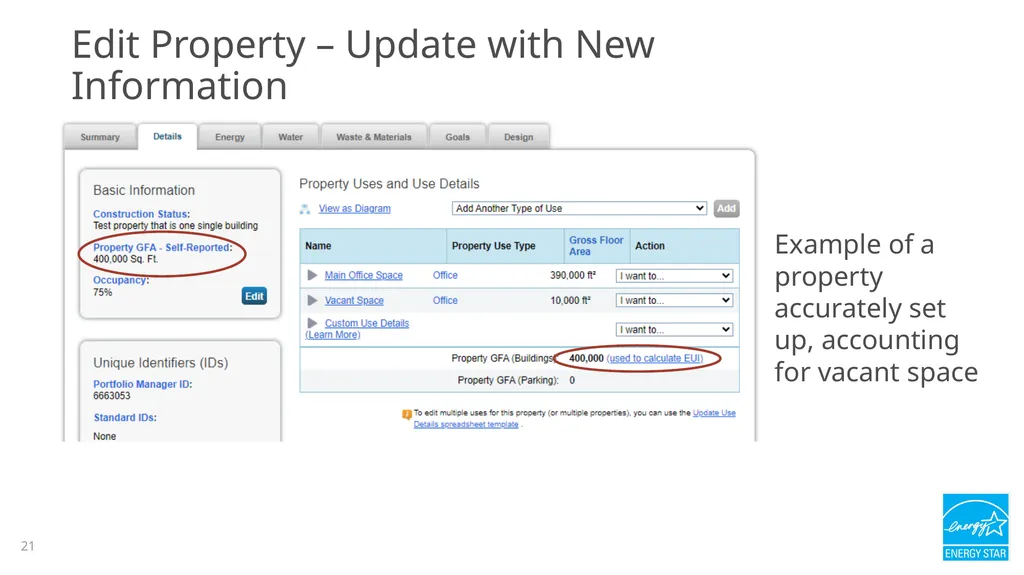
Example of a property accurately set up, accounting for vacant space Edit Property – Update with New Information 21<br>
22
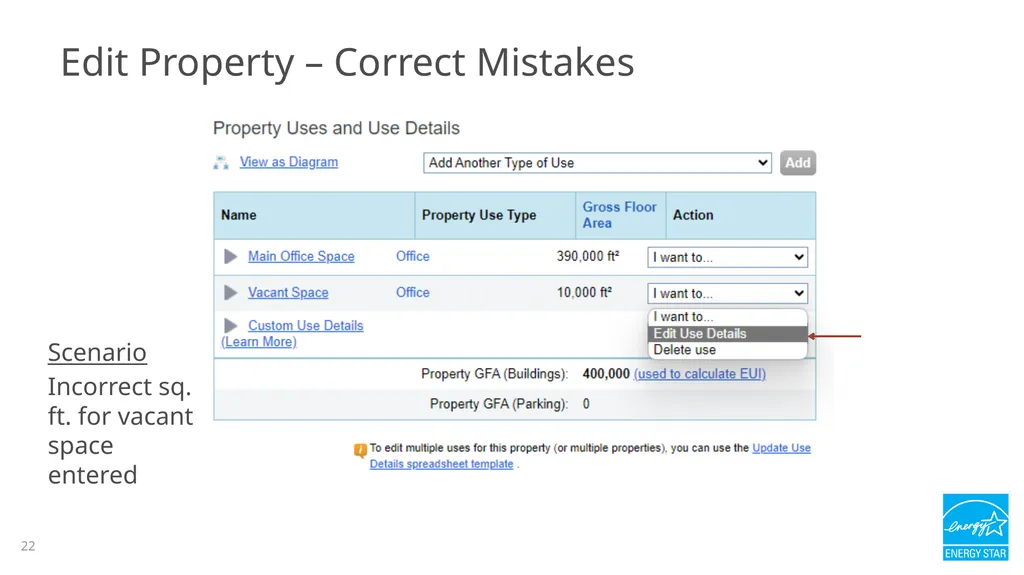
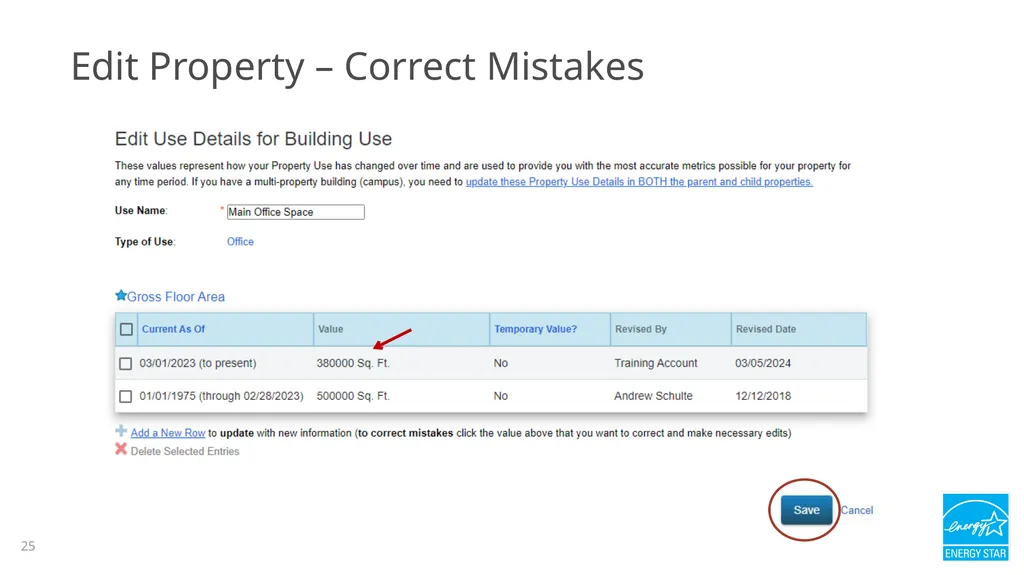
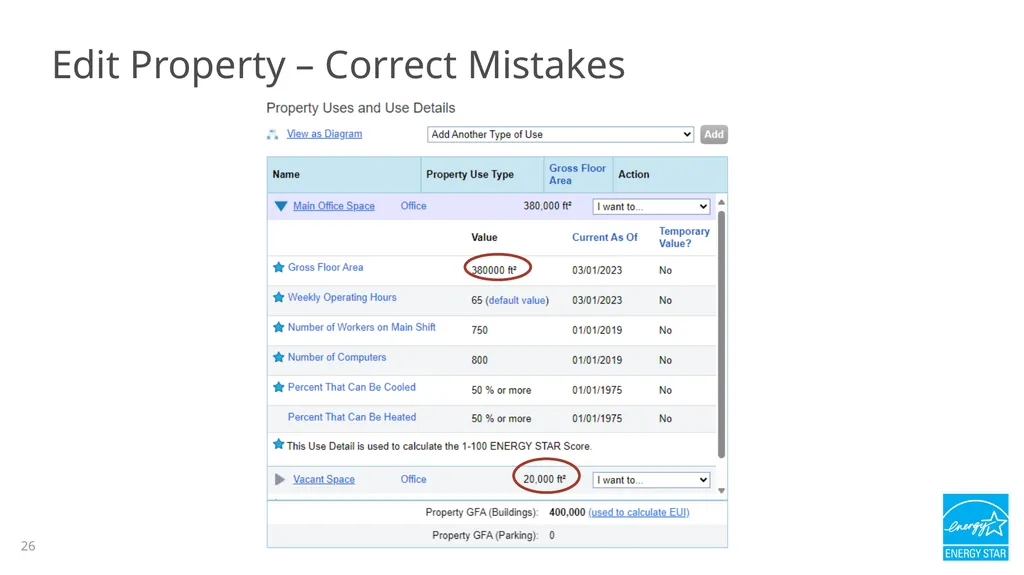
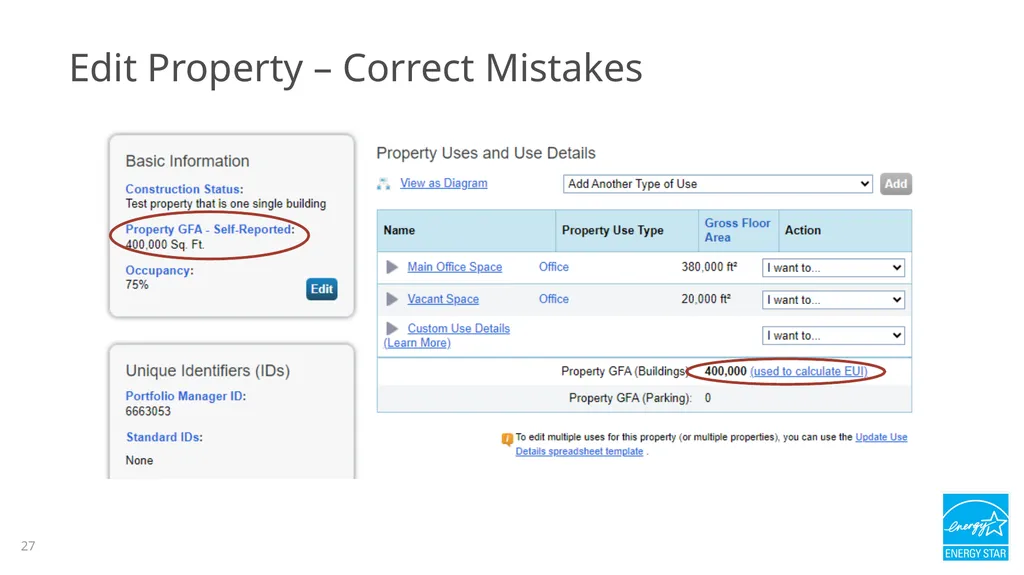
Edit Property – Correct Mistakes Scenario
Incorrect sq. ft. for vacant space entered 22<br>
Incorrect sq. ft. for vacant space entered 22<br>
23
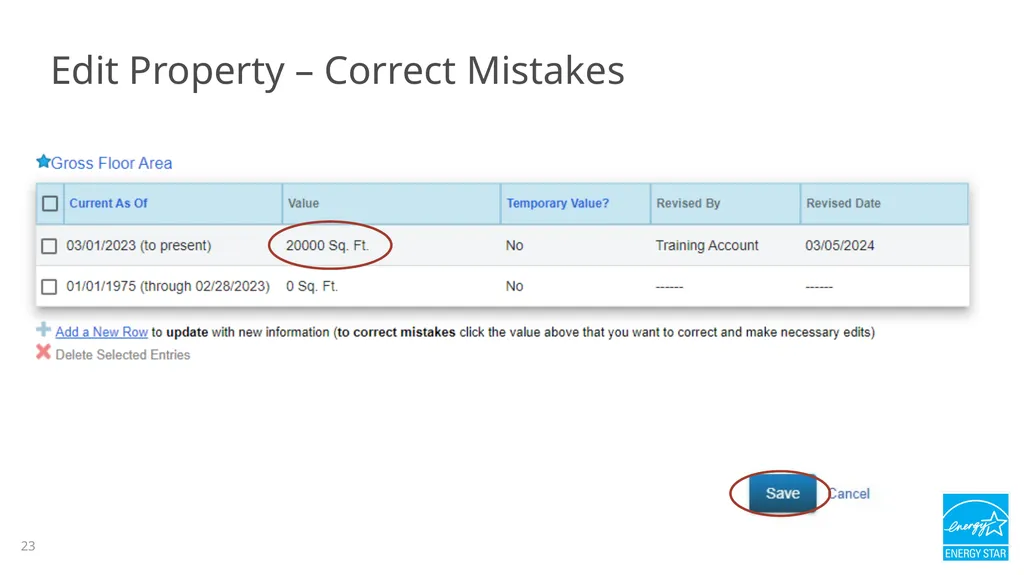
Edit Property – Correct Mistakes 23<br>
24
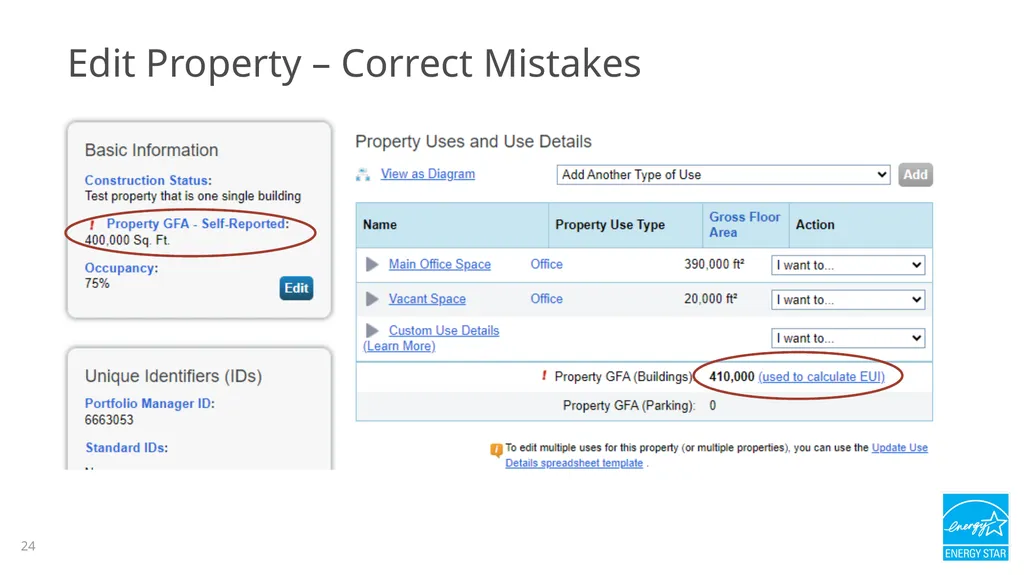
Edit Property – Correct Mistakes 24<br>
25
Edit Property – Correct Mistakes 25<br>
26
Edit Property – Correct Mistakes 26<br>
27
Edit Property – Correct Mistakes 27<br>
28
Correcting/Updating Properties with Multiple Buildings (Campuses) When you have a property set up as a campus (e.g., “child” buildings that comprise a “parent” property), you will need to update/correct use details at both the building and property levels.
If you make a change at the building level, it will not automatically “roll up” to the property level 28<br>
If you make a change at the building level, it will not automatically “roll up” to the property level 28<br>
29
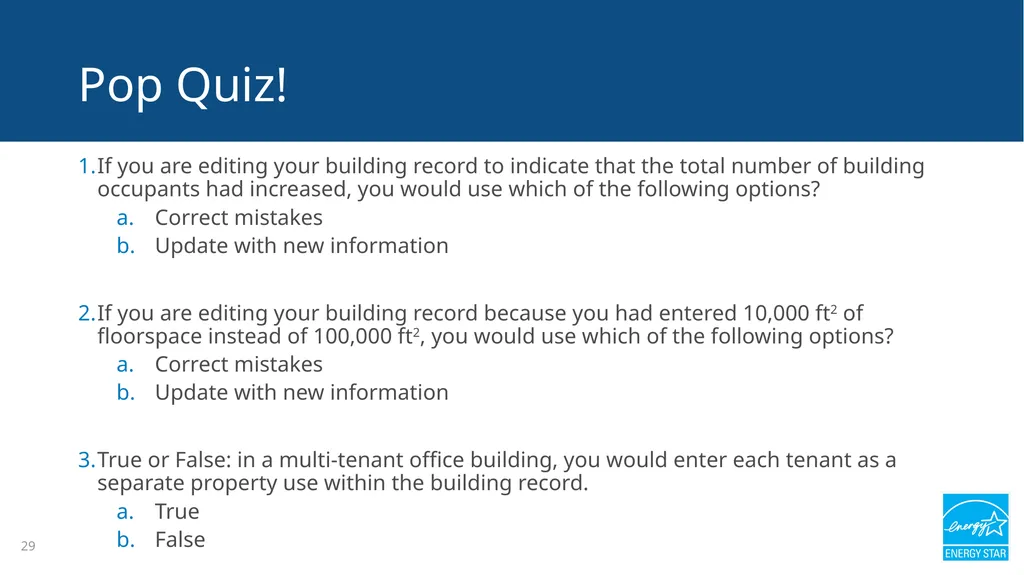
29 If you are editing your building record to indicate that the total number of building occupants had increased, you would use which of the following options?
Correct mistakes
Update with new information
If you are editing your building record because you had entered 10,000 ft2 of floorspace instead of 100,000 ft2, you would use which of the following options?
Correct mistakes
Update with new information
True or False: in a multi-tenant office building, you would enter each tenant as a separate property use within the building record.
True
False Pop Quiz!<br>
Correct mistakes
Update with new information
If you are editing your building record because you had entered 10,000 ft2 of floorspace instead of 100,000 ft2, you would use which of the following options?
Correct mistakes
Update with new information
True or False: in a multi-tenant office building, you would enter each tenant as a separate property use within the building record.
True
False Pop Quiz!<br>
30
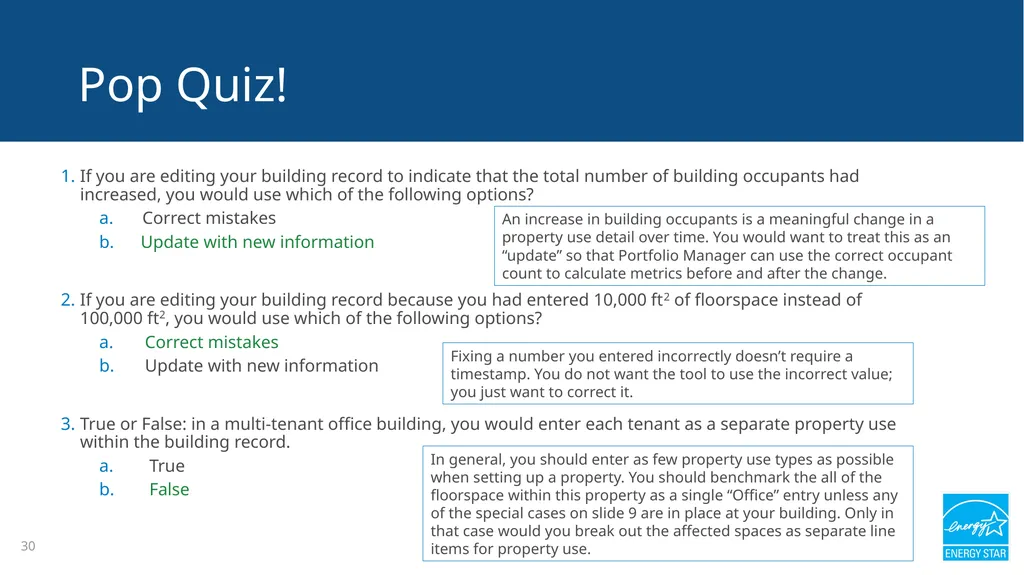
30 If you are editing your building record to indicate that the total number of building occupants had increased, you would use which of the following options?
Correct mistakes
b. Update with new information
If you are editing your building record because you had entered 10,000 ft2 of floorspace instead of 100,000 ft2, you would use which of the following options?
Correct mistakes
Update with new information
True or False: in a multi-tenant office building, you would enter each tenant as a separate property use within the building record.
True
False Pop Quiz! An increase in building occupants is a meaningful change in a property use detail over time. You would want to treat this as an “update” so that Portfolio Manager can use the correct occupant count to calculate metrics before and after the change. Fixing a number you entered incorrectly doesn’t require a timestamp. You do not want the tool to use the incorrect value; you just want to correct it. In general, you should enter as few property use types as possible when setting up a property. You should benchmark the all of the floorspace within this property as a single “Office” entry unless any of the special cases on slide 9 are in place at your building. Only in that case would you break out the affected spaces as separate line items for property use.<br>
Correct mistakes
b. Update with new information
If you are editing your building record because you had entered 10,000 ft2 of floorspace instead of 100,000 ft2, you would use which of the following options?
Correct mistakes
Update with new information
True or False: in a multi-tenant office building, you would enter each tenant as a separate property use within the building record.
True
False Pop Quiz! An increase in building occupants is a meaningful change in a property use detail over time. You would want to treat this as an “update” so that Portfolio Manager can use the correct occupant count to calculate metrics before and after the change. Fixing a number you entered incorrectly doesn’t require a timestamp. You do not want the tool to use the incorrect value; you just want to correct it. In general, you should enter as few property use types as possible when setting up a property. You should benchmark the all of the floorspace within this property as a single “Office” entry unless any of the special cases on slide 9 are in place at your building. Only in that case would you break out the affected spaces as separate line items for property use.<br>
31
31 Edit property data
Change property use details
Use the Data Quality Checker
Share property data How To<br>
Change property use details
Use the Data Quality Checker
Share property data How To<br>
32
Address Data Quality Alerts Portfolio Manager includes built-in features to help users input data correctly, such as:
Alerts
Tips
Easily accessible definitions
Intended to help catch common data entry mistakes 32<br>
Alerts
Tips
Easily accessible definitions
Intended to help catch common data entry mistakes 32<br>
33
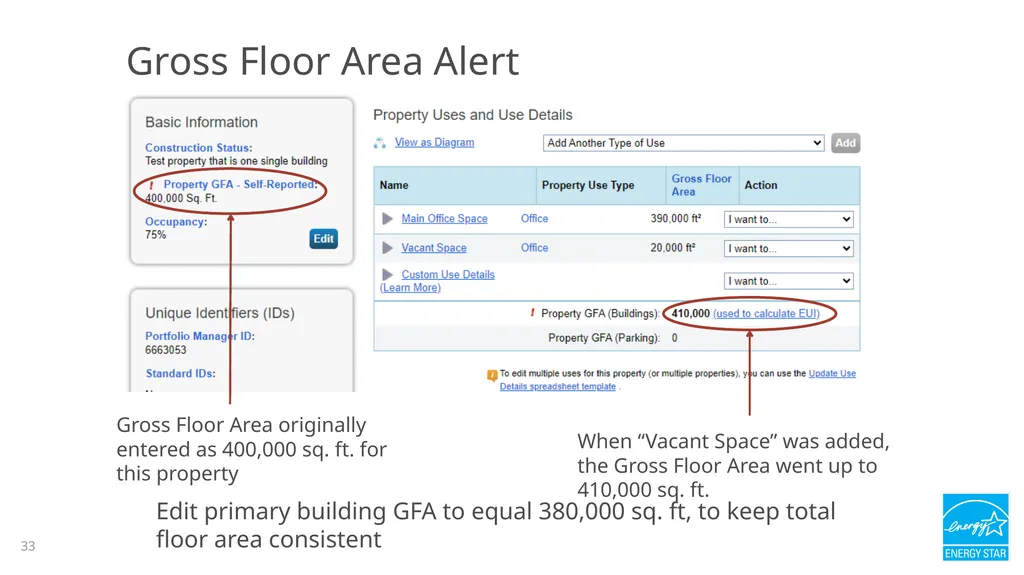
Gross Floor Area Alert Edit primary building GFA to equal 380,000 sq. ft, to keep total floor area consistent Gross Floor Area originally entered as 400,000 sq. ft. for this property When “Vacant Space” was added, the Gross Floor Area went up to 410,000 sq. ft. 33<br>
34
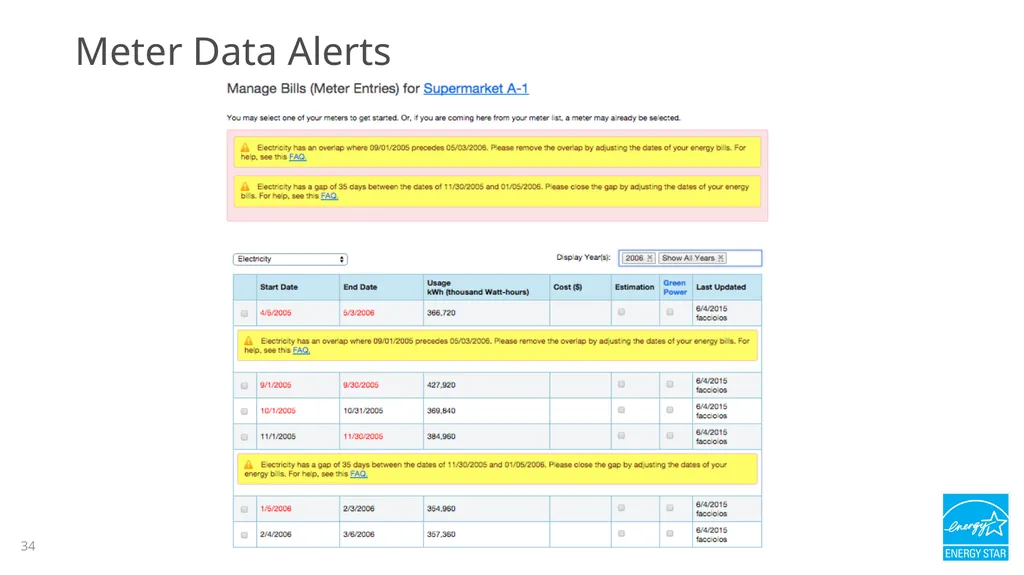
Meter Data Alerts 34<br>
35
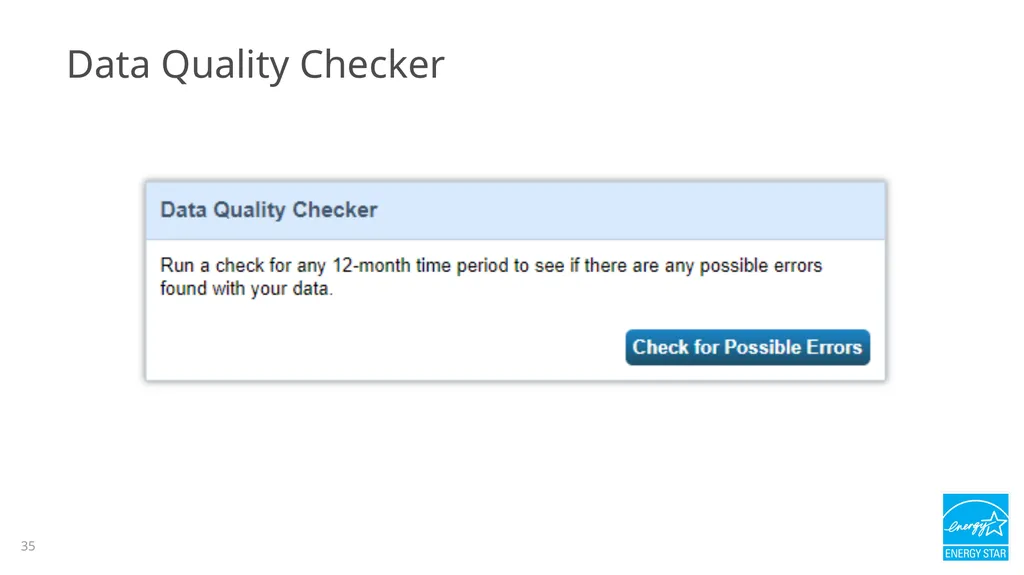
Data Quality Checker 35<br>
36
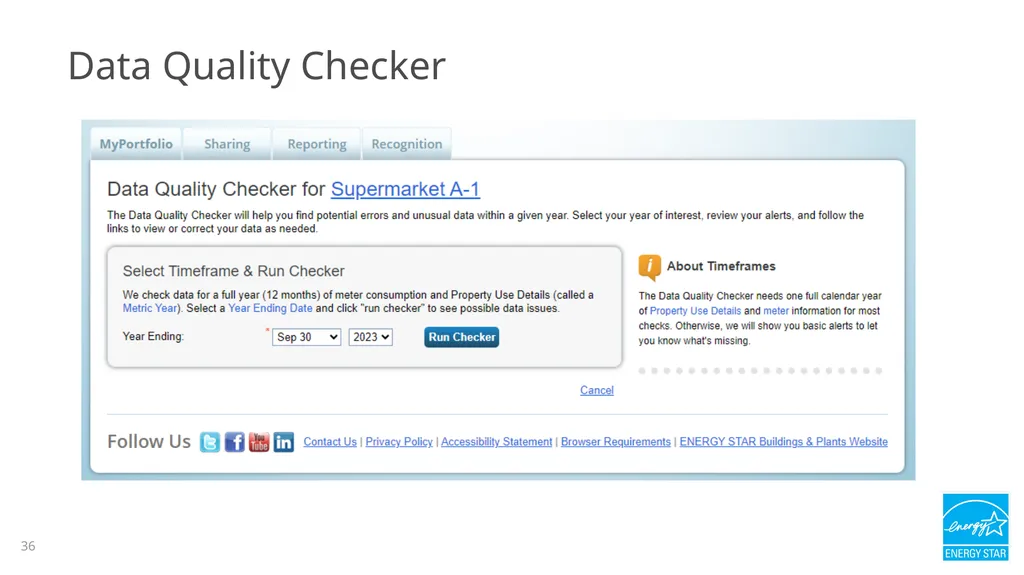
Data Quality Checker 36<br>
37
37 4. The Data Quality Checker does all the following except:
Identifies erroneous or anomalous data
Reviews all entries for an individual property for a given 12-month period
Fixes any data errors at your property
Runs the same checks used during the ENERGY STAR Certification process Pop Quiz!<br>
Identifies erroneous or anomalous data
Reviews all entries for an individual property for a given 12-month period
Fixes any data errors at your property
Runs the same checks used during the ENERGY STAR Certification process Pop Quiz!<br>
38
38 4. The Data Quality Checker does all the following except:
Identifies erroneous or anomalous data
Reviews all entries for an individual property for a given 12-month period
Fixes any data errors at your property
Runs the same checks used during the ENERGY STAR Certification process Pop Quiz! The Data Quality Checker will alert you to potentially erroneous data, but it will not fix it for you. You will need to fix the item(s) in question, using the guidance provided by the Checker.<br>
Identifies erroneous or anomalous data
Reviews all entries for an individual property for a given 12-month period
Fixes any data errors at your property
Runs the same checks used during the ENERGY STAR Certification process Pop Quiz! The Data Quality Checker will alert you to potentially erroneous data, but it will not fix it for you. You will need to fix the item(s) in question, using the guidance provided by the Checker.<br>
39
39 Edit property data
Change property use details
Use the Data Quality Checker
Share property data How To<br>
Change property use details
Use the Data Quality Checker
Share property data How To<br>
40
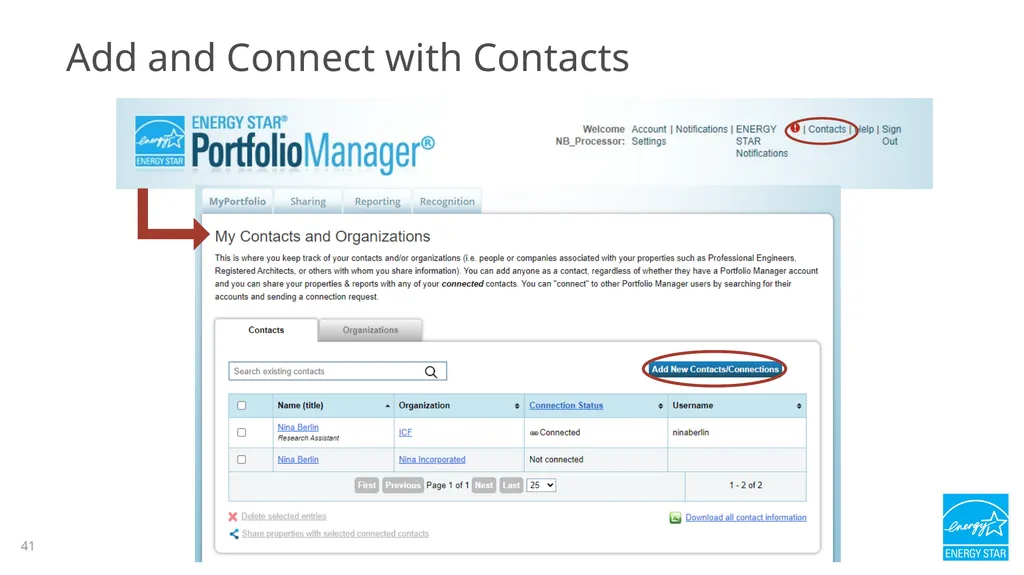
2 Steps to Sharing Properties Confirm you are connected to the person you want to share with on the Contacts page. If needed, send a connection request by clicking on “Add Contact”.
Share one or more of your properties with your connected contacts and specify the level of access the contacts will be granted to view and/or edit your properties.
Note: You can reference the 5-minute video, “How to Share Properties in Portfolio Manager” at ENERGY STAR Training as a refresher, if needed. 40<br>
Share one or more of your properties with your connected contacts and specify the level of access the contacts will be granted to view and/or edit your properties.
Note: You can reference the 5-minute video, “How to Share Properties in Portfolio Manager” at ENERGY STAR Training as a refresher, if needed. 40<br>
41
Add and Connect with Contacts 41 41<br>
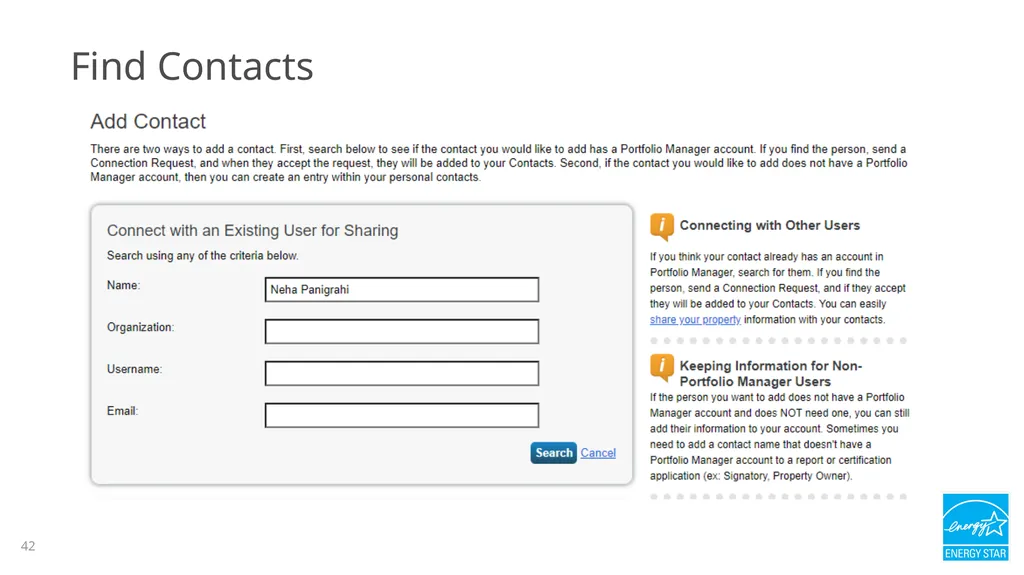
42
Find Contacts 42<br>
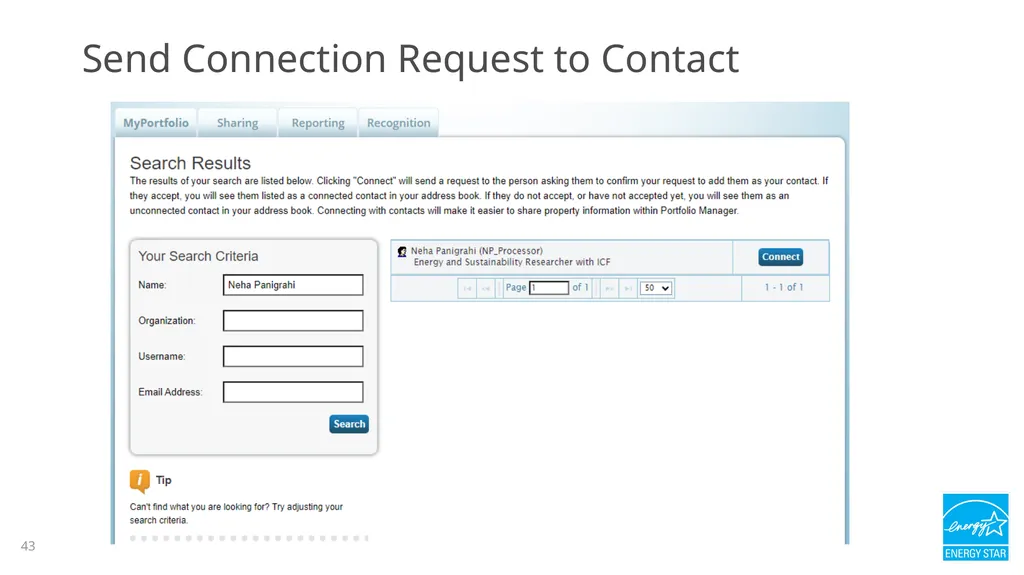
43
Send Connection Request to Contact 43<br>
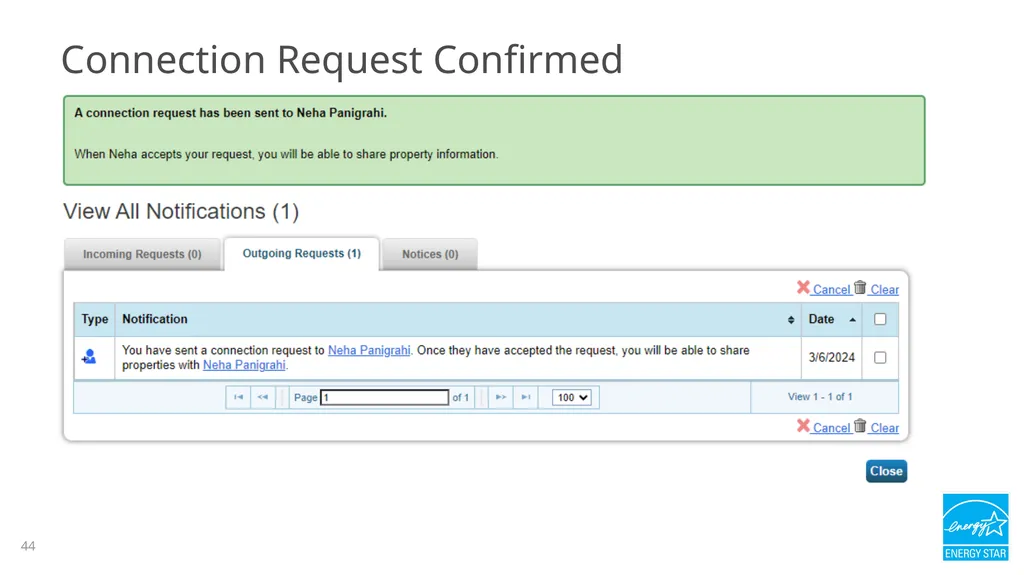
44
Connection Request Confirmed 44<br>
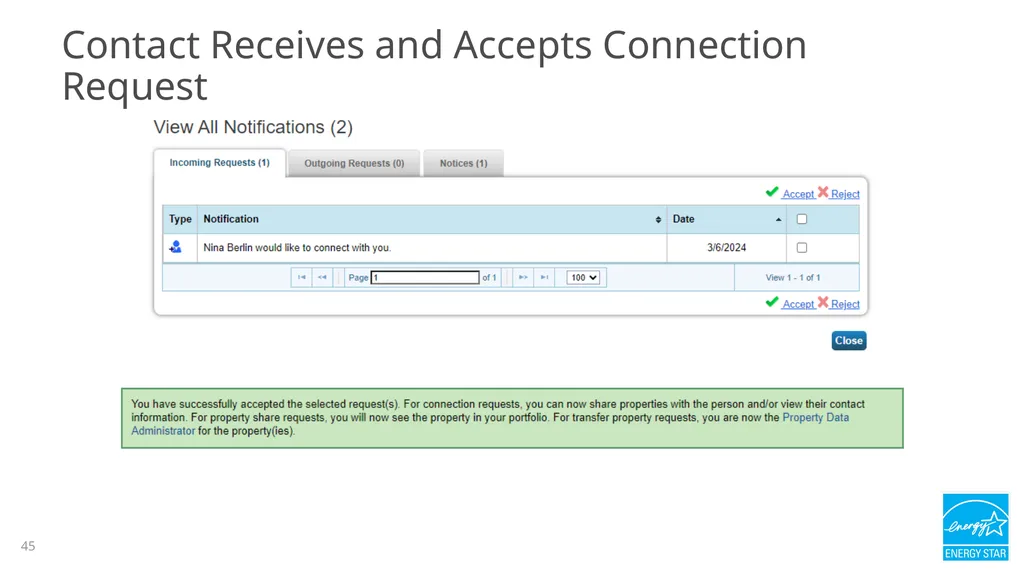
45
Contact Receives and Accepts Connection Request 45<br>
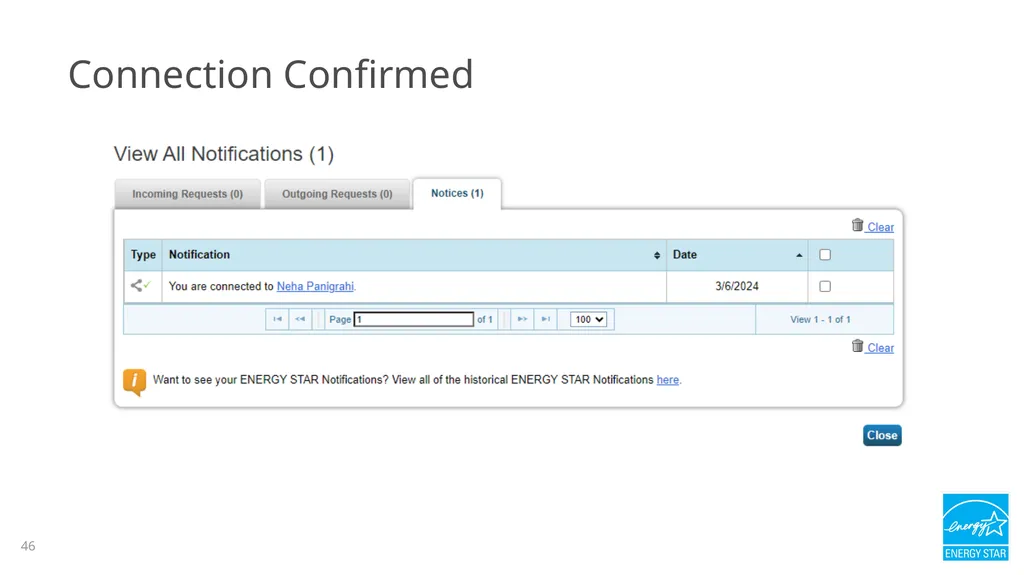
46
Connection Confirmed 46<br>
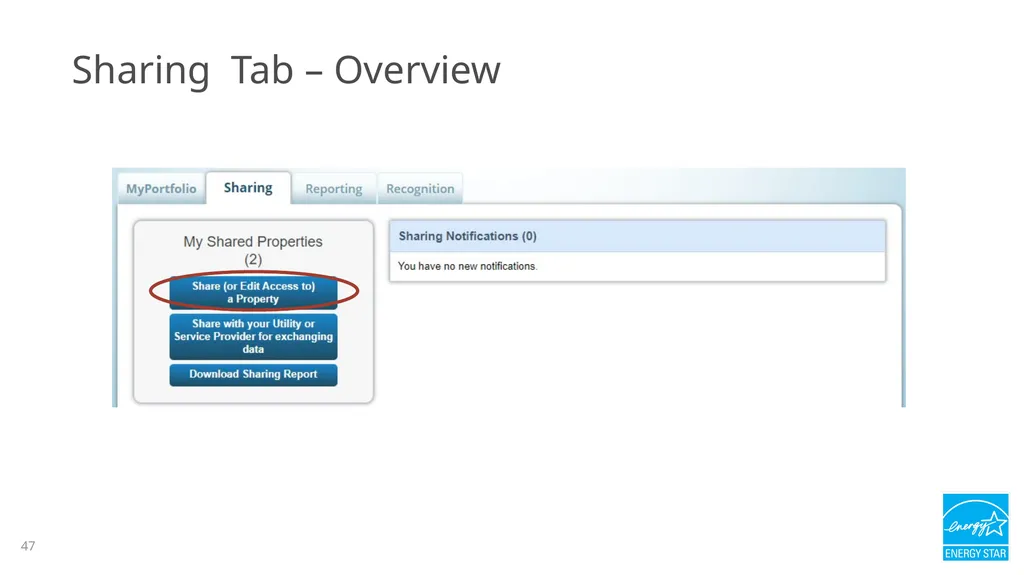
47
Sharing Tab – Overview 47<br>
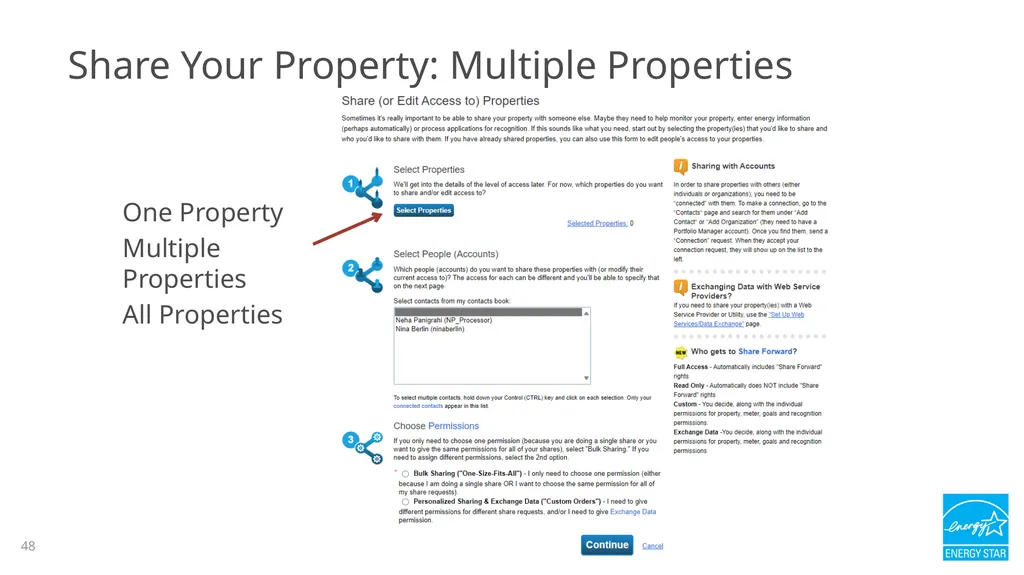
48
Share Your Property: Multiple Properties One Property
Multiple Properties
All Properties 48 48<br>
Multiple Properties
All Properties 48 48<br>
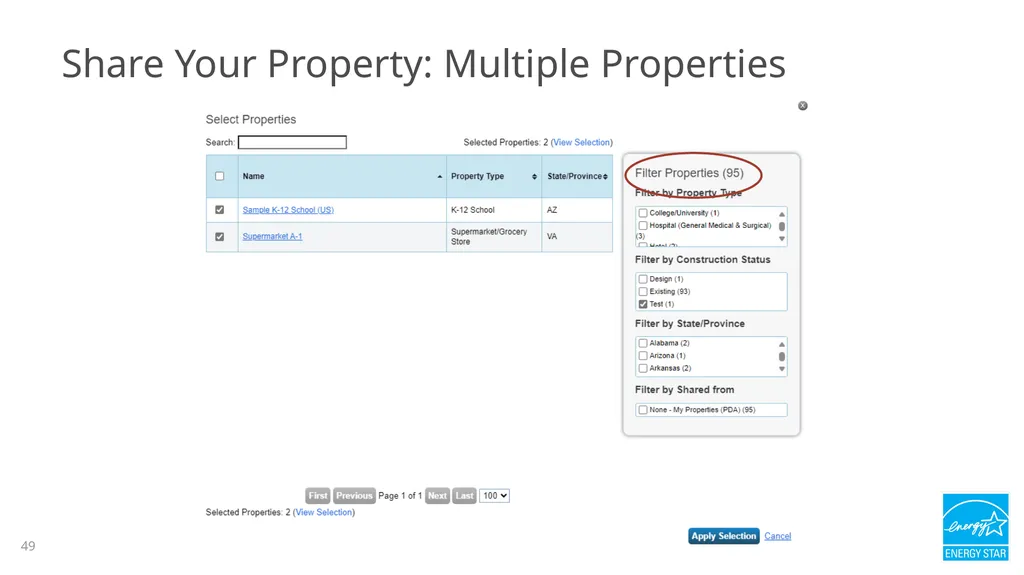
49
49 Share Your Property: Multiple Properties 49<br>
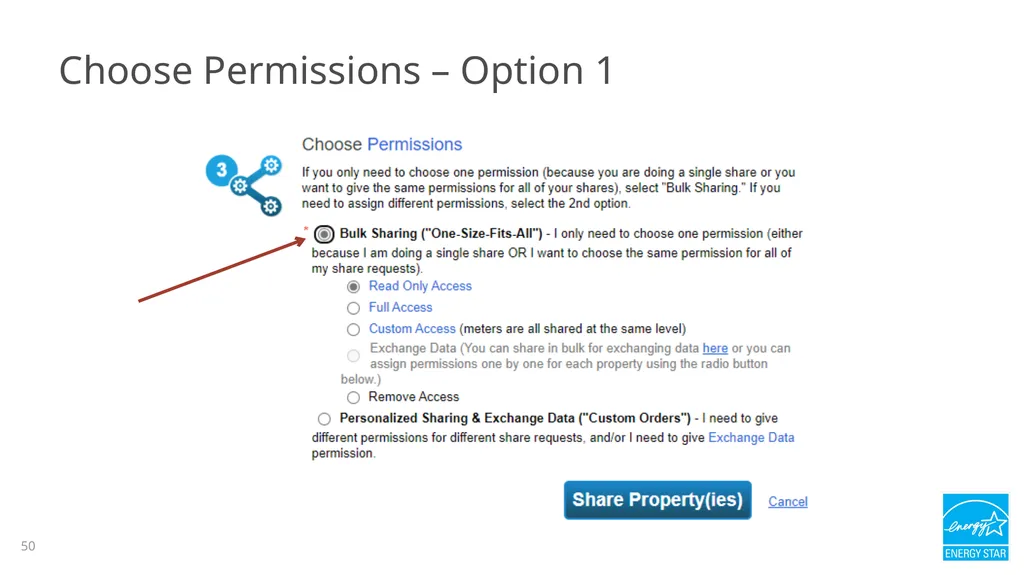
50
Choose Permissions – Option 1 50<br>
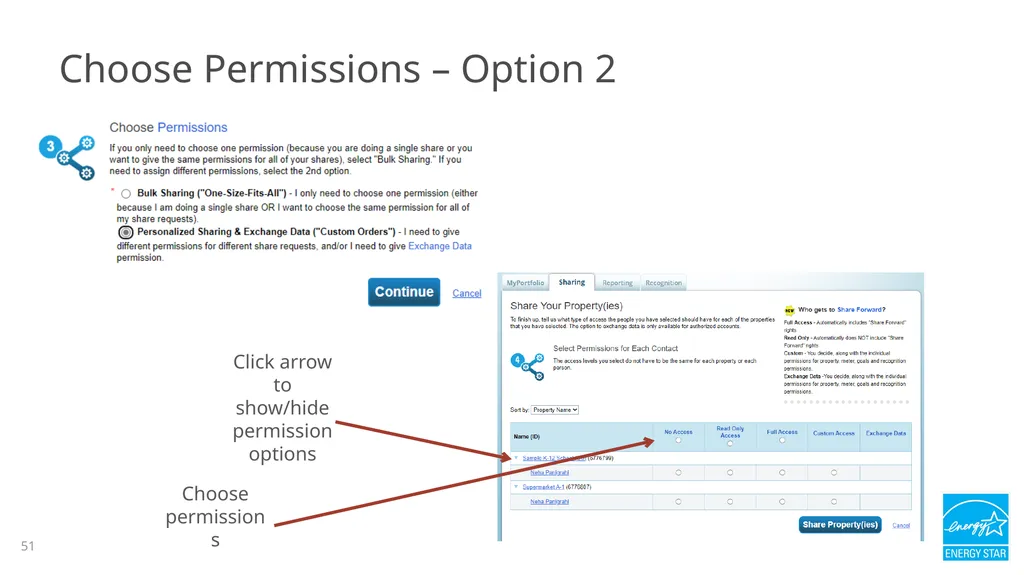
51
Click arrow to show/hide permission options Choose permissions Choose Permissions – Option 2 51<br>
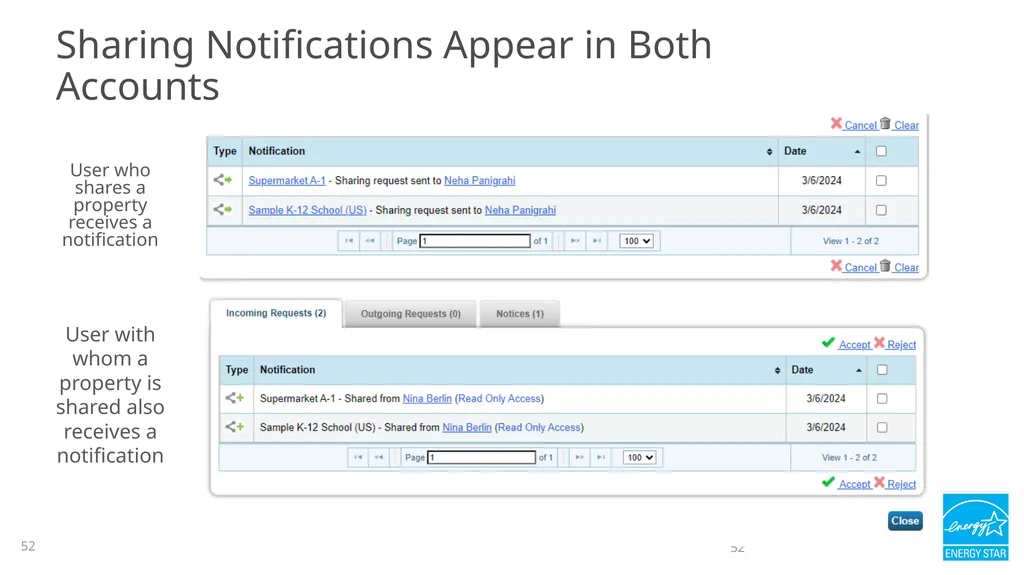
52
Sharing Notifications Appear in Both Accounts User who shares a property receives a notification User with whom a property is shared also receives a notification 52 52<br>
53
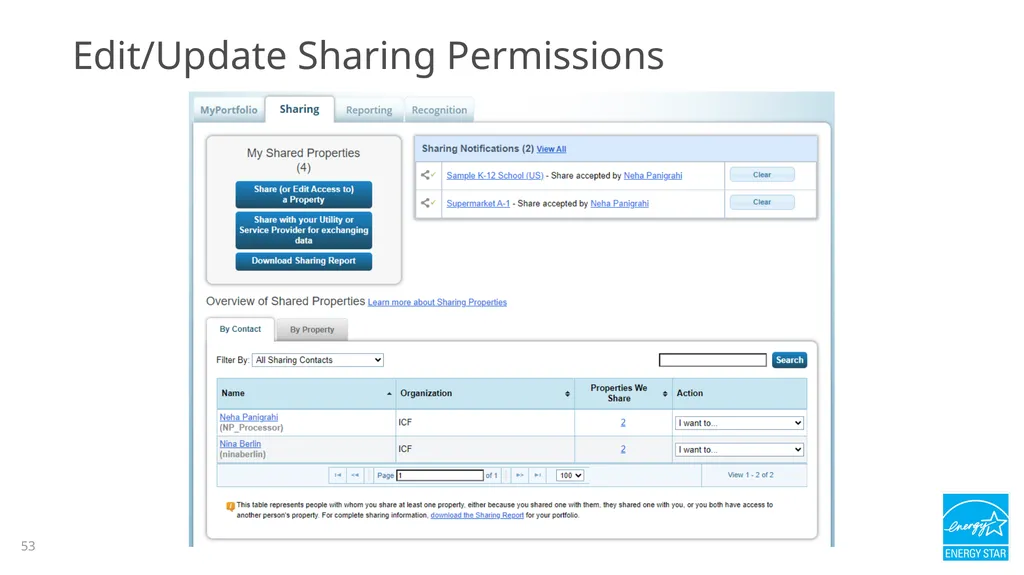
Edit/Update Sharing Permissions 53<br>
54
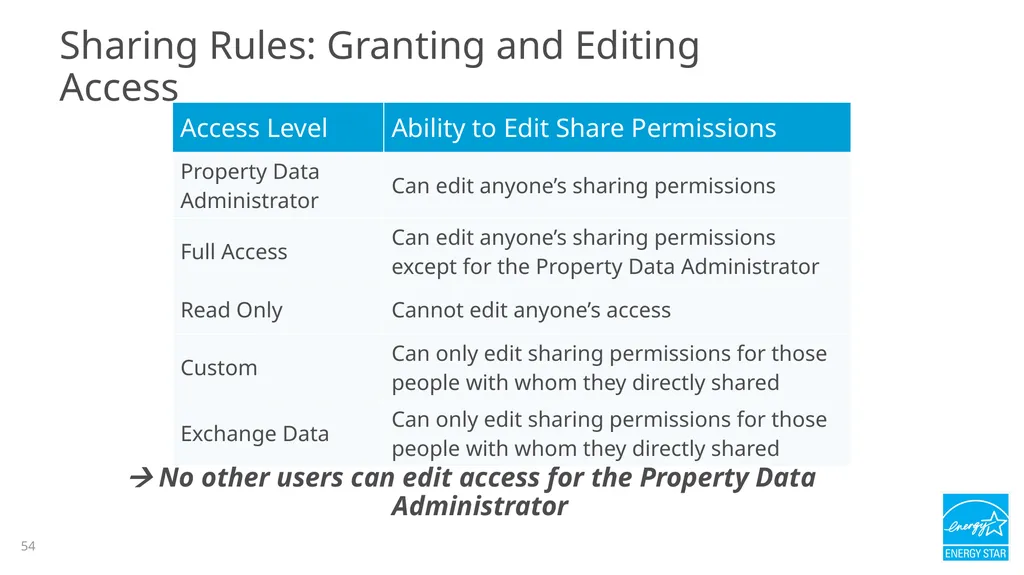
Sharing Rules: Granting and Editing Access No other users can edit access for the Property Data Administrator 54<br>
55
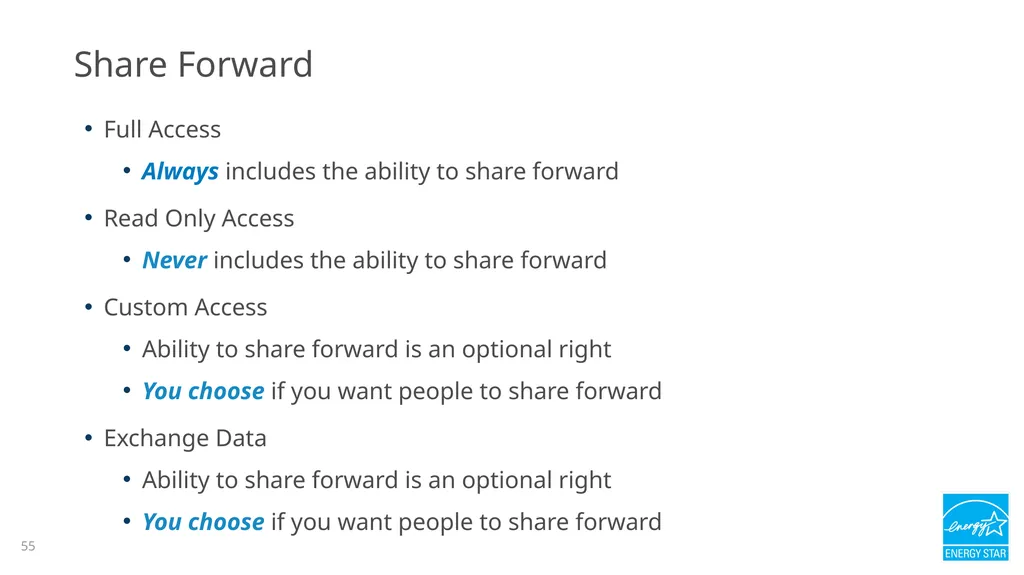
Share Forward Full Access
Always includes the ability to share forward
Read Only Access
Never includes the ability to share forward
Custom Access
Ability to share forward is an optional right
You choose if you want people to share forward
Exchange Data
Ability to share forward is an optional right
You choose if you want people to share forward 55<br>
Always includes the ability to share forward
Read Only Access
Never includes the ability to share forward
Custom Access
Ability to share forward is an optional right
You choose if you want people to share forward
Exchange Data
Ability to share forward is an optional right
You choose if you want people to share forward 55<br>
56
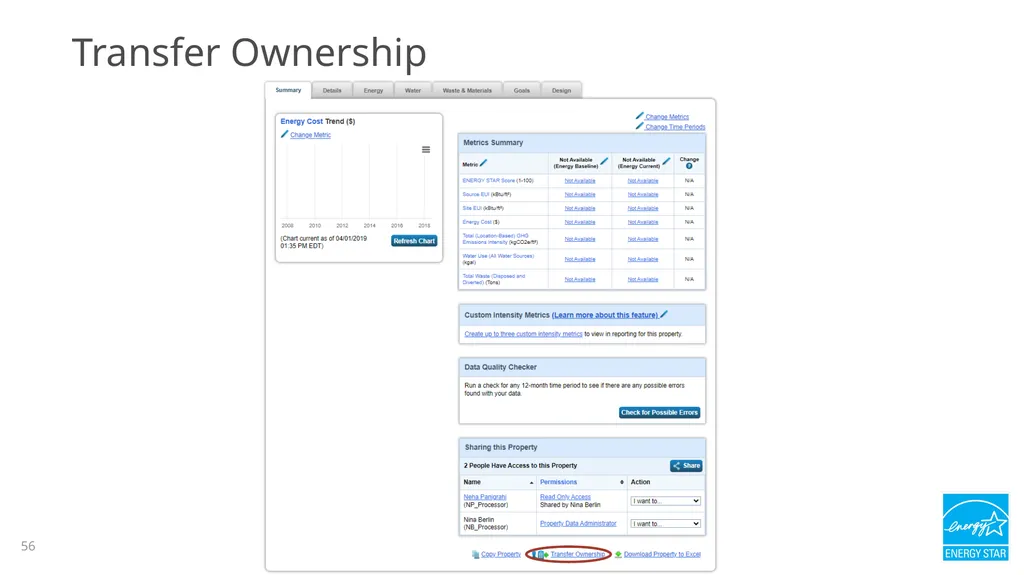
Transfer Ownership 56<br>
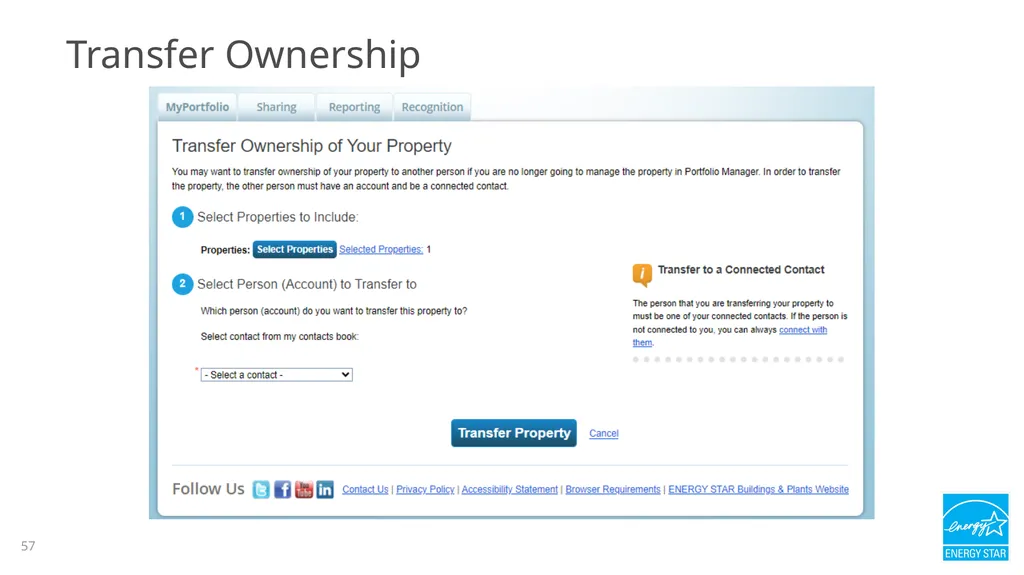
57
Transfer Ownership 57<br>
58
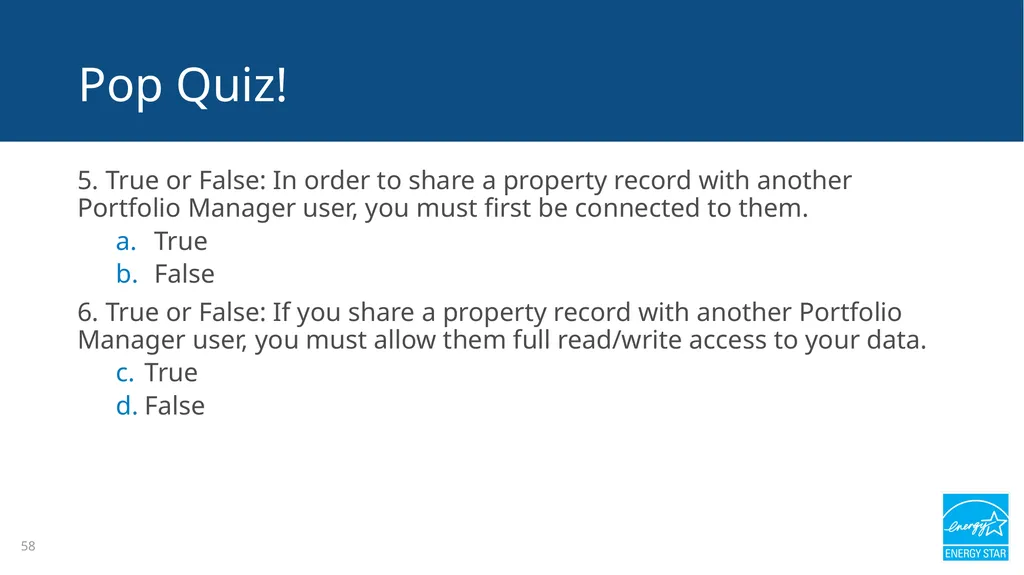
58 5. True or False: In order to share a property record with another Portfolio Manager user, you must first be connected to them.
True
False
6. True or False: If you share a property record with another Portfolio Manager user, you must allow them full read/write access to your data.
True
False Pop Quiz!<br>
True
False
6. True or False: If you share a property record with another Portfolio Manager user, you must allow them full read/write access to your data.
True
False Pop Quiz!<br>
59
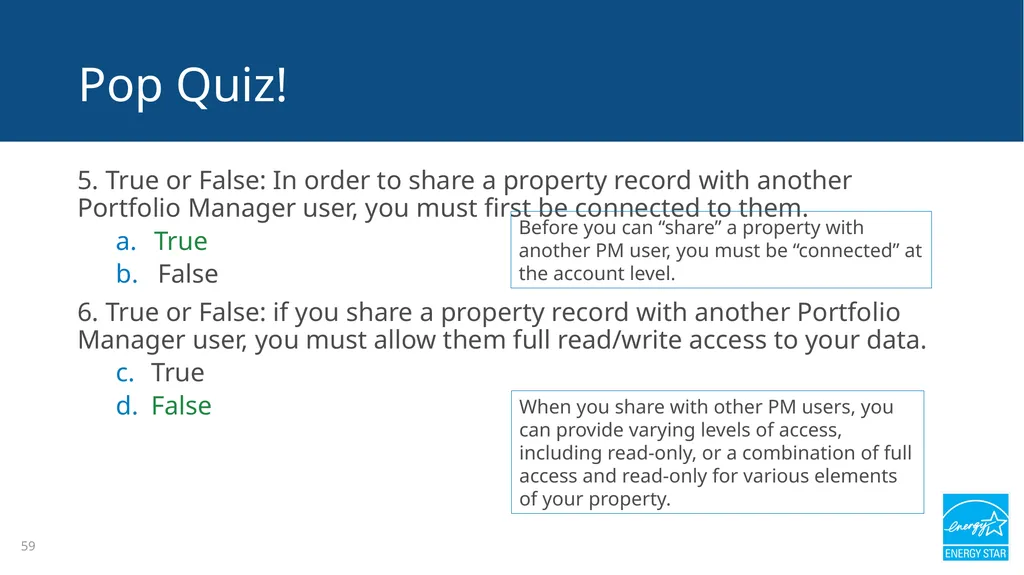
59 5. True or False: In order to share a property record with another Portfolio Manager user, you must first be connected to them.
True
False
6. True or False: if you share a property record with another Portfolio Manager user, you must allow them full read/write access to your data.
True
False Pop Quiz! Before you can “share” a property with another PM user, you must be “connected” at the account level. When you share with other PM users, you can provide varying levels of access, including read-only, or a combination of full access and read-only for various elements of your property.<br>
True
False
6. True or False: if you share a property record with another Portfolio Manager user, you must allow them full read/write access to your data.
True
False Pop Quiz! Before you can “share” a property with another PM user, you must be “connected” at the account level. When you share with other PM users, you can provide varying levels of access, including read-only, or a combination of full access and read-only for various elements of your property.<br>
60
60 In this training, we learned how to:
Edit property data
Change property use details
Use the Data Quality Checker
Share property data Recap<br>
Edit property data
Change property use details
Use the Data Quality Checker
Share property data Recap<br>
61
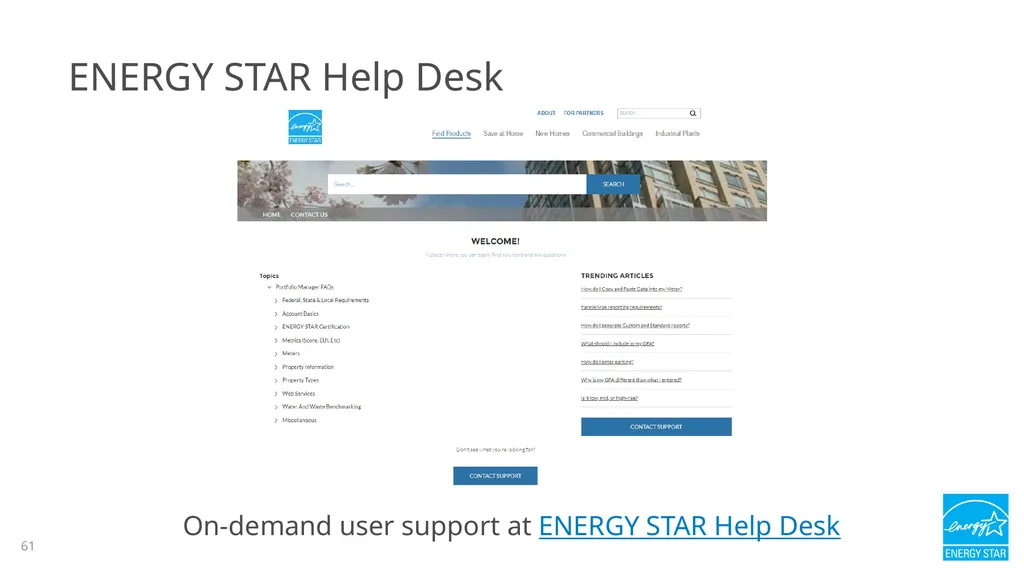
ENERGY STAR Help Desk On-demand user support at ENERGY STAR Help Desk 61<br>
62
Extra Help Visit www.energystar.gov/buildingshelp
Extensive list of FAQs
Online form to submit technical questions or comments
Additional Portfolio Manager training resources available at: www.energystar.gov/buildings/training
Step-by-step documents (PDF)
Access to recorded trainings and short videos
Information on upcoming trainings
Ask the Expert
Wednesdays at 12:00 noon ET. It's an open Q&A session for Portfolio Manager questions.
https://portfoliomanagerhelp.zendesk.com/hc/en-us/articles/30185841890971-When-are-the-Ask-The-Expert-webinars
Register for regular webinars at: https://www.energystar.gov/buildings/training/live-online-trainingoPortfolio
Portfolio Manager Technical Reference Series: https://www.energystar.gov/buildings/tools-and-resources?f0=im_field_select_primary_category:1522 62<br>
Extensive list of FAQs
Online form to submit technical questions or comments
Additional Portfolio Manager training resources available at: www.energystar.gov/buildings/training
Step-by-step documents (PDF)
Access to recorded trainings and short videos
Information on upcoming trainings
Ask the Expert
Wednesdays at 12:00 noon ET. It's an open Q&A session for Portfolio Manager questions.
https://portfoliomanagerhelp.zendesk.com/hc/en-us/articles/30185841890971-When-are-the-Ask-The-Expert-webinars
Register for regular webinars at: https://www.energystar.gov/buildings/training/live-online-trainingoPortfolio
Portfolio Manager Technical Reference Series: https://www.energystar.gov/buildings/tools-and-resources?f0=im_field_select_primary_category:1522 62<br>
63
Visit https://www.energystar.gov/buildings/lp_finder
Find licensed professionals who have verified properties in your area for ENERGY STAR® recognition.
Visit https://www.energystar.gov/buildings/resources-audience/licensed-professionals/cost-free-verification
Cost-free verification of ENERGY STAR® Applications
Visit https://www.energystar.gov/buildings/save_energy_commercial_buildings/expert_help/find_spp/spp_partner_list
Commercial buildings service and product provider directory Expert Help 63<br>
Find licensed professionals who have verified properties in your area for ENERGY STAR® recognition.
Visit https://www.energystar.gov/buildings/resources-audience/licensed-professionals/cost-free-verification
Cost-free verification of ENERGY STAR® Applications
Visit https://www.energystar.gov/buildings/save_energy_commercial_buildings/expert_help/find_spp/spp_partner_list
Commercial buildings service and product provider directory Expert Help 63<br>
64
Thank you for attending! Questions? If you have any questions on Portfolio Manager
or the ENERGY STAR program, contact us at: ENERGY STAR Buildings Help 64<br>
or the ENERGY STAR program, contact us at: ENERGY STAR Buildings Help 64<br>