
Preparing for Programming Using the SPICE Toolkits
NS
Published · 19 slides · 0 views
1 / 1
Description
Preparing for Programming Using the SPICE Toolkits April 2023 Preparing for Programming 2 Setting Path to Toolkit Executables (1) Unix (OS X, Linux, BSD, execute the command echo SHELL to determine your shell name) csh, tcsh: Use the set
Related Topics
Share
Embed code
Download this presentation From Below
"Preparing for Programming Using the SPICE Toolkits" is the property of its rightful owner. Permission is granted to download and print the materials on this website for personal, non-commercial use only, and to display it on your personal computer provided you do not modify the materials and that you retain all copyright notices contained in the materials. By downloading content from our website, you accept the terms of this agreement.
Presentation Transcript
01
Preparing for Programming
Using the SPICE Toolkits April 2023<br>
02
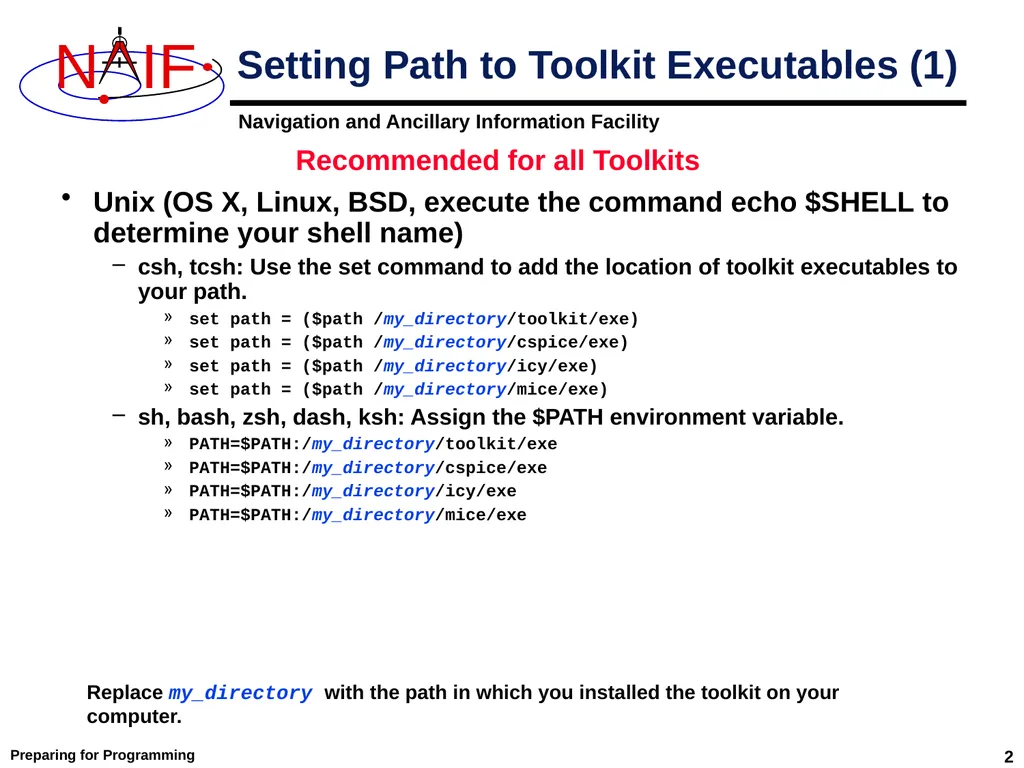
Preparing for Programming 2 Setting Path to Toolkit Executables (1) Unix (OS X, Linux, BSD, execute the command echo $SHELL to determine your shell name)
csh, tcsh: Use the set command to add the location of toolkit executables to your path.
set path = ($path /my_directory/toolkit/exe)
set path = ($path /my_directory/cspice/exe)
set path = ($path /my_directory/icy/exe)
set path = ($path /my_directory/mice/exe)
sh, bash, zsh, dash, ksh: Assign the $PATH environment variable.
PATH=$PATH:/my_directory/toolkit/exe
PATH=$PATH:/my_directory/cspice/exe
PATH=$PATH:/my_directory/icy/exe
PATH=$PATH:/my_directory/mice/exe Replace my_directory with the path in which you installed the toolkit on your computer. Recommended for all Toolkits<br>
csh, tcsh: Use the set command to add the location of toolkit executables to your path.
set path = ($path /my_directory/toolkit/exe)
set path = ($path /my_directory/cspice/exe)
set path = ($path /my_directory/icy/exe)
set path = ($path /my_directory/mice/exe)
sh, bash, zsh, dash, ksh: Assign the $PATH environment variable.
PATH=$PATH:/my_directory/toolkit/exe
PATH=$PATH:/my_directory/cspice/exe
PATH=$PATH:/my_directory/icy/exe
PATH=$PATH:/my_directory/mice/exe Replace my_directory with the path in which you installed the toolkit on your computer. Recommended for all Toolkits<br>
03
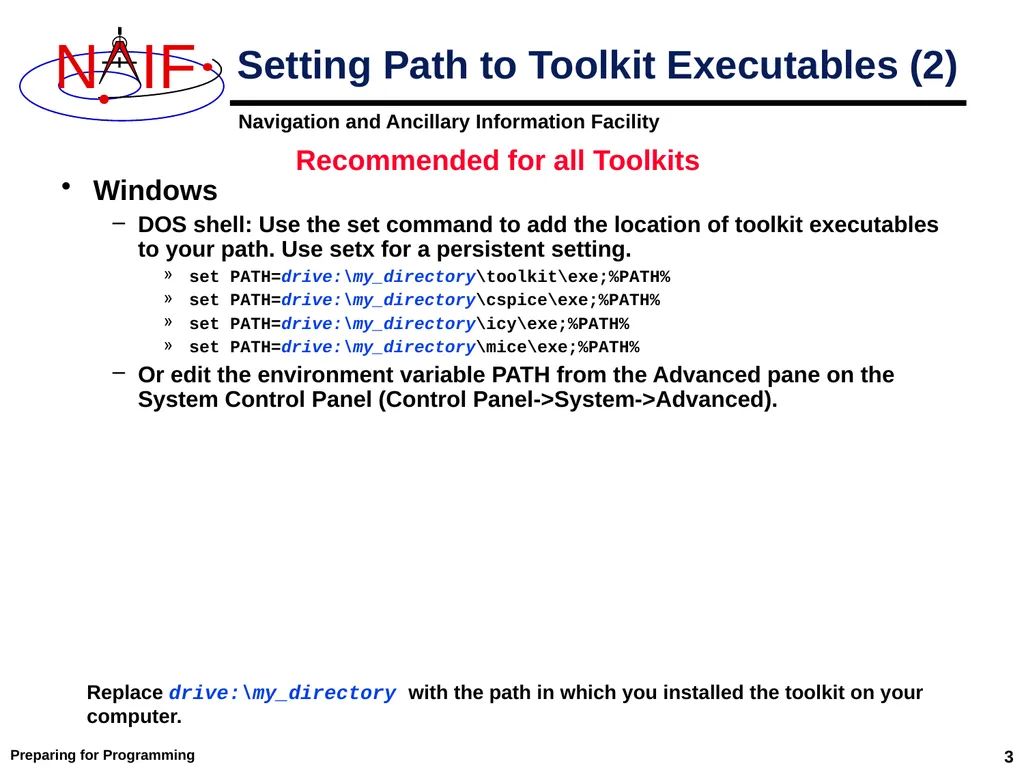
Preparing for Programming 3 Setting Path to Toolkit Executables (2) Windows
DOS shell: Use the set command to add the location of toolkit executables to your path. Use setx for a persistent setting.
set PATH=drive:\my_directory\toolkit\exe;%PATH%
set PATH=drive:\my_directory\cspice\exe;%PATH%
set PATH=drive:\my_directory\icy\exe;%PATH%
set PATH=drive:\my_directory\mice\exe;%PATH%
Or edit the environment variable PATH from the Advanced pane on the System Control Panel (Control Panel->System->Advanced). Replace drive:\my_directory with the path in which you installed the toolkit on your computer. Recommended for all Toolkits<br>
DOS shell: Use the set command to add the location of toolkit executables to your path. Use setx for a persistent setting.
set PATH=drive:\my_directory\toolkit\exe;%PATH%
set PATH=drive:\my_directory\cspice\exe;%PATH%
set PATH=drive:\my_directory\icy\exe;%PATH%
set PATH=drive:\my_directory\mice\exe;%PATH%
Or edit the environment variable PATH from the Advanced pane on the System Control Panel (Control Panel->System->Advanced). Replace drive:\my_directory with the path in which you installed the toolkit on your computer. Recommended for all Toolkits<br>
04
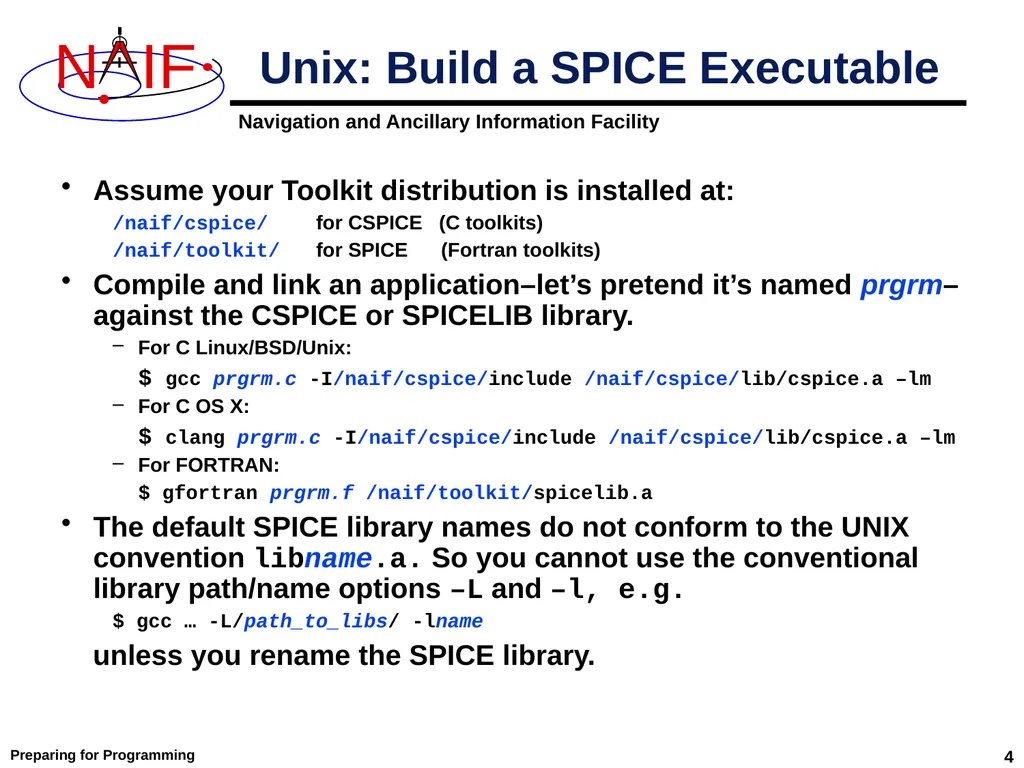
Preparing for Programming 4 Assume your Toolkit distribution is installed at:
/naif/cspice/ for CSPICE (C toolkits)
/naif/toolkit/ for SPICE (Fortran toolkits)
Compile and link an application–let’s pretend it’s named prgrm–against the CSPICE or SPICELIB library.
For C Linux/BSD/Unix:
$ gcc prgrm.c -I/naif/cspice/include /naif/cspice/lib/cspice.a –lm
For C OS X:
$ clang prgrm.c -I/naif/cspice/include /naif/cspice/lib/cspice.a –lm
For FORTRAN:
$ gfortran prgrm.f /naif/toolkit/spicelib.a
The default SPICE library names do not conform to the UNIX convention libname.a. So you cannot use the conventional library path/name options –L and –l, e.g.
$ gcc … -L/path_to_libs/ -lname
unless you rename the SPICE library. Unix: Build a SPICE Executable<br>
/naif/cspice/ for CSPICE (C toolkits)
/naif/toolkit/ for SPICE (Fortran toolkits)
Compile and link an application–let’s pretend it’s named prgrm–against the CSPICE or SPICELIB library.
For C Linux/BSD/Unix:
$ gcc prgrm.c -I/naif/cspice/include /naif/cspice/lib/cspice.a –lm
For C OS X:
$ clang prgrm.c -I/naif/cspice/include /naif/cspice/lib/cspice.a –lm
For FORTRAN:
$ gfortran prgrm.f /naif/toolkit/spicelib.a
The default SPICE library names do not conform to the UNIX convention libname.a. So you cannot use the conventional library path/name options –L and –l, e.g.
$ gcc … -L/path_to_libs/ -lname
unless you rename the SPICE library. Unix: Build a SPICE Executable<br>
05
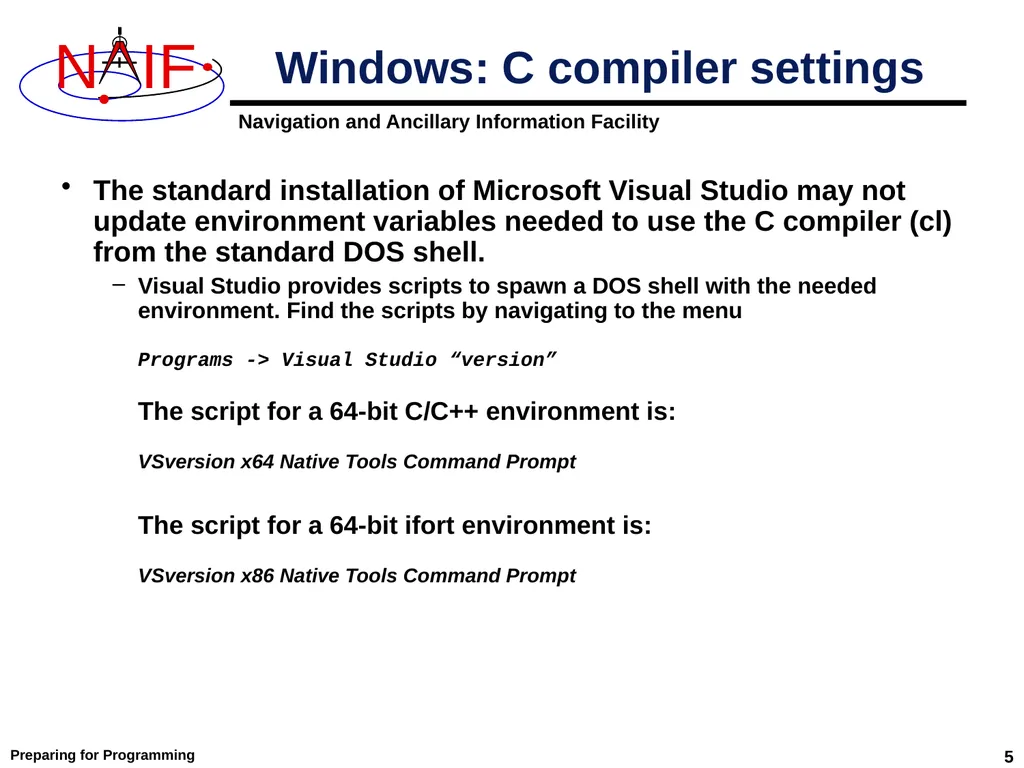
Preparing for Programming 5 The standard installation of Microsoft Visual Studio may not update environment variables needed to use the C compiler (cl) from the standard DOS shell.
Visual Studio provides scripts to spawn a DOS shell with the needed environment. Find the scripts by navigating to the menu
Programs -> Visual Studio “version”
The script for a 64-bit C/C++ environment is:
VSversion x64 Native Tools Command Prompt
The script for a 64-bit ifort environment is:
VSversion x86 Native Tools Command Prompt Windows: C compiler settings<br>
Visual Studio provides scripts to spawn a DOS shell with the needed environment. Find the scripts by navigating to the menu
Programs -> Visual Studio “version”
The script for a 64-bit C/C++ environment is:
VSversion x64 Native Tools Command Prompt
The script for a 64-bit ifort environment is:
VSversion x86 Native Tools Command Prompt Windows: C compiler settings<br>
06
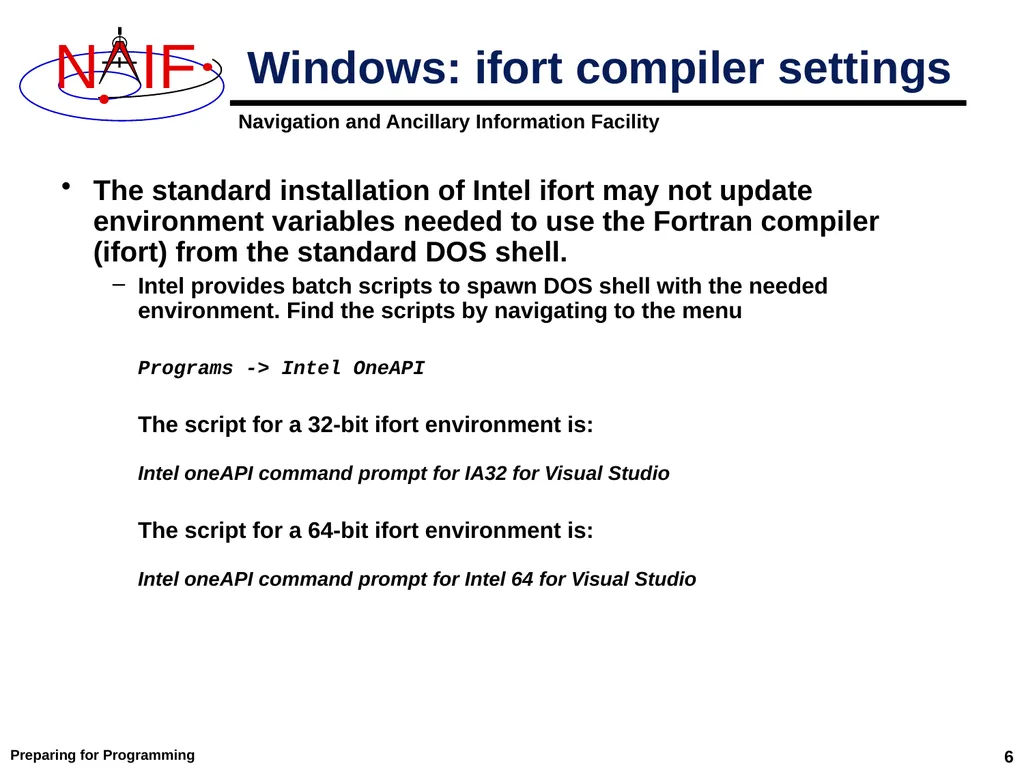
Preparing for Programming 6 The standard installation of Intel ifort may not update environment variables needed to use the Fortran compiler (ifort) from the standard DOS shell.
Intel provides batch scripts to spawn DOS shell with the needed environment. Find the scripts by navigating to the menu
Programs -> Intel OneAPI
The script for a 32-bit ifort environment is:
Intel oneAPI command prompt for IA32 for Visual Studio
The script for a 64-bit ifort environment is:
Intel oneAPI command prompt for Intel 64 for Visual Studio Windows: ifort compiler settings<br>
Intel provides batch scripts to spawn DOS shell with the needed environment. Find the scripts by navigating to the menu
Programs -> Intel OneAPI
The script for a 32-bit ifort environment is:
Intel oneAPI command prompt for IA32 for Visual Studio
The script for a 64-bit ifort environment is:
Intel oneAPI command prompt for Intel 64 for Visual Studio Windows: ifort compiler settings<br>
07
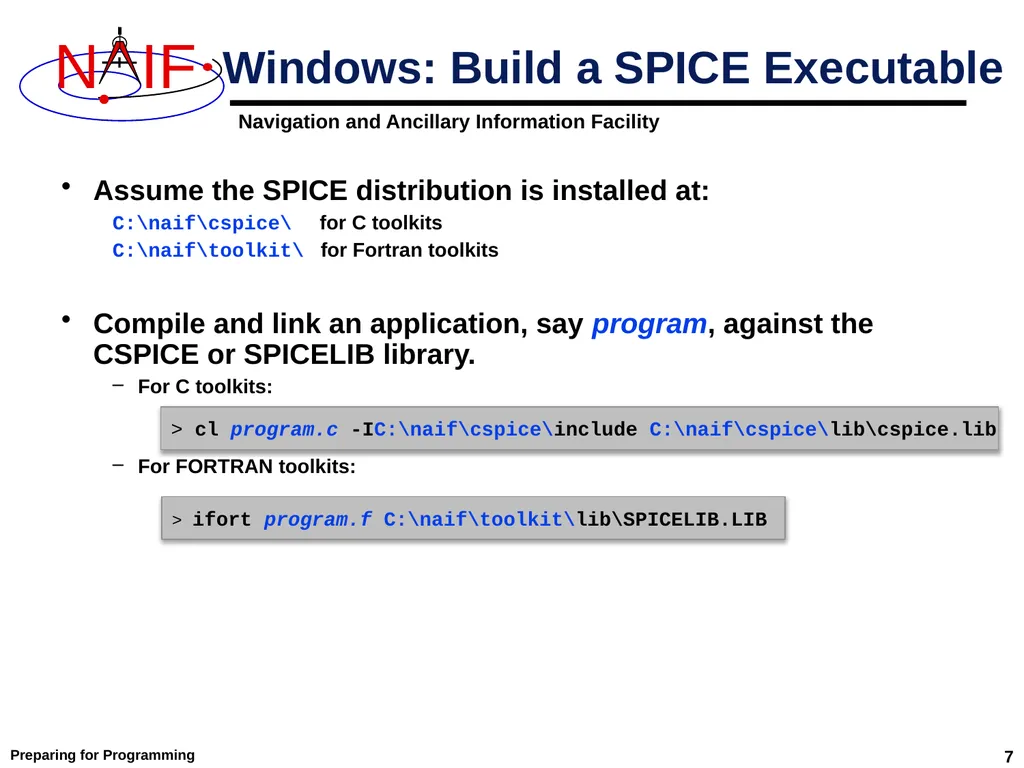
Preparing for Programming 7 Assume the SPICE distribution is installed at:
C:\naif\cspice\ for C toolkits
C:\naif\toolkit\ for Fortran toolkits
Compile and link an application, say program, against the CSPICE or SPICELIB library.
For C toolkits:
For FORTRAN toolkits: Windows: Build a SPICE Executable > cl program.c -IC:\naif\cspice\include C:\naif\cspice\lib\cspice.lib > ifort program.f C:\naif\toolkit\lib\SPICELIB.LIB<br>
C:\naif\cspice\ for C toolkits
C:\naif\toolkit\ for Fortran toolkits
Compile and link an application, say program, against the CSPICE or SPICELIB library.
For C toolkits:
For FORTRAN toolkits: Windows: Build a SPICE Executable > cl program.c -IC:\naif\cspice\include C:\naif\cspice\lib\cspice.lib > ifort program.f C:\naif\toolkit\lib\SPICELIB.LIB<br>
08
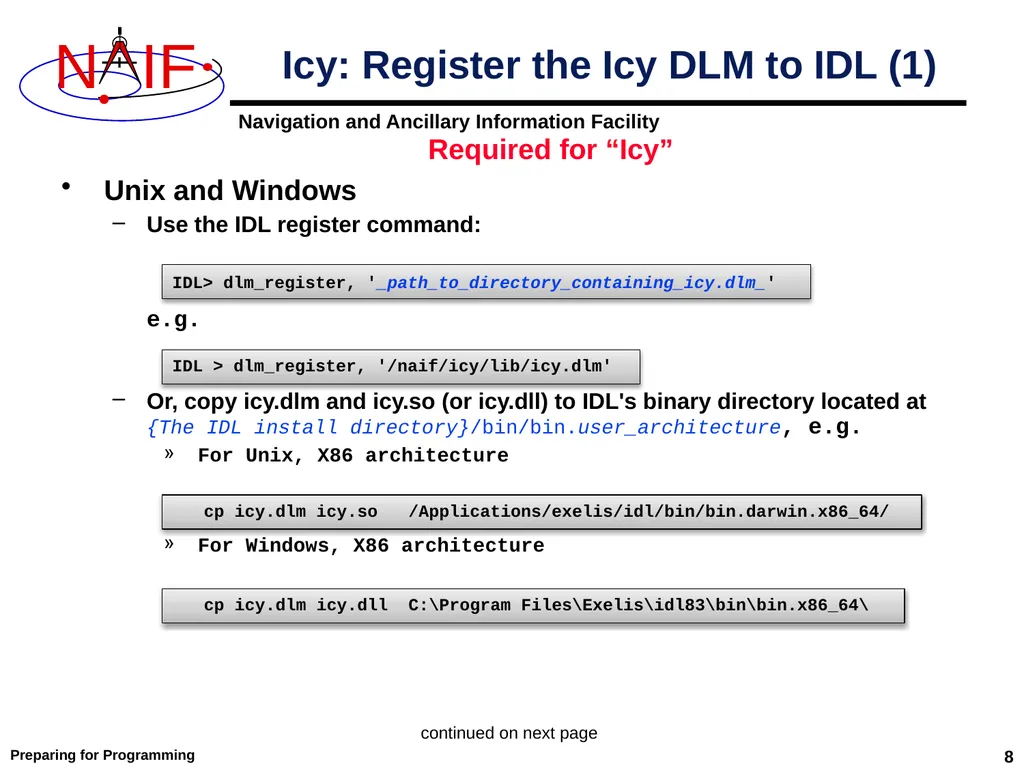
Preparing for Programming 8 Unix and Windows
Use the IDL register command:
e.g.
Or, copy icy.dlm and icy.so (or icy.dll) to IDL's binary directory located at {The IDL install directory}/bin/bin.user_architecture, e.g.
For Unix, X86 architecture
For Windows, X86 architecture Required for “Icy” IDL> dlm_register, '_path_to_directory_containing_icy.dlm_' IDL > dlm_register, '/naif/icy/lib/icy.dlm' cp icy.dlm icy.so /Applications/exelis/idl/bin/bin.darwin.x86_64/ cp icy.dlm icy.dll C:\Program Files\Exelis\idl83\bin\bin.x86_64\ continued on next page Icy: Register the Icy DLM to IDL (1)<br>
Use the IDL register command:
e.g.
Or, copy icy.dlm and icy.so (or icy.dll) to IDL's binary directory located at {The IDL install directory}/bin/bin.user_architecture, e.g.
For Unix, X86 architecture
For Windows, X86 architecture Required for “Icy” IDL> dlm_register, '_path_to_directory_containing_icy.dlm_' IDL > dlm_register, '/naif/icy/lib/icy.dlm' cp icy.dlm icy.so /Applications/exelis/idl/bin/bin.darwin.x86_64/ cp icy.dlm icy.dll C:\Program Files\Exelis\idl83\bin\bin.x86_64\ continued on next page Icy: Register the Icy DLM to IDL (1)<br>
09
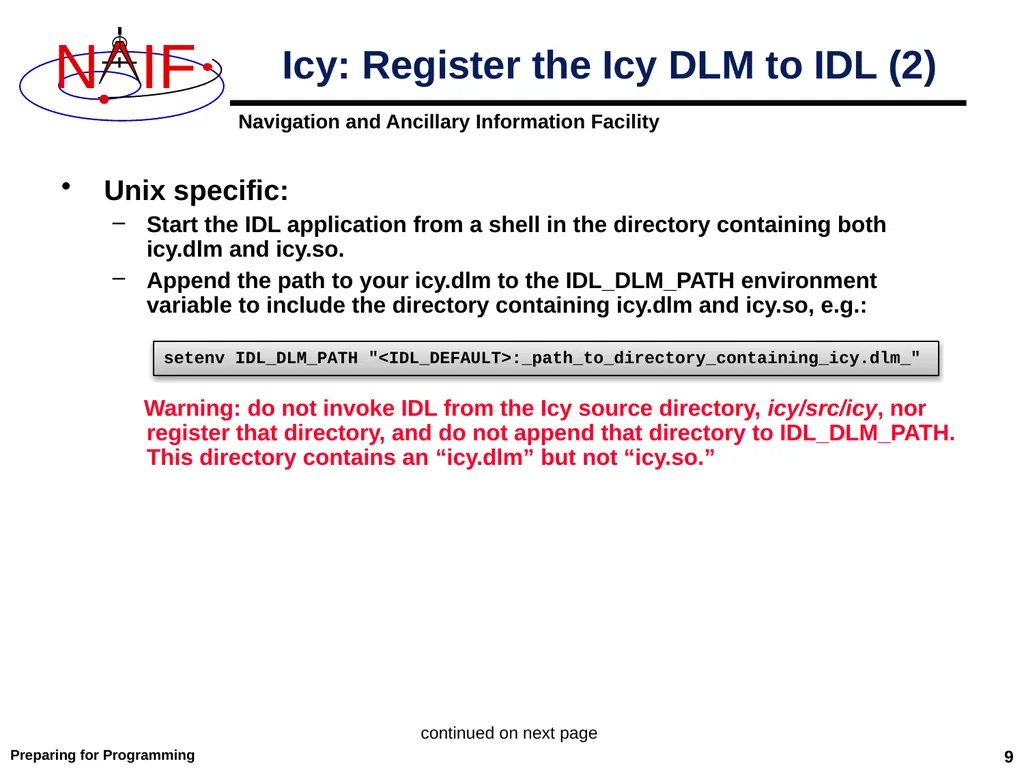
Preparing for Programming 9 Unix specific:
Start the IDL application from a shell in the directory containing both icy.dlm and icy.so.
Append the path to your icy.dlm to the IDL_DLM_PATH environment variable to include the directory containing icy.dlm and icy.so, e.g.:
Warning: do not invoke IDL from the Icy source directory, icy/src/icy, nor register that directory, and do not append that directory to IDL_DLM_PATH. This directory contains an “icy.dlm” but not “icy.so.” setenv IDL_DLM_PATH "<IDL_DEFAULT>:_path_to_directory_containing_icy.dlm_" continued on next page Icy: Register the Icy DLM to IDL (2)<br>
Start the IDL application from a shell in the directory containing both icy.dlm and icy.so.
Append the path to your icy.dlm to the IDL_DLM_PATH environment variable to include the directory containing icy.dlm and icy.so, e.g.:
Warning: do not invoke IDL from the Icy source directory, icy/src/icy, nor register that directory, and do not append that directory to IDL_DLM_PATH. This directory contains an “icy.dlm” but not “icy.so.” setenv IDL_DLM_PATH "<IDL_DEFAULT>:_path_to_directory_containing_icy.dlm_" continued on next page Icy: Register the Icy DLM to IDL (2)<br>
10
Preparing for Programming 10 Windows specific:
Set environment variable IDL_DLM_PATH from the Advanced pane of the System Control Panel.
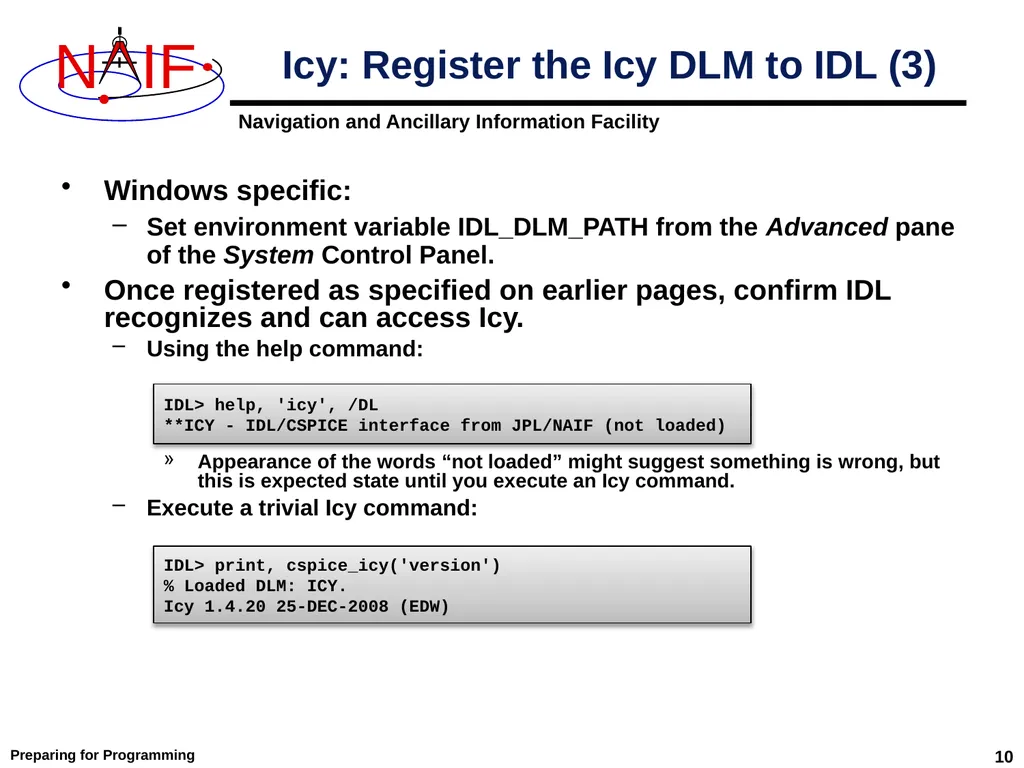
Once registered as specified on earlier pages, confirm IDL recognizes and can access Icy.
Using the help command:
Appearance of the words “not loaded” might suggest something is wrong, but this is expected state until you execute an Icy command.
Execute a trivial Icy command: Icy: Register the Icy DLM to IDL (3) IDL> help, 'icy', /DL
**ICY - IDL/CSPICE interface from JPL/NAIF (not loaded) IDL> print, cspice_icy('version')
% Loaded DLM: ICY.
Icy 1.4.20 25-DEC-2008 (EDW)<br>
Set environment variable IDL_DLM_PATH from the Advanced pane of the System Control Panel.
Once registered as specified on earlier pages, confirm IDL recognizes and can access Icy.
Using the help command:
Appearance of the words “not loaded” might suggest something is wrong, but this is expected state until you execute an Icy command.
Execute a trivial Icy command: Icy: Register the Icy DLM to IDL (3) IDL> help, 'icy', /DL
**ICY - IDL/CSPICE interface from JPL/NAIF (not loaded) IDL> print, cspice_icy('version')
% Loaded DLM: ICY.
Icy 1.4.20 25-DEC-2008 (EDW)<br>
11
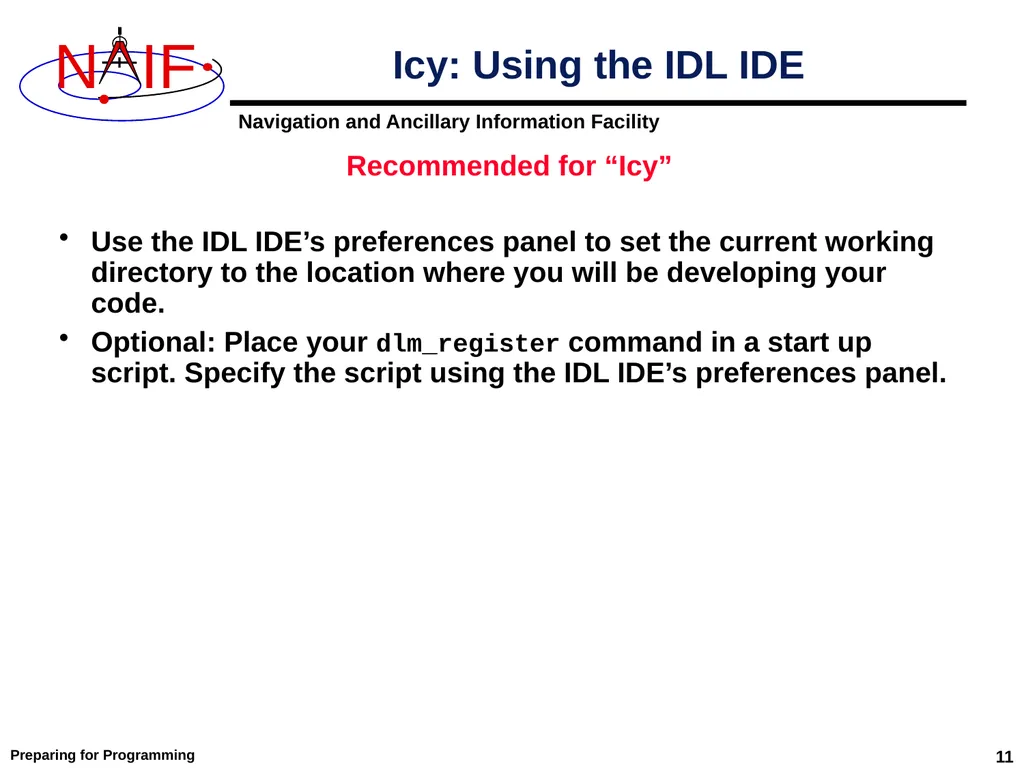
Preparing for Programming 11 Use the IDL IDE’s preferences panel to set the current working directory to the location where you will be developing your code.
Optional: Place your dlm_register command in a start up script. Specify the script using the IDL IDE’s preferences panel. Icy: Using the IDL IDE Recommended for “Icy”<br>
Optional: Place your dlm_register command in a start up script. Specify the script using the IDL IDE’s preferences panel. Icy: Using the IDL IDE Recommended for “Icy”<br>
12
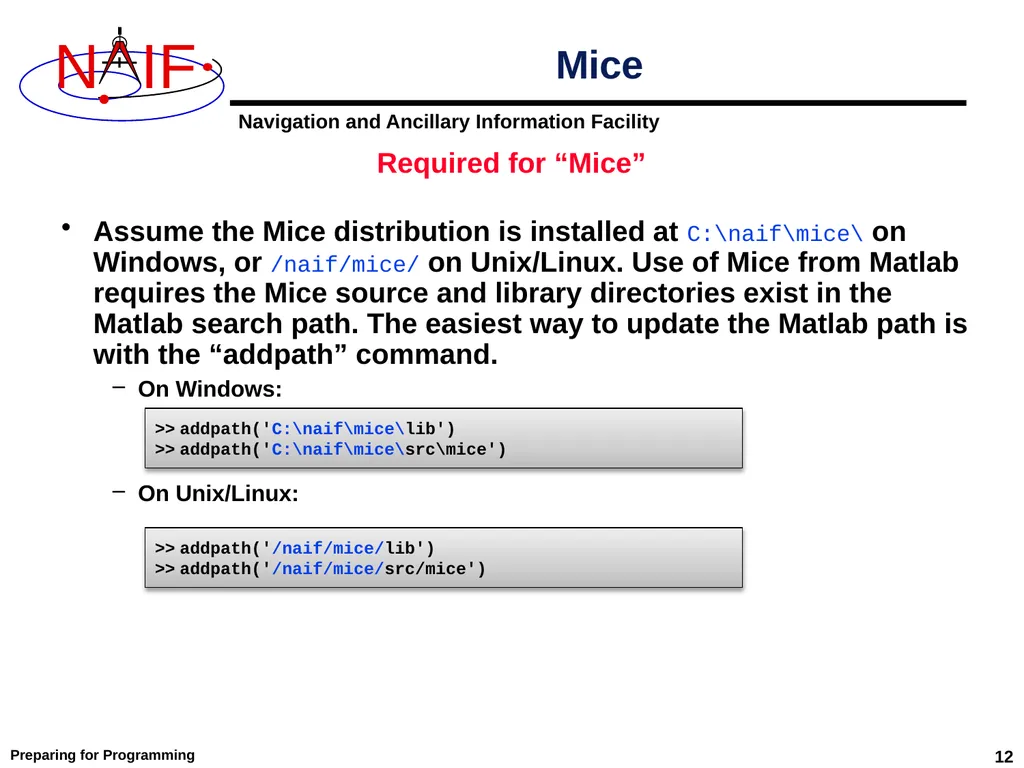
Preparing for Programming 12 Assume the Mice distribution is installed at C:\naif\mice\ on Windows, or /naif/mice/ on Unix/Linux. Use of Mice from Matlab requires the Mice source and library directories exist in the Matlab search path. The easiest way to update the Matlab path is with the “addpath” command.
On Windows:
On Unix/Linux: Mice Required for “Mice” >> addpath('C:\naif\mice\lib')
>> addpath('C:\naif\mice\src\mice') >> addpath('/naif/mice/lib')
>> addpath('/naif/mice/src/mice')<br>
On Windows:
On Unix/Linux: Mice Required for “Mice” >> addpath('C:\naif\mice\lib')
>> addpath('C:\naif\mice\src\mice') >> addpath('/naif/mice/lib')
>> addpath('/naif/mice/src/mice')<br>
13
Backup Icy programming example
Mice programming example
References
Matlab 2016a MEX Change Preparing for Programming 13<br>
Mice programming example
References
Matlab 2016a MEX Change Preparing for Programming 13<br>
14
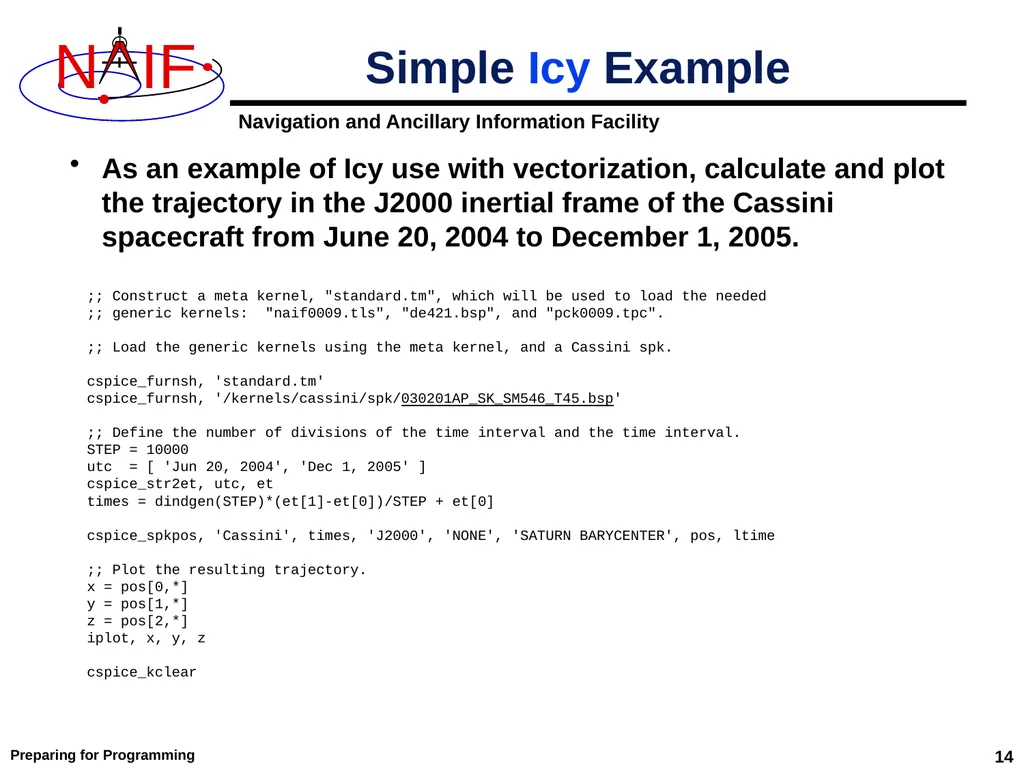
14 Simple Icy Example As an example of Icy use with vectorization, calculate and plot the trajectory in the J2000 inertial frame of the Cassini spacecraft from June 20, 2004 to December 1, 2005. ;; Construct a meta kernel, "standard.tm", which will be used to load the needed
;; generic kernels: "naif0009.tls", "de421.bsp", and "pck0009.tpc".
;; Load the generic kernels using the meta kernel, and a Cassini spk.
cspice_furnsh, 'standard.tm'
cspice_furnsh, '/kernels/cassini/spk/030201AP_SK_SM546_T45.bsp'
;; Define the number of divisions of the time interval and the time interval.
STEP = 10000
utc = [ 'Jun 20, 2004', 'Dec 1, 2005' ]
cspice_str2et, utc, et
times = dindgen(STEP)*(et[1]-et[0])/STEP + et[0]
cspice_spkpos, 'Cassini', times, 'J2000', 'NONE', 'SATURN BARYCENTER', pos, ltime
;; Plot the resulting trajectory.
x = pos[0,*]
y = pos[1,*]
z = pos[2,*]
iplot, x, y, z
cspice_kclear Preparing for Programming<br>
;; generic kernels: "naif0009.tls", "de421.bsp", and "pck0009.tpc".
;; Load the generic kernels using the meta kernel, and a Cassini spk.
cspice_furnsh, 'standard.tm'
cspice_furnsh, '/kernels/cassini/spk/030201AP_SK_SM546_T45.bsp'
;; Define the number of divisions of the time interval and the time interval.
STEP = 10000
utc = [ 'Jun 20, 2004', 'Dec 1, 2005' ]
cspice_str2et, utc, et
times = dindgen(STEP)*(et[1]-et[0])/STEP + et[0]
cspice_spkpos, 'Cassini', times, 'J2000', 'NONE', 'SATURN BARYCENTER', pos, ltime
;; Plot the resulting trajectory.
x = pos[0,*]
y = pos[1,*]
z = pos[2,*]
iplot, x, y, z
cspice_kclear Preparing for Programming<br>
15
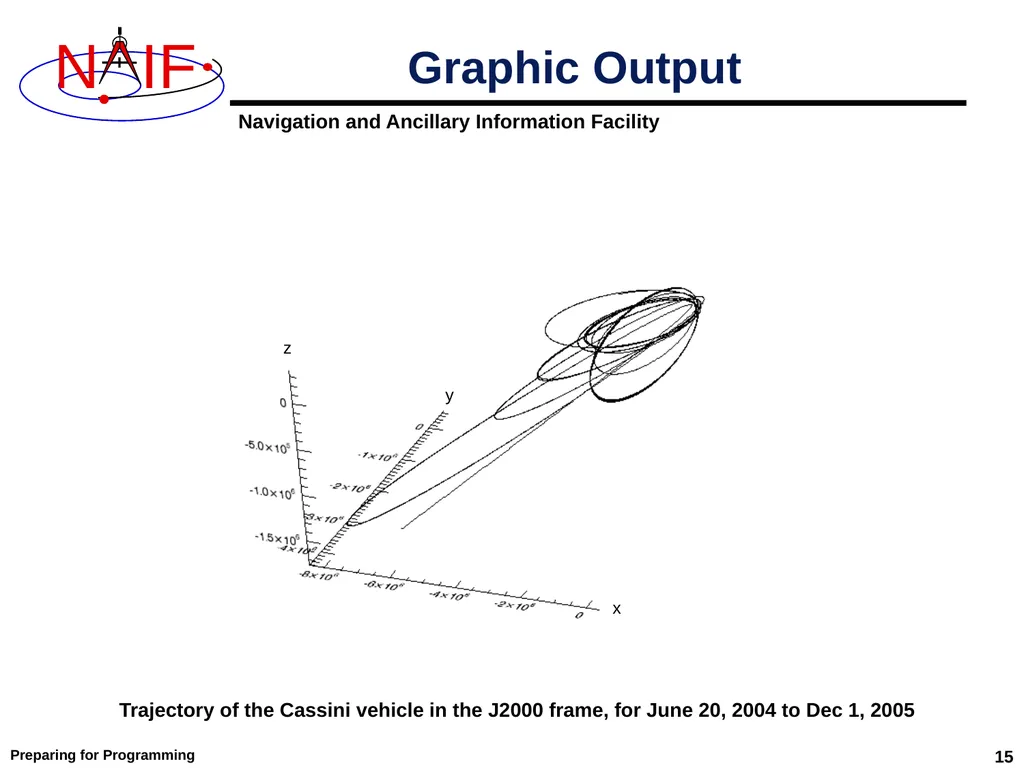
15 Graphic Output x y z Preparing for Programming Trajectory of the Cassini vehicle in the J2000 frame, for June 20, 2004 to Dec 1, 2005<br>
16
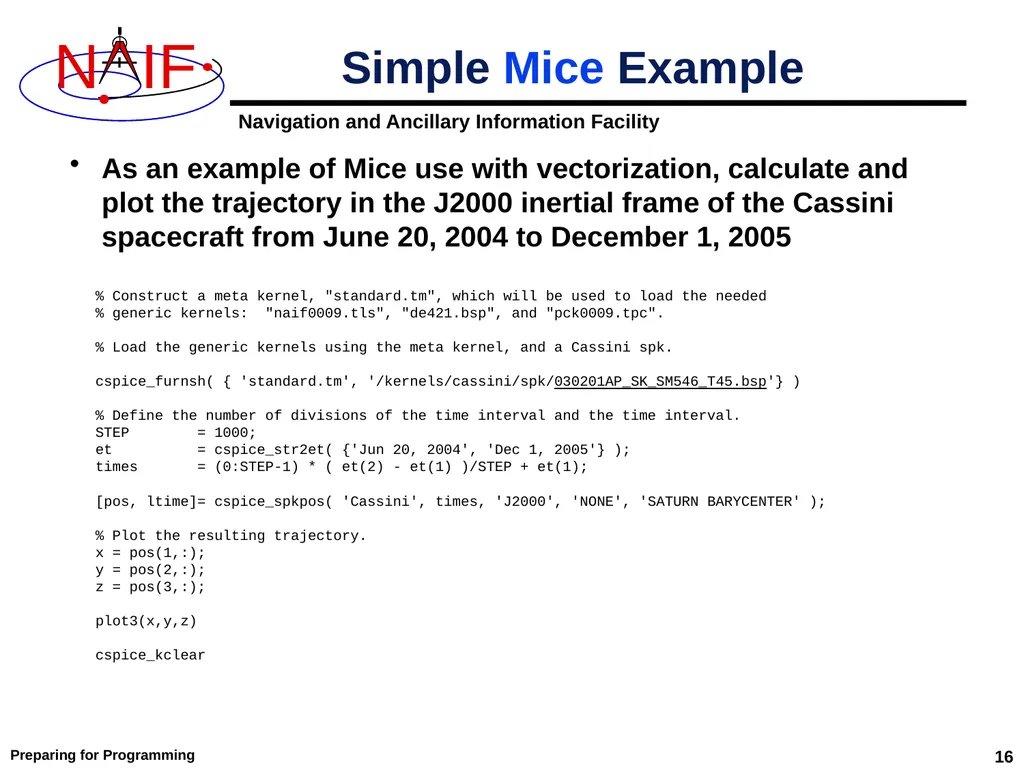
16 Simple Mice Example As an example of Mice use with vectorization, calculate and plot the trajectory in the J2000 inertial frame of the Cassini spacecraft from June 20, 2004 to December 1, 2005 Preparing for Programming % Construct a meta kernel, "standard.tm", which will be used to load the needed
% generic kernels: "naif0009.tls", "de421.bsp", and "pck0009.tpc".
% Load the generic kernels using the meta kernel, and a Cassini spk.
cspice_furnsh( { 'standard.tm', '/kernels/cassini/spk/030201AP_SK_SM546_T45.bsp'} )
% Define the number of divisions of the time interval and the time interval.
STEP = 1000;
et = cspice_str2et( {'Jun 20, 2004', 'Dec 1, 2005'} );
times = (0:STEP-1) * ( et(2) - et(1) )/STEP + et(1);
[pos, ltime]= cspice_spkpos( 'Cassini', times, 'J2000', 'NONE', 'SATURN BARYCENTER' );
% Plot the resulting trajectory.
x = pos(1,:);
y = pos(2,:);
z = pos(3,:);
plot3(x,y,z)
cspice_kclear<br>
% generic kernels: "naif0009.tls", "de421.bsp", and "pck0009.tpc".
% Load the generic kernels using the meta kernel, and a Cassini spk.
cspice_furnsh( { 'standard.tm', '/kernels/cassini/spk/030201AP_SK_SM546_T45.bsp'} )
% Define the number of divisions of the time interval and the time interval.
STEP = 1000;
et = cspice_str2et( {'Jun 20, 2004', 'Dec 1, 2005'} );
times = (0:STEP-1) * ( et(2) - et(1) )/STEP + et(1);
[pos, ltime]= cspice_spkpos( 'Cassini', times, 'J2000', 'NONE', 'SATURN BARYCENTER' );
% Plot the resulting trajectory.
x = pos(1,:);
y = pos(2,:);
z = pos(3,:);
plot3(x,y,z)
cspice_kclear<br>
17
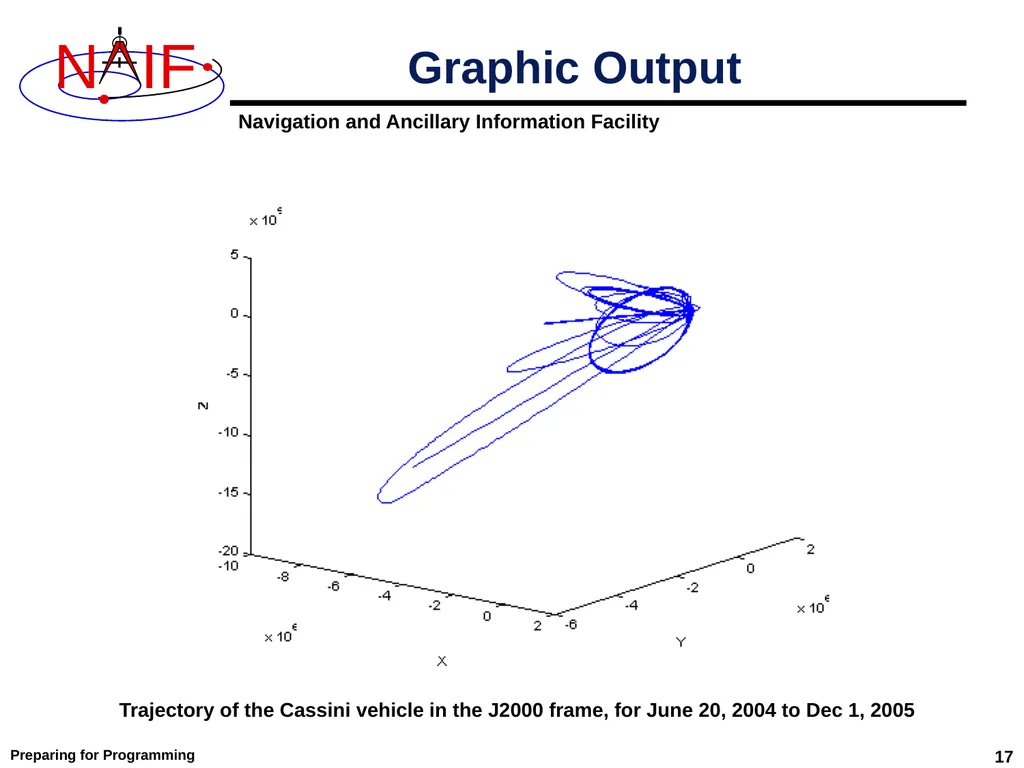
17 Trajectory of the Cassini vehicle in the J2000 frame, for June 20, 2004 to Dec 1, 2005 Preparing for Programming Graphic Output<br>
18
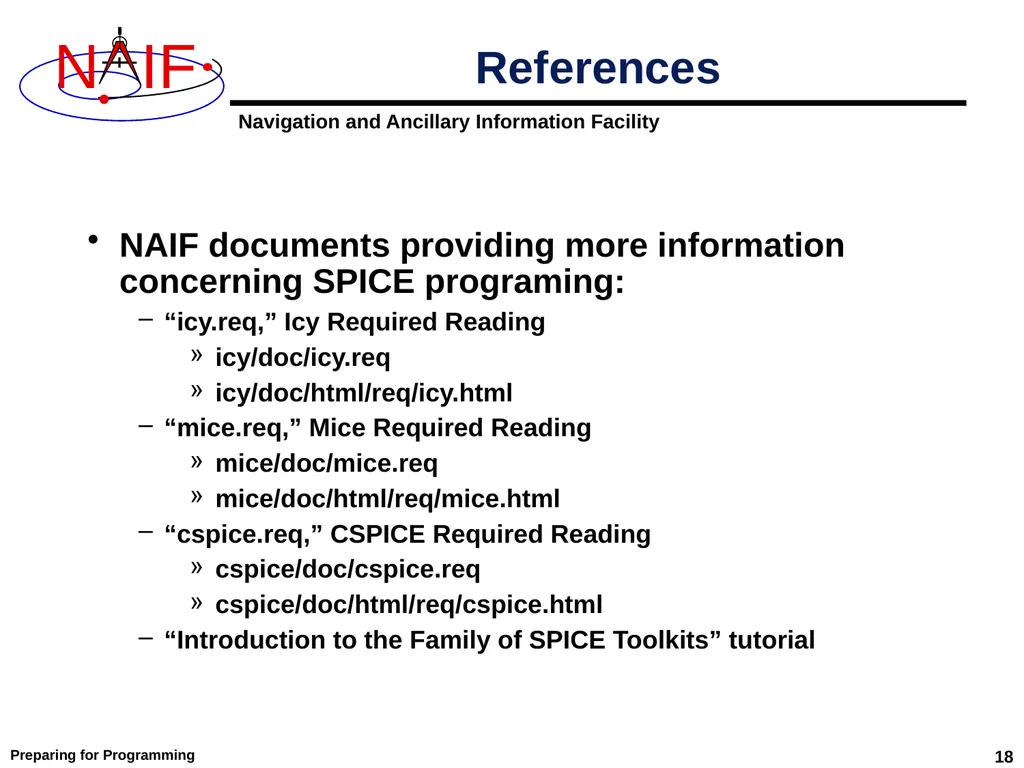
References NAIF documents providing more information concerning SPICE programing:
“icy.req,” Icy Required Reading
icy/doc/icy.req
icy/doc/html/req/icy.html
“mice.req,” Mice Required Reading
mice/doc/mice.req
mice/doc/html/req/mice.html
“cspice.req,” CSPICE Required Reading
cspice/doc/cspice.req
cspice/doc/html/req/cspice.html
“Introduction to the Family of SPICE Toolkits” tutorial Preparing for Programming 18<br>
“icy.req,” Icy Required Reading
icy/doc/icy.req
icy/doc/html/req/icy.html
“mice.req,” Mice Required Reading
mice/doc/mice.req
mice/doc/html/req/mice.html
“cspice.req,” CSPICE Required Reading
cspice/doc/cspice.req
cspice/doc/html/req/cspice.html
“Introduction to the Family of SPICE Toolkits” tutorial Preparing for Programming 18<br>
19
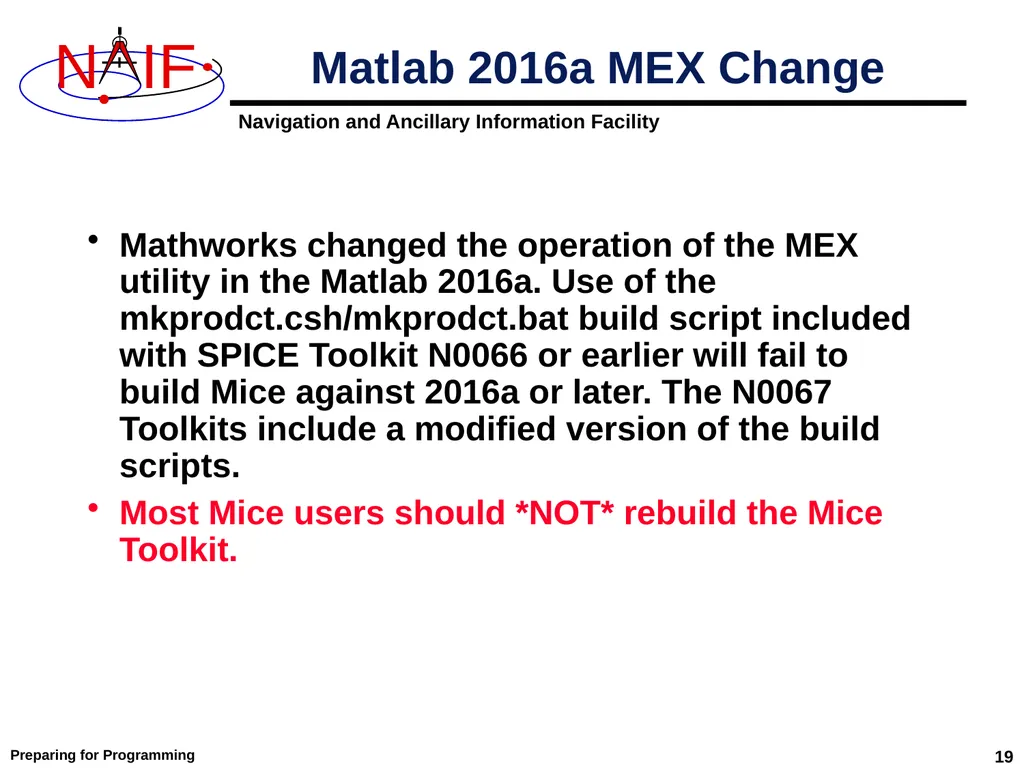
Matlab 2016a MEX Change Mathworks changed the operation of the MEX utility in the Matlab 2016a. Use of the mkprodct.csh/mkprodct.bat build script included with SPICE Toolkit N0066 or earlier will fail to build Mice against 2016a or later. The N0067 Toolkits include a modified version of the build scripts.
Most Mice users should *NOT* rebuild the Mice Toolkit. Preparing for Programming 19<br>
Most Mice users should *NOT* rebuild the Mice Toolkit. Preparing for Programming 19<br>