
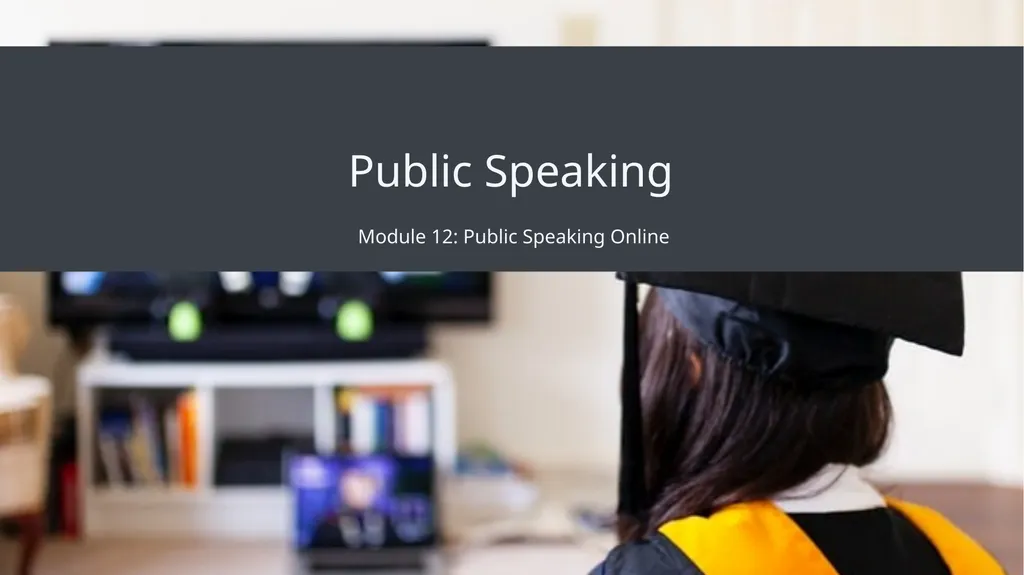
Public Speaking Module 12: Public Speaking Online
DJ
Published · 31 slides · 0 views

1 / 1

Description
Public Speaking Module 12: Public Speaking Online Module Learning Outcomes Explain some of the strategies and challenges for effective online speaking 12.1: Identify ways to adapt your speech to online delivery 12.2: Identify the particular
Related Topics
Share
Embed code
Download this presentation From Below
"Public Speaking Module 12: Public Speaking Online" is the property of its rightful owner. Permission is granted to download and print the materials on this website for personal, non-commercial use only, and to display it on your personal computer provided you do not modify the materials and that you retain all copyright notices contained in the materials. By downloading content from our website, you accept the terms of this agreement.
Presentation Transcript
01
Public Speaking Module 12: Public Speaking Online<br>
02
Module Learning Outcomes Explain some of the strategies and challenges for effective online speaking
12.1: Identify ways to adapt your speech to online delivery
12.2: Identify the particular challenges of engaging an audience online
12.3: Identify various scenarios of online speech<br>
12.1: Identify ways to adapt your speech to online delivery
12.2: Identify the particular challenges of engaging an audience online
12.3: Identify various scenarios of online speech<br>
03
Adapting to Speaking Online<br>
04
Learning Outcomes: Adapting to Speaking Online 12.1: Identify ways to adapt your speech to online delivery
12.1.1: Explain the similarities and differences in speaking to face-to-face and online audiences
12.1.2: Compare synchronous and asynchronous scenarios in online speaking
12.1.3: Describe the adjustments you need to make to your verbal communication when speaking online
12.1.4: Describe the adjustments you need to make to your nonverbal communication when speaking online
12.1.5: Summarize the lighting, camera, and sound needs for online speaking environments<br>
12.1.1: Explain the similarities and differences in speaking to face-to-face and online audiences
12.1.2: Compare synchronous and asynchronous scenarios in online speaking
12.1.3: Describe the adjustments you need to make to your verbal communication when speaking online
12.1.4: Describe the adjustments you need to make to your nonverbal communication when speaking online
12.1.5: Summarize the lighting, camera, and sound needs for online speaking environments<br>
05
Face-to-Face vs Online Speaking SIMILARITIES Clear purpose
Focused thesis
Developed main points with evidential support
Audience analysis DIFFERENCES Physical proximity
May not see the audience
Miss nonverbal cues and feedback<br>
Focused thesis
Developed main points with evidential support
Audience analysis DIFFERENCES Physical proximity
May not see the audience
Miss nonverbal cues and feedback<br>
06
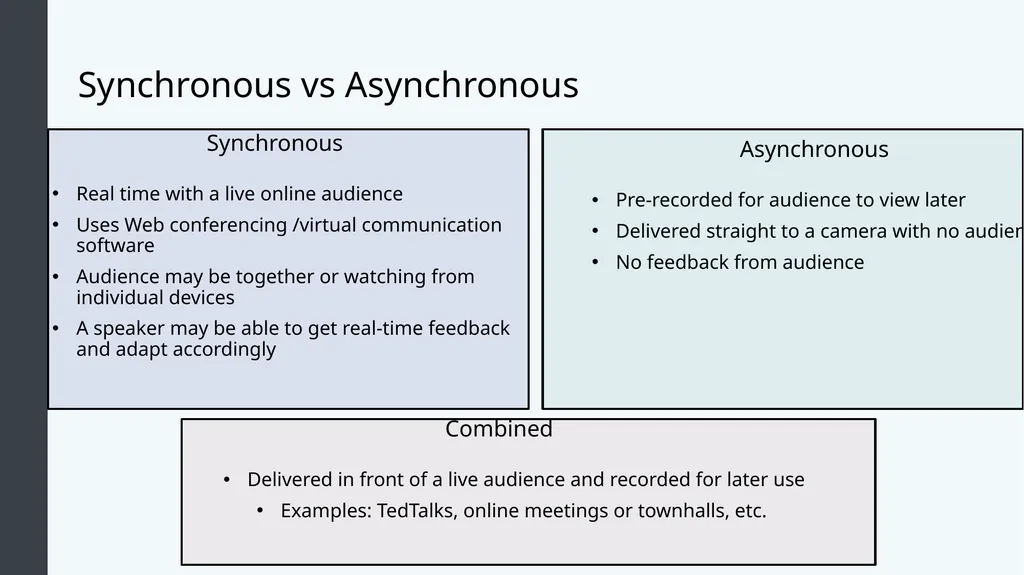
Synchronous vs Asynchronous Synchronous
Real time with a live online audience
Uses Web conferencing /virtual communication software
Audience may be together or watching from individual devices
A speaker may be able to get real-time feedback and adapt accordingly Asynchronous
Pre-recorded for audience to view later
Delivered straight to a camera with no audience
No feedback from audience Combined
Delivered in front of a live audience and recorded for later use
Examples: TedTalks, online meetings or townhalls, etc.<br>
Real time with a live online audience
Uses Web conferencing /virtual communication software
Audience may be together or watching from individual devices
A speaker may be able to get real-time feedback and adapt accordingly Asynchronous
Pre-recorded for audience to view later
Delivered straight to a camera with no audience
No feedback from audience Combined
Delivered in front of a live audience and recorded for later use
Examples: TedTalks, online meetings or townhalls, etc.<br>
07
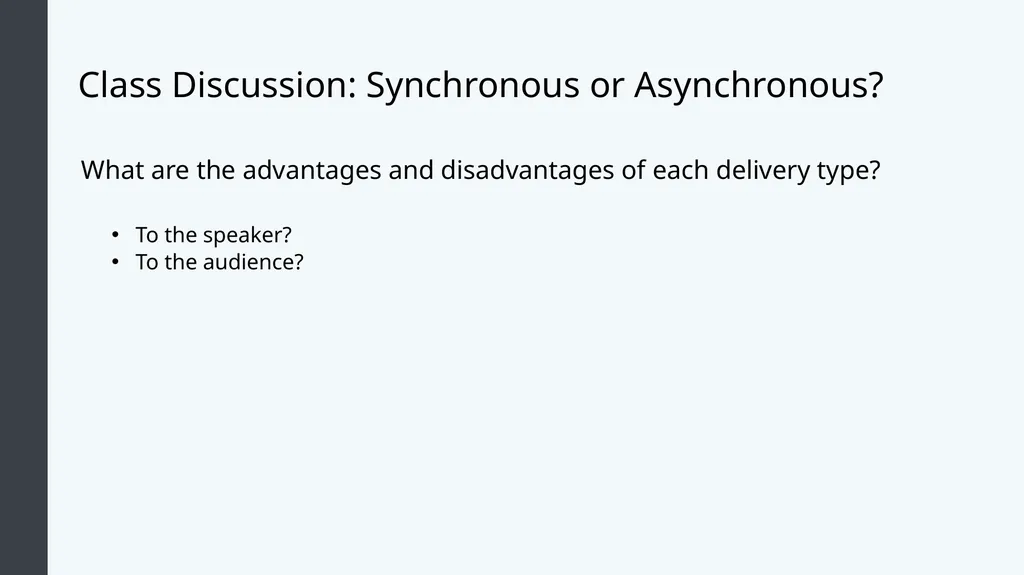
Class Discussion: Synchronous or Asynchronous? What are the advantages and disadvantages of each delivery type?
To the speaker?
To the audience?<br>
To the speaker?
To the audience?<br>
08
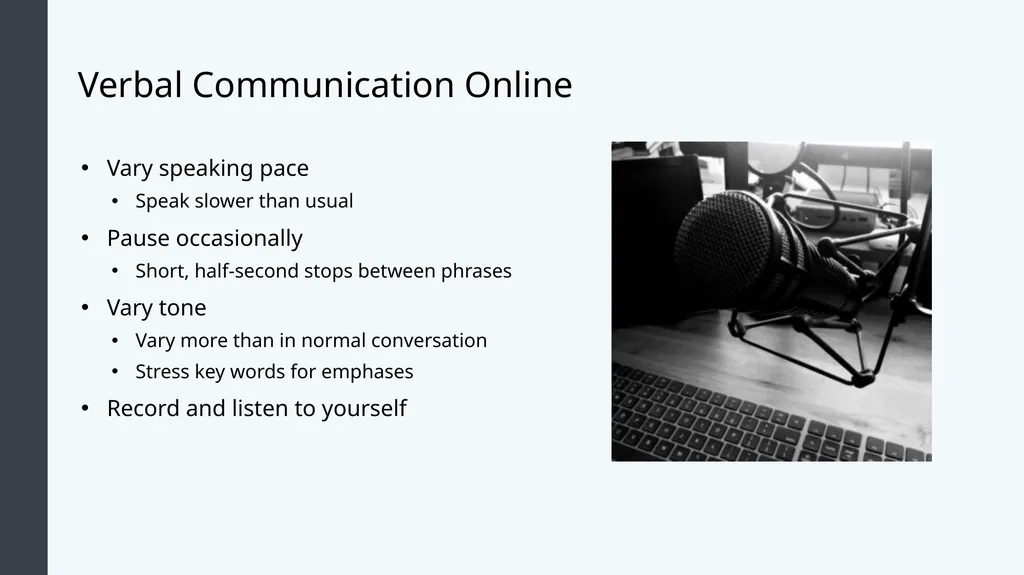
Verbal Communication Online Vary speaking pace
Speak slower than usual
Pause occasionally
Short, half-second stops between phrases
Vary tone
Vary more than in normal conversation
Stress key words for emphases
Record and listen to yourself<br>
Speak slower than usual
Pause occasionally
Short, half-second stops between phrases
Vary tone
Vary more than in normal conversation
Stress key words for emphases
Record and listen to yourself<br>
09
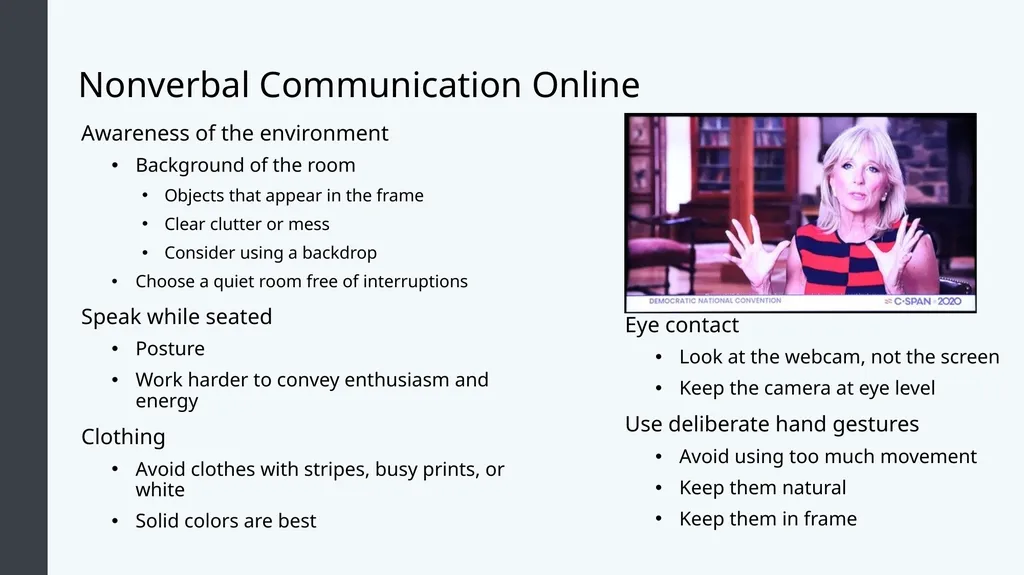
Nonverbal Communication Online Awareness of the environment
Background of the room
Objects that appear in the frame
Clear clutter or mess
Consider using a backdrop
Choose a quiet room free of interruptions
Speak while seated
Posture
Work harder to convey enthusiasm and energy
Clothing
Avoid clothes with stripes, busy prints, or white
Solid colors are best Eye contact
Look at the webcam, not the screen
Keep the camera at eye level
Use deliberate hand gestures
Avoid using too much movement
Keep them natural
Keep them in frame<br>
Background of the room
Objects that appear in the frame
Clear clutter or mess
Consider using a backdrop
Choose a quiet room free of interruptions
Speak while seated
Posture
Work harder to convey enthusiasm and energy
Clothing
Avoid clothes with stripes, busy prints, or white
Solid colors are best Eye contact
Look at the webcam, not the screen
Keep the camera at eye level
Use deliberate hand gestures
Avoid using too much movement
Keep them natural
Keep them in frame<br>
10
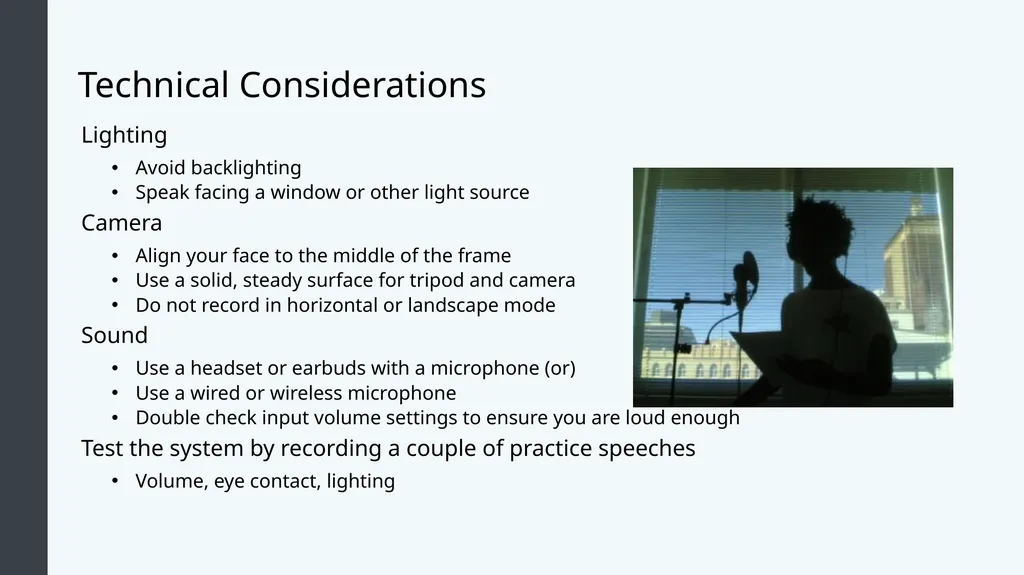
Technical Considerations Lighting
Avoid backlighting
Speak facing a window or other light source
Camera
Align your face to the middle of the frame
Use a solid, steady surface for tripod and camera
Do not record in horizontal or landscape mode
Sound
Use a headset or earbuds with a microphone (or)
Use a wired or wireless microphone
Double check input volume settings to ensure you are loud enough
Test the system by recording a couple of practice speeches
Volume, eye contact, lighting<br>
Avoid backlighting
Speak facing a window or other light source
Camera
Align your face to the middle of the frame
Use a solid, steady surface for tripod and camera
Do not record in horizontal or landscape mode
Sound
Use a headset or earbuds with a microphone (or)
Use a wired or wireless microphone
Double check input volume settings to ensure you are loud enough
Test the system by recording a couple of practice speeches
Volume, eye contact, lighting<br>
11
Practice Question 1 When preparing for an online speech, what technical consideration will ensure that your audience is not distracted by background noise?
Use either a separate microphone or a microphone attached to a headset
Turn down the volume on your computer’s volume input
Speak loudly and close to the microphone
Turn up the volume on your computer’s volume input<br>
Use either a separate microphone or a microphone attached to a headset
Turn down the volume on your computer’s volume input
Speak loudly and close to the microphone
Turn up the volume on your computer’s volume input<br>
12
Practice Question 2 Asynchronous online speeches are different from synchronous online speeches in what way?
The audience is not in the same room
The speaker must maintain eye contact with the camera for an asynchronous speech
The speaker cannot adapt to real-time feedback during an asynchronous speech
The speaker cannot adapt to real-time feedback during a synchronous speech<br>
The audience is not in the same room
The speaker must maintain eye contact with the camera for an asynchronous speech
The speaker cannot adapt to real-time feedback during an asynchronous speech
The speaker cannot adapt to real-time feedback during a synchronous speech<br>
13
Practice Question 3 When preparing to deliver a speech online, how should you orient yourself and the camera to a light source ?
An overhead light should be directly above you and the camera
Soft lamps should be behind you, facing the camera
A window or natural looking light should be in front of you, behind the camera
A window or natural light should be behind you and facing the camera<br>
An overhead light should be directly above you and the camera
Soft lamps should be behind you, facing the camera
A window or natural looking light should be in front of you, behind the camera
A window or natural light should be behind you and facing the camera<br>
14
Challenges with an Online Audience<br>
15
Learning Outcomes: Challenges with an Online Audience 12.2: Identify the particular challenges of engaging an audience online
12.2.1: Summarize ways to engage audiences in online settings
12.2.2: Discuss the ways to eliminate distractions for online audiences
12.2.3: Presentation aids in an online setting<br>
12.2.1: Summarize ways to engage audiences in online settings
12.2.2: Discuss the ways to eliminate distractions for online audiences
12.2.3: Presentation aids in an online setting<br>
16
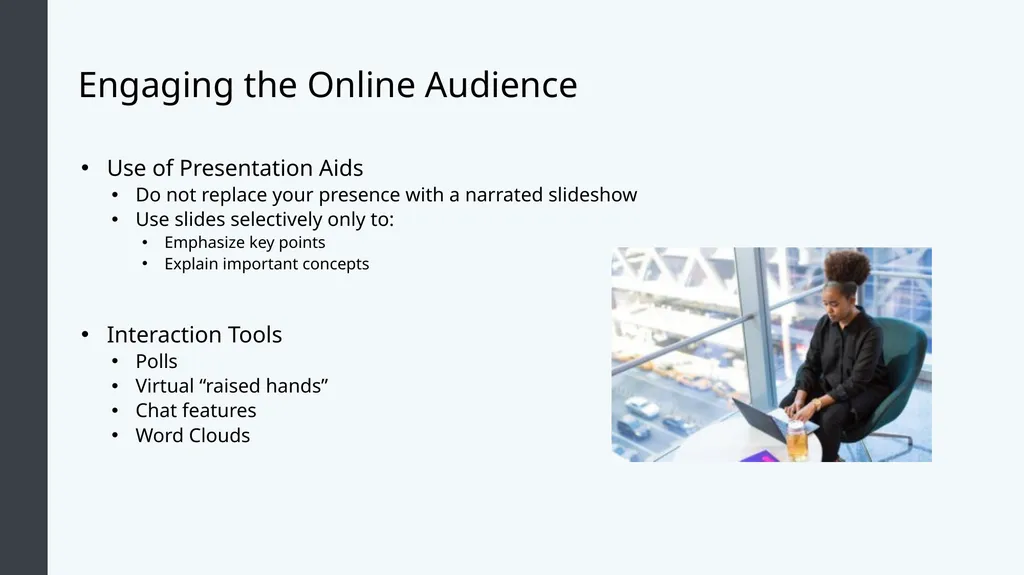
Engaging the Online Audience Use of Presentation Aids
Do not replace your presence with a narrated slideshow
Use slides selectively only to:
Emphasize key points
Explain important concepts
Interaction Tools
Polls
Virtual “raised hands”
Chat features
Word Clouds<br>
Do not replace your presence with a narrated slideshow
Use slides selectively only to:
Emphasize key points
Explain important concepts
Interaction Tools
Polls
Virtual “raised hands”
Chat features
Word Clouds<br>
17
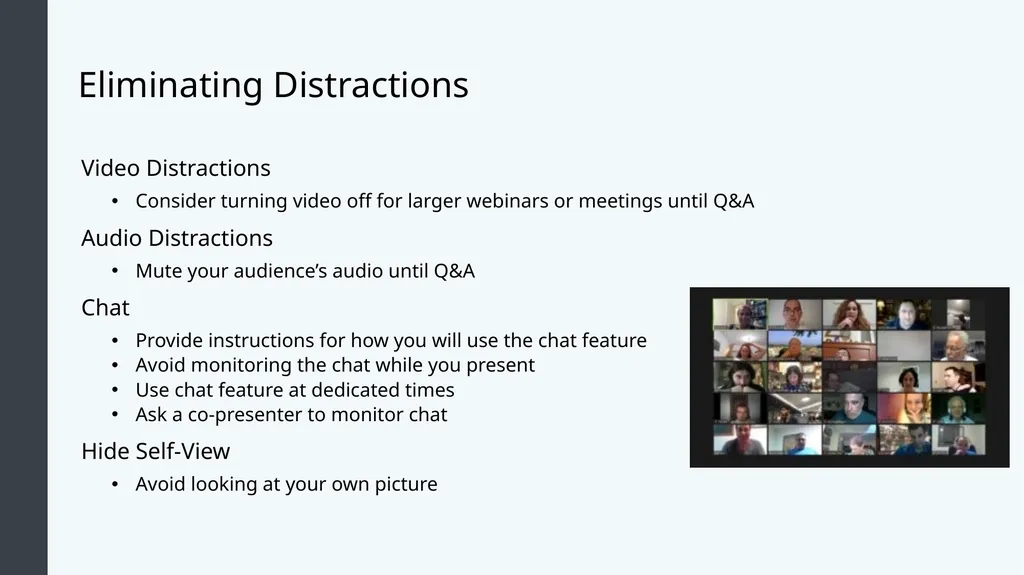
Eliminating Distractions Video Distractions
Consider turning video off for larger webinars or meetings until Q&A
Audio Distractions
Mute your audience’s audio until Q&A
Chat
Provide instructions for how you will use the chat feature
Avoid monitoring the chat while you present
Use chat feature at dedicated times
Ask a co-presenter to monitor chat
Hide Self-View
Avoid looking at your own picture<br>
Consider turning video off for larger webinars or meetings until Q&A
Audio Distractions
Mute your audience’s audio until Q&A
Chat
Provide instructions for how you will use the chat feature
Avoid monitoring the chat while you present
Use chat feature at dedicated times
Ask a co-presenter to monitor chat
Hide Self-View
Avoid looking at your own picture<br>
18
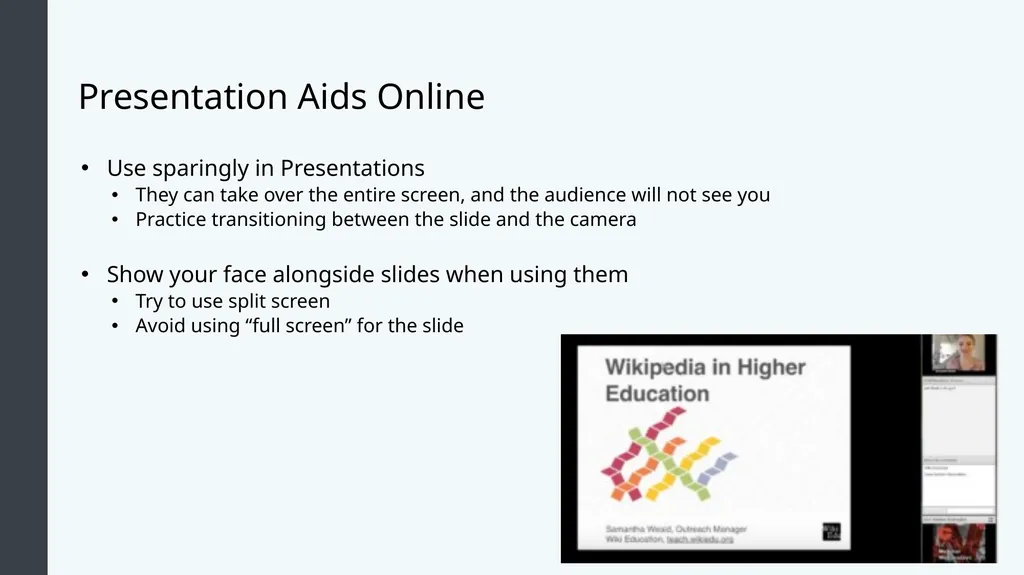
Presentation Aids Online Use sparingly in Presentations
They can take over the entire screen, and the audience will not see you
Practice transitioning between the slide and the camera
Show your face alongside slides when using them
Try to use split screen
Avoid using “full screen” for the slide<br>
They can take over the entire screen, and the audience will not see you
Practice transitioning between the slide and the camera
Show your face alongside slides when using them
Try to use split screen
Avoid using “full screen” for the slide<br>
19
Practice Question 4 Which answer below is a good strategy to encourage engagement with an online audience?
Increase the number of slides so the screen changes more frequently
Leave the chat feature on for the entire presentation
Use online interaction tools like a poll or chat
Do not use any presentation aids<br>
Increase the number of slides so the screen changes more frequently
Leave the chat feature on for the entire presentation
Use online interaction tools like a poll or chat
Do not use any presentation aids<br>
20
Class Activity: Create engagement prompts Break into groups of 4
Imagine that your group will be delivering a speech about adopting a pet
Together, brainstorm
A poll question with options
A reason to ask them to raise their hand if…
A word cloud prompt (think of a word that you associate with…)
A question for your audience to answer in the chat
Once you have all three engagement prompts, determine when you will use them in your presentation (This may require you to brainstorm main points)<br>
Imagine that your group will be delivering a speech about adopting a pet
Together, brainstorm
A poll question with options
A reason to ask them to raise their hand if…
A word cloud prompt (think of a word that you associate with…)
A question for your audience to answer in the chat
Once you have all three engagement prompts, determine when you will use them in your presentation (This may require you to brainstorm main points)<br>
21
Online Speaking Scenarios<br>
22
Learning Outcomes: Online Speaking Scenarios 12.3: Identify various scenarios of online speech
12.3.1: Identify strategies for running a webinar
12.3.2: Demonstrate strategies for managing Q&A online
12.3.3: Identify strategies for participating effectively in an online meeting
12.3.4: Identify strategies for online interviews<br>
12.3.1: Identify strategies for running a webinar
12.3.2: Demonstrate strategies for managing Q&A online
12.3.3: Identify strategies for participating effectively in an online meeting
12.3.4: Identify strategies for online interviews<br>
23
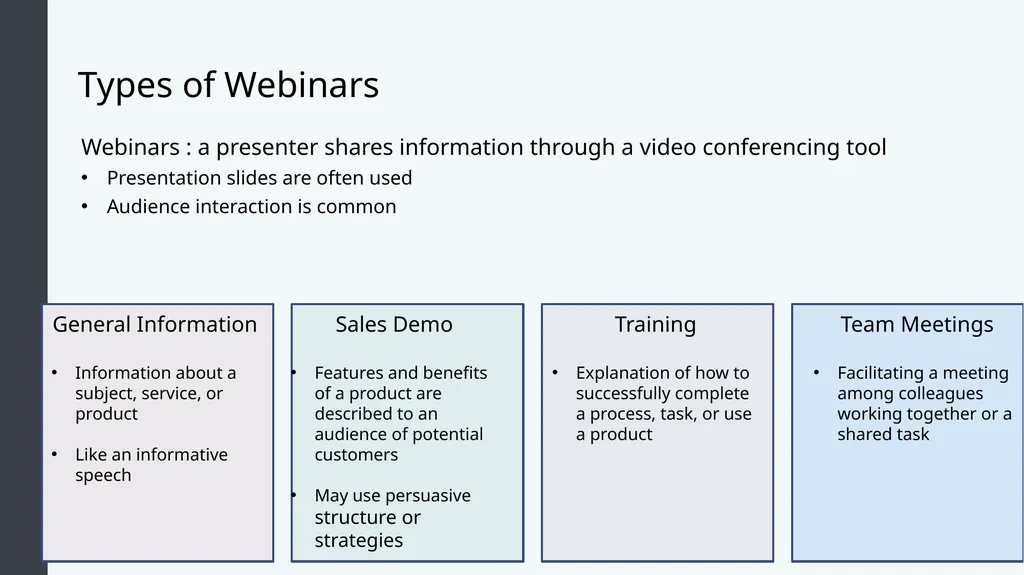
Types of Webinars Webinars : a presenter shares information through a video conferencing tool
Presentation slides are often used
Audience interaction is common General Information
Information about a subject, service, or product
Like an informative speech Sales Demo
Features and benefits of a product are described to an audience of potential customers
May use persuasive structure or strategies Training
Explanation of how to successfully complete a process, task, or use a product Team Meetings
Facilitating a meeting among colleagues working together or a shared task<br>
Presentation slides are often used
Audience interaction is common General Information
Information about a subject, service, or product
Like an informative speech Sales Demo
Features and benefits of a product are described to an audience of potential customers
May use persuasive structure or strategies Training
Explanation of how to successfully complete a process, task, or use a product Team Meetings
Facilitating a meeting among colleagues working together or a shared task<br>
24
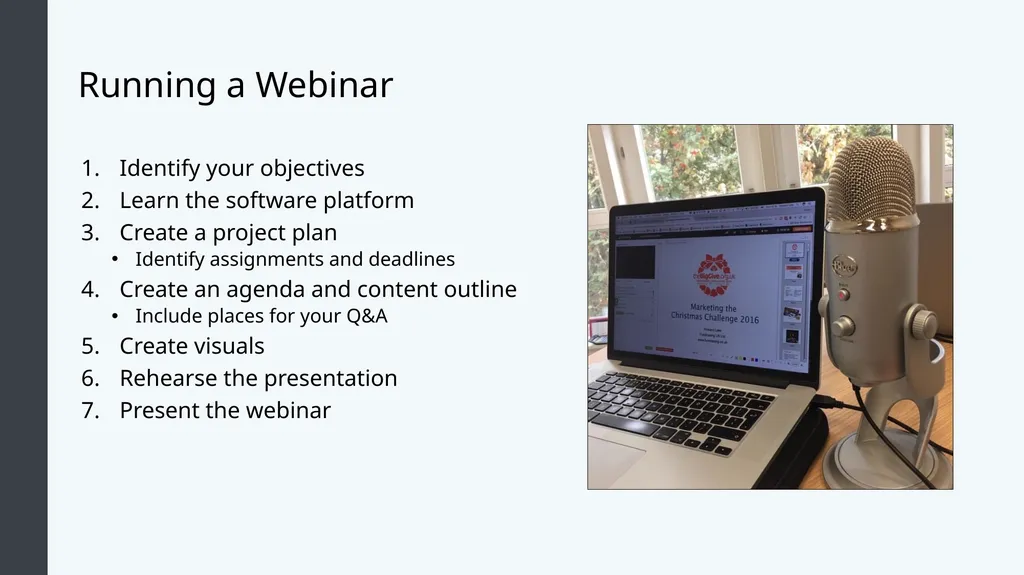
Running a Webinar Identify your objectives
Learn the software platform
Create a project plan
Identify assignments and deadlines
Create an agenda and content outline
Include places for your Q&A
Create visuals
Rehearse the presentation
Present the webinar<br>
Learn the software platform
Create a project plan
Identify assignments and deadlines
Create an agenda and content outline
Include places for your Q&A
Create visuals
Rehearse the presentation
Present the webinar<br>
25
Successful Questions and Answers Option 1: Create several short breaks throughout for questions and answers
Option 2: Wait until all information has been presented to answer questions Best practices:
Use chat feature instead of audio
Repeat the question before answering so everyone can hear it
Don’t rush your answer
Tie the answer back to the webinar objective(s)
Ask the questioner if your answer addressed what they wanted to learn<br>
Option 2: Wait until all information has been presented to answer questions Best practices:
Use chat feature instead of audio
Repeat the question before answering so everyone can hear it
Don’t rush your answer
Tie the answer back to the webinar objective(s)
Ask the questioner if your answer addressed what they wanted to learn<br>
26
Class Discussion : Q&A options What are the benefits and drawbacks of each Q&A option: short breaks throughout or waiting until the end?
To the speaker?
To the audience?<br>
To the speaker?
To the audience?<br>
27
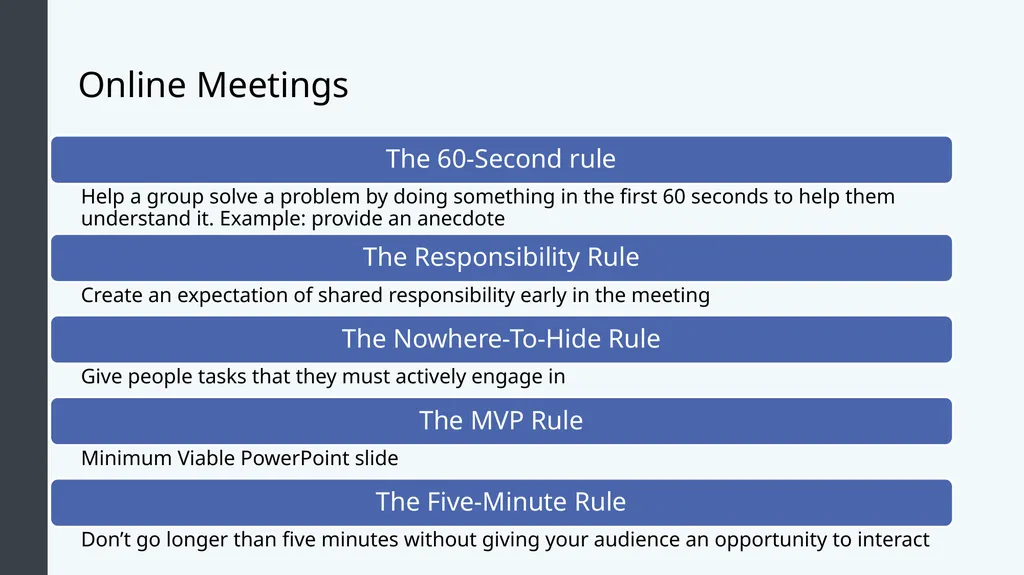
Online Meetings The 60-Second rule Help a group solve a problem by doing something in the first 60 seconds to help them understand it. Example: provide an anecdote The Responsibility Rule Create an expectation of shared responsibility early in the meeting The Nowhere-To-Hide Rule Give people tasks that they must actively engage in The MVP Rule Minimum Viable PowerPoint slide The Five-Minute Rule Don’t go longer than five minutes without giving your audience an opportunity to interact<br>
28
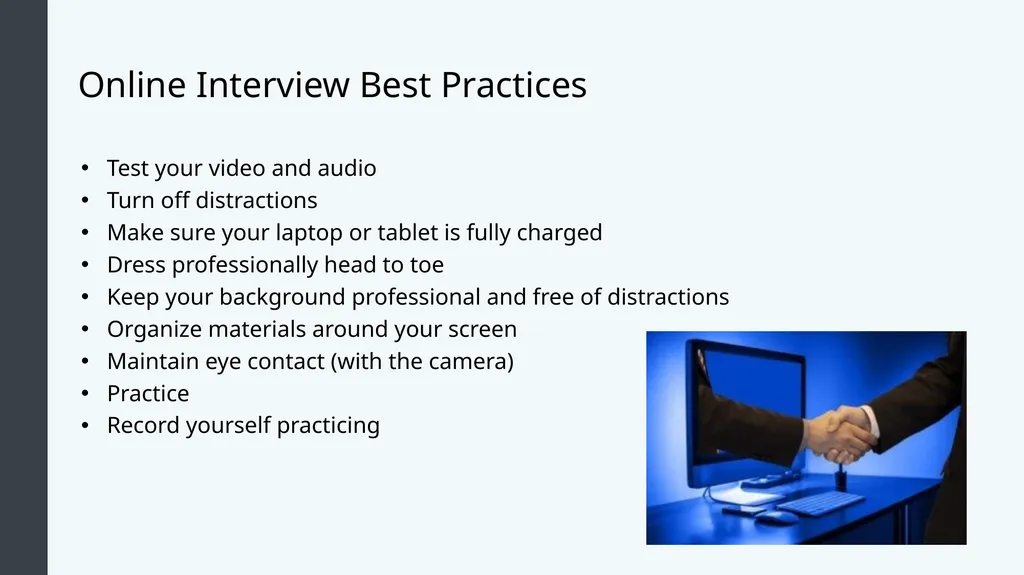
Online Interview Best Practices Test your video and audio
Turn off distractions
Make sure your laptop or tablet is fully charged
Dress professionally head to toe
Keep your background professional and free of distractions
Organize materials around your screen
Maintain eye contact (with the camera)
Practice
Record yourself practicing<br>
Turn off distractions
Make sure your laptop or tablet is fully charged
Dress professionally head to toe
Keep your background professional and free of distractions
Organize materials around your screen
Maintain eye contact (with the camera)
Practice
Record yourself practicing<br>
29
Practice Question 5 In what way would engagement opportunities differ in a team meeting than in a webinar?
The engagement opportunities between a team meeting and a webinar are the same
A team meeting should have an engagement opportunity at least every 5 minutes
A webinar should chat available at all times
Webinar participants should be given tasks in which they must actively engage<br>
The engagement opportunities between a team meeting and a webinar are the same
A team meeting should have an engagement opportunity at least every 5 minutes
A webinar should chat available at all times
Webinar participants should be given tasks in which they must actively engage<br>
30
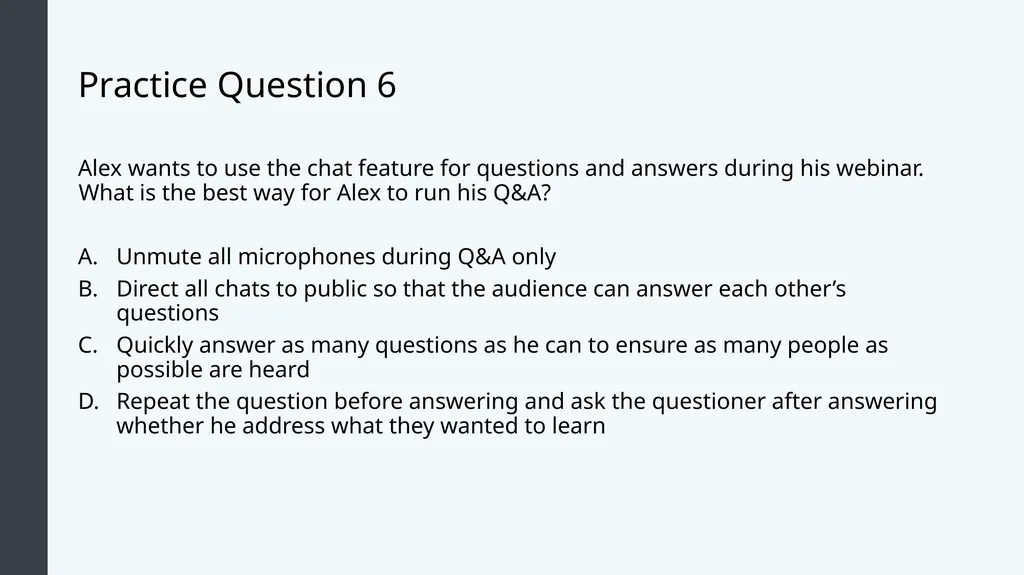
Practice Question 6 Alex wants to use the chat feature for questions and answers during his webinar. What is the best way for Alex to run his Q&A?
Unmute all microphones during Q&A only
Direct all chats to public so that the audience can answer each other’s questions
Quickly answer as many questions as he can to ensure as many people as possible are heard
Repeat the question before answering and ask the questioner after answering whether he address what they wanted to learn<br>
Unmute all microphones during Q&A only
Direct all chats to public so that the audience can answer each other’s questions
Quickly answer as many questions as he can to ensure as many people as possible are heard
Repeat the question before answering and ask the questioner after answering whether he address what they wanted to learn<br>
31
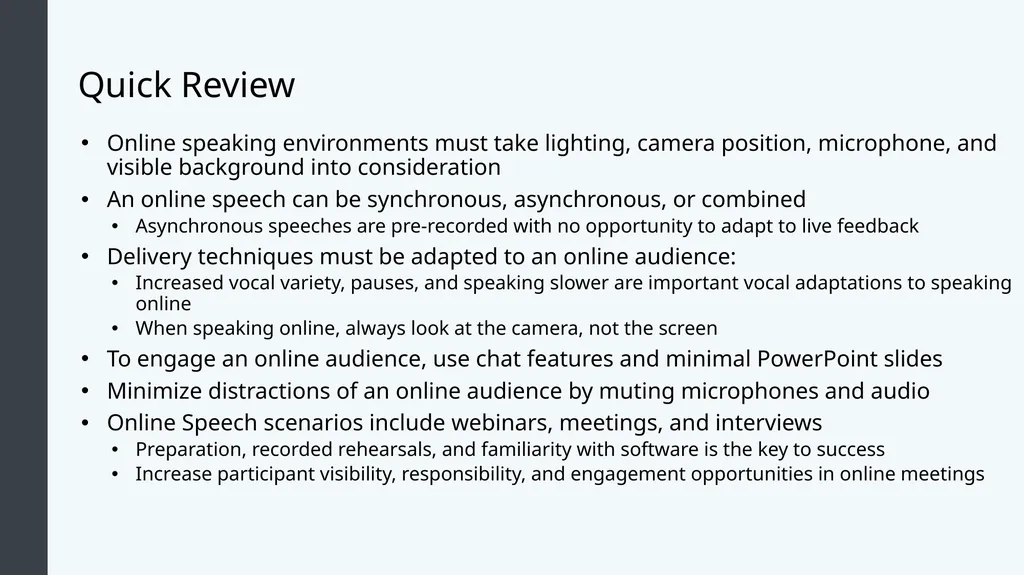
Quick Review Online speaking environments must take lighting, camera position, microphone, and visible background into consideration
An online speech can be synchronous, asynchronous, or combined
Asynchronous speeches are pre-recorded with no opportunity to adapt to live feedback
Delivery techniques must be adapted to an online audience:
Increased vocal variety, pauses, and speaking slower are important vocal adaptations to speaking online
When speaking online, always look at the camera, not the screen
To engage an online audience, use chat features and minimal PowerPoint slides
Minimize distractions of an online audience by muting microphones and audio
Online Speech scenarios include webinars, meetings, and interviews
Preparation, recorded rehearsals, and familiarity with software is the key to success
Increase participant visibility, responsibility, and engagement opportunities in online meetings<br>
An online speech can be synchronous, asynchronous, or combined
Asynchronous speeches are pre-recorded with no opportunity to adapt to live feedback
Delivery techniques must be adapted to an online audience:
Increased vocal variety, pauses, and speaking slower are important vocal adaptations to speaking online
When speaking online, always look at the camera, not the screen
To engage an online audience, use chat features and minimal PowerPoint slides
Minimize distractions of an online audience by muting microphones and audio
Online Speech scenarios include webinars, meetings, and interviews
Preparation, recorded rehearsals, and familiarity with software is the key to success
Increase participant visibility, responsibility, and engagement opportunities in online meetings<br>