SCAQ Portal User Guide: Record of Practical Experience and Competence (RPEC) Updated as of January 2025 1 1. Update Employment History 2. Submit Record of Practical Experience and Competence (RPEC) 2 Table of Contents 1. Update Employment
"SCAQ Portal User Guide: Record of Practical" is the property of its rightful owner. Permission is granted to
download and print the materials on this website for personal, non-commercial use only, and to display it
on your personal computer provided you do not modify the materials and that you retain all copyright
notices contained in the materials. By downloading content from our website, you accept the terms of this
agreement.
Presentation Transcript
01
SCAQ Portal User Guide: Record of Practical Experience and Competence (RPEC) Updated as of January 2025 1<br>
02
1. Update Employment History 2. Submit Record of Practical Experience and Competence (RPEC) 2 Table of Contents<br>
03
1. Update Employment History 3<br>
04
Candidates must be employed by an Accredited Training Organization (ATO) to fulfil the Practical Experience requirements.
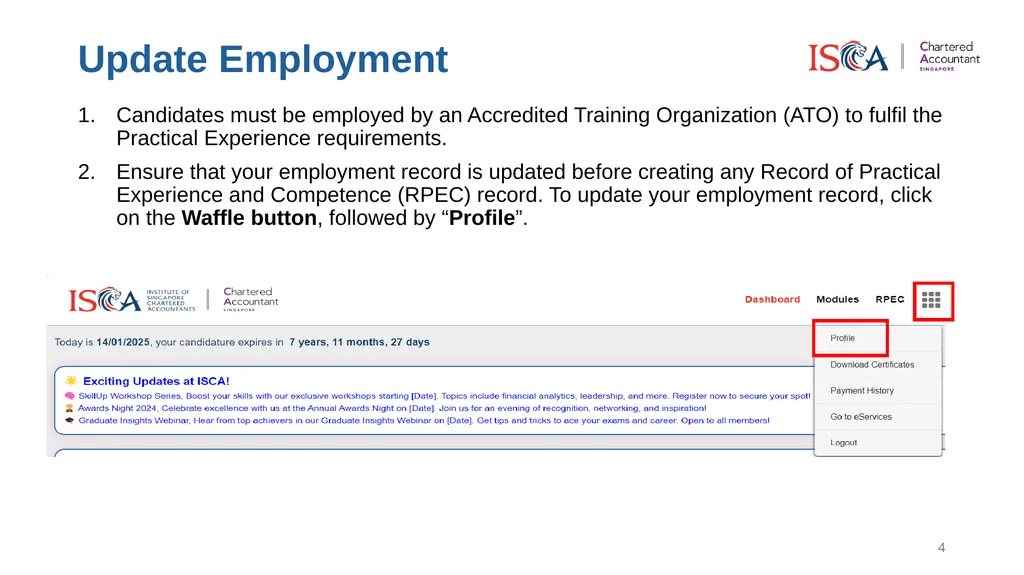
Ensure that your employment record is updated before creating any Record of Practical Experience and Competence (RPEC) record. To update your employment record, click on the Waffle button, followed by “Profile”. Update Employment 4<br>
05
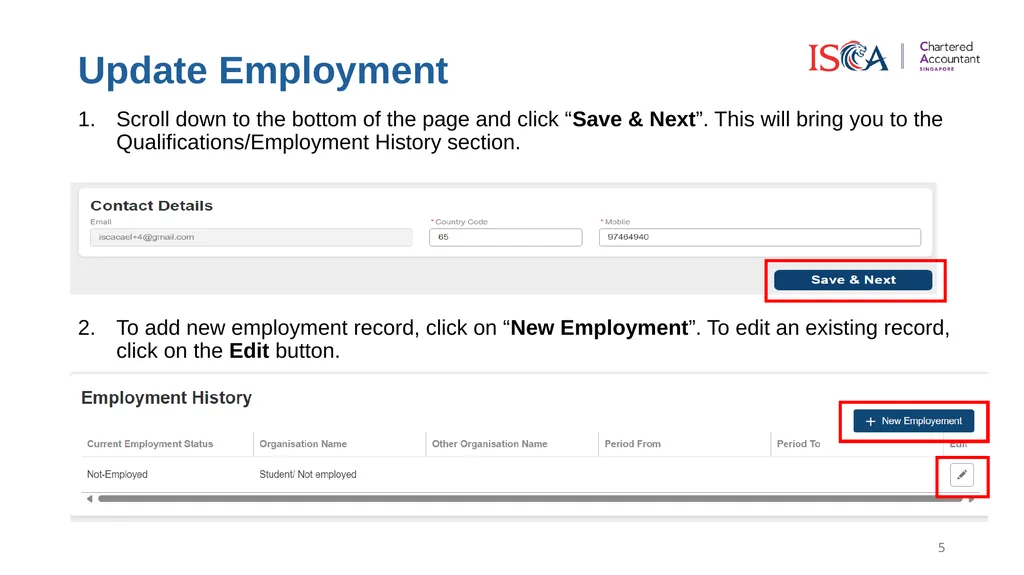
Update Employment Scroll down to the bottom of the page and click “Save & Next”. This will bring you to the Qualifications/Employment History section. To add new employment record, click on “New Employment”. To edit an existing record, click on the Edit button. 5<br>
06
Fill in your employment details with an ATO and click “Save”.
Once you have successfully updated your employment details, you may proceed to create your RPEC record. Update Employment 6<br>
07
2. Submit Record of Practical Experience and Competence (RPEC) 7<br>
08
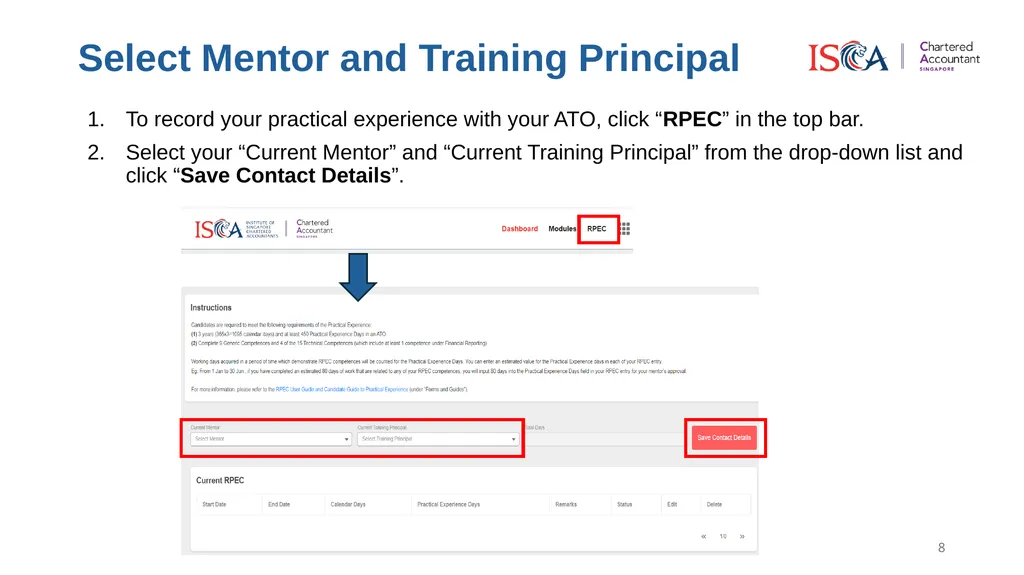
Select Mentor and Training Principal To record your practical experience with your ATO, click “RPEC” in the top bar.
Select your “Current Mentor” and “Current Training Principal” from the drop-down list and click “Save Contact Details”. 8<br>
09
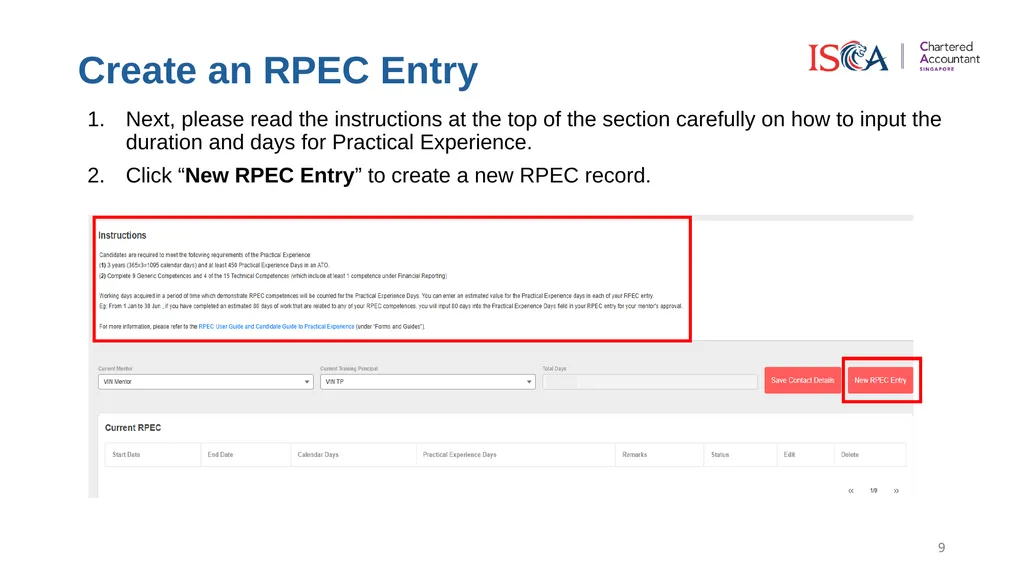
Create an RPEC Entry Next, please read the instructions at the top of the section carefully on how to input the duration and days for Practical Experience.
Click “New RPEC Entry” to create a new RPEC record. 9<br>
10
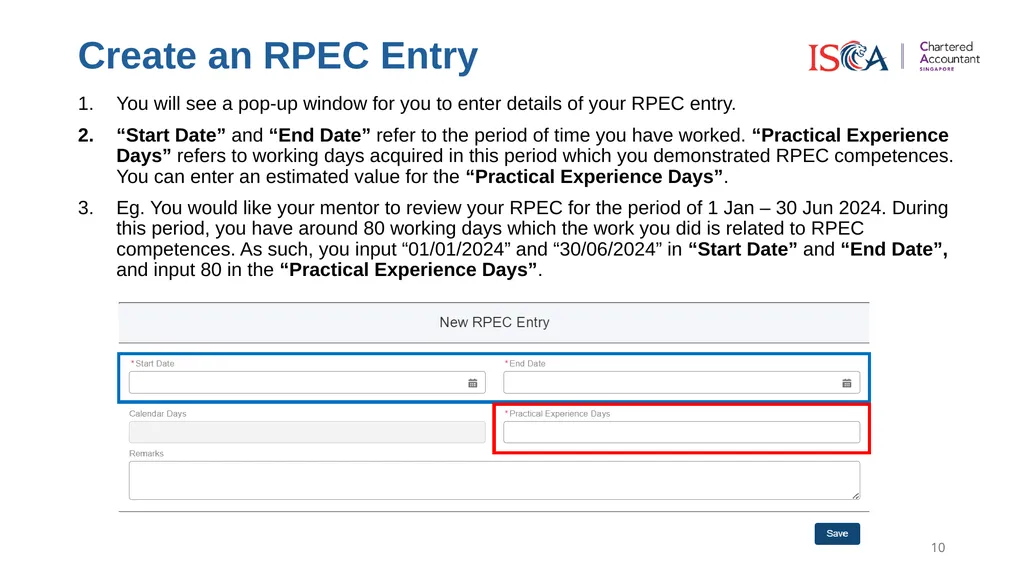
Create an RPEC Entry You will see a pop-up window for you to enter details of your RPEC entry.
“Start Date” and “End Date” refer to the period of time you have worked. “Practical Experience Days” refers to working days acquired in this period which you demonstrated RPEC competences. You can enter an estimated value for the “Practical Experience Days”.
Eg. You would like your mentor to review your RPEC for the period of 1 Jan – 30 Jun 2024. During this period, you have around 80 working days which the work you did is related to RPEC competences. As such, you input “01/01/2024” and “30/06/2024” in “Start Date” and “End Date”, and input 80 in the “Practical Experience Days”. 10<br>
11
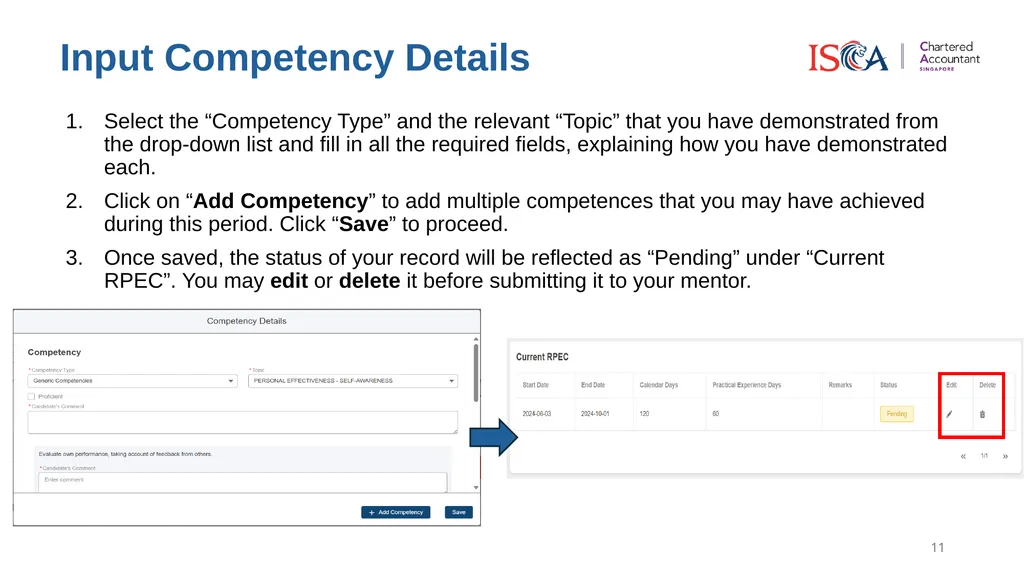
Input Competency Details Select the “Competency Type” and the relevant “Topic” that you have demonstrated from the drop-down list and fill in all the required fields, explaining how you have demonstrated each.
Click on “Add Competency” to add multiple competences that you may have achieved during this period. Click “Save” to proceed.
Once saved, the status of your record will be reflected as “Pending” under “Current RPEC”. You may edit or delete it before submitting it to your mentor. 11<br>
12
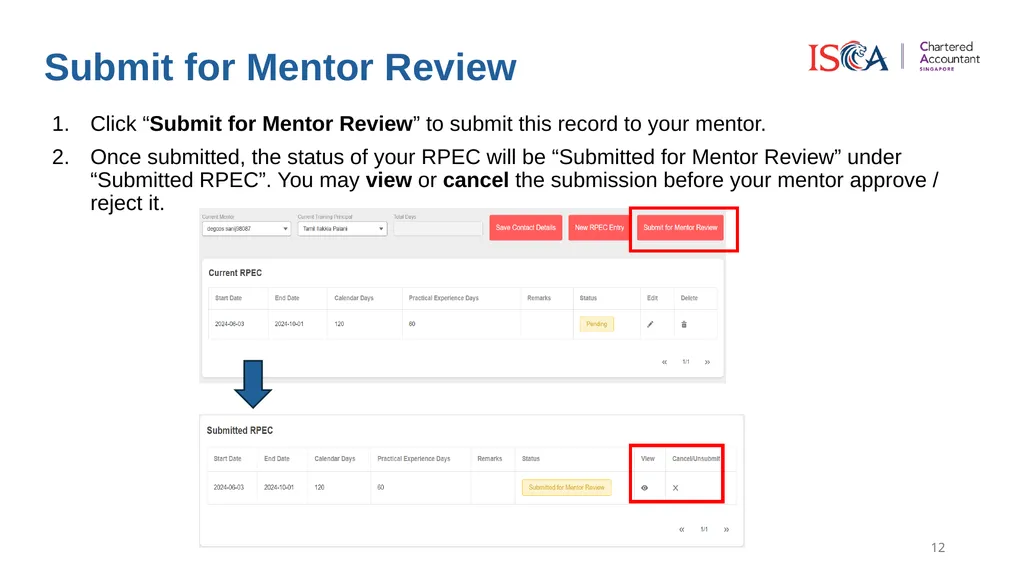
Submit for Mentor Review Click “Submit for Mentor Review” to submit this record to your mentor.
Once submitted, the status of your RPEC will be “Submitted for Mentor Review” under “Submitted RPEC”. You may view or cancel the submission before your mentor approve / reject it. 12<br>
13
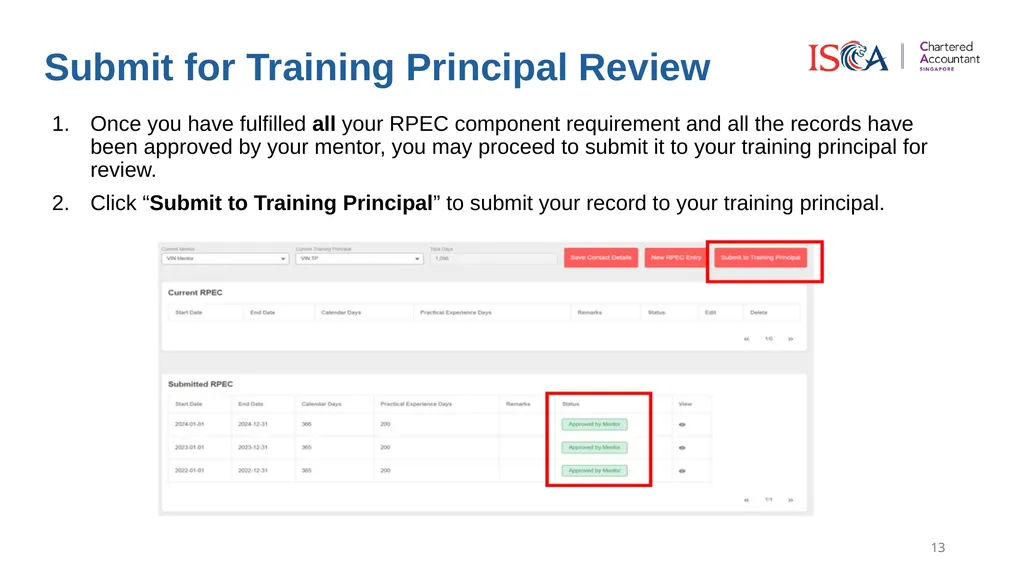
Submit for Training Principal Review Once you have fulfilled all your RPEC component requirement and all the records have been approved by your mentor, you may proceed to submit it to your training principal for review.
Click “Submit to Training Principal” to submit your record to your training principal. 13<br>
14
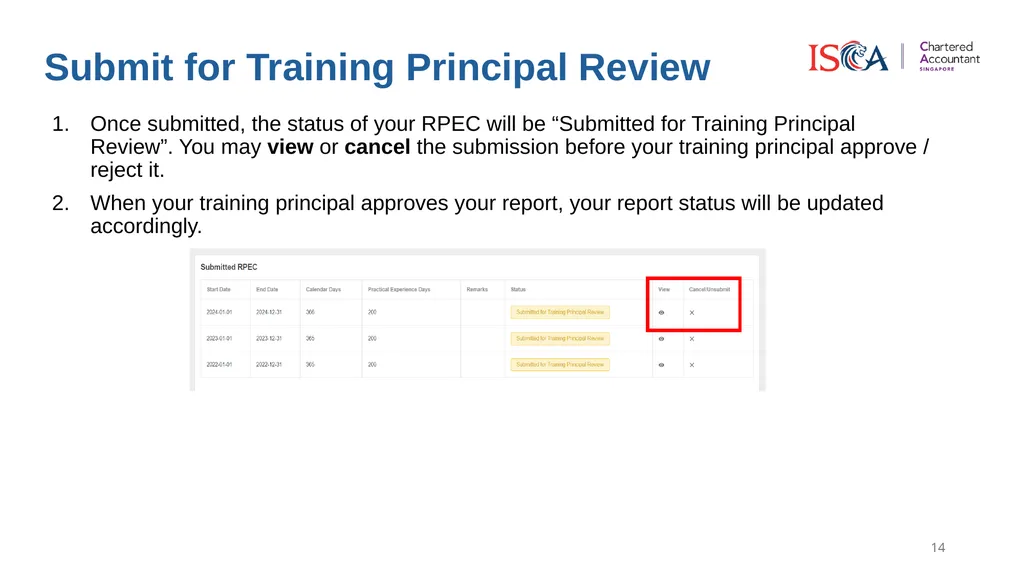
Submit for Training Principal Review Once submitted, the status of your RPEC will be “Submitted for Training Principal Review”. You may view or cancel the submission before your training principal approve / reject it.
When your training principal approves your report, your report status will be updated accordingly. 14<br>
15
Fulfilling Practical Experience Component Note: To fulfil the Practical Experience component, please ensure that you have met all of the Practical Experience requirements:
Minimum 3 years (365x3=1095 calendar days) and at least 450 Practical Experience Days in an ATO, excluding time off for study leave and examinations, training courses, annual leave, public holidays, illness, or office administration.
Completed all 9 Generic Competences and 4 of the 15 Technical Competences (which include at least 1 competence under Financial Reporting).
Your RPEC reviewed and approved by your Approved Mentor and Training Principal. 15<br>